ECO mode RENAULT ALASKAN 2017 Owner's Manual
[x] Cancel search | Manufacturer: RENAULT, Model Year: 2017, Model line: ALASKAN, Model: RENAULT ALASKAN 2017Pages: 340, PDF Size: 6.93 MB
Page 135 of 340
11.
HOW TO USE TOUCH SCREEN
DISPLAY WARNING
• The glass display screen may break if it is hit
with ahard or sharp object. If the glass screen
breaks, do not touch it. Doing so could result
in an injury.
• To clean the display, never use
arough cloth,
alcohol, benzine, thinner or any kind of sol-
vent or paper towel with achemical cleaning
agent. They will scratch or deteriorate the
panel.
• Do not splash any liquid such as water or car
fragrance on the display. Contact with liquid
will cause the system to malfunction.
To help ensure safe driving, some functions cannot
be operated while driving.
The on-screen functions that are not available while
driving will be “greyed out” or muted.
Park the vehicle in asafe location and then operate
the navigation system.
CAUTION
• ALWAYS give your full attention to driving.
• Avoid using vehicle features that could dis-
tract you. If distracted, you could lose control
of your vehicle and cause an accident. Touch screen operation
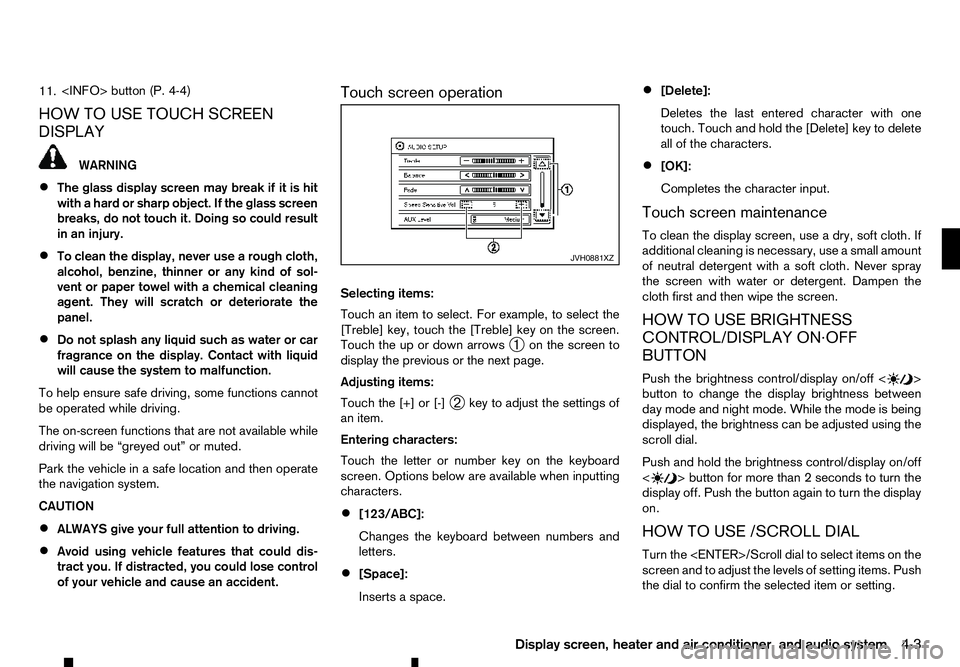
Selecting items:
Touch an item to select. For example, to select the
[Treble] key, touch the [Treble] key on the screen.
Touch the up or down arrows
➀on the screen to
display the previous or the next page.
Adjusting items:
Touch the [+] or [-] ➁key to adjust the settings of
an item.
Entering characters:
Touch the letter or number key on the keyboard
screen. Options below are available when inputting
characters.
• [123/ABC]:
Changes the keyboard between numbers and
letters.
• [Space]:
Inserts
aspace. •
[Delete]:
Deletes the last entered character with one
touch. Touch and hold the [Delete] key to delete
all of the characters.
• [OK]:
Completes the character input.
Touch screen maintenance
To clean the display screen, use adry, soft cloth. If
additional cleaning is necessary, use asmall amount
of neutral detergent with asoft cloth. Never spray
the screen with water or detergent. Dampen the
cloth first and then wipe the screen.
HOW TO USE BRIGHTNESS
CONTROL/DISPLAY ON·OFF
BUTTON
Push the brightness control/display on/off < >
button to change the display brightness between
day mode and night mode. While the mode is being
displayed, the brightness can be adjusted using the
scroll dial.
Push and hold the brightness control/display on/off
< >b
utton for more than
2seconds to turn the
display off. Push the button again to turn the display
on.
HOW TO USE /SCROLL DIAL
Turn the
screen and to adjust the levels of setting items. Push
the dial to confirm the selected item or setting. JVH0881XZ
Display screen, heater and air conditioner, and audio system
4-3
Page 136 of 340
HOW TO USE BACK BUTTON
Push the
screen. Vehicle information can be checked and various set-
tings can be adjusted on the display.
NOTE
Designs and items displayed on the screen may
vary depending on the models and specifications.
HOW TO USE INFO BUTTON
Push the
menu items on the display screen.
Available items:
• [Traffic Messages]
• [Eco Score]
[Traffic Messages] (where fitted)
Traffic Messages can be displayed on the display
screen when available. Refer to the separate Navi-
gation System Owner’s Manual for details.
[Eco Score] (where fitted)
The [Eco Score] feature analyses driving behaviour
and provides an overall score. Refer to the separate
Navigation System Owner’s Manual for details. HOW TO USE BUTTON
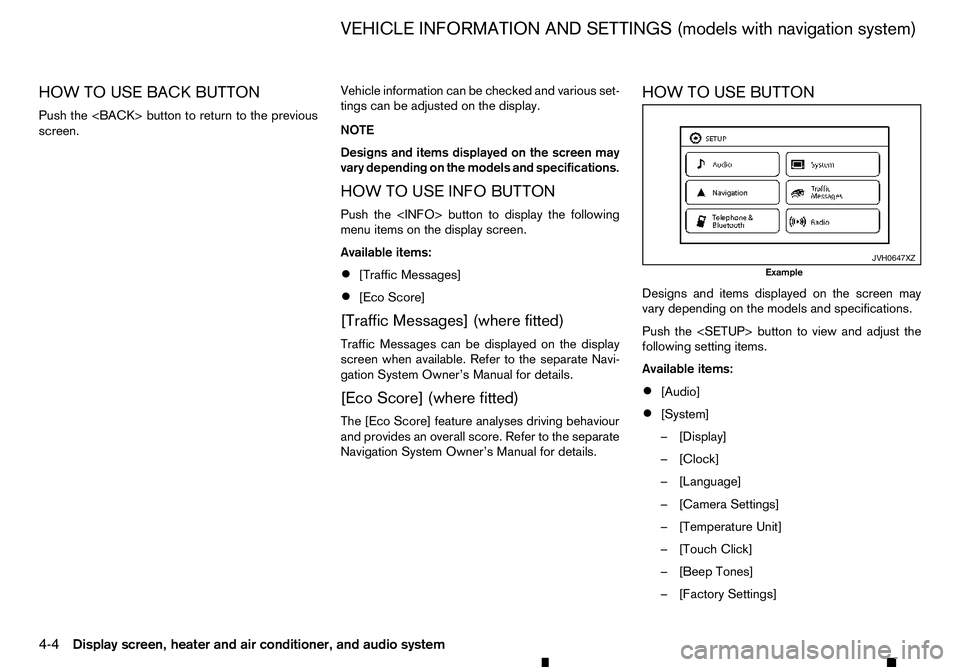
Designs and items displayed on the screen may
vary depending on the models and specifications.
Push the
following setting items.
Available items:
•
[Audio]
• [System]
–[
Display]
–[ Clock]
–[ Language]
–[ Camera Settings]
–[ Temperature Unit]
–[ Touch Click]
–[ Beep Tones]
–[ Factory Settings] JVH0647XZ
Example
VEHICLE INFORMATION AND SETTINGS (models with navigation system)
4-4 Display screen, heater and air conditioner, and audio system
Page 153 of 340
m:
This
symbol indicates that the vents are
closed. Moving the control to this
direction will close the vents.
m :
This
symbol indicates that the vents are
open. Moving the control to this direc-
tion will open the vents.
Adjust the air flow direction of the vents by moving
the centre knob (up/down, left/right) until the de-
sired position is achieved. WARNING
• The heater and air conditioner operate only
when the engine is running.
• Never leave children or adults who would nor-
mally require the support of others alone in
the vehicle. Pets should not be left alone ei-
ther. They could unknowingly activate
switches or controls, or move the vehicle, and
inadvertently become involved in
aserious ac-
cident and injure themselves. On hot, sunny
days, temperatures in aclosed vehicle could
quickly become high enough to cause severe
or possibly fatal injuries to people or animals.
• Do not use the recirculation mode for long
periods as it may cause the interior air to be-
come stale and the windows to fog up.
• Do not adjust the heating and air conditioning
controls while driving so that full attention may
be given to vehicle operation.
The heater and air conditioner operate when the
engine is running. The air blower will operate even if
the engine is turned off and the ignition switch is
placed in the ONposition.
NOTE
• Condensation forms inside the air condition-
ing unit when the air conditioner (where fit-
ted) is running, and is safely discharged un-
derneath your vehicle.
Traces of water on the ground are therefore
normal. •
Odours from inside and outside the vehicle
can build up in the air conditioner unit. Odour
can enter the passenger compartment
through the vents.
• When parking, set the heater and air condi-
tioner controls to turn off air recirculation to
allow fresh air into the passenger compart-
ment. This should help reduce odours inside
the vehicle.
HEATER AND AIR CONDITIONER
Display screen, heater and air conditioner, and audio system 4-21
Page 161 of 340
6.
Rear defogger
button (See “Defogger
switch (where fitted)” in the “2. Instruments
and controls” section.)
7. Temperature control buttons (right side seat)
8.
9. A/C
(Air Conditioner) button
10. Fan speed control button
11.
12.
13.
Automatic operation (AUTO)
The
system automatically controls the air conditioner to
ac onstant temperature, air flow distribution and fan
speed after the desired temperature is set manually.
To turn the heater and air conditioner on or off, push
the
Cooling and dehumidified heating:
1. Push the
2. If the A/Cindicator light is not illuminated, push
the A/C button (the A/Cindicator light will illumi-
nate).
3. Push the temperature control buttons ( and
)t os
et the desired temperature.
• When the
minated, pushing the
the user to independently change the driver
and passenger side temperatures with the
corresponding temperature control buttons
( and ).
• To cancel the separate temperature setting,
push the
cator light will turn off) and the driver’s side
temperature setting will be applied to both
the driver and passenger sides.
4. Push either the outside air circulation but-
ton or the air recirculation
button (the but-
ton with an indicator light illuminated) for approxi-
mately 2seconds to switch to the automatic air
intake control mode (the indicator light will blink
twice).
Av isible mist may be seen coming from the vents in
hot, humid conditions as the air is cooled rapidly.
This does not indicate amalfunction.
Heating (A/C off):
1. Push the
2. If the A/Cindicator light is illuminated, push the
A/C button (the A/Cindicator light will turn off).
3. Push the temperature control buttons ( and
)t os
et the desired temperature.
• When the
minated, pushing the
the user to independently change the driver and passenger side temperatures with the
corresponding temperature control buttons
( and ).
• To cancel the separate temperature setting,
push the
cator light will turn off) and the driver’s side
temperature setting will be applied to both
the driver and passenger sides.
• Do not set the temperature lower than the out-
side air temperature. Doing so may cause the
temperature to not be controlled properly.
• If the windows fog up, use dehumidified heating
instead of the
A/Coff heating.
Dehumidified defrosting/defogging:
1. Push the front defogger button (the
indicator light will illuminate).
2. Push the temperature control buttons ( and
)t os
et the desired temperature.
• To quickly remove frost from the outside surface
of the windscreen, set the temperature control
and the fan speed to the maximum levels.
• After the windscreen is cleared, push the
• When the front defogger button is pushed,
the air conditioner will automatically turn on,
sensing the outside air temperature to defog the windscreen. For the best defogging perfor-
mance, do not select the air recirculation mode.
Display screen, heater and air conditioner, and audio system 4-29
Page 162 of 340
•
Do not set the temperature too low when the
front defogger mode is on (the indicator
light is illuminated), because doing so may fog
up the windscreen.
Manual operation
The manual mode can be used to control the heater
and air conditioner to your desired settings.
Fan speed control:
Push the fan speed control button
(+side or
−s ide) to manually control the fan speed.
Air flow control:
Push the
mode:
m —
Air
flows from the centre and side
vents.
m —
Air
flows from the centre and side
vents and foot outlets.
m —
Air
flows mainly from the foot outlets
m
—
Air
flows from the front defogger
outlets and foot outlets.
Temperature control:
Push the temperature control buttons ( and
)t os
et the desired temperature.
• When the
nated, pushing the
indicator light will illuminate) allows the user to
independently change the driver and passenger side temperatures with the corresponding tem-
perature control buttons ( and ).
• To cancel the separate temperature setting, push
the
will turn off) and the driver’s side temperature
setting will be applied to both the driver and pas-
senger sides.
Outside air circulation:
Push the outside air circulation button to draw the
air flow from outside the vehicle. (The indica-
tor light will illuminate.)
Air recirculation:
Push the air recirculation button to circulate
the air flow inside the vehicle. (The indicator
light will illuminate.)
Automatic air intake control:
Push either the outside air circulation or the air
recirculation button (the button with an indica-
tor light illuminated) for approximately 2seconds.
The or indicator light will blink twice, and
the air intake will then be controlled automatically.
When the automatic control is set, the system auto-
matically alternates between the outside air circula-
tion and the air recirculation
modes (the
indicator light of the active mode will illuminate).
To turn system on/off
To turn off the heater and air conditioner, push the
The air conditioner system contains refrigerant
under high pressure. To avoid personal injury,
any air conditioner service should be done only
by an experienced technician with the proper
equipment.
The air conditioner system in your vehicle is charged
with arefrigerant designed with the environment in
mind. This refrigerant will not harm the earth’s ozone
layer. However, it may contribute in asmall part to
global warming.
Special charging equipment and lubricant are re-
quired when servicing your vehicle’s air conditioner.
Using improper refrigerants or lubricants will cause
severe damage to the air conditioner system. (See
“Recommended fluids/lubricants and capacities” in
the “9. Technical information” section.)
An approved dealer or qualified workshop will be
able to service your environmentally friendly air con-
ditioner system.
4-30 Display screen, heater and air conditioner, and audio system
Page 164 of 340
•
The CD player sometimes may not function when
the passenger compartment temperature is ex-
tremely high. Lower the temperature before use.
• Do not expose the CD to direct sunlight.
• CDs that are of poor quality, or are dirty,
scratched, covered with fingerprints, or that have
pin holes may not work properly.
• The following CDs may not work properly.
–C
opy control compact discs (CCCD)
–R ecordable compact discs (CD-R)
–R ewritable compact discs (CD-RW)
• Do not use the following CDs as they may cause
the CD player to malfunction.
–8
cm (3.1 in) discs
–C Ds that are not round
–C Ds with apaper label
–C Ds that are warped, scratched or have un-
usual edges.
• This audio system can only play prerecorded
CDs. It has no capabilities to record or burn
CDs. USB (Universal Serial Bus) Connection
Port WARNING
Do not connect, disconnect or operate the USB
device while driving. Doing so can be adistrac-
tion. If distracted you could lose control of your
vehicle and cause an accident or serious injury.
CAUTION
• Do not force the USB device into the USB
port. Inserting the USB device tilted or up-
side-down into the port may damage the port.
Make sure that the USB device is connected
correctly into the USB port.
• Do not grab the USB port cover (where fitted)
when pulling the USB device out of the port.
This could damage the port and the cover.
• Do not leave the USB cable in
aplace where
it can be pulled unintentionally. Pulling the
cable may damage the port.
The vehicle is not equipped with aUSB device.
USB devices should be purchased separately as
necessary.
This system cannot be used to format USB devices.
To format aUSB device, use apersonal computer.
In some areas, the USB device for the front seats
plays only sound without images for regulatory rea-
sons, even when the vehicle is parked. This system supports various USB memory devices,
USB hard drives and iPod players. Some USB de-
vices may not be supported by this system.
• Partitioned USB devices may not play correctly.
• Some characters used in other languages (Chi-
nese, Japanese, etc.) may not appear properly in
the display. Using English language characters
with
aUSB device is recommended.
General notes for USB use:
Refer to your device manufacturer’s owner informa-
tion regarding the proper use and care of the de-
vice.
Notes for iPod use:
iPod is atrademark of Apple Inc., registered in the
U.S. and other countries.
• Improperly plugging in the iPod may cause a
checkmark to be displayed on and off (flicker-
ing). Always make sure that the iPod is con-
nected properly.
• An iPod nano (1st Generation) may remain in
fast forward or rewind mode if it is connected
during
aseek operation. In this case, please
manually reset the iPod.
• An iPod nano (2nd Generation) will continue to
fast-forward or rewind if it is disconnected dur-
ing
aseek operation.
• An incorrect song title may appear when the Play
Mode is changed while using an iPod nano (2nd
Generation).
4-32 Display screen, heater and air conditioner, and audio system
Page 165 of 340

•
Audiobooks may not play in the same order as
they appear on an iPod.
• Large video files cause slow responses in an
iPod. The vehicle centre display may momen-
tarily black out, but will soon recover.
• If an iPod automatically selects large video files
while in the shuffle mode, the vehicle centre dis-
play may momentarily black out, but will soon
recover.
Bluetooth® audio player (where fitted)
• Some Bluetooth® audio devices may not be
used with this system. For detailed information
about Bluetooth® audio devices that are avail-
able for use with this system, contact an ap-
proved dealer or qualified workshop.
• Before using
aBluetooth® audio system, the ini-
tial registration process for the audio device is
necessary.
• Operation of the Bluetooth® audio system may
vary depending on the audio device that is con-
nected. Confirm the operation procedure before
use.
• The playback of Bluetooth® audio will be paused
under the following conditions. The playback will
be resumed after the following conditions are
completed.
–w
hile using ahands-free phone
–w hile checking aconnection with amobile
phone •
The in-vehicle antenna for Bluetooth® communi-
cation is built in the system. Do not place the
Bluetooth® audio device in an area surrounded
by metal, far away from the system or in
anarrow
space where the device closely contacts the
body or the seat. Otherwise, sound degradation
or connection interference may occur.
• While
aBluetooth® audio device is connected
through the Bluetooth® wireless connection, the
battery power of the device may discharge
quicker than usual.
• This system is compatible with the Bluetooth®
AV profile (A2DP and AVRCP).
m Bluetooth®
is
at rademark
owned by Bluetooth SIG, Inc.,
and licensed to Visteon Cor-
poration and Robert Bosch
GmbH.
Compact Disc (CD)/USB device with
MP3/WMA/AAC (where fitted)
Terms:
• MP3
—MP3 is short for Moving Pictures Ex-
perts Group Audio Layer 3. MP3 is the most well
known compressed digital audio file format. This
format allows for near “CD quality” sound, but at
af raction of the size of normal audio files. MP3
conversion of an audio track from CD can re-
duce the file size by approximately 10:1 ratio
(Sampling: 44.1 kHz, Bit rate: 128 kbps) with
virtually no perceptible loss in quality. MP3 com- pression removes the redundant and irrelevant
parts of
asound signal that the human ear
doesn’t hear.
• WMA
—Windows Media Audio (WMA) is a
compressed audio format created by Microsoft
as an alternative to MP3. The WMA codec offers
greater file compression than the MP3 codec,
enabling storage of more digital audio tracks in
the same amount of space when compared to
MP3s at the same level of quality.
• AAC (where fitted)
—Advanced Audio Coding
(AAC) is acompressed audio format. AAC of-
fers greater file compression than MP3 and en-
ables music file creation and storage at the same
quality as MP3.
• Bit rate
—Bit rate denotes the number of bits
per second used by adigital music files. The size
and quality of acompressed digital audio file is
determined by the bit rate used when encoding
the file.
• Sampling frequency
—Sampling frequency is
the rate at which the samples of asignal are con-
verted from analog to digital (A/D conversion)
per second.
• Multisession
—Multisession is one of the meth-
ods for writing data to media. Writing data once
to the media is called asingle session, and writ-
ing more than once is called amultisession.
Display screen, heater and air conditioner, and audio system 4-33
Page 168 of 340
AUX (Auxiliary) INPUT JACK
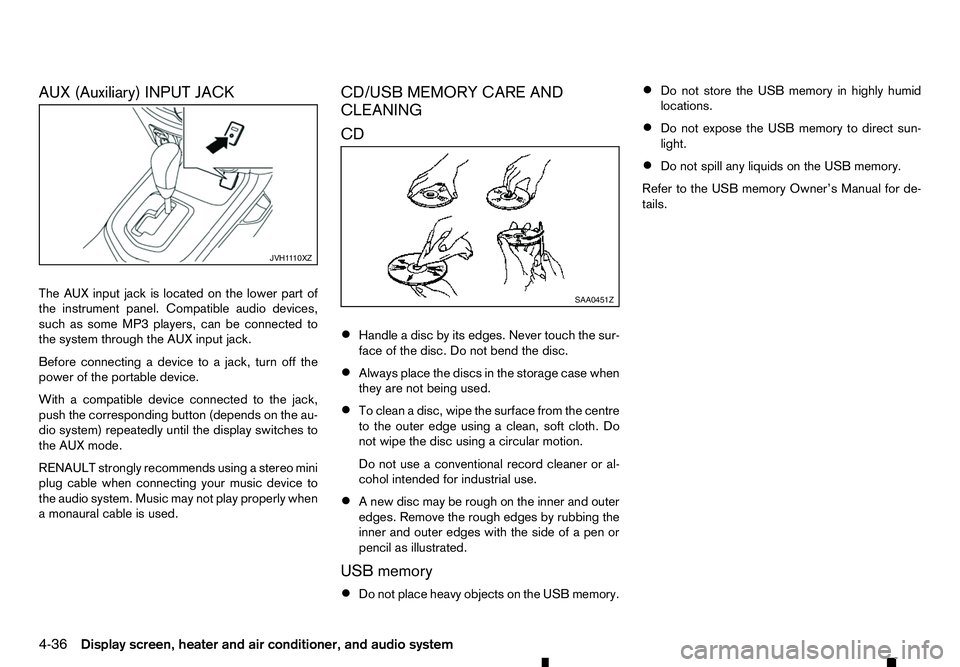
The AUX input jack is located on the lower part of
the instrument panel. Compatible audio devices,
such as some MP3 players, can be connected to
the system through the AUX input jack. Before connecting adevice to ajack, turn off the
power of the portable device.
With acompatible device connected to the jack,
push the corresponding button (depends on the au-
dio system) repeatedly until the display switches to
the AUX mode.
RENAULT strongly recommends using astereo mini
plug cable when connecting your music device to
the audio system. Music may not play properly when
am onaural cable is used. CD/USB MEMORY CARE AND
CLEANING
CD
•
Handle
adisc by its edges. Never touch the sur-
face of the disc. Do not bend the disc.
• Always place the discs in the storage case when
they are not being used.
• To clean
adisc, wipe the surface from the centre
to the outer edge using aclean, soft cloth. Do
not wipe the disc using acircular motion.
Do not use aconventional record cleaner or al-
cohol intended for industrial use.
• An
ew disc may be rough on the inner and outer
edges. Remove the rough edges by rubbing the
inner and outer edges with the side of apen or
pencil as illustrated.
USB memory
• Do not place heavy objects on the USB memory. •
Do not store the USB memory in highly humid
locations.
• Do not expose the USB memory to direct sun-
light.
• Do not spill any liquids on the USB memory.
Refer to the USB memory Owner’s Manual for de-
tails. JVH1
110XZ SAA0451Z
4-36 Display screen, heater and air conditioner, and audio system
Page 170 of 340
AUDIO MAIN OPERATION
The audio unit operates when the ignition switch is
in ACC or ON position.
m Power
ON/OFF button
Press the button to switch on the audio unit. If
the audio unit was switched off using the ignition
switch, it can also be switched on with the ignition
switch. The source that was playing immediately
before the unit was switched off will resume playing
and the volume will be set to the previous volume
level.
The audio unit can be switched off by pressing ,
or by turning the ignition switch to the “OFF” or
LOCK position. Volume (VOL) level control
Turn the
adjust the volume level.
The audio unit is equipped with aspeed control vol-
ume function, this means that the audio system au-
tomatically adjusts the volume level in relation to
vehicle speed. For details, see “[Speed Volume]
menu” later in this section.
RADIO OPERATION
When the (power ON/OFF) button is pressed,
the audio unit will switch on with the last received
radio station, if the audio unit was previously
switched off in radio mode. The radio is able to receive multiple kinds of audio
transmissions:
–FM
–D
AB (Digital Audio Broadcasting) indicated as
DR (where fitted)
–AM
Radio band select buttons
Press the
transmission source as follows:
FM1 →FM2 →DR1 →DR2 →AM →FM1
When
come on at the last received radio station. If audio is
already playing using one of the other input sources
(iPod, Bluetooth, CD, USB, AUX-in) pressing the
mode and the last received radio station will be se-
lected.
Setting preset stations
Auto populating the [FM List]: When the
1.5 seconds the six stations with the strongest sig-
nals are stored in the preset (1 to 6) buttons of the
band. During the search, anotification message
[Updating FM List] appears in the display and the
sound is muted until the operation is complete. Once
completed, the radio reverts to the previously se-
lected radio station. Manual tuning
When adjusting the broadcasting station frequency
manually access the [FM List] and turn the
Page 171 of 340
![RENAULT ALASKAN 2017 Owners Manual Preset station buttons
➀➁➂➃➄➅
Pressing apreset button for less than 2seconds will
select the stored radio station.
Pressing apreset button for more than 2seconds
while in the [FM list] or](/img/7/58394/w960_58394-170.png "RENAULT ALASKAN 2017 Owners Manual Preset station buttons
➀➁➂➃➄➅
Pressing apreset button for less than 2seconds will
select the stored radio station.
Pressing apreset button for more than 2seconds
while in the [FM list] or")
Preset station buttons
➀➁➂➃➄➅
Pressing apreset button for less than 2seconds will
select the stored radio station.
Pressing apreset button for more than 2seconds
while in the [FM list] or radio main screen will cause
the station currently being received to be stored
against that preset button.
• Twelve stations (if available) can be stored in the
FM bands. (Six each for FM1 and FM2)
• Twelve stations (if available) can be stored in the
DR bands. (Six each for DR1 and DR2) (where
fitted)
• Six stations (if available) can be set for the AM
band.
If the battery is disconnected, or if the fuse blows,
the radio memory will be erased. In that case, reset
the desired stations after battery connection or fuse
replacement.
DAB and Radio Data System (RDS)
operation (where fitted)
The RDS is asystem through which encoded digital
information is transmitted by FM radio stations in
addition to the normal FM radio broadcasting. The
RDS provides information services such as station
name, traffic information, or news.
DAB (Digital Audio Broadcast) NOTE
• When in DR mode operation is similar to FM
mode but may slightly differ.
• In some countries or regions, some of these
services may not be available.
Alternative Frequency (AF) mode:
The AF mode operates in the FM (radio) mode.
• The AF mode operates in the FM (radio), AUX or
CD mode (if FM was previously selected in the
radio mode).
• The AF function compares signal strengths and
selects the station with the optimum reception
conditions for the currently tuned-in station.
DAB and RDS functions
Programme Service (PS) function (station name
display function):
–F M:
When an RDS station is tuned in with seek or
manual tuning, the RDS data is received and the
PS name is displayed.
–D R:
When astation is tuned in with seek or manual
tuning, the data is received and the PS name is
displayed.
TA Traffic announcement
This function operates in FM/DR (Radio) mode. This
function will still operate in the background if any
media source is selected (CD, USB or MEDIA
mode). •
Pressing the
The TA indicator is displayed while TA mode is
on.
• When
switched off and the TA indicator will disappear
from the display.
Traffic announcement interrupt function:
When atraffic announcement is received, the an-
nouncement is tuned in and the display shows a
notification message with the radio station name e.g.
[TA: Radio 1].
Once the traffic announcement has finished, the unit
returns to the source that was active before the traf-
fic announcement started.
If
the traffic announcement interrupt mode is can-
celled. The TA mode returns to the standby mode
and the audio unit returns to the previous source.
SETUP BUTTON
To configure [Audio], [Clock], [Radio], and [Lan-
guage] settings, perform the following procedure:
1. Press the
4-39