ECO mode RENAULT ALASKAN 2017 Owner's Guide
[x] Cancel search | Manufacturer: RENAULT, Model Year: 2017, Model line: ALASKAN, Model: RENAULT ALASKAN 2017Pages: 340, PDF Size: 6.93 MB
Page 174 of 340
CAUTION
•
Do not force the CD into the slot. This could
damage the player.
• Do not use
8cm(3.1 in) discs.
CD insert (CD player)
Insert the CD disc into the slot with the label side
facing up. The disc will be guided automatically into
the slot and will start playing. After loading the disc,
track information will be displayed.
NOTE
• The CD player accepts normal audio CD or
CD recorded with MP3/WMA files.
• Inserting
aCDrecorded with MP3/WMA files,
the audio unit will automatically detect and
[MP3CD] will be indicated.
• An error notification message will be
displayed when inserting
awrong disc type
(e.g. DVD), or the player cannot read the CD
disc. Eject the disc and insert another disc.
MEDIA button
Load aCDd isc. After ashort loading period the CD
starts playing.
If the disc was already loaded:
Press the
connected audio sources if necessary multiple
times) to select CD. Playing starts from the track
that was being played when the CD play mode was
switched off. Audio main operation
List view:
While the track is being played, either press the
button or turn the
Page 175 of 340
When the
➄
button is pressed repeatedly,
further information about the track can be displayed
along with the track title as follows:
CD:
Track time →Artist name →Album title →Track
time
CD with MP3/WMA:
Track time →Artist name →Album title →Folder
name →Track time
The track name is always displayed.
Track details:
Al ong press on the ➄
button will turn the
display into adetailed overview and after afew sec-
onds it returns to the main display, or press ➄
briefly.
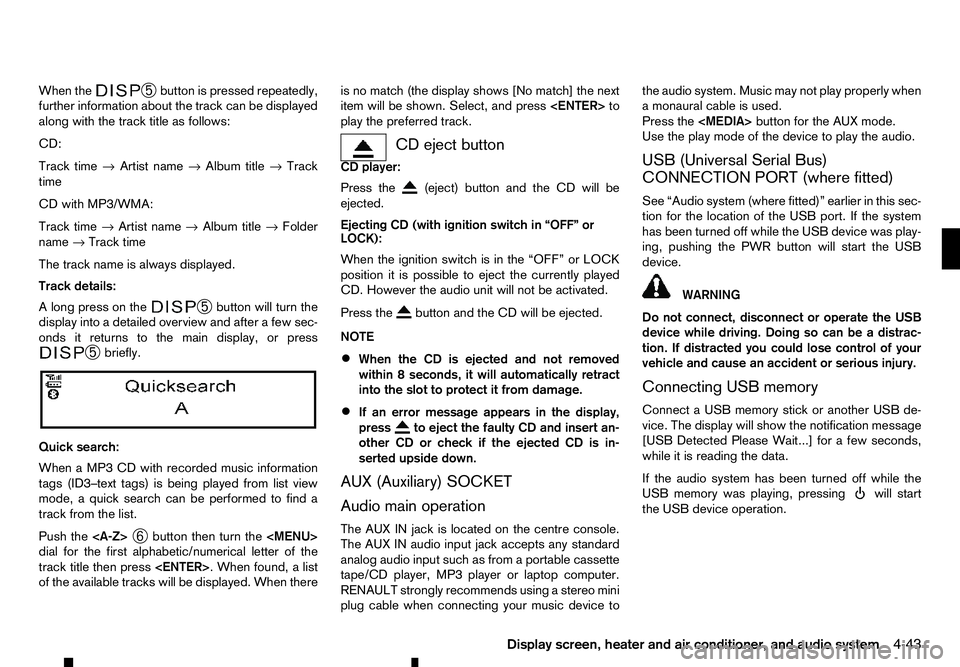
Quick search:
When aMP3 CD with recorded music information
tags (ID3–text tags) is being played from list view
mode, aquick search can be performed to find a
track from the list.
Push the
➅button then turn the
Page 176 of 340
CAUTION
•
Do not force the USB device into the USB
port. Inserting the USB device tilted or up-
side-down into the port may damage the port.
Make sure that the USB device is connected
correctly into the USB port.
• Do not grab the USB port cover (where fitted)
when pulling the USB device out of the port.
This could damage the port and the cover.
• Do not leave the USB cable in
aplace where
it can be pulled unintentionally. Pulling the
cable may damage the port.
• Do not locate objects near the USB device to
prevent the objects from leaning on the USB
device and the port. Pressure from the ob-
jects may damage the USB device and the
port.
The vehicle is not equipped with aUSB device.
USB devices should be purchased separately as
necessary.
This system cannot be used to format USB devices.
To format aUSB device, use apersonal computer.
In some areas, the USB device for the front seats
plays only sound without images for regulatory rea-
sons, even when the vehicle is parked.
This system supports various USB connection port
devices, USB hard drives and iPod players. Some
USB devices may not be supported by this system.
• Partitioned USB devices may not play correctly. •
Some characters used in other languages (Chi-
nese, Japanese, etc.) may not appear properly in
the display. Using English language characters
with
aUSB device is recommended.
General notes for USB use:
Refer to your device manufacturer’s owner informa-
tion regarding the proper use and care of the de-
vice.
MEDIA button
To operate the USB device press
repeatedly until [USB] is available.
Audio main operation
The following operations are identical to the audio
main operation of the Compact Disc (CD) opera-
tion. For details, see “Compact Disc (CD)
operation” earlier in this section.
• List view
• Quick search
• ,
•
MIX (Random play)
• RPT (Repeat track)
• Folder browsing Quick search:
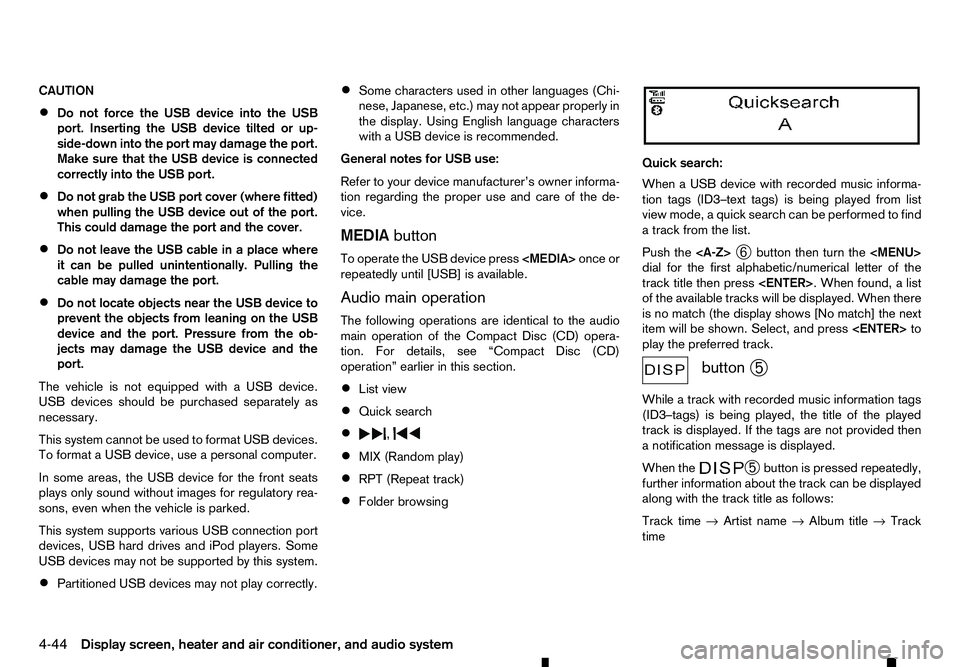
When
aUSB device with recorded music informa-
tion tags (ID3–text tags) is being played from list
view mode, aquick search can be performed to find
at rack from the list.
Push the
➅button then turn the
Page 186 of 340
CAUTION
Do not force the compact disc into the slot. This
could damage the player. CD button:
When the CD button is pushed with the system off
and the CD loaded, the system will turn on and the
CD will start to play.
When the CD button is pushed with aCDloaded
while the radio playing, the radio will turned off and
the CD will start to play. Seek/Track button:
When the or button is pushed for more
than 1.5 seconds while the CD is being played, the
CD will play while fast forwarding or rewinding.
When the button is released, the CD will return to
normal play speed.
When the or button is pushed for less
than 1.5 seconds while the CD is being played, the
next track or the beginning of the current track on
the CD will be played. Push the button several times
to skip through the tracks on the CD. If the last track
on aCDiss kipped, the first track on the disc will
play. If the last track in afolder of an MP3 CD is
skipped, the first track of the next folder will play.
CD/MP3/WMA display mode:
While listening to aCDoranMP3/WMA CD, cer-
tain text may be displayed (when aCDencoded
with text is being used). Depending on how the CD or MP3/WMA CD is encoded, the text is displayed
listing the artist, album and song title. Operation
keys are also displayed on the screen.
Mix:
Touching the [Mix] key while an CD or MP3 CD is
playing will alternate the random play pattern as fol-
lows:
(CD)
(Normal)
→Mix →(Normal)
(CD with compressed audio files)
(Normal) →Random Folder →Random All →(Nor-
mal)
Repeat:
Touching the [Repeat] key while an CD or MP3 CD
is playing will alternate the repeat play pattern as fol-
lows:
(CD)
(Normal) →Repeat →(Normal)
(CD with compressed audio files)
(Normal) →Repeat Track →Repeat Folder →(Nor-
mal)
Browse:
Touch the [Browse] key to display the titles on the
CD in list format. Touch the title of asong in the list
to begin playing that song. If an MP3 CD is playing,
touching the [Browse] key will also list the folders
on the disc. Touch the [Folder Up] key to view the lists in the upper layer. Follow the procedure for
selecting asong with the touch screen to choose a
folder. Disc eject button:
When the Disc eject button is pushed while aCDis
loaded, the CD will be ejected.
If the CD is not removed within 10 seconds, the CD
will be reloaded.
USB (Universal Serial Bus) Connection
Port WARNING
Do not connect, disconnect or operate the USB
device while driving. Doing so can be adistrac-
tion. If distracted you could lose control of your
vehicle and cause an accident or serious injury.
CAUTION
• Do not force the USB device into the USB
port. Inserting the USB device tilted or up-
side-down into the port may damage the port.
Make sure that the USB device is connected
correctly into the USB port.
• Do not grab the USB port cover (where fitted)
when pulling the USB device out of the port.
This could damage the port and the cover.
• Do not leave the USB cable in
aplace where
it can be pulled unintentionally. Pulling the
cable may damage the port.
4-54 Display screen, heater and air conditioner, and audio system
Page 188 of 340
*S
ome features of this iPod may not be fully func-
tional.
Make sure that your iPod firmware is updated to the
version indicated above.
iPod main operation:
If the system has been turned off while the iPod was
playing, pushing the Power/VOLUME dial will start
the iPod.
If another audio source is playing and aiPod is con-
nected, push the AUX button until the screen on the
display changes to the iPod mode.
Refer to your device manufacturer’s owner informa-
tion regarding the proper use and care of the de-
vice.
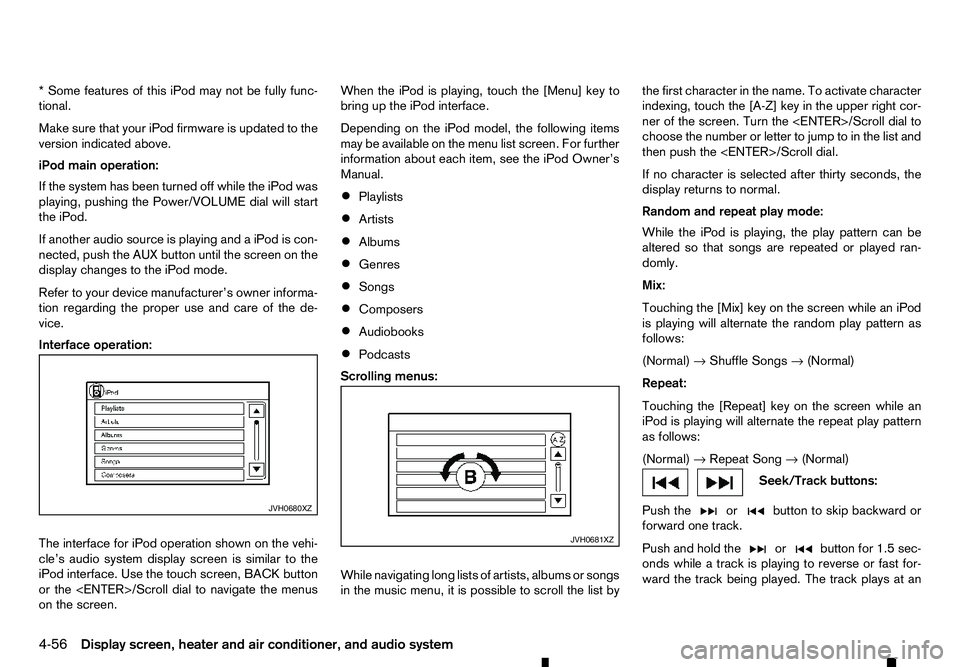
Interface operation:
The interface for iPod operation shown on the vehi-
cle’s audio system display screen is similar to the
iPod interface. Use the touch screen, BACK button
or the
on the screen. When the iPod is playing, touch the [Menu] key to
bring up the iPod interface.
Depending on the iPod model, the following items
may be available on the menu list screen. For further
information about each item, see the iPod Owner’s
Manual.
• Playlists
• Artists
• Albums
• Genres
• Songs
• Composers
• Audiobooks
• Podcasts
Scrolling menus:
While navigating long lists of artists, albums or songs
in the music menu, it is possible to scroll the list by the first character in the name. To activate character
indexing, touch the [A-Z] key in the upper right cor-
ner of the screen. Turn the
choose the number or letter to jump to in the list and
then push the
If no character is selected after thirty seconds, the
display returns to normal.
Random and repeat play mode:
While the iPod is playing, the play pattern can be
altered so that songs are repeated or played ran-
domly.
Mix:
Touching the [Mix] key on the screen while an iPod
is playing will alternate the random play pattern as
follows:
(Normal) →Shuffle Songs →(Normal)
Repeat:
Touching the [Repeat] key on the screen while an
iPod is playing will alternate the repeat play pattern
as follows:
(Normal) →Repeat Song →(Normal) Seek/Track buttons:
Push the or button to skip backward or
forward one track.
Push and hold the or button for 1.5 sec-
onds while at
rack is playing to reverse or fast for-
ward the track being played. The track plays at an JVH0680XZ
JVH0681XZ
4-56 Display screen, heater and air conditioner, and audio system
Page 189 of 340
increased speed while reversing or fast forwarding.
When the button is released, the track returns to
normal play speed.
Bluetooth® audio player operation
If you have acompatible Bluetooth® audio device
that is capable of playing audio files, the device can be connected to the vehicle’s audio system so that
the audio files on the device play through the vehi-
cle’s speakers
Bluetooth® trademark:
m Bluetooth®
is
at rademark
owned by Bluetooth SIG, Inc.
and licensed to Robert Bosch
GmbH.
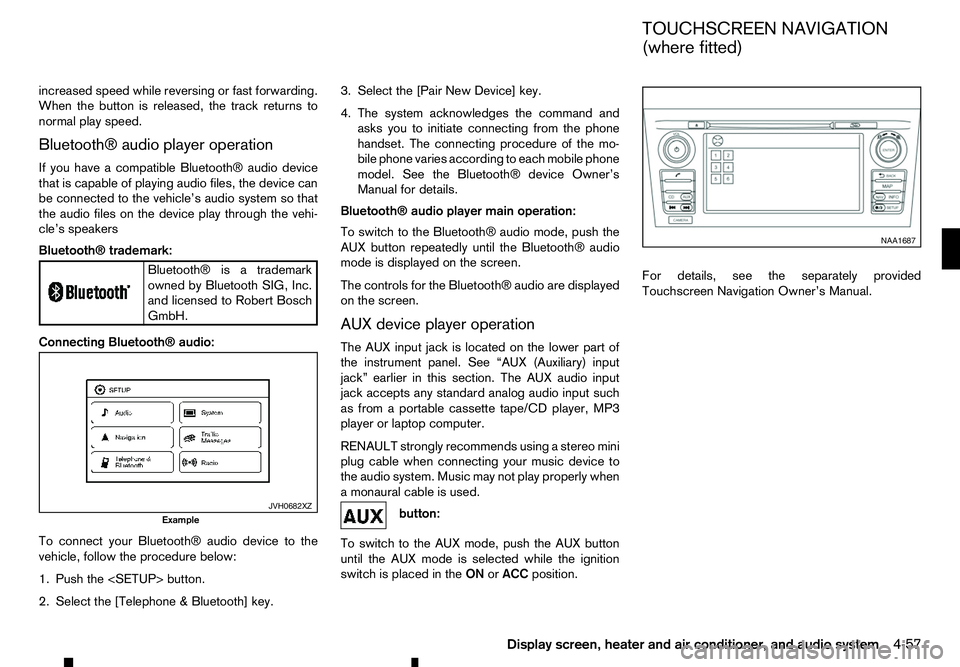
Connecting Bluetooth® audio:
To connect your Bluetooth® audio device to the
vehicle, follow the procedure below:
1. Push the
2. Select the [Telephone &Bluetooth] key. 3. Select the [Pair New Device] key.
4. The system acknowledges the command and
asks you to initiate connecting from the phone
handset. The connecting procedure of the mo-
bile phone varies according to each mobile phone
model. See the Bluetooth® device Owner’s
Manual for details.
Bluetooth® audio player main operation:
To switch to the Bluetooth® audio mode, push the
AUX button repeatedly until the Bluetooth® audio
mode is displayed on the screen.
The controls for the Bluetooth® audio are displayed on the screen.
AUX device player operation
The AUX input jack is located on the lower part of
the instrument panel. See “AUX (Auxiliary) input
jack” earlier in this section. The AUX audio input
jack accepts any standard analog audio input such
as from aportable cassette tape/CD player, MP3
player or laptop computer.
RENAULT strongly recommends using astereo mini
plug cable when connecting your music device to
the audio system. Music may not play properly when
am onaural cable is used. button:
To switch to the AUX mode, push the AUX button
until the AUX mode is selected while the ignition
switch is placed in the ONorACC position. For details, see the separately provided
Touchscreen Navigation Owner’s Manual.
JVH0682XZ
Example NAA1687
TOUCHSCREEN NAVIGATION
(where fitted)
Display screen, heater and air conditioner, and audio system 4-57
Page 190 of 340
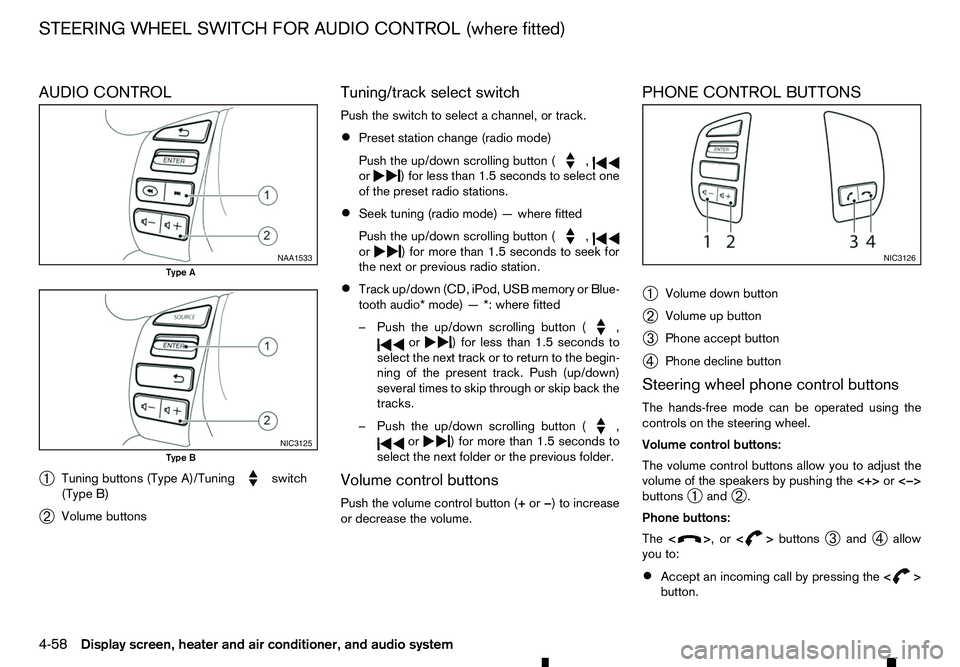
AUDIO CONTROL
➀ Tuning buttons (Type A)/Tuning switch
(Type B)
➁ Volume buttons Tuning/track select switch
Push the switch to select
achannel, or track.
• Preset station change (radio mode)
Push the up/down scrolling button ( ,
or )f
or less than 1.5 seconds to select one
of the preset radio stations.
• Seek tuning (radio mode)
—where fitted
Push the up/down scrolling button ( ,
or )f
or more than 1.5 seconds to seek for
the next or previous radio station.
• Track up/down (CD, iPod, USB memory or Blue-
tooth audio* mode)
—*:where fitted
–P ush the up/down scrolling button ( ,
or )f
or less than 1.5 seconds to
select the next track or to return to the begin-
ning of the present track. Push (up/down)
several times to skip through or skip back the
tracks.
–P ush the up/down scrolling button ( ,
or )f
or more than 1.5 seconds to
select the next folder or the previous folder.
Volume control buttons
Push the volume control button (+ or−)toi ncrease
or decrease the volume. PHONE CONTROL BUTTONS
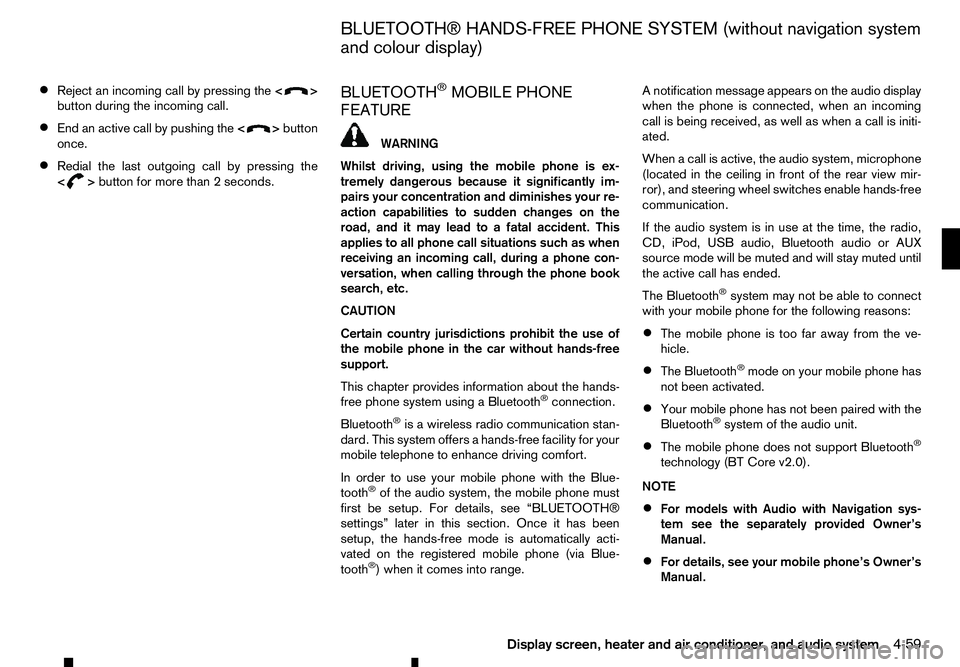
➀
Volume down button
➁ Volume up button
➂ Phone accept button
➃ Phone decline button
Steering wheel phone control buttons
The hands-free mode can be operated using the
controls on the steering wheel.
Volume control buttons:
The volume control buttons allow you to adjust the
volume of the speakers by pushing the <+>or<−>
buttons ➀and
➁.
Phone buttons:
The < > ,or<
> buttons
➂and
➃allow
you to:
• Accept an incoming call by pressing the
< >
button. NAA1533
Type A
NIC3125
Type B NIC3126
STEERING WHEEL SWITCH FOR AUDIO CONTROL (where fitted)
4-58 Display screen, heater and air conditioner, and audio system
Page 191 of 340
•
Reject an incoming call by pressing the
< >
button during the incoming call.
• End an active call by pushing the
< >
button
once.
• Redial the last outgoing call by pressing the
< >
button for more than
2seconds. BLUETOOTH
®MOBILE PHONE
FEATURE WARNING
Whilst
driving, using the mobile phone is ex-
tremely dangerous because it significantly im-
pairs your concentration and diminishes your re-
action capabilities to sudden changes on the
road, and it may lead to afatal accident. This
applies to all phone call situations such as when
receiving an incoming call, during aphone con-
versation, when calling through the phone book
search, etc.
CAUTION
Certain country jurisdictions prohibit the use of
the mobile phone in the car without hands-free
support.
This chapter provides information about the hands-
free phone system using aBluetooth
®connection.
Bluetooth
®is aw ireless radio communication stan-
dard. This system offers ahands-free facility for your
mobile telephone to enhance driving comfort.
In order to use your mobile phone with the Blue-
tooth
®of the audio system, the mobile phone must
first be setup. For details, see “BLUETOOTH®
settings” later in this section. Once it has been
setup, the hands-free mode is automatically acti-
vated on the registered mobile phone (via Blue-
tooth
®)w hen it comes into range. An
otification message appears on the audio display
when the phone is connected, when an incoming
call is being received, as well as when acall is initi-
ated.
When acall is active, the audio system, microphone
(located in the ceiling in front of the rear view mir-
ror), and steering wheel switches enable hands-free
communication.
If the audio system is in use at the time, the radio,
CD, iPod, USB audio, Bluetooth audio or AUX
source mode will be muted and will stay muted until
the active call has ended.
The Bluetooth
®system may not be able to connect
with your mobile phone for the following reasons:
• The mobile phone is too far away from the ve-
hicle.
• The Bluetooth
®mode on your mobile phone has
not been activated.
• Your mobile phone has not been paired with the
Bluetooth
®system of the audio unit.
• The mobile phone does not support Bluetooth
®
technology (BT Core v2.0).
NOTE
• For models with Audio with Navigation sys-
tem see the separately provided Owner’s
Manual.
• For details, see your mobile phone’s Owner’s
Manual.
BLUETOOTH® HANDS-FREE PHONE SYSTEM (without navigation system
and colour display)
Display screen, heater and air conditioner, and audio system 4-59
Page 195 of 340
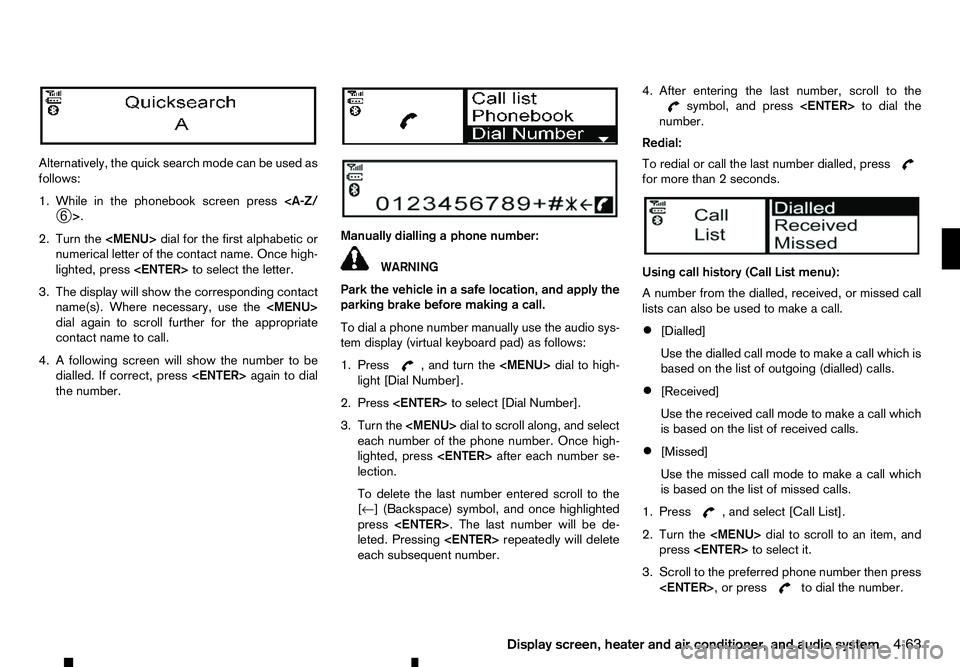
Alternatively, the quick search mode can be used as
follows:
1. While in the phonebook screen press
2. Turn the
Page 196 of 340
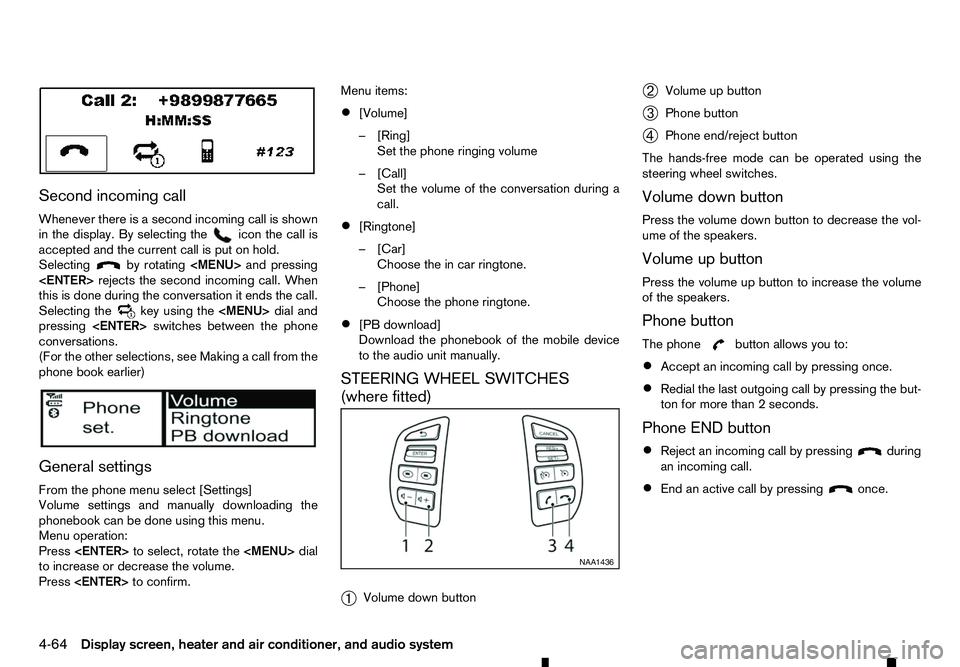
Second incoming call
Whenever there is asecond incoming call is shown
in the display. By selecting the icon the call is
accepted and the current call is put on hold.
Selecting by rotating