reset TOYOTA COROLLA CROSS 2022 Owner's Manual
[x] Cancel search | Manufacturer: TOYOTA, Model Year: 2022, Model line: COROLLA CROSS, Model: TOYOTA COROLLA CROSS 2022Pages: 612, PDF Size: 17.18 MB
Page 348 of 612
3485-8. Audio/visual remote controls
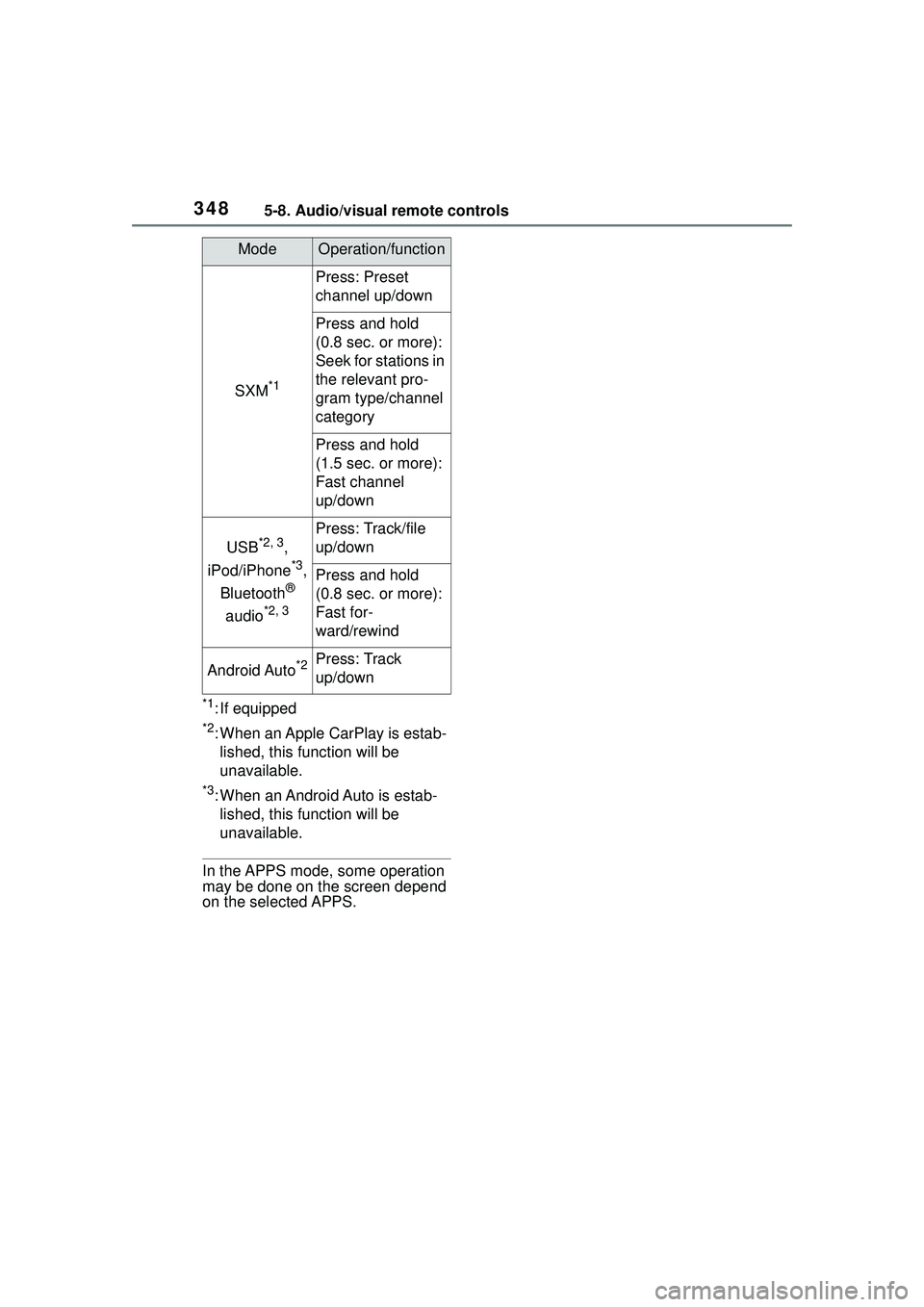
*1: If equipped
*2: When an Apple CarPlay is estab-lished, this function will be
unavailable.
*3: When an Android Auto is estab-lished, this function will be
unavailable.
In the APPS mode, some operation
may be done on the screen depend
on the selected APPS.
SXM*1
Press: Preset
channel up/down
Press and hold
(0.8 sec. or more):
Seek for stations in
the relevant pro-
gram type/channel
category
Press and hold
(1.5 sec. or more):
Fast channel
up/down
USB*2, 3,
iPod/iPhone
*3,
Bluetooth
®
audio
*2, 3
Press: Track/file
up/down
Press and hold
(0.8 sec. or more):
Fast for-
ward/rewind
Android Auto*2Press: Track
up/down
ModeOperation/function
Page 349 of 612
3495-9. Audio settings
5
Audio
5-9.Audio settings
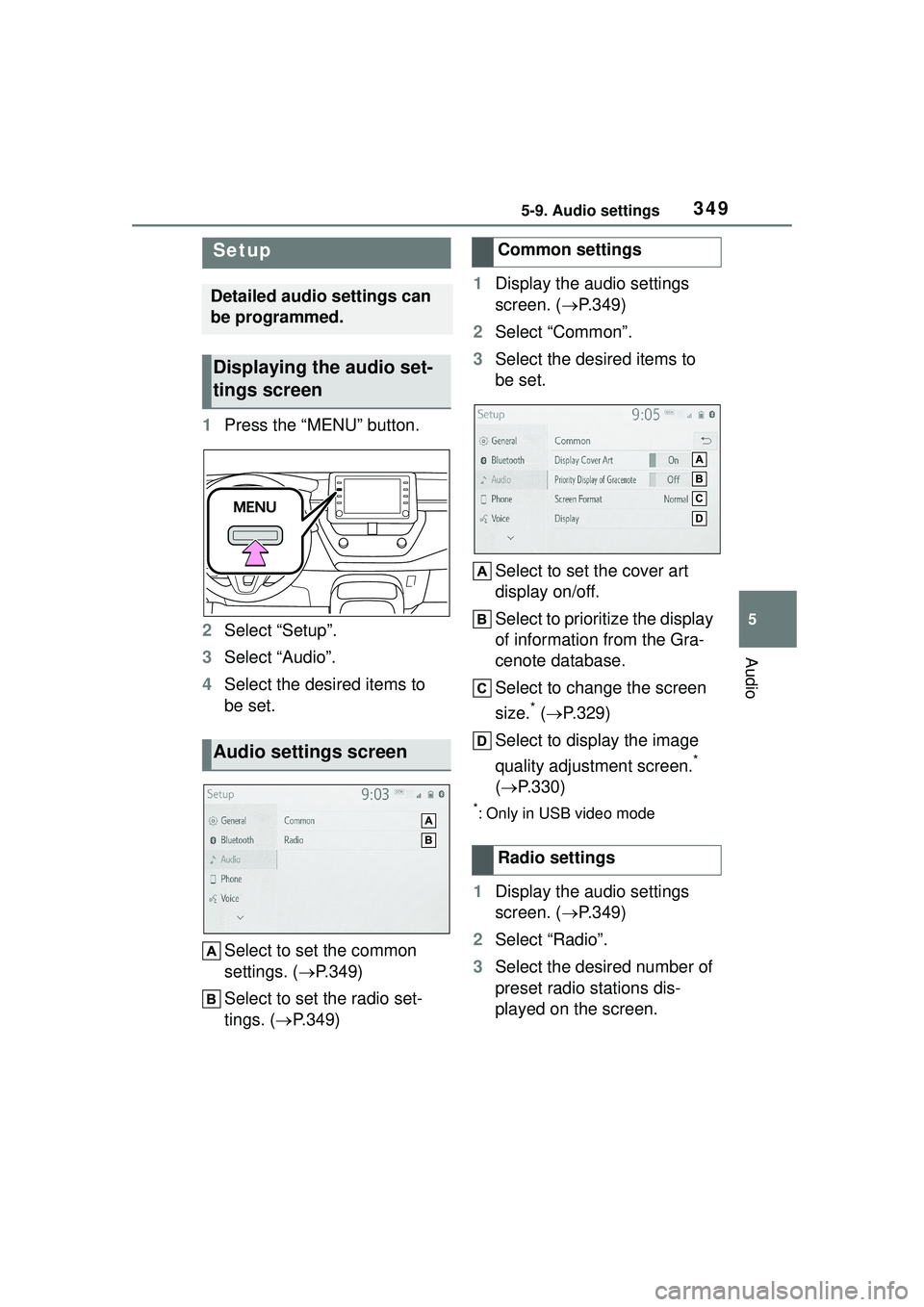
1Press the “MENU” button.
2 Select “Setup”.
3 Select “Audio”.
4 Select the desired items to
be set.
Select to set the common
settings. ( P.349)
Select to set the radio set-
tings. ( P.349) 1
Display the audio settings
screen. ( P.349)
2 Select “Common”.
3 Select the desired items to
be set.
Select to set the cover art
display on/off.
Select to prioritize the display
of information from the Gra-
cenote database.
Select to change the screen
size.
* ( P.329)
Select to display the image
quality adjustment screen.
*
( P.330)
*: Only in USB video mode
1Display the audio settings
screen. ( P.349)
2 Select “Radio”.
3 Select the desired number of
preset radio stations dis-
played on the screen.
Setup
Detailed audio settings can
be programmed.
Displaying the audio set-
tings screen
Audio settings screen
Common settings
Radio settings
Page 363 of 612
3635-11. Voice command system operation
5
Audio
commands will be unavailable.
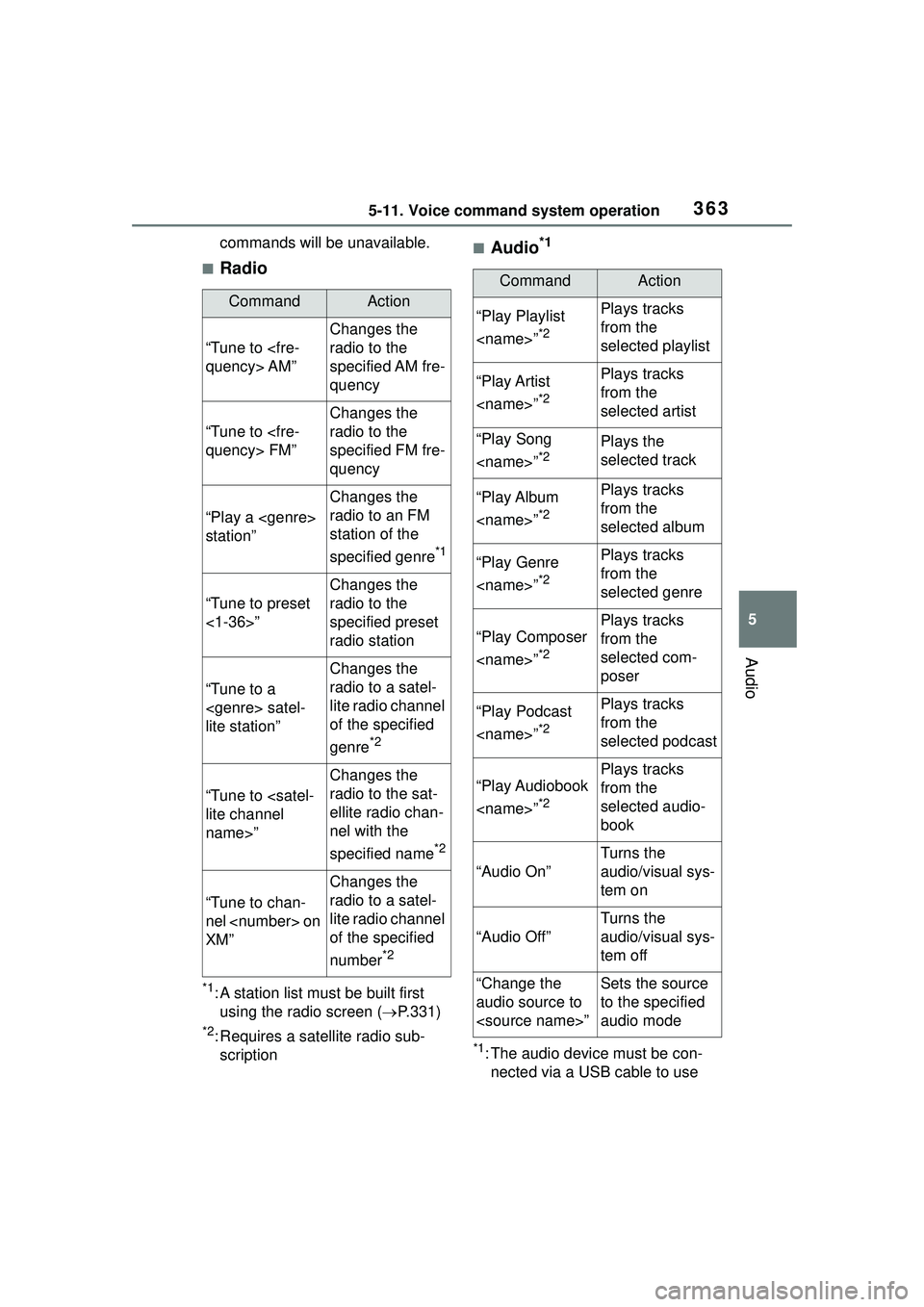
■Radio
*1: A station list must be built first using the radio screen ( P.331)
*2: Requires a satellite radio sub-
scription
■Audio*1
*1: The audio device must be con-nected via a USB cable to use
CommandAction
“Tune to
Changes the
radio to the
specified AM fre-
quency
“Tune to
Changes the
radio to the
specified FM fre-
quency
“Play a
station”
Changes the
radio to an FM
station of the
specified genre
*1
“Tune to preset
<1-36>”
Changes the
radio to the
specified preset
radio station
“Tune to a
lite station”
Changes the
radio to a satel-
lite radio channel
of the specified
genre
*2
“Tune to
name>”
Changes the
radio to the sat-
ellite radio chan-
nel with the
specified name
*2
“Tune to chan-
nel
XM”
Changes the
radio to a satel-
lite radio channel
of the specified
number
*2
CommandAction
“Play Playlist
*2
Plays tracks
from the
selected playlist
“Play Artist
*2
Plays tracks
from the
selected artist
“Play Song
*2Plays the
selected track
“Play Album
*2
Plays tracks
from the
selected album
“Play Genre
*2
Plays tracks
from the
selected genre
“Play Composer
*2
Plays tracks
from the
selected com-
poser
“Play Podcast
*2
Plays tracks
from the
selected podcast
“Play Audiobook
*2
Plays tracks
from the
selected audio-
book
“Audio On”
Turns the
audio/visual sys-
tem on
“Audio Off”
Turns the
audio/visual sys-
tem off
“Change the
audio source to
to the specified
audio mode
Page 380 of 612
3805-13. Phone operation (Hands-free system for cellular phones)
or “Mark Read” to mark mail
unread or read on the message
screen.
This function is available when
“Update Message Read Status on
Phone” is set to on. (P.390)
*: If equipped
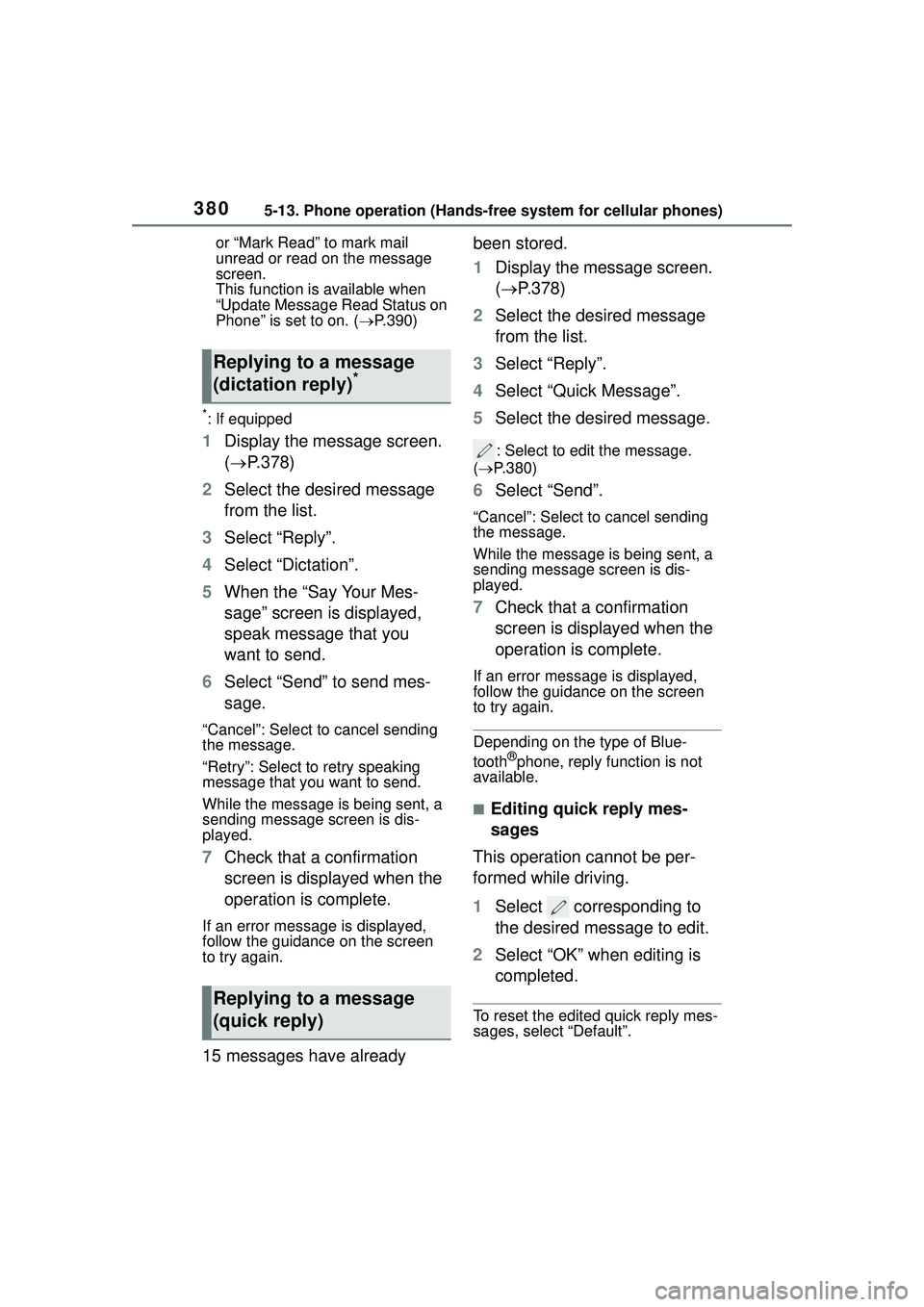
1 Display the message screen.
( P.378)
2 Select the desired message
from the list.
3 Select “Reply”.
4 Select “Dictation”.
5 When the “Say Your Mes-
sage” screen is displayed,
speak message that you
want to send.
6 Select “Send” to send mes-
sage.
“Cancel”: Select to cancel sending
the message.
“Retry”: Select to retry speaking
message that you want to send.
While the message is being sent, a
sending message screen is dis-
played.
7Check that a confirmation
screen is displayed when the
operation is complete.
If an error message is displayed,
follow the guidance on the screen
to try again.
15 messages have already been stored.
1
Display the message screen.
( P.378)
2 Select the desired message
from the list.
3 Select “Reply”.
4 Select “Quick Message”.
5 Select the desired message.
: Select to edit the message.
( P.380)
6 Select “Send”.
“Cancel”: Select to cancel sending
the message.
While the message is being sent, a
sending message screen is dis-
played.
7Check that a confirmation
screen is displayed when the
operation is complete.
If an error message is displayed,
follow the guidance on the screen
to try again.
Depending on the type of Blue-
tooth®phone, reply function is not
available.
■Editing quick reply mes-
sages
This operation cannot be per-
formed while driving.
1 Select corresponding to
the desired message to edit.
2 Select “OK” when editing is
completed.
To reset the edited quick reply mes-
sages, select “Default”.
Replying to a message
(dictation reply)*
Replying to a message
(quick reply)
Page 383 of 612
3835-14. Phone settings
5
Audio
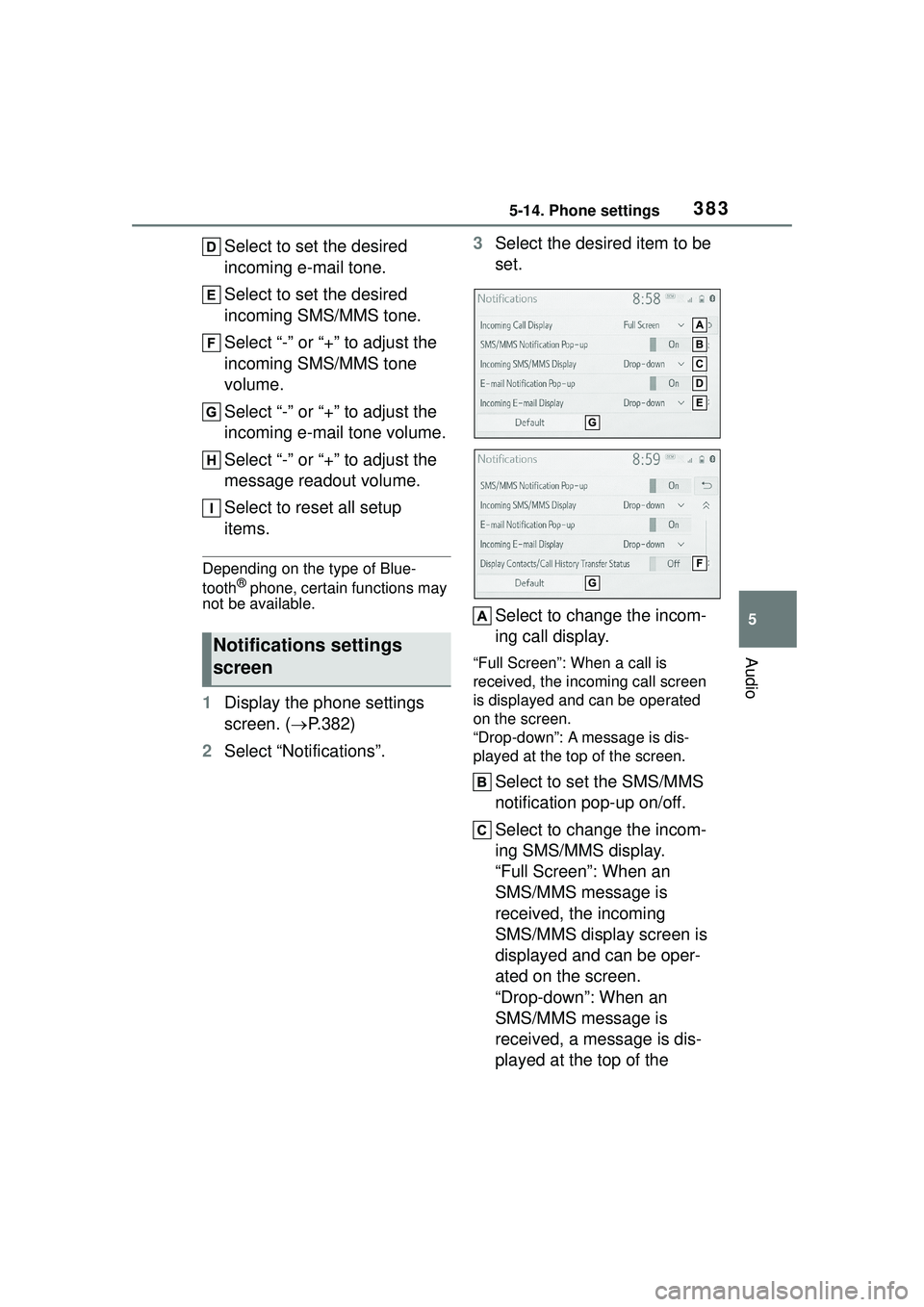
Select to set the desired
incoming e-mail tone.
Select to set the desired
incoming SMS/MMS tone.
Select “-” or “+” to adjust the
incoming SMS/MMS tone
volume.
Select “-” or “+” to adjust the
incoming e-mail tone volume.
Select “-” or “+” to adjust the
message readout volume.
Select to reset all setup
items.
Depending on the type of Blue-
tooth® phone, certain functions may
not be available.
1 Display the phone settings
screen. ( P.382)
2 Select “Notifications”. 3
Select the desired item to be
set.
Select to change the incom-
ing call display.
“Full Screen”: When a call is
received, the incoming call screen
is displayed and can be operated
on the screen.
“Drop-down”: A message is dis-
played at the top of the screen.
Select to set the SMS/MMS
notification pop-up on/off.
Select to change the incom-
ing SMS/MMS display.
“Full Screen”: When an
SMS/MMS message is
received, the incoming
SMS/MMS display screen is
displayed and can be oper-
ated on the screen.
“Drop-down”: When an
SMS/MMS message is
received, a message is dis-
played at the top of the
Notifications settings
screen
Page 384 of 612
3845-14. Phone settings
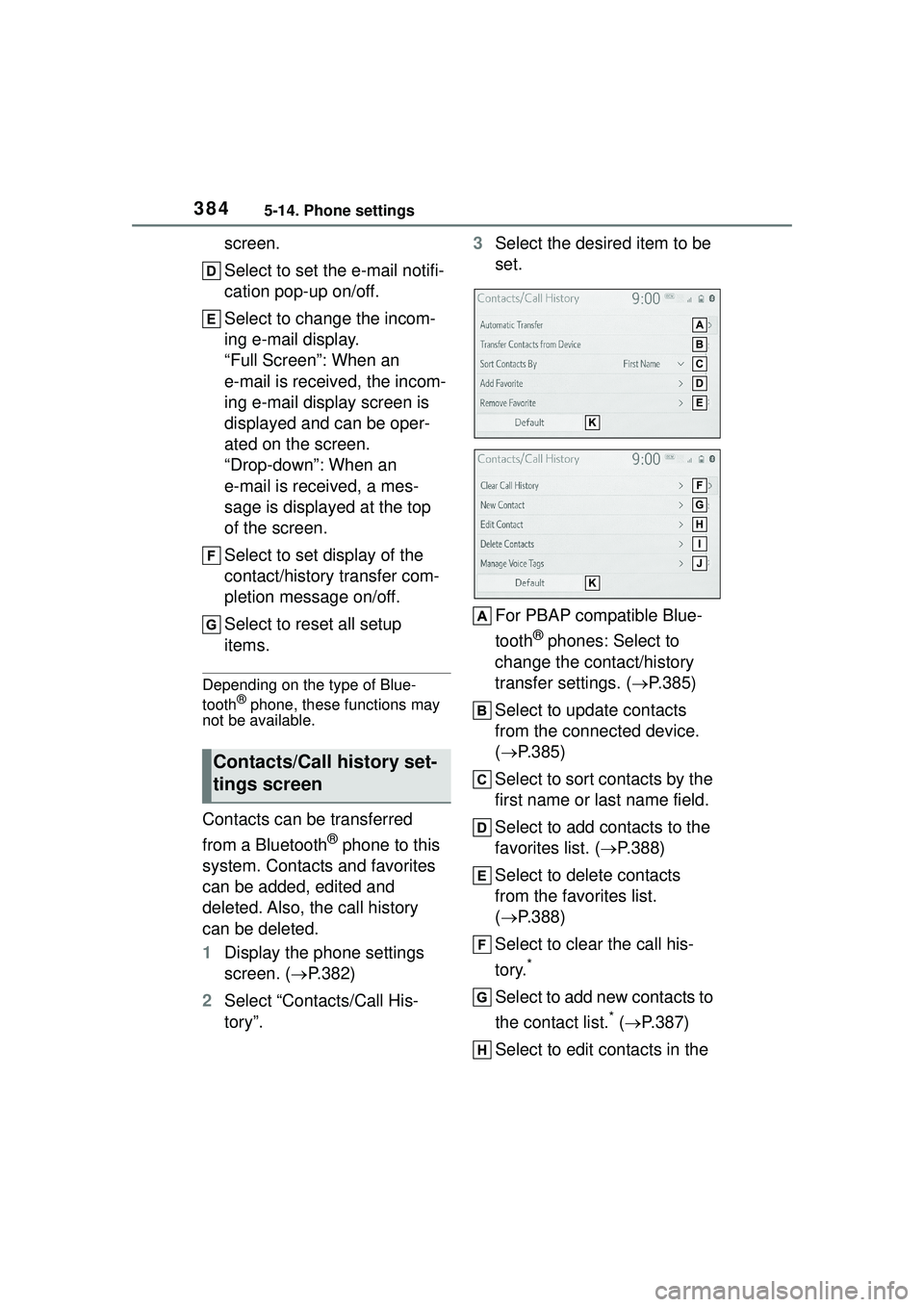
screen.
Select to set the e-mail notifi-
cation pop-up on/off.
Select to change the incom-
ing e-mail display.
“Full Screen”: When an
e-mail is received, the incom-
ing e-mail display screen is
displayed and can be oper-
ated on the screen.
“Drop-down”: When an
e-mail is received, a mes-
sage is displayed at the top
of the screen.
Select to set display of the
contact/history transfer com-
pletion message on/off.
Select to reset all setup
items.
Depending on the type of Blue-
tooth® phone, these functions may
not be available.
Contacts can be transferred
from a Bluetooth
® phone to this
system. Contacts and favorites
can be added, edited and
deleted. Also, the call history
can be deleted.
1 Display the phone settings
screen. ( P.382)
2 Select “Contacts/Call His-
tory”. 3
Select the desired item to be
set.
For PBAP compatible Blue-
tooth
® phones: Select to
change the contact/history
transfer settings. ( P.385)
Select to update contacts
from the connected device.
( P.385)
Select to sort contacts by the
first name or last name field.
Select to add contacts to the
favorites list. ( P.388)
Select to delete contacts
from the favorites list.
( P.388)
Select to clear the call his-
tory.
*
Select to add new contacts to
the contact list.
* ( P.387)
Select to edit contacts in the
Contacts/Call history set-
tings screen
Page 385 of 612
3855-14. Phone settings
5
Audio
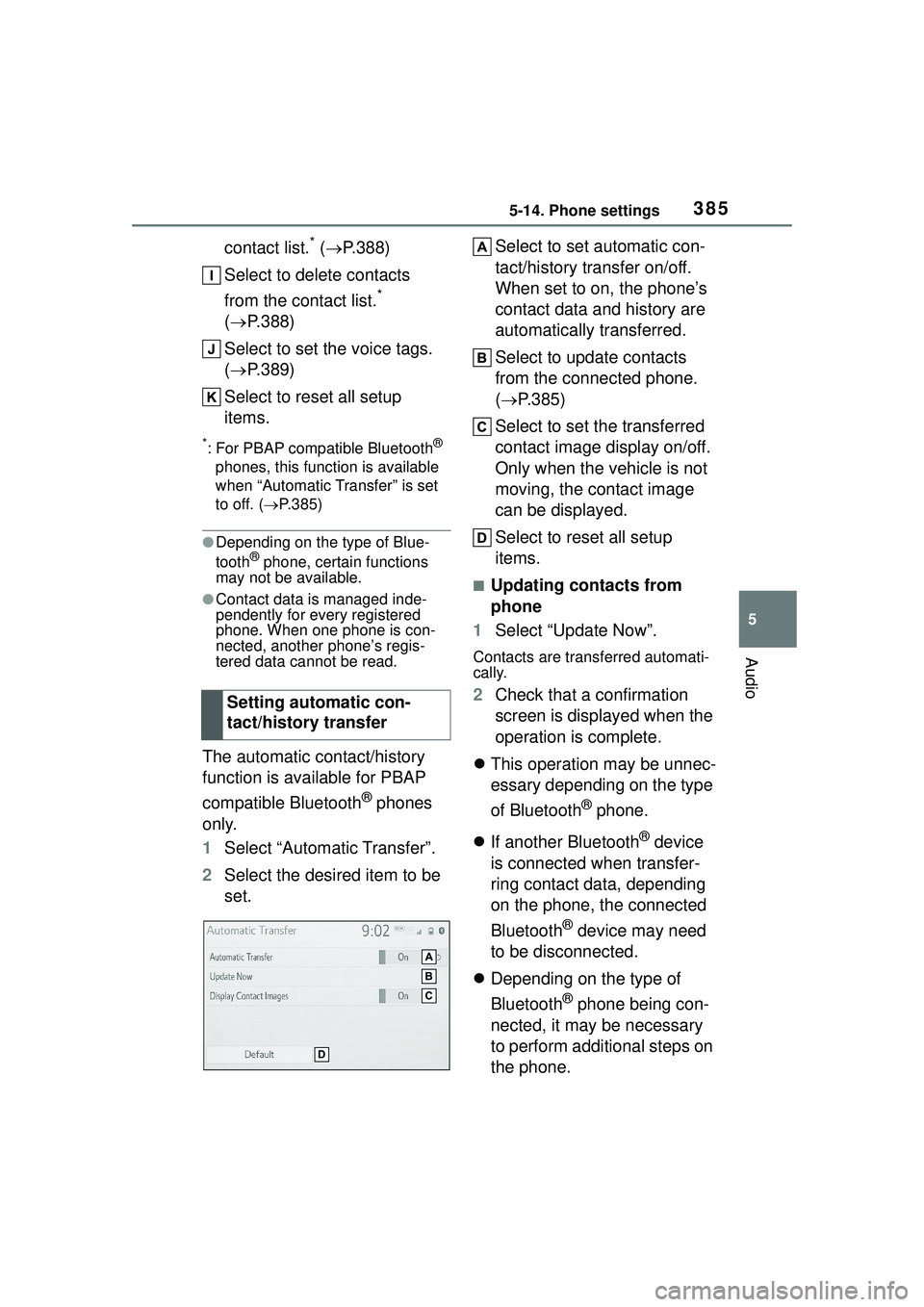
contact list.* ( P.388)
Select to delete contacts
from the contact list.
*
( P.388)
Select to set the voice tags.
( P.389)
Select to reset all setup
items.
*: For PBAP compatible Bluetooth®
phones, this function is available
when “Automatic Transfer” is set
to off. ( P.385)
●Depending on the type of Blue-
tooth® phone, certain functions
may not be available.
●Contact data is managed inde-
pendently for every registered
phone. When one phone is con-
nected, another phone’s regis-
tered data cannot be read.
The automatic contact/history
function is available for PBAP
compatible Bluetooth
® phones
only.
1 Select “Automatic Transfer”.
2 Select the desired item to be
set. Select to set automatic con-
tact/history transfer on/off.
When set to on, the phone’s
contact data and history are
automatically transferred.
Select to update contacts
from the connected phone.
(
P.385)
Select to set the transferred
contact image display on/off.
Only when the vehicle is not
moving, the contact image
can be displayed.
Select to reset all setup
items.
■Updating contacts from
phone
1 Select “Update Now”.
Contacts are transferred automati-
cally.
2Check that a confirmation
screen is displayed when the
operation is complete.
This operation may be unnec-
essary depending on the type
of Bluetooth
® phone.
If another Bluetooth
® device
is connected when transfer-
ring contact data, depending
on the phone, the connected
Bluetooth
® device may need
to be disconnected.
Depending on the type of
Bluetooth
® phone being con-
nected, it may be necessary
to perform additional steps on
the phone.
Setting automatic con-
tact/history transfer
Page 390 of 612
3905-14. Phone settings
■Deleting the voice tag
1 Select “Delete”.
2 Select the desired contact
and select “Delete”.
3 Select “Yes” when the confir-
mation screen appears.
●Multiple data can be selected and
deleted at the same time.
●Voice tags are deleted when the
set language of the system is
changed. ( P.319)
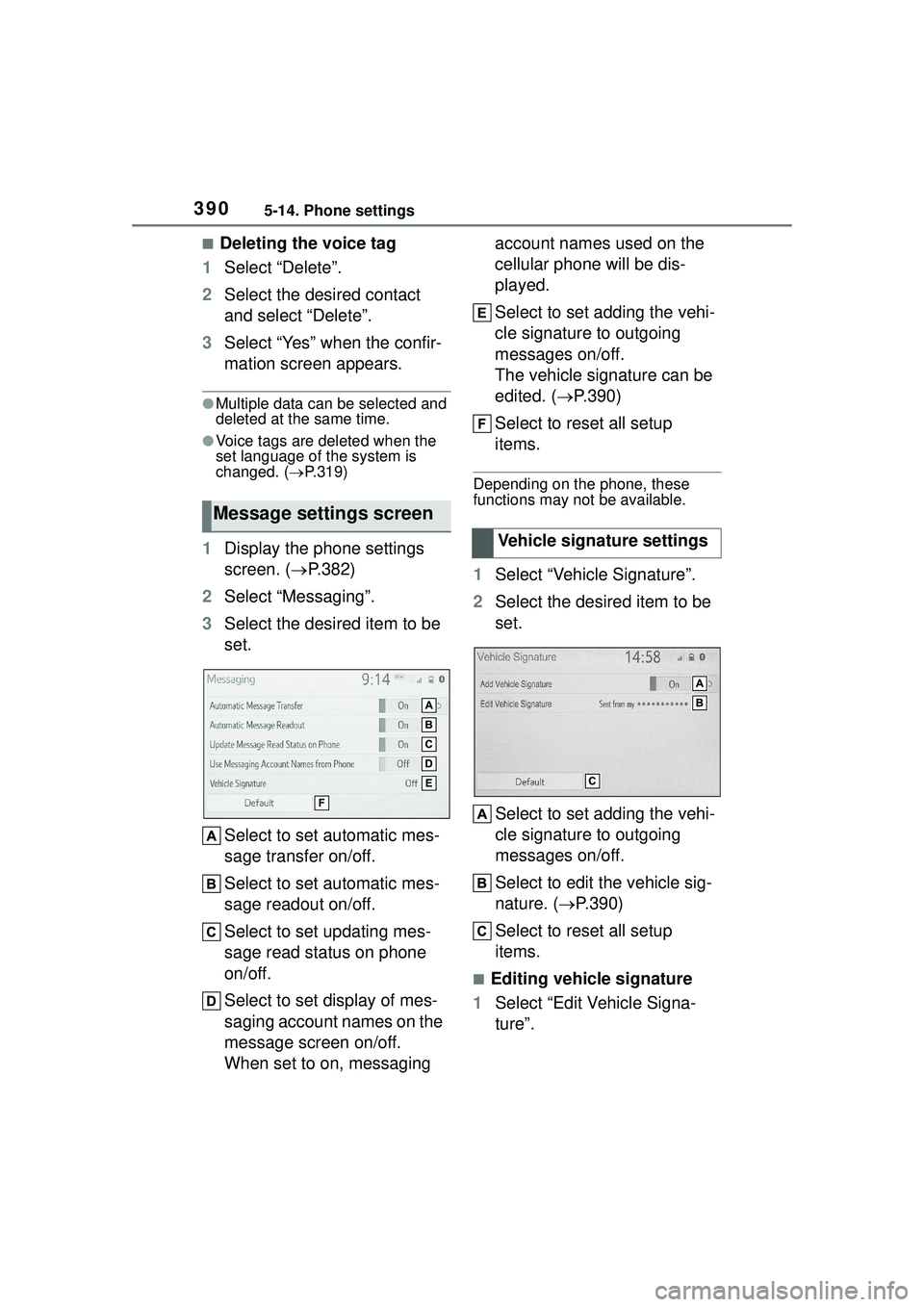
1 Display the phone settings
screen. ( P.382)
2 Select “Messaging”.
3 Select the desired item to be
set.
Select to set automatic mes-
sage transfer on/off.
Select to set automatic mes-
sage readout on/off.
Select to set updating mes-
sage read status on phone
on/off.
Select to set display of mes-
saging account names on the
message screen on/off.
When set to on, messaging account names used on the
cellular phone will be dis-
played.
Select to set adding the vehi-
cle signature to outgoing
messages on/off.
The vehicle signature can be
edited. (
P.390)
Select to reset all setup
items.
Depending on the phone, these
functions may not be available.
1 Select “Vehicle Signature”.
2 Select the desired item to be
set.
Select to set adding the vehi-
cle signature to outgoing
messages on/off.
Select to edit the vehicle sig-
nature. ( P.390)
Select to reset all setup
items.
■Editing vehicle signature
1 Select “Edit Vehicle Signa-
ture”.
Message settings screen
Vehicle signature settings
Page 399 of 612
3995-16. Connected Services Overview
5
Audio
using Toyota apps function. Con-
firm data usage fees before using
this function.
●For details regarding operation of
the Toyota apps, refer to
https://www.toyota.com/
connected-servicesin the United States,
https://www.toyota.ca/connected
in Canada, and
http://www.toyotapr.com/
connected-services
in Puerto Rico.
●These functions are not made
available in some countries or
areas. Availability of functions of
the Toyota apps is dependent on
network reception level.
■Initializing personal data
The personal data used in appli-
cations can be reset. ( P.322)
The following personal data can
be deleted and returned to their
default settings:
Downloaded contents
Radio stations that were lis-
tened to
Once initialized, the data and set-
tings will be erased. Pay much
attention when initializing the data.
■Settings required to use
Toyota mobile application
Perform the settings in the fol-
lowing order.
1 Download the Toyota mobile
application to your smart
phone or the system. 2
Open the Toyota mobile
application on your smart
phone and follow instruc-
tions. Bluetooth
® Pairing is
required.
In order to use Toyota mobile appli-
cation, the following must first be
performed:
Register a Bluetooth® phone
with the hands-free system.
( P.296)
●Applications can only be used
when the Toyota mobile applica-
tion has been downloaded to your
smart phone or the system, and
the application is running.
●Toyota mobile application opera-
tional procedures can also be con-
firmed by visiting
https://www.toyota.com/
connected-services
in the United States,
https://www.toyota.ca/connected
in Canada, and
http://www.toyotapr.com/
connected-servicesin Puerto Rico.
●If a Toyota mobile application is
used while iPod audio/video is
being played back, system opera-
tion may become unstable.
Preparation before using
Toyota mobile application
Page 407 of 612
4075-18. Toyota apps settings
5
Audio
5-18.Toyota apps settings
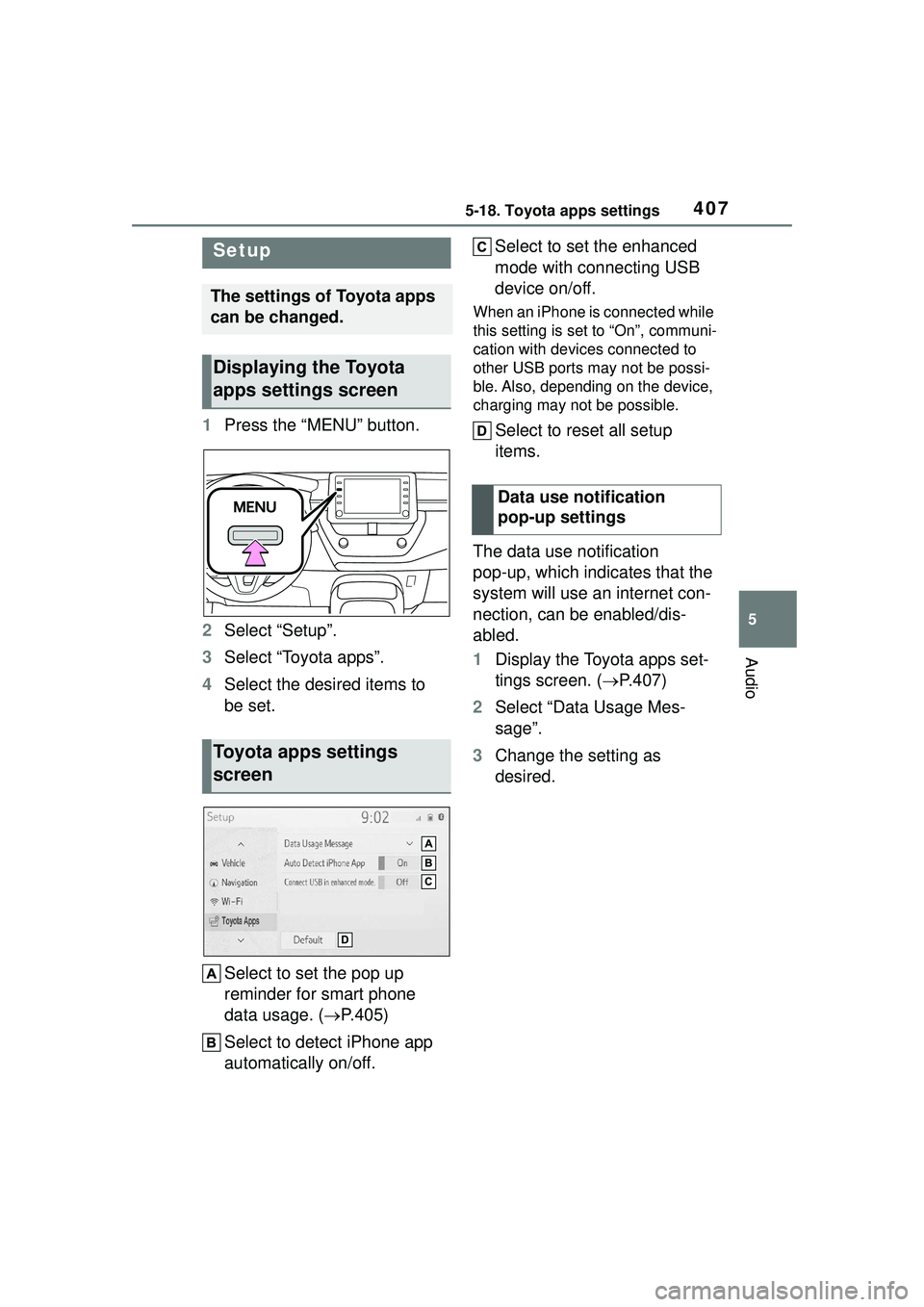
1Press the “MENU” button.
2 Select “Setup”.
3 Select “Toyota apps”.
4 Select the desired items to
be set.
Select to set the pop up
reminder for smart phone
data usage. ( P.405)
Select to detect iPhone app
automatically on/off. Select to set the enhanced
mode with connecting USB
device on/off.
When an iPhone is connected while
this setting is set to “On”, communi-
cation with devices connected to
other USB ports may not be possi-
ble. Also, depending on the device,
charging may not be possible.
Select to reset all setup
items.
The data use notification
pop-up, which indicates that the
system will use an internet con-
nection, can be enabled/dis-
abled.
1 Display the Toyota apps set-
tings screen. ( P.407)
2 Select “Data Usage Mes-
sage”.
3 Change the setting as
desired.
Setup
The settings of Toyota apps
can be changed.
Displaying the Toyota
apps settings screen
Toyota apps settings
screen
Data use notification
pop-up settings