display TOYOTA PRIUS PRIME 2023 Owners Manual
[x] Cancel search | Manufacturer: TOYOTA, Model Year: 2023, Model line: PRIUS PRIME, Model: TOYOTA PRIUS PRIME 2023Pages: 680, PDF Size: 14.97 MB
Page 414 of 680
4145-5. Using the driving support systems
●When a vehicle is not parked in
front of the vehicle
●When there is excessive space
between the front of the vehicle
and a parked vehicle
■When the brakes have been
operated
P.406
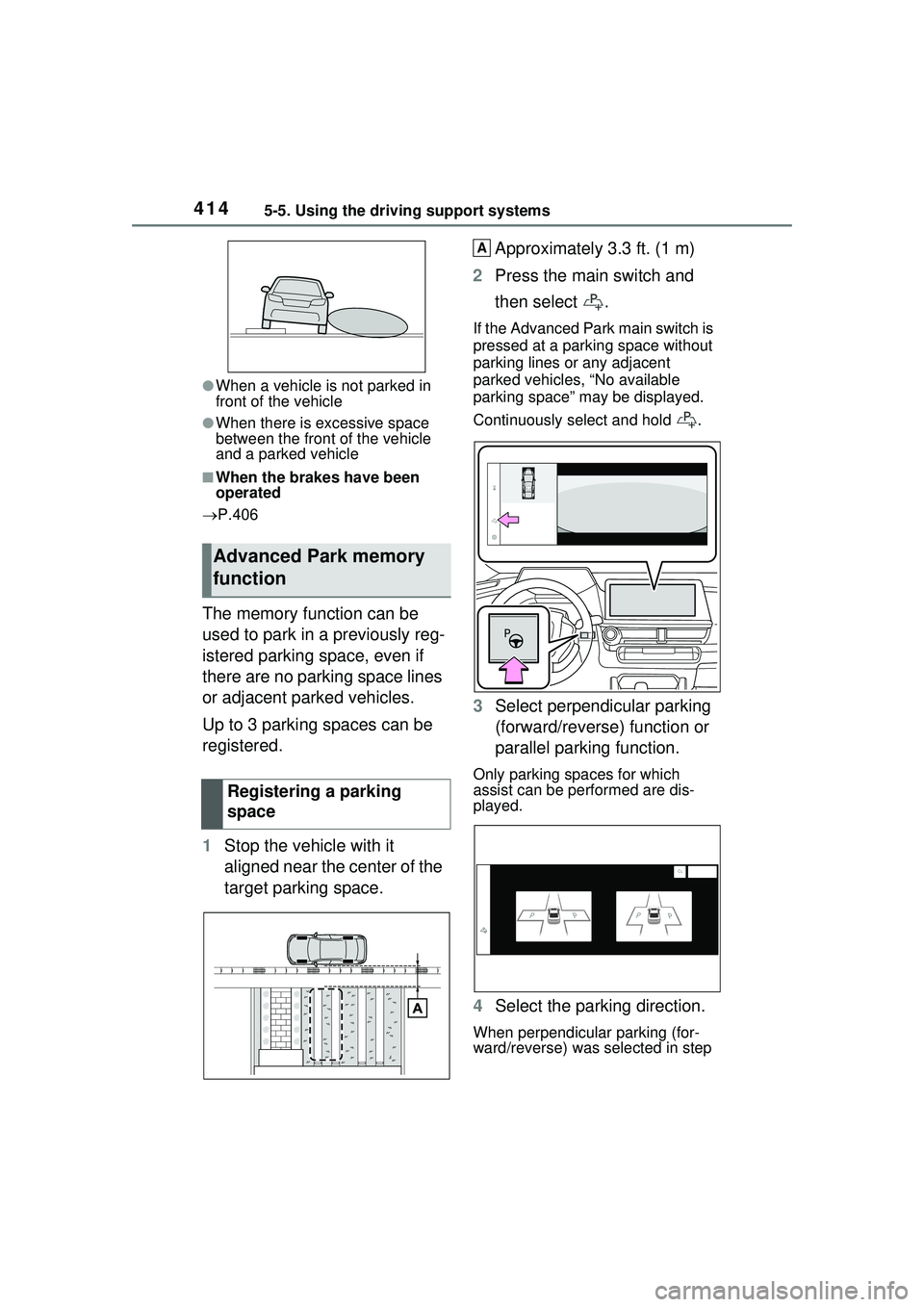
The memory function can be
used to park in a previously reg-
istered parking space, even if
there are no parking space lines
or adjacent parked vehicles.
Up to 3 parking spaces can be
registered.
1 Stop the vehicle with it
aligned near the center of the
target parking space. Approximately 3.3 ft. (1 m)
2 Press the main switch and
then select .
If the Advanced Park main switch is
pressed at a parking space without
parking lines or any adjacent
parked vehicles, “No available
parking space” may be displayed.
Continuously select and hold .
3Select perpendicular parking
(forward/reverse) function or
parallel parking function.
Only parking spaces for which
assist can be performed are dis-
played.
4Select the parking direction.
When perpendicular parking (for-
ward/reverse) was se lected in step
Advanced Park memory
function
Registering a parking
space
A
Page 415 of 680
4155-5. Using the driving support systems
5
Driving
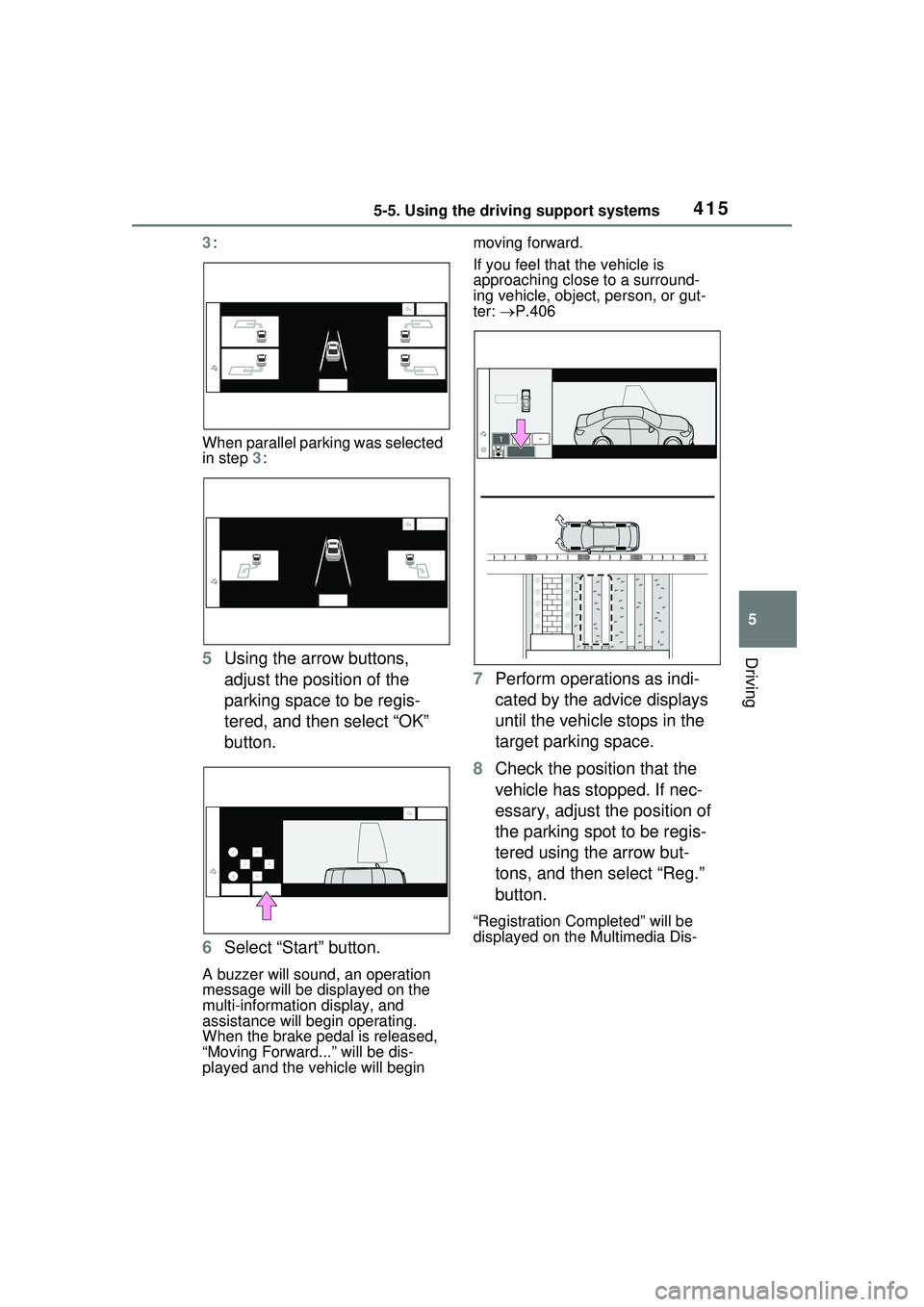
3:
When parallel parking was selected
in step 3:
5 Using the arrow buttons,
adjust the position of the
parking space to be regis-
tered, and then select “OK”
button.
6 Select “Start” button.
A buzzer will sound, an operation
message will be displayed on the
multi-information display, and
assistance will be gin operating.
When the brake pedal is released,
“Moving Forward...” will be dis-
played and the vehicle will begin moving forward.
If you feel that the vehicle is
approaching close to a surround-
ing vehicle, object, person, or gut-
ter:
P.406
7 Perform operations as indi-
cated by the advice displays
until the vehicle stops in the
target parking space.
8 Check the position that the
vehicle has stopped. If nec-
essary, adjust the position of
the parking spot to be regis-
tered using the arrow but-
tons, and then select “Reg.”
button.
“Registration Co mpleted” will be
displayed on the Multimedia Dis-
Page 416 of 680
4165-5. Using the driving support systems
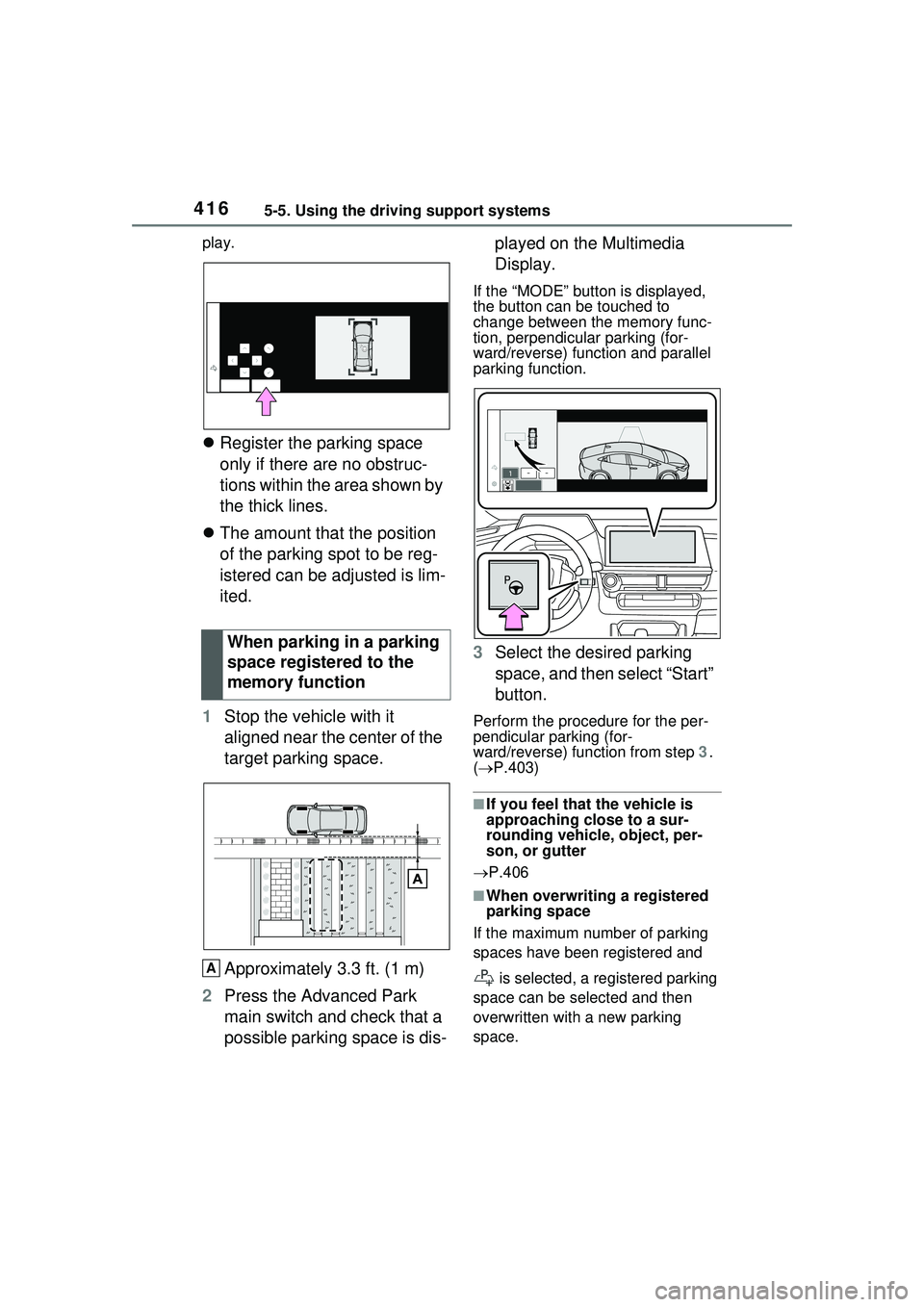
play.
Register the parking space
only if there are no obstruc-
tions within the area shown by
the thick lines.
The amount that the position
of the parking spot to be reg-
istered can be adjusted is lim-
ited.
1 Stop the vehicle with it
aligned near the center of the
target parking space.
Approximately 3.3 ft. (1 m)
2 Press the Advanced Park
main switch and check that a
possible parking space is dis- played on the Multimedia
Display.
If the “MODE” butt
on is displayed,
the button can be touched to
change between the memory func-
tion, perpendicular parking (for-
ward/reverse) function and parallel
parking function.
3 Select the desired parking
space, and then select “Start”
button.
Perform the procedure for the per-
pendicular parking (for-
ward/reverse) function from step 3.
( P.403)
■If you feel that the vehicle is
approaching close to a sur-
rounding vehicle, object, per-
son, or gutter
P.406
■When overwriting a registered
parking space
If the maximum number of parking
spaces have been registered and
is selected, a registered parking
space can be selected and then
overwritten with a new parking
space.
When parking in a parking
space registered to the
memory function
A
Page 419 of 680
4195-5. Using the driving support systems
5
Driving
■Assistance will be can-
celed when
In situations such as the follow-
ing, Advanced Park operation
will be canceled. Firmly hold the
steering wheel and depress the
brake pedal to stop the vehicle.
As system operation has been
canceled, begin the operation
again or continue parking manu-
ally, using the steering wheel.
The Advanced Park main
switch is pushed
The shift position has been
changed to P
The parking brake is engaged
A door or the back door is
opened
The driver’s seat belt is unfas-
tened
The outside rear view mirrors
are folded
The TRAC or VSC is turned
off
The TRAC, VSC or ABS oper-
ates
The power switch is pressed
The system determines assis-
tance cannot be continued in
the current parking environ-
ment
The system malfunctions
While the vehicle was stopped, “Cancel” was
selected on the Multimedia
Display■Assistance will be sus-
pended when
In situations such as the follow-
ing, Advanced Park operation
will be suspended.
Assistance can be started again
by following the directions dis-
played on the Multimedia Dis-
play.
Also, when assistance is sus-
pended, if the shift position is
changed twice with the brake
pedal depressed, assistance will
be canceled in that shift posi-
tion. However, if assistance is
suspended by changing the shift
position, assistance will be can-
celed if the shift position is
changed once.
The steering wheel is oper-
ated
The accelerator pedal is
depressed
The shift position has been
changed
A moving object or stationary
object that may collide with
your vehicle has been
detected, resulting in the
operation of the hybrid system
output control/braking control.
Camera switch is pressed
Advanced Park cancel-
ation/suspension
Page 420 of 680
4205-5. Using the driving support systems
Select on the Multimedia
Display, and then select
“Advanced Park”.
■“Speed Profile”
The vehicle speed for when
assistance is performed can be
set.
This setting cannot be changed
when registering a parking
space to the memory function.
■“Obstacle detection range”
The distance from which obsta-
cles will be avoided while assis-
tance is being performed can be
set.
■“Preferred parking method”
The preferred parking direction
displayed when at a parking
space which perpendicular (for-
ward/reverse) or parallel parking
is possible can be set.
■“Preferred parking direc-
tion”
The preferred parking direction
displayed when it is possible to
pull perpendicular forward or
reverse into a parking space can
be selected.
■“Preferred exit direction
(perpendicular)”
The preferred exit direction dis-
played when it is possible to pull
forward or reverse to the left or right out of a parking space can
be selected.
■“Preferred exit direction
(parallel)”
The preferred exit direction dis-
played when it is possible to exit
to the left or right from a parallel
parking space can be selected.
■“Camera view when park-
ing”
The display angle of the camera
image when using the perpen-
dicular parking (for-
ward/reverse) function or
parallel parking function can be
set.
■“Camera view when exit-
ing”
The display angle of the camera
image when using the perpen-
dicular exiting (forward/reverse)
function or parallel parking exit
function can be set.
■“Parking path adjustment”
The course for when parking
assistance is operating can be
adjusted inward or outward.
If the tires are worn, the path of
vehicle may be offset from the
center of the parking space. In
this case, use this setting to
adjust the parking course.
■“Road width adjustment”
When parking assistance is
started, the amount of lateral
movement while the vehicle is
moving forward can be
Changing the Advanced
Park settings
Page 421 of 680
4215-5. Using the driving support systems
5
Driving
adjusted.
■“Park position adjustment
(forward)”
The position at which perpendic-
ular parking (forward) is com-
pleted can be adjusted. (Except
when using the memory func-
tion.)
■“Park position adjustment
(reverse)”
The position at which perpendic-
ular parking (reverse) is com-
pleted can be adjusted. (Except
when using the memory func-
tion.)
■“Rear accessory setting”
If an accessory, such as a trailer
hitch, has been installed to the
rear of the vehicle, the length of
the rear of the vehicle can be
adjusted to help avoid colliding
with objects to the rear of the
vehicle.
■“Clear registered parking
space”
The parking spaces registered
to the memory function can be
deleted. Parking space informa-
tion cannot be deleted when
assistance is being performed
or when registering parking
space information to the mem-
ory function. The operating state, assistance
operation, etc. of the Advanced
Park is displayed on the Multi-
media Display. If a message is
displayed, respond according to
the content displayed.
■If “No available parking space”
is displayed
Move the vehicle to a location where
a parking space or parking lines can
be detected.
■If “Unavailable in current condi-
tion” is displayed
Move the vehicle to another location
and use the system.
■If “Not enough space to exit” is
displayed
The parallel parking exit function
cannot be used due to a situation
such as the distance between your
vehicle and vehicles parked in front
of and behind your vehicle being
short, the existence of an object in
the exit direction, etc.
Check the conditions of the area
NOTICE
●Take care when using the park
position adjustment (forward) or
park position adjustment
(reverse) for adjusting because
the vehicle may collide with
parking blocks, curb stones, or
other low objects.
●If it is likely that your vehicle will
collide with a nearby vehi-
cle/object, parking block, curb
stone, etc., depress the brake
pedal to stop the vehicle and
press the Advanced Park main
switch to disable the system.
Advanced Park displayed
messages
Page 422 of 680
4225-5. Using the driving support systems
around your vehicle and exit from
the parking space manually.
■If “Cannot control speed” is
displayed
The system judged that it cannot
adjust the speed of the vehicle when
using the system in an area with a
slope or step and assistance was
canceled.
Use the system in a level location.
■If “Obstacle detected” is dis-
played
As a moving object or stationary
object that may collide with your
vehicle has been detected, the
hybrid system output control/braking
control operates to suspend
Advanced Park assistance.
Check the condition of the surround-
ing area. To resume assistance,
select the “Start” button on the Multi-
media Display.
■If “No available parking space
to register” is displayed
This message is displayed when
is selected at a parking space that
cannot be detected.
Operate the system at a parking
space where differences in the road
surface can be recognized.
( P.414)
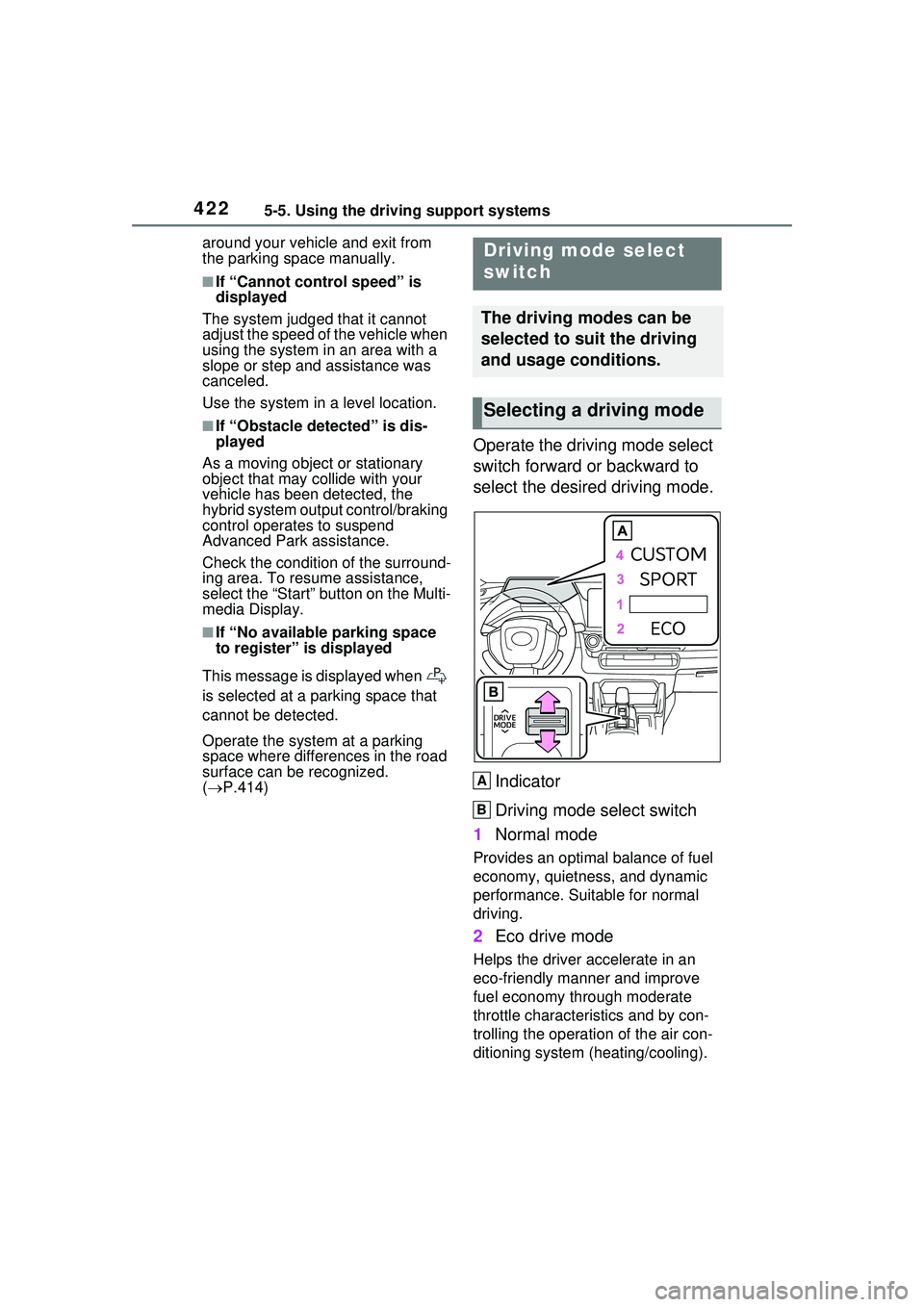
Operate the driving mode select
switch forward or backward to
select the desired driving mode.
Indicator
Driving mode select switch
1 Normal mode
Provides an optimal balance of fuel
economy, quietness, and dynamic
performance. Suitable for normal
driving.
2Eco drive mode
Helps the driver accelerate in an
eco-friendly manner and improve
fuel economy through moderate
throttle characteristics and by con-
trolling the operation of the air con-
ditioning system (heating/cooling).
Driving mode select
switch
The driving modes can be
selected to suit the driving
and usage conditions.
Selecting a driving mode
A
B
Page 423 of 680
4235-5. Using the driving support systems
5
Driving
When Eco drive mode is selected,
Eco drive mode indicator comes
on.
3Sport mode
Controls the hybrid system to pro-
vide quick, powerful acceleration.
This mode also expands the possi-
ble rate of deceleration by operat-
ing the accelerator pedal and
enables acceleration/deceleration
control based on the driver’s inten-
tions. This changes the steering
feel, making it suitable for when
agile driving response is desired,
such as when driving on roads with
many curves.
When Sport mode is selected,
Sport mode indicator comes on.
4Custom mode
Allows you to drive with the power
train, steering wheel and air condi-
tioning system func tions set to your
preferred settings.
Custom mode settings can only be
changed on the drive mode cus-
tomization display of Multimedia
Display. ( P.632)
When the Custom mode is
selected, Custom mode indicator
comes on.
■Operation of the air condition-
ing system in Eco drive mode
When Eco drive mode is selected,
the air conditioning system will auto-
matically be changed to eco air con-
ditioning mode.
Eco air conditioning mode controls
the heating/cooling operations and
fan speed of the air conditioning
system to enhance fuel efficiency.
To improve air conditioning perfor-
mance, perform the following opera-
tions:
●Adjust the fan speed ( P.435)
●Deactivate Eco drive mode
●Turn off eco air conditioning mode
( P.440)
■Automatic deactivation of a
driving mode
●Sport mode and Custom mode
are automatically deactivated and
the driving mode returns to normal
mode when the power switch is
turned to OFF.
●Normal mode and Eco drive mode
are not deactivated until another
driving mode is selected. (Even if
the power switch is turned to OFF,
normal mode and Eco drive mode
will not be automatically deacti-
vated.)
■Customization
The custom mode can be changed.
(Customizable features: P.618)
Page 425 of 680
4255-5. Using the driving support systems
5
Driving
wheel.
■The Secondary Collision
Brake
When the SRS airbag sensor
detects a collision and the sys-
tem operates, the brakes and
brake lights are automatically
controlled to reduce the vehicle
speed and help reduce the pos-
sibility of further damage due to
a secondary collision.
■When the TRAC/VSC/ABS sys-
tems are operating
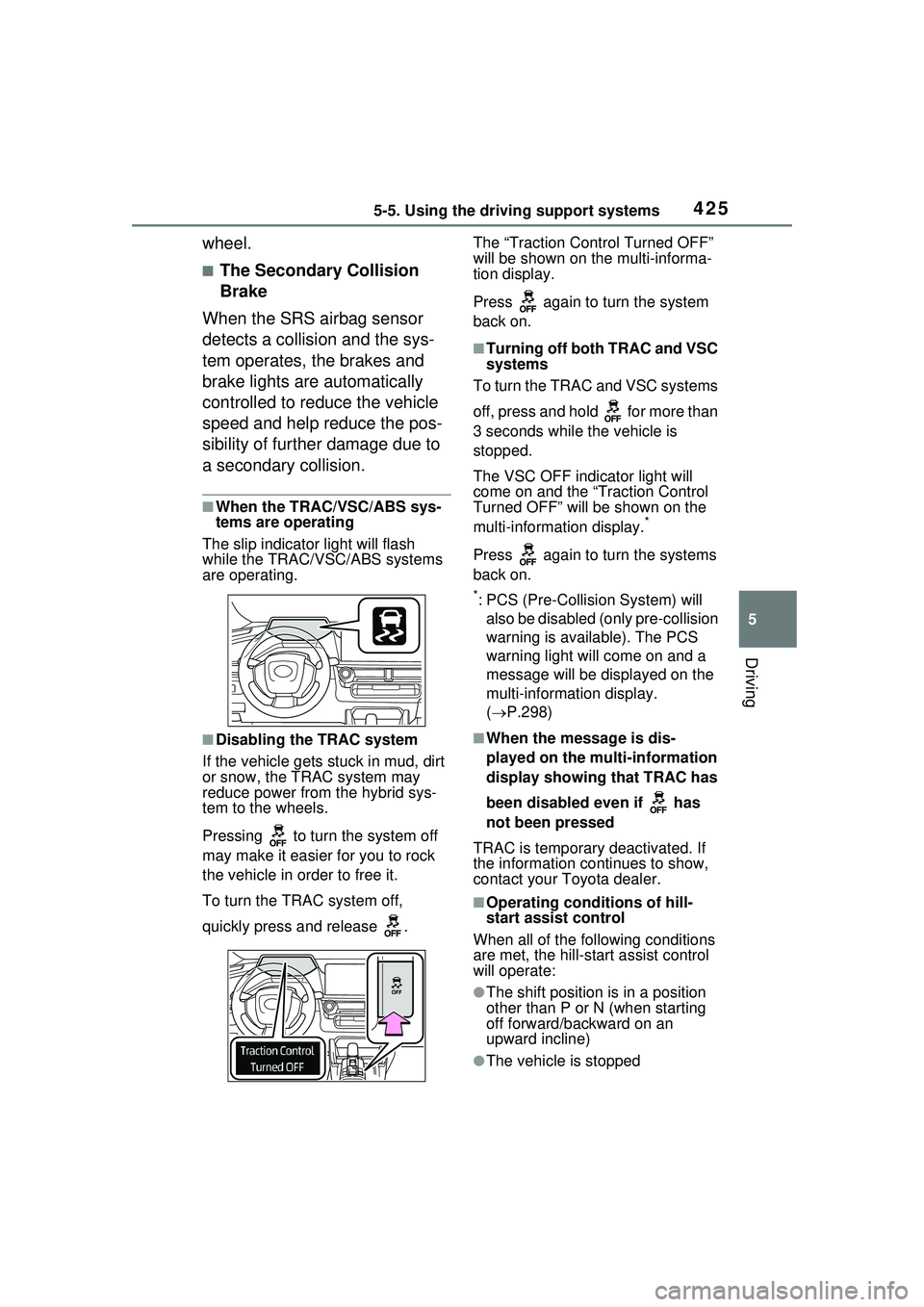
The slip indicator light will flash
while the TRAC/VSC/ABS systems
are operating.
■Disabling the TRAC system
If the vehicle gets stuck in mud, dirt
or snow, the TRAC system may
reduce power from the hybrid sys-
tem to the wheels.
Pressing to turn the system off
may make it easier for you to rock
the vehicle in order to free it.
To turn the TRAC system off,
quickly press and release . The “Traction Control Turned OFF”
will be shown on the multi-informa-
tion display.
Press again to turn the system
back on.
■Turning off both TRAC and VSC
systems
To turn the TRAC and VSC systems
off, press and hold for more than
3 seconds while the vehicle is
stopped.
The VSC OFF indicator light will
come on and the “Traction Control
Turned OFF” will be shown on the
multi-informat ion display.
*
Press again to turn the systems
back on.
*: PCS (Pre-Collision System) will
also be disabled (only pre-collision
warning is available). The PCS
warning light will come on and a
message will be disp layed on the
multi-information display.
( P.298)
■When the message is dis-
played on the mu lti-information
display showing that TRAC has
been disabled even if has
not been pressed
TRAC is temporary deactivated. If
the information continues to show,
contact your Toyota dealer.
■Operating conditions of hill-
start assist control
When all of the following conditions
are met, the hill-start assist control
will operate:
●The shift position is in a position
other than P or N (when starting
off forward/backward on an
upward incline)
●The vehicle is stopped
Page 440 of 680
4406-1. Using the air conditioning system and defogger
This feature is used to prevent
ice from building up on the wind-
shield and wiper blades.
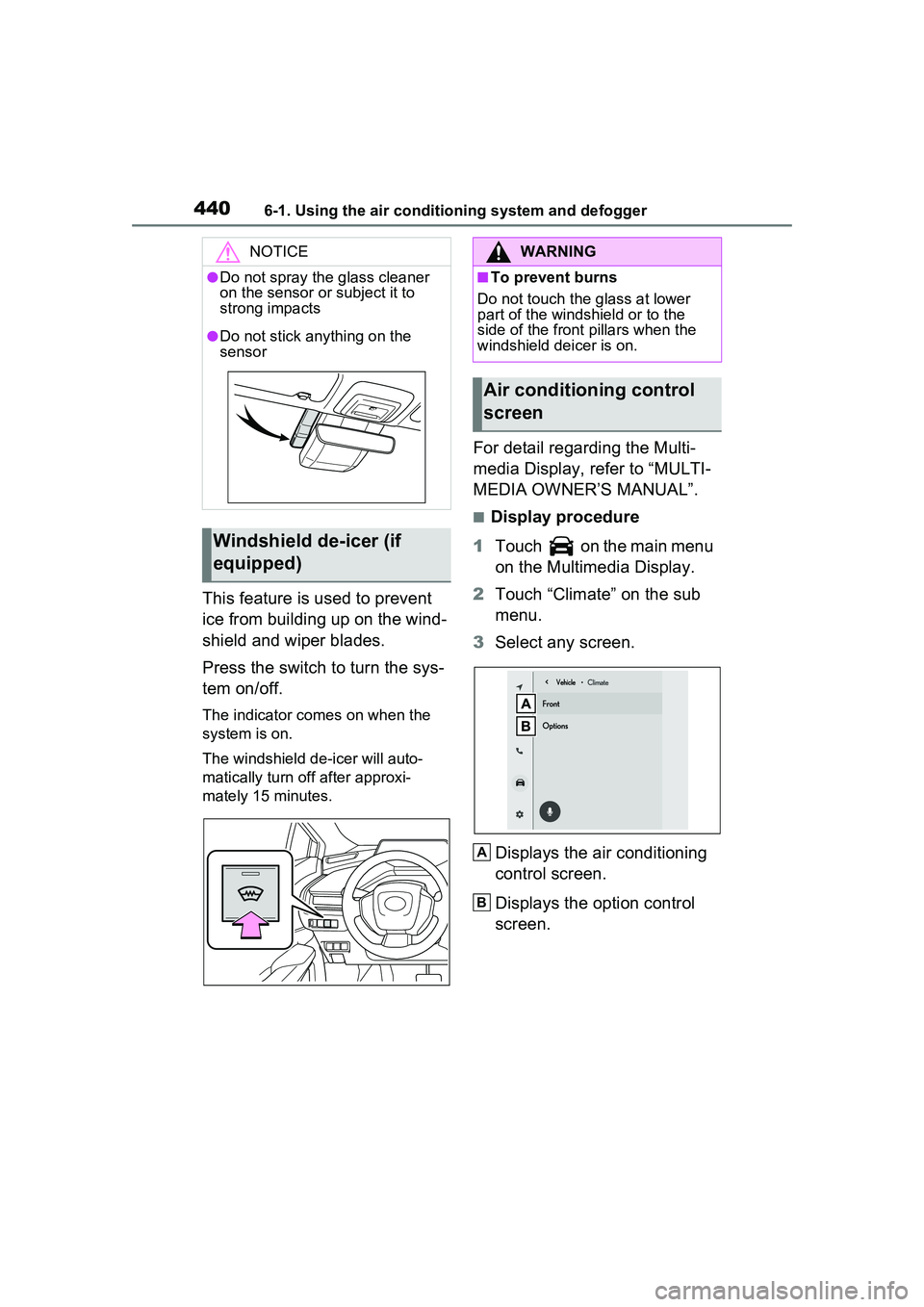
Press the switch to turn the sys-
tem on/off.
The indicator comes on when the
system is on.
The windshield de-icer will auto-
matically turn off after approxi-
mately 15 minutes.
For detail regarding the Multi-
media Display, refer to “MULTI-
MEDIA OWNER’S MANUAL”.
■Display procedure
1 Touch on the main menu
on the Multimedia Display.
2 Touch “Climate” on the sub
menu.
3 Select any screen.
Displays the air conditioning
control screen.
Displays the option control
screen.
NOTICE
●Do not spray the glass cleaner
on the sensor or subject it to
strong impacts
●Do not stick anything on the
sensor
Windshield de-icer (if
equipped)
WARNING
■To prevent burns
Do not touch the glass at lower
part of the windshield or to the
side of the front pillars when the
windshield deicer is on.
Air conditioning control
screen
A
B