display TOYOTA PRIUS PRIME 2023 Owner's Manual
[x] Cancel search | Manufacturer: TOYOTA, Model Year: 2023, Model line: PRIUS PRIME, Model: TOYOTA PRIUS PRIME 2023Pages: 680, PDF Size: 14.97 MB
Page 123 of 680
1232-2. Charging
2
Plug-in hybrid system
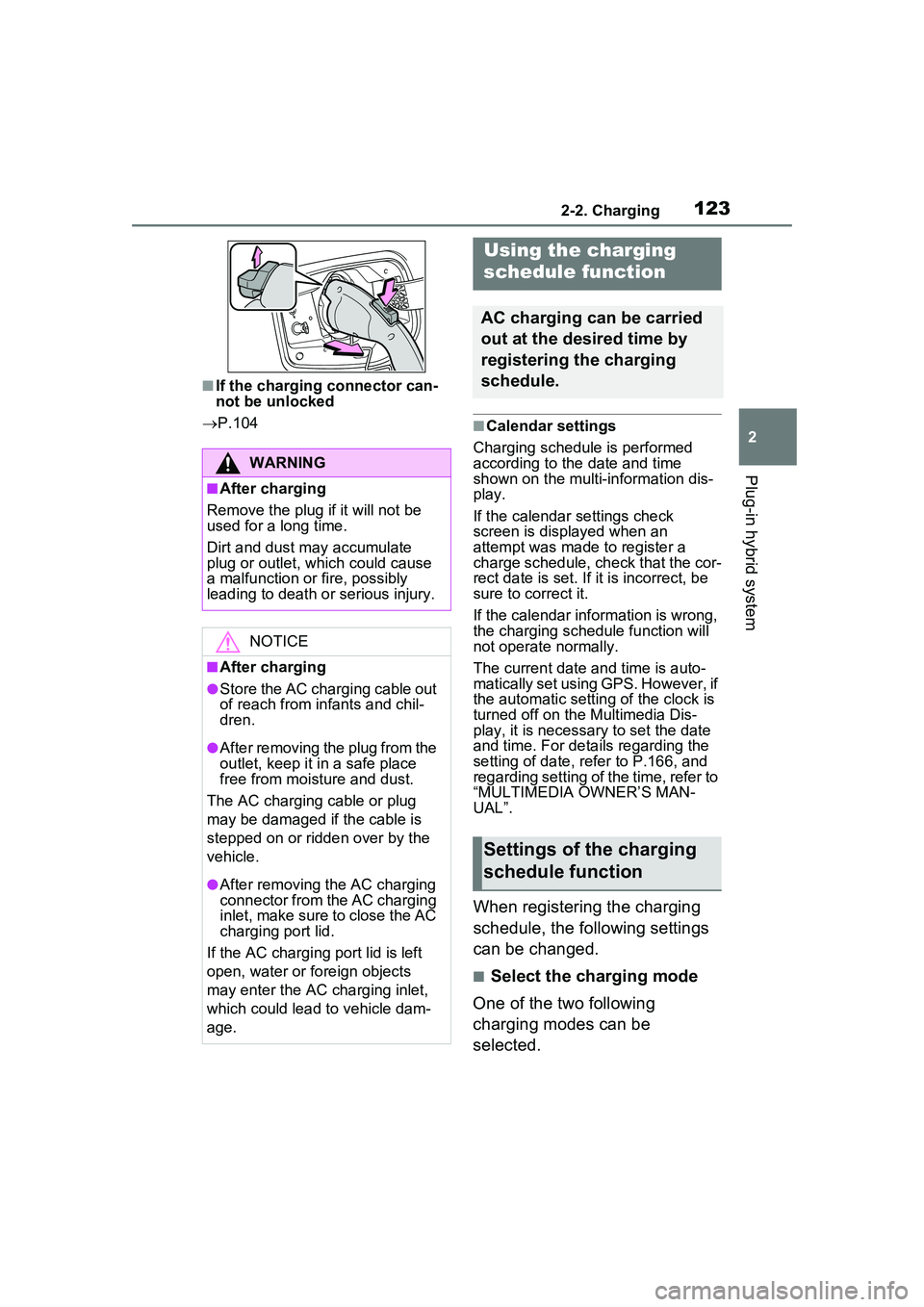
■If the charging connector can-
not be unlocked
P.104
■Calendar settings
Charging schedule is performed
according to the date and time
shown on the multi-information dis-
play.
If the calendar settings check
screen is displayed when an
attempt was made to register a
charge schedule, check that the cor-
rect date is set. If it is incorrect, be
sure to correct it.
If the calendar info rmation is wrong,
the charging schedule function will
not operate normally.
The current date and time is auto-
matically set using GPS. However, if
the automatic setting of the clock is
turned off on the Multimedia Dis-
play, it is necessary to set the date
and time. For details regarding the
setting of date, refer to P.166, and
regarding setting of the time, refer to
“MULTIMEDIA OWNER’S MAN-
UAL”.
When registering the charging
schedule, the following settings
can be changed.
■Select the charging mode
One of the two following
charging modes can be
selected.
WARNING
■After charging
Remove the plug if it will not be
used for a long time.
Dirt and dust may accumulate
plug or outlet, which could cause
a malfunction or fire, possibly
leading to death or serious injury.
NOTICE
■After charging
●Store the AC charging cable out
of reach from infants and chil-
dren.
●After removing the plug from the
outlet, keep it in a safe place
free from moisture and dust.
The AC charging cable or plug
may be damaged if the cable is
stepped on or ridden over by the
vehicle.
●After removing the AC charging
connector from the AC charging
inlet, make sure to close the AC
charging port lid.
If the AC charging port lid is left
open, water or foreign objects
may enter the AC charging inlet,
which could lead to vehicle dam-
age.
Using the charging
schedule function
AC charging can be carried
out at the desired time by
registering the charging
schedule.
Settings of the charging
schedule function
Page 124 of 680
1242-2. Charging
“Start” or “Start at set time”
Starts charging at the set time
*
and finishes charging when fully
charged.
“Start-Stop” or “Start and stop
at set times”
AC charging is performed
according to the set start time
and stop time.
*
*: There might be a slight error in the timing when charging starts
due to the state of the hybrid bat-
tery (traction battery).
■Repeated setting
The periodic charging schedule
can be set by selecting your
desired day of the week. Select
one or more day of the week to
do the charging schedule.
■Turning “Charge Now” on
and off
To start charging without chang-
ing the charging schedule set-
ting, turn “Charge Now” on to
temporarily cancel the charging
schedule and enable charging
after connecting the AC
charging connector.
*
*: If the charging connector is removed while the charging
schedule is registered and
“Charge Now” is on, “Charge
Now” turns off.
■“Next Event”
Of the registered charging
schedules, the closest charging
schedule after the current time is called the “Next Event”.
For charging schedule, AC
charging will be performed
according to the “Next Event”.
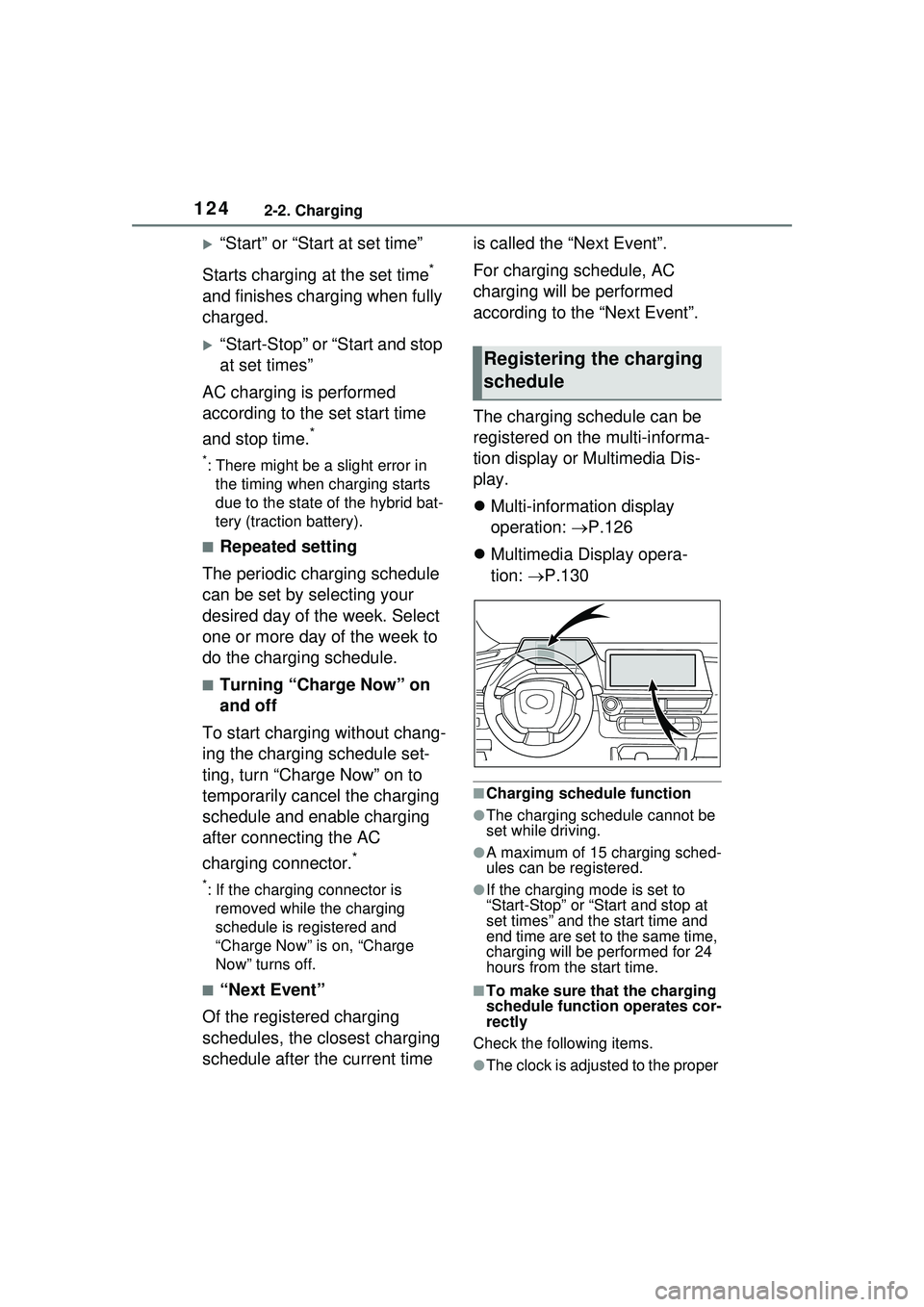
The charging schedule can be
registered on the multi-informa-
tion display or Multimedia Dis-
play.
Multi-information display
operation: P.126
Multimedia Display opera-
tion: P.130
■Charging schedule function
●The charging schedule cannot be
set while driving.
●A maximum of 15 charging sched-
ules can be registered.
●If the charging mode is set to
“Start-Stop” or “Start and stop at
set times” and the start time and
end time are set to the same time,
charging will be performed for 24
hours from the start time.
■To make sure that the charging
schedule function operates cor-
rectly
Check the following items.
●The clock is adjusted to the proper
Registering the charging
schedule
Page 126 of 680
1262-2. Charging
●When an operation that temporar-
ily cancel charging using the
charging schedule (P.118)
■“Battery Heater” ( P.108) /
“Battery Cooler” ( P.109)
Depending on the temperature of
the hybrid battery (traction battery),
“Battery Heater” or “Battery Cooler”
may be activated and the charging
indicator may light up while the
charging schedule is waiting for
charging.
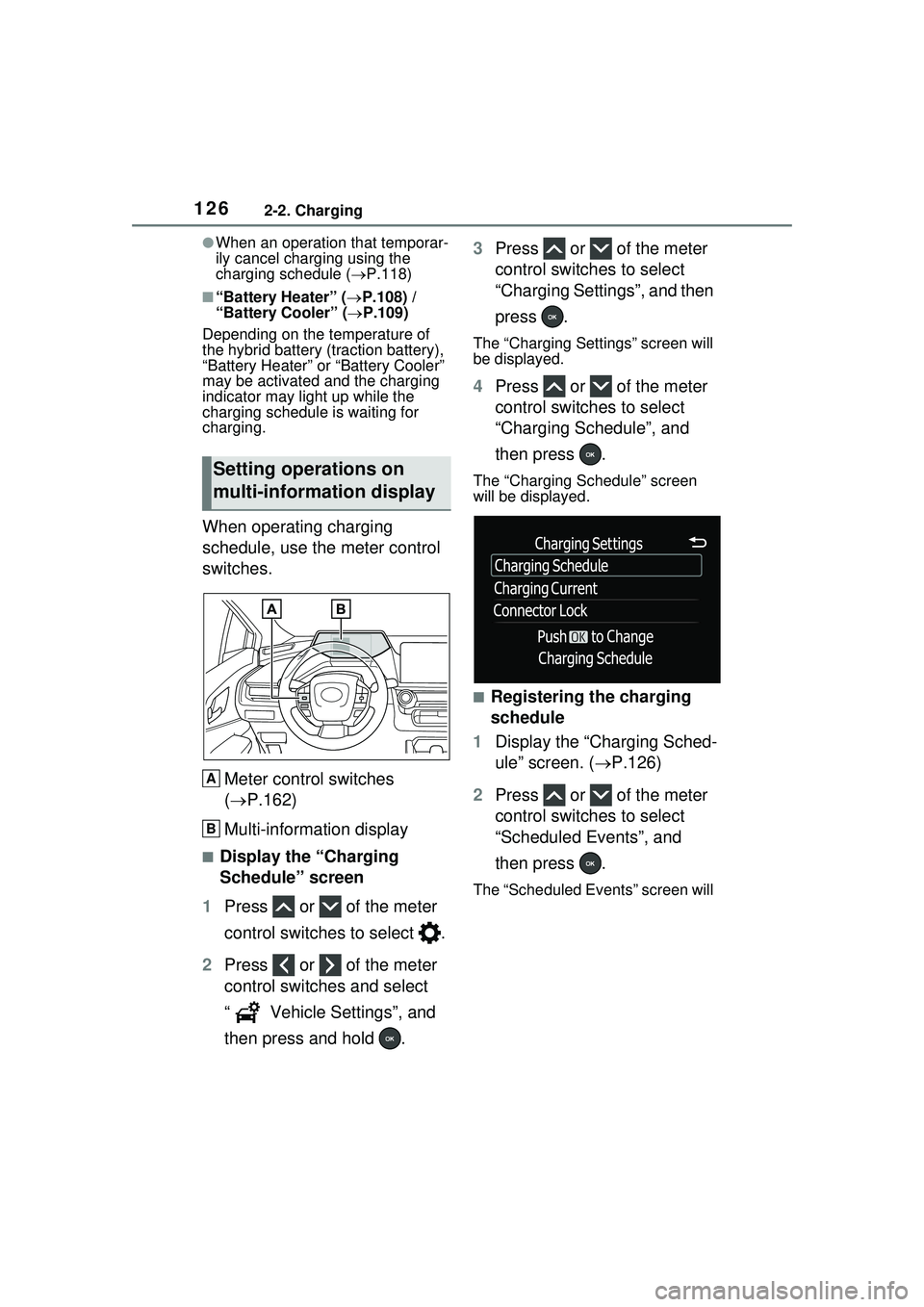
When operating charging
schedule, use the meter control
switches.
Meter control switches
( P.162)
Multi-information display
■Display the “Charging
Schedule” screen
1 Press or of the meter
control switches to select .
2 Press or of the meter
control switches and select
“ Vehicle Settings”, and
then press and hold . 3
Press or of the meter
control switches to select
“Charging Settings”, and then
press .
The “Charging Settings” screen will
be displayed.
4Press or of the meter
control switches to select
“Charging Schedule”, and
then press .
The “Charging Schedule” screen
will be displayed.
■Registering the charging
schedule
1 Display the “Charging Sched-
ule” screen. ( P.126)
2 Press or of the meter
control switches to select
“Scheduled Events”, and
then press .
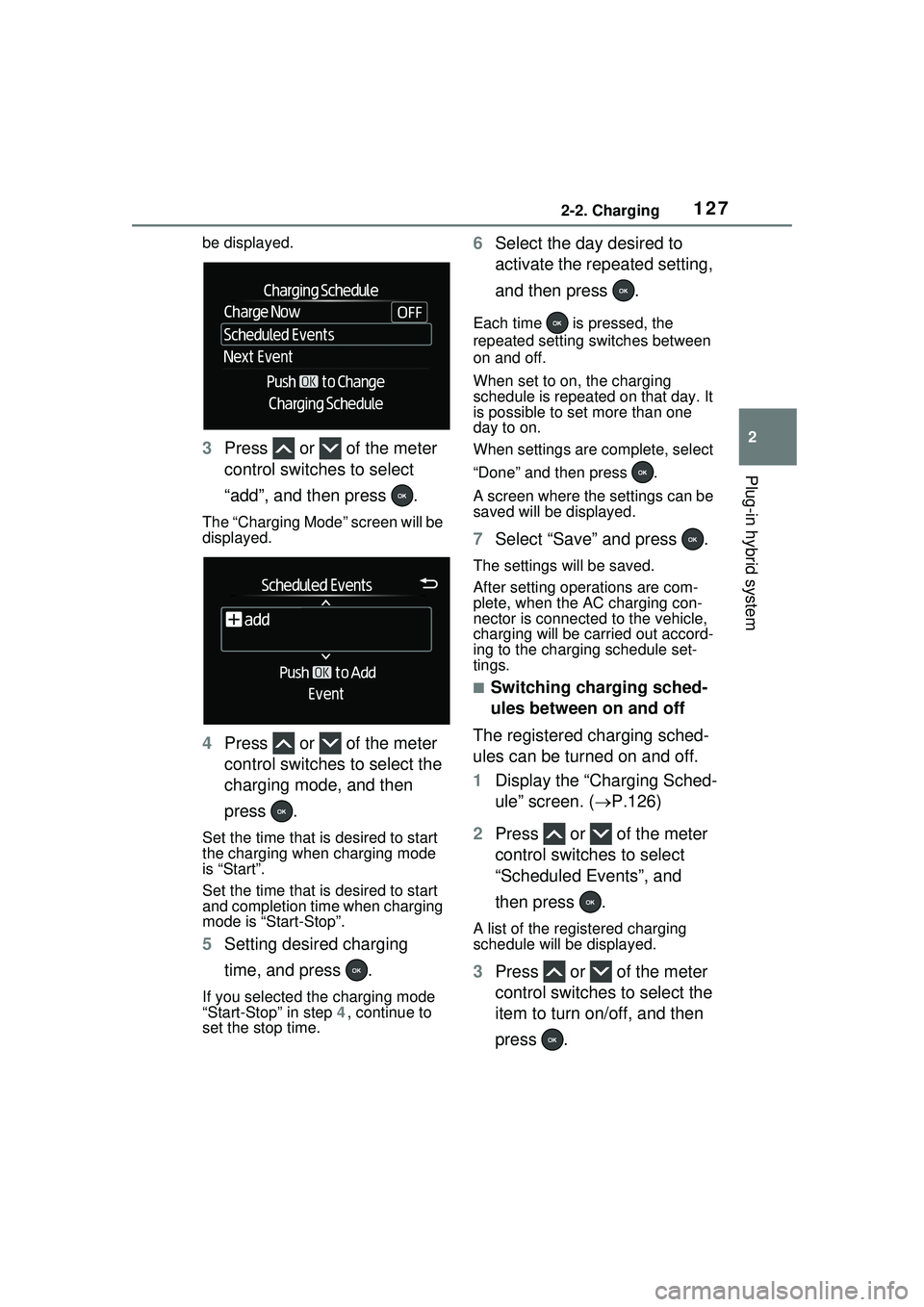
The “Scheduled Events” screen will
Setting operations on
multi-information display
A
B
Page 127 of 680
1272-2. Charging
2
Plug-in hybrid system
be displayed.
3Press or of the meter
control switches to select
“add”, and then press .
The “Charging Mode” screen will be
displayed.
4Press or of the meter
control switches to select the
charging mode, and then
press .
Set the time that is desired to start
the charging when charging mode
is “Start”.
Set the time that is desired to start
and completion time when charging
mode is “Start-Stop”.
5Setting desired charging
time, and press .
If you selected the charging mode
“Start-Stop” in step 4, continue to
set the stop time.
6 Select the day desired to
activate the repeated setting,
and then press .
Each time is pressed, the
repeated setting switches between
on and off.
When set to on, the charging
schedule is repeated on that day. It
is possible to set more than one
day to on.
When settings are complete, select
“Done” and then press .
A screen where the settings can be
saved will be displayed.
7Select “Save” and press .
The settings will be saved.
After setting operations are com-
plete, when the AC charging con-
nector is connected to the vehicle,
charging will be carried out accord-
ing to the charging schedule set-
tings.
■Switching charging sched-
ules between on and off
The registered charging sched-
ules can be turned on and off.
1 Display the “Charging Sched-
ule” screen. ( P.126)
2 Press or of the meter
control switches to select
“Scheduled Events”, and
then press .
A list of the registered charging
schedule will be displayed.
3Press or of the meter
control switches to select the
item to turn on/off, and then
press .
Page 128 of 680
1282-2. Charging
Each time is pressed, the
selected charging schedule
switches between on and off.
When set to off, a charging sched-
ule is ignored and charging accord-
ing to the charging schedule is not
carried out.
■Changing the registered
charging schedules
The registered charging sched-
ules can be modified or deleted.
1 Display the “Charging Sched-
ule” screen. ( P.126)
2 Press or of the meter
control switches to select
“Scheduled Events”, and
then press .
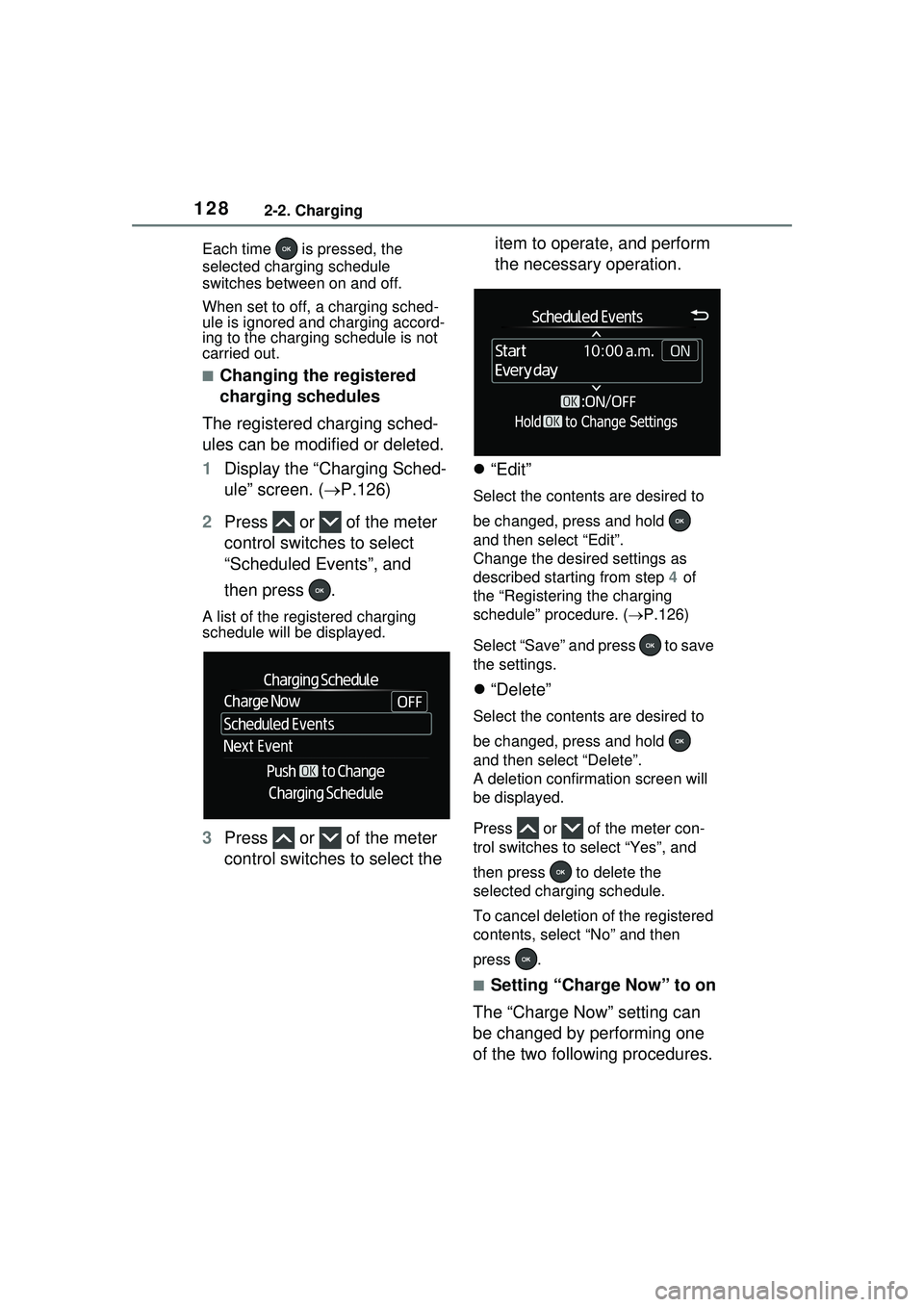
A list of the registered charging
schedule will be displayed.
3Press or of the meter
control switches to select the item to operate, and perform
the necessary operation.
“Edit”
Select the contents are desired to
be changed, press and hold
and then select “Edit”.
Change the desired settings as
described starting from step 4 of
the “Registering the charging
schedule” procedure. ( P.126)
Select “Save” and press to save
the settings.
“Delete”
Select the contents are desired to
be changed, press and hold
and then select “Delete”.
A deletion confir mation screen will
be displayed.
Press or of the meter con-
trol switches to select “Yes”, and
then press to delete the
selected charging schedule.
To cancel deletion of the registered
contents, select “No” and then
press .
■Setting “Charge Now” to on
The “Charge Now” setting can
be changed by performing one
of the two following procedures.
Page 129 of 680
1292-2. Charging
2
Plug-in hybrid system
Operation on “Charging
Schedule” screen
1 Display the “Charging Sched-
ule” screen. ( P.126)
2 Press or of the meter
control switches to select
“Charge Now”, and then
press .
Each time is pressed, “Charge
Now” switches between on and off.
Operation on “Trip Summary”
screen
1 Turn the power switch off.
The “Trip Summary” screen* is dis-
played on the multi-information dis-
play.
(If the door is op ened while waiting
for charging schedule, the same
screen will be displayed.)
*: If “Trip Summary” is not set to
“Charging Schedule” on the
screen of the multi-informa-
tion display, the “Trip Summary”
is not displayed. In this case,
check the settings on the multi-
information display.
2 Press to set “Charge
Now” to on.
Each time is pressed, “Charge
Now” switches between on and off.
After setting operations are
complete, charging starts when
the AC charging connector is
connected. ( P.116)
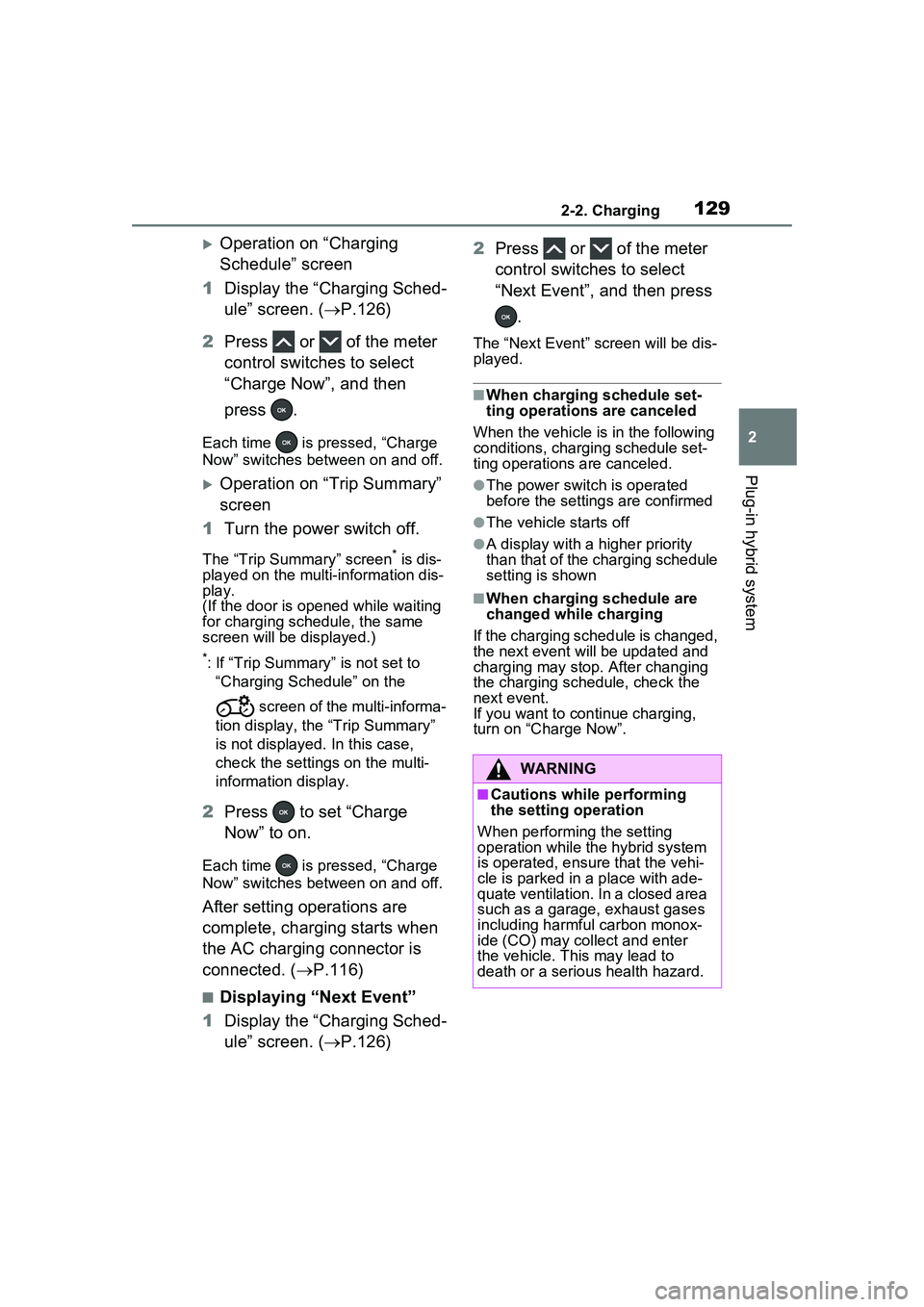
■Displaying “Next Event”
1 Display the “Charging Sched-
ule” screen. ( P.126) 2
Press or of the meter
control switches to select
“Next Event”, and then press
.
The “Next Event” screen will be dis-
played.
■When charging schedule set-
ting operations are canceled
When the vehicle is in the following
conditions, charging schedule set-
ting operations are canceled.
●The power switch is operated
before the settings are confirmed
●The vehicle starts off
●A display with a higher priority
than that of the charging schedule
setting is shown
■When charging schedule are
changed while charging
If the charging schedule is changed,
the next event will be updated and
charging may stop. After changing
the charging schedule, check the
next event.
If you want to continue charging,
turn on “Charge Now”.
WARNING
■Cautions while performing
the setting operation
When performing the setting
operation while the hybrid system
is operated, ensure that the vehi-
cle is parked in a place with ade-
quate ventilation. In a closed area
such as a garage, exhaust gases
including harmful carbon monox-
ide (CO) may collect and enter
the vehicle. This may lead to
death or a serious health hazard.
Page 130 of 680
1302-2. Charging
For details on how to operate
the Multimedia Display, refer to
“MULTIMEDIA OWNER’S MAN-
UAL”.
Setting operations related to the
charging schedule are per-
formed on the “Charging sched-
ule” screen.
The illustrations used in the text
may differ from the images that are actually displayed on the
Multimedia Display.
■Displaying the “Charging
schedule” screen
1 Turn the power switch to ON.
The charging schedule settings
cannot be controlled if the power
switch is in ACC.
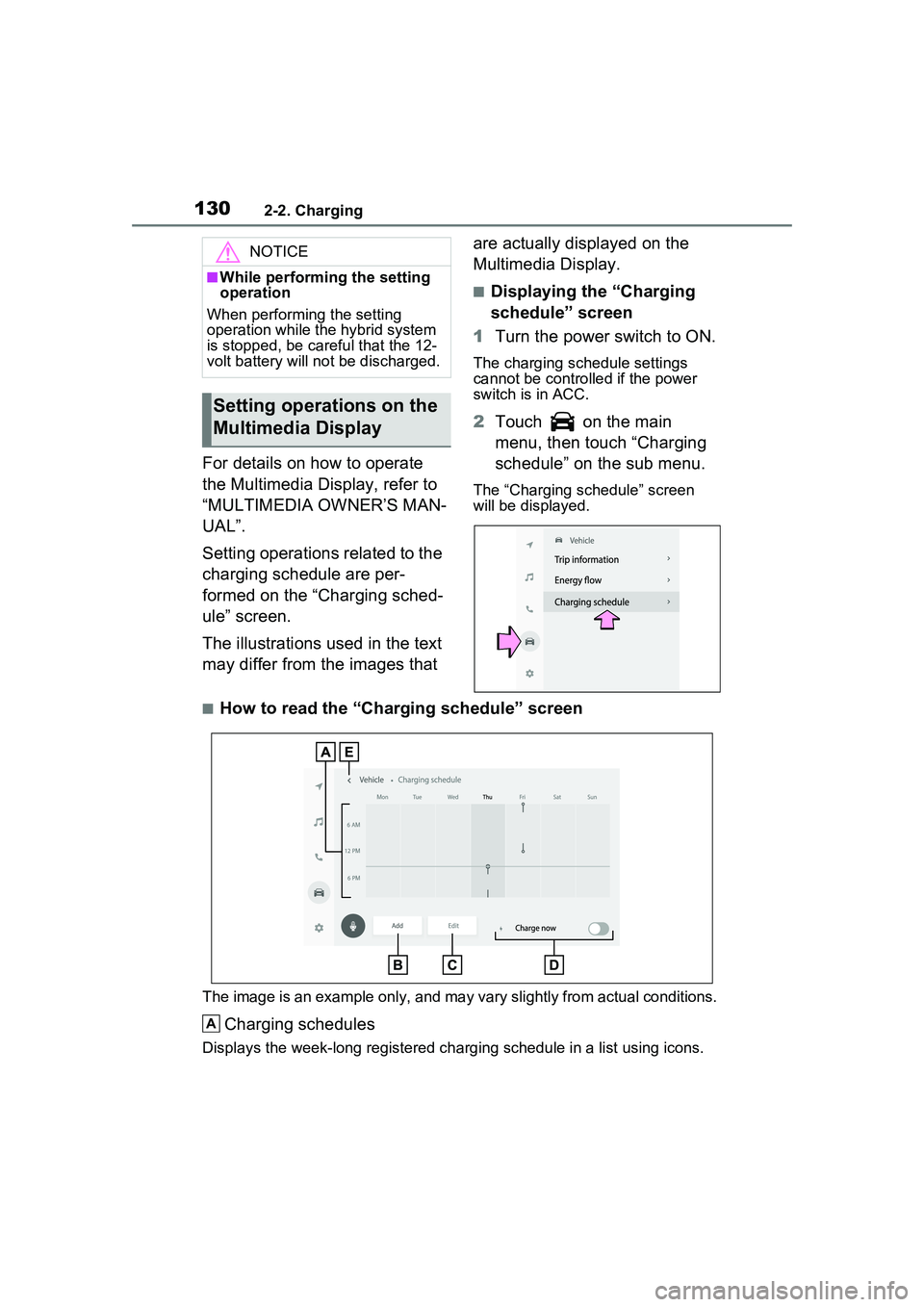
2Touch on the main
menu, then touch “Charging
schedule” on the sub menu.
The “Charging schedule” screen
will be displayed.
■How to read the “Charging schedule” screen
The image is an example only, and may va ry slightly from actual conditions.
Charging schedules
Displays the week-long registered charging schedule in a list using icons.
NOTICE
■While performing the setting
operation
When performing the setting
operation while the hybrid system
is stopped, be careful that the 12-
volt battery will not be discharged.
Setting operations on the
Multimedia Display
A
Page 131 of 680
1312-2. Charging
2
Plug-in hybrid system
“Add” button
Touch to add a new item to the charging schedule. (P.131)
“Edit” button
Touch to change or delete registered items on the charging schedule.
( P.132)
“Charge now” button
Each time the button is touched, “Charge now” switches between on and
off. ( P.132)
Return button
Touch to close the “Charging schedule” screen.
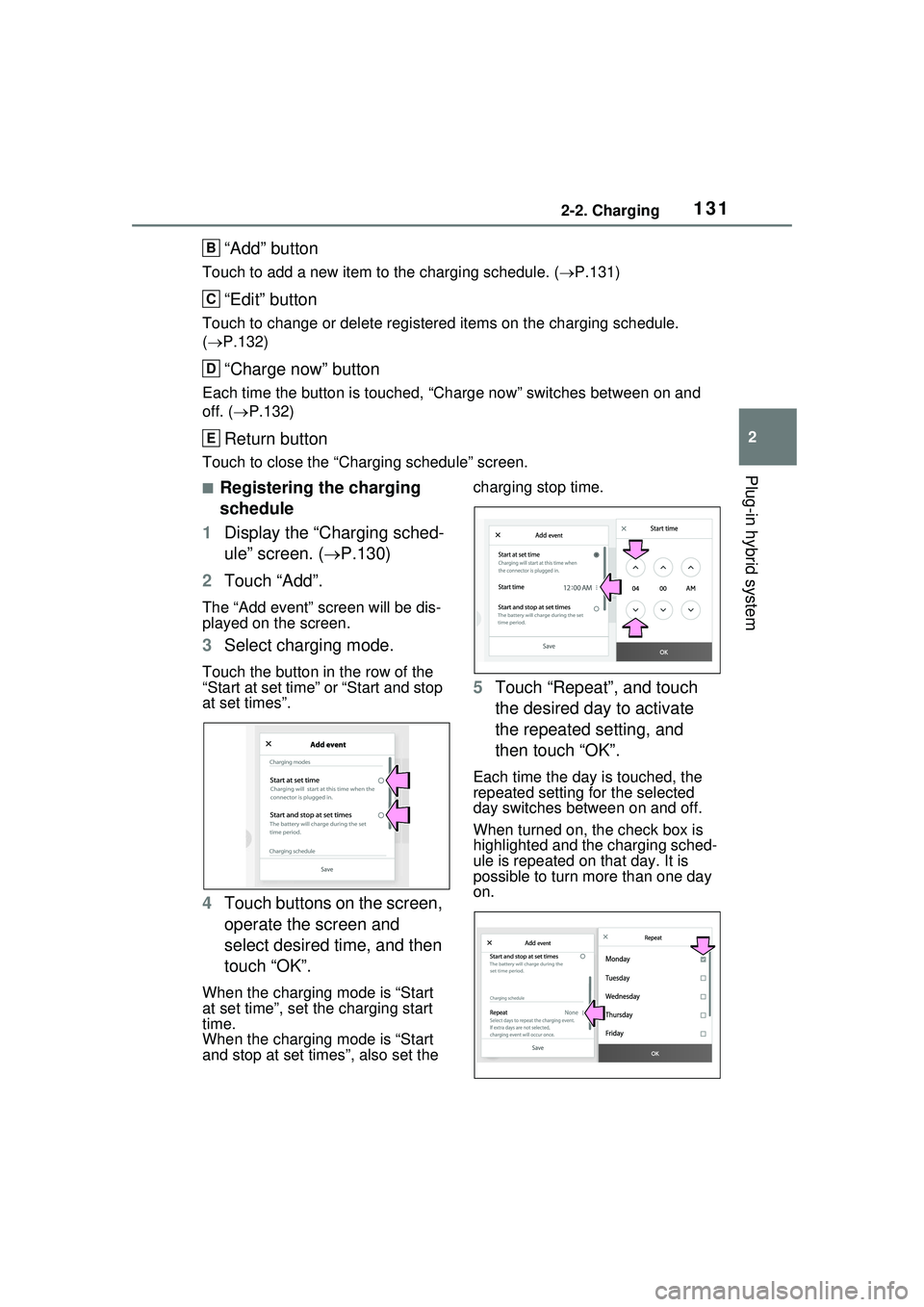
■Registering the charging
schedule
1 Display the “Charging sched-
ule” screen. ( P.130)
2 Touch “Add”.
The “Add event” screen will be dis-
played on the screen.
3Select charging mode.
Touch the button in the row of the
“Start at set time” or “Start and stop
at set times”.
4Touch buttons on the screen,
operate the screen and
select desired time, and then
touch “OK”.
When the charging mode is “Start
at set time”, set the charging start
time.
When the charging mode is “Start
and stop at set times”, also set the charging stop time.
5
Touch “Repeat”, and touch
the desired day to activate
the repeated setting, and
then touch “OK”.
Each time the day is touched, the
repeated setting for the selected
day switches between on and off.
When turned on, the check box is
highlighted and the charging sched-
ule is repeated on that day. It is
possible to turn more than one day
on.
B
C
D
E
Page 132 of 680
1322-2. Charging
6After setting operations are
complete, touch “Save”.
The charging schedule is added to
the list and an icon is added to the
“Charging schedule” screen.
■Switching charging sched-
ules between on and off
1 Display the “Charging sched-
ule” screen. ( P.130)
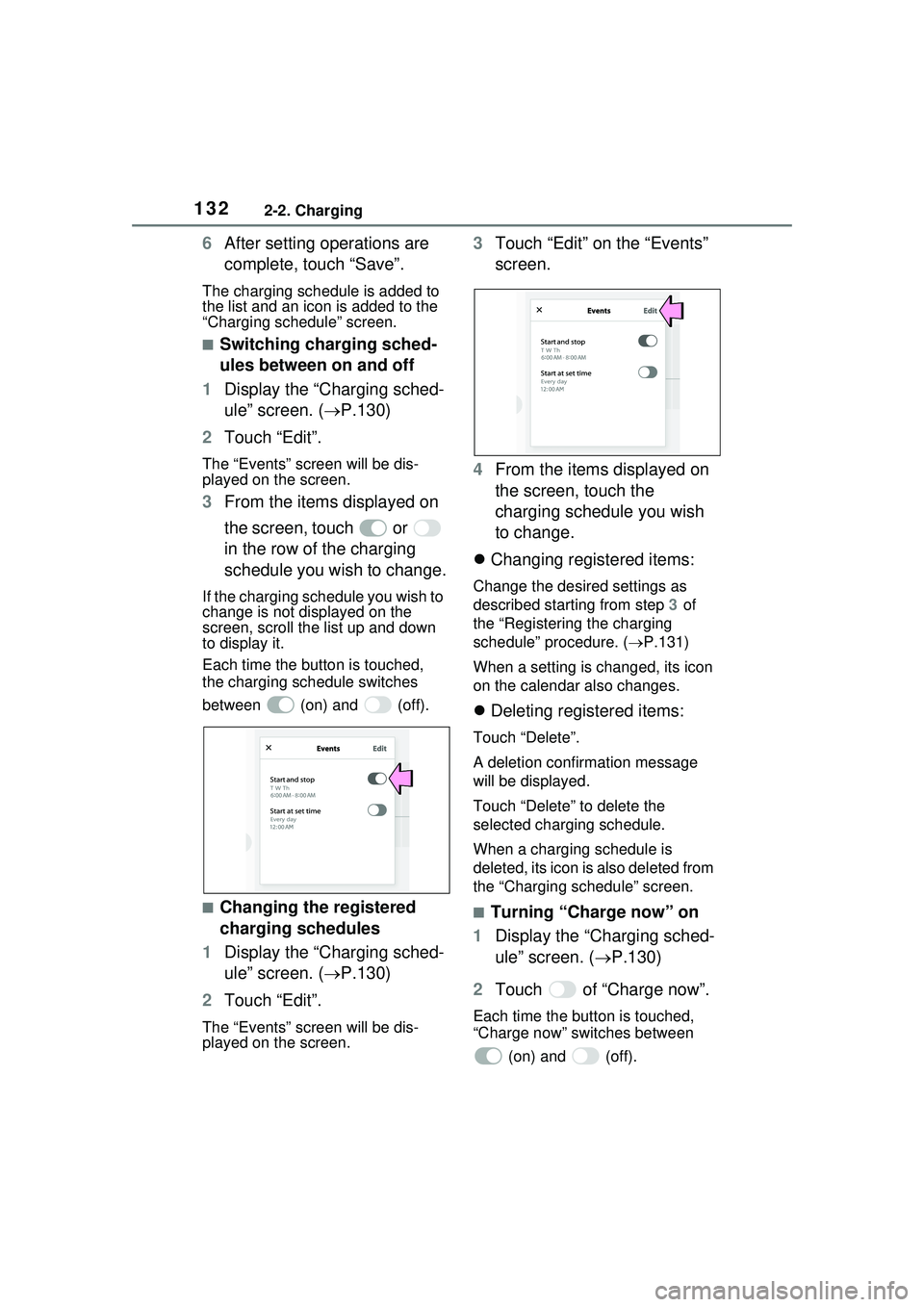
2 Touch “Edit”.
The “Events” screen will be dis-
played on the screen.
3From the items displayed on
the screen, touch or
in the row of the charging
schedule you wish to change.
If the charging schedule you wish to
change is not displayed on the
screen, scroll the list up and down
to display it.
Each time the button is touched,
the charging schedule switches
between (on) and (off).
■Changing the registered
charging schedules
1 Display the “Charging sched-
ule” screen. ( P.130)
2 Touch “Edit”.
The “Events” screen will be dis-
played on the screen.
3Touch “Edit” on the “Events”
screen.
4 From the items displayed on
the screen, touch the
charging schedule you wish
to change.
Changing registered items:
Change the desired settings as
described starting from step 3 of
the “Registering the charging
schedule” procedure. ( P.131)
When a setting is changed, its icon
on the calendar also changes.
Deleting registered items:
Touch “Delete”.
A deletion confirmation message
will be displayed.
Touch “Delete” to delete the
selected charging schedule.
When a charging schedule is
deleted, its icon is also deleted from
the “Charging schedule” screen.
■Turning “Charge now” on
1 Display the “Charging sched-
ule” screen. ( P.130)
2 Touch of “Charge now”.
Each time the button is touched,
“Charge now” switches between
(on) and (off).
Page 133 of 680
1332-2. Charging
2
Plug-in hybrid system
After setting operations are
complete, charging starts when
the AC charging connector is
connected. (P.116)
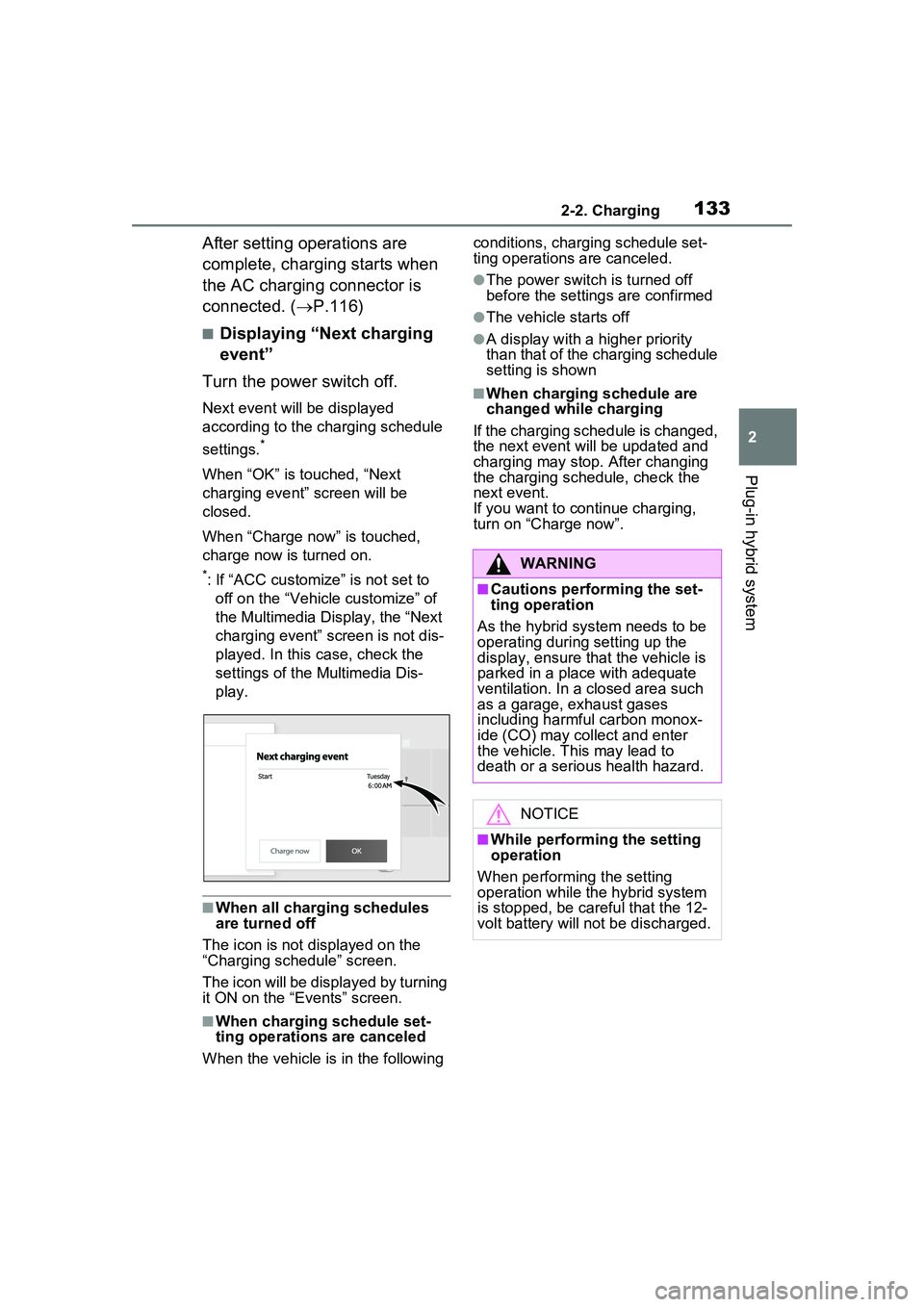
■Displaying “Next charging
event”
Turn the power switch off.
Next event will be displayed
according to the charging schedule
settings.
*
When “OK” is touched, “Next
charging event” screen will be
closed.
When “Charge now” is touched,
charge now is turned on.
*: If “ACC customize” is not set to off on the “Vehicle customize” of
the Multimedia Display, the “Next
charging event” screen is not dis-
played. In this case, check the
settings of the Multimedia Dis-
play.
■When all charging schedules
are turned off
The icon is not displayed on the
“Charging schedule” screen.
The icon will be displayed by turning
it ON on the “Events” screen.
■When charging schedule set-
ting operations are canceled
When the vehicle is in the following conditions, charging schedule set-
ting operations are canceled.
●The power switch is turned off
before the settings are confirmed
●The vehicle starts off
●A display with a higher priority
than that of the charging schedule
setting is shown
■When charging schedule are
changed while charging
If the charging schedule is changed,
the next event will be updated and
charging may stop. After changing
the charging schedule, check the
next event.
If you want to continue charging,
turn on “Charge now”.
WARNING
■Cautions performing the set-
ting operation
As the hybrid system needs to be
operating during setting up the
display, ensure that the vehicle is
parked in a place with adequate
ventilation. In a closed area such
as a garage, exhaust gases
including harmful carbon monox-
ide (CO) may collect and enter
the vehicle. This may lead to
death or a serious health hazard.
NOTICE
■While performing the setting
operation
When performing the setting
operation while the hybrid system
is stopped, be careful that the 12-
volt battery will not be discharged.