display TOYOTA PRIUS PRIME 2023 Workshop Manual
[x] Cancel search | Manufacturer: TOYOTA, Model Year: 2023, Model line: PRIUS PRIME, Model: TOYOTA PRIUS PRIME 2023Pages: 680, PDF Size: 14.97 MB
Page 164 of 680
1643-1. Instrument cluster
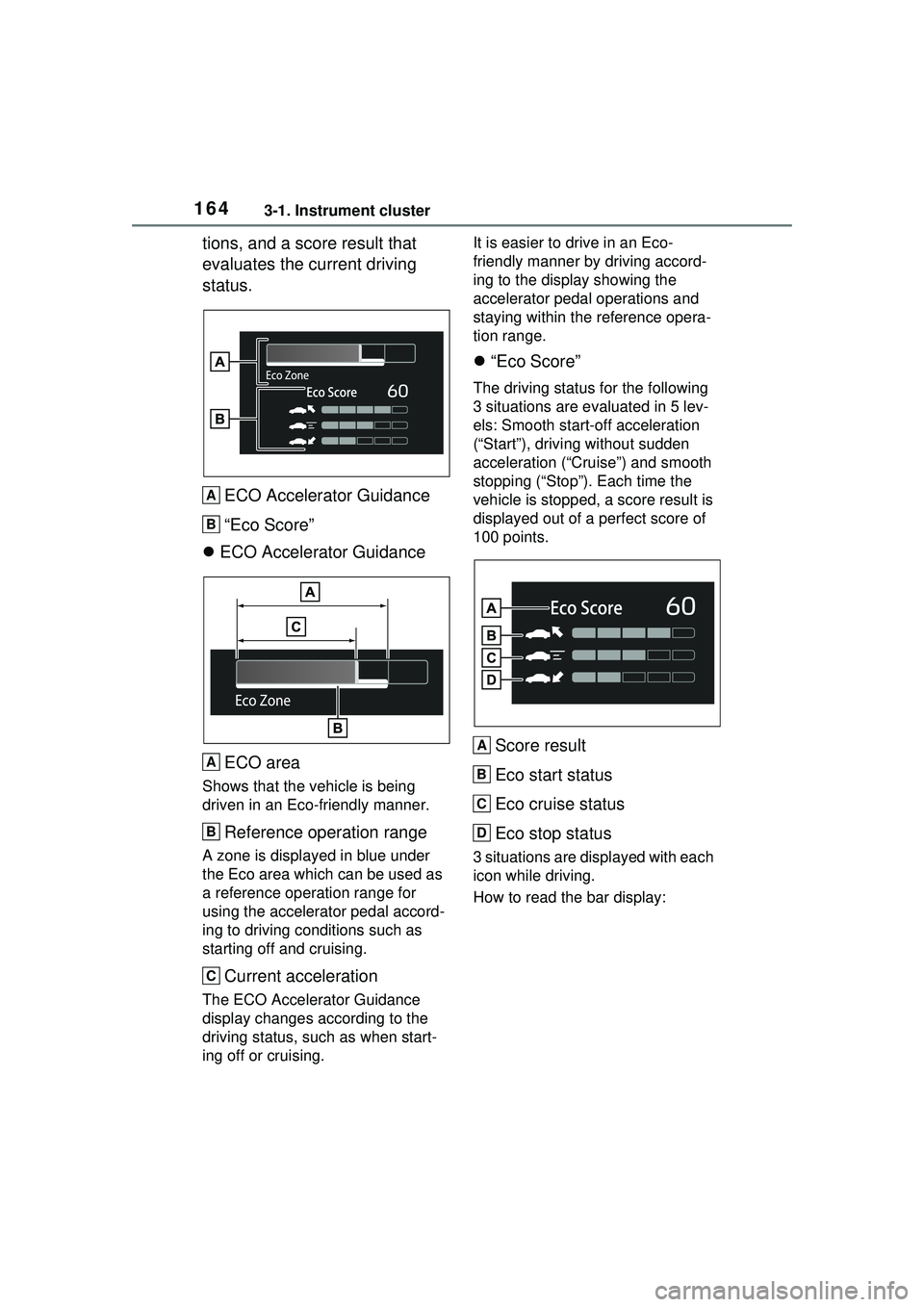
tions, and a score result that
evaluates the current driving
status.ECO Accelerator Guidance
“Eco Score”
ECO Accelerator Guidance
ECO area
Shows that the vehicle is being
driven in an Eco-friendly manner.
Reference operation range
A zone is displayed in blue under
the Eco area which can be used as
a reference operation range for
using the accelerator pedal accord-
ing to driving conditions such as
starting off and cruising.
Current acceleration
The ECO Accelerator Guidance
display changes according to the
driving status, such as when start-
ing off or cruising. It is easier to drive in an Eco-
friendly manner by driving accord-
ing to the display showing the
accelerator pedal operations and
staying within the reference opera-
tion range.
“Eco Score”
The driving status for the following
3 situations are evaluated in 5 lev-
els: Smooth start-off acceleration
(“Start”), driving without sudden
acceleration (“Cruise”) and smooth
stopping (“Stop”). Each time the
vehicle is stopped, a score result is
displayed out of a perfect score of
100 points.
Score result
Eco start status
Eco cruise status
Eco stop status
3 situations are displayed with each
icon while driving.
How to read the bar display:
A
B
A
B
C
A
B
C
D
Page 165 of 680
1653-1. Instrument cluster
3
Vehicle status information and indicators
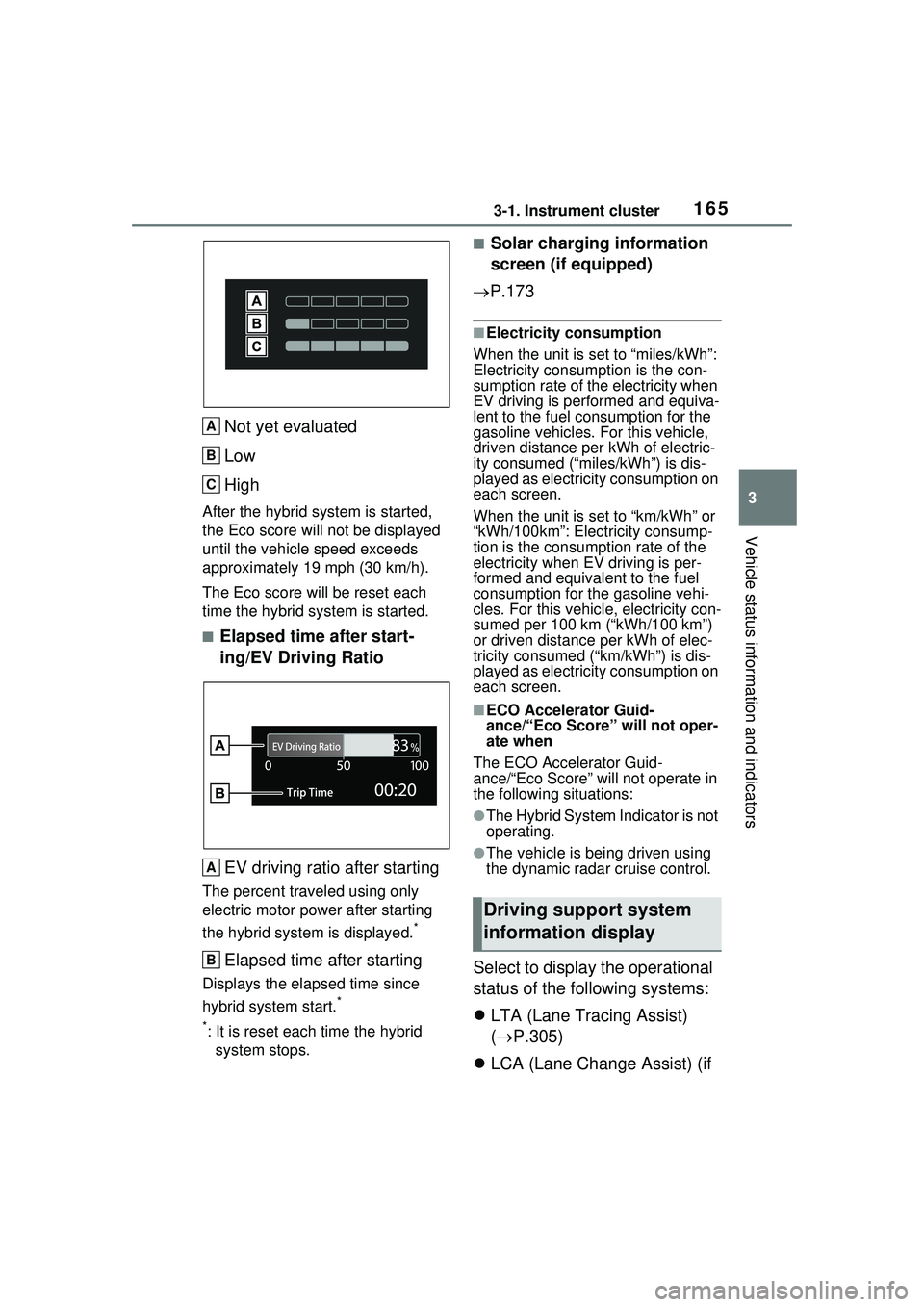
Not yet evaluated
Low
High
After the hybrid system is started,
the Eco score will not be displayed
until the vehicle speed exceeds
approximately 19 mph (30 km/h).
The Eco score will be reset each
time the hybrid system is started.
■Elapsed time after start-
ing/EV Driving RatioEV driving ratio after starting
The percent traveled using only
electric motor power after starting
the hybrid system is displayed.
*
Elapsed time after starting
Displays the elapsed time since
hybrid system start.
*
*
: It is reset each time the hybrid system stops.
■Solar charging information
screen (if equipped)
P.173
■Electricity consumption
When the unit is set to “miles/kWh”:
Electricity consum ption is the con-
sumption rate of the electricity when
EV driving is performed and equiva-
lent to the fuel consumption for the
gasoline vehicles. For this vehicle,
driven distance per kWh of electric-
ity consumed (“miles/kWh”) is dis-
played as electricity consumption on
each screen.
When the unit is set to “km/kWh” or
“kWh/100km”: Electricity consump-
tion is the consumption rate of the
electricity when EV driving is per-
formed and equivalent to the fuel
consumption for the gasoline vehi-
cles. For this vehicl e, electricity con-
sumed per 100 km (“kWh/100 km”)
or driven distance per kWh of elec-
tricity consumed (“km/kWh”) is dis-
played as electricity consumption on
each screen.
■ECO Accelerator Guid-
ance/“Eco Score” will not oper-
ate when
The ECO Accelerator Guid-
ance/“Eco Score” will not operate in
the following situations:
●The Hybrid System Indicator is not
operating.
●The vehicle is being driven using
the dynamic radar cruise control.
Select to display the operational
status of the following systems:
LTA (Lane Tracing Assist)
( P.305)
LCA (Lane Change Assist) (if
A
B
C
A
B
Driving support system
information display
Page 166 of 680
1663-1. Instrument cluster
equipped) (P.310)
LDA (Lane Departure Alert)
( P.313)
PDA (Proactive driving assist)
( P.320)
Dynamic radar cruise control
( P.331)
Cruise Control ( P.342)
■Navigation system-linked
display (if equipped)
Select to display the following
navigation system-linked infor-
mation.
Route guidance to destination
Compass
Select to enable selection of an
audio source or track on the dis-
play.
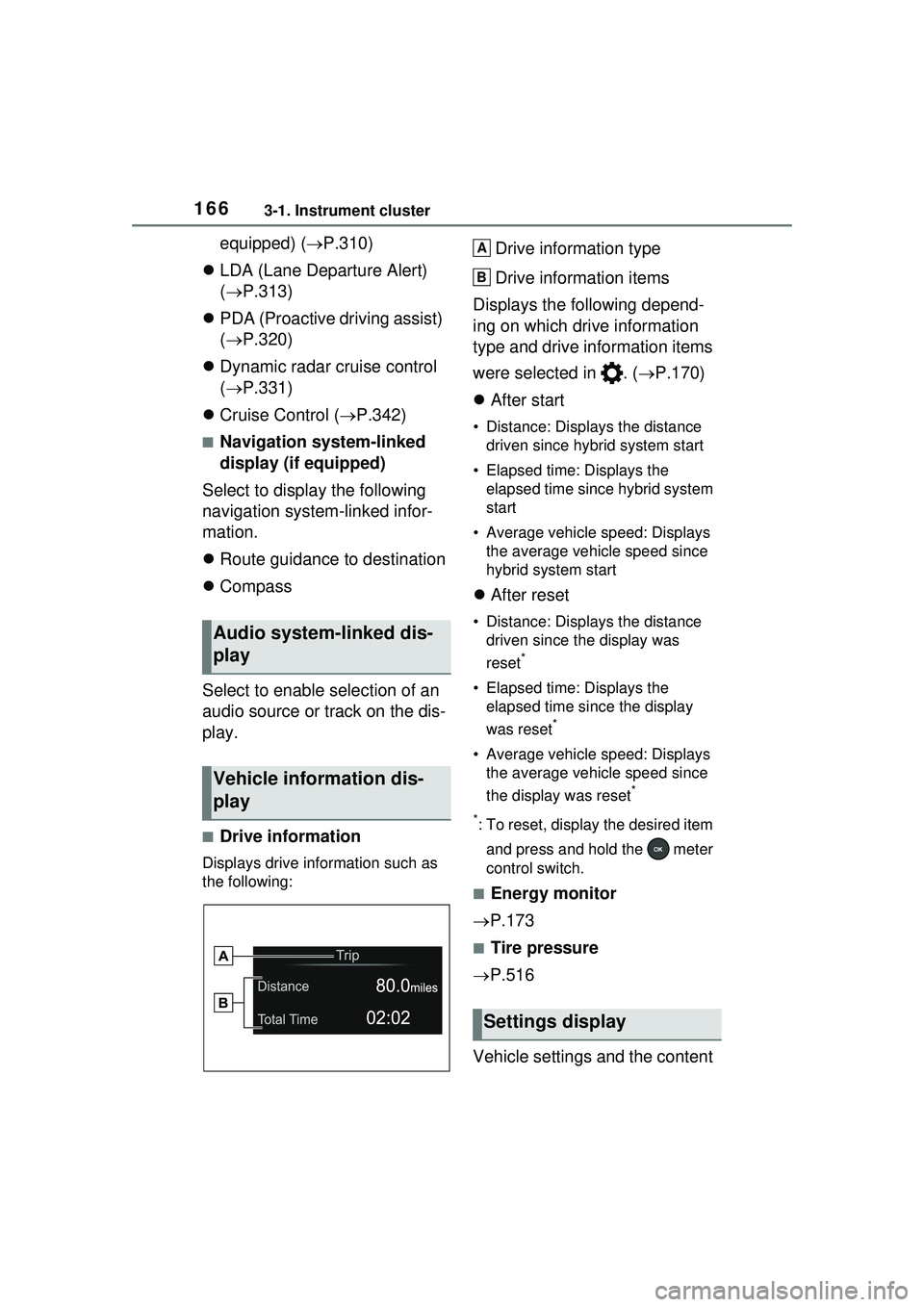
■Drive information
Displays drive information such as
the following:
Drive information type
Drive information items
Displays the following depend-
ing on which drive information
type and drive information items
were selected in . ( P.170)
After start
• Distance: Displays the distance
driven since hybrid system start
• Elapsed time: Displays the elapsed time since hybrid system
start
• Average vehicle speed: Displays the average vehicle speed since
hybrid system start
After reset
• Distance: Displays the distance
driven since the display was
reset
*
• Elapsed time: Displays the elapsed time since the display
was reset
*
• Average vehicle speed: Displays the average vehicle speed since
the display was reset
*
*
: To reset, display the desired item and press and hold the meter
control switch.
■Energy monitor
P.173
■Tire pressure
P.516
Vehicle settings and the content
Audio system-linked dis-
play
Vehicle information dis-
play
Settings display
A
B
Page 167 of 680
1673-1. Instrument cluster
3
Vehicle status information and indicators
displayed on the screen can be
changed by using the meter
control switches.
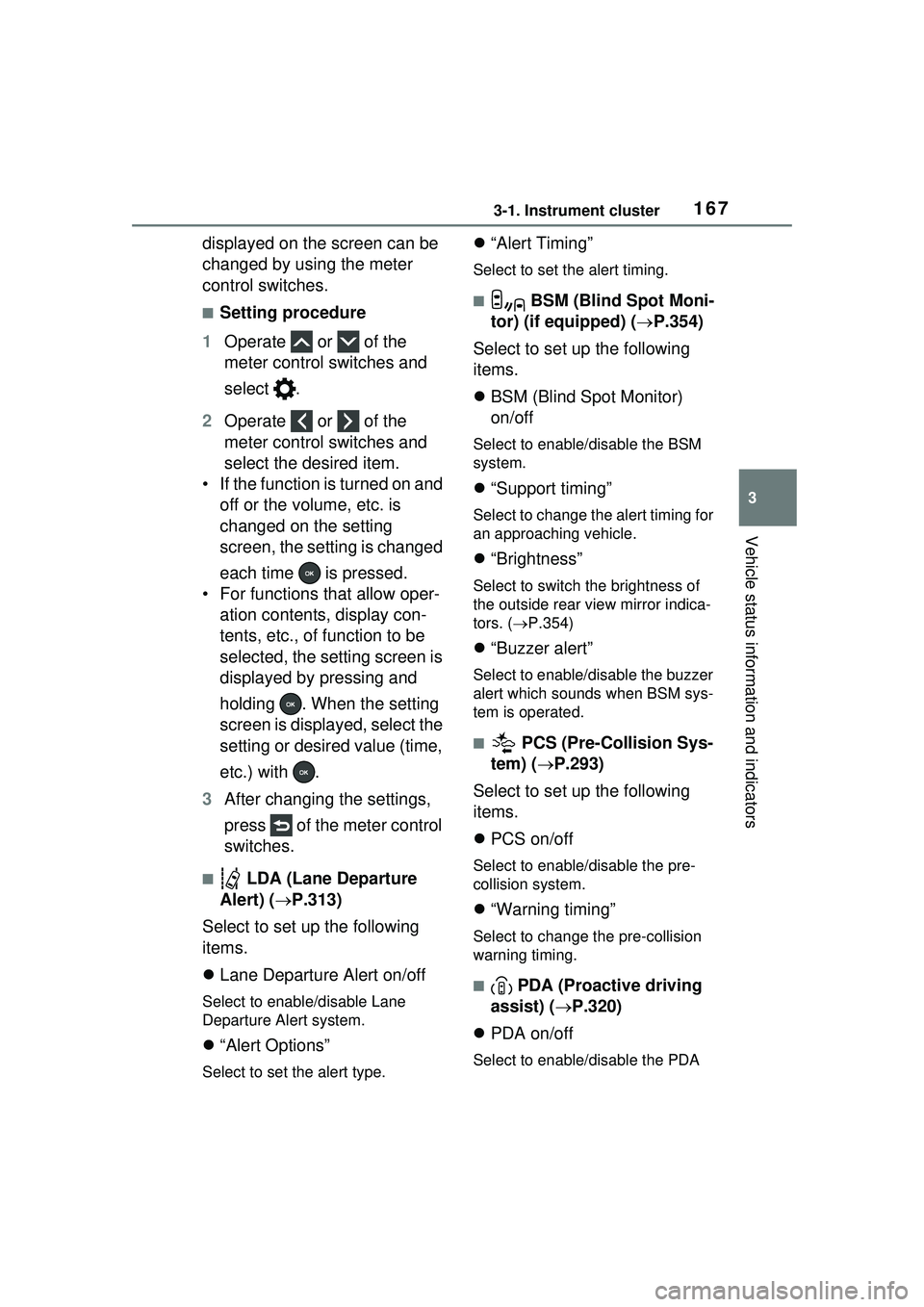
■Setting procedure
1 Operate or of the
meter control switches and
select .
2 Operate or of the
meter control switches and
select the desired item.
• If the function is turned on and off or the volume, etc. is
changed on the setting
screen, the setting is changed
each time is pressed.
• For functions that allow oper- ation contents, display con-
tents, etc., of function to be
selected, the setting screen is
displayed by pressing and
holding . When the setting
screen is displayed, select the
setting or desired value (time,
etc.) with .
3 After changing the settings,
press of the meter control
switches.
■ LDA (Lane Departure
Alert) ( P.313)
Select to set up the following
items.
Lane Departure Alert on/off
Select to enable/disable Lane
Departure Alert system.
“Alert Options”
Select to set the alert type.
“Alert Timing”
Select to set the alert timing.
■ BSM (Blind Spot Moni-
tor) (if equipped) ( P.354)
Select to set up the following
items.
BSM (Blind Spot Monitor)
on/off
Select to enable/disable the BSM
system.
“Support timing”
Select to change the alert timing for
an approaching vehicle.
“Brightness”
Select to switch the brightness of
the outside rear view mirror indica-
tors. ( P.354)
“Buzzer alert”
Select to enable/disable the buzzer
alert which sounds when BSM sys-
tem is operated.
■ PCS (Pre-Collision Sys-
tem) ( P.293)
Select to set up the following
items.
PCS on/off
Select to enable/disable the pre-
collision system.
“Warning timing”
Select to change the pre-collision
warning timing.
■ PDA (Proactive driving
assist) ( P.320)
PDA on/off
Select to enable/disable the PDA
Page 168 of 680
1683-1. Instrument cluster
system.
“Sensitivity”
Select to change the alert timing for
a detected object.
SA (Steering Assist)
Select to enable/disable the Steer-
ing Assist function.
DA (Deceleration Assist)
Select to enable/disable the Decel-
eration Assist function.
OAA (Obstacle Anticipation
Assist)
Select to enable/disable the Obsta-
cle Anticipation Assist function.
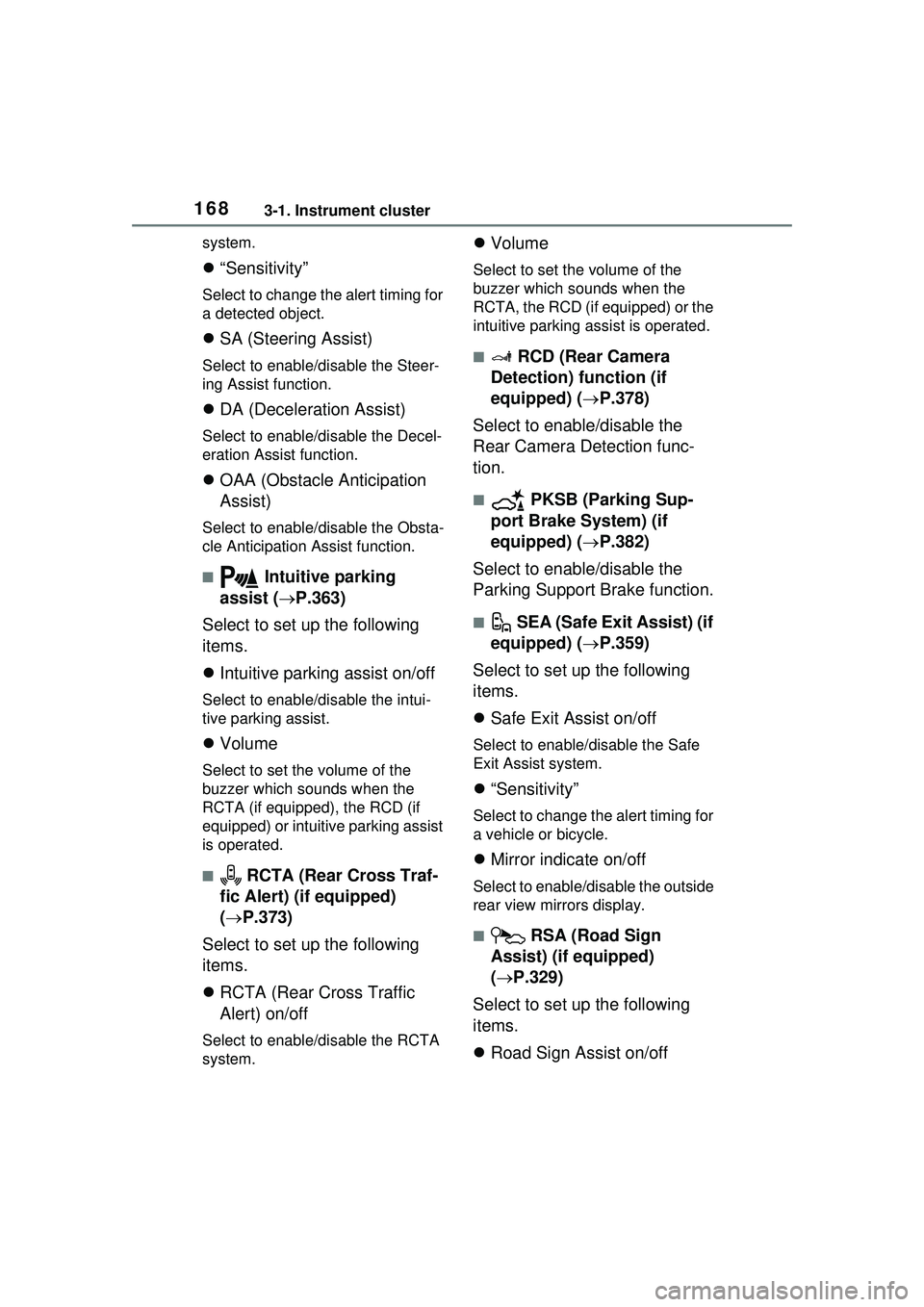
■ Intuitive parking
assist ( P.363)
Select to set up the following
items.
Intuitive parking assist on/off
Select to enable/disable the intui-
tive parking assist.
Volume
Select to set the volume of the
buzzer which sounds when the
RCTA (if equipped), the RCD (if
equipped) or intuitive parking assist
is operated.
■ RCTA (Rear Cross Traf-
fic Alert) (if equipped)
( P.373)
Select to set up the following
items.
RCTA (Rear Cross Traffic
Alert) on/off
Select to enable/disable the RCTA
system.
Volume
Select to set the volume of the
buzzer which sounds when the
RCTA, the RCD (if equipped) or the
intuitive parking as sist is operated.
■ RCD (Rear Camera
Detection) function (if
equipped) ( P.378)
Select to enable/disable the
Rear Camera Detection func-
tion.
■ PKSB (Parking Sup-
port Brake System) (if
equipped) ( P.382)
Select to enable/disable the
Parking Support Brake function.
■ SEA (Safe Exit Assist) (if
equipped) ( P.359)
Select to set up the following
items.
Safe Exit Assist on/off
Select to enable/d isable the Safe
Exit Assist system.
“Sensitivity”
Select to change the alert timing for
a vehicle or bicycle.
Mirror indicate on/off
Select to enable/disable the outside
rear view mirrors display.
■ RSA (Road Sign
Assist) (if equipped)
( P.329)
Select to set up the following
items.
Road Sign Assist on/off
Page 169 of 680
1693-1. Instrument cluster
3
Vehicle status information and indicators
Select to enable/disable the RSA
(Road Sign Assist).
“Notification Method”
Select to change each notification
method used to notify the driver
when the system recognizes
excess speed and Do Not Enter
sign.
“Notification Level”
Select to change each notification
level used to notify the driver when
the system recognizes excess
speed.
■ DRCC ( P.331)
Select to set up the following
items.
“Extended Resume Time” (if
equipped)
Select to enable/disable the
extended resume time function.
( P.333)
“Acceleration Setting”
Select to change the setting for
when vehicle accelerates until the
set vehicle speed is reached.
“Guide message”
Select to enable/disable the guide
message display.
“Curve Speed Reduction”
Select to change the curve speed
reduction function setting.
( P.338)
■ Vehicle Settings
“Charging Settings”
Select to set up the following items.
• “Charging Schedule”
Select to register or change the charging schedule. (
P.123)
• “Charging Current”
Select to change the charging cur-
rent. ( P.119)
• “Connector Lock”
Select to change the method for
locking and unlocking. ( P.103)
• “Battery Cooler”
Select to enable /disable the bat-
tery cooler. ( P.109)
• “Battery Heater”
Select to enable /disable the bat-
tery heater. ( P.108)
Driver Break Suggestion
( P.316)
Select to enable/disable the drive
break suggestion.
“Advanced Drive” (if
equipped)
Select to enable/d isable the Traffic
Jam Assist Function. ( P.348)
“DMC Recording” (if
equipped)
Select to enable/disable the notifi-
cation for driver monitor camera
recording when the operation of
Traffic Jam Assist is started.
( P.348)
LCA (Lane Change Assist) (if
equipped) ( P.310)
Select to enable/disable Lane
Change Assist system.
FCTA (Front Cross Traffic
Alert) (if equipped) ( P.326)
Select to set up the following items.
• FCTA on/off
Select to enable/disable the FCTA
Page 170 of 680
1703-1. Instrument cluster
system.
•“Timing”
Select to set the alert timing for
FCTA system.
Regenerative brake
Select to set up the following items.
• “Deceleration”
Select to change the regenerative
braking force when Regeneration
Boost is operating. ( P.260)
• “Deceleration Memory”
Select to store the settings for
regenerative braking force.
( P.260)
“TPWS setting” (Tire Pres-
sure Warning System)
( P.516)
• “Tire Set Switching”
Select to register the tire pressure
warning system sensor ID code set.
( P.524)
• “Tire Rotation”
Select to register the position of
each wheel after performing a tire
rotation. ( P.518)
• “Tire Pressure Setting”
Select to perform the tire inflation
pressure setting procedure of the
tire pressure warning system.
( P.520)
• “Pressure unit setting”
Select to change the units of mea-
sure displayed.( P.619)
Driver monitor (if equipped)
Select to enable/disable the driver
monitor warning function. ( P.292)
PBD (Power Back Door) (if equipped) (
P.194)
Select to set up the following items.
• System settings
Select to enable/d isable the power
back door system.
• “Opening Adjustment”
Select the open position when
power back door is fully open.
•“Volume”
Select to set the volume of the
buzzer which sounds when the
power back door system operates.
“Scheduled Maintenance”
Select to reset the scheduled main-
tenance information (message indi-
cating maintenance is required and
distance until the next mainte-
nance) after all maintenance is per-
formed.
Oil Maintenance
Select to reset th e Oil maintenance.
( P.506)
Rear Seat Reminder
( P.188)
Select to enable/disable the rear
seat reminder function.
Digital Keys (if equipped)
Select to reset registered digital
keys. ( P.183)
■ Settings
“Language”
Select to change the language on
the multi-information display.
“Units”
Select to change the unit of mea-
sure for fuel consumption.
“Meter Type”
Page 171 of 680
1713-1. Instrument cluster
3
Vehicle status information and indicators
Select to enable/disable Hybrid
System Indicator. (
P.158)
EV indicator
Select to enable/disable the EV
indicator.
EV Drive Information
Select to change the item on the
meter display between “EV Energy
remaining” or “EV Distance remain-
ing”. ( P.155)
(Driving information dis-
play settings)
Select to set up the following items.
• “Hybrid System”
Select to enable/disable the ECO
Accelerator Guidance ( P.158).
• “Fuel Economy”
Select to change the display on
Fuel Economy. ( P.163)
• “Power Consumption”
Select to change the display on
Power Consumption. ( P.163)
(Audio settings)
Select to enable/disable
screen.
(Vehicle information dis-
play settings)
• “Drive Info Type”
Select to change the drive informa-
tion type display between trip and
total. ( P.163)
• “Drive Info Items”
Select to set the items on the upper
and lower side of the drive informa-
tion screen from three items, aver-
age speed, distance and total time.
“Trip Summary”
Select to set the items displayed
from “Drive Info ” or “Charging
Schedule” when the power switch
is turned off.
Pop-Up Display
Select to enable/disable the pop-up
displays, which may appear in
some situations.
“Calendar”
Select to set up the calender. This
can only be set if GPS calibration of
clock is turned off in the multimedia
system settings.
Default Settings
Select to reset the meter display
settings.
■Tire pressure
• It may take a few minutes to dis- play the tire inflation pressure
after the power switch is turned to
ON. It may also take a few min-
utes to display the tire inflation
pressure after inflation pressure
has been adjusted.
• “---” may be displayed if the tire position information cannot be
determined due to unfavorable
radio wave conditions.
• Tire inflation pressure changes with temperature. The displayed
values may also be different from
the values measured using a tire
pressure gauge.
■Suspension of the settings dis-
play
●In the following situations, opera-
tion of the settings display will be
temporarily suspended.
• When a warning message appears on the multi-information
display
• When the vehicle begins to move
Page 172 of 680
1723-1. Instrument cluster
●Settings for functions not
equipped to the vehicle are not
displayed.
●When a function is turned off, the
related settings for that function
are not selectable.
Select to display warning mes-
sages and measures to be
taken if a malfunction is
detected. (P.566)
Displays suggestions to the
driver in the following situations.
To select a response to a dis-
played suggestion, use the
meter control switches.
■Suggestion to enable the
power back door (if
equipped)
If the power back door system is
disabled (setting on set to
off) and the power back door
switch on the instrument panel
is operated, a suggestion mes-
sage will be displayed asking if
you wish to enable the power
back door system. To enable
the power back door system,
select “Yes”.
After enabling the power back door
system, press the power back door
switch again to open or close the
power back door.
■Suggestion to turn off the
headlights
If the headlights are left on for a
certain amount of time after the
power switch has been turned
off, a suggestion message will
be displayed.
When the headlight switch is in
the AUTO position: The mes-
sage asking if you wish to turn
the headlights off is displayed.
To turn the headlights off, select
“Yes”.
If the driver’s door is opened after
the power switch is turned off, this
suggestion message will not be dis-
played.
■Customization
The suggestion function can be
turned on/off. (Customizable fea-
tures: P.619)
WARNING
■Cautions during setting up
the display
As the hybrid system needs to be
operating during setting up the
display, ensure that the vehicle is
parked in a place with adequate
ventilation. In a closed area such
as a garage, exhaust gases
including harmful carbon monox-
ide (CO) may collect and enter
the vehicle. This may lead to
death or a serious health hazard.
NOTICE
■During setting up the display
To prevent 12-volt battery dis-
charge, ensure that the hybrid
system is operating while setting
up the display features.
Warning message display
Suggestion function
Page 173 of 680
1733-1. Instrument cluster
3
Vehicle status information and indicators
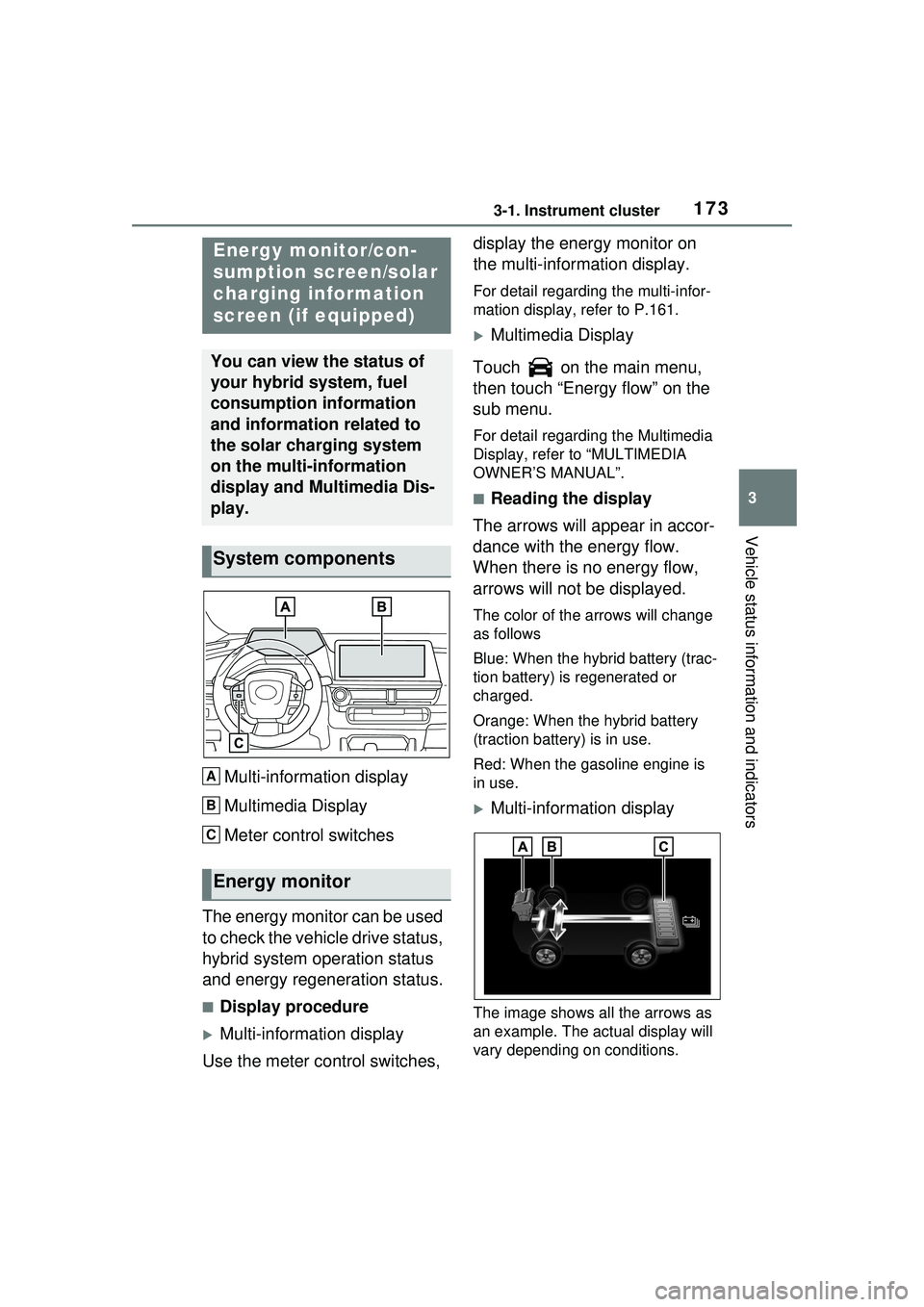
Multi-information display
Multimedia Display
Meter control switches
The energy monitor can be used
to check the vehicle drive status,
hybrid system operation status
and energy regeneration status.
■Display procedure
Multi-information display
Use the meter control switches, display the energy monitor on
the multi-information display.
For detail regarding the multi-infor-
mation display, refer to P.161.
Multimedia Display
Touch on the main menu,
then touch “Energy flow” on the
sub menu.
For detail regardin g the Multimedia
Display, refer to “MULTIMEDIA
OWNER’S MANUAL”.
■Reading the display
The arrows will appear in accor-
dance with the energy flow.
When there is no energy flow,
arrows will not be displayed.
The color of the arrows will change
as follows
Blue: When the hybrid battery (trac-
tion battery) is regenerated or
charged.
Orange: When the hybrid battery
(traction battery) is in use.
Red: When the gasoline engine is
in use.
Multi-information display
The image shows all the arrows as
an example. The actual display will
vary depending on conditions.
Energy monitor/con-
sumption screen/solar
charging information
screen (if equipped)
You can view the status of
your hybrid system, fuel
consumption information
and information related to
the solar charging system
on the multi-information
display and Multimedia Dis-
play.
System components
Energy monitor
A
B
C