ESP TOYOTA PRIUS PRIME 2023 Workshop Manual
[x] Cancel search | Manufacturer: TOYOTA, Model Year: 2023, Model line: PRIUS PRIME, Model: TOYOTA PRIUS PRIME 2023Pages: 680, PDF Size: 14.97 MB
Page 359 of 680
3595-5. Using the driving support systems
5
Driving
*: If equipped
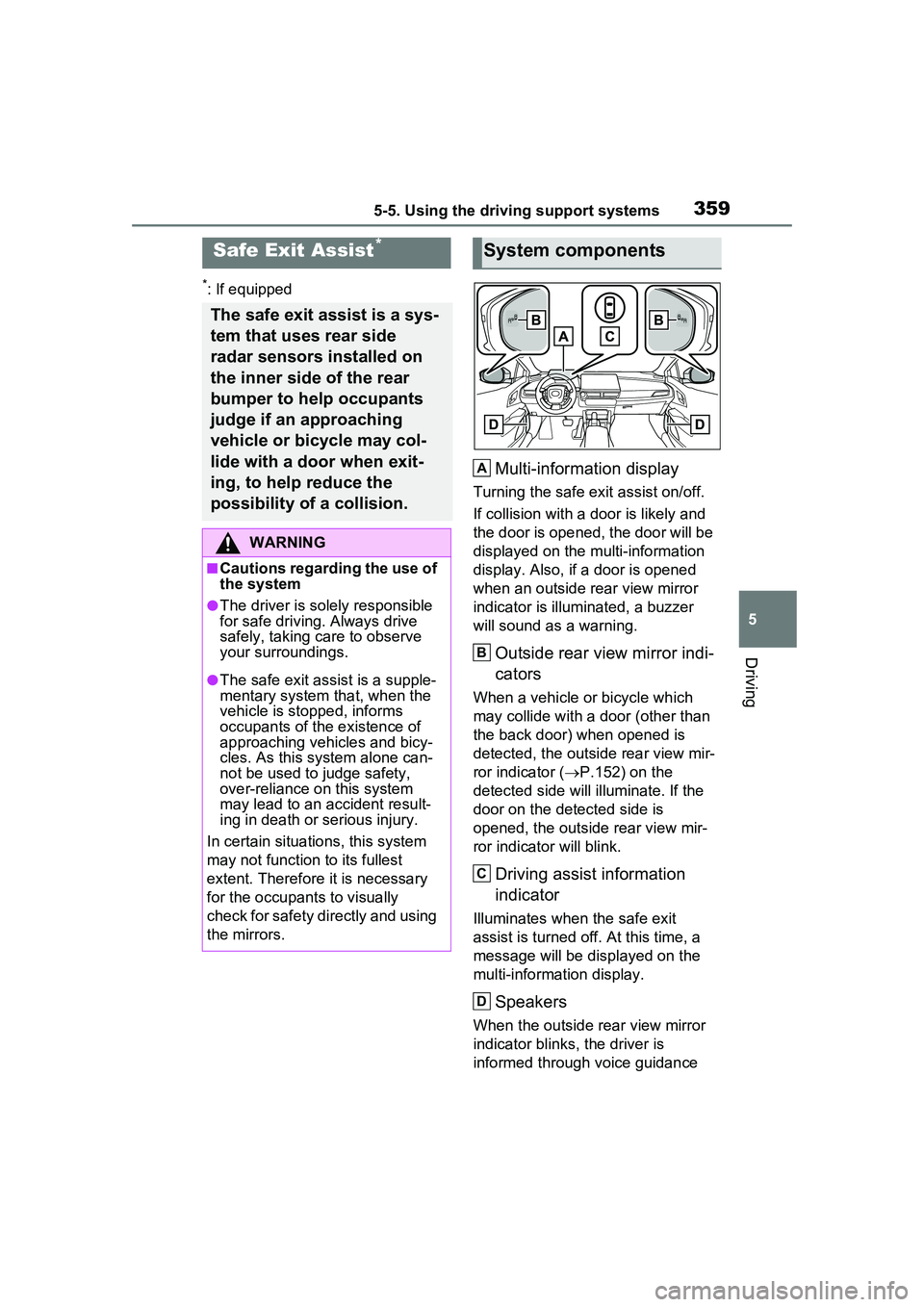
Multi-information display
Turning the safe exit assist on/off.
If collision with a door is likely and
the door is opened, the door will be
displayed on the multi-information
display. Also, if a door is opened
when an outside rear view mirror
indicator is illuminated, a buzzer
will sound as a warning.
Outside rear view mirror indi-
cators
When a vehicle or bicycle which
may collide with a door (other than
the back door) when opened is
detected, the outside rear view mir-
ror indicator ( P.152) on the
detected side will illuminate. If the
door on the detected side is
opened, the outside rear view mir-
ror indicator will blink.
Driving assist information
indicator
Illuminates when the safe exit
assist is turned of f. At this time, a
message will be displayed on the
multi-informat ion display.
Speakers
When the outside rear view mirror
indicator blinks, the driver is
informed through voice guidance
Safe Exit Assist*
The safe exit assist is a sys-
tem that uses rear side
radar sensors installed on
the inner side of the rear
bumper to help occupants
judge if an approaching
vehicle or bicycle may col-
lide with a door when exit-
ing, to help reduce the
possibility of a collision.
WARNING
■Cautions regarding the use of
the system
●The driver is solely responsible
for safe driving. Always drive
safely, taking care to observe
your surroundings.
●The safe exit assist is a supple-
mentary system that, when the
vehicle is stopped, informs
occupants of th e existence of
approaching vehicles and bicy-
cles. As this system alone can-
not be used to judge safety,
over-reliance on this system
may lead to an accident result-
ing in death or serious injury.
In certain situations, this system
may not function to its fullest
extent. Therefore it is necessary
for the occupants to visually
check for safety directly and using
the mirrors.
System components
A
B
C
D
Page 364 of 680
3645-5. Using the driving support systems
play depending on the position
and distance to the object.
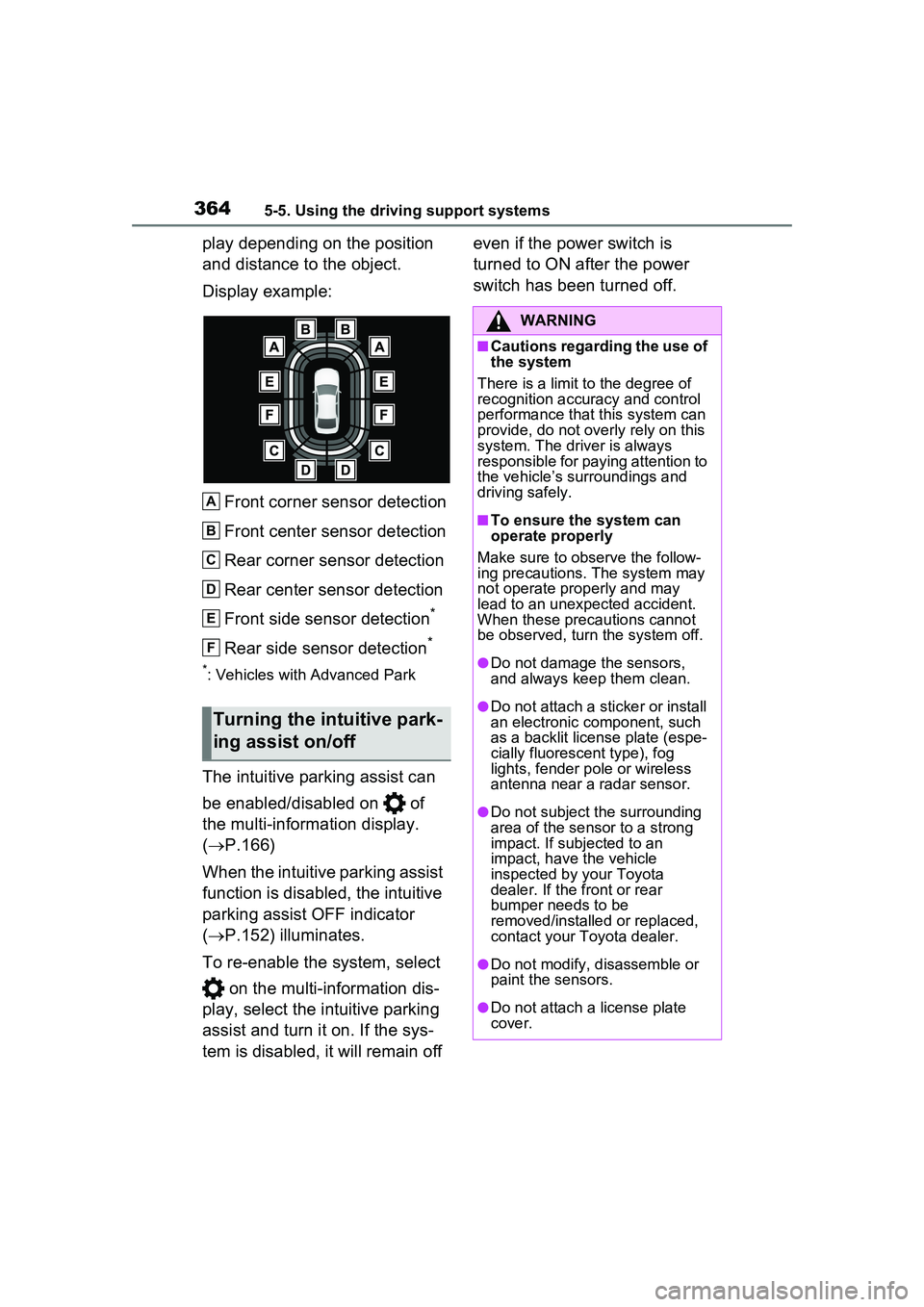
Display example:Front corner sensor detection
Front center sensor detection
Rear corner sensor detection
Rear center sensor detection
Front side sensor detection
*
Rear side sensor detection*
*: Vehicles with Advanced Park
The intuitive parking assist can
be enabled/disabled on of
the multi-information display.
( P.166)
When the intuitive parking assist
function is disabled, the intuitive
parking assist OFF indicator
( P.152) illuminates.
To re-enable the system, select on the multi-information dis-
play, select the intuitive parking
assist and turn it on. If the sys-
tem is disabled, it will remain off even if the power switch is
turned to ON after the power
switch has been turned off.
Turning the intuitive park-
ing assist on/off
A
B
C
D
E
F
WARNING
■Cautions regarding the use of
the system
There is a limit to the degree of
recognition accuracy and control
performance that this system can
provide, do not overly rely on this
system. The driver is always
responsible for paying attention to
the vehicle’s surroundings and
driving safely.
■To ensure the system can
operate properly
Make sure to observe the follow-
ing precautions. The system may
not operate properly and may
lead to an unexpected accident.
When these precautions cannot
be observed, turn the system off.
●Do not damage the sensors,
and always keep them clean.
●Do not attach a st icker or install
an electronic component, such
as a backlit license plate (espe-
cially fluorescent type), fog
lights, fender pole or wireless
antenna near a radar sensor.
●Do not subject the surrounding
area of the sensor to a strong
impact. If subjected to an
impact, have the vehicle
inspected by your Toyota
dealer. If the front or rear
bumper needs to be
removed/installed or replaced,
contact your Toyota dealer.
●Do not modify, disassemble or
paint the sensors.
●Do not attach a license plate
cover.
Page 366 of 680
3665-5. Using the driving support systems
■Objects which the system may
not properly detect
The shape of the object may pre-
vent the sensor from detecting it.
Pay particular attention to the fol-
lowing objects:
●Wires, fences, ropes, etc.
●Cotton, snow and other materials
that absorb sound waves
●Sharply-angled objects
●Low objects
●Tall objects with upper sections
projecting outwards in the direc-
tion of your vehicle
People may not be detected if they
are wearing certain types of cloth-
ing.
■Situations in which the system
may not operate properly
Certain vehicle conditions and the
surrounding environment may affect
the ability of a sensor to correctly
detect objects. Particular instances
where this may occur are listed
below.
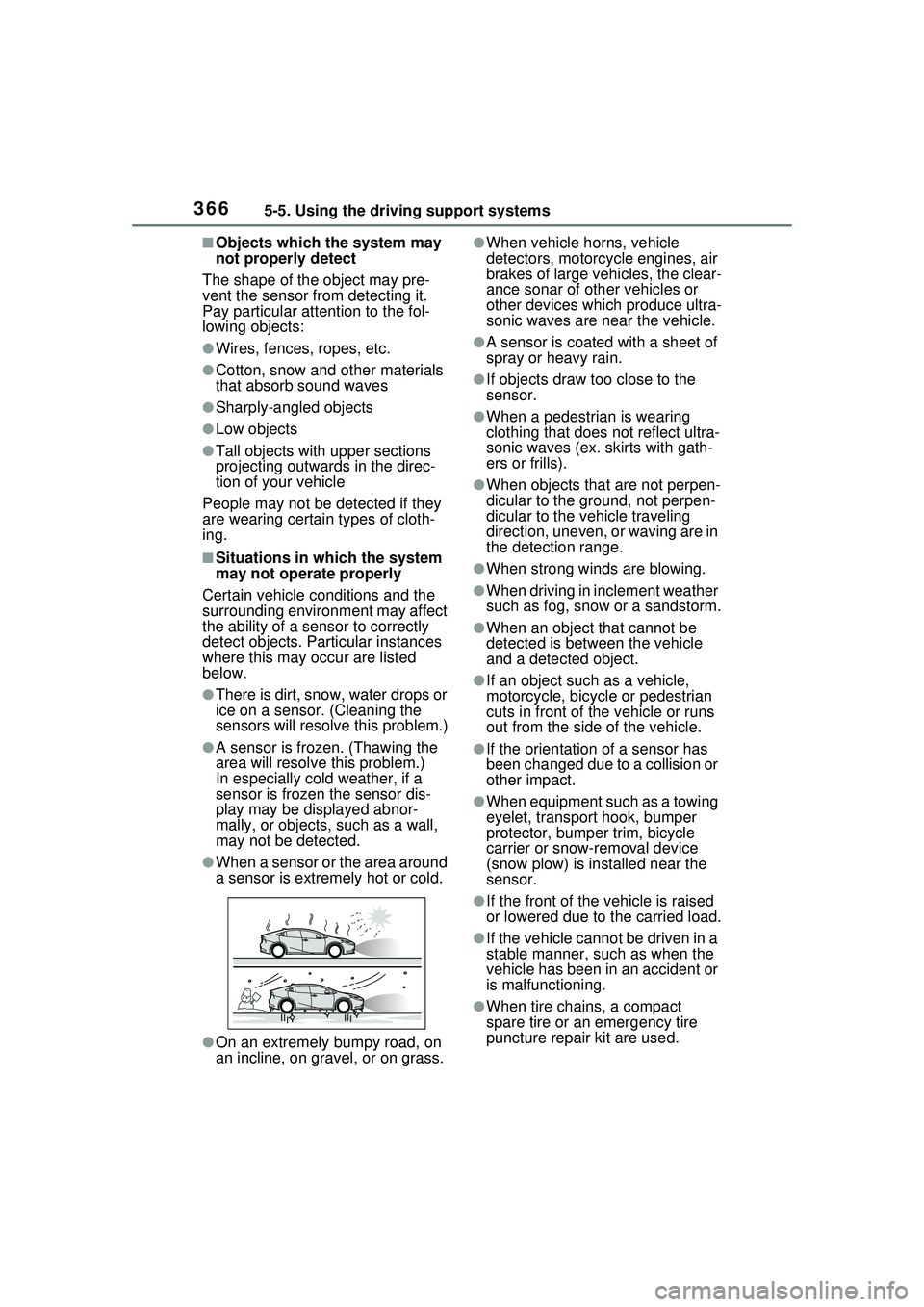
●There is dirt, snow, water drops or
ice on a sensor. (Cleaning the
sensors will resolve this problem.)
●A sensor is frozen. (Thawing the
area will resolve this problem.)
In especially cold weather, if a
sensor is frozen the sensor dis-
play may be displayed abnor-
mally, or objects, such as a wall,
may not be detected.
●When a sensor or the area around
a sensor is extremely hot or cold.
●On an extremely bumpy road, on
an incline, on gravel, or on grass.
●When vehicle horns, vehicle
detectors, motorcycle engines, air
brakes of large vehicles, the clear-
ance sonar of other vehicles or
other devices which produce ultra-
sonic waves are near the vehicle.
●A sensor is coated with a sheet of
spray or heavy rain.
●If objects draw too close to the
sensor.
●When a pedestrian is wearing
clothing that does not reflect ultra-
sonic waves (ex. skirts with gath-
ers or frills).
●When objects that are not perpen-
dicular to the ground, not perpen-
dicular to the vehicle traveling
direction, uneven, or waving are in
the detection range.
●When strong winds are blowing.
●When driving in inclement weather
such as fog, snow or a sandstorm.
●When an object that cannot be
detected is between the vehicle
and a detected object.
●If an object such as a vehicle,
motorcycle, bicycle or pedestrian
cuts in front of the vehicle or runs
out from the side of the vehicle.
●If the orientation of a sensor has
been changed due to a collision or
other impact.
●When equipment such as a towing
eyelet, transport hook, bumper
protector, bumper trim, bicycle
carrier or snow-removal device
(snow plow) is installed near the
sensor.
●If the front of the vehicle is raised
or lowered due to the carried load.
●If the vehicle cannot be driven in a
stable manner, such as when the
vehicle has been in an accident or
is malfunctioning.
●When tire chains, a compact
spare tire or an emergency tire
puncture repair kit are used.
Page 373 of 680
3735-5. Using the driving support systems
5
Driving
*: If equipped
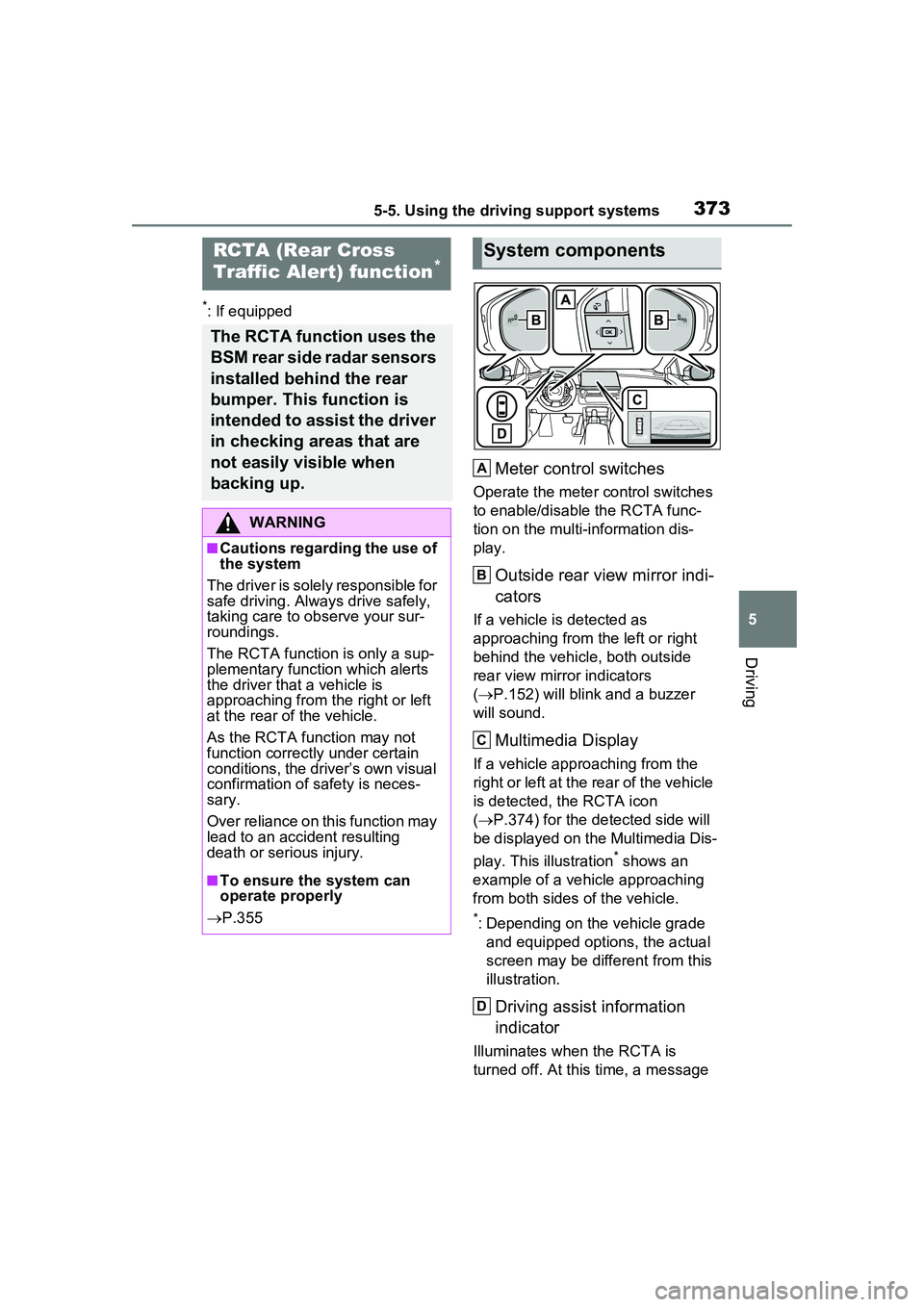
Meter control switches
Operate the meter control switches
to enable/disable the RCTA func-
tion on the multi-information dis-
play.
Outside rear view mirror indi-
cators
If a vehicle is detected as
approaching from the left or right
behind the vehicle, both outside
rear view mirror indicators
( P.152) will blink and a buzzer
will sound.
Multimedia Display
If a vehicle approaching from the
right or left at the rear of the vehicle
is detected, the RCTA icon
( P.374) for the detected side will
be displayed on the Multimedia Dis-
play. This illustration
* shows an
example of a vehicle approaching
from both sides of the vehicle.
*: Depending on the vehicle grade and equipped options, the actual
screen may be different from this
illustration.
Driving assist information
indicator
Illuminates when the RCTA is
turned off. At this time, a message
RCTA (Rear Cross
Traffic Alert) function*
The RCTA function uses the
BSM rear side radar sensors
installed behind the rear
bumper. This function is
intended to assist the driver
in checking areas that are
not easily visible when
backing up.
WARNING
■Cautions regarding the use of
the system
The driver is solely responsible for
safe driving. Always drive safely,
taking care to observe your sur-
roundings.
The RCTA function is only a sup-
plementary function which alerts
the driver that a vehicle is
approaching from the right or left
at the rear of the vehicle.
As the RCTA function may not
function correctly under certain
conditions, the driver’s own visual
confirmation of safety is neces-
sary.
Over reliance on this function may
lead to an accident resulting
death or serious injury.
■To ensure the system can
operate properly
P.355
System components
A
B
C
D
Page 378 of 680
3785-5. Using the driving support systems
●When a sensor or the area around
a sensor is extremely hot or cold
●If the suspension has been modi-
fied or tires of a size other than
specified are installed
●If the front of the vehicle is raised
or lowered due to the carried load
●When towing with the vehicle
*: If equipped
RCD (Rear Camera
Detection) function*
When the vehicle is back-
ing up, the rear camera
detection function can
detect pedestrians in the
detection area behind the
vehicle. If a pedestrian is
detected, a buzzer will
sound and an icon will be
displayed on the Multimedia
Display to inform the driver
of the pedestrian.
WARNING
■Cautions regarding the use of
the system
The recognition and control capa-
bilities for this system are limited.
The driver should always drive
safely by always being responsi-
ble without over relying on the
system and have a understanding
of the surrounding situations.
■To ensure the system can
operate properly
Observe the following, otherwise
there is the danger that could lead
to an accident.
●Always clean the camera with-
out damaging it.
●Do not install market electronic
parts (such as Illuminated
license plate, fog lamps, etc.) in
the camera vicinity.
Page 383 of 680
3835-5. Using the driving support systems
5
Driving
The system has detected the
following as operation targets.
(The operation targets vary
depending on the function.)
Parking Support Brake func-
tion (static objects to the front
and rear):
P.388
Parking Support Brake func-
tion (rear-crossing vehicles)
(if equipped):
P.392
Parking Support Brake func-
tion (rear pedestrians) (if
equipped):
P.393
Parking Support Brake func-
tion (static objects around the
vehicle) (vehicles with
Advanced Park):
P.388
PKSB (Parking Support
Brake) systemWARNING
■Cautions regarding the use of
the system
Do not overly rely on the system,
as doing so may lead to an acci-
dent.
Always drive while checking the
safety of the surroundings of the
vehicle.
Depending on the vehicle and
road conditions, weather, etc., the
system may not operate.
The detection capabilities of sen-
sors and radars are limited.
Always drive while checking the
safety of the surroundings of the
vehicle.
●The driver is solely responsible
for safe driving. Always drive
carefully, taking care to observe
your surroundings. The Parking
Support Brake system is
designed to provide support to
lessen the severity of collisions.
However, it may not operate in
some situations.
●The Parking Support Brake sys-
tem is not designed to stop the
vehicle completely. Addition-
ally, even if the system has
stopped the vehicle, it is neces-
sary to depress the brake pedal
immediately as brake control
will be canceled after approxi-
mately 2 seconds.
●It is extremely dangerous to
check the system operations by
intentionally driving the vehicle
into the direction of a wall, etc.
Never attempt such actions.
■When to disable the Parking
Support Brake
In the following situations, disable
the Parking Support Brake as the
system may operate even though
there is no possibility of a colli-
sion.
Page 396 of 680
3965-5. Using the driving support systems
*: For details on the panoramic view monitor refer to “MULTIMEDIA
OWNER’S MANUAL”.
■Perpendicular parking (for-
ward/reverse) function
Assistance is provided from the
position the vehicle is stopped
near the target parking space
until the vehicle is in the parking
space. ( P.403)
■Perpendicular exiting (for-
ward/reverse) function
Assistance is provided from the
parked position until the vehicle
is in a position where you can
easily exit from the parking
space. ( P.406)
■Parallel parking function
Assistance is provided from the
position the vehicle is stopped
near the target parking space
until the vehicle is in the parking
space. ( P.408)
■Parallel exiting function
Assistance is provided from the
parked position until the vehicle
is in a position where you can
easily exit from the parking
space. ( P.412)
■Memory function
Assistance is provided until the
vehicle is guided into a previ-
ously registered parking space.
( P.414)
Functions
WARNING
■Cautions regarding the use of
the system
The recognition and control capa-
bilities for this system are limited.
The driver should always drive
safety by always being responsi-
ble without over relying on the
system and have a understanding
of the surrounding situations.
●As with a normal vehicle, take
care to observe your surround-
ings while the vehicle is moving.
●Always pay attention to the
vehicle’s surroundings while the
system is operating and
depress the brake pedal as nec-
essary to slow or stop the vehi-
cle.
●When parking, make sure that
the vehicle can be parked in the
target parking space before
beginning operation.
●Depending on the condition of
the road surface or the vehicle,
the distance between the vehi-
cle and a parking space, etc., it
may not be possible to detect a
parking space or the system
may not be able to provide
assistance to the point the vehi-
cle is fully parked.
●This system will guide the vehi-
cle to appropriate positions for
changing the direction of travel,
however, if you feel that the
vehicle is approaching too close
to an adjacent parked vehicle at
any time, depress the brake
pedal and change the shift posi-
tion. However, if this is per-
formed, the number of times the
vehicle changes direction may
increase, and the vehicle may
be parked at an angle.
Page 397 of 680
3975-5. Using the driving support systems
5
Driving
WARNING
●As following objects may not be
detected, make sure to check
the safety of the area around
your vehicle and depress the
brake pedal to stop the vehicle if
it may collide with an object.
• Wires, fences, ropes, etc.
• Cotton, snow and other materi- als that absorb sound waves
• Sharply-angled objects
• Low objects (curb stones, park- ing blocks, etc.)
• Tall objects with upper sections projecting outwards in the direc-
tion of your vehicle
●Even if there is an object in the
target parking space, it may not
be detected and assistance
may be performed.
●While the system is operating, if
it is likely that your vehicle will
collide with a nearby vehicle,
parking block, object, or person,
depress the brake pedal to stop
the vehicle and press the
Advanced Park main switch to
disable the system.
●Never use only the Multimedia
Display to view the area behind
the vehicle. The image dis-
played may differ than the
actual situation. Using only the
screen when backing up may
lead to an accident, such as a
collision with anot her vehicle.
When backing up, make sure to
look directly or use the mirrors
to check the safety of the area
around your vehicle, especially
behind the vehicle.
●When the ambient temperature
is extremely low, the screen
may appear dark or the dis-
played image may become
unclear. Also, as moving
objects may appear distorted or
may not be able to be seen on
the screen, make sure to
directly check the safety of the
area around your vehicle.
●In the following situations, while
the vehicle is stopped and held
by Advanced Park, it may be
canceled and the vehicle may
start moving. Immediately
depress the brake pedal. Fail-
ure to do so may lead to an
accident.
• When the driver’s door is opened
• When operations instructed by the system are not performed
within a certain amount of time
• When the brake pedal is depressed and the vehicle is
stopped for a certain amount of
time
• When the system malfunctions
●As the steering wheel will turn
while this system is operating,
pay attention to the following.
• Be careful so that a necktie, scarf, or arm does not get
caught. Keep your upper body
away from the steering wheel.
Also, keep children away from
the steering wheel.
• Long fingernails may be caught and when the steering wheel is
rotating, leading to injury.
• In an emergency, depress the brake pedal to stop the vehicle,
and then press the Advanced
Park main switch to disable the
system.
Page 421 of 680
4215-5. Using the driving support systems
5
Driving
adjusted.
■“Park position adjustment
(forward)”
The position at which perpendic-
ular parking (forward) is com-
pleted can be adjusted. (Except
when using the memory func-
tion.)
■“Park position adjustment
(reverse)”
The position at which perpendic-
ular parking (reverse) is com-
pleted can be adjusted. (Except
when using the memory func-
tion.)
■“Rear accessory setting”
If an accessory, such as a trailer
hitch, has been installed to the
rear of the vehicle, the length of
the rear of the vehicle can be
adjusted to help avoid colliding
with objects to the rear of the
vehicle.
■“Clear registered parking
space”
The parking spaces registered
to the memory function can be
deleted. Parking space informa-
tion cannot be deleted when
assistance is being performed
or when registering parking
space information to the mem-
ory function. The operating state, assistance
operation, etc. of the Advanced
Park is displayed on the Multi-
media Display. If a message is
displayed, respond according to
the content displayed.
■If “No available parking space”
is displayed
Move the vehicle to a location where
a parking space or parking lines can
be detected.
■If “Unavailable in current condi-
tion” is displayed
Move the vehicle to another location
and use the system.
■If “Not enough space to exit” is
displayed
The parallel parking exit function
cannot be used due to a situation
such as the distance between your
vehicle and vehicles parked in front
of and behind your vehicle being
short, the existence of an object in
the exit direction, etc.
Check the conditions of the area
NOTICE
●Take care when using the park
position adjustment (forward) or
park position adjustment
(reverse) for adjusting because
the vehicle may collide with
parking blocks, curb stones, or
other low objects.
●If it is likely that your vehicle will
collide with a nearby vehi-
cle/object, parking block, curb
stone, etc., depress the brake
pedal to stop the vehicle and
press the Advanced Park main
switch to disable the system.
Advanced Park displayed
messages
Page 423 of 680
4235-5. Using the driving support systems
5
Driving
When Eco drive mode is selected,
Eco drive mode indicator comes
on.
3Sport mode
Controls the hybrid system to pro-
vide quick, powerful acceleration.
This mode also expands the possi-
ble rate of deceleration by operat-
ing the accelerator pedal and
enables acceleration/deceleration
control based on the driver’s inten-
tions. This changes the steering
feel, making it suitable for when
agile driving response is desired,
such as when driving on roads with
many curves.
When Sport mode is selected,
Sport mode indicator comes on.
4Custom mode
Allows you to drive with the power
train, steering wheel and air condi-
tioning system func tions set to your
preferred settings.
Custom mode settings can only be
changed on the drive mode cus-
tomization display of Multimedia
Display. ( P.632)
When the Custom mode is
selected, Custom mode indicator
comes on.
■Operation of the air condition-
ing system in Eco drive mode
When Eco drive mode is selected,
the air conditioning system will auto-
matically be changed to eco air con-
ditioning mode.
Eco air conditioning mode controls
the heating/cooling operations and
fan speed of the air conditioning
system to enhance fuel efficiency.
To improve air conditioning perfor-
mance, perform the following opera-
tions:
●Adjust the fan speed ( P.435)
●Deactivate Eco drive mode
●Turn off eco air conditioning mode
( P.440)
■Automatic deactivation of a
driving mode
●Sport mode and Custom mode
are automatically deactivated and
the driving mode returns to normal
mode when the power switch is
turned to OFF.
●Normal mode and Eco drive mode
are not deactivated until another
driving mode is selected. (Even if
the power switch is turned to OFF,
normal mode and Eco drive mode
will not be automatically deacti-
vated.)
■Customization
The custom mode can be changed.
(Customizable features: P.618)