phone TOYOTA SUPRA 2022 Owner's Manual
[x] Cancel search | Manufacturer: TOYOTA, Model Year: 2022, Model line: SUPRA, Model: TOYOTA SUPRA 2022Pages: 498, PDF Size: 104.06 MB
Page 87 of 498
85
3
3-1. CONTROLS
CONTROLS
• "Bluetooth"
• "Apple CarPlay"
Register iPhone via Bluetooth on
the vehicle, see page 81.
Select CarPlay as the function:
"Apple CarPlay"
The iPhone is connected to the
vehicle and displayed in the device
list, see page 86.
For further infor mation, see the
Navigation system Owner's man-
ual .
There may be instances where the
mobile device does not function as
expected, even though all precondi-
tions have been met and all the
necessary steps have been carried
out in the correct order. Neverthe-
less, the mobile device does not
function as expected.
In such cases, the following expla-
nations may provide assistance:
The iPhone has already been
paired with Apple CarPlay. When a
new connection is established,
CarPlay can no longer be selected.
• Delete the iPhone concerned
from the device list.
• On the iPhone, delete the vehicle
concerned from the list of saved
connections under Bluetooth and
under WLAN.
• Pair the iPhone as a new device.
If the steps listed have been carried
out and the desire d function still
cannot be run: contact the cus-
tomer support, any authorized
Toyota retailer or Toyota authorized
repairer, or any reliable repairer.
Screen Mirroring enables you to
display your smartphone screen on
the Control Display.
• Compatible smartphone with
Screen Mirroring interface.
• Screen Mirroring is switched on
in the smartphone.
• WLAN is switched on in the vehi-
cle.
Via Toyota Supra Command:
1 "My Vehicle"
2 "System settings"
3 "Mobile devices"
4 "Settings"
5 "Vehicle WiFi"
Registering iPhone with
CarPlay
Operation
Frequently Asked Questions
Screen Mirroring
General
Operating requirements
Switching on WLAN
Page 88 of 498
863-1. CONTROLS
Via Toyota Supra Command:
1 "My Vehicle"
2 "System settings"
3 "Mobile devices"
4 "Connect new device"
5 "Screen Mirroring"
The WLAN name of the vehicle is dis-
played in the Control Display.
6 On the smartphone, search for
WLAN devices in the vicinity.
The WLAN name of the vehicle is
shown on the display of the device. Select WLAN name of the vehicle.
7 Confirm the connection via
Toyota Supra Command.
The device is connected and dis-
played in the device list, see page
86.
• Following one-off registration,
the devices are automatically
detected and connected again
when the standby state is
switched on.
• The data saved on the SIM card
or in the mobile telephone is
transferred to the vehicle follow-
ing detection.
• Some devices may require par-
ticular settings, for example
authorisation; see the user man-
ual of the device.
All devices registered or connected
to the vehicle are displayed in the
device list.
Via Toyota Supra Command:
1 "My Vehicle"
2 "System settings"
3 "Mobile devices"
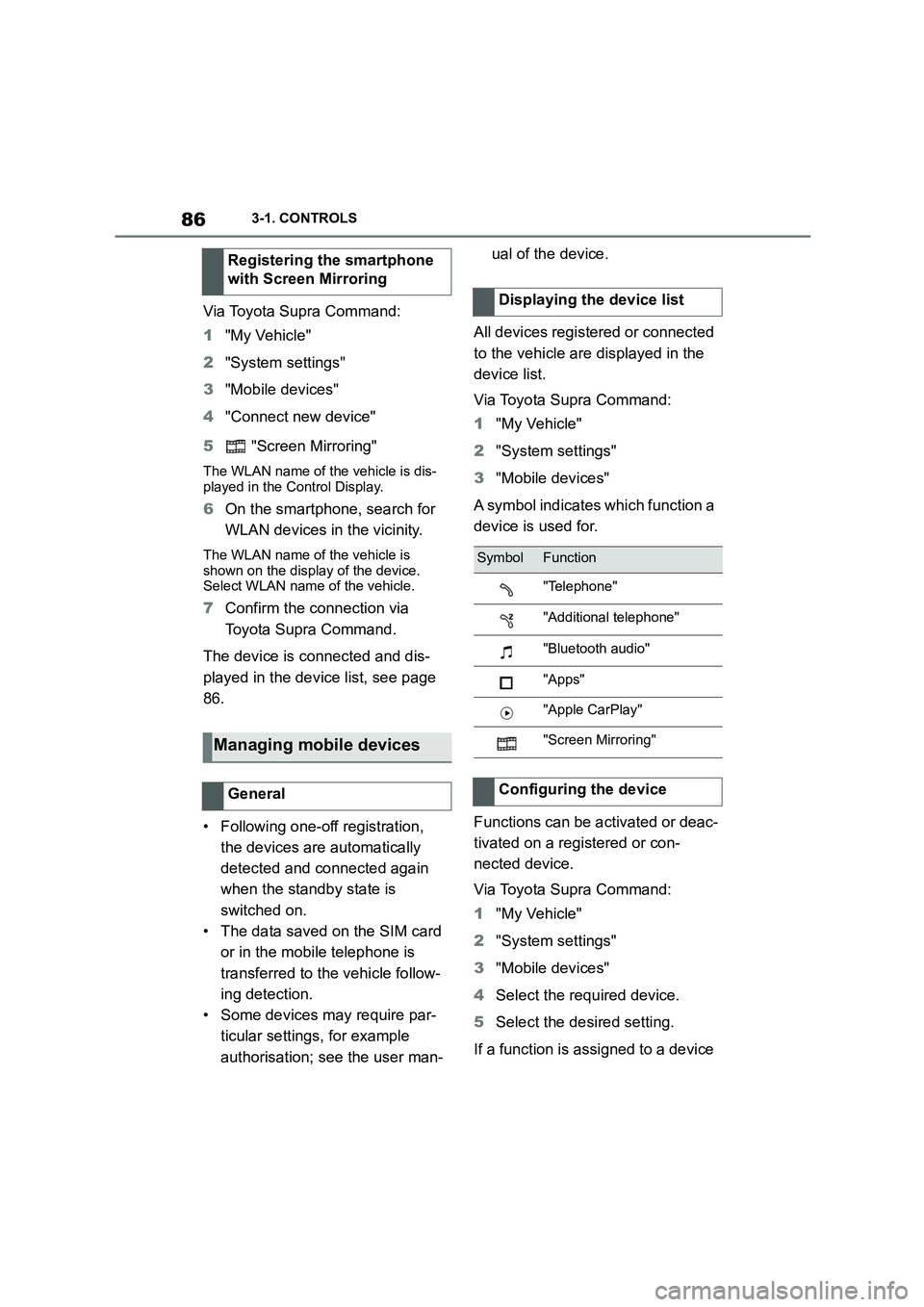
A symbol indicates which function a
device is used for.
Functions can be activated or deac-
tivated on a registered or con-
nected device.
Via Toyota Supra Command:
1 "My Vehicle"
2 "System settings"
3 "Mobile devices"
4 Select the required device.
5 Select the desired setting.
If a function is assigned to a device
Registering the smartphone
with Screen Mirroring
Managing mobile devices
General
Displaying the device list
SymbolFunction
"Telephone"
"Additional telephone"
"Bluetooth audio"
"Apps"
"Apple CarPlay"
"Screen Mirroring"
Configuring the device
Page 89 of 498
87
3
3-1. CONTROLS
CONTROLS
but it is already activated on
another connected device, it is
transferred to the new device and
the previous device is discon-
nected.
Via Toyota Supra Command:
1 "My Vehicle"
2 "System settings"
3 "Mobile devices"
4 Select a device.
5 "Disconnect device"
The device remains registered and
can be connected again, see page
87.
A disconnected device can be
reconnected.
Via Toyota Supra Command:
1 "My Vehicle"
2 "System settings"
3 "Mobile devices"
4 Select a device.
5 "Connect device"
Functions assigned to the device
before disconnection are reas-
signed to the device upon recon-
nection. If applicable, these
functions are deactivated for an
already connected device.
Via Toyota Supra Command:
1 "My Vehicle"
2 "System settings"
3 "Mobile devices"
4 Select a device.
5 "Delete device"
The device is disconnected and
deleted from the device list.
If a second telephone is connected
with the vehicle, this telephone is
saved as an additional telephone.
The way in which the telephone
and additional telephone are
assigned can be swapped over.
Via Toyota Supra Command:
1 "My Vehicle"
2 "System settings"
3 "Mobile devices"
4 "Settings"
5 "Swap telephone/additional tel."
Disconnecting a device
Connecting a device
Deleting a device
Swapping the telephone and
additional telephone
Page 95 of 498
93
3
3-1. CONTROLS
CONTROLS
Additional remote controls are
available from any authorized
Toyota retailer or Toyota authorized
repairer, or any reliable repairer.
A lost remote control can be
blocked and replaced by any
authorized Toyota retailer or Toyota
authorized repairer, or any reliable
repairer.
If a driver profile, see page 76, has
been assigned to the lost remote
control, the connection to this
remote control must be removed. A
new remote control can then be
assigned to the driver profile.
A vehicle message, see page 163,
is shown.
It may be difficult for the vehicle to
detect the remote control in some
conditions, including the following:
• The battery of the vehicle key is
discharged. To replace the bat-
tery, see page 92.
• Disruption of the radio link by
transmission masts or other
equipment transmitting powerful
signals.
• Shielding of the remote control
by metallic objects.
Do not transport the remote control
together with metallic objects.
• Disruption of the radio link by
mobile telephones or other elec-
tronic devices in the immediate
vicinity of the remote control.
Do not transport the remote control
together with electronic devices.
• Interference with radio transmis-
sion caused by the charging of
mobile devices, for example a
mobile phone.
• The remote control is located in
the immediate vicinity of the
wireless charging dock. Place
the remote control somewhere
else.
If there is a malfunction, the vehicle
can be unlocked and locked from
the outside with the integrated key,
see page 94.
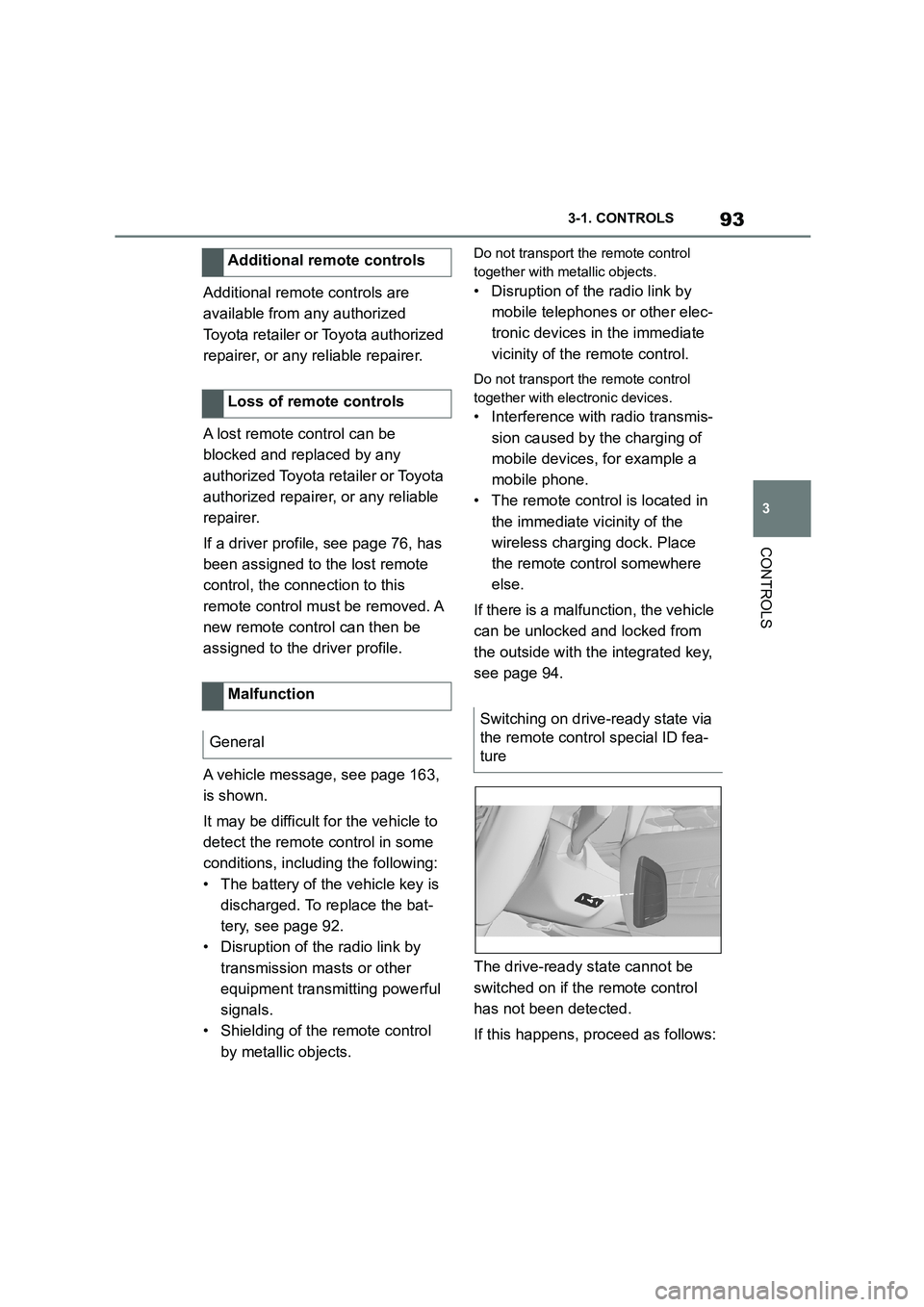
The drive-ready state cannot be
switched on if the remote control
has not been detected.
If this happens, proceed as follows:
Additional remote controls
Loss of remote controls
Malfunction
General
Switching on drive-ready state via
the remote control special ID fea-
ture
Page 96 of 498
943-1. CONTROLS
1Hold the back of the remote
control against the mark on the
steering column. Pay attention
to the display in the instrument
cluster.
2 If the remote control is detected:
Switch on drive-ready state
within 10 seconds.
If the remote control is not
detected, change the position of the
remote control slightly and repeat
the procedure.
What provisions can be made to
enable a vehicle to be opened if the
remote control has accidentally
been locked inside the vehicle?
• The Remote Services of the
Toyota Supra Connect app can
be used to lock and unlock a
vehicle.
This requires an active Toyota Supra
Connect contract and the Toyota Supra
Connect app must be installed on a
smartphone.
• Unlocking of the vehicle can be
requested via the Concierge Ser-
vices.
This requires an active Toyota Supra
Connect contract.
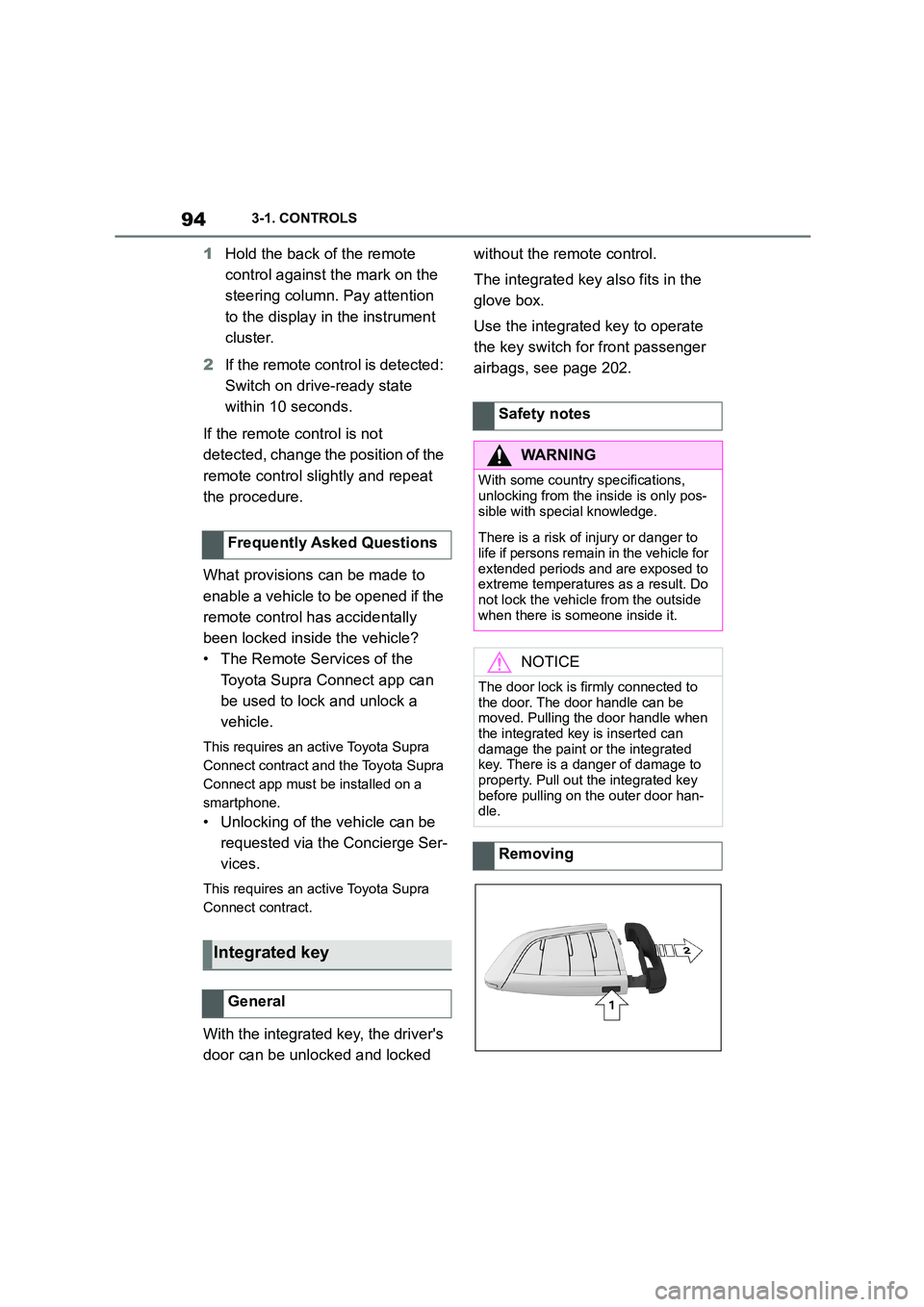
With the integrated key, the driver's
door can be unlocked and locked
without the remote control.
The integrated key also fits in the
glove box.
Use the integrated key to operate
the key switch for front passenger
airbags, see page 202.
Frequently Asked Questions
Integrated key
General
Safety notes
WA R N I N G
With some country specifications,
unlocking from the inside is only pos-
sible with special knowledge.
There is a risk of injury or danger to
life if persons remain in the vehicle for extended periods and are exposed to
extreme temperatures as a result. Do
not lock the vehicle from the outside when there is someone inside it.
NOTICE
The door lock is firmly connected to
the door. The door handle can be moved. Pulling the door handle when
the integrated key is inserted can
damage the paint or the integrated key. There is a danger of damage to
property. Pull out the integrated key
before pulling on the outer door han- dle.
Removing
Page 99 of 498
97
3
3-1. CONTROLS
CONTROLS
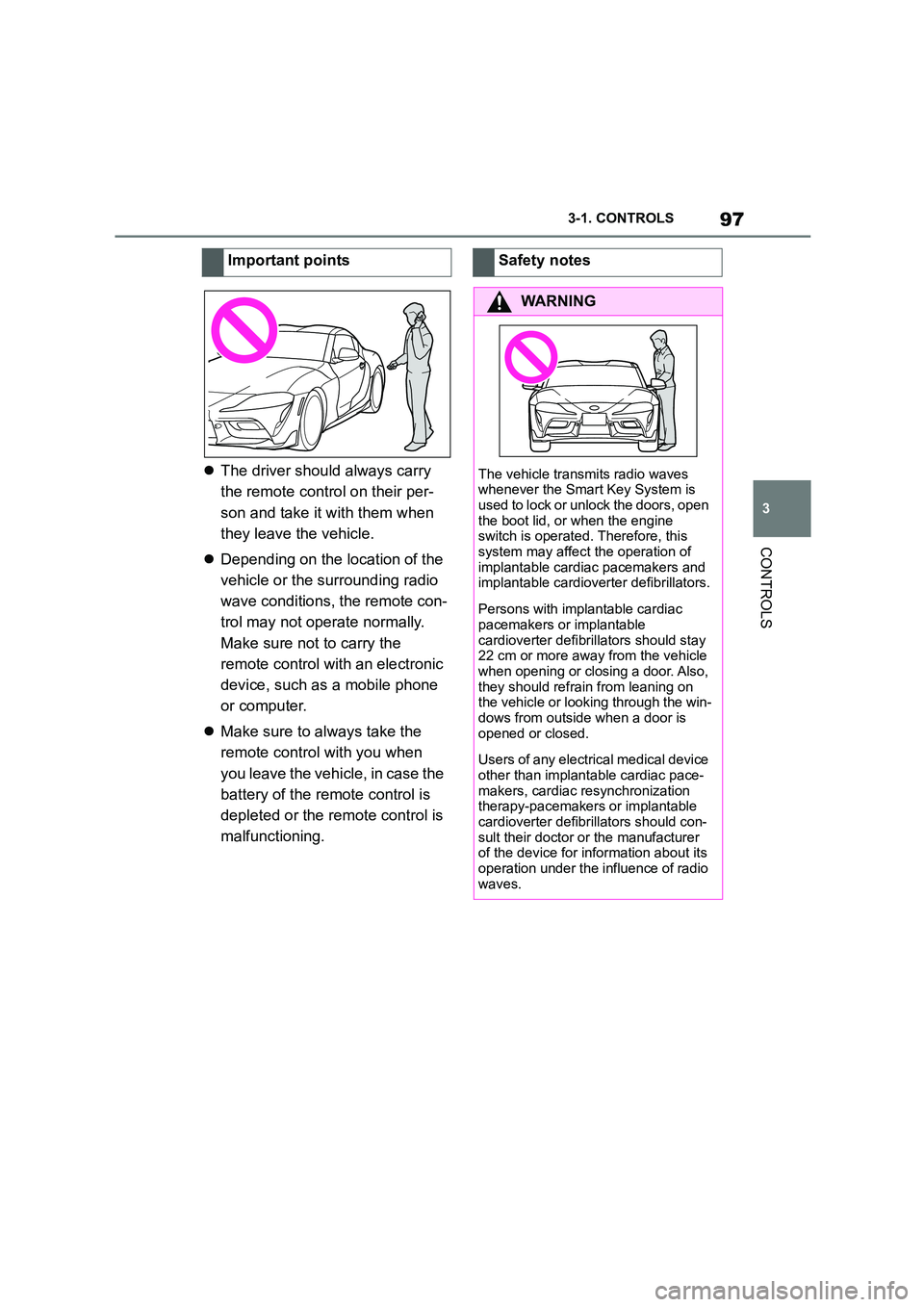
The driver should always carry
the remote control on their per-
son and take it with them when
they leave the vehicle.
Depending on the location of the
vehicle or the surrounding radio
wave conditions, the remote con-
trol may not operate normally.
Make sure not to carry the
remote control with an electronic
device, such as a mobile phone
or computer.
Make sure to always take the
remote control with you when
you leave the vehicle, in case the
battery of the remote control is
depleted or the remote control is
malfunctioning.
Important pointsSafety notes
WA R N I N G
The vehicle transmits radio waves
whenever the Smart Key System is
used to lock or unlock the doors, open the boot lid, or when the engine
switch is operated. Therefore, this
system may affect the operation of implantable cardia c pacemakers and
implantable cardioverter defibrillators.
Persons with implantable cardiac
pacemakers or implantable
cardioverter defibrillators should stay 22 cm or more away from the vehicle
when opening or closing a door. Also,
they should refrain from leaning on the vehicle or looking through the win-
dows from outside when a door is
opened or closed.
Users of any electrical medical device
other than implantable cardiac pace- makers, cardiac re synchronization
therapy-pacemakers or implantable
cardioverter defibrillators should con- sult their doctor or the manufacturer
of the device for information about its
operation under the influence of radio waves.
Page 196 of 498
1943-1. CONTROLS
collision, for example, in minor acci-
dents.
Keep your distance from the
airbags.
Always grip the steering wheel
on the steering wheel rim. Place
your hands in the 3 o'clock and 9
o'clock positions to minimise the
risk of injury to hands or arms
when the airbag deploys.
Adjust the seat and steering
wheel so the driver can reach
over the steering wheel diago-
nally. Select the settings so that,
when reaching over, the shoul-
ders stay in contact with the
backrest and the upper body
stays as far away from the steer-
ing wheel as possible.
Make sure that the front-seat
passenger is sitting correctly, i.e.
with their feet and legs in the
footwell, not resting on the dash-
board.
Make sure that vehicle occu-
pants keep their head away from
the side airbag.
Do not place any other persons,
pets or objects between the
airbags and occupants.
Keep the dashboard and wind-
screen area on the passenger
side clear, for example do not
attach adhesive foil or covers
and do not fit brackets for navi-
gation devices or mobile tele-
phones.
Do not glue the airbag covers
and do not cover or modify them
in any way.
Do not use the front airbag cover
on the front passenger's side as
a tray.
Do not install seat covers, cush-
ions or other objects on the front
seats if they are not specifically
designed for use on seats with
integral side airbags.
Do not hang items of clothing for
example coats or jackets over
the backrests.
Do not modify individual compo-
nents of the system or its wiring
in any way. This also applies to
the covers of the steering wheel,
the dashboard and seats.
Do not dismantle the airbag sys-
tem.
Even if all this information is
observed, depending on the cir-
cumstances in which an accident
occurs, certain injuries as a result
of contact with the airbag cannot be
Notes on achieving optimum
airbag effectiveness
WA R N I N G
If the seat position is wrong or the
deployment area of the airbag is
restricted, the airbag system cannot provide the intended protection or
may cause additional injuries when it
deploys. There is a danger of injury or even death. Observe the following to
achieve optimum protective effect.
Page 273 of 498
271
3
3-1. CONTROLS
CONTROLS
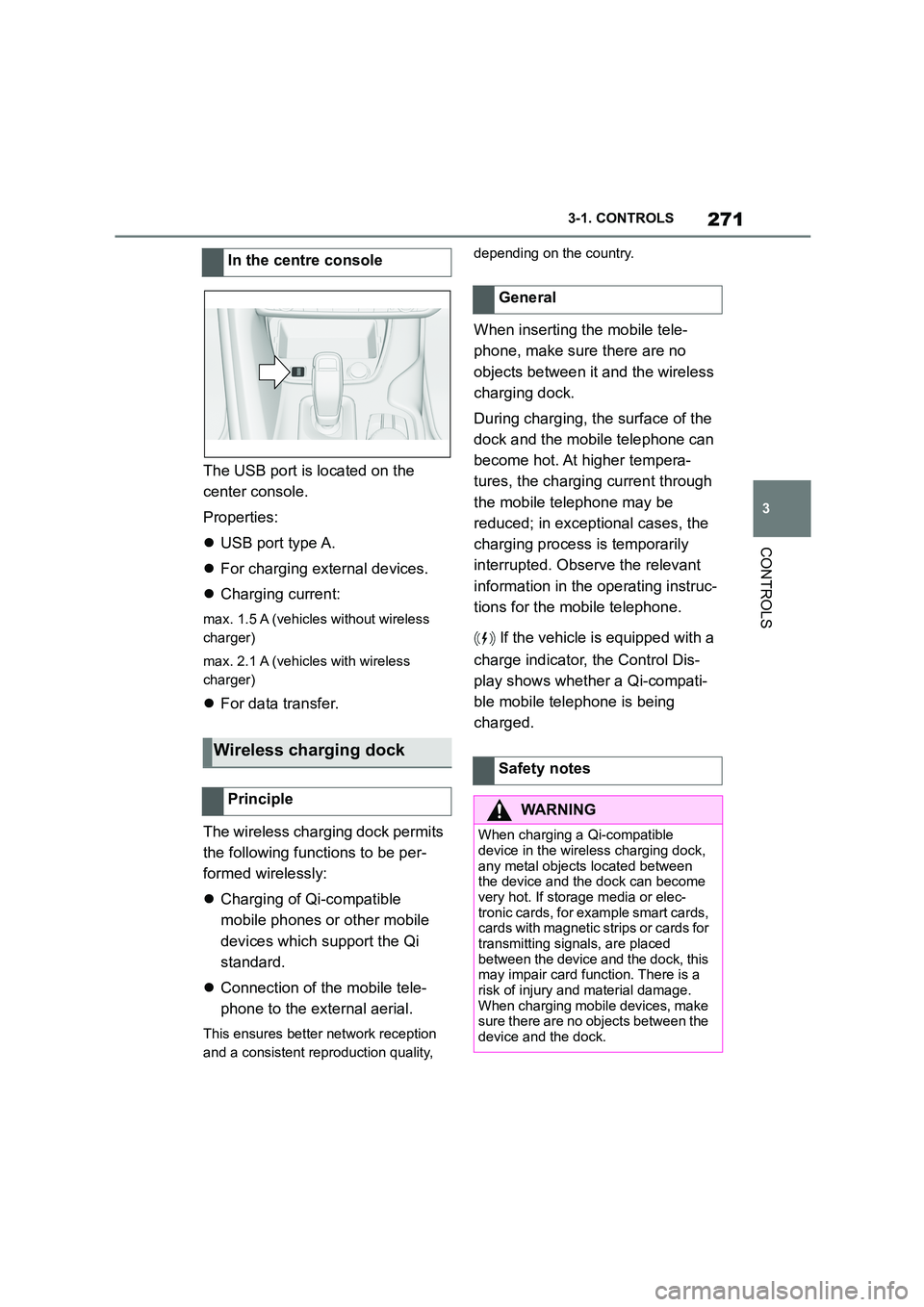
The USB port is located on the
center console.
Properties:
USB port type A.
For charging external devices.
Charging current:
max. 1.5 A (vehicles without wireless
charger)
max. 2.1 A (vehicles with wireless
charger)
For data transfer.
The wireless charging dock permits
the following functions to be per-
formed wirelessly:
Charging of Qi-compatible
mobile phones or other mobile
devices which support the Qi
standard.
Connection of the mobile tele-
phone to the external aerial.
This ensures better network reception
and a consistent reproduction quality,
depending on the country.
When inserting the mobile tele-
phone, make sure there are no
objects between it and the wireless
charging dock.
During charging, the surface of the
dock and the mobile telephone can
become hot. At higher tempera-
tures, the charging current through
the mobile telephone may be
reduced; in exceptional cases, the
charging process is temporarily
interrupted. Observe the relevant
information in the operating instruc-
tions for the mobile telephone.
If the vehicle is equipped with a
charge indicator, the Control Dis-
play shows whether a Qi-compati-
ble mobile telephone is being
charged.
In the centre console
Wireless charging dock
Principle
General
Safety notes
WA R N I N G
When charging a Qi-compatible device in the wire less charging dock,
any metal objects located between
the device and the dock can become very hot. If storage media or elec-
tronic cards, for example smart cards,
cards with magnetic strips or cards for transmitting signals, are placed
between the device and the dock, this
may impair card function. There is a risk of injury and material damage.
When charging mobile devices, make
sure there are no objects between the device and the dock.
Page 274 of 498
2723-1. CONTROLS
The mobile telephone must sup-
port and be compatible with the
required Qi standard.
Standby state is switched on.
Note the maximum dimensions
of the mobile telephone.
Only use protective sleeves and
covers up to a maximum thick-
ness of 2 mm, 0.07 in, otherwise,
charging function may be
impaired.
The mobile telephone to be
charged is located in the middle
of the dock.
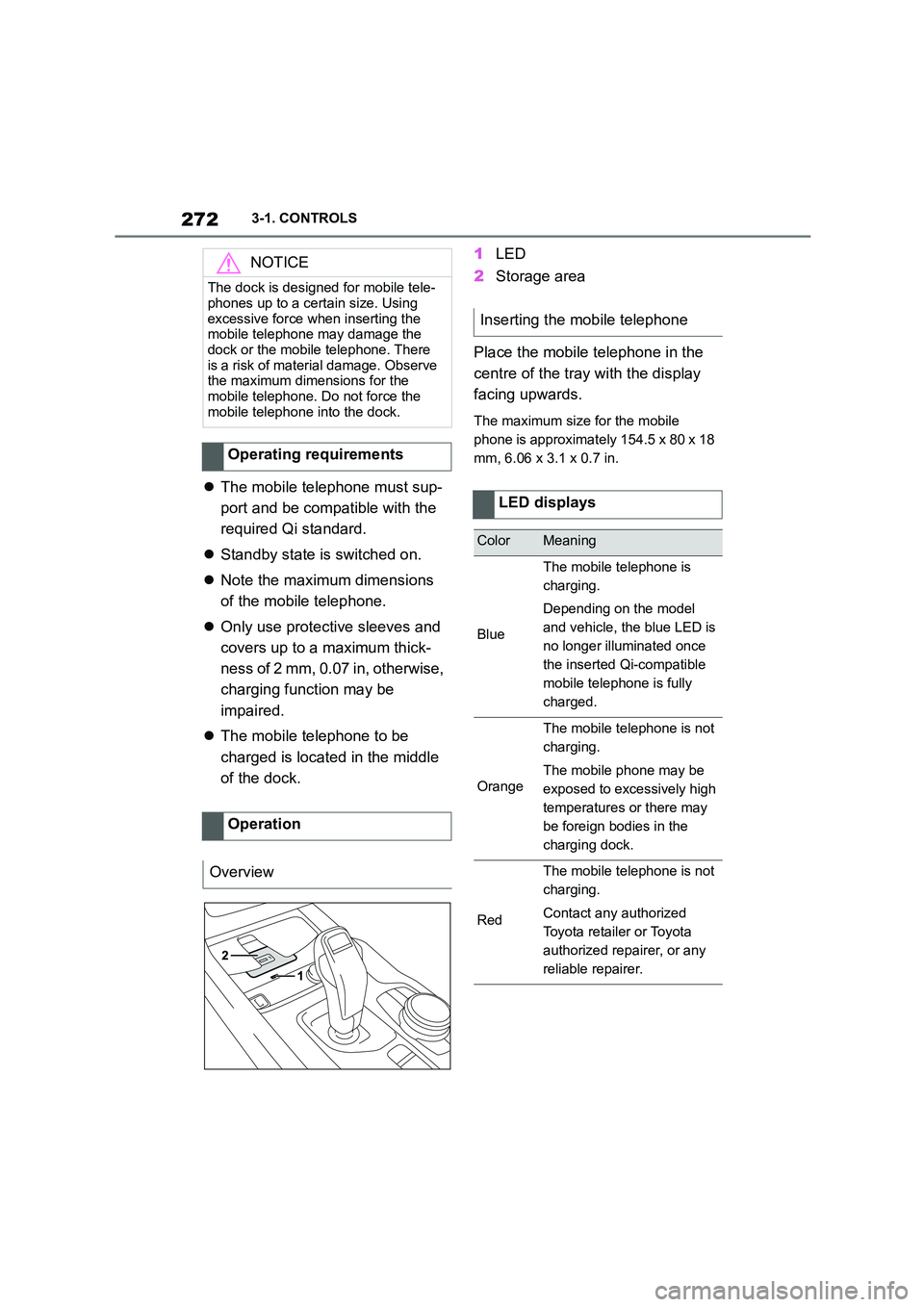
1 LED
2 Storage area
Place the mobile telephone in the
centre of the tray with the display
facing upwards.
The maximum size for the mobile
phone is approximately 154.5 x 80 x 18
mm, 6.06 x 3.1 x 0.7 in.
NOTICE
The dock is designed for mobile tele-
phones up to a certain size. Using
excessive force when inserting the mobile telephone may damage the
dock or the mobile telephone. There
is a risk of material damage. Observe the maximum dimensions for the
mobile telephone. Do not force the
mobile telephone into the dock.
Operating requirements
Operation
Overview
Inserting the mobile telephone
LED displays
ColorMeaning
Blue
The mobile telephone is
charging.
Depending on the model
and vehicle, the blue LED is
no longer illuminated once
the inserted Qi-compatible
mobile telephone is fully
charged.
Orange
The mobile telephone is not
charging.
The mobile phone may be
exposed to excessively high
temperatures or there may
be foreign bodies in the
charging dock.
Red
The mobile telephone is not
charging.
Contact any authorized
Toyota retailer or Toyota
authorized repairer, or any
reliable repairer.
Page 275 of 498
273
3
3-1. CONTROLS
CONTROLS
If the vehicle is equipped with the
forgotten phone warning function, a
warning can be output if a mobile
telephone with Qi capability has
been left in the wireless charging
dock when exiting the vehicle.
The forgotten phone warning is
shown in the instrument cluster.
Via Toyota Supra Command:
1 “My Vehicle”
2 “System settings”
3 “Wireless charging tray”
4 “Forgotten mobile device alert”
If the mobile phone or the vehicle
interior is exposed to excessively
high temperatures, the charging
functions of the mobile telephone
might be restrict ed and functions
might no longer work.
This chapter describes all standard,
country-specific and special equip-
ment available for the model series.
It may therefore describe equip-
ment and functions which are not
installed in your vehicle, for exam-
ple on account of the special equip-
ment selected or the country
specification. This also applies to
safety-relevant functions and sys-
tems. Please comply with the rele-
vant laws and regulations when
using the corresponding functions
and systems.
Forgotten phone warning
General
Activating
System limits
Storage compartments
Vehicle equipment
Safety notes
WA R N I N G
Loose objects or devices connected by a cable to the vehicle, for example
mobile telephones, may be thrown
around the interior during the journey, for example in the event of an acci-
dent or when braking or carrying out
evasive manoeuvres. There is a dan- ger of injury. Ensure that loose
objects or devices connected by
cable to the vehicle are secured in place in the interior.
NOTICE
Anti-slip mats can damage the dash-
board. There is a danger of damage to property. Do not use anti-slip mats.