phone TOYOTA SUPRA 2022 User Guide
[x] Cancel search | Manufacturer: TOYOTA, Model Year: 2022, Model line: SUPRA, Model: TOYOTA SUPRA 2022Pages: 498, PDF Size: 104.06 MB
Page 56 of 498
543-1. CONTROLS
The vehicle switches automatically
to idle state, for example under the
following conditions:
• After a few minutes, if no opera-
tion is performed on the vehicle.
• When the battery state of charge
is low.
• Depending on the Toyota Supra
Command setting: if one or both
of the front doors is opened
when exiting the vehicle after a
journey.
In some situations, Idle state will
not be established automatically,
for example during a telephone call
or if the low-beam headlights are
switched on.
After a trip, the rest state can be
established by opening the front
doors. For this purpose, the driver
and front passenger must exit the
vehicle.
Via Toyota Supra Command:
1 "My Vehicle"
2 "Vehicle setting"
3 "Doors/Key"
4 "Switch off after door opening"
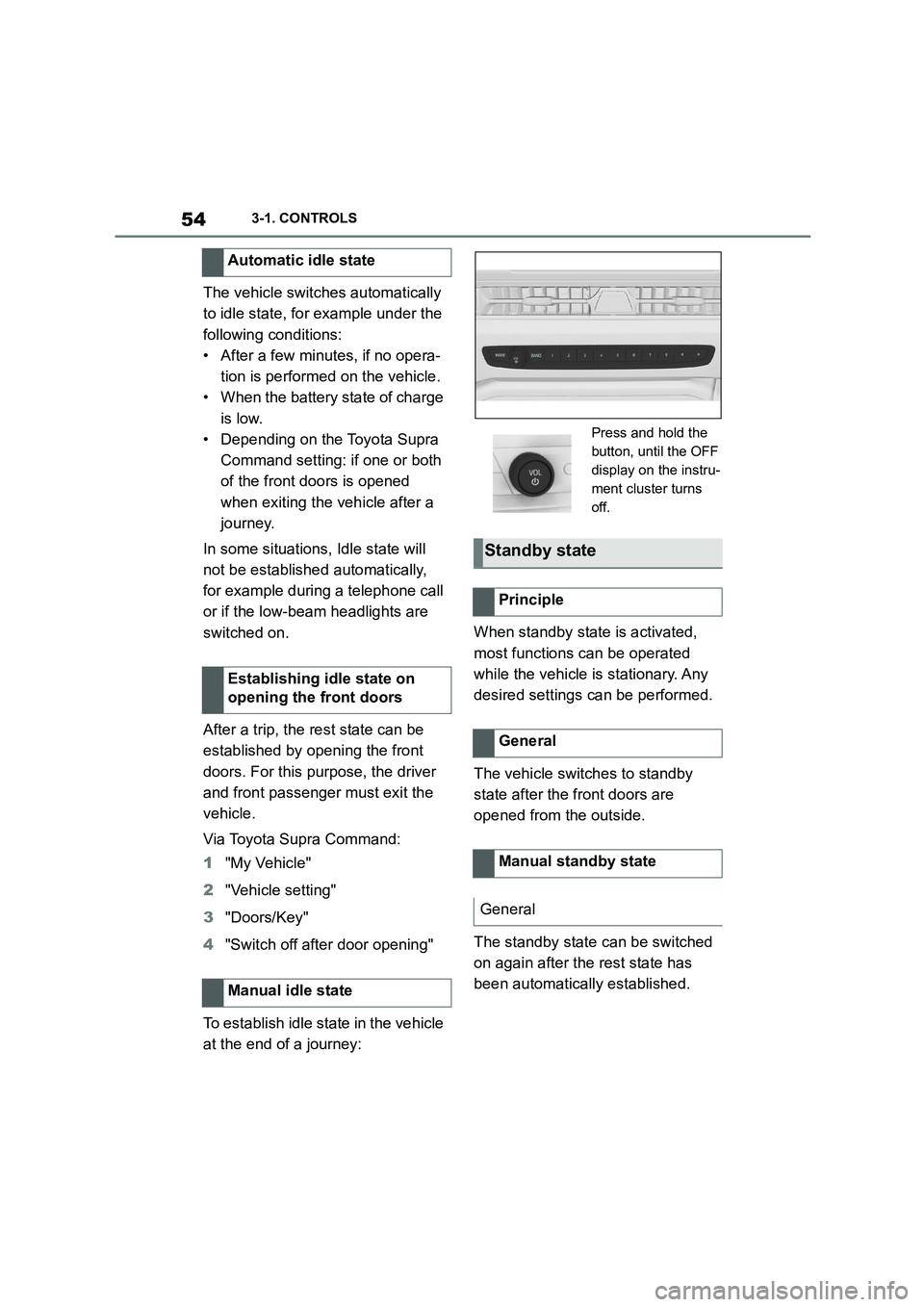
To establish idle state in the vehicle
at the end of a journey:
When standby state is activated,
most functions can be operated
while the vehicle is stationary. Any
desired settings can be performed.
The vehicle switches to standby
state after the front doors are
opened from the outside.
The standby state can be switched
on again after the rest state has
been automatically established.
Automatic idle state
Establishing idle state on
opening the front doors
Manual idle state
Press and hold the
button, until the OFF
display on the instru-
ment cluster turns
off.
Standby state
Principle
General
Manual standby state
General
Page 60 of 498
583-1. CONTROLS
Inputs are continuously compared
with the data sav ed in the vehicle.
• Only letters for which data is
available are offered for entry.
• Destination search: place names
can be entered in all languages
available in Toyota Supra Com-
mand.
Some menu items are preceded by
a checkbox. The box indicates
whether the function is enabled or
disabled. Selecting the menu item
enables or disables the function.
Function is enabled.
Function is disabled.
■General
The status field is located in the top
area of the Control Display. Status
information is displayed in the form
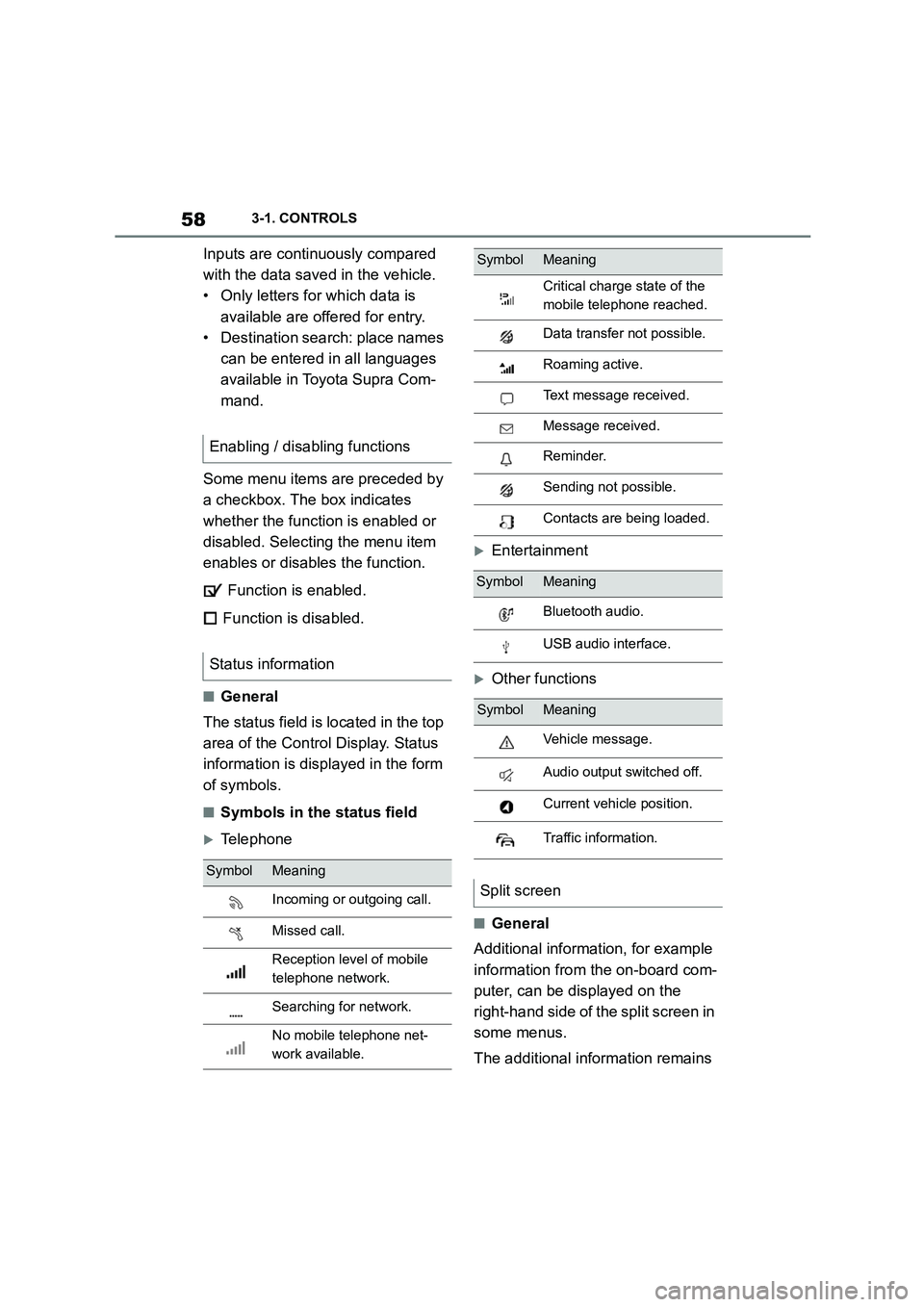
of symbols.
■Symbols in the status field
Telephone
Entertainment
Other functions
■General
Additional information, for example
information from the on-board com-
puter, can be displayed on the
right-hand side of the split screen in
some menus.
The additional information remains
Enabling / disabling functions
Status information
SymbolMeaning
Incoming or outgoing call.
Missed call.
Reception level of mobile
telephone network.
Searching for network.
No mobile telephone net-
work available.
Critical charge state of the
mobile telephone reached.
Data transfer not possible.
Roaming active.
Text message received.
Message received.
Reminder.
Sending not possible.
Contacts are being loaded.
SymbolMeaning
Bluetooth audio.
USB audio interface.
SymbolMeaning
Vehicle message.
Audio output switched off.
Current vehicle position.
Traffic information.
Split screen
SymbolMeaning
Page 70 of 498
683-1. CONTROLS
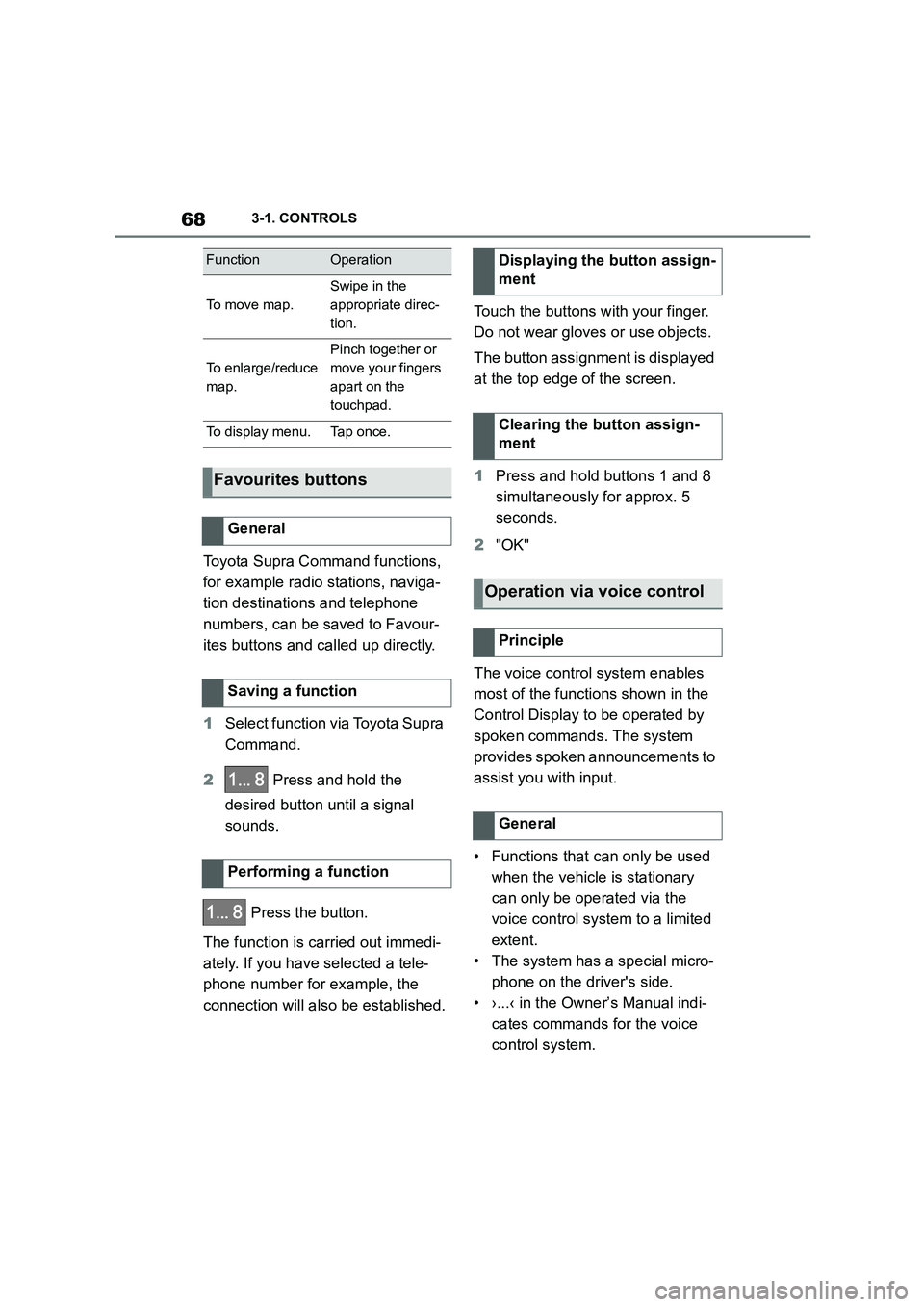
Toyota Supra Command functions,
for example radio stations, naviga-
tion destinations and telephone
numbers, can be saved to Favour-
ites buttons and called up directly.
1 Select function via Toyota Supra
Command.
2 Press and hold the
desired button until a signal
sounds.
Press the button.
The function is carried out immedi-
ately. If you have selected a tele-
phone number for example, the
connection will also be established.
Touch the buttons with your finger.
Do not wear gloves or use objects.
The button assignment is displayed
at the top edge of the screen.
1 Press and hold buttons 1 and 8
simultaneously for approx. 5
seconds.
2 "OK"
The voice control system enables
most of the functions shown in the
Control Display to be operated by
spoken commands. The system
provides spoken announcements to
assist you with input.
• Functions that can only be used
when the vehicle is stationary
can only be operated via the
voice control system to a limited
extent.
• The system has a special micro-
phone on the driver's side.
• ›...‹ in the Owner’s Manual indi-
cates commands for the voice
control system.
FunctionOperation
To m o v e m a p .
Swipe in the
appropriate direc-
tion.
To enlarge/reduce
map.
Pinch together or
move your fingers
apart on the
touchpad.
To display menu.Tap once.
Favourites buttons
General
Saving a function
Performing a function
Displaying the button assign-
ment
Clearing the button assign-
ment
Operation via voice control
Principle
General
Page 71 of 498
69
3
3-1. CONTROLS
CONTROLS
• A language must be set using
Toyota Supra Command that is
supported by the voice control
system. To select the language,
see page 71.
• Always say the commands in the
language of the voice control
system.
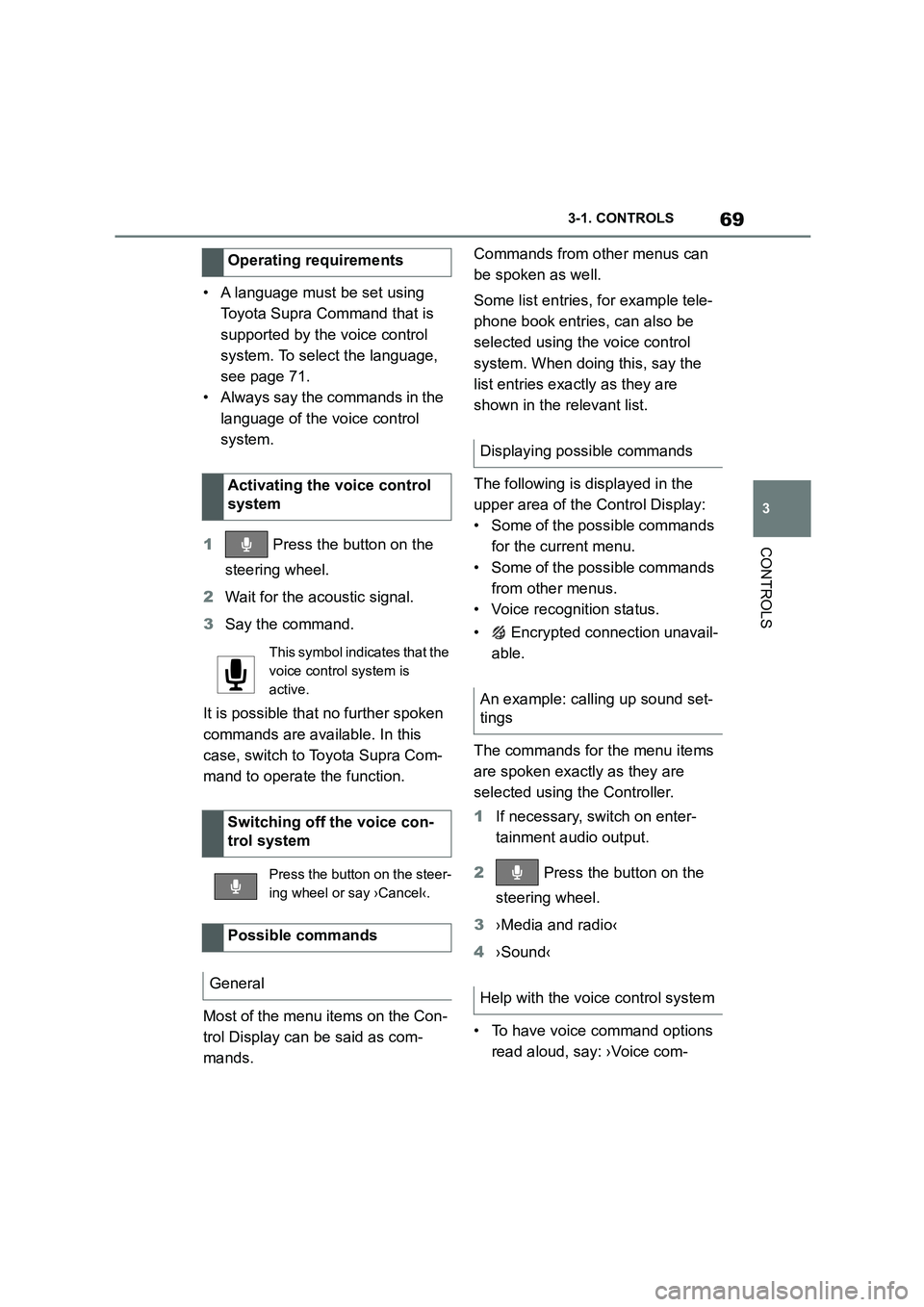
1 Press the button on the
steering wheel.
2 Wait for the acoustic signal.
3 Say the command.
It is possible that no further spoken
commands are available. In this
case, switch to Toyota Supra Com-
mand to operate the function.
Most of the menu items on the Con-
trol Display can be said as com-
mands.
Commands from other menus can
be spoken as well.
Some list entries, for example tele-
phone book entries, can also be
selected using the voice control
system. When doing this, say the
list entries exactly as they are
shown in the relevant list.
The following is displayed in the
upper area of the Control Display:
• Some of the possible commands
for the current menu.
• Some of the possible commands
from other menus.
• Voice recognition status.
• Encrypted connection unavail-
able.
The commands for the menu items
are spoken exactly as they are
selected using the Controller.
1 If necessary, switch on enter-
tainment audio output.
2 Press the button on the
steering wheel.
3 ›Media and radio‹
4 ›Sound‹
• To have voice command options
read aloud, say: ›Voice com-
Operating requirements
Activating the voice control
system
This symbol indicates that the
voice control system is
active.
Switching off the voice con-
trol system
Press the button on the steer-
ing wheel or say ›Cancel‹.
Possible commands
General
Displaying possible commands
An example: calling up sound set-
tings
Help with the voice control system
Page 77 of 498
75
3
3-1. CONTROLS
CONTROLS
This chapter describes all standard,
country-specific and special equip-
ment available for the model series.
It may therefore describe equip-
ment which is not installed in your
vehicle, for exampl e on account of
the special equipment selected or
the country specific ation. This also
applies to safety-relevant functions
and systems. Please comply with
the relevant laws and regulations
when using the corresponding func-
tions and systems.
The vehicle offers various functions
which require data to be transferred
to Toyota or a service provider. The
transfer of data can be deactivated
for some functions.
If data transfer has been deacti-
vated for a function, then that func-
tion cannot be used.
Only perform settings with the vehi-
cle at a standstill.
Follow the instruct ions on the Con-
trol Display.
Via Toyota Supra Command:
1 "My Vehicle"
2 "System settings"
3 "Data privacy"
4 Select the desired setting.
Depending on use, the vehicle
stores personal data such as saved
radio stations. This personal data
can be permanently deleted using
Toyota Supra Command.
Depending on the equipment in
your vehicle, the following data can
be deleted:
• Driver profile settings.
• Saved radio stations.
• Saved Favourites buttons.
• Trip and on-board computer val-
ues.
• Music hard disc.
• Navigation, for example saved
destinations.
• Phone book.
• Online data, for example Favour-
ites, cookies.
• Office data, for example voice
Personal settings
Vehicle equipment
Data protection
Data transfer
Principle
General
Activating/deactivating
Deleting persona l data in the
vehicle
Principle
General
Page 82 of 498
803-1. CONTROLS
This chapter describes all standard,
country-specific and special equip-
ment available for the model series.
It may therefore describe equip-
ment which is not installed in your
vehicle, for exampl e on account of
the special equipment selected or
the country variant. This also
applies to safety-relevant functions
and systems. Please comply with
the relevant laws and regulations
when using the corresponding func-
tions and systems.
Various types of connection are
available in the vehicle for using
mobile devices. Which connection
type to select depends on the
mobile device and the function you
wish to use.
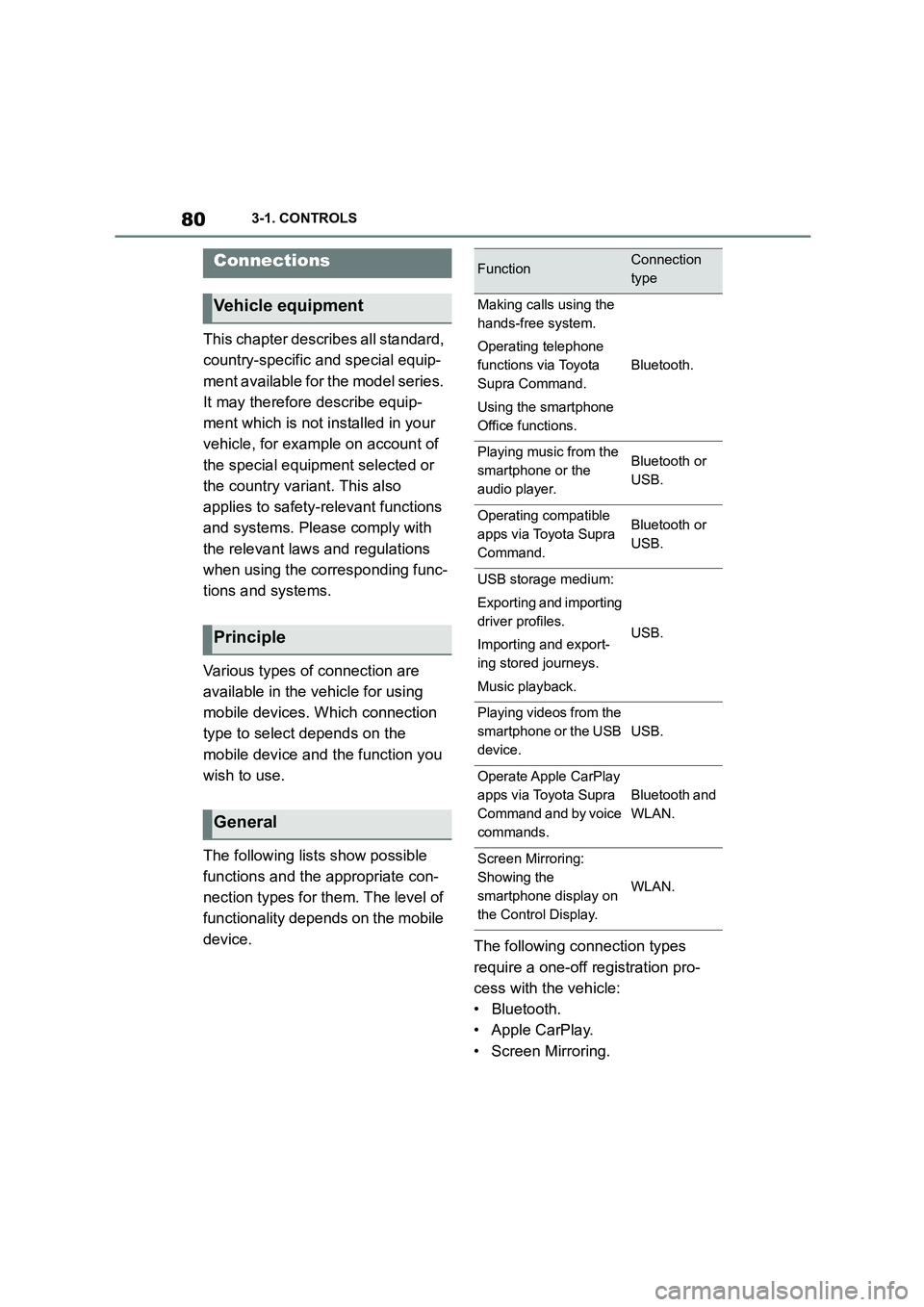
The following lists show possible
functions and the appropriate con-
nection types for them. The level of
functionality depends on the mobile
device. The following connection types
require a one-off registration pro-
cess with the vehicle:
• Bluetooth.
• Apple CarPlay.
• Screen Mirroring.
Connections
Vehicle equipment
Principle
General
FunctionConnection
type
Making calls using the
hands-free system.
Operating telephone
functions via Toyota
Supra Command.
Using the smartphone
Office functions.
Bluetooth.
Playing music from the
smartphone or the
audio player.
Bluetooth or
USB.
Operating compatible
apps via Toyota Supra
Command.
Bluetooth or
USB.
USB storage medium:
Exporting and importing
driver profiles.
Importing and export-
ing stored journeys.
Music playback.
USB.
Playing videos from the
smartphone or the USB
device.
USB.
Operate Apple CarPlay
apps via Toyota Supra
Command and by voice
commands.
Bluetooth and
WLAN.
Screen Mirroring:
Showing the
smartphone display on
the Control Display.
WLAN.
Page 83 of 498
81
3
3-1. CONTROLS
CONTROLS
Registered devices are then auto-
matically recognised and con-
nected to the vehicle.
• Compatible device with
Bluetooth interface.
• The device is operational.
• Bluetooth is activated on the
device and switched on in the
vehicle, see page 81.
• The device may require certain
Bluetooth defaul t settings, for
example visibility, see the user
manual of the device.
Via Toyota Supra Command:
1 "My Vehicle"
2 "System settings"
3 "Mobile devices"
4 "Settings"
5 "Bluetooth"
To be able to use all supported
functions of a mobile telephone, it is
necessary for the following func-
tions to be activated before regis-
tering the mobile telephone with the
vehicle.
Via Toyota Supra Command:
1 "My Vehicle"
2 "System settings"
3 "Mobile devices"
4 "Settings"
5 Select the desired setting.
•"Office"
Activate this function to transfer SMS
messages, e-mails, calendar, tasks,
memos and reminders to the vehicle.
Transferring all data to the vehicle may
incur costs.
• "Contact pictures"
Activate this function to have contact
pictures displayed.
6 Tilt the Controller to the left.
Via Toyota Supra Command:
1 "My Vehicle"
2 "System settings"
3 "Mobile devices"
4 "Connect new device"
5 Select functions:
Safety note
WA R N I N G
Operating integrated information sys-
tems and communication devices dur- ing a journey may distract you from
the traffic. You could lose control of
the vehicle. There is a danger of acci- dents. Only operat e the systems or
devices if permissible in the traffic sit-
uation. Stop if necessary and operate the systems or devices with the vehi-
cle at a standstill.
Bluetooth connection
Operating requirements
Switching on Bluetooth
Enabling/disabling tele-
phone functions
Registering the mobile
device with the vehicle
Page 84 of 498
823-1. CONTROLS
• "Telephone"
• "Bluetooth audio"
• "Apps"
• "Apple CarPlay"
• "Screen Mirroring"
The Bluetooth name of the vehicle is displayed in the Control Display.
6 On the mobile device, search for
Bluetooth devices in the vicinity.
The Bluetooth name of the vehicle is shown on the display of the mobile
device.
Select the Bluetooth name of the vehi- cle.
7 Depending on the mobile
device, either a control number
is displayed, or you will have to
enter the control number your-
self.
• Compare the control number
shown on the Control Display
with the control number in the
device display.
Confirm the control number in the
device and on the Control Display.
• Enter the same control number
on the device and via Toyota
Supra Command then confirm.
The device is connected and displayed
in the device list, see page 86.
There may be instances where the
mobile device does not function as
expected, even though all precondi-
tions have been met and all the
necessary steps have been carried
out in the correct order. Neverthe-
less, the mobile device does not
function as expected.
In such cases, the following expla-
nations may provide assistance:
Why could the mobile telephone
not be paired or connected?
• Too many Bluetooth devices are
paired to the mobile telephone or
the vehicle.
In the vehicle, delete Bluetooth connec-
tions with other devices.
Delete all known Bluetooth connections
from the device list on the mobile tele-
phone and start a new device search.
• The mobile telephone is in
power-save mode or the battery
is low.
Charge the mobile telephone.
Why does the mobile telephone no
longer respond?
• The applications on the mobile
telephone are no longer function-
ing.
Switch the mobile telephone off and on
again.
• Ambient temperature too high or
too low to operate the mobile
telephone.
Do not subject the mobile telephone to
extreme ambient conditions.
Why can telephone functions not
be operated via Toyota Supra Com-
mand?
• The mobile telephone may not
be configured correctly, for
example as a Bluetooth audio
device.
Connect the mobile telephone with the
telephone or additional telephone func-
Frequently Asked Questions
Page 85 of 498
83
3
3-1. CONTROLS
CONTROLS
tion.
Why are no phone book entries, not
all entries or incomplete entries dis-
played?
• The transfer of the phone book
entries is not yet completed.
• Under certain circumstances
only the phone book entries
saved in the mobile telephone or
on the SIM card are transferred.
• It is possible that phone book
entries with special characters
cannot be displayed.
• It may not be possib le to transfer
contacts from social networks.
• The number of telephone book
entries to be saved is too high.
• The data volume of the contact is
too large, for example due to
saved information such as
memos.
Reduce the data volume of the contact.
• A mobile telephone can only be
connected as an audio source or
as a telephone.
Configure the mobile telephone and
connect it with the telephone or addi-
tional telephone function.
How can the telephone connection
quality be improved?
• Adjust the strength of the
Bluetooth signal on the mobile
telephone; the procedure varies
from mobile telephone to mobile
telephone.
• Adjust the volume of the micro-
phone and speaker separately in
the sound settings.
If all the points on the list have been
reviewed and the desired function
cannot be performed, contact the
customer support, any authorized
Toyota retailer or Toyota authorized
repairer, or any reliable repairer.
Mobile devices with a USB port are
connected to the USB port.
• Audio devices, for example MP3
players.
• USB storage devices.
Common file systems are supported.
Formats FAT32 and exFAT are recom-
mended.
A connected USB device is sup-
plied with charging current via the
USB port if the device supports this.
Note the maximum charging cur-
rent of the USB port.
The following can be done at USB
ports compatible with data transfer:
• Exporting and importing of driver
profiles, see page 76.
• Playback of music files via USB
audio.
• Playback of video films via USB
video.
• Importing trips.
When connecting, bear the follow-
ing in mind:
• Do not use force when inserting
the plug into the USB port.
• Use a flexible adapter cable.
USB connection
General
Page 86 of 498
843-1. CONTROLS
• Protect the USB device from
mechanical damage.
• Due to the large variety of USB
devices available on the market,
operation via the vehicle cannot
be ensured for every device.
• Do not expose the USB devices
to extreme environmental condi-
tions, for example very high tem-
peratures, see the operating
instructions of the device.
• Due to the large variety of differ-
ent compression techniques,
correct playback of the media
stored on the USB device cannot
be guaranteed in every case.
• To ensure correc t transfer of the
stored data, do not charge a
USB device from the socket in
the vehicle when the device is
also connected to the USB port.
• Depending on how the USB
device is being used, it may be
necessary to perform settings on
the USB device, see the operat-
ing instructions of the device.
Unsuitable USB devices:
• USB hard drives.
• USB hubs.
• USB memory card reader with
several inserts.
• HFS-formatted USB devices.
• Devices such as fans or lamps.
Compatible device with USB port.
The USB device is displayed in the
device list, see page 86.
*: if equipped
CarPlay makes it po ssible to oper-
ate certain functions of a compati-
ble Apple iPhone by Siri voice
operation and using Toyota Supra
Command.
• Compatible iPhone.
iPhone 5 or later with iOS 7.1 or later.
• Corresponding mobile radio con-
tract.
• Bluetooth, WLAN and Siri voice
operation are activated on the
iPhone.
• Booking of the Toyota Supra
Connect service: Apple CarPlay
preparation.
Via Toyota Supra Command:
1 "My Vehicle"
2 "System settings"
3 "Mobile devices"
4 "Settings"
5 Select the following settings:
Operating requirements
Connecting a device
Apple CarPlay preparation*
Principle
Operating requirements
Switching on Bluetooth and
CarPlay