Mode VOLKSWAGEN TIGUAN 2017 Owner´s Manual
[x] Cancel search | Manufacturer: VOLKSWAGEN, Model Year: 2017, Model line: TIGUAN, Model: VOLKSWAGEN TIGUAN 2017Pages: 341, PDF Size: 9.14 MB
Page 155 of 341
drive come with additional OFFROAD driving profiles ⇒ Selecting a driving profile (4MOTION
Action Control).
The driving profile can be changed when the vehicle is stationary or while driving ⇒. After
selecting a driving profile, the vehicle settings (excluding engine settings) are switched to the new
profile mode immediately. When traffic conditions allow, briefly take your foot off the accelerator to
activate the newly selected driving profile for the engine.
Some settings can be stored in the user accounts of the personalisation function and
therefore change when the user account changes ⇒ Personalisation.
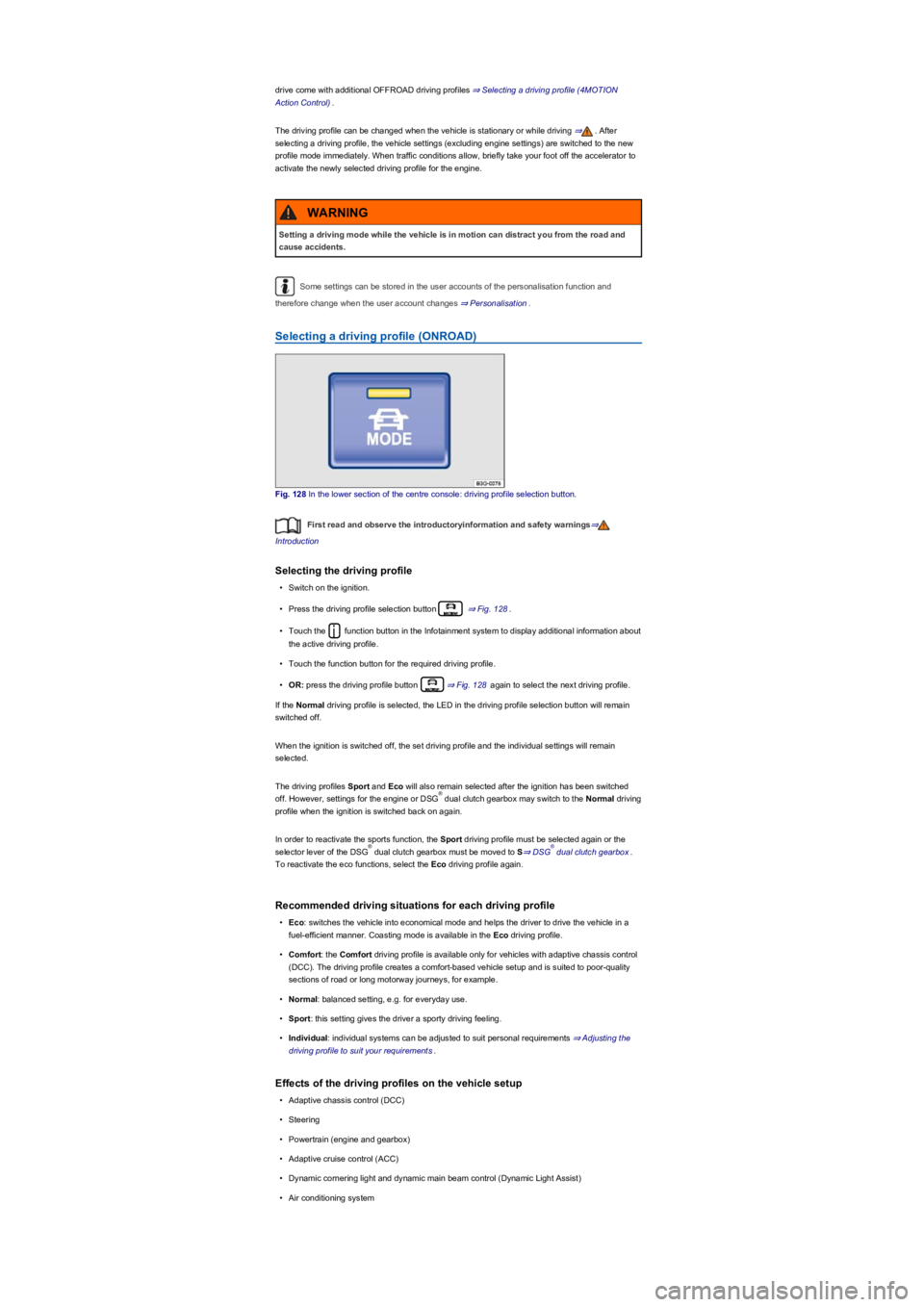
Selecting a driving profile (ONROAD)
Fig. 128 In the lower section of the centre console: driving profile selection button.
First read and observe the introductoryinformation and safety warnings⇒
Introduction
Selecting the driving profile
•Switch on the ignition.
•Press the driving profile selection button ⇒ Fig. 128.
•Touch the function button in the Infotainment system to display additional information about
the active driving profile.
•Touch the function button for the required driving profile.
•OR: press the driving profile button ⇒ Fig. 128 again to select the next driving profile.
If the Normal driving profile is selected, the LED in the driving profile selection button will remain
switched off.
When the ignition is switched off, the set driving profile and the individual settings will remain
selected.
The driving profiles Sport and Eco will also remain selected after the ignition has been switched
off. However, settings for the engine or DSG dual clutch gearbox may switch to the Normal driving
profile when the ignition is switched back on again.
In order to reactivate the sports function, the Sport driving profile must be selected again or the
selector lever of the DSG dual clutch gearbox must be moved to S⇒ DSG dual clutch gearbox.
To reactivate the eco functions, select the Eco driving profile again.
Recommended driving situations for each driving profile
•Eco: switches the vehicle into economical mode and helps the driver to drive the vehicle in a
fuel-efficient manner. Coasting mode is available in the Eco driving profile.
•Comfort: the Comfort driving profile is available only for vehicles with adaptive chassis control
(DCC). The driving profile creates a comfort-based vehicle setup and is suited to poor-quality
sections of road or long motorway journeys, for example.
•Normal: balanced setting, e.g. for everyday use.
•Sport: this setting gives the driver a sporty driving feeling.
•Individual: individual systems can be adjusted to suit personal requirements ⇒ Adjusting the
driving profile to suit your requirements.
Effects of the driving profiles on the vehicle setup
•Adaptive chassis control (DCC)
•Steering
•Powertrain (engine and gearbox)
•Adaptive cruise control (ACC)
•Dynamic cornering light and dynamic main beam control (Dynamic Light Assist)
•Air conditioning system
Setting a driving mode while the vehicle is in motion can distract you from the road and
cause accidents.
WARNING
®
®®
Page 156 of 341
•Proactive occupant protection system
In vehicles with a DSG dual clutch gearbox, the system automatically changes to gear
position S when the Sport driving profile is selected. The system automatically switches to gear
position D when the Eco driving profile is selected. Since coasting is active in the Eco driving
profile, the gearbox programme E is additionally displayed on the instrument cluster display.
The driver can adjust certain vehicle functions irrespective of the selected driving profile. For
example, the driver can switch to gear position S when the Eco driving profile is selected.
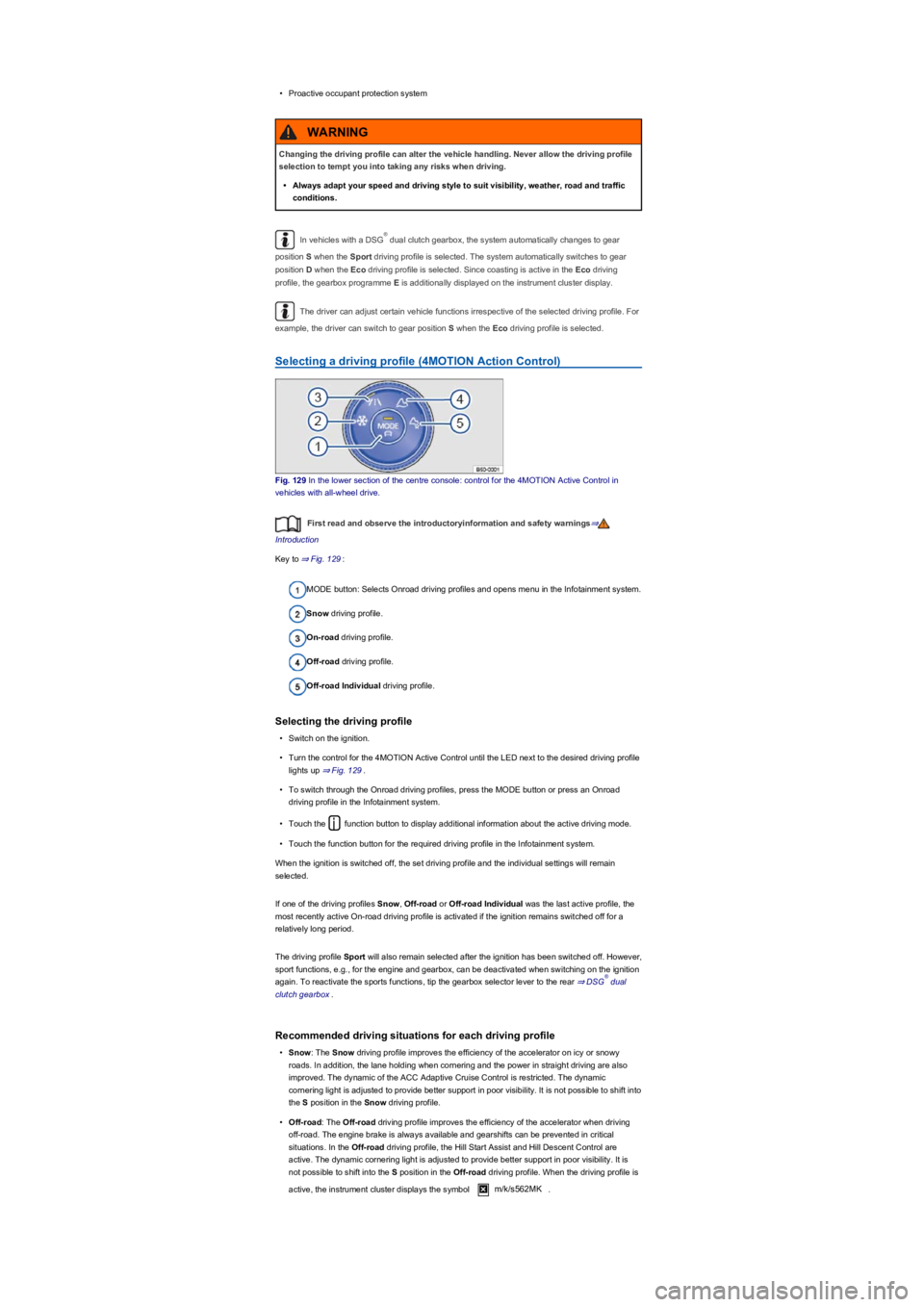
Selecting a driving profile (4MOTION Action Control)
Fig. 129 In the lower section of the centre console: control for the 4MOTION Active Control in
vehicles with all-wheel drive.
First read and observe the introductoryinformation and safety warnings⇒
Introduction
Key to ⇒ Fig. 129:
MODE button: Selects Onroad driving profiles and opens menu in the Infotainment system.
Snow driving profile.
On-road driving profile.
Off-road driving profile.
Off-road Individual driving profile.
Selecting the driving profile
•Switch on the ignition.
•Turn the control for the 4MOTION Active Control until the LED next to the desired driving profile
lights up ⇒ Fig. 129.
•To switch through the Onroad driving profiles, press the MODE button or press an Onroad
driving profile in the Infotainment system.
•Touch the function button to display additional information about the active driving mode.
•Touch the function button for the required driving profile in the Infotainment system.
When the ignition is switched off, the set driving profile and the individual settings will remain
selected.
If one of the driving profiles Snow, Off-road or Off-road Individual was the last active profile, the
most recently active On-road driving profile is activated if the ignition remains switched off for a
relatively long period.
The driving profile Sport will also remain selected after the ignition has been switched off. However,
sport functions, e.g., for the engine and gearbox, can be deactivated when switching on the ignition
again. To reactivate the sports functions, tip the gearbox selector lever to the rear ⇒ DSG dual
clutch gearbox.
Recommended driving situations for each driving profile
•Snow: The Snow driving profile improves the efficiency of the accelerator on icy or snowy
roads. In addition, the lane holding when cornering and the power in straight driving are also
improved. The dynamic of the ACC Adaptive Cruise Control is restricted. The dynamic
cornering light is adjusted to provide better support in poor visibility. It is not possible to shift into
the S position in the Snow driving profile.
•Off-road: The Off-road driving profile improves the efficiency of the accelerator when driving
off-road. The engine brake is always available and gearshifts can be prevented in critical
situations. In the Off-road driving profile, the Hill Start Assist and Hill Descent Control are
active. The dynamic cornering light is adjusted to provide better support in poor visibility. It is
not possible to shift into the S position in the Off-road driving profile. When the driving profile is
active, the instrument cluster displays the symbol m/k/s562MK.
Changing the driving profile can alter the vehicle handling. Never allow the driving profile
selection to tempt you into taking any risks when driving.
•Always adapt your speed and driving style to suit visibility, weather, road and traffic
conditions.
WARNING
®
®
Page 157 of 341
•Off-road Individual: Enhanced version of the off-road driving profile that can be adjusted to the
driver's needs ⇒ Adjusting the driving profile to suit your requirements. When the driving profile
is active, the instrument cluster displays the symbol m/k/s562MK.
•Onroad:The Onroad driving profile enables you to choose between Eco, Comfort, Normal,
Sport and Individual.
Adjusting the driving profile to suit your requirements
First read and observe the introductoryinformation and safety warnings⇒
Introduction
Selecting the Individual driving profile
•Switch on the ignition.
•Switch on the Infotainment system.
•Press the driving profile selection button or turn the control for 4MOTION Active Control
until the LED next to the Onroad driving profile ⇒ Fig. 129③ lights up.
•Touch the Change function button to open the Individual menu.
Selecting the Off-road Individual driving profile
•Switch on the ignition.
•Switch on the Infotainment system.
•If necessary, turn the control ⇒ Fig. 129 for the 4MOTION Active Control until the LED next to
the Off-road Individual driving profile ⇒ Fig. 129⑤ lights up.
•If the Off-road Individual driving profile is already selected, press the MODE button on the
control ⇒ Fig. 129.
•Touch the Change function button to open the Individual menu.
Troubleshooting
First read and observe the introductoryinformation and safety warnings⇒
Introduction
Fault in adaptive chassis control (DCC): go to a qualified workshop and have the system checked.
If there is a fault in the adaptive chassis control (DCC), the message Fault: damping control may
be shown on the instrument cluster display.
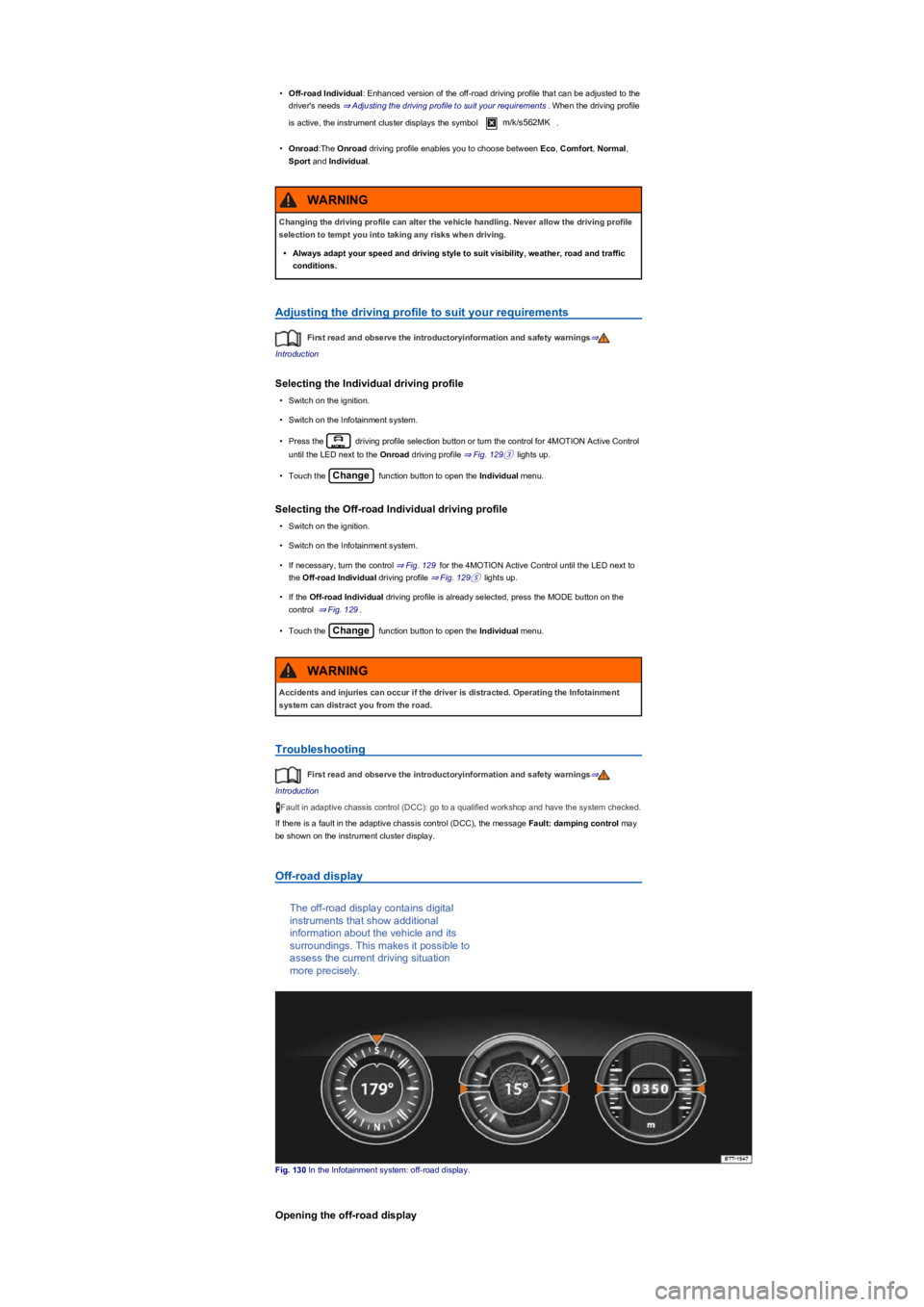
Off-road display
The off-road display contains digital
instruments that show additional
information about the vehicle and its
surroundings. This makes it possible to
assess the current driving situation
more precisely.
Fig. 130 In the Infotainment system: off-road display.
Opening the off-road display
Changing the driving profile can alter the vehicle handling. Never allow the driving profile
selection to tempt you into taking any risks when driving.
•Always adapt your speed and driving style to suit visibility, weather, road and traffic
conditions.
WARNING
Accidents and injuries can occur if the driver is distracted. Operating the Infotainment
system can distract you from the road.
WARNING
Page 163 of 341
•Use the Off-road display ⇒ Off-road display.
Up hill and down dale
First read and observe the introductoryinformation and safety warnings⇒
Introduction
Use off-road mode ⇒ Selecting a driving profile (4MOTION Action Control).
You should drive through rocky terrain at walking pace.
If you are not able to drive around a stone, drive carefully onto the stone with one front wheel and
drive over it slowly ⇒.
Escaping engine oil and brake fluid can pollute the environment. Spilt service fluids must be
collected and then disposed of properly and in an environmentally responsible way.
Driving through water
First read and observe the introductoryinformation and safety warnings⇒
Introduction
Driving through flooded terrain could damage the vehicle ⇒ Checklist: Before driving off-road.
You can drive the vehicle carefully through water with a depth reaching to the bottom edge of the
body, for example puddles or shallow water. Never stop in the water, do not drive in reverse, and
never switch off the engine.
Off-road driving in snow
First read and observe the introductoryinformation and safety warnings⇒
Introduction
Fit snow chains to the front wheels only before driving on snow-covered terrain.
Terrain might look harmless, but there could be hidden dangers. This is particularly true of sections
where there are no tyre tracks.
•You should never drive straight over large obstacles, e.g. boulders or tree stumps, or
drive over such obstacles with one side of the vehicle. Obstacles which require more
ground clearance than is available could damage vehicle components when you drive
over them and thus cause the vehicle to break down.
•Even obstacles that are smaller than the ground clearance selected could come into
contact with the vehicle underbody and thus cause damage which could lead to a
vehicle breakdown. This applies in particular if there is a ditch or soft ground either in
front of or behind the obstacle. This also applies in cases when you drive too quickly
over the obstacle causing the vehicle to bounce.
NOTICE
Strong flowing water can develop enormous power and sweep the vehicle away. This can
lead to very dangerous situations which can cause accidents and serious or even fatal
accidents.
•Never allow the vehicle to stand still in water.
•Water in the engine compartment can cause the vehicle to breakdown in the water.
•Soft ground surface, underwater obstacles and shallows can cause accidents and can
cause the vehicle to breakdown in the water. This could lead to critical situations.
WARNING
If you drive through water, parts of the vehicle, such as the engine, drive train, running
gear and vehicle electrics, could sustain severe damage.
•When driving through water, always select a section where the ground is solid and
where the depth of the water does not exceed the maximum permitted wading depth of
the vehicle.
•Never drive through salt, salty surfaces or salt water as salt can cause corrosion. Rinse
all components that have been exposed to salt or salt water thoroughly with fresh
water.
NOTICE
Page 167 of 341
Clean the turn signals, headlight system, the number plate and all windows.
If necessary, remove the towing eye and the snow chains.
Check the tyres, struts and axles for damage and remove dirt, stones and other foreign
bodies from the tyre tread.
Inspect the vehicle underbody and remove all items that are jammed in the brake system,
on the wheels, in the running gear, in the exhaust system and in the engine, such as
branches, leaves or pieces of wood . If you see any damage or leaks, take your vehicle to a
qualified workshop.
Clean heavy soiling from the radiator grille and the vehicle underbody Vehicle care.
Check the engine compartment to see if any dirt is affecting the engine operation In the
engine compartment.
Switch off OFF-ROAD mode Selecting a driving profile (4MOTION Action Control).
Switch on TCS again Brake support systems.
If your vehicle gets stuck
First read and observe the introductoryinformation and safety warnings⇒
Introduction
Rocking out a vehicle requires a great deal of training and feeling for the vehicle.
If you make a mistake when rocking the vehicle, it can sink deeper and you will need assistance to
get out of the mud.
When you cannot proceed ...
•Carefully dig out all the wheels and check that no other parts of the vehicle are stuck in the
sand.
•Engage reverse gear.
•Reverse over your own tracks, accelerating gently.
If this does not help, place brushwood, floor mats or sacking directly in front of the wheels to
increase grip ⇒.
Rocking the vehicle
Never allow the wheels to spin for long periods as this will cause the vehicle to sink deeper ⇒.
•Switch off TCS ⇒ Brake support systems.
•Position the steering wheel so that it is facing straight ahead.
•Reverse until the point where the wheels just start to spin.
•Quickly select first gear and drive forwards until the wheels start to spin again.
•Repeat driving back and forth until you have enough momentum to free yourself.
•Switch the TCS on after the rocking procedure is completed ⇒ Brake support systems.
•Use the Off-road driving profile.
After off-road driving
First read and observe the introductoryinformation and safety warnings⇒
Introduction
Checklist
Never drive through a ditch if the entry/exit angle is too steep for the vehicle and the ditch
is too deep. The vehicle could slide away, tip over or roll.
WARNING
If you drive into the ditch at a right angle, the front wheels will fall in. The underbody of
your vehicle could get stuck and damaged which means that the vehicle could break
down. It is then almost impossible to get out of the ditch despite having all-wheel drive.
NOTICE
Nobody may stand either in front or behind the vehicle, particularly if you are attempting
to free a stuck vehicle.
•Spinning wheels can propel stones, brushwood, pieces of wood or other objects that
are in front or behind the wheels at enormous speed and cause potentially fatal injury.
•People standing in front of or behind the vehicle could be run over if the stuck vehicle
starts to move suddenly.
WARNING
Page 195 of 341
Park Distance Control switches itself on automatically if the vehicle rolls backwards.
Depending on the vehicle equipment, Park Distance Control can also be activated automatically.
Switching off Park Distance Control
•Press the or button.
•OR: drive forwards at a speed of more than 10-15 km/h (6-9 mph).
•OR: move the selector lever to position P.
Automatic activation (depending on equipment)
Park Distance Control also switches itself on if the vehicle approaches an obstacle in the front area
of the vehicle at a speed of less than 15 km/h (9 mph). Automatic activation can be switched on in
the Infotainment system.
Automatic activation functions only when the vehicle speed falls below around 15 km/h (9 mph) for
the first time. Renewed automatic activation is possible after Park Distance Control has been
switched off and then back on again with the button or .
Automatic activation can also be reactivated by switching the ignition or electronic parking brake off
and then back on again.
Manoeuvre braking
If the vehicle is equipped with manoeuvre braking, the manoeuvre braking function triggers the
emergency brake as soon as an obstacle is detected while reversing. The manoeuvre braking
function helps to prevent collisions. The vehicle speed must not be higher than 10 km/h (6 mph).
The manoeuvre braking function is activated or deactivated when Park Distance Control is switched
on or off. The manoeuvre braking function is inactive for five metres after a braking operation in the
same direction of travel. The manoeuvre braking function is ready for braking again after changing
gear or position. The same restrictions apply as for Park Distance Control.
Manoeuvre braking is not active if Park Distance Control was activated automatically.
Touch the function button to switch manoeuvre braking on and off.
Display representation
Fig. 154 Display in the Infotainment system: full-screen mode. The scanned areas depend on the
vehicle equipment level.
First read and observe the introductoryinformation and safety warnings⇒
Introduction
The scanned areas are represented by several segments in the Infotainment system ⇒ Fig. 154.
The closer the vehicle drives towards an obstacle, the closer the segment will move to the vehicle
in the display. Signal tones sound at the same time.
Obstacle close to the vehicle. A continuous tone sounds. Do not drive on!Obstacle in the
vehicle path. An intermittent tone sounds. The shorter the distance, the shorter the intervals.
Obstacle outside the vehicle path.Mute signal tones.Switch manoeuvre braking
on and off (depending on vehicle equipment).Switch to rear view camera system (depending
on vehicle equipment). / System fault in the monitored area (depending on equipment level).
Only the scanned area to the front of the vehicle is shown on the Infotainment system display in
vehicles with a factory-fitted towing bracket and a trailer with an electrical connection to the vehicle
⇒ Trailer towing.
Things to note in the area around the vehicle (depending on vehicle
equipment)
The scanned area along the side of the vehicle is automatically hidden in the following situations:
•When a vehicle door is opened.
•TCS is switched off or is taking corrective action.
•If the vehicle is stationary for longer than approximately three minutes.
The vehicle must be moved a few metres forwards or backwards in order to be able to show the
entire area around the vehicle. The missing areas are then scanned and the area around the
vehicle is calculated.
Page 196 of 341
Settings
First read and observe the introductoryinformation and safety warnings⇒
Introduction
Depending on the vehicle equipment, settings for Park Distance Control can be made in the
Infotainment system ⇒ Operation and display in the Infotainment system.
You can save some settings in the user accounts of the personalisation function. The settings
change automatically when the user account is changed ⇒ Personalisation.
Troubleshooting
First read and observe the introductoryinformation and safety warnings⇒
Introduction
No sensor visibility, error message, system switches itself off
The sensor area is switched off permanently if a sensor fails.
Any malfunctions in the Park Distance Control system will be indicated by a text message and a
warning tone when first switched on, and by the indicator lamp flashing in the or
buttons. If the sensors are dirty or covered, the affected sensor cluster will be displayed on the Park
Distance Control screen. A cleaning message (depending on equipment) will also be displayed.
•Clean the sensors or remove stickers or accessories from the sensors and cameras ⇒ Caring
for and cleaning the vehicle exterior.
•Check whether any damage is visible.
The system is not responding as expected
•The sensors are dirty ⇒ Caring for and cleaning the vehicle exterior. The sensor visibility may
be impaired by dirt and snow or also residue from cleaning agents or coatings.
•The system requirements must be met ⇒ System limits.
•The sensors are covered by water.
•The factory-fitted towing bracket is electrically connected with the trailer ⇒ Trailer towing.
•The vehicle is damaged in the area of the sensors, e.g. caused by parking collisions.
•The detection ranges of the sensors are blocked by add-on parts, e.g. bicycle carriers.
•Changes have been made to the paintwork in the area of the sensors or structural modifications
have been made, e.g. on the vehicle front end or the running gear.
•The ultrasound signal is subject to interference from external noise sources, e.g. rough tarmac
surface or cobblestones.
Response to all circumstances
•Switch off the system temporarily.
•Check whether any of the causes described below apply.
•You can switch the system back on again once you have rectified the cause of the problem.
•If the system still fails to respond as expected, have the system checked by a qualified
workshop.
Rear view camera system (Rear View)
Introduction
This chapter contains information on the followingsubjects:
⇒ Switching on and off
⇒ Display representation
⇒ Prerequisites
⇒ Parking perpendicular to the road (mode 1)
⇒ Parking parallel to the road (mode 2)
⇒ Troubleshooting
The rear view camera system in the
rear of the vehicle makes it easier for
the driver to see behind the vehicle and
provides support for parking
manoeuvres.
The rear view camera system shows the area behind the vehicle on the Infotainment system
screen. Depending on the operating mode, orientation lines support the view to the rear.
Modes for the rear view camera system
Depending on the vehicle equipment, the following operating modes are available:
Page 197 of 341
•Perpendicular parking (mode 1): reverse parking perpendicular to the road.
•Parallel parking (mode 2): reverse parking parallel to the road.
•Trailer support (mode 3): support when hitching a trailer to the vehicle.
•Crossing traffic (mode 4): observing crossing traffic.
System limits
The rear view camera system shows only two-dimensional images on the screen. The lack of depth
of field means that potholes and protruding objects on the ground may only be detected with
difficulty, or may not be detected at all.
The rear view camera system may not always be able to detect objects such as thin rails, fences,
posts, trees etc. This could result in damage to your vehicle.
The system displays the orientation lines irrespective of the area surrounding the vehicle. There is
no automatic obstacle detection. Drivers must judge for themselves whether the vehicle will fit into
the parking space.
Switching on and off
First read and observe the introductoryinformation and safety warnings⇒
Introduction
Switching on the rear view camera system
•Select reverse gear.
•OR: press the button.
Switching off the rear view camera system
Drive forwards at a speed of at least 15 km/h (9 mph).
Display representation
First read and observe the introductoryinformation and safety warnings⇒
Introduction
The image of the rear view camera system is displayed in the Infotainment system.
The functions and displays depend on the vehicle equipment and may differ from each other.
The rear view camera system hides all orientation lines and guiding functions when the factory-
fitted towing bracket is electrically connected to the trailer ⇒ Trailer towing.
Settings
You can make settings by means of the function buttons when the rear view camera system is
switched on. Some setting options depend on the vehicle equipment.
Function buttons and symbols of the rear view camera system:
xClose current display.Switch to perpendicular parking (mode 1) ⇒ Parking perpendicular to
the road (mode 1).Switch to parallel parking (mode 2) ⇒ Parking parallel to the road
(mode 2).Switch to trailer support (mode 3).Switch to crossing traffic (mode 4).Adjust
display: brightness, contrast, colour.Switch to Park Distance Control ⇒ Park Distance
Control.Show Park Distance Control display.Hide Park Distance Control display.
Switch Park Distance Control sound on and off.Turn steering wheel (mode 2).Stop
vehicle (mode 2).
Orientation lines
Green horizontal line: extension of the vehicle.
Red lateral line: a yellow line turns red if a change in the steering input is necessary (mode 2).
Yellow lines: vehicle path depending on the steering angle.
Yellow auxiliary boxes: front and rear limits of the parking space (mode 2).
Green lateral line: turning point when driving into a parking space (mode 2).
Using images from the camera to estimate the distance from obstacles (people, vehicles
etc.) is inaccurate and could cause accidents and severe injuries.
•Camera lenses enlarge and distort the field of vision and make objects appear different
and inaccurate on the screen.
WARNING
Page 198 of 341
Red and green frames: vehicle outline (mode 2).
Trailer support (mode 3)
In vehicles with a factory-fitted towing bracket, the trailer support function can be used when
approaching a trailer drawbar. The powerful zoom level used in this mode means that obstacles
behind the vehicle appear very late.
Auxiliary lines are shown on the Infotainment system.
Red line: position of the towing bracket.
Green lines: distance to towing bracket. The distance intervals are around 0.1 m in each case.
Orange line: predicted path of the towing bracket, depending on the steering angle.
Crossing traffic (mode 4)
This display representation helps the driver to monitor traffic behind the vehicle and can be used in
situations such as driving out of a garage or narrow exits, for example.
Prerequisites
First read and observe the introductoryinformation and safety warnings⇒
Introduction
The following prerequisites must be met for detection of a parking space:
•Do not exceed a speed of approximately 15 km/h (9 mph).
•Width of the parking space: vehicle width + 0.2 m.
•Distance: position the vehicle approximately one metre from the parking space (mode 2 only).
•Length of the parking space: approx. 8 m (mode 2 only).
The following conditions must be met in order to display a correct image:
•The boot lid is closed.
•The surrounding area has a flat surface.
•Vehicle does not have a heavy load at the rear.
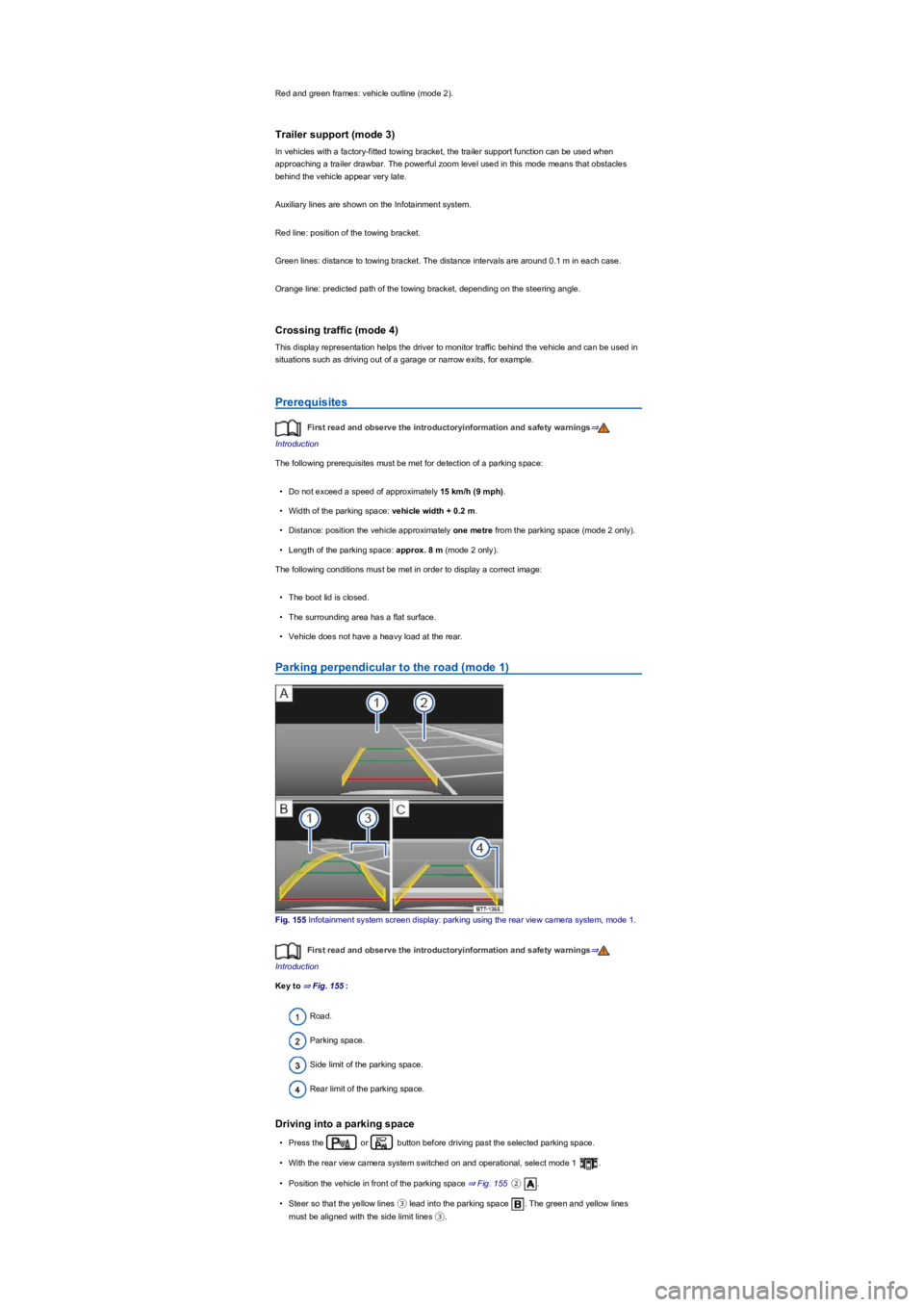
Parking perpendicular to the road (mode 1)
Fig. 155 Infotainment system screen display: parking using the rear view camera system, mode 1.
First read and observe the introductoryinformation and safety warnings⇒
Introduction
Key to ⇒ Fig. 155:
Road.
Parking space.
Side limit of the parking space.
Rear limit of the parking space.
Driving into a parking space
•Press the or button before driving past the selected parking space.
•With the rear view camera system switched on and operational, select mode 1 .
•Position the vehicle in front of the parking space ⇒ Fig. 155②.
•Steer so that the yellow lines ③ lead into the parking space . The green and yellow lines
must be aligned with the side limit lines ③.
Page 199 of 341
•Stop when the red line reaches the rear limit ④.
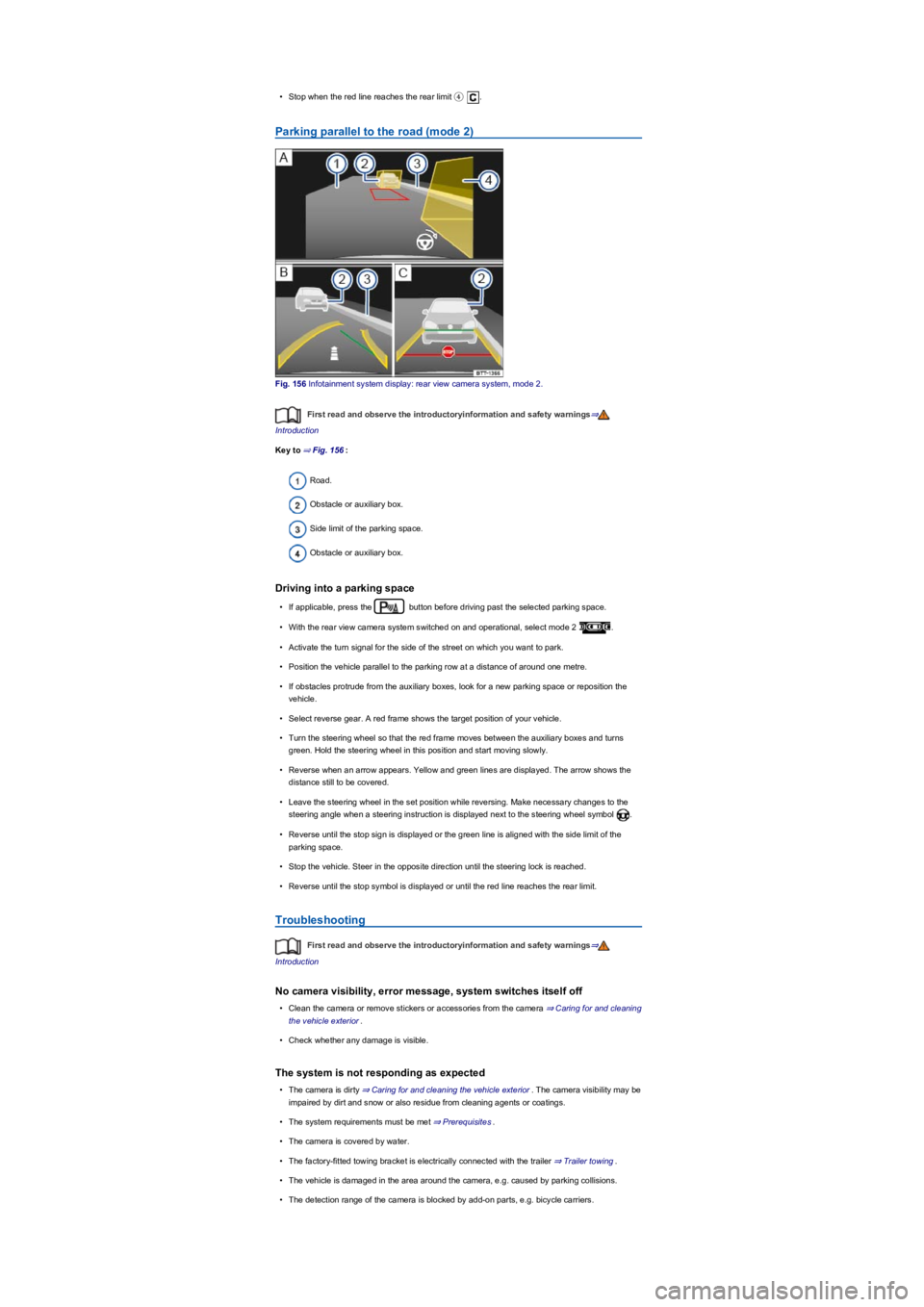
Parking parallel to the road (mode 2)
Fig. 156 Infotainment system display: rear view camera system, mode 2.
First read and observe the introductoryinformation and safety warnings⇒
Introduction
Key to ⇒ Fig. 156:
Road.
Obstacle or auxiliary box.
Side limit of the parking space.
Obstacle or auxiliary box.
Driving into a parking space
•If applicable, press the button before driving past the selected parking space.
•With the rear view camera system switched on and operational, select mode 2 .
•Activate the turn signal for the side of the street on which you want to park.
•Position the vehicle parallel to the parking row at a distance of around one metre.
•If obstacles protrude from the auxiliary boxes, look for a new parking space or reposition the
vehicle.
•Select reverse gear. A red frame shows the target position of your vehicle.
•Turn the steering wheel so that the red frame moves between the auxiliary boxes and turns
green. Hold the steering wheel in this position and start moving slowly.
•Reverse when an arrow appears. Yellow and green lines are displayed. The arrow shows the
distance still to be covered.
•Leave the steering wheel in the set position while reversing. Make necessary changes to the
steering angle when a steering instruction is displayed next to the steering wheel symbol .
•Reverse until the stop sign is displayed or the green line is aligned with the side limit of the
parking space.
•Stop the vehicle. Steer in the opposite direction until the steering lock is reached.
•Reverse until the stop symbol is displayed or until the red line reaches the rear limit.
Troubleshooting
First read and observe the introductoryinformation and safety warnings⇒
Introduction
No camera visibility, error message, system switches itself off
•Clean the camera or remove stickers or accessories from the camera ⇒ Caring for and cleaning
the vehicle exterior.
•Check whether any damage is visible.
The system is not responding as expected
•The camera is dirty ⇒ Caring for and cleaning the vehicle exterior. The camera visibility may be
impaired by dirt and snow or also residue from cleaning agents or coatings.
•The system requirements must be met ⇒ Prerequisites.
•The camera is covered by water.
•The factory-fitted towing bracket is electrically connected with the trailer ⇒ Trailer towing.
•The vehicle is damaged in the area around the camera, e.g. caused by parking collisions.
•The detection range of the camera is blocked by add-on parts, e.g. bicycle carriers.