instrument panel VOLVO S90 TWIN ENGINE 2019 Owners Manual
[x] Cancel search | Manufacturer: VOLVO, Model Year: 2019, Model line: S90 TWIN ENGINE, Model: VOLVO S90 TWIN ENGINE 2019Pages: 669, PDF Size: 14.33 MB
Page 488 of 669
AUDIO, MEDIA AND INTERNET
* Option/accessory.486
Voice control for radio and media (p. 144)
Radio settings (p. 486)
App menu in instrument panel (p. 99)
Radio settings
There are a number of different radio functionsthat can be activated and deactivated.
Canceling a traffic message
A current broadcast (e.g. a traffic message) can
be temporarily interrupted by pressing in theright-side steering wheel keypad or tappingCancel in the center display.
Activating and deactivating radio
functions
Pull down Top view and select SettingsMedia and the desired waveband to see availablefunctions.
FM Radio
HD Radio FM: HD Radio™ Technology:makes it possible to achieve a sound qualitycomparable with a CD.
Show Broadcast Information: showsinformation on program content, artists, etc.
Freeze Program Name: select to stop theprogram service name from scrolling continu-ously. Instead it freezes after 20 seconds.
SiriusXM ®
Satellite radio *
Pull down Top view and select Settings
MediaSiriusXM to show a list of availableoptions.
Related information
Radio (p. 483)
Settings for SiriusXM® Satellite radio*(p. 493)
Symbols in the center display status bar(p. 120)
Page 503 of 669
AUDIO, MEDIA AND INTERNET
* Option/accessory.501
CD *
1. Insert a CD.
2.Open the CD app from App view.
3. Select the track you would like to play.
>Playback will begin.
USB flash drive
1. Inset a USB flash drive.
2.Open the USB app from App view.
3. Select the track you would like to play.
>Playback will begin.
MP3 player and iPod ®
NOTE
To start playback from an iPod, the iPod appmust be used (not USB).
When an iPod is used as source, the car'saudio and media system has a menu struc-ture similar to the iPod player's own menustructure.
1. Connect a media source.
2. Start playback in the connected mediasource.
3.Open the app (iPod, USB) from App view.
>Playback will begin.
Bluetooth-connected device
1. Activate Bluetooth in the media source.
2. Connect a media source.
3. Start playback in the connected mediasource.
4.Open the Bluetooth app from App view.
> Playback will begin.
Media with Internet connection
Medial playback from apps with Internet connec-tion:
1. Connect the vehicle to the Internet.
2. Open the app from the App view.
> Playback will begin.
Read the separate section on how to downloadapps.
Video
1. Connect a media source.
2.Open the USB app from App view.
3. Tap the title you would like to play.
>Playback will begin.
Apple CarPlay
CarPlay is described in a separate section.
Android Auto
Android Auto is described in a separate section.
Related information
Handling the App menu in the instrumentpanel (p. 100)
Radio (p. 483)
Controlling and changing media (p. 502)
Connecting a device via the USB port(p. 507)
Connecting a device via Bluetooth®
(p. 506)
Download apps (p. 481)
Internet-connected vehicle* (p. 523)
Video (p. 504)
Apple® CarPlay®* (p. 509)
Android Auto* (p. 512)
Voice control for radio and media (p. 144)
Compatible file formats for media (p. 508)
Page 511 of 669

AUDIO, MEDIA AND INTERNET
}}
* Option/accessory.509
Apple® CarPlay®*
With CarPlay, you can listen to music, makephone calls, get driving instructions, send/receive messages and use Siri, all while remain-ing focused on driving.
CarPlay works with selectApple devices. If the car doesnot already support CarPlay,this can be retrofitted. Contacta Volvo retailer to installCarPlay.
Information about supported apps and compati-ble phones is available on the Apple website:www.apple.com/ios/carplay/. Using apps that arenot compatible with CarPlay could cause the con-nection between iPhone and the vehicle to belost. Please note that Volvo is not responsible forthe content of CarPlay.
When using map navigation via CarPlay, guidancewill only be shown on the center display and notin the instrument panel or head-up display.
CarPlay apps can be controlled from the centerdisplay, a phone or with the right-side steeringwheel keypad (for certain functions). The appscan also be voice-controlled using Siri. Press and
hold the button on the steering wheel tostart voice control with Siri. Press briefly to acti-vate the vehicle's own voice control system. If Siri
cuts off too soon, press and hold the 7 but-ton on the steering wheel.
By using Apple CarPlay you acknowledgethe following: Apple CarPlay is a serviceprovided by Apple Inc. under its terms andconditions. Volvo Cars is thus notresponsible for Apple CarPlay or itsfeatures/applications. When using AppleCarPlay, certain information from your car(including its position) is transferred to youriPhone. In relation to Volvo Cars, you arefully responsible for your and any othersperson
Page 514 of 669
AUDIO, MEDIA AND INTERNET
* Option/accessory.512
Android Auto*
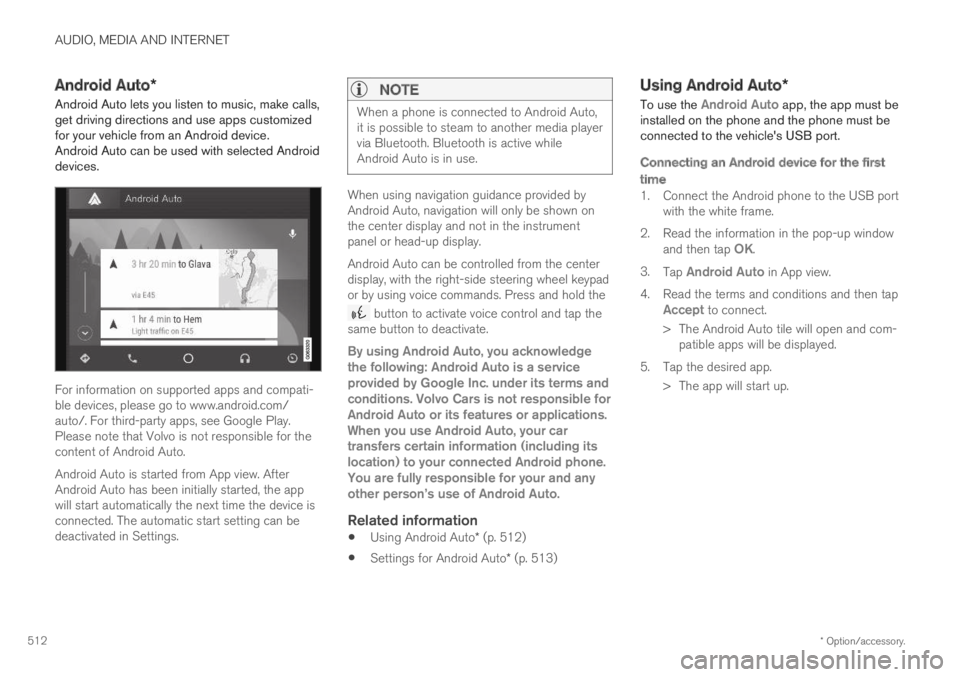
Android Auto lets you listen to music, make calls,get driving directions and use apps customizedfor your vehicle from an Android device.Android Auto can be used with selected Androiddevices.
For information on supported apps and compati-ble devices, please go to www.android.com/auto/. For third-party apps, see Google Play.Please note that Volvo is not responsible for thecontent of Android Auto.
Android Auto is started from App view. AfterAndroid Auto has been initially started, the appwill start automatically the next time the device isconnected. The automatic start setting can bedeactivated in Settings.
NOTE
When a phone is connected to Android Auto,it is possible to steam to another media playervia Bluetooth. Bluetooth is active whileAndroid Auto is in use.
When using navigation guidance provided byAndroid Auto, navigation will only be shown onthe center display and not in the instrumentpanel or head-up display.
Android Auto can be controlled from the centerdisplay, with the right-side steering wheel keypador by using voice commands. Press and hold the
button to activate voice control and tap thesame button to deactivate.
By using Android Auto, you acknowledgethe following: Android Auto is a serviceprovided by Google Inc. under its terms andconditions. Volvo Cars is not responsible forAndroid Auto or its features or applications.When you use Android Auto, your cartransfers certain information (including itslocation) to your connected Android phone.You are fully responsible for your and anyother person
Page 516 of 669
AUDIO, MEDIA AND INTERNET
* Option/accessory.514
Tips for using Android Auto*
Here are some useful tips for when you useAndroid Auto.
Ensure that your apps are updated.
When starting the car, wait until the centerdisplay has started, connect the phone andthen open Android Auto from the app view.
In the event of problems with Android Auto,disconnect your Android phone from theUSB port and then reconnect via USB. Oth-erwise, try closing the app on the phone andthen restarting the app.
When a phone is connected to Android Autoit is still possible to playback media viaBluetooth to another media player. TheBluetooth function is on when Android Autois used.
Related information
Android Auto* (p. 512)
Phone
A phone equipped with Bluetooth can be wire-lessly connected to the vehicle's integratedhands-free system.
The audio and media system offers hands-freefunctionality for remotely controlling a number ofthe phone's features. The phone's integratedcontrols can also be used, even when it is con-nected to the vehicle.
When the phone has been paired and connectedto the vehicle, it can be used as an Internet con-nection or to make or receive calls, send orreceive text messages or wirelessly play music.
The phone is controlled from the center display,and the App menu (accessed using the right-sidesteering wheel keypad) and voice commands canalso be used to control certain functions.
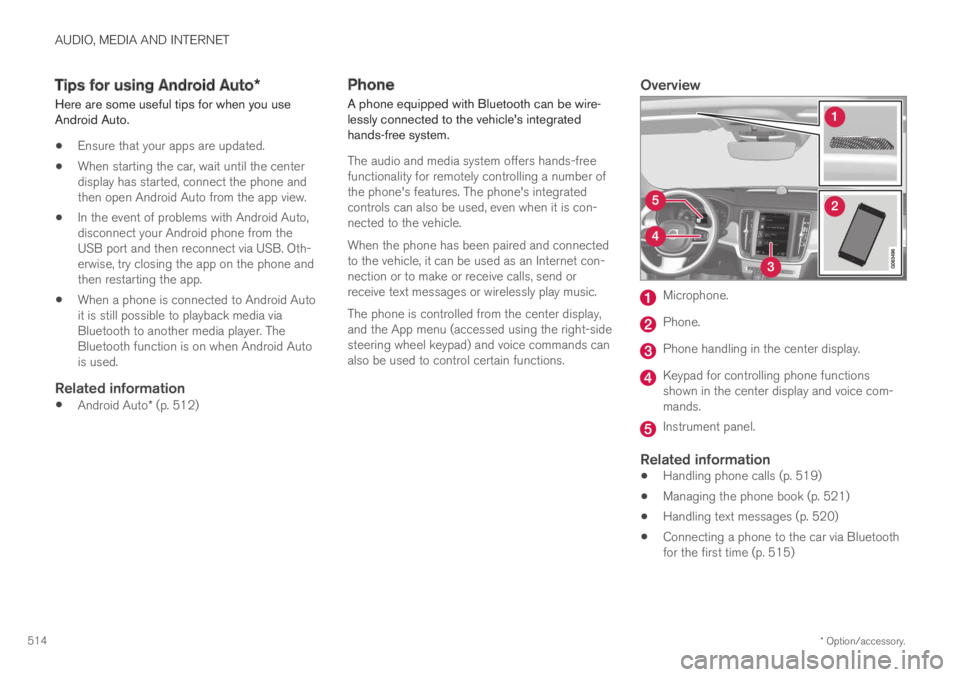
Overview
Microphone.
Phone.
Phone handling in the center display.
Keypad for controlling phone functionsshown in the center display and voice com-mands.
Instrument panel.
Related information
Handling phone calls (p. 519)
Managing the phone book (p. 521)
Handling text messages (p. 520)
Connecting a phone to the car via Bluetoothfor the first time (p. 515)
Page 517 of 669
AUDIO, MEDIA AND INTERNET
}}
515
Connecting a phone to the car via Bluetoothautomatically (p. 517)
Connecting a phone to the car via Bluetoothmanually (p. 517)
Disconnecting a Bluetooth-connected phone(p. 518)
Switch between phones connected via Blue-tooth (p. 518)
Disconnecting Bluetooth-connected devices(p. 518)
Phone settings (p. 522)
Voice control (p. 141)
Handling the App menu in the instrumentpanel (p. 100)
Sound settings (p. 478)
Connecting the vehicle to the Internet via aBluetooth-connected phone (p. 525)
Connecting a phone to the car viaBluetooth for the first time
Pair a Bluetooth-enabled phone to the vehicle tomake calls, send/receive text messages andwirelessly play media from the vehicle, or con-nect the vehicle to the Internet.
Two Bluetooth devices can be connected at thesame time, but in that case, only one will be usedfor wireless playback. The most recently pairedphone will be automatically connected to makecalls, send/receive text messages, play media oruse as an Internet connection. It is possible tochange what the phone is used for underBluetooth Devices via the settings menu in thecenter display's Top view.
After the device has been connected/registeredfor the first time via Bluetooth, the device nolonger needs to be visible/searchable. It justneeds to have Bluetooth activated. A maximum of20 paired Bluetooth devices can be stored in thevehicle.
There are two ways to pair a phone to the vehicle.Searching for the phone from the vehicle orsearching for the vehicle from the phone.
Option 1 - searching for the phone from
the vehicle
1. Make the phone discoverable/visible usingits Bluetooth function.
2. Open the phone tile in the center display.
If no phone has been paired to the vehi-cle, tap Add phone.
If a phone has been paired to the vehicle,
tap Change. Tap Add phone in thepop-up window.
> A list of available Bluetooth devices will bedisplayed. The list will be updated as newdevices are discovered.
3.Tap the name of the phone you would like toconnect.
4. Make sure that the code displayed in thevehicle matches the one in the phone. If itdoes, confirm the code in both places.
5. In the phone, accept or cancel the optionsfor selecting the phone's contacts and textmessages.
NOTE
The message function must be activatedin certain phones.
Not all cell phones are fully compatibleand may not be able to display contactsand messages in the vehicle.
Page 521 of 669
AUDIO, MEDIA AND INTERNET
519
Handling phone calls
Handling phone calls in the vehicle for aBluetooth-connected cellular phone.
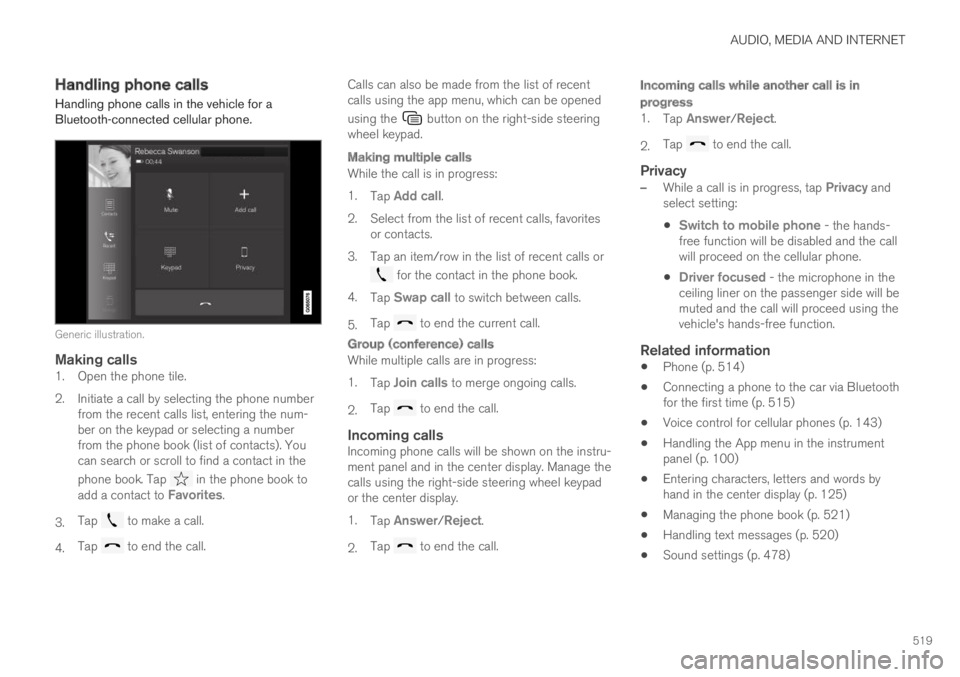
Generic illustration.
Making calls
1. Open the phone tile.
2. Initiate a call by selecting the phone numberfrom the recent calls list, entering the num-ber on the keypad or selecting a numberfrom the phone book (list of contacts). Youcan search or scroll to find a contact in the
phone book. Tap in the phone book toadd a contact to Favorites.
3.Tap to make a call.
4.Tap to end the call.
Calls can also be made from the list of recentcalls using the app menu, which can be opened
using the button on the right-side steeringwheel keypad.
Making multiple calls
While the call is in progress:
1.Tap Add call.
2. Select from the list of recent calls, favoritesor contacts.
3.Tap an item/row in the list of recent calls or
for the contact in the phone book.
4.Tap Swap call to switch between calls.
5.Tap to end the current call.
Group (conference) calls
While multiple calls are in progress:
1.Tap Join calls to merge ongoing calls.
2.Tap to end the call.
Incoming calls
Incoming phone calls will be shown on the instru-ment panel and in the center display. Manage thecalls using the right-side steering wheel keypador the center display.
1.Tap Answer/Reject.
2.Tap to end the call.
Incoming calls while another call is in
progress
1.Tap Answer/Reject.
2.Tap to end the call.
Privacy
–While a call is in progress, tap Privacy andselect setting:
Switch to mobile phone - the hands-free function will be disabled and the callwill proceed on the cellular phone.
Driver focused - the microphone in theceiling liner on the passenger side will bemuted and the call will proceed using thevehicle's hands-free function.
Related information
Phone (p. 514)
Connecting a phone to the car via Bluetoothfor the first time (p. 515)
Voice control for cellular phones (p. 143)
Handling the App menu in the instrumentpanel (p. 100)
Entering characters, letters and words byhand in the center display (p. 125)
Managing the phone book (p. 521)
Handling text messages (p. 520)
Sound settings (p. 478)
Page 522 of 669
AUDIO, MEDIA AND INTERNET
* Option/accessory.520
Handling text messages11
A Bluetooth-connected cellular phone's textmessages can be handled in the vehicle.
Text message functionality needs to be activatedin certain phones. Not all phones are fully com-patible and therefore cannot display contacts andmessages in the vehicle. For additional informa-tion on compatibility, see support.volvocars.com.
Handling text messages in the center
display
Text messages are only shown in the center dis-play if the relevant setting is made.
Tap Messages in App view tohandle text messages in thecenter display.
NOTE
When the vehicle is moving:
Only one row of the message will be dis-played. Tap Read out to have the entiremessage read aloud.
The center display's keyboard cannot beused.
Reading text messages in the center display
aloud
Tap the icon to have the message readaloud.
Sending text messages in the center
display 12
1. It is possible to reply to text messages orcreate a new message.
To reply to a text message - tap the nameof the contact who sent the message andthen tap Answer.
To create a new message - tap Createnew. Select a contact or enter a phonenumber.
2.Write the message.
3.Tap Send.
Handling test messages in the
instrument panel
Text messages are only shown in the instrumentpanel if the relevant setting is made.
Reading new text messages in the
instrument panel aloud
–To have the message read aloud, selectRead out using the steering wheel keypad.
Dictating replies in the instrument panel
After the test message has been read aloud, it ispossible to answer briefly with dictation if thevehicle has an Internet connection.
–Tap Answer using the steering wheel key-pad. A dictation dialog will start.
Message alert
Alerts can be activated and deactivated in thetext message settings.
Related information
Phone (p. 514)
Text message settings (p. 521)
Phone settings (p. 522)
Internet-connected vehicle* (p. 523)
Voice control for cellular phones (p. 143)
Entering characters, letters and words byhand in the center display (p. 125)
11Only applies to certain markets. Contact a Volvo retailer for more information.
12
Only certain phones can send messages via the vehicle. For additional information on compatibility, see support.volvocars.com.
Page 553 of 669

WHEELS AND TIRES
}}
* Option/accessory.551
Recommended tire pressure
The tire pressure placard on the driver's side Bpillar (between the front and the rear door) indi-cates tire pressure for different loads and speedconditions.
The decal specifies the designation for the fac-tory-mounted tires on the vehicle, as well as loadlimits and inflation pressures.
Related information
Checking tire pressure (p. 549)
Approved tire pressure (p. 649)
Tire pressure monitoring system*
The tire pressure monitoring system6 provides awarning symbol in the instrument panel if pres-sure is too low in one or more tires.
Symbol Explanation
This symbol illuminates to indicatelow inflation pressure.
If there is a system malfunction, theinflation pressure warning symbolwill flash for approximately oneminute and then glow steadily.
System description
The tire pressure monitoring system measuresdifferences in rotational speed between thewheels through the ABS system to determine ifthe tires are properly inflated. If inflation pressurein a tire is too low, its diameter (and consequentlyits rotational speed) changes. By comparing thetires with each other, the system can determine ifthe pressure in one or more tires is too low.
General information about the tire pressure
monitoring system
In the following description, the tire monitoringsystem is generally referred to as TPMS.
Each tire, including the spare (if provided)7
should be checked monthly when cold and infla-
ted to the inflation pressure recommended by thevehicle manufacturer on the vehicle placard ortire inflation pressure label. (If your vehicle hastires of a different size than the size indicated onthe vehicle placard or tire inflation pressure label,you should determine the proper tire inflationpressure for those tires.)
As an added safety feature, your vehicle hasbeen equipped with a tire pressure monitoringsystem (TPMS) that illuminates a low tire pres-sure telltale when one or more of your tires issignificantly under-inflated. Accordingly, when thelow tire pressure telltale illuminates, you shouldstop and check your tires as soon as possible,and inflate them to the proper pressure.
Driving on a significantly under-inflated tire cau-ses the tire to overheat and can lead to tire fail-ure. Under-inflation also reduces fuel efficiencyand tire tread life, and may affect the vehicle'shandling and stopping ability. Please note thatthe TPMS is not a substitute for proper tire main-tenance, and it is the driver's responsibility tomaintain correct tire pressure, even if under-infla-tion has not reached the level to trigger illumina-tion of the TPMS low tire pressure telltale.
Your vehicle has also been equipped with aTPMS malfunction indicator to indicate when thesystem is not operating properly. The TPMS mal-function indicator is combined with the low tire
6Tire Pressure Monitoring System (TPMS)7Not available on all models.
Page 554 of 669

||
WHEELS AND TIRES
* Option/accessory.552
pressure telltale. When the system detects a mal-function, the telltale will flash for approximatelyone minute and then remain continuously illumi-nated. This sequence will continue upon subse-quent vehicle start-ups as long as the malfunc-tion exists. When the malfunction indicator is illu-minated, the system may not be able to detect orsignal low tire pressure as intended.
TPMS malfunctions may occur for a variety ofreasons, including the installation of replacementor alternate tires or wheels on the vehicle thatprevent the TPMS from functioning properly.
Always check the TPMS malfunction telltale afterreplacing one or more tires or wheels on yourvehicle to ensure that the replacement or alter-nate tires and wheels allow the TPMS to con-tinue to function properly.
Messages in the instrument panel
If tire pressure is too low, the low tire pressurewarning symbol is shown in the instrument panelalong with a message.
Tire pressure low Check tires, calibrateafter fill
Tire pressure system Temporarilyunavailable
Tire pressure system Service required
To keep in mind
Always calibrate the system after changingwheels or adjusting tire pressure. See the tirepressure placard on the driver's side B pillarfor Volvo-recommended tire pressures.
If you switch to a tire of another size than thefactory-mounted tires, the system must becalibrated for these tires to avoid false warn-ings.
If a spare wheel8 is used, it is possible thatthe tire pressure monitoring system will notwork correctly due to the differencesbetween the wheels.
The system does not replace the need forregular tire inspection and maintenance.
It is not possible to deactivate the tire pres-sure monitoring system.
WARNING
Incorrect inflation pressure could lead totire failure, which could cause the driverto lose control of the vehicle.
The system cannot predict sudden tiredamage.
Related information
Recommended tire pressure (p. 551)
Viewing tire pressure status in the centerdisplay* (p. 554)
Action when warned of low tire pressure(p. 555)
Calibrating the tire pressure monitoring sys-tem* (p. 553)
8Not available on all models.