phone VOLVO V90 2017 User Guide
[x] Cancel search | Manufacturer: VOLVO, Model Year: 2017, Model line: V90, Model: VOLVO V90 2017Pages: 594, PDF Size: 15.07 MB
Page 47 of 594
INTRODUCTION
}}
45
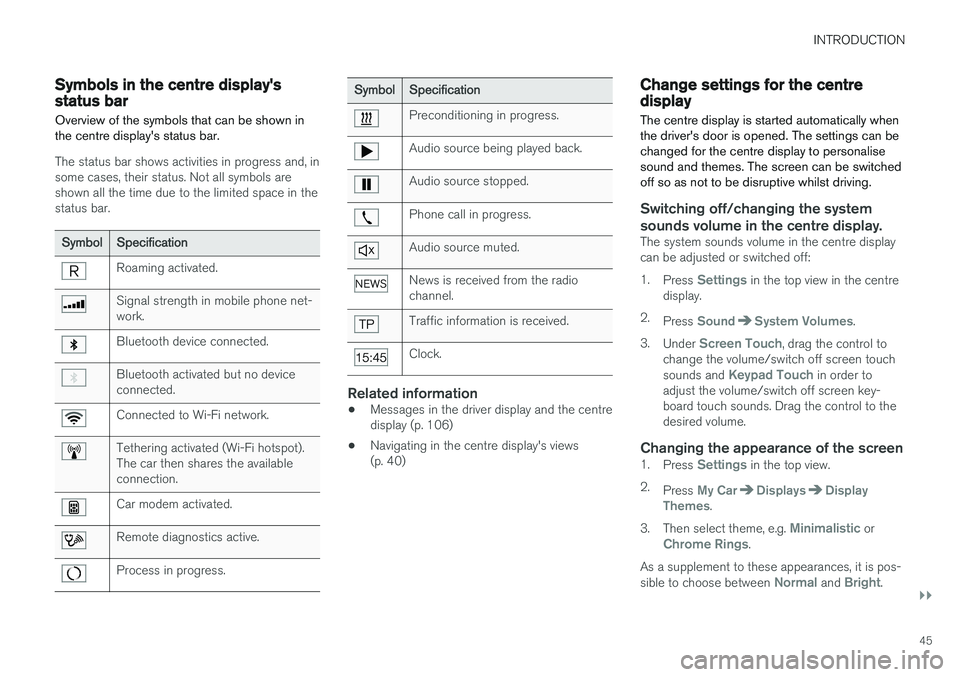
Symbols in the centre display's status bar Overview of the symbols that can be shown in the centre display's status bar.
The status bar shows activities in progress and, in some cases, their status. Not all symbols areshown all the time due to the limited space in thestatus bar.
SymbolSpecification
Roaming activated.
Signal strength in mobile phone net- work.
Bluetooth device connected.
Bluetooth activated but no device connected.
Connected to Wi-Fi network.
Tethering activated (Wi-Fi hotspot). The car then shares the availableconnection.
Car modem activated.
Remote diagnostics active.
Process in progress.
SymbolSpecification
Preconditioning in progress.
Audio source being played back.
Audio source stopped.
Phone call in progress.
Audio source muted.
News is received from the radio channel.
Traffic information is received.
Clock.
Related information
•Messages in the driver display and the centre display (p. 106)
• Navigating in the centre display's views(p. 40)
Change settings for the centre display The centre display is started automatically when the driver's door is opened. The settings can bechanged for the centre display to personalisesound and themes. The screen can be switchedoff so as not to be disruptive whilst driving.
Switching off/changing the system
sounds volume in the centre display.
The system sounds volume in the centre display can be adjusted or switched off: 1. Press
Settings in the top view in the centre
display.
2. Press
SoundSystem Volumes.
3. Under
Screen Touch, drag the control to
change the volume/switch off screen touch sounds and
Keypad Touch in order to
adjust the volume/switch off screen key- board touch sounds. Drag the control to thedesired volume.
Changing the appearance of the screen1. Press Settings in the top view.
2. Press
My CarDisplaysDisplay
Themes.
3. Then select theme, e.g.
Minimalistic orChrome Rings.
As a supplement to these appearances, it is pos- sible to choose between
Normal and Bright.
Page 93 of 594
INSTRUMENTS AND CONTROLS
}}
* Option/accessory.91
On the left In the middleOn the right
– Media player Status of the Start/Stop function
– Navigation map* Distance to empty tank
– PhoneInstantaneous fuel consumption
– Voice recognition App menu (activated via steering wheel keypad)
A
Depending on selected drive mode.
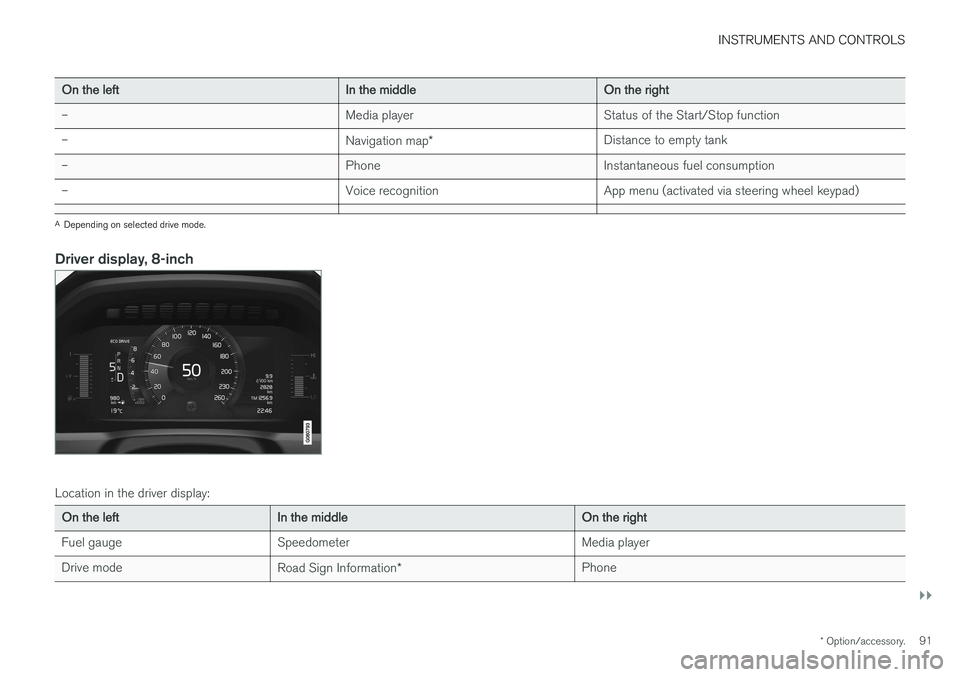
Driver display, 8-inch
Location in the driver display:
On the left In the middle On the right
Fuel gauge Speedometer Media player
Drive mode Road Sign Information* Phone
Page 96 of 594
INSTRUMENTS AND CONTROLS
* Option/accessory.
94
Driver display settings
Settings for the driver display can be made in the driver display's application menu, and in the centre display's
Settings menu.
Settings in the app menuIn the app menu, you can choose which informa- tion is shown on the driver display from
• trip computer
• media player
• phone
• navigation system
*.
The application menu in the driver display is
opened and navigated using the steering wheel'sright-hand keypad, see the section "Using theapplication menu in the driver display".
Settings in the centre display
Selecting information type
1. Tap on Settings in the centre display's top
view.
2. Press
My CarDisplaysDriver
Display Information. 3. Select what should be shown in the back-
ground: •
Show no information in background
•Show information for current playing media
•Show navigation even if no route is set1.
The 12-inch driver display shows the infor- mation in the centre, and the 8-inch driverdisplay shows the information in the topright-hand field.
Selecting theme
1. Tap on Settings in the centre display's top
view.
2. Tap on
My CarDisplaysDisplay
Themes
3. Select a theme (appearance) for the driver display: •
Glass
•Minimalistic
•Performance
•Chrome Rings.
Selecting language
1.Tap on Settings in the centre display's top
view. 2.
Tap on
SystemSystem Language to
select language.
> A change will affect the language in all displays.
Related information
• Driver display (p. 90)
• Application menu in the driver display (p. 105)
• Settings view (p. 169)
1
The map is only shown with 12-inch driver display. In the 8-inch driver display, only guidance is shown. For more information, see the section "Displays and controls for map navigation" and "Map navigation in the driver display".
Page 107 of 594
INSTRUMENTS AND CONTROLS
}}
105
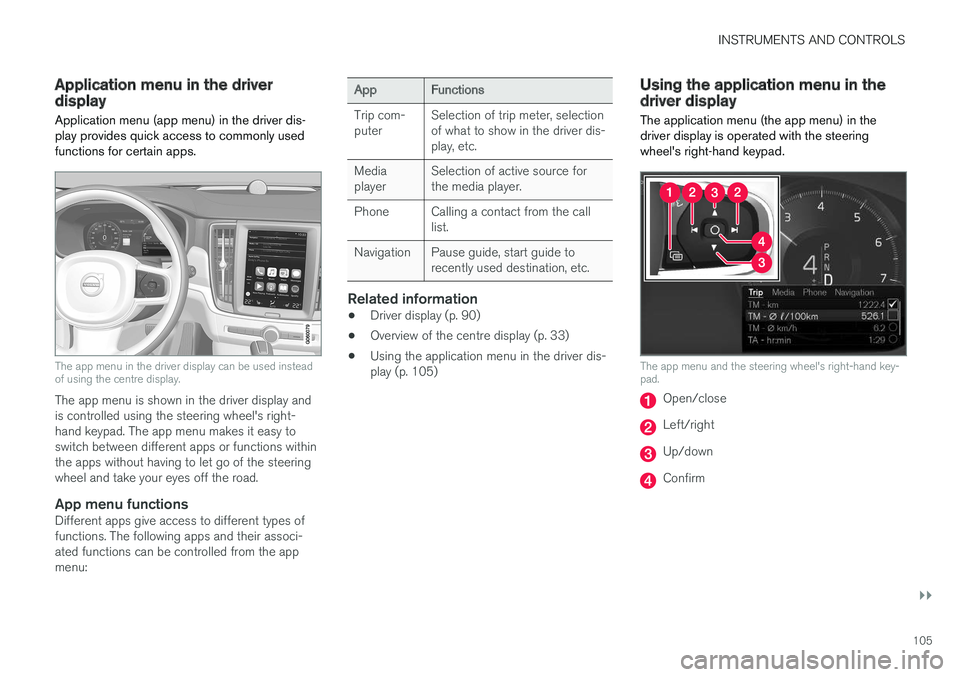
Application menu in the driver display Application menu (app menu) in the driver dis- play provides quick access to commonly usedfunctions for certain apps.
The app menu in the driver display can be used instead of using the centre display.
The app menu is shown in the driver display and is controlled using the steering wheel's right-hand keypad. The app menu makes it easy toswitch between different apps or functions withinthe apps without having to let go of the steeringwheel and take your eyes off the road.
App menu functionsDifferent apps give access to different types offunctions. The following apps and their associ-ated functions can be controlled from the appmenu:
AppFunctions
Trip com- puter Selection of trip meter, selectionof what to show in the driver dis-play, etc.
Mediaplayer Selection of active source forthe media player.
Phone Calling a contact from the call list.
Navigation Pause guide, start guide to recently used destination, etc.
Related information
•Driver display (p. 90)
• Overview of the centre display (p. 33)
• Using the application menu in the driver dis- play (p. 105)
Using the application menu in the driver display
The application menu (the app menu) in the driver display is operated with the steeringwheel's right-hand keypad.
The app menu and the steering wheel's right-hand key- pad.
Open/close
Left/right
Up/down
Confirm
Page 113 of 594
INSTRUMENTS AND CONTROLS
111
Managing a saved message
In maximised mode, some messages have two buttons available to book service or read theowner's manual. To book service for a saved message:
–In maximised mode for the message, pressRequest appoint.Call to make Appointment6 for help in booking service.
> With
Request appoint.: TheAppointments tab opens in the app and
creates a request to book service and repair work. With
Call to make Appointment: The
phone app is initiated and calls a service centre to book service and repair work.
To read the owner's manual for a saved mes-sage:
–In maximised mode for the message, pressOwner's manual to read about the mes-
sage in the owner's manual.
> The owner's manual opens in the centre display and shows information linked to the message.
Saved messages in the app are deleted automat-ically each time the engine is started.
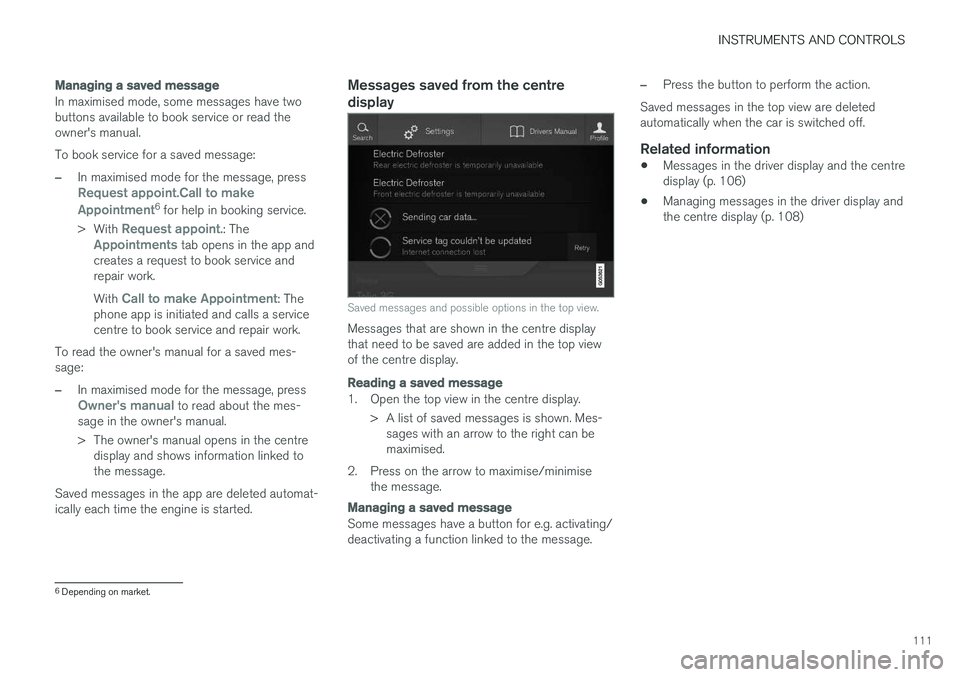
Messages saved from the centre display
Saved messages and possible options in the top view.
Messages that are shown in the centre display that need to be saved are added in the top viewof the centre display.
Reading a saved message
1. Open the top view in the centre display. > A list of saved messages is shown. Mes-sages with an arrow to the right can be maximised.
2. Press on the arrow to maximise/minimise the message.
Managing a saved message
Some messages have a button for e.g. activating/ deactivating a function linked to the message.
–Press the button to perform the action.
Saved messages in the top view are deleted automatically when the car is switched off.
Related information
• Messages in the driver display and the centredisplay (p. 106)
• Managing messages in the driver display andthe centre display (p. 108)
6
Depending on market.
Page 114 of 594
INSTRUMENTS AND CONTROLS
* Option/accessory.
112
Head-up display *
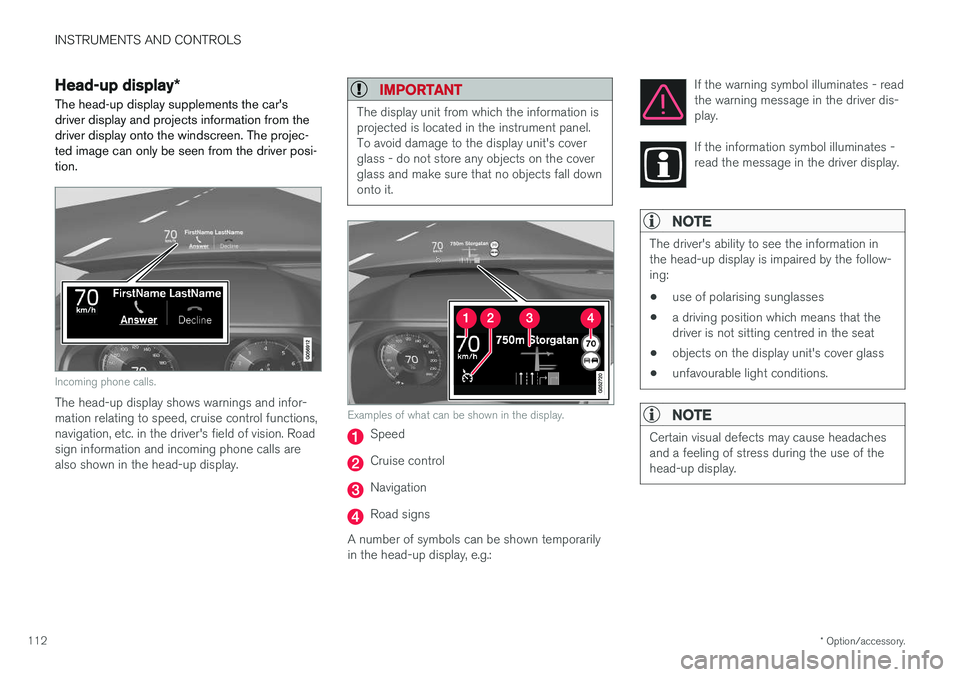
The head-up display supplements the car's driver display and projects information from thedriver display onto the windscreen. The projec-ted image can only be seen from the driver posi-tion.
Incoming phone calls.
The head-up display shows warnings and infor- mation relating to speed, cruise control functions,navigation, etc. in the driver's field of vision. Roadsign information and incoming phone calls arealso shown in the head-up display.
IMPORTANT
The display unit from which the information is projected is located in the instrument panel.To avoid damage to the display unit's coverglass - do not store any objects on the coverglass and make sure that no objects fall downonto it.
Examples of what can be shown in the display.
Speed
Cruise control
Navigation
Road signs
A number of symbols can be shown temporarily in the head-up display, e.g.: If the warning symbol illuminates - readthe warning message in the driver dis-play.
If the information symbol illuminates - read the message in the driver display.
NOTE
The driver's ability to see the information in the head-up display is impaired by the follow-ing:
• use of polarising sunglasses
• a driving position which means that thedriver is not sitting centred in the seat
• objects on the display unit's cover glass
• unfavourable light conditions.
NOTE
Certain visual defects may cause headaches and a feeling of stress during the use of thehead-up display.
Page 115 of 594
INSTRUMENTS AND CONTROLS
}}
* Option/accessory.113
City Safety in the head-up display
NOTE
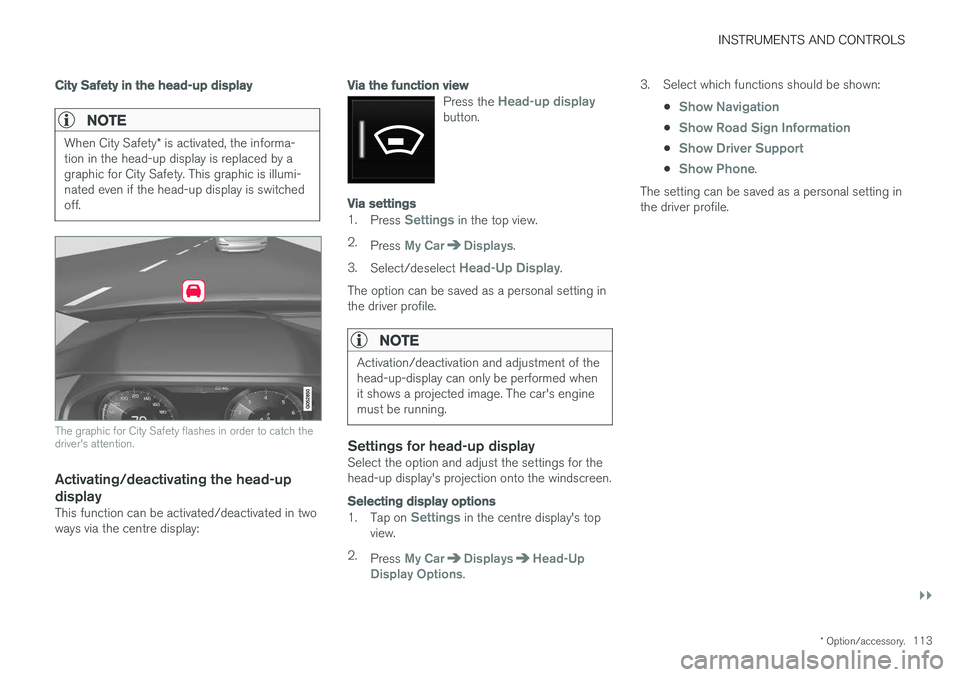
When City Safety * is activated, the informa-
tion in the head-up display is replaced by a graphic for City Safety. This graphic is illumi-nated even if the head-up display is switchedoff.
The graphic for City Safety flashes in order to catch the driver's attention.
Activating/deactivating the head-up
display
This function can be activated/deactivated in two ways via the centre display:
Via the function view
Press the Head-up displaybutton.
Via settings
1. Press Settings in the top view.
2. Press
My CarDisplays.
3. Select/deselect
Head-Up Display.
The option can be saved as a personal setting in the driver profile.
NOTE
Activation/deactivation and adjustment of the head-up-display can only be performed whenit shows a projected image. The car's enginemust be running.
Settings for head-up displaySelect the option and adjust the settings for the head-up display's projection onto the windscreen.
Selecting display options
1. Tap on Settings in the centre display's top
view.
2. Press
My CarDisplaysHead-Up
Display Options. 3. Select which functions should be shown:
•
Show Navigation
•Show Road Sign Information
•Show Driver Support
•Show Phone.
The setting can be saved as a personal setting in the driver profile.
Page 117 of 594
INSTRUMENTS AND CONTROLS
}}
* Option/accessory.115
When replacing the windscreen - contact an authorised workshop
7
. The correct version of the
windscreen must be fitted in order that the head- up display's graphics shall be displayed correctly.
Related information
• Function view with buttons for car functions(p. 47)
• Settings view (p. 169)
• Steering wheel (p. 131)
• Using the memory function in the power front seat
* (p. 122)
• Driver display (p. 90)
Voice recognition 8
The voice recognition system allows the driver to use voice recognition to control certain functionsof the media player, Bluetooth-connected phone,the climate system and Volvo's navigation sys- tem *.
Voice commands offer convenience and help the driver to avoid being distracted, and instead con-centrate on driving and focus attention on theroad and the traffic conditions.
WARNING
The driver always holds overall responsibility for driving the vehicle in a safe manner andcomplying with all applicable rules of the road.
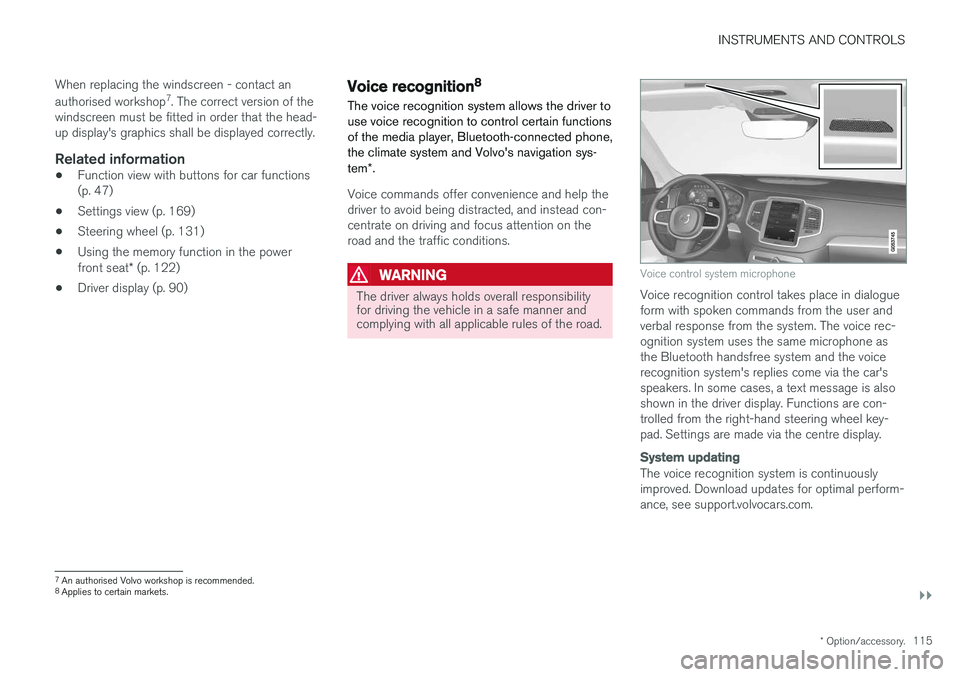
Voice control system microphone
Voice recognition control takes place in dialogue form with spoken commands from the user andverbal response from the system. The voice rec-ognition system uses the same microphone asthe Bluetooth handsfree system and the voicerecognition system's replies come via the car'sspeakers. In some cases, a text message is alsoshown in the driver display. Functions are con-trolled from the right-hand steering wheel key-pad. Settings are made via the centre display.
System updating
The voice recognition system is continuously improved. Download updates for optimal perform-ance, see support.volvocars.com.
7
An authorised Volvo workshop is recommended.
8 Applies to certain markets.
Page 118 of 594
||
INSTRUMENTS AND CONTROLS
116
Related information
•Using voice recognition (p. 116)
• Voice recognition control of the phone (p. 118)
• Voice recognition control of radio and media(p. 118)
• Voice recognition control of climate control(p. 119)
• Voice recognition and map navigation(p. 120)
• Settings for voice recognition (p. 117)Using voice recognition 9
Basic instructions for using voice recognition control.
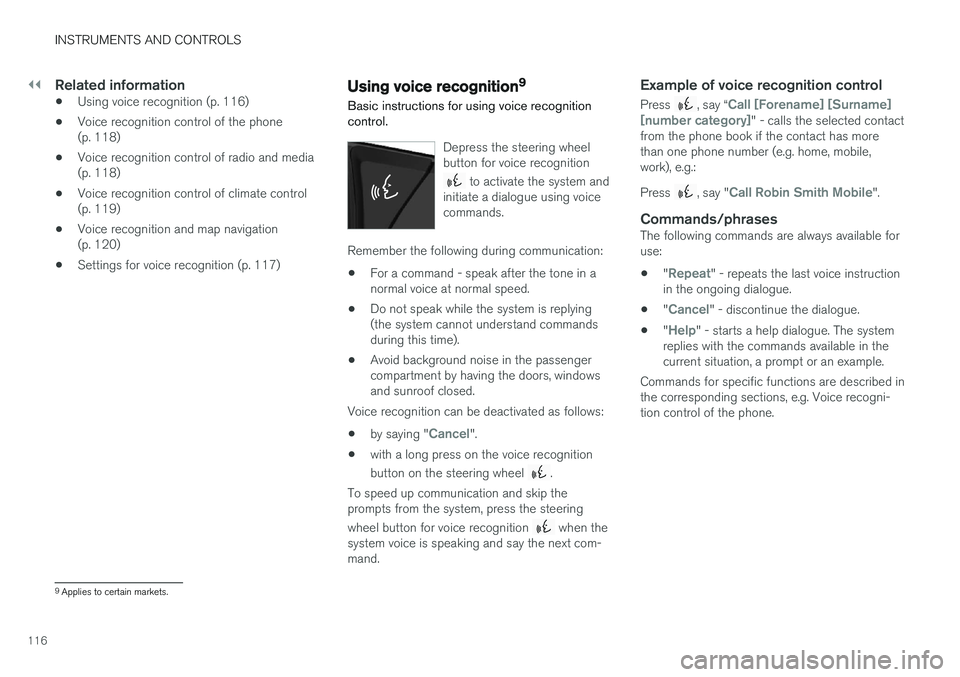
Depress the steering wheel button for voice recognition
to activate the system and
initiate a dialogue using voice commands.
Remember the following during communication:
• For a command - speak after the tone in a normal voice at normal speed.
• Do not speak while the system is replying(the system cannot understand commandsduring this time).
• Avoid background noise in the passengercompartment by having the doors, windowsand sunroof closed.
Voice recognition can be deactivated as follows:
• by saying "
Cancel".
• with a long press on the voice recognition button on the steering wheel
.
To speed up communication and skip the prompts from the system, press the steering wheel button for voice recognition
when the
system voice is speaking and say the next com- mand.
Example of voice recognition control
Press , say “Call [Forename] [Surname]
[number category]" - calls the selected contact
from the phone book if the contact has more than one phone number (e.g. home, mobile,work), e.g.: Press
, say "Call Robin Smith Mobile".
Commands/phrasesThe following commands are always available for use:
• "
Repeat" - repeats the last voice instruction
in the ongoing dialogue.
• "
Cancel" - discontinue the dialogue.
• "
Help" - starts a help dialogue. The system
replies with the commands available in the current situation, a prompt or an example.
Commands for specific functions are described inthe corresponding sections, e.g. Voice recogni-tion control of the phone.
9 Applies to certain markets.
Page 119 of 594
INSTRUMENTS AND CONTROLS
117
Digits
The number commands are stated differently depending on the function to be controlled: •Phone numbers and postcodes
must be
spoken individually, number by number, e.g. zero three one two two four four three(03122443).
• House numbers
can be spoken individually
or in groups, e.g. two two or twenty-two (22).For English and Dutch, several groups canbe said in sequence, e.g. twenty-two twenty-two (22 22). For English, double or triple canbe used, e.g. double zero (00). Numbers canbe given within the range 0-2300.
• Frequencies
can be spoken as ninety eight
point eight (98.8), a hundred and four pointtwo or hundred four point two (104.2).
Related information
• Voice recognition (p. 115)
• Voice recognition control of the phone(p. 118)
• Voice recognition control of radio and media(p. 118)
• Voice recognition control of climate control(p. 119)
• Voice recognition and map navigation(p. 120)
• Settings for voice recognition (p. 117)
Settings for voice recognition 10
Several settings for the voice recognition system can be made.
1. Press Settings in top view.
2. Press
SystemVoice Control and select
settings.
•
Repeat Voice Command
•Gender
•Speech Rate
Audio settings
1. Press Settings in top view.
2. Press
SoundSystem VolumesVoice
Control and select settings.
Change language
Voice recognition is not possible for all lan- guages. Languages available for voice recogni-tion are marked with an icon in the language list -
.
Changing the language also affects menu, mes- sage and help texts. 1. Press
Settings in top view.
2. Press
SystemSystem Language and
select language.
Related information
• Voice recognition (p. 115)
• Using voice recognition (p. 116)
• Voice recognition control of the phone (p. 118)
• Voice recognition control of radio and media(p. 118)
• Voice recognition control of climate control(p. 119)
• Voice recognition and map navigation(p. 120)
10
Applies to certain markets.