phone VOLVO V90 2017 Owner's Guide
[x] Cancel search | Manufacturer: VOLVO, Model Year: 2017, Model line: V90, Model: VOLVO V90 2017Pages: 594, PDF Size: 15.07 MB
Page 389 of 594
STARTING AND DRIVING
387
If the message
Car key not found is shown in
the driver display when starting, place the remote control key on the backup reader in the cupholder. Then try to start again.
NOTE
When the remote control key is placed in the cup holder, make sure that no other car keys,metal objects or electronic apparatus (e.g.mobile phones, tablets, laptops or chargers)are in the cup holder. Several car keys closeto each other in the cup holder can causeinterference with each other.
IMPORTANT
If the engine fails to start after 3 attempts - wait for 3 minutes before making a furtherattempt. Starting capacity increases if the bat-tery is allowed to recover.
WARNING
Never remove the remote control key from
the car while driving or during towing.
WARNING
Always take the remote control key out from the car when leaving the car and make surethe car's electrical system is in ignition posi- tion 0 - especially if there are children in the
car.
NOTE
The idling speed can be noticeably higher than normal for certain engine types duringcold starting. This is done in order that theemissions system can reach normal operatingtemperature as quickly as possible, whichminimises exhaust emissions and protects theenvironment.
Related information
• Ignition positions (p. 385)
• Switching off the car (p. 387)
• Remote control key (p. 236)
• Replacing the battery in the remote control key (p. 257)
Switching off the car
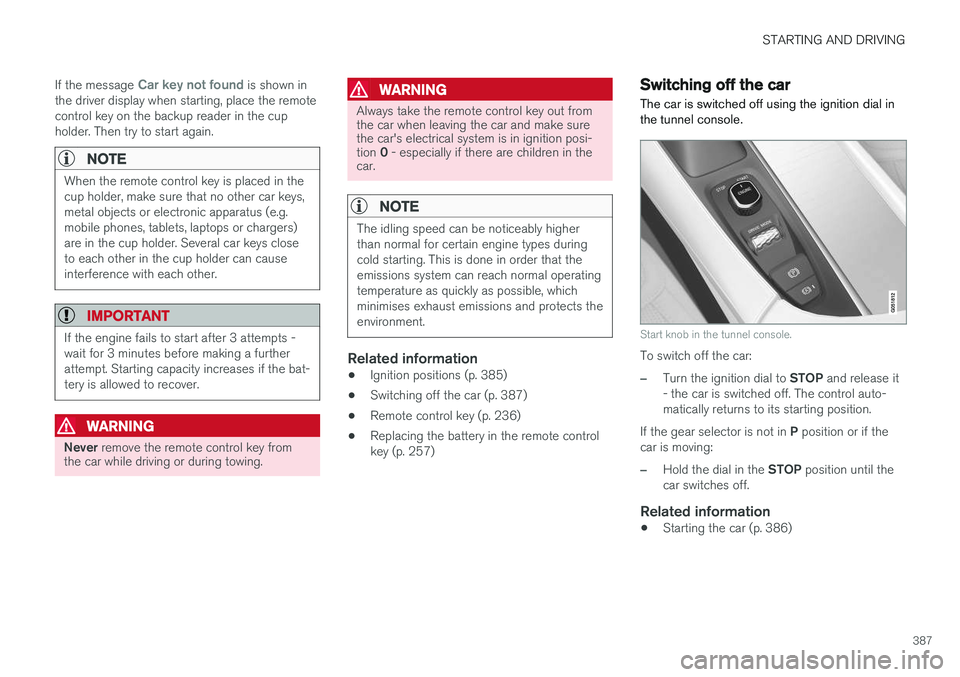
The car is switched off using the ignition dial in the tunnel console.
Start knob in the tunnel console.
To switch off the car:
–Turn the ignition dial to STOP and release it
- the car is switched off. The control auto- matically returns to its starting position.
If the gear selector is not in P position or if the
car is moving:
–Hold the dial in the STOP position until the
car switches off.
Related information
• Starting the car (p. 386)
Page 420 of 594
||
STARTING AND DRIVING
4184. Do not overfill the tank but fill until the pump
nozzle cuts out the first time.
> The tank is full.
NOTE
Overfilled fuel in the tank can overflow in hot weather.
Filling with a fuel can 14When filling with a fuel can, use the funnel located under the floor hatch in the cargo area.
1. Open the fuel filler flap.
2. Insert the funnel in the fuel filler opening.
The filler pipe has two opening caps. The funnel's pipe must be pushed past both capsbefore filling can be started.
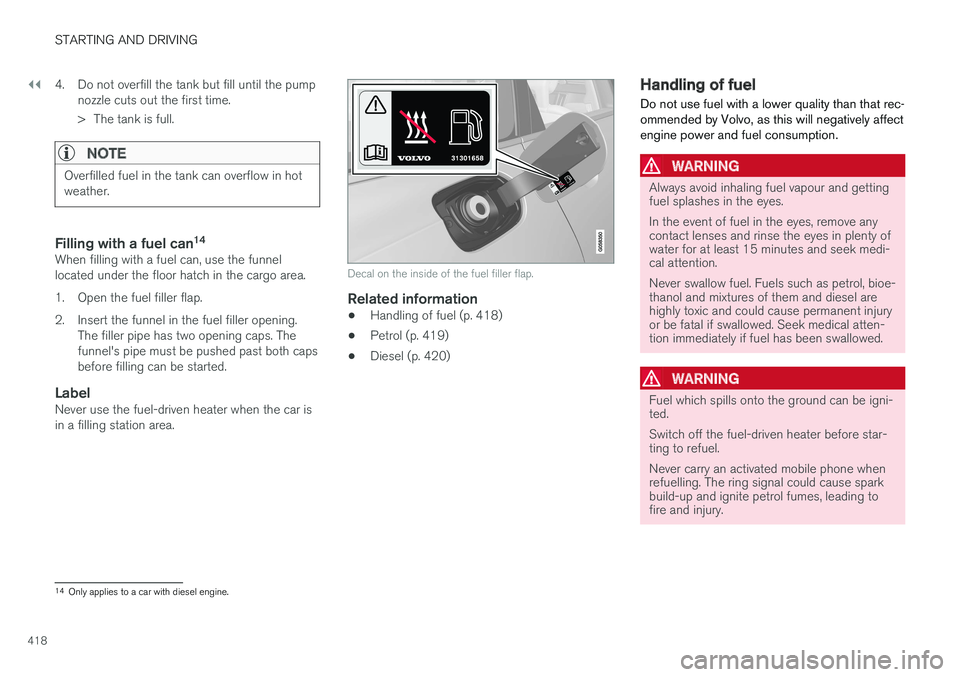
LabelNever use the fuel-driven heater when the car isin a filling station area.
Decal on the inside of the fuel filler flap.
Related information
• Handling of fuel (p. 418)
• Petrol (p. 419)
• Diesel (p. 420)
Handling of fuel
Do not use fuel with a lower quality than that rec- ommended by Volvo, as this will negatively affectengine power and fuel consumption.
WARNING
Always avoid inhaling fuel vapour and getting fuel splashes in the eyes. In the event of fuel in the eyes, remove any contact lenses and rinse the eyes in plenty ofwater for at least 15 minutes and seek medi-cal attention. Never swallow fuel. Fuels such as petrol, bioe- thanol and mixtures of them and diesel arehighly toxic and could cause permanent injuryor be fatal if swallowed. Seek medical atten-tion immediately if fuel has been swallowed.
WARNING
Fuel which spills onto the ground can be igni- ted. Switch off the fuel-driven heater before star- ting to refuel. Never carry an activated mobile phone when refuelling. The ring signal could cause sparkbuild-up and ignite petrol fumes, leading tofire and injury.
14 Only applies to a car with diesel engine.
Page 436 of 594
AUDIO AND MEDIA
* Option/accessory.
434
Audio and media
The audio and media system consists of media
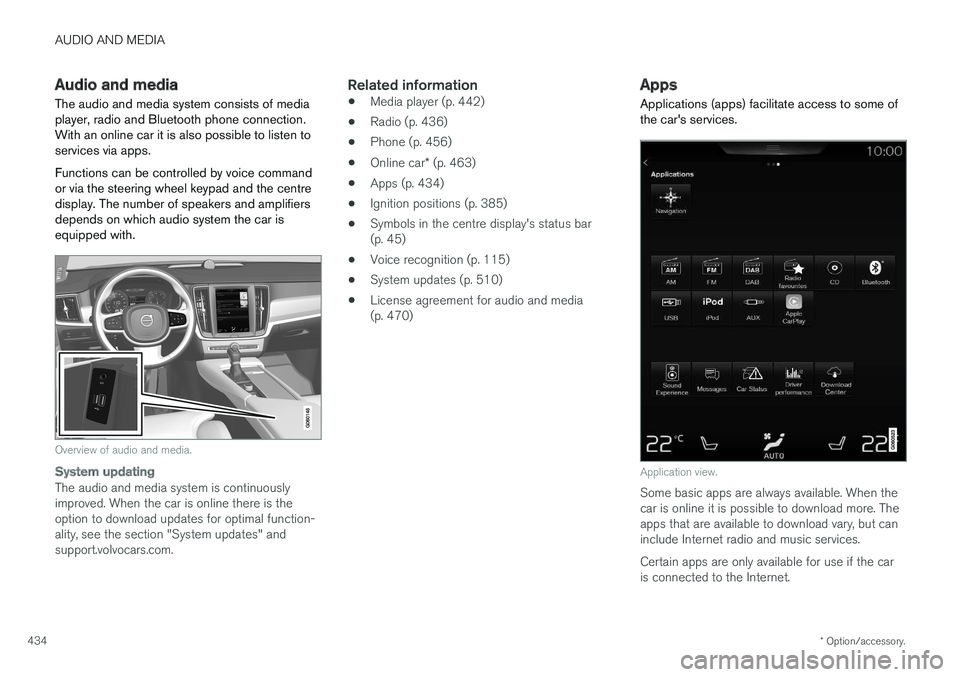
player, radio and Bluetooth phone connection. With an online car it is also possible to listen toservices via apps. Functions can be controlled by voice command or via the steering wheel keypad and the centredisplay. The number of speakers and amplifiersdepends on which audio system the car isequipped with.
Overview of audio and media.
System updating
The audio and media system is continuously improved. When the car is online there is theoption to download updates for optimal function-ality, see the section "System updates" andsupport.volvocars.com.
Related information
• Media player (p. 442)
• Radio (p. 436)
• Phone (p. 456)
• Online car
* (p. 463)
• Apps (p. 434)
• Ignition positions (p. 385)
• Symbols in the centre display's status bar(p. 45)
• Voice recognition (p. 115)
• System updates (p. 510)
• License agreement for audio and media(p. 470)
Apps
Applications (apps) facilitate access to some of the car's services.
Application view.
Some basic apps are always available. When the car is online it is possible to download more. Theapps that are available to download vary, but caninclude Internet radio and music services. Certain apps are only available for use if the car is connected to the Internet.
Page 437 of 594
AUDIO AND MEDIA
* Option/accessory.435
–Tap on an app in the app view to launch it.
Related information
•Online car
* (p. 463)
• Downloading, updating and uninstalling apps (p. 468)
• Changing settings for apps (p. 178)
Audio settings
The audio system is preset for optimal sound reproduction, but can be adapted according toneeds.
The volume is normally adjusted with the volume control below the centre display or with the right-hand steering wheel keypad.
Setting for optimal sound reproductionThe audio system is pre-calibrated for optimumsound reproduction by means of digital signalprocessing. This calibration takes into accountloudspeakers, amplifiers, passenger compartmentacoustics, listener position, etc., for each combi-nation of car model and audio system. There isalso a dynamic calibration that takes into accountthe setting of the volume control and vehiclespeed. Audio settings are described in the correspond- ing section in the owner information. To accessthe settings, open the top view and tap on
SettingsSound.
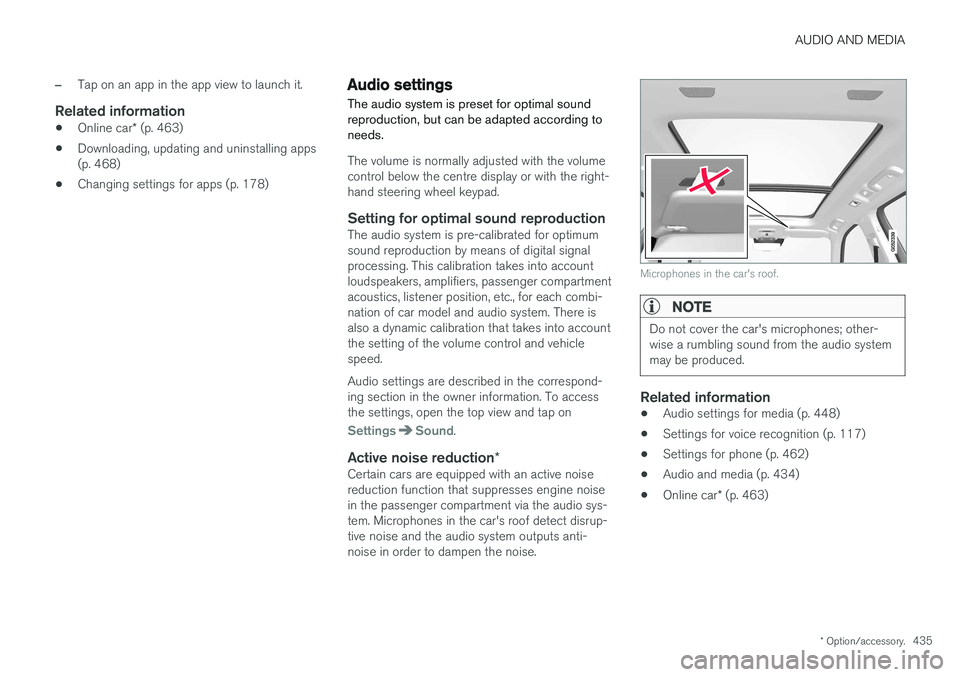
Active noise reduction *Certain cars are equipped with an active noise reduction function that suppresses engine noisein the passenger compartment via the audio sys-tem. Microphones in the car's roof detect disrup-tive noise and the audio system outputs anti-noise in order to dampen the noise.
Microphones in the car's roof.
NOTE
Do not cover the car's microphones; other- wise a rumbling sound from the audio systemmay be produced.
Related information
•Audio settings for media (p. 448)
• Settings for voice recognition (p. 117)
• Settings for phone (p. 462)
• Audio and media (p. 434)
• Online car
* (p. 463)
Page 449 of 594
AUDIO AND MEDIA
* Option/accessory.447
Media via Bluetooth The car's media player is equipped with Bluetooth and can wirelessly play streamingaudio files from external devices with Bluetooth,such as mobile phones and PDAs.
Related information
•Connecting media via Bluetooth (p. 447)
• Media playback (p. 443)
• Voice recognition control of radio and media (p. 118)
• Media player (p. 442)
• Ignition positions (p. 385)
• Technical specifications for media (p. 455)
Connecting media via Bluetooth
Connect a Bluetooth device with the car in order to stream media and use as Internet connectionif it is available.
Many phones on the market now have wireless Bluetooth technology, but not all of them are fullycompatible with the car. For compatibility, seesupport.volvocars.com. The procedure for connecting a media device is the same as for connecting a phone.
Related information
• Connect phone (p. 457)
• Media via Bluetooth (p. 447)
• Media playback (p. 443)
• Media player (p. 442)
Media via AUX/USB input An external media source, e.g. an iPod or MP3 player, can be connected to the audio system.
A media source with rechargeable batteries is recharged when connected via USB and when the ignition is in position
I, II or the engine is run-
ning. To facilitate the use of a USB memory stick, only store compatible formats on it. It takes a lotlonger for the system to load storage media thatcontains anything other than compatible formats.In addition to audio, the media player also sup-ports video playback when the device is con-nected via USB. Some MP3 players have their own file systems that are not supported by the audio system.
Related information
• Connecting media via AUX/USB input(p. 448)
• Media playback (p. 443)
• Voice recognition control of radio and media(p. 118)
• Media player (p. 442)
• Ignition positions (p. 385)
• video (p. 448)
• Apple CarPlay
* (p. 450)
• Technical specifications for media (p. 455)
Page 450 of 594
AUDIO AND MEDIA
* Option/accessory.
448
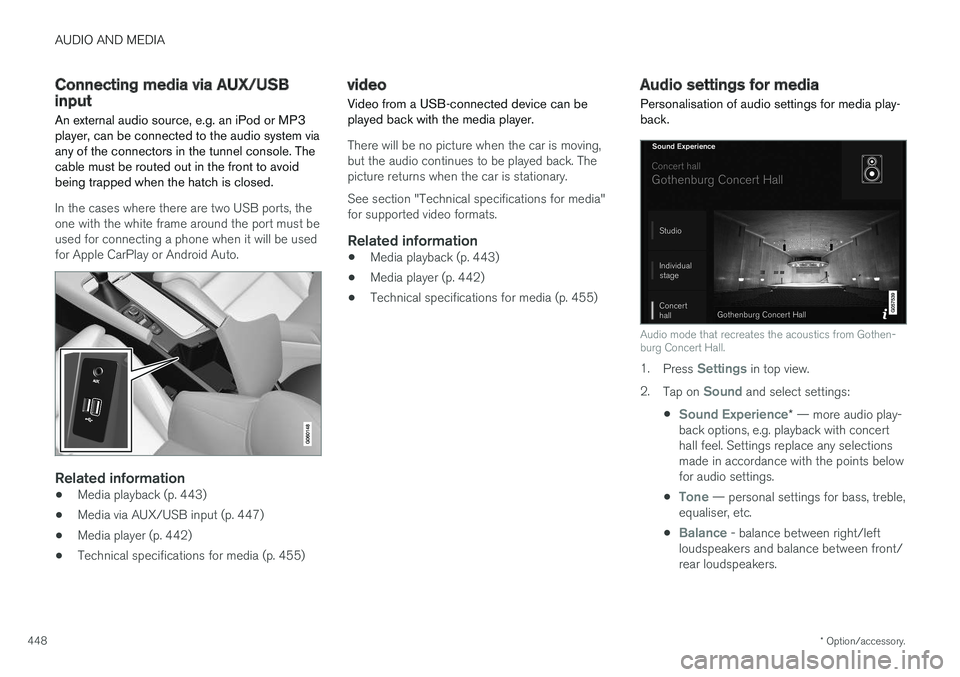
Connecting media via AUX/USB input An external audio source, e.g. an iPod or MP3 player, can be connected to the audio system viaany of the connectors in the tunnel console. Thecable must be routed out in the front to avoidbeing trapped when the hatch is closed.
In the cases where there are two USB ports, the one with the white frame around the port must beused for connecting a phone when it will be usedfor Apple CarPlay or Android Auto.
Related information
• Media playback (p. 443)
• Media via AUX/USB input (p. 447)
• Media player (p. 442)
• Technical specifications for media (p. 455)
video
Video from a USB-connected device can be played back with the media player.
There will be no picture when the car is moving, but the audio continues to be played back. Thepicture returns when the car is stationary. See section "Technical specifications for media" for supported video formats.
Related information
• Media playback (p. 443)
• Media player (p. 442)
• Technical specifications for media (p. 455)
Audio settings for media
Personalisation of audio settings for media play- back.
Audio mode that recreates the acoustics from Gothen- burg Concert Hall.
1. Press Settings in top view.
2. Tap on
Sound and select settings:
•
Sound Experience* — more audio play-
back options, e.g. playback with concert hall feel. Settings replace any selectionsmade in accordance with the points belowfor audio settings.
•
Tone — personal settings for bass, treble,
equaliser, etc.
•
Balance - balance between right/left
loudspeakers and balance between front/ rear loudspeakers.
Page 452 of 594
||
AUDIO AND MEDIA
* Option/accessory.
450
TV guide
A programme guide is available with information about TV programmes for up to 48 hours.
–Tap on Guide to show information about TV
programmes.
NOTE
If the car is moved within the country, e.g. from city to city, it is not certain that
Favourites are available since the frequency
may have changed.
Change the format of the TV picture
Tapping on Picture format enables you to
choose which format the TV picture should be shown in. 1.
Auto - The TV picture is shown in the image
format being transmitted.
2.
Auto fill - The TV picture is maximised with-
out cropping.
Settings for TVThe option to make certain settings is available, both in the top view or when TV-viewing takesplace in full screen mode. With the video player in full screen mode, or by opening the top view and pressing
Settings
MediaTV, the following can be adjusted: •
Subtitle Language
•Audio Language
Related information
•
TV
* (p. 449)
• Voice recognition control of radio and media (p. 118)
• Media playback (p. 443)
• Navigating in the centre display's views(p. 40)
• License agreement for audio and media(p. 470)
Apple CarPlay
*
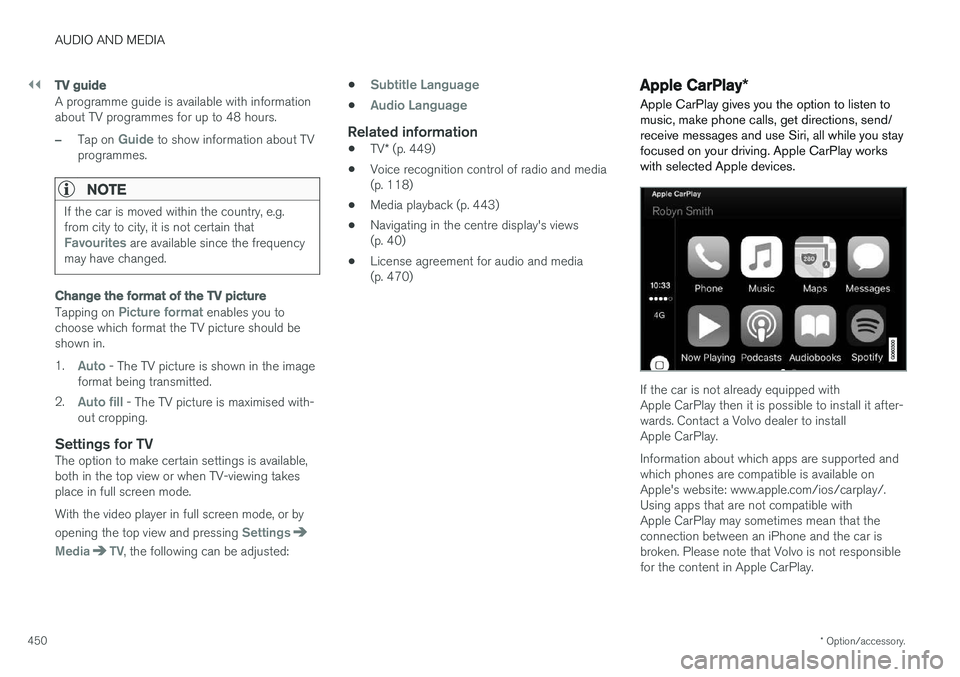
Apple CarPlay gives you the option to listen to music, make phone calls, get directions, send/receive messages and use Siri, all while you stayfocused on your driving. Apple CarPlay workswith selected Apple devices.
If the car is not already equipped with Apple CarPlay then it is possible to install it after-wards. Contact a Volvo dealer to installApple CarPlay. Information about which apps are supported and which phones are compatible is available onApple's website: www.apple.com/ios/carplay/.Using apps that are not compatible withApple CarPlay may sometimes mean that theconnection between an iPhone and the car isbroken. Please note that Volvo is not responsiblefor the content in Apple CarPlay.
Page 453 of 594
AUDIO AND MEDIA
}}
* Option/accessory.451
When using map navigation via Apple CarPlay there is no guidance in the driver display or head-up display, but only in the centre display. The Apple CarPlay apps can be controlled via the centre display, mobile phone or with the steeringwheel's right-hand keypad (applies to certainfunctions). The apps can also be voice-controlledusing Siri. A long press on the steering wheel button
starts voice control using Siri and a
short press activates the car's own voice control. If Siri breaks off too early, hold the steering wheel button
depressed.
By using Apple CarPlay you acknowledge the following: Apple CarPlay is a serviceprovided by Apple Inc. under its terms andconditions. Volvo Cars is thus notresponsible for Apple CarPlay or itsfeatures/applications. When using AppleCarPlay, certain information from your car(including its position) is transferred to youriPhone. In relation to Volvo Cars, you arefully responsible for your and any othersperson
Page 454 of 594
||
AUDIO AND MEDIA
* Option/accessory.
452
Switch the connection between Apple CarPlay and iPod
Apple CarPlay to iPod
1.
Press Settings in top view.
2. Press
CommunicationApple CarPlay.
3. Untick the box for the Apple device that shall no longer start Apple CarPlay automatically when the USB cable is connected.
4. Disconnect and connect the Apple device to the USB input.
5. Open the app
iPod from the app view.
iPod to Apple CarPlay
1.
Tap on Apple CarPlay in the app view.
2. Read the information in the pop-up message and then tap on
OK.
3. Disconnect and connect the Apple device to the USB input.
> The subview with Apple CarPlay is openedand compatible apps are shown.
Related information
• Media player (p. 442)
• Media playback (p. 443)
• Connecting media via AUX/USB input (p. 448)
• Settings for Apple CarPlay
* (p. 452)
• Connecting the car (p. 464)
Settings for Apple CarPlay
*
Settings for phone connected as Apple CarPlay.
Automatic start1. Press Settings in top view.
2. Press
CommunicationApple CarPlayand select setting: •Tick the box - Apple CarPlay starts auto- matically when the USB cable is con-nected.
• Untick the box - Apple CarPlay does notstart automatically when the USB cable isconnected.
A maximum of 20 Apple devices can be stored inthe list. When the list is full and a new device isconnected the oldest one is deleted. A factory reset is required in order to delete the list, see the section "Resetting settings in thesettings view".
System volumes1. Press Settings in top view.
2. Tap on
SoundSystem Volumes and
make the settings for the following:
•
Voice Control
•Navi Voice Guidance
•Phone Ringtone
Related information
• Apple CarPlay
* (p. 450)
• Resetting settings in the settings view (p. 173)
Page 455 of 594
AUDIO AND MEDIA
}}
* Option/accessory.453
Android Auto *
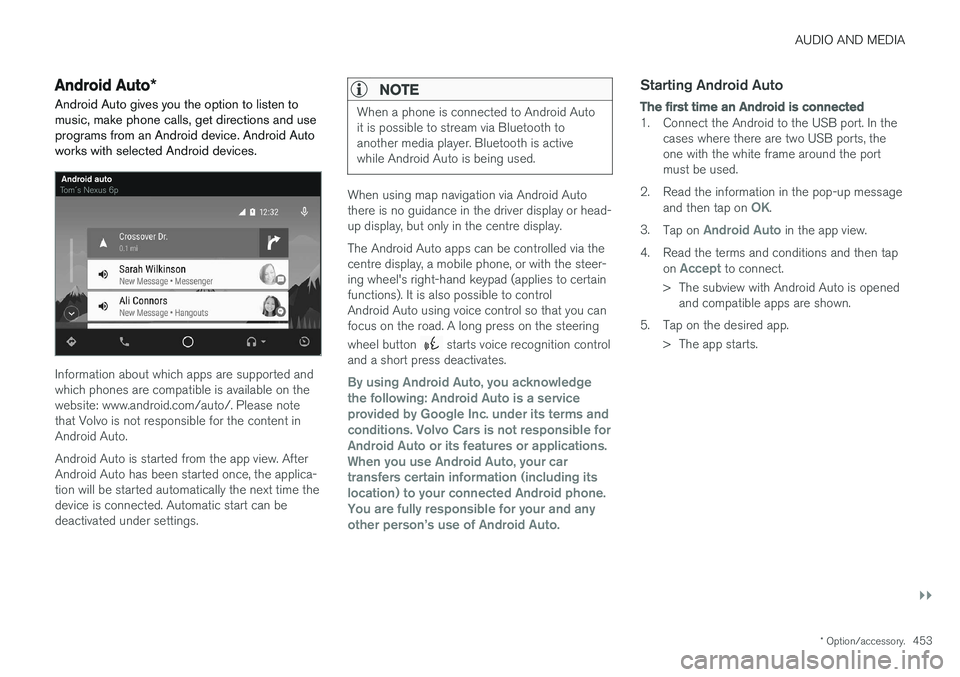
Android Auto gives you the option to listen to music, make phone calls, get directions and useprograms from an Android device. Android Autoworks with selected Android devices.
Information about which apps are supported and which phones are compatible is available on thewebsite: www.android.com/auto/. Please notethat Volvo is not responsible for the content inAndroid Auto. Android Auto is started from the app view. After Android Auto has been started once, the applica-tion will be started automatically the next time thedevice is connected. Automatic start can bedeactivated under settings.
NOTE
When a phone is connected to Android Auto it is possible to stream via Bluetooth toanother media player. Bluetooth is activewhile Android Auto is being used.
When using map navigation via Android Auto there is no guidance in the driver display or head-up display, but only in the centre display. The Android Auto apps can be controlled via the centre display, a mobile phone, or with the steer-ing wheel's right-hand keypad (applies to certainfunctions). It is also possible to controlAndroid Auto using voice control so that you canfocus on the road. A long press on the steering wheel button
starts voice recognition control
and a short press deactivates.
By using Android Auto, you acknowledge the following: Android Auto is a serviceprovided by Google Inc. under its terms andconditions. Volvo Cars is not responsible forAndroid Auto or its features or applications.When you use Android Auto, your cartransfers certain information (including itslocation) to your connected Android phone.You are fully responsible for your and anyother person