key VOLVO V90 2017 Owner's Manual
[x] Cancel search | Manufacturer: VOLVO, Model Year: 2017, Model line: V90, Model: VOLVO V90 2017Pages: 594, PDF Size: 15.07 MB
Page 94 of 594
||
INSTRUMENTS AND CONTROLS
* Option/accessory.
92
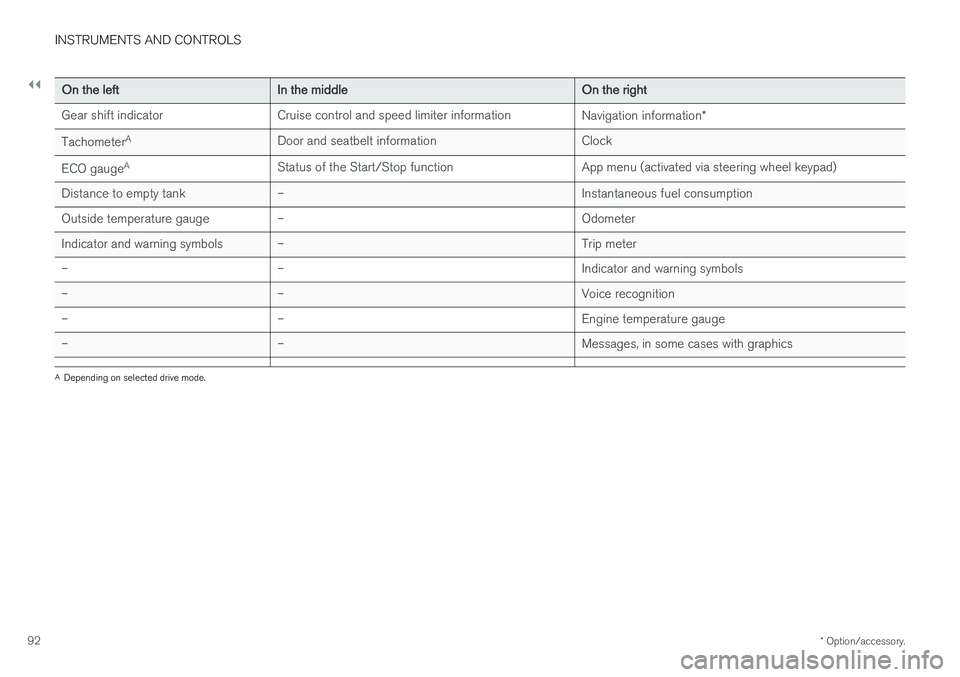
On the left In the middle On the right
Gear shift indicator Cruise control and speed limiter information Navigation information*
Tachometer A
Door and seatbelt information Clock
ECO gauge A
Status of the Start/Stop function App menu (activated via steering wheel keypad)
Distance to empty tank – Instantaneous fuel consumption
Outside temperature gauge – Odometer
Indicator and warning symbols – Trip meter
– – Indicator and warning symbols
– – Voice recognition
– – Engine temperature gauge
– – Messages, in some cases with graphics
A
Depending on selected drive mode.
Page 96 of 594
INSTRUMENTS AND CONTROLS
* Option/accessory.
94
Driver display settings
Settings for the driver display can be made in the driver display's application menu, and in the centre display's
Settings menu.
Settings in the app menuIn the app menu, you can choose which informa- tion is shown on the driver display from
• trip computer
• media player
• phone
• navigation system
*.
The application menu in the driver display is
opened and navigated using the steering wheel'sright-hand keypad, see the section "Using theapplication menu in the driver display".
Settings in the centre display
Selecting information type
1. Tap on Settings in the centre display's top
view.
2. Press
My CarDisplaysDriver
Display Information. 3. Select what should be shown in the back-
ground: •
Show no information in background
•Show information for current playing media
•Show navigation even if no route is set1.
The 12-inch driver display shows the infor- mation in the centre, and the 8-inch driverdisplay shows the information in the topright-hand field.
Selecting theme
1. Tap on Settings in the centre display's top
view.
2. Tap on
My CarDisplaysDisplay
Themes
3. Select a theme (appearance) for the driver display: •
Glass
•Minimalistic
•Performance
•Chrome Rings.
Selecting language
1.Tap on Settings in the centre display's top
view. 2.
Tap on
SystemSystem Language to
select language.
> A change will affect the language in all displays.
Related information
• Driver display (p. 90)
• Application menu in the driver display (p. 105)
• Settings view (p. 169)
1
The map is only shown with 12-inch driver display. In the 8-inch driver display, only guidance is shown. For more information, see the section "Displays and controls for map navigation" and "Map navigation in the driver display".
Page 107 of 594
INSTRUMENTS AND CONTROLS
}}
105
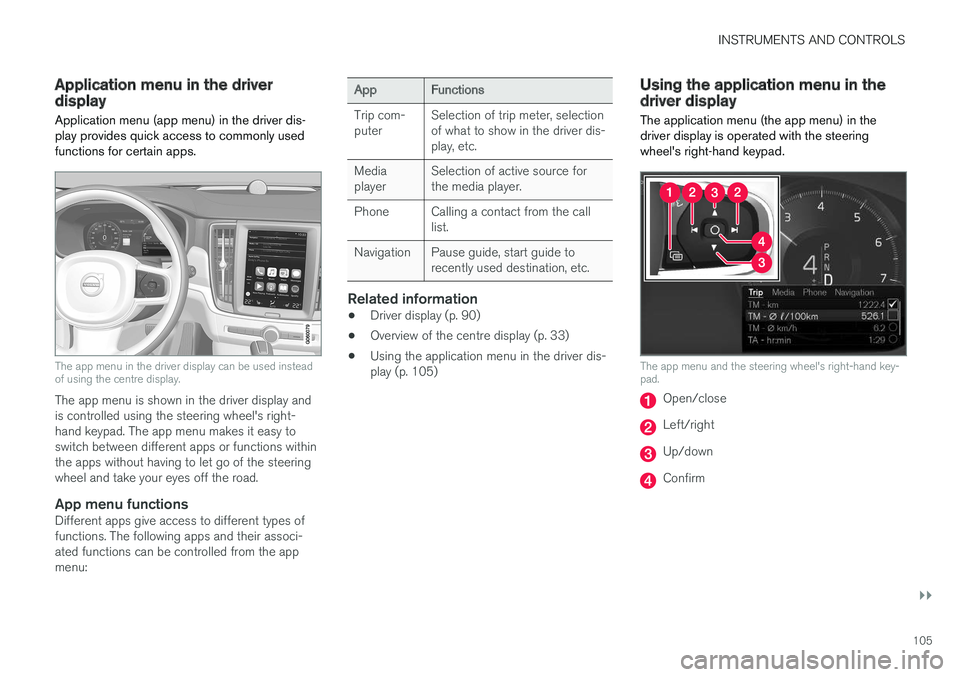
Application menu in the driver display Application menu (app menu) in the driver dis- play provides quick access to commonly usedfunctions for certain apps.
The app menu in the driver display can be used instead of using the centre display.
The app menu is shown in the driver display and is controlled using the steering wheel's right-hand keypad. The app menu makes it easy toswitch between different apps or functions withinthe apps without having to let go of the steeringwheel and take your eyes off the road.
App menu functionsDifferent apps give access to different types offunctions. The following apps and their associ-ated functions can be controlled from the appmenu:
AppFunctions
Trip com- puter Selection of trip meter, selectionof what to show in the driver dis-play, etc.
Mediaplayer Selection of active source forthe media player.
Phone Calling a contact from the call list.
Navigation Pause guide, start guide to recently used destination, etc.
Related information
•Driver display (p. 90)
• Overview of the centre display (p. 33)
• Using the application menu in the driver dis- play (p. 105)
Using the application menu in the driver display
The application menu (the app menu) in the driver display is operated with the steeringwheel's right-hand keypad.
The app menu and the steering wheel's right-hand key- pad.
Open/close
Left/right
Up/down
Confirm
Page 110 of 594
||
INSTRUMENTS AND CONTROLS
108
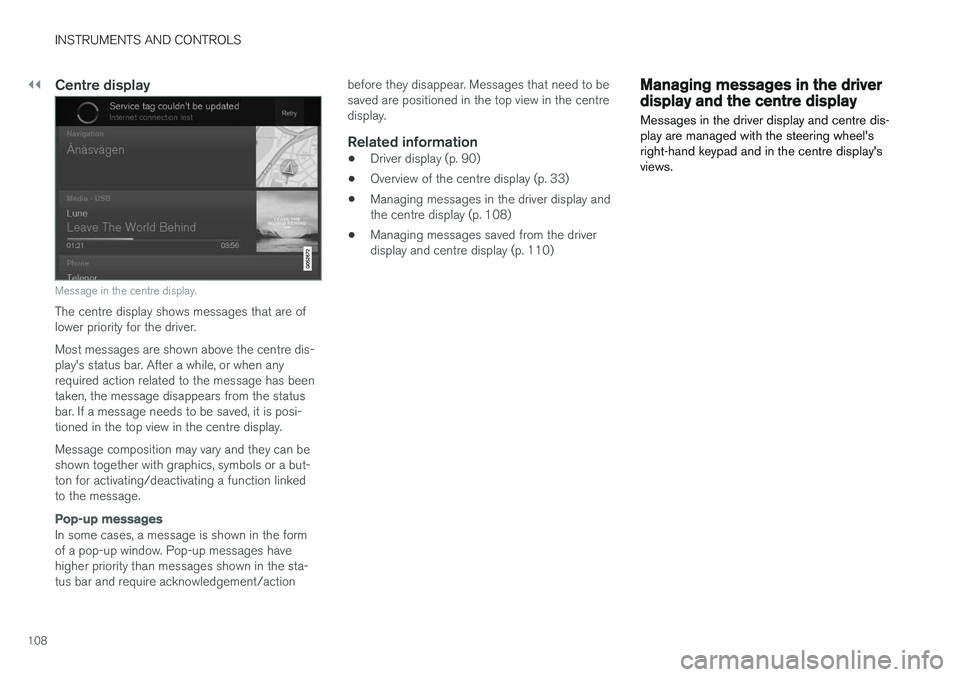
Centre display
Message in the centre display.
The centre display shows messages that are of lower priority for the driver. Most messages are shown above the centre dis- play's status bar. After a while, or when anyrequired action related to the message has beentaken, the message disappears from the statusbar. If a message needs to be saved, it is posi-tioned in the top view in the centre display. Message composition may vary and they can be shown together with graphics, symbols or a but-ton for activating/deactivating a function linkedto the message.
Pop-up messages
In some cases, a message is shown in the form of a pop-up window. Pop-up messages havehigher priority than messages shown in the sta-tus bar and require acknowledgement/actionbefore they disappear. Messages that need to besaved are positioned in the top view in the centredisplay.
Related information
•
Driver display (p. 90)
• Overview of the centre display (p. 33)
• Managing messages in the driver display andthe centre display (p. 108)
• Managing messages saved from the driverdisplay and centre display (p. 110)
Managing messages in the driver display and the centre display
Messages in the driver display and centre dis- play are managed with the steering wheel'sright-hand keypad and in the centre display'sviews.
Page 111 of 594
INSTRUMENTS AND CONTROLS
}}
109
Driver display
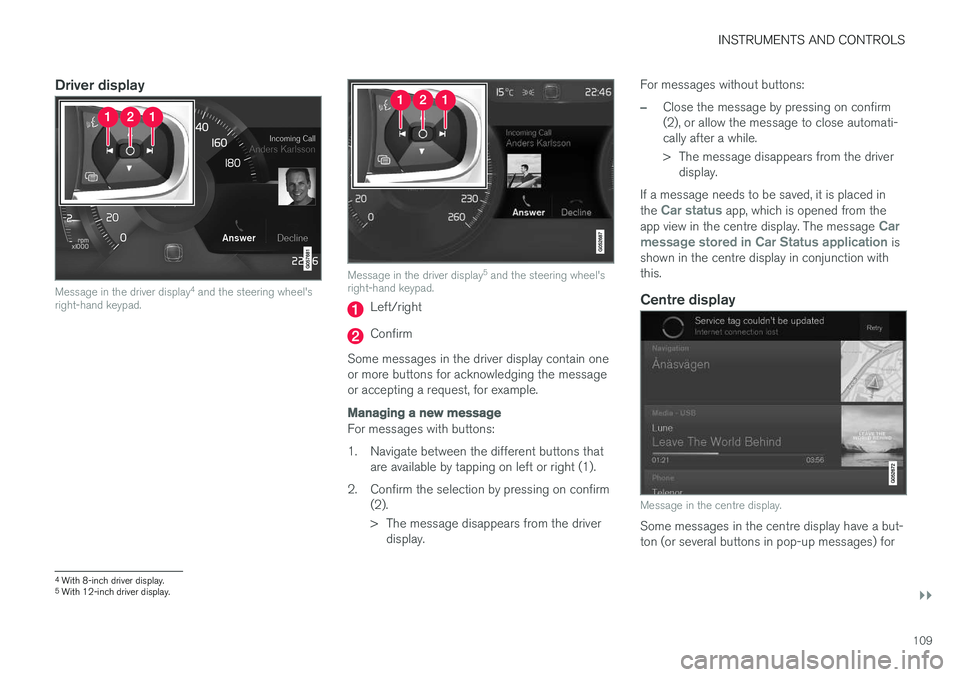
Message in the driver display4
and the steering wheel's
right-hand keypad.
Message in the driver display 5
and the steering wheel's
right-hand keypad.
Left/right
Confirm
Some messages in the driver display contain one or more buttons for acknowledging the messageor accepting a request, for example.
Managing a new message
For messages with buttons:
1. Navigate between the different buttons that are available by tapping on left or right (1).
2. Confirm the selection by pressing on confirm (2).
> The message disappears from the driverdisplay. For messages without buttons:
–Close the message by pressing on confirm (2), or allow the message to close automati-cally after a while.
> The message disappears from the driver
display.
If a message needs to be saved, it is placed in the
Car status app, which is opened from the
app view in the centre display. The message Car
message stored in Car Status application is
shown in the centre display in conjunction with this.
Centre display
Message in the centre display.
Some messages in the centre display have a but- ton (or several buttons in pop-up messages) for
4 With 8-inch driver display.
5 With 12-inch driver display.
Page 116 of 594
||
INSTRUMENTS AND CONTROLS
* Option/accessory.
114
Adjusting brightness and vertical position
1.
Press the Head-up display adjustmentsbutton in the function view in the centre dis- play.
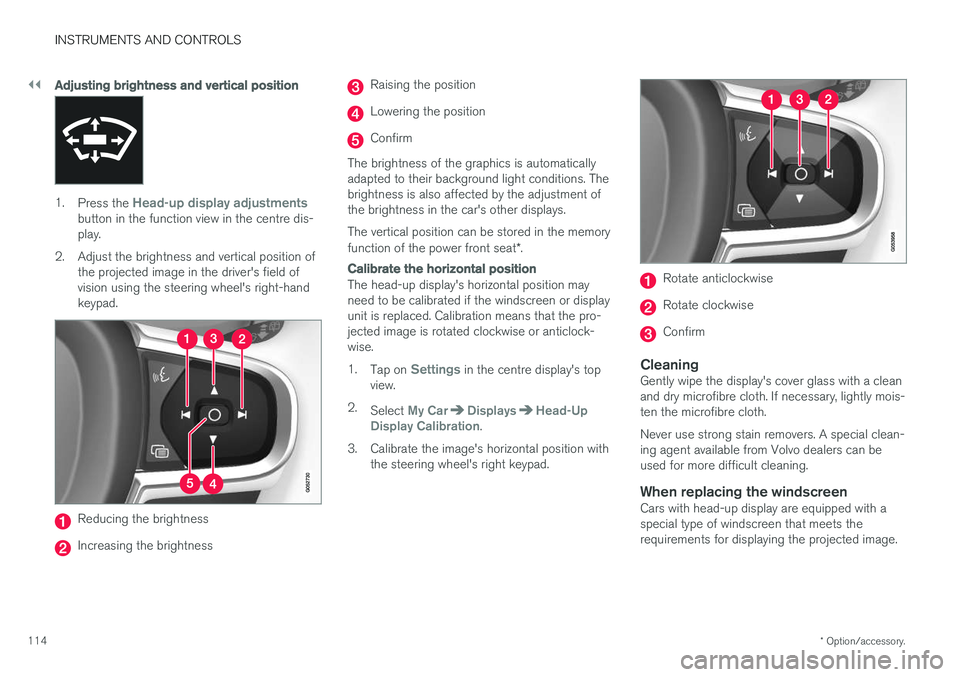
2. Adjust the brightness and vertical position of the projected image in the driver's field ofvision using the steering wheel's right-handkeypad.
Reducing the brightness
Increasing the brightness
Raising the position
Lowering the position
Confirm
The brightness of the graphics is automatically adapted to their background light conditions. Thebrightness is also affected by the adjustment ofthe brightness in the car's other displays. The vertical position can be stored in the memory function of the power front seat *.
Calibrate the horizontal position
The head-up display's horizontal position may need to be calibrated if the windscreen or displayunit is replaced. Calibration means that the pro-jected image is rotated clockwise or anticlock-wise. 1.
Tap on
Settings in the centre display's top
view.
2. Select
My CarDisplaysHead-Up
Display Calibration.
3. Calibrate the image's horizontal position with the steering wheel's right keypad.
Rotate anticlockwise
Rotate clockwise
Confirm
CleaningGently wipe the display's cover glass with a clean and dry microfibre cloth. If necessary, lightly mois-ten the microfibre cloth. Never use strong stain removers. A special clean- ing agent available from Volvo dealers can beused for more difficult cleaning.
When replacing the windscreenCars with head-up display are equipped with aspecial type of windscreen that meets therequirements for displaying the projected image.
Page 117 of 594
INSTRUMENTS AND CONTROLS
}}
* Option/accessory.115
When replacing the windscreen - contact an authorised workshop
7
. The correct version of the
windscreen must be fitted in order that the head- up display's graphics shall be displayed correctly.
Related information
• Function view with buttons for car functions(p. 47)
• Settings view (p. 169)
• Steering wheel (p. 131)
• Using the memory function in the power front seat
* (p. 122)
• Driver display (p. 90)
Voice recognition 8
The voice recognition system allows the driver to use voice recognition to control certain functionsof the media player, Bluetooth-connected phone,the climate system and Volvo's navigation sys- tem *.
Voice commands offer convenience and help the driver to avoid being distracted, and instead con-centrate on driving and focus attention on theroad and the traffic conditions.
WARNING
The driver always holds overall responsibility for driving the vehicle in a safe manner andcomplying with all applicable rules of the road.
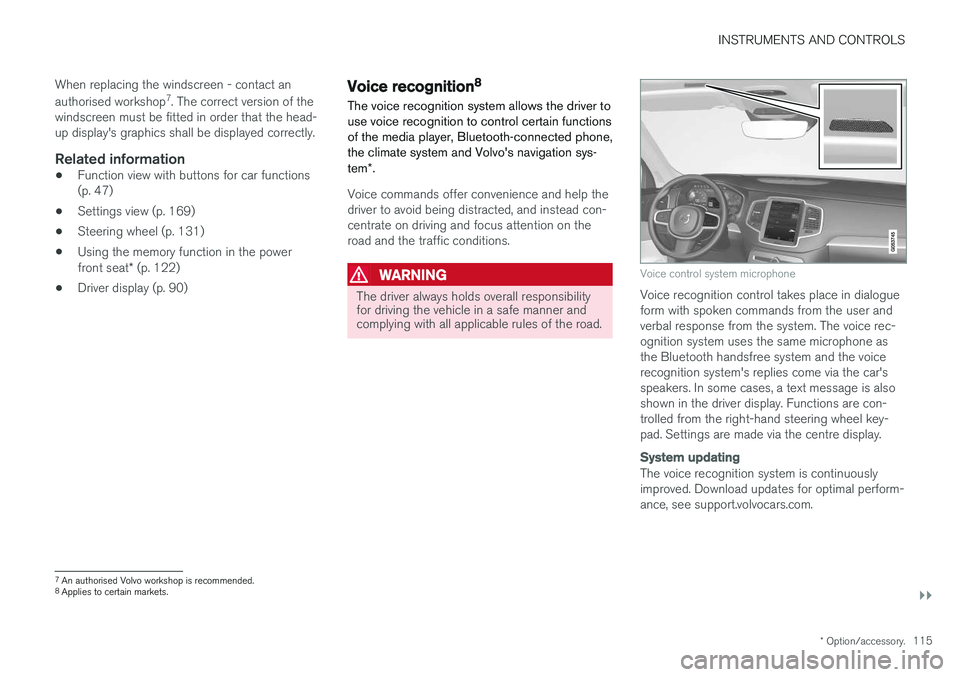
Voice control system microphone
Voice recognition control takes place in dialogue form with spoken commands from the user andverbal response from the system. The voice rec-ognition system uses the same microphone asthe Bluetooth handsfree system and the voicerecognition system's replies come via the car'sspeakers. In some cases, a text message is alsoshown in the driver display. Functions are con-trolled from the right-hand steering wheel key-pad. Settings are made via the centre display.
System updating
The voice recognition system is continuously improved. Download updates for optimal perform-ance, see support.volvocars.com.
7
An authorised Volvo workshop is recommended.
8 Applies to certain markets.
Page 124 of 594
INSTRUMENTS AND CONTROLS
* Option/accessory.
122
Adjusting the power front seat *
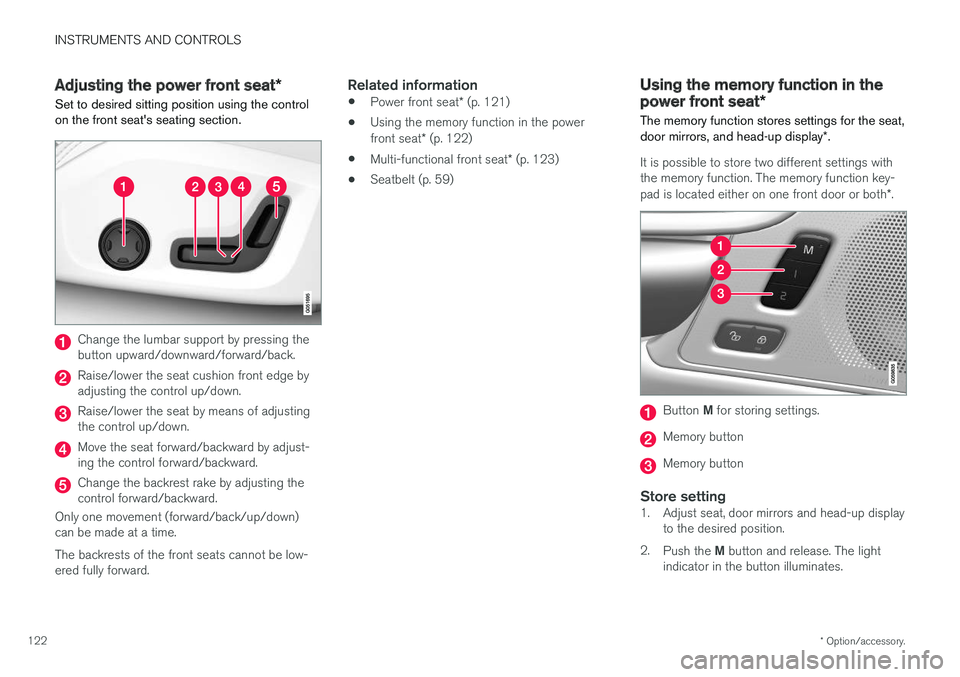
Set to desired sitting position using the control on the front seat's seating section.
Change the lumbar support by pressing the button upward/downward/forward/back.
Raise/lower the seat cushion front edge by adjusting the control up/down.
Raise/lower the seat by means of adjusting the control up/down.
Move the seat forward/backward by adjust- ing the control forward/backward.
Change the backrest rake by adjusting the control forward/backward.
Only one movement (forward/back/up/down)can be made at a time. The backrests of the front seats cannot be low- ered fully forward.
Related information
• Power front seat
* (p. 121)
• Using the memory function in the power front seat
* (p. 122)
• Multi-functional front seat
* (p. 123)
• Seatbelt (p. 59)
Using the memory function in the power front seat
*
The memory function stores settings for the seat, door mirrors, and head-up display *.
It is possible to store two different settings with the memory function. The memory function key- pad is located either on one front door or both *.
Button M for storing settings.
Memory button
Memory button
Store setting1. Adjust seat, door mirrors and head-up display
to the desired position.
2. Push the M button and release. The light
indicator in the button illuminates.
Page 125 of 594
INSTRUMENTS AND CONTROLS
}}
* Option/accessory.123
3.
Within three seconds, depress the 1 or 2
button.
> When the position has been stored in the selected memory button an acoustic sig- nal sounds and the light indicator in the M
button extinguishes.
If none of the memory buttons is depressedwithin three seconds then the M button extin-
guishes and no storing takes place. The seat must be adjusted again before a new memory can be set.
Using a stored settingA stored setting can be used with the front dooreither open or closed:
Open front door
–Depress one of the memory buttons 1 or 2
with a short press. Seat, door mirrors and head-up display move and then stop at thepositions stored in the selected memory but-ton.
Closed front door
–Hold one of the memory buttons 1 or 2
depressed until seat, door mirrors and head- up display stop in the positions that arestored in the selected memory button.
If the memory button is released, the movementof the seat, door mirrors and head-up display willbe stopped.
WARNING
Risk of crushing! Make sure that children do not play with the keypad. Check that there areno objects in front of, behind or under theseat during adjustment. Make sure that noneof the passengers in the rear seat is in dangerof becoming trapped.
Related information
• Power front seat
* (p. 121)
• Adjusting the power front seat
* (p. 122)
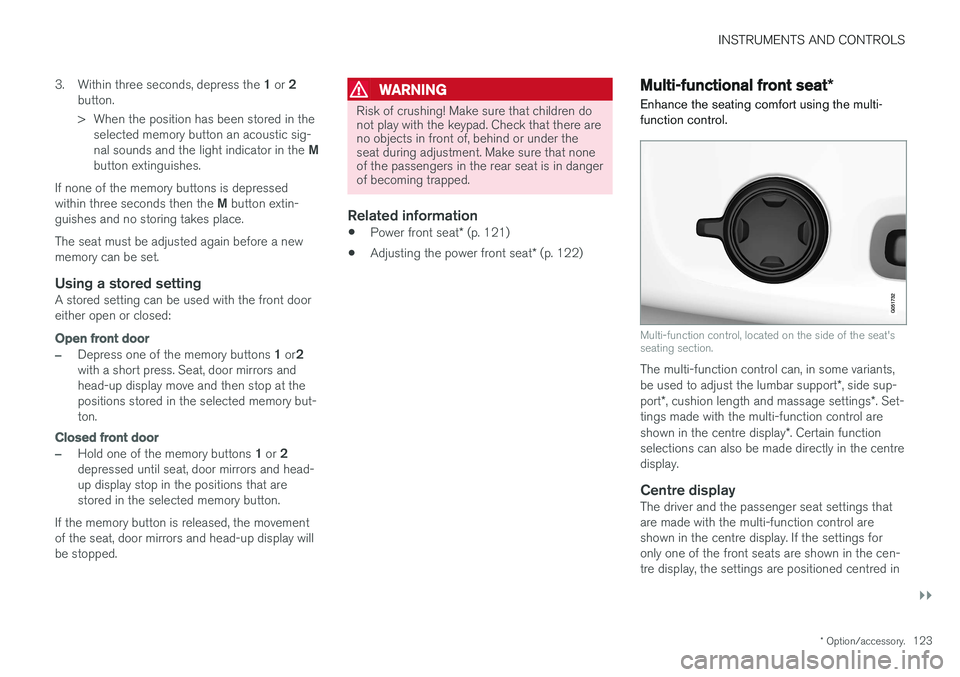
Multi-functional front seat *
Enhance the seating comfort using the multi- function control.
Multi-function control, located on the side of the seat's seating section.
The multi-function control can, in some variants, be used to adjust the lumbar support *, side sup-
port *, cushion length and massage settings *. Set-
tings made with the multi-function control areshown in the centre display *. Certain function
selections can also be made directly in the centre display.
Centre displayThe driver and the passenger seat settings thatare made with the multi-function control areshown in the centre display. If the settings foronly one of the front seats are shown in the cen-tre display, the settings are positioned centred in
Page 133 of 594
INSTRUMENTS AND CONTROLS
}}
* Option/accessory.131
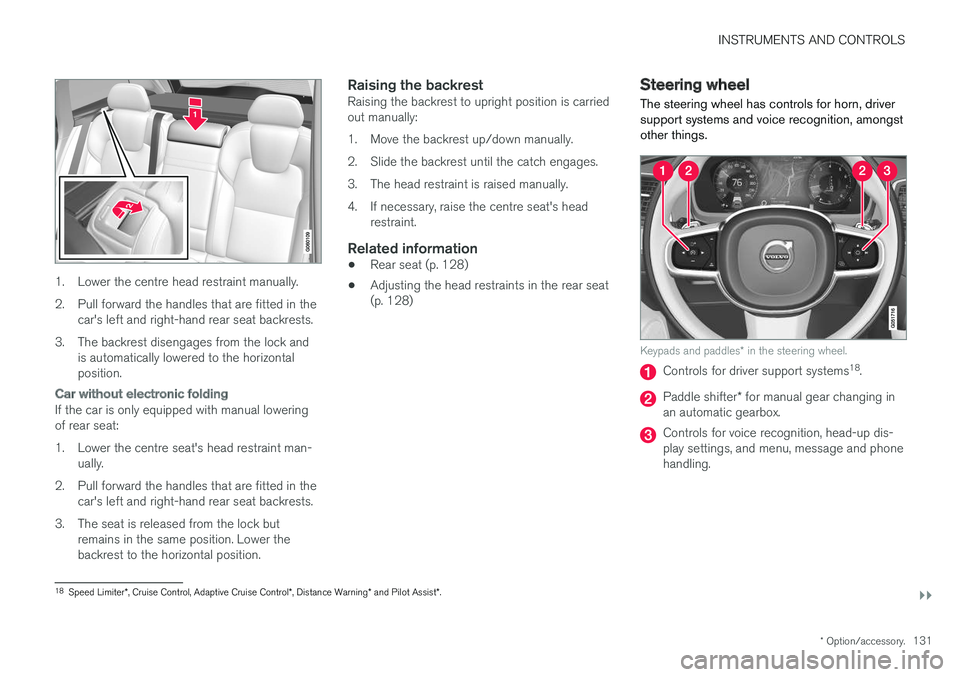
1. Lower the centre head restraint manually.
2. Pull forward the handles that are fitted in the
car's left and right-hand rear seat backrests.
3. The backrest disengages from the lock and is automatically lowered to the horizontal position.
Car without electronic folding
If the car is only equipped with manual lowering of rear seat:
1. Lower the centre seat's head restraint man-ually.
2. Pull forward the handles that are fitted in the car's left and right-hand rear seat backrests.
3. The seat is released from the lock but remains in the same position. Lower the backrest to the horizontal position.
Raising the backrestRaising the backrest to upright position is carriedout manually:
1. Move the backrest up/down manually.
2. Slide the backrest until the catch engages.
3. The head restraint is raised manually.
4. If necessary, raise the centre seat's headrestraint.
Related information
• Rear seat (p. 128)
• Adjusting the head restraints in the rear seat (p. 128)
Steering wheel The steering wheel has controls for horn, driver support systems and voice recognition, amongstother things.
Keypads and paddles
* in the steering wheel.
Controls for driver support systems 18
.
Paddle shifter * for manual gear changing in
an automatic gearbox.
Controls for voice recognition, head-up dis- play settings, and menu, message and phonehandling.
18 Speed Limiter *, Cruise Control, Adaptive Cruise Control *, Distance Warning * and Pilot Assist *.