lock VOLVO XC60 2009 Owner´s Manual
[x] Cancel search | Manufacturer: VOLVO, Model Year: 2009, Model line: XC60, Model: VOLVO XC60 2009Pages: 297, PDF Size: 21.16 MB
Page 138 of 297
04 Comfort and driving pleasureAudio system 04
136
* Option/accessory, for more information, see Introduction.
1. Select the function in the menu to be
stored. Only certain functions can be
stored.
2. Press and hold MY KEY for more than two
seconds.
Activate the stored function by pressing MY
KEY briefly.
The following functions can be pro-
grammed using MY KEY:
FM
Radio text on/off
Audio settings Sound stage (front/driver/rear)
Auto. volume control (off/low/medium/
high)
Sirius satellite radio* Add song to memory
Direct channel entry
Song seek (on/off)
Sirius settings – Song memory (show
memory list)
CD/CD changer Random (CD changer)
Disc text (on/off) Track information (on/off)
Car settings Fold mirror when locking
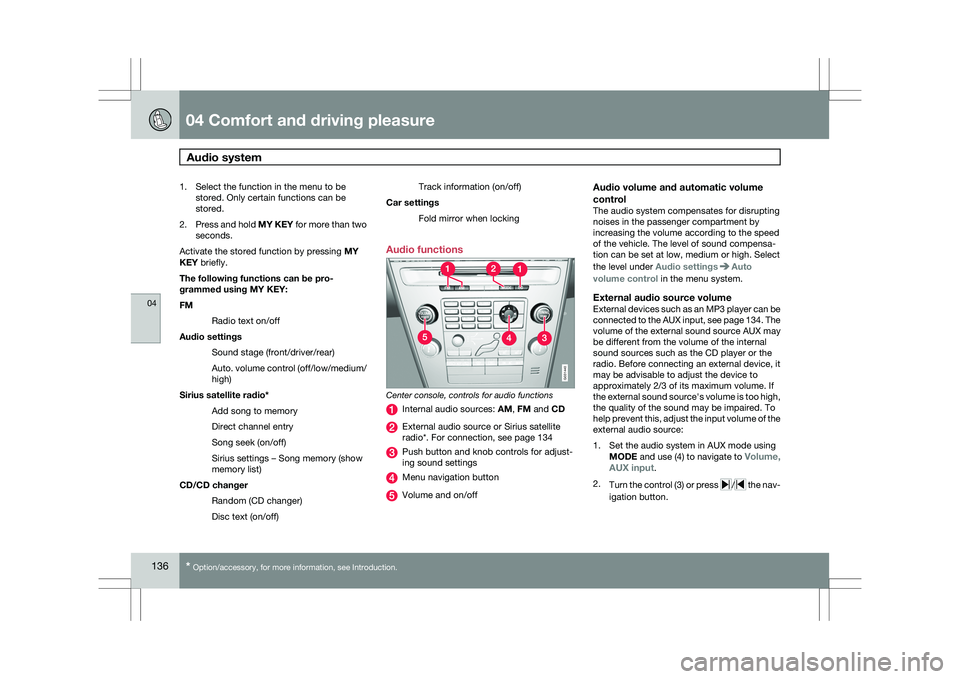
Audio functions Center console, controls for audio functions
Internal audio sources:
AM, FM and CD External audio source or Sirius satellite
radio*. For connection, see page 134
Push button and knob controls for adjust-
ing sound settings
Menu navigation button
Volume and on/off
Audio volume and automatic volume
control
The audio system compensates for disrupting
noises in the passenger compartment by
increasing the volume according to the speed
of the vehicle. The level of sound compensa-
tion can be set at low, medium or high. Select
the level under Audio settings Auto
volume control in the menu system.
External audio source volumeExternal devices such as an MP3 player can be
connected to the AUX input, see page 134. The
volume of the external sound source AUX may
be different from the volume of the internal
sound sources such as the CD player or the
radio. Before connecting an external device, it
may be advisable to adjust the device to
approximately 2/3 of its maximum volume. If
the external sound source\fs volume is too high,
the quality of the sound may be impaired. To
help prevent this, adjust the input volume of the
external audio source:
1. Set the audio system in AUX mode using MODE and use (4) to navigate to Volume,
AUX input.
2. Turn the control (3) or press / the nav-
igation button. G031440
Page 139 of 297
04 Comfort and driving pleasure
Audio system04
}}
* Option/accessory, for more information, see Introduction. 137
Sound settingsPress the control (3) repeatedly to toggles
among the sound settings. Adjustments are
made by turning the control (3).
\b
Bass – Bass level.
\b Treble – Treble level.
\b Fader – Balance between the front and
rear speakers.
\b Balance – Balance between the right and
left speakers.
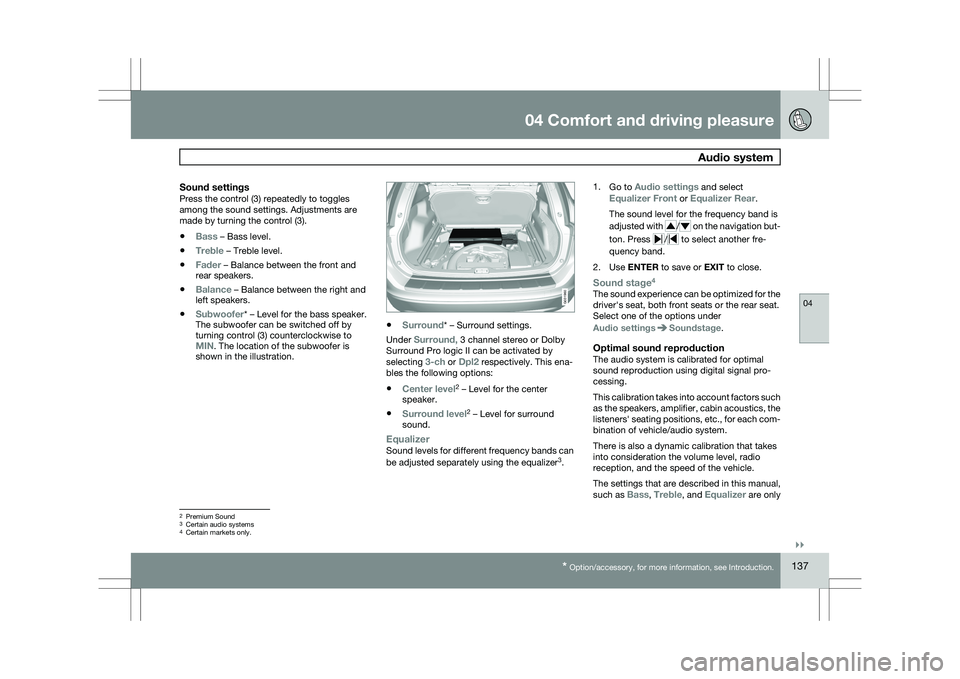
\b Subwoofer* – Level for the bass speaker.
The subwoofer can be switched off by
turning control (3) counterclockwise to
MIN. The location of the subwoofer is
shown in the illustration. \b
Surround* – Surround settings.
Under Surround, 3 channel stereo or Dolby
Surround Pro logic II can be activated by
selecting 3-ch or Dpl2 respectively. This ena-
bles the following options:
\b Center level 2
– Level for the center
speaker.
\b Surround level 2
– Level for surround
sound.
EqualizerSound levels for different frequency bands can
be adjusted separately using the equalizer 3
. 1.
Go to Audio settings and select
Equalizer Front or Equalizer Rear.
The sound level for the frequency band is
adjusted with / on the navigation but-
ton. Press / to select another fre-
quency band.
2. Use ENTER to save or EXIT to close.
Sound stage 4The sound experience can be optimized for the
driver\fs seat, both front seats or the rear seat.
Select one of the options under
Audio settings Soundstage.
Optimal sound reproductionThe audio system is calibrated for optimal
sound reproduction using digital signal pro-
cessing.
This calibration takes into account factors such
as the speakers, amplifier, cabin acoustics, the
listeners\f seating positions, etc., for each com-
bination of vehicle/audio system.
There is also a dynamic calibration that takes
into consideration the volume level, radio
reception, and the speed of the vehicle.
The settings that are described in this manual,
such as Bass,
Treble, and Equalizer are only2
Premium Sound
3 Certain audio systems
4Certain markets only. G031960
Page 144 of 297
04 Comfort and driving pleasureAudio system 04
142 actions. The SIRIUS ID is sometimes referred
to as the Electronic Serial Number (ESN).
Selecting a channel category1. Select Sirius radio mode as described
above.
2. Press ENTER.
3. Use the up/down arrow keys to scroll through the list of categories.
4. Press ENTER or the right arrow key to
select a category.
> The first channel in the selected cate-
gory will then be played.
NOTE \b
The category
ALL is default, which ena-
bles you to scroll through the entire list
of available satellite channels.
\b The channel categories are automati-
cally updated several times a year. This
takes approximately two minutes and
will interrupt normal broadcasting. A
message will be displayed while updat-
ing is in progress. Information on chan-
nel or feature updates is available at
www.sirius.com.
Selecting a channelThere are three ways of tuning in a channel: \b
Using the left and right arrow keys
\b By turning the tuning control
\b Through direct channel entry.
NOTE \b
The numbers of skipped or locked
channels will not be displayed.
\b If a channel is locked, the access code
must be entered before the channel can
be selected. See "Unlocking a channel"
on page 144.
Direct channel entryThe Sirius satellite channels are in numerical
order throughout all of the categories. To
access a channel directly:
1.
Press MENU and scroll to Direct channel
entry.
2. Use the numerical keypad to enter the channel\fs number.
3. Press ENTER. The radio will tune to this
channel, even if it belongs to a category
other than the currently selected one.
ScanningSCAN automatically searches through the list
of satellite channels. The search will only be
carried out in the selected category, see
page 138 for more detailed information.
Storing a channelA total of 20 satellite channels can be stored;
10 channels each for Sirius 1 and 2, see
page 138 for detailed information on storing
channels.
\bA long press on one of the number keys
stores the currently tuned channel on that
key.
\b A short press on a number key while the
radio is in Sirius 1or 2 mode will tune to the
preset satellite channel stored on that but-
ton, regardless of the currently selected
channel category.
Song Seek and Song Memory
The
Song Seek and Song Memory functions
provide both audio and visual notification when
Sirius is broadcasting your favorite songs.
Song Seek enables you to store the name of
the song for future advance notification when
that song is being played. The Song Memory
feature makes it possible to view all of the cur-
rent songs that are stored in memory.
Song memoryUp to ten songs can be saved in the system\fs
memory.
1. Press MENU.
2. Scroll to Add song to song mem. and
follow the instructions shown in the dis-
play.
Page 145 of 297
04 Comfort and driving pleasure
Audio system04
}}
143
If a new song is selected when the memory is
full, you will be prompted to press
ENTER to
delete the last song on the list.
NOTE The remaining songs in the list will move
down one position, and the newly added
song will be placed at the top of the list.
Song seekWhen a satellite radio channel plays one of the
songs stored in the song memory, the listener
will be alerted by a text message and an audi-
ble signal.
Press ENTER to listen to the song or
EXIT to
cancel.
To activate/deactivate the song seek function:
1. Press MENU
2. Scroll to Song seek
3. Press ENTER to activate or deactivate the
function.
NOTE When the song has ended, the radio will
remain tuned to the channel on which the
song was played.
Radio textThe text that is displayed about the song that
is currently playing can be changed. Use the
AUTO button or the menu to display the Artist,
Title, Composer, or switch radio text off.
Advanced settings
This menu function enables you to make set-
tings on certain Sirius satellite radio functions.
To access this menu:
1.
Press MENU.
2. Scroll to the Sirius menu.
3. Select Advanced Sirius settings.
WARNING Settings should be made when the vehicle
is at a standstill.
The following settings can be made in the Sir-
ius menu:
\b
The list of saved songs can be displayed
\b Channel skip settings can be made
\b Channel lock settings can be made
\b The channel access code can be displayed
or changed
\b Your Sirius ID can be displayed
Skip optionsThis function is used to remove a channel from
the list of available channels.
Skipping a channel1.
Select CHANNEL SKIP LIST and press
ENTER.
2. Select a category in the list and press ENTER.
3. Skip channels in the list presented by pressing ENTER or right arrow key.
Unskip all channelsThis permanently removes all channels from
the skip list and makes them available for
selection.
Temp. unskip all ch.This function will temporarily unskip all chan-
nels and make them available for selection. The
channels remain on the skip list and will again
be skipped the next time the ignition is
switched on.
Channel lockAccess to specific channels can be restricted
(locked). A locked channel will not provide
audio, song titles, or artist information.
NOTE All channels are initially unlocked.
Page 146 of 297
04 Comfort and driving pleasureAudio system 04
144
Locking a channel:1.
Select Sirius ID in the menu and select
LOCK OPTIONS and press ENTER.
2. Select CHANNEL LOCK LIST and press
ENTER
3. Enter the channel access code 8
and press
ENTER.
4. Select a category in the list and press ENTER.
5. Lock channels in the list presented by pressing ENTER or right arrow.
The channel is now locked and a checked box
will be displayed to indicate this. It will be nec-
essary to enter the channel access code 8
in
order to listen to a locked channel.
Unlocking a channel
A channel\fs access code 8
is required to unlock
a channel.
Unlock all channelsThis permanently removes all channels from
the locked list and makes them available for
selection.
Temp. unlock all ch.This function will temporarily unlock all chan-
nels and make them available for selection. The channels remain on the locked list and will
again be locked the next time the ignition is
switched on.
CHANGE CODEThis function makes it possible to change the
channel access code. The default code is
0000.
To change the code:
1.
Select CHANGE CODE and press
ENTER.
2. Enter the current code and press ENTER.
3. Enter the new code and press ENTER.
4. Confirm the new code and press ENTER.
If an incorrect code is entered, the text
WRONG CODE! is displayed.
If you have forgotten the access code:1. Select SIRIUS ID in the Sirius settings
menu and press ENTER.
2. Press and hold the ENTER button for
2 seconds.
3. The current code will be displayed.
Your Volvo retailer can also provide you with
assistance.
SIRIUS IDThis function displays the 12-digit Sirius acti-
vation ID.
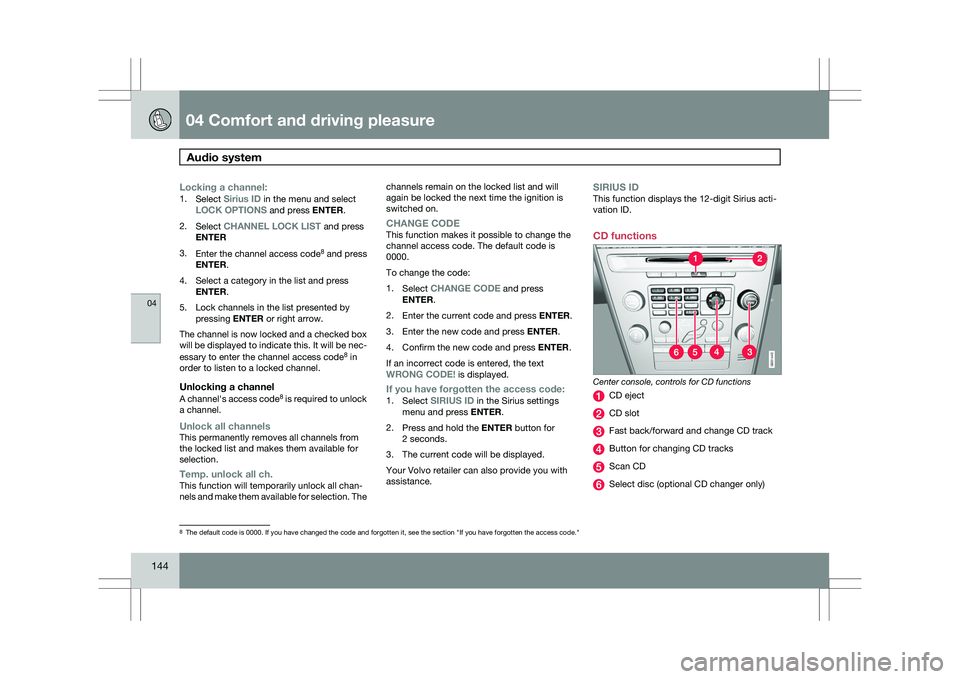
CD functions Center console, controls for CD functions
CD eject
CD slot
Fast back/forward and change CD track
Button for changing CD tracks
Scan CD
Select disc (optional CD changer only)
8
The default code is 0000. If you have changed the code and forgotten it,\
see the section "If you have forgotten the access code." G031443
Page 160 of 297
04 Comfort and driving pleasureCruise control 04
158 Operation
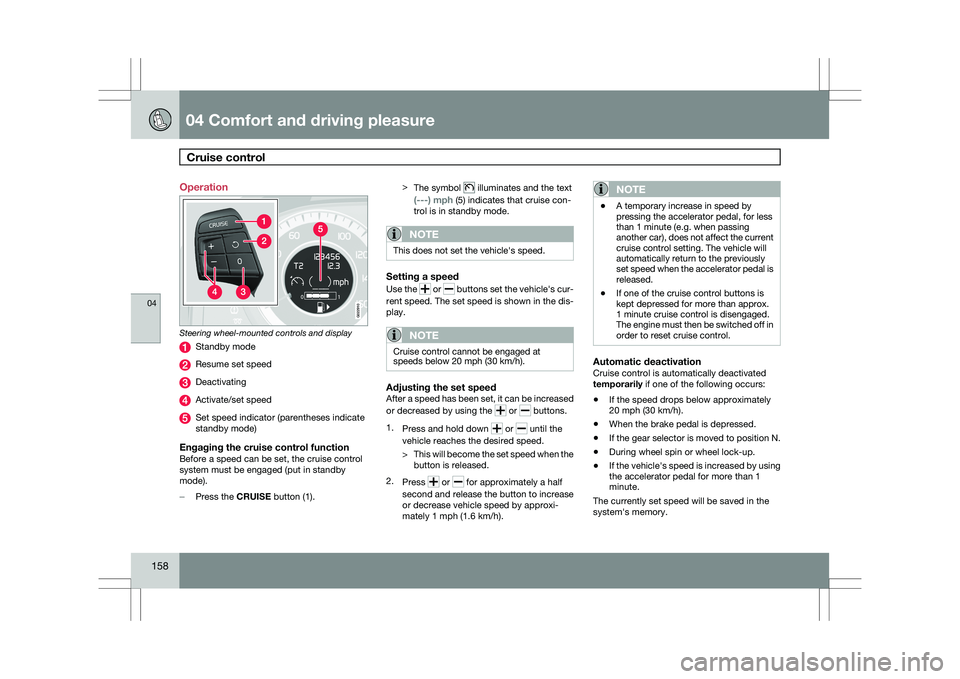
Steering wheel-mounted controls and display
Standby mode
Resume set speed
Deactivating
Activate/set speed
Set speed indicator (parentheses indicate
standby mode)
Engaging the cruise control functionBefore a speed can be set, the cruise control
system must be engaged (put in standby
mode).
–
Press the CRUISE button (1). >
The symbol illuminates and the text
(---) mph (5) indicates that cruise con-
trol is in standby mode.
NOTE This does not set the vehicle\fs speed.
Setting a speed
Use the
or buttons set the vehicle\fs cur-
rent speed. The set speed is shown in the dis-
play.
NOTE Cruise control cannot be engaged at
speeds below 20 mph (30 km/h).
Adjusting the set speedAfter a speed has been set, it can be increased
or decreased by using the
or buttons.
1. Press and hold down or until the
vehicle reaches the desired speed.
> This will become the set speed when the
button is released.
2. Press or for approximately a half
second and release the button to increase
or decrease vehicle speed by approxi-
mately 1 mph (1.6 km/h).
NOTE \b
A temporary increase in speed by
pressing the accelerator pedal, for less
than 1 minute (e.g. when passing
another car), does not affect the current
cruise control setting. The vehicle will
automatically return to the previously
set speed when the accelerator pedal is
released.
\b If one of the cruise control buttons is
kept depressed for more than approx.
1 minute cruise control is disengaged.
The engine must then be switched off in
order to reset cruise control.
Automatic deactivationCruise control is automatically deactivated
temporarily if one of the following occurs:
\b
If the speed drops below approximately
20 mph (30 km/h).
\b When the brake pedal is depressed.
\b If the gear selector is moved to position N.
\b During wheel spin or wheel lock-up.
\b If the vehicle\fs speed is increased by using
the accelerator pedal for more than 1
minute.
The currently set speed will be saved in the
system\fs memory. G022910
Page 165 of 297
04 Comfort and driving pleasure
Collision warning with Auto-brake*04
}}
* Option/accessory, for more information, see Introduction. 163
WARNING\b
The camera has the same limitations as
the human eye. In other words, its
“vision is impaired” by adverse weather
conditions such as heavy snowfall,
dense fog, etc. These conditions may
reduce the function of systems that
depend on the camera or cause these
systems to temporarily stop function-
ing.
\b Never place any objects, decals, etc.,
on the windshield in front of the camera.
This could reduce or block the camera’s
function, and could cause one or more
of the systems that utilize the camera to
stop functioning.
\b Strong sunlight, reflections from the
road surface, ice or snow covering the
road, a dirty road surface, or unclear
lane marker lines may drastically reduce
the camera’s capacity to detect the side
of a lane or another vehicle.Fault tracing and actions
If the message Windshield sensors
blocked is displayed, this means that the cam-
era is obscured and cannot detect vehicle or
road marker lines in front of the vehicle.
This, in turn, means that Collision Warning with
Auto-brake, Lane Departure Warning, and
Driver Alert Control will not have full function-
ality.
The table lists possible causes for this mes-
sage being displayed, and suitable actions. Cause Action
The surface of the windshield in front of the camera is dirty or covered\
with ice or snow. Clean or clear the section of the windshield in front of the camera.
Fog, heavy rain or snow is interfering with the function of the camera. No action possible. Heavy precipitation may affect the function of the
camera.
Page 166 of 297
04 Comfort and driving pleasureCollision warning with Auto-brake* 04
164
* Option/accessory, for more information, see Introduction.Cause Action
The surface of the windshield is clean but the message remains in the
display. Wait a short time. It may take several minutes for the camera to registe\
r
visibility.
The surface between the inside of the windshield and the camera is dirty\
. Contact an authorized Volvo retailer or service technician to have this
surface cleaned.
Symbols and messages in the display
Symbol Message Description
Collision warn.
OFF Collision Warning is switched off. This message is displayed when the en\
gine is started and will dis-
appear after approx. 5 seconds. It can also be erased by pressing the RE\
AD button.
Collision warn.
Unavailable Collision Warning cannot be activated. This message is displayed when th\
e driver attempts to activate
the function. It will disappear after approx. 5 seconds or can be erased\
by pressing the READ button.
Auto braking
was activated Auto-braking has been active.
Camera blocked
See manual The camera is temporarily not functioning. This message is displayed if \
the camera is obstructed by
snow, ice, dirt, etc., on the windshield. Clean the area of the windshie\
ld in front of the camera, see
page 162 for more information on the camera’s limitations.
Page 167 of 297
04 Comfort and driving pleasure
Collision warning with Auto-brake*04
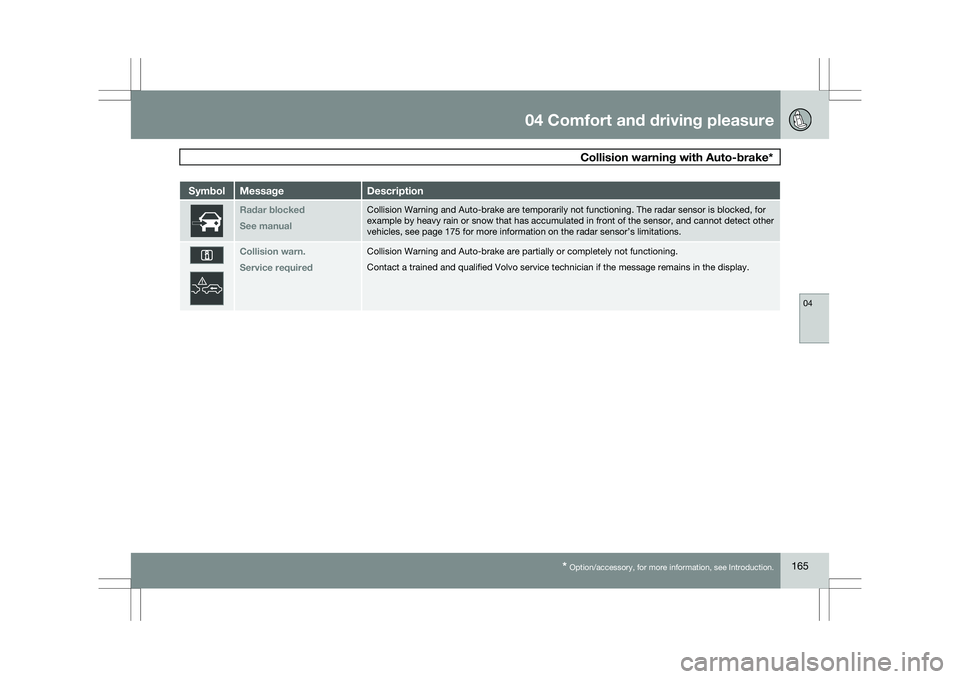
* Option/accessory, for more information, see Introduction. 165Symbol Message Description
Radar blocked
See manual Collision Warning and Auto-brake are temporarily not functioning. The ra\
dar sensor is blocked, for
example by heavy rain or snow that has accumulated in front of the senso\
r, and cannot detect other
vehicles, see page 175
for more information on the radar sensor’s limitations. Collision warn.
Service required Collision Warning and Auto-brake are partially or completely not functio\
ning.
Contact a trained and qualified Volvo service technician if the message \
remains in the display.
Page 170 of 297
04 Comfort and driving pleasureCity Safety™ 04
168 1.
Use the thumb wheel to scroll until City
Safety is displayed.
2. Press the RESET button for approximately
1 second until Off is displayed.
WARNINGThe laser sensor emits light when the igni-
tion is in mode II or higher, even if City
Safety™ has been switched off.
To switch City Safety™ on again:
\b
Follow the same procedure as for switch-
ing City Safety™ off but select On by
pressing RESET.
or
\b Vehicles not equipped with keyless
drive: Press lightly on the remote key to
release it partially from the ignition slot.
Press the remote key into the ignition slot
again. Depress the brake pedal and press
the START/STOP ENGINE button to start
the engine. This restarts City Safety™
.
\b Vehicles equipped with the optional
keyless drive: Press the START/STOP
ENGINE button to switch off the engine.
Depress the brake pedal and press the
START/STOP ENGINE button to start the
engine. This restarts City Safety™.
See page 79 for information on ignition modes. City Safety™ will be automatically switched on
the next time the engine is started, even if it was
off when the engine was switched off.
Limitations
The sensor used by City Safety™ is designed
to detect cars and other larger motor vehicles
ahead of your vehicle in both daylight and dark-
ness.
However, there are certain limitations and the
laser sensor’s function may be reduced by, for
example, heavy rain or snowfall, or by dense
fog or thick, blowing dust or snow. Condensa-
tion, dirt, ice or snow on the windshield may
also interfere with the sensor’s function.
Objects such as warning flags hanging from
long objects on the roof or accessories such as
auxiliary lights or protective arches on the front
of the vehicle that are higher than the hood may
also impede the sensor’s function.
Braking distance to the vehicle ahead increa-
ses on slippery road surfaces, which may
reduce City Safety’s capacity to avoid a colli-
sion. In situations like this, the DSTC system
(see page 155) will help provide the best pos-
sible braking capacity and stability.
City Safety™ emits infrared light and measures
the way in which the light is reflected. There-
fore, vehicles or objects with low-reflective sur-faces may not be detected. Normally, the
license plate and taillight reflectors give the
rear section of a vehicle ahead sufficient reflec-
tive surfaces to be detected.
NOTE
\b
Keep the windshield in front of the laser
sensor free of ice, snow, dirt, etc. See
the illustration on page
167
\b Snow or ice on the hood deeper than
2 inches (5 cm) may obstruct the sen-
sor. Keep the hood free of ice and snow.
\b Do not mount or in any way attach any-
thing on the windshield that could
obstruct the laser sensor. Troubleshooting
If Windshield sensors blocked appears in
the information display, this indicates that the
City Safety™ laser sensor is obstructed in
some way and cannot detect vehicles ahead of
you, which means that the system is not func-
tioning.
However, this message will not be displayed in
all situations in which the sensor is obstructed.
For this reason, the driver must ensure that the
area of the windshield in front of the sensor is
always kept clean.