Voice Acura TL 2009 Navigation Manua
[x] Cancel search | Manufacturer: ACURA, Model Year: 2009, Model line: TL, Model: Acura TL 2009Pages: 172, PDF Size: 16.82 MB
Page 123 of 172
System Initialization
Navigation System123
System Initialization
If for any reason you lose power to
the navigation system (e.g., the battery
was disconnected), the navigation
system will require initialization. Once
completed, your system will be ready
to use.
This initialization requires the
following:
• Entry of the 5-digit anti-theft security
code to “unlock” the audio and
navigation system.
• GPS initialization (may not be needed depending on the length of
time the system was without power).
(See GPS Initialization on page 123 .)
• Map matching to align the GPS coordinates to a place on the map
(displays current street at the bottom
of the map). (See Map Matching on
page 124 .)
Entering the Security Code
If the battery goes dead or is
disconnected for any reason, you will
have to enter a security code for both
the audio and navigation system before
you can use it again.
When you purchased the vehicle,
you should have received one card
containing the navigation system’s
security code and serial number. Keep
this card in a safe place in case you
need the code. If you lose the card, you
must obtain the security code from your
dealer.
Enter the 5-digit security code in
accordance with the owner’s manual
for your vehicle. If you do not enter the
security code, the navigation and audio
voice will not function.
NOTE:
The anti-theft security code is
unrelated to your optional navigation
system PIN (for Address Book or Home
Address) .
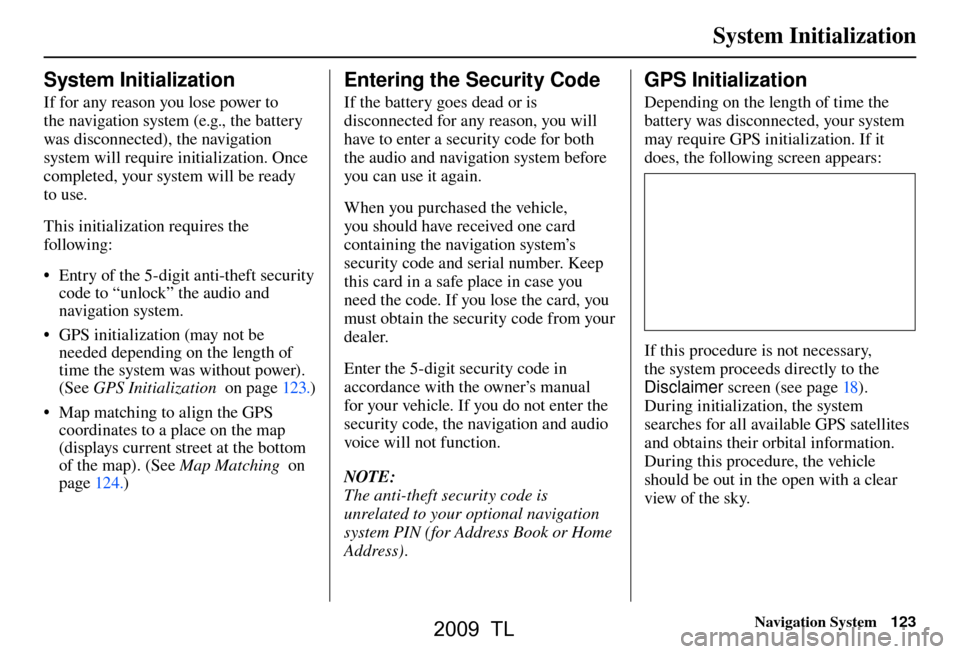
GPS Initialization
Depending on the length of time the
battery was disconnected, your system
may require GPS initialization. If it
does, the following screen appears:
If this procedure is not necessary,
the system proceeds directly to the
Disclaimer screen (see page 18 ).
During initialization, the system
searches for all available GPS satellites
and obtains their orbital information.
During this procedure, the vehicle
should be out in the open with a clear
view of the sky.
2009 TL
Page 143 of 172
Coverage Areas
Navigation System143
AcuraLink / Messages
This item is grayed out on the SET UP
screen ( Other) because XM is not
available.
Traffi c & Weather Status
This item is grayed out on the SET UP
screen ( Other) because XM is not
available.
Puerto Rico
If Street Name Guidance is set to
ON , the street names will not be read
out by voice guidance. This may change
with future data updates.
INFO Screen Differences
Messages
The INFO screen Messages feature
utilizes XM. Because XM is not
available, it is not displayed on the
INFO screen except messages such
as the diagnosis information for the
trouble of the car. In addition, the “Map menu” item New Messages
will
appear grayed out except messages such
as the diagnosis information for the
trouble of the car. This is normal.
Traffi c Incidents
This item is grayed out on the INFO
screen because XM is not available.
Weather Information
This item is grayed out on the INFO
screen because XM is not available.
Map Legend
The map legend “Traffi c” and
“Weather” descriptions may be
available, but do not apply.Shipping a Vehicle To or From
Alaska, Hawaii, Canada, and
Puerto Rico
Although the HDD in the vehicle
contains maps for both U.S. mainland
and Hawaii, the dealer must perform
the selection of “U.S. mainland” or
“Hawaii” for you. NOTE:
Shipping a vehicle from Alaska,
Hawaii, Canada, and Puerto Rico to
the U.S. mainland
• If you wish to receive XM audio,
traffi c, or weather, you must call XM
and set up an account at (800) 852-
9696.
• To begin receiving AcuraLink quick tips, contact Acura Client Services
at (800) 382-2238, and ask them to
activate your AcuraLink unit.
Shipping a vehicle from the U.S.
mainland to Alaska, Hawaii, Canada,
and Puerto Rico
• If a U.S. mainland-delivered vehicle is shipped to Alaska, Hawaii,
Canada, and Puerto Rico, there is no
XM reception.
• The issues under “Operation in Alaska, Hawaii, Canada, and Puerto
Rico” apply.
2009 TL
Page 144 of 172
Frequently Asked Questions
144 Navigation System
Map and Features, Voice Operation, Entering Addresses
Problem Solution
Why does the Disclaimer screen need to be displayed
every time I start the car? I am the only driver. The
Disclaimer screen reminds you and your guest drivers to always operate
the navigation system in a safe manner.
I tried entering an address, but the city or street could
not be found. Is there any other way to route to the
location? Some cities are lumped in with a major metro area. Try entering the street
fi
rst. In rural “unverifi ed” areas or new subdivisions, streets may be missing,
or only partially numbered. Try selecting the destination directly from the
map. See By Map Input on page 46 .
When I enter an address, some letters become grayed
out. Is this normal? Yes. As you enter each letter in an address or a point of interest (POI), the
system looks in the database to see what letters are possible and “grays out”
letters that do not apply.
How do I delete Personal Addresses, Previous
Destinations, or the Home Address? This is done in the
SET UP screen (Main Set up ), under “Personal
Information.” See pag e 94 .
I cannot hear the navigation system voice. 1) E n su r e t hat Volum e in the SET UP screen ( Main Set up) is not OFF.
See pag e 94 .
2) Go to “Basic Settings” in the SET UP screen (Other), and set Voic e
Recognition Feedback to ON . See pag e 102 .
The voice control system is having diffi culty recognizing
my voice commands. Ensure that the vents are not blowing on the microphone on the ceiling, the
vehicle is as quiet as possible, and you are using the correct command when
speaking (see
Improving Voice Recognition on page 14 ). Say “Help” at any
screen to see a list of the applicable voice commands. If the system cannot
recognize your command because of background noise, speak louder.
When the system pronounces the street name in the
guidance command or reads the destination address, it
sounds strange. What causes this? The basic guidance phrase uses a studio-recorded voice, but the street name
is pronounced by the system using a machine-generated voice. Consequently,
the name may be mispronounced or sound strange at times.
When I drive at night, the screen is bright and will not
switch to the night display mode. Why? Verify the following: The nighttime dash brightness control is not set to
maximum, and Map Color in SET UP is set to Black
for Night. See
Switching Display Mode Manually on page 115 .
Frequently Asked Questions
2009 TL
Page 147 of 172
Frequently Asked Questions
Navigation System147
Guidance, Routing
Problem Solution
The navigation system does not route me the same way
I would go, or the way some other mapping program
displays. Why is this? The navigation system attempts to generate the optimum route. See
Changing
the Routing Method on page 53 .
The navigation wants to route me around potential traffi c
problems. How do I stop these pop-up messages? This feature can be turned off. See
Traffi c Rerouting on page 110 .
Why is the street I’m on not shown on the map? It has
been here for more than a year. The mapping database is constantly undergoing revision. See pag
e 130 for
ways to obtain the latest detailed coverage information.
The vehicle position icon is not following the road and
the “GPS icon” text in the upper left hand corner of the
screen is white or missing. • The GPS antenna (located on the back of the navigation display) may
be blocked by personal items. For best reception, remove items from the
dashboard, such as radar detectors, cell phones, or loose articles.
• Metallic tinting or other aftermarket devices can interfere with the GPS reception. Please see your dealer. Also see System Limitations on page 125 .
I entered a destination, but the blue highlighted route
and voice guidance stopped, or turned into a blue /pink
dashed line before I got to my destination. Why is this? Your route has entered an unverifi
ed area. See Unverifi ed Area Routing on
pag e 103 .
The map rotates while I make turns. How can I stop
this? Select the North-up map orientation by voice, or by selecting North-up
from
the Map menu. See Map Orientation on page 63 .
Sometimes, I cannot select between the North-up and
Heading-up map orientations. Why is this? The Heading-up map orientation can only be shown in the lower scales (1/20
- 1 mile scales). See
Map Scale on page 62 .
While driving to my destination, the “time to go” display
sometimes increases, even though I am getting closer. The “Time to go” is based on actual road speeds. However if your speed
slows down when you encounter slower traffi
c, the system updates the “Time
to go” based of your actual speed to give you a better estimate of arrival time.
The vehicle position icon on the map “lags” a short
distance behind, especially when I arrive at an
intersection. Is there anything wrong? No. When at an intersection, the system is unaware of the width of the
intersecting road. Large differences in vehicle position can indicate a
temporary loss of the GPS signal. See
GPS Reception Issues on page 125 .
2009 TL
Page 151 of 172
Frequently Asked Questions
Navigation System151
Problem Solution
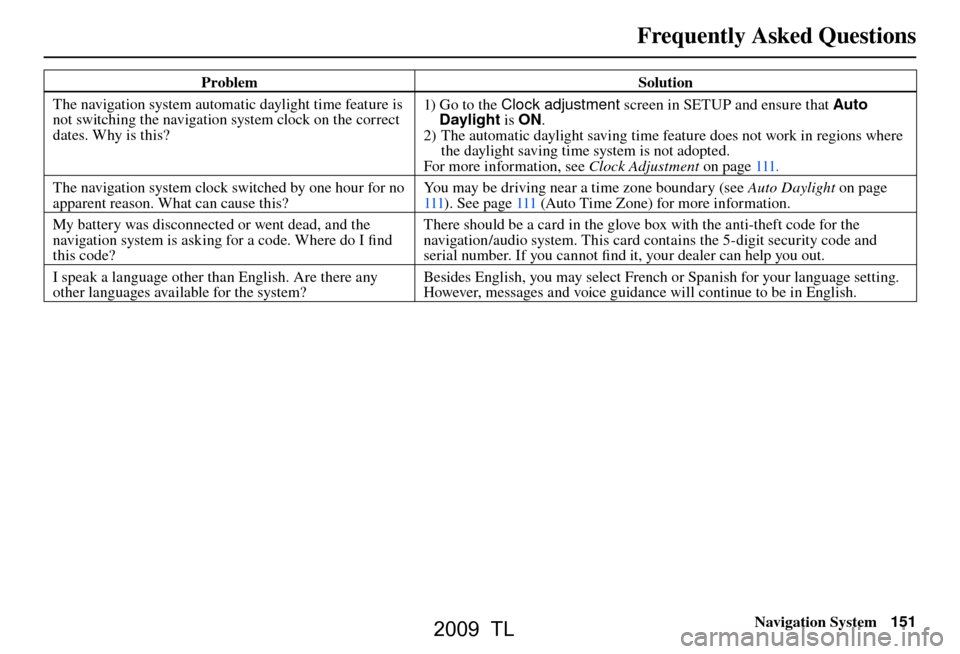
The navigation system automatic daylight time feature is
not switching the navigation system clock on the correct
dates. Why is this? 1) Go to the Clock adjustment
screen in SETUP and ensure that Auto
Daylight is ON.
2) The automatic daylight saving time feature does not work in regions where the daylight saving time system is not adopted.
For more information, see Clock Adjustment on page 111 .
The navigation system clock switched by one hour for no
apparent reason. What can cause this? You may be driving near a time zone boundary (see
Auto Daylight on page
111 ). See pag e 111 (Auto Time Zone) for more information.
My battery was disconnected or went dead, and the
navigation system is asking for a code. Where do I fi nd
this code? There should be a card in the glove box with the anti-theft code for the
navigation/audio system. This card contains the 5-digit security code and
serial number. If you cannot fi
nd it, your dealer can help you out.
I speak a language other than English. Are there any
other languages available for the system? Besides English, you may select French or Spanish for your language setting.
However, messages and voice guidance will continue to be in English.
2009 TL
Page 153 of 172
Glossary
Navigation System153
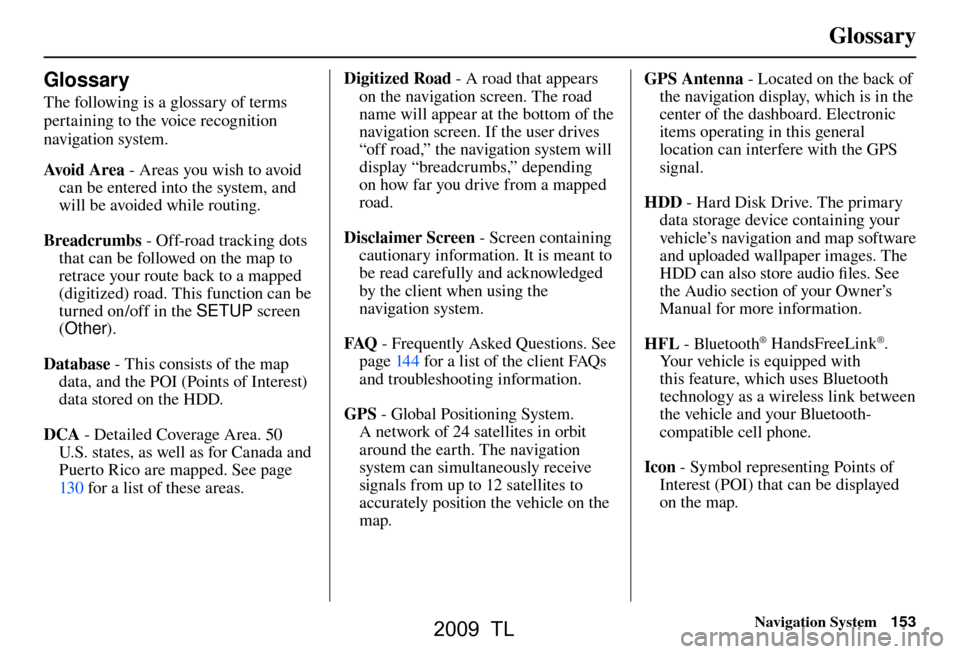
Glossary
The following is a glossary of terms
pertaining to the voice recognition
navigation system.
Avo i d A r e a - Areas you wish to avoid
can be entered into the system, and
will be avoided while routing.
Breadcrumbs - Off-road tracking dots
that can be followed on the map to
retrace your route back to a mapped
(digitized) road. This function can be
turned on/off in the SETUP screen
( Other ).
Database - This consists of the map
data, and the POI (Points of Interest)
data stored on the HDD.
DCA - Detailed Coverage Area. 50
U.S. states, as well as for Canada and
Puerto Rico are mapped. See page
130 f or a list of these areas. Digitized Road
- A road that appears
on the navigation screen. The road
name will appear at the bottom of the
navigation screen. If the user drives
“off road,” the navigation system will
display “breadcrumbs,” depending
on how far you drive from a mapped
road.
Disclaimer Screen - Screen containing
cautionary information. It is meant to
be read carefully and acknowledged
by the client when using the
navigation system.
FAQ - Frequently Asked Questions. See
pag e 144 f or a list of the client FAQs
and troubleshooting information.
GPS - Global Positioning System.
A network of 24 satellites in orbit
around the earth. The navigation
system can simultaneously receive
signals from up to 12 satellites to
accurately position the vehicle on the
map. GPS Antenna
- Located on the back of
the navigation display, which is in the
center of the dashboard. Electronic
items operating in this general
location can interfere with the GPS
signal.
HDD - Hard Disk Drive. The primary
data storage device containing your
vehicle’s navigation and map software
and uploaded wallpaper images. The
HDD can also store audio fi les. See
the Audio section of your Owner’s
Manual for more infor mation.
HFL - Bluetooth
® HandsFreeLink®.
Your vehicle is equipped with
this feature, which uses Bluetooth
technology as a wireless link between
the vehicle and your Bluetooth-
compatible cell phone.
Icon - Symbol representing Points of
Interest (POI) that can be displayed
on the map.
2009 TL
Page 154 of 172
Glossary
154 Navigation System
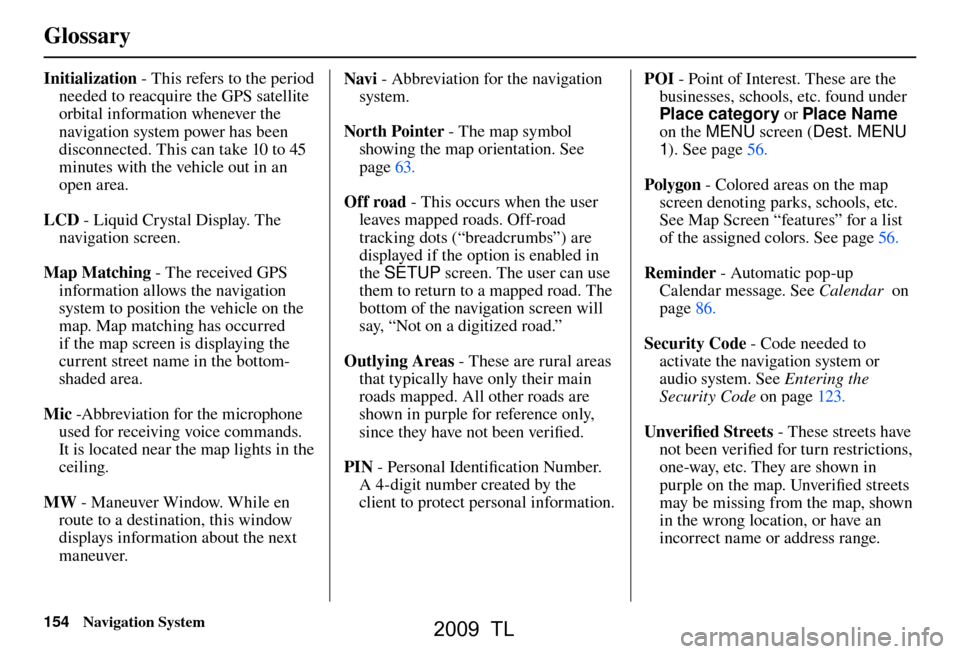
Initialization - This refers to the period
needed to reacquire the GPS satellite
orbital information whenever the
navigation system power has been
disconnected. This can take 10 to 45
minutes with the vehicle out in an
open area.
LCD - Liquid Crystal Display. The
navigation screen.
Map Matching - The received GPS
information allows the navigation
system to position the vehicle on the
map. Map matching has occurred
if the map screen is displaying the
current street name in the bottom-
shaded area.
Mic -Abbreviation for the microphone
used for receiving voice commands.
It is located near the map lights in the
ceiling.
MW - Maneuver Window. While en
route to a destination, this window
displays information about the next
maneuver. Navi
- Abbreviation for the navigation
system.
North Pointer - The map symbol showing the map orientation. See
page 63 .
Off road - This occurs when the user
leaves mapped roads. Off-road
tracking dots (“breadcrumbs”) are
displayed if the option is enabled in
the SETUP screen. The user can use
them to return to a mapped road. The
bottom of the navigation screen will
say, “Not on a digitized road.”
Outlying Areas - These are rural areas
that typically have only their main
roads mapped. All other roads are
shown in purple for reference only,
since they have not been verifi ed.
PIN - Personal Identifi cation Number.
A 4-digit number created by the
client to protect personal information. POI
- Point of Interest. These are the
businesses, schools, etc. found under
Place category or Place Name
on the MENU screen (Dest. MENU
1 ). See page 56 .
Polygon - Colored areas on the map
screen denoting parks, schools, etc.
See Map Screen “features” for a list
of the assigned colors. See page 56 .
Reminder - Automatic pop-up
Calendar message. See Calendar on
page 86 .
Security Code - Code needed to
activate the navigation system or
audio system. See Entering the
Security Code on page 123 .
Unverifi ed Streets - These streets have
not been verifi ed for turn restrictions,
one-way, etc. They are shown in
purple on the map. Unverifi ed streets
may be missing from the map, shown
in the wrong location, or have an
incorrect name or address range.
2009 TL
Page 155 of 172
Glossary
Navigation System155
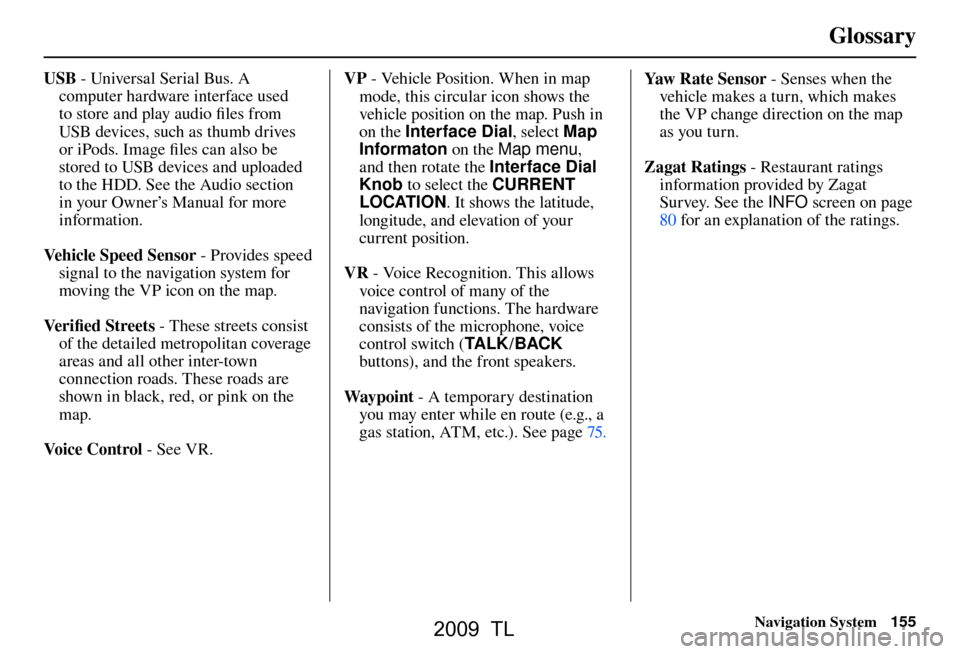
USB - Universal Serial Bus. A
computer hardware interface used
to store and play audio fi les from
USB devices, such as thumb drives
or iPods. Image fi les can also be
stored to USB devices and uploaded
to the HDD. See the Audio section
in your Owner’s Manual for more
information.
Vehicle Speed Sensor - Provides speed
signal to the navigation system for
moving the VP icon on the map.
Ve r i fi ed Streets - These streets consist
of the detailed metropolitan coverage
areas and all other inter-town
connection roads. These roads are
shown in black, red, or pink on the
map.
Voice Control - See VR. VP
- Vehicle Position. When in map
mode, this circular icon shows the
vehicle position on the map. Push in
on the Interface Dial , select Map
Informaton on the Map menu ,
and then rotate the Interface Dial
Knob to select the CURRENT
LOCATION . It shows the latitude,
longitude, and elevation of your
current position.
VR - Voice Recognition. This allows
voice control of many of the
navigation functions. The hardware
consists of the microphone, voice
control switch ( TA L K/BACK
buttons), and the front speakers.
Way p o i nt - A temporary destination
you may enter while en route (e.g., a
gas station, ATM, etc.). See page 75 . Yaw R a t e S e n s o r
- Senses when the
vehicle makes a turn, which makes
the VP change direction on the map
as you turn.
Zagat Ratings - Restaurant ratings
information provided by Zagat
Survey. See the INFO screen on page
80 f or an explanation of the ratings.
2009 TL
Page 156 of 172
Voice Command Index
156 Navigation System
Global Commands
The system accepts these commands on
any screen.
Help (displays the list of commands for current displayed screen)
Display map (displays the map screen)
Display menu (displays the MENU screen ( Dest. MENU 1 or 2 ))
Display information (displays the INFO screen)
Display audio screen (displays the Audio screen)
Back (to previous screen, same as CANCEL or BACK button)
Cancel (cancels current activity)
What is today’s date? (reads the current date)
What time is it?
Voice Command Index The “Voice Info” option on the
INFO
sc
reen ( Main Info ) lists many of the
following controls. To avoid distraction
while you are driving, the system can
read the commands for you.
The commands are accessible at any
time while driving and can be read
to you so that you do not need to
memorize all of them.Navigation General
Commands
The system accepts these commands on
a map/guidance screen.
Display menu (if en route, displays the MENU screen ( Route))
Display navigation (if en route, displays the MENU screen ( Route))
Display map
Display map guide (when en route, shows the next maneuver)
Display information (or just Information)
Display audio screen
Cancel
Backward (or just Back)
What time is it?
Repeat voice (repeats the screen prompt)
Help (reads list of Navigation General and Navigation Display Commands
at any screen)
What is today’s date? (reads the current date)
2009 TL
Page 157 of 172
Voice Command Index
Navigation System157
How long to the destination?
(when en route, tells the time to
destination)*
How far to the destination? (when en route, tells the distance to
destination)*
Display destination map (when en route, shows the map of the
destination)
Display entire route (when en route, adjusts the map scale so that the
entire route is displayed)
Register the current location (puts current location in the personal
Address Book)
* These commands are not available if you scroll the map while en route to a
destination.
Voice Info Navigation Display
Commands
The system accepts these commands on
a map/guidance screen.
Display current location (shows current latitude, longitude, and
elevation)
Display north up
Display heading up
Display zoom in
Display zoom out
Display: (the selected scale)
1/20 mile (80 m) scale
1/8 mile (200 m) scale
1/4 mile (400 m) scale
1/2 mile (800 m) scale
1 mile (1600 m) scale
2 mile (3 km) scale
5 mile (8 km) scale
15 mile (24 km) scale
50 mile (80 km) scale
150 mile (240 km) scale
350 mile (560 km) scale
1000 mile (1600 km) scale Display: (display the selected icon on
the screen)
AT M
gas station
restaurant
zagat restaurant
post offi ce
grocery store
lodging (hotel, motel)
parking garage
parking lot
school
hospital
freeway exit information
traffi c
traffi c speeds
traffi c icons
traffi c incidents
weather
weather icons
weather warning icon
messages
2009 TL