ESP AUDI A8 2017 Workshop Manual
[x] Cancel search | Manufacturer: AUDI, Model Year: 2017, Model line: A8, Model: AUDI A8 2017Pages: 354, PDF Size: 88.68 MB
Page 164 of 354
Audi connect
Data u sage info
The numbe r of data packets that are sent and re
ceived through the M MI is displayed . You can re
set the data usage information to zero using the
Reset d ata u sage option .
Start automatic configuration
An online profile is set up and configu red auto
mat ica lly. The connection settings that you
changed manua lly are reset to the defau lt set
tings.
Online status overview
An on line status overview with information abo ut
your data connect io n (such as the cell phone
service provider) is shown in the Infotainment
disp lay .
Sw itching the data connection module off
The data connection module is sw itched off. An
I n ternet connect ion is no longe r poss ible.
Network sett ings
Under Login , select Auto to log into a network
automatically or select
Manu al to select from a
list of networks w ith in range. The available net
works in the area can be selected i n the
Network
se lection
list. Th is function is on ly availab le when
Manual Login is set.
Serial number (IMEi)
The se rial number for the MMI that is installed is
d isplayed .
A WARNING
-As the driver, do not allow usage of the Wi
Fi hotspot to dist ract you from d riving, as
t h is could inc rease the risk of an accident.
- It is only safe to use tab lets and s imilar mo
bile devi ces when the vehicle is s tat ionary
because, like all loose objects, they could be
thrown aro und the i nside of the vehicle
when invo lved in an accident and can cause
serious injuries. Store these types of devices
sec urely whi le driving.
- Do not use any w ireless devices on the front
seats w ith in range of the a irbags while d riv-
162
ing . Also read the warnings in the chapter
¢page 207 .
(D Note
You are responsible for all precaut ions taken
for data p rotection, anti-virus protection and
protection against loss o f data on mobi le de
v ices that are used to access the Internet
through the W i-F i hotspot.
(D Tips
- When using On line map view, you are
prompted again to allow roam ing before
connect ing to a foreign mob ile network.
- The speed of the data connection may vary
depending on the veh icle location, the cov
erage area of your cell phone service provid
er and if the recommended p rovider is used
or not .
- A data connection cannot be established if
incorrect data is ente red in the
Connection
s ettings .
-The W i-F i hotspot recept ion quality depends
on the sig nal st rengt h and the availabi lity of
the mobile network. You can obtain more
information from your cell phone se rvice
prov ider.
About Audi connect
Audi connect services
App lies to: vehicles wi th Audi connect
(D Tips
-You can only use services supported by Aud i
co nnect if you have the optional MMI Nav i
gation pl us equ ipme nt and Audi connect.
- Audi connect is designed for use only with
the p rovided Aud i SIM card . Rece iving data
packets from t he Internet w ill quickly in
c rease the vo lume of d ata used. Fo r more
information, contac t Aud i connect custome r
support at 877 -SOS -AUD I (2834).
- Th e Aud i connec t se rvices are availab le in
the USA. Audi connect serv ices are currently
not avai lable i n Canada or in Mexico. ..,.
Page 165 of 354
0 co .... N ,..._
N .... 0 0 :c '
and costs of services may vary depending on
the country, model, model year, end device
and rates. Additional information can be
found under
www.audiusa.com/audicon
nect.
- An initial registration/activation on the
myAudi platform at my.audiusa.com is nec
essary to use individual services. You can
contact an authorized Audi dealer or Audi
connect Support at 877-505-AUDI (2834)
to receive information on options for ex panding your usage and any costs that may
result.
- It is only possible to use Audi connect serv
ices with a valid Audi SIM card.
- To ensure all of the Audi connect features
work correctly , Audi recommends setting up
a data service and Wi-Fi package with your
cell phone service provider. Your cell phone
service provider can be authorized by law,
through a judicial order or other lawful in
structions, to disclose the position of your
vehicle. Additional information on your cell
phone service provider's privacy policies can
be found in their Terms of Use .
- The availability of Audi connect services,
such as weather information, depends on
the cell phone service provider .
- You can specify when the MMI establishes
an online connection
¢ page 161 . The Inter
net connection ends automatically when the
Audi connect service in use no longer re
quires any data packets.
- The Audi connect services are a Wi-Fi/Inter
net-based system.
If the system does not
function correctly even though all of the re
quirements are met, please try again later
or contact Audi connect Support at
877-505-AUDI (2834).
- For detailed information on Audi connect
and the Terms of Use, visit
www.audiusa.com/audiconnect.
Audi connect
Privacy protection
App lies to : vehicles wi th Audi connect
{I) Tips
- Your privacy is important to us.
- AUDI AG collects, processes, shares and
transmits your personal information in ac
cordance with legal regulations in order to
ensure proper function and availability of
the individual Audi connect services. You
can view the complete, current and valid
Audi connect data protection policy in your MMI. The my Audi website is available for to
you to activate additional Audi connect serv ices and to transfer data with your vehicle,
among other services. A one-time registra
tion is required to establish a connection to
your vehicle. For this purpose, AUDI AG col
lects, processes, transmits and uses your re
quired personal information as required for
you to use the services provided by AUDI
AG. Your information is not distributed to
third parties. Using your cell phone with the
help of your myAudi platform, you can
transfer information for Audi connect serv
ices functions to your vehicle and allow spe
cific information to be transmitted from
your vehicle .
- By activating special information services
that are part of your Audi connect portfolio,
you can use these functions directly in your
vehicle by entering data to confirm your
identity (to use social networks, for exam
ple). To do this, the identification informa
tion you provided is forwarded with the re
quest to the respective service provider .
Then you can access your personal content
using a secure connection. This content is
displayed in the vehicle for your use. Your
personal content is not stored within Audi
AG . The necessary connection information is
processed and used for providing services
and the proper function of the services in
accordance with applicable legal guidelines.
- By providing Audi connect services , Audi of
America is authorized to collect, process,
transmit and transfer information about
163
Page 174 of 354
Navig ation
- Zoomi ng in or out on the cur rent view in fou r
sta ges:
turn the contro l knob to the left or to
the right @.
-Turning the view to the left /right or tilt in g
up /do wn:
move your finger over the MMI touch
contro l pad in the desired direction.
@ Tips
- Refer to the notes in the chapter About
Audi connect
¢ page 162.
-Stored data for the on line map view can be
deleted with
Factory setting s¢ page 206 .
-The online map view is an Audi co nnect serv
ice and is updated regu larly when the func
tion is opened . The process may take seve ral
seconds.
- When the on line map display is sw itched on
with the 30 map type, the Infotainment dis play automatically switches to the 20 map
type when dr iv ing through tunnels.
- Content, scope and providers of available
Internet-based services may vary.
- For safety reasons, the online Street View
funct ions can only be used when the veh icle
is stationary.
Additional settings
Storing a favorite or home address
App lies to: ve hicles with navigation system
Favorites ore stored automatically as a contact
in the directory .
"'Select : I NAVI button> Route guidance control
button >
Favor ite s.
- Storing a favo rite :
select Create fa vorite . Se
lect and co nfirm a favorite with the displayed
funct ions.
- Storing a home addre ss: select Home address .
Select and confirm a home address with the
displayed functions .
A home address can be stored for each cell phone
or SIM card that is paired with the MMI as well as
for the public MMI directory . It is only visible
when the respective directory is active.
Addit ional functions include:
172
- Call : select and confirm a favorite or the home
address. Select and confi rm
Call .
- Change :
select and confirm a favor ite or the
home address . Se lect and confirm
Re-a ssign
home add ress /favorite .
- Showing on the map:
select a nd confirm a fa
vorite/home add ress. Se lect and confirm
Dis
play de stination on map .
- Delete :
select and confirm a favorite or the
home address . Se lect and confirm
Delete home
a dd ress /fa vo rite .
Storing a destination in the directory
App lies to: vehicles wit h navigat io n syste m and telepho ne
Two addresses (private/business) can be as
signed as destinations for each contact in the di
rectory.
"' Select: !NAV ! button > Route guida nce contro l
button >
enter a destination > Store in di re cto
ry .
- Sto ring a destinati on a s a new addre ss card :
select New contact. Enter a name . Enter addi
tional data, if necessary . Select and confirm
Sto re contact .
- Ass igning a de stination to an e xisting addre ss
card :
select and confirm an address card. Select
and confirm
Stor e contact . If you already have
an address card for a destination, the o ld desti
nation will be overwritten.
Di spla y as fav orite : to be able to access a desti
nation qu ickly, the destination can be displayed
i n the list of favor ites when the function is
switched on~
¢page 169.
Stored destinations are ident ified on the map by
a b lue or red push p in (bus iness/private naviga
tion destination).
General settings
App lies to: vehicles wit h nav igat ion system
"' Select : !NAV ! button > Sett ing s control button .
Several criteria are used to calculate route guid
ance.
...
Page 175 of 354
Route criteria
Au to rerouting (traff ic):
when auto rerouting is
On , the route is automatically adjusted based on
TMC traffic information. If the MM I does not cal
culate a detour even though you have se lected
dynamic route
On and a traffic jam was reported
on the ca lculated route, then the detour the sys
tem calculated would take more time than the
time spent wa it ing in the traff ic jam .
Alternati ve route s: when the fun ction is On , up
to three suggested routes and their criteria ap pear in the Infotainment d isplay in the side
menu . After chang ing to map view, the new route
that was calculated according to your cr iteria is
hi ghlighted. Yo u can select the poss ib le routing
i n the alte rnative routes by turning and press ing
the cont rol knob .
Route option s: you can se lect a Short , Fas t or
Mix ed route .
Highway /Toll road /Fe rry : select the Minimize
option you do not want the navigation system to
include highways, toll roads o r ferries when cal
culating a ro ute.
T ime rest ricted roads : using the Minim ize func
tion will exclude t ime restricted roads, such as
pedestrian zones, from the route ca lculation .
When
Auto i s selected , the M MI decides if the
time rest ricted roads s hou ld be included when
calculat ing the ro ute guidance based on the en
tr ies stored in the navigation data .
Seasonal clo sing : using the Minimize function
will exclude seasona l closings, su ch as mountai n
passes, from the route calcu lation . When
Auto is
se lected, the MMI decides if the seasonal re
stricted roads should be included when calc ulat
ing the route guidance based on th e entries stor
ed in the navigation data .
Map colors
Day/Night :
the map is displayed with a light/
dark background.
Auto : when t he lights switch on, the map co lors
~ sw itch from day to night . .... N ,..._
N .... 0 0
~ l) Only po ssible in th e 2D map view
Na vigation
O rientation
North 1
l:
the map orienta tion is facing north.
Dir. of travel : the map orientat ion is in the direc
t ion of t ravel. At a sca le of 62 mi les (100 km) ,
the map is or iented to t he no rth for eas ier o rien
tation.
Auto : at a scale up to 3 miles (5 km), the map
o rientation is in the direction of travel. At a scale
greate r than 3 miles (5 km), the map is oriented
to the no rth.
Map type
D estination :
the destination is marked with a
c h ecke red flag . The map indicates the destina
t ion and is o riented to the north.
2D: the current veh icle position is displayed. The
map or ientation corresponds to the sett ing in the
Map orientation menu ~ page 173.
3D : when th is function is switched on, the cur
rent vehicle pos ition is displayed in a three-di
mensional terrain map and the map or ientat ion
is set automat ica lly to the
Dir. of travel. At a
sca le of 100 km and la rger, the map is o riented
to the no rth. At a sca le between 30 -100 meters,
the d isplay will show three-d imens iona l city
models and landmarks will be shown at a scale of
30 -200 meters.
Ov ervi ew : the entire route from the veh icle loca
t ion to the destina tion is disp layed on the map.
T he map scale depends on the length of the
route. The map is oriented to the north.
Map disp lay
Online map view 9 page 171
Map content
Map contents such as traffic information, favor
ites or restaurants can be displayed (~) or hid
den .
The functions in the
Map content menu depend
on the map d isplay that is selected .
IJl,
173
Page 182 of 354
Media drive s and conn ections
Media drives and
connections
Introduction
There are various media drives and connections
ava ilable in the MMI. For example, you can play
aud io/video* f iles through the Jukebox, or you
can connect a portable device to the Audi music i n terface* a nd ope rate it through the MM I.
Notes
General information
Med ia and format restrictions :
the MMI (includ
ing the SD card reader and the USB storage de
vice connect ion*) was tested w ith a var iety of
p roducts and media on the market . However ,
there may be cases where ind iv idual devices or
media and audio/video* files may not be recog
n iz ed, may play on ly w ith restrict ions or may no t
p lay at a ll.
The MM I media dr ives do not suppo rt Windows
Media Audio 9 Vo ice, Windows Media Audio 9
L oss less and Windows Media
9 Profess ional for
mats .
Digital Right s Managem ent : please note that
the audio/v ideo* files are subjec t to copyright
p rotection .
The med ia drives do not play f iles that are pro
tected by ORM and that are ident ified with the
symbo l~ -
Data s ecurity : Never store important data on the
memory cards, the Jukebox, CDs/DVDs or porta
b le aud io devices . A udi is not responsib le for
damaged or lost files and med ia.
Lo ad ing t imes : the more files/folders/playlists
that a re on a storage medium, the longer it w ill
take to load the audio/v ideo* fi les . Audi recom
mends using storage media that on ly conta in au
d io/video files*. To decrease the t ime it takes to
load audio/video fi les*, create subfo lders (for ex
ample, for the artist or album). The loading time
will also increase when importing files.
A dditional information : when playing, audio
fi les are automatically displayed with any addi-
180
tiona l information that is stored (such as the ar
tist, track and album cover) . If this information is
not avai lab le on the storage medium, the MMI
will check Gracenote . However, in some cases,
the addit ional information may not be d isplayed .
Restri cted functionalit y: if functionality is re
stricted, reset the
Media setting s to the factory
default settings
c> page 206.
Reset the Jukebox to the factory defau lt settings
if functiona lity is restricted
c> page 206.
Fo r information abo ut the propert ies of s upport
ed med ia and fi le formats, see
c> page 186 .
(D Note
Always fo llow the information found in c> (D in
Wi-Fi
hotspot on page 160.
CD/DVD operation
CD /DVD and fo rmat re striction s:
the functionali
ty of individua l storage media may be limited due
to the variety of b lank CDs/DVDs available and
the various capacities . Aud io CDs or video DVDs
with copy protection, CDs/DVDs that do not con
form to the standard and mult isess ion CDs may
have l imited playback or may not play at all. Audi
r ecommends finaliz ing the recording process
whe n creat ing mult isess io n CDs . Mult isess ion is
not supported for DVDs .
Handling CDs/DVDs and th e DV D dri ve: To en
sure good, h igh-quality sound reproduction and
to prevent damage to the dr ive or disc reading er
r ors, always store CDs/DVDs in a protective
s leeve and do not expose them to direct s unlight.
Do
not u se:
- Damaged, dirty or sc ratched CDs/DVDs
- Single CDs/DVDs (3 inch/8 cm diameter)
- CD/DVDs that are not round
- CDs/DVDs w ith labels
- Protective rings
- Clean ing CDs
Thermal protection switch : CD/DVD playback
may be tempora rily unavailable if o utside tem
peratures a re extremely hot or co ld. A thermal
Page 184 of 354
Media drive s and conn ections
DVD changer
Applies to: vehicles w ith DVD changer
The DVD changer is located in the glove com
partment.
@
F ig . 195 DVD c hanger
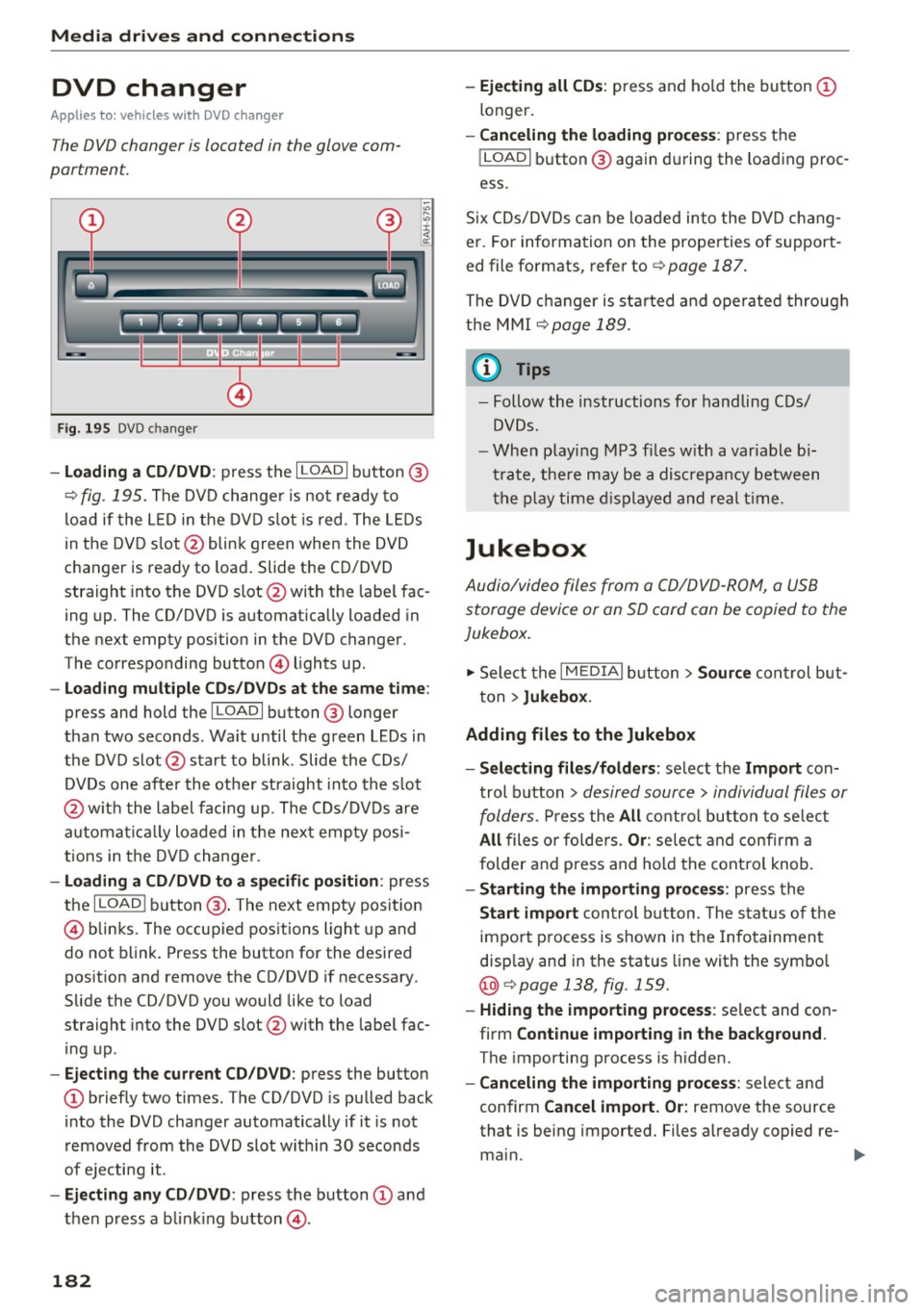
- Loading a CD /DVD : press the I LOADI button @
¢
fig. 195. The DVD change r is not ready to
load if the L ED in the DVD slot is red . The LEDs
in the DVD s lot @ blink green when the DVD
changer is ready to load . Slide the CD/DVD
straight into the DVD slot @with the labe l fac
ing up. The CD/DVD is automat ica lly loaded in
the next empty position in the DVD changer .
The corresponding button © lights up .
-Loading mul tiple CD s/ DV Ds at the same t ime :
press and hold the I LOAD I button @ longer
than two seconds . Wait until the green LEDs in
the DVD slot @start to blink . Slide the CDs/
DVDs one after the othe r straight into the s lot
@ wit h the label facing up. The CDs/DVDs are
a utomat ica lly loaded in the nex t empty posi
tions in the DVD changer .
-Loading a CD /DVD to a specific position : press
the
I L OAD I button @. The next empty pos it ion
© blinks. The occupied positions light up and
do not b link . Press the button for the desired
position and remove the CD/DVD if necessary .
Slide the CD/DVD you would like to load
straight into the DVD slot @with the labe l fac
ing up .
-Ejecting the current CD/DVD : press the button
CD briefly two times. The CD/DVD is pu lled back
i nto the DVD changer automatically if it is not
removed from the DVD slot w ith in 30 seconds
of ejecting it .
-Ejecting any CD /DVD : press the b utton CD and
then press a blink ing button @.
182
-Ejecting all CD s: press and ho ld the button CD
longer .
-Canceling the load ing pro ce ss: press the
!LOAD I button @ again d uring the loading proc
ess.
S ix CDs/DVDs can be loaded into the DVD chang
er. For information on the properties of support
ed file fo rmats, refer to ¢
page 187.
The DVD c hanger is sta rted and oper ated throug h
the MMI
¢ page 189.
(1} Tips
-Follow the instructions fo r handling C Ds/
DVDs.
- Whe n playi ng MP3 f iles w ith a variable b i
t rate, t he re may be a disc repancy between
t h e p lay time d isplayed and real t ime.
Jukebox
Audio/video files from a CD/DVD -ROM, a USB
storage device or an SD card can be copied to the
Jukebox.
... Select the I MEDIAi button> Source con trol b ut
ton >
Jukebox.
Adding fil es to the Jukebox
- Select ing files /fold ers :
select the Import con
trol b utton >
desired source > individual files or
folders.
P ress the All c o ntro l butto n to se lec t
All files o r fo lde rs. Or : selec t and confirm a
folder and press and hold the contro l knob.
- Starting the importing proc ess: press the
Start import con trol b utton . T he stat us o f the
import p rocess is shown in the Infotainment
disp lay and in the status line with the symbo l
@¢page 138, fig . 159.
- Hid ing the importing proce ss: se lect and con
firm
Continue importing in the background .
The importing process is hidden.
- Canceling the impo rt ing process : select and
confirm
Can cel import. Or : remove the source
that is being imported. Files a lready copied re-
ma in.
Ill>-
Page 195 of 354
C) C0 ....
"' " "' .... 0 0 :r
RSE components
overview
A ppl ies to: ve hicl es w ith Re ar Seat E nte rtainment
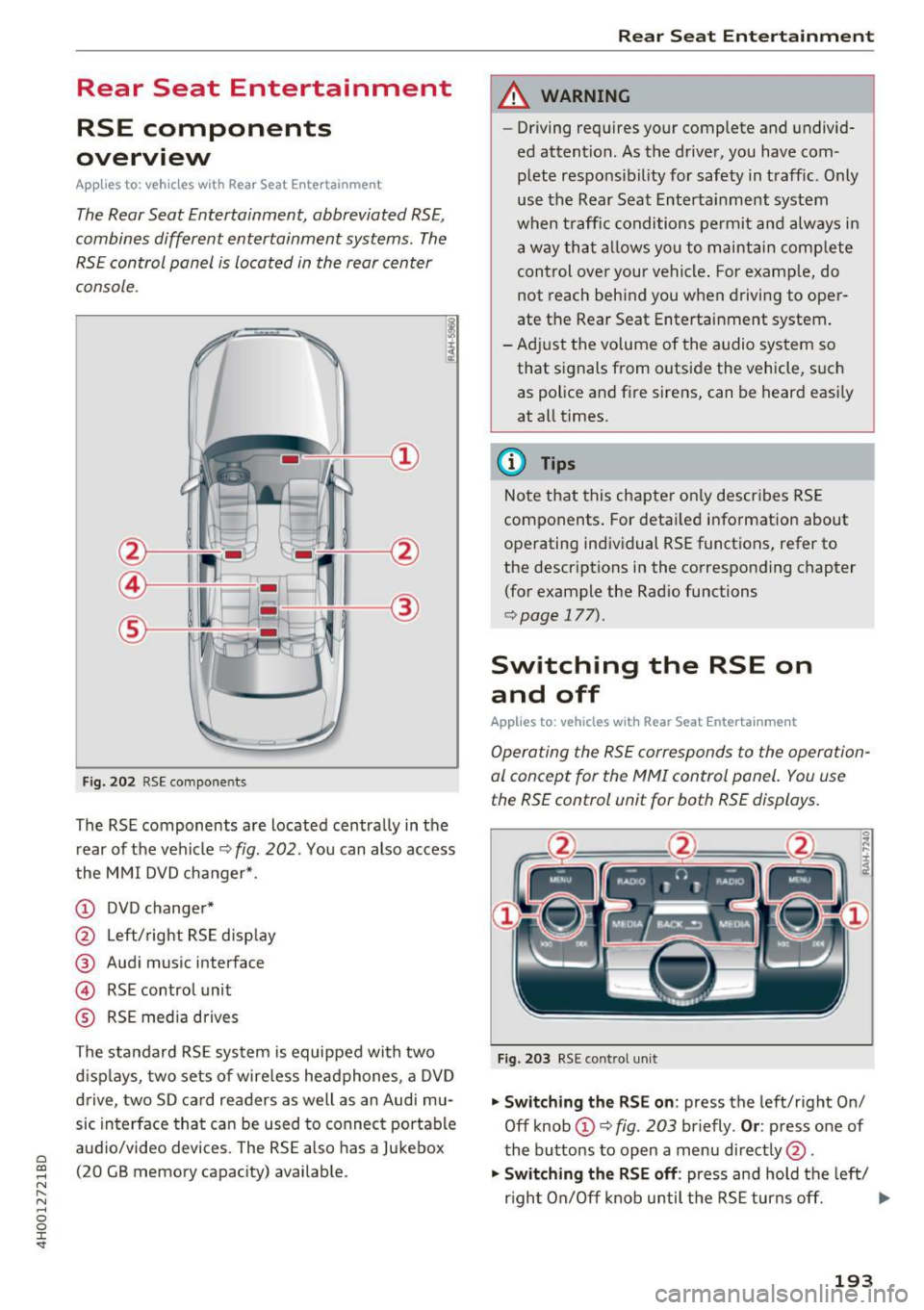
The Rear Seat Entertainment, abbreviated RSE ,
combines different entertainment systems . The
RSE control panel is located in the rear center
console .
Fig . 202 RSE compo nen ts
The RSE components are located centra lly in the
rear of t he vehicle
9 fig. 202 . You can also access
the MMI DVD changer* .
CD DVD changer*
@ Left/right RS E disp lay
® Audi music interface
© RSE control unit
® RSE media drives
The standard RSE sys tem is equipped with two
d isp lays, two sets of wire less headphones, a DVD
drive, two SD card readers as well as an Audi mu
sic interface that can be used to connect portable
audio/video devices . The RSE also has a Jukebox
(20 GB memory capacity) available.
Rear Seat Entertainment
A WARNING
-- Driving requires your complete and undivid-
ed attention. As the drive r, you have com
plete responsib ility for safety in traff ic. Only
use the Rear Seat Entertainment system
when t raff ic conditions permit and always in
a way tha t allows you to maintain comp lete
control over your vehicle . For examp le, do
not reach behind you when driving to oper
ate the Rear Seat Entertainment system .
-Adj ust the volume of the audio system so
that signals from outside the vehicle, suc h
as police and fire sirens, can be heard easi ly
at all times.
(D Tips
Note that this chapte r on ly describes RSE
components . For deta iled information about
operating indiv idual RSE funct ions, refer to
the descriptions in the corresponding chapter
(for example the Radio functions
¢ page 177).
Switching the RSE on
and off
Applies to : vehicles wit h Rear Seat Enterta inment
Operating the RS E corresponds to the operation
al conc ept for the MMI control pan el. You us e
the RSE control unit for both RSE displays.
F ig . 203 RS E cont ro l un it
.,. Swit ching the RS E on : press the left/right On/
Off knob
CD ¢ fig . 203 briefly . Or: press one of
the buttons to open a menu direct ly @ .
"" Swit ching the R SE off : press and hold the left/
r igh t On/Off knob until the RSE turns off.
IJ,,
193
Page 197 of 354
C) C0 ....
"' " "' .... 0 0 :r
Applies to: veh icles with Rear Seat Entertainment
Fig. 205 Adju sting the aud io o utp ut
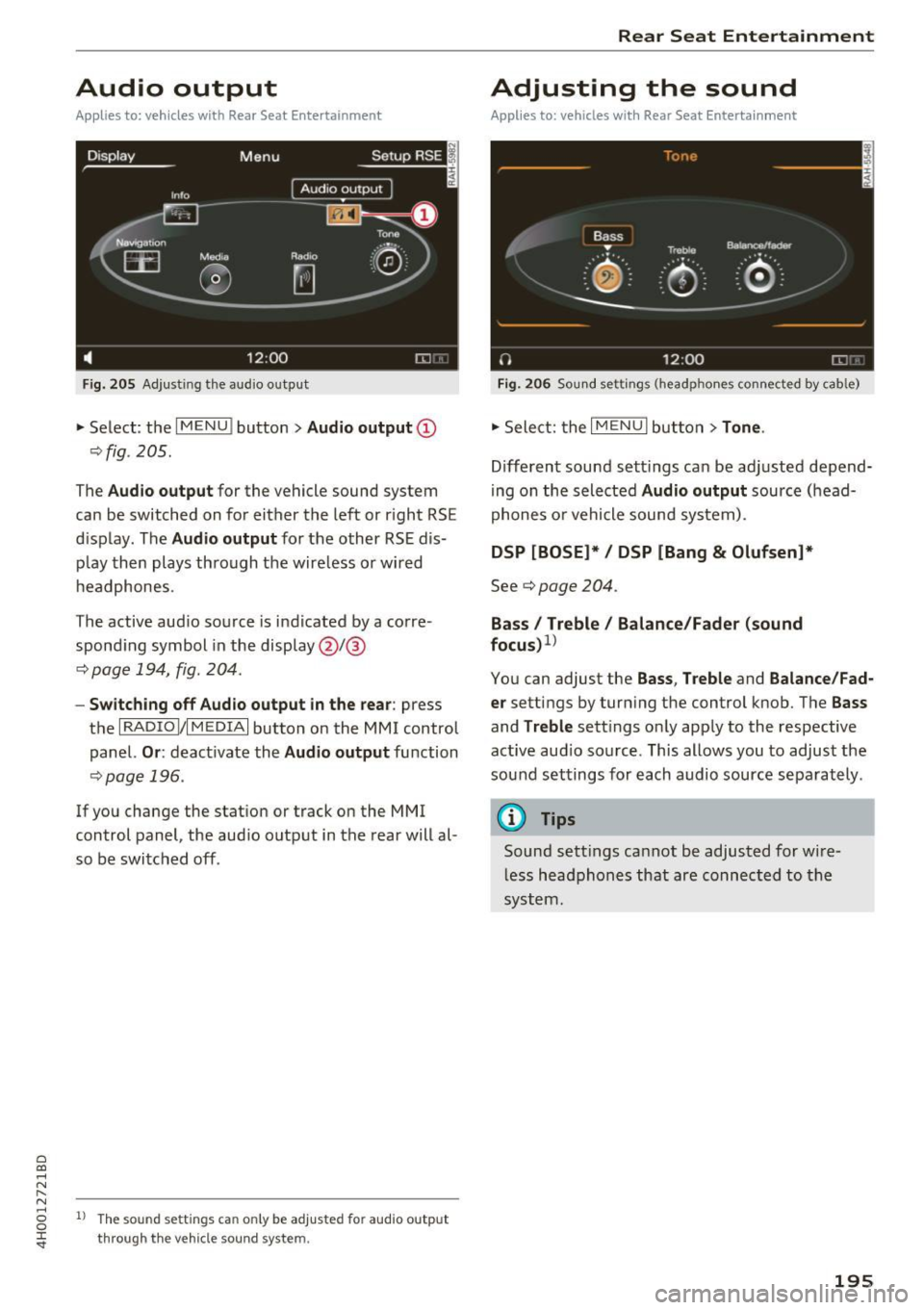
• Select : the I M ENU ! button > Audio outp ut @
¢ fig . 205.
The Audio outp ut for the vehicle sound sys tem
can be switched on for either the left or r ight RS E
display . The
Audio output for the other RSE dis
p lay then plays through the wire less or wired
h eadphones .
The active aud io source is indicated by a corre
spond ing symbol in the display @/@
¢ page 194, fig . 204 .
-Switching off Aud io output in the rear : press
t h e
I RADIO I/IM EDIA I button on the M MI control
panel.
Or : deactivate the Audio output function
¢page 196 .
If you change the stat ion or track on the MMI
control panel, the aud io outp ut in the rear will al
so be switched off .
1l The so un d sett ing s c an only be adjusted fo r au dio outp ut
thro ugh t he v eh icl e s ound sy ste m.
Rear Seat Entertainment
Adjusting the sound
Applies to: vehicles with Rear Seat Entertainment
Fig. 206 Sou nd set tings (headp ho nes conne cted by cab le)
• Sele ct: the I MENU I but ton > Tone .
Different sound sett ings can be ad justed depend
i ng on the selected
Audio output source (head
phones o r vehicle sound system) .
DSP [BOSE]* / DSP [Bang & Olufsen]*
See¢ page 204 .
Bass I Treble / Balance /Fader (sound
focu s)
1
>
You can adjust the Ba ss , T reble and Balance /Fad
er
settings by turn ing the control knob. The Bas s
and Treble sett ings on ly app ly to the respective
active aud io so urce . This allows you to adjust the
sou nd settings for each audio source sepa rately .
@ Tips
Sound sett ings cannot be adjusted for wi re
l ess headphones that are connected to the
system.
195
Page 206 of 354

System settings
System settings
Setting the time and
date
You can set the clock time manually or using the
CPS.
Fig. 215 Sett ing a time zone
.,. Select : the I MENU I button > the upper left Time
control button (D <=> fig . 215.
Time source
GPS
'ti: the Time and Date are set by GPS based
on the
Time zone that was se lected manually. Al
ways remember to set the new
Time zone i n the
MMI when the vehicle enters a different t ime
zone.
Manual : you can set the Time and Date manually
using the respective function . Press the control
knob. Set the
Time or the Date manually by turn
ing and pressing the control knob.
Automatic daylight saving time*
When daylight saving time is sw itched On , the
time is moved forward or back automatically by
one hour when daylight sav ing time begins or
ends.
Man. daylight sav. time
When this function is switched On , an hour is
added to the set
Time.
Time zone
When selecting the appropriate time zone, a
sampling of countr ies in this zone will be listed .
204
Time format
If you select 24h , the clock will display, for ex
amp le,
13:00. If you select AM/PM , the clock
will display, for example,
1:00 PM.
Date format
If you select DD.MM , the date will display, fo r ex
ample,
31.12 . If you sele ct MM/DD , the date
will display, for example,
12/31.
Adjusting the sound
The sound distribution and volume of the MMI
can be adjusted individually. The settings depend
on vehicle equipment .
Fig. 216 Sound settings
Fig. 217 Adjusti ng the ba la n ce/fader
.,. Select: !T ONEI button.
(D GALA*/ DSP* / DSP [BOSE]*/ DSP [Bang
& Olufsen]*
- GALA (Speed-dependent volume increase) *:
select and confirm Active /Inactive for the ad
justment of playback volume to the level of
noise inside the vehicle.
-Sound focus (adjusting the sound distribu
tion) *:
select and confirm All (symmetrical
Page 209 of 354
Driving safety
Basics
Safe driving habits
Please remember -safety first!
This chapter contains important information,
tips, instructions and warnings that you need to
read and observe for your own safety, the safety
of your passengers and others . We have summar
ized here what you need to know about safety
belts, airbags, child restraints as well as child
safety. Your safety is for us
priority number 1. Al
ways observe the information and warnings in
this section - for your own safety as well as that
of your passengers.
The information in this section applies to all
model versions of your vehicle. Some of the fea
tures descr ibed in this sections may be standard
equipment on some models, or may be optional
equipment on others. If you are not sure, ask
your authorized Audi dealer.
A WARNING
- Always make sure that you follow the in
structions and heed the WARNINGS in this
Manual. It is in your interest and in the in
terest of your passengers .
-
-Always keep the complete Owner's Litera
ture in your Audi when you lend or sell your
vehicle so that this important information
will always be available to the driver and
passengers.
- Always keep the Owner's literature handy so
that you can find it easily if you have ques
tions.
Safety equipment
The safety features are part of the occupant re
straint system and work together to help reduce the risk of injury in a wide variety of accident sit
uations.
~ Your safety and the safety of your passengers
~ should not be left to chance. Advances in tech-,..._
~ nology have made a var iety of features available 0
~ to help reduce the risk of injury in an accident. '
The following is a list of just a few of the safety
features in your Audi:
- sophisticated safety belts for driver and all pas-
senger seat ing pos itions,
- safety belt pretensioners,
- safety belt force limiters for the front seats,
- safety belt height adjustment systems for the
front seats,
- front airbags,
- knee airbags for the front seats
- side airbags in the front seats and outer rear
seats,
- side curtain airbags,
- special LATCH anchorages for child restraints,
- head restraints for each seating position,
- adjustable steering column.
These individual safety features, can work to gether as a system to help protect you and your
passengers in a w ide range of accidents . These
features cannot work as a system if they are not
always correctly adjusted and correctly used.
Safety is everybody's responsibility!
Important things to do before driving
Safety is everybody 's job! Vehicle and occupant
safety always depends on the informed and care
ful driver .
For your safety and the safety of your passen
gers,
before driving always:
.,. Make sure that all lights and signals are operat
ing correctly .
.,. Make sure that the tire pressure is correct.
.,. Make sure that all windows are clean and afford
good visibility to the outside .
.,. Secure all luggage and other items carefully
c:c.> page 65, c:c.> page 63 .
.,. Make sure that nothing can interfere with the
pedals.
.,. Adjust front seat, head restraint and mirrors
correctly for your height.
.,. Instruct passengers to adjust the head re
straints according to their height.
.,. Make sure to use the right child restraint cor
rectly to protect children
¢ page 248, Child
safety. ..,.
207