rear AUDI Q7 2018 Owner´s Manual
[x] Cancel search | Manufacturer: AUDI, Model Year: 2018, Model line: Q7, Model: AUDI Q7 2018Pages: 398, PDF Size: 185.58 MB
Page 138 of 398
Parking systems
Switching on/off
Applies to: vehicles with rearview camera
Switching on/off
• Press the P,11.A button in the center console
¢ page 134, fig . 129. A short confirmat ion
tone sounds and the LED in the button turns
on.
Switching on automatically
The system switches on automat ically when re
verse gear is engaged while the engine is run
n ing. A brief confirmation tone will sound.
Switching off automatically
The system switches off automatically when driv
ing forward faster than 6 mph (10 km/h) .
Perpendicular parking
Applies to: vehicles with rearview camera
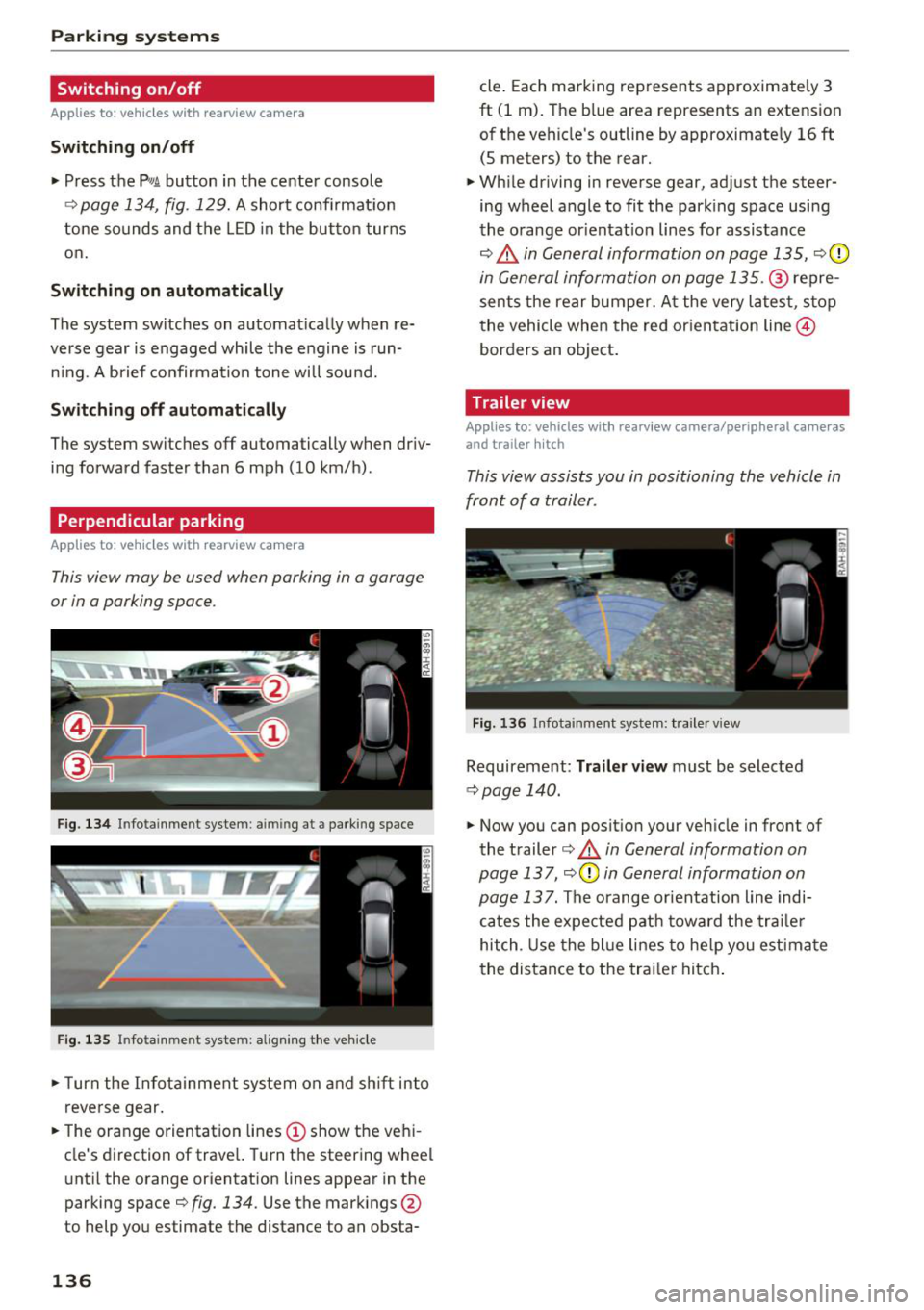
This view may be used when parking in a garage
or in a parking space .
Fig. 134 In fotainme nt system : aimin g at a parking space
Fig. 135 Infotainment system: alig ning the vehicle
• Turn the Infota inment system on and shift into
reverse gear.
• The orange orientation lines
(D show the vehi
cle's direction of travel. Turn the steering wheel
until the orange orientation lines appear in the
parking space¢
fig. 134. Use the markings @
to help you estimate the distance to an obsta-
136
cle. Each marking represents approximately 3
ft (1 m). The blue area represents an extension
of the vehicle's outline by approximately
16 ft
(5 meters) to the rear.
• While driving in reverse gear, adjust the steer
ing wheel angle to fit the park ing space using
the orange or ientat io n lines for assistance
¢.&, in General information on page 135, ¢0
in General information on page 135 .@ repre
sents the rear bumper. At the very latest, stop
the vehicle when the red or ientation line@
borders an object.
Trailer view
Applies to: vehicles with rearv iew camera/peripheral cameras
and trailer hitch
This view assists you in positioning the vehicle in
front of a trailer.
Fig. 136 Infota inment system: trailer view
Requirement: Tra iler view must be selected
¢ page 140.
• Now you can position your vehicle in front of
the trailer
¢ .&, in General information on
page 137 ,
¢(\[) in General information on
page 13
7. The orange orientation line indi
cates the expected path toward the trailer
hitch . Use the blue lines to help you estimate
the distance to the trailer hitch.
Page 139 of 398
a co ...... N r--. N ...... 0
0
:E '
Introduction
Applies to: vehicles with peripheral cameras
With this equipment, the park ing system p lus*
¢
page 133 is supplemented w ith various pe riph
e ral cameras. The four cameras give you the fol
l owing views: area around the vehicle, front cor
ner view and rear corner view, view in front of the
vehicle and behind the vehicle .
General information
Applies to: vehicles with peripheral cameras
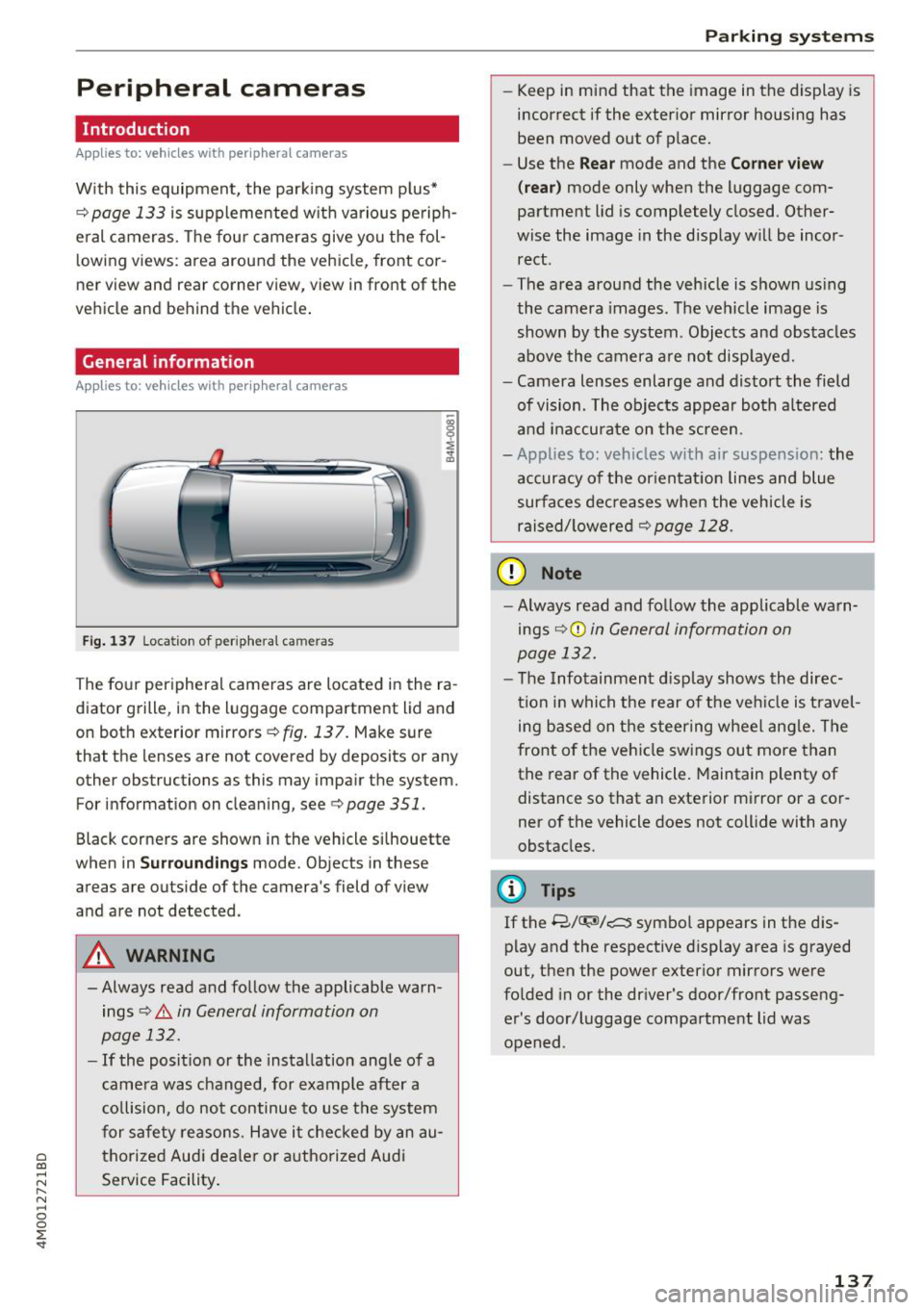
Fig. 137 Location of periphera l cameras
The four peripheral cameras are located in the ra
diator grille, in the luggage compartment lid and
on both exterior mirrors
¢ fig. 137. Make sure
that the lenses are not covered by deposits or any
other obstructions as this may impair the system. For information on cleaning, see¢
page 351.
Black corners are shown in the vehicle si lhouette
when in
S u rro und ing s mode. Objects in these
areas are outside of the camera's field of view
and are not detected.
A WARNING
-Always read and follow the applicable warn ings
¢.&. in General information on
page 132.
- If the position or the installation angle of a
came ra was changed, for example after a
co llision, do not continue to use the system
for safety reasons. Have it checked by an au
thorized Audi dea le r or authorized Audi
Service Facility .
Parking systems
- Keep in mind that the image in the display is
incorrect if the exterior mirror housing has
been moved out of p lace.
- Use the
Re ar mode and the Co rner view
(r ea r)
mode only when the luggage com
partment lid is completely closed. Other
wise the image in the display will be incor
rect.
- The area around the vehicle is shown using
the camera images. The vehicle image is
shown by the system . Objects and obstacles
above the camera a re not disp layed.
- Camera lenses enlarge and distort the field
of vision. The objects appear both a ltered
and ina ccurate on the screen.
- Applies to: vehicles with air suspension: the
accuracy of the or ientat ion lines and blue
surfaces dec reases whe n the veh icle is
raised/ lowered¢
page 128.
(D Note
- Always read and fo llow the applicable wa rn
ings ¢Ci)
in General information on
page 132.
- The Infotainment d isplay shows the direc
tion in which the rear of the veh icle is travel
ing based on the steering wheel ang le. The
front of the vehicle swings out more than
the rear of the vehicle. Maintain plenty of distance so that an exterior mirror or a cor
ner of the vehicle does not collide with any
obstacles.
(l) Tips
If the 8/~/c::; symbol appears in the dis
play and the respective disp lay area is grayed
out, then the power exterior mirrors were
fo lded in or the dr iver's door/front passeng
er's door/luggage compartment lid was
opened .
137
Page 140 of 398
Parking systems
Switching on/off
Applies to: ve hicles w ith per ip heral cameras
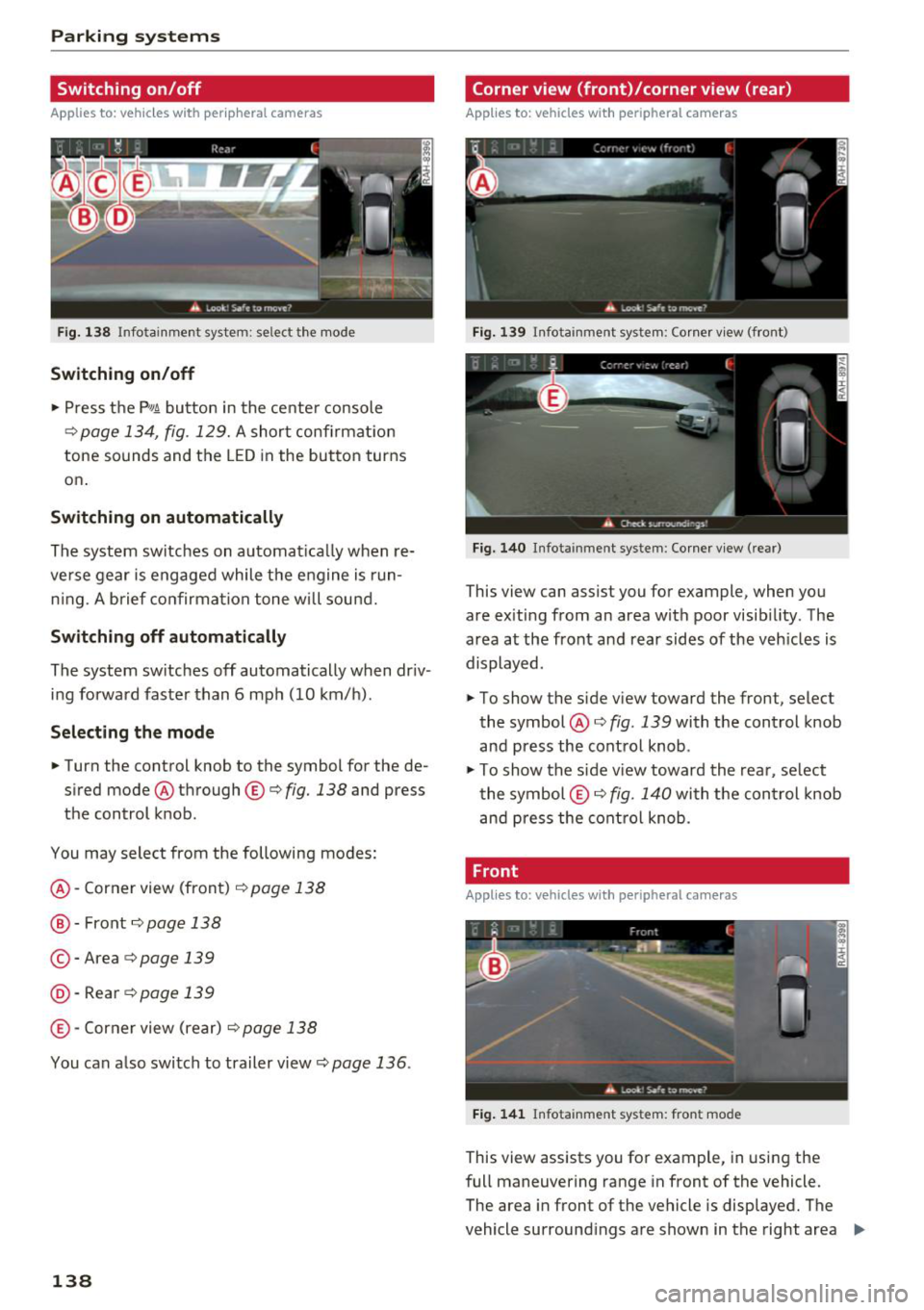
Fig. 138 Infotainment system: se lect the mode
Switching on/off
"' Press the p,qA button in the center console
¢ page 134, fig. 129. A short confirmation
tone sounds and the LED in the button turns
on .
Switching on automatically
The system switches on a utomatica lly when re
ve rse gear is engaged while the engine is run
n ing. A brief confirmation tone will sound.
Switching off automatically
The system switches off automatically when dr iv
ing forward faster than 6 mph (10 km/h) .
Selecting the mode
"'Turn the control knob to the symbol for the de
sired mode @through ©¢fig. 138 and press
the control knob .
You may select from the following modes:
@ -Corner view (front)¢ page 138
@ -Front¢ page 138
© -Area ¢ page 139
@ ·Rear ¢ page 139
© -Corner view (rear) ¢ page 138
You can also switch to trailer view¢ page 136.
138
Corner view (front)/corner view (rear)
Applies to : vehicles with peripheral cameras
Fig. 139 Infota inment system: Corner view (front)
Fig. 140 Infota inmen t system : Corner view (rear)
This view can assist you for example, when you
are exiting from an area with poor visibi lity. The
area at the front and rear sides of the veh icles is
displayed.
"' To show the side view toward the front, select
the symbol @¢
fig. 139 with the control knob
and press the control knob .
"' To show the side v iew toward the rear, se lect
the symbol ©¢ fig. 140 with the con trol knob
and press the control knob.
Front
Applies to: vehicles wi th peripheral ca meras
Fig. 1 41 Infota inment system: front mode
This view assists you for example, in using the
full maneuvering range in front of the vehicle.
The area in front of the vehicle is displayed. The
vehicle surround ings are shown in the right area
Ill>
Page 141 of 398
a co ...... N r--. N ...... 0
0
:E '
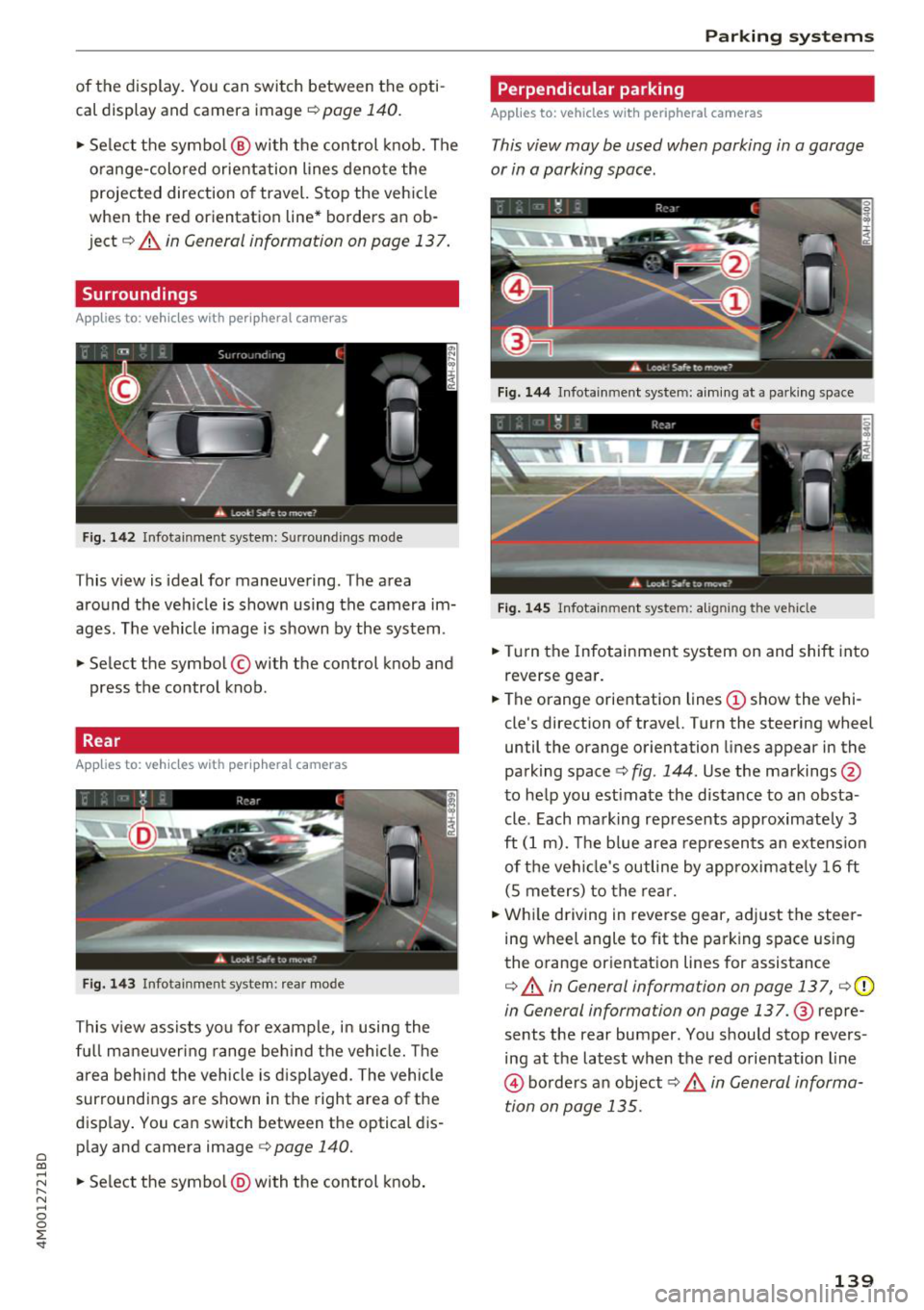
cal display and camera image¢
page 140.
"'Se lect the symbol @ with the control knob. The
o range-colored orientation lines denote the
projected direction of travel. Stop the vehicle
when the red orientation line* borders an ob
ject¢ &.
in General information on page 137.
Surroundings
Applies to: vehicles with peripheral cameras
Fig. 142 Infotainment system: Surroundings mode
This view is ideal for maneuvering. The area
around the vehicle is shown using the camera im
ages . The vehicle image is shown by the system.
"' Select the symbol © with the control knob and
press the control knob.
Rear
Applies to: vehicles with peripheral cameras
F ig . 143 Infotainment system: rear mode
This view assists you for example, in using the
fu ll mane uvering range beh ind t he vehi cle. The
a rea behind the vehicle is d isplayed. The vehicle
surroundings are shown in the right area of the
disp lay . You can switch between the optical dis
play and camera image <=>
page 140.
"'Se lect the symbol @) with the control knob .
Parking systems
Perpendicular parking
Applies to: vehicles with peripheral cameras
This view may be used when parking in a garage
or in a parking space.
Fig . 144 Infotainment system: a im ing at a park ing space
Fig . 14 5 Infotainment system: aligning the vehicle
"'Turn the Infotainmen t system on and shift into
reverse gea r.
"' The orange orientation lines(!) show the vehi
cle's direction
of travel. Turn the steering wheel
until the orange orientation lines appear in the
parking space
c:> fig . 144 . Use the markings @
to help you estimate the distance to an obsta
cle. Each mark ing rep resents approximately 3
ft
(1 m). The b lue area represen ts an extension
of t he vehi cle's outline by app roximate ly
1 6 ft
(S me ters) to the rear.
"' Whi le driving in reverse gear, adj ust the steer
ing wheel angle to fit the parking space using
the o range or ientat ion lines for assistance
c:> &. in General information on page 137, ¢ (D
in General information on page 137.@ repre
sents the rear bumper. You should stop revers
ing at the lates t when the red orientation line
@ bo rders a n object c:> .& in General informa
tion on page 135.
139
Page 142 of 398
Parking syste m s
Adjusting the parking aid
Applies to: vehicles with a rear parking system/parking sys
tem plus/rearview camera/peripheral cameras
The functions are adjusted in the Infotainment
system .
.,. Se lect in the Infota inment system: IM ENU I but
ton
> Vehi cle > left contro l bu tton > Driv er a s
s is ta nce > Par kin g aid .
Or
.,. When the parking aid is active, se lect in the In -
fotainment system : rig ht contro l button *.
End sy stem * -stop t he parking aid
Acti vate automaticall y* -switch automatic acti
vation on/off
Front volume * -volume for the front area
Rear volume -volume for th e re ar ar ea
Entertainm ent f ader -the vol ume of t he aud io/
video source is lowered when t he parking system
is turned on.
The new value is g iven b riefly du ring the adjus t
ment.
Vie w* -switch between an optical d isplay
( Graphic ) and camera image ( Cam era ) in the
r ight section of the display.
Tr ail er view * -show trailer view
*Auto. front /rear came ra change * -the view be
h ind the veh icle
( Rear mode) is displayed auto
mat ically when you shift into reverse gear. The
v iew in front of the vehicle
( Front mode) is d is
played automatically when you shift into the for
ward gea rs. When first activat ing in a forward
gea r with the
P,, 1~ button, the front s ide v iew is
d isp layed
( Corn er view (fr ont ) mode).
If you do not set the./, the view behind the vehi
cle
( Rear mode) is a lways d isplayed and it does
not swi tch to the
Front mode whe n a forward
gea r is selec ted .
(0 Tips
-Seve ral menus can be accessed w ith the
r ight contro l button only when the park ing
a id is ac tive.
- The settings for volume and automatic act i
vation* are au toma tically s to red and as-
140
signed to the remote control key be ing
used .
Error messages
Applies to: vehicles with a rear parking system/parking sys
tem plus/rearview camera/peripheral cameras
Ill Rear parking aid : malfunction! Obstacles
cannot b e dete cted
Ill Front par king aid: m alfunction! Obstacles
cannot b e detected
Ill Pa rking aid : malfunct ion ! Obstacles cannot
b e detected
When one of these messages appears, there is a
system malfunction. The L ED in the
Pw, button al
so blinks when sw itching it on. The relevant mes
sage on ly appears again when you manually acti
vate the park ing aid with the button .
[ii Rear parking aid: obstacle detection re stri ct
ed
The rear cross -traffic assist* ¢ page 124, Rear
cross-traffic assist
is not available. Either the ESC
i s sw itched off, or the radar sensors may be cov
ered by a bike rack, stickers, leaves, snow or oth
er objects. Swi tch the ESC on , or clean the area in
front of the sensors if necessary¢
page 121,
fig . 115 .
If this message cont inues to be d is
played, drive immed iate ly to an authori zed Audi
dealer or author ized A udi Service Fac il ity to have
t h e mal funct ion repaired .
Parking system plus *
If a sensor or speaker is faulty, the IM symbol
will appear in front of/behind the vehicle in the
Infotai nment system d isplay. If a rear sensor is
faulty, only obs tacles that are in areas @ and @
are show n
¢page 133, fig. 128 . If a front senso r
i s fa ulty, only obstacles that are in areas © and
@ are s hown.
Peripheral cameras*
There is a system malfunction if the% symbol
appea rs and the co rresponding area of the dis
play is shown in black . The camera is no t wo rking
in this area.
Page 143 of 398
Cl a:, .... N
" N .... 0
0
::r '
Audi Service Facility immediately to have the
malfunct ion corrected.
Trailer hitch
Applies to: vehicles with a rear parking system/parking sys
tem plus/ rearv iew camera/peripheral cameras and trailer
hitc h
When the tra iler socket is in use, the parking sys
tem rear sensors are not activated when you shift into reverse gear or when you press the
Pw~ but
ton. This results in the following restrictions.
Rear parking system*
There is no distance warning.
Parking system plus*
There is no distance warning for the rear. The
front sensors remain activated . The visual display
switches to trai ler mode.
Rearview camera* /peripheral cameras*
There is no distance warning for the rear. The
front sensors remain activated. The visual display
switches to trai ler mode. The rearview camera
image will not show the orientation lines and the
b lue surfaces.
@ Tips
Trailer hitches that are not installed at the
factory may cause the parking system to ma l
function or they may restrict its function.
Parking systems
141
Page 149 of 398
Cl a:, ...... N
" N ,-1 0
0
::r '
power variably to the front and rear ax le . It works
together with se lective whee l torque contro l,
which activates when driving through curves
c:::;, page 142. With the sport differentia l", power
distribution to the rear wheels is variable and can be adjusted using the drive select
¢ page 128.
The all wheel drive concept is designed for high
engine power. Your vehicle is exceptionally pow
erful and has excellent driving characteristics
both under normal driving condit ions and on
snow and ice . Always read and fo llow safety pre
cautions
c:::;, /1),.. .
Winter tires
By us ing all wheel drive, your vehicle has good
forward motion with standard tires in w inter con
ditions . However, using winter or all season tires
on
all four wheels in the winter is recommended,
because this will improve the
braking effect.
Snow chains
If there are snow chain laws, snow chains must
also be used on vehicles with all wheel drive
c:::;, page 346, Snow chains .
Replacing tires
For vehicles with all wheel dr ive, only wheels w ith
the same rolling circumference should be used .
Avoid using tires w ith different tread depths
c:::;, page 33 7, New tires or wheels.
A WARNING
- Also, in vehicles with al l wheel drive, adapt
yo ur driv in g style to the current road and
traffic conditions. Do not let the increased
safety provided tempt you into taking risks,
because this increases the risk of an acci
dent.
- T he braking ability of your vehicle is limited
to the traction of the wheels. In this way, it
is not different from a two whee l drive vehi
cle. Do not be tempted to accelerate to a
high speed when the road is slippery, be
cause this increases the risk of a n accident.
- Note that on wet streets, the front wheels
can "hydroplane" if driving at speeds that
are too high. Unlike front wheel drive
Intelligent Technology
vehicles, the engine does not rev higher sud
denly when the vehicle begins hydroplaning.
For this reason, adapt your speed to the
road conditions to reduce the risk of an acci
dent.
Energy management
Your vehicle is equipped with an intelligent ener
gy management system for distributing electrici
ty. This significantly improves the start ing ability
and increases the vehicle battery life.
(D Tips
-If you dr ive short distances frequently, the
vehicle battery may not charge enough
w hile driving . As a result, convenience func
tions for e lectr ical equipment may be tem
porarily unavailable.
- The vehicle battery w ill gradually drain if
the vehicle is not driven for long periods of
time, or if electr ical eq uipm ent is used
when the engine is not running. To ensure
that the vehicle can still be started, the
electrical equipment wi ll be reduced or
switched off.
Notice about data
recorded by the Event
Data Recorder and
vehicle control modules
Event Data Recorder
This vehicle is equipped with an Event Data Re
corder (EDR). The main purpose of an EDR is to
record, in certain crash or near crash-like situa
t ions, such as an airbag deployment or hitt ing a
road obstacle, data that w ill ass ist in understand
ing how a vehicle's systems performed. The EDR
is des igned to record data related to vehicle dy
nam ics and safety systems for a short per iod of
time, typicall y 30 seconds or less. The EDR in this
vehicle is designed to record such data as:
- How various systems in your veh icle were oper
ating;
- Whether or not the driver and passenger safety
be lts were buckled/fastened; .,.
147
Page 195 of 398
Cl a:, ...... N
" N ...... 0
0
::r '
The validity and expirat io n date of yo ur licenses
are displayed. When the function is switched on
10, the message Warning befo re sub scription
e x pire s
will display to warn you that your license
is about to expire.
R efr es h
The content of the selected A udi connect Info
tainment service o r the entire A udi connect (Info
tainment) list is updated .
Data privacy
Requirement: the ign it ion must be switched on.
Location and personal data are transmitted when
using Aud i connect services . If you do not want
this information to be transm itted, act ivate data
privacy .
-Acti vate pri vacy: the data conn ection is limit ed
or deactivated. Some Audi connect services will
not be available. In veh icles w ith Audi connect
emergency call and service¢
page 201, loca
t ion and veh icle data will be transmitted via the
emergency call in cases of eme rgency . For on
line roadside assistance*, only the voice call is
made a nd no data is transmitted.
- Deacti vate data priv acy : if the data connect ion
is limited or deactivated, you ca n sw itch on the
data connection for the use of all Aud i connect
services . Se lect and confirm
A ctiv ate dat a con
nection .
(D Tips
Applies to: vehicles with emergency call function
In vehicles with Audi connect emergency ca ll
and service, a data connection is requi red. It
cannot be deact ivated. Location data is only
transmitted together with vehicle data when
emergency calls are made .
Audi connect (Inf otainment )
Wi-Fi hotspot
Applies to: veh icles w ith Wi-Fi hotspot
You can us e the fvlfv/I as a W i-Fi hotspot to con
nec t up to eigh t Wi-Fi devices to the Interne t.
While driving, res tricted use of unsecured , ligh t,
small wireless devices is only possible from the
rear of the vehicle .
Requirement: the ignition must be sw itched on .
.. Select:
IMENU I button> Telephone > right con-
trol button >
Wi-Fi setting s.
The following sett ings can be selected:
Wi -Fi
The MMI Wi-Fi hotspot is deactivated at the fac
tory. Sw itch the W i- Fi hotspot to
Hots pot before
establ ish ing a con nection between your ve hicle
and yo ur Wi-Fi device.
-On: the MMI Wi-Fi hotspot is act ive and v is ible
to other dev ices. You can connect your W i- Fi
dev ice to the MMI and use the Inte rnet co nnec
t ion if necess ary.
- Off : the M MI Wi-Fi hotspot is deactivated. An
I nte rnet co nnect ion for W i-Fi devices is not
possible .
A WARNING
= -
- To reduce the risk o f an accident, use t he
Audi connect Infotainment services with a
W i-Fi hotspot only in the rear seat when the
veh icle is in mot ion, or only when the vehi
cle is stat ionary.
- It is only safe to use tablets, laptops, mo bile dev ices and other simi lar devices when
the vehicle is stationary because, like all loose objects, they could be thrown around
the inside of the vehicle in a c rash and cause
ser io us inj uries . Store these types of dev ices
secure ly while drivi ng.
- D o not use any wireless dev ices on the front
seats within ra nge of the airbags whi le dr iv
i n g. A lso read the warnings in t he chapte r
¢ page 2 73, Front airbags .
-As the d river, do not allow usage of the W i
F i ho tspot to d is tra ct yo u from dr iv ing, as
this cou ld increase the r isk o f an accident .
193
Page 235 of 398
Cl a:, ...... N
" N ...... 0
0
::r '
from an authorized Audi dealer or at spe
cialty stores.
- Audi recommends setting the volume of a
mobile device connected to the AUX input to
approximately 70% of the maximum vol
ume.
- Functionality is not guaranteed for mobile
devices that do not conform to the USB 2.0
specification.
- USB hubs are not supported.
- Some versions of the iPod such as the iPod
shuffle cannot be connected to the USB
adapter for devices with Apple Dock connec
tor. Connect these devices using a AUX con nector cable .
- Changed content on a mobile device
l) that
is connected to the Audi music interface
may not be displayed in the media center .
In this case, reset the
Media settings back
to
Factory settings ~ page 246.
-Video playback through the Audi music in
terface is only supported if the connected
device is recognized as a USB storage device
(for example a USB stick). Apple devices and
MTP devices (such as smartphones) are not
recognized as USB storage devices.
- iPod/iPhone malfunctions also affect the
operation of the MMI. Reset your iPod/
iPhone if this happens.
- Audi recommends updating the iPod/iPhone
software to the latest version. For impor
tant information on operating your iPod/
iPhone, refer to the user guide for the de
vice.
- The USB adapter on the Audi music inter
face will support iPod touch/iPhone from
the 5th generation or later with the light
ning connector.
- For more information about the Audi music
interface and supported devices, check the
Audi database for mobile devices at
www .audiusa .com/mp3 or contact an au
thorized Audi dealer or authorized Audi Service Facility.
l) A ppli es o nly t o MTP devic e s. Doe s not a ppl y to Ap ple dev i
ces and U SB mass s to ra g e devi ces.
Media
Rear Seat Entertainment preparation
App lies to : vehicles wit h Rear Seat Enterta inme nt preparat ion
T he Rear Seat Entertainment preparation in
cludes cables and a mount for Audi Entertain
ment mobile in the driver's and front passenger's
seat backrests.
The suitable Audi Entertainment mobile Rear
Seat Entertainment package is available through
Audi Genuine Accessories .
Using Audi Genuine Accessories is recommended.
Audi has established their reliability, safety and
suitability .
We cannot ev alu at e or endorse other p rodu cts in
this way, even if the p roduct is approved by acer
tified testing agency or government agency .
@ Note
Only use devices that are approved for the
Rear Seat Entertainment preparation. Unap
proved devices may cause damage to the vehi
cle electronics .
(D Tips
-Contact an authorized Audi dealer or au
thorized Audi Service Facility for additional
information about
Audi Entertainment mo
bile .
-Always read the chapter~ page 3 77.
- The
Rear Seat Entertainment preparation is
not intended to charge external electronic
devices .
233
Page 251 of 398
Cl a:, .--, N
" N .--, 0
0
::r '
software version and the nav igat io n database *
software vers ion is disp laye d. The
Software in·
formation function a lso provides information
on the software con tained i n the MMI and t he
li cens ing agreeme nt.
Sound settings
The sound distribution and volume of the MMI
c an b e adjust ed individually . The settings d epend
on vehicle equipme nt.
----- 1
J -~+ ~-
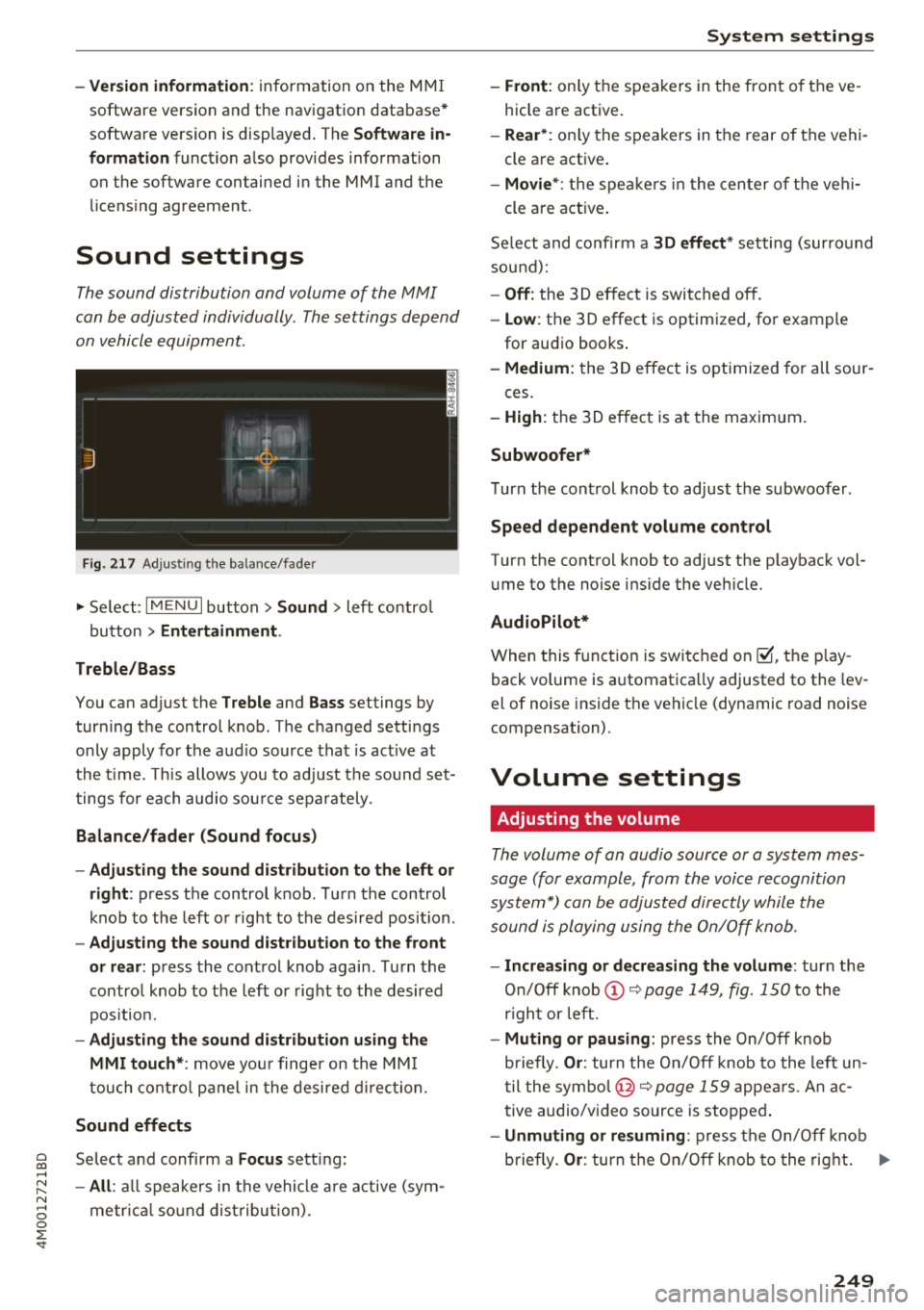
F ig. 217 A dj ustin g the ba la nce /fade r
"'Se lect : I MENU I bu tton >Sound > le ft contro l
b utt on
> Entertainment .
Treble/Bass
You can ad just the Treble and Bass settings by
turn ing t he control knob. The changed se ttings
only apply fo r the a ud io source tha t is ac tive at
t he time . T his allows you to ad just t he soun d set
t ings for each audio sou rce se para tely .
Balance/fader (Sound focus)
- Adjusting the sound d istribution to the left or
right :
press the control knob. Tur n the control
k nob to the left or right to the des ire d posi tion .
-Adjusting the sound distribution to the front
or rear:
press the cont rol knob again . T urn the
contro l knob to the left o r right to the desired
p os it io n.
- Adjusting the sound distribution using the
MMI touch* :
move your finger on the MM I
touch co ntro l pan el in th e desire d directio n.
Sound effects
Selec t and confi rm a Focus se tt in g:
- All : all sp eakers in t he vehi cle ar e active (sym
me trical sound dist ribu tion) .
System settings
-Front : only t he spea ke rs in the fron t of the ve
hicle are active.
- Rear *: on ly the s peakers in the rear of the vehi
cle a re act ive .
-Movie* : the spe akers in t he cen ter o f the ve hi-
cle a re a ct ive .
S e lect and co nfir m a
30 effect* setting (su rround
so und ):
-Off : the 3D ef fect is switched off.
- Low : the 3D effect is optimized, fo r exam ple
for au dio books .
-Medium: the 3D effect is optimize d for all sour -
ces .
-High : the 3 D effe ct is a t the m aximum .
Subwoofer*
Turn the con trol knob to ad just t he subwoofer .
Speed dependent volume control
Turn the cont rol knob to adjust the p layb ack vol
u me to the noise ins ide the ve hicle.
AudioPilot*
W hen thi5 fu nct ion i5 5w it ched on~. th e play
back volume is a utomat ica lly adjusted to the lev
e l of nois e inside t he ve hicl e (dy namic road nois e
compensation) .
Volume settings
Adjusting the volume
The volum e of an audio source or a system mes
sage (for e xampl e, from the voic e recognition
sys tem*) can be adjusted direc tly while the
sound i s pl aying u sing the On/Off knob.
- Increasing or decreasing the volume : turn the
On /O ff knob @~
page 1 49, fig. 150 to the
r igh t or left .
-Muting or pausing: press the On/Off knob
b riefly .
Or: tur n t he On/O ff knob to the left u n
t il the symb ol@ ~
page 159 appe ars. An ac
t ive a udio/v ideo source is s toppe d.
-Unmuting or resuming : pres s th e On/O ff kn ob
b riefly .
Or: turn the On/Off knob to the rig ht. ..,
249