infotainment AUDI TT ROADSTER 2016 Repair Manual
[x] Cancel search | Manufacturer: AUDI, Model Year: 2016, Model line: TT ROADSTER, Model: AUDI TT ROADSTER 2016Pages: 306, PDF Size: 31.82 MB
Page 183 of 306
Downloaded from www.Manualslib.com manuals search engine 0
N
,.....
N
......
0
,.....
Vl
CX) off:
The map scale you have set will remain unal
tered.
Map content
The display of map content such as traffic infor
mation, favourite destinations or restaurants can
be switched on (�) and off.
Google Earth map
display
Applies to: vehicles with navigation system and Audi connect
You can have the map display satellite images
using the Google Earth map display.
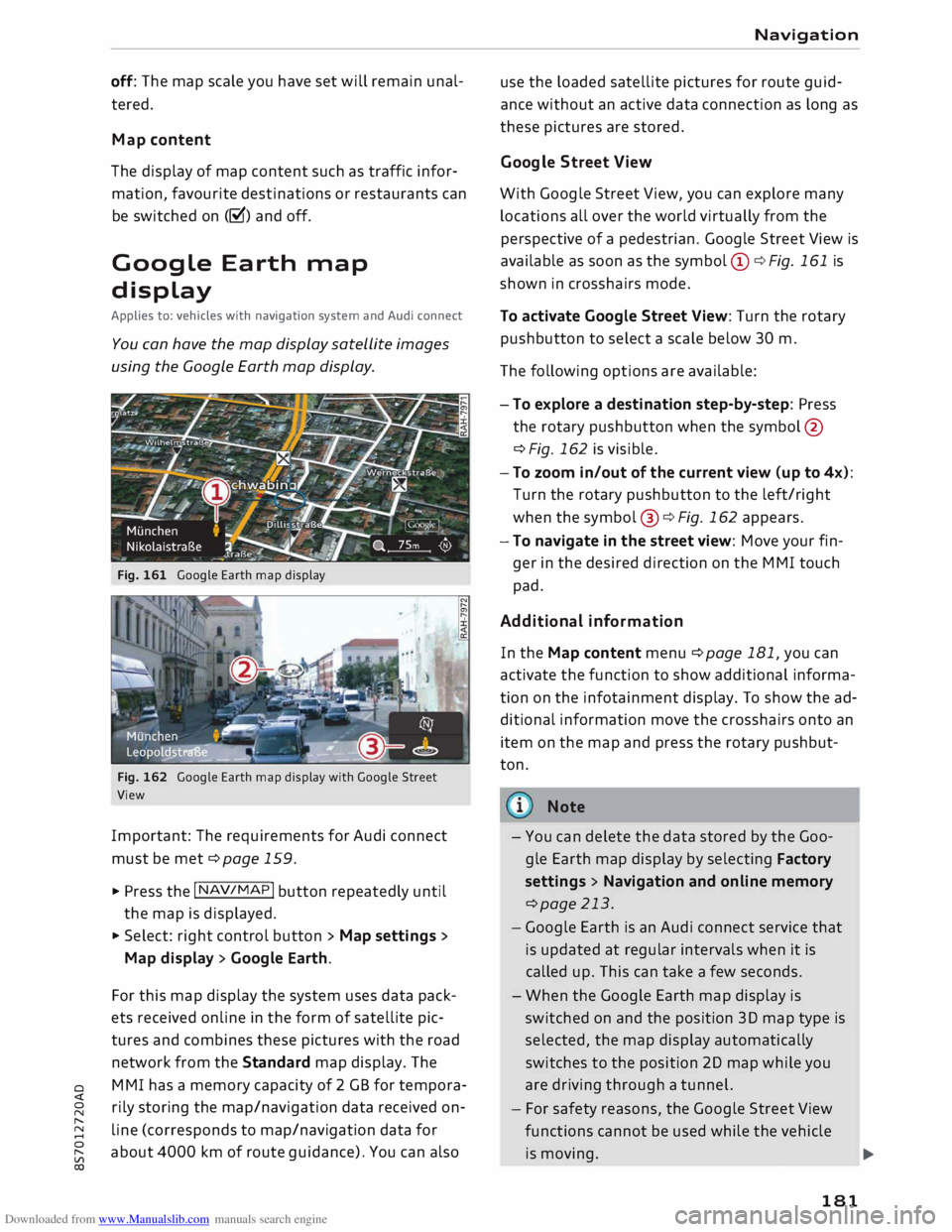
Fig. 161 Google Earth map display
Fig. 162 Google Earth map display with Google Street
View
Important: The requirements for Audi connect
must be met ¢page 159.
.., Press the I NAV/MAP! button repeatedly until
the map is displayed.
.., Select: right control button > Map settings >
Map display > Google Earth.
For this map display the system uses data pack
ets received on line in the form of satellite pic
tures and combines these pictures with the road
network from the Standard map display. The
MMI has a memory capacity of 2 GB for tempora
rily storing the map/navigation data received on
line (corresponds to map/navigation data for
about 4000 km of route guidance). You can also Navigation
use the loaded satellite pictures for route guid
ance without an active data connection as long as
these pictures are stored.
Google Street View
With Google Street View, you can explore many
locations all over the world virtually from the
perspective of a pedestrian. Google Street View is
available as soon as the symbol (D ¢ Fig. 161 is
shown in crosshairs mode.
To activate Google Street View: Turn the rotary
pushbutton to select a scale below 30 m.
The following options are available:
- To explore a destination step-by-step: Press
the rotary pushbutton when the symbol @
¢Fig. 162 is visible.
- To zoom in/out of the current view (up to 4x):
Turn the rotary pushbutton to the left/right
when the symbol @¢ Fig. 162 appears.
-To navigate in the street view: Move your fin
ger in the desired direction on the MMI touch
pad.
Additional informat ion
In the Map content menu¢ page 181, you can
activate the function to show additional informa
tion on the infotainment display. To show the ad
ditional information move the crosshairs onto an
item on the map and press the rotary pushbut
ton.
Note
- You can delete the data stored by the Goo
gle Earth map display by selecting Factory
settings > Navigation and online memory
¢page 213.
- Google Earth is an Audi connect service that
is updated at regular intervals when it is
called up. This can take a few seconds.
- When the Google Earth map display is
switched on and the position 30 map type is
selected, the map display automatically
switches to the position 20 map while you
are driving through a tunnel.
- For safety reasons, the Google Street View
functions cannot be used while the vehicle
is moving.
..,.
181
Page 186 of 306
Downloaded from www.Manualslib.com manuals search engine Navigation
position will then be shown on the
infotainment display.
(© Note
- Please always note the information in the
chapter ¢ page 167, Notes on Audi connect.
- Every vehicle with active Online traffic data
contributes to specifying and predicting the
traffic situation as precisely as possible. For
this purpose, information on the position of
your vehicle is encrypted and transmitted
anonymously to the traffic data providers at
regular intervals. Should you not wish this
to happen, you can switch off the on line
traffic information function at any time.
- The online traffic information network is
not yet available in all countries or areas.
Further information can be found on the In
ternet at www.audi.com.
- This function is not available in the Mexican
market.
Better route
Applies to: vehicles with navigation system
By receiv ing traffic information via TMC, your
MMI calculates a better route (if one is availa
ble) and any possible time saving for the current
route guidance. You can then choose which route
you would like to use.
• Press the I NAV /MAP I button repeatedly until
the map is displayed.
Troubleshooting
Applies to: vehicles with navigation system
Subject Advice Important:
The route guidance function must be
active.
Dynamic traffic avoidance must be set to manual
¢ page 176 and the map must be displayed.
If your MMI has calculated a better route for the
current route guidance, the message A better
route is available. and the time saving will be
displayed on the map. In the map view, the 1'S
symbol @¢ page 178, Fig. 159 draws your at
tention to a better route.
Using a better route
- Press the rotary pushbutton. Or: Select the left
control button > Traffic messages. The better
route will be displayed along with your calcula
ted arrival time.
- Select and confirm the better route.
- The better route will be used for the continuing
route guidance.
Search function: The desired des-The
destination may not be stored in the navigation database. Or:
tination cannot be found. Check that you have spelt the search term correctly and that the
desired country has been selected for the search function via the
Country selection option ¢ page 170.
184
Page 190 of 306
Downloaded from www.Manualslib.com manuals search engine Radio
@ Last stations
The stations you have Listened to most recently
(from all wavebands) are shown in the List. Select
and confirm a station to play it immediately.
@ FM/DAB* 1
>
The mixed FM/DAB station List* appears when
DAB* is available. Refer to¢ page 185, Calling
up the radio menu.
Ot her waveba nds
Depending on the vehicle's equipment, you may
be able to select other wavebands in the selec
tion menu ¢ Fig. 167.
Favourites
You can store your favourite stations from any
waveband in the favourites List.
... Press the I RADIO! button.
Important: You must be in a station List.
- To
store a favourite: Select a station from the
List> right control button > Store as favourite.
Or: Press and hold the rotary pushbutton for
several seconds.
Important: At Least one favourite must be stored
in the favourites List.
- To display the favourites list: Select the
I R
ADIO I
button > Favourites.
Important: The favourites List must be displayed.
- To listen to a favourite: Select and confirm a
favourite from the List.
- To move a favourite: Select a favourite from
the List> right control button > Move favourite.
Or: Press and hold the rotary pushbutton for
several seconds. Select and confirm the posi
tion of the favourite selected.
- To delete a favourite: Select a favourite from
the List> right control button > Delete favour
ite > Delete this favourite or Delete all favour
ites.
l l
This function is not available in the Mexican market.
2 l
This function is only available in the Mexican market.
188 Other
settings
Radio settings
... Select: I
RADIO I
button > right control button >
Radio settings.
Depending on the waveband setting, you can se
lect the following options:
Alter native frequency* (FM, DAB*) 1
>
on: The tuner attempts to switch to an alterna
tive frequency of the current station when the re
ception quality becomes weaker. When the re
ception is Lost in the FM or DAB* waveband, the
system will automatically (in the background)
switch to an alternative station, if there is one
available.
off: Switching to an alternative frequency is
switched off. The current frequency will be main
tained, and in some cases may no Longer be re
ceived. In the FM waveband, the alternative fre
quency function is automatically switched on
again when the station is changed.
Switch regional stations (FM, DAB*) 1
)
Important: The Alternative frequency function
must be switched on.
Some stations divide up their programming by
region and provide different content to different
regions. When the function is on �, the system
switches to alternative region-specific frequen
cies.
L band (DAB*) 1
)
There are two wavebands for the digital radio:
Band III and L band. Ensembles in the band III
usually have a Larger range extending into several
regions. They can be received at all times. In
some regions DAB is broadcast in the L band.
When this option is on, stations from the L band
will also be received.
Station names (FM)2
>
scrol ling: Scroll texts transmitted by FM stations
will appear on the infotainment display.
�
Page 191 of 306
Downloaded from www.Manualslib.com manuals search engine 0
Scroll texts transmitted by FM stations will
not appear in the infotainment display. The cur
rent scroll text on the display will freeze.
FM/AM HD Radio l
)
You can switch the reception of HD Radio on or
off.
Station sorting (FM)2
)
A-Z: The stations are displayed in the station list
in alphabetical order. Radio stations with variable
station names are displayed after the stations
which have been sorted alphabetically. Radio sta
tions with a frequency as their station name are
dis played at the end of the list.
ID: The stations in the station list are sorted ac
cording to the station's ID (e.g. all BBC radio sta
tions are sorted together). Radio stations with a
frequency as their station name are displayed at
the end of the list.
Station sorting (DAB)*2
)
A-Z: The stations are displayed in the station list
in alphabetical order.
Ensemble: Ensembles comprise various radio
stations of a specific area (e.g. a town or region);
they are listed together as an ensemble in the
station list. To open/close the list of radio sta
tions in an ensemble, select and confirm the en
semble. Available sub-programmes* (additional
services provided by DAB* radio stations) are lis
ted beneath the radio station (indented).
Detailed station information
When this function is switched on� and the sta
tion or favourites list is open, the system
switches to the Detailed station information
view ¢ page 187 after approximately five sec
onds. Where available, information on the selec
ted station (e.g. station name, artist, slide
show 2
)
, station logo3
)
) may be shown.
� l)
This function is only available in the Mexican market.
8 2
> This function is not available in the Mexican market.
� 3
> Station logos may not be available in all countries. Preferred
image (DAB+*, HD Radio
waveba nd1
)) Radio
You can specify your preferred image for the De
tailed station information option¢ page 187.
- station logo3
)
: The station logo is displayed if
available.
- cover art: Album covers or genre artwork are
displayed if available.
- slide show: 2
)
Depending on availability, addi
tional information as a supplement to the nor
mal programme may be shown (e.g. images
from the studio, current photographs of artists
or album covers).
Grace note online database*
Important: The MMI must be connected to the
Internet. The cover art option must be selected
¢page 189, Preferred image (DAB+*, HD Radio
waveband).
When this function is switched on�, album cov
ers or genre artwork will, if available, be down
loaded from the Gracenote on line database for
the track currently playing.
Region for station logos•3
)
We recommend using the setting automatic.
When driving abroad, or if the station logo is not
displayed correctly, select and confirm the appro
priate region.
Applies to journeys in Russia: Select and confirm
the city in Russia from the list which is the near
est distance to your vehicle's current location.
{(D Note
- If the Traffic announcements or DAB an
nouncements* function is switched on,
playback is interrupted for announcements.
You can cancel an announcement while it is
being played by briefly pressing the ON/OFF
button ©¢ page 121, Fig. 124. ____ IIJJ-
189
Page 207 of 306
Downloaded from www.Manualslib.com manuals search engine 0
N
,.....
N Display
DVD menu
To select a menu option: Select and confirm a
menu option. Or: Move your finger on the MMI
touch pad* and press the rotary pushbutton.
Audio track1
)
You can adjust the audio track (language and au
dio format) manually. It depends on the video
DVD whether different Languages and audio for
mats are available.
Subtitles 1
>
You can select subtitles manually. It depends on
the video DVD whether different languages are
available.
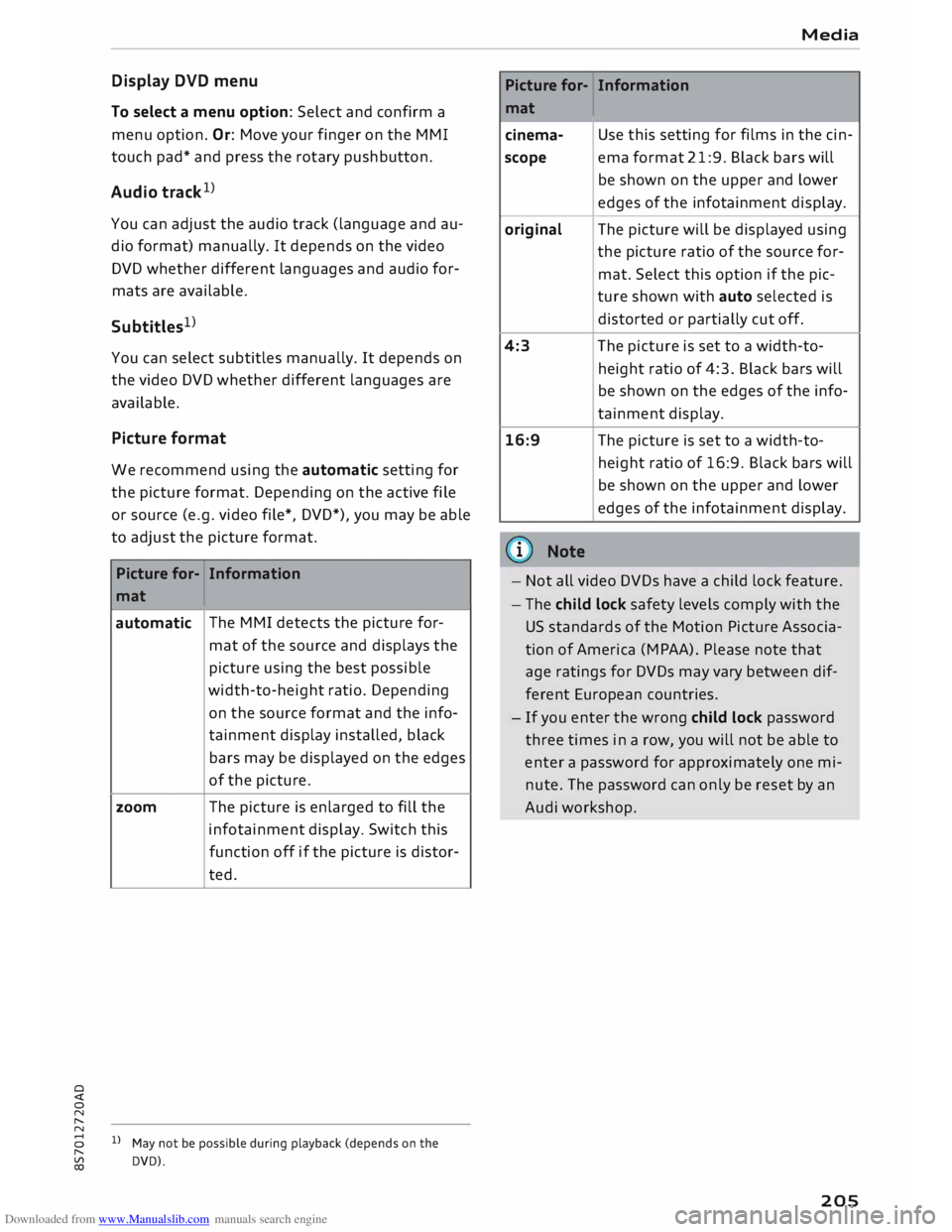
Picture format
We recommend using the automatic setting for
the picture format. Depending on the active file
or source (e.g. video file*, DVD*), you may be able
to adjust the picture format.
Picture for-Information
mat
automatic The
MMI detects the picture for-
mat of the source and displays the
picture using the best possible
width-to-height ratio. Depending
on the source format and the info-
tainment display installed, black
bars may be displayed on the edges
of the picture.
zoom The picture is enlarged to fill the
infotainment display. Switch this
function off if the picture is distor-
ted.
8 1}May not be possible during playback (depends on the
,.....
� DVD). Media
Picture for-
Information
mat
cinema- Use
this setting for films in the cin-
scope ema format 21:9. Black bars will
be shown on the upper and Lower
edges of the infotainment display.
original The picture will be displayed using
the picture ratio of the source for-
mat. Select this option if the pie-
ture shown with auto selected is
distorted or partially cut off.
4:3 The
picture is set to a width-to-
height ratio of 4:3. Black bars will
be shown on the edges of the info-
tainment display.
16:9 The
picture is set to a width-to-
height ratio of 16:9. Black bars will
be shown on the upper and Lower
edges of the infotainment display.
(© Note
- Not all video DVDs have a child lock feature.
- The child lock safety levels comply with the
US standards of the Motion Picture Associa
tion of America (MPAA). Please note that
age ratings for DVDs may vary between dif
ferent European countries.
- If you enter the wrong child Lock password
three times in a row, you will not be able to
enter a password for approximately one mi
nute. The password can only be reset by an
Audi workshop.
205
Page 215 of 306
Downloaded from www.Manualslib.com manuals search engine 0
N
,.....
N
......
0
,.....
Vl
CX) -
spoken: The reminder signal is spoken by the
system.
Reminder signal volume: You can adjust the vol
ume of the reminder signal by turning the rotary
pushbutton.
Switch off pop-up: This function is switched off
at the factory. When this function is switched on
� , the messages about the charging status of
the mobile phone in the Audi phone box* on the
infotainment display will not appear. The re
minder not to forget the mobile phone when
leaving the vehicle will also be switched off.
Usage tips
Your MMI displays usage tips when this function
is switched on�
. They will appear less often as
time goes by. You can switch the usage tips off at
any time.
Speech dialogue system
Applies to: vehicles with speech dialogue system
Command display: The MMI displays possible
voice commands in the corresponding menu
when this function is switched on�
. You can
switch this function off at any time.
Short dialogue: When this function is switched
on �
, the spoken cues are shortened. You can
switch this function off at any time.
Speech dialogue system volume: You can adjust
the volume of the spoken cues by turning the ro
tary pushbutton.
Individual speech training (only possible when
the vehicle is stationary): You can use the individ
ual speech training to adapt the speech dialogue
system to your voice or pronunciation so that the
speech dialogue system can then better recog
nise what you are saying. The individual speech
training prompts you to repeat 20 spoken phra
ses that consist of certain commands and blocks
of digits. If you would like to delete the stored
speech training setup, you can use the function
Reset individual speech training.
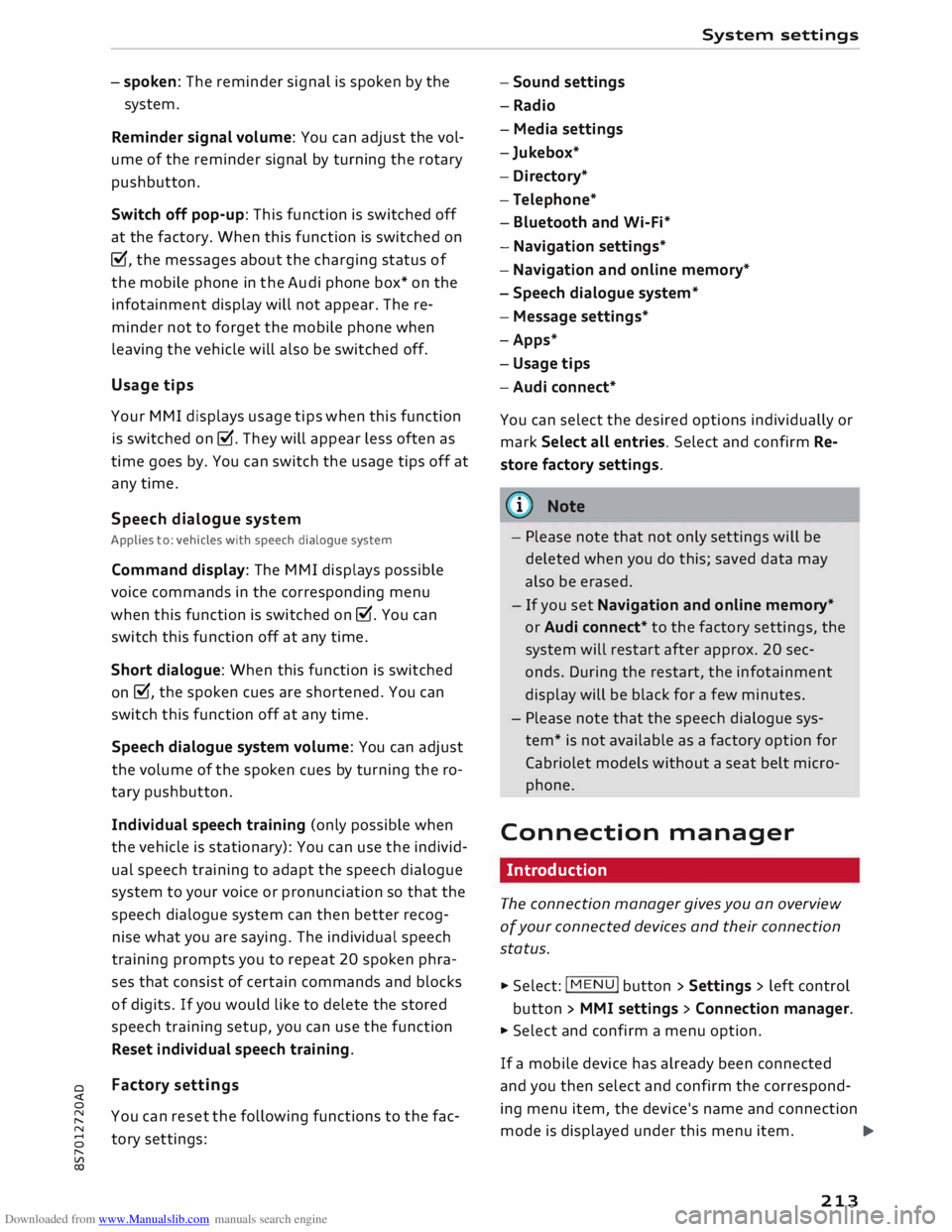
Factory settings
You can reset the following functions to the fac
tory settings: System
settings
- Sound settings
- Radio
- Media settings
-Jukebox*
- Directory*
- Telephone*
- Bluetooth and Wi-Fi*
- Navigation settings*
- Navigation and online memory*
- Speech dialogue system*
- Message settings*
-Apps*
- Usage tips
-Audi connect*
You can select the desired options individually or
mark Select all entries. Select and confirm Re
store factory settings.
ijj) Note
- Please note that not only settings will be
deleted when you do this; saved data may
also be erased.
- If you set Navigation and on line memory*
or Audi connect* to the factory settings, the
system will restart after approx. 20 sec
onds. During the restart, the infotainment
display
will
be black for a few minutes.
- Please note that the speech dialogue sys
tem* is not available as a factory option for
Cabriolet models without a seat belt micro
phone.
Connection manager
Introduction
The connection manager gives you an overview
of your connected devices and their connection
status.
.., Select: I MENU I button > Settings > left control
button > MMI settings > Connection manager.
.., Select and confirm a menu option.
If a mobile device has already been connected
and you then select and confirm the correspond
ing menu item, the device's name and connection
mode is displayed under this menu item.
...,.
213
Page 254 of 306
Downloaded from www.Manualslib.com manuals search engine Checking
and topping up fluids
... Now connect the battery charger to the mains
and switch on.
... After charging the battery: switch off the bat-
tery charger and disconnect the mains cable .
... Detach the charger cables from the terminals.
... Refit
the red cap onto the positive terminal.
... Close the bonnet ¢page 245.
A WARNING
- A highly explosive mixture of gases may be
given off when the battery is under charge.
Only charge the vehicle battery in a well
ventilated area.
- When it is discharged the vehicle battery
can freeze at temperatures around 0°
(. You
must not use a vehicle battery which has
frozen, even after it has thawed, because
the ice may have cracked the battery casing
and allowed the battery acid to escape -risk
of explosion and chemical burns! Please
contact a qualified workshop if you have any
questions.
- Do not connect or disconnect the charging
cables during the charging process -risk of
explosion!
1 Note
- Use only the terminals in the engine com
partment to charge the vehicle battery.
- Before you charge the vehicle battery, al
ways read and follow the manufacturer's in
structions for using the battery charger.
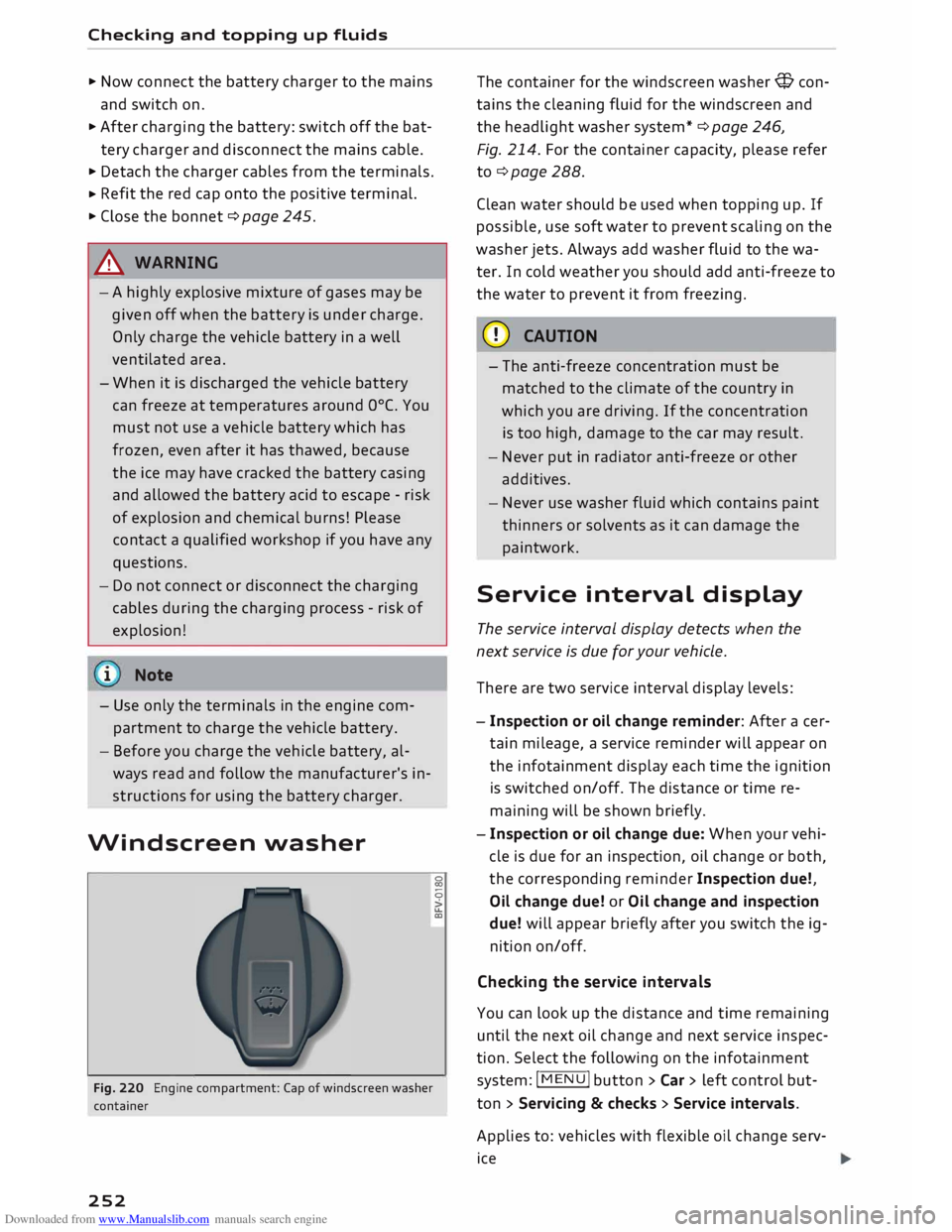
Windscreen washer
Fig. 220 Engine compartment: Cap of windscreen washer
container
252 �
0
>
u..
co The
container for the windscreen washer@ con
tains the cleaning fluid for the windscreen and
the headlight washer system* ¢ page 246,
Fig. 214. For the container capacity, please refer
to¢ page 288 .
Clean water should be used when topping up. If
possible, use soft water to prevent scaling on the
washer jets. Always add washer fluid to the wa
ter. In cold weather you should add anti-freeze to
the water to prevent it from freezing.
CD CAUTION
- The anti-freeze concentration must be
matched to the climate of the country in
which you are driving. If the concentration
is too high, damage to the car may result.
- Never put in radiator anti-freeze or other
additives.
- Never use washer fluid which contains paint
thinners or solvents as it can damage the
paintwork.
Service interval display
The service interval display detects when the
next service is due for your vehicle .
There are two service interval display levels:
- Inspection or oil change reminder: After a cer
tain mileage, a service reminder will appear on
the infotainment display each time the ignition
is switched on/off. The distance or time re
maining will be shown briefly.
- Inspection or oil change due: When your vehi
cle is due for an inspection, oil change or both,
the corresponding reminder Inspection due!,
Oil change due! or Oil change and inspection
due! will appear briefly after you switch the ig
nition on/off.
Checking the service intervals
You can look up the distance and time remaining
until the next oil change and next service inspec
tion. Select the following on the infotainment
system: IM EN u I button > Car > left control but
ton > Servicing & checks > Service intervals.
Applies to: vehicles with flexible oil change serv
ice
Page 255 of 306
Downloaded from www.Manualslib.com manuals search engine 0
N
,.....
N
......
0
,.....
Vl
CX) You
cannot check the service interval on a new
vehicle until it has been driven for about 500 km.
Qualified workshops reset the service interval af
ter the oil is changed. The distance to the next oil
change is initially displayed based on the driving
profile prior to the oil change. Your own personal
driving profile is used subsequently to calculate
the remaining distance. Frequent cold starts or
short trips place extra demands on the engine oil
with the result that the oil has to be changed
more often.
Resetting the display
Your qualified workshop resets the service inter
val display after each service.
It is very important that you reset the oil change
display if you change the oil yourself. The next oil
change will be due after a fixed service interval.
To reset the display, select the following on the
infotainment system: !MENU! button> Car > left
control button > Servicing & checks > Service in
tervals > Reset oil change interval.
CD CAUTION
- Do not reset the oil change interval display
unless you have changed the oil.
- Keeping to the correct service intervals is
most important for the service life and re
sidual value of the vehicle (and especially
for the life of the engine). Services must al
ways be carried out promptly, even if the
mileage is low. Checking
and topping up fluids
253
Page 258 of 306
Downloaded from www.Manualslib.com manuals search engine Wheels
On tyres with a directional tread pattern, note
the direction of rotation indicated on the sidewall
¢page 275.
Concealed damage
Damage to tyres and rims is often not readily visi
ble. If you notice unusual vibrations or the car
pulling to one side, this may indicate that one of
the tyres is damaged. Reduce your speed imme
diately. Inspect the tyres for damage. If no exter
nal damage is visible, drive slowly and carefully
to the nearest qualified workshop and have the
car inspected.
A WARNING
Insufficient tread depth or different tread
depths on different wheels reduce safety. This
is particularly evident in vehicle handling,
when there is a risk of aquaplaning in deep
puddles of water and when driving through
corners. Braking is also adversely affected -
risk of accident!
Tyre pressure
cm) �
Audi
[Qi V
V
r �
I
@r o
��
� �0:0
@-t r -
Fig. 222 End face of driver's door: Sticker listing the tyre
pressures "'
00
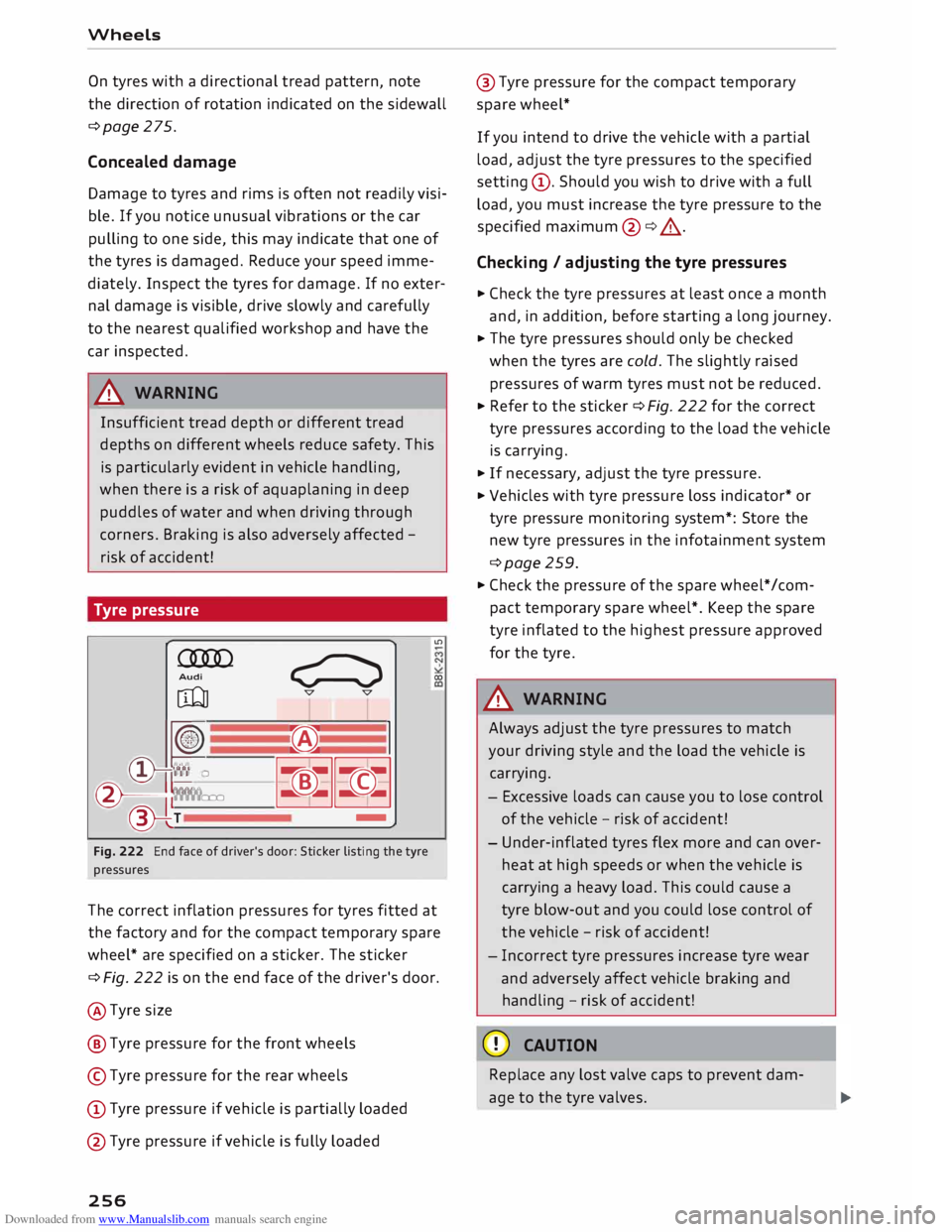
The correct inflation pressures for tyres fitted at
the factory and for the compact temporary spare
wheel* are specified on a sticker. The sticker
¢Fig. 222 is on the end face of the driver's door.
@ Tyre size
@ Tyre pressure for the front wheels
© Tyre pressure for the rear wheels
(!) Tyre pressure if vehicle is partially loaded
@ Tyre pressure if vehicle is fully loaded
256 @
Tyre pressure for the compact temporary
spare wheel*
If you intend to drive the vehicle with a partial
load, adjust the tyre pressures to the specified
setting (D. Should you wish to drive with a full
load, you must increase the tyre pressure to the
specified maximum@ ¢&_.
Checking / adjusting the tyre pressures
"' Check the tyre pressures at least once a month
and, in addition, before starting a long journey.
.. The tyre pressures should only be checked
when the tyres are cold. The slightly raised
pressures of warm tyres must not be reduced.
.. Refer to the sticker ¢ Fig. 222 for the correct
tyre pressures according to the load the vehicle
is carrying.
.. If necessary, adjust the tyre pressure.
.. Vehicles with tyre pressure loss indicator* or
tyre pressure monitoring system*: Store the
new tyre pressures in the infotainment system
¢page 259.
"' Check the pressure of the spare wheel* /com
pact temporary spare wheel*. Keep the spare
tyre inflated to the highest pressure approved
for the tyre.
A WARNING
Always adjust the tyre pressures to match
your driving style and the load the vehicle is
carrying.
- Excessive loads can cause you to lose control
of the vehicle -risk of accident!
- Under-inflated tyres flex more and can over
heat at high speeds or when the vehicle is
carrying a heavy load. This could cause a
tyre blow-out and you could lose control of
the vehicle -risk of accident!
- Incorrect tyre pressures increase tyre wear
and adversely affect vehicle braking and
handling -risk of accident!
CD CAUTION
Replace any lost valve caps to prevent dam
age to the tyre valves.
Page 260 of 306
Downloaded from www.Manualslib.com manuals search engine Wheels
... Check that the snow chains are correctly seated
after driving for a few yards; follow the instruc
tions given by the manufacturer.
... Keep your speed below 50 km/h. Please ob-
serve the applicable local regulations.
For technical reasons snow chains may only be
used on tyres with certain wheel rim/tyre combi
nations.
Rim size Rim offset Tyre size
7Jx17 47 mm 225/50
8Jx19 52
mm
225/40
You must remove the snow chains on roads which
are free of snow; otherwise the vehicle handling
may be impaired and the tyres may be damaged.
A WARNING
Unsuitable or incorrectly mounted snow
chains can cause you to lose control of the ve
hicle -risk of accident!
CD CAUTION
- Snow chains can damage the rim/hubcap* if
they make direct contact with it. Remove
the hubcaps* beforehand. Use snow chains
which have a protective coating.
- If you use snow chains with links that pro
trude more than 13.5 mm, this could cause
severe damage to the wheel housings and
other parts of the vehicle.
({D Note
When driving with snow chains, it may help to
switch on sport mode ¢ page 114.
Low-profile tyres
Applies to: vehicles with low-profile tyres
Your vehicle is fitted with low-profile tyres* as
standard equipment. Low-profile tyres have a
lower sidewall and provide a wider tread surface
and rim diameter than other wheel/tyre combi
nations. This makes the car's handling more
agile. However, the ride may be less comfortable
on poor-quality roads and tracks, and rolling
noise may be louder.
258 Low-profile
tyres can be damaged more quickly
than standard tyres, for example by heavy jolts,
potholes, manhole covers, speed humps and
kerbs. It is therefore particularly important to
ensure that they are inflated to the correct pres
sure c:>page 256.
Drive with particular care on poor-quality roads
to ensure that you do not damage the rims and
tyres.
Make sure to check your wheels regularly (every
3,000 km) for damage such as blisters/tears on
the tyre sidewalls or deformations/cracks on the
rims.
After a heavy jolt, or if any damage occurs, you
should have the rims and tyres checked and if
necessary replaced by a qualified workshop.
Tyre wear occurs more quickly on low-profile
tyres than on standard tyres.
Summer tyres are not suitable for cold condi
tions, snow or ice. Use winter or all-season tyres
when driving in these conditions c:::> page 257.
Tyre pressure Loss
indicator
Tyre pressure loss indicator in instrument
cluster
Applies to: vehicles with tyre pressure loss indicator
The tyre pressure Loss indicator in the instrument
cluster informs the driver if the tyre pressure is
too Low or a system malfunction has occurred.
The tyre pressure loss indicator makes use of the
ABS sensors to compare the rolling circumfer
ence and the vibration of the tyres. If changes in
the inflation pressure are detected on one or
more tyres, the driver is alerted by an indicator
lamp [tE and a message on the infotainment dis
play. If only one tyre is affected, the display will
indicate its position.
Each time you change a tyre, change the wheels
round or change the tyre pressures on your vehi
cle (e.g. when switching from partial load to full
load and vice-versa), you must store the new tyre
pressures on the infotainment system
c:::> page 259. Monitoring of the tyre pressures is
�