ECO mode FORD MUSTANG 2015 6.G Owner's Manual
[x] Cancel search | Manufacturer: FORD, Model Year: 2015, Model line: MUSTANG, Model: FORD MUSTANG 2015 6.GPages: 441, PDF Size: 6.98 MB
Page 286 of 441
GENERAL INFORMATION
Radio Frequencies and Reception
Factors
AM and FM frequencies are established by
the Federal Communications Commission
(FCC) and the Canadian Radio and
Telecommunications Commission (CRTC).
Those frequencies are:
•
AM: 530, 540-1700, 1710 kHz
• FM: 87.9-107.7, 107.9 MHz Radio Reception Factors
The further you travel from an FM station, the weaker the
signal and the weaker the reception.
Distance and Strength
Hills, mountains, tall buildings, bridges, tunnels, freeway
overpasses, parking garages, dense tree foliage and
thunderstorms can interfere with the reception.
Terrain
When you pass a ground-based broadcast repeating
tower, a stronger signal may overtake a weaker one and
result in the audio system muting.
Station overload
CD and CD Player Information
Note: CD units play commercially pressed
4.75-inch (12 centimeter) audio compact
discs only. Due to technical incompatibility,
certain recordable and re-recordable
compact discs may not function correctly
when used in Ford CD players.
Note: Do not insert CDs with homemade
paper (adhesive) labels into the CD player
as the label may peel and cause the CD to
become jammed. You should use a
permanent felt tip marker rather than
adhesive labels on your homemade CDs.
Ballpoint pens may damage CDs. Please
contact an authorized dealer for further
information.
Note: Do not use any irregularly shaped
discs or discs with a scratch protection film
attached.
Always handle discs by their edges only.
Clean the disc with an approved CD
cleaner only. Wipe it from the center of the
disc toward the edge. Do not clean in a
circular motion. Do not expose discs to direct sunlight or
heat sources for extended periods.
MP3 and WMA Track and Folder
Structure
Audio systems capable of recognizing and
playing MP3 and WMA individual tracks
and folder structures work as follows:
•
There are two different modes for MP3
and WMA disc playback: MP3 and
WMA track mode (system default) and
MP3 and WMA folder mode.
• MP3 and WMA track mode ignores any
folder structure on the MP3 and WMA
disc. The player numbers each MP3
and WMA track on the disc (noted by
the MP3 or WMA file extension) from
T001 to a maximum of T255. The
maximum number of playable MP3 and
WMA files may be less depending on
the structure of the CD and exact
model of radio present.
283
Mustang (), enUSA, First Printing Audio System
Page 287 of 441
•
MP3 and WMA folder mode represents
a folder structure consisting of one
level of folders. The CD player numbers
all MP3 and WMA tracks on the disc
(noted by the MP3 or WMA file
extension) and all folders containing
MP3 and WMA files, from F001 (folder)
T001 (track) to F253 T255.
• Creating discs with only one level of
folders helps with navigation through
the disc files.
If you are burning your own MP3 and WMA
discs, it is important to understand how
the system reads the structures you create.
While various files may be present, (files
with extensions other than MP3 and
WMA), only files with the MP3 and WMA
extension are played; other files are
ignored by the system. This enables you to
use the same MP3 and WMA disc for a
variety of tasks on your work computer,
home computer and your in-vehicle
system.
In track mode, the system displays and
plays the structure as if it were only one
level deep (all MP3 and WMA files play,
regardless of being in a specific folder). In
folder mode, the system only plays the
MP3 and WMA files in the current folder. AUDIO UNIT - VEHICLES WITH:
AM/FM/CD/SYNC/SATELLITE
RADIO WARNING
Driving while distracted can result in
loss of vehicle control, crash and
injury. We strongly recommend that
you use extreme caution when using any
device that may take your focus off the
road. Your primary responsibility is the safe
operation of your vehicle. We recommend
against the use of any hand-held device
while driving and encourage the use of
voice-operated systems when possible.
Make sure you are aware of all applicable
local laws that may affect the use of
electronic devices while driving. Note:
Depending on your vehicle option
package, your system may look different
from what you see here.
Note: Some features, such as Sirius satellite
radio, may not be available in your location.
Check with an authorized dealer.
284
Mustang (), enUSA, First Printing Audio System
Page 290 of 441
AUDIO UNIT - VEHICLES WITH:
PREMIUM AM/FM/CD
WARNING
Driving while distracted can result in
loss of vehicle control, crash and
injury. We strongly recommend that
you use extreme caution when using any
device that may take your focus off the
road. Your primary responsibility is the safe
operation of your vehicle. We recommend
against the use of any hand-held device
while driving and encourage the use of
voice-operated systems when possible.
Make sure you are aware of all applicable
local laws that may affect the use of
electronic devices while driving. Note:
The MyFord Touch system controls
most of the audio features. See MyFord
Touch ™ (page 334). VOL:
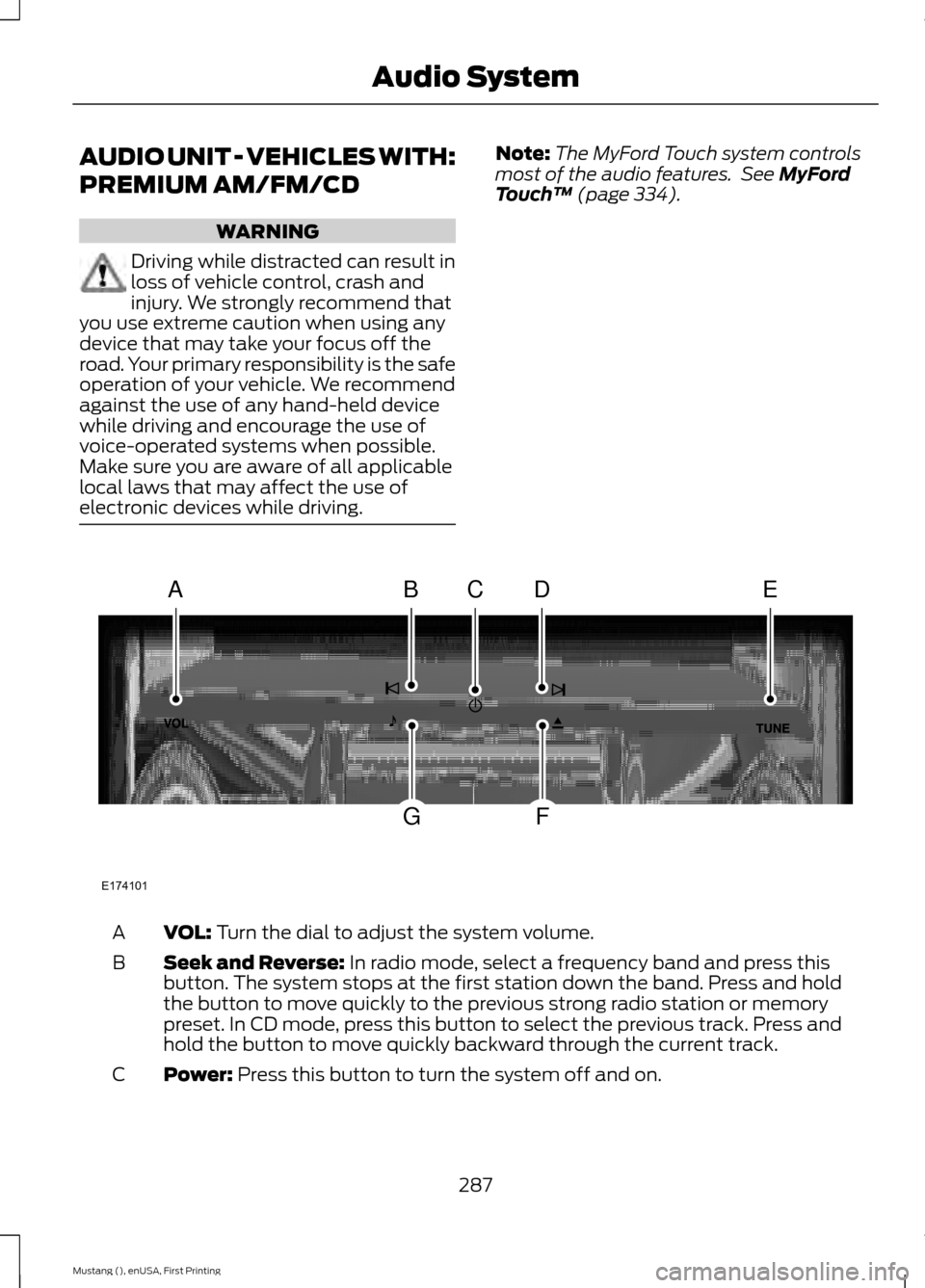
Turn the dial to adjust the system volume.
A
Seek and Reverse:
In radio mode, select a frequency band and press this
button. The system stops at the first station down the band. Press and hold
the button to move quickly to the previous strong radio station or memory
preset. In CD mode, press this button to select the previous track. Press and
hold the button to move quickly backward through the current track.
B
Power:
Press this button to turn the system off and on.
C
287
Mustang (), enUSA, First Printing Audio SystemE174101
ABDCE
FG
Page 294 of 441
Note:
This receiver includes the eCos
real-time operating system. eCos is
published under the eCos License.
Satellite Radio Reception Factors Potential satellite radio reception issues
For optimal reception performance, keep the antenna
clear of snow and ice build-up and keep luggage and other
material as far away from the antenna as possible.
Antenna obstructions
Hills, mountains, tall buildings, bridges, tunnels, freeway
overpasses, parking garages, dense tree foliage and
thunderstorms can interfere with your reception.
Terrain
When you pass a ground-based broadcast-repeating
tower, a stronger signal may overtake a weaker one and
the audio system may mute.
Station overload
Your display may show ACQUIRING . . . to indicate the
interference and the audio system may mute.
Satellite radio signal interfer-
ence
SIRIUS® Satellite Radio Service
Note: SIRIUS reserves the unrestricted right
to change, rearrange, add or delete
programming including canceling, moving
or adding particular channels, and its prices,
at any time, with or without notice to you.
Ford Motor Company shall not be
responsible for any such programming
changes. SIRIUS satellite radio is a
subscription-based satellite radio service
that broadcasts a variety of music, sports,
news, weather, traffic and entertainment
programming. Your factory-installed
SIRIUS satellite radio system includes
hardware and a limited subscription term,
which begins on the date of sale or lease
of your vehicle. See an authorized dealer
for availability.
For more information on extended
subscription terms (a service fee is
required), the online media player and a
complete list of SIRIUS satellite radio
channels, and other features, please visit
www.siriusxm.com in the United States,
www.sirius.ca in Canada, or call SIRIUS at
1-888-539-7474.
Satellite Radio Electronic Serial
Number (ESN)
You need your ESN to activate, modify or
track your satellite radio account. When in
satellite radio mode, press Options.
291
Mustang (), enUSA, First Printing Audio SystemE142593
Page 301 of 441
System Interaction and Feedback
The system provides feedback through
audible tones, prompts, questions and
spoken confirmations depending on the
situation and the chosen level of
interaction. You can customize the voice
recognition system to provide more or less
instruction and feedback.
The default setting is to a higher level of
interaction in order to help you learn to use
the system. You can change these settings
at any time.
Adjusting the Interaction Level
Press the voice button. When
prompted, say "voice settings",
then any of the following:
The system:
Command
Provides more
detailed interaction
and guidance.
(Recommended for
first time users.)
"Interaction mode
novice"
Provides less
audible interaction
and guidance.
"Interaction mode
advanced"
Confirmation Prompts
Confirmation prompts are short questions
the system asks when it is not sure of your
request or when there is more than one
possible response to your request. For
example, the system may ask if the
command "Phone" is correct.
To adjust this setting, press the voice
button. When prompted, say "voice
settings", then any of the following: The system:
Command
Makes a best guess
from the command;
you may still occa-
sionally be asked to
confirm settings.
"Confirmation
prompts off"
Clarifies your voice
command with a
short question.
"Confirmation
prompts on"
Candidate Lists
The system creates suggestion lists when
it has the same confidence level of several
options based on your voice commands.
When switched on, the system may
prompt you with as many as four
possibilities for clarification.
You can switch this feature on or off by
speaking one of the following voice
commands: The system:
Command
Makes a best guess
from the media
candidate list. The
system may still
occasionally ask
you questions.
"Media candidate
lists off"
Clarifies your voice
command for
media candidates.
"Media candidate
lists on"
Makes a best guess
from the phone
candidate list. The
system may still
occasionally ask
you questions.
"Phone candidate
lists off"
Clarifies your voice
command for
phone candidates
"Phone candidate
lists on"
298
Mustang (), enUSA, First Printing SYNC™ (If Equipped)E142599
Page 304 of 441
Phone book commands: When you ask
SYNC to access things such as a
phonebook name or number, the
requested information appears in the
display to view. Press the phone button
and say, "Call" to call the contact. "DIAL"
"411 (four-one-one)", "911" (nine-one- one)
"700" (seven hundred) "800" (eight hundred) "900" (nine hundred)
"Clear" (deletes all entered digits) "Delete" (deletes last set of digits entered)
"Number <0-9>" "Plus"
"Pound" (#) "Star" (*)
Note: To exit dial mode, press and hold the
phone button or press any button on the
audio system. "MESSAGES"
"Listen to text message <#>" "Forward text message""Reply to text message" "Call sender" Making Calls Press the voice button. When
prompted, say:
1. Say "Call
2. When the system confirms the number,
say, "Dial" again to initiate the call.
To erase the last spoken digit, say,
"Delete". To erase all spoken digits, say,
"Clear".
To end the call, press the end call button
on the steering wheel or select the end call
option in the audio display.
Receiving Calls
When receiving a call, you can:
• Answer the call by pressing the accept
call button on the steering wheel or by
selecting the accept call option in the
audio display.
• Reject the call by pressing the reject
call button on the steering wheel or by
selecting the reject call option in the
audio display.
• Ignore the call by doing nothing.
Phone Options during an Active
Call
During an active call, you have more menu
features that become available, such as
putting a call on hold or joining calls.
To access this menu, choose one of the
options available at the bottom of the
audio display or select
More to choose
from the following options:
301
Mustang (), enUSA, First Printing SYNC™
(If Equipped)E142599
Page 323 of 441
Description and action
Display
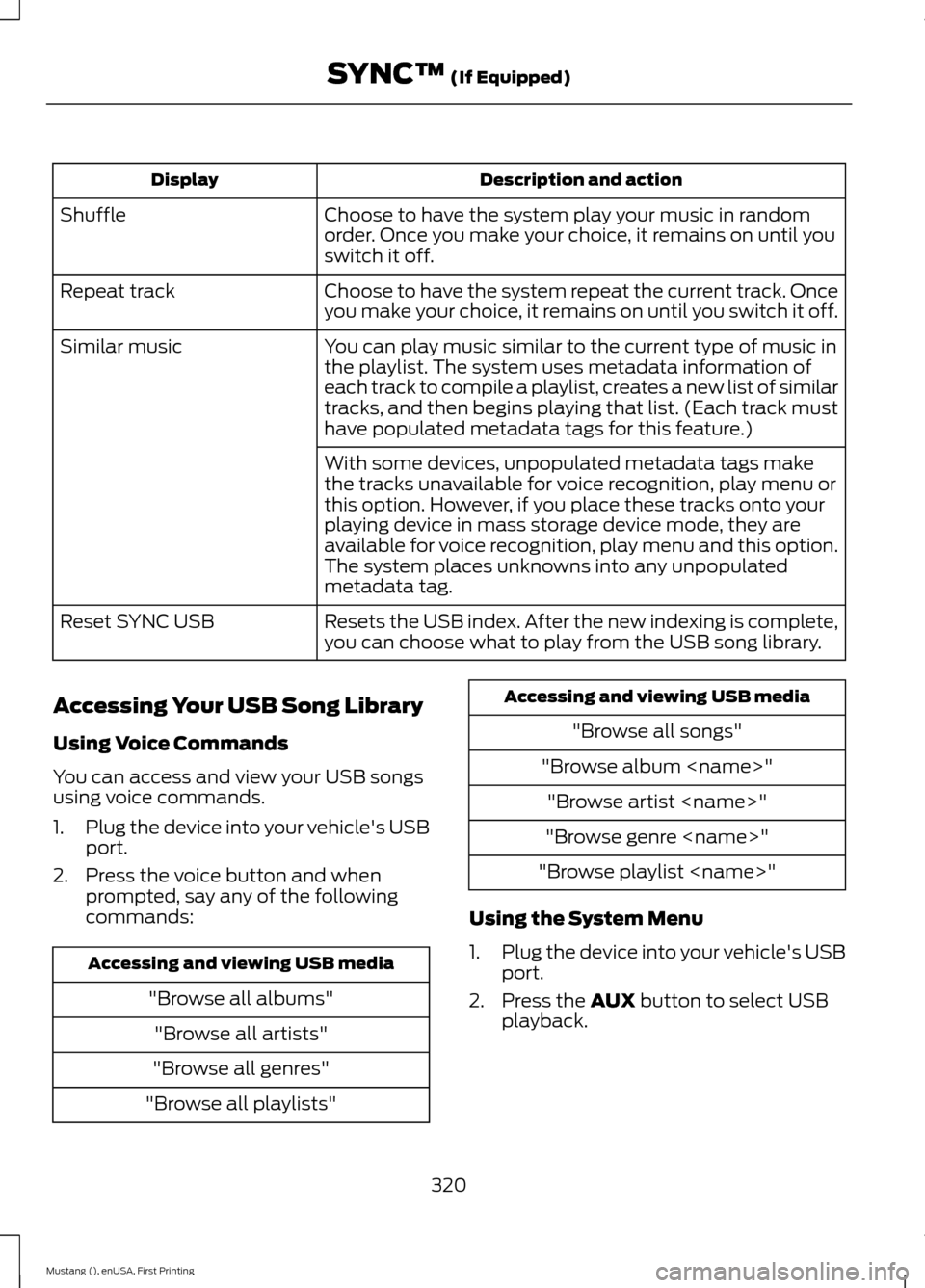
Choose to have the system play your music in random
order. Once you make your choice, it remains on until you
switch it off.
Shuffle
Choose to have the system repeat the current track. Once
you make your choice, it remains on until you switch it off.
Repeat track
You can play music similar to the current type of music in
the playlist. The system uses metadata information of
each track to compile a playlist, creates a new list of similar
tracks, and then begins playing that list. (Each track must
have populated metadata tags for this feature.)
Similar music
With some devices, unpopulated metadata tags make
the tracks unavailable for voice recognition, play menu or
this option. However, if you place these tracks onto your
playing device in mass storage device mode, they are
available for voice recognition, play menu and this option.
The system places unknowns into any unpopulated
metadata tag.
Resets the USB index. After the new indexing is complete,
you can choose what to play from the USB song library.
Reset SYNC USB
Accessing Your USB Song Library
Using Voice Commands
You can access and view your USB songs
using voice commands.
1. Plug the device into your vehicle's USB
port.
2. Press the voice button and when prompted, say any of the following
commands: Accessing and viewing USB media
"Browse all albums""Browse all artists"
"Browse all genres"
"Browse all playlists" Accessing and viewing USB media
"Browse all songs"
"Browse album
"Browse genre
"Browse playlist
Using the System Menu
1. Plug the device into your vehicle's USB
port.
2. Press the AUX button to select USB
playback.
320
Mustang (), enUSA, First Printing SYNC™
(If Equipped)
Page 340 of 441
Safety Information
WARNING
Driving while distracted can result in
loss of vehicle control, crash and
injury. We strongly recommend that
you use extreme caution when using any
device that may take your focus off the
road. Your primary responsibility is the safe
operation of your vehicle. We recommend
against the use of any hand-held device
while driving and encourage the use of
voice-operated systems when possible.
Make sure you are aware of all applicable
local laws that may affect the use of
electronic devices while driving. •
Do not attempt to service or repair the
system. See an authorized dealer.
• Do not operate playing devices if the
power cords or cables are broken, split
or damaged. Place cords and cables
out of the way, so they do not interfere
with the operation of pedals, seats,
compartments or safe driving abilities. •
Do not leave playing devices in your
vehicle during extreme conditions as it
could cause them damage. See your
device's user guide for further
information.
• For your safety, some SYNC functions
are speed-dependent. Their use is
limited to when your vehicle is traveling
at speeds under 3 mph (5 km/h).
Make sure that you review your device's
manual before using it with SYNC.
Speed-restricted Features
Some features of this system may be too
difficult to use while your vehicle is moving
so they are restricted from use unless your
vehicle is stationary.
• Screens crowded with information,
such as Point of Interest reviews and
ratings, SIRIUS Travel Link sports
scores, movie times or ski conditions.
• Any action that requires you to use a
keyboard is restricted, such as entering
a navigation destination or editing
information.
• All lists are limited so the user can view
fewer entries (such as phone contacts
or recent phone call entries).
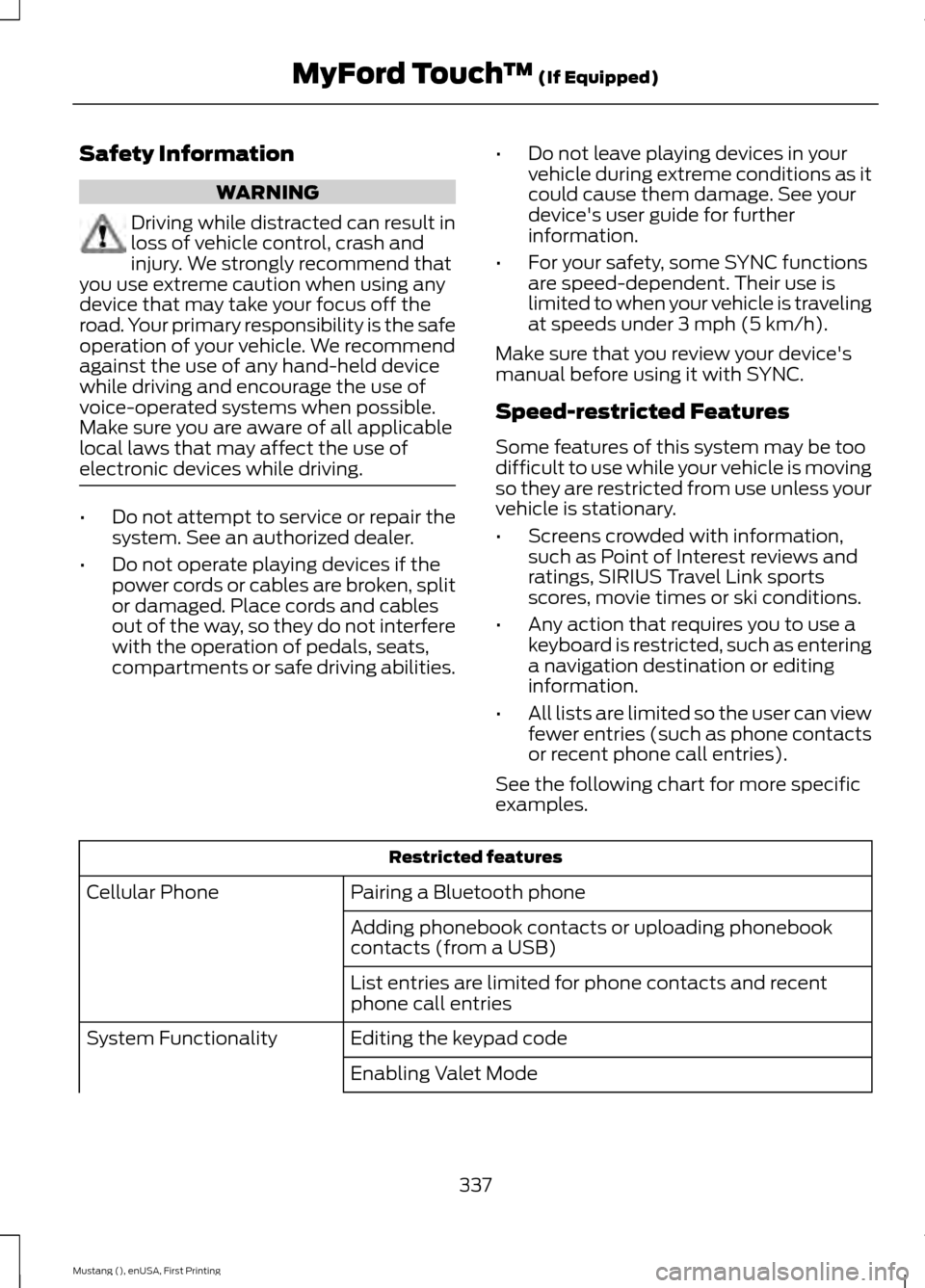
See the following chart for more specific
examples. Restricted features
Pairing a Bluetooth phone
Cellular Phone
Adding phonebook contacts or uploading phonebook
contacts (from a USB)
List entries are limited for phone contacts and recent
phone call entries
Editing the keypad code
System Functionality
Enabling Valet Mode
337
Mustang (), enUSA, First Printing MyFord Touch
™ (If Equipped)
Page 346 of 441
Only photographs that meet the following
conditions display:
•
Compatible file formats are as follows:
.jpg, .gif, .png, .bmp.
• Each file must be 1.5 MB or less.
• Recommended dimensions: 800 x 384.
Sound Press the Settings icon > Sound,
then select from the following:
Sound
Bass
Midrange Treble
Set Balance and Fade
DSP*
Occupancy Mode *
Speed Compensated Volume
* Your vehicle may not have these sound
settings.
Vehicle Press the Settings icon >
Vehicle, then select from the
following:
• Vehicle Health Report
• Camera Settings
• Enable Valet Mode.
Vehicle Health Report
Switch
Automatic Reminders on and off
and set the mileage interval at which you
would like to receive the reports. Press
?
for more information on these selections. When done making your selections, press
Run Vehicle Health Report Now
if you
want your report.
You can find more information on Vehicle
Health Report in this chapter. See
Information
(page 374).
Camera Settings
This menu allows you to access settings
for your camera. Press the Settings icon >
Vehicle
> Camera Settings,
then select from the following
settings:
• Enhanced Park Aids
• Rear Camera Delay.
You can find more information on the rear
view camera in another chapter. See Rear
View Camera
(page 148).
Enable Valet Mode
Valet mode allows you to lock the system.
No information is accessible until the
system is unlocked with the correct PIN.
You can create your own four-digit PIN to
lock and unlock the system. 1. Press the Settings icon >
Vehicle >
Enable Valet Mode.
2. Enter a four-digit PIN twice, as prompted.
After you press Continue, the system locks
until you enter the PIN again.
Note: If the system locks, and you need to
reset the PIN, enter 3681 and the system
unlocks.
343
Mustang (), enUSA, First Printing MyFord Touch
™
(If Equipped)E142607 E142607 E142607 E142607
Page 367 of 441
The other is behind a small access door in
the instrument panel.
This feature allows you to plug in media
playing devices, memory sticks, flash drives
or thumb drives, and charge devices if they
support this feature.
Playing Music from Your Device
Note:
The system is capable of indexing up
to 30,000 songs. Insert your device and select the
SD Card or USB tab once the
system recognizes it. You can
then select from the following options:
Repeat
This feature replays the currently playing
song or album.
Shuffle
Touch this button to play music on the
selected album or folder in random order.
Similar Music
This feature allows you to choose music
similar to what is currently playing.
More Info
Touch this button to see disc information
such as current track, artist name, album
and genre. Options
Touch this button to view and adjust
various media settings.
Sound Settings
allows you to adjust
settings for:
• Bass
• Midrange
• Treble
• Balance and Fade
• DSP (Digital Signal processing)
• Occupancy Mode
• Speed Compensated Volume.
Note: Your vehicle may not have all these
sound settings.
Media Player Settings
allows you to
select more settings, which is under Media
Player. See
Settings (page 341).
Device Information
displays software
and firmware information about the
currently connected media device.
Update Media Index indexes your device
when you connect it for the first time and
each time the content changes (such as
adding or removing tracks) to make sure
you have the latest voice commands
available for all media on the device.
Browse
This feature allows you to view the
contents of the device. It also allows you
to search by categories, such as genre,
artist or album.
If you want to view song information such
as Title, Artist, File, Folder, Album, and
Genre, touch the on-screen album art.
You can also touch
What’ s Playing to
hear how the system pronounces the
current band and song. This can be helpful
when using voice commands to make sure
the system correctly plays your request.
364
Mustang (), enUSA, First Printing MyFord Touch
™
(If Equipped)E176344 E142611