phone FORD MUSTANG 2015 6.G Owner's Guide
[x] Cancel search | Manufacturer: FORD, Model Year: 2015, Model line: MUSTANG, Model: FORD MUSTANG 2015 6.GPages: 441, PDF Size: 6.98 MB
Page 314 of 441
911 Assist Privacy Notice
When you turn on 911 Assist, it may
disclose to emergency services that your
vehicle has been in a crash involving the
deployment of an airbag or activation of
the fuel pump shut-off. Certain versions or
updates to 911 Assist may also be capable
of electronically or verbally disclosing to
911 operators your vehicle location or other
details about your vehicle or crash to assist
911 operators to provide the most
appropriate emergency services. If you do
not want to disclose this information, do
not turn the feature on.
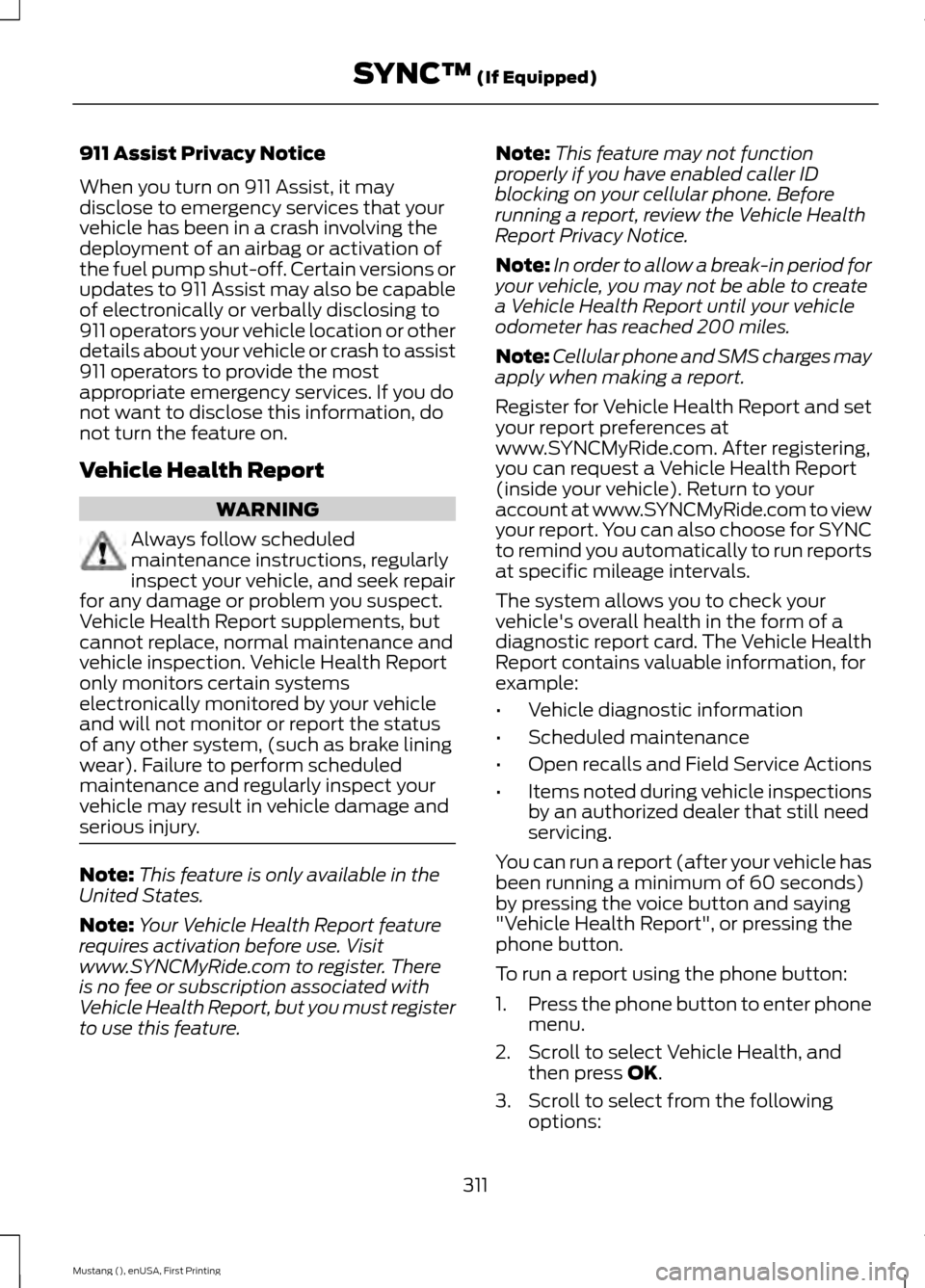
Vehicle Health Report
WARNING
Always follow scheduled
maintenance instructions, regularly
inspect your vehicle, and seek repair
for any damage or problem you suspect.
Vehicle Health Report supplements, but
cannot replace, normal maintenance and
vehicle inspection. Vehicle Health Report
only monitors certain systems
electronically monitored by your vehicle
and will not monitor or report the status
of any other system, (such as brake lining
wear). Failure to perform scheduled
maintenance and regularly inspect your
vehicle may result in vehicle damage and
serious injury. Note:
This feature is only available in the
United States.
Note: Your Vehicle Health Report feature
requires activation before use. Visit
www.SYNCMyRide.com to register. There
is no fee or subscription associated with
Vehicle Health Report, but you must register
to use this feature. Note:
This feature may not function
properly if you have enabled caller ID
blocking on your cellular phone. Before
running a report, review the Vehicle Health
Report Privacy Notice.
Note: In order to allow a break-in period for
your vehicle, you may not be able to create
a Vehicle Health Report until your vehicle
odometer has reached 200 miles.
Note: Cellular phone and SMS charges may
apply when making a report.
Register for Vehicle Health Report and set
your report preferences at
www.SYNCMyRide.com. After registering,
you can request a Vehicle Health Report
(inside your vehicle). Return to your
account at www.SYNCMyRide.com to view
your report. You can also choose for SYNC
to remind you automatically to run reports
at specific mileage intervals.
The system allows you to check your
vehicle's overall health in the form of a
diagnostic report card. The Vehicle Health
Report contains valuable information, for
example:
• Vehicle diagnostic information
• Scheduled maintenance
• Open recalls and Field Service Actions
• Items noted during vehicle inspections
by an authorized dealer that still need
servicing.
You can run a report (after your vehicle has
been running a minimum of 60 seconds)
by pressing the voice button and saying
"Vehicle Health Report", or pressing the
phone button.
To run a report using the phone button:
1. Press the phone button to enter phone
menu.
2. Scroll to select Vehicle Health, and then press OK.
3. Scroll to select from the following options:
311
Mustang (), enUSA, First Printing SYNC™
(If Equipped)
Page 315 of 441
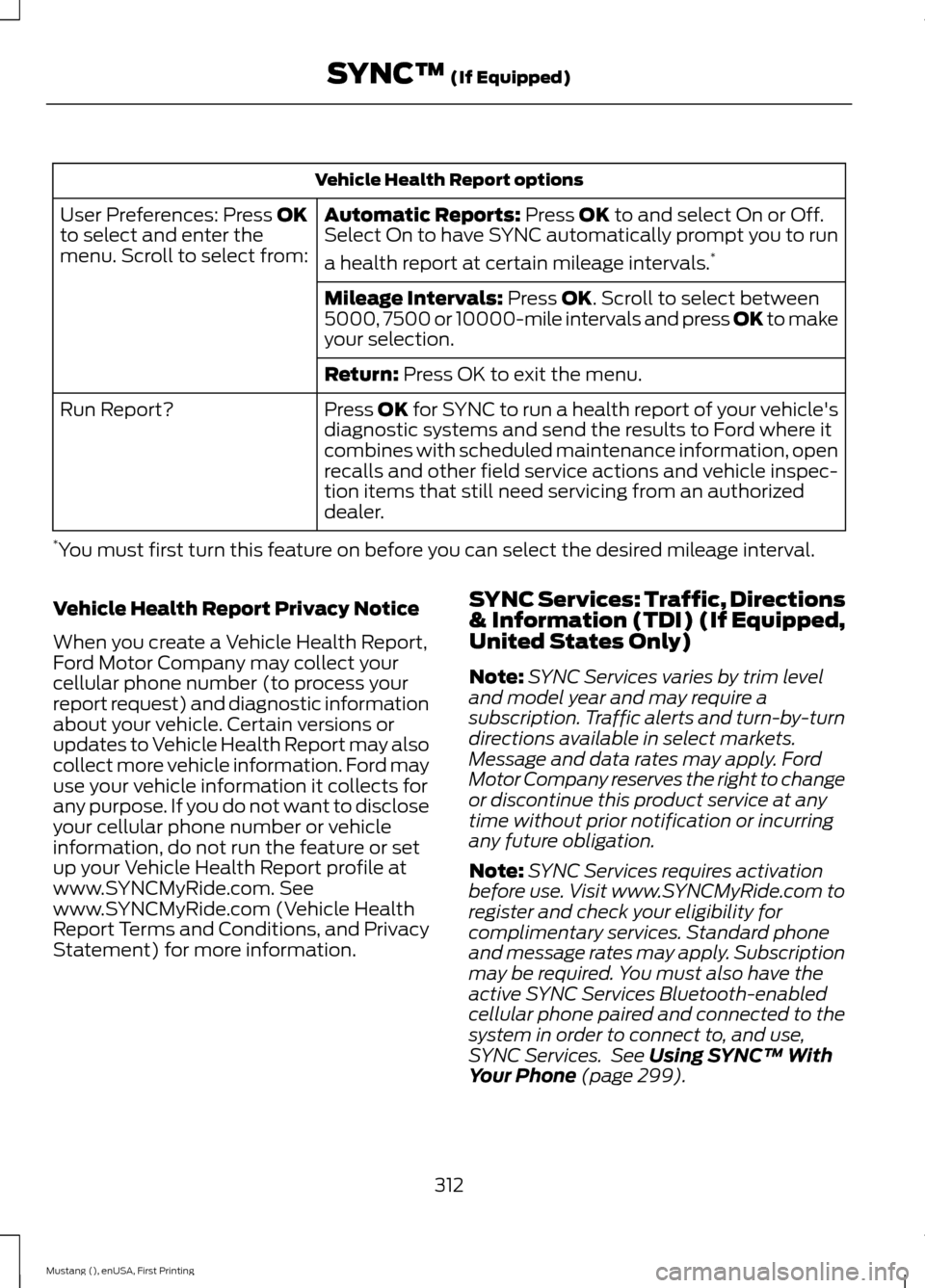
Vehicle Health Report options
Automatic Reports: Press OK to and select On or Off.
Select On to have SYNC automatically prompt you to run
a health report at certain mileage intervals. *
User Preferences: Press OK
to select and enter the
menu. Scroll to select from:
Mileage Intervals:
Press OK. Scroll to select between
5000, 7500 or 10000-mile intervals and press OK to make
your selection.
Return:
Press OK to exit the menu.
Press OK for SYNC to run a health report of your vehicle's
diagnostic systems and send the results to Ford where it
combines with scheduled maintenance information, open
recalls and other field service actions and vehicle inspec-
tion items that still need servicing from an authorized
dealer.
Run Report?
* You must first turn this feature on before you can select the desired mileage interval.
Vehicle Health Report Privacy Notice
When you create a Vehicle Health Report,
Ford Motor Company may collect your
cellular phone number (to process your
report request) and diagnostic information
about your vehicle. Certain versions or
updates to Vehicle Health Report may also
collect more vehicle information. Ford may
use your vehicle information it collects for
any purpose. If you do not want to disclose
your cellular phone number or vehicle
information, do not run the feature or set
up your Vehicle Health Report profile at
www.SYNCMyRide.com. See
www.SYNCMyRide.com (Vehicle Health
Report Terms and Conditions, and Privacy
Statement) for more information. SYNC Services: Traffic, Directions
& Information (TDI) (If Equipped,
United States Only)
Note:
SYNC Services varies by trim level
and model year and may require a
subscription. Traffic alerts and turn-by-turn
directions available in select markets.
Message and data rates may apply. Ford
Motor Company reserves the right to change
or discontinue this product service at any
time without prior notification or incurring
any future obligation.
Note: SYNC Services requires activation
before use. Visit www.SYNCMyRide.com to
register and check your eligibility for
complimentary services. Standard phone
and message rates may apply. Subscription
may be required. You must also have the
active SYNC Services Bluetooth-enabled
cellular phone paired and connected to the
system in order to connect to, and use,
SYNC Services. See
Using SYNC™ With
Your Phone (page 299).
312
Mustang (), enUSA, First Printing SYNC™
(If Equipped)
Page 316 of 441
Note:
This feature does not function
properly if you have enabled caller ID
blocking on your cellular phone. Make sure
your cellular phone is not blocking caller ID
before using SYNC Services.
Note: The driver is ultimately responsible
for the safe operation of the vehicle, and
therefore, must evaluate whether it is safe
to follow the suggested directions. Any
navigation features provided are only an aid.
Make your driving decisions based on your
observations of local conditions and existing
traffic regulations. Do not follow the route
suggestions if doing so would result in an
unsafe or illegal maneuver, place you in an
unsafe situation, or if you would be directed
into an area that you consider unsafe. Maps
used by this system may be inaccurate
because of errors, changes in roads, traffic
conditions or driving conditions.
Note: When you connect, the service uses
GPS technology and advanced vehicle
sensors to collect your vehicle's current
location, travel direction and speed to help
provide you with the directions, traffic
reports, or business searches you request.
Further, to provide the services you request,
for continuous improvement, the service
may collect and record call details and voice
communications. For more information, see
SYNC Services Terms and Conditions at
www.SYNCMyRide.com. If you do not want
Ford or its service providers to collect your
vehicle travel information or other
information identified in the Terms and
Conditions, do not subscribe or use the
service.
SYNC Services uses advanced vehicle
sensors, integrated GPS technology and
comprehensive map and traffic data, to
give you personalized traffic reports,
precise turn-by-turn directions, business
search, news, sports, weather and more.
For a complete list of services, or to learn
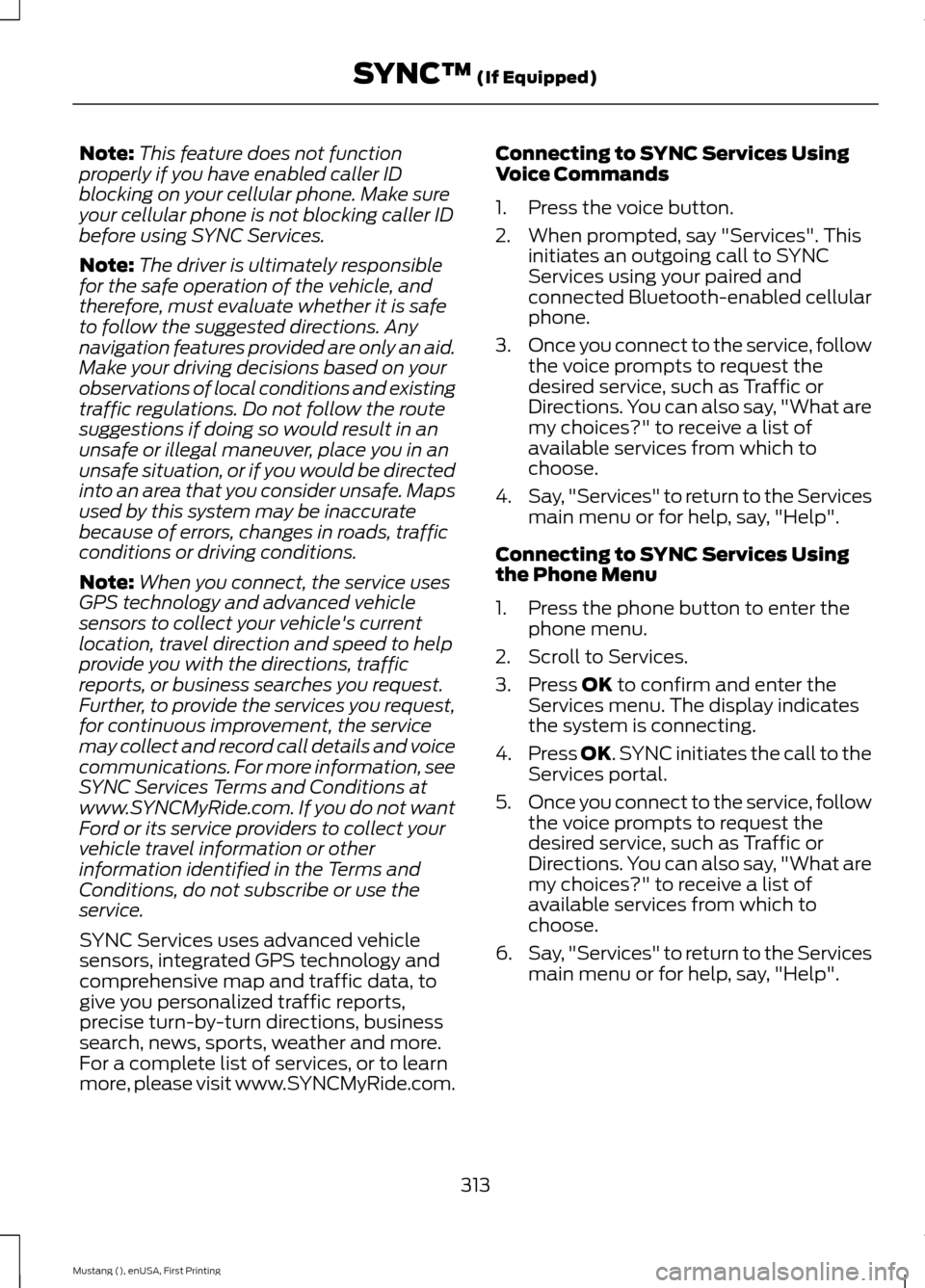
more, please visit www.SYNCMyRide.com. Connecting to SYNC Services Using
Voice Commands
1. Press the voice button.
2. When prompted, say "Services". This
initiates an outgoing call to SYNC
Services using your paired and
connected Bluetooth-enabled cellular
phone.
3. Once you connect to the service, follow
the voice prompts to request the
desired service, such as Traffic or
Directions. You can also say, "What are
my choices?" to receive a list of
available services from which to
choose.
4. Say, "Services" to return to the Services
main menu or for help, say, "Help".
Connecting to SYNC Services Using
the Phone Menu
1. Press the phone button to enter the phone menu.
2. Scroll to Services.
3. Press OK to confirm and enter the
Services menu. The display indicates
the system is connecting.
4. Press
OK. SYNC initiates the call to the
Services portal.
5. Once you connect to the service, follow
the voice prompts to request the
desired service, such as Traffic or
Directions. You can also say, "What are
my choices?" to receive a list of
available services from which to
choose.
6. Say, "Services" to return to the Services
main menu or for help, say, "Help".
313
Mustang (), enUSA, First Printing SYNC™
(If Equipped)
Page 317 of 441
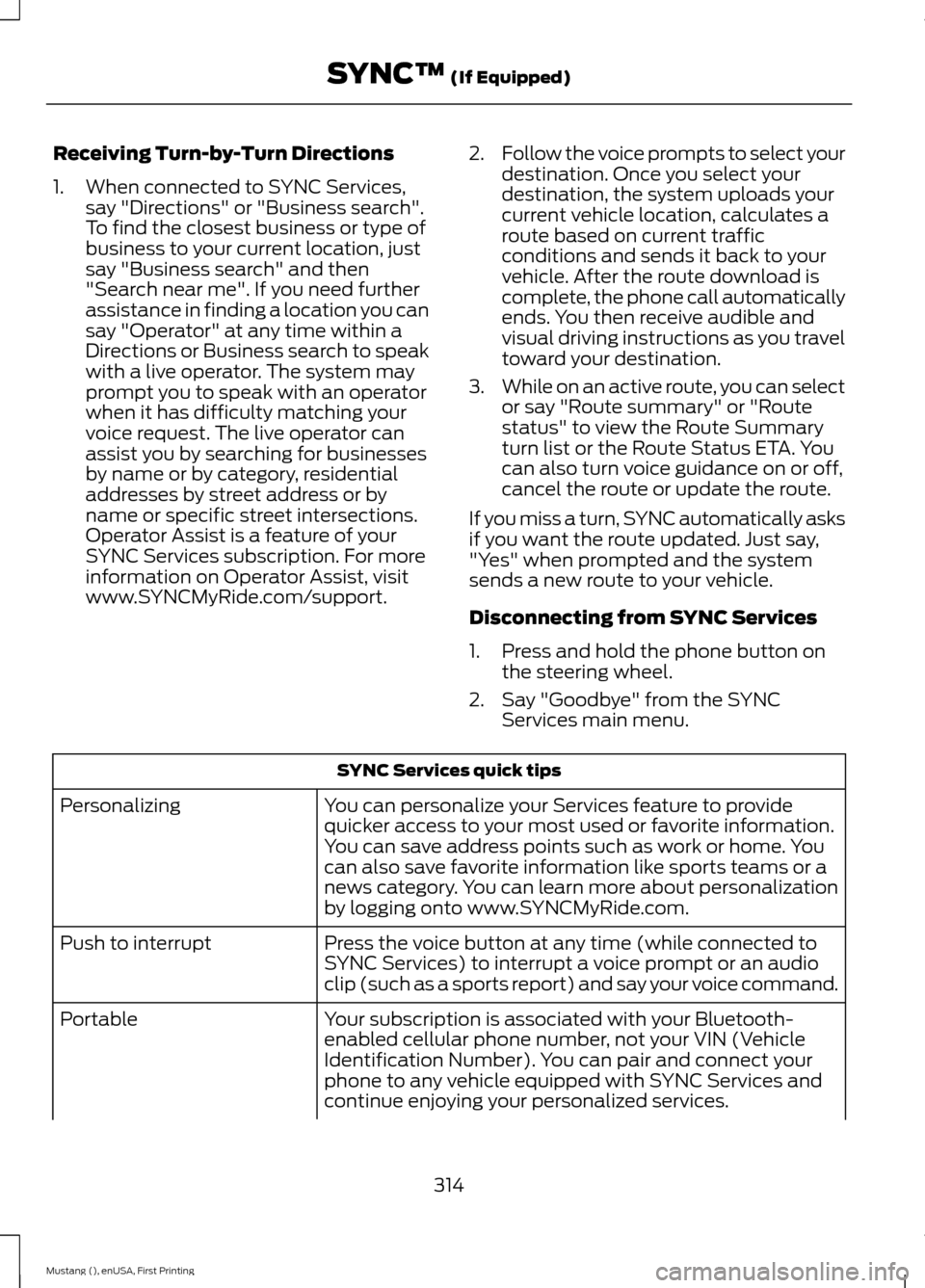
Receiving Turn-by-Turn Directions
1. When connected to SYNC Services,
say "Directions" or "Business search".
To find the closest business or type of
business to your current location, just
say "Business search" and then
"Search near me". If you need further
assistance in finding a location you can
say "Operator" at any time within a
Directions or Business search to speak
with a live operator. The system may
prompt you to speak with an operator
when it has difficulty matching your
voice request. The live operator can
assist you by searching for businesses
by name or by category, residential
addresses by street address or by
name or specific street intersections.
Operator Assist is a feature of your
SYNC Services subscription. For more
information on Operator Assist, visit
www.SYNCMyRide.com/support. 2.
Follow the voice prompts to select your
destination. Once you select your
destination, the system uploads your
current vehicle location, calculates a
route based on current traffic
conditions and sends it back to your
vehicle. After the route download is
complete, the phone call automatically
ends. You then receive audible and
visual driving instructions as you travel
toward your destination.
3. While on an active route, you can select
or say "Route summary" or "Route
status" to view the Route Summary
turn list or the Route Status ETA. You
can also turn voice guidance on or off,
cancel the route or update the route.
If you miss a turn, SYNC automatically asks
if you want the route updated. Just say,
"Yes" when prompted and the system
sends a new route to your vehicle.
Disconnecting from SYNC Services
1. Press and hold the phone button on the steering wheel.
2. Say "Goodbye" from the SYNC Services main menu. SYNC Services quick tips
You can personalize your Services feature to provide
quicker access to your most used or favorite information.
You can save address points such as work or home. You
can also save favorite information like sports teams or a
news category. You can learn more about personalization
by logging onto www.SYNCMyRide.com.
Personalizing
Press the voice button at any time (while connected to
SYNC Services) to interrupt a voice prompt or an audio
clip (such as a sports report) and say your voice command.
Push to interrupt
Your subscription is associated with your Bluetooth-
enabled cellular phone number, not your VIN (Vehicle
Identification Number). You can pair and connect your
phone to any vehicle equipped with SYNC Services and
continue enjoying your personalized services.
Portable
314
Mustang (), enUSA, First Printing SYNC™ (If Equipped)
Page 318 of 441
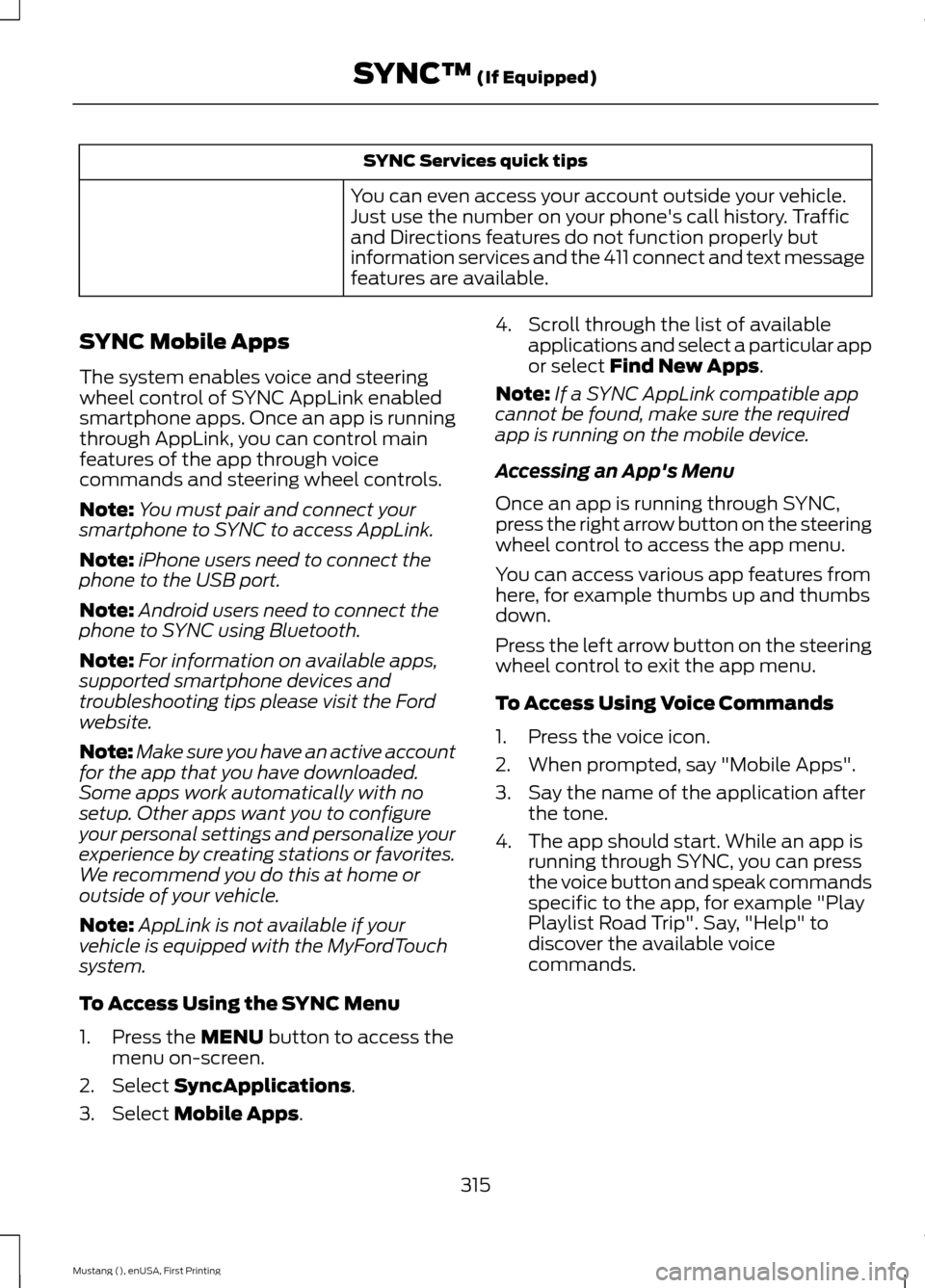
SYNC Services quick tips
You can even access your account outside your vehicle.
Just use the number on your phone's call history. Traffic
and Directions features do not function properly but
information services and the 411 connect and text message
features are available.
SYNC Mobile Apps
The system enables voice and steering
wheel control of SYNC AppLink enabled
smartphone apps. Once an app is running
through AppLink, you can control main
features of the app through voice
commands and steering wheel controls.
Note: You must pair and connect your
smartphone to SYNC to access AppLink.
Note: iPhone users need to connect the
phone to the USB port.
Note: Android users need to connect the
phone to SYNC using Bluetooth.
Note: For information on available apps,
supported smartphone devices and
troubleshooting tips please visit the Ford
website.
Note: Make sure you have an active account
for the app that you have downloaded.
Some apps work automatically with no
setup. Other apps want you to configure
your personal settings and personalize your
experience by creating stations or favorites.
We recommend you do this at home or
outside of your vehicle.
Note: AppLink is not available if your
vehicle is equipped with the MyFordTouch
system.
To Access Using the SYNC Menu
1. Press the MENU button to access the
menu on-screen.
2. Select
SyncApplications.
3. Select
Mobile Apps. 4. Scroll through the list of available
applications and select a particular app
or select
Find New Apps.
Note: If a SYNC AppLink compatible app
cannot be found, make sure the required
app is running on the mobile device.
Accessing an App's Menu
Once an app is running through SYNC,
press the right arrow button on the steering
wheel control to access the app menu.
You can access various app features from
here, for example thumbs up and thumbs
down.
Press the left arrow button on the steering
wheel control to exit the app menu.
To Access Using Voice Commands
1. Press the voice icon.
2. When prompted, say "Mobile Apps".
3. Say the name of the application after the tone.
4. The app should start. While an app is running through SYNC, you can press
the voice button and speak commands
specific to the app, for example "Play
Playlist Road Trip". Say, "Help" to
discover the available voice
commands.
315
Mustang (), enUSA, First Printing SYNC™
(If Equipped)
Page 322 of 441
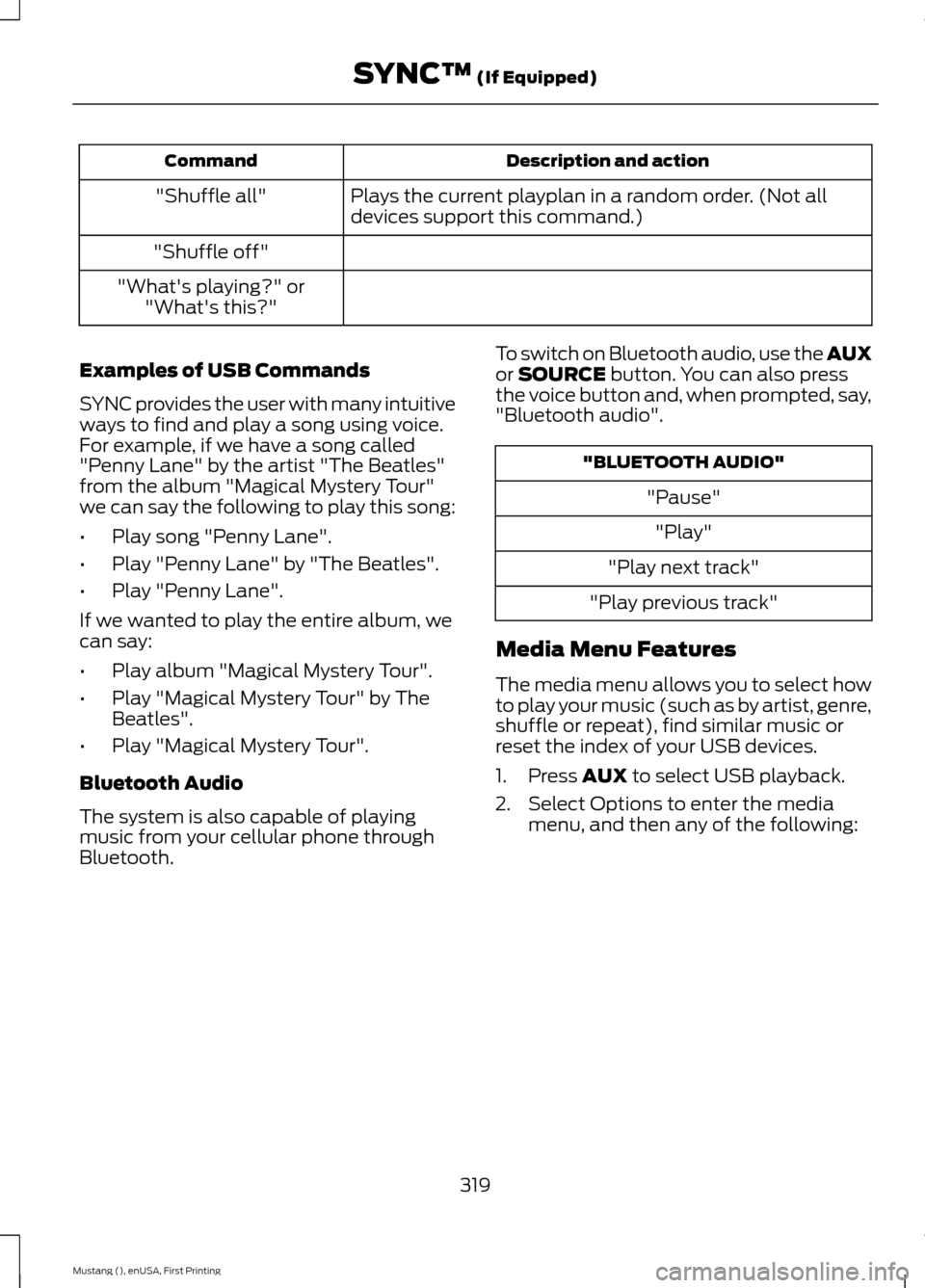
Description and action
Command
Plays the current playplan in a random order. (Not all
devices support this command.)
"Shuffle all"
"Shuffle off"
"What's playing?" or "What's this?"
Examples of USB Commands
SYNC provides the user with many intuitive
ways to find and play a song using voice.
For example, if we have a song called
"Penny Lane" by the artist "The Beatles"
from the album "Magical Mystery Tour"
we can say the following to play this song:
• Play song "Penny Lane".
• Play "Penny Lane" by "The Beatles".
• Play "Penny Lane".
If we wanted to play the entire album, we
can say:
• Play album "Magical Mystery Tour".
• Play "Magical Mystery Tour" by The
Beatles".
• Play "Magical Mystery Tour".
Bluetooth Audio
The system is also capable of playing
music from your cellular phone through
Bluetooth. To switch on Bluetooth audio, use the AUX
or SOURCE button. You can also press
the voice button and, when prompted, say,
"Bluetooth audio". "BLUETOOTH AUDIO"
"Pause""Play"
"Play next track"
"Play previous track"
Media Menu Features
The media menu allows you to select how
to play your music (such as by artist, genre,
shuffle or repeat), find similar music or
reset the index of your USB devices.
1. Press
AUX to select USB playback.
2. Select Options to enter the media menu, and then any of the following:
319
Mustang (), enUSA, First Printing SYNC™
(If Equipped)
Page 325 of 441
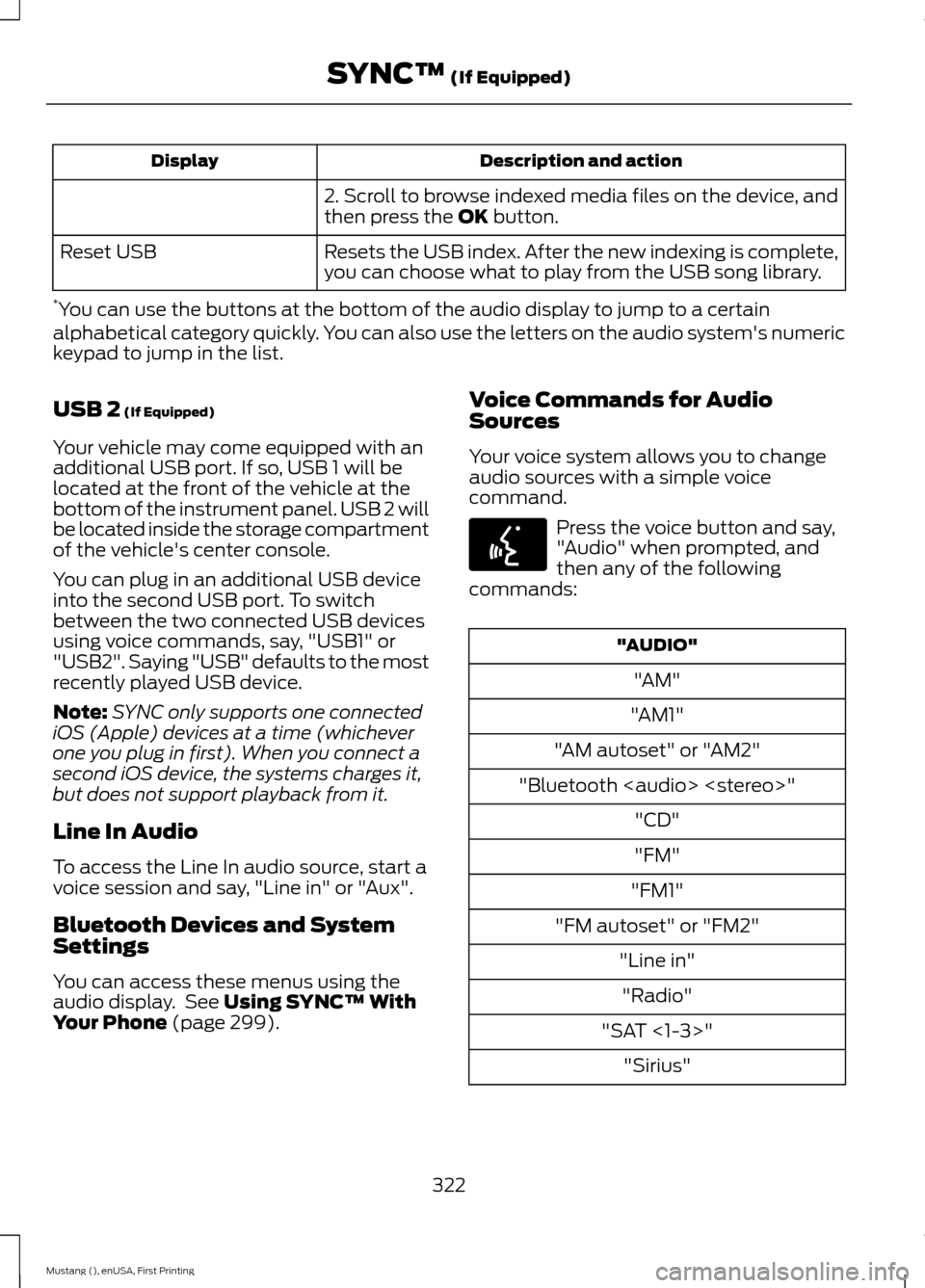
Description and action
Display
2. Scroll to browse indexed media files on the device, and
then press the OK button.
Resets the USB index. After the new indexing is complete,
you can choose what to play from the USB song library.
Reset USB
* You can use the buttons at the bottom of the audio display to jump to a certain
alphabetical category quickly. You can also use the letters on the audio system's numeric
keypad to jump in the list.
USB 2
(If Equipped)
Your vehicle may come equipped with an
additional USB port. If so, USB 1 will be
located at the front of the vehicle at the
bottom of the instrument panel. USB 2 will
be located inside the storage compartment
of the vehicle's center console.
You can plug in an additional USB device
into the second USB port. To switch
between the two connected USB devices
using voice commands, say, "USB1" or
"USB2". Saying "USB" defaults to the most
recently played USB device.
Note: SYNC only supports one connected
iOS (Apple) devices at a time (whichever
one you plug in first). When you connect a
second iOS device, the systems charges it,
but does not support playback from it.
Line In Audio
To access the Line In audio source, start a
voice session and say, "Line in" or "Aux".
Bluetooth Devices and System
Settings
You can access these menus using the
audio display. See
Using SYNC™ With
Your Phone (page 299). Voice Commands for Audio
Sources
Your voice system allows you to change
audio sources with a simple voice
command. Press the voice button and say,
"Audio" when prompted, and
then any of the following
commands: "AUDIO"
"AM"
"AM1"
"AM autoset" or "AM2"
"Bluetooth
Page 327 of 441
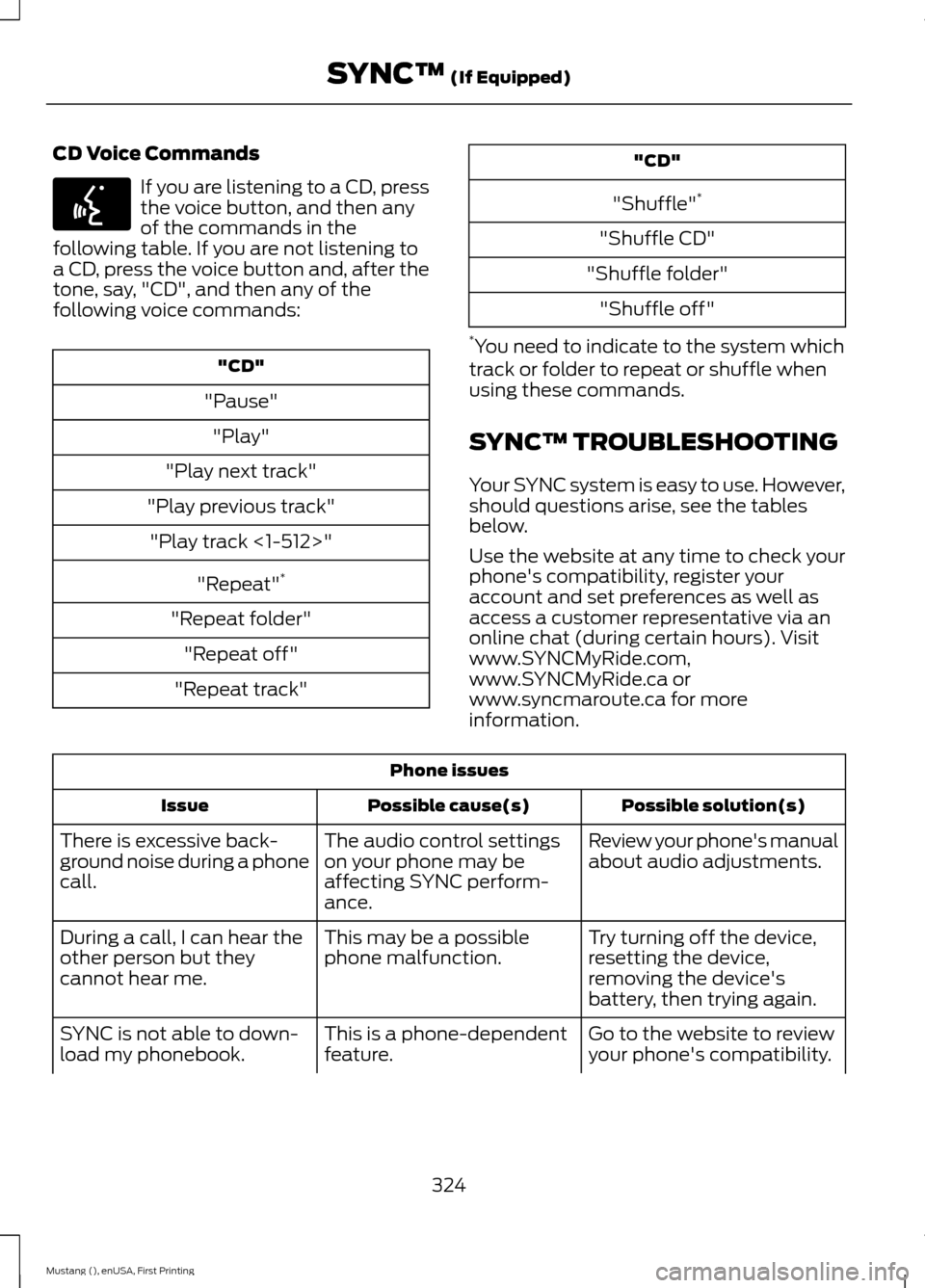
CD Voice Commands
If you are listening to a CD, press
the voice button, and then any
of the commands in the
following table. If you are not listening to
a CD, press the voice button and, after the
tone, say, "CD", and then any of the
following voice commands: "CD"
"Pause" "Play"
"Play next track"
"Play previous track" "Play track <1-512>"
"Repeat" *
"Repeat folder" "Repeat off"
"Repeat track" "CD"
"Shuffle" *
"Shuffle CD"
"Shuffle folder" "Shuffle off"
* You need to indicate to the system which
track or folder to repeat or shuffle when
using these commands.
SYNC™ TROUBLESHOOTING
Your SYNC system is easy to use. However,
should questions arise, see the tables
below.
Use the website at any time to check your
phone's compatibility, register your
account and set preferences as well as
access a customer representative via an
online chat (during certain hours). Visit
www.SYNCMyRide.com,
www.SYNCMyRide.ca or
www.syncmaroute.ca for more
information. Phone issues
Possible solution(s)
Possible cause(s)
Issue
Review your phone's manual
about audio adjustments.
The audio control settings
on your phone may be
affecting SYNC perform-
ance.
There is excessive back-
ground noise during a phone
call.
Try turning off the device,
resetting the device,
removing the device's
battery, then trying again.
This may be a possible
phone malfunction.
During a call, I can hear the
other person but they
cannot hear me.
Go to the website to review
your phone's compatibility.
This is a phone-dependent
feature.
SYNC is not able to down-
load my phonebook.
324
Mustang (), enUSA, First Printing SYNC™ (If Equipped)E142599
Page 328 of 441
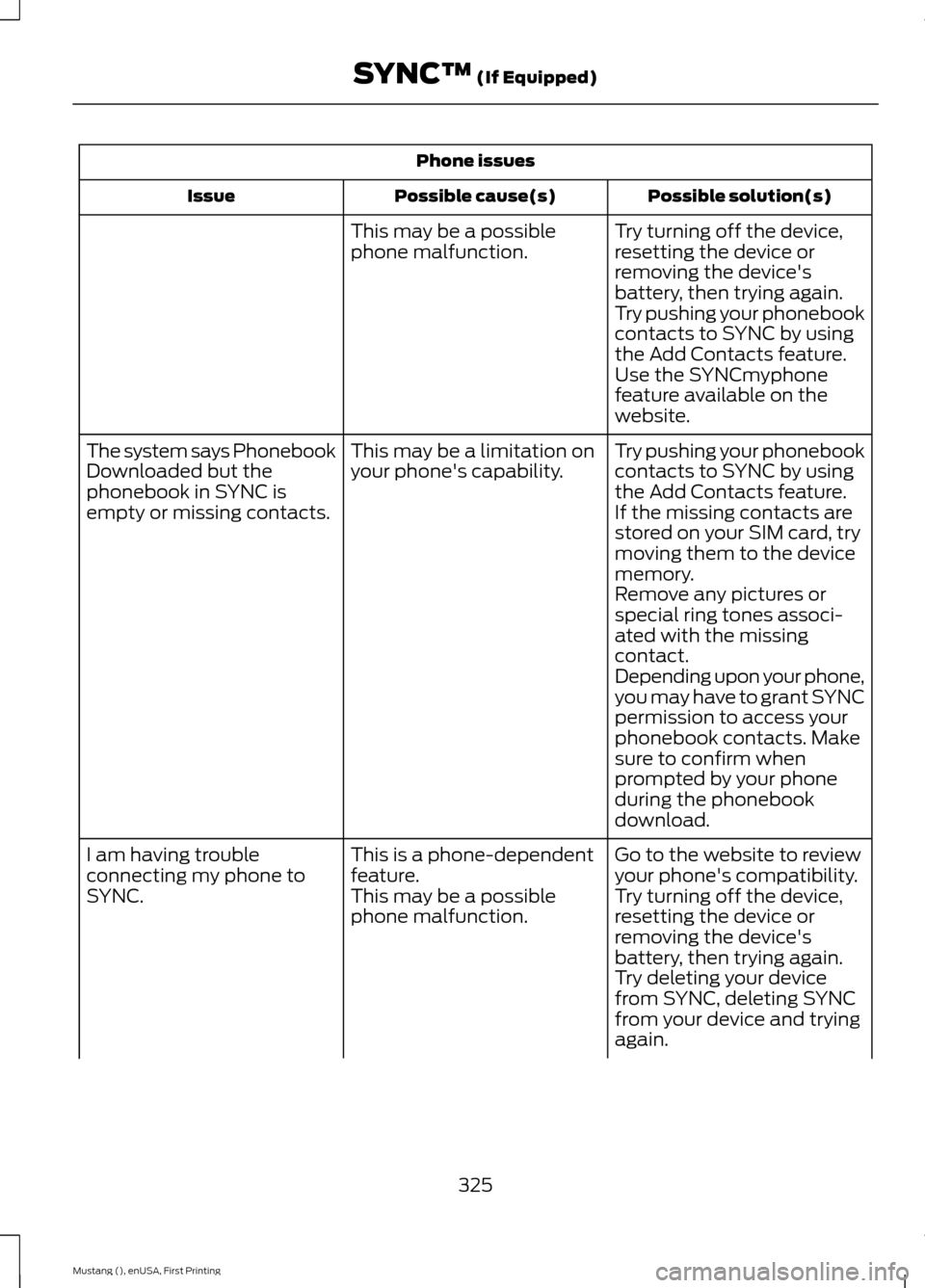
Phone issues
Possible solution(s)
Possible cause(s)
Issue
Try turning off the device,
resetting the device or
removing the device's
battery, then trying again.
This may be a possible
phone malfunction.
Try pushing your phonebook
contacts to SYNC by using
the Add Contacts feature.
Use the SYNCmyphone
feature available on the
website.
Try pushing your phonebook
contacts to SYNC by using
the Add Contacts feature.
This may be a limitation on
your phone's capability.
The system says Phonebook
Downloaded but the
phonebook in SYNC is
empty or missing contacts.
If the missing contacts are
stored on your SIM card, try
moving them to the device
memory.
Remove any pictures or
special ring tones associ-
ated with the missing
contact.
Depending upon your phone,
you may have to grant SYNC
permission to access your
phonebook contacts. Make
sure to confirm when
prompted by your phone
during the phonebook
download.
Go to the website to review
your phone's compatibility.
This is a phone-dependent
feature.
I am having trouble
connecting my phone to
SYNC.
Try turning off the device,
resetting the device or
removing the device's
battery, then trying again.
This may be a possible
phone malfunction.
Try deleting your device
from SYNC, deleting SYNC
from your device and trying
again.
325
Mustang (), enUSA, First Printing SYNC™ (If Equipped)
Page 329 of 441
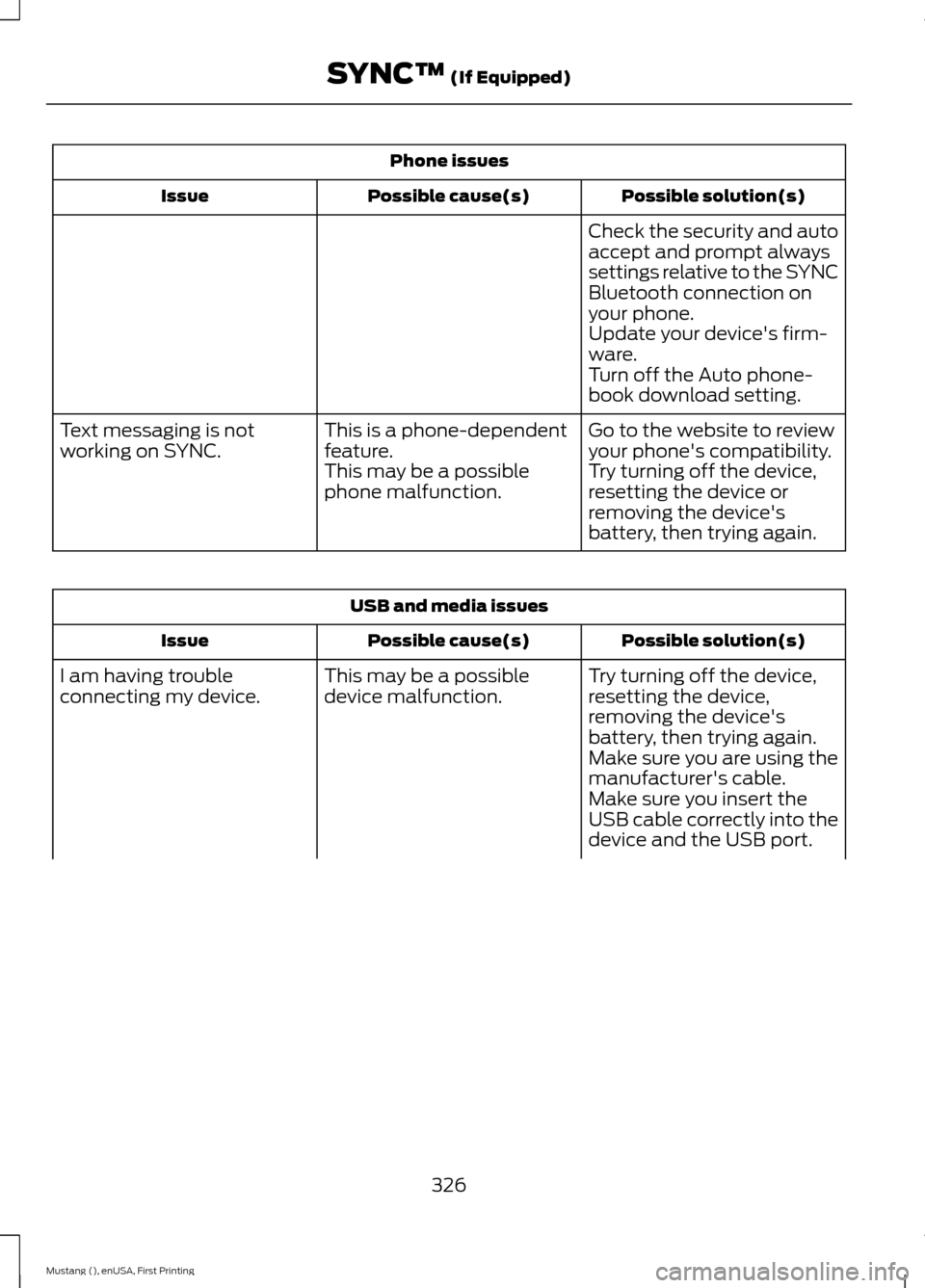
Phone issues
Possible solution(s)
Possible cause(s)
Issue
Check the security and auto
accept and prompt always
settings relative to the SYNC
Bluetooth connection on
your phone.
Update your device's firm-
ware.
Turn off the Auto phone-
book download setting.
Go to the website to review
your phone's compatibility.
This is a phone-dependent
feature.
Text messaging is not
working on SYNC.
Try turning off the device,
resetting the device or
removing the device's
battery, then trying again.
This may be a possible
phone malfunction. USB and media issues
Possible solution(s)
Possible cause(s)
Issue
Try turning off the device,
resetting the device,
removing the device's
battery, then trying again.
This may be a possible
device malfunction.
I am having trouble
connecting my device.
Make sure you are using the
manufacturer's cable.
Make sure you insert the
USB cable correctly into the
device and the USB port.
326
Mustang (), enUSA, First Printing SYNC™ (If Equipped)