set GENESIS G70 2021 Owner's Guide
[x] Cancel search | Manufacturer: GENESIS, Model Year: 2021, Model line: G70, Model: GENESIS G70 2021Pages: 516, PDF Size: 12.84 MB
Page 173 of 516
3-88
Convenient features of your vehicle
- Smart Cruise Control with Stop &
Go radar blocked (if equipped)
- Active hood system malfunction
(if equipped)
- Lamp malfunction
- High Beam Assist malfunction
(if equipped)
- Tire Pressure Monitoring System
(TPMS) malfunction
The Master Warning Light illumi-
nates if one or more of the above
warning situations occur. At this time,
the LCD Modes Icon will change
from ( ) to ( ).
If the warning situation is solved, the
master warning light will be turned
off and the LCD Modes Icon will be
changed back to its previous icon
().
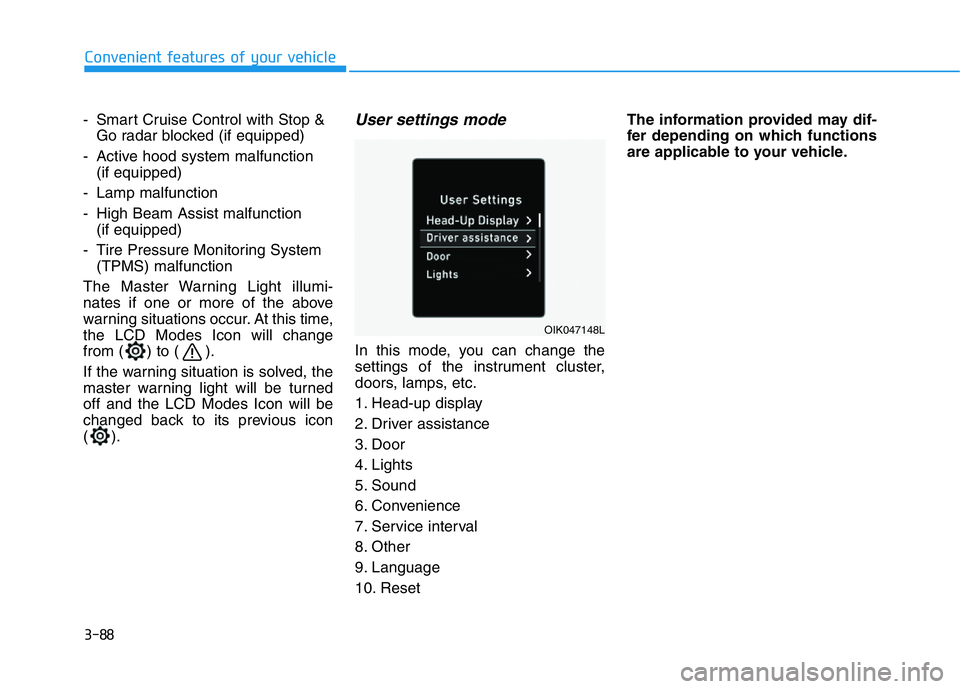
User settings mode
In this mode, you can change the
settings of the instrument cluster,
doors, lamps, etc.
1. Head-up display
2. Driver assistance
3. Door
4. Lights
5. Sound
6. Convenience
7. Service interval
8. Other
9. Language
10. ResetThe information provided may dif-
fer depending on which functions
are applicable to your vehicle.
OIK047148L
Page 174 of 516
3-89
Convenient features of your vehicle
3
Information
• Shift to P to edit settings (for auto-
matic transmission vehicle)
This warning message illuminates if
you try to select an item from the User
Settings mode while driving.
For your safety, change the User
Settings after parking the vehicle,
applying the parking brake and shift-
ing the vehicle to P (Park).
• Settings only available with parking
brake engaged and gear in neutral
(for manual transmission vehicle)
This warning message illuminates if
you try to select an item from the User
Settings mode while driving.
For your safety, change the User
Settings after engaging the parking
brake and shifting the gear to neutral.
• Quick guide (Help)
This mode provides quick guides for
the systems in the User Settings mode.
Select an item, press and hold the
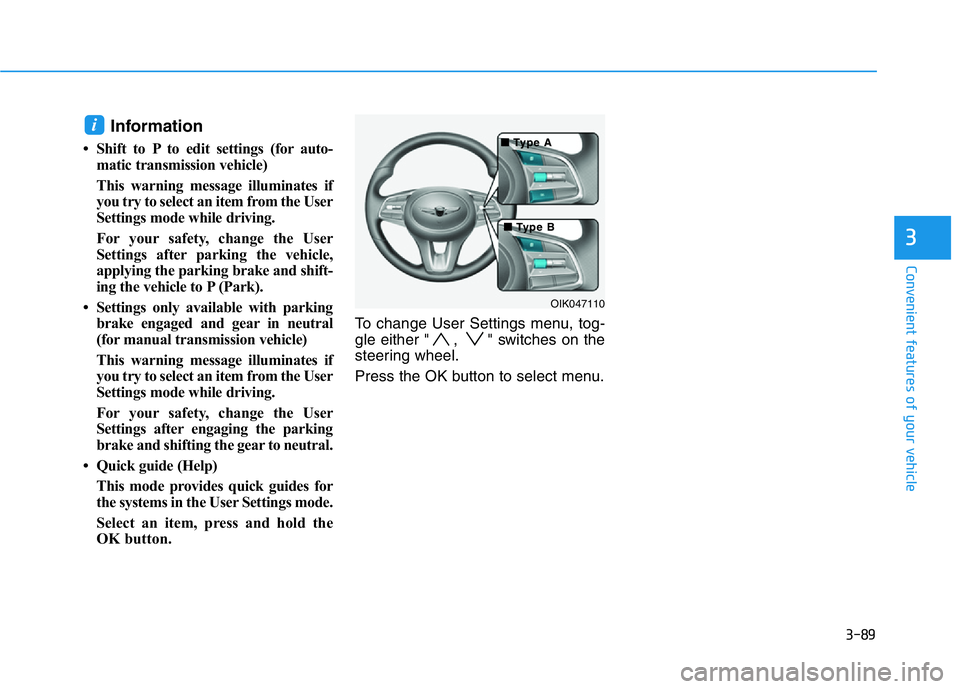
OK button.To change User Settings menu, tog-
gle either " , " switches on the
steering wheel.
Press the OK button to select menu.
i
OIK047110
■ ■ T T
ype A ype A
■ ■ T T
ype B ype B
Page 177 of 516
3-92
Convenient features of your vehicle
ItemsExplanation
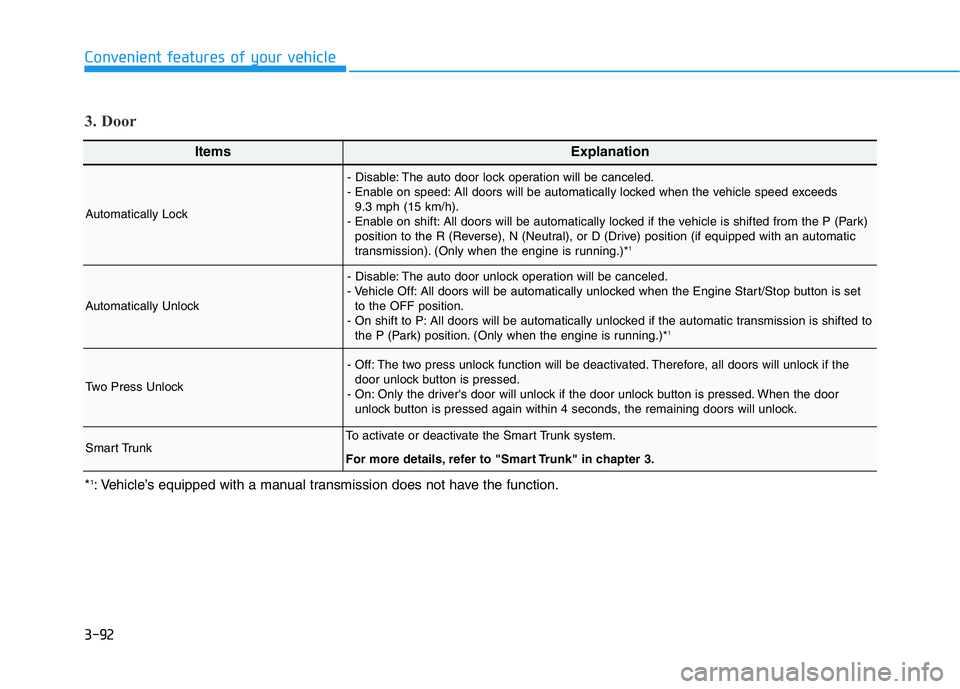
Automatically Lock
- Disable: The auto door lock operation will be canceled.
- Enable on speed: All doors will be automatically locked when the vehicle speed exceeds
9.3 mph (15 km/h).
- Enable on shift: All doors will be automatically locked if the vehicle is shifted from the P (Park)
position to the R (Reverse), N (Neutral), or D (Drive) position (if equipped with an automatic
transmission). (Only when the engine is running.)*
1
Automatically Unlock
- Disable: The auto door unlock operation will be canceled.
- Vehicle Off: All doors will be automatically unlocked when the Engine Start/Stop button is set
to the OFF position.
- On shift to P: All doors will be automatically unlocked if the automatic transmission is shifted to
the P (Park) position. (Only when the engine is running.)*
1
Two Press Unlock
- Off: The two press unlock function will be deactivated. Therefore, all doors will unlock if the
door unlock button is pressed.
- On: Only the driver's door will unlock if the door unlock button is pressed. When the door
unlock button is pressed again within 4 seconds, the remaining doors will unlock.
Smart TrunkTo activate or deactivate the Smart Trunk system.
For more details, refer to "Smart Trunk" in chapter 3.
3. Door
*1: Vehicle’s equipped with a manual transmission does not have the function.
Page 178 of 516
3-93
Convenient features of your vehicle
3
ItemsExplanation
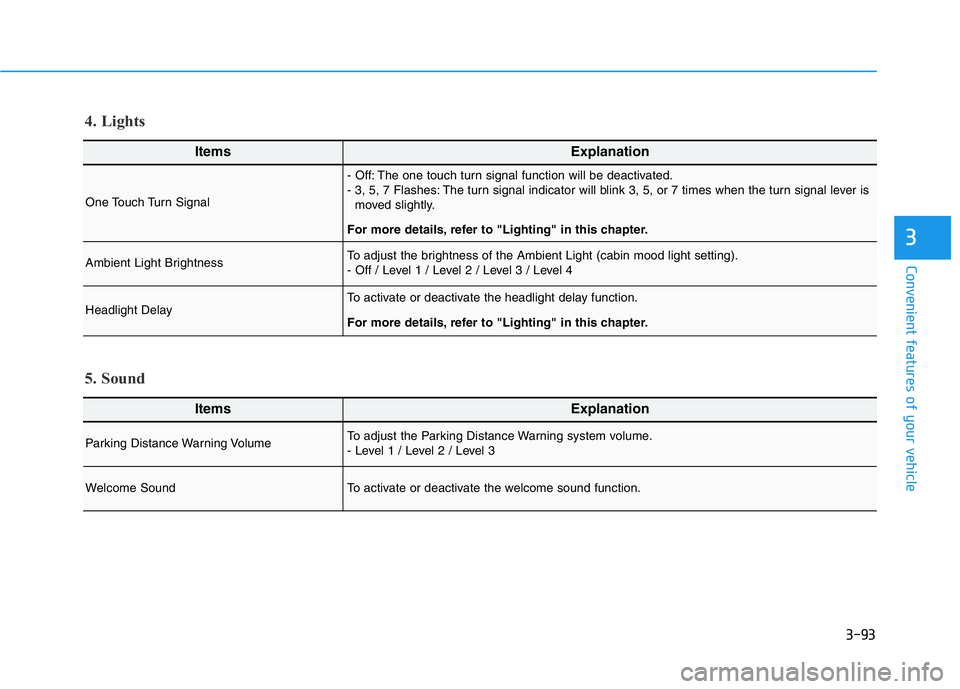
One Touch Turn Signal
- Off: The one touch turn signal function will be deactivated.
- 3, 5, 7 Flashes: The turn signal indicator will blink 3, 5, or 7 times when the turn signal lever is
moved slightly.
For more details, refer to "Lighting" in this chapter.
Ambient Light BrightnessTo adjust the brightness of the Ambient Light (cabin mood light setting).
- Off / Level 1 / Level 2 / Level 3 / Level 4
Headlight DelayTo activate or deactivate the headlight delay function.
For more details, refer to "Lighting" in this chapter.
4. Lights
ItemsExplanation
Parking Distance Warning VolumeTo adjust the Parking Distance Warning system volume.
- Level 1 / Level 2 / Level 3
Welcome SoundTo activate or deactivate the welcome sound function.
5. Sound
Page 181 of 516
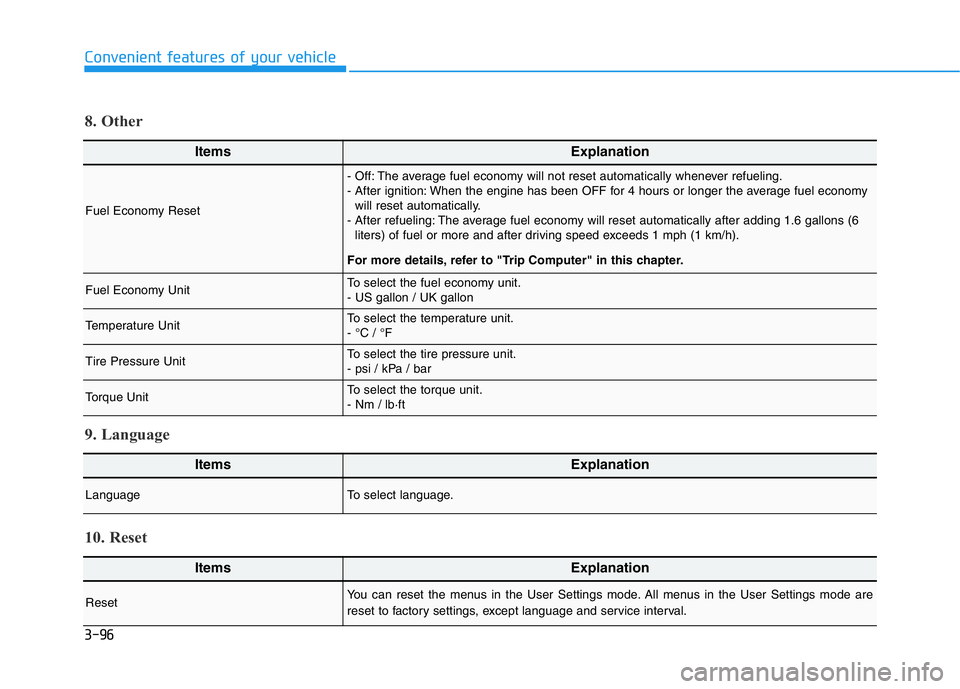
3-96
Convenient features of your vehicle
ItemsExplanation
Fuel Economy Reset
- Off: The average fuel economy will not reset automatically whenever refueling.
- After ignition: When the engine has been OFF for 4 hours or longer the average fuel economy
will reset automatically.
- After refueling: The average fuel economy will reset automatically after adding 1.6 gallons (6
liters) of fuel or more and after driving speed exceeds 1 mph (1 km/h).
For more details, refer to "Trip Computer" in this chapter.
Fuel Economy UnitTo select the fuel economy unit.
- US gallon / UK gallon
Temperature UnitTo select the temperature unit.
- °C / °F
Tire Pressure UnitTo select the tire pressure unit.
- psi / kPa / bar
Torque UnitTo select the torque unit.
- Nm / lb·ft
8. Other
ItemsExplanation
LanguageTo select language.
9. Language
ItemsExplanation
ResetYou can reset the menus in the User Settings mode. All menus in the User Settings mode are
reset to factory settings, except language and service interval.
10. Reset
Page 182 of 516

3-97
Convenient features of your vehicle
3
The trip computer is a microcomput-
er-controlled driver information sys-
tem that displays information related
to driving.
Information
Some driving information stored in the
trip computer (for example Average
Vehicle Speed) resets if the battery is
disconnected.
Trip modes
To change the trip mode, toggle the
" , " switch on the steering
wheel.
i
TRIP COMPUTER
OIK047110
• Tripmeter
• Fuel Economy
• Timer
Drive Info
• Tripmeter
• Fuel Economy
• Timer
Accumulated Info
• Average Fuel Economy
• Instant Fuel Economy
Fuel Economy
Digital Speedometer
Smart Shift
■ ■ T T
ype A ype A
■ ■ T T
ype B ype B
Page 183 of 516

3-98
Convenient features of your vehicle
Average fuel economy/
Instant fuel economy
Average Fuel Economy (1)
• The average fuel economy is calcu-
lated by the total driving distance
and fuel consumption since the last
average fuel economy reset.
• The average fuel economy can be
reset both manually and automati-
cally.
Manual reset
To clear the average fuel economy
manually, press the OK button on the
steering wheel for more than 1 sec-
ond when the average fuel economy
is displayed.
Automatic reset
To automatically reset the average
fuel economy, select between "After
Ignition" or "After Refueling" in the
User Settings mode in the cluster
LCD display.
- After ignition: When the engine has
been OFF for 4 hours or longer the
average fuel economy will reset
automatically.
- After refueling: The average fuel
economy will reset automatically
after adding 1.6 gallons (6 liters) of
fuel or more and after driving speed
exceeds 1 mph (1 km/h).
Information
The vehicle must be driven for a min-
imum of 0.19 miles (300 meters) since
the last ignition key cycle before the
average fuel economy will be recalcu-
lated.
Instant Fuel Economy (2)
• The instantaneous fuel economy is
displayed according to the bar
graph in the LCD display while
driving.
i
OIK047124N
Page 184 of 516

3-99
Convenient features of your vehicle
3
Accumulated Info display
This display shows the accumulated
trip distance (1), the average fuel
economy (2), and the total driving
time (3).
The information is accumulated start-
ing from the last reset.
To reset the details, press and hold
the OK button when viewing the
Accumulated driving info. The trip
distance, the average fuel economy,
and total driving time will reset simul-
taneously.The accumulated driving information
will continue to be counted while the
engine is still running (for example,
when the vehicle is in traffic or
stopped at a stop light).
Information
The vehicle must be driven for a min-
imum of 0.19 miles (300 meters) since
the last ignition key cycle before the
average fuel economy will be recalcu-
lated.
Drive Info display
This display shows the trip distance
(1), the average fuel economy (2),
and the total driving time (3).
The information is combined for each
ignition cycle. However, when the
engine has been OFF for 4 hours or
longer the Drive Info screen will reset.
To reset the details, press and hold
the OK button when viewing the Drive
Info. The trip distance, the average
fuel economy, and total driving time
will reset simultaneously.
i
OIK047174NOIK047176N
Page 186 of 516
3-101
Convenient features of your vehicle
3
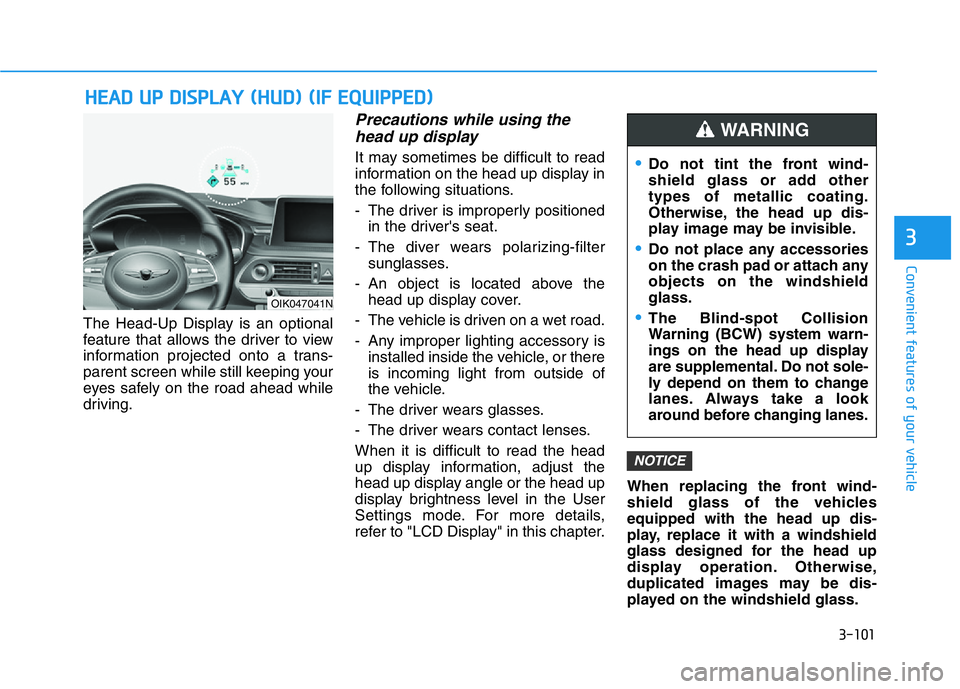
The Head-Up Display is an optional
feature that allows the driver to view
information projected onto a trans-
parent screen while still keeping your
eyes safely on the road ahead while
driving.
Precautions while using the
head up display
It may sometimes be difficult to read
information on the head up display in
the following situations.
- The driver is improperly positioned
in the driver's seat.
- The diver wears polarizing-filter
sunglasses.
- An object is located above the
head up display cover.
- The vehicle is driven on a wet road.
- Any improper lighting accessory is
installed inside the vehicle, or there
is incoming light from outside of
the vehicle.
- The driver wears glasses.
- The driver wears contact lenses.
When it is difficult to read the head
up display information, adjust the
head up display angle or the head up
display brightness level in the User
Settings mode. For more details,
refer to "LCD Display" in this chapter.When replacing the front wind-
shield glass of the vehicles
equipped with the head up dis-
play, replace it with a windshield
glass designed for the head up
display operation. Otherwise,
duplicated images may be dis-
played on the windshield glass.
NOTICE
HEAD UP DISPLAY (HUD) (IF EQUIPPED)
Page 187 of 516
3-102
Convenient features of your vehicle
Head-Up display ON/OFF
To activate the head up display,
select ‘Head-Up Display’ on the User
Settings mode on the instrument
cluster LCD display.
If you do not select ‘Head-Up
Display’, the head up display will be
deactivated.
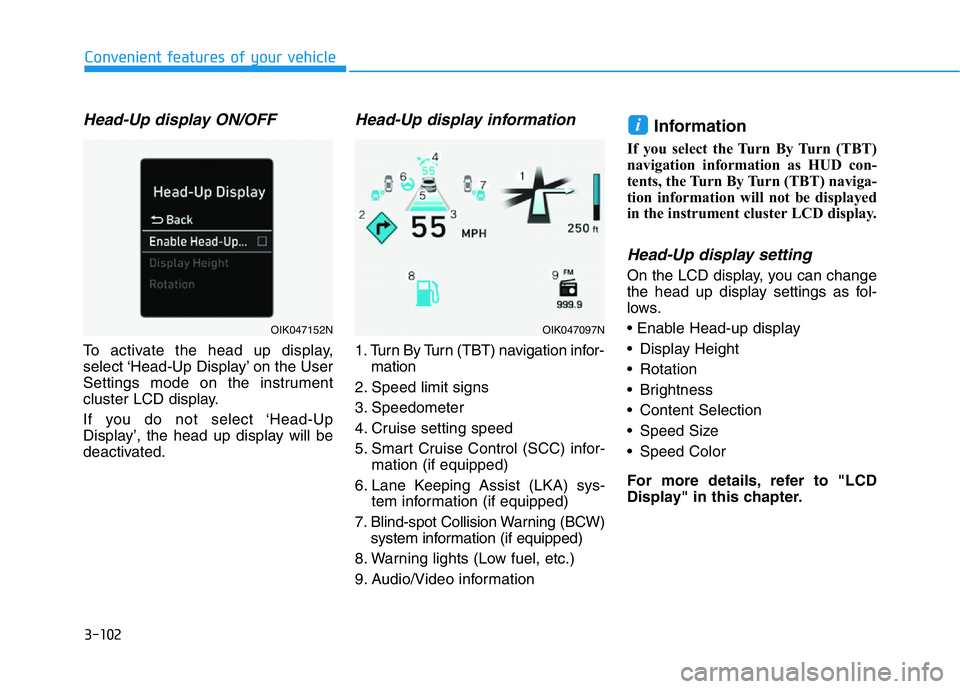
Head-Up display information
1. Turn By Turn (TBT) navigation infor-
mation
2. Speed limit signs
3. Speedometer
4. Cruise setting speed
5. Smart Cruise Control (SCC) infor-
mation (if equipped)
6. Lane Keeping Assist (LKA) sys-
tem information (if equipped)
7. Blind-spot Collision Warning (BCW)
system information (if equipped)
8. Warning lights (Low fuel, etc.)
9. Audio/Video information
Information
If you select the Turn By Turn (TBT)
navigation information as HUD con-
tents, the Turn By Turn (TBT) naviga-
tion information will not be displayed
in the instrument cluster LCD display.
Head-Up display setting
On the LCD display, you can change
the head up display settings as fol-
lows.
• Enable Head-up display
• Display Height
• Rotation
• Brightness
• Content Selection
• Speed Size
• Speed Color
For more details, refer to "LCD
Display" in this chapter.
i
OIK047152NOIK047097N