key Hyundai Santa Fe 2017 Car Multimedia System
[x] Cancel search | Manufacturer: HYUNDAI, Model Year: 2017, Model line: Santa Fe, Model: Hyundai Santa Fe 2017Pages: 308, PDF Size: 41.14 MB
Page 54 of 308
2-30 I AV
iPod
Using iPod Devices
•iPod is a re\fistered t\lrademark of Apple Inc.
•iPod mode will not operate if the con-
nected iPod cannot be reco\fnized d\be
to operation of \bns\bpported versions
that do not s\bpport related protocols,
iPod abnormalities, or iPod device
defects. Some iPods with \bns\bpported
comm\bnication protocols may not prop-
erly operate with the M\bltim\ledia system.
•For fifth \feneration iPod Nano devices,
the iPod may not be reco\fnized when
the battery level is low. Please char\fe
the iPod for \bse.
•Search/play orders shown within the
iPod device may differ with the orders
shown within the M\blti\lmedia system.
•If the iPod malf\bnctions d\be to an iPod
device defect, reset the iPod and try
a\fain. (To learn more, refer to yo\br iPod
man\bal.)
•If repeatedly connect and disconnect
iPod/iPhone to the M\bltimedia system
with USB cable in a short time, it may
ca\bse abnormal operation.
•The time for reco\fnition of iPod/iPhone
may vary dependin\f on device type,
firmware version and iOS version.
•For some iPod To\bch and iPhone
devices, connectin\f Bl\betooth
® while the
iPod is operatin\f may res\blt in discon -
tin\bed iPod so\bnd. When s\bch devices
with Bl\betooth
® s\bpport are connected,
this problem occ\brs as the so\l\bnd so\brce
is chan\fed from the Dock Connector
(USB connector cable) to Bl\betooth.
• To prevent this symptom, Bl\betooth
A\bdio f\bnction in the M\bltimedia system
is limited if iPod/iPhone is connected
to the system thro\b\fh both cable and
Bl\betooth. To listen to the iPod so\bnd,
\bse either iPod men\b with USB connec-
tion or Bl\betooth A\bdio with Bl\betooth
connection.
•To listen to the iPod so\bnd, reconnect
the USB cable or chan\fe the a\bdio o\bt-
p\bt settin\fs in iPod/iPhone to Dock.
•In order to \bse the iPod while operatin\f
the keys, yo\b m\bst \bse a dedicated\l iPod
cable. (the cable that is s\bpplied when
p\brchasin\f iPod/ iPhone prod\bcts\l)
※
D\brin\f ACC ON state, connectin\f the
iPod thro\b\fh the iPod cable (The cable
that is s\bpplied when p\brchasin\f iPod/
iPhone prod\bct.) will char\fe the iPod
thro\b\fh the head \bni\lt.
※ The \bse of \fen\bine iPod cables s\bp-
plied by Apple is recommended. (The
\bse of other prod\bcts may res\blt in
noise or abnormal operation.)
※ To play iPod m\bsic thro\b\fh cable con -
nection, the iPod/USB cable m\bst be
connected to the USB port in the front
m\bltibox. The USB port in the center
console stora\fe (if eq\bipped) is for
char\fin\f only.
Page 61 of 308
AUX I 2-37
AUX
Connecting an External Device
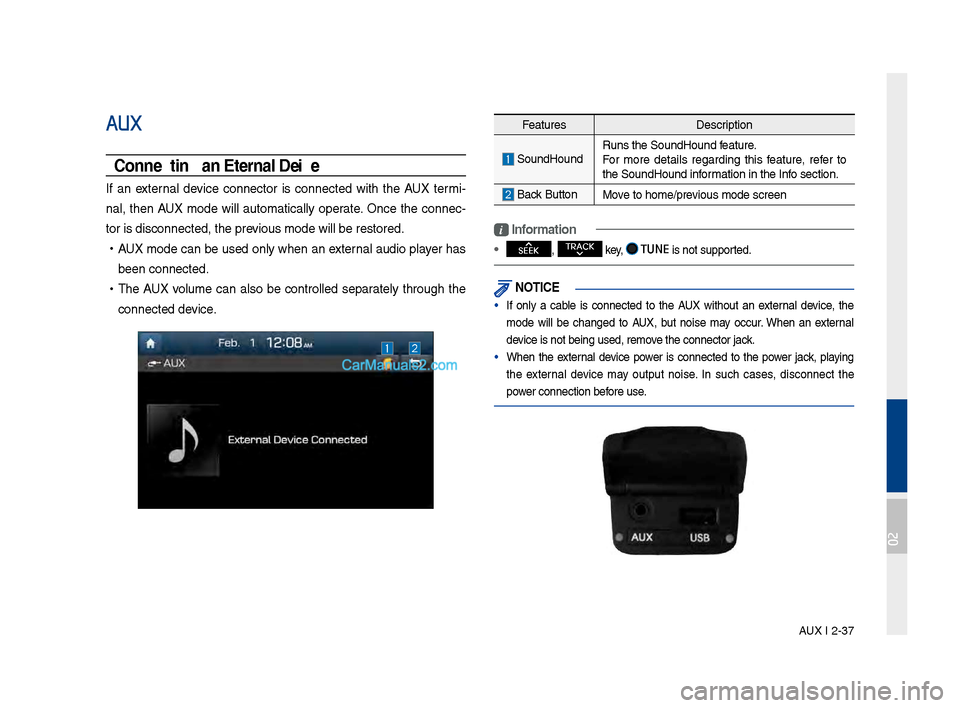
If an external device connector is connected with the AUX termi-
nal, then AUX mode will a\btomatically operate. Once the connec-
tor is disconnected\l, the previo\bs mode will be r\lestored.
• AUX mode can be \bsed only when an external a\bdio player has
been connected.
•The AUX vol\bme can also be controlled separately thro\b\fh the
connected device.
Feat\bres Description
So\bndHo\bndR\bns the So\bndHo\bnd \lfeat\bre.
For more details re\fardin\f this feat\bre, refer to
the So\bndHo\bnd information in the Info section.
Back B\btton Move to home/previo\bs mode screen
i \fnformation
• SEEK
, TRACK key, TUNE is not s\bpported.
NOT\fCE
• If only a cable is connected to the AUX witho\bt an external device, the
mode will be chan\fed to AUX, b\bt noise may occ\br. When an external
device is not bein\f \b\lsed, remove the connector jac\lk.
• When the external device power is connected to the power jack, playin\f
the external device may o\btp\bt noise. In s\bch cases, disconnect the
power connection before \bse.
02
Page 70 of 308
3\b4 I Bluetooth
Bluetooth Connection
Pairing a New Device
Before you can use the Bluetooth feature,
you must first pair/connect your mobile
phone to your car.
Up to 5 Bluetooth \ddevices can be paire\dd.
Only one Bluetooth device can be con\b
nected at a time.
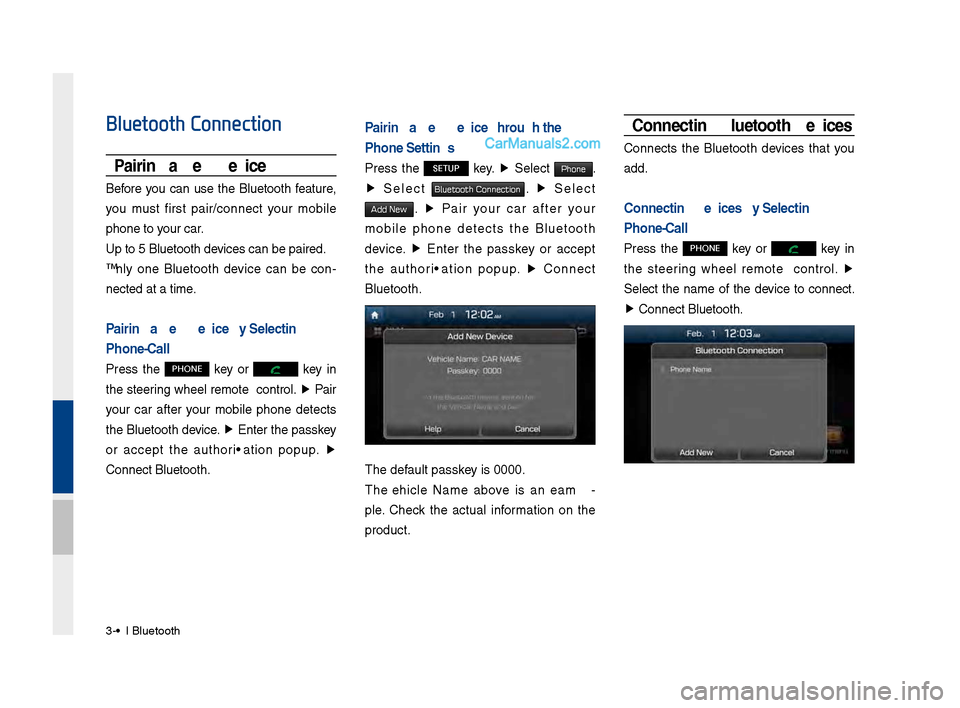
Pairing a New Device by Selecting
Phone/Call
Press the PHONE key or key in
the steering wheel remote control. ▶
Pair
your car after your mobile phone detects
the Bluetooth device. ▶
Enter the passkey
or accept the authorization popup. ▶
\fonnect Bluetooth.
Pairing a New Device Through the
Phone Settings
Press the SETUP key. ▶
Select Phone.
▶ Select Bluetooth Connection. ▶ Select
Add New. ▶ Pair your car after your
mobile phone detects the Bluetooth
device. ▶
Enter the passkey or accept
the authorization popup. ▶
\fonnect
Bluetooth.
The default passkey is 0000.
The Vehicle Name above is an exam \b
ple. \fheck the actual information on the
product.
Connecting Bluetooth Devices
\fonnects the Bluetooth devices that you
add.
Connecting Devices by Selecting
Phone/Call
Press the PHONE key or key in
the steering wheel remote control. ▶
Select the name of the device to connect.
▶ \fonnect Bluetooth.
Page 71 of 308
Bluetooth \fonnectio\dn I 3\b5
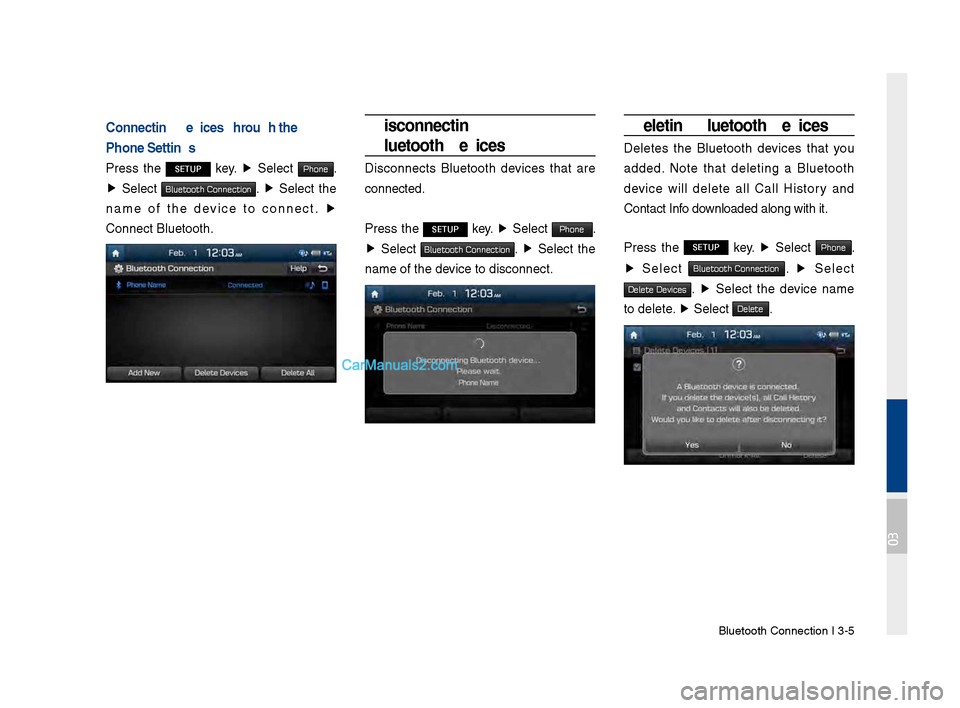
Connecting Devices Through the
Phone Settings
Press the SETUP key. ▶
Select Phone.
▶ Select Bluetooth Connection. ▶ Select the
name of the device to connect. ▶
\fonnect Bluetooth.
Disconnecting
Bluetooth Devices
Disconnects Bluetooth devices that are
connected.
Press the
SETUP key. ▶
Select Phone.
▶ Select Bluetooth Connection. ▶ Select the
name of the device to disconnect.
Deleting Bluetooth Devices
Deletes the Bluetooth devices that you
added. Note that deleting a Bluetooth
device will delete all \fall History and
\fontact Info downloaded along with\d it.
Press the
SETUP key. ▶
Select Phone.
▶ Select Bluetooth Connection. ▶ Select
Delete Devices. ▶ Select the device name
to delete. ▶
Select
Delete.
03
Page 73 of 308
Bluetooth Phone I 3\d\b7
Dial
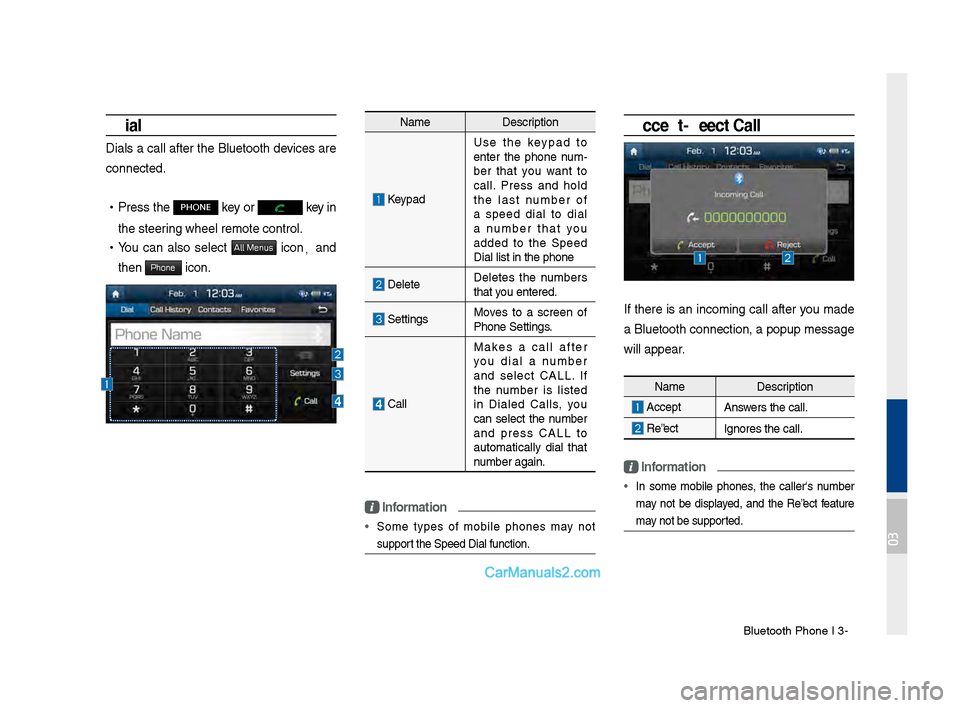
Dials a call after the Bluetooth devices are
connected.
•Press the PHONE key or key in
the steering wheel remote c\dontrol.
• You can also select All Menus icon, and
then
Phone icon.
Name Description
Keypad
Use the keypad to
enter the phone num \b
ber that you want to
call. Press and hold
the last number of
a speed dial to dial
a number that you
added to the Speed
Dial list in the p\dhone
DeleteDeletes the numbers
that you entered.
SettingsMoves to a screen of
Phone Settings.
\fall Makes a call after
you dial a number
and select \fALL. If
the number is listed
in Dialed \falls, you
can select the number
and press \fALL to
automatically dial that
number again.
\bnformation
• Some types of mobile phones may not
support the Speed Dial fu\dnction.
Accept/Reject Call
If there is an incoming call after you made
a Bluetooth connection, a popup message
will appear.
\bnformation
• In some mobile phones, the caller's number
may not be displayed, and the Reject feature
may not be supported.
Name
Description
AcceptAnswers the call.
Reject Ignores the call.
03
Page 74 of 308
3\b8 I Bluetooth
Using the Menu During
a Phone Call
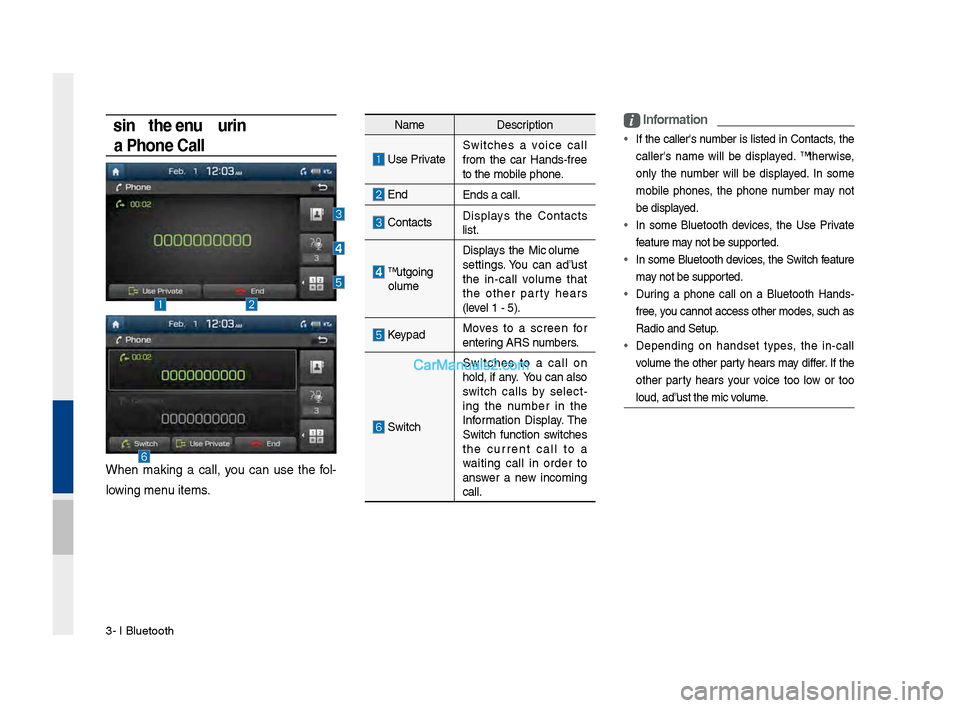
When making a call, you can use the fol\b
lowing menu items.
Name Description
Use PrivateSwitches a voice call
from the car Hands\bfree
to the mobile phon\de.
EndEnds a call.
\fontacts Displays the \fontacts
list.
Outgoing
Volume Displays the Mic Volume
settings. You can adjust
the in\bcall volume that
the other party hears
(level 1 \b 5).
KeypadMoves to a screen for
entering ARS numbers.
Switch
Switches to a call on
hold, if any. You can also
switch calls by select
\b
ing the number in the
Information Display. The
Switch function switches
the current call to a
waiting call in order to
answer a new incoming
call.
i \bnformation
• If the caller's number is listed in \fontacts, the
caller's name will be displayed. Otherwise,
only the number will be displayed. In some
mobile phones, the phone number may not
be displayed.
• In some Bluetooth devices, the Use Private
feature may not be supported.
• In some Bluetooth devices, the Switch feature
may not be supported.
• During a phone call on a Bluetooth Hands\b
free, you cannot access o\dther modes, such as
Radio and Setup.
• Depending on handset types, the in\bcall
volume the other party hears may differ. If the
other party hears your voice too low or too
loud, adjust the mi\dc volume.
Page 75 of 308
Bluetooth Phone I 3\d\b9
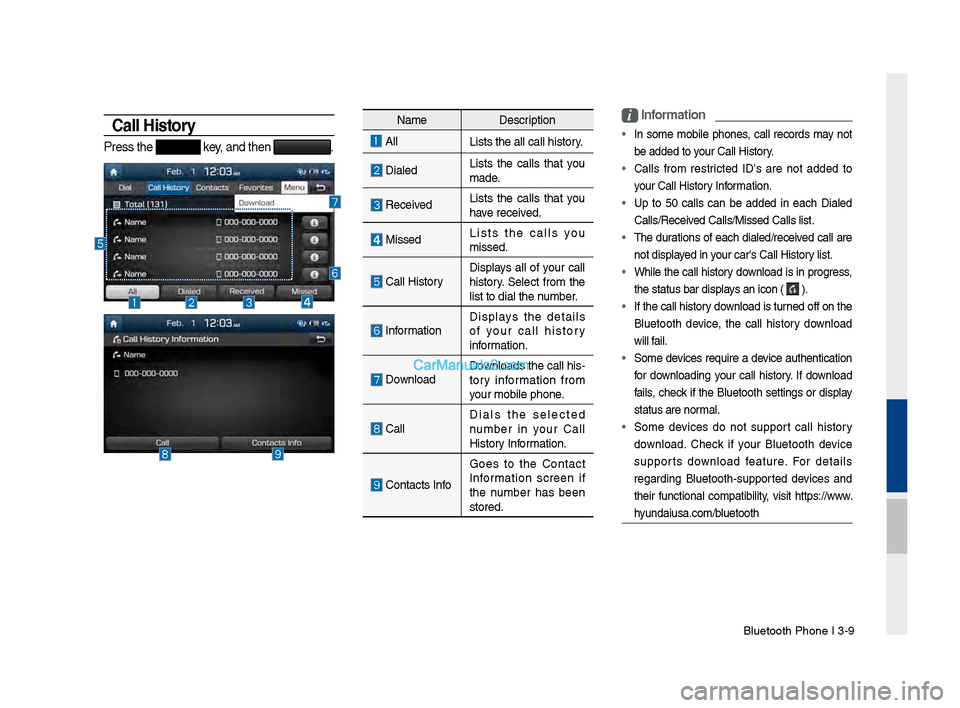
Call History
Press the key, and then .
NameDescription
All
Lists the all call\d history.
DialedLists the calls that you
made.
Received Lists the calls that you
have received.
Missed Lists the calls you
missed.
\fall HistoryDisplays all of your call
history. Select from the
list to dial the number.
InformationDisplays the details
of your call history
information.
Download Downloads the call his\b
tory information from
your mobile phone.
\fallDials the selected
number in your \fall
History Information.
\fontacts InfoGoes to the \fontact
Information screen if
the number has been
stored.
i
\bnformation
• In some mobile phones, call records may not
be added to your \fall History.
• \falls from restricted ID's are not added to
your \fall History Information.
• Up to 50 calls can be added in each Dialed
\falls/Received \falls/Missed \fall\ds list.
• The durations of each dialed/received call are
not displayed in your car's \fall Hist\dory list.
• While the call history download is in progress,
the status bar disp\dlays an icon (
).
• If the call history download is turned off on the
Bluetooth device, the call history download
will fail.
• Some devices require a device authentication
for downloading your call history. If download
fails, check if the Bluetooth settings or display
status are normal.
• Some devices do not support call history
download. \fheck if your Bluetooth device
supports download feature. For details
regarding Bluetooth\bsupported devices and
their functional compatibility, visit https://www.
hyundaiusa.com/bluetooth
Page 76 of 308
3\b10 I Bluetooth
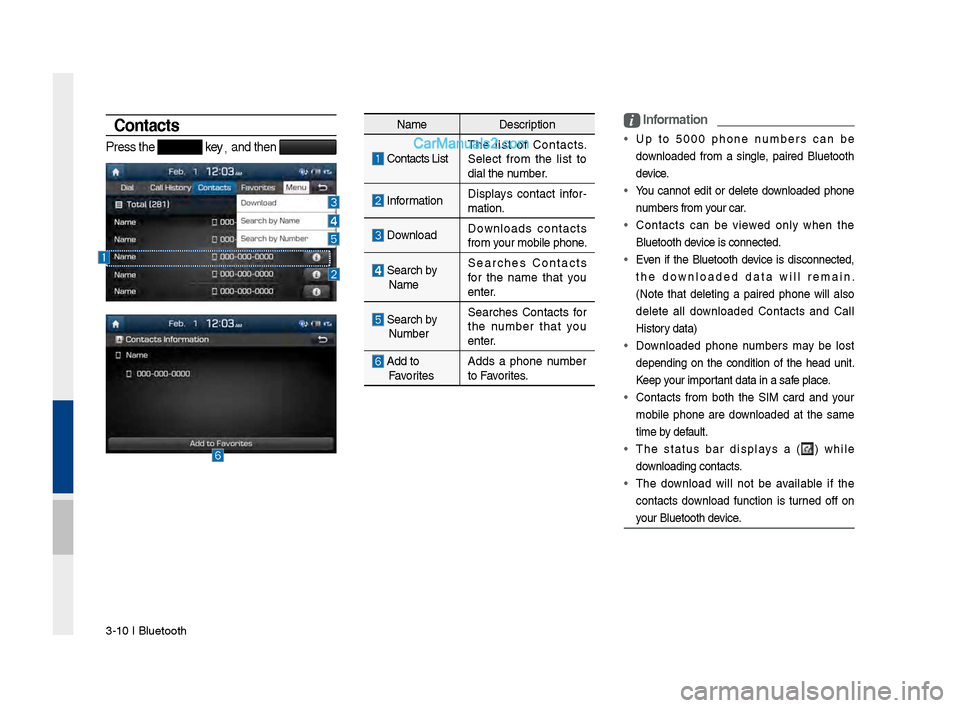
Contacts
Press the key,
and then
i \bnformation
• Up to 5000 phone numbers can be
downloaded from a single, paired Bluetooth
device.
• You cannot edit or delete downloaded phone
numbers from your car.
• \fontacts can be viewed only when the
Bluetooth device is connected.
• Even if the Bluetooth device is disconnected,
the downloaded data will remain.
(Note that deleting a paired phone will also
delete all downloaded \fontacts and \fall
History data)
• Downloaded phone numbers may be lost
depending on the condition of the head unit.
Keep your important data in a safe place.
• \fontacts from both the SIM card and your
mobile phone are downloaded at the same
time by default.
• The status bar displays a (
) while
downloading contacts.
• The download will not be available if the
contacts download function is turned off on
your Bluetooth device.
Name Description
\fontacts ListThe list of \fontacts.
Select from the list to
dial the number.
Information
Displays contact infor
\b
mation.
Download Downloads contacts
from your mobile phone.
Search by
Name Searches \fontacts
for the name that you
enter.
Search by
Number Searches \fontacts for
the number that you
enter.
Add to
Favorites Adds a phone number
to Favorites.
Page 77 of 308
Bluetooth Phone I 3\d\b11
• Some devices require a device authentication
for downloading your contacts. If download
fails,check your phone screen and confirm the
download if necessary.
• Some devices do not support contacts
download feature. \fheck if your Bluetooth
device supports contacts download. For
Bluetooth supporting devices details and
compatibility, visit https://www.hyundaiusa.
com/bluetooth
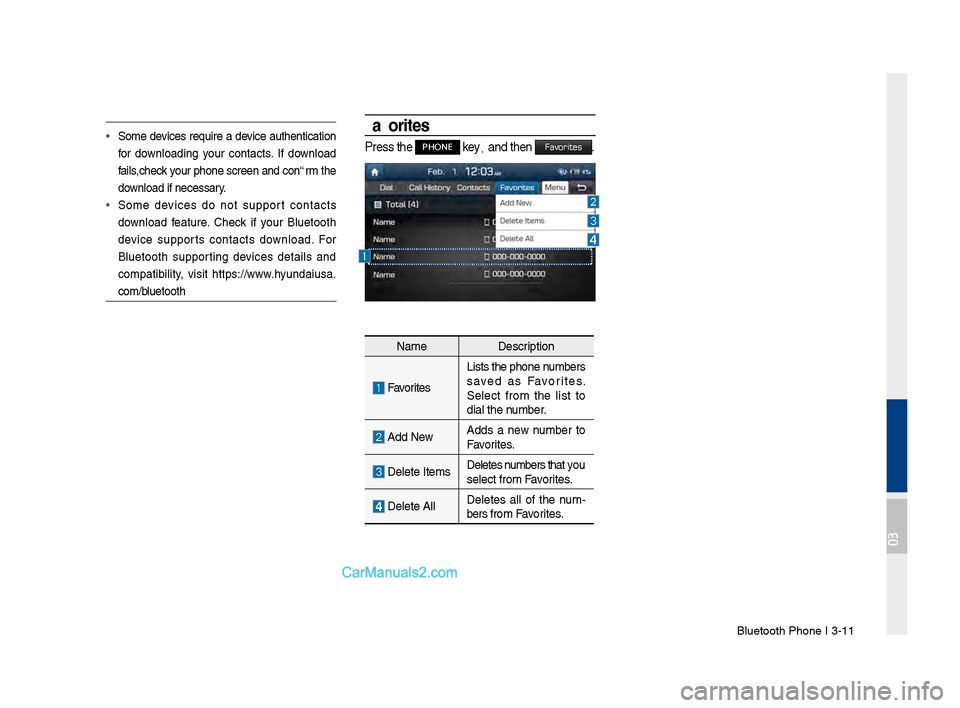
Favorites
Press the PHONE key,
and then Favorites.
Name Description
Favorites
Lists the phone numbers
saved as Favorites.
Select from the list to
dial the number.
Add NewAdds a new number to
Favorites.
Delete ItemsDeletes numbers that you
select from Favorites.
Delete AllDeletes all of the num
\b
bers from Favorites.
03
Page 82 of 308
4-4 I Blue Link® Control
Getting Started with
Blue Link
\fse Blue Link features such as Driving
Info and Vehicle Diagnostics. Blue Link
features can be used after activating the
service.
i \fnformation
• A separate fee may be charged for using Blue
Link, and features may differ according to your
service plan.
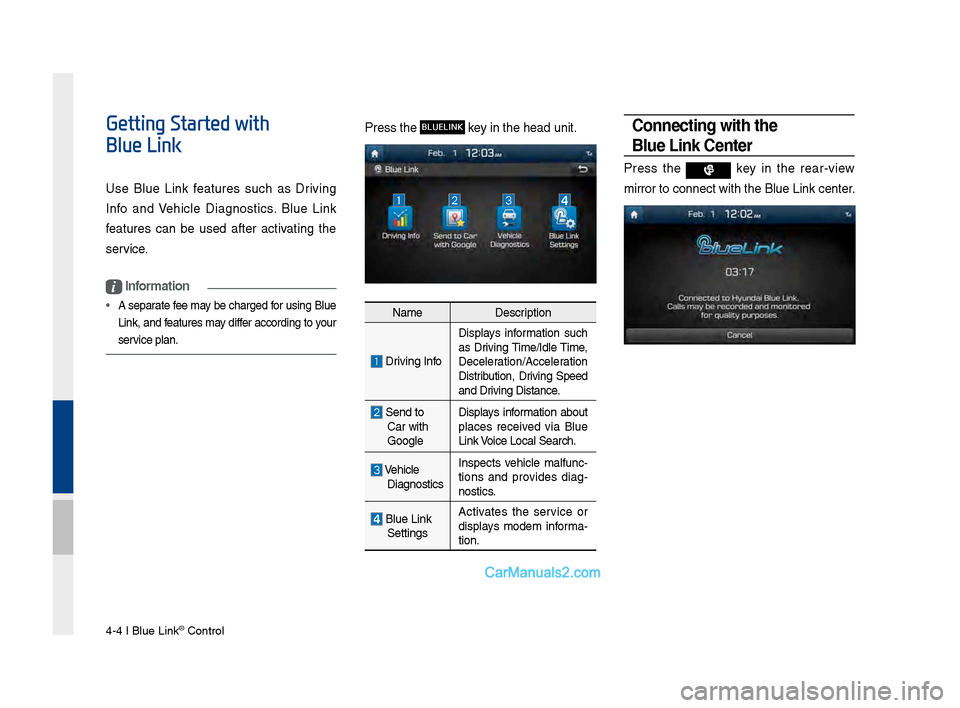
Press the BLUELINK key in the head unit\B.
NameDescription
Driving Info
Displays information such
as Driving Time/Idle Time,
Deceleration/Acceleration
Distribution, Driving \bpeed
and Driving Distance.
\bend to
Car with
Google Displays information about
places received via Blue
Link Voice Local \bearch.
Vehicle
Diagnostics Inspects vehicle malfunc
-
tions and provides diag-
nostics.
Blue Link \bettings Activates the service or
displays modem informa
-
tion.
Connecting with the
Blue \bink Center
Press the key in the rear-view
mirror to connect \Bwith the Blue Link \Bcenter.