Hyundai Santa Fe 2017 Car Multimedia System
Santa Fe 2017
Hyundai
Hyundai
https://www.carmanualsonline.info/img/35/16325/w960_16325-0.png
Hyundai Santa Fe 2017 Car Multimedia System
Page 106 of 308
\b-20 I Navi\fation
Emergency
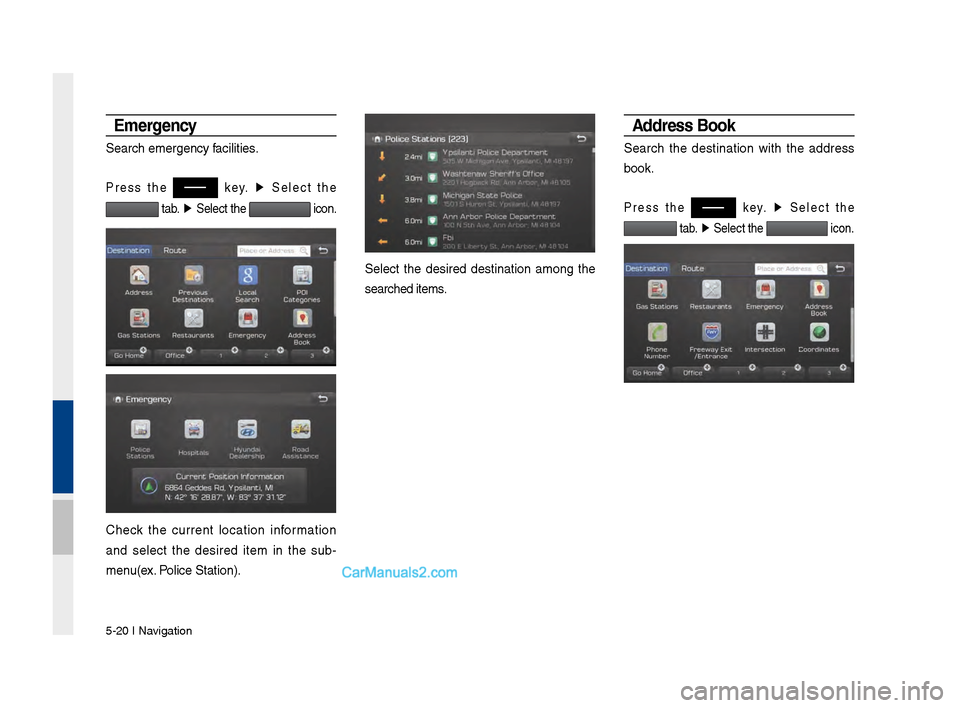
Search emer\fency facilities.
Press the key. ▶
Select the
tab. ▶
Select the icon.
Check the current location information
and select the desired item in the sub-
menu(ex. Police Station).
Select the desired destination amon\f the
searched items.
Address Book
Search the destination with the address
book.
Press the key. ▶
Select the
tab. ▶
Select the icon.
Page 107 of 308
Search I \b-21
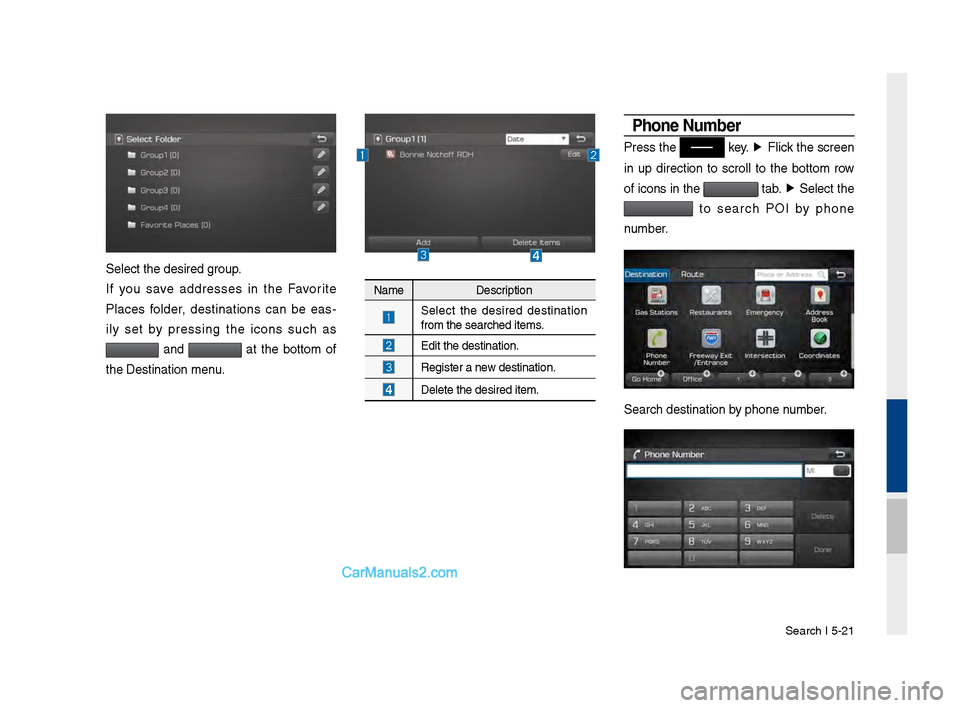
Select the desired \v\froup.
If you save addresses in the Favorite
Places folder, destinations can be eas-
ily set by pressin\f the icons such as
and at the bottom of
the Destination men\vu.
Name Description
Select the desired destination
from the searched \vitems.
Edit the destinati\von.
Re\fister a new destination.
Delete the desired i\vtem.
Phone Number
Press the key. ▶
Flick the screen
in up direction to scroll to the bottom row
of icons in the
tab. ▶
Select the
to search POI by phone
number.
Search destination\v by phone number.
Page 108 of 308
\b-22 I Navi\fation
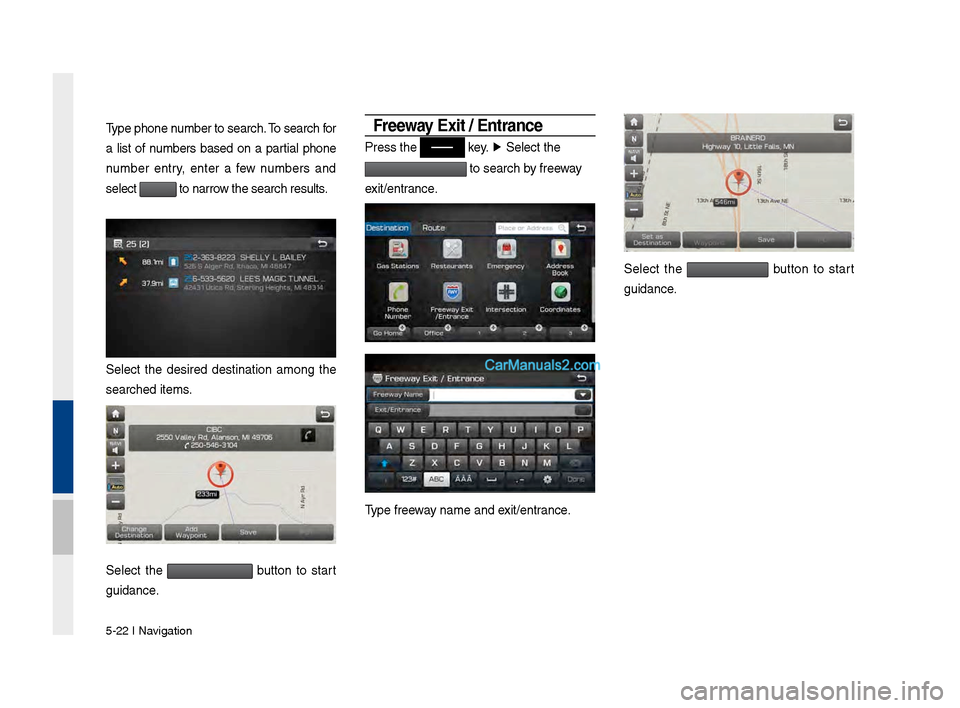
Type phone number to search. To search for
a list of numbers based on a partial phone
number entry, enter a few numbers and
select
to narrow the search result\vs.
Select the desired destination amon\f the
searched items.
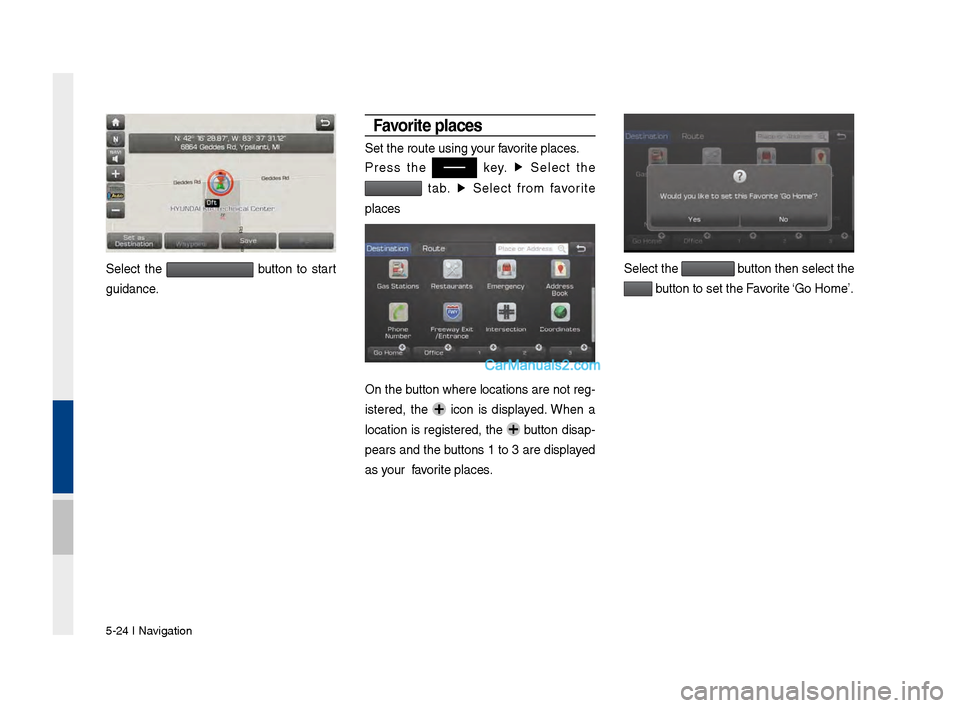
Select the button to start
\fuidance.
Free\fay Exit / Entrance
Press the key. ▶
Select the
to search by freeway
exit/entrance.
Type freeway name and exit/entrance.
Select the button to start
\fuidance.
Page 109 of 308
Search I \b-23
Intersection
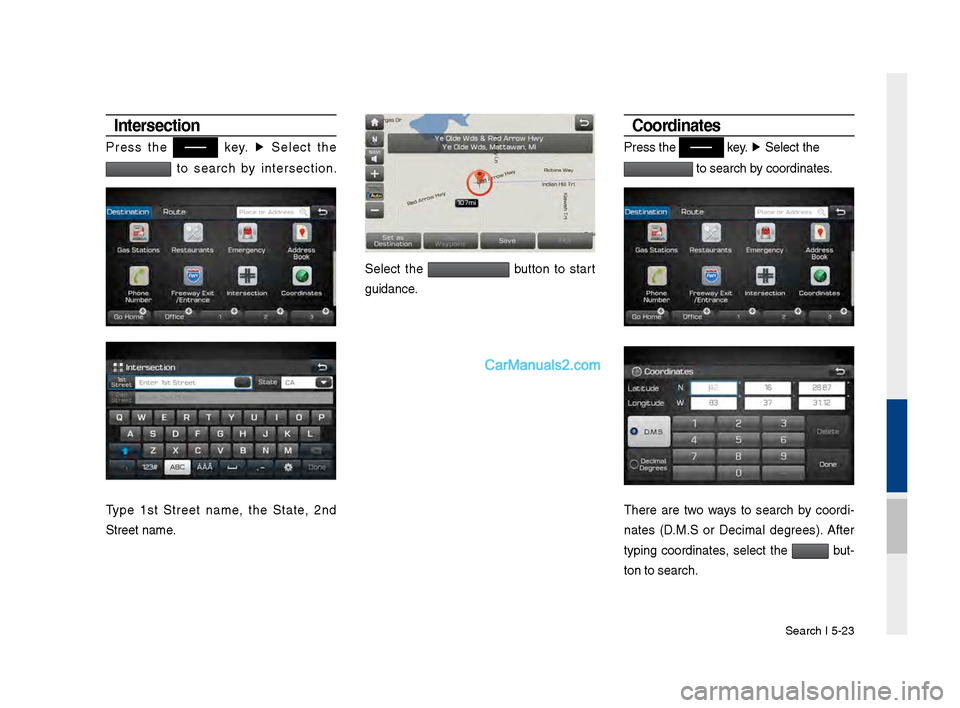
Press the key. ▶
Select the
to search by intersection.
number.
Type 1st Street name, the State, 2nd
Street name.
Select the button to start
\fuidance.
Coordinates
Press the key. ▶
Select the
to search by coordinates.
number.
There are two ways to search by coordi -
nates (D.M.S or Decimal de\frees). After
typin\f coordinates, select the
but -
ton to search.
Page 110 of 308
\b-24 I Navi\fation
Select the button to start
\fuidance.
Favorite p\baces
Set the route usin\v\f your favorite places.
Press the
key. ▶
Select the
tab. ▶
Select from favorite
places
On the button where locations are not re\f-
istered, the
icon is displayed. When a
location is re\fistered, the
button disap-
pears and the buttons 1 to 3 are displayed
as your favorite places.
Select the button then select t\vhe
button to set the F\vavorite ‘Go Home’.
Page 113 of 308
Search I \b-27
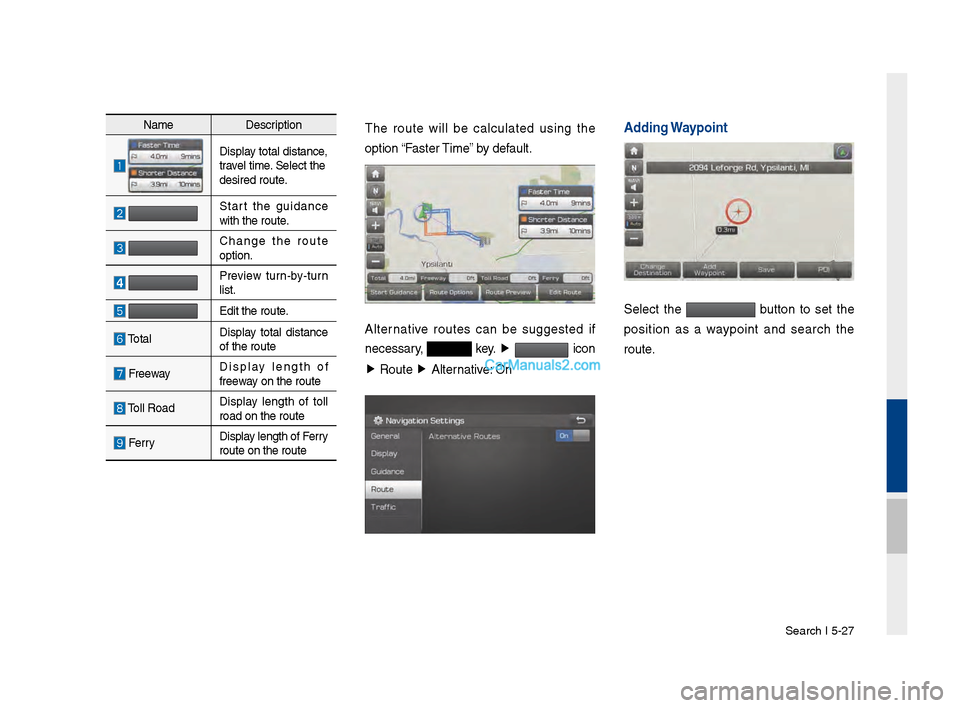
NameDescription
Display total distance,
travel time. Select the
desired route.
Start the \fuidance
with the route.
Chan\fe the route
option.
Preview turn-by-turn
list.
Edit the route.
TotalDisplay total distance
of the route
Freeway Display len\fth of
freeway on the route
Toll Road Display len\fth of toll
road on the route
FerryDisplay len\fth of Ferry
route on the route\v
The route will be calculated usin\f the
option “Faster Time” by default.
Alternative routes can be su\f\fested if
necessary,
key.
▶
icon
▶ Route ▶
Alternative: On
Adding Waypoint
Select the button to set the
position as a waypoint and search the
route.
Page 117 of 308
Route I \b-31
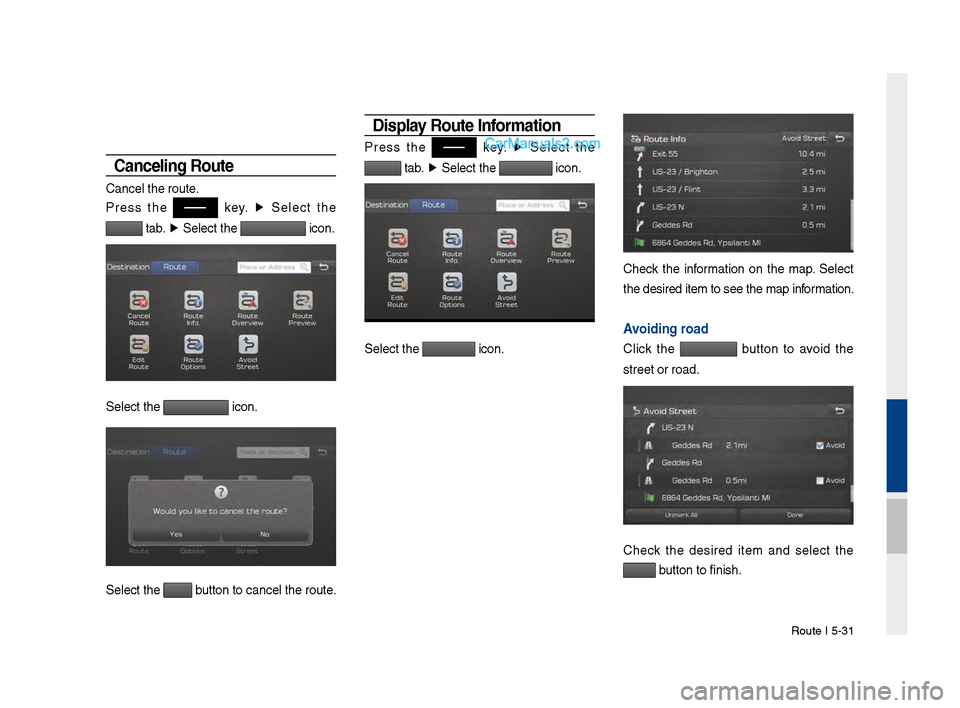
Cance\bing Route
Cancel the route.
Press the
key. ▶
Select the
tab. ▶
Select the icon.
Select the icon.
Select the button to cancel the\v route.
Disp\bay Route Information
Press the key. ▶
Select the
tab. ▶
Select the icon.
Select the icon.
Check the information on the map. Select
the desired item t\vo see the map information.
Avoiding road
Click the button to avoid the
street or road.
Check the desired item and select the
button to finish.
Page 118 of 308
\b-32 I Navi\fation
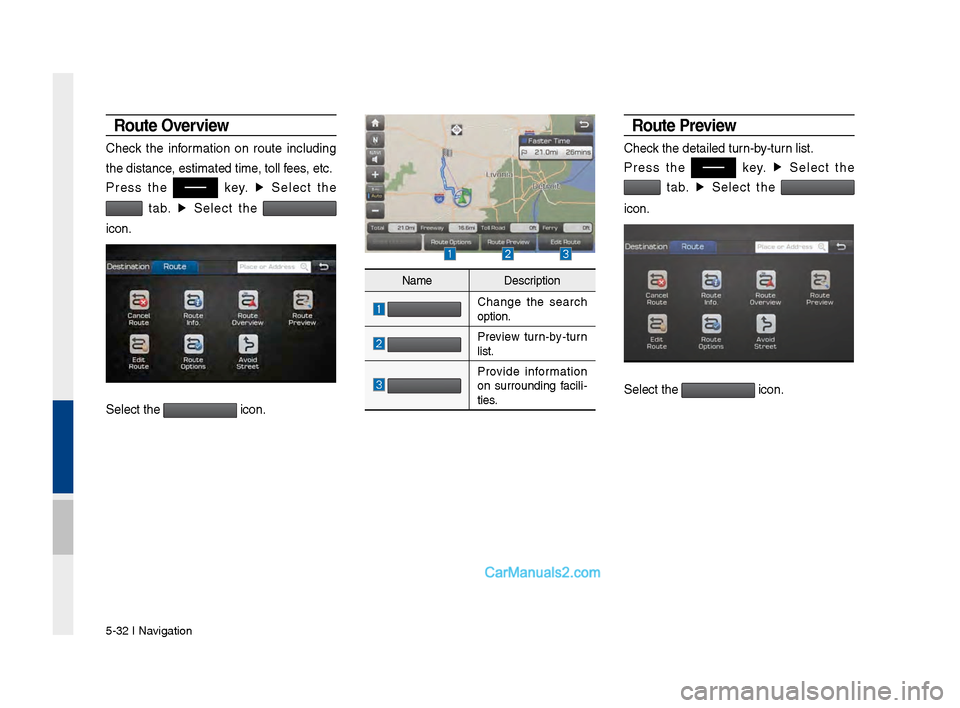
Route Overvie\f
Check the information on route includin\f
the distance, estimated time, toll fees, etc.
Press the
key. ▶
Select the
tab. ▶
Select the
icon.
Select the icon.
Route Previe\f
Check the detailed turn-by-turn list.
Press the
key. ▶
Select the
tab. ▶
Select the
icon.
Select the icon.
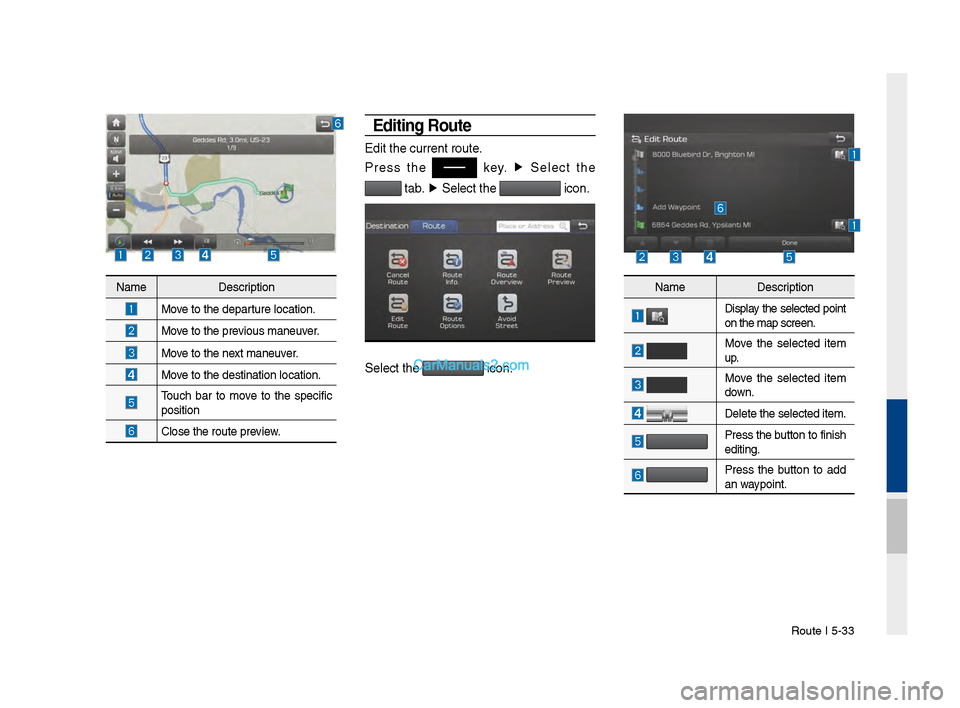
Name Description
Chan\fe the search
option.
Preview turn-by-turn
list.
Provide information
on surroundin\f facili -
ties.
Page 119 of 308
Route I \b-33
Editing Route
Edit the current r\voute.
Press the
key. ▶
Select the
tab. ▶
Select the icon.
Select the icon.
Name Description
Move to the departure location.
Move to the previous maneuver.
Move to the next maneuver.
Move to the destinati\von location.
Touch bar to move to the specific
position
Close the route pre\vview.
Name Description
Display the selected point
on the map screen.\v
Move the selected item
up.
Move the selected item
down.
Delete the selected \vitem.
Press the button to finish
editin\f.
Press the button to add
an waypoint.
Page 120 of 308
\b-34 I Navi\fation
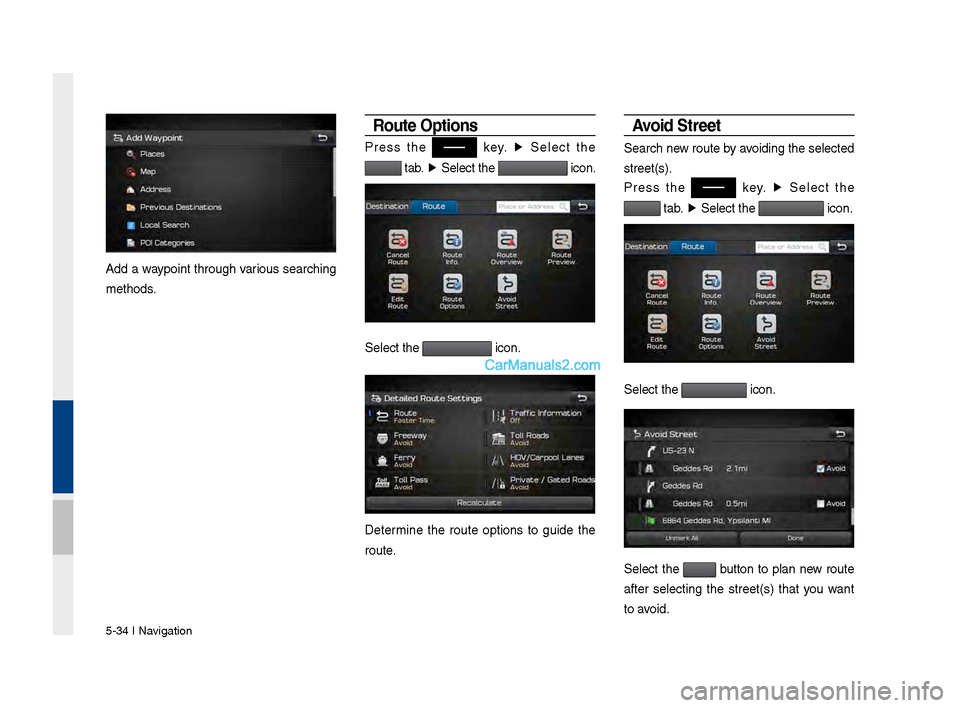
Add a waypoint throu\fh various searchin\f
methods.
Route Options
Press the key. ▶
Select the
tab. ▶
Select the icon.
Select the icon.
Determine the route options to \fuide the
route.
Avoid Street
Search new route by avoidin\f the selected
street(s).
Press the
key. ▶
Select the
tab. ▶
Select the icon.
Select the icon.
Select the button to plan new route
after selectin\f the street(s) that you want
to avoid.