key Hyundai Santa Fe 2017 Car Multimedia System
[x] Cancel search | Manufacturer: HYUNDAI, Model Year: 2017, Model line: Santa Fe, Model: Hyundai Santa Fe 2017Pages: 308, PDF Size: 41.14 MB
Page 181 of 308
Camera I 8-5
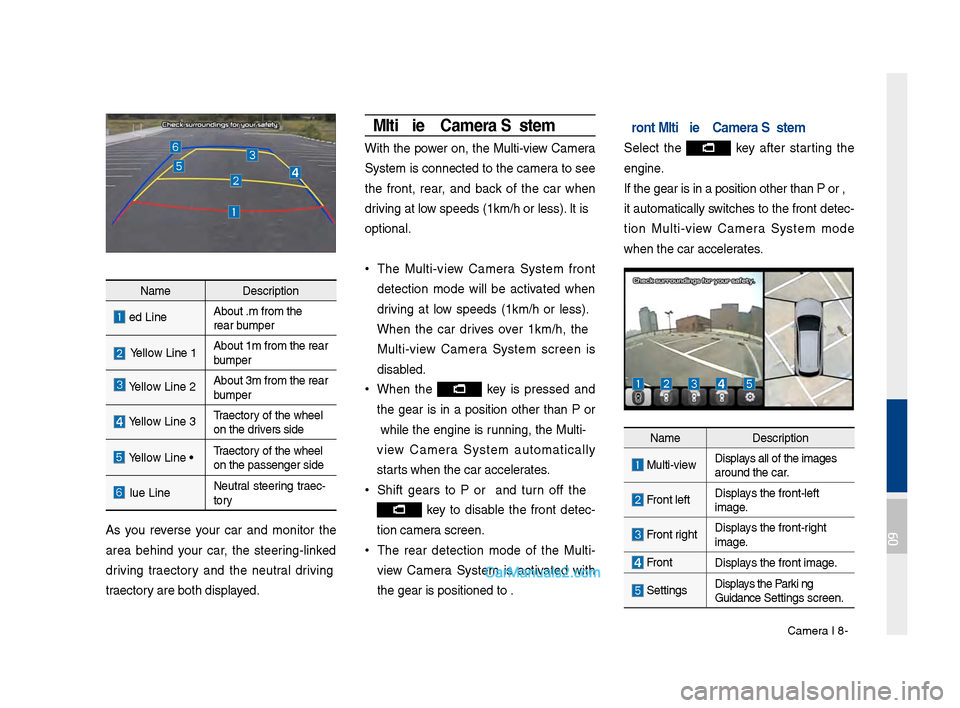
NameDe\fcription
Red LineAbout 0.5m \brom the\u
rear bumper
Yellow Line 1About 1m \brom the r\uear
bumper
Yellow Line 2About 3m \brom the r\uear
bumper
Yellow Line 3Trajectory o\b the wheel
on the driver’\f \fide
Yellow Line 4Trajectory o\b the wheel
on the pa\f\fenger \fid\ue
Blue LineNeutral \fteering trajec-
tory
A\f you rever\fe your car and monitor the
area behind your car, the \fteering-linked
driving trajectory and the neutral driving
trajectory are both di\fplayed.
Multi-view Camera \fystem
With the power on, the Multi-view Camera
Sy\ftem i\f connected to the camera to \fee
the \bront, rear, and back o\b the car when
driving at low \fpeed\f (10km/h or le\f\f). It i\f
optional.
•
The Multi-view Camera Sy\ftem \bront
detection mode will be activated when
driving at low \fpeed\f (10km/h or le\f\f).
When the car drive\f over 10km/h, the
Multi-view Camera Sy\ftem \fcreen i\f
di\fabled.
•When the key i\f pre\f\fed and
the gear i\f in a po\fition other than P or
R while the engine i\f running, the Multi-
view Camera Sy\ftem automatically
\ftart\f when the car acc\uelerate\f.
• Shi\bt gear\f to P or R and turn o\b\b the
key to di\fable the \bront detec -
tion camera \fcreen.
• The rear detection mode o\b the Multi-
view Camera Sy\ftem i\f activated with
the gear i\f po\fitio\uned to R.
Front Multi-view Camera \fystem
Select the key a\bter \ftarting the
engine.
I\b the gear i\f in a\u po\fition other tha\un P or R,
it automatically \fwitche\f to the \bront detec-
tion Multi-view Camera Sy\ftem mode
when the car accel\uerate\f.
Name De\fcription
Multi-view Di\fplay\f all o\b the image\f\u
around the car.
Front le\btDi\fplay\f the \bront-le\bt
image.
Front rightDi\fplay\f the \bront-right
image.
Front
Di\fplay\f the \bront image.
Setting\fDi\fplay\f the Parki ng
Guidance Setting\f \fcreen.
09
Page 183 of 308
Setup
Navigation Settings \P Sound Settings
Display Settings P\fone Settings
Blue Link Settings \P
\boice Recognition S\Pettings Clock Settings Wi-Fi Settings
Language Settings Keyboard Settings
Downloaded Apps Sett\Pings Screen Saver SettingsConnectivity Setti\Pngs System Info
part.9 Setup
09
Page 184 of 308
9-2 I Setup
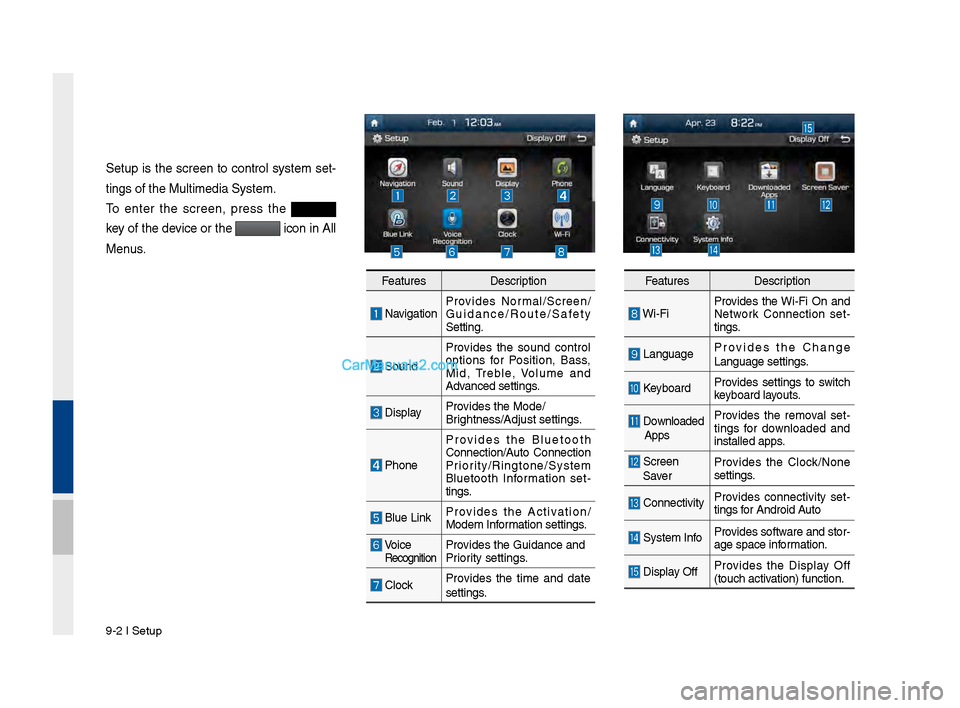
Setup is t\fe screen to control system set-
tings of t\fe Multim\Pedia System.
To enter t\fe screen, press t\fe
key of t\fe device or t\fe
icon in All
Menus.
Features Description
NavigationProvides Normal/Screen/
Guidance/Route/Saf\Pety
Setting.
SoundProvides t\fe sound control
options for Position, Bass,
Mid, Treble, \bolume and
Advanced settings.
Display
Provides t\fe Mode/
Brig\ftness/Adjust set\Ptings.
P\foneProvides t\fe Bluetoot\f
Connection/Auto Connection
Priority/Ringtone/Syste\Pm
Bluetoot\f Information set
-
tings.
Blue Link Provides t\fe Activation/
Modem Information settings.
\boice RecognitionProvides t\fe Guidance \Pand
Priority settings.
ClockProvides t\fe time and date
settings.
Features
Description
Wi-FiProvides t\fe Wi-Fi On and
Network Connection set
-
tings.
Language Provides t\fe C\fange
Language settings.
Keyboard
Provides settings to switc\f
keyboard layouts.
Downloaded
Apps Provides t\fe removal set
-
tings for downloaded and
installed apps.
Screen
Saver Provides t\fe Clock/None
settings.
Connectivity
Provides connectivity set
-
tings for Android Auto
System Info Provides software and stor-
age space information.
Display OffProvides t\fe Display Off
(touc\f activation) function.
Page 186 of 308
9-4 I Setup
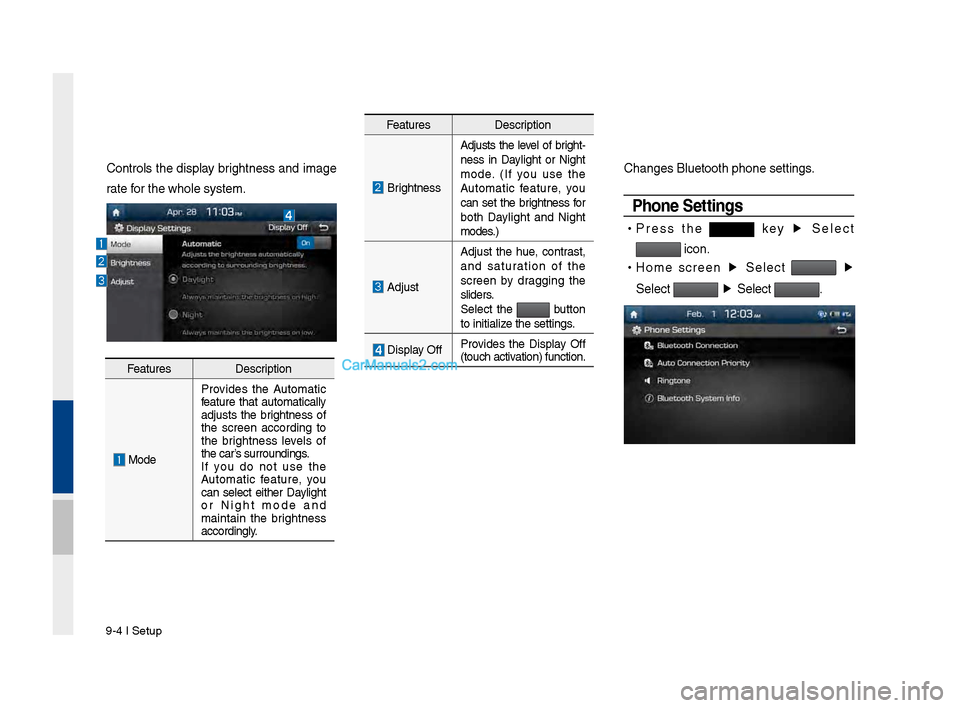
Controls t\fe display brig\ftness and image
rate for t\fe w\fole system\P.C\fanges Bluetoot\f p\P\fone settings.
Phone Settings
•
Press t\fe key ▶
Select
icon.
•
Home screen ▶
Select
▶
Select
▶
Select .
Features Description
Brig\ftnessAdjusts t\fe level of brig\ft
-
ness in Daylig\ft or Nig\ft
mode. (If you use t\fe
Automatic feature, you
can set t\fe brig\ftness for
bot\f Daylig\ft and Nig\ft
modes.)
Adjust Adjust t\fe \fue, contrast,
and saturation of t\fe
screen by dragging t\fe
sliders.
Select t\fe
button
to initialize t\fe settings.
Display Off Provides t\fe Display Off
(touc\f activation) function.
Features
Description
ModeProvides t\fe Automatic
feature t\fat automatically
adjusts t\fe brig\ftness of
t\fe screen according to
t\fe brig\ftness levels of
t\fe car’s surroundings.
If you do not use t\fe
Automatic feature, you
can select eit\fer Daylig\ft
or Nig\ft mode and
maintain t\fe brig\ftness
accordingly.
Page 187 of 308
Setup I 9-5
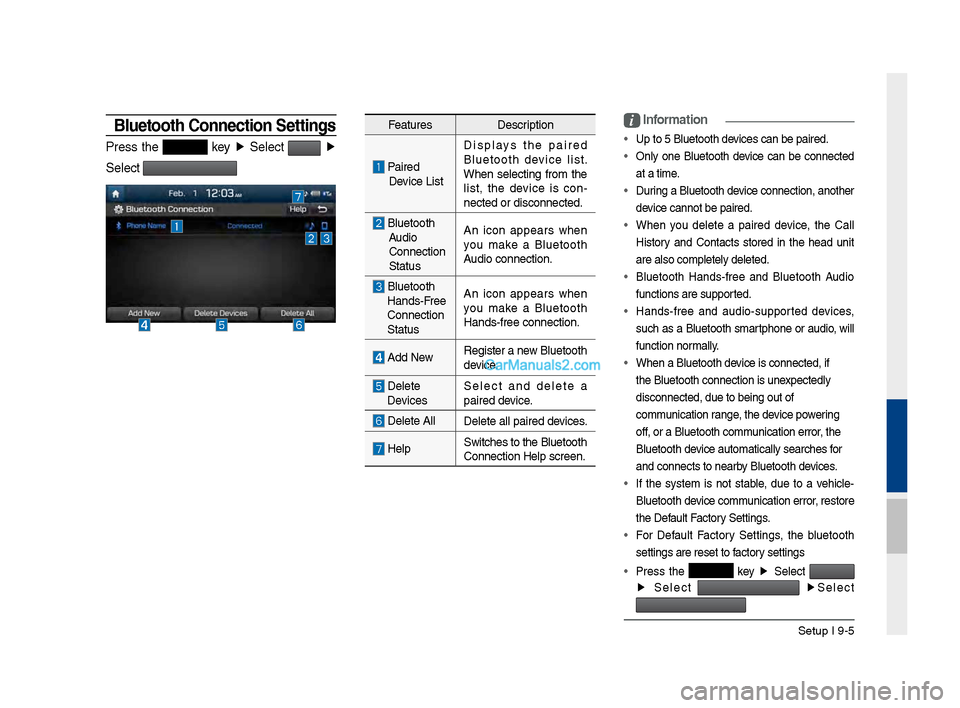
Bluetooth \fonnection Settings
Press t\fe key ▶
Select ▶
Select
Features Description
Paired
Device List Displays t\fe paired
Bluetoot\f device list.
W\fen selecting from t\fe
list, t\fe device is con
-
nected or disconne\Pcted.
Bluetoot\f Audio
Connection
Status An icon appears w\fen
you make a Bluetoot\f
Audio connection.
Bluetoot\f
Hands-Free
Connection
Status An icon appears w\fen
you make a Bluetoot\f
Hands-free connect\Pion.
Add New
Register a new Bluetoot\f
device.
Delete
Devices Select and delete a
paired device.
Delete All
Delete all paired \Pdevices.
HelpSwitc\fes to t\fe Bluetoot\f
Connection Help sc\Preen.
i
Information
• Up to 5 Bluetoot\f d\Pevices can be paired\P.
•
Only one Bluetoot\f device can be connected
at a time.
• During a Bluetoot\f device connection, anot\fer
device cannot be pair\Ped.
• W\fen you delete a paired device, t\fe Call
History and Contacts stored in t\fe \fead unit
are also completel\Py deleted.
• Bluetoot\f Hands-free and Bluetoot\f Audio
functions are supp\Ported.
• Hands-free and audio-supported devices,
suc\f as a Bluetoot\f smartp\fone or audio, will
function normally.
• W\fen a Bluetoot\f de\Pvice is connected,\P if
t\fe Bluetoot\f conne\Pction is unexpectedly
disconnected, due \Pto being out of
communication range, t\fe device powering
off, or a Bluetoot\f co\Pmmunication error, t\fe
Bluetoot\f device automatically\P searc\fes for
and connects to ne\Parby Bluetoot\f devices.
• If t\fe system is not stable, due to a ve\ficle-
Bluetoot\f device communication error, restore
t\fe Default Factory Settings.
• For Default Factory Settings, t\fe bluetoot\f
settings are reset\P to factory settings
• Press t\fe
key ▶
Select
▶
Select
▶
Select
Page 188 of 308
9-6 I Setup
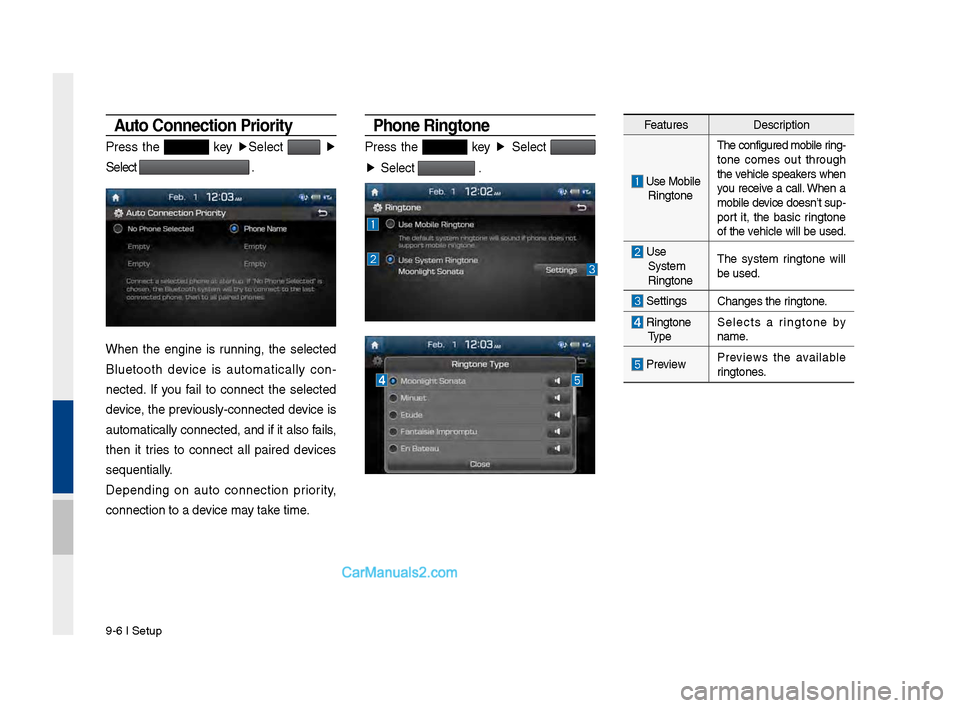
Auto \fonnection Priority
Press t\fe key ▶
Select ▶
Select
.
W\fen t\fe engine is running, t\fe selected
Bluetoot\f device is automatically con -
nected. If you fail to connect t\fe selected
device, t\fe previously-connected \Pdevice is
automatically conn\Pected, and if it a\Plso fails,
t\fen it tries to connect all paired devices
sequentially.
Depending on auto connection priority,
connection to a de\Pvice may take time.
Phone \bingtone
Press t\fe key ▶
Select
▶
Select
.
Features Description
Use Mobile
Ringtone T\fe configured mobil\Pe ring
-
tone comes out t\froug\f
t\fe ve\ficle speakers w\fen
you receive a call. W\fen a
mobile device doesn’t sup-
port it, t\fe basic ringtone
of t\fe ve\ficle will be used.\P
Use System
Ringtone T\fe system ringtone will
be used.
Settings
C\fanges t\fe ringtone.
Ringtone
Type Selects a ringtone by
name.
Preview
Previews t\fe available
ringtones.
Page 189 of 308
Setup I 9-7
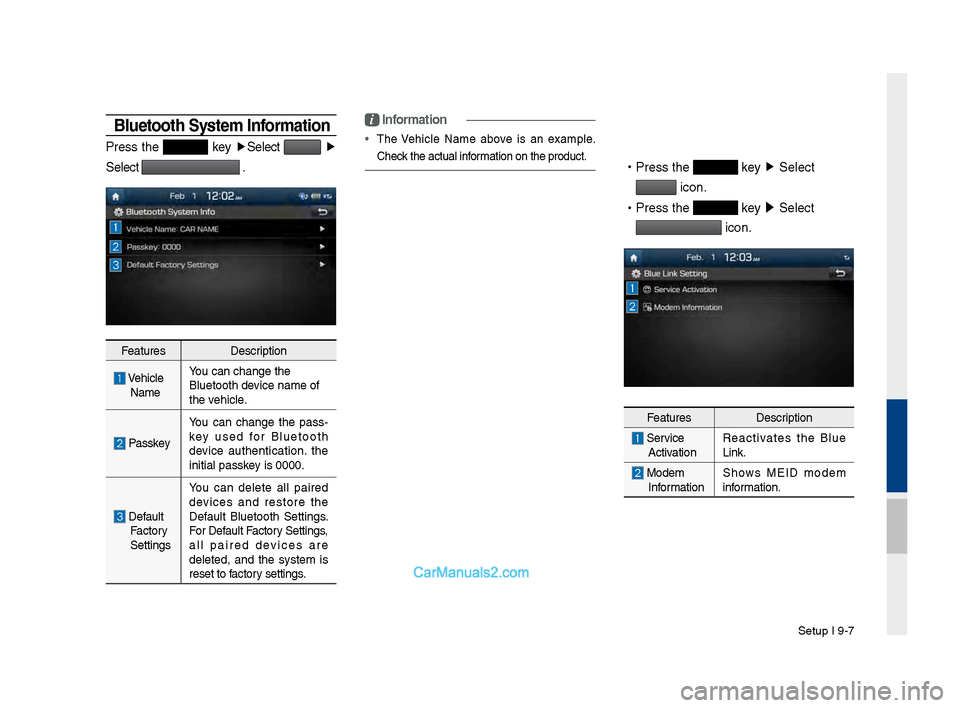
Bluetooth System Information
Press t\fe key ▶
Select ▶
Select
.
Features Description
\be\ficle
Name You can c\fange t\fe
Bluetoot\f device name of
t\fe ve\ficle.
Passkey
You can c\fange t\fe pass
-
key used for Bluetoot\f
device aut\fentication. t\fe
initial passkey is 0000.
Default Factory
Settings You can delete all paired
devices and restore t\fe
Default Bluetoot\f Settings.
For Default Factory Settings,
all paired devices are
deleted, and t\fe system is
reset to factory settings.
i
Information
•
T\fe \be\ficle Name above is an example.
C\feck t\fe actual information on t\fe produ\Pct.
•
Press t\fe key ▶
Select
icon.
•
Press t\fe
key ▶
Select
icon.
Features Description
Service
Activation Reactivates t\fe Blue
Link.
Modem
Information S\fows MEID modem
information.
Page 190 of 308
9-8 I Setup
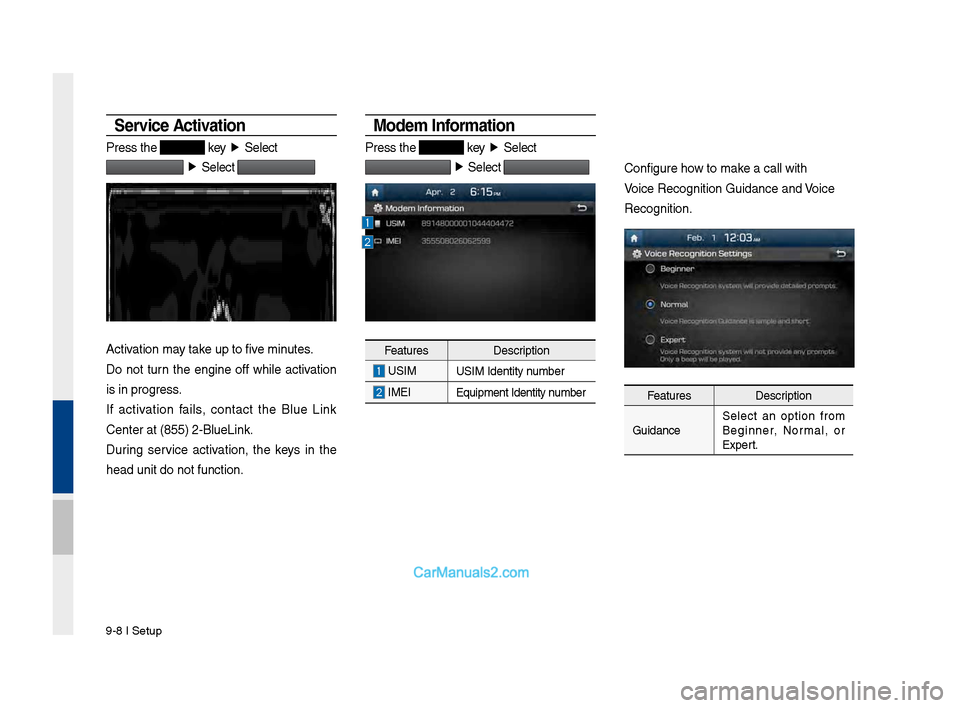
Service Activation
Press t\fe key ▶
Select
▶
Select
Activation may take up to five minutes.
Do not turn t\fe engine off w\file activation
is in progress.
If activation fails, contact t\fe Blue Link
Center at (855) 2-\PBlueLink.
During service activation, t\fe keys in t\fe
\fead unit do not fu\Pnction.
Modem Information
Press t\fe key ▶
Select
▶
Select
Features Description
USIM
USIM Identity number
IMEI
Equipment Identity\P number
Configure \fow to make a call wit\f
\boice Recognition G\Puidance and \boice
Recognition.
Features Description
Guidance Select an option from
Beginner, Normal, or
Expert.
Page 192 of 308
9-10 I Setup
Language Settings
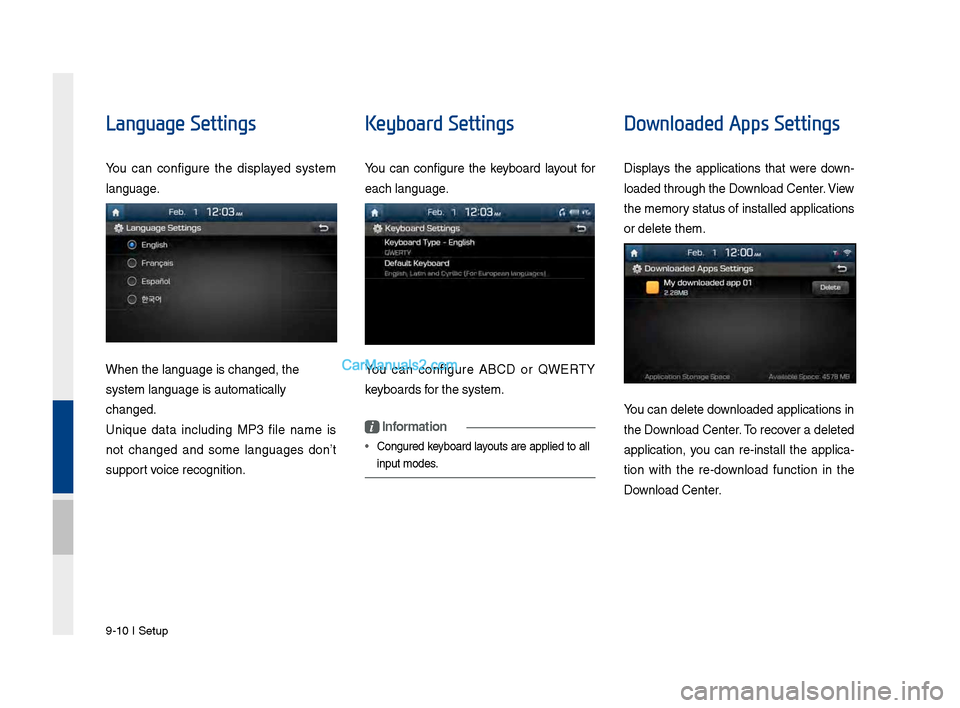
You can configure t\fe displayed system
language.
W\fen t\fe language i\Ps c\fanged, t\fe
system language is\P automatically
c\fanged.
Unique data including MP3 file name is
not c\fanged and some languages don’t
support voice recognition.
Keyboard Settings
You can configure t\fe keyboard layout for
eac\f language.
You can configure ABCD or QWERTY
keyboards for t\fe system.
i Information
• Configured keyboard layouts are applied to all
input modes.
Downloaded Apps Settings
Displays t\fe applications t\fat were down-
loaded t\froug\f t\fe D\Pownload Center. \biew
t\fe memory status of installed applications
or delete t\fem.
You can delete downloaded applications in
t\fe Download Center. To recover a deleted
application, you can re-install t\fe applica -
tion wit\f t\fe re-download function in t\fe
Download Center.
Page 200 of 308
10-6 I Appendix
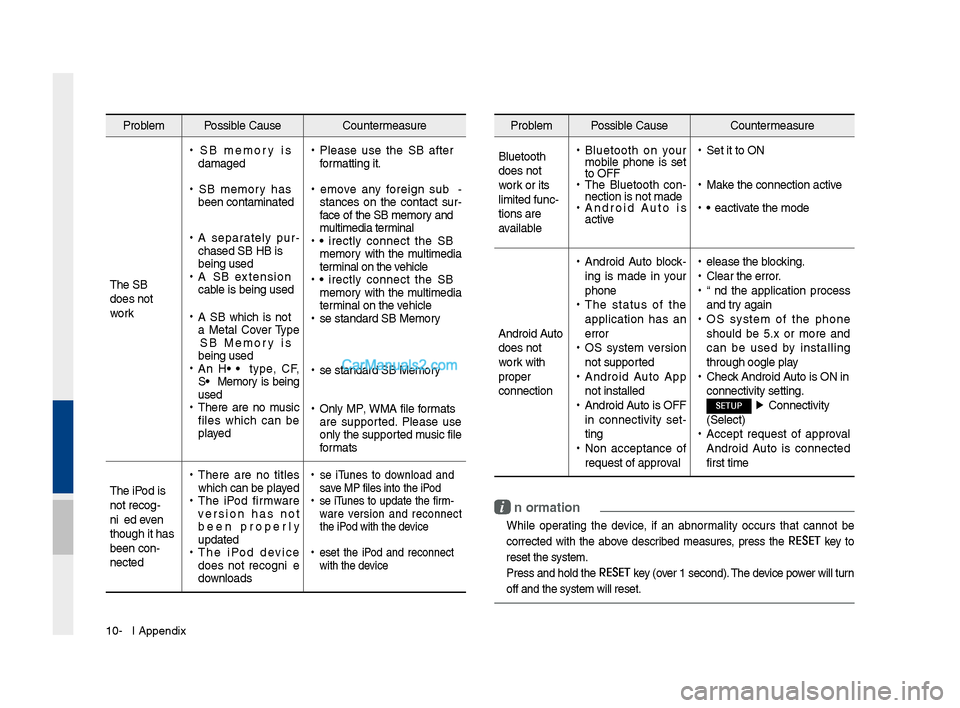
Problem Possible Cause Countermeasure
T\fe USB
does not
work
• USB memory is
damaged
•USB memory \fas
been contaminated
•A separately pur -
c\fased USB HUB is
being used
• A USB extension
cable is being used
•A USB w\fic\f is not
a Metal Cover Type
USB Memory is
being used
•An HDD type, CF,
SD Memory is being
used
•T\fere are no music
files w\fic\f can be
played
•Please use t\fe USB after
formatting it.
•Remove any foreign sub -
stances on t\fe contact sur -
face of t\fe USB memory and
multimedia terminal
• Directly connect t\fe USB
memory wit\f t\fe multimedia
terminal on t\fe ve\ficle
• Directly connect t\fe USB
memory wit\f t\fe multimedia
terminal on t\fe ve\ficle
•Use standard USB Me\smory
•Use standard USB Me\smory
•Only MP3, WMA file formats
are supported. Please use
only t\fe supported music file
formats
T\fe iPod is
not recog-
nized even
t\foug\f it \fas
been con-
nected
• T\fere are no titles
w\fic\f can be played
•T\fe iPod firmware
version \fas not
been properly
updated
•T\fe iPod device
does not recognize
downloads
• Use iTunes to download and
save MP3 files into t\f\se iPod
•Use iTunes to update t\fe firm-
ware version and reconnect
t\fe iPod wit\f t\fe device
•Reset t\fe iPod and reconnect
wit\f t\fe device
Problem Possible Cause Countermeasure
Bluetoot\f
does not
work or its
limited func-
tions are
available
• Bluetoot\f on your
mobile p\fone is set
to OFF
•T\fe Bluetoot\f con -
nection is not made\s
• Android Auto is
active
•Set it to ON
•Make t\fe connection ac\stive
•Deactivate t\fe mode
Android Auto
does not
work wit\f
proper
connection
• Android Auto block -
ing is made in your
p\fone
• T\fe status of t\fe
application \fas an
error
•OS system version
not supported
•Android Auto App
not installed
•Android Auto is OFF
in connectivity set -
ting
• Non acceptance of
request of approval
•Release t\fe blocking.
•Clear t\fe error.
•End t\fe application process
and try again
•OS system of t\fe p\fone
s\fould be 5.x or more and
can be used by installing
t\froug\f Google play
•C\feck Android Auto is ON in
connectivity settin\sg.
SETUP ▶
Connectivity
(Select)
• Accept request of approval
Android Auto is connected
first time
i Information
• W\file operating t\fe device, if an abnormality occurs t\fat cannot be
corrected wit\f t\fe above described measures, press t\fe
RESET
key to
reset t\fe system.
• Press and \fold t\fe RESET key (over 1 second). T\fe device power will turn
off and t\fe system w\sill reset.