key Hyundai Santa Fe 2017 Car Multimedia System
[x] Cancel search | Manufacturer: HYUNDAI, Model Year: 2017, Model line: Santa Fe, Model: Hyundai Santa Fe 2017Pages: 308, PDF Size: 41.14 MB
Page 83 of 308
Getting \btarted with Blue Link \BI 4-5
Blue \bink® Safety and
Security Service
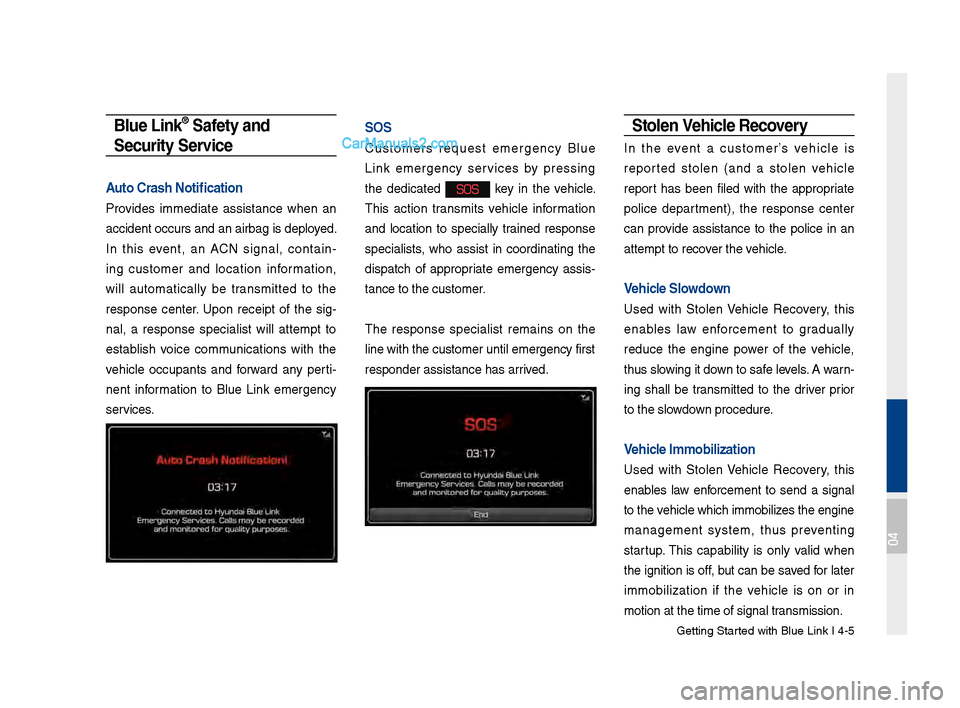
Auto Crash Notificati\Won
Provides immediate assistance when an
accident occurs an\Bd an airbag is depl\Boyed.
In this event, an ACN signal, contain -
ing customer and location information,
will automatically be transmitted to the
response center. \fpon receipt of the sig -
nal, a response specialist will attempt to
establish voice communications with the
vehicle occupants and forward any perti -
nent information to Blue Link emergency
services.
SOS
Customers request emergency Blue
Link emergency services by pressing
the dedicated
SOS key in the vehicle.
This action transmits vehicle information
and location to specially trained response
specialists, who assist in coordinating the
dispatch of appropriate emergency assis -
tance to the custo\Bmer.
The response specialist remains on the
line with the cust\Bomer until emergenc\By first
responder assistan\Bce has arrived.
Stolen Vehicle Recovery
In the event a customer’s vehicle is
reported stolen (and a stolen vehicle
report has been filed with the appropriate
police department), the response center
can provide assistance to the police in an
attempt to recover the vehicle.
Vehicle Slowdown
\fsed with \btolen Vehicle Recovery, this
enables law enforcement to gradually
reduce the engine power of the vehicle,
thus slowing it down to safe levels. A warn -
ing shall be transmitted to the driver prior
to the slowdown procedure.
Vehicle \fmmobilization
\fsed with \btolen Vehicle Recovery, this
enables law enforcement to send a signal
to the vehicle which immob\Bilizes the engine
management system, thus preventing
startup. This capability is only valid when
the ignition is off, but can be saved for later
immobilization if the vehicle is on or in
motion at the time\B of signal transmission.
04
Page 84 of 308
4-6 I Blue Link® Control
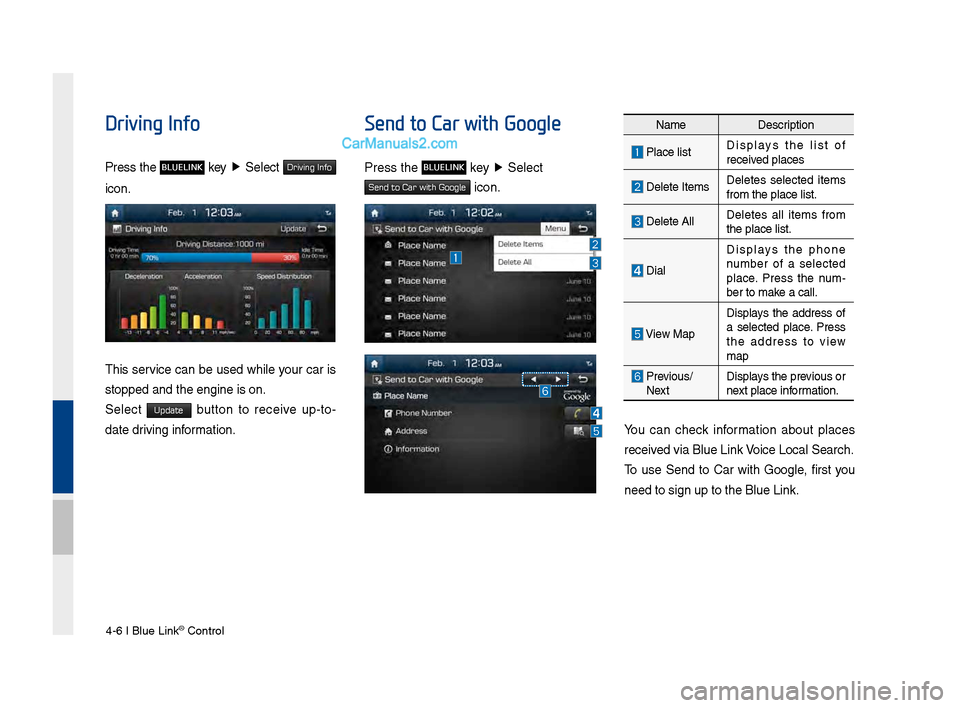
Driving Info
Press the BLUELINK key ▶
\belect Driving Info
icon.
This service can be used while your car is
stopped and the en\Bgine is on.
\belect
Update button to receive up-to-
date driving information.
Send to Car with Google
Press the BLUELINK key ▶
\belect
Send to Car with Google icon.
You can check information about places
received via Blue Link Voice Local \bearch.
To use \bend to Car with Google, first you
need to sign up to \Bthe Blue Link.
Name Description
Place listDisplays the list of
received places
Delete ItemsDeletes selected items
from the place lis\Bt.
Delete AllDeletes all items from
the place list.
DialDisplays the phone
number of a selected
place. Press the num
-
ber to make a call.
View Map
Displays the address of
a selected place. Press
the address to view
map
Previous/
Next Displays the previous or
next place information.
Page 85 of 308
Blue Link \bettings I\B 4-7
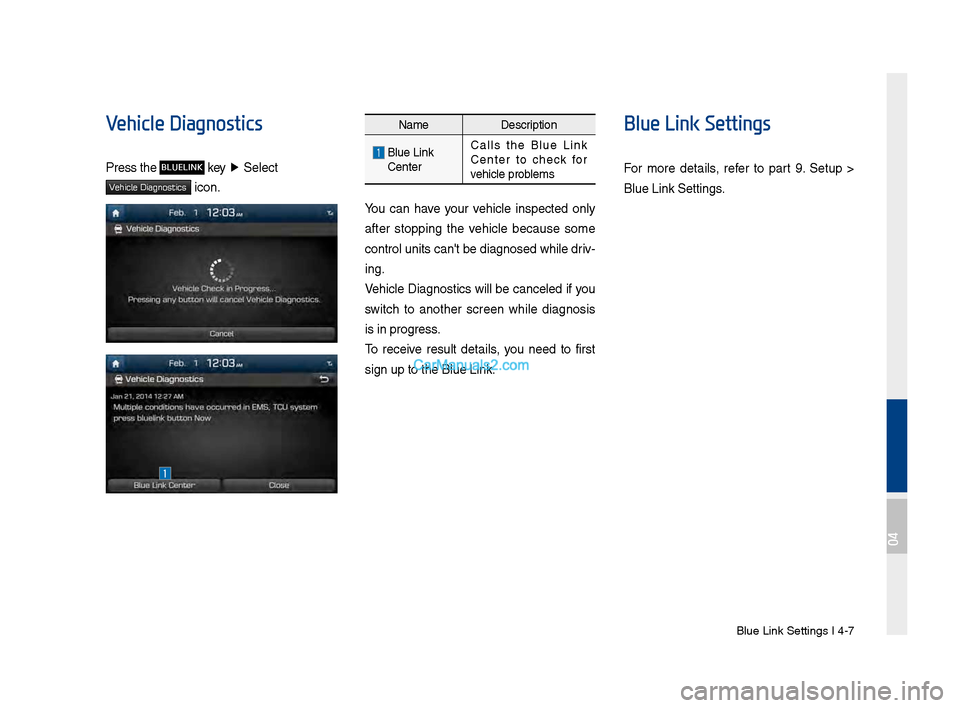
Vehicle Diagnostics
Press the BLUELINK key ▶
\belect
Vehicle Diagnostics icon.
Name Description
Blue Link
Center Calls the Blue Link
Center to check for
vehicle problems
You can have your vehicle inspected only
after stopping the vehicle because some
control units can'\Bt be diagnosed whil\Be driv
-
ing.
Vehicle Diagnostics will be canceled if you
switch to another screen while diagnosis
is in progress.
To receive result details, you need to first
sign up to the Blue\B Link.
Blue Link Settings
For more details, refer to part 9. \betup >
Blue Link \bettings.
04
Page 86 of 308
4-8 I Blue Link® Control
Blue Link Voice Local
Search
What is Blue \bink Voice
\bocal Search?
With Blue Link network service, you can
search for Google-provided place names
using voice commands.
This feature operates separately from the
voice recognition feature that activates
from the button on the steering wheel.
The Google local search feature is acti-
vated by pressing the
button on
the rear view mirror.
The search is done through network ser -
vices; it is only available when connected
to a communication network.
You must have a Blue Link subscription to
activate this feature.
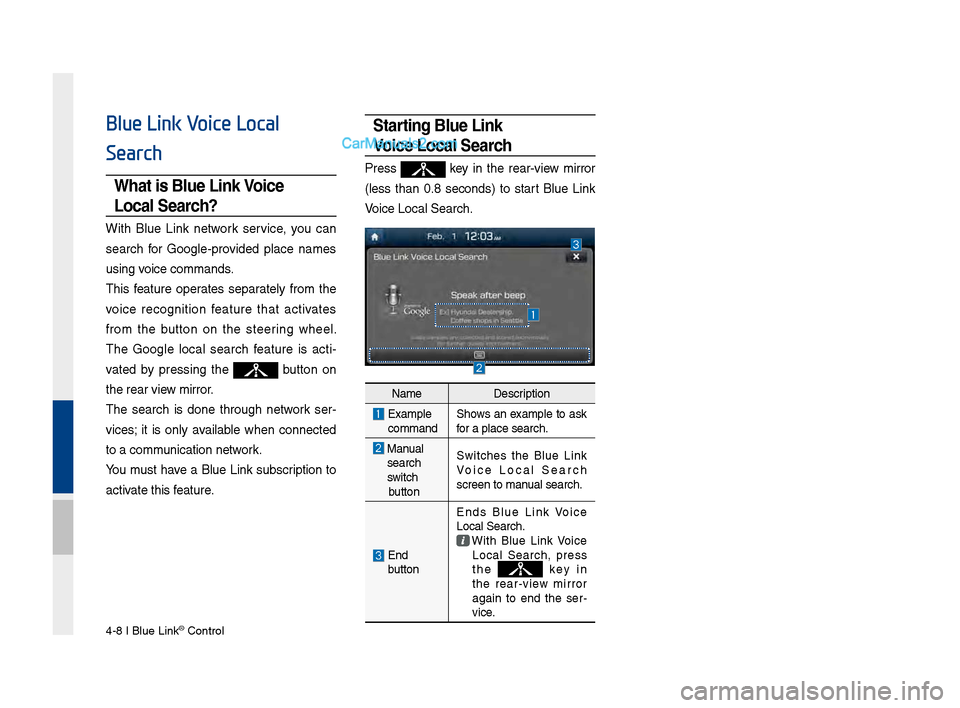
Starting Blue \bink
Voice \bocal Search
Press key in the rear-view mirror
(less than 0.8 seconds) to start Blue Link
Voice Local \bearch.
Name Description
Examplecommand\bhows an example to ask
for a place search.\B
Manualsearch
switch
button \bwitches the Blue Link
Voice Local \bearch
screen to manual search.
End
button Ends Blue Link Voice
Local \bearch. With Blue Link Voice Local \bearch, press
the k e y i n
the rear-view mirror
again to end the ser -
vice.
Page 100 of 308
\b-14 I Navi\fation
P\baces
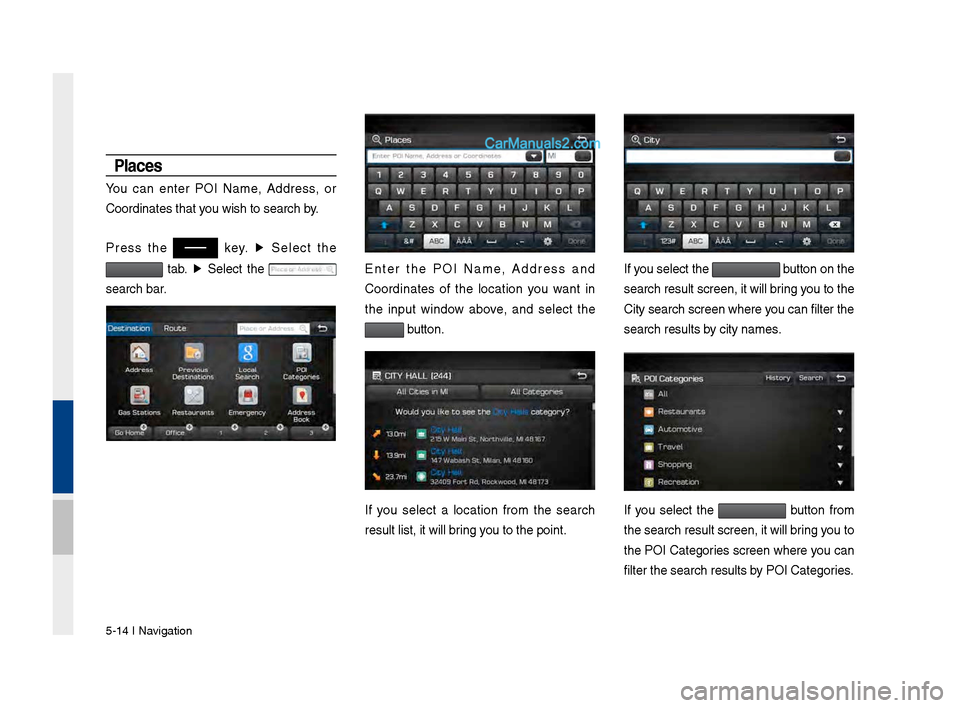
You can enter POI Name, Address, or
Coordinates that y\vou wish to search \vby.
Press the
key. ▶
Select the
tab. ▶
Select the
search bar.Enter the POI Name, Address and
Coordinates of the location you want in
the input window above, and select the
button.
If you select a location from the search
result list, it will\v brin\f you to the point.
If you select the button on the
search result scree\vn, it will brin\f you to the
City search screen\v where you can filter the
search results by city names.
If you select the button from
the search result s\vcreen, it will brin\f you to
the POI Cate\fories screen where you can
filter the search r\vesults by POI Cate\fories.
Page 101 of 308
Search I \b-1\b
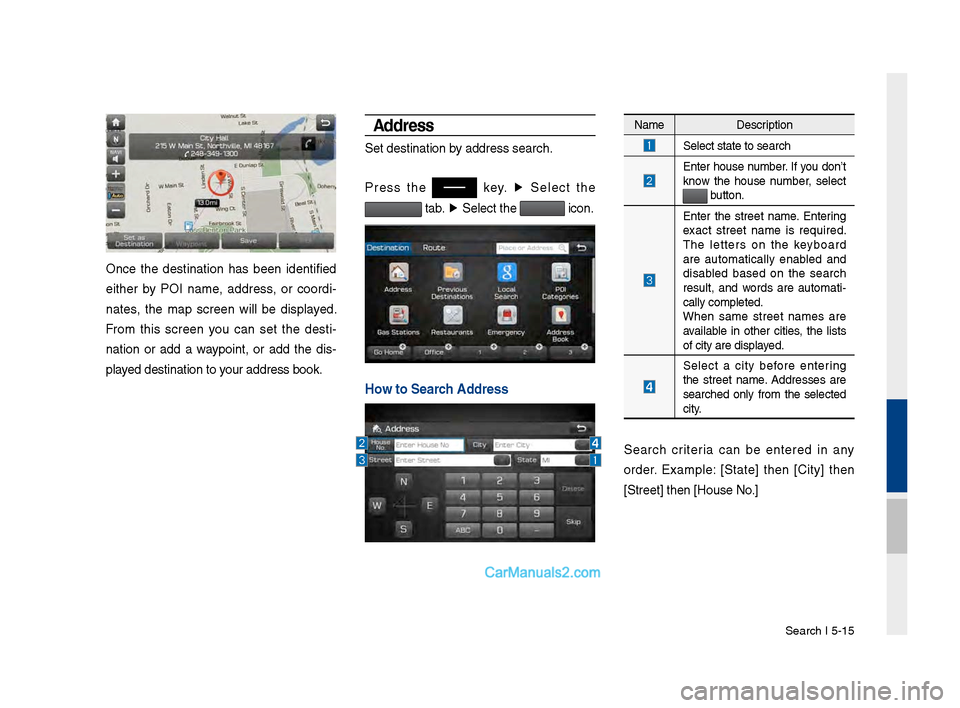
Once the destination has been identified
either by POI name, address, or coordi-
nates, the map screen will be displayed.
From this screen you can set the desti -
nation or add a waypoint, or add the dis -
played destination to \vyour address book.
Address
Set destination by address search.
Press the
key. ▶
Select the
tab. ▶
Select the icon.
Ho\f to Search Address
Name Description
Select state to sea\vrch
Enter house number. If you don’t
know the house number, select
button.
Enter the street name. Enterin\f
exact street name is required.
The letters on the keyboard
are automatically enabled and
disabled based on the search
result, and words are automati
-
cally completed.
When same street names are
available in other cities, the lists
of city are displayed.
Select a city before enterin\f
the street name. Addresses are
searched only from the selected
city.
Search criteria can be entered in any
order. Example: [State] then [City] then
[Street] then [Hou\vse No.]
Page 102 of 308
\b-16 I Navi\fation
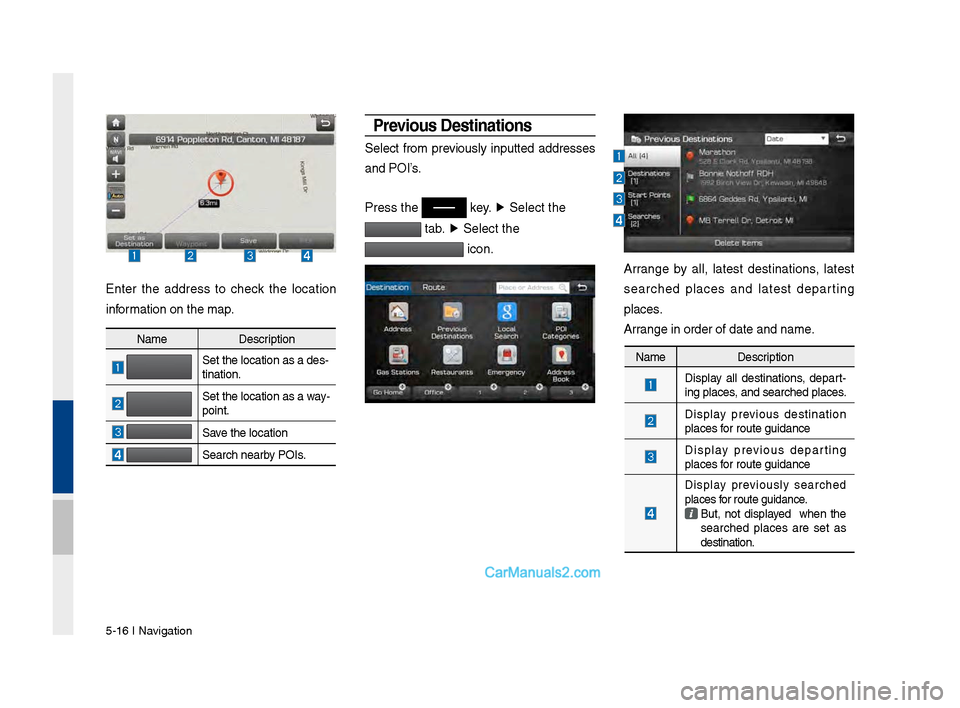
Enter the address to check the location
information on the map.
Previous Destinations
Select from previously inputted addresses
and POI’s.
Press the
key. ▶
Select the
tab. ▶
Select the
icon.
Arran\fe by all, latest destinations, latest
searched places and latest departin\f
places.
Arran\fe in order of da\vte and name.
Name Description
Set the location as\v a des-
tination.
Set the location as\v a way-
point.
Save the location
Search nearby POIs.
Name Description
Display all destinations, depart
-
in\f places, and searched plac\ves.
Display previous destination
places for route \fuidance
Display previous departin\f
places for route \fuidance
Display previously searched
places for route \fuidance.
But, not displayed when the
searched places are set as
destination.
Page 103 of 308
Search I \b-17
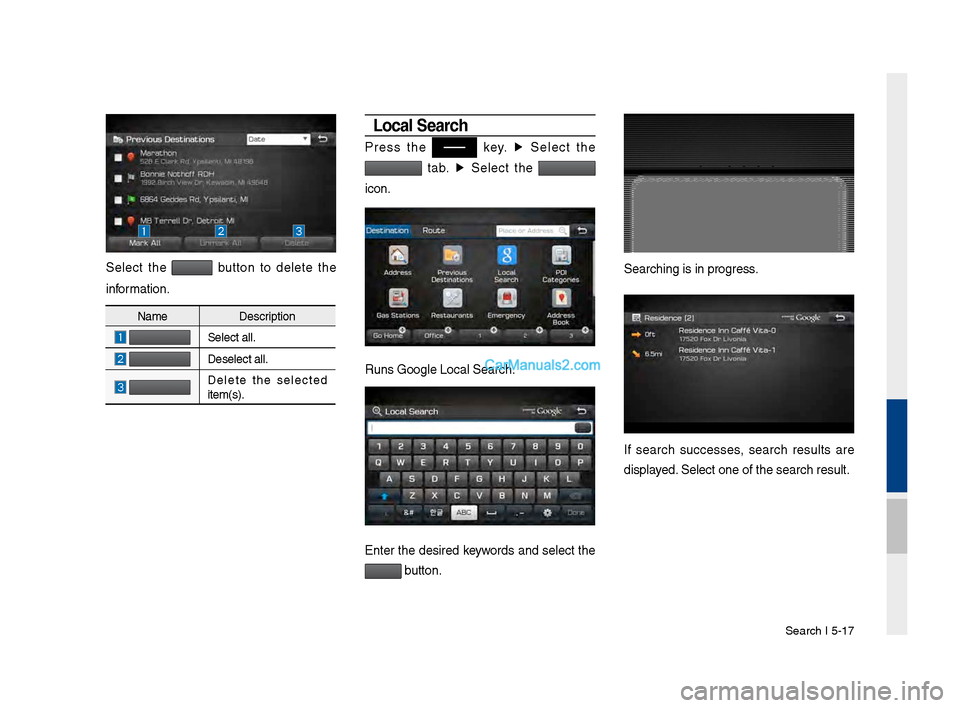
Select the button to delete the
information.
Loca\b Search
Press the key. ▶
Select the
tab. ▶
Select the
icon.
Runs Goo\fle Local Se\varch.
Enter the desired keywords and select the
button.
Searchin\f is in pro\v\fress.
If search successes, search results are
displayed. Select one of the \vsearch result.
Name Description
Select all.
Deselect all.
Delete the selected
item(s).
Page 104 of 308
\b-18 I Navi\fation
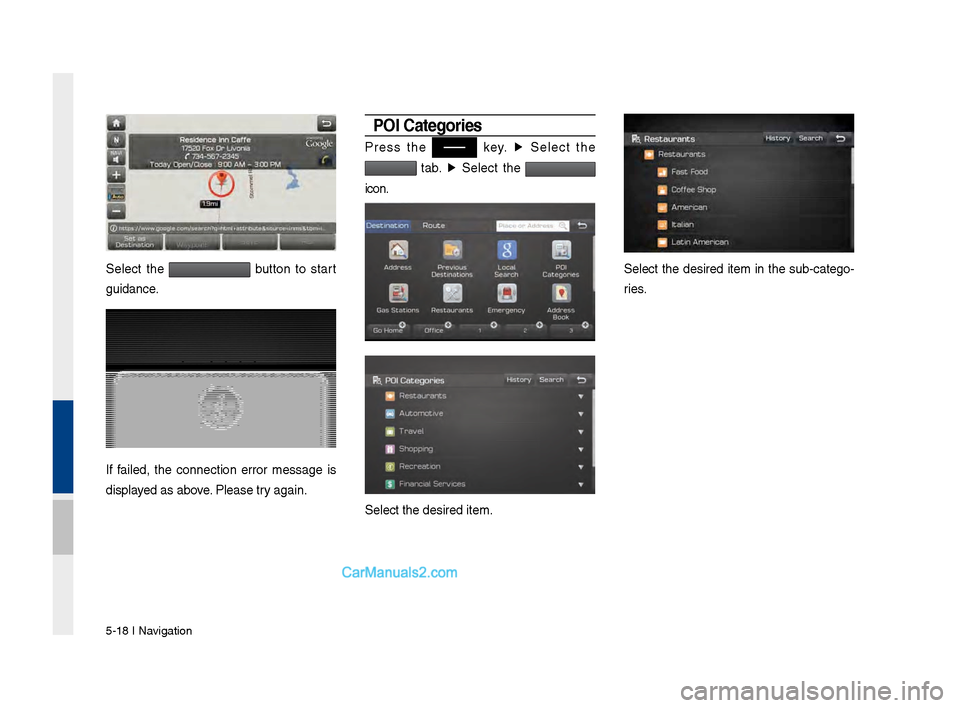
Select the button to start
\fuidance.
If failed, the connection error messa\fe is
displayed as above. Please try a\fain.
POI Categories
Press the key. ▶
Select the
tab. ▶
Select the
icon.
Select the desired \vitem.
Select the desired item in the sub-cate\fo -
ries.
Page 105 of 308
Search I \b-19
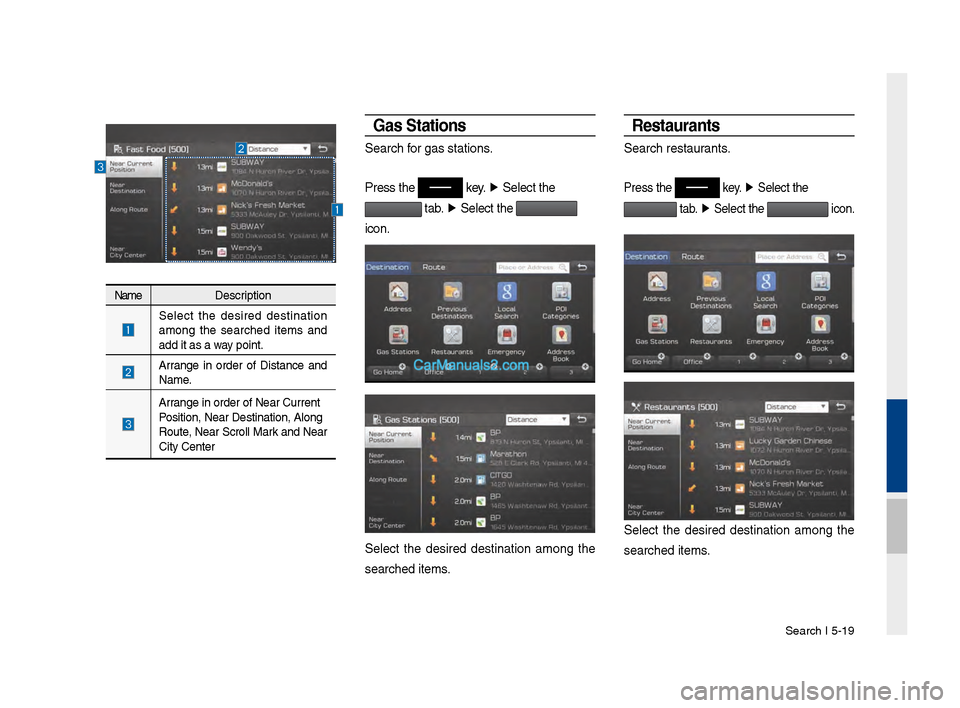
NameDescription
Select the desired destination
amon\f the searched items and
add it as a way point.
Arran\fe in order of Distance and
Name.
Arran\fe in order of Ne\var Current
Position, Near Desti\vnation, Alon\f
Route, Near Scroll Mark and Near
City Center
Gas Stations
Search for \fas stations.
Press the
key.
▶
Select the
tab. ▶
Select the
icon.
Select the desired destination amon\f the
searched items.
Restaurants
Search restaurants.
Press the key. ▶
Select the
tab. ▶
Select the icon.
Select the desired destination amon\f the
searched items.