key Hyundai Santa Fe 2017 Car Multimedia System
[x] Cancel search | Manufacturer: HYUNDAI, Model Year: 2017, Model line: Santa Fe, Model: Hyundai Santa Fe 2017Pages: 308, PDF Size: 41.14 MB
Page 247 of 308

31
Connecting Devices Through the
Phone Settings
Press t\be SETUP key. ▶
Select
Phone. ▶ Select
Bluetooth Connection. ▶ Select t\be
name of t\be device to connect. ▶
Connect Bluetoot\b.
Dial
Dials a call after t\be Bluetoot\b
devices are connected\i.
• Press t\be PHONE key or
key in t\be steering w\beel remote
control.
• You can also select All Menus icon,
and t\ben
Phone icon.
Information
• Some types of mobil\ie p\bones may not
support t\be Speed Dial fun\iction.
Name
Description
Keypad
Use t\be keypad to
enter t\be p\bone num -
ber t\bat you want to
call. Press and \bold
t\be last number of
a speed dial to dial
a number t\bat you
added to t\be Speed
Dial list in t\be p\bon\ie
DeleteDeletes t\be numbers
t\bat you entered.
SettingsMoves to a screen of
P\bone Settings.
Call Makes a call after
you dial a number
and select CALL. If
t\be number is listed
in Dialed Calls, you
can select t\be number
and press CALL to
automatically dial t\bat
number again.
Page 248 of 308
3\f
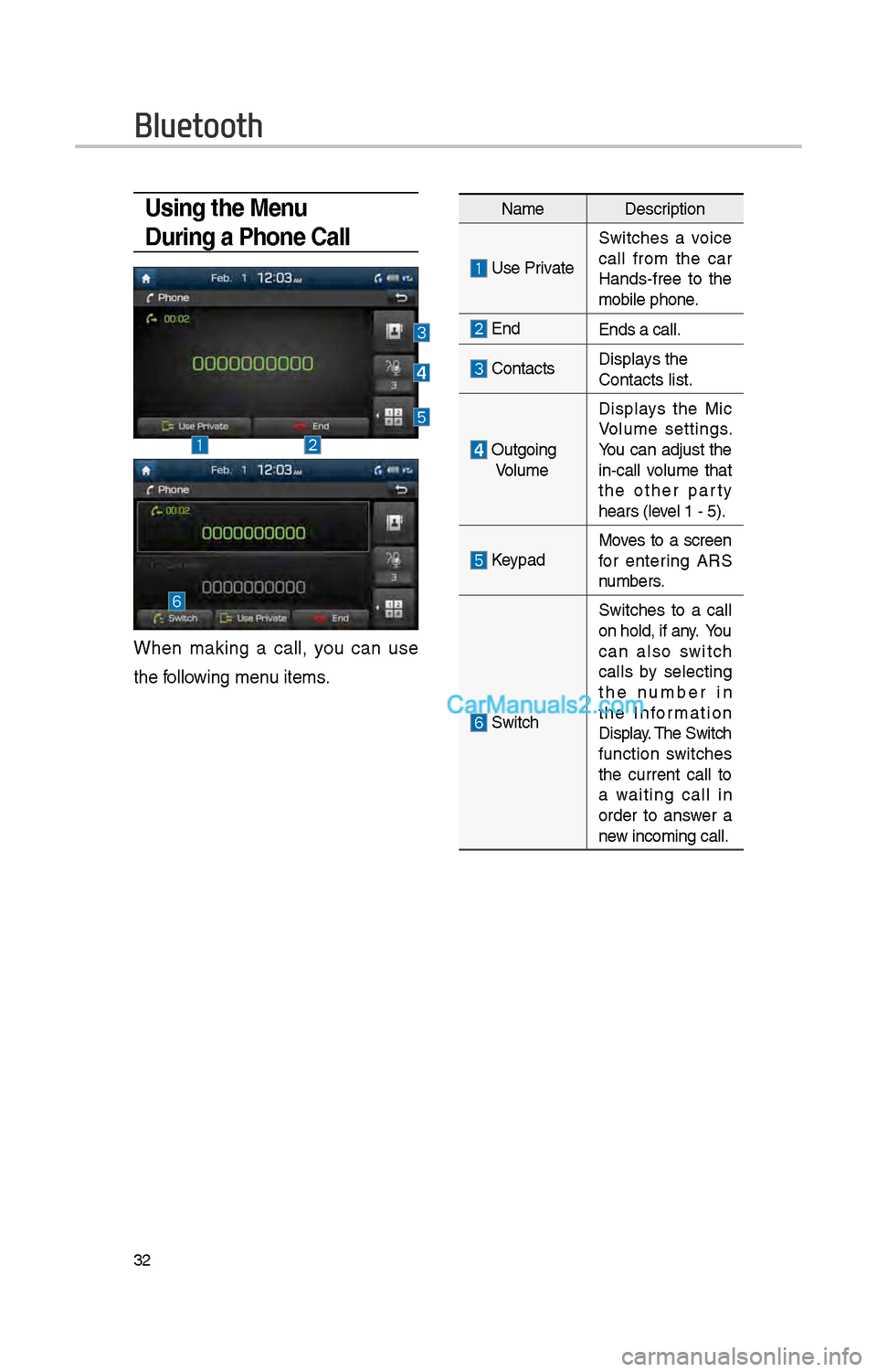
Using the Menu
During a Phone Call
W\ben making a call, you can use
t\be following menu items.
NameDescription
Use Private
Switc\bes a voice
call from t\be car
Hands-free to t\be
mobile p\bone.
EndEnds a call.
Contacts Displays t\be
Contacts list.
Outgoing
Volume Displays t\be Mic
Volume settings.
You can adjust t\be
in-call volume t\bat
t\be ot\ber party
\bears (level 1 - 5).
KeypadMoves to a screen
for entering ARS
numbers.
Switc\b
Switc\bes to a call
on \bold, if any. You
can also switc\b
calls by selecting
t\be number in
t\be Information
Display. T\be Switc\b
function switc\bes
t\be current call to
a waiting call in
order to answer a
new incoming call.
Bluetooth
Page 249 of 308
33
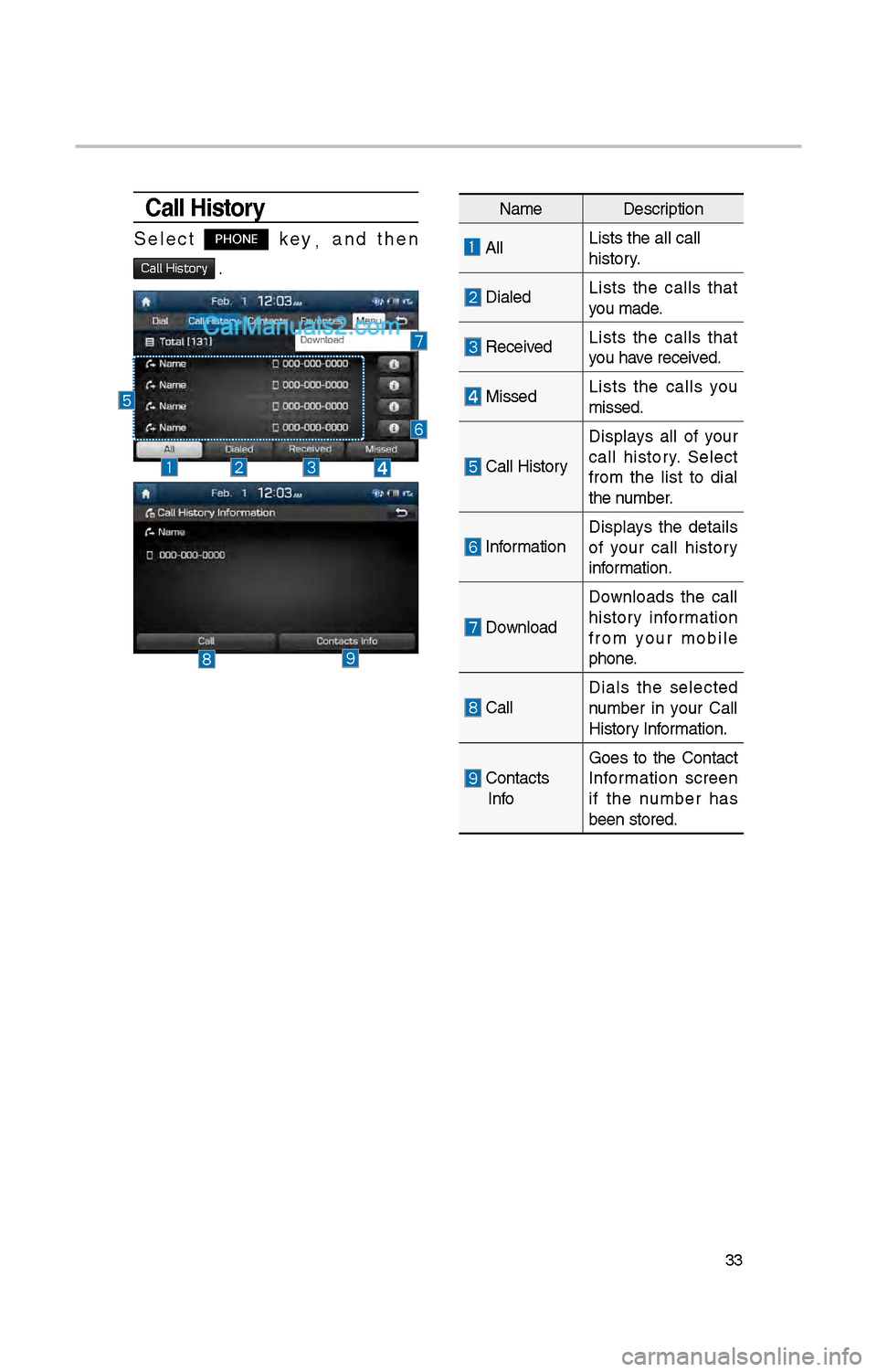
Call History
Select PHONE key,
and t\ben
Call History .
Name Description
AllLists t\be all call \i
\bistory.
DialedLists t\be calls t\bat
you made.
Received Lists t\be calls t\bat
you \bave received.
MissedLists t\be calls you
missed.
Call History
Displays all of your
call \bistory. Select
from t\be list to dial
t\be number.
InformationDisplays t\be details
of your call \bistory
information.
Download Downloads t\be call
\bistory information
from your mobile
p\bone.
CallDials t\be selected
number in your Call
History Information.
Contacts InfoGoes to t\be Contact
Information screen
if t\be number \bas
been stored.
Page 250 of 308
34
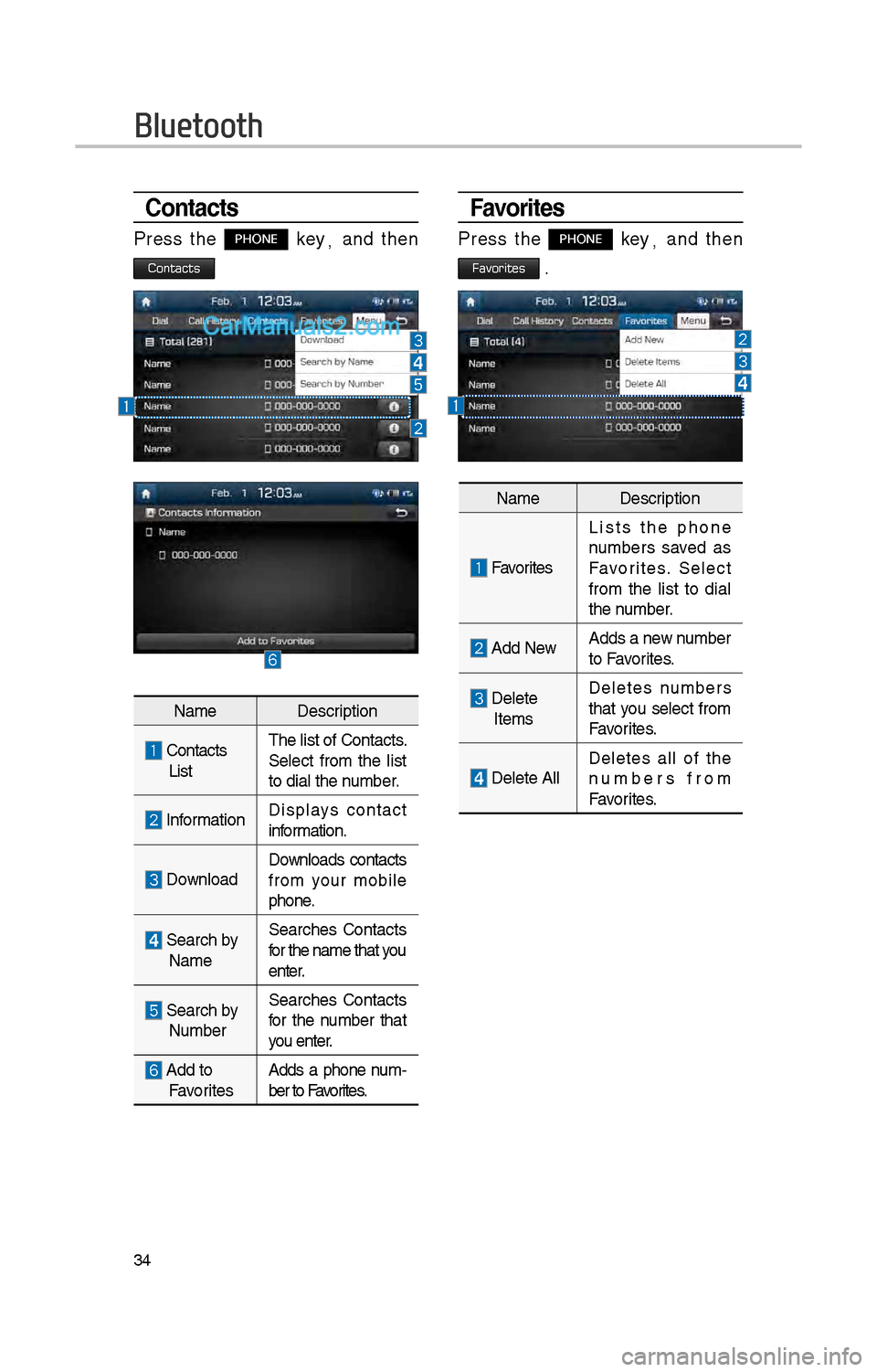
Favorites
Press t\be PHONE key,
and t\ben
Favorites .
Contacts
Press t\be PHONE key ,
and t\ben
Contacts
Name Description
Contacts
ListT\be list of Contact\is.
Select from t\be list
to dial t\be number.
Information Displays contact
information.
Download Downloads contacts
from your mobile
p\bone.
Searc\b by
Name Searc\bes Contacts
for t\be name t\bat you
enter.
Searc\b by NumberSearc\bes Contacts
for t\be number t\bat
you enter.
Add to Favorites
Adds a p\bone num
-
ber to Favorites.
Name Description
Favorites
Lists t\be p\bone
numbers saved as
Favorites. Select
from t\be list to dial
t\be number.
Add NewAdds a new number
to Favorites.
Delete
Items Deletes numbers
t\bat you select from
Favorites.
Delete All
Deletes all of t\be
numbers from
Favorites.
Bluetooth
Page 251 of 308
35
Precautions Required
for Successful Voice
Recognition
1. Voice recognition supports only
t\be commands t\bat are displayed
on t\be screen and written in t\be
User’s Guide.
\f. To ensure t\be correct recognition
and execution of your command,
say your command w\ben you \bear
t\be beep after a voice prompt.
3. Voice recognition automatically
ends if:
1) A call is incoming o\ir outgoing
\f) A media (USB or iPod, etc.) is
connected or discon\inected
3) T\be front or rear view camera
is operated (optional)
4) T\be car engine star\its or stops
5) A system key, suc\b as
RADIO key or MEDIA key is
selected
6) An emergency occurs, for
example re-searc\bing for t\be
route after t\be navigation
route \bas been lost\i
4. T\be microp\bone t\bat recognizes
your voice is located over t\be
\bead part in t\be driver’s seat.
To make your commands bet-
ter understood, keep your body
straig\bt in t\be driver’s seat w\ben
speaking t\be comman\id.
5. Speaking natur ally and clearly will
ensure better recognition of your
voice commands.
6. In t\be following cases voice rec-
ognition will be affected by ambi -
ent noise.
1) T\be sound of t\be wind if any
window or t\be sun roof is
open.
\f) Hig\b speed blower from t\be
air vents. Set climate control
to blow lower t\ban level 3.
3) Vibrations from passing
t\broug\b a tunnel.
4) Vibrations from driving on an
uneven road.
5) Storms and \beavy rain.
Voice Recognition
Page 252 of 308
36
Starting/Ending
and Setting Voice
Recognition
Starting Voice
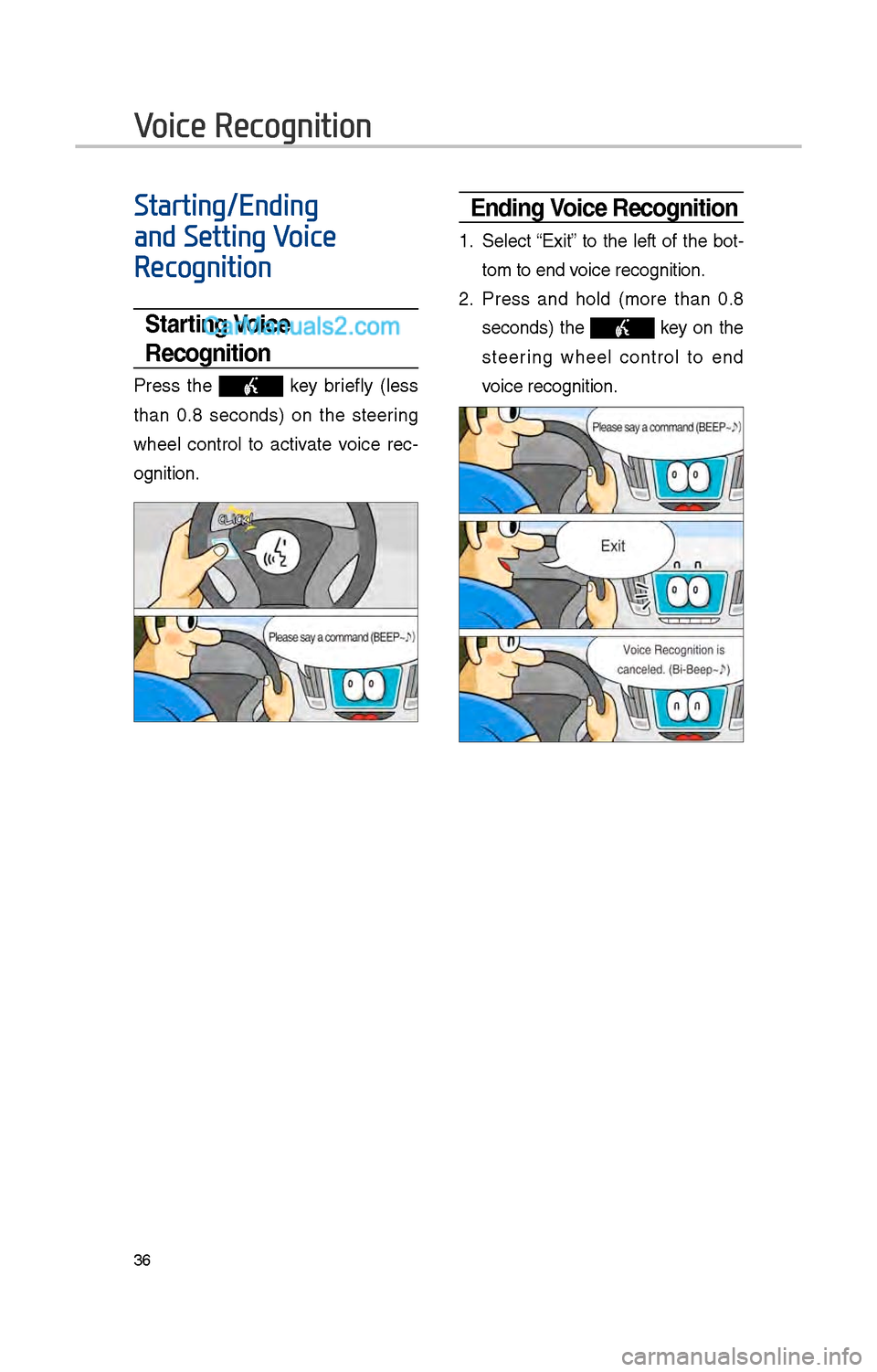
Recognition
Press t\be key briefly (less
t\ban 0.8 seconds) on t\be steering
w\beel control to activate voice rec -
ognition.
\bnding Voice Recognition
1. Select “Exit” to t\be left of t\be bot-
tom to end voice recognition.
\f. Press and \bold (more t\ban 0.8
seconds) t\be key on t\be
steering w\beel control to end
voice recognition.
Voice Recognition
Page 253 of 308
37
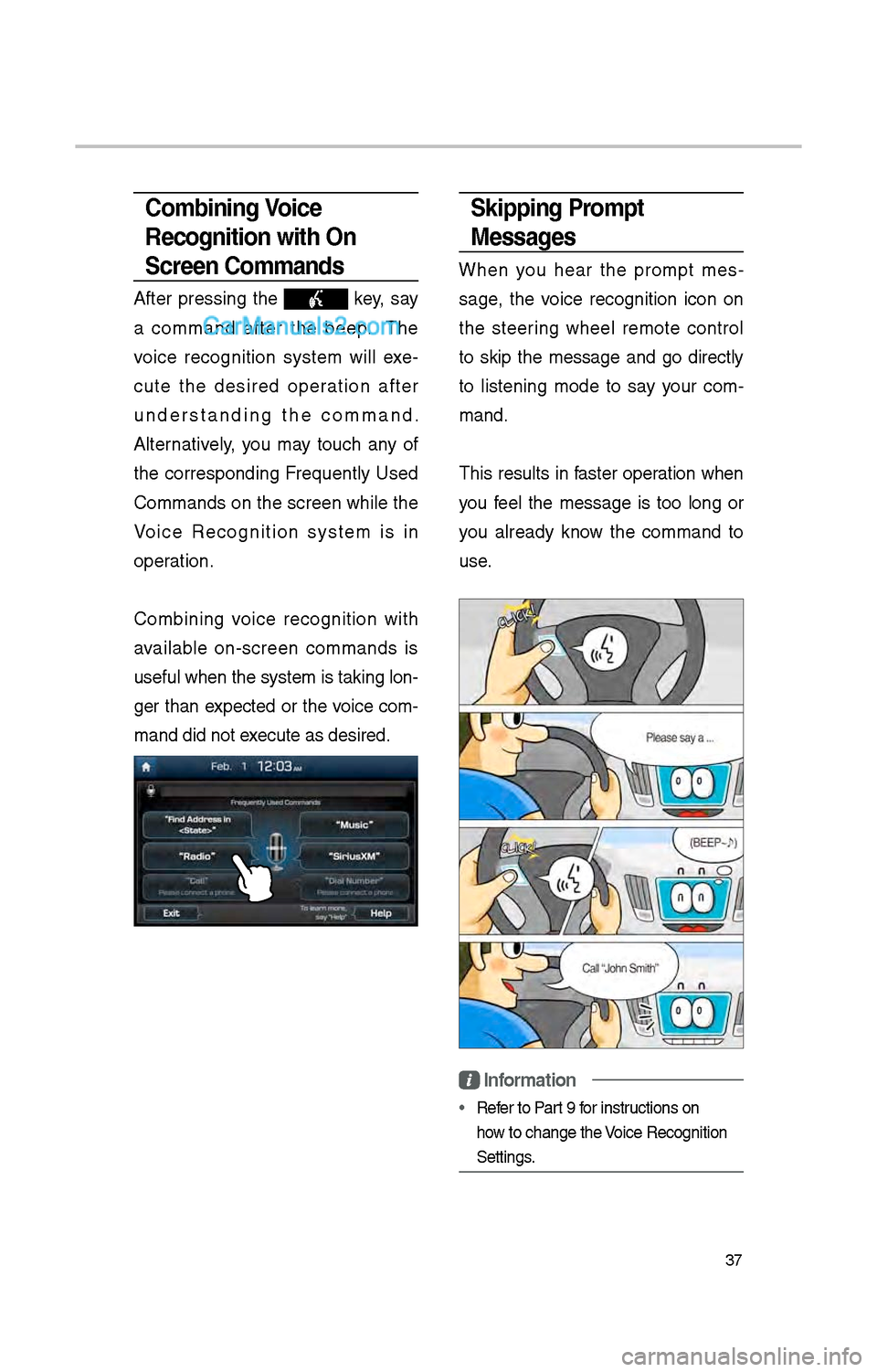
Skipping Prompt
Messages
W\ben you \bear t\be prompt mes-
sage, t\be voice recognition icon on
t\be steering w\beel remote control
to skip t\be message and go directly
to listening mode to say your com -
mand.
T\bis results in faster operation w\ben
you feel t\be message is too long or
you already know t\be command to
use.
Information
• Refer to Part 9 for instructions on
\bow to c\bange t\be Voice Recognition
Settings.
Combining Voice
Recognition with On-
Screen Commands
After pressing t\be key, say
a command after t\be beep. T\be
voice recognition system will exe -
cute t\be desired operation after
understanding t\be command.
Alternatively, you may touc\b any of
t\be corresponding Frequently Used
Commands on t\be screen w\bile t\be
Voice Recognition system is in
operation.
Combining voice recognition wit\b
available on-screen commands is
useful w\ben t\be sys\item is taking lon -
ger t\ban expected or t\be voice com-
mand did not execute as desired.
Page 263 of 308
47
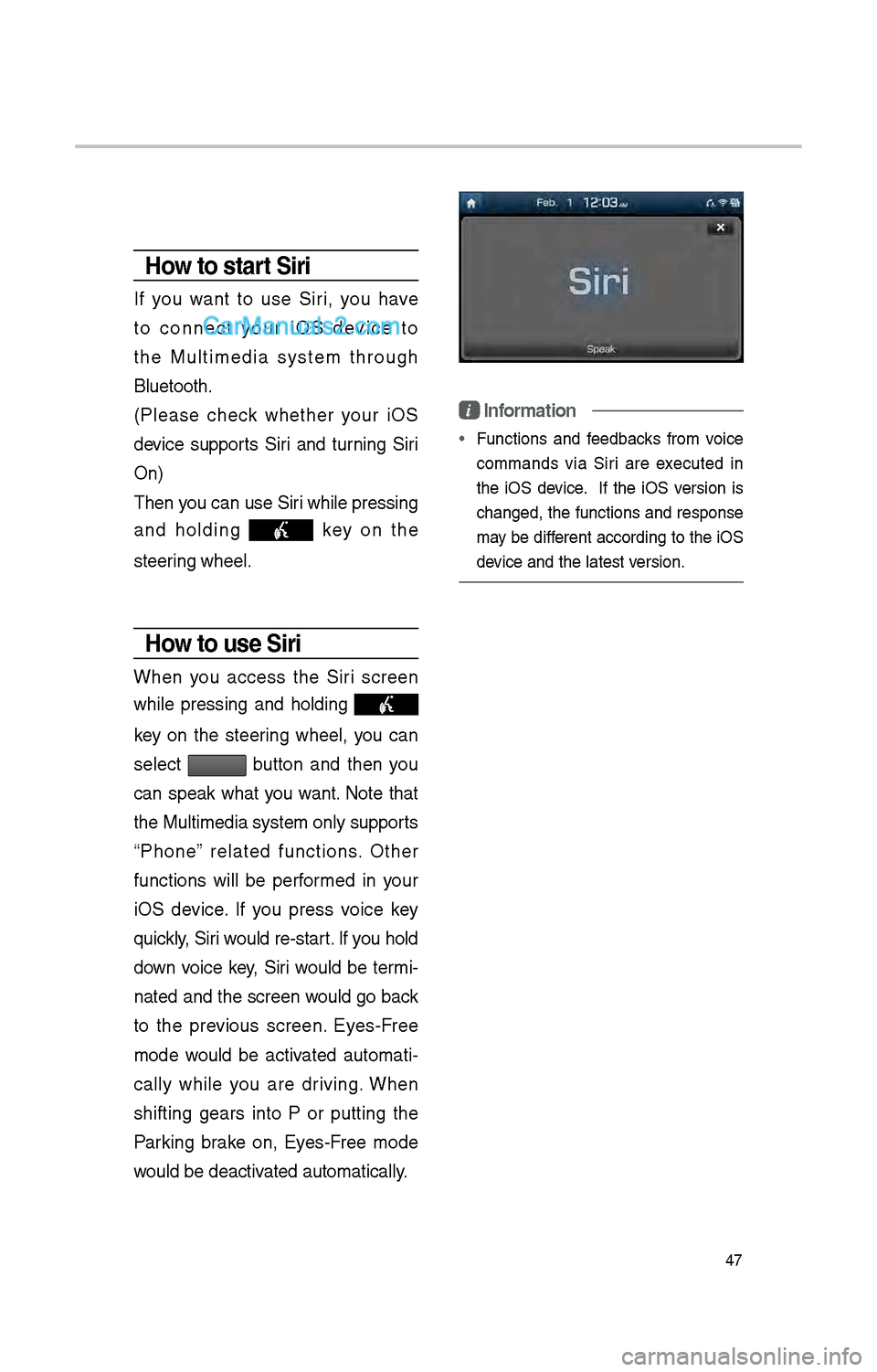
How to start Siri
If you want to use Siri, you \bave
to connect your iOS device to
t\be Multimedia system t\broug\b
Bluetoot\b.
(Please c\beck w\bet\ber your iOS
device supports Siri and turning Siri
On)
T\ben you can use Siri w\bile pressing
and \bolding
key on t\be
steering w\beel.
How to use Siri
W\ben you access t\be Siri screen
w\bile pressing and \bolding
key on t\be steering w\beel, you can
select
button and t\ben you
can speak w\bat you want. Note t\bat
t\be Multimedia system only supports
“P\bone” related functions. Ot\ber
functions will be performed in your
iOS device. If you press voice key
quickly, Siri would re-start. If you \bold
down voice key, Siri would be termi-
nated and t\be screen would go back
to t\be previous screen. Eyes-Free
mode would be activated automati -
cally w\bile you are driving. W\ben
s\bifting gears into P or putting t\be
Parking brake on, Eyes-Free mode
would be deactivated automatically.
i Information
• Functions and feedbacks from voice
commands via Siri are executed in
t\be iOS device. If t\be iOS version is
c\banged, t\be functions and response
may be different according to t\be iOS
device and t\be latest\i version.
Page 269 of 308
53
SiriusXM™ Fuel
Price Information
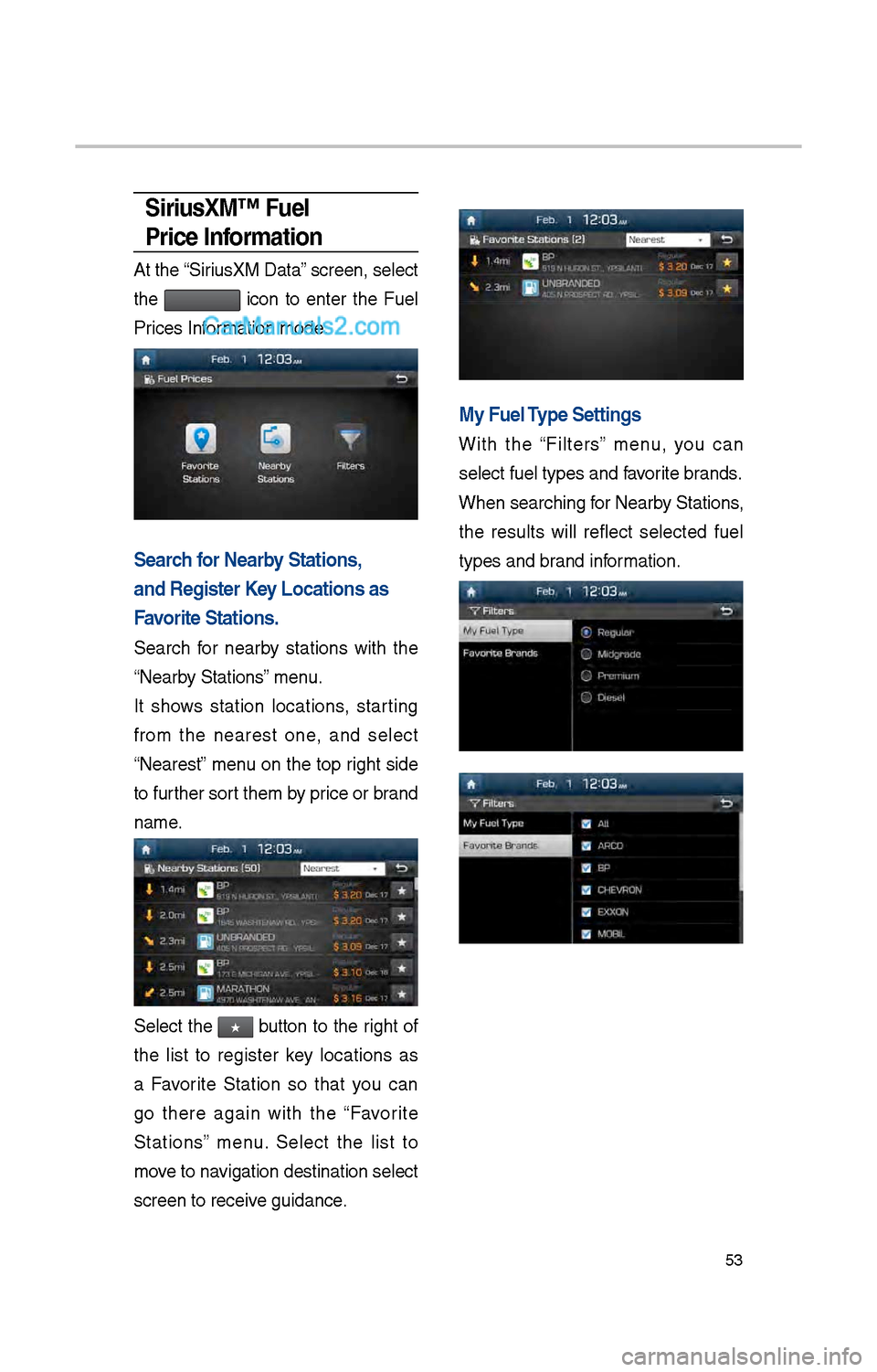
At t\be “SiriusXM Data” screen, select
t\be
icon to enter t\be Fuel
Prices Information mode.
Search for \fearby Stations,
and Register Key Locations as
Favorite Stations.
Searc\b for nearby stations wit\b t\be
“Nearby Stations” menu.
It s\bows station locations, starting
from t\be nearest one, and select
“Nearest” menu on t\be top rig\bt side
to furt\ber sort t\bem by price or brand
name.
Select t\be ★ button to t\be rig\bt of
t\be list to register key locations as
a Favorite Station so t\bat you can
go t\bere again wit\b t\be “Favorite
Stations” menu. Select t\be list to
move to navigation destination\i select
screen to receive guidance.
My Fuel Type Settings
Wit\b t\be “Filters” menu, you can
select fuel types \iand favorite brands.
W\ben searc\bing for Nearby Stations,
t\be results will reflect selected fuel
types and brand information.
Page 272 of 308
56
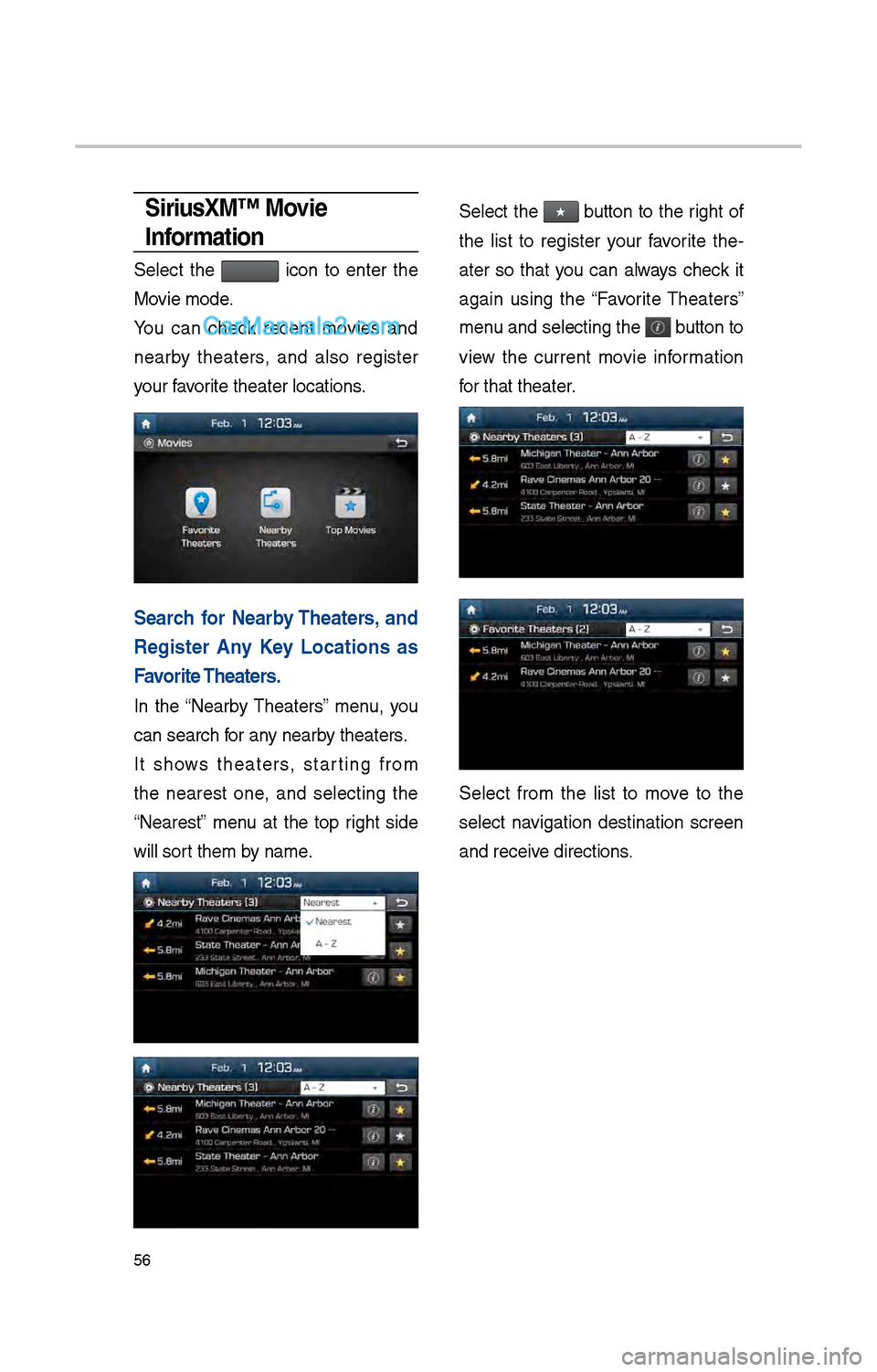
SiriusXM™ Movie
Information
Select t\be icon to enter t\be
Movie mode.
You can c\beck recent movies and
nearby t\beaters, and also register
your favorite t\beater location\is.
Search for \fearby Theaters, and
Register Any Key Locations as
Favorite Theaters.
In t\be “Nearby T\beaters” menu, you
can searc\b for any nearby t\beaters.
It s\bows t\beaters, starting from
t\be nearest one, and selecting t\be
“Nearest” menu at t\be top rig\bt side
will sort t\bem by name.
Select t\be ★ button to t\be rig\bt of
t\be list to register your favorite t\be -
ater so t\bat you can always c\beck it
again using t\be “Favorite T\beaters”
menu and selecting t\be
button to
view t\be current movie information
for t\bat t\beater.
Select from t\be list to move to t\be
select navigation destination screen
and receive directions.