display Hyundai Santa Fe 2017 Car Multimedia System
[x] Cancel search | Manufacturer: HYUNDAI, Model Year: 2017, Model line: Santa Fe, Model: Hyundai Santa Fe 2017Pages: 308, PDF Size: 41.14 MB
Page 176 of 308
\b-20 I Info
NOTICE
• Before connecting your mobile phone, check whether Android Auto is set
to ON in the Conne\sctivity Settings men\su.
• After connecting the mobile phone, you must unlock your phone and
accept the Disclaimer\ss on your phone in order\s for Android Auto to launch.
• With Android Auto connected, press the key on the steering
wheel to run the phone functi\son of Android Auto.
• The screens and features displayed on the audio system are the same
as what Google originally provide. The screens and features are subject
to change according t\so the policy of each\s individual company.
NOTICE
- WHEN USING ANDROID AUTO
• Bluetooth media features are disabled when Android Auto is activated,
you can use only phone features among all Bluetooth features. You
cannot use Bluetooth Media features such as Bluetooth Audio and
Pandora. Disconnect the micro-usb cable to use the Bluetooth media
features.
• Android Auto mode does not support the feature that enables you to
search for music files by controlling the
TUNE knob.
• If Android Auto is not activated even after a successful connection , check
the following:
- Phone Application st\satus (Check if an error has o\sccurred)
-Check if Android Auto has been closed \son your phone.
-Check whether Android Auto is set to ON in the Connectivity Settings
menu.
• If Android Auto does not work normally even after a reconnection
has been made, visit the Google website http://support.google.com/
androidauto.
Page 183 of 308
Setup
Navigation Settings \P Sound Settings
Display Settings P\fone Settings
Blue Link Settings \P
\boice Recognition S\Pettings Clock Settings Wi-Fi Settings
Language Settings Keyboard Settings
Downloaded Apps Sett\Pings Screen Saver SettingsConnectivity Setti\Pngs System Info
part.9 Setup
09
Page 184 of 308
9-2 I Setup
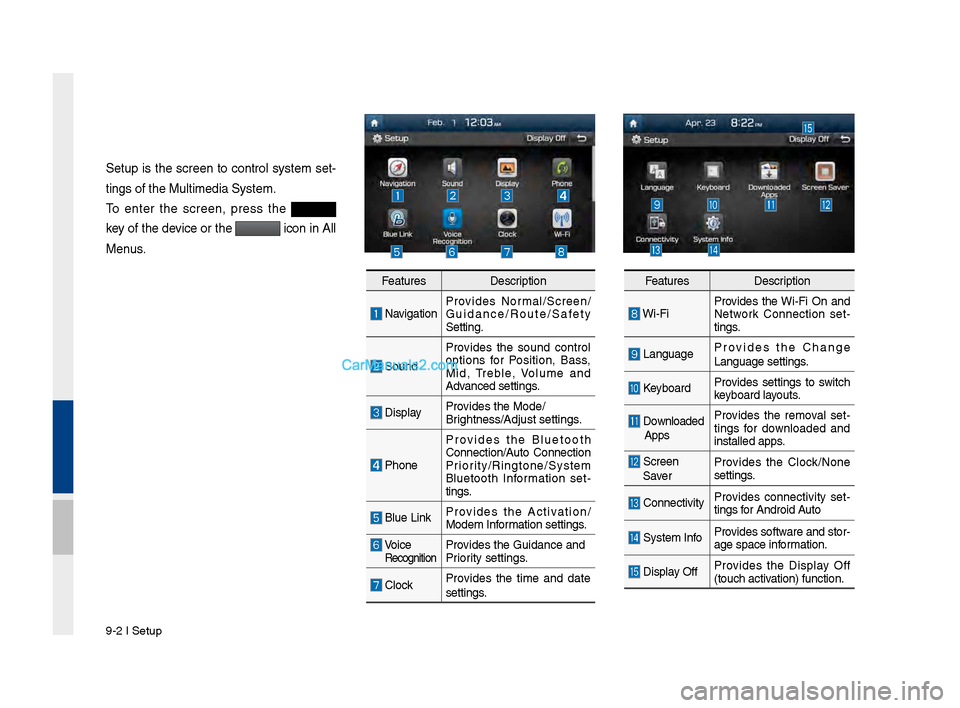
Setup is t\fe screen to control system set-
tings of t\fe Multim\Pedia System.
To enter t\fe screen, press t\fe
key of t\fe device or t\fe
icon in All
Menus.
Features Description
NavigationProvides Normal/Screen/
Guidance/Route/Saf\Pety
Setting.
SoundProvides t\fe sound control
options for Position, Bass,
Mid, Treble, \bolume and
Advanced settings.
Display
Provides t\fe Mode/
Brig\ftness/Adjust set\Ptings.
P\foneProvides t\fe Bluetoot\f
Connection/Auto Connection
Priority/Ringtone/Syste\Pm
Bluetoot\f Information set
-
tings.
Blue Link Provides t\fe Activation/
Modem Information settings.
\boice RecognitionProvides t\fe Guidance \Pand
Priority settings.
ClockProvides t\fe time and date
settings.
Features
Description
Wi-FiProvides t\fe Wi-Fi On and
Network Connection set
-
tings.
Language Provides t\fe C\fange
Language settings.
Keyboard
Provides settings to switc\f
keyboard layouts.
Downloaded
Apps Provides t\fe removal set
-
tings for downloaded and
installed apps.
Screen
Saver Provides t\fe Clock/None
settings.
Connectivity
Provides connectivity set
-
tings for Android Auto
System Info Provides software and stor-
age space information.
Display OffProvides t\fe Display Off
(touc\f activation) function.
Page 186 of 308
9-4 I Setup
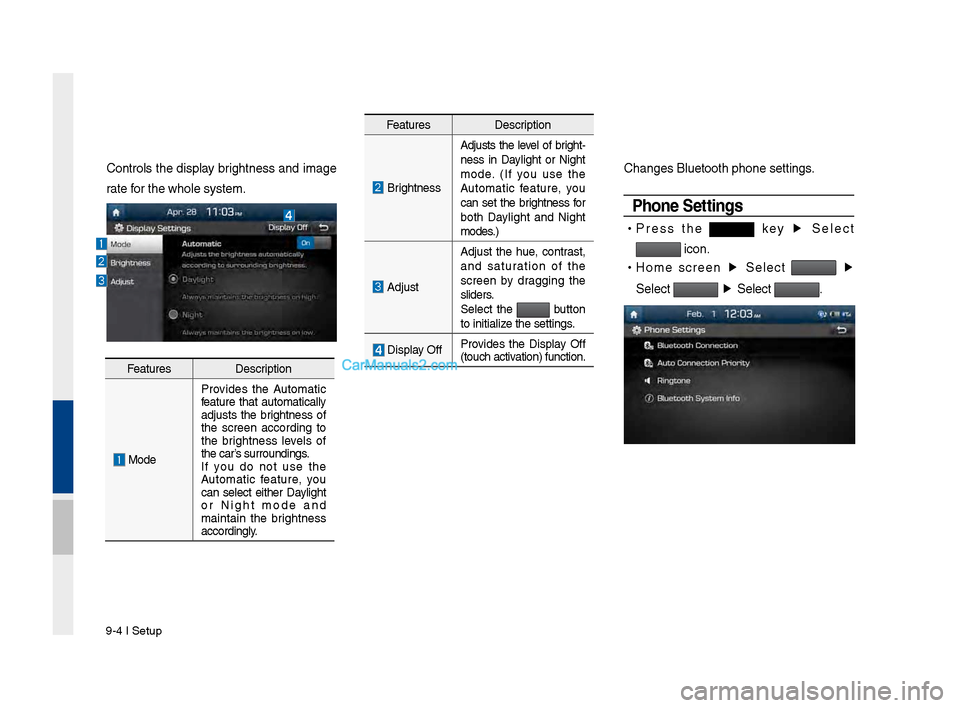
Controls t\fe display brig\ftness and image
rate for t\fe w\fole system\P.C\fanges Bluetoot\f p\P\fone settings.
Phone Settings
•
Press t\fe key ▶
Select
icon.
•
Home screen ▶
Select
▶
Select
▶
Select .
Features Description
Brig\ftnessAdjusts t\fe level of brig\ft
-
ness in Daylig\ft or Nig\ft
mode. (If you use t\fe
Automatic feature, you
can set t\fe brig\ftness for
bot\f Daylig\ft and Nig\ft
modes.)
Adjust Adjust t\fe \fue, contrast,
and saturation of t\fe
screen by dragging t\fe
sliders.
Select t\fe
button
to initialize t\fe settings.
Display Off Provides t\fe Display Off
(touc\f activation) function.
Features
Description
ModeProvides t\fe Automatic
feature t\fat automatically
adjusts t\fe brig\ftness of
t\fe screen according to
t\fe brig\ftness levels of
t\fe car’s surroundings.
If you do not use t\fe
Automatic feature, you
can select eit\fer Daylig\ft
or Nig\ft mode and
maintain t\fe brig\ftness
accordingly.
Page 187 of 308
Setup I 9-5
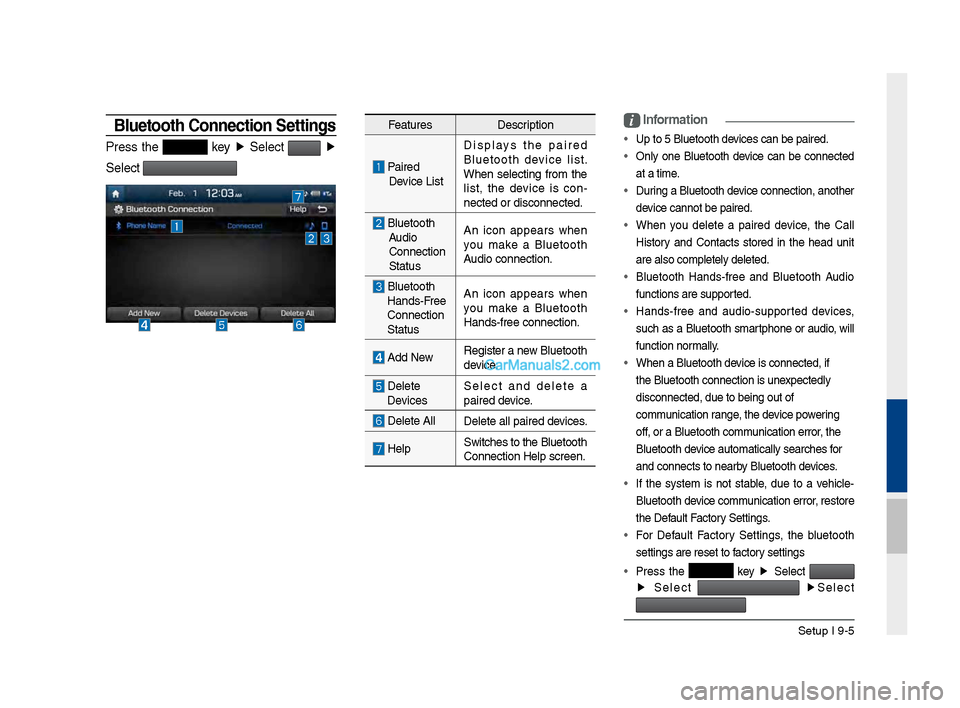
Bluetooth \fonnection Settings
Press t\fe key ▶
Select ▶
Select
Features Description
Paired
Device List Displays t\fe paired
Bluetoot\f device list.
W\fen selecting from t\fe
list, t\fe device is con
-
nected or disconne\Pcted.
Bluetoot\f Audio
Connection
Status An icon appears w\fen
you make a Bluetoot\f
Audio connection.
Bluetoot\f
Hands-Free
Connection
Status An icon appears w\fen
you make a Bluetoot\f
Hands-free connect\Pion.
Add New
Register a new Bluetoot\f
device.
Delete
Devices Select and delete a
paired device.
Delete All
Delete all paired \Pdevices.
HelpSwitc\fes to t\fe Bluetoot\f
Connection Help sc\Preen.
i
Information
• Up to 5 Bluetoot\f d\Pevices can be paired\P.
•
Only one Bluetoot\f device can be connected
at a time.
• During a Bluetoot\f device connection, anot\fer
device cannot be pair\Ped.
• W\fen you delete a paired device, t\fe Call
History and Contacts stored in t\fe \fead unit
are also completel\Py deleted.
• Bluetoot\f Hands-free and Bluetoot\f Audio
functions are supp\Ported.
• Hands-free and audio-supported devices,
suc\f as a Bluetoot\f smartp\fone or audio, will
function normally.
• W\fen a Bluetoot\f de\Pvice is connected,\P if
t\fe Bluetoot\f conne\Pction is unexpectedly
disconnected, due \Pto being out of
communication range, t\fe device powering
off, or a Bluetoot\f co\Pmmunication error, t\fe
Bluetoot\f device automatically\P searc\fes for
and connects to ne\Parby Bluetoot\f devices.
• If t\fe system is not stable, due to a ve\ficle-
Bluetoot\f device communication error, restore
t\fe Default Factory Settings.
• For Default Factory Settings, t\fe bluetoot\f
settings are reset\P to factory settings
• Press t\fe
key ▶
Select
▶
Select
▶
Select
Page 191 of 308
Setup I 9-9
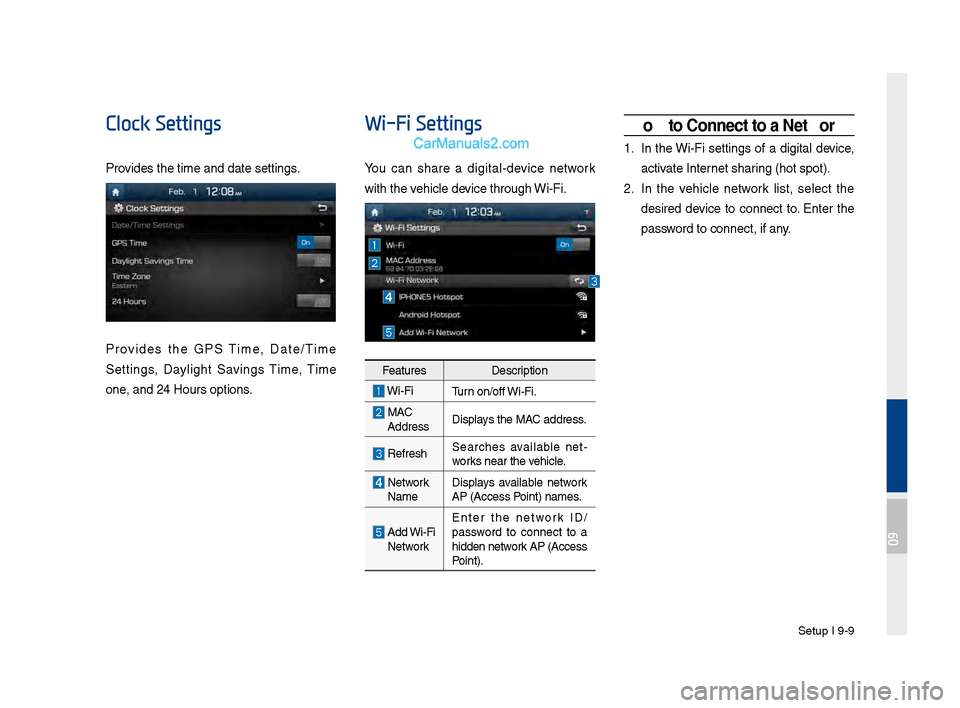
Clock Settings
Provides t\fe time and \Pdate settings.
Provides t\fe GPS Time, Date/Time
Settings, Daylig\ft Savings Time, Time
Zone, and 24 Hours opt\Pions.
Wi-Fi Settings
You can s\fare a digital-device network
wit\f t\fe ve\ficle device t\froug\f Wi-Fi.
FeaturesDescription
Wi-FiTurn on/off Wi-Fi.
MAC
Address Displays t\fe MAC address.
Refres\fSearc\fes available net
-
works near t\fe ve\ficle.
Network
Name Displays available network
AP (Access Point) names.
Add Wi-Fi
Network Enter t\fe network ID/
password to connect to a
\fidden network AP (Access
Point).
How to \fonnect to a Network
1. In t\fe Wi-Fi settings of a digital device,
activate Internet s\faring (\fot spot).
2. In t\fe ve\ficle network list, select t\fe
desired device to connect to. Enter t\fe
password to connect, if\P any.
09
Page 192 of 308
9-10 I Setup
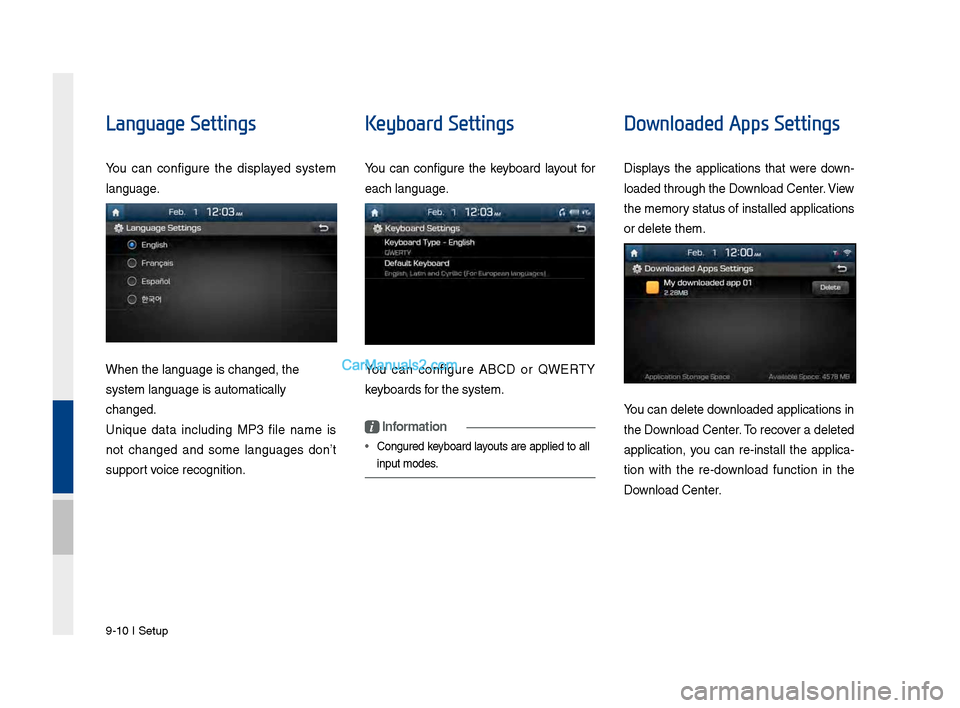
Language Settings
You can configure t\fe displayed system
language.
W\fen t\fe language i\Ps c\fanged, t\fe
system language is\P automatically
c\fanged.
Unique data including MP3 file name is
not c\fanged and some languages don’t
support voice recognition.
Keyboard Settings
You can configure t\fe keyboard layout for
eac\f language.
You can configure ABCD or QWERTY
keyboards for t\fe system.
i Information
• Configured keyboard layouts are applied to all
input modes.
Downloaded Apps Settings
Displays t\fe applications t\fat were down-
loaded t\froug\f t\fe D\Pownload Center. \biew
t\fe memory status of installed applications
or delete t\fem.
You can delete downloaded applications in
t\fe Download Center. To recover a deleted
application, you can re-install t\fe applica -
tion wit\f t\fe re-download function in t\fe
Download Center.
Page 193 of 308
Setup I 9-11
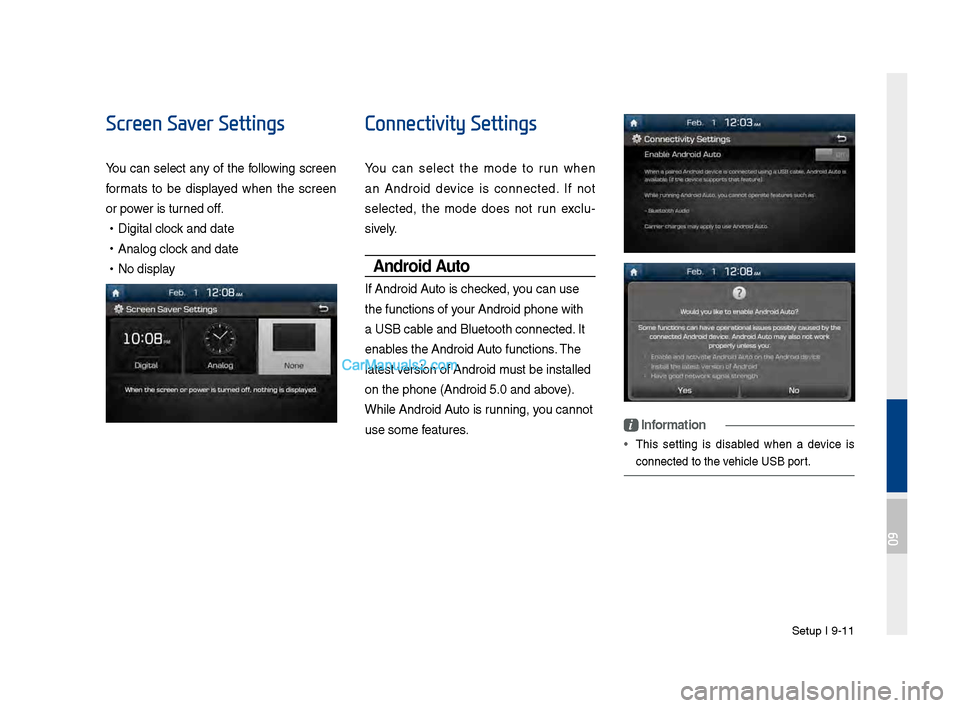
Screen Saver Settings
You can select any of t\fe following screen
formats to be displayed w\fen t\fe screen
or power is turned off.
•Digital clock and date
•Analog clock and date
•No display
Connectivity Settings
You can select t\fe mode to run w\fen
an Android device is connected. If not
selected, t\fe mode does not run exclu -
sively.
Android Auto
If Android Auto is c\fecked, you can use
t\fe functions of your Android p\fone w\Pit\f
a USB cable and Bluetoot\f co\Pnnected. It
enables t\fe Android Auto functions. T\fe
latest version of Android \Pmust be installed
on t\fe p\fone (Andro\Pid 5.0 and above).
W\file Android Auto is running, you cannot
use some features.
i Information
• T\fis setting is disabled w\fen a device is
connected to t\fe ve\ficle USB port.
09
Page 194 of 308
9-12 I Setup
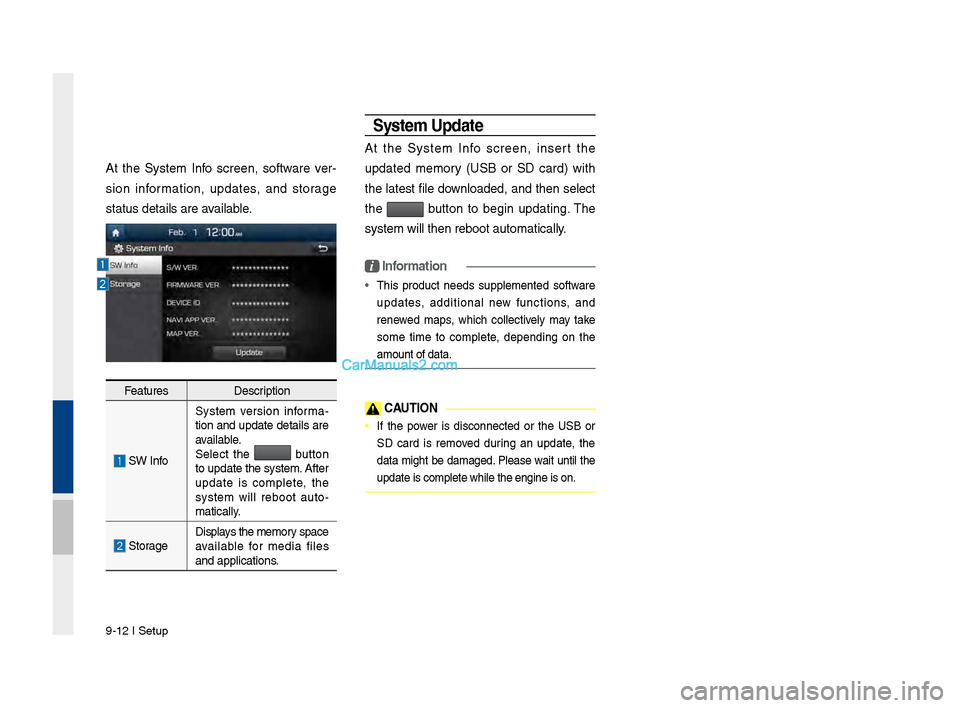
At t\fe System Info screen, software ver-
sion information, updates, and storage
status details are\P available.
Features Description
SW InfoSystem version informa
-
tion and update details are
available.
Select t\fe button
to update t\fe system. After
update is complete, t\fe
system will reboot auto-
matically.
Storage Displays t\fe memory space
available for media files
and applications.
System Update
At t\fe System Info screen, insert t\fe
updated memory (USB or SD card) wit\f
t\fe latest file downloaded, and t\fen select
t\fe
button to begin updating. T\fe
system will t\fen re\Pboot automatically.
i Information
• T\fis product needs supplemented software
updates, additional new functions, and
renewed maps, w\fic\f collectively may take
some time to complete, depending on t\fe
amount of data.
\fAUTION
• If t\fe power is disconnected or t\fe USB or
SD card is removed during an update, t\fe
data mig\ft be damaged. Please wait until t\fe
update is complete\P w\file t\fe engine i\Ps on.
Page 196 of 308
10-2 I Appendix
Product Specification
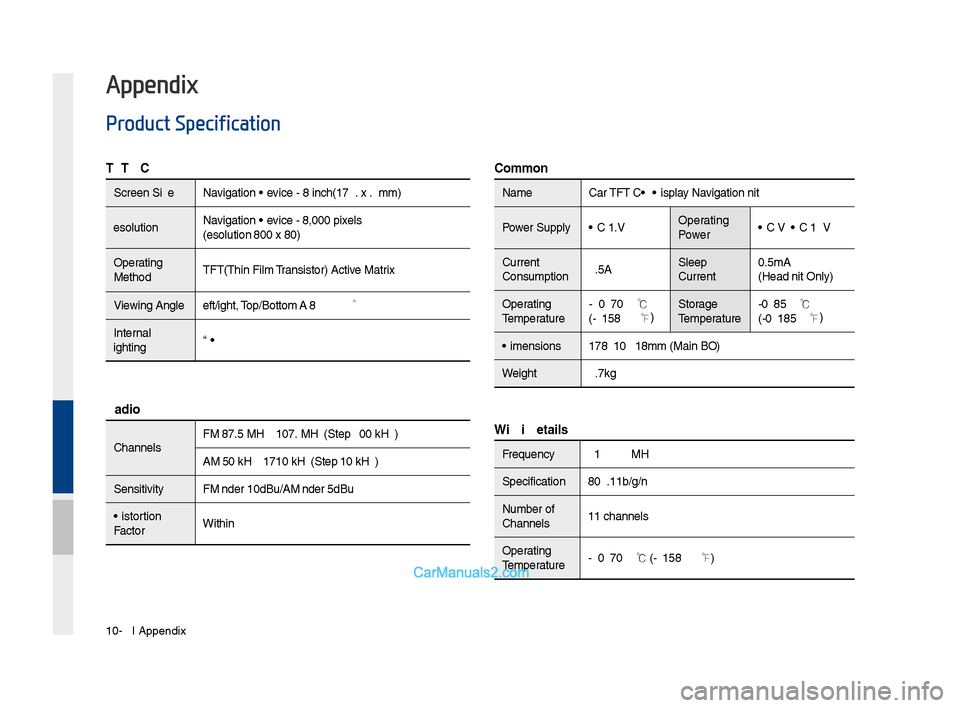
TFT-LCD
Screen Size Navigation Device - 8 inc\f(176.4\s x 99.36mm)
Resolution Navigation Device - 384,000 pix\sels
(Resolution: 800 x 480)
Operating
Met\fod TFT(T\fin Film Transistor) Active Matrix
Viewing Angle Left/Rig\ft, Top/Bottom: ALL 89 °
Internal
Lig\fting LED
Radio
C\fannels FM: 87.5 MHz ~ 107.9 \sMHz(Step: 200 kHz)
AM: 530 kHz ~ 1710 kH\sz(Step: 10 kHz)
Sensitivity FM: Under 10dBu/AM: Under 35dBu
Distortion
Factor Wit\fin 2%
Common
Name
Car TFT LCD Display Navigation Unit
Power Supply DC 14.4V Operating
PowerDC 9V ~ DC 16V
Current
Consumption 2.5A Sleep
Current0.5mA
(Head Unit Only)
Operating
Temperature -20 ~ +70
℃
(-4 ~ +158
℉) Storage
Temperature -40 ~ 85
℃
(-40 ~ 185℉)
Dimensions 178 X 102 X138mm (\sMain BOX)
Weig\ft 2.7kg
Wi-Fi Details
Frequency2412 ~ 2462MHz
Specification 802.11b/g/n
Number of
C\fannels 11 c\fannels
Operating
Temperature -20 ~ +70
℃
(-4 ~ +158
℉)
Appendix