Rele JAGUAR XF 2009 1.G Owner's Manual
[x] Cancel search | Manufacturer: JAGUAR, Model Year: 2009, Model line: XF, Model: JAGUAR XF 2009 1.GPages: 391, PDF Size: 19.32 MB
Page 52 of 391
Seat belts
52
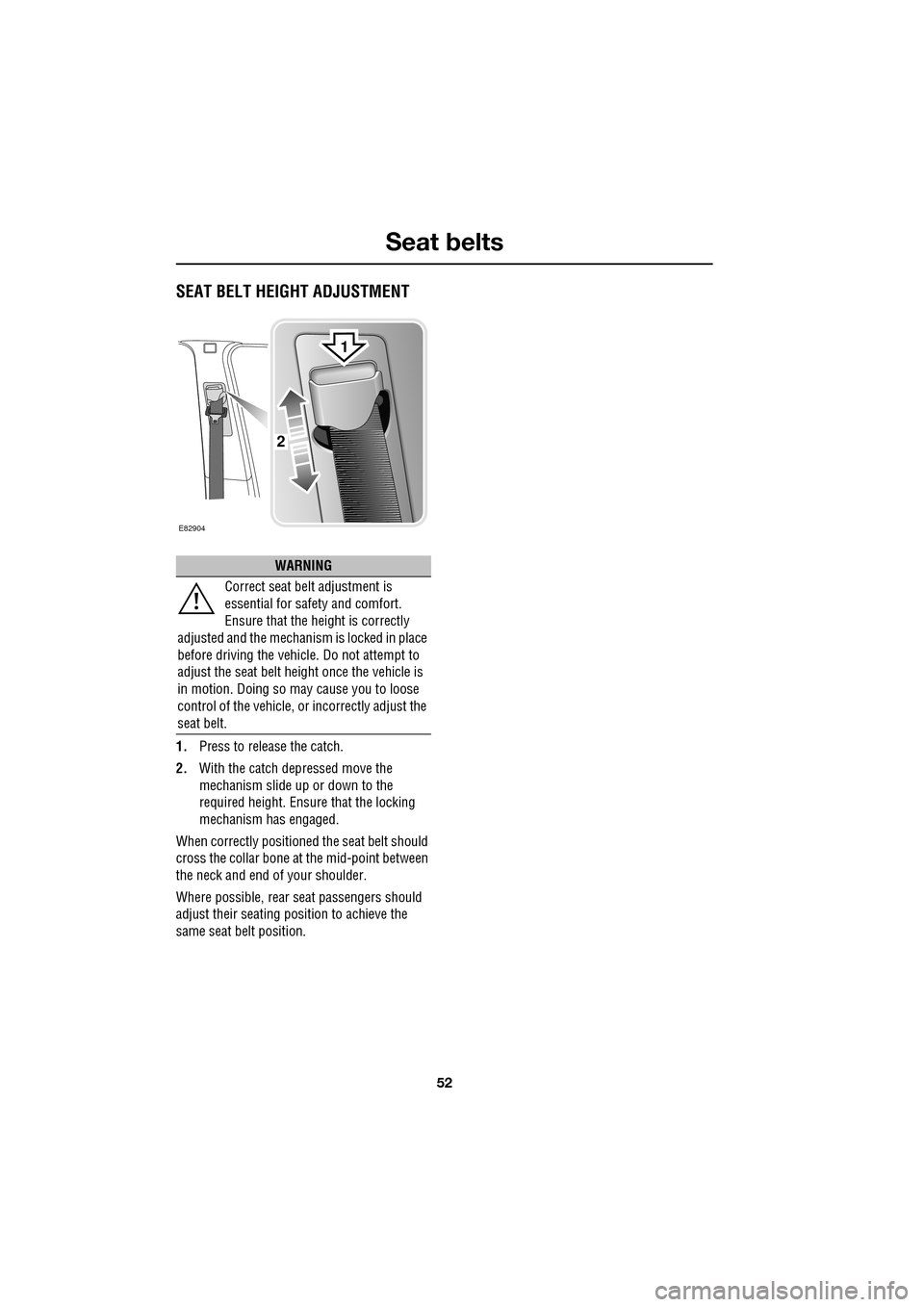
SEAT BELT HEIGHT ADJUSTMENT
1.Press to release the catch.
2. With the catch depressed move the
mechanism slide up or down to the
required height. Ensure that the locking
mechanism has engaged.
When correctly positione d the seat belt should
cross the collar bone at the mid-point between
the neck and end of your shoulder.
Where possible, rear seat passengers should
adjust their seating pos ition to achieve the
same seat belt position.
WARNING
Correct seat belt adjustment is
essential for safety and comfort.
Ensure that the height is correctly
adjusted and the mechanism is locked in place
before driving the vehicl e. Do not attempt to
adjust the seat belt height once the vehicle is
in motion. Doing so may cause you to loose
control of the vehicle, or incorrectly adjust the
seat belt.
E82904
2
1
Page 56 of 391
Supplementary restraints system
56
Side and curtain airbags
To ensure that the side and curtain airbags are
fully effective:
Side and curtain airbags are designed to offer
increased protection for the torso and head in
a side impact. The curtain airbags may deflate
at a slower rate than the front or side airbags,
to afford prolonged protection.
Airbag deployment effects
WARNINGS
Do not allow passe ngers to obstruct
the operation of the airbags by
placing any part of their person, or
any objects, in contact with, or close to, an
airbag module. Airbags deploy at very high
speeds and can cause se rious injury or death
if objects or occupants are within the area of
deployment.
Do not sit too close to, lean or
sleep against the door trim. The
side and curtain airbags could
injure you as they deploy.
Do not lean out of the window.
Only use approved accessories (e.g.
seat covers).
Due to the function of the curtain
airbag deployment, consult your
Jaguar Dealer/Autho rised Repairer,
prior to installing any accessories in the upper
environment/pillar trim area (e.g. hands-free
telephone kits).
WARNINGS
When an airbag inflates, a by-product
of the gas generation may be released
as small particles. It is possible that
this may cause irritation and should be
thoroughly flushed from th e eyes and any cuts
or abrasions.
After inflation, some airbag
components are at high
temperatures. To prevent injury, do
no touch the airbag components until they
have cooled.
In order to react with sufficient speed,
airbags are deployed by a pyrotechnic
device. Consequently, airbag
deployment is accomp anied by a very loud
noise which may caus e discomfort and
temporary loss of hearing.
Page 63 of 391
63
Child safety
ISOFIX child seats
•IUF = Suitable for ISOFIX forward child
restraint systems of universal category
approved for use in the mass group.
• IL = These ISOFIX child restraint systems
are of the specific vehicle, restricted or
semi-universal categories.
• * = Child seats suitable for use in these
locations are Britax Cosy-Tot Premium
Infant carrier and Br itax Duo Plus child
seat.
Note: Ages given are approximate. In case of
doubt, the child’s weight, not age, should be
used when considering an appropriate child
seat.
Installing an ISOFIX child seat
To install an ISOFIX child seat:-
1. Raise or remove the head restraint from
the relevant seat.
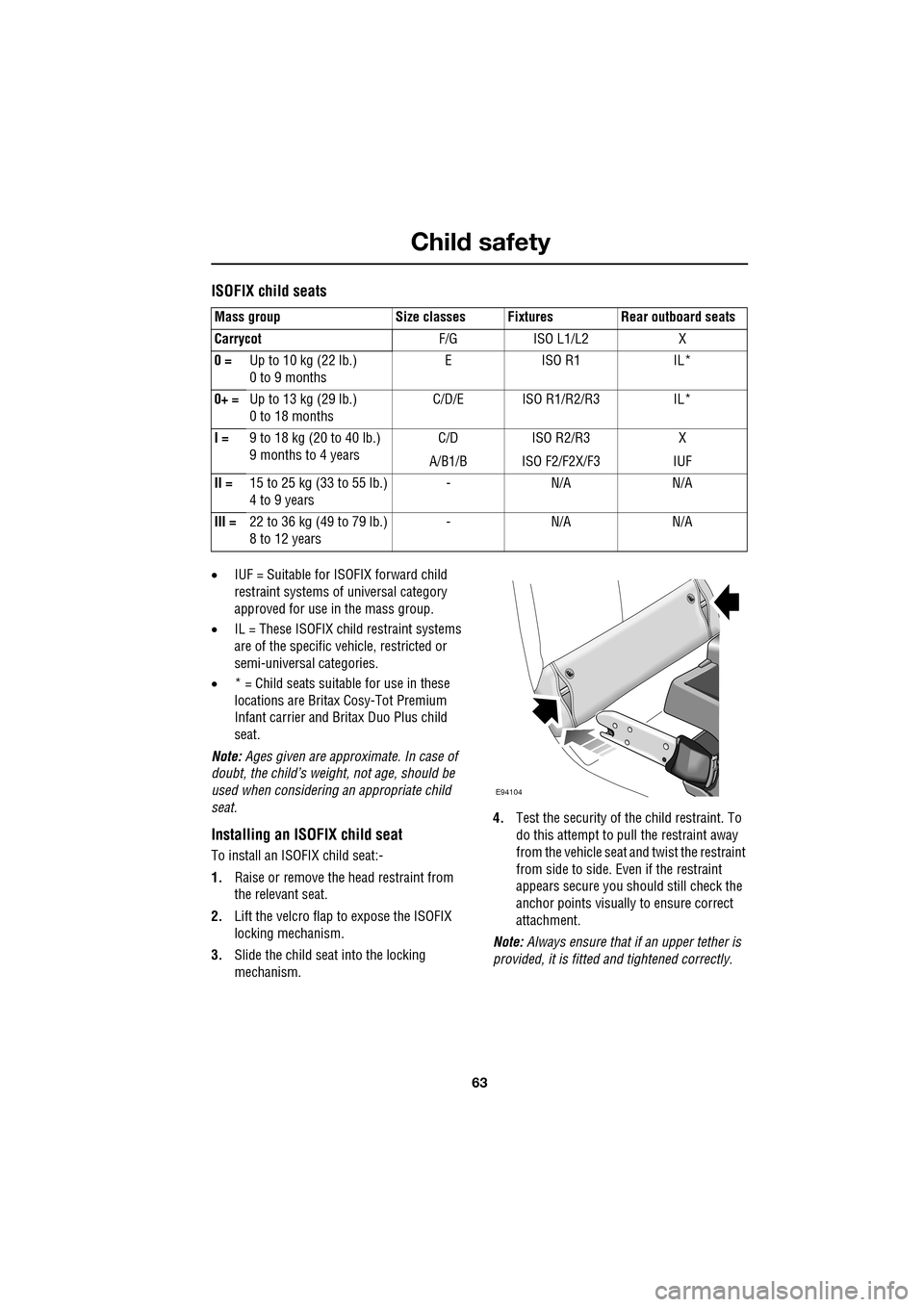
2. Lift the velcro flap to expose the ISOFIX
locking mechanism.
3. Slide the child seat into the locking
mechanism. 4.
Test the security of the child restraint. To
do this attempt to pull the restraint away
from the vehicle seat and twist the restraint
from side to side. Even if the restraint
appears secure you s hould still check the
anchor points visually to ensure correct
attachment.
Note: Always ensure that if an upper tether is
provided, it is fitted and tightened correctly.
Mass group Size classes Fixtures Rear outboard seats
Carrycot
F/G ISO L1/L2 X
0 = Up to 10 kg (22 lb.)
0 to 9 months EISO R1 IL*
0+ = Up to 13 kg (29 lb.)
0 to 18 months C/D/E ISO R1/R2/R3 IL*
I = 9 to 18 kg (20 to 40 lb.)
9 months to 4 years C/D
A/B1/B ISO R2/R3
ISO F2/F2X/F3 X
IUF
II = 15 to 25 kg (33 to 55 lb.)
4 to 9 years -N/A N/A
III = 22 to 36 kg (49 to 79 lb.)
8 to 12 years -N/A N/A
E94104
Page 66 of 391
Pedestrian protection
66
PRINCIPLE OF OPERATION
The pedestrian protection system has been
designed to reduce lower leg and head injuries
in the event of a frontal collision with a
pedestrian.
The bumper includes energy absorbing foam
and plastics in its cons truction to reduce leg
injuries and sensors th at detect the collision
with a pedestrian.
Deployment
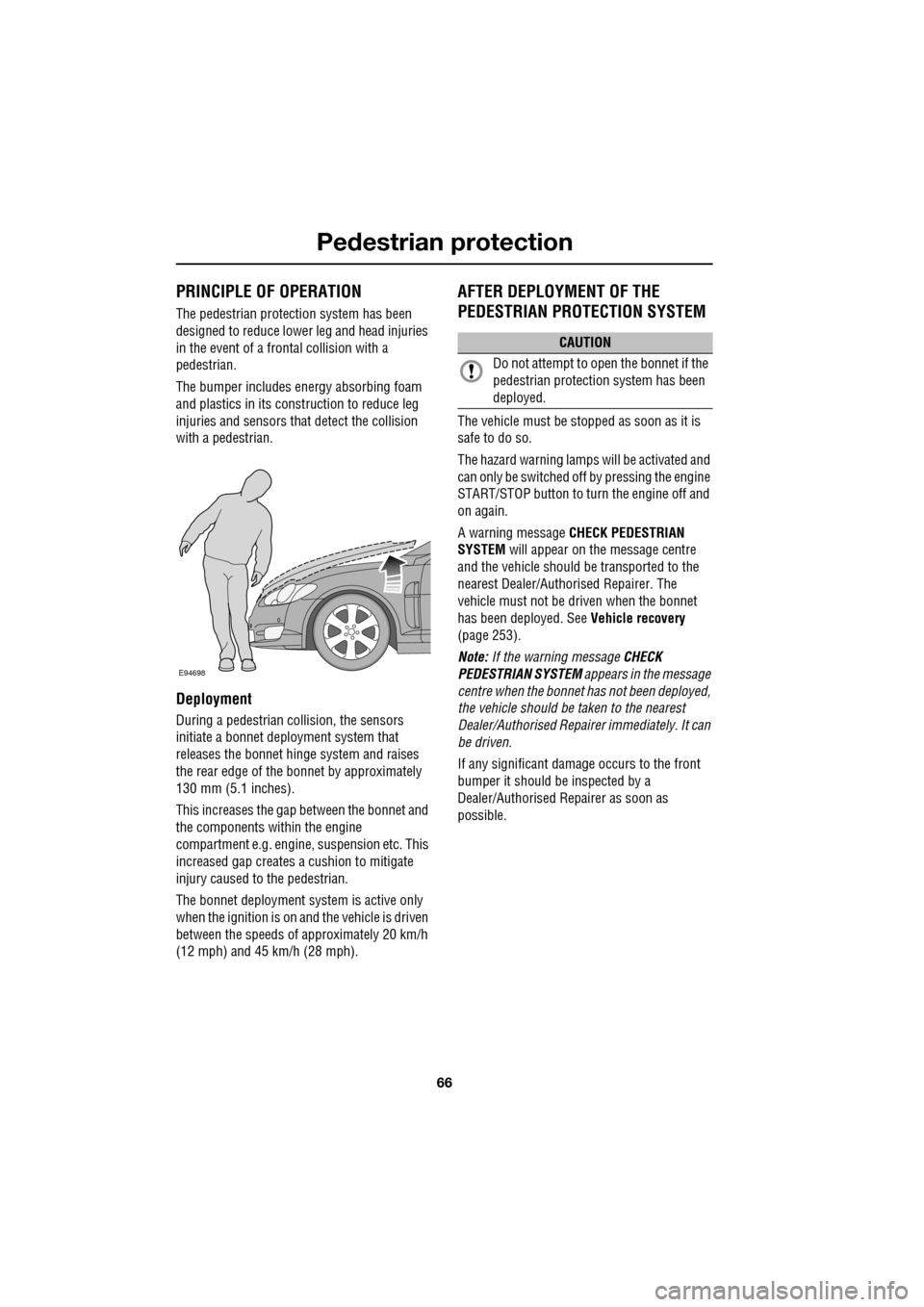
During a pedestrian co llision, the sensors
initiate a bonnet deploy ment system that
releases the bonnet hinge system and raises
the rear edge of the bonnet by approximately
130 mm (5.1 inches).
This increases the gap between the bonnet and
the components within the engine
compartment e.g. engine, suspension etc. This
increased gap creates a cushion to mitigate
injury caused to the pedestrian.
The bonnet deployment system is active only
when the ignition is on and the vehicle is driven
between the speeds of approximately 20 km/h
(12 mph) and 45 km/h (28 mph).
AFTER DEPLOYMENT OF THE
PEDESTRIAN PROTECTION SYSTEM
The vehicle must be stopped as soon as it is
safe to do so.
The hazard warning lamp s will be activated and
can only be switched off by pressing the engine
START/STOP button to turn the engine off and
on again.
A warning message CHECK PEDESTRIAN
SYSTEM will appear on the message centre
and the vehicle should be transported to the
nearest Dealer/Author ised Repairer. The
vehicle must not be driven when the bonnet
has been deployed. See Vehicle recovery
(page 253).
Note: If the warning message CHECK
PEDESTRIAN SYSTEM appears in the message
centre when the bonnet ha s not been deployed,
the vehicle should be taken to the nearest
Dealer/Authorised Repairer immediately. It can
be driven.
If any significant damage occurs to the front
bumper it should be inspected by a
Dealer/Authorised Repairer as soon as
possible.
E94698
CAUTION
Do not attempt to open the bonnet if the
pedestrian protection system has been
deployed.
Page 69 of 391
69
Steering wheel
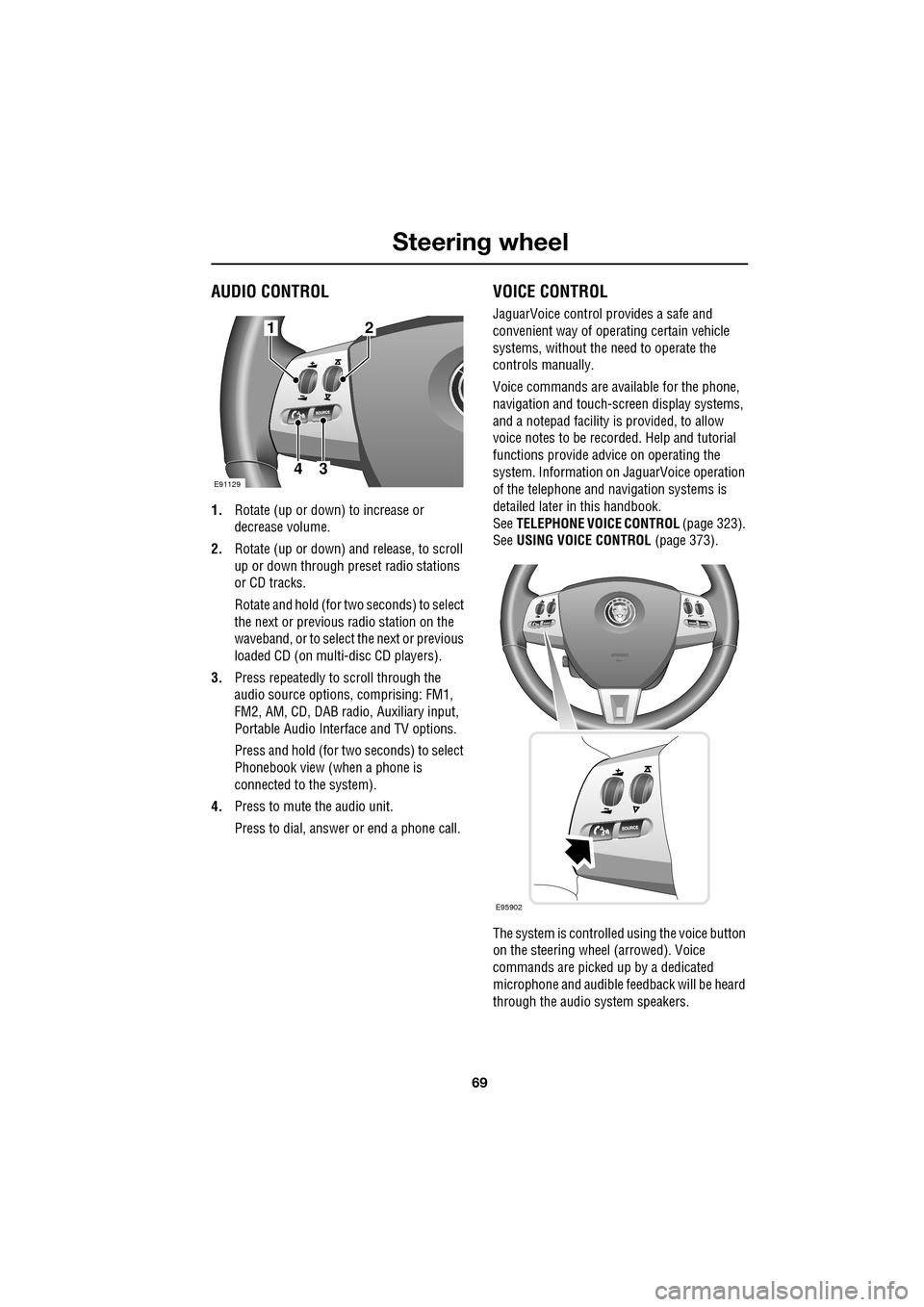
AUDIO CONTROL
1.Rotate (up or down) to increase or
decrease volume.
2. Rotate (up or down) a nd release, to scroll
up or down through preset radio stations
or CD tracks.
Rotate and hold (for two seconds) to select
the next or previous radio station on the
waveband, or to select the next or previous
loaded CD (on multi-disc CD players).
3. Press repeatedly to scroll through the
audio source options, comprising: FM1,
FM2, AM, CD, DAB radi o, Auxiliary input,
Portable Audio Interface and TV options.
Press and hold (for two seconds) to select
Phonebook view (when a phone is
connected to the system).
4. Press to mute the audio unit.
Press to dial, answer or end a phone call.
VOICE CONTROL
JaguarVoice control pr ovides a safe and
convenient way of operating certain vehicle
systems, without the need to operate the
controls manually.
Voice commands are av ailable for the phone,
navigation and touch-scre en display systems,
and a notepad facility is provided, to allow
voice notes to be recorded. Help and tutorial
functions provide advi ce on operating the
system. Information on JaguarVoice operation
of the telephone and navigation systems is
detailed later in this handbook.
See TELEPHONE VOICE CONTROL (page 323).
See USING VOICE CONTROL (page 373).
The system is controlle d using the voice button
on the steering wheel (arrowed). Voice
commands are picked up by a dedicated
microphone and audible fee dback will be heard
through the audio system speakers.12
43E91129
E95902
Page 70 of 391
Steering wheel
70
Activating the system
To activate voice control, press the voice
button on the steering wheel. A tone will be
heard and LISTENING will be displayed in the
message centre, to indicate that the system is
now waiting for a voice command.
Note: It is only necessary to press the voice
button at the beginning of each voice session.
Language and accent
Voice feedback is give n in the same language
as is set for Voice recognition. For example, if
the Voice recognition language is set to UK
English, the system wi ll not recognise other
languages (e.g. US English). The language for
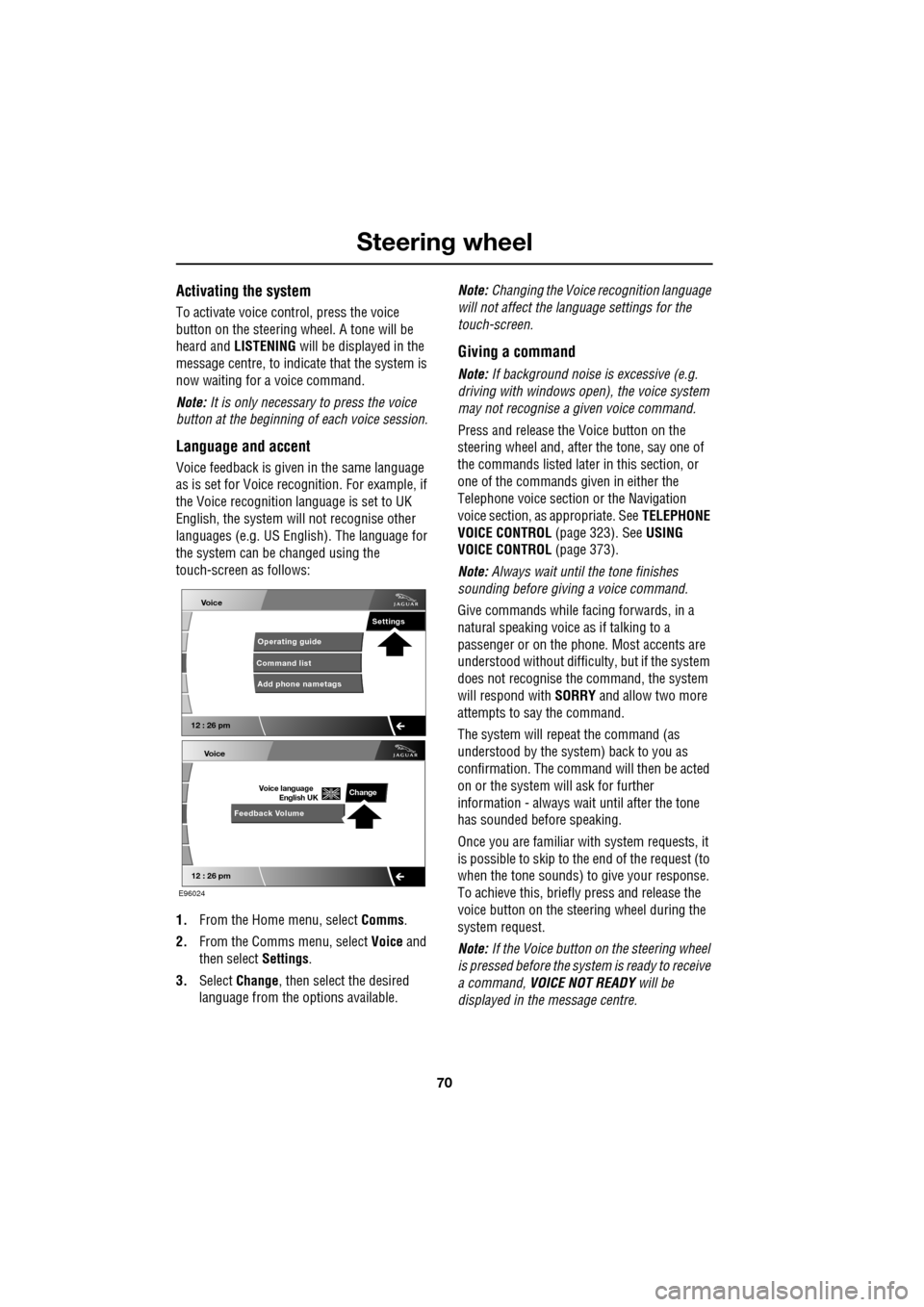
the system can be changed using the
touch-screen as follows:
1. From the Home menu, select Comms.
2. From the Comms menu, select Voice and
then select Settings.
3. Select Change, then select the desired
language from the options available. Note:
Changing the Voice recognition language
will not affect the language settings for the
touch-screen.
Giving a command
Note: If background noise is excessive (e.g.
driving with windows open), the voice system
may not recognise a given voice command.
Press and release the Voice button on the
steering wheel and, after the tone, say one of
the commands listed later in this section, or
one of the commands given in either the
Telephone voice section or the Navigation
voice section, as appropriate. See TELEPHONE
VOICE CONTROL (page 323). SeeUSING
VOICE CONTROL (page 373).
Note: Always wait until the tone finishes
sounding before giving a voice command.
Give commands while facing forwards, in a
natural speaking voice as if talking to a
passenger or on the phon e. Most accents are
understood without difficul ty, but if the system
does not recognise the command, the system
will respond with SORRY and allow two more
attempts to say the command.
The system will repe at the command (as
understood by the system ) back to you as
confirmation. The comma nd will then be acted
on or the system will ask for further
information - always wait until after the tone
has sounded before speaking.
Once you are familiar with system requests, it
is possible to skip to the end of the request (to
when the tone sounds) to give your response.
To achieve this, briefly press and release the
voice button on the steering wheel during the
system request.
Note: If the Voice button on the steering wheel
is pressed before the system is ready to receive
a command, VOICE NOT READY will be
displayed in the message centre.
Voice
12 : 26 pm
Add phone nametags
Command list Operating guide
Settings
E96024
Voice
12 : 26 pm
Feedback Volume
Voice language
English UKChange
Page 71 of 391
71
Steering wheel
Cancelling voice control
To cancel a voice command, press and hold the
Voice button on the steering wheel until a
double tone is heard.
Note: If a phone call is received during a voice
session, voice control is cancelled.
Voice system tutorial
To listen to a tutorial on how to use
JaguarVoice, press and release the voice
button and, after the tone, say VOICE
TUTORIAL .
The tutorial is divided into four lessons and has
a total duration of approximately four minutes.
The tutorial can only be undertaken with the
vehicle stationary and parked.
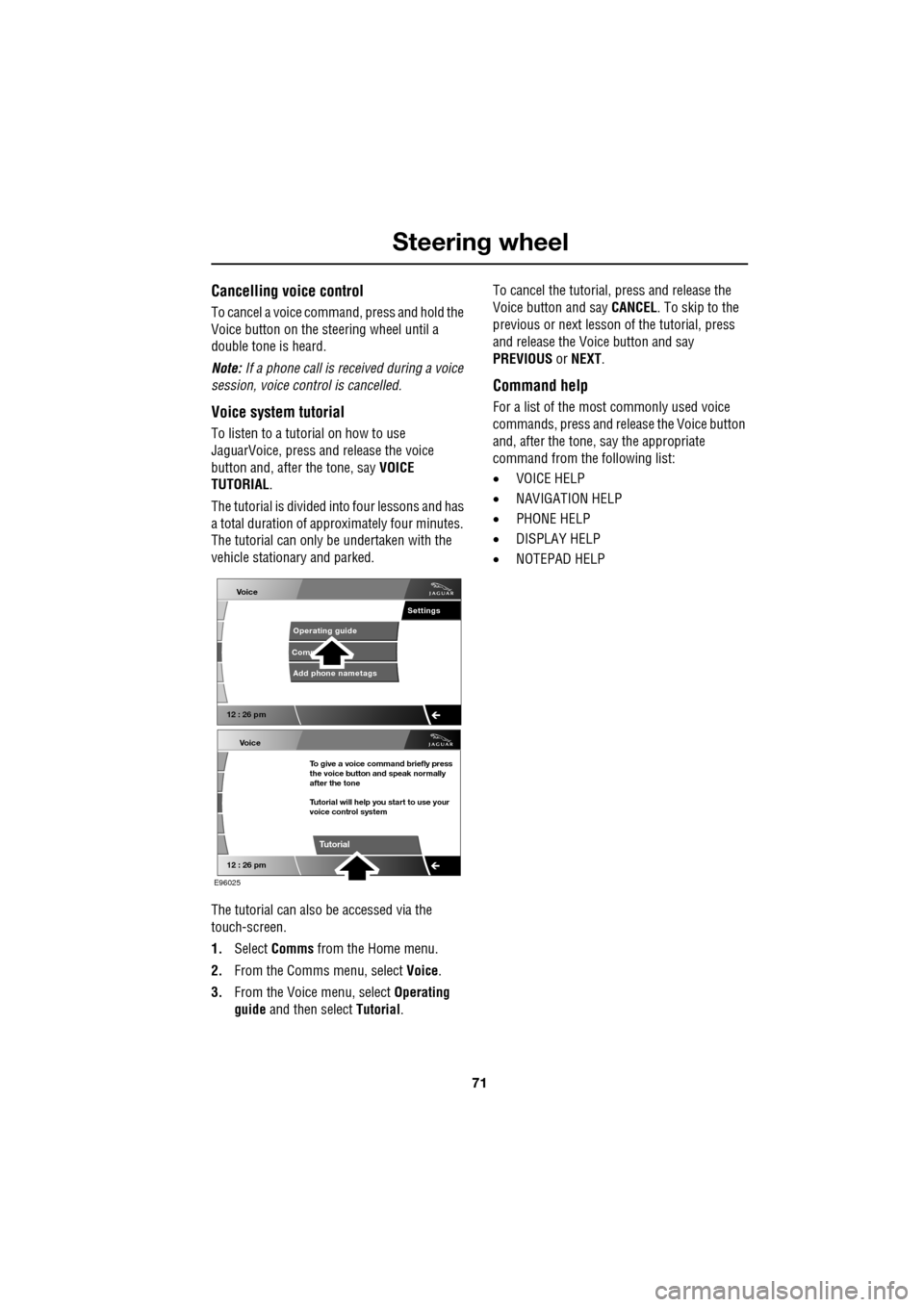
The tutorial can also be accessed via the
touch-screen.
1. Select Comms from the Home menu.
2. From the Comms menu, select Voice.
3. From the Voice menu, select Operating
guide and then select Tutorial. To cancel the tutorial, press and release the
Voice button and say
CANCEL. To skip to the
previous or next lesson of the tutorial, press
and release the Voice button and say
PREVIOUS or NEXT .
Command help
For a list of the most commonly used voice
commands, press and release the Voice button
and, after the tone, say the appropriate
command from the following list:
• VOICE HELP
• NAVIGATION HELP
• PHONE HELP
• DISPLAY HELP
• NOTEPAD HELP
Voice
12 : 26 pm
Add phone nametags
Comm Operating guide
Settings
E96025
Voice
12 : 26 pm
To give a voice command briefly press
the voice button and speak normally
after the tone
Tutorial will help you start to use your
voice control system
Tutorial
Page 72 of 391
Steering wheel
72
Full command list
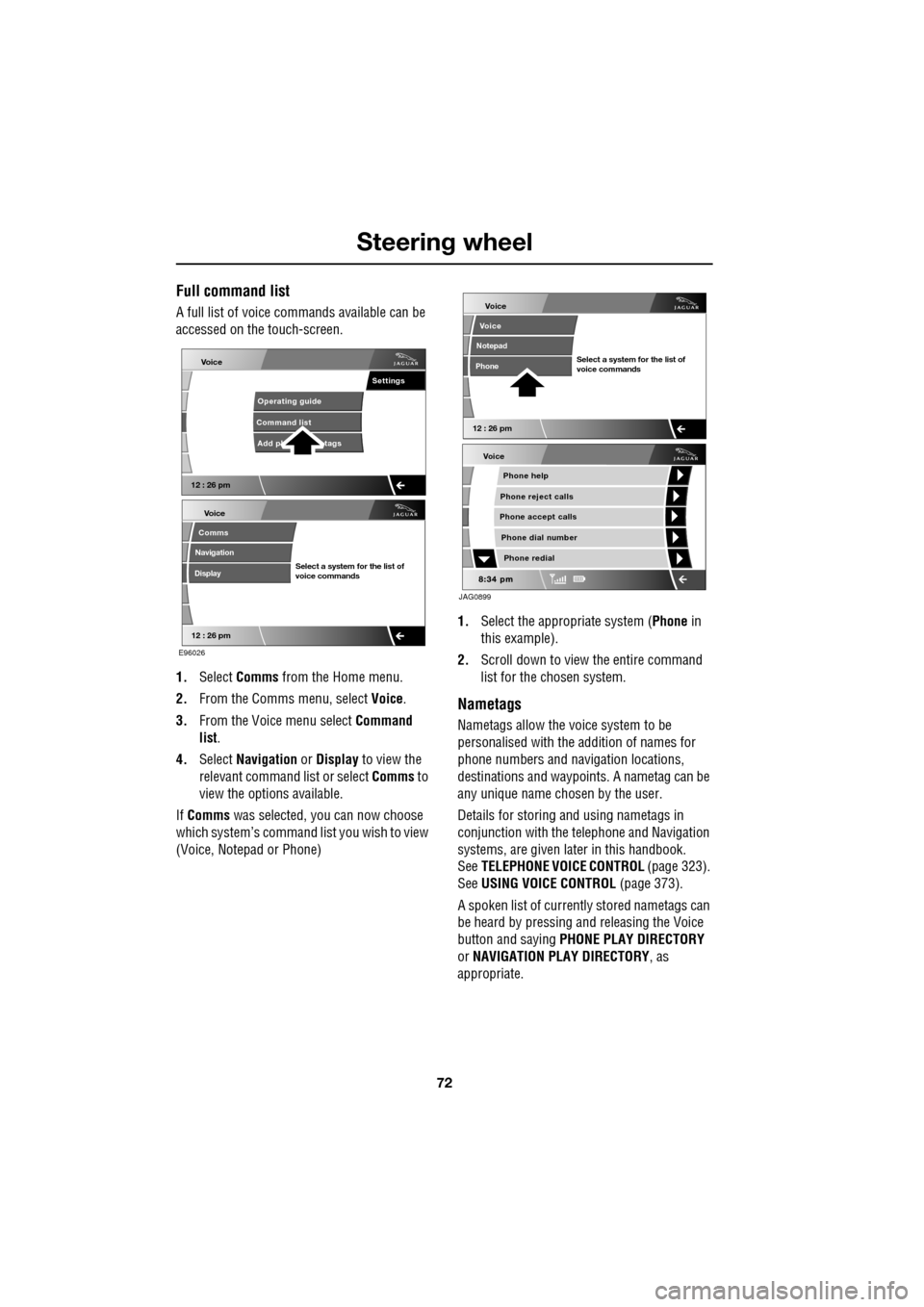
A full list of voice commands available can be
accessed on the touch-screen.
1. Select Comms from the Home menu.
2. From the Comms menu, select Voice.
3. From the Voice menu select Command
list.
4. Select Navigation or Display to view the
relevant command list or select Comms to
view the options available.
If Comms was selected, you can now choose
which system’s command list you wish to view
(Voice, Notepad or Phone) 1.
Select the appropriate system ( Phone in
this example).
2. Scroll down to view the entire command
list for the chosen system.
Nametags
Nametags allow the voice system to be
personalised with the addition of names for
phone numbers and navigation locations,
destinations and waypoi nts. A nametag can be
any unique name chosen by the user.
Details for storing and using nametags in
conjunction with the telephone and Navigation
systems, are given later in this handbook.
See TELEPHONE VOICE CONTROL (page 323).
See USING VOICE CONTROL (page 373).
A spoken list of current ly stored nametags can
be heard by pressing an d releasing the Voice
button and saying PHONE PLAY DIRECTORY
or NAVIGATION PLAY DIRECTORY , as
appropriate.
Voice
12 : 26 pm
Add ph tags
Command list Operating guide
Settings
E96026
Voice
12 : 26 pm
Select a system for the list of
voice commands
Comms
Navigation
Display
Voice
Phone help
Phone reject calls
Phone accept calls
Phone redial
Phone dial number
JAG0899
Voice
12 : 26 pm
Select a system for the list of
voice commands
Voice
Notepad
Phone
Page 73 of 391
73
Steering wheel
Notepad
The notepad facility enables the user to record
a note, up to a maximum of 30 seconds
duration, which can be subsequently recalled.
Note: To hear information on notepad
commands, press the Voice button, wait for the
tone to sound and then say NOTEPAD HELP.
Recording a note
1.Press and release the Voice button, wait
for the tone to sound, then say RECORD
NOTE .
2. Say the words of the note to be recorded,
then press and hold the Voice button to
end and save the note.
Note: The maximum length of a note is 30
seconds, after wh ich time the recording of the
note will be ended automatically.
Playing a note
Press and release the Voice button, wait for the
tone to sound, then say PLAY NOTEPAD. If
multiple notes are stored on the system, press
and release the Voice button during playback
and say NEXT, to skip to the next note.
Deleting notes
To delete an individual note, press and release
the Voice button during playback of the note to
be deleted and say DELETE.
To delete all notes stored on the system, press
and release the Voice button and say CLEAR
NOTEPAD .
Voice volume adjustment
The volume level for voice recognition can be
adjusted independently, either by using the
steering wheel controls or using the
touch-screen:
•Press the voice button on the steering
wheel, to initiate a voice session. Use the
volume control thumbwheel on the
steering wheel to adjust the volume, as
required.
• Select Vehicle from the touch-screen
Home menu, then select Veh. settings.
Find the correct entry from the menu of
infotainment volume settings and adjust as
required.
Voice commands
This is a list and a de scription of the basic
Voice commands used to operate the system.
A list and description of telephone and
Navigation system commands, is detailed later
in this handbook. See TELEPHONE VOICE
CONTROL (page 323). See NAVIGATION
SYSTEM VOICE COMMANDS (page 374).
Command Description
VOICE HELP Plays information on
operating the Voice
system.
VOICE TUTORIAL Initiates a four-part tutorial on use of the
Voice system.
DISPLAY HELP Plays information on touch-screen display
voice commands.
DISPLAY SHOW
PHONE The Phone menu is
displayed on the
touch-screen.
Page 74 of 391
Steering wheel
74
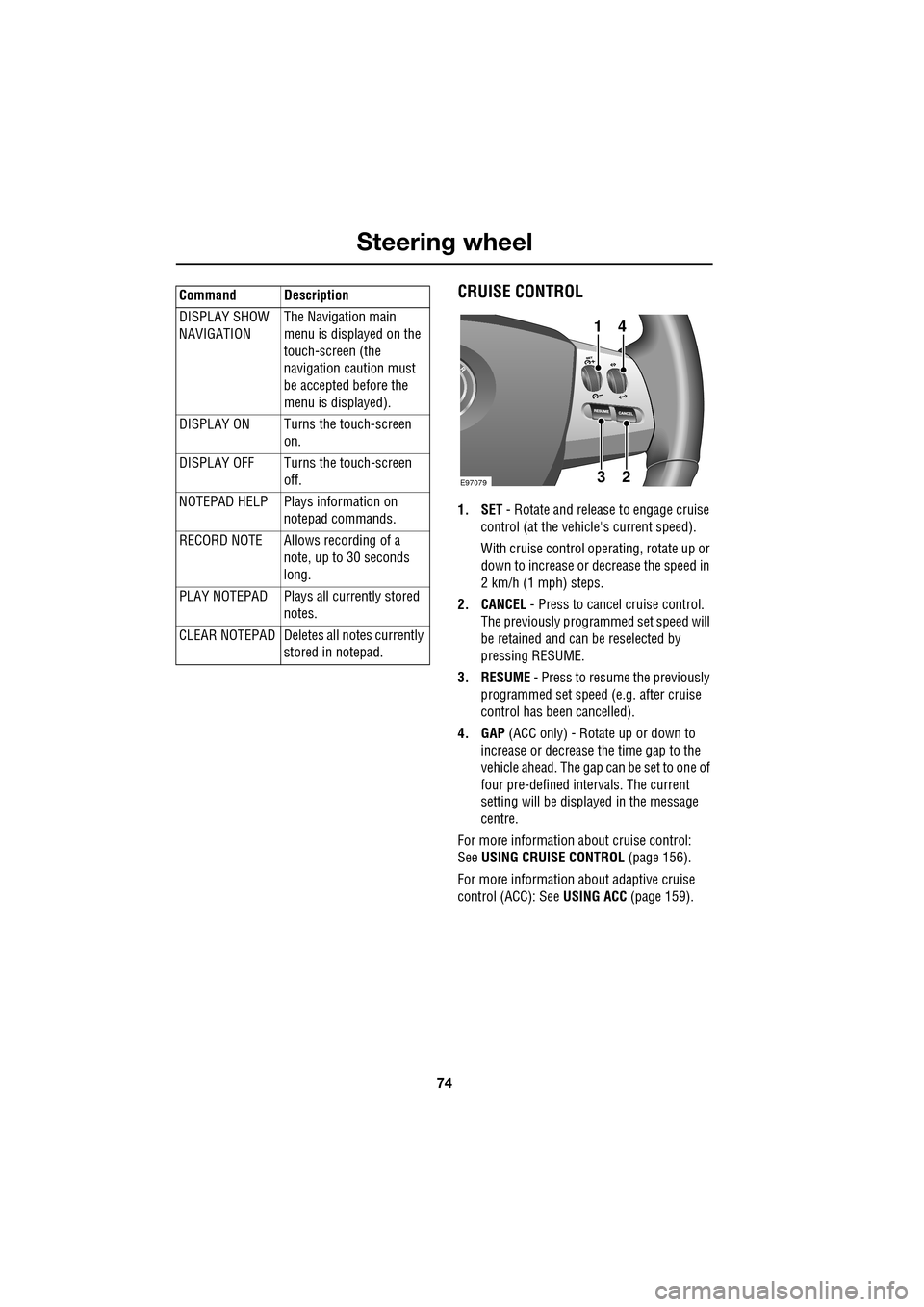
CRUISE CONTROL
1. SET - Rotate and releas e to engage cruise
control (at the vehicle's current speed).
With cruise control operating, rotate up or
down to increase or decrease the speed in
2 km/h (1 mph) steps.
2. CANCEL - Press to cancel cruise control.
The previously programmed set speed will
be retained and can be reselected by
pressing RESUME.
3. RESUME - Press to resume the previously
programmed set speed (e.g. after cruise
control has been cancelled).
4. GAP (ACC only) - Rotate up or down to
increase or decrease the time gap to the
vehicle ahead. The gap can be set to one of
four pre-defined inte rvals. The current
setting will be displayed in the message
centre.
For more information about cruise control:
See USING CRUISE CONTROL (page 156).
For more information about adaptive cruise
control (ACC): See USING ACC (page 159).
DISPLAY SHOW
NAVIGATION
The Navigation main
menu is displayed on the
touch-screen (the
navigation caution must
be accepted before the
menu is displayed).
DISPLAY ON Turns the touch-screen on.
DISPLAY OFF Turns the touch-screen off.
NOTEPAD HELP Play s information on
notepad commands.
RECORD NOTE Allows recording of a note, up to 30 seconds
long.
PLAY NOTEPAD Plays all currently stored notes.
CLEAR NOTEPAD Deletes all notes currently
stored in notepad.
Command Description
E9707923
41