phone JAGUAR XF 2009 1.G Workshop Manual
[x] Cancel search | Manufacturer: JAGUAR, Model Year: 2009, Model line: XF, Model: JAGUAR XF 2009 1.GPages: 391, PDF Size: 19.32 MB
Page 325 of 391
325
Telephone
Phone store name
The system will guide you through the process.
After each prompt where the system asks for a
response, always wait for the tone before
responding.
To store a name, follow the procedure below.
If, during the procedure, the system prompts
you with a response of Continue, you can use
the following commands.
• DELETE - Will delete all digits entered and
prompt for entry of a number;
• CORRECTION - Delete s the digit entered
last, repeats the digi ts given so far and
prompts Continue ;
• CANCEL - Cancels this dialogue;
• STORE - Terminates the entry of digits and
stores the entered phone number.
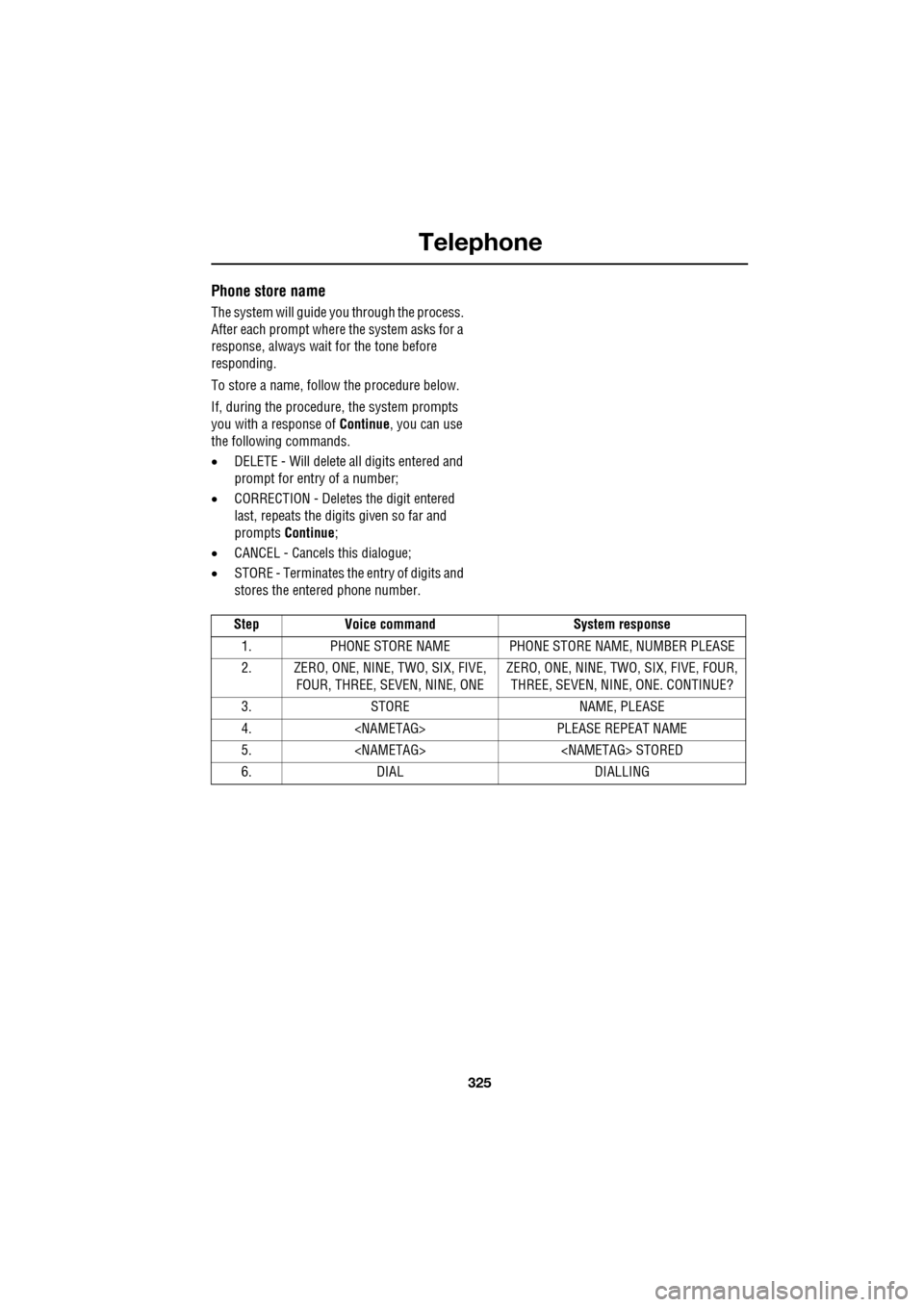
Step Voice command System response
1. PHONE STORE NAME PHONE STORE NAME, NUMBER PLEASE
2. ZERO, ONE, NINE, TWO, SIX, FIVE, FOUR, THREE, SEVEN, NINE, ONE ZERO, ONE, NINE, TWO, SIX, FIVE, FOUR,
THREE, SEVEN, NINE, ONE. CONTINUE?
3. STORE NAME, PLEASE
4.
5.
6. DIAL DIALLING
Page 326 of 391
Telephone
326
Storing nametags using the
touch-screen
Nametags can also be added to the system by
using the Add Phone nametag feature on the
touch-screen, as described below.
1. From the Home menu, select the Comms
button.
2. From the Comms menu, select the Add
Phone Nametag button.
3. A numerical touch-screen is displayed.
Enter the phone number.
4. When the number is entered, select the
Add button in the top right-hand corner
and, once the tone ha s sounded, speak the
name that you wish the number to be
stored under.
Note: The storage of the nametag itself is
subject to the nameta g not being too short
(less than 0.4 seconds), too long (longer than
4 seconds), not sounding too much like
another stored nametag and relies on the
repetition of the nametag sounding the same
as the first utterance of it. If any of these criteria
are not met, the system will prompt you to give
a new nametag.
Note: The Add button will be greyed out if the
phone number is not valid.
Dialling a nametag
To dial a number stored under a nametag in the
directory, press and release the voice button
and say Phone dial name . The system will
repeat the command and will prompt you for a
stored nametag by saying Name please. After
the tone, speak the name tag of the required
number. The system will replay the stored
nametag and ask for confirmation that it is
correct. Answer with Yes or No, as appropriate.
Dialling voicemail
The number for your voicemail service needs
to be stored in the system, before using this
facility. To store the voicemail number:
• From the Home menu, select Comms.
• From the Comms menu, select Settings.
• The phone Settings me nu has a Voice mail
button, to allow your voicemail number to
be entered.
To dial the voicemail number, press and
release the Voice button on the steering wheel,
wait for the tone to sound, then say Phone dial
voicemail .
Play all stored nametags
To play all the nametags stored in the directory,
press and release the Voice button on the
steering wheel and after the tone, say Phone
play directory . The list can be interrupted at
any time, by pressing and releasing the button
again. Once interrupted, you can then use the
commands, REPLAY , DIAL , DELETE, EDIT or
CANCEL .
Dialling a nametag stored on the
handset
To dial a number associated with a nametag
stored on the phone hand set, press and release
the Voice button on the steering wheel and,
after the tone, say Phone dial handset name .
Page 327 of 391
327
Telephone
Message centre messages
A number of responses by the telephone voice
system are reinforced by text messages
appearing in the mess age centre display.
These messages are in the following list.
• LISTENING
• VOICE NOT READY
• NOT AVAILABLE PHONE IN USE
• COMMAND NOT RECOGNISED
• NO SPEECH DETECTED
• STORING
• COMMAND CANCELLED
• SEARCHING
• HOLD BUTTON TO CANCEL
• DIRECTORY
Phonebook entries
You can also view the phonebook entries on
the message centre. See HANDS-FREE
CONTROLS (page 321).
Page 329 of 391
329
Television
TELEVISION CONTROLS
TV controls
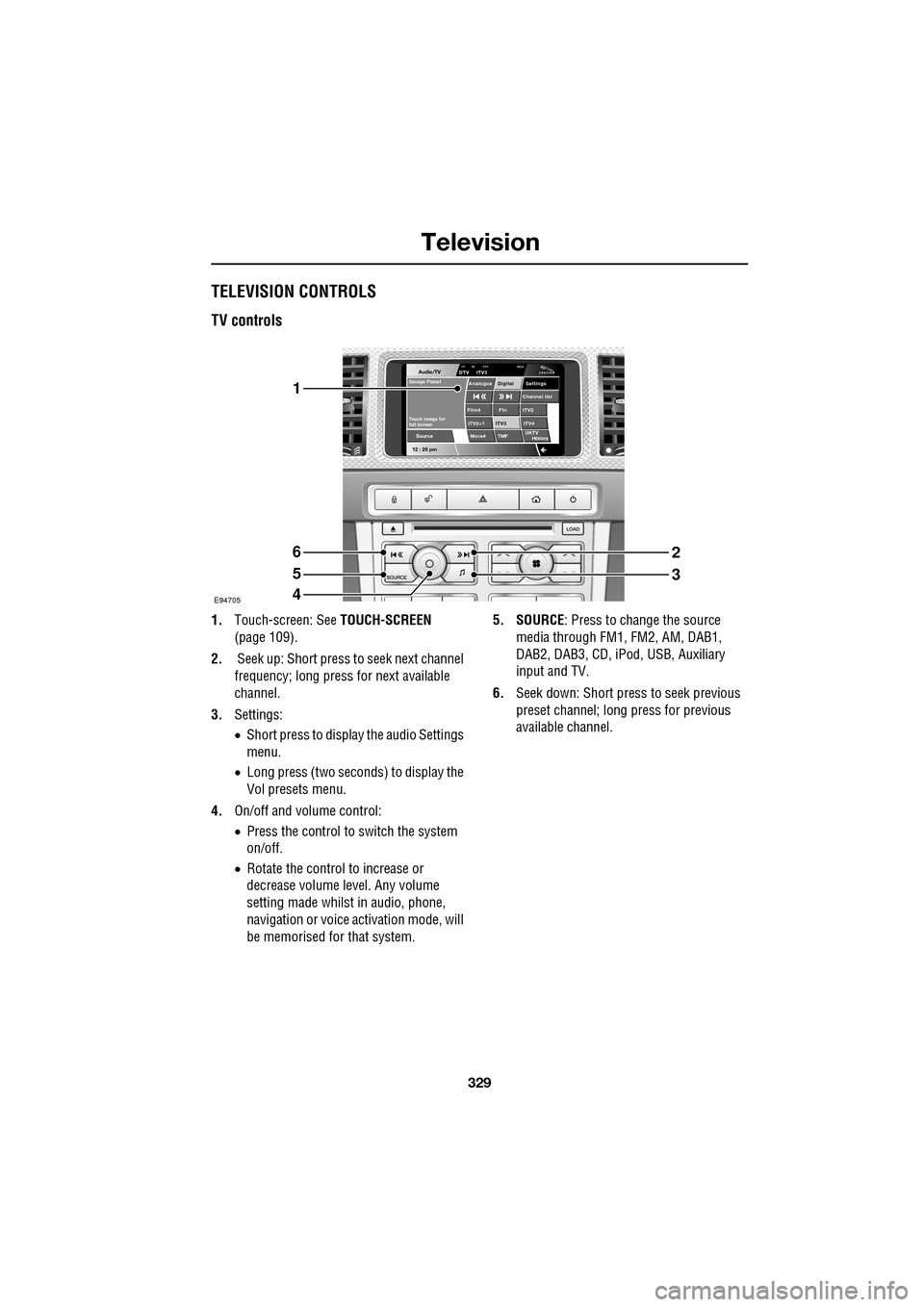
1.Touch-screen: See TOUCH-SCREEN
(page 109).
2. Seek up: Short press to seek next channel
frequency; long press for next available
channel.
3. Settings:
•Short press to display the audio Settings
menu.
• Long press (two seconds) to display the
Vol presets menu.
4. On/off and volume control:
•Press the control to switch the system
on/off.
• Rotate the control to increase or
decrease volume level. Any volume
setting made whilst in audio, phone,
navigation or voice ac tivation mode, will
be memorised for that system. 5. SOURCE
: Press to change the source
media through FM1, FM2, AM, DAB1,
DAB2, DAB3, CD, iPod, USB, Auxiliary
input and TV.
6. Seek down: Short press to seek previous
preset channel; long press for previous
available channel.
Audio/TV
12 : 26 pmMore4 TMF
TP TA PTY DPLIIDTV ITV3
UKTV
HistorySource
ITV2
ITV2+1 ITV4Film4
Settings
Channel listAnalogue Digital
Ftn
ITV3
Touch image for
full screen
Savage Planet
E94705
1
6
5
4
2
3
Page 336 of 391
Navigation system
336
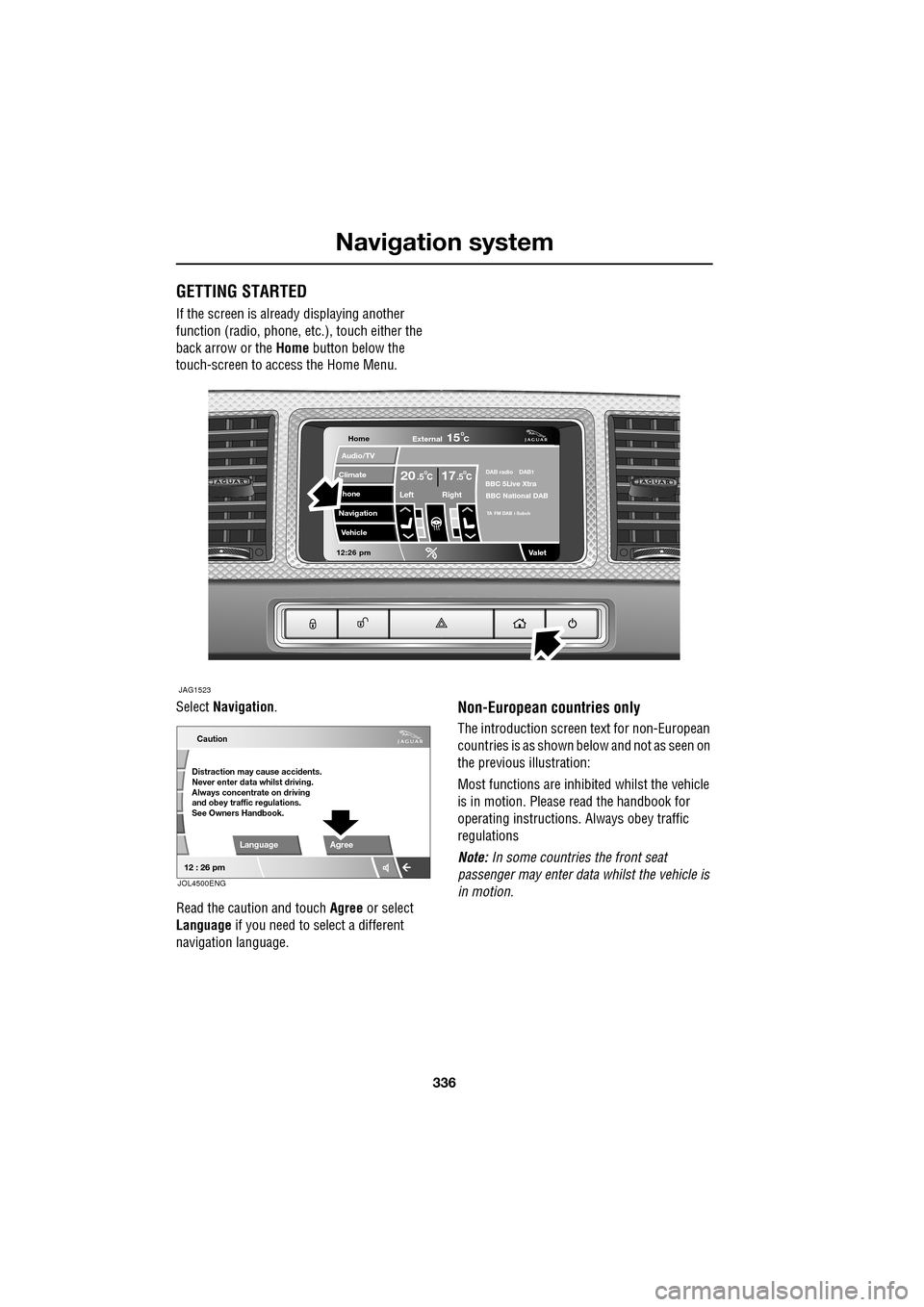
GETTING STARTED
If the screen is already displaying another
function (radio, phone, etc.), touch either the
back arrow or the Home button below the
touch-screen to access the Home Menu.
Select Navigation .
Read the caution and touch Agree or select
Language if you need to select a different
navigation language.
Non-European countries only
The introduction screen text for non-European
countries is as shown be low and not as seen on
the previous illustration:
Most functions are inhibited whilst the vehicle
is in motion. Please read the handbook for
operating instructions. Always obey traffic
regulations
Note: In some countries the front seat
passenger may enter data whilst the vehicle is
in motion.
Home
Audio/TV
Climate
hone
Navigation
Vehicle
Valet12:26 pm
JAG1523
External15C
Left Right
20 17CC.5 .5DAB radio DAB1BBC 5Live Xtra
BBC National DAB
TA FM DAB i Subch
Caution
Distraction may cause accidents.
Never enter data whilst driving.
Always concentrate on driving
and obey traffic regulations.
See Owners Handbook.
Language Agree
12 : 26 pm
JOL4500ENG
Page 337 of 391
337
Navigation system
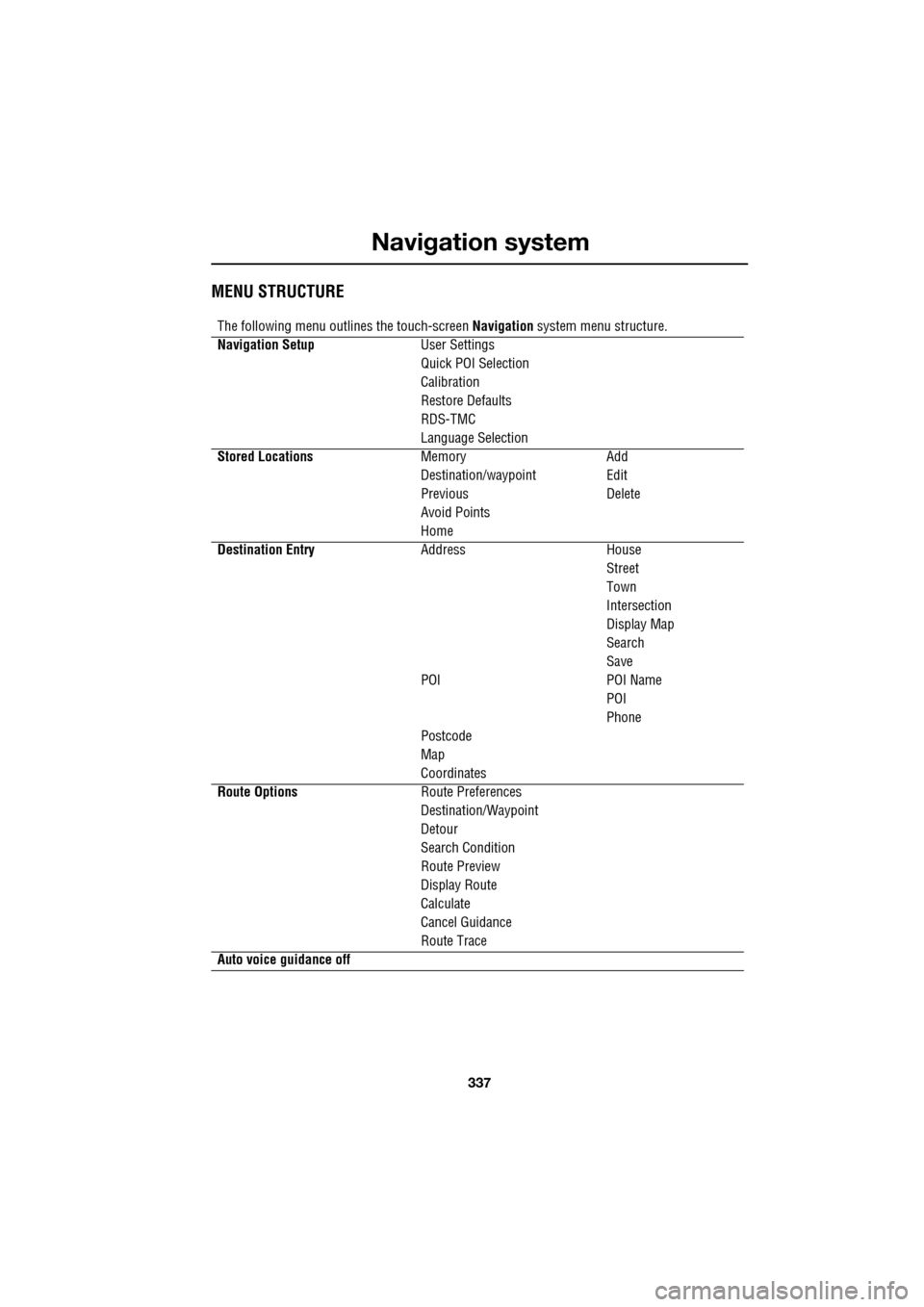
MENU STRUCTURE
The following menu outlines the touch-screen Navigation system menu structure.
Navigation Setup User Settings
Quick POI Selection
Calibration
Restore Defaults
RDS-TMC
Language Selection
Stored Locations Memory Add
Destination/waypointEdit
Previous Delete
Avoid Points
Home
Destination Entry AddressHouse
Street
Town
Intersection
Display Map
Search
Save
POI POI Name
POI
Phone
Postcode
Map
Coordinates
Route Options Route Preferences
Destination/Waypoint
Detour
Search Condition
Route Preview
Display Route
Calculate
Cancel Guidance
Route Trace
Auto voice guidance off
Page 358 of 391
Navigation system
358
MEMORY
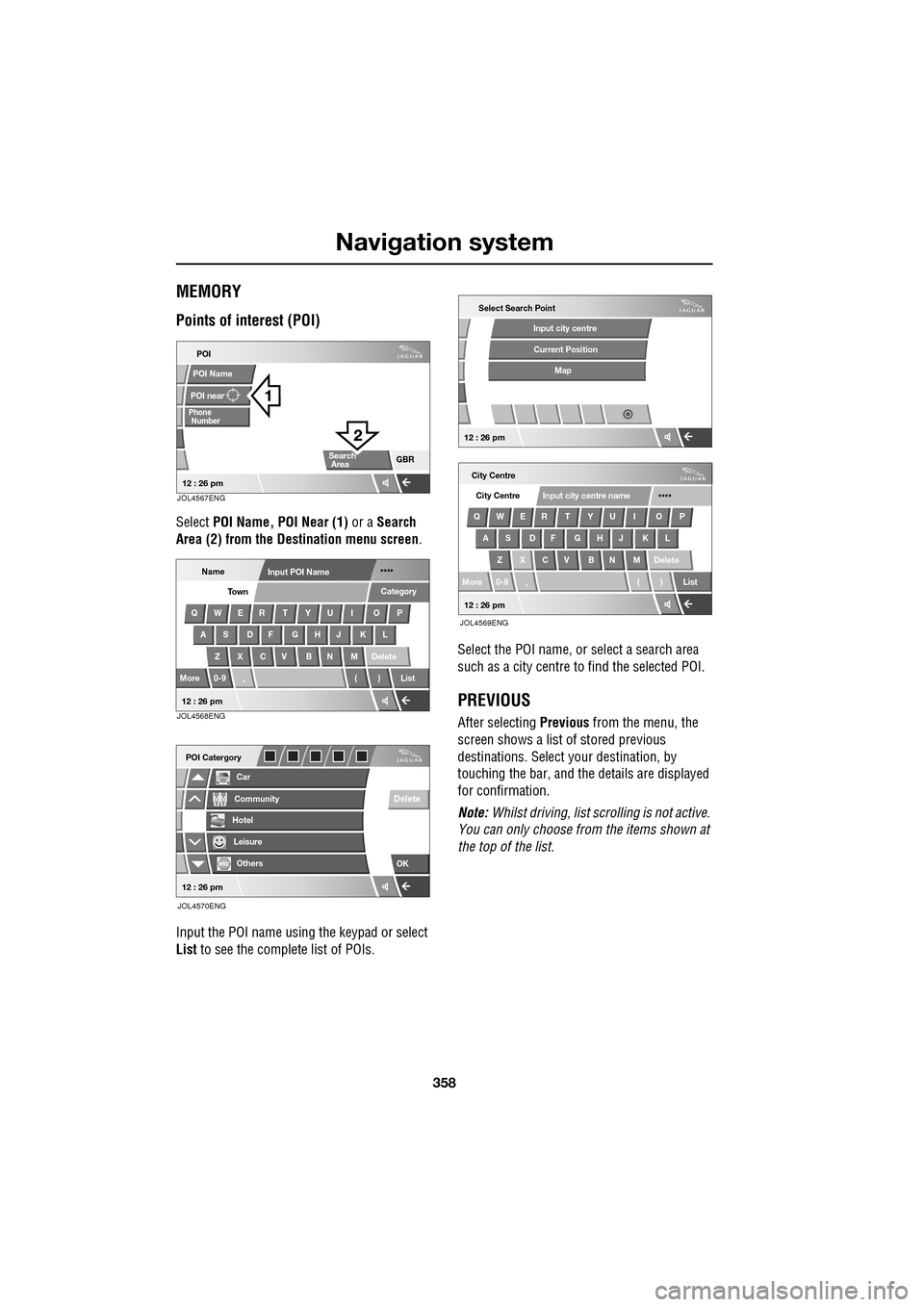
Points of interest (POI)
Select POI Name, POI Near (1) or a Search
Area (2) from the Destination menu screen .
Input the POI name using the keypad or select
List to see the complete list of POIs. Select the POI name, or select a search area
such as a city centre to find the selected POI.
PREVIOUS
After selecting
Previous from the menu, the
screen shows a list of stored previous
destinations. Select y our destination, by
touching the bar, and th e details are displayed
for confirmation.
Note: Whilst driving, list sc rolling is not active.
You can only choose from the items shown at
the top of the list.
POI
POI near
Phone
POI Name
GBR
Number
Search
Area
12 : 26 pmJOL4567ENG
NameInput POI Name ****
QWER T YU I O P
AS DF GHJ KL
Z X C V B N M Delete
More 0-9 , ( ) List Category
Town
12 : 26 pmJOL4568ENG
Car
POI Catergory
Community
Hotel
Leisure
Others
OK
Delete
12 : 26 pm
JOL4570ENG
City Centre
QWER T YU I O P AS DF GHJ KL
Z X C V B N M Delete
More 0-9 , ( ) List City Centre
****
Input city centre name
Select Search Point
Input city centre
Current Position
Map
12 : 26 pm
12 : 26 pm
JOL4569ENG
Page 362 of 391
Navigation system
362
POINTS OF INTEREST
The Navigation System DVD contains
information about a large number of points of
interest (POI). There are many categories of
POI, including fuel stations, restaurants,
railway stations and hospitals.
This chapter explains how to select a specific
POI. A selected POI can be set as a destination.
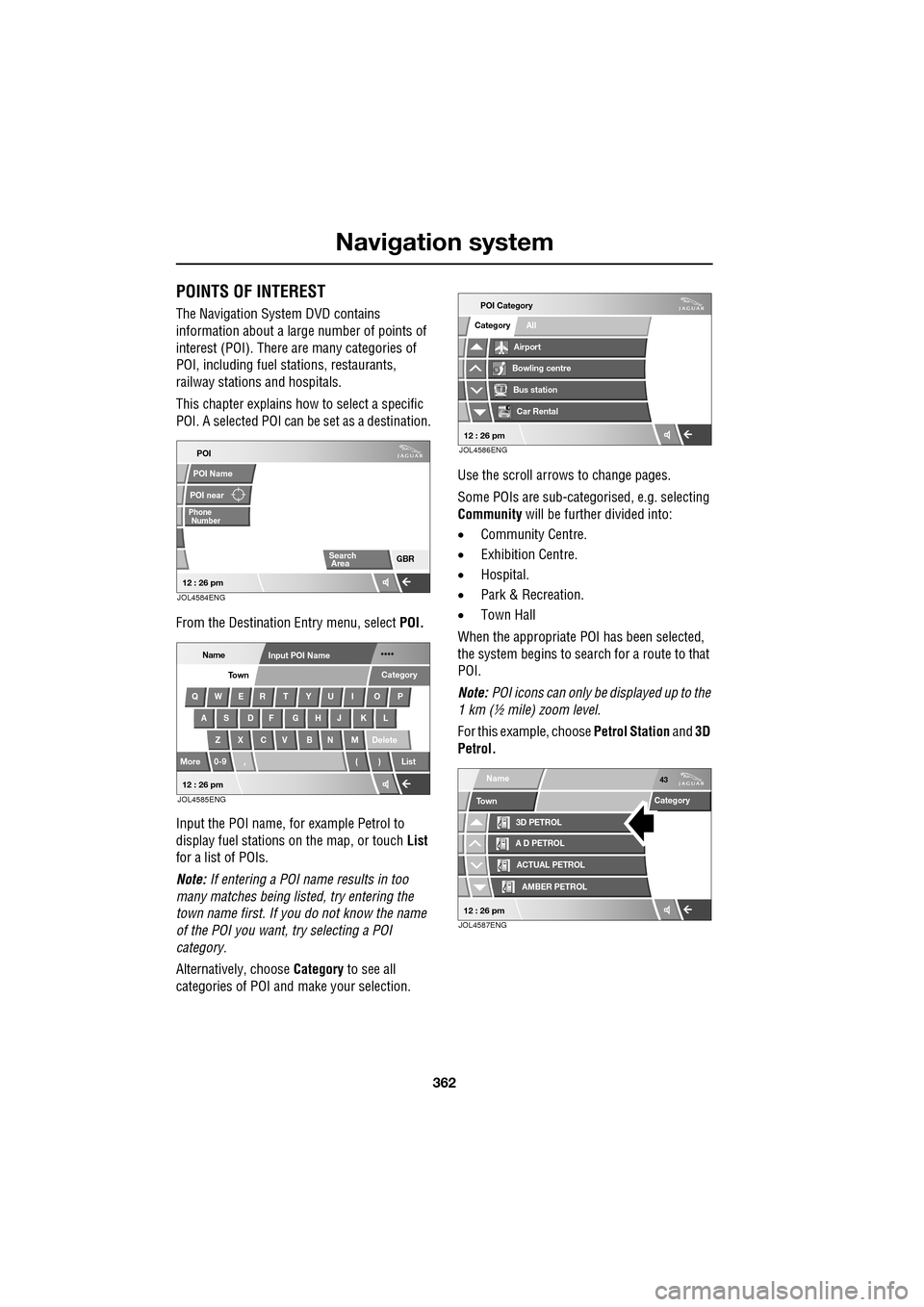
From the Destination Entry menu, select POI.
Input the POI name, fo r example Petrol to
display fuel stations on the map, or touch List
for a list of POIs.
Note: If entering a POI name results in too
many matches being lis ted, try entering the
town name first. If y ou do not know the name
of the POI you want, try selecting a POI
category.
Alternatively, choose Category to see all
categories of POI and make your selection. Use the scroll arrows to change pages.
Some POIs are sub-categorised, e.g. selecting
Community
will be further divided into:
• Community Centre.
• Exhibition Centre.
• Hospital.
• Park & Recreation.
• Town Hall
When the appropriate POI has been selected,
the system begins to search for a route to that
POI.
Note: POI icons can only be displayed up to the
1 km (½ mile) zoom level.
For this example, choose Petrol Station and 3D
Petrol.
POI
POI near
Phone
POI Name
GBR
Number
Search
Area
12 : 26 pmJOL4584ENG
NameInput POI Name ****
QWER T YU I O P
AS DF GHJ KL
Z X C V B N M Delete
More 0-9 , ( ) List Category
Town
12 : 26 pmJOL4585ENG
All
POI Category
Airport
Bowling centre
Bus station
Car RentalCategory
12 : 26 pmJOL4586ENG
Category
3D PETROL
A D PETROL
ACTUAL PETROL
AMBER PETROL
Name43
Town
12 : 26 pmJOL4587ENG
Page 367 of 391
367
Navigation system
Changing the Quick POI Categories
The five default Quick POI categories can be
changed as required.
•At the Map screen, touch anywhere on the
map.
• Touch the POI button.
• Select the Quick POI category that you
wish to replace.
The screen shows the full list of POI categories.
• Select the new categor y required from the
list.
The screen shows the new selection of
category icons.
• Repeat for another category icon if
required.
• Touch OK to apply the new settings.
SELECTING A QUICK POI CATEGORY
• Touch the Initial Map screen, then touch
the POI button. The screen shows six
suggested categories th at can be selected
as quick points of interest.
Note: The POI button will not be active if the
zoom level is below 1 km (½ mile).
• Select a Quick POI category.
The map screen is disp layed with POI icons.
Other categories
You can also select from the complete list of
POI categories.
•Touch List Categories and select a
category from the list displayed.
Local POI search
This selects the points of interest in all
categories within 32 kilometres (20 miles) of
the vehicle.
• Touch the All Local POIs button.
MEMORY POINTS
The procedure for using memory points is
functionally the same as for using the Quick
Points of Interest.
The map display shows the location of all
stored memory points in view.
•For information about a particular memory
point, touch the desired memory point
icon.
After touching the memo ry point icon, the
name of the selected memory point is
displayed at the top of the screen.
Note: Unlike POIs, memory points are
displayed at all zoom levels.
Memory point details
• Touch Info. to display the details of the
selected memory point.
The details include Ic on, Name, Position and
Tel.
The telephone number can be called by
touching the telephone button, if a Jaguar
telephone is fitted.
The memory point deta ils can be edited.
Page 386 of 391
Index
386
O
Octane rating . . . . . . . . . . . . . . . . . . . . . . 175
Oil checkV6 diesel engines . . . . . . . . . . . . . . . . 201
V6 petrol engines . . . . . . . . . . . . . . . . 197
V8 petrol engines . . . . . . . . . . . . . . . . 199
Oil level check . . . . . . . . . . . . . . . . . 199, 202
On/off control . . . . . . . . . . . . . . . . . . . . . 271
Opening and closing the bonnet . . . . . . . 195 closing the bonnet . . . . . . . . . . . . . . . 195
opening the bonnet . . . . . . . . . . . . . . . 195
P
Parking aid . . . . . . . . . . . . . . . . . . . . . . . 148principle of operation . . . . . . . . . . . . . 148
Parking brake . . . . . . . . . . . . . . . . . . . . . 146
Parts . . . . . . . . . . . . . . . . . . . . . . . . . . . . . 14
Pedestrian protection principle of operation . . . . . . . . . . . . . . 66
Pedestrian protection system after deployment . . . . . . . . . . . . . . . . . . 66
Personalised settings . . . . . . . . . . . . . . . 111
audio system. . . . . . . . . . . . . . . . . . . . 112
automatic climate control . . . . . . . . . . 112
general Information. . . . . . . . . . . . . . . 111
home menu display. . . . . . . . . . . . . . . 111
languages and distance un its . . . . . . . 113
navigation system . . . . . . . . . . . . . . . . 112
phone/comms/voice . . . . . . . . . . . . . . 112
pop-up messages . . . . . . . . . . . . . . . . 112
timeout to home menu . . . . . . . . . . . . 114
touch-screen systems . . . . . . . . . . . . . 112
vehicle system . . . . . . . . . . . . . . . . . . 113
Petrol fuel guard . . . . . . . . . . . . . . . . . . . 180 Points of interest . . . . . . . . . . . . . . . . . . . 362
cancelling the icon display . . . . . . . . . . 365
categories and sub-categories . . . . . . . 366
entry by category . . . . . . . . . . . . . . . . . 365
entry by town . . . . . . . . . . . . . . . . . . . . 365
entry messages . . . . . . . . . . . . . . . . . . 366
icon display . . . . . . . . . . . . . . . . . . . . . 363
Jaguar Dealerships . . . . . . . . . . . . . . . . 365
list of icons. . . . . . . . . . . . . . . . . . . . . . 363
memory points . . . . . . . . . . . . . . . . . . . 367
other selection methods . . . . . . . . . . . . 366
selecting a quick POI category . . . . . . . 367
Pollution sensor . . . . . . . . . . . . . . . . . . . . 120
Portable audio. . . . . . . . . . . . . . . . . . . . . . 299
Portable audio interface . . . . . . . . . . . . . . 131
Power steering fluid check . . . . . . . . . . . . 208 checking the fluid level . . . . . . . . . . . . . 208
topping up the fluid . . . . . . . . . . . . . . . 208
Preset buttons . . . . . . . . . . . . . . . . . . . . . 287 recalling a preset channel . . . . . . . . . . . 287
storing channels as presets . . . . . . . . . 287
Principle of operation airbag deployment effects . . . . . . . . . . . 56
airbag operation . . . . . . . . . . . . . . . . . . . 55
airbags . . . . . . . . . . . . . . . . . . . . . . . . . . 54
deployment . . . . . . . . . . . . . . . . . . . . . . 66
deployment and deflation . . . . . . . . . . . . 55
introduction . . . . . . . . . . . . . . . . . . . . . . 53
seat belt checks . . . . . . . . . . . . . . . . . . . 50
seat belt safety . . . . . . . . . . . . . . . . . . . . 49
seat belts . . . . . . . . . . . . . . . . . . . . . . . . 49
wet conditions . . . . . . . . . . . . . . . . . . . 144
Priority programme type (PTY). . . . . . . . . 278
PTY overview . . . . . . . . . . . . . . . . . . . . 278
PTY search . . . . . . . . . . . . . . . . . . . . . . 279
selecting PTY categories . . . . . . . . . . . 278
Programming the remote control . . . . . . . . 21 selecting alarm sensor override . . . . . . . 22
selecting automatic relock and arm . . . . 24
selecting drive-away locking . . . . . . . . . 23
selecting passive arming . . . . . . . . . . . . 23
selecting single (2 stage unlock) or multi-
point entry . . . . . . . . . . . . . . . . . . . . . 22
selecting window global opening or closing 23