vehicle setting JAGUAR XF 2009 1.G Workshop Manual
[x] Cancel search | Manufacturer: JAGUAR, Model Year: 2009, Model line: XF, Model: JAGUAR XF 2009 1.GPages: 391, PDF Size: 19.32 MB
Page 273 of 391
273
Audio unit operation
Standard and Premium sound systems
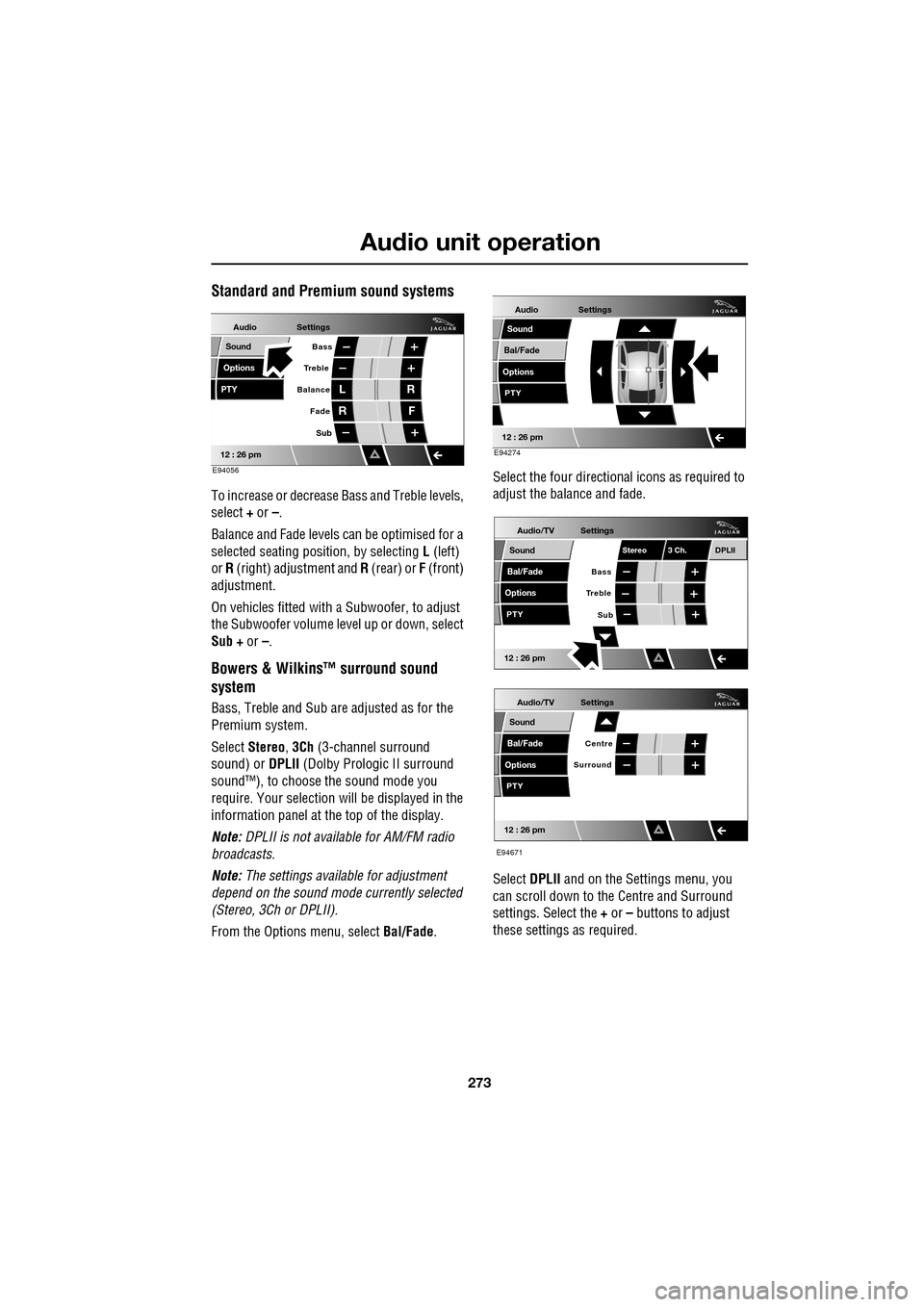
To increase or decrease Bass and Treble levels,
select + or –.
Balance and Fade levels can be optimised for a
selected seating posit ion, by selecting L (left)
or R (right) adjustment and R (rear) or F (front)
adjustment.
On vehicles fitted with a Subwoofer, to adjust
the Subwoofer volume le vel up or down, select
Sub + or –.
Bowers & Wilkins™ surround sound
system
Bass, Treble and Sub are adjusted as for the
Premium system.
Select Stereo , 3Ch (3-channel surround
sound) or DPLII (Dolby Prologic II surround
sound™), to choose the sound mode you
require. Your selection will be displayed in the
information panel at the top of the display.
Note: DPLII is not availa ble for AM/FM radio
broadcasts.
Note: The settings available for adjustment
depend on the sound mode currently selected
(Stereo, 3Ch or DPLII).
From the Options menu, select Bal/Fade. Select the four directio
nal icons as required to
adjust the balance and fade.
Select DPLII and on the Settings menu, you
can scroll down to the Centre and Surround
settings. Select the + or – buttons to adjust
these settings as required.
Audio
Options
PTY
Sound
12 : 26 pm
Settings
Treble Bass
Balance
FadeL
R R
F
E94056
Sub
Audio
Bal/Fade
Options
Sound
12 : 26 pm
Settings
PTY
E94274
Audio/TV
Bal/Fade
Options
Sound
12 : 26 pm
Settings
Treble
Sub
PTY
Bass
Stereo 3 Ch.DPLII
Audio/TV
Bal/Fade
Options
Sound
12 : 26 pm
Settings
Surround
PTY
Centre
E94671
Page 276 of 391
Audio unit operation
276
TRAFFIC INFORMATION CONTROL
With the Traffic Announcements (TA) option
on, local traffic announcements will interrupt
normal broadcasts or playback.
If audio volume is set at a minimum, then the
volume will increase for the announcement,
returning to the previous volume setting
afterwards.
When broadcasting an announcement, a traffic
announcement pop-up is displayed.
When enabled, TA will appear at the top of the
touch-screen. The audio un it then checks that
the station has Radio Data System (RDS)
Traffic Programme (TP). If it is not available on
the current station, th e display will not show
TP . If TP is not displayed with TA after 45
seconds have elapsed, th en the audio unit will
search for a new TP station.
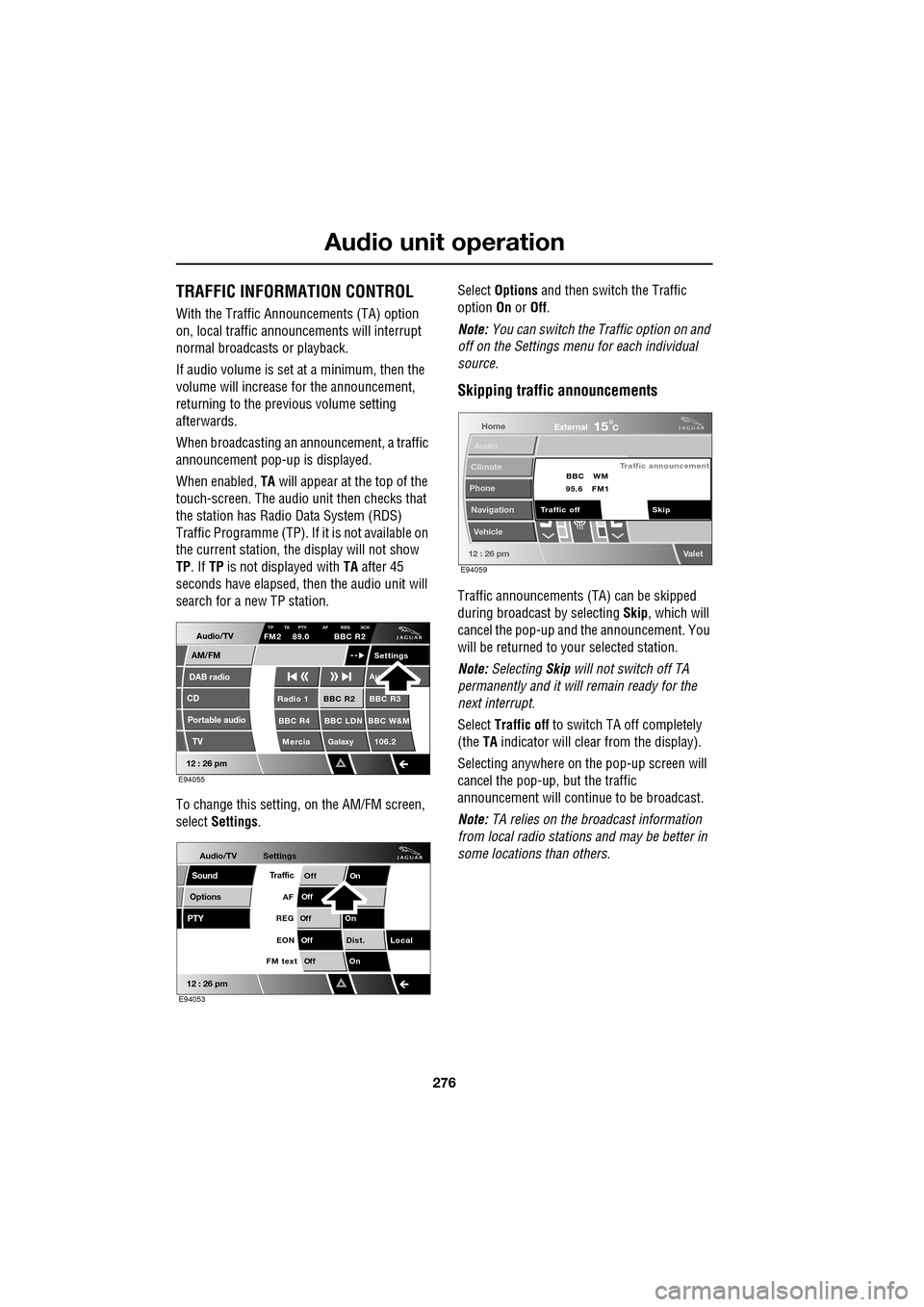
To change this setting, on the AM/FM screen,
select Settings . Select
Options and then switch the Traffic
option On or Off.
Note: You can switch the Traffic option on and
off on the Settings menu for each individual
source.
Skipping traffic announcements
Traffic announcements (TA) can be skipped
during broadcast by selecting Skip, which will
cancel the pop-up and the announcement. You
will be returned to your selected station.
Note: Selecting Skip will not switch off TA
permanently and it will remain ready for the
next interrupt.
Select Traffic off to switch TA off completely
(the TA indicator will clear from the display).
Selecting anywhere on the pop-up screen will
cancel the pop-up, but the traffic
announcement will continue to be broadcast.
Note: TA relies on the broadcast information
from local radio stations and may be better in
some locations than others.
Audio/TV
DAB radio
CD
AM/FM
12 : 26 pm
BBC R2 BBC R3
BBC R4 BBC LDN BBC W&M Mercia Galaxy 106.2Radio 1
Settings
Au
TP TA PTY AF REG 3CHFM2 89.0 BBC R2
Portable audio TV
E94055
Audio/TV
Options
PTY
Sound
12 : 26 pm
Settings
TrafficOnOff
Of f
On
Of
f
Dist. Local
Of f
On
Of f
FM text EON
REG
AF
E94053
Home
Audio
Climate
Phone
Navigation
Vehicle
Valet12 : 26 pm
External15C
Traffic announcement
Skip
Traffic off BBC
95.6 WM
FM1
E94059
Page 277 of 391
277
Audio unit menus
RADIO DATA SYSTEM (RDS)
Options menu overview
Your radio is equipped with Radio Data System
(RDS), which enables the audio unit to receive
additional inform ation with normal FM radio
signals.
When tuned to certai n stations on the FM
waveband, the radi o decodes signals
transmitted to provide the functions listed
below (dependent upon th e service available
from the broadcasters).
Note: Not all FM radio stat ions broadcast RDS
information. If you are currently tuned to a
non-RDS station, then RDS features will be
unavailable.
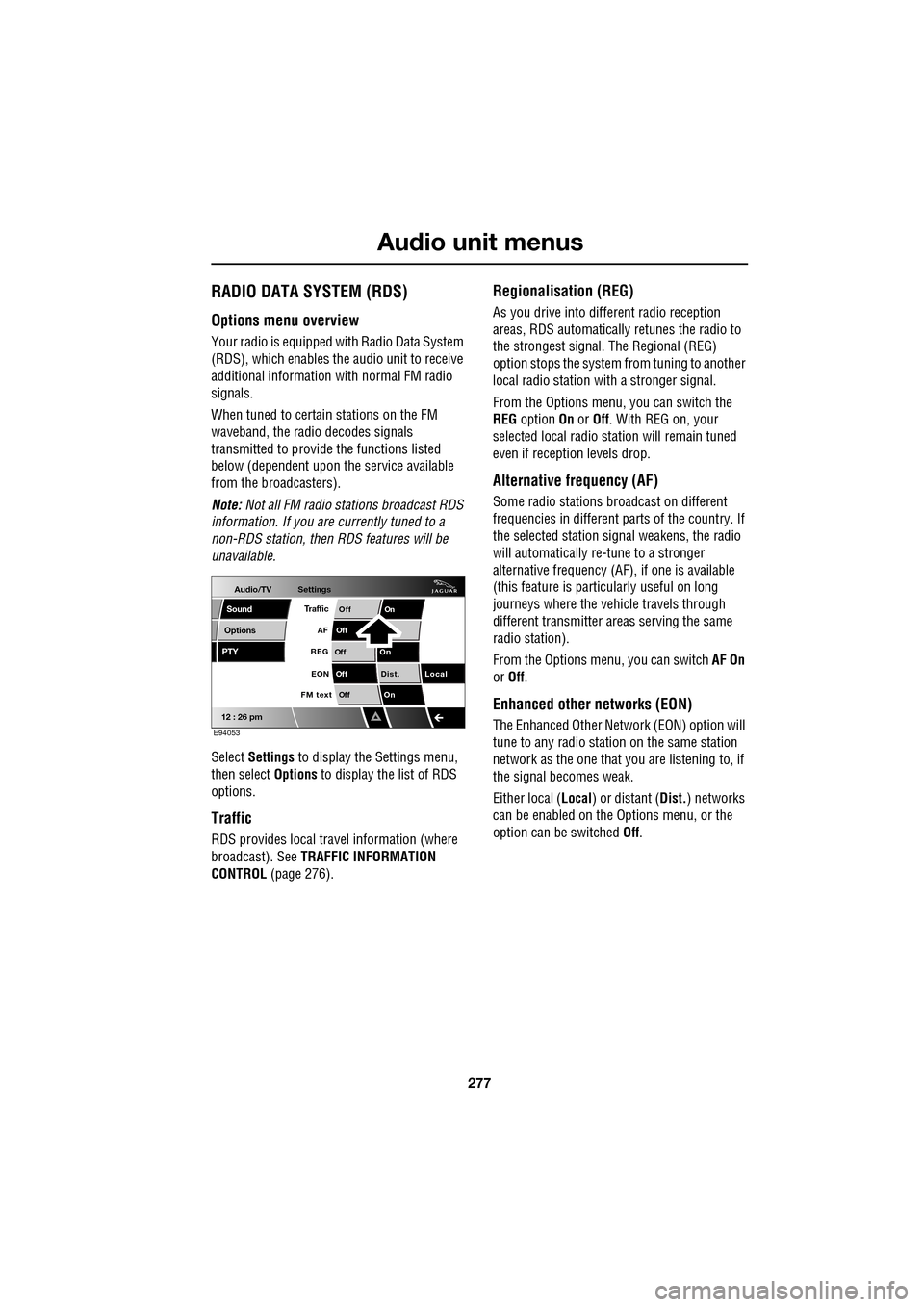
Select Settings to display the Settings menu,
then select Options to display the list of RDS
options.
Traffic
RDS provides local trav el information (where
broadcast). See TRAFFIC INFORMATION
CONTROL (page 276).
Regionalisation (REG)
As you drive into different radio reception
areas, RDS automatically retunes the radio to
the strongest signal. The Regional (REG)
option stops the system from tuning to another
local radio station wi th a stronger signal.
From the Options menu, you can switch the
REG option On or Off . With REG on, your
selected local radio st ation will remain tuned
even if reception levels drop.
Alternative frequency (AF)
Some radio stations broadcast on different
frequencies in different parts of the country. If
the selected station signal weakens, the radio
will automatically re -tune to a stronger
alternative frequency (AF) , if one is available
(this feature is partic ularly useful on long
journeys where the vehicle travels through
different transmitter areas serving the same
radio station).
From the Options menu, you can switch AF On
or Off .
Enhanced other networks (EON)
The Enhanced Other Network (EON) option will
tune to any radio station on the same station
network as the one that you are listening to, if
the signal becomes weak.
Either local ( Local) or distant ( Dist.) networks
can be enabled on the Options menu, or the
option can be switched Off.
Audio/TV
Options
PTY
Sound
12 : 26 pm
Settings
TrafficOnOff
Of f
On
Of
f
Dist. Local
Of f
On
Of f
FM text EON
REG
AF
E94053
Page 287 of 391
287
Digital audio broadcasting
PRESET BUTTONS
Storing channels as presets
Store up to eighteen digital channels (six each
on DAB1 , DAB2 and DAB3 ) using the
numbered preset keys. Follow the procedure
below to store channels as presets.
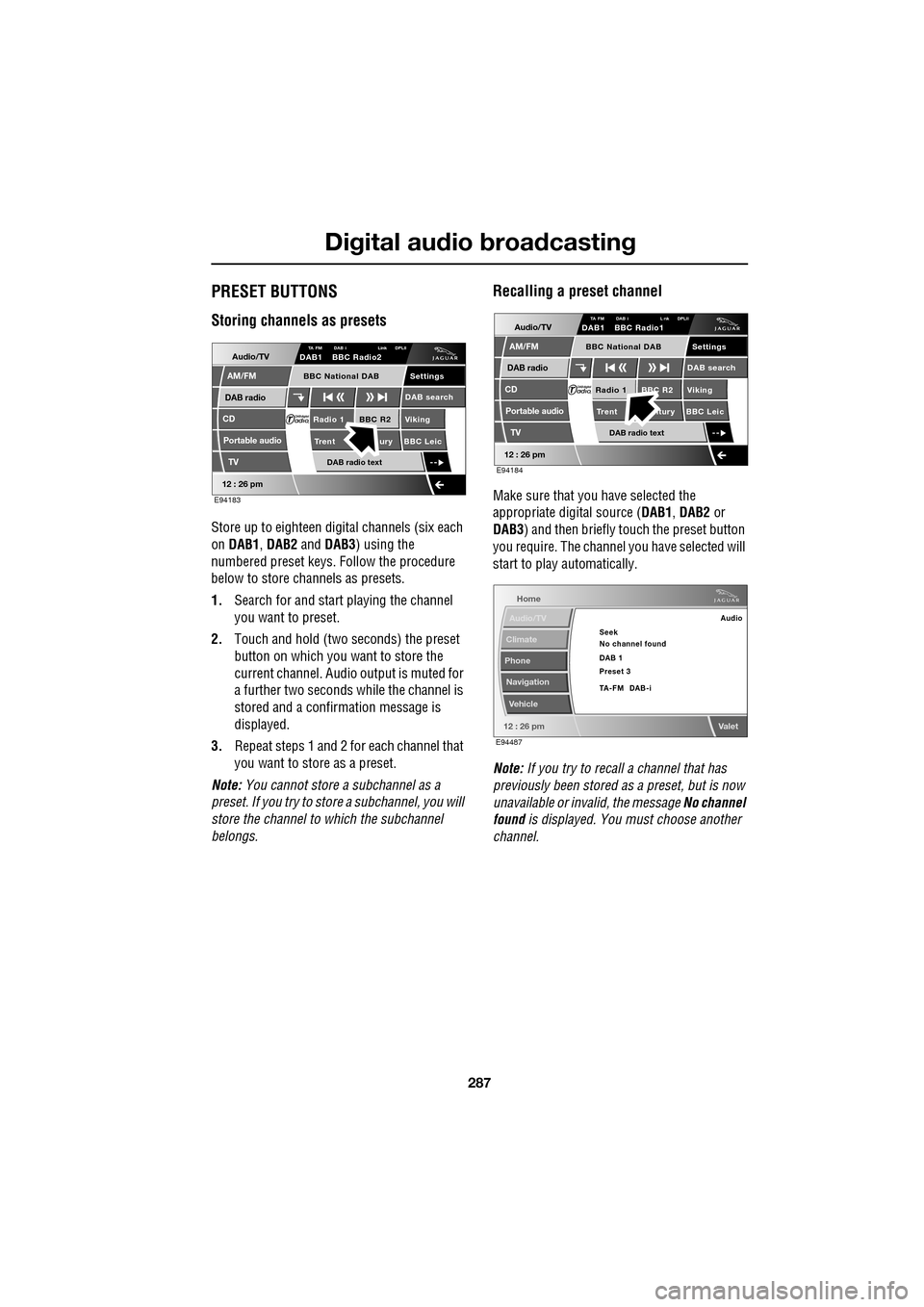
1. Search for and start playing the channel
you want to preset.
2. Touch and hold (two seconds) the preset
button on which you want to store the
current channel. Audi o output is muted for
a further two seconds while the channel is
stored and a confirmation message is
displayed.
3. Repeat steps 1 and 2 for each channel that
you want to store as a preset.
Note: You cannot store a subchannel as a
preset. If you try to stor e a subchannel, you will
store the channel to which the subchannel
belongs.
Recalling a preset channel
Make sure that you have selected the
appropriate digital source ( DAB1, DAB2 or
DAB3 ) and then briefly touch the preset button
you require. The channel you have selected will
start to play automatically.
Note: If you try to recall a channel that has
previously been stored as a preset, but is now
unavailable or invalid, the message No channel
found is displayed. You must choose another
channel.
Audio/TV
DAB radio
CD
AM/FM
12 : 26 pm
BBC R2 Viking
Trent ury BBC LeicRadio 1
Settings
DAB search
TA FM DAB i Link DPLIIDAB1 BBC Radio2
Portable audio
TV
DAB radio text
BBC National DAB
E94183
Audio/TV
DAB radio
CD
AM/FM
12 : 26 pm
BBC R2 Viking
Trent ntury BBC LeicRadio 1
Settings
DAB search
TA FM DAB i L nk DPLIIDAB1 BBC Radio1
Portable audio
TV
DAB radio text
BBC National DAB
E94184
Home
Audio/TV
Climate
Phone
Navigation
Vehicle
Valet12 : 26 pm
Audio
Seek
No channel found
Preset 3 DAB 1
TA-FM DAB-i
E94487
Page 290 of 391
Digital audio broadcasting
290
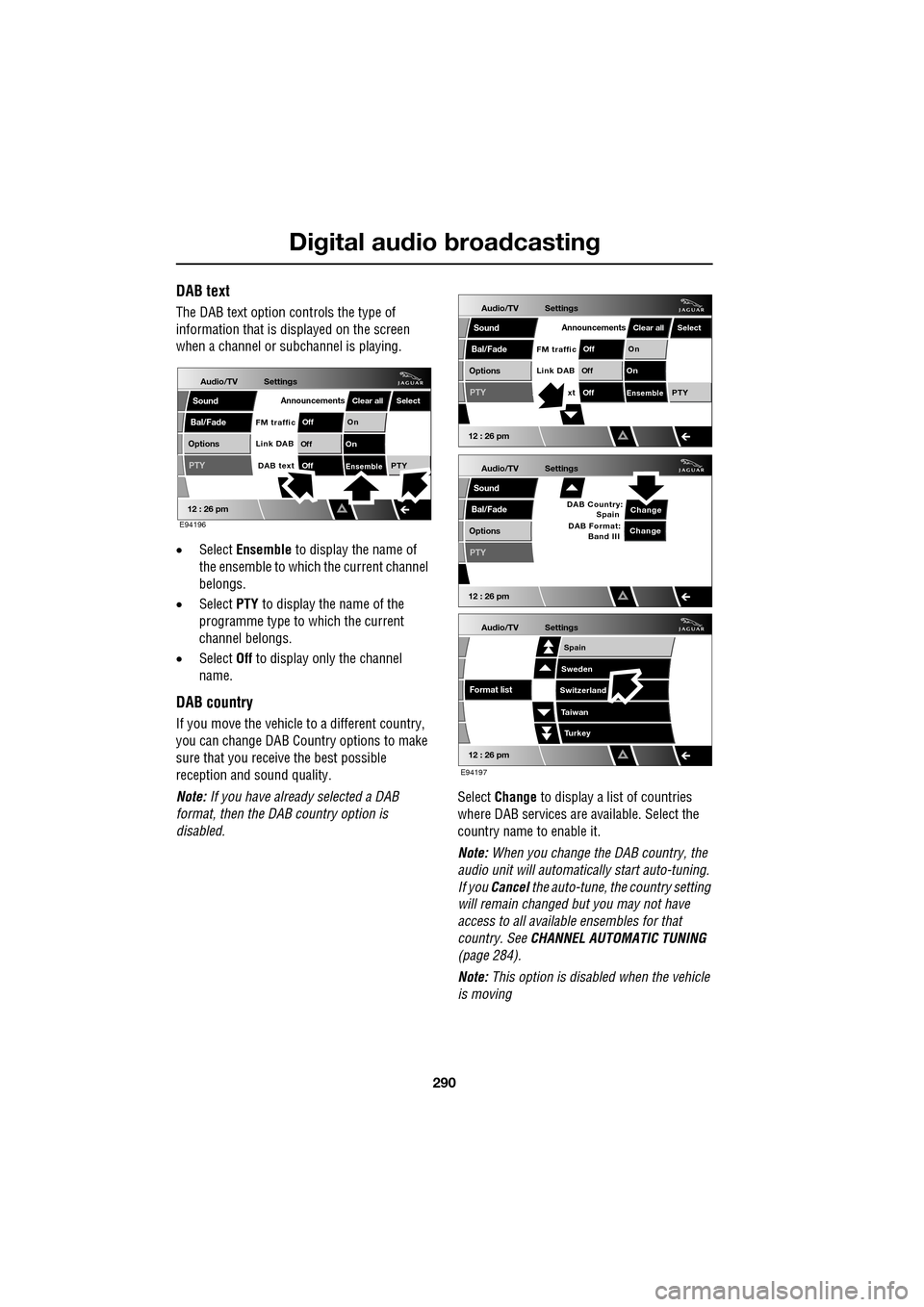
DAB text
The DAB text option controls the type of
information that is displayed on the screen
when a channel or s ubchannel is playing.
• Select Ensemble to display the name of
the ensemble to which the current channel
belongs.
• Select PTY to display the name of the
programme type to which the current
channel belongs.
• Select Off to display only the channel
name.
DAB country
If you move the vehicle to a different country,
you can change DAB Count ry options to make
sure that you receive the best possible
reception and sound quality.
Note: If you have already selected a DAB
format, then the DAB country option is
disabled. Select
Change to display a list of countries
where DAB services are available. Select the
country name to enable it.
Note: When you change the DAB country, the
audio unit will automati cally start auto-tuning.
If you Cancel the auto-tune, the country setting
will remain changed but you may not have
access to all available ensembles for that
country. See CHANNEL AUTOMATIC TUNING
(page 284).
Note: This option is disabled when the vehicle
is moving
Audio/TV
Bal/Fade
Options
Sound
12 : 26 pm
Settings
Announcements
On
Of f
On
Of f
EnsemblePTY
Of f
DAB text
Link DAB
FM trafficPTY
Select
Clear all
E94196
Audio/TV
Bal/Fade
Options
Sound
12 : 26 pm
Settings
Announcements
On
Of f
On
Of f
EnsemblePTY
Of f
xt
Link DAB
FM trafficPTY
Select
Clear all
Audio/TV
Bal/Fade
Options
Sound
12 : 26 pm
Settings
Change
PTY
Change
DAB Country:
Spain
DAB Format: Band III
Audio/TV
12 : 26 pm
Settings
Turkey
Spain
Sweden
Switzerland
T aiwan
Format list
E94197
Page 291 of 391
291
Digital audio broadcasting
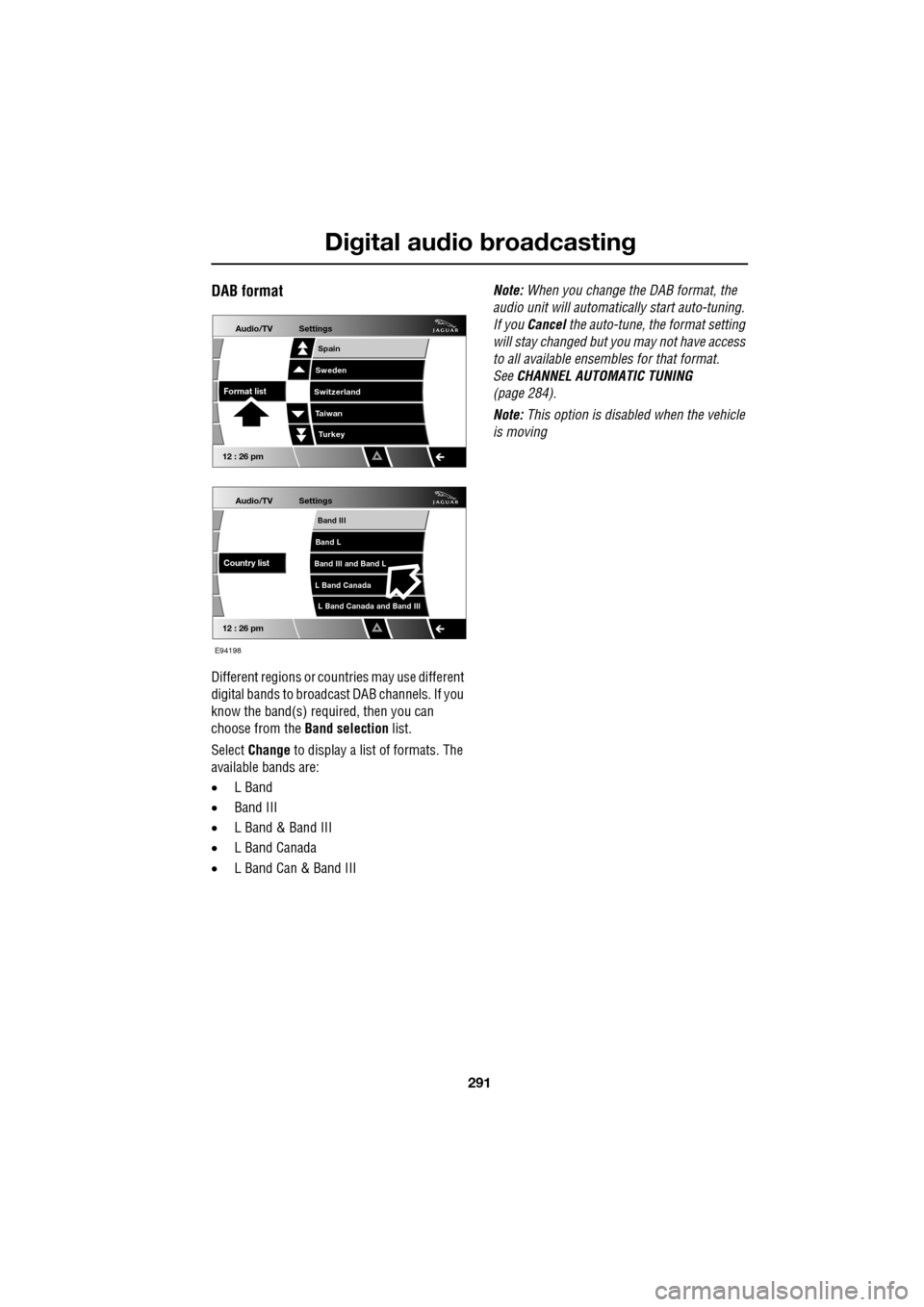
DAB format
Different regions or countries may use different
digital bands to broadcast DAB channels. If you
know the band(s) required, then you can
choose from the Band selection list.
Select Change to display a list of formats. The
available bands are:
• L Band
• Band III
• L Band & Band III
• L Band Canada
• L Band Can & Band III Note:
When you change the DAB format, the
audio unit will automati cally start auto-tuning.
If you Cancel the auto-tune, the format setting
will stay changed but y ou may not have access
to all available ensembles for that format.
See CHANNEL AUTOMATIC TUNING
(page 284).
Note: This option is disabled when the vehicle
is moving
Audio/TV
12 : 26 pm
Settings
L Band Canada and Band III
Band III
Band L
Band III and Band L
L Band Canada
Country list
Audio/TV
12 : 26 pm
Settings
Turkey
Spain
Sweden
Switzerland
T aiwan
Format list
E94198
Page 293 of 391
293
Compact disc player
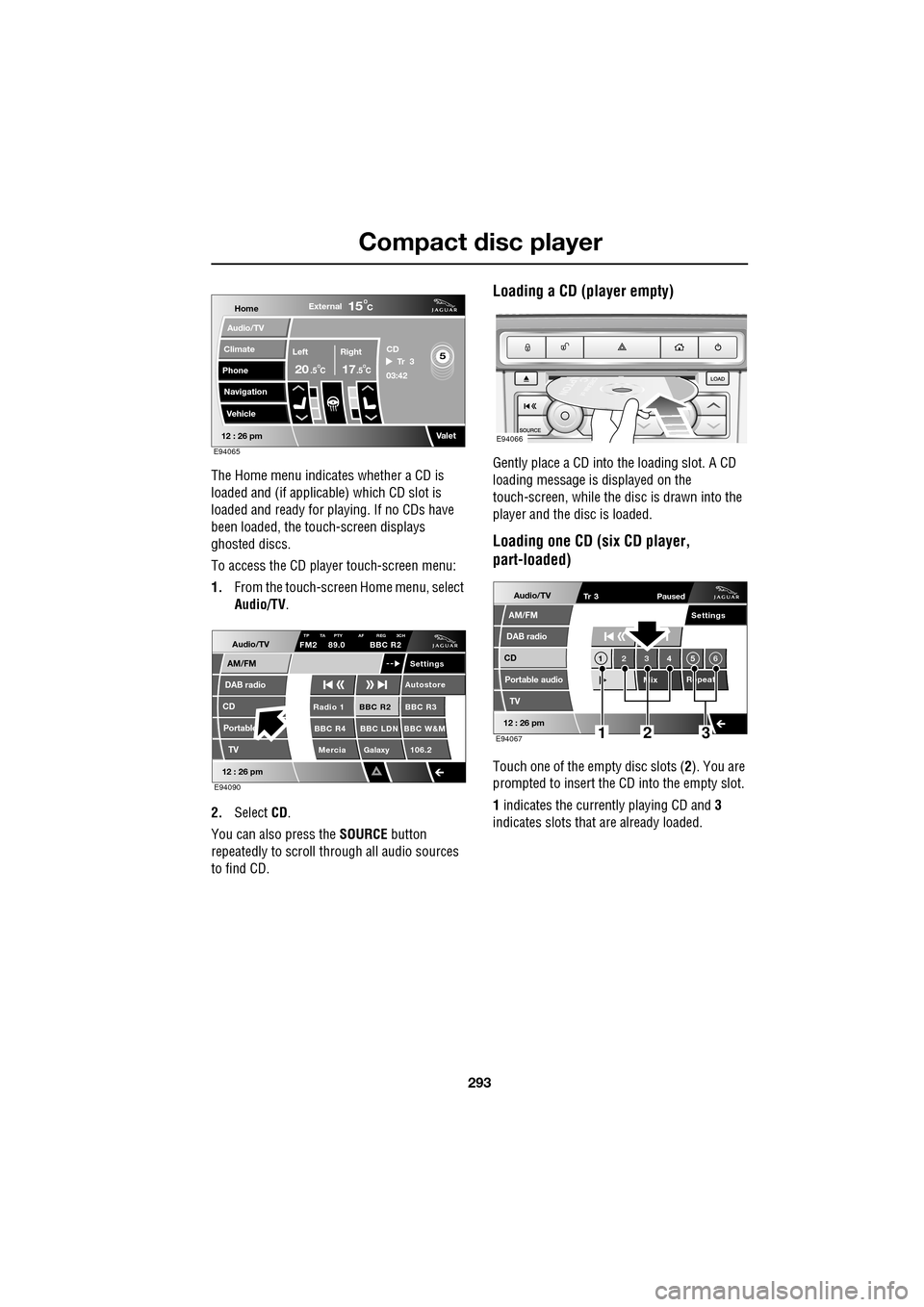
The Home menu indicates whether a CD is
loaded and (if applicable) which CD slot is
loaded and ready for playing. If no CDs have
been loaded, the touch-screen displays
ghosted discs.
To access the CD player touch-screen menu:
1. From the touch-screen Home menu, select
Audio/TV .
2. Select CD.
You can also press the SOURCE button
repeatedly to scroll through all audio sources
to find CD.
Loading a CD (player empty)
Gently place a CD into the loading slot. A CD
loading message is displayed on the
touch-screen, while the di sc is drawn into the
player and the disc is loaded.
Loading one CD (six CD player,
part-loaded)
Touch one of the empty disc slots ( 2). You are
prompted to insert the CD into the empty slot.
1 indicates the currently playing CD and 3
indicates slots that are already loaded.
Home
Audio/TV
Climate
Phone
Navigation
VehicleExternal
Left Right
20 17CC
15C
.5 .5
Valet12 : 26 pm
5Tr 3
CD
03:42
E94065
Audio/TV
DAB radio
CD
AM/FM
12 : 26 pm
BBC R2 BBC R3
BBC R4 BBC LDN BBC W&M Mercia Galaxy 106.2Radio 1
Settings
Autostore
TP TA PTY AF REG 3CHFM2 89.0 BBC R2
Portable TV
E94090
E94066
Audio/TV
DAB radio
CD
AM/FM
12 : 26 pm
Portable audio
TV
Settings
1 23 45 6
MixRepeat
Tr 3
Paused
E94067123
Page 296 of 391
Compact disc player
296
Touch and hold (two seconds) Mix to activate
the Mix all option, which shuffles the order of
play for all tracks across all loaded CDs. If you
are playing an MP3 CD, a long touch will mix
the tracks from all the folders on the current
disc.
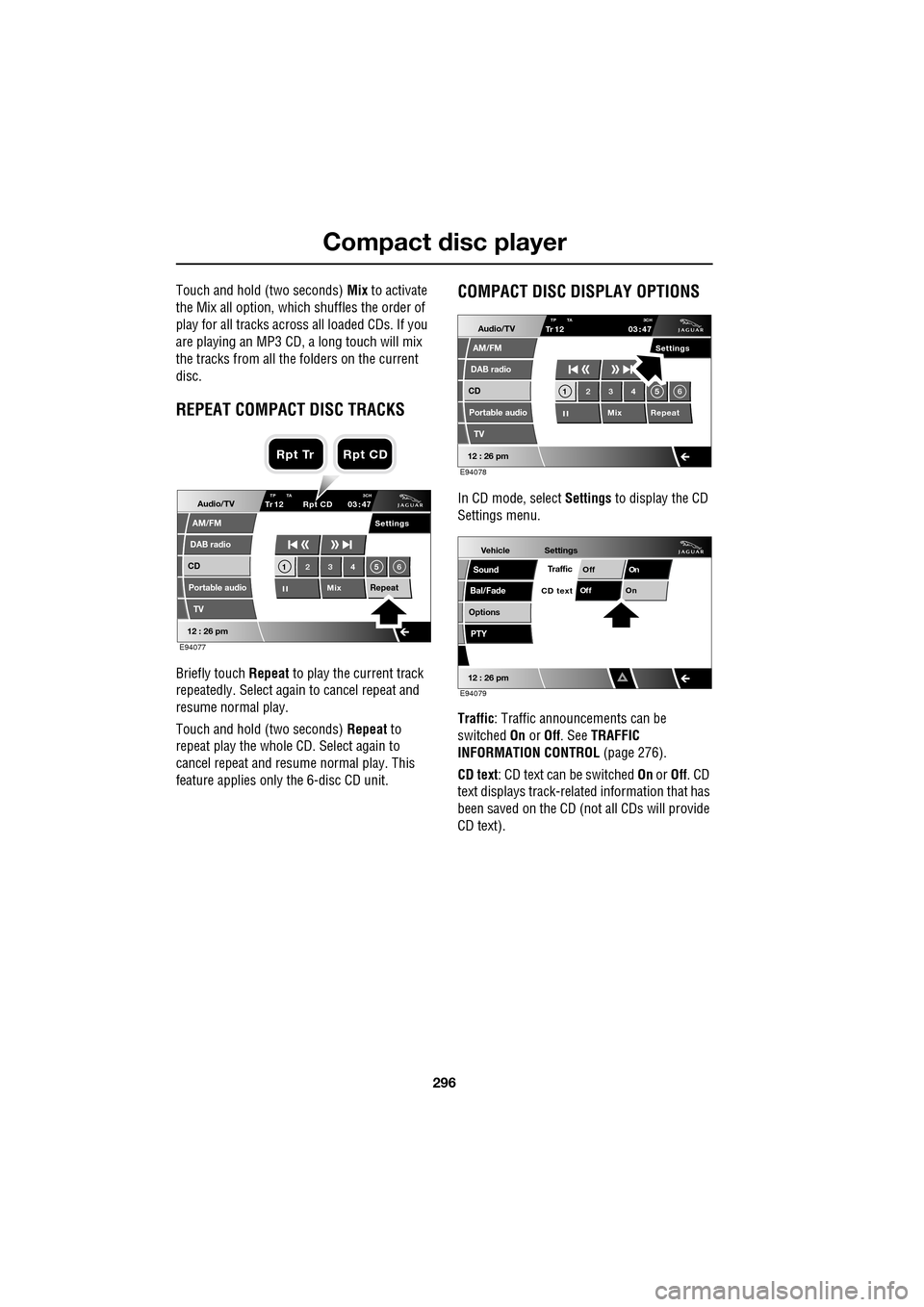
REPEAT COMPACT DISC TRACKS
Briefly touch Repeat to play the current track
repeatedly. Select again to cancel repeat and
resume normal play.
Touch and hold (two seconds) Repeat to
repeat play the whole CD. Select again to
cancel repeat and resu me normal play. This
feature applies only the 6-disc CD unit.
COMPACT DISC DISPLAY OPTIONS
In CD mode, select Settings to display the CD
Settings menu.
Traffic : Traffic announcements can be
switched On or Off. See TRAFFIC
INFORMATION CONTROL (page 276).
CD text : CD text can be switched On or Off. CD
text displays track-related information that has
been saved on the CD (not all CDs will provide
CD text).Audio/TV
DAB radio
CD
AM/FM
12 : 26 pm
Portable audio
TV
Settings
1 23 45 6
MixRepeat
TrTP TA 3CH1203 47
Rpt CD
E94077
Rpt Tr Rpt CD
Audio/TV
DAB radio
CD
AM/FM
12 : 26 pm
Portable audio
TV
Settings
1 23 45 6
MixRepeat
TrTP TA
3CH1203 47
E94078
Vehicle
Options
Sound
Bal/Fade
12 : 26 pm
Settings
TrafficOnOff
On
Of f
CD text
PTY
E94079
Page 301 of 391
301
Portable audio
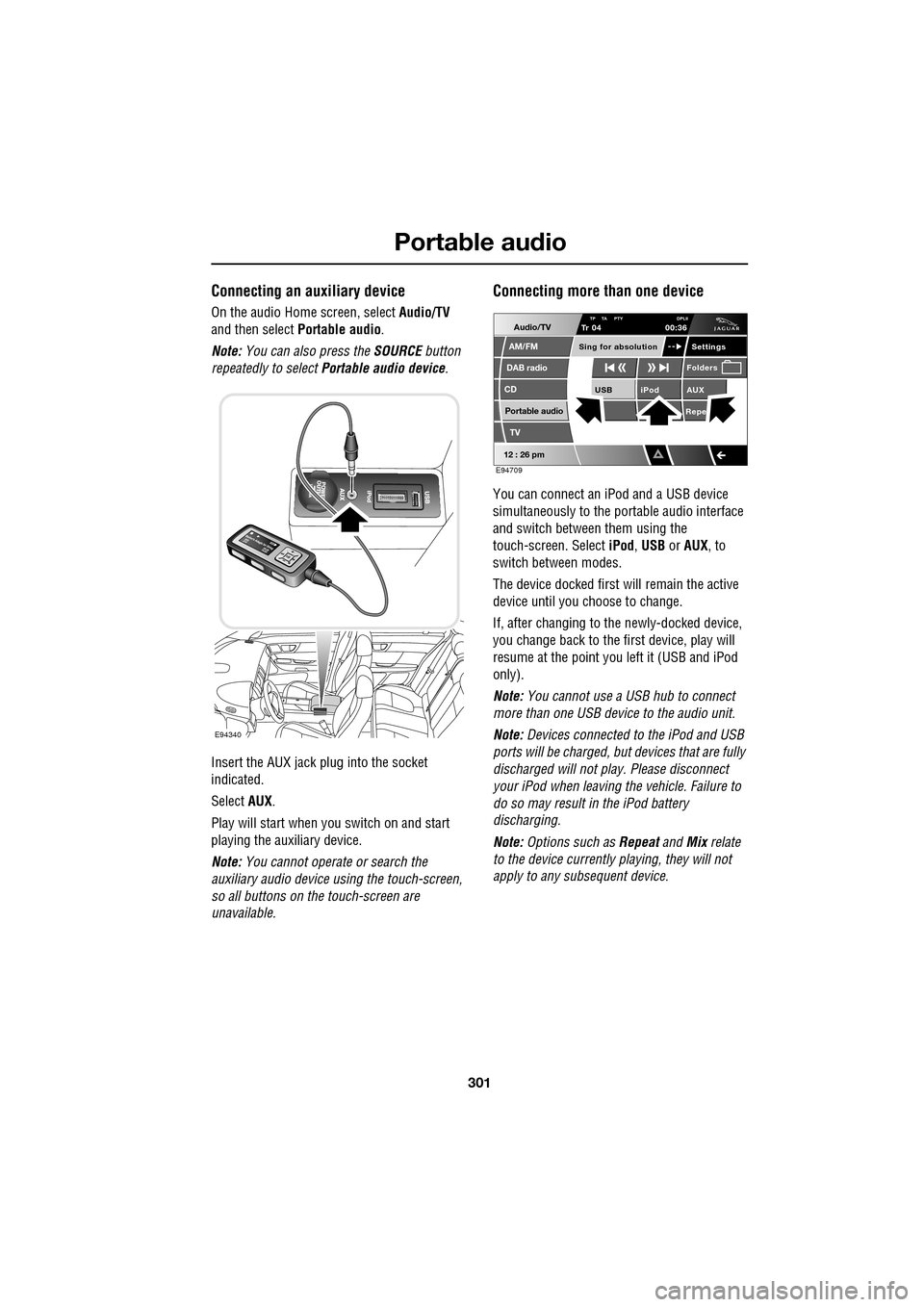
Connecting an auxiliary device
On the audio Home screen, select Audio/TV
and then select Portable audio.
Note: You can also press the SOURCE button
repeatedly to select Portable audio device .
Insert the AUX jack plug into the socket
indicated.
Select AUX.
Play will start when you switch on and start
playing the auxiliary device.
Note: You cannot operate or search the
auxiliary audio device using the touch-screen,
so all buttons on the touch-screen are
unavailable.
Connecting more than one device
You can connect an iPod and a USB device
simultaneously to the portable audio interface
and switch between them using the
touch-screen. Select iPod, USB or AUX , to
switch between modes.
The device docked first will remain the active
device until you choose to change.
If, after changing to the newly-docked device,
you change back to the first device, play will
resume at the point you left it (USB and iPod
only).
Note: You cannot use a USB hub to connect
more than one USB device to the audio unit.
Note: Devices connected to the iPod and USB
ports will be charged, but devices that are fully
discharged will not play. Please disconnect
your iPod when leaving the vehicle. Failure to
do so may result in the iPod battery
discharging.
Note: Options such as Repeat and Mix relate
to the device currently playing, they will not
apply to any subsequent device.
E94340
Audio/TV
DAB radio
CD
AM/FM
12 : 26 pm
iPod AUX
RepeUSB
Settings
Folders
TP TA PTY DPLIITr 04
Portable audio
TV
Sing for absolution
00:36
E94709
Page 309 of 391
309
Telephone
Safety
Driving
Check local regulations covering the use of
in-car telephones in the areas that you intend to
use your telephone, and always obey them.
Observe the following guidelines if you are
using the phone when driving.
• Give full attention to driving - safe driving
is your prime responsibility.
• Always use hands-free operation when
driving.
• When receiving a call, if driving conditions
demand, pull off the road and park.
Electronic devices
Most modern electronic equipment is shielded
from Radio Frequency (R F) signals. However,
certain equipment may not be shielded against
RF signals from your phone.
Pacemakers
The Health Industry Manufacturers'
Association recommends that a minimum
separation of 15 centimetres (six inches) is
maintained between a wireless phone antenna
and a pacemaker, to avoid potential
interference with the pacemaker. These
recommendations are consistent with the
independent research by, and
recommendations of, Wireless Technology
Research.
TELEPHONE PAIRING AND DOCKING
Before use, your mobile phone must be paired
and docked with the vehicle’s Bluetooth
system. This is done via your mobile phone or
the touch-screen.
Pairing and docking using your mobile
phone
Follow the steps below, to pair and dock your
phone with the vehicle using your mobile
phone.
Note: The process of pairing and docking your
phone with the vehicle using the mobile phone,
will vary depending on the type of mobile
phone used.
3. Ensure that the ignition is on and the
touch-screen is active.
4. Ensure that there is no mobile phone
currently docked with the vehicle's
Bluetooth system. If a mobile phone is
docked with the system, you will not be
able pair and dock another phone until the
current phone has been undocked. To
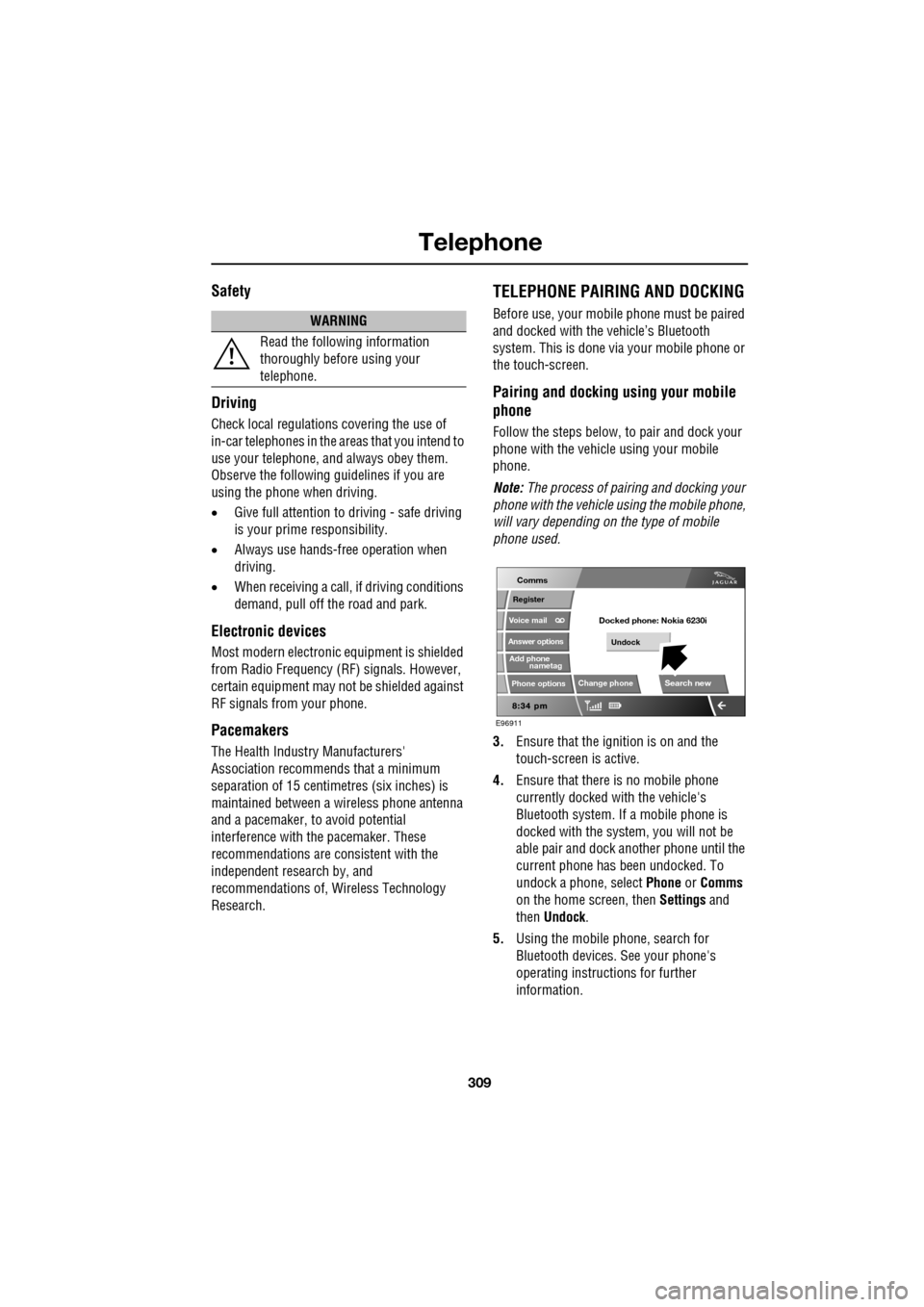
undock a phone, select Phone or Comms
on the home screen, then Settings and
then Undock .
5. Using the mobile phone, search for
Bluetooth devices. See your phone's
operating instructions for further
information.
WARNING
Read the following information
thoroughly before using your
telephone.
nametag
Register
Voice mail
Answer options
Phone options
Change phone
E96911
Comms
Add phone
Search new
Docked phone: Nokia 6230i
Undock