vehicle setting JAGUAR XF 2009 1.G Repair Manual
[x] Cancel search | Manufacturer: JAGUAR, Model Year: 2009, Model line: XF, Model: JAGUAR XF 2009 1.GPages: 391, PDF Size: 19.32 MB
Page 310 of 391
Telephone
310
6.When the vehicle's Bluetooth system is
discovered, your mob ile phone will list
Jaguar as a discovered Bluetooth device.
Select this device from the list.
7. You will now be requested to enter a
Bluetooth PIN. When pairing and docking
from your mobile phone, this number is
always 1313.
Once your phone is paired to the vehicle's
Bluetooth system, it can connect automatically.
If the phone does not automatically connect,
you will have to conne ct manually with the
Jaguar Bluetooth System, via the mobile
phone. Please consul t the mobile phone's
handbook for further information.
Note: Some mobile phones require you to
authorise the connection each time you start
the system. To change this, you must set
Jaguar as ‘authorised’ in the mobile phone’s
known device list. This will enable connections
from the vehicle to the mobile phone to take
place automatically without confirmation each
time. Please consul t the mobile phone’s
handbook for further information.
Pairing and docking using the
touch-screen
1. Switch on your mobile phone’s Bluetooth
connection, using the phone’s menu. Make
sure that your mobile phone is in Bluetooth
discoverable mode, sometimes referred to
as find me mode (s ee your phone’s
operating instructions for more
information).
2. Switch the ignition system on, ensure that
the touch-screen is active. 3.
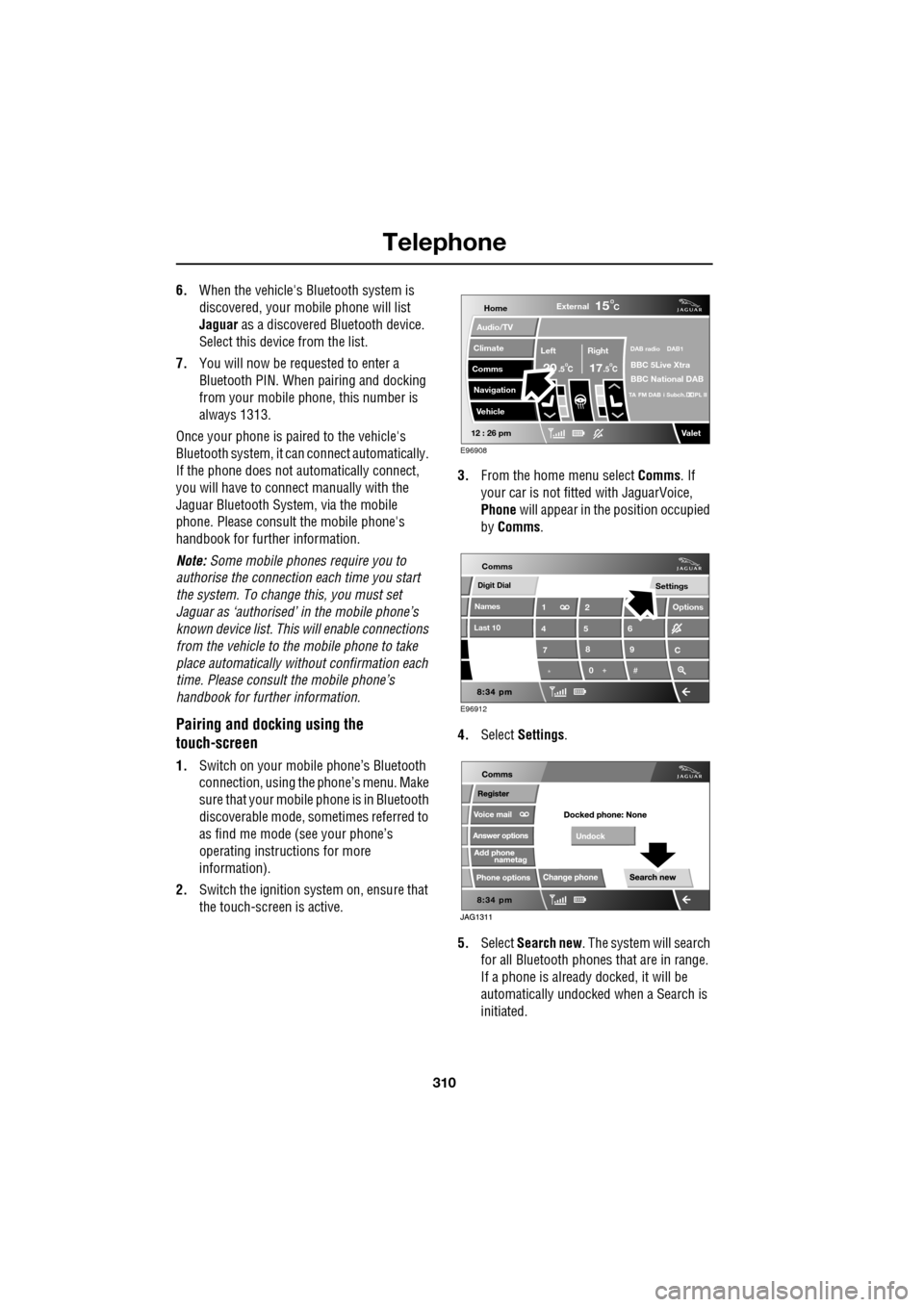
From the home menu select Comms. If
your car is not fitted with JaguarVoice,
Phone will appear in the position occupied
by Comms .
4. Select Settings .
5. Select Search new . The system will search
for all Bluetooth phones that are in range.
If a phone is already docked, it will be
automatically undocked when a Search is
initiated.
Home
Audio/TV
Climate
Comms
Navigation
VehicleExternal
Left Right
20 17CC
15C
.5 .5
DAB radio DAB1
BBC 5Live Xtra
BBC National DAB
TA FM DAB i Subch. PL II
Valet12 : 26 pm
E96908
Digit Dial
Names
Last 10
Settings
7
1
4
*8
2
5
0 9
6
Options
C
E96912
Comms
Page 311 of 391
311
Telephone
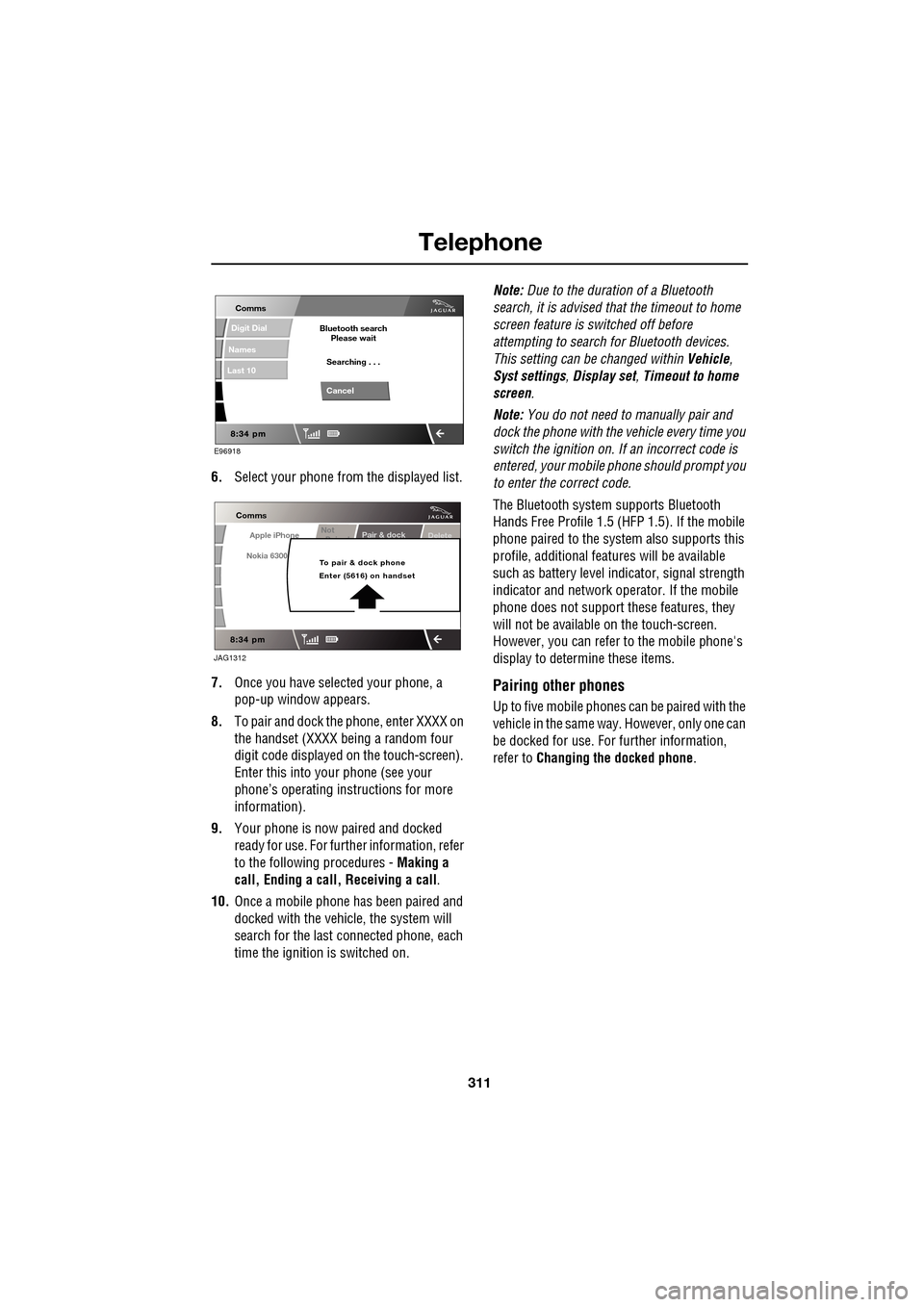
6.Select your phone from the displayed list.
7. Once you have sele cted your phone, a
pop-up window appears.
8. To pair and dock the phone, enter XXXX on
the handset (XXXX being a random four
digit code displayed on the touch-screen).
Enter this into y our phone (see your
phone’s operating instructions for more
information).
9. Your phone is now paired and docked
ready for use. For further information, refer
to the following procedures - Making a
call, Ending a call, Receiving a call .
10. Once a mobile phone has been paired and
docked with the vehicle, the system will
search for the last connected phone, each
time the ignition is switched on. Note:
Due to the duration of a Bluetooth
search, it is advised that the timeout to home
screen feature is switched off before
attempting to search fo r Bluetooth devices.
This setting can be changed within Vehicle,
Syst settings , Display set , Timeout to home
screen .
Note: You do not need to manually pair and
dock the phone with the vehicle every time you
switch the ignition on. If an incorrect code is
entered, your mobile phone should prompt you
to enter the correct code.
The Bluetooth system supports Bluetooth
Hands Free Profile 1.5 (H FP 1.5). If the mobile
phone paired to the system also supports this
profile, additional featur es will be available
such as battery level indicator, signal strength
indicator and network ope rator. If the mobile
phone does not support these features, they
will not be available on the touch-screen.
However, you can refer to the mobile phone's
display to determine these items.
Pairing other phones
Up to five mobile phones can be paired with the
vehicle in the same way. However, only one can
be docked for use. For further information,
refer to Changing the docked phone .
E96918
Comms
Digit Dial
Names
Last 10
Cancel
Bluetooth search
Please wait
Searching . . .
Apple iPhone
Comms
Nokia 6300
Pair & dockDeleteNot
P i d
To pair & dock phone
Enter (5616) on handset
JAG1312
Page 312 of 391
Telephone
312
Changing the docked phone
Only one phone can be docked to the vehicle at
any one time. To dock a different paired phone
to the vehicle, follow the steps below:
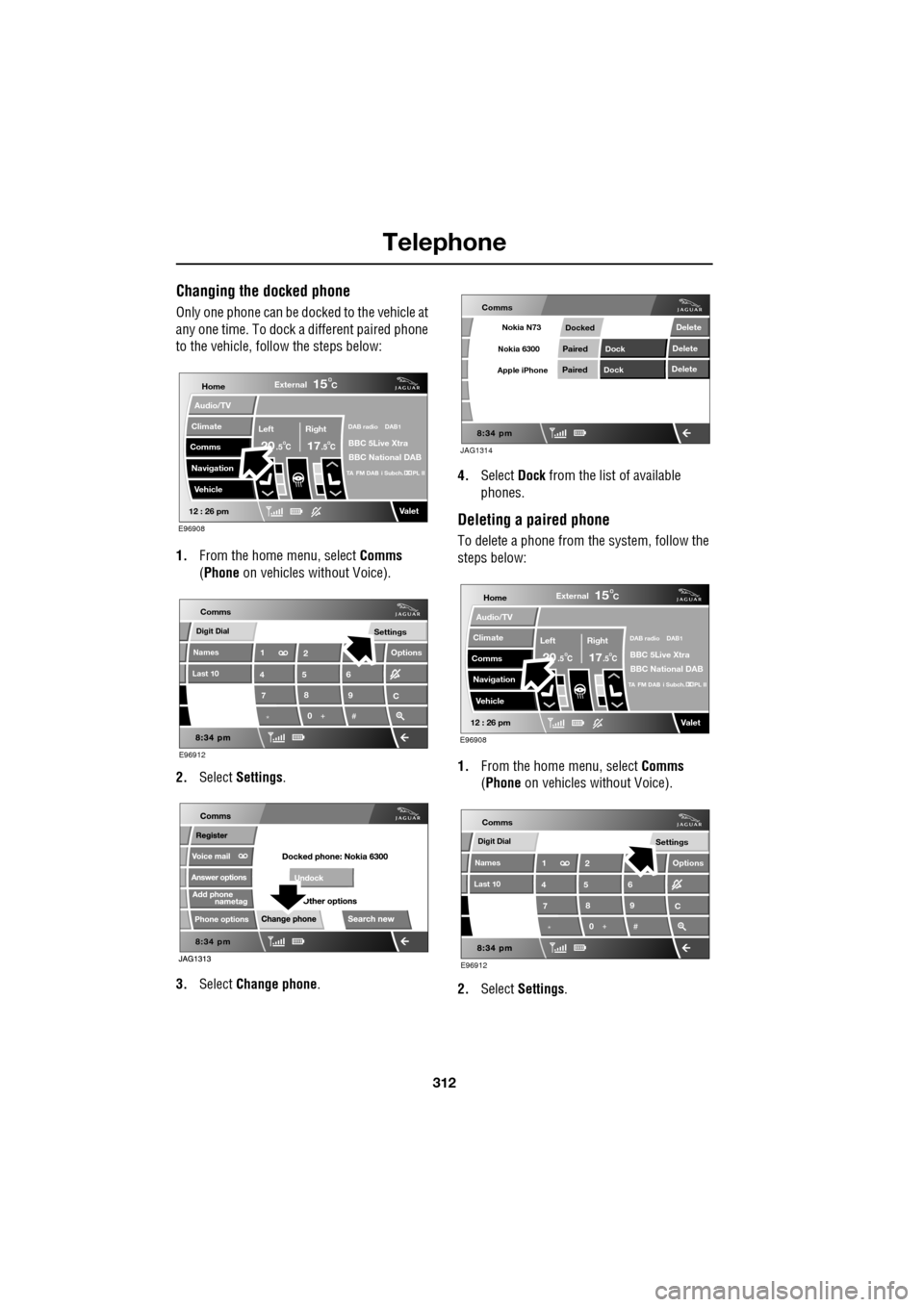
1. From the home menu, select Comms
(Phone on vehicles without Voice).
2. Select Settings .
3. Select Change phone . 4.
Select Dock from the list of available
phones.
Deleting a paired phone
To delete a phone from the system, follow the
steps below:
1. From the home menu, select Comms
(Phone on vehicles without Voice).
2. Select Settings .
Home
Audio/TV
Climate
Comms
Navigation
VehicleExternal
Left Right
20 17CC
15C
.5 .5
DAB radio DAB1
BBC 5Live Xtra
BBC National DAB
TA FM DAB i Subch. PL II
Valet12 : 26 pm
E96908
Digit Dial
Names
Last 10
Settings
7
1
4
*8
2
5
0 9
6
Options
C
E96912
Comms
JAG1314
Comms
Delete
Delete
Delete
Paired
PairedDock
Dock
Docked
Nokia N73
Nokia 6300
Apple iPhone
Home
Audio/TV
Climate
Comms
Navigation
VehicleExternal
Left Right
20 17CC
15C
.5 .5
DAB radio DAB1
BBC 5Live Xtra
BBC National DAB
TA FM DAB i Subch. PL II
Valet12 : 26 pm
E96908
Digit Dial
Names
Last 10
Settings
7
1
4
*8
2
5
0 9
6
Options
C
E96912
Comms
Page 313 of 391
313
Telephone
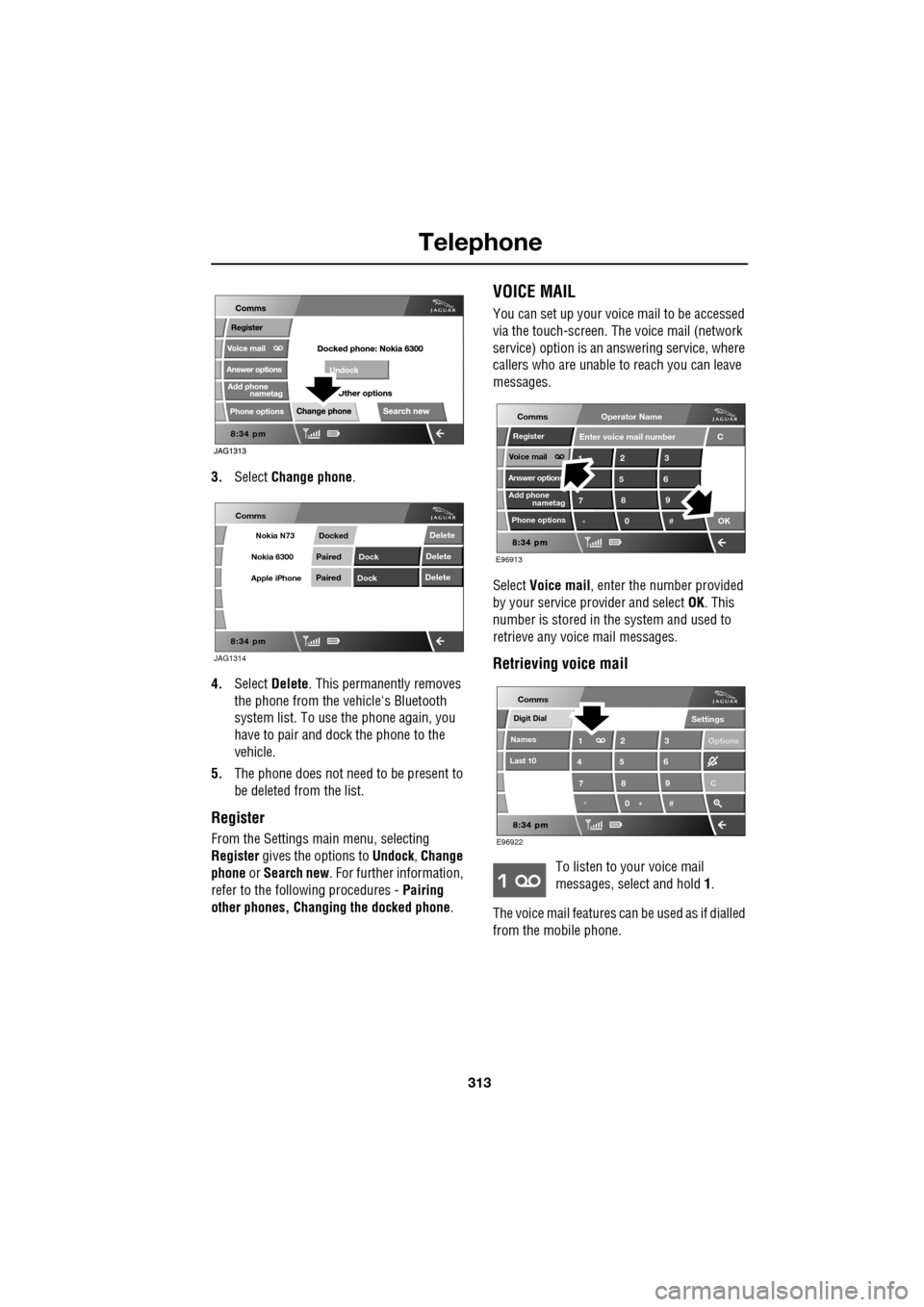
3.Select Change phone .
4. Select Delete . This permanently removes
the phone from the vehicle's Bluetooth
system list. To use the phone again, you
have to pair and dock the phone to the
vehicle.
5. The phone does not need to be present to
be deleted from the list.
Register
From the Settings ma in menu, selecting
Register gives the options to Undock, Change
phone or Search new . For further information,
refer to the following procedures - Pairing
other phones, Changing the docked phone .
VOICE MAIL
You can set up your voice mail to be accessed
via the touch-screen. The voice mail (network
service) option is an answering service, where
callers who are unable to reach you can leave
messages.
Select Voice mail , enter the number provided
by your service provider and select OK. This
number is stored in the system and used to
retrieve any voice mail messages.
Retrieving voice mail
To listen to your voice mail
messages, select and hold 1.
The voice mail features ca n be used as if dialled
from the mobile phone.
JAG1314
Comms
Delete
Delete
Delete
Paired
PairedDock
Dock
Docked
Nokia N73
Nokia 6300
Apple iPhone
C
7
1
*8
2
5
0 9
3
6
OK
Enter voice mail number
nametag
Register
Voice mail
Answer options
Phone options
E96913
Comms
Add phone
Operator Name
*
Digit Dial
Names
Last 10
Settings
7
1
4
*8
2
5
0 9
3
6
Options
E96922
Comms
C
Page 314 of 391
Telephone
314
ANSWER OPTIONS
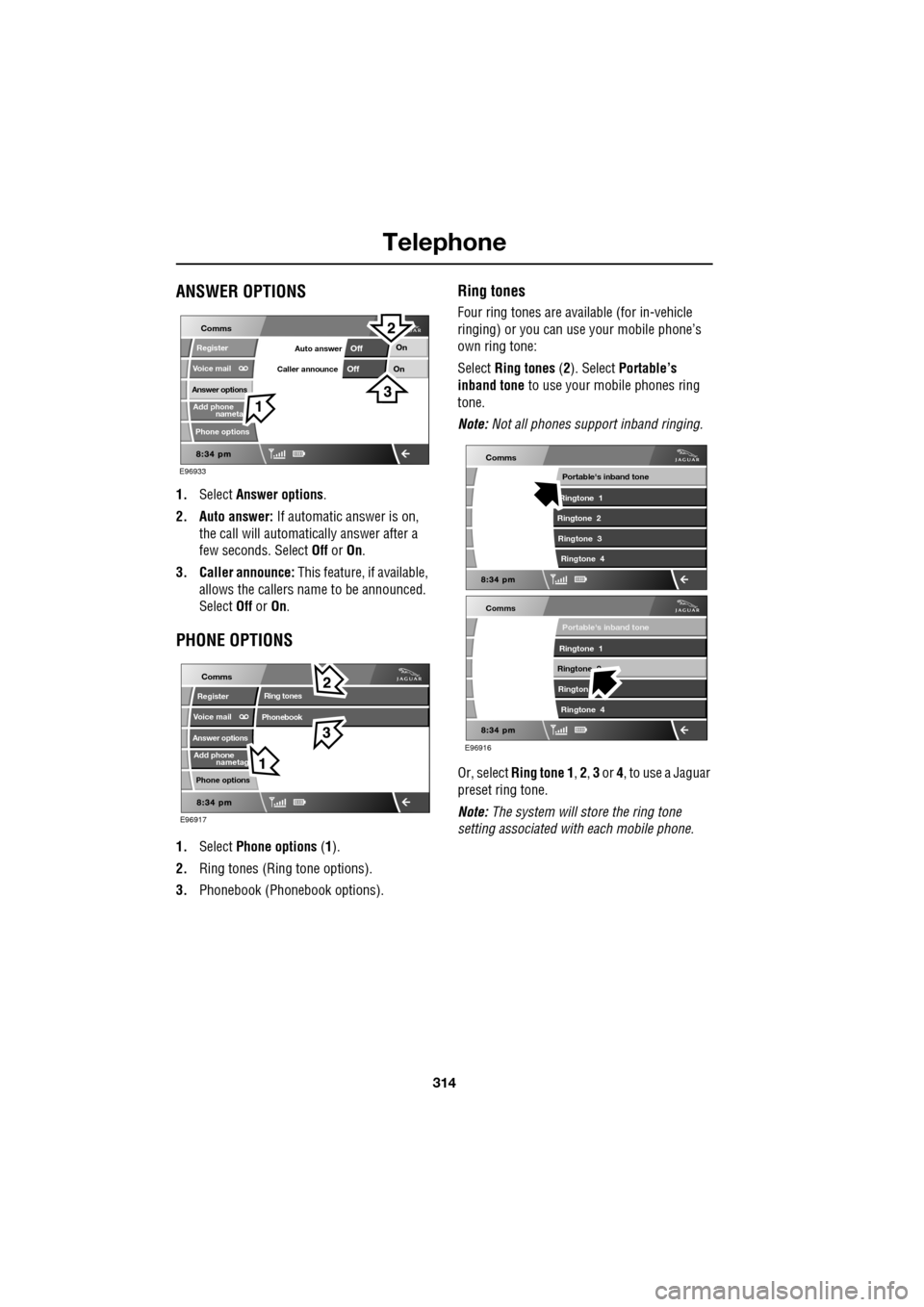
1.Select Answer options .
2. Auto answer: If automatic answer is on,
the call will automatically answer after a
few seconds. Select Off or On.
3. Caller announce: This feature, if available,
allows the callers na me to be announced.
Select Off or On.
PHONE OPTIONS
1. Select Phone options (1).
2. Ring tones (Ring tone options).
3. Phonebook (Phone book options).
Ring tones
Four ring tones are avai lable (for in-vehicle
ringing) or you can use your mobile phone’s
own ring tone:
Select Ring tones (2). Select Portable’s
inband tone to use your mobile phones ring
tone.
Note: Not all phones support inband ringing.
Or, select Ring tone 1 , 2 , 3 or 4, to use a Jaguar
preset ring tone.
Note: The system will store the ring tone
setting associated wi th each mobile phone.
nameta
Register
Voice mail
Answer options
Phone options
E96933
Comms
Add phone
On
On
Off
OffAuto answer
Caller announce
nametag
Register
Voice mail
Answer options
Phone options
E96917
Comms
Add phone
Ring tones
Phonebook
E96916
Comms
Portable's inband tone
Ringtone 1
Ringtone 2 Rington Ringtone 4
Comms
Portable's inband tone
Ringtone 1
Ringtone 2 Ringtone 3 Ringtone 4
Page 317 of 391
317
Telephone
MAKING A CALL
Before you make a call, your mobile phone
must be paired and docked with the vehicle’s
Bluetooth system.
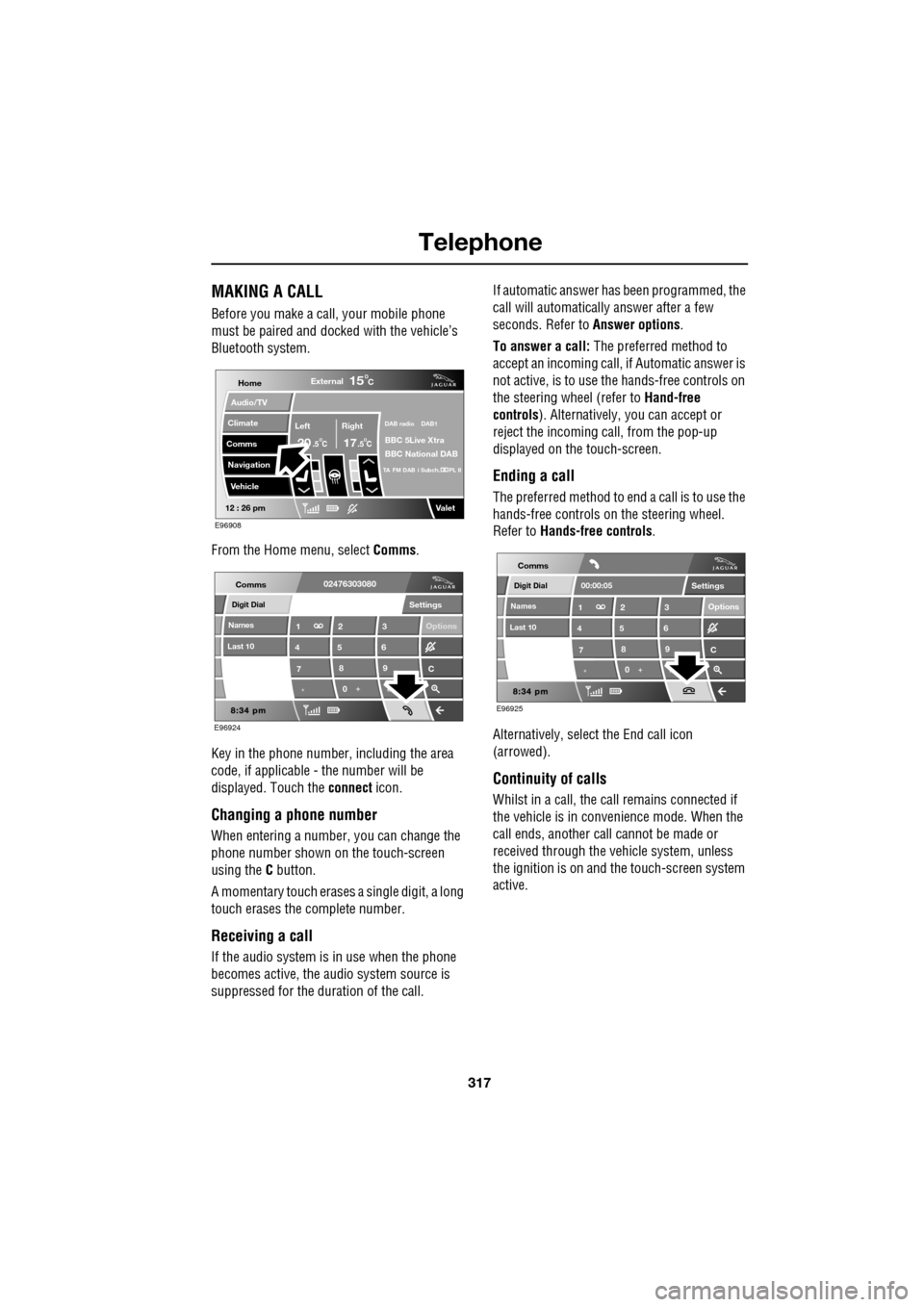
From the Home menu, select Comms.
Key in the phone number, including the area
code, if applicable - the number will be
displayed. Touch the connect icon.
Changing a phone number
When entering a number, you can change the
phone number shown on the touch-screen
using the C button.
A momentary touch erases a single digit, a long
touch erases the complete number.
Receiving a call
If the audio system is in use when the phone
becomes active, the audio system source is
suppressed for the dur ation of the call. If automatic answer has been programmed, the
call will automatically answer after a few
seconds. Refer to
Answer options.
To answer a call: The preferred method to
accept an incoming call, if Automatic answer is
not active, is to use th e hands-free controls on
the steering wheel (refer to Hand-free
controls ). Alternatively, you can accept or
reject the incoming call, from the pop-up
displayed on the touch-screen.
Ending a call
The preferred method to end a call is to use the
hands-free controls on the steering wheel.
Refer to Hands-free controls .
Alternatively, select the End call icon
(arrowed).
Continuity of calls
Whilst in a call, the ca ll remains connected if
the vehicle is in convenience mode. When the
call ends, another call cannot be made or
received through the vehicle system, unless
the ignition is on and the touch-screen system
active.
Home
Audio/TV
Climate
Comms
Navigation
VehicleExternal
Left Right
20 17CC
15C
.5 .5
DAB radio DAB1
BBC 5Live Xtra
BBC National DAB
TA FM DAB i Subch. PL II
Valet12 : 26 pm
E96908
Digit Dial
Names
Last 10
Settings
7
1
4
*8
2
5
0 9
3
6
Options
C
E96924
Comms02476303080Digit Dial
Names
Last 10
Settings
7
1
4
*8
2
5
0 9
3
6
Options
C
E96925
Comms
00:00:05
Page 318 of 391
Telephone
318
NAMES
Directory name search
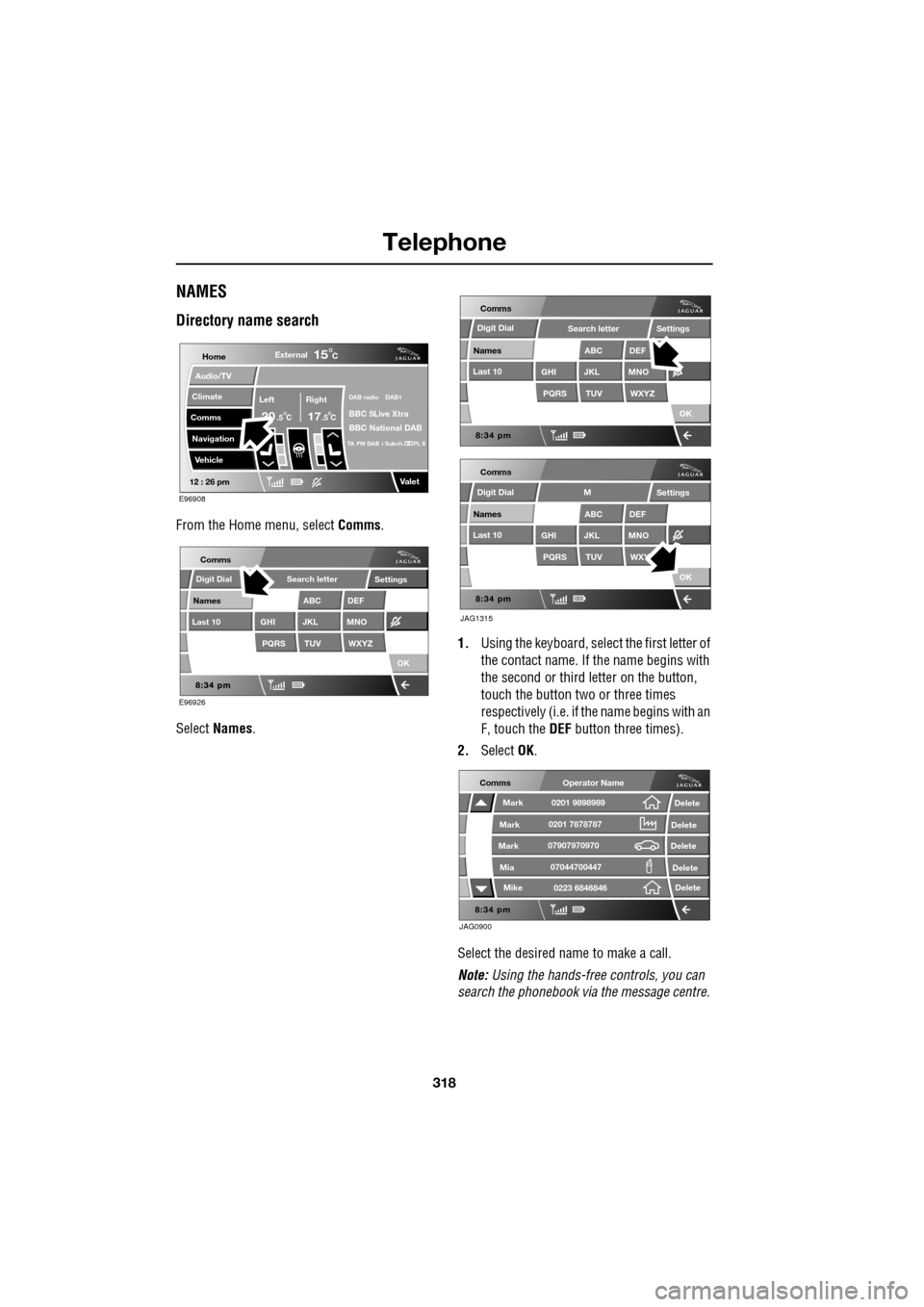
From the Home menu, select Comms.
Select Names . 1.
Using the keyboard, select the first letter of
the contact name. If th e name begins with
the second or third letter on the button,
touch the button two or three times
respectively (i.e. if th e name begins with an
F, touch the DEF button three times).
2. Select OK.
Select the desired name to make a call.
Note: Using the hands-free controls, you can
search the phonebook via the message centre.
Home
Audio/TV
Climate
Comms
Navigation
VehicleExternal
Left Right
20 17CC
15C
.5 .5
DAB radio DAB1
BBC 5Live Xtra
BBC National DAB
TA FM DAB i Subch. PL II
Valet12 : 26 pm
E96908
E96926
Comms
Digit Dial
Names
Last 10
Settings
PQRS
GHITUV
ABC
JKL
WXYZ
DEF
MNO
Search letter
OK
Comms
Comms
Names
Last 10
Settings
PQRS
GHITUV
ABC
JKL
WXYZ
DEF
MNO
Search letter
OK
Names
Last 10
Settings
PQRS
GHITUV
ABC
JKL
WXY
DEF
MNO
M
OK
JAG1315
Digit Dial
Digit Dial
JAG0900
Comms
Delete
Delete
Delete
Delete
Delete
Mark
Mark
Mark
Mike
Mia0201 9898989
0201 7878787
0223 6846846
07907970970
07044700447
Operator Name
Page 319 of 391
319
Telephone
Directory contact types
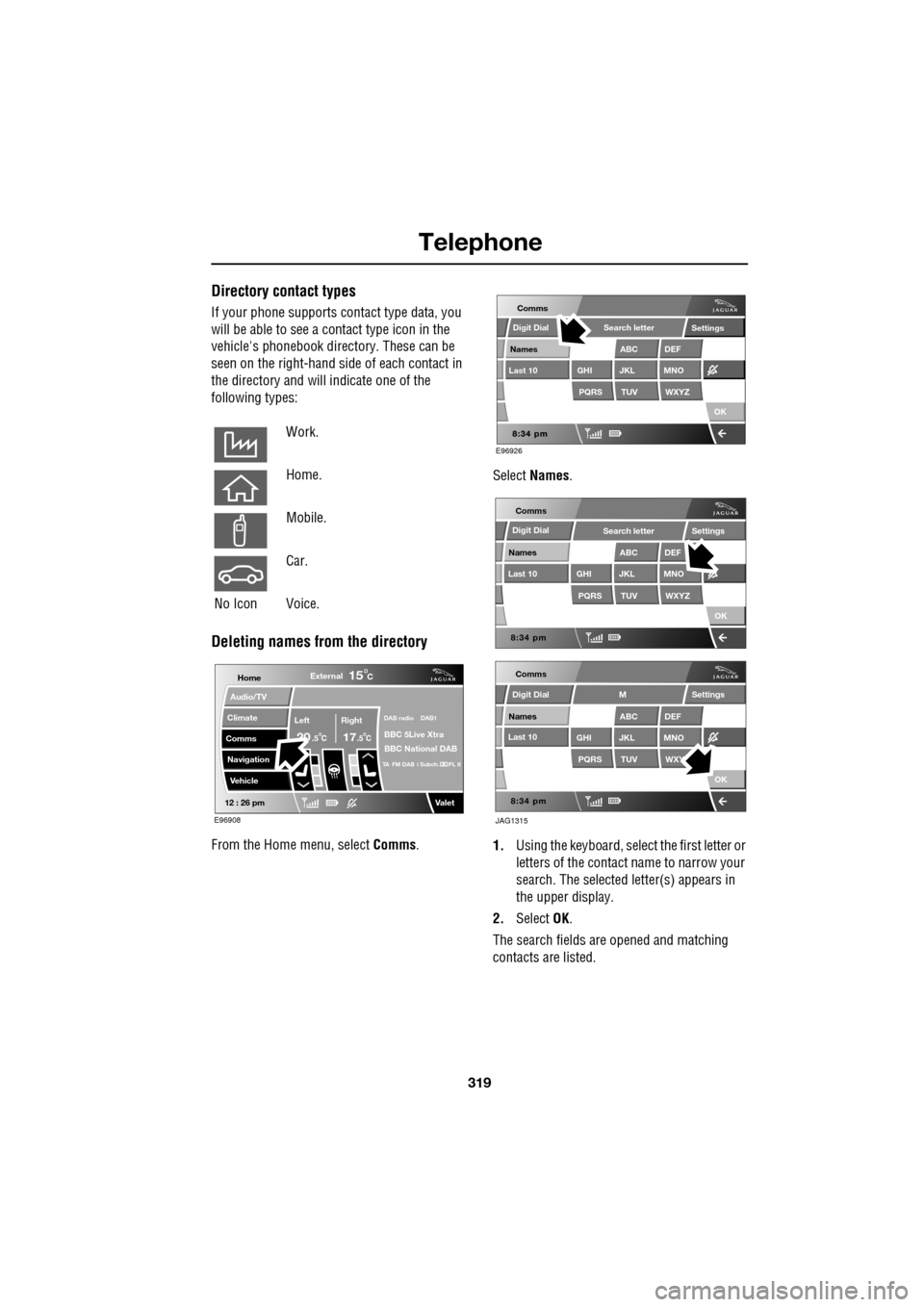
If your phone supports contact type data, you
will be able to see a contact type icon in the
vehicle's phonebook dire ctory. These can be
seen on the right-hand side of each contact in
the directory and will indicate one of the
following types:
Deleting names from the directory
From the Home menu, select Comms. Select
Names .
1. Using the keyboard, select the first letter or
letters of the contact name to narrow your
search. The selected letter(s) appears in
the upper display.
2. Select OK.
The search fields ar e opened and matching
contacts are listed.
Work.
Home.
Mobile.
Car.
No Icon Voice.
Home
Audio/TV
Climate
Comms
Navigation
VehicleExternal
Left Right
20 17CC
15C
.5 .5
DAB radio DAB1
BBC 5Live Xtra
BBC National DAB
TA FM DAB i Subch. PL II
Valet12 : 26 pm
E96908
E96926
Comms
Digit Dial
Names
Last 10
Settings
PQRS
GHITUV
ABC
JKL
WXYZ
DEF
MNO
Search letter
OK
Comms
Comms
Names
Last 10
Settings
PQRS
GHITUV
ABC
JKL
WXYZ
DEF
MNO
Search letter
OK
Names
Last 10
Settings
PQRS
GHITUV
ABC
JKL
WXY
DEF
MNO
M
OK
JAG1315
Digit Dial
Digit Dial
Page 320 of 391
Telephone
320
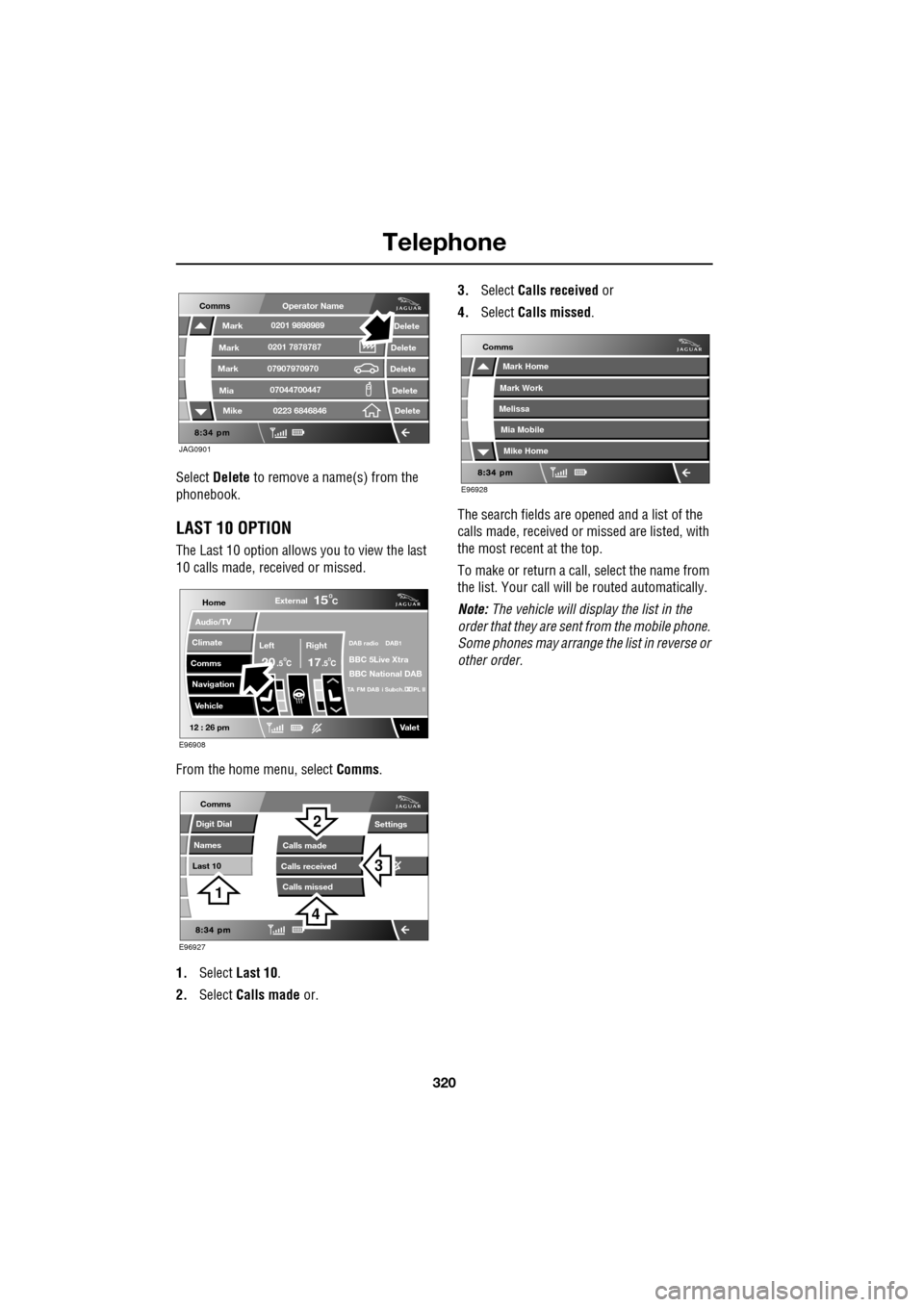
Select Delete to remove a name(s) from the
phonebook.
LAST 10 OPTION
The Last 10 option allows you to view the last
10 calls made, received or missed.
From the home menu, select Comms.
1. Select Last 10 .
2. Select Calls made or. 3.
Select Calls received or
4. Select Calls missed .
The search fields are opened and a list of the
calls made, received or missed are listed, with
the most recent at the top.
To make or return a call, select the name from
the list. Your call will be routed automatically.
Note: The vehicle will display the list in the
order that they are sent from the mobile phone.
Some phones may arrange the list in reverse or
other order.
JAG0901
Comms
Delete
Delete
Delete
Delete
Delete
Mark
Mark
Mark
Mike
Mia0201 9898989
0201 7878787
0223 6846846
07907970970
07044700447
Operator Name
Home
Audio/TV
Climate
Comms
Navigation
VehicleExternal
Left Right
20 17CC
15C
.5 .5
DAB radio DAB1
BBC 5Live Xtra
BBC National DAB
TA FM DAB i Subch. PL II
Valet12 : 26 pm
E96908
E96927
Comms
Digit Dial
Names
Last 10
Settings
Calls missedCalls made
Calls received
3
2
1
4
E96928
Comms
Mark Home
Mark Work
Melissa
Mike Home
Mia Mobile
Page 328 of 391
Television
328
GENERAL INFORMATION
Introduction
TV viewing is possible when the vehicle is
stationary with the transmission in the P (Park)
position. The TV pictur e can be viewed in
preview mode or full-screen.
If the vehicle is moving when TV is selected or
if the vehicle is driven off when the TV is
operating, a warning message will display, the
TV picture will cease and only audio reception
is available.
Note: Japan market: The TV will operate
normally up to speeds of 5 km/h (3 mph), after
which the TV picture will cease and only audio
reception is available.
TV sound is provided through the audio system
speakers.
TV reception
Repositioning the vehicle may improve the
picture whereas in diffic ult locations (distant
transmitter, hills etc.), reception may not be
possible at all. Sound quality may also be
affected to a lesser degree by loss of signal,
which can give rise to variable quality over
short distances while on the move.
Note: Television systems re quire consistent
and strong signals for go od quality reception.
These signals are affected by transmitter
coverage and surrounding features (hills, high
buildings, trees etc.) which will reduce the
signal, thus redu cing picture quality.
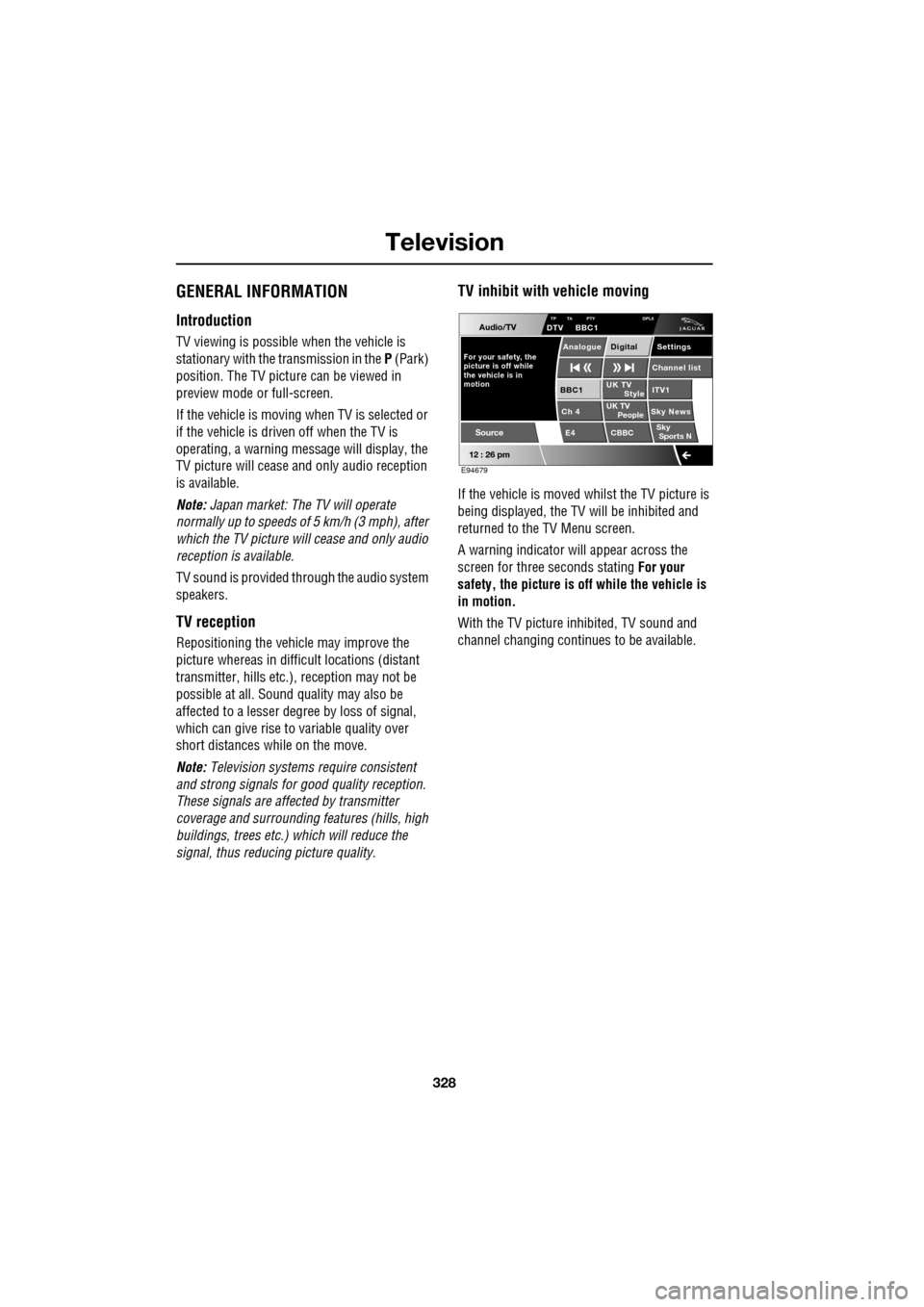
TV inhibit with vehicle moving
If the vehicle is moved whilst the TV picture is
being displayed, the TV will be inhibited and
returned to the TV Menu screen.
A warning indicator will appear across the
screen for three seconds stating For your
safety, the picture is of f while the vehicle is
in motion.
With the TV picture inhibited, TV sound and
channel changing contin ues to be available.
Audio/TV
12 : 26 pm
UK TV
ITV1
Ch 4 Sky News E4 CBBCBBC1
Settings
Channel list
TP TA PTY DPLIIDTV BBC1
Style
UK TV People
SkySports N
Source
For your safety, the
picture is off while
motion the vehicle is inAnalogue Digital
E94679