radio JEEP WAGONEER 2023 Workshop Manual
[x] Cancel search | Manufacturer: JEEP, Model Year: 2023, Model line: WAGONEER, Model: JEEP WAGONEER 2023Pages: 396, PDF Size: 15.17 MB
Page 228 of 396
226MULTIMEDIA
Removing Bluetooth® Headphones
1. From the Controls screen, press the Manage
Headphones button.
2. Press the Settings button (gear icon) next to the set of headphones you wish to remove.
3. Press “Delete Device”; the Bluetooth® headphones will be removed from the system.
NAVIGATION
Navigation allows you to assist the driver in searching for
destinations using Uconnect’s built-in Navigation system.
For information on the full functionality of Navigation, refer
to your Uconnect Radio Instruction Manual.
When a new route is selected from the Passenger Screen,
a confirmation will be sent to the driver. The driver will be
able to confirm or deny the route.
NOTE:Using Navigation on the Passenger Screen will not affect
the Navigation screen in the Uconnect system. The Driver
can continue to use Navigation while the Passenger
Screen can “suggest” new routes or stops.
CAMERA
Camera will display the equipped vehicle camera feed.
When selected, press the desired Camera button. The
feed from that camera will display in the center of the
touchscreen. Press the X button or Back Arrow button to
return to the Home screen.
NOTE:The Passenger Screen will lose access to a camera if the
driver chooses to view it on the Uconnect system or if a
condition would activate the camera on the Uconnect
system (the rearview camera being activated when the
vehicle is shifted into REVERSE).
3RD PARTY APPS — IF EQUIPPED
If equipped, your vehicle may contain some 3rd party
apps, which will further enhance your Uconnect system.
McIntosh
McIntosh is a 3rd party app that can enhance your
Uconnect system’s media player. For the app to be
effective, there must be audio playback in the Uconnect
media player. McIntosh can control the playback of audio
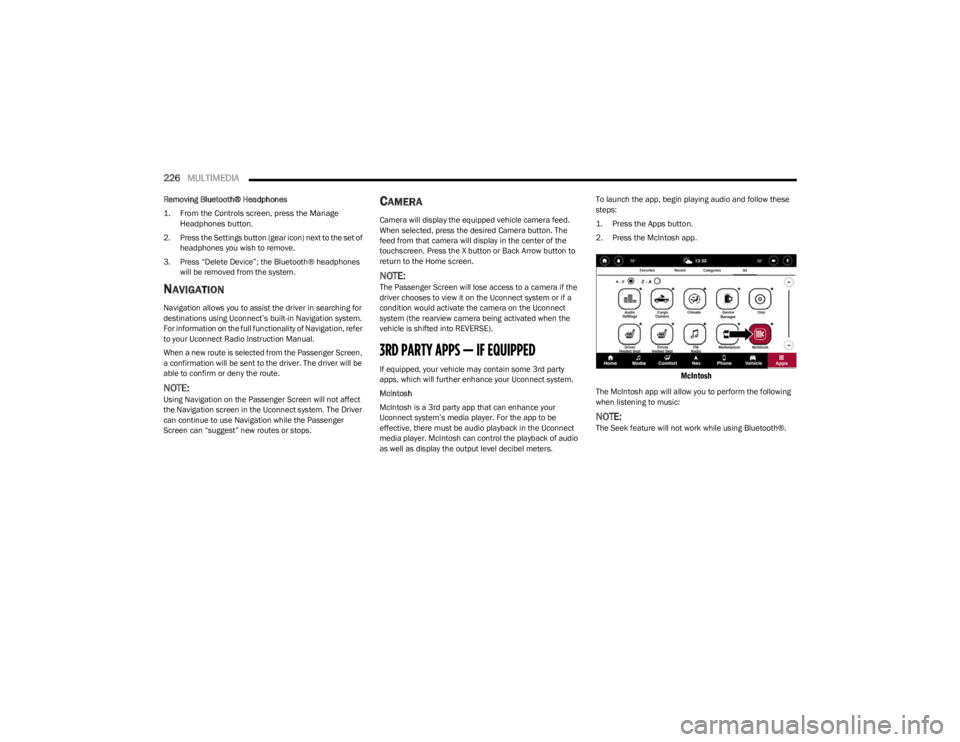
as well as display the output level decibel meters. To launch the app, begin playing audio and follow these
steps:
1. Press the Apps button.
2. Press the McIntosh app.
McIntosh
The McIntosh app will allow you to perform the following
when listening to music:
NOTE:The Seek feature will not work while using Bluetooth®.
23_WS_OM_EN_USC_t.book Page 226
Page 230 of 396
228MULTIMEDIA
REAR SEAT ENTERTAINMENT (RSE) WITH
AMAZON FIRE TV BUILT-IN — IF EQUIPPED
OVERVIEW
Rear Seat Entertainment with Fire TV built-in is designed
to give your family years of enjoyment.
Fire TV lets passengers enjoy a wide variety of content
from popular apps (subscriptions may be required).
Stream videos, play games, listen to music, get
information, and watch downloaded programs all while on
the road. Two Voice Remotes with Alexa are included with
the system. Press the Microphone button on the Voice
Remote with Alexa to easily find, launch, and control
content. Check sports scores, play music, control smart
home devices, or see your live camera feeds (compatible
smart home device required and sold separately). In
addition to streaming and downloaded content, changing
the input in Fire TV also enables you to:
Mirror what’s on your phone or tablet to Fire TV via
Miracast capable devices
Stream your favorite shows with Fire TV
Plug and play a variety of standard video games or
devices into the HDMI port
Listen to audio over wired or wireless headphones (not
included, customer will have to provide their own)
Plug and play a variety of devices into the front seat
Video USB port. USB ports located under the rear
screens are charge only.
Watch content individually on each rear display or
mirror across both displays to watch together
NOTE:The vehicle must be in an active and usable cellular range
and properly equipped with a Uconnect 5 NAV system and
Rear Seat Entertainment with Fire TV package. Streaming
requires a Wi-Fi connection and registered Amazon
account to run Fire TV in the vehicle. Streaming service
subscriptions are not included. Services and features are
subject to change or withdrawal at any time, may not be
available in all areas and languages, and may require
separate subscriptions.
Please review this Owner's Manual to become familiar
with RSE features and operation.
GETTING STARTED
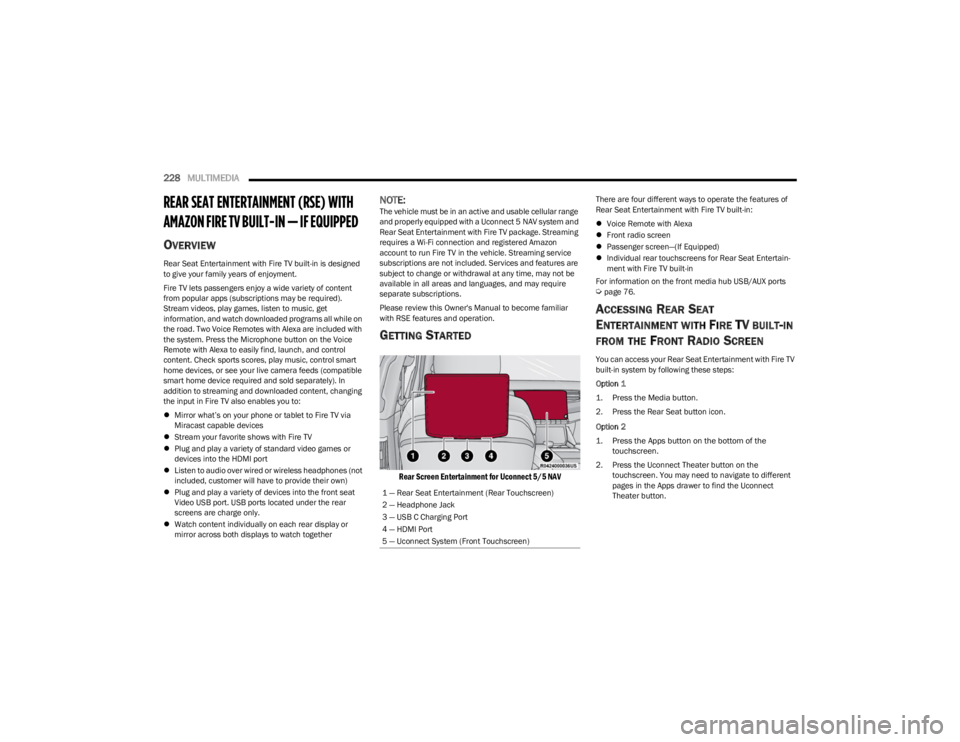
Rear Screen Entertainment for Uconnect 5/5 NAV
There are four different ways to operate the features of
Rear Seat Entertainment with Fire TV built-in:
Voice Remote with Alexa
Front radio screen
Passenger screen—(If Equipped)
Individual rear touchscreens for Rear Seat Entertain -
ment with Fire TV built-in
For information on the front media hub USB/AUX ports
Úpage 76.
ACCESSING REAR SEAT
E
NTERTAINMENT WITH FIRE TV BUILT-IN
FROM THE FRONT RADIO SCREEN
You can access your Rear Seat Entertainment with Fire TV
built-in system by following these steps:
Option 1
1. Press the Media button.
2. Press the Rear Seat button icon.
Option 2
1. Press the Apps button on the bottom of the
touchscreen.
2. Press the Uconnect Theater button on the touchscreen. You may need to navigate to different
pages in the Apps drawer to find the Uconnect
Theater button.
1 — Rear Seat Entertainment (Rear Touchscreen)
2 — Headphone Jack
3 — USB C Charging Port
4 — HDMI Port
5 — Uconnect System (Front Touchscreen)
23_WS_OM_EN_USC_t.book Page 228
Page 232 of 396
230MULTIMEDIA
ALEXA VOICE CONTROL
A feature with Rear Seat Entertainment with Fire TV
built-in that enhances your experience is Alexa. It is simple
to get started using this feature. Push the Microphone
button at the top of the Voice Remote with Alexa to
activate Alexa and get started.
LISTEN VIA VEHICLE SPEAKERS
A feature within Rear Seat Entertainment with Fire TV
built-in is the front radio Listen feature. On the front radio
Home screen for Fire TV, select the Listen button in the top
right corner on either card for Screen 1 or 2. This will allow
you to have either rear screen play audio through all the
speakers in the vehicle.
QUICK MENU
Accessing the quick menu will give you more options for
Fire TV.
To access the quick menu, tap the screen and it will
appear. The quick menu is also accessible by pushing the
Gear/Settings button on the Voice Remote with Alexa.
Some options of the quick menu are:
Power — This will power the screen off.
On-Screen Remote — This will bring up the on-screen
remote to use with the system.
Back — This will let you go back a page.
Home — This will take you to the Home screen.
Gear/Settings — This will let you access certain settings
in the system. For more setting options, select
“Settings” within the on-screen Gear/Settings menu.
Vehicle — This will bring up the Vehicle menu. From
here you can adjust rear climate controls and the Are
We There Yet? app.
PARENTAL CONTROLS (USING THE REAR
S
CREENS)
If parental controls were not set during the first time start
up of the system, they can be set by following these steps:
1. Push the Gear/Settings button on the Voice Remote
with Alexa or tap the screen to access Settings in the
“quick menu”.
2. Select the Gear/Settings icon on the screen.
3. Select “Settings” on the screen.
4. While in Settings, select “Preferences”.
5. Select “Parental Controls”; from here you can turn Parental Controls on or off and set up a PIN for the
controls using the Voice Remote with Alexa.
VOICE REMOTE WITH ALEXA PAIRING
(U
SING THE REAR SCREENS)
If the Voice Remote with Alexa needs to be paired again or
a new remote is being paired, follow these procedures:
1. Install batteries into the remote.
2. Tap the screen and Select the Gear/Settings icon on
the screen.
3. Select “Settings” on the screen. 4. In Settings, select “Controllers & Bluetooth®
Devices”.
5. From this menu, select “Add New Remote”.
6. Follow the on-screen steps for Voice Remote with Alexa pairing.
A long press on the Home button can also re-pair a Voice
Remote with Alexa that has become disconnected.
NOTE:Your vehicle is included with two Voice Remotes with
Alexa. A Voice Remote with Alexa can be paired to each
rear screen. It will function with the rear screen it was
paired with. The pairing steps will need to be done for each
rear screen.
MEDIA SOURCES INPUT (USING THE
F
RONT RADIO AND REAR SCREENS)
Front Radio Screen
Users can select inputs for each rear screen from the front
radio touchscreen by selecting the Rear Seat tab and
choosing the desired content by selecting “Launch
Source” on the Screen 1 or Screen 2 tab.
Inputs available within Launch Source under “Inputs” are
“Fire TV”, “HDMI”, and “USB”.
Rear Screens
To select inputs on the rear screen, scroll down on the Fire
TV Home screen and select your desired input under
“Input”.
Inputs can also be selected from the Brand tab in the top
menu. While in this tab, scroll down to “Inputs” for
selection options.
23_WS_OM_EN_USC_t.book Page 230
Page 234 of 396
232MULTIMEDIA
REAR SEAT ENTERTAINMENT WITH FIRE
TV B
UILT-IN STREAMING (USING THE
F
RONT RADIO AND REAR SCREENS)
Access Using Launch Source
To access Rear Seat Entertainment with Fire TV built-in
from the front radio, press the Media tab located on the
bottom menu bar. Then select the Rear Seat option
located on the top menu bar. Select “Launch Source”, and
then under “Inputs” select “Fire TV Home”.
Access Using Browse Media
Selecting “Browse Media” on the front radio screen will
give access to different media within Rear Seat
Entertainment with Fire TV built-in.
These options will be in the top menu of “Browse Media”
and include:
Fire TV — Selecting “Fire TV” will show streaming
options for categories and to select apps. This option
will be selectable on the left slider menu in “Browse
Media”. While in “Browse Media” under Fire TV, it will
display recent activity under “Recent”. This will display
recent videos viewed from Fire TV and recent down -
loads as well.
USB Video — Under “USB Videos”, videos will appear
that are options with a USB device connected to Rear
Seat Entertainment with Fire TV built-in.
USB Music — Under “USB Music”, music will appear
that are options with a USB device connected to Rear
Seat Entertainment with Fire TV built-in. Access Using the Voice Remote with Alexa and Rear
Screens
Rear passengers will be able to access some options for
streaming by pressing the “Prime Video”, “App 1”, or “App
2” button on the Voice Remote with Alexa. Selecting one
of those buttons on the Voice Remote with Alexa will take
you to the home page for that respective streaming
service. Turning on either of the rear screens will launch
Fire TV. By default, the rear screens will always launch in
Fire TV. More streaming options can be selected on the
Fire TV home page.
Fire TV
Fire TV is your source for online streaming with Rear Seat
Entertainment with Fire TV built-in.
NOTE:A data source needs to be connected to the system for
streaming to be accessible. This can be set up when Fire
TV is turned on for the first time on the rear screens. Some
options can be an in-vehicle 4G Wi-Fi hot spot, capable
Wi-Fi hot spot from a mobile device, or Wi-Fi from an
outside source like a home or a garage.
To access Fire TV on the front screen, select “Launch
Source” on the front radio, Rear Seat screen and then
“Fire TV Home” under “Inputs”.
Viewing from the front radio screen or passenger screen
mirrors or controls the Fire TV experience from one of the
rear Fire TV displays.
The menu bar for Fire TV will have the options for “Home”,
“Find”, “Library”, “Brand”, and “Live”.
Below the menu bar will be streaming options linked to
your Prime account like “Prime Video”. The front radio screen offers some options:
Power — This will turn Fire TV on or off.
Screen 1 and Screen 2 Toggle — This toggles between
the Rear Screens (for use with front radio screen only).
Collapse — While viewing on the front radio screen, this
will collapse the screen to dashboard view.
Source Drawer — This will open the “Source Drawer”
and the source logo will be displayed on the icon.
Browse Media — This will open the “Browse Media”
pop-up.
Back — This will let you go back the previous page.
Fire TV Home — This will take you back to the Fire TV
home page.
Menu — This will open the Fire TV menu.
Remote icon — This will display the on-screen remote.NOTE:Front radio screen mirroring and watching can only be
done when the vehicle is in PARK. The vehicle must be in
an active and usable cellular range and properly equipped
with a Uconnect 5 NAV system and Rear Seat Enter -
tainment with Fire TV package. For streaming, a Wi-Fi
connection and registered Amazon account are required
to run Fire TV in the vehicle. Streaming service subscrip -
tions are not included. Services and features are subject
to change or withdrawal at any time, may not be available
in all areas and languages, and may require separate
subscriptions.
23_WS_OM_EN_USC_t.book Page 232
Page 235 of 396
MULTIMEDIA233
FIRE TV APPS/GAMES
(U
SING THE REAR SCREENS)
Apps and games can be accessed using Rear Seat
Entertainment with Fire TV built-in.
To access Apps on the rear screen, turn on the system and
select “Find” in the top menu. On the Find page, select
“Appstore”. Within the Appstore® you can purchase apps
and games. From here you can also select from all the
apps and games that have been purchased.
ARE WE THERE YET?
When a navigation route has been set from the Uconnect
system, the second-row passengers can use “Are We
There Yet?” for an animated screen showing distance and
time remaining on navigation routes, as well as the
estimated time of arrival with pop-up notifications.
Some screen information includes:
Decrease Timing Between Notifications Button
Notifications ON/OFF Button
Increase Timing Between Notifications Button
Arrival Time
Time Remaining Until Destination Is Reached
Distance Remaining
To access “Are We There Yet?” from the rear screens,
follow these steps:
1. Tap one of the rear screens and select the Vehicle icon or push the Vehicle button on the Voice Remote
with Alexa.
2. Select “Are We There Yet?” near the bottom of the menu on the first page of options.
USING THE VIDEO USB PORT
Plug in a USB drive or mass storage device and play your
favorite music or movies.
NOTE:To view USB media on the rear screens, insert a USB drive
into the port. The USB drive port is located under the radio
controls in the instrument panel.
On the rear screen you can browse the content of the USB
device by going to the USB source in the inputs. Use the
search feature to find your media faster.
PLAY VIDEO GAMES
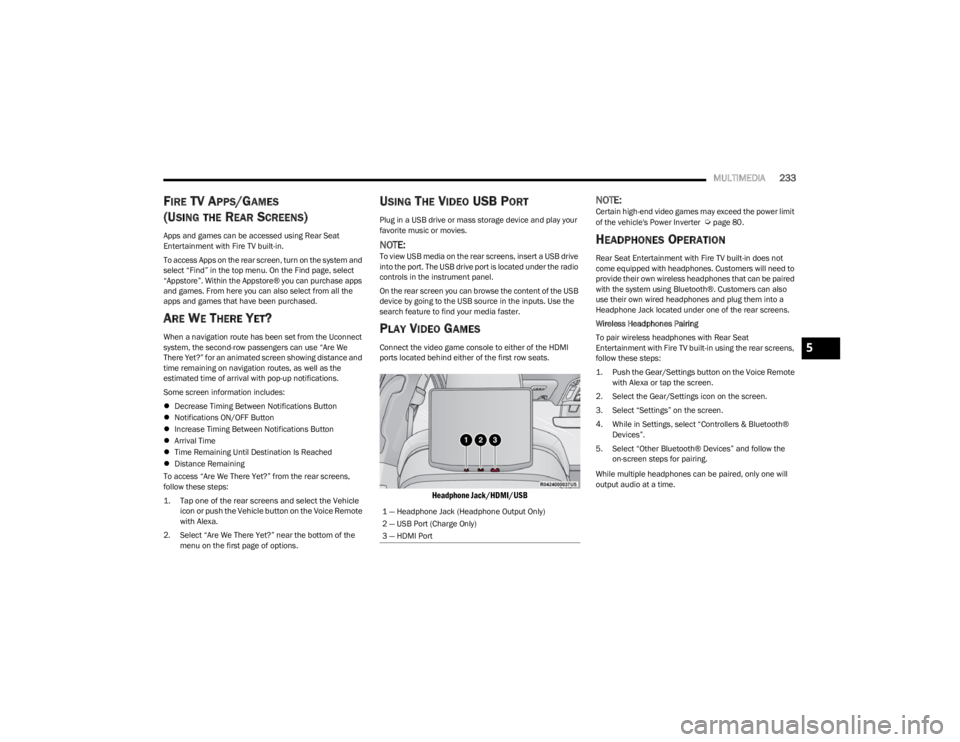
Connect the video game console to either of the HDMI
ports located behind either of the first row seats.
Headphone Jack/HDMI/USB
NOTE:Certain high-end video games may exceed the power limit
of the vehicle's Power Inverter Úpage 80.
HEADPHONES OPERATION
Rear Seat Entertainment with Fire TV built-in does not
come equipped with headphones. Customers will need to
provide their own wireless headphones that can be paired
with the system using Bluetooth®. Customers can also
use their own wired headphones and plug them into a
Headphone Jack located under one of the rear screens.
Wireless Headphones Pairing
To pair wireless headphones with Rear Seat
Entertainment with Fire TV built-in using the rear screens,
follow these steps:
1. Push the Gear/Settings button on the Voice Remote with Alexa or tap the screen.
2. Select the Gear/Settings icon on the screen.
3. Select “Settings” on the screen.
4. While in Settings, select “Controllers & Bluetooth® Devices”.
5. Select “Other Bluetooth® Devices” and follow the on-screen steps for pairing.
While multiple headphones can be paired, only one will
output audio at a time.
1 — Headphone Jack (Headphone Output Only)
2 — USB Port (Charge Only)
3 — HDMI Port
5
23_WS_OM_EN_USC_t.book Page 233
Page 240 of 396
238MULTIMEDIA
SUSPENSION — IF EQUIPPED
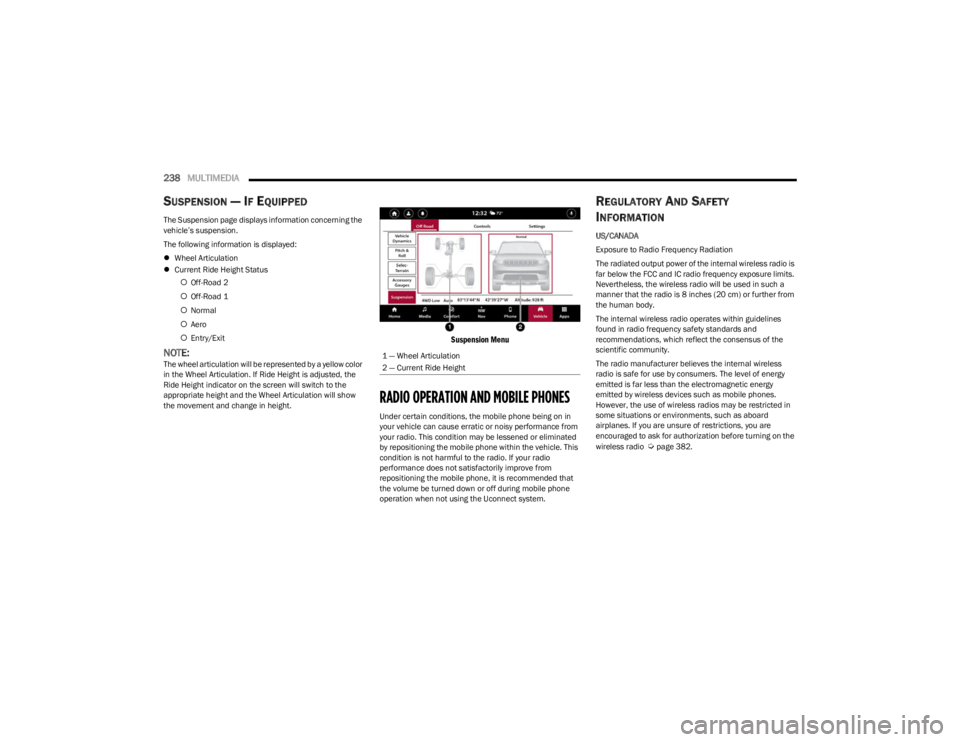
The Suspension page displays information concerning the
vehicle’s suspension.
The following information is displayed:
Wheel Articulation
Current Ride Height Status
Off-Road 2
Off-Road 1
Normal
Aero
Entry/Exit
NOTE:The wheel articulation will be represented by a yellow color
in the Wheel Articulation. If Ride Height is adjusted, the
Ride Height indicator on the screen will switch to the
appropriate height and the Wheel Articulation will show
the movement and change in height.
Suspension Menu
RADIO OPERATION AND MOBILE PHONES
Under certain conditions, the mobile phone being on in
your vehicle can cause erratic or noisy performance from
your radio. This condition may be lessened or eliminated
by repositioning the mobile phone within the vehicle. This
condition is not harmful to the radio. If your radio
performance does not satisfactorily improve from
repositioning the mobile phone, it is recommended that
the volume be turned down or off during mobile phone
operation when not using the Uconnect system.
REGULATORY AND SAFETY
I
NFORMATION
US/CANADA
Exposure to Radio Frequency Radiation
The radiated output power of the internal wireless radio is
far below the FCC and IC radio frequency exposure limits.
Nevertheless, the wireless radio will be used in such a
manner that the radio is 8 inches (20 cm) or further from
the human body.
The internal wireless radio operates within guidelines
found in radio frequency safety standards and
recommendations, which reflect the consensus of the
scientific community.
The radio manufacturer believes the internal wireless
radio is safe for use by consumers. The level of energy
emitted is far less than the electromagnetic energy
emitted by wireless devices such as mobile phones.
However, the use of wireless radios may be restricted in
some situations or environments, such as aboard
airplanes. If you are unsure of restrictions, you are
encouraged to ask for authorization before turning on the
wireless radio
Úpage 382.
1 — Wheel Articulation
2 — Current Ride Height
23_WS_OM_EN_USC_t.book Page 238
Page 241 of 396
239
(Continued)
SAFETY
SAFETY FEATURES
ANTI-LOCK BRAKE SYSTEM (ABS)
The ABS provides increased vehicle stability and brake
performance under most braking conditions. The system
automatically prevents wheel lock and enhances vehicle
control during braking.
The ABS performs a self-check cycle to ensure that the
ABS is working properly each time the vehicle is started
and driven. During this self-check, you may hear a slight
clicking sound as well as some related motor noises.
The ABS is activated during braking when the system
detects one or more wheels are beginning to lock. Road
conditions such as ice, snow, gravel, bumps, railroad
tracks, loose debris, or panic stops may increase the
likelihood of ABS activation(s).
You also may experience the following normal
characteristics when the ABS activates:
ABS motor noise or clicking sounds (you may continue
to hear for a short time after the stop).
Brake pedal pulsations.
A slight drop of the brake pedal at the end of the stop. The ABS is designed to function with the Original
Equipment Manufacturer (OEM) tires. Modification may
result in degraded ABS performance.
Anti-Lock Brake System (ABS) Warning
Light
The yellow ABS Warning Light will turn on when the ignition
is placed in the ON/RUN mode and may stay on for as long
as four seconds.
If the ABS Warning Light remains on or comes on while
driving, it indicates that the anti-lock portion of the brake
system is not functioning and that service is required.
However, the conventional brake system will continue to
operate normally if the ABS Warning Light is on.
If the ABS Warning Light is on, the brake system should be
serviced as soon as possible to restore the benefits of
Anti-Lock Brakes. If the ABS Warning Light does not come
on when the ignition is placed in the ON/RUN mode, have
the light repaired as soon as possible.
WARNING!
The ABS contains sophisticated electronic equip -
ment that may be susceptible to interference caused
by improperly installed or high output radio transmit -
ting equipment. This interference can cause possible
loss of anti-lock braking capability. Installation of
such equipment should be performed by qualified
professionals.
Pumping of the Anti-Lock Brakes will diminish their
effectiveness and may lead to a collision. Pumping
makes the stopping distance longer. Just press firmly
on your brake pedal when you need to slow down or
stop.
The ABS cannot prevent the natural laws of physics
from acting on the vehicle, nor can it increase
braking or steering efficiency beyond that afforded
by the condition of the vehicle brakes and tires or the
traction afforded.
The ABS cannot prevent collisions, including those
resulting from excessive speed in turns, following
another vehicle too closely, or hydroplaning.
The capabilities of an ABS equipped vehicle must
never be exploited in a reckless or dangerous
manner that could jeopardize the user’s safety or the
safety of others.
WARNING!
6
23_WS_OM_EN_USC_t.book Page 239
Page 250 of 396
248SAFETY
The BSM system notifies the driver of objects in the
detection zones by illuminating the BSM Warning Light
located in the outside mirrors. In addition, when the turn
signal is activated during the alert on the side of the
vehicle corresponding to the alert, an audible (chime) alert
can be heard. During this audible (chime) alert, the radio
volume will be reduced
Úpage 249.
BSM Warning Light
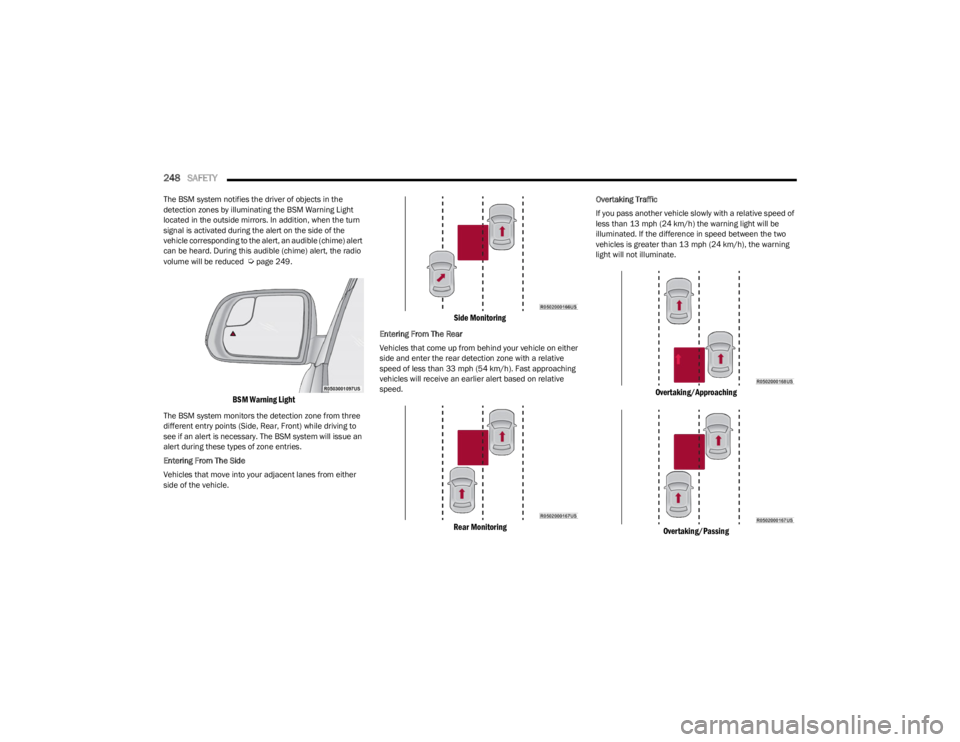
The BSM system monitors the detection zone from three
different entry points (Side, Rear, Front) while driving to
see if an alert is necessary. The BSM system will issue an
alert during these types of zone entries.
Entering From The Side
Vehicles that move into your adjacent lanes from either
side of the vehicle.
Side Monitoring
Entering From The Rear
Vehicles that come up from behind your vehicle on either
side and enter the rear detection zone with a relative
speed of less than 33 mph (54 km/h). Fast approaching
vehicles will receive an earlier alert based on relative
speed.
Rear Monitoring
Overtaking Traffic
If you pass another vehicle slowly with a relative speed of
less than 13 mph (24 km/h) the warning light will be
illuminated. If the difference in speed between the two
vehicles is greater than 13 mph (24 km/h), the warning light will not illuminate.
Overtaking/Approaching
Overtaking/Passing
23_WS_OM_EN_USC_t.book Page 248
Page 251 of 396
SAFETY249
The BSM system is designed not to issue an alert on
stationary objects such as guardrails, posts, walls, foliage,
berms, etc. However, occasionally the system may alert on
such objects. This is normal operation and your vehicle
does not require service.
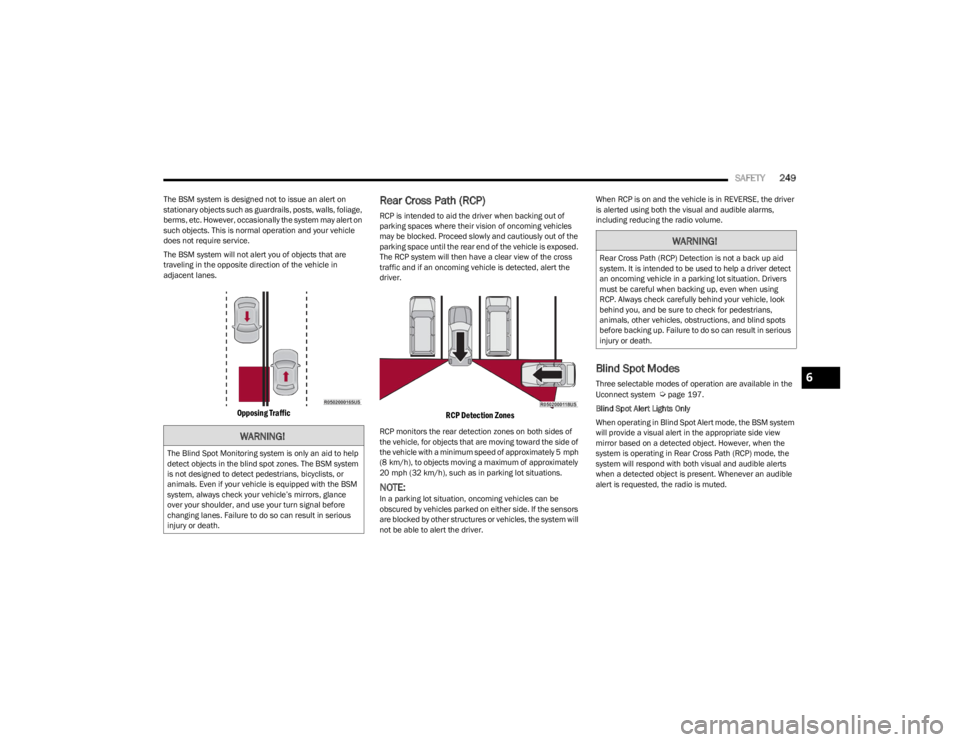
The BSM system will not alert you of objects that are
traveling in the opposite direction of the vehicle in
adjacent lanes.
Opposing Traffic
Rear Cross Path (RCP)
RCP is intended to aid the driver when backing out of
parking spaces where their vision of oncoming vehicles
may be blocked. Proceed slowly and cautiously out of the
parking space until the rear end of the vehicle is exposed.
The RCP system will then have a clear view of the cross
traffic and if an oncoming vehicle is detected, alert the
driver.
RCP Detection Zones
RCP monitors the rear detection zones on both sides of
the vehicle, for objects that are moving toward the side of
the vehicle with a minimum speed of approximately 5 mph
(8 km/h), to objects moving a maximum of approximately
20 mph (32 km/h), such as in parking lot situations.
NOTE:In a parking lot situation, oncoming vehicles can be
obscured by vehicles parked on either side. If the sensors
are blocked by other structures or vehicles, the system will
not be able to alert the driver. When RCP is on and the vehicle is in REVERSE, the driver
is alerted using both the visual and audible alarms,
including reducing the radio volume.
Blind Spot Modes
Three selectable modes of operation are available in the
Uconnect system Úpage 197.
Blind Spot Alert Lights Only
When operating in Blind Spot Alert mode, the BSM system
will provide a visual alert in the appropriate side view
mirror based on a detected object. However, when the
system is operating in Rear Cross Path (RCP) mode, the
system will respond with both visual and audible alerts
when a detected object is present. Whenever an audible
alert is requested, the radio is muted.
WARNING!
The Blind Spot Monitoring system is only an aid to help
detect objects in the blind spot zones. The BSM system
is not designed to detect pedestrians, bicyclists, or
animals. Even if your vehicle is equipped with the BSM
system, always check your vehicle’s mirrors, glance
over your shoulder, and use your turn signal before
changing lanes. Failure to do so can result in serious
injury or death.
WARNING!
Rear Cross Path (RCP) Detection is not a back up aid
system. It is intended to be used to help a driver detect
an oncoming vehicle in a parking lot situation. Drivers
must be careful when backing up, even when using
RCP. Always check carefully behind your vehicle, look
behind you, and be sure to check for pedestrians,
animals, other vehicles, obstructions, and blind spots
before backing up. Failure to do so can result in serious
injury or death.
6
23_WS_OM_EN_USC_t.book Page 249
Page 252 of 396
250SAFETY
Blind Spot Alert Lights/Chime
When operating in Blind Spot Alert Lights/Chime mode,
the BSM system will provide a visual alert in the
appropriate side view mirror based on a detected object.
If the turn signal is then activated, and it corresponds to
an alert present on that side of the vehicle, an audible
chime will also be sounded. Whenever a turn signal and
detected object are present on the same side at the same
time, both the visual and audible alerts will be issued. In
addition to the audible alert the radio (if on) will also be
muted.
NOTE:Whenever an audible alert is requested by the BSM
system, the radio is also muted.
When the system is in RCP, the system shall respond with
both visual and audible alerts when a detected object is
present. Whenever an audible alert is requested, the radio
is also muted. Turn/hazard signal status is ignored; the
RCP state always requests the chime.
Blind Spot Alert Off
When the BSM system is turned off, there will be no visual
or audible alerts from either the BSM or RCP systems.
NOTE:The BSM system will store the current operating mode
when the vehicle is shut off. Each time the vehicle is
started, the previously stored mode will be recalled and
used.
FORWARD COLLISION WARNING (FCW)
W
ITH MITIGATION
FCW with Mitigation system provides the driver with
audible warnings, visual warnings (within the instrument
cluster display), and may apply a brake jerk to warn the
driver when it detects a potential frontal collision. The
warnings and limited braking are intended to provide the
driver with enough time to react, avoid or mitigate the
potential collision.
NOTE:FCW monitors the information from the forward looking
sensors as well as the Electronic Brake Controller (EBC), to
calculate the probability of a forward collision. When the
system determines that a forward collision is probable, the
driver will be provided with audible and visual warnings
and may provide a brake jerk warning. If the driver does
not take action based upon these progressive warnings,
then the system will provide a limited level of active
braking to help slow the vehicle and mitigate the potential
forward collision. If the driver reacts to the warnings by
braking and the system determines that the driver intends
to avoid the collision by braking but has not applied suffi -
cient brake force, the system will compensate and provide
additional brake force as required.
If a Forward Collision Warning with Mitigation event begins
at a speed below 39 mph (62 km/h), the system may provide the maximum or partial braking to mitigate the
potential forward collision. If the Forward Collision
Warning with Mitigation event stops the vehicle
completely, the system will hold the vehicle at a standstill
for two seconds and then release the brakes.
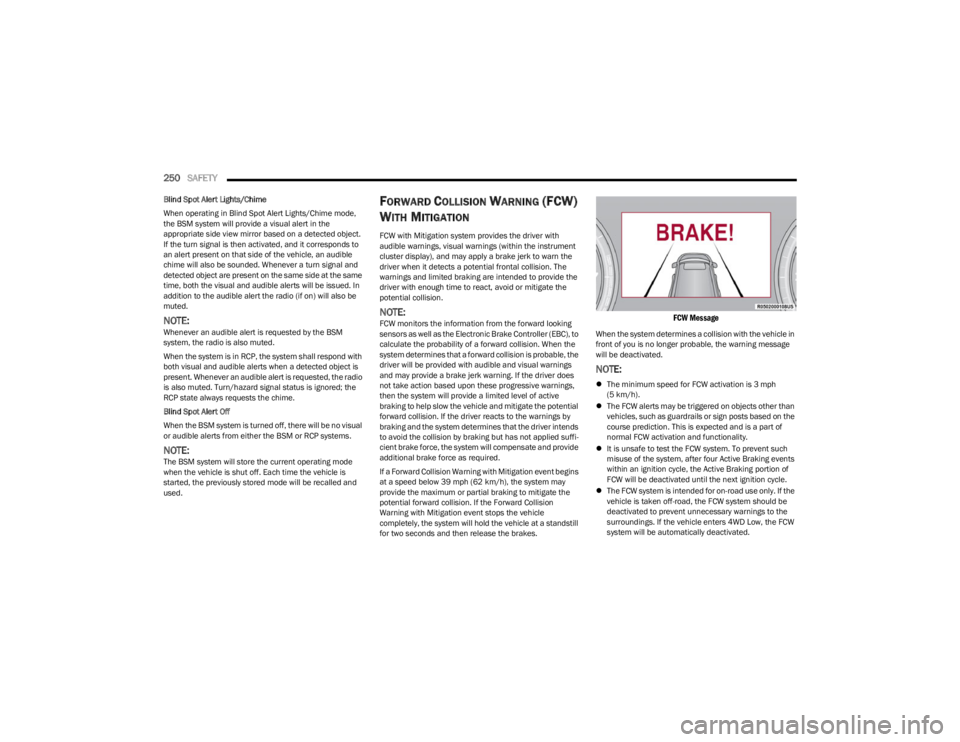
FCW Message
When the system determines a collision with the vehicle in
front of you is no longer probable, the warning message
will be deactivated.
NOTE:
The minimum speed for FCW activation is 3 mph
(5 km/h).
The FCW alerts may be triggered on objects other than
vehicles, such as guardrails or sign posts based on the
course prediction. This is expected and is a part of
normal FCW activation and functionality.
It is unsafe to test the FCW system. To prevent such
misuse of the system, after four Active Braking events
within an ignition cycle, the Active Braking portion of
FCW will be deactivated until the next ignition cycle.
The FCW system is intended for on-road use only. If the
vehicle is taken off-road, the FCW system should be
deactivated to prevent unnecessary warnings to the
surroundings. If the vehicle enters 4WD Low, the FCW
system will be automatically deactivated.
23_WS_OM_EN_USC_t.book Page 250