set KIA SOUL 2021 Navigation System Quick Reference Guide
[x] Cancel search | Manufacturer: KIA, Model Year: 2021, Model line: SOUL, Model: KIA SOUL 2021Pages: 211, PDF Size: 6.67 MB
Page 48 of 211
3-2
Listening to the radio
You can scan radio channels by using various options. Save your
favorite channels to the presets list.
Perform any of the following methods:
\225On the All Menus screen, touch Radio.
\225On the control panel, press the [ RADIO] button.
Radio screen
The radio screen provides various functions while listening to
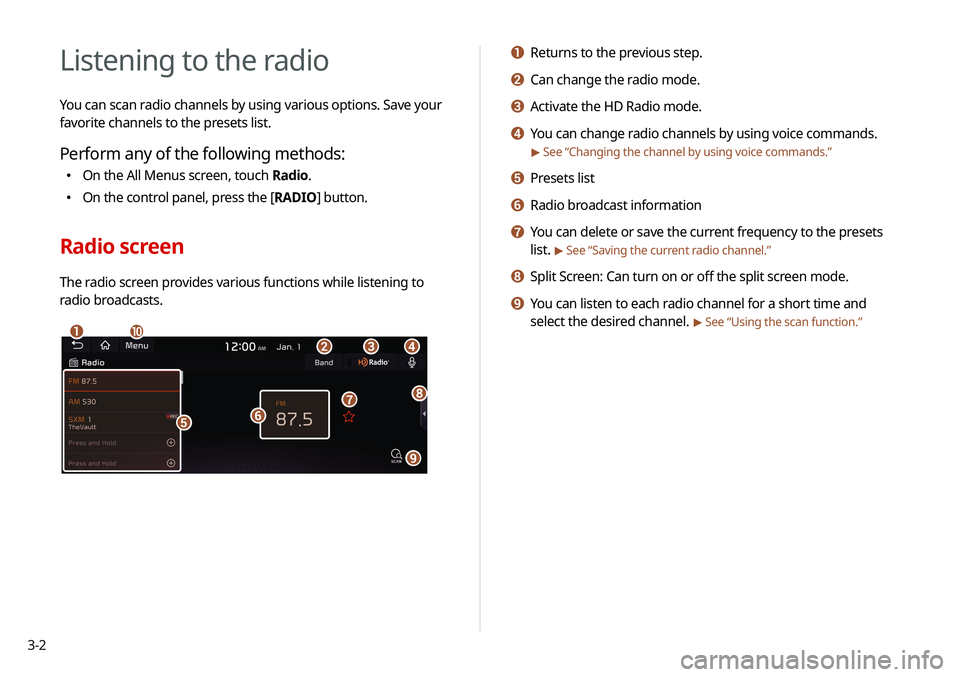
radio broadcasts.
\037\036\035
\034
\033\032
\031
\030
\027
\026
a Returns to the previous step.
b Can change the radio mode.
c Activate the HD Radio mode.
d You can change radio channels by using voice commands.
> See “Changing the channel by using voice commands.”
e Presets list
f Radio broadcast information
g You can delete or save the current frequency to the presets
list.
> See “Saving the current radio channel.”
h Split Screen: Can turn on or off the split screen mode.
i You can listen to each radio channel for a short time and
select the desired channel.
> See “Using the scan function.”
Page 49 of 211
3-3
\335Warning
Driving while distracted can result in a loss of vehicle control
that may lead to an accident, severe bodily injury, or death. The
driver's primary responsibility is the safe and legal operation of
the vehicle, and the use of any vehicle systems, including the
touch screen and steering wheel controls, which take the driver's
eyes, attention, and focus away from the safe operation of the
vehicle, or which are not permissible by law, should never be used
during the operation of the vehicle.
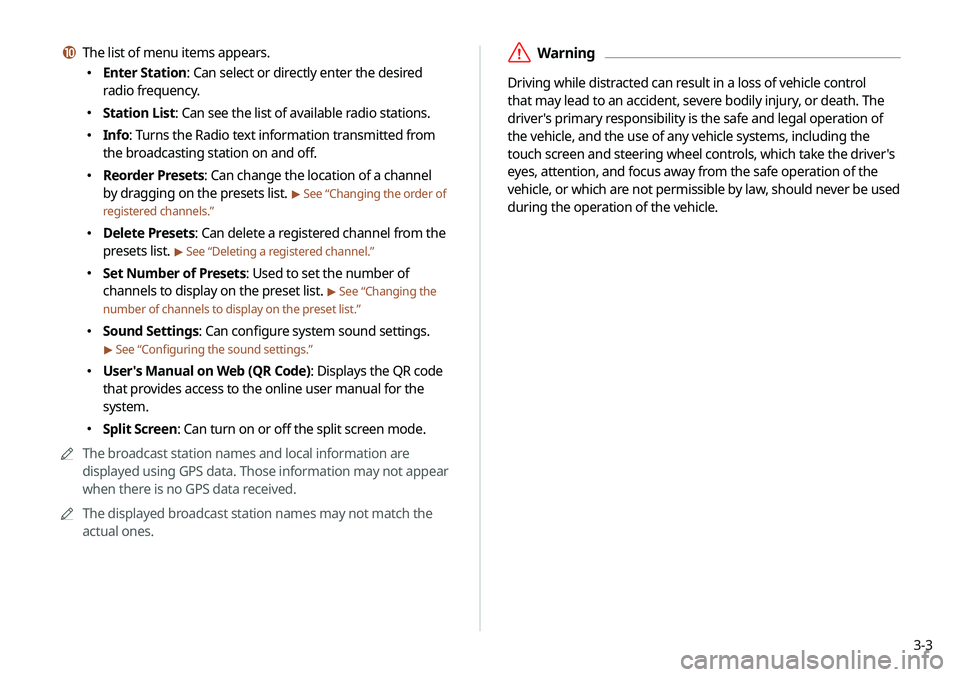
j The list of menu items appears.
\225Enter Station: Can select or directly enter the desired
radio frequency.
\225Station List: Can see the list of available radio stations.
\225Info: Turns the Radio text information transmitted from
the broadcasting station on and off.
\225Reorder Presets: Can change the location of a channel
by dragging on the presets list.
> See “Changing the order of
registered channels.”
\225 Delete Presets: Can delete a registered channel from the
presets list.
> See “Deleting a registered channel.”
\225Set Number of Presets: Used to set the number of
channels to display on the preset list.
> See “Changing the
number of channels to display on the preset list.”
\225 Sound Settings: Can configure system sound settings.
> See “Configuring the sound settings.”
\225User's Manual on Web (QR Code): Displays the QR code
that provides access to the online user manual for the
system.
\225Split Screen: Can turn on or off the split screen mode.
0000
A
The broadcast station names and local information are
displayed using GPS data. Those information may not appear
when there is no GPS data received.
0000
A
The displayed broadcast station names may not match the
actual ones.
Page 50 of 211
3-4
Changing the radio channel
Perform any of the following methods:
\225On the Radio screen, touch the desired channel from the
presets list.
0000
A
You can change the channel simply by using the [
/]
lever on the steering wheel.
\225 On the control panel, press the [ SEEK ] or [TRACK ] button.
You can move to the previous or next channel with good
reception.
\225 When you know an accurate frequency, turn the [TUNE/FILE]
knob on the control panel to change the frequency.
You can listen to the changed radio broadcast.
Changing the channel by using voice
commands
You can change the radio channel by using voice commands.
1 On the Radio screen, touch .
2 When a guiding beep is heard, say the desired
radio station channel.
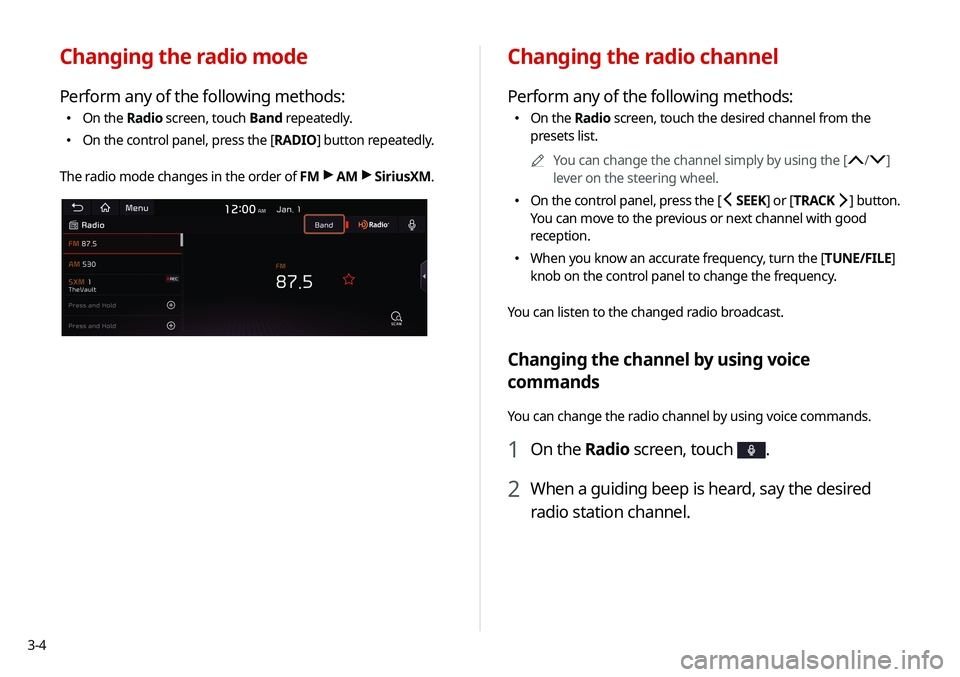
Changing the radio mode
Perform any of the following methods:
\225 On the Radio screen, touch Band repeatedly.
\225On the control panel, press the [ RADIO] button repeatedly.
The radio mode changes in the order of FM >
AM >
SiriusXM.
Page 51 of 211
3-5
Saving the current radio channel
When you save the current playing channel in the preset list, you
can easily select it later.
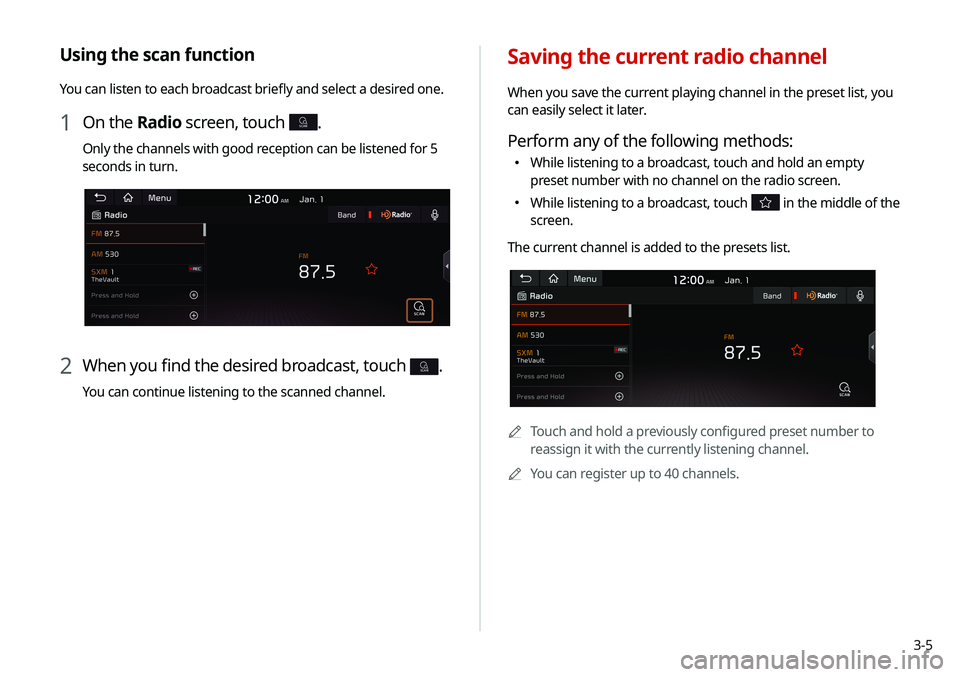
Perform any of the following methods:
\225While listening to a broadcast, touch and hold an empty
preset number with no channel on the radio screen.
\225While listening to a broadcast, touch in the middle of the
screen.
The current channel is added to the presets list.
0000
A
Touch and hold a previously configured preset number to
reassign it with the currently listening channel.
0000
A
You can register up to 40 channels.
Using the scan function
You can listen to each broadcast briefly and select a desired one.
1 On the Radio screen, touch SCAN.
Only the channels with good reception can be listened for 5
seconds in turn.
2 When you find the desired broadcast, touch SCAN.
You can continue listening to the scanned channel.
Page 52 of 211
3-6
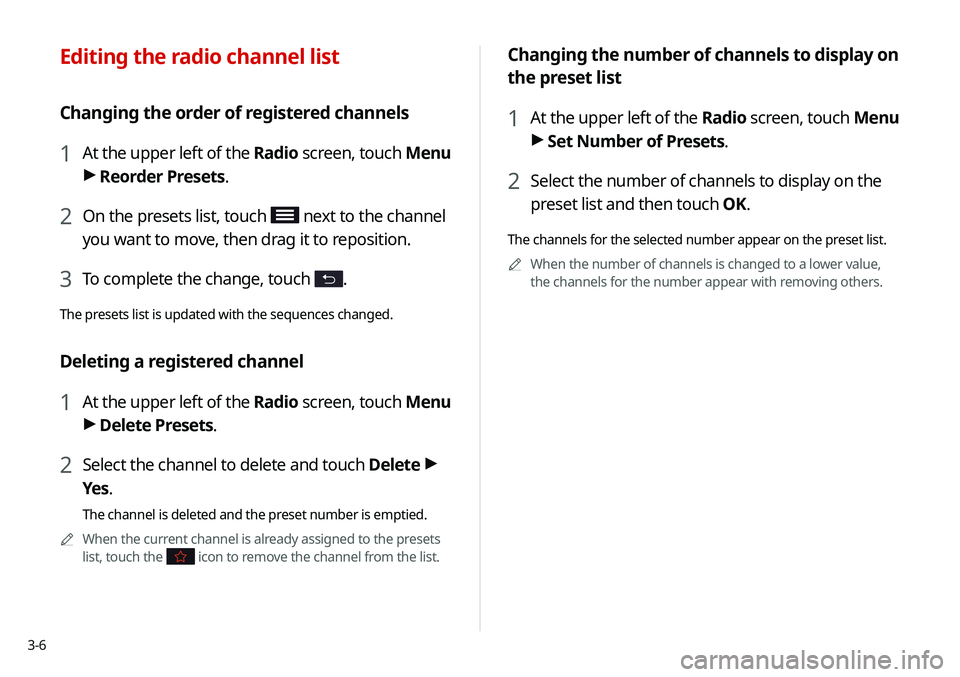
Changing the number of channels to display on
the preset list
1 At the upper left of the Radio screen, touch Menu
> Set Number of Presets.
2 Select the number of channels to display on the
preset list and then touch OK.
The channels for the selected number appear on the preset list.
0000
A
When the number of channels is changed to a lower value,
the channels for the number appear with removing others.
Editing the radio channel list
Changing the order of registered channels
1 At the upper left of the Radio screen, touch Menu
>
Reorder Presets.
2 On the presets list, touch next to the channel
you want to move, then drag it to reposition.
3 To complete the change, touch .
The presets list is updated with the sequences changed.
Deleting a registered channel
1 At the upper left of the Radio screen, touch Menu
> Delete Presets.
2 Select the channel to delete and touch Delete >
Yes .
The channel is deleted and the preset number is emptied.
0000
A
When the current channel is already assigned to the presets
list, touch the
icon to remove the channel from the list.
Page 55 of 211
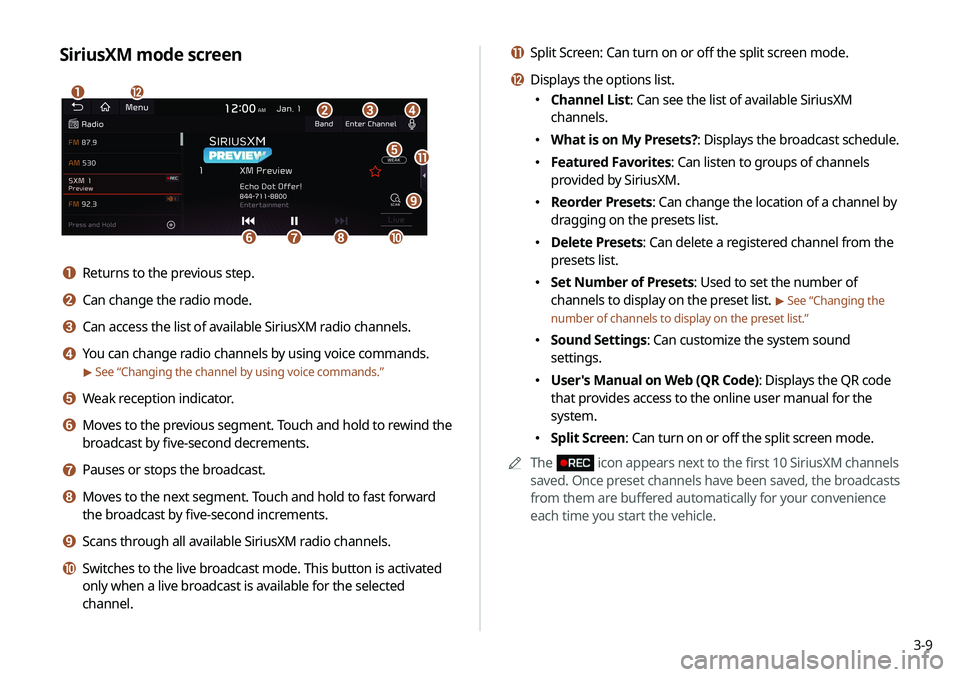
3-9
k Split Screen: Can turn on or off the split screen mode.
l Displays the options list.
\225Channel List: Can see the list of available SiriusXM
channels.
\225What is on My Presets?: Displays the broadcast schedule.
\225Featured Favorites: Can listen to groups of channels
provided by SiriusXM.
\225Reorder Presets: Can change the location of a channel by
dragging on the presets list.
\225Delete Presets: Can delete a registered channel from the
presets list.
\225Set Number of Presets: Used to set the number of
channels to display on the preset list.
> See “Changing the
number of channels to display on the preset list.”
\225 Sound Settings: Can customize the system sound
settings.
\225User's Manual on Web (QR Code): Displays the QR code
that provides access to the online user manual for the
system.
\225Split Screen: Can turn on or off the split screen mode.
0000
A
The
icon appears next to the first 10 SiriusXM channels
saved. Once preset channels have been saved, the broadcasts
from them are buffered automatically for your convenience
each time you start the vehicle.
SiriusXM mode screen
\037
\036
\035
\034\033
\032\031
\030
\027
\026
\025
\024
a Returns to the previous step.
b Can change the radio mode.
c Can access the list of available SiriusXM radio channels.
d You can change radio channels by using voice commands.
> See “Changing the channel by using voice commands.”
e Weak reception indicator.
f Moves to the previous segment. Touch and hold to rewind the
broadcast by five-second decrements.
g Pauses or stops the broadcast.
h Moves to the next segment. Touch and hold to fast forward
the broadcast by five-second increments.
i Scans through all available SiriusXM radio channels.
j Switches to the live broadcast mode. This button is activated
only when a live broadcast is available for the selected
channel.
Page 57 of 211
3-11
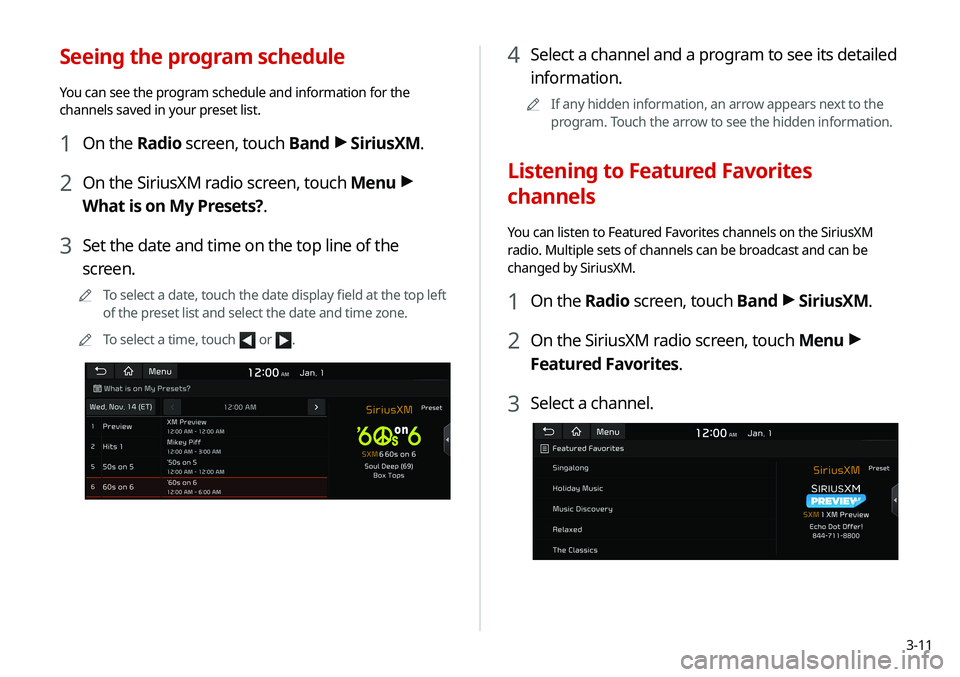
Seeing the program schedule
You can see the program schedule and information for the
channels saved in your preset list.
1 On the Radio screen, touch Band >
SiriusXM.
2 On the SiriusXM radio screen, touch Menu >
What is on My Presets?.
3 Set the date and time on the top line of the
screen.
0000
A
To select a date, touch the date display field at the top left
of the preset list and select the date and time zone.
0000
A
To select a time, touch
or .
4 Select a channel and a program to see its detailed
information.
0000
A
If any hidden information, an arrow appears next to the
program. Touch the arrow to see the hidden information.
Listening to Featured Favorites
channels
You can listen to Featured Favorites channels on the SiriusXM
radio. Multiple sets of channels can be broadcast and can be
changed by SiriusXM.
1 On the Radio screen, touch Band >
SiriusXM.
2 On the SiriusXM radio screen, touch Menu >
Featured Favorites.
3 Select a channel.
Page 61 of 211
4-3
\335Warning
Driving while distracted can result in a loss of vehicle control that
may lead to an accident, severe bodily injury, or death. The driver's
primary responsibility is the safe and legal operation of the
vehicle, and the use of any vehicle systems, including the touch
screen and steering wheel controls, which take the driver's eyes,
attention, and focus away from the safe operation of the vehicle,
or which are not permissible by law, should never be used during
the operation of the vehicle.
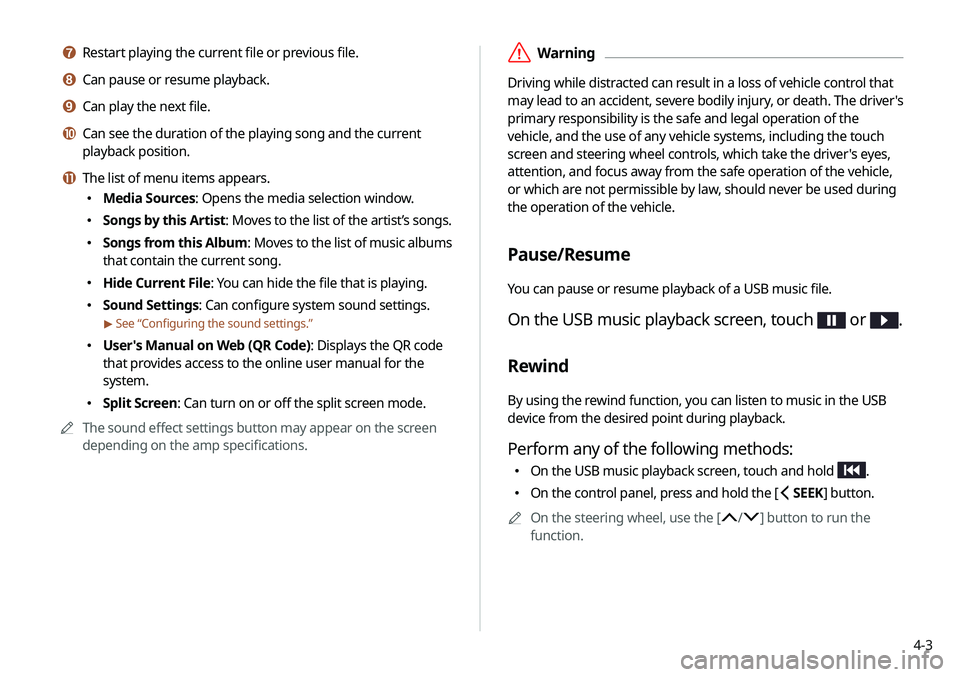
Pause/Resume
You can pause or resume playback of a USB music file.
On the USB music playback screen, touch or .
Rewind
By using the rewind function, you can listen to music in the USB
device from the desired point during playback.
Perform any of the following methods:
\225On the USB music playback screen, touch and hold .
\225On the control panel, press and hold the [ SEEK] button.
0000
A
On the steering wheel, use the [
/] button to run the
function.
g Restart playing the current file or previous file.
h Can pause or resume playback.
i Can play the next file.
j Can see the duration of the playing song and the current
playback position.
k The list of menu items appears.
\225 Media Sources: Opens the media selection window.
\225Songs by this Artist: Moves to the list of the artist’s songs.
\225Songs from this Album : Moves to the list of music albums
that contain the current song.
\225 Hide Current File: You can hide the file that is playing.
\225Sound Settings: Can configure system sound settings.
> See “Configuring the sound settings.”
\225User's Manual on Web (QR Code): Displays the QR code
that provides access to the online user manual for the
system.
\225Split Screen: Can turn on or off the split screen mode.
0000
A
The sound effect settings button may appear on the screen
depending on the amp specifications.
Page 64 of 211
4-6
\334Caution
\225 Be sure to start the vehicle before connecting a USB device.
When you start the vehicle after connecting a USB device, the
USB device may get damaged.
\225 Be careful of static electricity when connecting or removing a
USB device. It may cause a system failure.
\225 Be careful and avoid your body or any object coming into
contact with the USB port on the vehicle. It may cause an
accident or system failures.
\225 Do not repeatedly connect and remove the USB connector
within a short time. It may cause device errors or system
failures.
\225 Do not use a USB device for purposes other than playback.
When you connect a USB for charging or heating, the system
performance may decrease or it may cause system failures.
USB music list screen
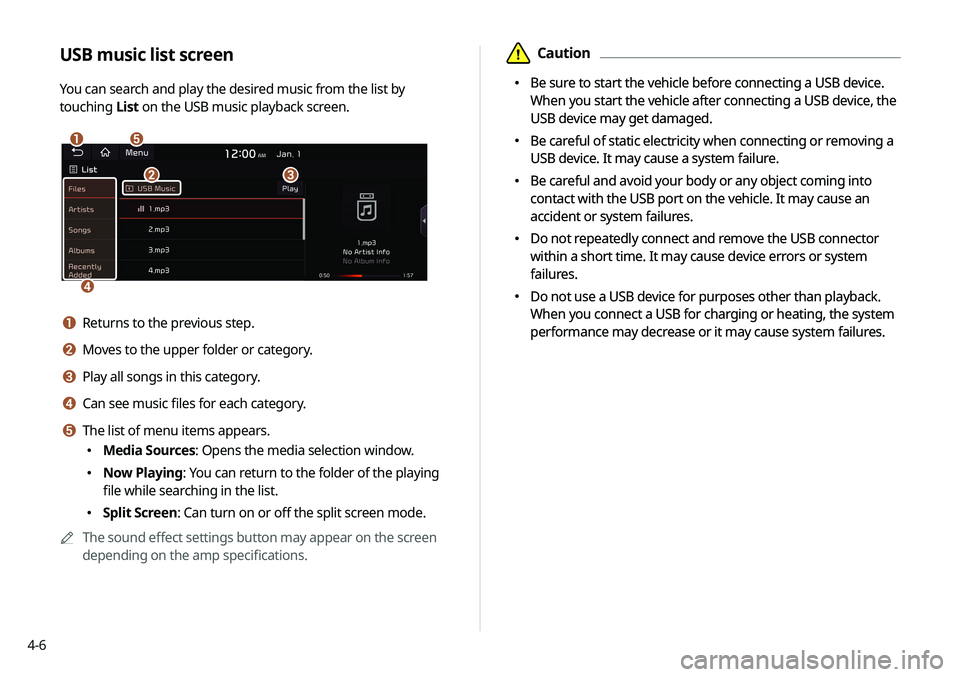
You can search and play the desired music from the list by
touching List on the USB music playback screen.
\037\036
\035
\034\033
a Returns to the previous step.
b Moves to the upper folder or category.
c Play all songs in this category.
d Can see music files for each category.
e The list of menu items appears.
\225
Media Sources: Opens the media selection window.
\225Now Playing: You can return to the folder of the playing
file while searching in the list.
\225Split Screen: Can turn on or off the split screen mode.
0000
A
The sound effect settings button may appear on the screen
depending on the amp specifications.
\334Caution
\225 Be sure to start the vehicle before connecting a USB device.
When you start the vehicle after connecting a USB device, the
USB device may get damaged.
\225 Be careful of static electricity when connecting or removing a
USB device. It may cause a system failure.
\225 Be careful and avoid your body or any object coming into
contact with the USB port on the vehicle. It may cause an
accident or system failures.
\225 Do not repeatedly connect and remove the USB connector
within a short time. It may cause device errors or system
failures.
\225 Do not use a USB device for purposes other than playback.
When you connect a USB for charging or heating, the system
performance may decrease or it may cause system failures.
Page 66 of 211
4-8
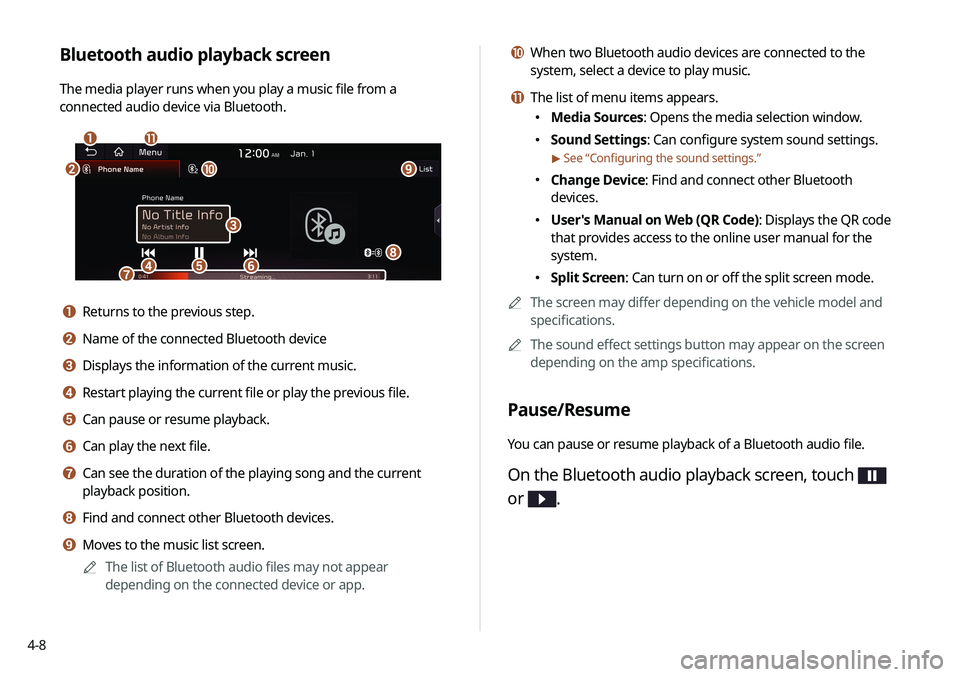
j When two Bluetooth audio devices are connected to the
system, select a device to play music.
k The list of menu items appears.
\225Media Sources: Opens the media selection window.
\225Sound Settings: Can configure system sound settings.
> See “Configuring the sound settings.”
\225Change Device: Find and connect other Bluetooth
devices.
\225User's Manual on Web (QR Code): Displays the QR code
that provides access to the online user manual for the
system.
\225Split Screen: Can turn on or off the split screen mode.
0000
A
The screen may differ depending on the vehicle model and
specifications.
0000
A
The sound effect settings button may appear on the screen
depending on the amp specifications.
Pause/Resume
You can pause or resume playback of a Bluetooth audio file.
On the Bluetooth audio playback screen, touch
or
.
Bluetooth audio playback screen
The media player runs when you play a music file from a
connected audio device via Bluetooth.
\037\036
\035
\034\033\032\031
\030
\027
\026\025
a Returns to the previous step.
b Name of the connected Bluetooth device
c Displays the information of the current music.
d Restart playing the current file or play the previous file.
e Can pause or resume playback.
f Can play the next file.
g Can see the duration of the playing song and the current
playback position.
h Find and connect other Bluetooth devices.
i Moves to the music list screen.
0000
A
The list of Bluetooth audio files may not appear
depending on the connected device or app.