set KIA SOUL 2021 Navigation System Quick Reference Guide
[x] Cancel search | Manufacturer: KIA, Model Year: 2021, Model line: SOUL, Model: KIA SOUL 2021Pages: 211, PDF Size: 6.67 MB
Page 70 of 211
5-2
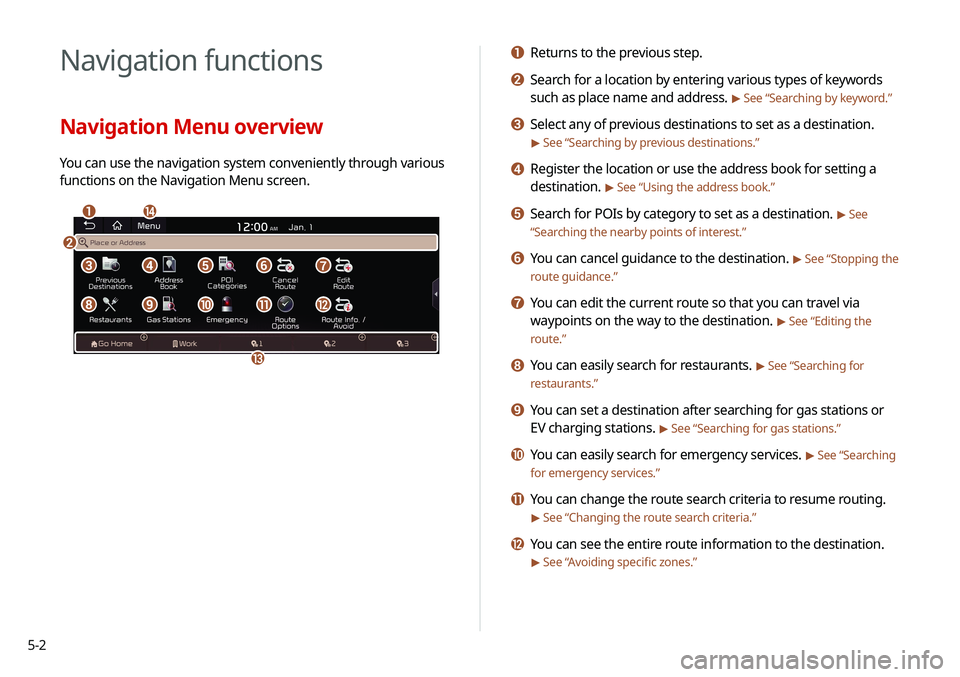
Navigation functions
Navigation Menu overview
You can use the navigation system conveniently through various
functions on the Navigation Menu screen.
\037\036
\035
\034
\033
\032\031\030\027
\026\025\024\023\022
a Returns to the previous step.
b Search for a location by entering various types of keywords
such as place name and address.
> See “Searching by keyword.”
c Select any of previous destinations to set as a destination.
> See “Searching by previous destinations.”
d Register the location or use the address book for setting a
destination.
> See “Using the address book.”
e Search for POIs by category to set as a destination. > See
“ Searching the nearby points of interest.”
f You can cancel guidance to the destination. > See “Stopping the
route guidance.”
g You can edit the current route so that you can travel via
waypoints on the way to the destination.
> See “Editing the
route.”
h You can easily search for restaurants. > See “Searching for
restaurants.”
i You can set a destination after searching for gas stations or
EV charging stations.
> See “Searching for gas stations.”
j You can easily search for emergency services. > See “Searching
for emergency services.”
k You can change the route search criteria to resume routing.
> See “Changing the route search criteria.”
l You can see the entire route information to the destination.
> See “ Avoiding specific zones.”
Page 76 of 211
5-8
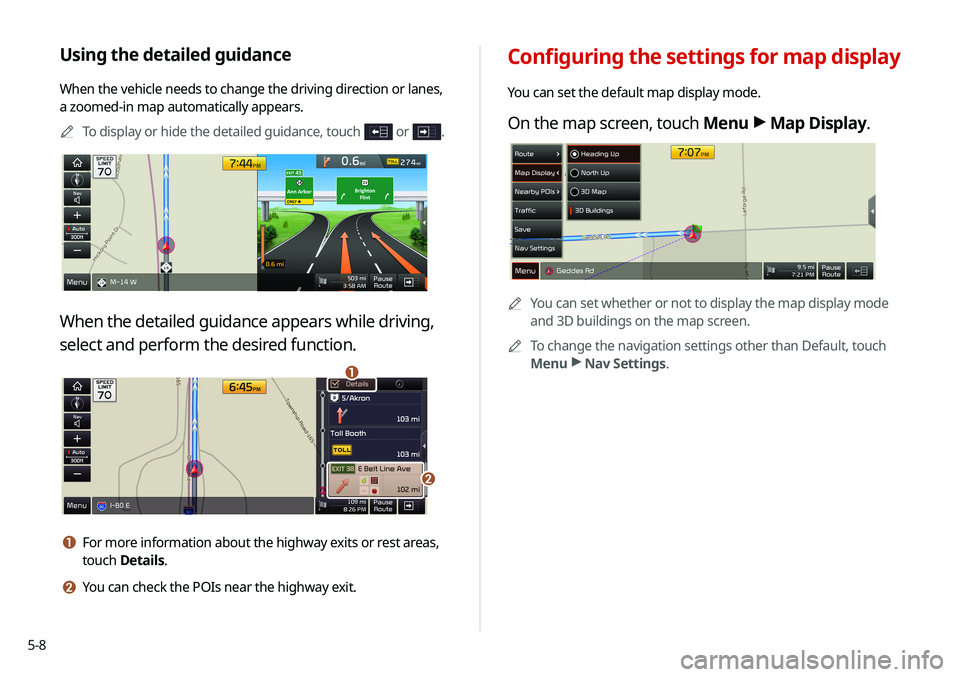
Configuring the settings for map display
You can set the default map display mode.
On the map screen, touch Menu >
Map Display.
0000
A
You can set whether or not to display the map display mode
and 3D buildings on the map screen.
0000
A
To change the navigation settings other than Default, touch
Menu >
Nav Settings.
Using the detailed guidance
When the vehicle needs to change the driving direction or lanes,
a zoomed-in map automatically appears.
0000
A
To display or hide the detailed guidance, touch
or .
When the detailed guidance appears while driving,
select and perform the desired function.
\037
\036
a For more information about the highway exits or rest areas,
touch Details.
b You can check the POIs near the highway exit.
Page 77 of 211
5-9
Stopping the route guidance
To stop route guidance, touch Pause Route.
The destination displayed at the bottom of the screen disappears
and the Pause Route is replaced by Resume Route.0000
A
To resume guidance to the previous destination, touch
Resume Route.
0000
A
To cancel guidance to the destination, touch and hold Pause
Route , Resume Route , or Navigation Menu >
Cancel Route
on the All Menus screen.
Seeing traffic Information
You can see real-time traffic information such as ongoing road
works or accidents.
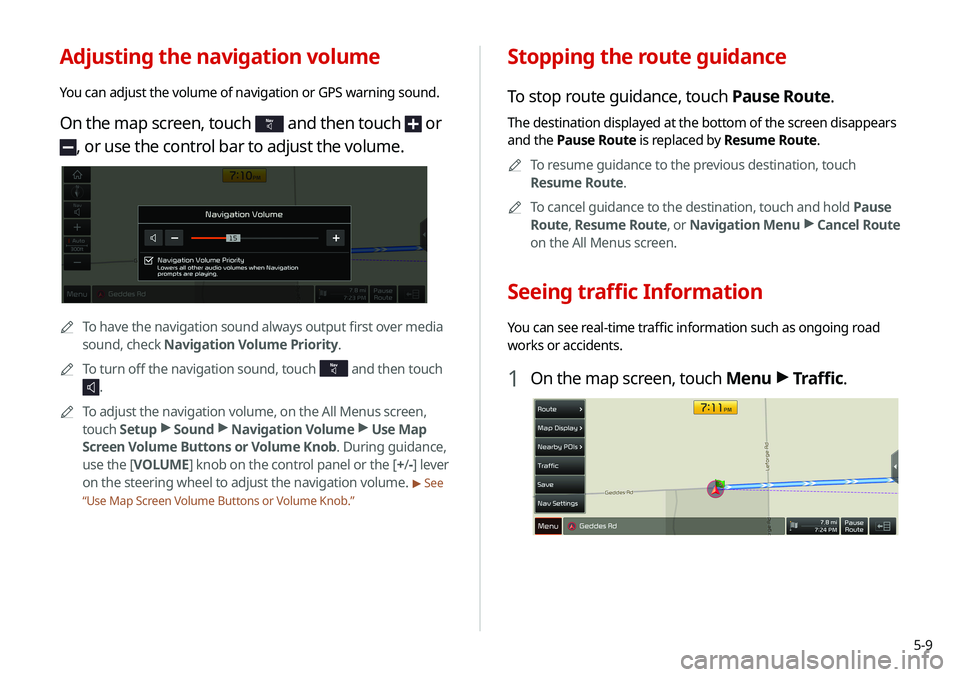
1 On the map screen, touch Menu >
Traffic.
Adjusting the navigation volume
You can adjust the volume of navigation or GPS warning sound.
On the map screen, touch and then touch or
, or use the control bar to adjust the volume.
0000
A
To have the navigation sound always output first over media
sound, check Navigation Volume Priority.
0000
A
To turn off the navigation sound, touch
and then touch
.
0000
A
To adjust the navigation volume, on the All Menus screen,
touch Setup >
Sound >
Navigation Volume >
Use Map
Screen Volume Buttons or Volume Knob. During guidance,
use the [ VOLUME] knob on the control panel or the [+ /-] lever
on the steering wheel to adjust the navigation volume.
> See
“ Use Map Screen Volume Buttons or Volume Knob.”
Page 78 of 211
5-10
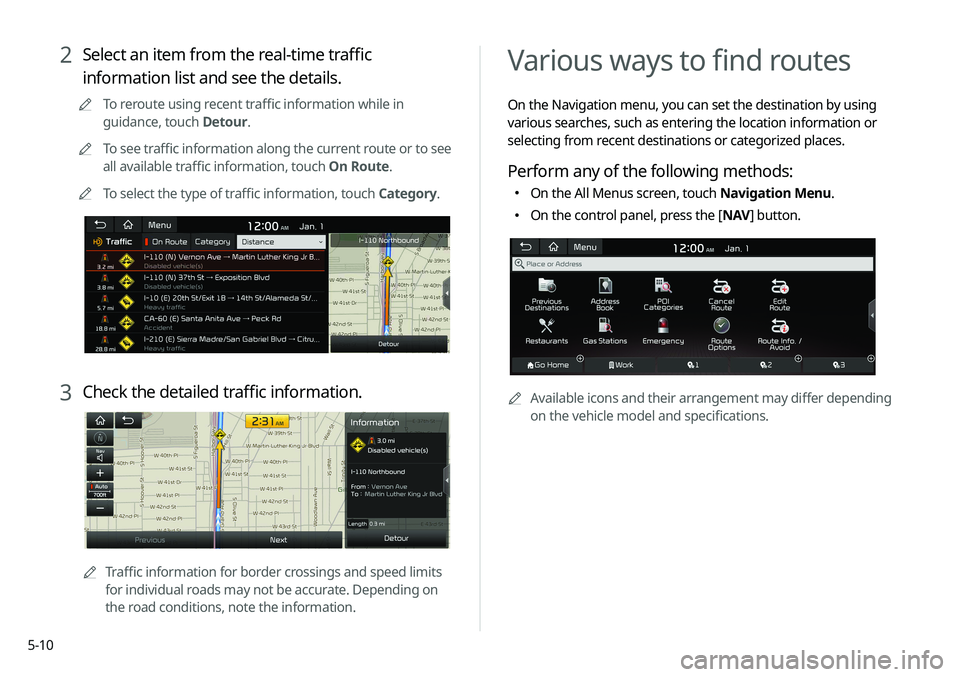
Various ways to find routes
On the Navigation menu, you can set the destination by using
various searches, such as entering the location information or
selecting from recent destinations or categorized places.
Perform any of the following methods:
\225On the All Menus screen, touch Navigation Menu.
\225On the control panel, press the [ NAV] button.
0000
A
Available icons and their arrangement may differ depending
on the vehicle model and specifications.
2 Select an item from the real-time traffic
information list and see the details.
0000
A
To reroute using recent traffic information while in
guidance, touch Detour.
0000
A
To see traffic information along the current route or to see
all available traffic information, touch On Route.
0000
A
To select the type of traffic information, touch Category.
3 Check the detailed traffic information.
0000
A
Traffic information for border crossings and speed limits
for individual roads may not be accurate. Depending on
the road conditions, note the information.
Page 80 of 211
5-12
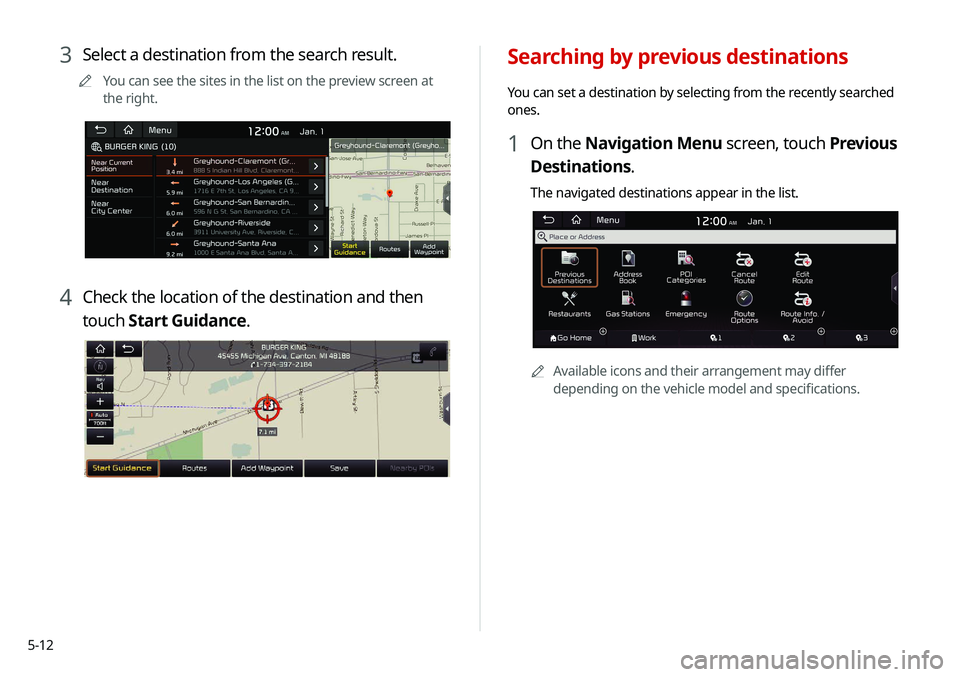
Searching by previous destinations
You can set a destination by selecting from the recently searched
ones.
1 On the Navigation Menu screen, touch Previous
Destinations.
The navigated destinations appear in the list.
0000AAvailable icons and their arrangement may differ
depending on the vehicle model and specifications.
3 Select a destination from the search result.
0000
A
You can see the sites in the list on the preview screen at
the right.
4 Check the location of the destination and then
touch Start Guidance.
Page 81 of 211
5-13
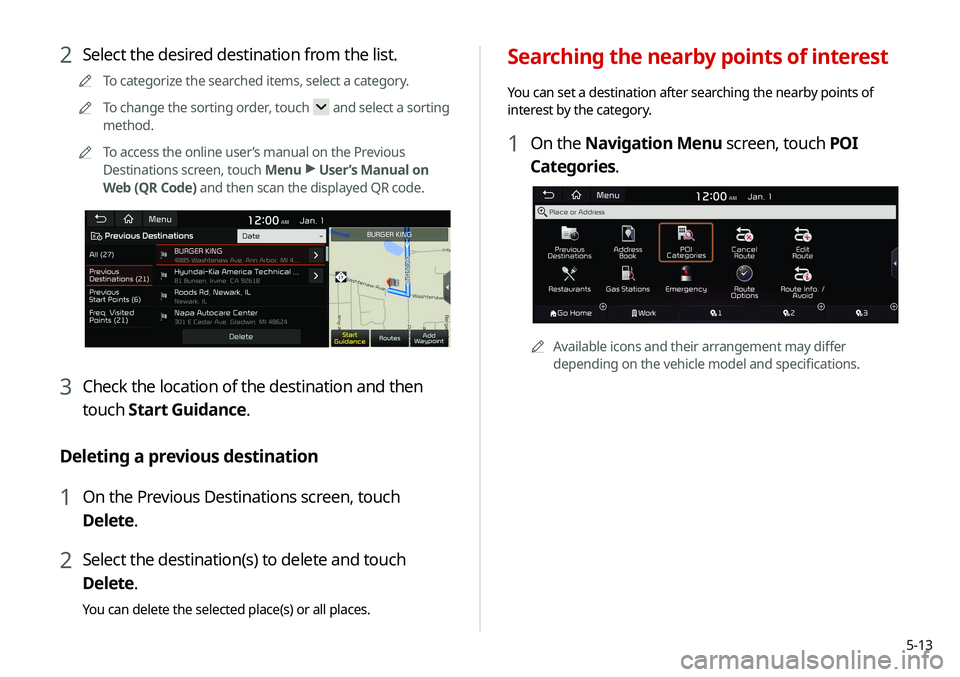
Searching the nearby points of interest
You can set a destination after searching the nearby points of
interest by the category.
1 On the Navigation Menu screen, touch POI
Categories.
0000AAvailable icons and their arrangement may differ
depending on the vehicle model and specifications.
2 Select the desired destination from the list.
0000
A
To categorize the searched items, select a category.
0000
A
To change the sorting order, touch
and select a sorting
method.
0000
A
To access the online user’s manual on the Previous
Destinations screen, touch Menu >
User’s Manual on
Web (QR Code) and then scan the displayed QR code.
3 Check the location of the destination and then
touch Start Guidance.
Deleting a previous destination
1 On the Previous Destinations screen, touch
Delete.
2 Select the destination(s) to delete and touch
Delete.
You can delete the selected place(s) or all places.
Page 83 of 211
5-15
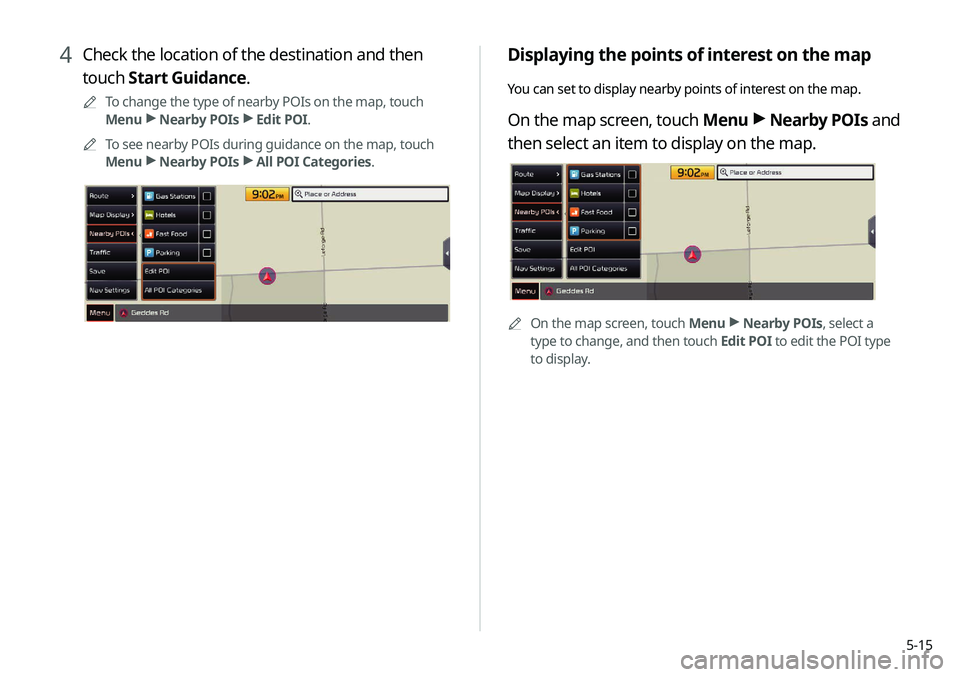
Displaying the points of interest on the map
You can set to display nearby points of interest on the map.
On the map screen, touch Menu >
Nearby POIs and
then select an item to display on the map.
0000A On the map screen, touch Menu >
Nearby POIs, select a
type to change, and then touch Edit POI to edit the POI type
to display.
4 Check the location of the destination and then
touch Start Guidance.
0000
A
To change the type of nearby POIs on the map, touch
Menu >
Nearby POIs >
Edit POI.
0000
A
To see nearby POIs during guidance on the map, touch
Menu >
Nearby POIs >
All POI Categories.
Page 85 of 211
5-17
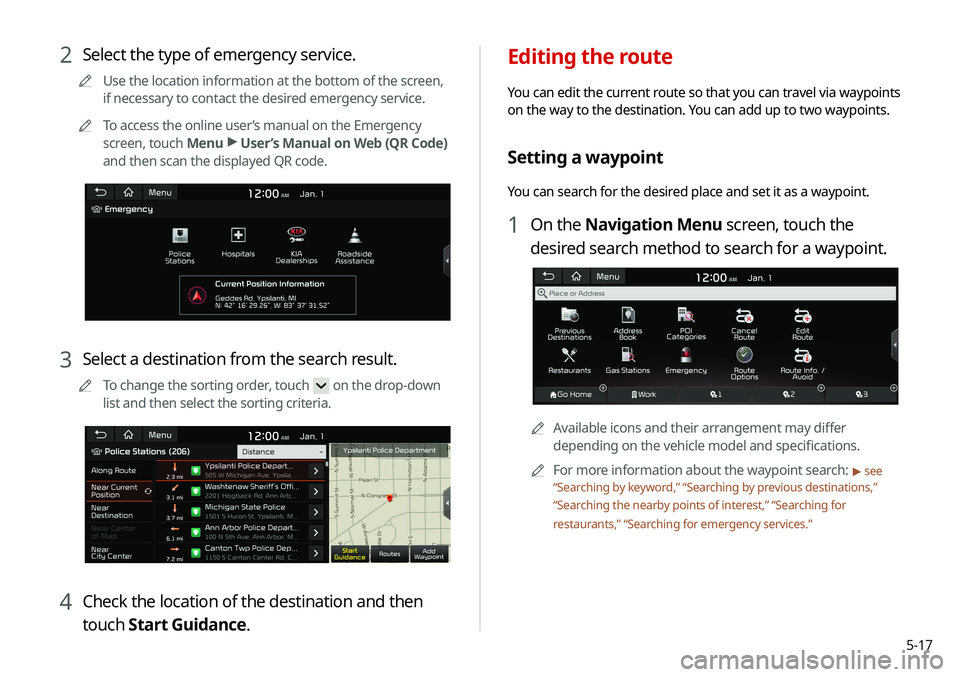
Editing the route
You can edit the current route so that you can travel via waypoints
on the way to the destination. You can add up to two waypoints.
Setting a waypoint
You can search for the desired place and set it as a waypoint.
1 On the Navigation Menu screen, touch the
desired search method to search for a waypoint.
0000
A
Available icons and their arrangement may differ
depending on the vehicle model and specifications.
0000
A
For more information about the waypoint search:
> see
“ Searching by keyword,” “Searching by previous destinations,”
“ Searching the nearby points of interest,” “Searching for
restaurants,” “Searching for emergency services.”
2 Select the type of emergency service.
0000
A
Use the location information at the bottom of the screen,
if necessary to contact the desired emergency service.
0000
A
To access the online user’s manual on the Emergency
screen, touch Menu >
User’s Manual on Web (QR Code)
and then scan the displayed QR code.
3 Select a destination from the search result.
0000
A
To change the sorting order, touch on the drop-down
list and then select the sorting criteria.
4 Check the location of the destination and then
touch Start Guidance.
Page 88 of 211
5-20
Using the address book
After registering the current location or frequently visited places,
you can easily set any of them as a destination.
Registering a searched place as a
favorite place
You can search and register the desired place.
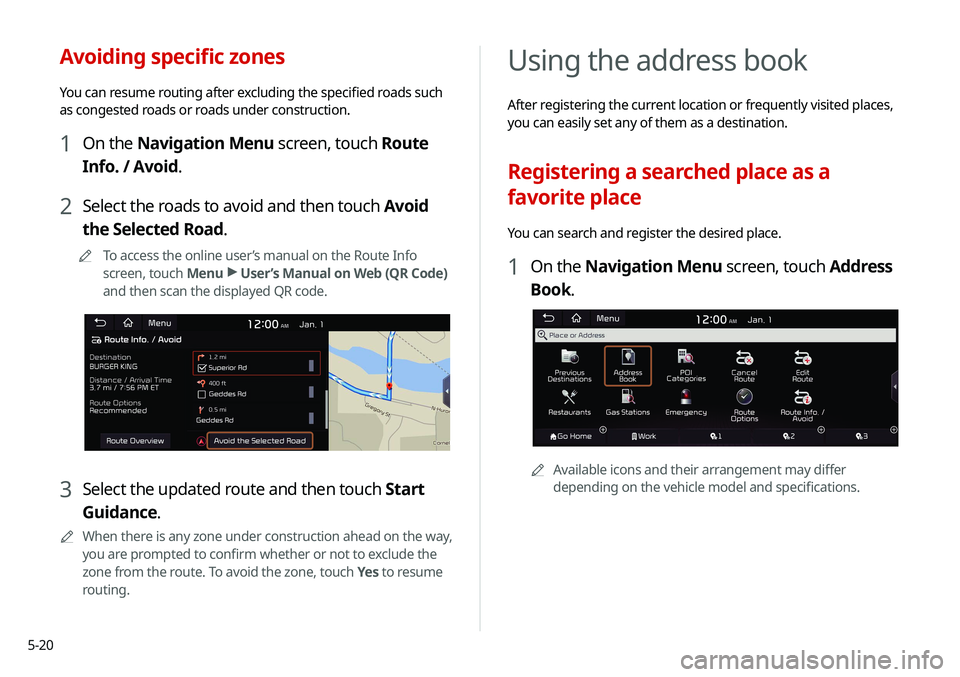
1 On the Navigation Menu screen, touch Address
Book.
0000AAvailable icons and their arrangement may differ
depending on the vehicle model and specifications.
Avoiding specific zones
You can resume routing after excluding the specified roads such
as congested roads or roads under construction.
1 On the Navigation Menu screen, touch Route
Info. / Avoid.
2 Select the roads to avoid and then touch Avoid
the Selected Road.
0000
A
To access the online user’s manual on the Route Info
screen, touch Menu >
User’s Manual on Web (QR Code)
and then scan the displayed QR code.
3 Select the updated route and then touch Start
Guidance.
0000
A
When there is any zone under construction ahead on the way,
you are prompted to confirm whether or not to exclude the
zone from the route. To avoid the zone, touch Yes to resume
routing.
Page 91 of 211

5-23
Registering a frequently visited place as
a destination
You can set your home, office, or other frequently visited places
as a destination directly from your favorites list once you add
them.
At the bottom of the Navigation Menu screen, touch
a desired shortcut button.
0000
A
If any destination, to change it, touch Yes on the pop-up
window.
0000A Available icons and their arrangement may differ depending
on the vehicle model and specifications.
Setting a registered favorite place as a
destination
You can set any in the address book of the navigation system as a
destination.
1 On the Navigation Menu screen, touch Address
Book.
2 Select the desired group.
0000
A
To select one of the sites received from the UVO website
or app, touch My POIs by UVO.
> See “Using the received
location information.”
3 Select the place to set as a destination.
4 Check the location of the destination and then
touch Start Guidance.
0000
A
If any destination, to change it, touch Yes on the pop-up
window.