driver LINCOLN NAVIGATOR 2023 Workshop Manual
[x] Cancel search | Manufacturer: LINCOLN, Model Year: 2023, Model line: NAVIGATOR, Model: LINCOLN NAVIGATOR 2023Pages: 660, PDF Size: 14.04 MB
Page 278 of 660
Switching Adaptive Cruise Control Off
Press the button when the systemis in standby mode or switch theignition off.
Note:When you switch the system off, theset speed clears.
ADAPTIVE CRUISE CONTROL
AUTOMATIC CANCELLATION
The system may cancel if:
•The tires lose traction.
•You apply the parking brake.
The system may cancel and set the parkingbrake if:
•You unbuckle the seatbelt and open thedriver door after adaptive cruise controlstops your vehicle.
•Adaptive cruise control holds yourvehicle at a stop continuously for morethan three minutes.
The system may deactivate or preventactivating when requested if:
•The vehicle has a blocked sensor.
•The brake temperature is too high.
•There is a failure in the system or arelated system.
SETTING THE ADAPTIVE CRUISE
CONTROL SPEED
Drive to the speed you prefer.
Press either button to set thecurrent speed.
Take your foot off the accelerator pedal.
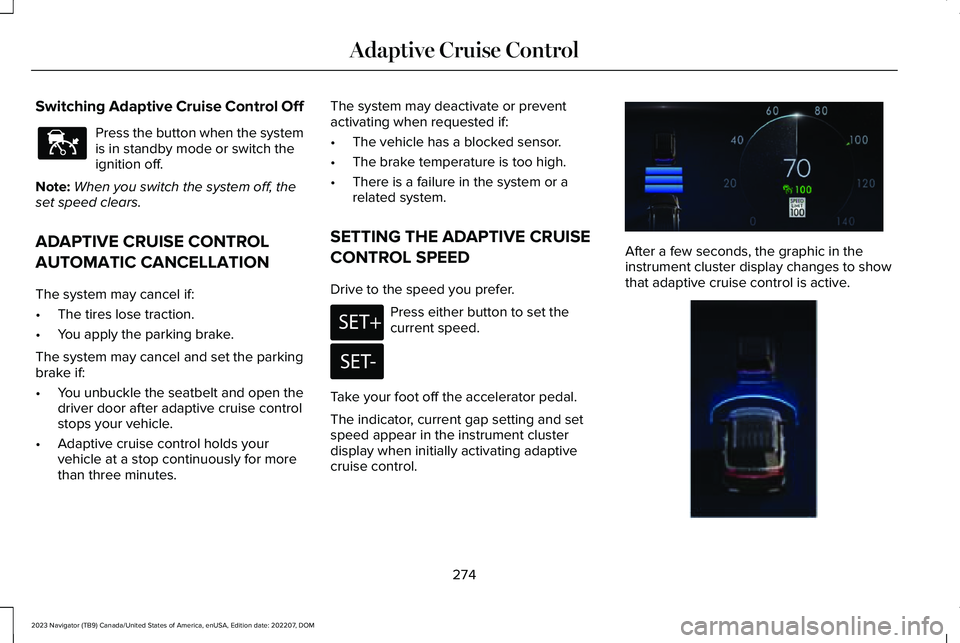
The indicator, current gap setting and setspeed appear in the instrument clusterdisplay when initially activating adaptivecruise control.
After a few seconds, the graphic in theinstrument cluster display changes to showthat adaptive cruise control is active.
274
2023 Navigator (TB9) Canada/United States of America, enUSA, Edition date: 202207, DOMAdaptive Cruise ControlE144529 E246884 E246885 E357760 E373414
Page 283 of 660
1.Press Features on the touchscreen.
2.Press Driver Assistance.
3.Press Cruise Control.
4.Press Normal Cruise Control.
The cruise control indicatorreplaces the adaptive cruisecontrol indicator if you selectnormal cruise control. The gap setting doesnot display, and the system does not respondto lead vehicles. Automatic braking remainsactive to maintain set speed. The systemremembers the last setting when you startyour vehicle.
LANE CENTERING
HOW DOES LANE CENTERING WORK
Adaptive cruise control with lane centeringuses the vehicle's front radar sensor andfront windshield camera sensor, togetherwith the steering sensor to operate.
Using these sensors, the system appliescontinuous steering assistance towardsdriving in the middle of the lane you chooseon highway roads.
Note:The gap setting for adaptive cruisecontrol with lane centering, operates in thesame way as normal adaptive cruise control.
LANE CENTERING PRECAUTIONS
WARNING: Do not use the systemwhen towing a trailer. Failure to follow thisinstruction could result in the loss ofcontrol of your vehicle, personal injury ordeath.
WARNING: Do not use the system ifany changes or modifications to thesteering wheel have been made. Anychanges or modifications to the steeringwheel could affect the functionality orperformance of the system. Failure tofollow this instruction could result in theloss of control of your vehicle, personalinjury or death.
Adaptive cruise control precautions apply tolane centering unless stated otherwise orcontradicted by a lane centering precaution.See Adaptive Cruise Control Precautions(page 270).
LANE CENTERING REQUIREMENTS
You must keep your hands on the steeringwheel at all times.
Lane centering only activates when all of thefollowing occur:
•Adaptive cruise control with lanecentering is enabled in your informationand entertainment screen. See Switchingthe Lane Keeping System On and Off(page 301).
•You have adaptive cruise control withstop and go enabled and set.
•The steering sensor detects your handson the steering wheel.
•The system detects both lane markingswhen driving on a straight road.
•Your vehicle is initially centered in thelane between two visible line markings.
279
2023 Navigator (TB9) Canada/United States of America, enUSA, Edition date: 202207, DOMAdaptive Cruise ControlE332905
Page 284 of 660
Note:If the system does not detect validlane line markings, the system will remain instandby until valid line markings areavailable.
LANE CENTERING LIMITATIONS
Adaptive cruise control limitations apply tolane centering unless stated otherwise orcontradicted by a lane centering limitation.See Adaptive Cruise Control Limitations(page 271).
Lane centering may not correctly operate inany of the following conditions:
•The lane width is too narrow or wide.
•The curve in the road is too small.
•The system does not detect the minimumrequired lane markings or when lanesmerge or split.
•When the required steering effort tomaintain lane center exceeds the lanecentering system limit.
•When driving in areas that are underconstruction or when road work is inprogress.
•If the front windshield camera and/or thefront radar are blocked.
•When using a spare tire.
•Inclement weather conditions including,but not limited to, high wind, heavy rain,and fog.
•Driving into direct sunlight.
•When modification to the steering systemhas been made, including alterations tothe steering wheel.
•When towing a trailer.
See Lane Centering Precautions (page 279).
Note:The system steering assistance islimited and may not have sufficient effort forall driving situations and/or conditions, suchas driving through tight curves or drivingthrough curves at high speeds.
Note:In exceptional conditions, the systemmay deviate from the lane center.
SWITCHING LANE CENTERING ONAND OFF
Keep your hands on the steering wheel atall times.
The controls are on the steering wheel.
Press the button.
The indicator appears in the instrumentcluster display. When the system is on, thecolor of the indicator changes to indicate thesystem status.
You can override the system at any time bysteering your vehicle.
Note:The correct requirements must be metbefore you can switch the system on. SeeLane Centering Requirements (page 279).
Enabling and Disabling Lane Centering
1.Press Features on the touchscreen.
2.Press Driver Assistance.
3.Press Cruise Control.
4.Press Lane Centering Assist.
LANE CENTERING ALERTS
You must keep your hands on the steeringwheel at all times.
280
2023 Navigator (TB9) Canada/United States of America, enUSA, Edition date: 202207, DOMAdaptive Cruise ControlE308131
Page 287 of 660
The system may not detect and read speedlimit signs with conditional information, forexample, when a sign is flashing, duringspecific time ranges, or when children arepresent.
Note:The system does not set the vehiclespeed to speed limits shown with asupplementary traffic sign.
Under certain conditions, the system maynot adjust the vehicle speed until after yourvehicle passes the speed limit.
SWITCHING INTELLIGENT MODE ONAND OFF
1.Press Features on the touchscreen.
2.Press Driver Assistance.
3.Press Cruise Control.
4.Press Speed Sign Recognition.
ADJUSTING THE SET SPEEDTOLERANCE
1.Press Features on the touchscreen.
2.Press Driver Assistance.
3.Press Cruise Control.
4.Press Adaptive Cruise Control.
5.Press Speed Sign Recognition.
6.Press Tolerance.
7.Use + and - to set the tolerance.
Note:You cannot set the tolerance morethan 20 mph (30 km/h) above or below therecognized speed.
INTELLIGENT ADAPTIVE CRUISECONTROL ALERTS
If you increase the set speed beyond thespeed limit or speed limit plus a positivetolerance value, the set speed indicatorflashes.
The warning does not occur if:
•You override the set speed using theaccelerator pedal.
•The vehicle speed exceeds the set speeddue to being on a downhill slope.
INTELLIGENT ADAPTIVE CRUISECONTROL INDICATORS
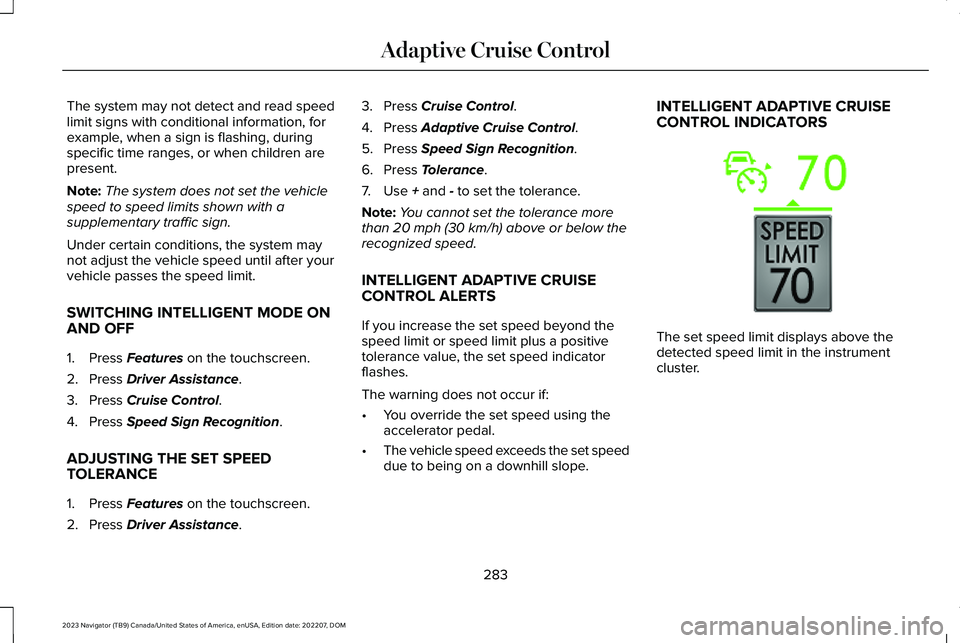
The set speed limit displays above thedetected speed limit in the instrumentcluster.
283
2023 Navigator (TB9) Canada/United States of America, enUSA, Edition date: 202207, DOMAdaptive Cruise ControlE353883
Page 289 of 660
ADAPTIVE CRUISE CONTROL –INFORMATION MESSAGES - VEHICLESWITH: STOP AND GO
Note:Depending on your vehicle optionsand instrument cluster type, not all messagesdisplay or are available.
Note:The system could abbreviate orshorten certain messages depending uponwhich cluster type you have.
ActionMessage
A malfunction is preventing the adaptive cruise from engaging.Adaptive Cruise Malfunction
Front Sensor Not AlignedContact an authorized dealer to have the radar checked for proper coverage and operation.
Conditions exist preventing the system from being available.Adaptive Cruise Not Available
You have a blocked radar because of poor radar visibility due to inclement weather or ice, mud,or water in front of the radar. You can typically clean the sensor to resolve this.Adaptive Cruise Not Available SensorBlocked See ManualDue to the nature of radar technology, it is possible to get a blockage warning with no actualblock. This happens, for example, when driving in sparse rural or desert environments. A falseblocked condition either self clears, or clears after you restart your vehicle.
You have selected normal cruise control. The system does not brake or react to traffic.Normal Cruise Active Adaptive Braking Off
Displays when the adaptive cruise control is going to cancel and you must take control.Adaptive Cruise - Driver Resume Control
Displays when the vehicle speed is too slow to activate the adaptive cruise control and there isno lead vehicle in range.Adaptive Cruise Speed Too Low toActivate
285
2023 Navigator (TB9) Canada/United States of America, enUSA, Edition date: 202207, DOMAdaptive Cruise Control
Page 290 of 660
WHAT IS ACTIVEGLIDE™
Lincoln ActiveGlide Driver-Assist Technology
ActiveGlide keeps your vehicle centered inthe lane and offers a hands-free drivingmode in certain situations when usingadaptive cruise control.
HOW DOES ACTIVEGLIDE™ WORK
ActiveGlide uses cameras to monitor yourvehicle position within a lane and appliessteering support to keep your vehiclecentered in the lane.
Using the cameras and location information,ActiveGlide allows you to remove your handsfrom the steering wheel and offers ahands-free driving mode in certain areas.
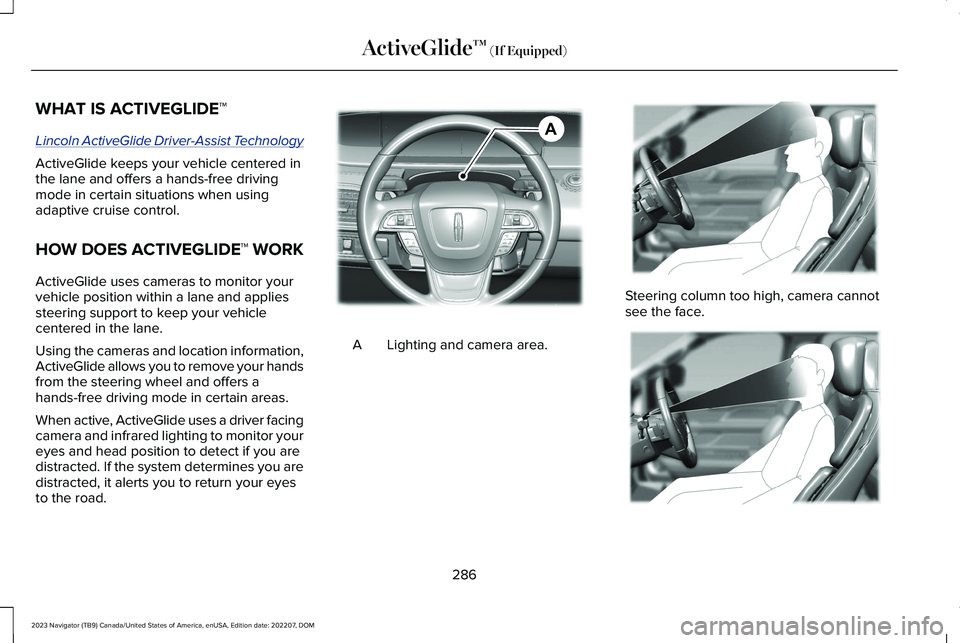
When active, ActiveGlide uses a driver facingcamera and infrared lighting to monitor youreyes and head position to detect if you aredistracted. If the system determines you aredistracted, it alerts you to return your eyesto the road.
Lighting and camera area.A
Steering column too high, camera cannotsee the face.
286
2023 Navigator (TB9) Canada/United States of America, enUSA, Edition date: 202207, DOMActiveGlide™ (If Equipped)AE351152 E381702 E381703
Page 291 of 660
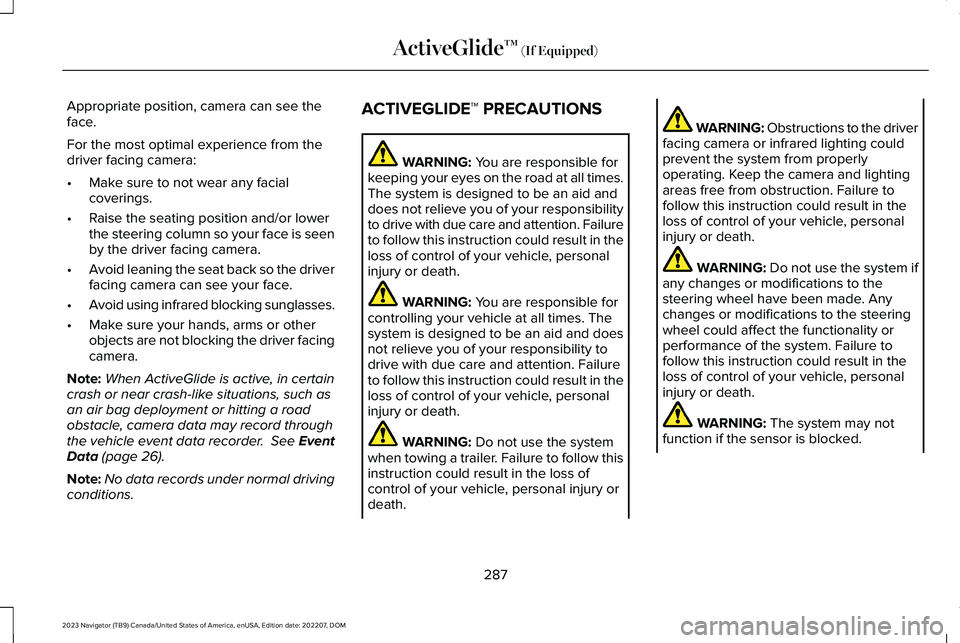
Appropriate position, camera can see theface.
For the most optimal experience from thedriver facing camera:
•Make sure to not wear any facialcoverings.
•Raise the seating position and/or lowerthe steering column so your face is seenby the driver facing camera.
•Avoid leaning the seat back so the driverfacing camera can see your face.
•Avoid using infrared blocking sunglasses.
•Make sure your hands, arms or otherobjects are not blocking the driver facingcamera.
Note:When ActiveGlide is active, in certaincrash or near crash-like situations, such asan air bag deployment or hitting a roadobstacle, camera data may record throughthe vehicle event data recorder. See EventData (page 26).
Note:No data records under normal drivingconditions.
ACTIVEGLIDE™ PRECAUTIONS
WARNING: You are responsible forkeeping your eyes on the road at all times.The system is designed to be an aid anddoes not relieve you of your responsibilityto drive with due care and attention. Failureto follow this instruction could result in theloss of control of your vehicle, personalinjury or death.
WARNING: You are responsible forcontrolling your vehicle at all times. Thesystem is designed to be an aid and doesnot relieve you of your responsibility todrive with due care and attention. Failureto follow this instruction could result in theloss of control of your vehicle, personalinjury or death.
WARNING: Do not use the systemwhen towing a trailer. Failure to follow thisinstruction could result in the loss ofcontrol of your vehicle, personal injury ordeath.
WARNING: Obstructions to the driverfacing camera or infrared lighting couldprevent the system from properlyoperating. Keep the camera and lightingareas free from obstruction. Failure tofollow this instruction could result in theloss of control of your vehicle, personalinjury or death.
WARNING: Do not use the system ifany changes or modifications to thesteering wheel have been made. Anychanges or modifications to the steeringwheel could affect the functionality orperformance of the system. Failure tofollow this instruction could result in theloss of control of your vehicle, personalinjury or death.
WARNING: The system may notfunction if the sensor is blocked.
287
2023 Navigator (TB9) Canada/United States of America, enUSA, Edition date: 202207, DOMActiveGlide™ (If Equipped)
Page 293 of 660
The driver-facing camera may not operatecorrectly due to any of the following:
•If you have a pre-existing eye condition,such as an eye misalignment, or havehad eye surgery.
•You cover your facial features by a mask,hat or other items.
•The lighting conditions changesignificantly.
•You are not in the field of view of thecamera.
•You position or tilt yourself to one side.
•You are moving around extensively.
•You are wearing glasses or sunglassesthat are too dark or reflective.
Note:The system has limited steeringassistance and may not be sufficient for alldriving situations.
Note:In exceptional conditions, such asinclement weather or direct sunlight, thesystem could deviate from the center line.
Note:The information provided by thenavigation map data could be inaccurate orout of date.
ACTIVEGLIDE™ SETTINGS
Enabling ActiveGlide
1.Press Features on the touchscreen.
2.Press Driver Assistance.
3.Press Cruise Control.
4.Press Adaptive Cruise Control.
5.Press Lane Centering with Hands-Free.
Enabling Activation Prompts
1.Press Features on the touchscreen.
2.Press Driver Assistance.
3.Press Cruise Control.
4.Press Adaptive Cruise Control.
5.Press Activation Prompts.
SWITCHING ACTIVEGLIDE™ ON
AND OFF
Switching ActiveGlide On
The controls are on the steering wheel.
Using Activation Prompts
When the prompt appears, pressthe button to switch ActiveGlideon.
The indicator appears in the instrumentcluster. When the system is on, the color ofthe indicator changes to indicate the systemstatus.
Note:You must enable activation promptsin the touchscreen.
Using Steering Wheel Controls
Using the adaptive cruise controland lateral support buttons, makesure both systems are active.ActiveGlide activates.
Switching ActiveGlide Off
Press either the lateral support oradaptive cruise control buttonwhen system is active or instandby mode.
ActiveGlide turns off through eachignition cycle.
289
2023 Navigator (TB9) Canada/United States of America, enUSA, Edition date: 202207, DOMActiveGlide™ (If Equipped)E144529 E308131 E144529 E308131 E144529
Page 296 of 660
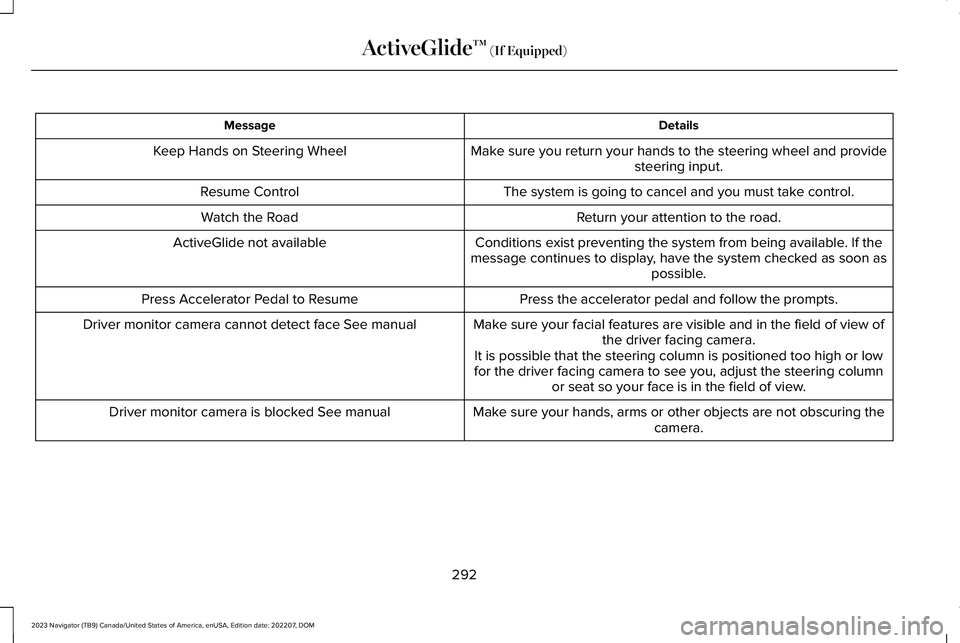
DetailsMessage
Make sure you return your hands to the steering wheel and providesteering input.Keep Hands on Steering Wheel
The system is going to cancel and you must take control.Resume Control
Return your attention to the road.Watch the Road
Conditions exist preventing the system from being available. If themessage continues to display, have the system checked as soon aspossible.
ActiveGlide not available
Press the accelerator pedal and follow the prompts.Press Accelerator Pedal to Resume
Make sure your facial features are visible and in the field of view ofthe driver facing camera.Driver monitor camera cannot detect face See manual
It is possible that the steering column is positioned too high or lowfor the driver facing camera to see you, adjust the steering columnor seat so your face is in the field of view.
Make sure your hands, arms or other objects are not obscuring thecamera.Driver monitor camera is blocked See manual
292
2023 Navigator (TB9) Canada/United States of America, enUSA, Edition date: 202207, DOMActiveGlide™ (If Equipped)
Page 297 of 660
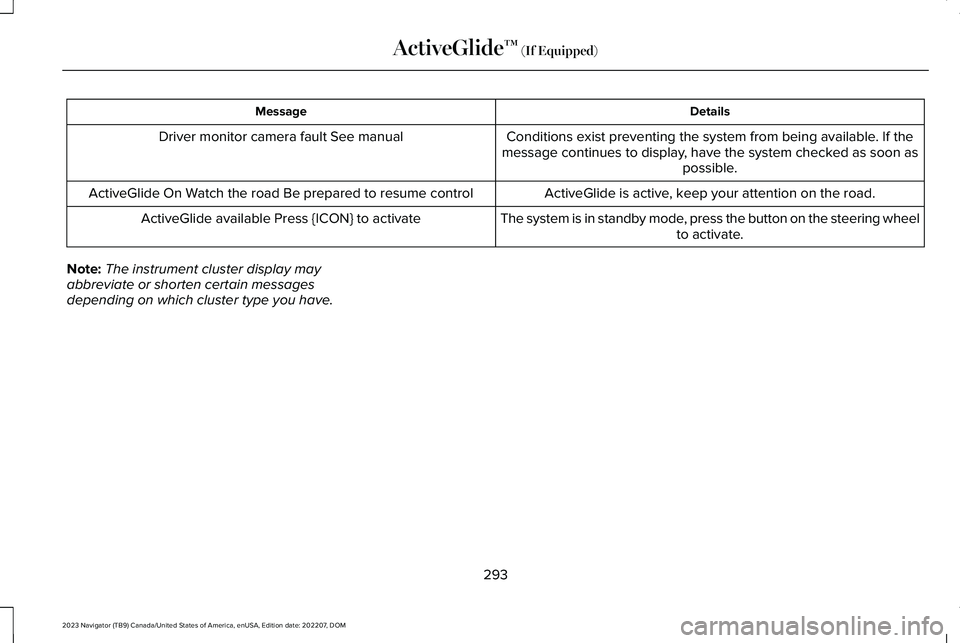
DetailsMessage
Conditions exist preventing the system from being available. If themessage continues to display, have the system checked as soon aspossible.
Driver monitor camera fault See manual
ActiveGlide is active, keep your attention on the road.ActiveGlide On Watch the road Be prepared to resume control
The system is in standby mode, press the button on the steering wheelto activate.ActiveGlide available Press {ICON} to activate
Note:The instrument cluster display mayabbreviate or shorten certain messagesdepending on which cluster type you have.
293
2023 Navigator (TB9) Canada/United States of America, enUSA, Edition date: 202207, DOMActiveGlide™ (If Equipped)