ECO mode MAZDA MODEL 3 4-DOOR 2017 Owner's Guide
[x] Cancel search | Manufacturer: MAZDA, Model Year: 2017, Model line: MODEL 3 4-DOOR, Model: MAZDA MODEL 3 4-DOOR 2017Pages: 612
Page 316 of 612
5–24
Interior Features
Audio System
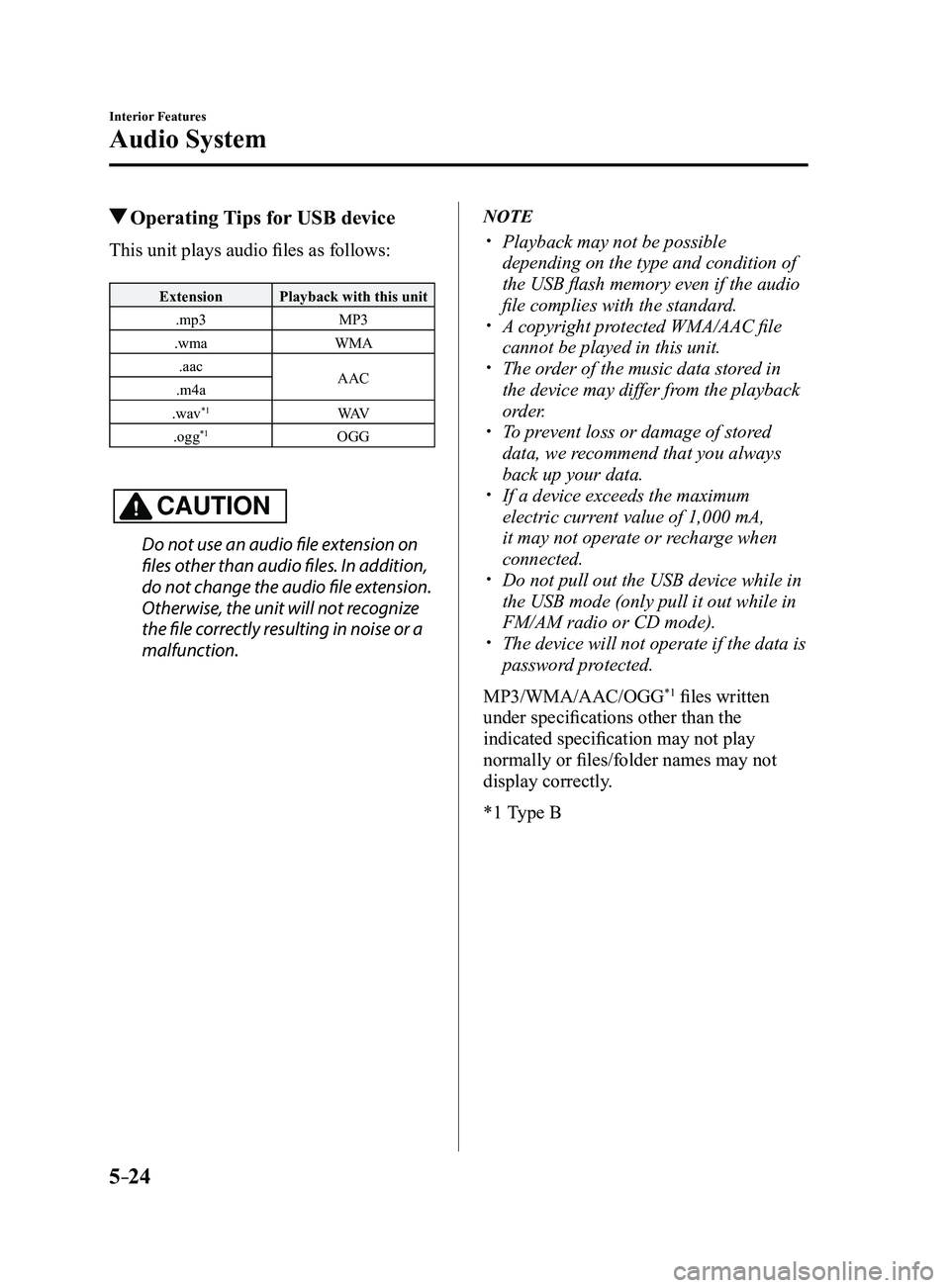
Operating Tips for USB device
This unit plays audio files as follows:
ExtensionPlayback with this unit
.mp3 MP3
.wma WMA
.aac AAC
.m4a
.wav
*1WAV
.ogg*1OGG
CAUTION
Do not use an audio file extension on
files other than audio files. In addition,
do not change the audio file extension.
Otherwise, the unit will not recognize
the file correctly resulting in noise or a
malfunction.
NOTE
Playback may not be possible
depending on the type and condition of
the USB flash memory even if the audio
file complies with the standard.
A copyright protected WMA/AAC file
cannot be played in this unit. The order of the music data stored in
the device may differ from the playback
order.
To prevent loss or damage of stored
data, we recommend that you always
back up your data.
If a device exceeds the maximum
electric current value of 1,000 mA,
it may not operate or recharge when
connected.
Do not pull out the USB device while in
the USB mode (only pull it out while in
FM/AM radio or CD mode).
The device will not operate if the data is
password protected.
MP3/WMA/AAC/OGG
*1 files written
under specifications other than the
indicated specification may not play
normally or files/folder names may not
display correctly.
*1 Type B
Mazda3_8FL6-EA-16F_Edition2.indb 242016/08/10 17:37:24
Page 317 of 612
5–25
Interior Features
Audio System
Operating Tips for iPod
This unit supports playback of music files
recorded to an iPod.
* iPod is a trademark of Apple Inc.,
registered in the U.S. and other
countries.
The iPod may not be compatible
depending on the model or OS version. In
this case, an error message is displayed.
CAUTION
Remove the iPod when it is not in
use. Because the iPod is not designed
to withstand excessive changes in
temperature inside the cabin, it could be
damaged or the battery may deteriorate
due to the excessive temperature or
humidity inside the cabin if it is left in the
vehicle.
If data in the iPod is lost while it is
connected to the unit, Mazda cannot
guarantee recovery of any lost data.
If the iPod battery is deteriorated, the
iPod may not recharge and playback
may not be possible when it is connected
to the unit.
Be careful not to pinch the iPod
connecting cable when opening/closing
the center console.
For details on using the iPod, refer to the
iPod instruction manual. When connecting the iPod to a USB port,
all commands are made from the audio
unit. iPod control is not possible.
NOTE
The audio unit cannot display images or
videos stored in an iPod.
Mazda3_8FL6-EA-16F_Edition2.indb 252016/08/10 17:37:24
Page 321 of 612
5–29
Interior Features
Audio System
NOTE
If not operated for several seconds, the
display returns to the previous display. To
reset bass, treble, fade, and balance, press
the menu button (
) for 2 seconds.
The unit will beep and “CLEAR” will be
displayed.
ALC (Automatic volume adjustment)
The automatic level control (ALC)
changes the audio volume automatically
according to the vehicle speed. The faster
the vehicle speed, the higher the volume
increases. ALC has ALC OFF and ALC
LEVEL 1 to 7 modes. At ALC LEVEL 7,
the amount that the volume can increase
is at the maximum. Select the mode
according to the driving conditions.
BEEP (Audio operation sound)
The setting for the operation sound when
pressing and holding a button can be
changed. The initial setting is ON. Set to
OFF to mute the operation sound.
12Hr
24Hr (12 Hr/24 Hr time
adjustment)
Rotating the audio control dial switches
the display between 12 and 24-hour clock
time (page
5-30).
Mazda3_8FL6-EA-16F_Edition2.indb 292016/08/10 17:37:26
Page 324 of 612
5–32
Interior Features
Audio System
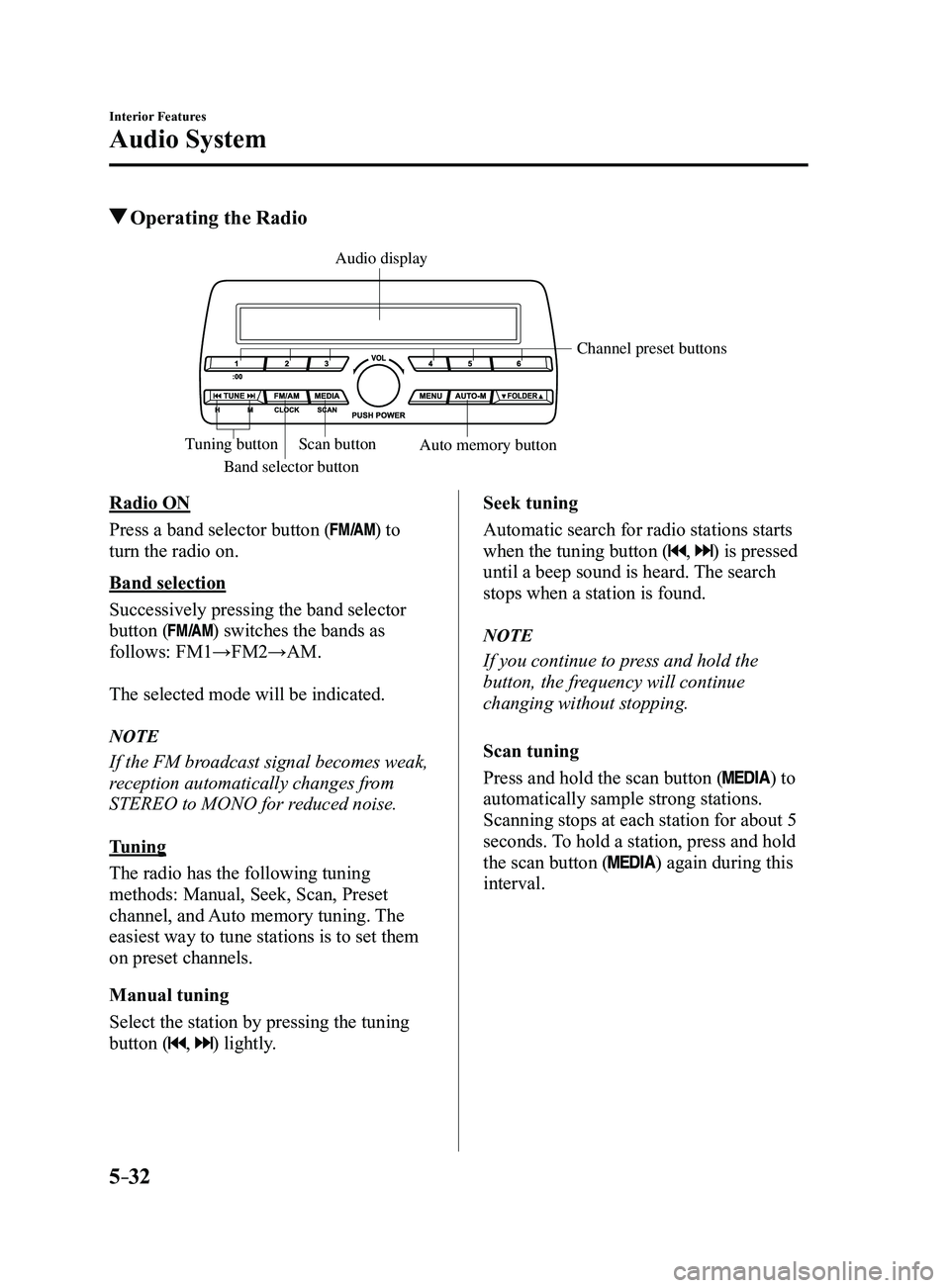
Operating the Radio
Band selector button
Channel preset buttons
Scan button Auto memory button
Tuning button
Audio display
Radio ON
Press a band selector button (
) to
turn the radio on.
Band selection
Successively pressing the band selector
button (
) switches the bands as
follows: FM1→FM2→AM.
The selected mode will be indicated.
NOTE
If the FM broadcast signal becomes weak,
reception automatically changes from
STEREO to MONO for reduced noise.
Tuning
The radio has the following tuning
methods: Manual, Seek, Scan, Preset
channel, and Auto memory tuning. The
easiest way to tune stations is to set them
on preset channels.
Manual tuning
Select the station by pressing the tuning
button (
, ) lightly. Seek tuning
Automatic search for radio stations starts
when the tuning button (
, ) is pressed
until a beep sound is heard. The search
stops when a station is found.
NOTE
If you continue to press and hold the
button, the frequency will continue
changing without stopping.
Scan tuning
Press and hold the scan button (
) to
automatically sample strong stations.
Scanning stops at each station for about 5
seconds. To hold a station, press and hold
the scan button (
) again during this
interval.
Mazda3_8FL6-EA-16F_Edition2.indb 322016/08/10 17:37:28
Page 325 of 612
5–33
Interior Features
Audio System
Preset channel tuning
The 6 preset channels can be used to store
6 AM and 12 FM stations.
1. To set a channel first select AM, FM1,
or FM2. Tune to the desired station.
2. Press a channel preset button for
about 2 seconds until a beep is heard.
The preset channel number or station
frequency will be displayed. The
station is now held in the memory.
3. Repeat this operation for the other
stations and bands you want to store.
To tune one in the memory, select AM,
FM1, or FM2 and then press its channel
preset button. The station frequency or
the channel number will be displayed.
Auto memory tuning
This is especially useful when driving in
an area where the local stations are not
known.
Press and hold the auto memory button
(
) for about 2 seconds until a beep
is heard; the system will automatically
scan and temporarily store up to 6 stations
with the strongest frequencies in each
selected band in that area.
After scanning is completed, the station
with the strongest frequency will be tuned
and its frequency displayed. Press and
release the auto memory button (
)
to recall stations from the auto-stored
stations. One stored station will be
selected each time and its frequency and
channel number will be displayed.
NOTE
If no stations can be tuned after scanning
operations, “A” will be displayed.
How to use Auxiliary jack/USB
port
Audio can be heard from the vehicle's
speakers by connecting a commercially-
available portable audio unit to the
auxiliary jack.
Use a commercially-available, non-
impedance (3.5
) stereo mini plug cable.
Contact an Authorized Mazda Dealer for
details.
In addition, audio can be played from the
vehicle audio device by connecting a USB
device to the USB port.
Refer to AUX/USB mode on page
5-57.
Mazda3_8FL6-EA-16F_Edition2.indb 332016/08/10 17:37:28
Page 337 of 612
5–45
Interior Features
Audio System
*Some models.
NOTE
If an analog broadcast is received once
and is received while HD1 is
selected, the audio unit switches to the
station automatically.
When the icon is illuminated, there
could be a noticeable difference in
sound quality and volume when a
change from digital to analog signals
occurs. If the sound quality and volume
become noticeably diminished or cut
off, select the
icon to turn off
( icon is not illuminated). Once an analog br oadcast is received
when HD1 is selected from the Favorite
channels, it is switched to
automatically. If the radio reception
conditions are poor, or HD is off,
switching to
broadcasts is
not possible. When an HD specialty channel (HD2 to
HD8) is selected from the Favorite
channels, “Signal Lost” is displayed
and no audio is output until
is received. If the radio reception
conditions are poor, “Signal Lost”
continues to be displayed.
If the icon is not illuminated,
information such as song titles of the
station are received,
however, the audio output is analog.
iTunes Tagging (for Apple devices with
USB use only)
By tagging a song currently being aired,
the song can later be purchased from
the iTunes Store. One hundred tags
can be stored. A maximum of 100 tags
(for 100 songs) can be stored for later
downloading.
1. Select the icon. The tag is stored in
the audio unit.
2. Connect the device via the vehicle's
USB. Any stored tag(s) will be sent
automatically to the connected device.
3. Once at home or after parking the
vehicle safely, log onto the iTunes
Store with your device. Your previously
tagged song(s) can now be easily
purchased.
NOTE
Both AM and FM can be
used. Because iTunes tagging only supports
purchases from the iTunes Store, direct
downloading of music from the vehicle's
audio unit is not possible.
If the available memory for the
connected device is insufficient, the tag
is not sent.
If an error occurs while the tag is being
sent, reconnect the device.
Operating the Satellite Radio*
What is satellite radio?
With over 130 channels, SiriusXM
Satellite Radio brings you more of what
you love. Get channels and channels of
commercial-free music, plus sports, news,
talk, entertainment and more.
Mazda3_8FL6-EA-16F_Edition2.indb 452016/08/10 17:37:41
Page 342 of 612
5–50
Interior Features
Audio System
*Some models.
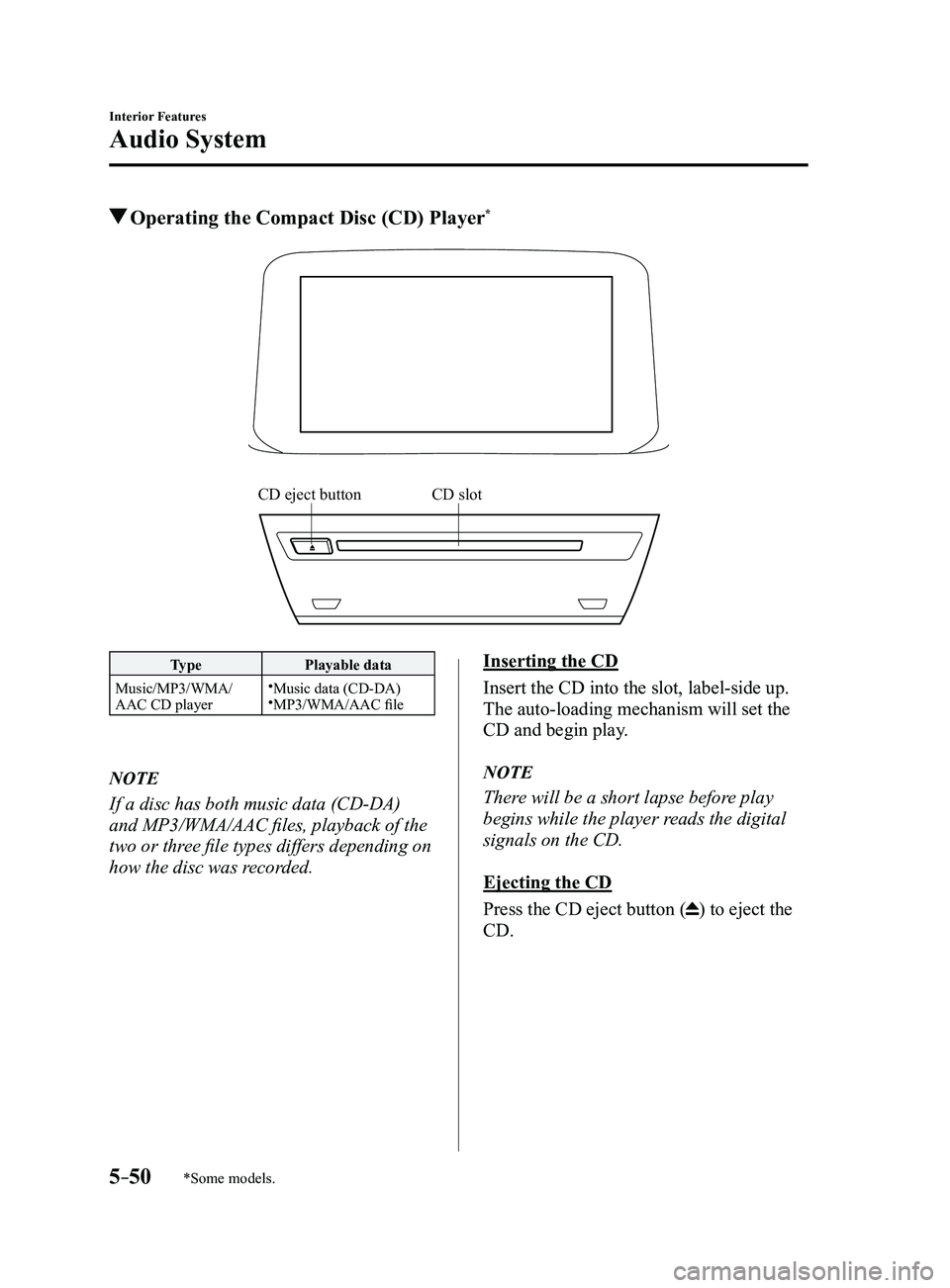
Operating the Compact Disc (CD) Player*
CD slotCD eject button
TypePlayable data
Music/MP3/WMA/
AAC CD player
Music data (CD-DA)MP3/WMA/AAC file
NOTE
If a disc has both music data (CD-DA)
and MP3/WMA/AAC files, playback of the
two or three file types differs depending on
how the disc was recorded.
Inserting the CD
Insert the CD into the slot, label-side up.
The auto-loading mechanism will set the
CD and begin play.
NOTE
There will be a short lapse before play
begins while the player reads the digital
signals on the CD.
Ejecting the CD
Press the CD eject button (
) to eject the
CD.
Mazda3_8FL6-EA-16F_Edition2.indb 502016/08/10 17:37:44
Page 347 of 612
5–55
Interior Features
Audio System
*Some models.
Applications
NOTE
Depending on the grade and specification,
the screen display may differ.
Select the
icon on the home screen to
display the Applications screen. The
following information can be verified.
Top screenItemFunction
HD Radio™ Traffic
Map*— —
Fuel Economy
Monitor
Fuel
Consumption
Control
Status
(Vehicles
with
i-ELOOP)
SettingsRefer
to Fuel
Economy
Monitor
on page
4-75.
Vehicle
Status
Monitor
Maintenance Scheduled
Maintenance
Tire Rotation
Oil Change Refer to
Maintenance
Monitor
(Type B
audio) on
page
6-18.
Warning
Guidance
Warnings
currently
active can be
verified. Refer to If
a Warning
Light
Turns On
or Flashes
on page
7-25.
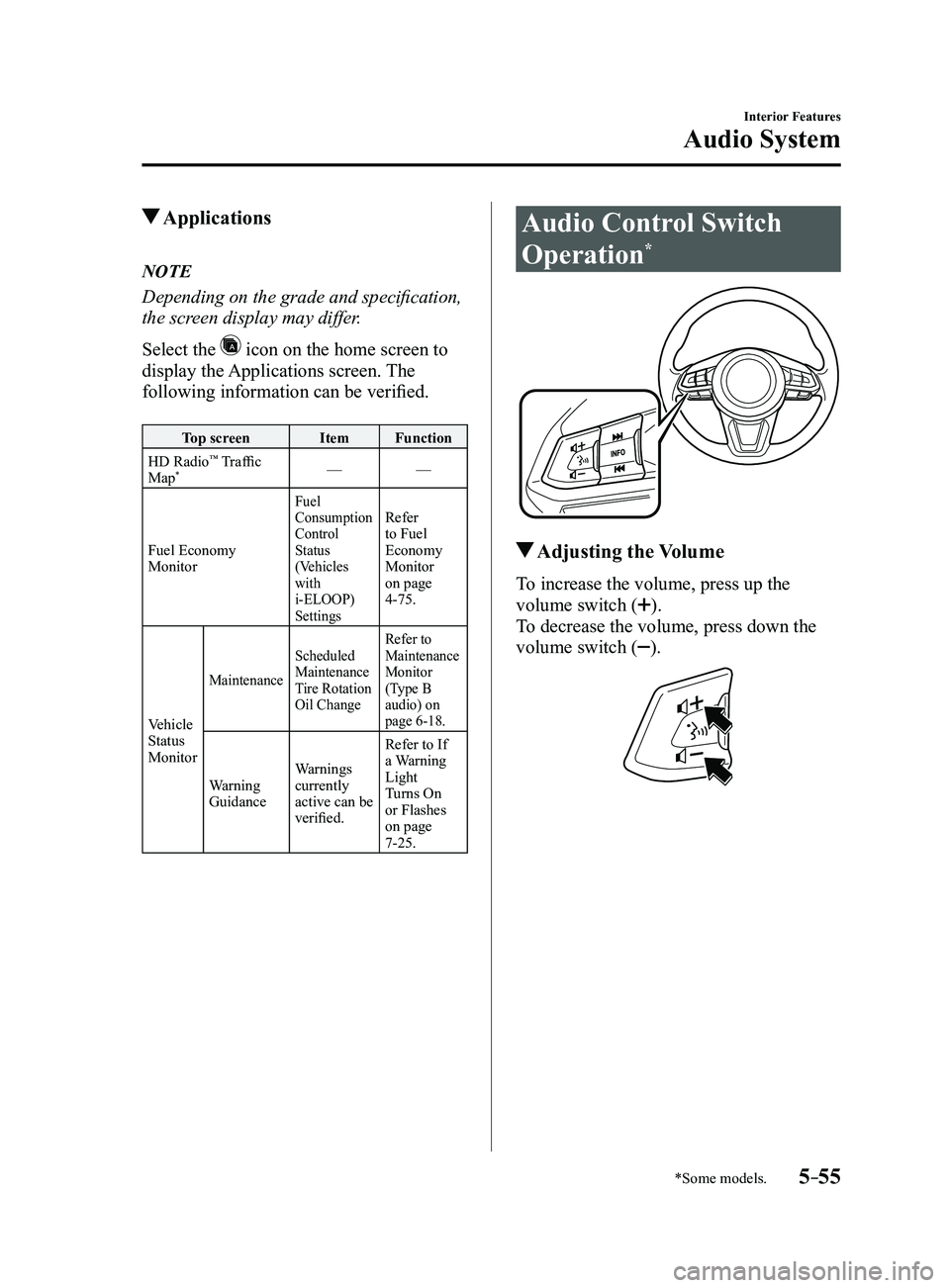
Audio Control Switch
Operation*
Adjusting the Volume
To increase the volume, press up the
volume switch (
).
To decrease the volume, press down the
volume switch (
).
Mazda3_8FL6-EA-16F_Edition2.indb 552016/08/10 17:37:47
Page 348 of 612
5–56
Interior Features
Audio System
*Some models.
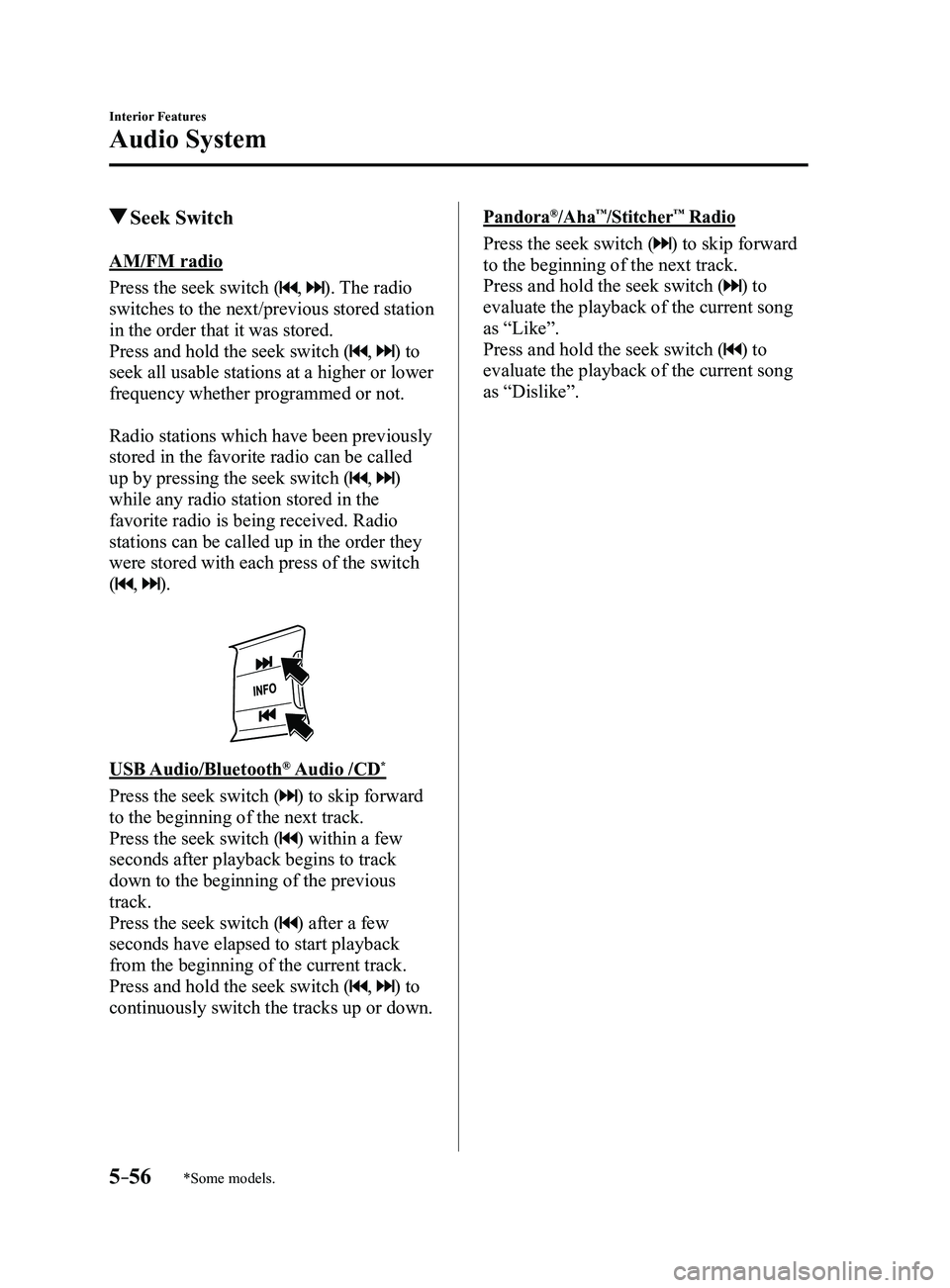
Seek Switch
AM/FM radio
Press the seek switch (
, ). The radio
switches to the next/previous stored station
in the order that it was stored.
Press and hold the seek switch (
, ) to
seek all usable stations at a higher or lower
frequency whether programmed or not.
Radio stations which have been previously
stored in the favorite radio can be called
up by pressing the seek switch (
, )
while any radio station stored in the
favorite radio is being received. Radio
stations can be called up in the order they
were stored with each press of the switch
(
, ).
USB Audio/Bluetooth® Audio /CD*
Press the seek switch () to skip forward
to the beginning of the next track.
Press the seek switch (
) within a few
seconds after playback begins to track
down to the beginning of the previous
track.
Press the seek switch (
) after a few
seconds have elapsed to start playback
from the beginning of the current track.
Press and hold the seek switch (
, ) to
continuously switch the tracks up or down.
Pandora®/Aha™/Stitcher™ Radio
Press the seek switch () to skip forward
to the beginning of the next track.
Press and hold the seek switch (
) to
evaluate the playback of the current song
as “Like”.
Press and hold the seek switch (
) to
evaluate the playback of the current song
as “Dislike”.
Mazda3_8FL6-EA-16F_Edition2.indb 562016/08/10 17:37:47
Page 358 of 612
5–66
Interior Features
Audio System
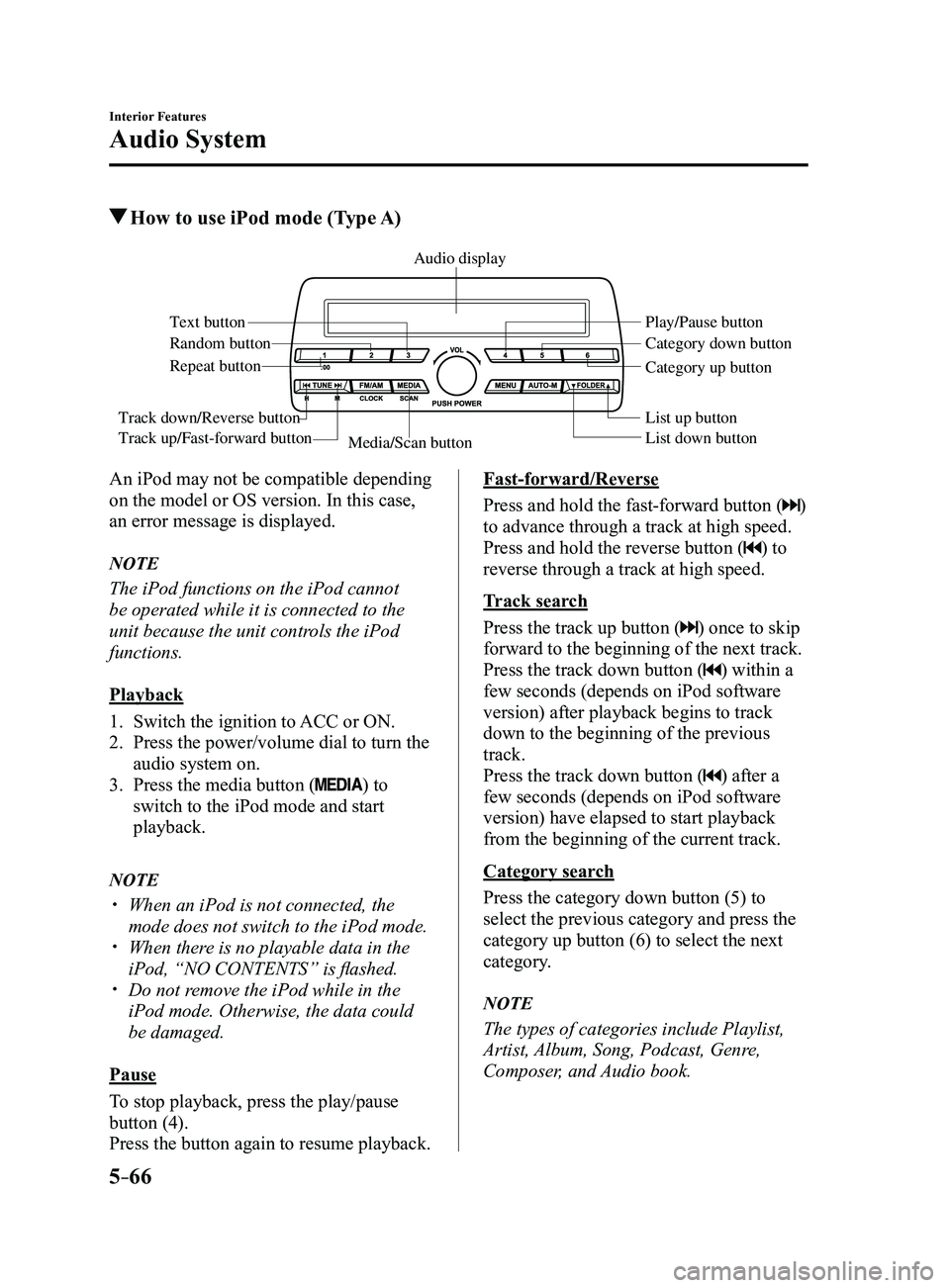
How to use iPod mode (Type A)
Media/Scan button List down button List up button Play/Pause button
Random button
Repeat button
Audio display
Text button
Track down/Reverse button
Track up/Fast-forward button
Category down button
Category up button
An iPod may not be compatible depending
on the model or OS version. In this case,
an error message is displayed.
NOTE
The iPod functions on the iPod cannot
be operated while it is connected to the
unit because the unit controls the iPod
functions.
Playback
1. Switch the ignition to ACC or ON.
2. Press the power/volume dial to turn the
audio system on.
3. Press the media button () to
switch to the iPod mode and start
playback.
NOTE
When an iPod is not connected, the
mode does not switch to the iPod mode. When there is no playable data in the
iPod, “NO CONTENTS” is flashed. Do not remove the iPod while in the
iPod mode. Otherwise, the data could
be damaged.
Pause
To stop playback, press the play/pause
button (4).
Press the button again to resume playback.
Fast-forward/Reverse
Press and hold the fast-forward button (
)
to advance through a track at high speed.
Press and hold the reverse button (
) to
reverse through a track at high speed.
Track search
Press the track up button (
) once to skip
forward to the beginning of the next track.
Press the track down button (
) within a
few seconds (depends on iPod software
version) after playback begins to track
down to the beginning of the previous
track.
Press the track down button (
) after a
few seconds (depends on iPod software
version) have elapsed to start playback
from the beginning of the current track.
Category search
Press the category down button (5) to
select the previous category and press the
category up button (6) to select the next
category.
NOTE
The types of categories include Playlist,
Artist, Album, Song, Podcast, Genre,
Composer, and Audio book.
Mazda3_8FL6-EA-16F_Edition2.indb 662016/08/10 17:37:53