light MERCEDES-BENZ CL-Class 2002 C215 Comand Manual
[x] Cancel search | Manufacturer: MERCEDES-BENZ, Model Year: 2002, Model line: CL-Class, Model: MERCEDES-BENZ CL-Class 2002 C215Pages: 251
Page 155 of 251

153 Destination input
Introduction
Audio
Telephone
Navigation
Index Info Services and
system settings Select city/suburb
Press the rotary/pushbutton
to confirm the “City/
Suburb...” menu field. An entry menu will appear.
5Input line, selected characters are shown inverted;
the last city selected is also shown here
6Character set
7Delete symbol, delete the last or all characters
8Zoom, enlarges the currently selected character9Move the insertion point one position to the right
10Activate the city list
Selecting a new destination:
Selections are made from the city list, call up via the
menu field (10). First enter in the input line (5) the re-
quired destination or adopt the destination last
selected.
Entering the destination via the input menu:
Turn the rotary/pushbutton
to select the desired let-
ter from the character set (6), it will appear magnified
(8).
Press the rotary/pushbutton to confirm your
selection, the letter selected will appear highlighted in
the input line (5). The new entry will be completed with
additional letters to form one of the city/suburb names
available on the list.
Note:
For quicker input, the system will offer available
characters from the character set (6) based on your
selections and the names of the cities stored on the
navigation CD.
P82.85-6452-26
10
8
7
6
5
9
09-NAVI1-25-US.pm509.07.2004, 14:26 Uhr 153
Page 156 of 251

154
Destination input
Audio TelephoneNavigation
Index Info Services and
system settings Introduction
Move the insertion point one position to the right:
Use the rotary/pushbutton
to highlight the symbol
(9) and confirm by pressing.Correcting the entry:
To delete the last character entered, use the rotary/
pushbutton
to highlight the delete symbol (7) and
press to confirm.
To delete all of the characters entered, highlight the
delete symbol (7) and press the rotary/pushbutton
for longer than 2 seconds.
09-NAVI1-25-US.pm509.07.2004, 14:26 Uhr 154
Page 157 of 251

155 Destination input
Introduction
Audio
Telephone
Navigation
Index Info Services and
system settings
P82.85-2597-26
1312
11
To access the list of places:
Press the rotary/pushbutton
for longer than
2 seconds or highlight and confirm menu field (10).
11Selected City/Suburb, already highlighted
12Display to previous page
13Display to next pageThe next/previous page can be reached by turning the
rotary/pushbutton
past the last/first entry.
Turn the rotary/pushbutton
to highlight the desired
destination and press it to confirm.
09-NAVI1-25-US.pm509.07.2004, 14:26 Uhr 155
Page 159 of 251

157 Destination input
Introduction
Audio
Telephone
Navigation
Index Info Services and
system settings Selecting a street
Press the rotary/pushbutton
to confirm the “Street...”
menu field. The street input menu will appear.
18Input line, enter the letters of your desired street
destination
19Character set
20Delete symbol
21Zoom, enlarges the currently selected character22Move the insertion point one position to the right
23Activate the street list
Selecting the street:
The selection is made from the street list, activated via
the menu field (23). First enter the desired street in the
input line (18).
Enter a street:
Turn the rotary/pushbutton
to select the desired
character from the character set (19), the character
selected will appear in magnified form (21).
Press the rotary/pushbutton to confirm your
selection, the letter selected will be highlighted in the
input line (18), the previous entry will be deleted.
The new entry will be completed with additional letters
to form one of the street names available on the list.
Note:
For quicker input, the system will offer available
characters from the character set (19) based on your
selections and the names of the streets stored on the
navigation CD.
P82.85-6453-261819
20
21
22
23
09-NAVI1-25-US.pm509.07.2004, 14:26 Uhr 157
Page 160 of 251

158
Destination input
Audio TelephoneNavigation
Index Info Services and
system settings Introduction
Move the insertion point one position to the right:
Use the rotary/pushbutton
to highlight the symbol
(22) and confirm by pressing.Correcting the entry:
To delete the last character entered, use the rotary/
pushbutton
to highlight the delete symbol (20) and
press to confirm.
To delete all of the characters entered, highlight the
delete symbol (20) and press the rotary/pushbutton
for longer than 2 seconds.
09-NAVI1-25-US.pm509.07.2004, 14:26 Uhr 158
Page 161 of 251
159 Destination input
Introduction
Audio
Telephone
Navigation
Index Info Services and
system settings
P82.85-2600-2624
2526
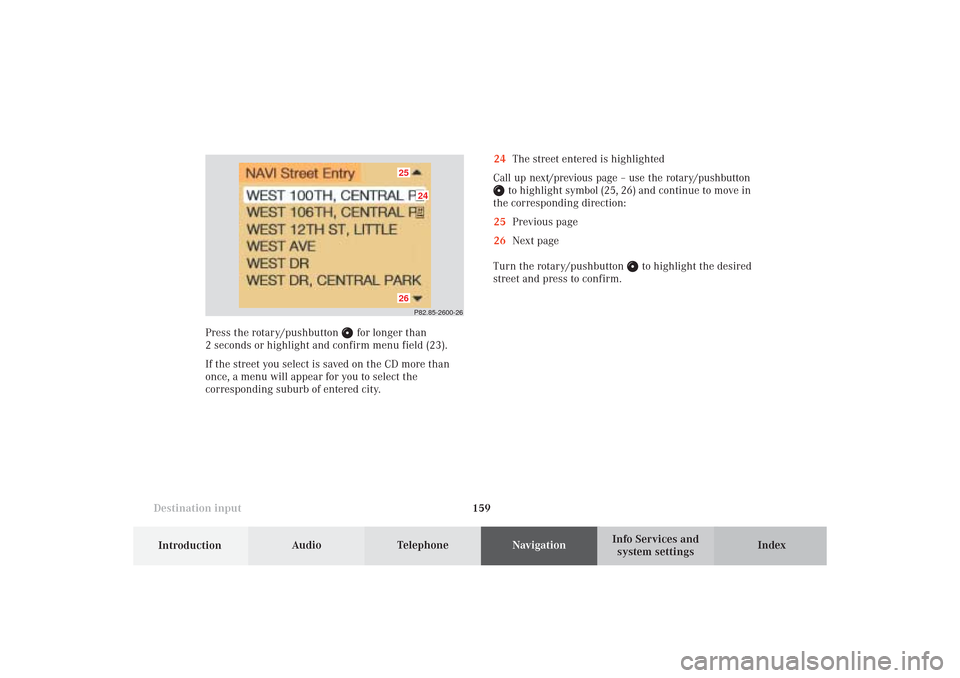
24The street entered is highlighted
Call up next/previous page – use the rotary/pushbutton
to highlight symbol (25, 26) and continue to move in
the corresponding direction:
25Previous page
26Next page
Turn the rotary/pushbutton
to highlight the desired
street and press to confirm.
Press the rotary/pushbutton
for longer than
2 seconds or highlight and confirm menu field (23).
If the street you select is saved on the CD more than
once, a menu will appear for you to select the
corresponding suburb of entered city.
09-NAVI1-25-US.pm509.07.2004, 14:26 Uhr 159
Page 162 of 251

160
Destination input
Audio TelephoneNavigation
Index Info Services and
system settings Introduction
Continue destination input
You can define your destination address more precisely
by adding an intersection or a house number or by
selecting it on the map.
If you do not want to add anything to your destination
input, select the route calculation mode and have the
route calculated, page 175.Note:
Whether or not there is a menu field for the house
number depends on the data stored on the navigation
CD you are using.
Use the rotary/pushbutton
to highlight the menu
field and press to confirm:
1Selecting an intersection, page 161
2Entering the house number, page 162
3Selecting a destination via the map, page 163
4Saves the destination address in the destination
memory, page 215
5Confirms the destination,
Select the route calculation mode and the route will
be calculated, page 175
P82.85-6095-26
1
2
3
4
5
09-NAVI1-25-US.pm509.07.2004, 14:26 Uhr 160
Page 163 of 251
161 Destination input
Introduction
Audio
Telephone
Navigation
Index Info Services and
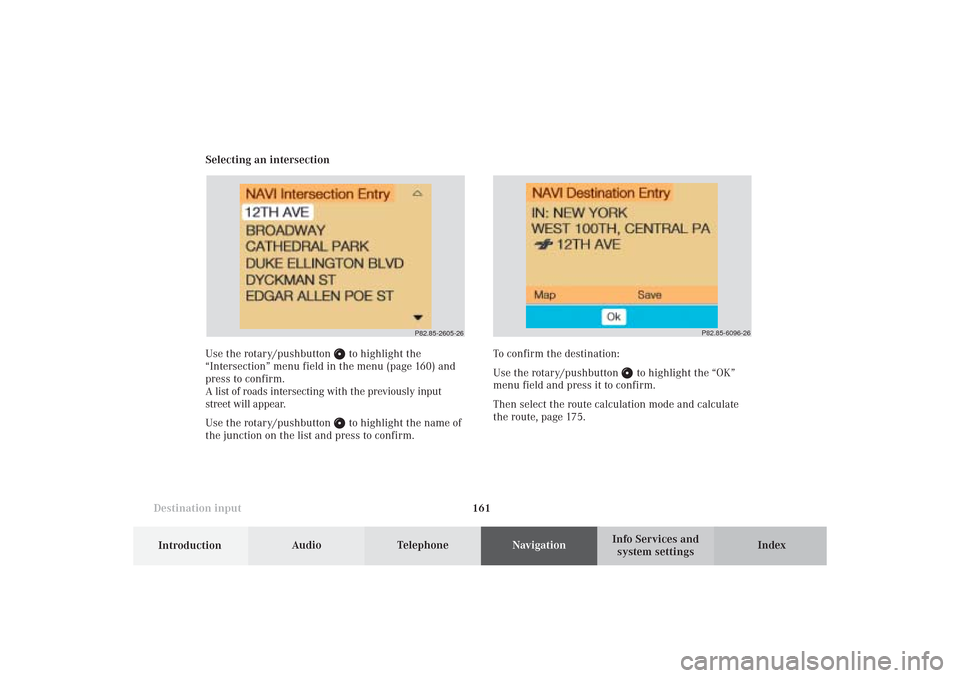
system settings Selecting an intersection
Use the rotary/pushbutton
to highlight the
“Intersection” menu field in the menu (page 160) and
press to confirm.
A list of roads intersecting with the previously input
street will appear.
Use the rotary/pushbutton to highlight the name of
the junction on the list and press to confirm.
P82.85-2605-26
To confirm the destination:
Use the rotary/pushbutton
to highlight the “OK”
menu field and press it to confirm.
Then select the route calculation mode and calculate
the route, page 175.
P82.85-6096-26
09-NAVI1-25-US.pm509.07.2004, 14:26 Uhr 161
Page 164 of 251
162
Destination input
Audio TelephoneNavigation
Index Info Services and
system settings Introduction
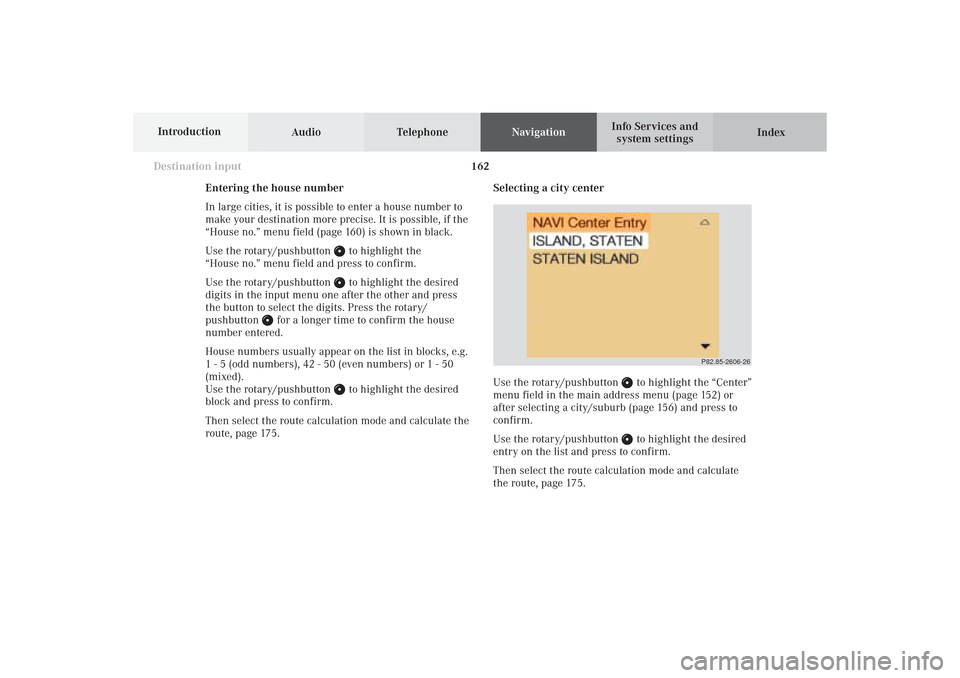
Selecting a city center
Use the rotary/pushbutton
to highlight the “Center”
menu field in the main address menu (page 152) or
after selecting a city/suburb (page 156) and press to
confirm.
Use the rotary/pushbutton to highlight the desired
entry on the list and press to confirm.
Then select the route calculation mode and calculate
the route, page 175.
P82.85-2606-26
Entering the house number
In large cities, it is possible to enter a house number to
make your destination more precise. It is possible, if the
“House no.” menu field (page 160) is shown in black.
Use the rotary/pushbutton
to highlight the
“House no.” menu field and press to confirm.
Use the rotary/pushbutton to highlight the desired
digits in the input menu one after the other and press
the button to select the digits. Press the rotary/
pushbutton
for a longer time to confirm the house
number entered.
House numbers usually appear on the list in blocks, e.g.
1 - 5 (odd numbers), 42 - 50 (even numbers) or 1 - 50
(mixed).
Use the rotary/pushbutton
to highlight the desired
block and press to confirm.
Then select the route calculation mode and calculate the
route, page 175.
09-NAVI1-25-US.pm509.07.2004, 14:26 Uhr 162
Page 165 of 251
163 Destination input
Introduction
Audio
Telephone
Navigation
Index Info Services and
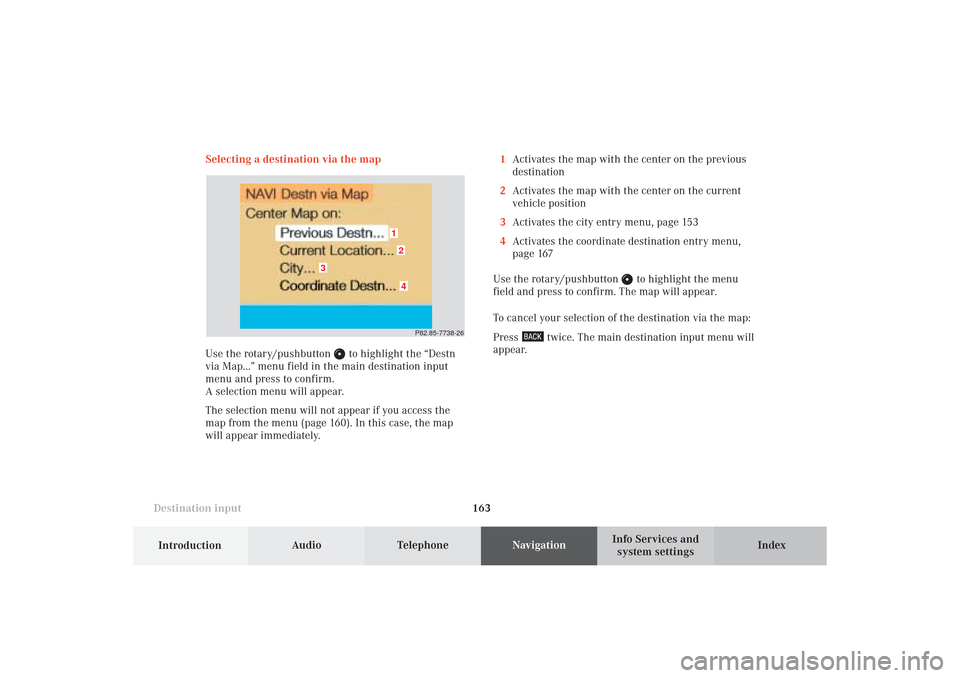
system settings Selecting a destination via the map
Use the rotary/pushbutton
to highlight the “Destn
via Map...” menu field in the main destination input
menu and press to confirm.
A selection menu will appear.
The selection menu will not appear if you access the
map from the menu (page 160). In this case, the map
will appear immediately.1Activates the map with the center on the previous
destination
2Activates the map with the center on the current
vehicle position
3Activates the city entry menu, page 153
4Activates the coordinate destination entry menu,
page 167
Use the rotary/pushbutton
to highlight the menu
field and press to confirm. The map will appear.
To cancel your selection of the destination via the map:
Press
twice. The main destination input menu will
appear.
P82.85-7738-26
12
3
4
09-NAVI1-25-US.pm509.07.2004, 14:26 Uhr 163