display MERCEDES-BENZ SPRINTER 2013 MY13 Operator’s Manual
[x] Cancel search | Manufacturer: MERCEDES-BENZ, Model Year: 2013, Model line: SPRINTER, Model: MERCEDES-BENZ SPRINTER 2013Pages: 334, PDF Size: 3.88 MB
Page 163 of 334
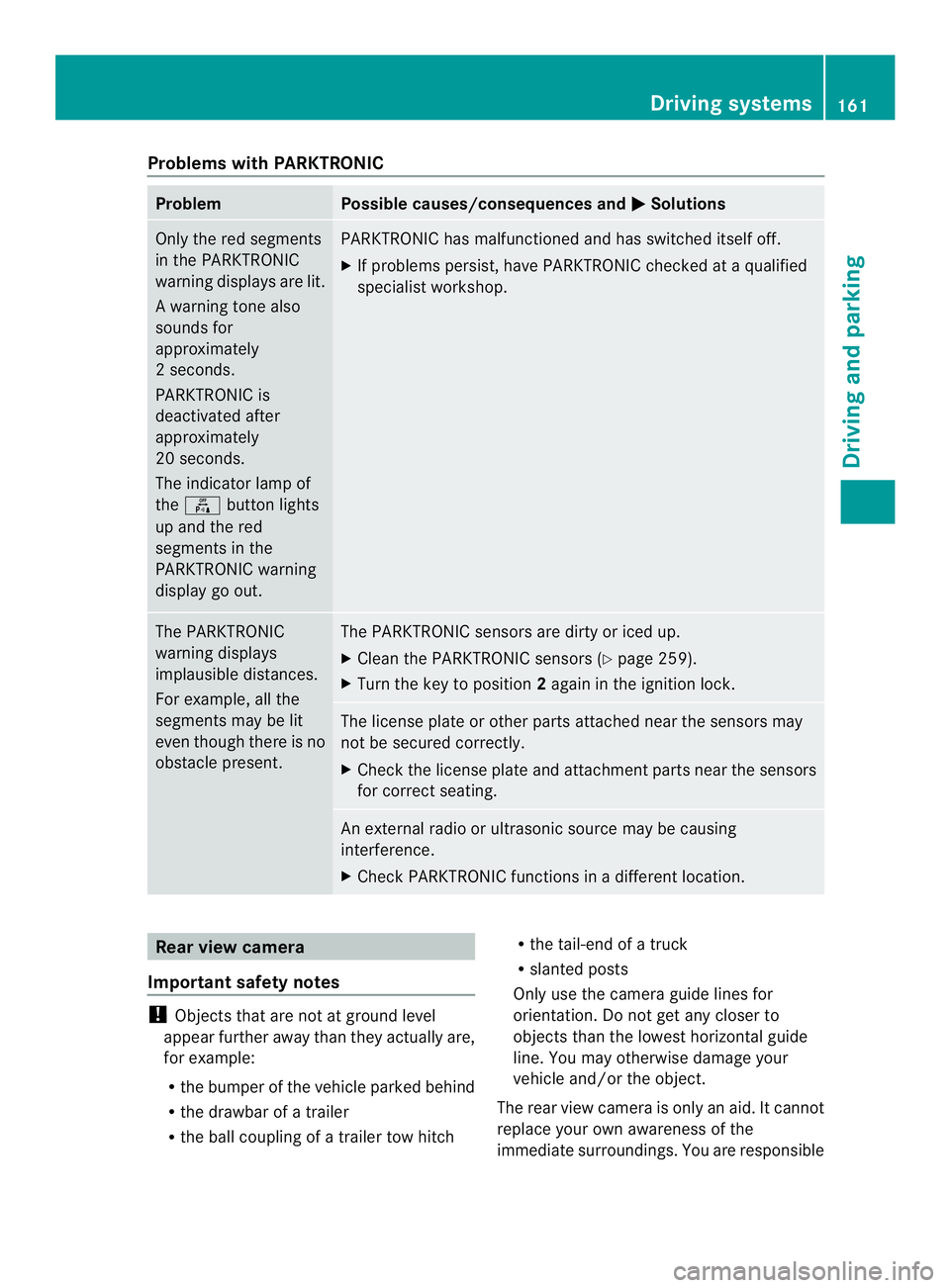
Problems with PARKTRONIC
Problem Possible causes/consequences and
0004 Solutions
Only the red segments
in the PARKTRONIC
warning displays are lit.
Aw
arning tone also
sounds for
approximately
2s econds.
PARKTRONIC is
deactivated after
approximately
20 seconds.
The indicator lamp of
the 000C button lights
up and the red
segments in the
PARKTRONIC warning
display go out. PARKTRONIC has malfunctioned and has switched itself off.
X
If problems persist, have PARKTRONIC checked at a qualified
specialist workshop. The PARKTRONIC
warning displays
implausible distances.
For example, all the
segments may be lit
even though there is no
obstacle present. The PARKTRONIC sensors are dirty or iced up.
X
Clean the PARKTRONIC sensors (Y page 259).
X Turn the key to position 2again in the ignition lock. The license plate or other parts attached near the sensors may
not be secured correctly.
X
Check the license plate and attachment parts near the sensors
for correct seating. An external radio or ultrasonic source may be causing
interference.
X
Check PARKTRONIC functions in a different location. Rear view camera
Important safety notes !
Objects that are not at ground level
appear further away than they actually are,
for example:
R the bumper of the vehicle parked behind
R the drawbar of a trailer
R the ball coupling of a trailer tow hitch R
the tail-end of a truck
R slanted posts
Only use the camera guide lines for
orientation. Do not get any closer to
objects than the lowest horizontal guide
line. You may otherwise damage your
vehicle and/or the object.
The rear view camera is only an aid. It cannot
replace your own awareness of the
immediate surroundings. You are responsible Driving systems
161Driving and parking Z
Page 164 of 334
for safe maneuvering and parking. When
maneuvering and parking, make sure that
there are no persons, animals or objects in
the maneuvering area.
The rear view camera is
avisual parking aid.
It shows you the area behind the vehicle on a
separate monitor on the center console.
The camera is in the middle of the roof above
the high-mounted brake lamp (Y page 259).
The rear view camera may show obstacles in
perspectival distortion, incorrectly or not at
all. The rear view camera cannot display all
objects located very near and/or under the
rear bumper. It does not warn you of a
collision, persons or objects.
The area behind the vehicle is displayed in a
mirrored fashion, as in the rear-view mirror or
the exterior mirrors. The guide lines displayed
assist you in backing up.
The function of the rear view camera may be
partially or completely impaired in the
following circumstances:
R it is raining very heavily or snowing, or it is
foggy.
R the parking space is located in a very dark
place.
R the camera is exposed to very strong white
light .White stripes may appearont he
display.
R the surrounding area is illuminated with
fluorescent light. The displaym ay flicker.
R if the temperature changes very quickly, for
example if you drive int oaheated garage
in the winter.
R ambient temperatures are very high.
R the camera lens is dirty or obstructed.
R the rear of the vehicle is damaged. In this
case, have the position and setting
checked at a specialist workshop.
The rear view camera is switched on when
you engage reverse gear R.
You can find information on cleaning the
camera in the "Maintenance and care"
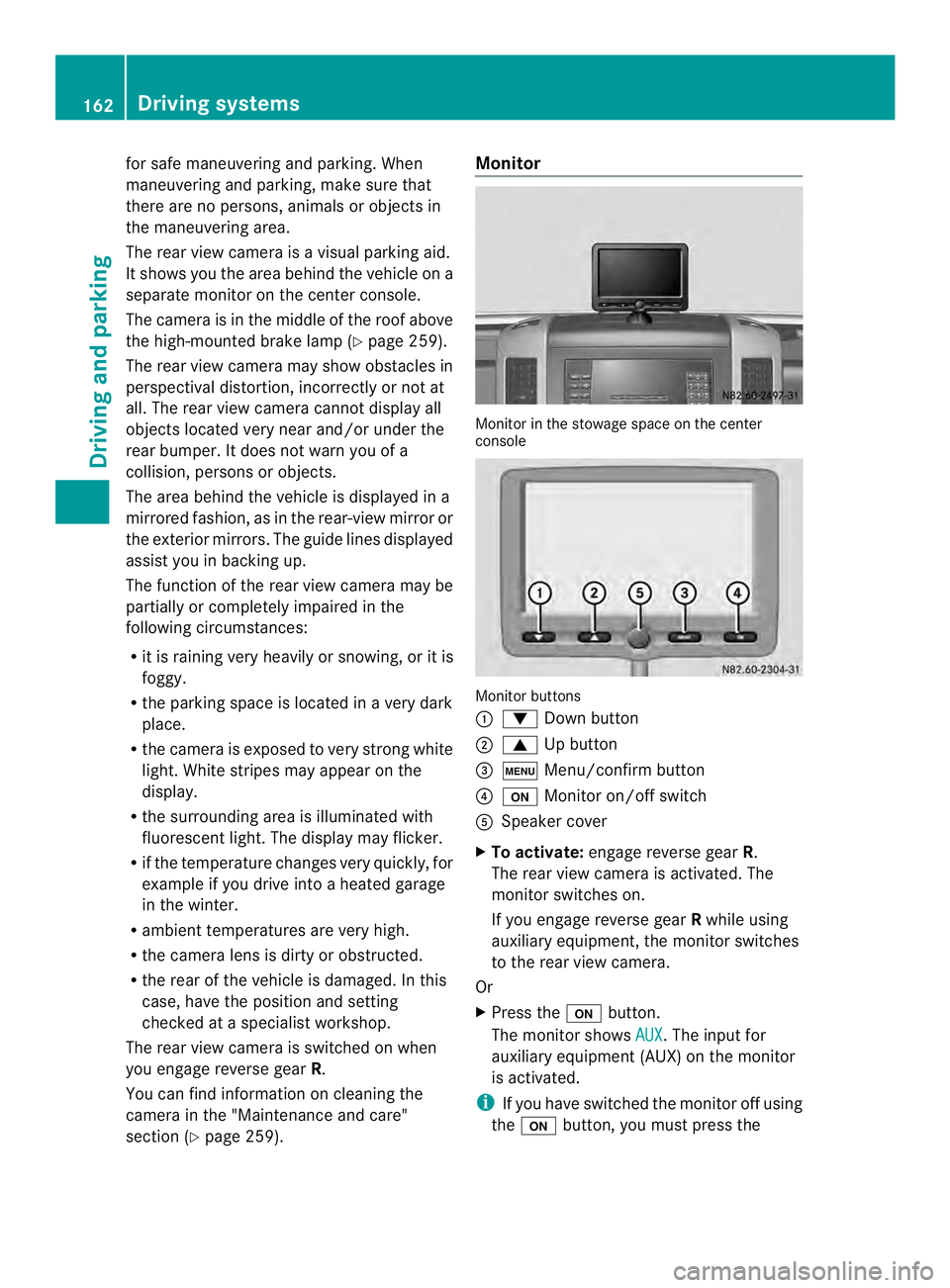
section (Y page 259). Monitor
Monitor in the stowage space on the center
console
Monitor buttons
0005
0008 Down button
0006 0006 Up button
0026 0003 Menu/confirm button
0025 0004 Monitor on/off switch
0023 Speaker cover
X To activate: engage reverse gear R.
The rear view camera is activated. The
monitor switches on.
If you engage reverse gear Rwhile using
auxiliary equipment, the monitor switches
to the rear view camera.
Or
X Press the 0004button.
The monitor shows AUX .T
he input for
auxiliary equipment (AUX) on the monitor
is activated.
i If you have switched the monitor off using
the 0004 button, you must press the 162
Driving systemsDriving and parking
Page 165 of 334
0004
button after engaging reverse gear
R.O nly then is the monitor switched on.
X To adjust the volume: press the0008or
0006 button.
The volume of the integrated loudspeaker
is adjusted in increments.
X Press the 0003button.
Or
X Do not press any buttons for approximately
7s econds.
The volume adjustment is complete.
i The volume of the optional infrared
headphones is adjusted on the
headphones themselves.
X To switch off: move the selector lever to
position P,Nor D.
The rear view camera is deactivated after
approximately 15 seconds. The monitor
then switches off or back to the auxiliary
device input (AUX).
Or
X Press the 0004button.
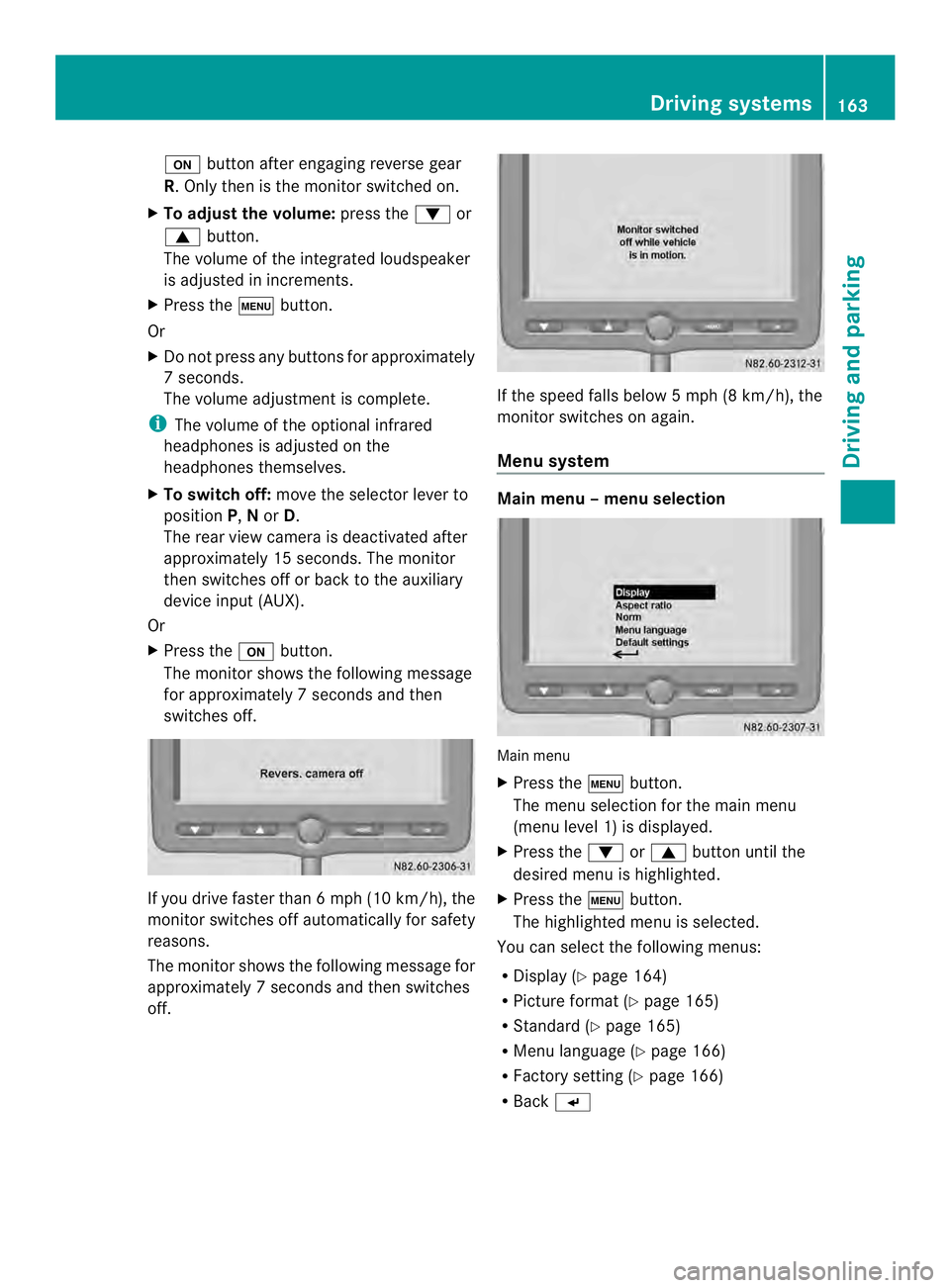
The monitor shows the following message
for approximately 7seconds and then
switches off. If you drive faster than 6 mph
(10 km/h), the
monitor switches off automatically for safety
reasons.
The monitor shows the following message for
approximately 7seconds and then switches
off. If the speed falls below
5mph (8 km/h), the
monitor switches on again.
Menu system Main menu
–menu selection Main menu
X
Press the 0003button.
The menu selection for the main menu
(menu level 1) is displayed.
X Press the 0008or0006 button until the
desired menu is highlighted.
X Press the 0003button.
The highlighted menu is selected.
You can selec tthe following menus:
R Display (Y page 164)
R Picture format (Y page 165)
R Standard (Y page 165)
R Menu language (Y page 166)
R Factory setting (Y page 166)
R Back 0005 Driving systems
163Driving and parking Z
Page 166 of 334
Skipping back a menu
X
Press the 0008or0006 button until the
0005 symbol is highlighted.
X Press the 0003button.
The higher-level menu is displayed.
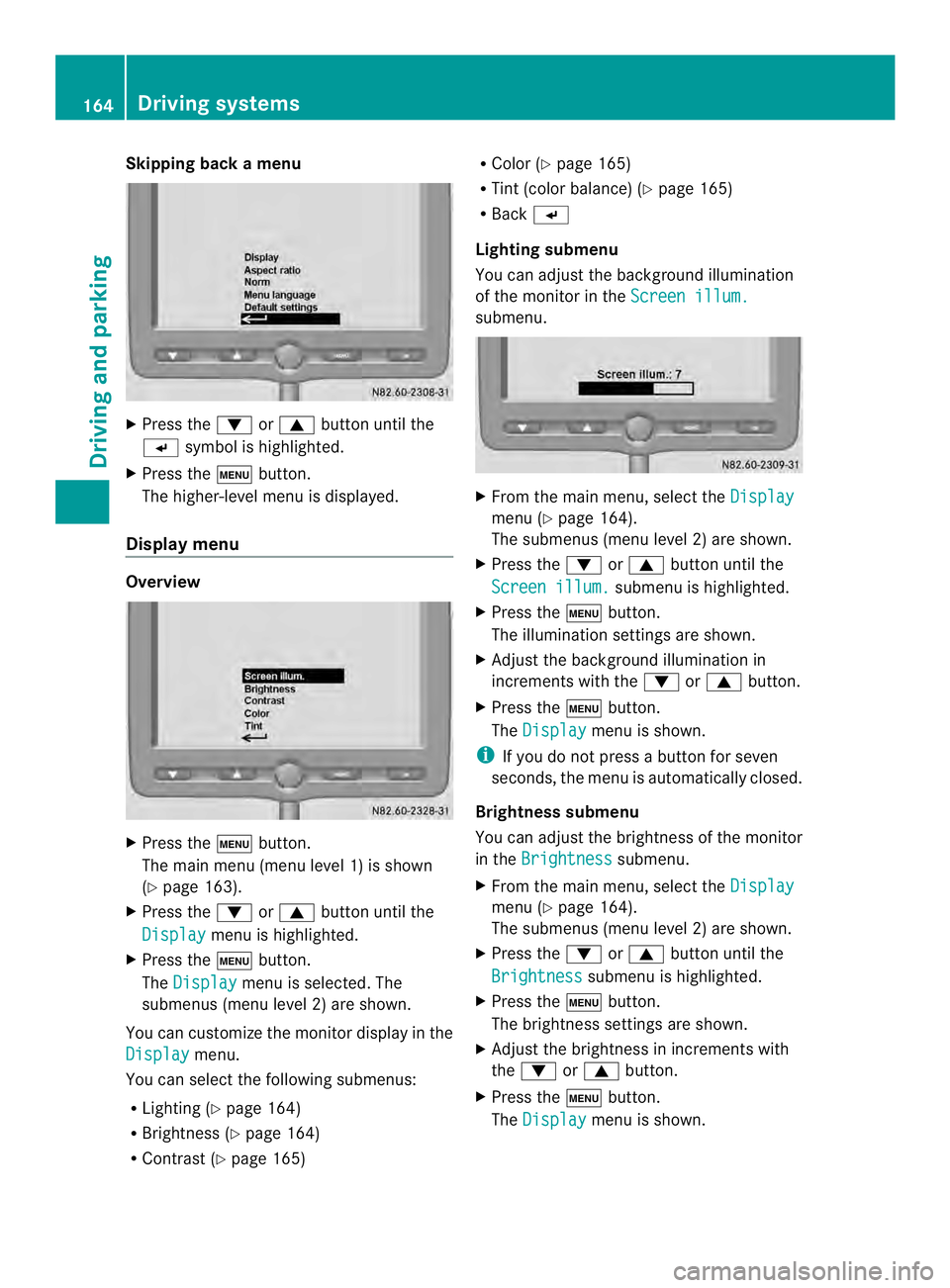
Display menu Overview
X
Press the 0003button.
The main menu (menu level 1) is shown
(Y page 163).
X Press the 0008or0006 button until the
Display menu is highlighted.
X Press the 0003button.
The Display menu is selected. The
submenus (menu level 2) are shown.
You can customize the monitor display in the
Display menu.
You can select the following submenus:
R Lighting (Y page 164)
R Brightness (Y page 164)
R Contrast (Y page 165) R
Color (Y page 165)
R Tint (color balance) (Y page 165)
R Back 0005
Lighting submenu
You can adjust the background illumination
of the monitor in the Screen illum. submenu.
X
From the main menu, select the Display menu (Y
page 164).
The submenus (menu level 2) are shown.
X Press the 0008or0006 button until the
Screen illum. submenu is highlighted.
X Press the 0003button.
The illumination settings are shown.
X Adjust the background illumination in
increments with the 0008or0006 button.
X Press the 0003button.
The Display menu is shown.
i If you do not press a button for seven
seconds, the menu is automatically closed.
Brightness submenu
You can adjust the brightness of the monitor
in the Brightness submenu.
X From the main menu, select the Display menu (Y
page 164).
The submenus (menu level 2) are shown.
X Press the 0008or0006 button until the
Brightness submenu is highlighted.
X Press the 0003button.
The brightness settings are shown.
X Adjust the brightness in increments with
the 0008 or0006 button.
X Press the 0003button.
The Display menu is shown.164
Driving systemsDriving and parking
Page 167 of 334
Contrast submenu
You can adjust the picture contrast of the
monitor in the Contrast submenu.
X From the main menu, select the Displaymenu (Y
page 164).
The submenus (menu level 2) are shown.
X Press the 0008or0006 button until the
Contrast submenu is highlighted.
X Press the 0003button.
The contrast settings are shown.
X Adjust the contrast in increments with
the 0008 or0006 button.
X Press the 0003button.
The Display menu is shown.
Color submenu
You can adjus tthe color setting of the
monitor in the Color submenu.
X From the main menu, select the Displaymenu (Y
page 164).
The submenus (menu level 2) are shown.
X Press the 0008or0006 button until the
Color submenu is highlighted.
X Press the 0003button.
The color settings are shown.
X Adjust the color in increments with
the 0008 or0006 button.
X Press the 0003button.
The Display menu is shown.
Tint submenu (NTSC colorb alance)
In the NTSC standard, you can adjust the
color balance of the monitor in the Tintsubmenu.
X
From the main menu, select the Displaymenu (Y
page 164).
The submenus (menu level 2) are shown.
X Press the 0008or0006 button until the
Tint submenu is highlighted.
X Press the 0003button.
The color balance setting is displayed. X
Adjust the color balance in increments with
the 0008 or0006 button.
X Press the 0003button.
The Display menu is shown.
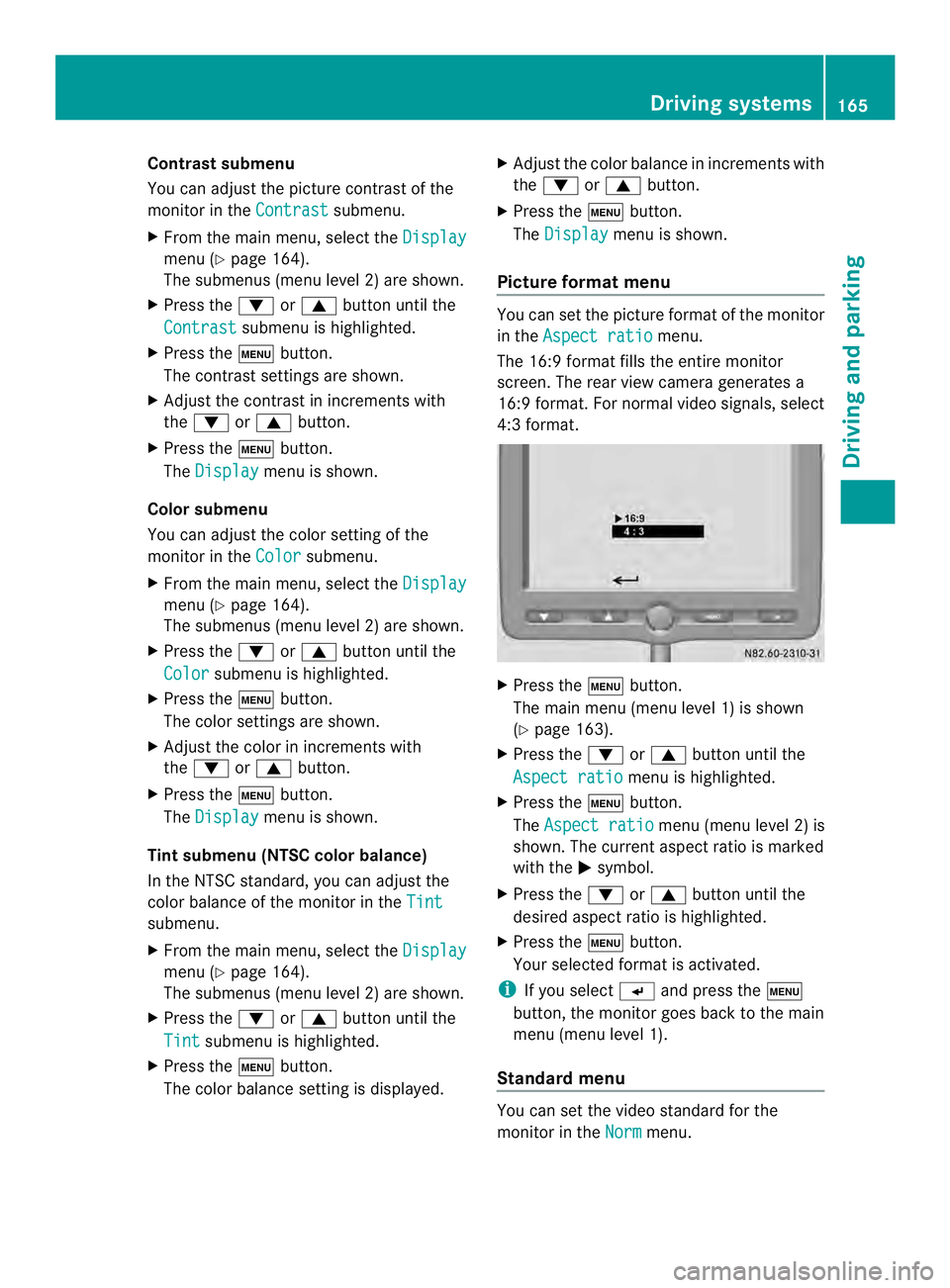
Picture format menu You can set the picture forma
tofthe monitor
in the Aspect ratio menu.
The 16:9 format fills the entire monitor
screen. The rear view camera generates a
16:9 format. For normal video signals, select
4:3 format. X
Press the 0003button.
The main menu (menu level 1) is shown
(Y page 163).
X Press the 0008or0006 button until the
Aspect ratio menu is highlighted.
X Press the 0003button.
The Aspect ratio menu (menu level 2) is
shown. The current aspect ratio is marked
with the 0004symbol.
X Press the 0008or0006 button until the
desired aspect ratio is highlighted.
X Press the 0003button.
Your selected format is activated.
i If you select 0005and press the 0003
button, the monitor goes back to the main
menu (menu level 1).
Standard menu You can set the video standard for the
monitor in the
Norm menu. Driving systems
165Driving and parking Z
Page 168 of 334
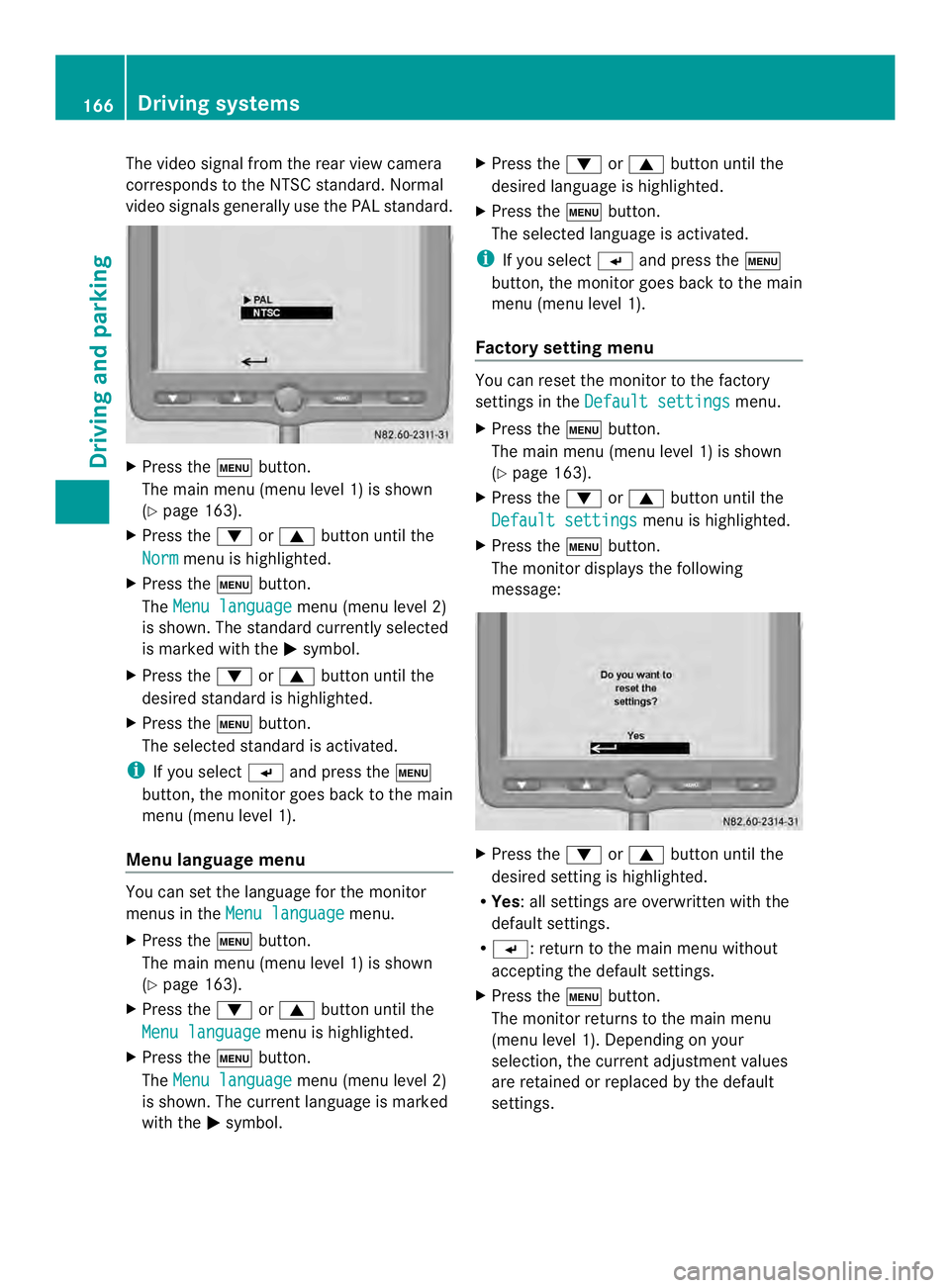
The video signal from the rear view camera
corresponds to the NTSC standard. Normal
video signals generally use the PAL standard. X
Press the 0003button.
The main menu (menu level 1) is shown
(Y page 163).
X Press the 0008or0006 button until the
Norm menu is highlighted.
X Press the 0003button.
The Menu language menu (menu level 2)
is shown. The standard currently selected
is marked with the 0004symbol.
X Press the 0008or0006 button until the
desired standard is highlighted.
X Press the 0003button.
The selected standard is activated.
i If you select 0005and press the 0003
button, the monitor goes back to the main
menu (menu level 1).
Menu language menu You can set the language for the monitor
menus in the
Menu language menu.
X Press the 0003button.
The main menu (menu level 1) is shown
(Y page 163).
X Press the 0008or0006 button until the
Menu language menu is highlighted.
X Press the 0003button.
The Menu language menu (menu level 2)
is shown. The curren tlanguage is marked
with the 0004symbol. X
Press the 0008or0006 button until the
desired language is highlighted.
X Press the 0003button.
The selected language is activated.
i If you select 0005and press the 0003
button, the monito rgoes back to the main
menu (menu level 1).
Factory setting menu You can reset the monitor to the factory
settings in the
Default settings menu.
X Press the 0003button.
The main menu (menu level 1) is shown
(Y page 163).
X Press the 0008or0006 button until the
Default settings menu is highlighted.
X Press the 0003button.
The monitor displays the following
message: X
Press the 0008or0006 button until the
desired setting is highlighted.
R Yes:a ll settings are overwritten with the
default settings.
R 0005: return to the main menu without
accepting the default settings.
X Press the 0003button.
The monitor returns to the main menu
(menu level 1). Depending on your
selection, the current adjustmen tvalues
are retained or replaced by the default
settings. 166
Driving systemsDriving and parking
Page 169 of 334
Problems with the rear view camera
Problem Possible causes/consequences and
0004 Solutions
After reverse gear is
selected, white lines
appear on the monitor
or the picture flickers. The rear view camera is exposed to very bright white light or
fluorescent light.
X
Check whether the rear view camera works at another location. The rear view camera is
functioning incorrectly
or not at all. R
The surrounding area is very dark.
R The outside temperature has changed rapidly or is very high.
R The camera lens is dirty or obstructed.
X Check the rear view camera and clean the camera lens if
necessary (Y page 259). Working mode
ADR (working speed governor)
General notes When activated, ADR automatically increases
the engine speed to a preset speed or a speed
you have set.
i After a cold start, the idling speed of the
engine is increased automatically. If the
preset working speed is lower than the
increased idling speed, the working speed
is only reached once the engine has
completed the warm-up phase.
It is only possible to activate ADR with the
vehicle stationary and the parking brake
applied.
The selector lever of the automatic
transmission must be in position P.Activating/deactivating ADR X
To activate: press the upper section of the
0023 switch while the engine is running.
The indicator lamp in the switch comes on.
The 0004 indicator lamp in the instrument
cluster lights up or the display shows the
following message: Operating speed governor active .
X To deactivate: press lower section of the
0023 switch while the engine is running.
The indicator lamp in the switch goes out.
ADR is automatically deactivated if:
R you release the parking brake.
R the brake pedal is depressed.
R the vehicle moves.
R the control unit detects a malfunction. Working mode
167Driving and parking Z
Page 177 of 334
Useful information
............................176
Important safety notes ....................176
Instrument cluster ............................176
On-boar dcomputer (vehicles with-
out steering wheel buttons) ............178
On-boar dcomputer (vehicles with
steering wheel buttons) ...................180
Display messages ............................. 192
Indicator and warning lamps in the
instrument cluster ............................209 175On-board computer and displays
Page 178 of 334
Useful information
This Operator's Manual describes all models
as well as standard and optional equipment
of your vehicle that were available at the time
of going to print. Country-specific variations
are possible. Note that your vehicle may not
be equipped with all of the described
functions. This also applies to systems and
functions relevant to safety.
Read the information on qualified specialist
workshops (Y page 26). Important safety notes
G
WARNING
If you are driving and reach through the
steering wheel to operate the adjustment
knob, you could lose control of the vehicle.
There is a risk of an accident and injury.
Only operate the adjustment knobs when the
vehicle is stationary. Do not reach through the
steering wheel when driving. G
WARNING
If you operate information systems and
communication equipment integrated in the
vehicle while driving, you will be distracted
from traffic conditions. You could also lose
control of the vehicle. There is a risk of an
accident.
Only operate the equipment when the traffic
situatio npermits .Ifyou are not sure that this
is possible, park the vehicle paying attention
to traffic conditions and operate the
equipment when the vehicle is stationary. G
WARNING
If the instrument cluster has failed or
malfunctioned, you may not recognize
function restrictions in systems relevant to
safety. The operating safety of your vehicle
may be impaired. There is a risk of an
accident. Drive on carefully. Have the vehicle checked
at a qualified specialist workshop
immediately.
If uncertainties regarding the operating safety
of the vehicle arise when continuing the
journey, stop the vehicle, paying attention to
road and traffic conditions.
You must observe the legal requirements for
the country in which you are currently driving
when operating COMAND. Instrument cluster
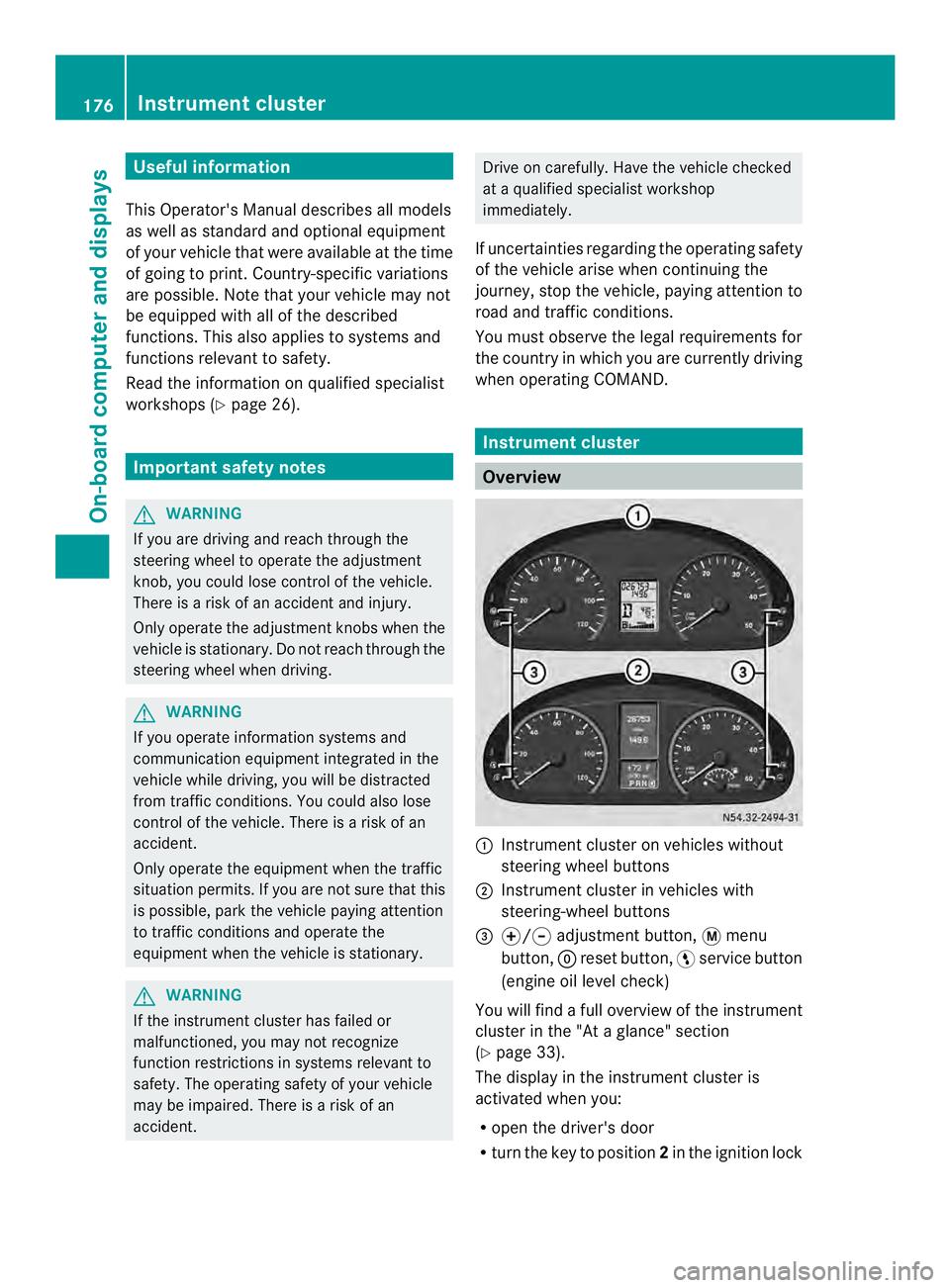
Overview
0005
Instrument cluster on vehicles without
steering wheel buttons
0006 Instrument cluster in vehicles with
steering-wheel buttons
0026 000E/000F adjustment button, 0004menu
button, 0007reset button, 0012service button
(engine oil level check)
You will find a full overview of the instrument
cluster in the "At a glance" section
(Y page 33).
The display in the instrument cluster is
activated when you:
R open the driver's door
R turn the key to position 2in the ignition lock 176
Instrument clusterOn-board computer and displays
Page 179 of 334
R
press the 0007reset button
R switch on the lights
The display switches off automatically after
approximately 30 seconds if:
R the vehicle lighting is not switched on.
R the key is in position 0in the ignition lock. Instrument lighting
When the lights are switched on, you can
adjust the brightness of the instrument
cluster lighting using the 000Eand 000Fbuttons.
X To brighten: press the000Ebutton.
X To dim: press the 000Fbutton.
i Vehicles with automatic headlamp mode:
the instrument lighting also adapts to
automatic headlamp mode. Tachometer
! Do not drive in the overrevving range, as
this could damage the engine. H
Environmental note
Avoid driving at high engine speeds. This
unnecessarily increases the fuel consumption
of your vehicle and harms the environmen tas
a result of increased emissions.
The red band in the tachometer indicates the
engine's overrevving range.
To protect the engine, the fuel supply is
interrupted when the red band is reached. Outside temperature
You should pay special attention to road
conditions when temperatures are around
the freezing point.
On vehicles without steering wheel buttons
(Y page 178) and on vehicles with steering
wheel buttons (Y page 182), the outside
temperature display is in the display. Changes in the outside temperature are
displayed after a shor
tdelay. Speedometer
The speed can also be shown in the display.
You can find information on the digital
speedometer for vehicles without steering
wheel buttons under (Y page 178) and for
vehicles with steering wheel buttons under
(Y page 182).
i In some countries, a warning sounds
when the vehicle reaches the maximum
speed limit, e.g. at 75 mph ( 120 km/h). Trip odometer
X To reset: make sure that the display is
showing the trip odometer if you have a
vehicle with steering wheel buttons
(Y page 182).
X Press and hold the 0007reset button until the
trip odometer is reset to 0.0 .
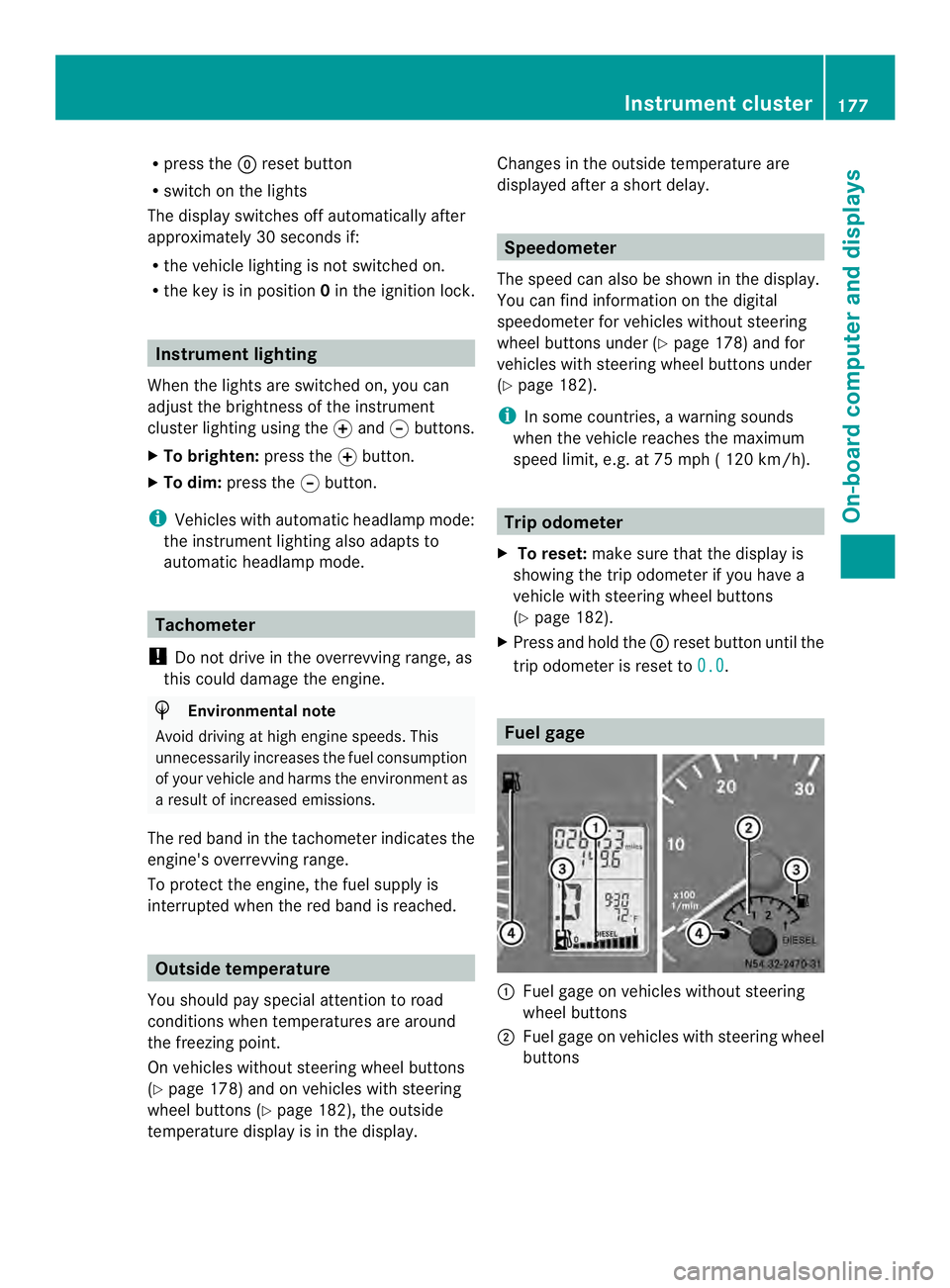
Fuel gage
0005
Fuel gage on vehicles without steering
wheel buttons
0006 Fuel gage on vehicles with steering wheel
buttons Instrument cluster
177On-board computer and displays Z