PAG MITSUBISHI MIRAGE 2017 6.G Manual PDF
[x] Cancel search | Manufacturer: MITSUBISHI, Model Year: 2017, Model line: MIRAGE, Model: MITSUBISHI MIRAGE 2017 6.GPages: 307, PDF Size: 9.02 MB
Page 207 of 307
Automatic air conditioning (if so equipped)
7
The above indicates the
factory settings. You
can personalize the air
selection switch and
air conditioning switch to match your per- sonal preferences. Contact your Mitsubishi
Motors dealer or a
repair facility of your choice for assistance. Refer to “Personalizi
ng the air conditioning
switch (Changing the function setting)” onpage7-16. Refer to “Personalizing the air selection (Changing the function setting)” on page7-15.
N00737101247
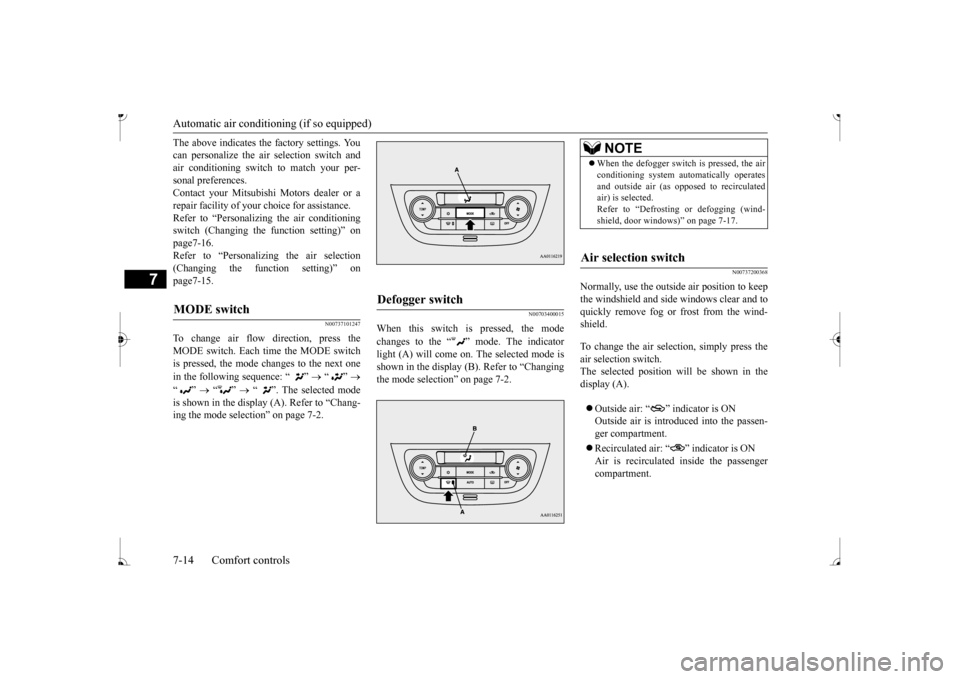
To change air flow
direction, press the
MODE switch. Each time the MODE switch is pressed, the mode changes to the next one in the following sequence: “ ”
“”
“”
“”
“ ”. The selected mode
is shown in the display (A). Refer to “Chang- ing the mode selection” on page 7-2.
N00703400015
When this switch is pressed, the mode changes to the “ ” mode. The indicator light (A) will come on.
The selected mode is
shown in the display (B). Refer to “Changing the mode selection” on page 7-2.
N00737200368
Normally, use the outside air position to keepthe windshield and side windows clear and to quickly remove fog or frost from the wind-shield. To change the air selection, simply press the air selection switch. The selected position wi
ll be shown in the
display (A). Outside air: “ ” indicator is ON Outside air is introduced into the passen- ger compartment. Recirculated air: “ ” indicator is ON Air is recirculated inside the passengercompartment.
MODE switch
Defogger switch
NOTE
When the defogger switch is pressed, the air conditioning system au
tomatically operates
and outside air (as oppos
ed to recirculated
air) is selected. Refer to “Defrosting or defogging (wind- shield, door windows)
Page 212 of 307
Air purifier (if so equipped) Comfort controls 7-19
7
Have the system inspected by your authorized Mitsubishi Motors dealer or a repair facilityof your choice. The air conditioning should be operated for at least five minutes each week, even in cold weather. This includes the quick defrosting mode. Operating the
air condition system
weekly maintains lubrication of the compres- sor internal parts to keep the air conditioning in the best operating condition.
N00733800180
The air conditioning system is equipped withan air filter to re
move pollen
and dust.
The air filter’s ability to collect pollen and dirt is reduced as it be
comes dirty, so replace
it periodically. For the maintenance interval,refer to the “WARRANTY AND MAINTE- NANCE MANUAL”.
N00734302131
The audio system can only be used when the ignition switch or the
operation mode is in
ON or ACC.
CAUTION The air conditioning system in your vehicle must be charged with the refrigerant HFC-134a and the lubricant ZXL 200PG. Use of any other refrigerant or lubricant will cause severe damage a
nd may require replac-
ing your vehicle’s en
tire air conditioning
system. The release of refrigerant into the atmo-sphere is not recommended. The new refrigerant HFC-134a in your vehi- cle is designed not to harm the earth’s ozonelayer. However, it may contribute slightly to global warming. It is recommended that the old refrigerant besaved and recycled for future use.
During a long period of disuse
Air purifier
(if so equipped)
NOTE
Operation in certain conditions such as driv- ing on a dusty road and frequent use of the air conditioning ca
n lead to reduction of ser-
vice life of the filter. When you feel that the air flow is lower than normal or when the windshield or windows st
art to fog up easily,
replace the air filter. Contact your Mitsubishi
Motors dealer or a
repair facility of your
choice for assistance.
AM/FM electronically tuned radio with CD player
(if so
equipped)
To listen to the audio system while the engine is not running, turn the ignitionswitch to the “ACC” pos
ition or put the oper-
ation mode in ACC. For vehicles equipped with the F.A.S.T.-key, if the operation mode is left in ACC, theaccessory power will automatically turn off after a certain period
of time and you will no
longer be able to use the audio system. Theaccessory power comes on again if the engine switch is operated with it in the “ACC” position. Refer
to “ACC power auto-
cutout function” on page 5-14. If a cellular phone is
used inside the vehicle,
it may create noise in the audio equipment. This does not mean that anything is wrong with your audio equipment. In such a case,use the cellular phone at
a place as
far away
as possible from the audio equipment. If foreign objects or wa
ter get into the audio
equipment, or if smoke or a strange odor comes from it, immediately turn off theaudio system and have
it checked at an
authorized Mitsubishi Motors dealer or a repair facility of your choice. Never try torepair it yourself. Avoid using the audio sys- tem until it is inspected by a qualified per- son. If the audio system is damaged by foreign objects, water, or fire, have the systemchecked by a qualified Mitsubishi Motors technician.
BK0236100US.book 19 ページ 2016年2月1日 月曜日 午前10時15分
Page 214 of 307
AM/FM electronically tuned radio with CD player (if so equipped)
Comfort controls 7-21
7
N00735001936
1. Press the PWR switch or the RADIO but- ton to turn on the radio. Press and hold the PWR switch for 2 sec- onds or longer to turn off the radio. 2. Press the RADIO but
ton to select the
desired band (AM/FM1/FM2). 3. Press the seek button to tune to a station, or press one of the memory select buttonsto tune in to a station memorized for that button. Refer to “Automatic
tuning”, “Manual
tuning” or “To enter frequencies into the memory”.
The frequency changes every time the seek button is pressed. Pre
ss the button to select
the desired station.
After keeping the seek button depressed until it beeps, release the button, and the selectedstation reception will start. As many as 6 AM and
12 FM stations can be
entered into the memory. To store a frequency in the memory, follow these steps: 1. Press the seek button to tune to the fre- quency you wish to keep in the memory.2. Press and hold one of the memory select buttons until it beeps. The sound will be momentarily inter-rupted while the frequency is being entered into the memory. The number of the button matching the entry in memoryas well as the frequency is displayed. 3. The preset memory setting is retrieved by pressing the button and then releasing itwithin 1 second.
N00735301766
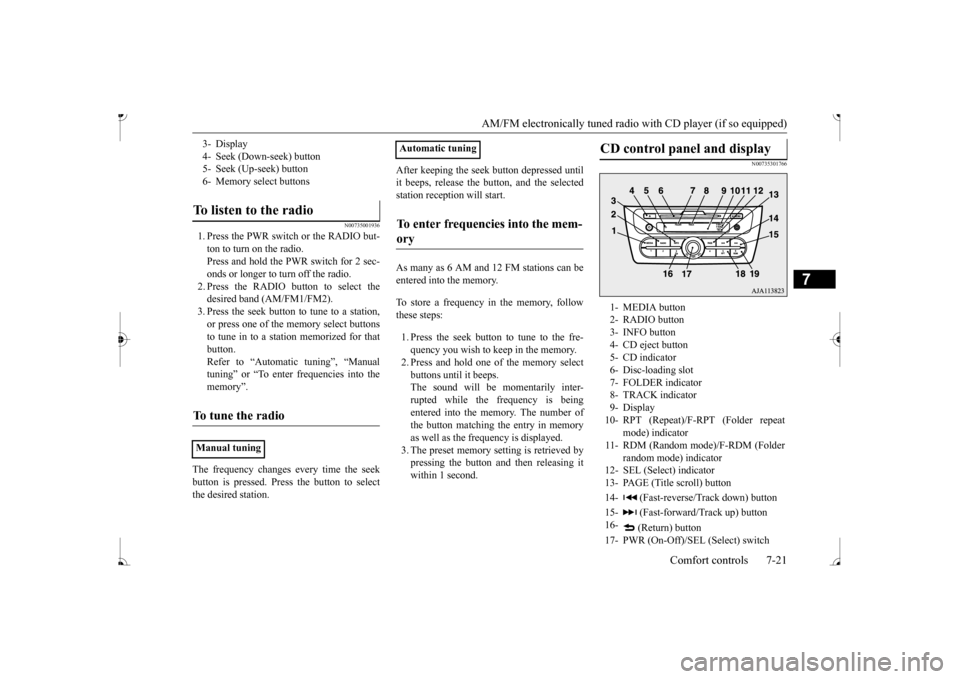
3- Display 4- Seek (Down-seek) button 5- Seek (Up-seek) button6- Memory select buttonsTo listen to the radio
To tune the radio
Manual tuning
Automatic tuningTo enter frequencies into the mem- ory
CD control panel and display
1- MEDIA button 2- RADIO button3- INFO button 4- CD eject button 5- CD indicator6- Disc-loading slot 7- FOLDER indicator 8- TRACK indicator9- Display 10- RPT (Repeat)/F-RPT (Folder repeat
mode) indicator
11- RDM (Random mode)/F-RDM (Folder
random mode) indicator
12- SEL (Select)
indicator
13- PAGE (Title scroll) button 14- (Fast-reverse/Track down) button15- (Fast-forward/Track up) button 16-
(Return) button
17- PWR (On-Off)/SEL (Select) switch
BK0236100US.book 21 ページ 2016年2月1日 月曜日 午前10時15分
Page 215 of 307
AM/FM electronically tuned radio with CD player (if so equipped) 7-22 Comfort controls
7
N00735502127
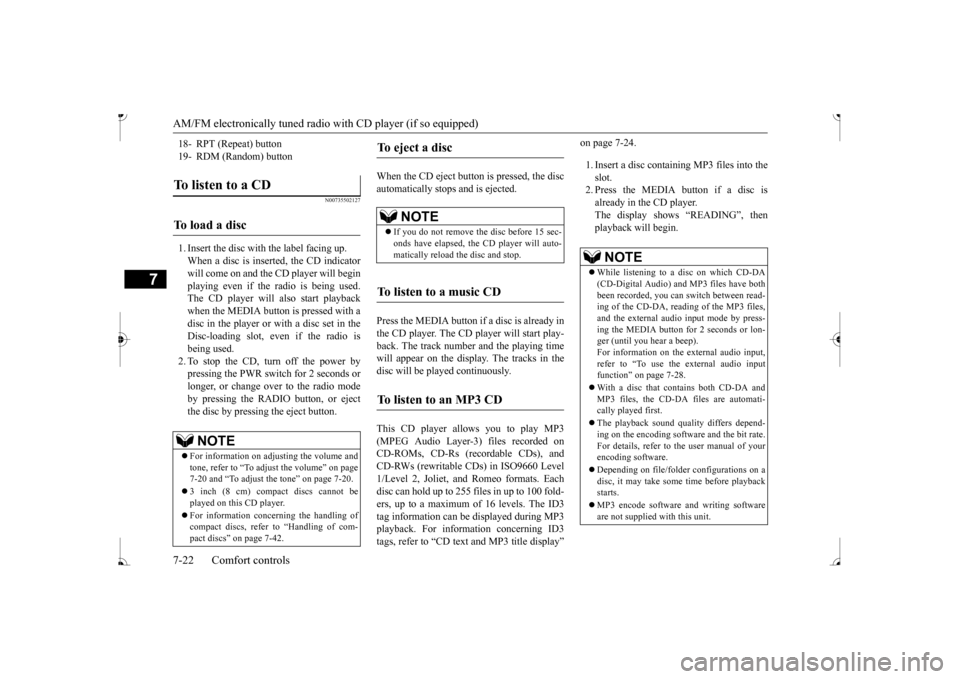
1. Insert the disc with the label facing up. When a disc is inserted, the CD indicator will come on and the CD player will begin playing even if the radio is being used. The CD player will also start playbackwhen the MEDIA button is pressed with a disc in the player or with a disc set in the Disc-loading slot, even if the radio isbeing used. 2. To stop the CD, turn off the power by pressing the PWR switch for 2 seconds orlonger, or change over to the radio mode by pressing the RADIO button, or eject the disc by pressi
ng the eject button.
When the CD eject button is pressed, the disc automatically stops and is ejected. Press the MEDIA button if
a disc is already in
the CD player. The CD player will start play- back. The track number and the playing timewill appear on the display. The tracks in the disc will be
played continuously.
This CD player allows you to play MP3 (MPEG Audio Layer-3) files recorded on CD-ROMs, CD-Rs (recordable CDs), andCD-RWs (rewritable CDs) in ISO9660 Level 1/Level 2, Joliet, an
d Romeo formats. Each
disc can hold up to 255 files in up to 100 fold-ers, up to a maximum of 16 levels. The ID3 tag information can be
displayed during MP3
playback. For inform
ation concerning ID3
tags, refer to “CD text
and MP3 title display”
1. Insert a disc containing MP3 files into the slot.2. Press the MEDIA button if a disc is already in the CD player. The display shows “READING”, thenplayback will begin.
18- RPT (Repeat) button 19- RDM (Random) buttonTo listen to a CD
To load a disc
NOTE
For information on adjusting the volume and tone, refer to “To adjust the volume” on page 7-20 and “To adjust the tone” on page 7-20. 3 inch (8 cm) compact discs cannot be played on this CD player. For information concerning the handling of compact discs, refer
to “Handling of com-
pact discs” on page 7-42.
To eject a disc
NOTE
If you do not remove the disc before 15 sec- onds have elapsed, the
CD player will auto-
matically reload
the disc and stop.
To listen to a music CD
To listen to an MP3 CD
NOTE
While listening to a
disc on which CD-DA
(CD-Digital Audio) a
nd MP3 files have both
been recorded, you can switch between read- ing of the CD-DA, reading of the MP3 files, and the external audio
input mode by press-
ing the MEDIA button for 2 seconds or lon- ger (until you hear a beep). For information on the
external audio input,
refer to “To use the external audio input function” on page 7-28. With a disc that contains both CD-DA and MP3 files, the CD-DA files are automati- cally played first. The playback sound quality differs depend- ing on the encoding software and the bit rate.For details, refer to
the user manual of your
encoding software. Depending on file/folder
configurations on a
disc, it may take some
time before playback
starts. MP3 encode software
and writing software
are not supplied with this unit.
BK0236100US.book 22 ページ 2016年2月1日 月曜日 午前10時15分
Page 216 of 307
AM/FM electronically tuned radio with CD player (if so equipped)
Comfort controls 7-23
7
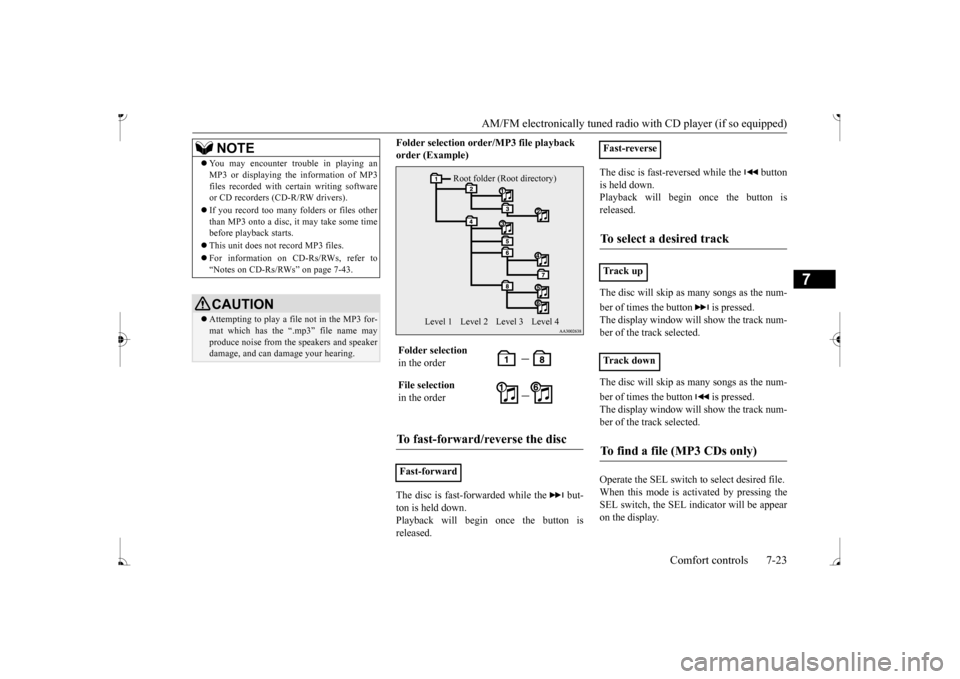
Folder selection orde
r/MP3 file playback
order (Example) The disc is fast-forwarded while the but- ton is held down. Playback will begin once the button is released.
The disc is fast-reversed while the button is held down. Playback will begi
n once the button is
released. The disc will skip as
many songs as the num-
ber of times the button is pressed. The display window will show the track num- ber of the track selected. The disc will skip as
many songs as the num-
ber of times the button is pressed. The display window will show the track num-ber of the track selected. Operate the SEL switch to select desired file. When this mode is activated by pressing the SEL switch, the SEL indicator will be appear on the display.
You may encounter trouble in playing an MP3 or displaying the information of MP3files recorded with certain writing softwareor CD recorders (CD-R/RW drivers). If you record too many folders or files other than MP3 onto a disc, it
may take some time
before playback starts. This unit does not record MP3 files. For information on CD-Rs/RWs, refer to “Notes on CD-Rs/RWs” on page 7-43.CAUTION Attempting to play a fi
le not in the MP3 for-
mat which has the “.m
p3” file name may
produce noise from the speakers and speaker damage, and can da
mage your hearing.
NOTE
Folder selection in the order File selection in the orderTo fast-forward/reverse the disc
Fast-forward
Root folder (Root directory)
Level 1 Level 3 Level 4
Level 2
Fast-reverseTo select a desired track
Tr a c k u p Tr a c k d o w nTo find a file (MP3 CDs only)
BK0236100US.book 23 ページ 2016年2月1日 月曜日 午前10時15分
Page 218 of 307
AM/FM electronically tuned radio with CD player (if so equipped)
Comfort controls 7-25
7
The CD player can display disc and track titles. Press the INFO
button repeatedly to
make selections in
the following sequence:
disc name
track name
normal display
mode. The CD player can display folder and file titles. Press the INFO
button repeatedly to
make selections in
the following sequence:
folder name
file name
normal display
mode. The CD player can display ID3 tag informa- tion for files that have been recorded withID3 tag information.
1. Press the INFO button for 2 seconds or longer to switch to
the ID3 tag informa-
tion. 2. Press the INFO button repeatedly to make selections in the following sequence:album TAG
track TAG
artist TAG
normal display mode.
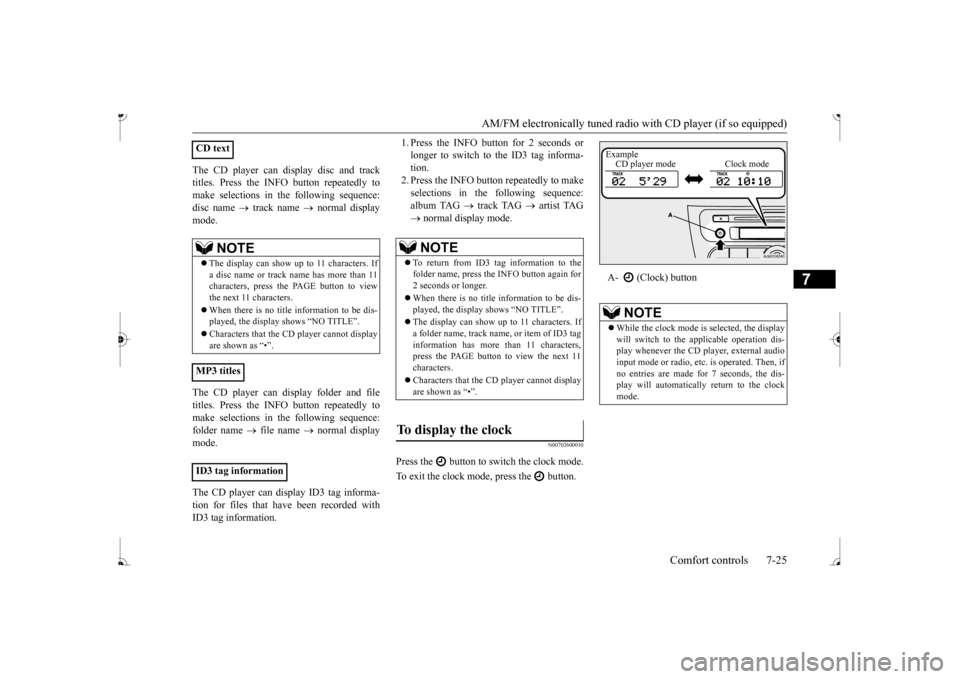
N00702600010
Press the button to switch the clock mode. To exit the clock mode, press the button.
CD text
NOTE
The display can show up to 11 characters. If a disc name or track name has more than 11 characters, press the PAGE button to view the next 11 characters. When there is no title information to be dis- played, the display
shows “NO TITLE”.
player cannot display
are shown as “•”.
MP3 titles ID3 tag information
NOTE
To return from ID3 tag information to the folder name, press the INFO button again for 2 seconds or longer. When there is no title information to be dis- played, the display shows “NO TITLE”. The display can show up to 11 characters. If a folder name, track name
, or item of ID3 tag
information has more than 11 characters, press the PAGE button to view the next 11 characters. Characters that the CD
player cannot display
are shown as “•”.
To display the clock
A- (Clock) button
NOTE
While the clock mode is
selected, the display
will switch to the a
pplicable operation dis-
play whenever the CD player, external audioinput mode or radio, et
c. is operated. Then, if
no entries are made for 7 seconds, the dis- play will automatically return to the clockmode.Example CD player mode Clock mode
BK0236100US.book 25 ページ 2016年2月1日 月曜日 午前10時15分
Page 222 of 307
To play tracks from USB device (if so equipped)
Comfort controls 7-29
7
N00762200056
You can connect your
iPod or USB memory
device to the USB input terminal and play music files stored in the iPod or USB mem- ory device.See the following section for the types of connectable devices
and supported files.
Refer to “Types of c
onnectable devices and
supported file specific
ations” on page 5-108.
See the following sections for the connecting methods, “How to connect an iPod” on page5-107 and “How to connect a USB memory device” on page 5-106. If your vehicle is equipped with a Bluetooth
®
2.0 interface, you can play music files in your iPod or USB memory de
vice via voice opera-
tion.Refer to “To play iPod tracks via voice opera- tion” on page 7-31 and “To play USB mem- ory device tracks via voice operation” onpage 7-37.
N00762301070
Use the connected a
udio equipment’s own
power source, such as its battery.Noise may be produced from the speakers ifthe connected audio equipment is used while charging it using the accessory socket of the vehicle. Do not activate the
external audio input
mode when no audio equipment is con-nected. Otherwise, noise may be produced from the speakers. Connect audio equipmen
t when the external
audio input mode is de
activated or lower the
vehicle’s speaker volum
e before connecting
it. Noise may be produced from the speakers ifaudio equipment is conne
cted after the exter-
nal audio input m
ode is activated.
Compared to the CD player mode and radio mode, the vehicle’s speaker volume will be lower in the external audio input mode.Therefore, be careful when switching from the external audio input mode to the CD player mode or radio mode since the speakervolume will be higher. Do not use excessive
force on the connection
cord. Otherwise, the cord and connectors may be damaged. If the connection cord
alone is left connected
to the auxiliary audi
o connector, noise may
be produced from the speakers.NOTE
For information on how to connect and oper- ate the commercially av
ailable audio equip-
ment, refer to the owner’s manual for thecommercially availabl
e audio equipment.
To play tracks from USB device
(if so equipped)
NOTE
NOTE
A file protected by c
opyright might not be
able to playback. It is recommended to adjust the equalizer of the connected device to 0 db or neutral.
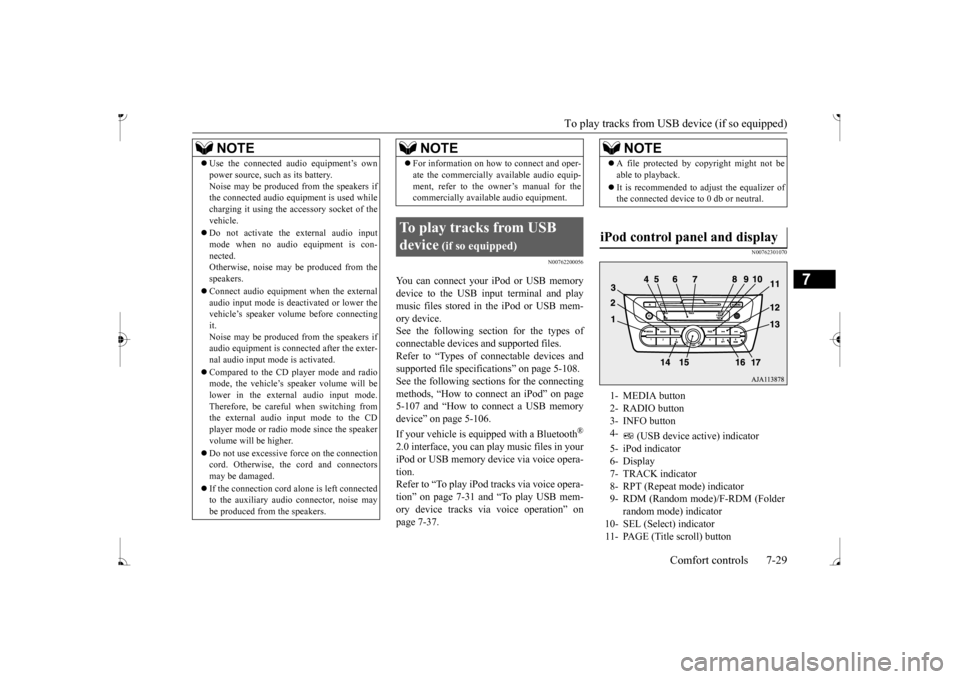
iPod control panel and display
1- MEDIA button 2- RADIO button 3- INFO button 4-
(USB device ac
tive) indicator
5- iPod indicator6- Display 7- TRACK indicator 8- RPT (Repeat mode) indicator9- RDM (Random mode)/F-RDM (Folder
random mode) indicator
10- SEL (Select)
indicator
11- PAGE (Title scroll) button
BK0236100US.book 29 ページ 2016年2月1日 月曜日 午前10時15分
Page 223 of 307
To play tracks from USB device (if so equipped)
7
N00762401101
1. Press the PWR switch to turn on the audio system. The system turns on in the last mode used.2. Connect your iPod to the USB input ter- minal. Refer to “How to connect an iPod” onpage 5-107. 3. Press the MEDIA button several times to switch to the iPod mode. The input modechanges as follows every time the MEDIA button is pressed: CD mode
iPod mode
Bluetooth
® mode (if so
equipped)
AUX mode
CD mode.
The iPod indicator is illuminated and then the iPod mode will be activated.4. Once the device is
selected, playback
starts and indicator appears on the dis- play.
5. To stop the playback, press the RADIO button or MEDIA button to switch to adifferent mode.
N00762501043
To fast-forward/revers
e the current track,
press the button or button. To fast-forward the current track, press and hold the button. To fast-reverse the current track, press and hold the button.
N00762600034
Press the button repeatedly until the desired track number appears on the display. Press the button repeatedly until the desired track number appears on the display.
N00762701090
You can select desired
tracks from the “Playl-
ists”, “Artists”,
“Albums”, “Songs” or
“Genre” (vehicles with Bluetooth
® 2.0 inter-
face) menus on your iPod. Operate the SEL switch to select desired tracks.The selected menu or category or track is shown in the display.
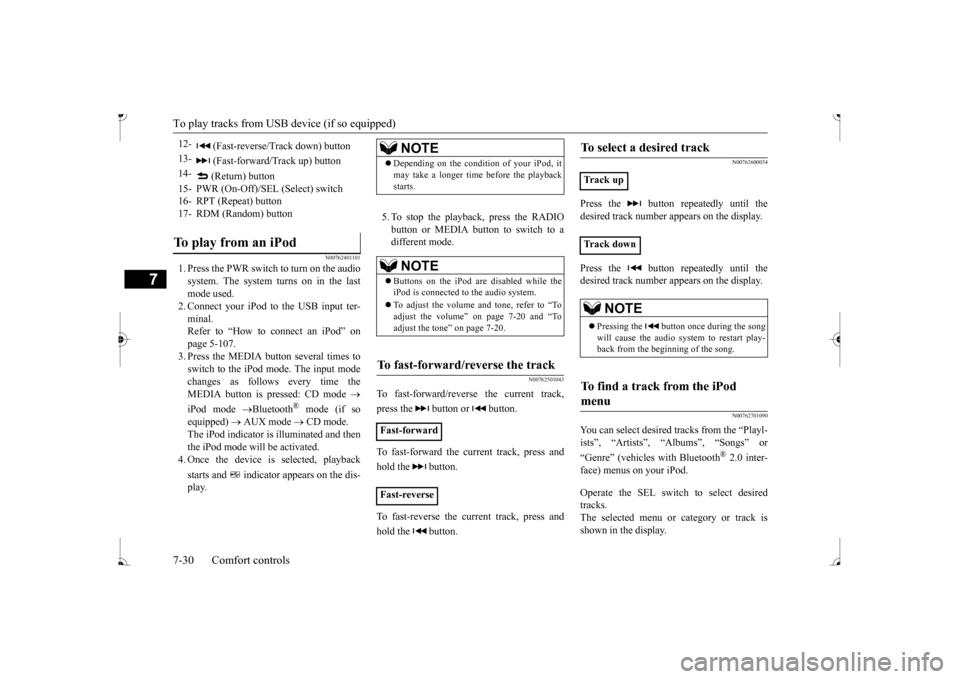
12-
(Fast-reverse/Track down) button
13-
(Fast-forward/Track up) button
14-
(Return) button
15- PWR (On-Off)/SE
L (Select) switch
16- RPT (Repeat) button17- RDM (Random) buttonTo play from an iPod
NOTE
Depending on the conditi
on of your iPod, it
may take a longer time
before the playback
starts.NOTE
Buttons on the iPod are disabled while the iPod is connected to
the audio system.
To adjust the volume and tone, refer to “To adjust the volume” on page 7-20 and “To adjust the tone” on page 7-20.
To fast-forward/reverse the track
Fast-forward Fast-reverse
To select a desired track
Track upTrack down
NOTE
Pressing the button once during the song will cause the audio system to restart play-back from the beginning of the song.
To find a track from the iPod menu
BK0236100US.book 30 ページ 2016年2月1日 月曜日 午前10時15分
Page 224 of 307
To play tracks from USB device (if so equipped)
Comfort controls 7-31
7
When this mode is activated by pressing the SEL switch, the SEL indicator will be appearon the display.
N00762800023
Press the RPT button during playback toshow “RPT” in the display. To exit this mode, press the button again.
N00762901034
Press the RDM button to show “RDM” in thedisplay. The iPod randomly selects and plays tracksfrom the current category. To exit this mode, press the button again.
N00763001045
Press and hold the RDM button until you heara beep to show “F-RDM” in the display. The iPod randomly select
s and plays tracks in
the album from the current category. To exit this mode, press the button again.
N00763101059
You can display the track titles, artist names,genre and album titles recorded in the iPod. The display changes as follows every timethe INFO button is pressed during playback: Album title
Track name
Artist name
Genre (vehicles with Bluetooth
® 2.0 inter-
face)
Normal display.
N00763200040
Desired tracks can be
selected and played
from your iPod by “Artist”, “Album”, “Playl- ist” and “Genre” us
ing voice commands.
For information concerning the voice recog-nition function or spea
ker registration func-
tion, refer to “Bluetooth
® 2.0 interface” on
page 5-85.The following explains how to prepare for voice operation and play the tracks.
N00763300067
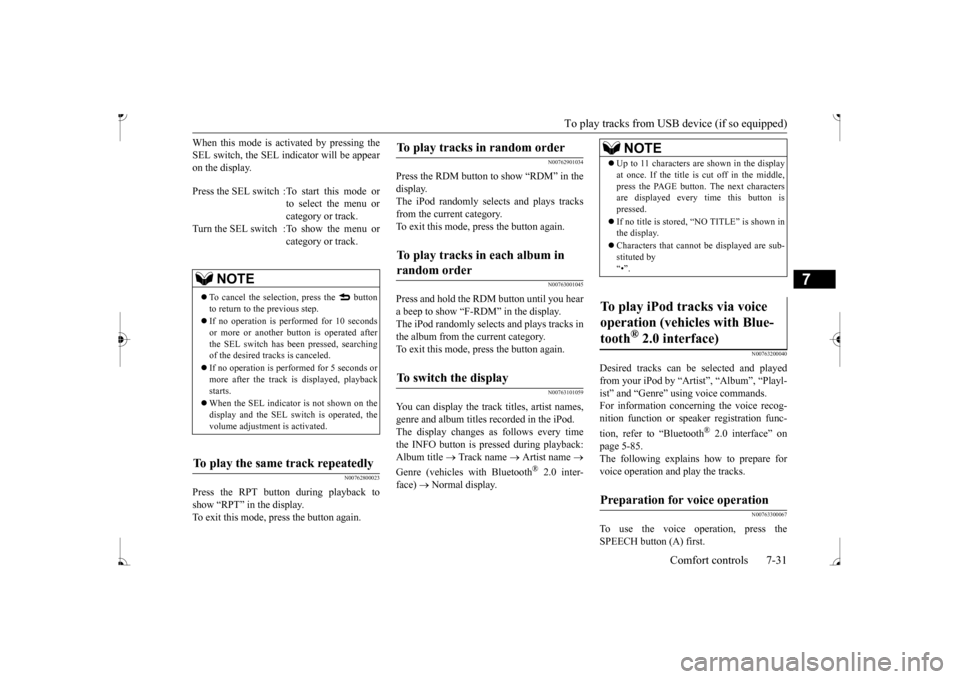
To use the voice operation, press theSPEECH button (A) first.
Press the SEL switch :To start this mode or
to select the menu or category or track.
Turn the SEL switch :To show the menu or
category or track.
NOTE
To cancel the selecti
on, press the button
to return to the previous step. If no operation is performed for 10 seconds or more or another but
ton is operated after
the SEL switch has been
pressed, searching
of the desired tracks is canceled. If no operation is perf
ormed for 5 seconds or
more after the track is displayed, playbackstarts. When the SEL indicator is not shown on the display and the SEL swit
ch is operated, the
volume adjustment
is activated.
To play the same track repeatedly
To play tracks in random order
To play tracks in each album in random order
To switch the display
NOTE
Up to 11 characters are shown in the display at once. If the title is cut off in the middle,press the PAGE button.
The next characters
are displayed every
time this button is
pressed. If no title is stored, “NO TITLE” is shown in the display. Characters that cannot
be displayed are sub-
stituted by “•”.
To play iPod tracks via voice operation (vehicles with Blue-tooth
® 2.0 interface)
Preparation for voice operation
BK0236100US.book 31 ページ 2016年2月1日 月曜日 午前10時15分
Page 226 of 307
To play tracks from USB device (if so equipped)
Comfort controls 7-33
7
3. After the voice guide says “What Album would you like to play?” say the albumtitle. 4. If there is only one match, the system pro- ceeds to step 6.5. If there are two or more matches, the voice guide will say “More than one match was found, would you like to play
poken by the system.
6. After the voice gui
de says “Playing
7. The system exits the voice recognition mode and starts playback.
N00763601041
1. Say “Play” on the main menu. 2. After the voice guide says “Would you like to play by Artist, Album, Playlist or Genre?,” say
“Playlist”.
3. After the voice guide says “What Playlist would you like to play?,” say the playlist name. 4. If there is only one match, the system pro-ceeds to step 6.
5. If there are two or more matches, the voice guide will say “More than onematch was found, would you like to play
NOTE
If you say “No” to thre
e or all album titles
offered, the voice gui
de will say “Album not
found, please try again” and the system returns to step 2.NOTE
If the confirmation f
unction is active, the
voice guide confirms if
the album title is cor-
rect. If the album title is correct, say “Yes”.
r the voice guide says
“Album not found, please
try again,” the sys-
tem returns to step 2.
To search by playlist
NOTE
The Bluetooth
® 2.0 interface starts recogniz-
ing the connect
ed device.
If the connected device
cannot be recognized
or a connection error occurs, the Bluetooth
®
2.0 interface starts
an appropriate voice
guide. Follow the voice guide.NOTE
If you say “Playlist
step 3. If the device has no playlist, the voice guidewill say “There are
no playlists stored on
device” and the system returns to step 2.
NOTE
If you say “No” to three or all playlist names offered, the voice guide
will say “Playlist not
found, please try again” and the system returns to step 2.NOTE
If the confirmation f
unction is active, the
voice guide confirms if
the playlist name is
correct. If the playlist name is correct, say “Yes”. If not, say “No”. After the voice guidesays “Playlist not found, please try again,” the system returns to step 2. Refer to “Con- firmation function se
tting” on page 5-89.
BK0236100US.book 33 ページ 2016年2月1日 月曜日 午前10時15分