low NISSAN GT-R 2013 R35 Multi Function Display Manual PDF
[x] Cancel search | Manufacturer: NISSAN, Model Year: 2013, Model line: GT-R, Model: NISSAN GT-R 2013 R35Pages: 315, PDF Size: 6.96 MB
Page 182 of 315
6-4Viewing technical information
*4Displays the distance to the next intersection on
the route.
*5Displays the distance traveled from the previous
intersection on the route.
Setting by voice command
1. Push <
>located on the steering wheel.
2. After the tone sounds, speak a command.
To display the information about the vehicle
location:
“Information” “Where am I?” (Standard Mode)
“Where am I?” (Alternate Command Mode)
FUEL ECONOMY INFORMATION
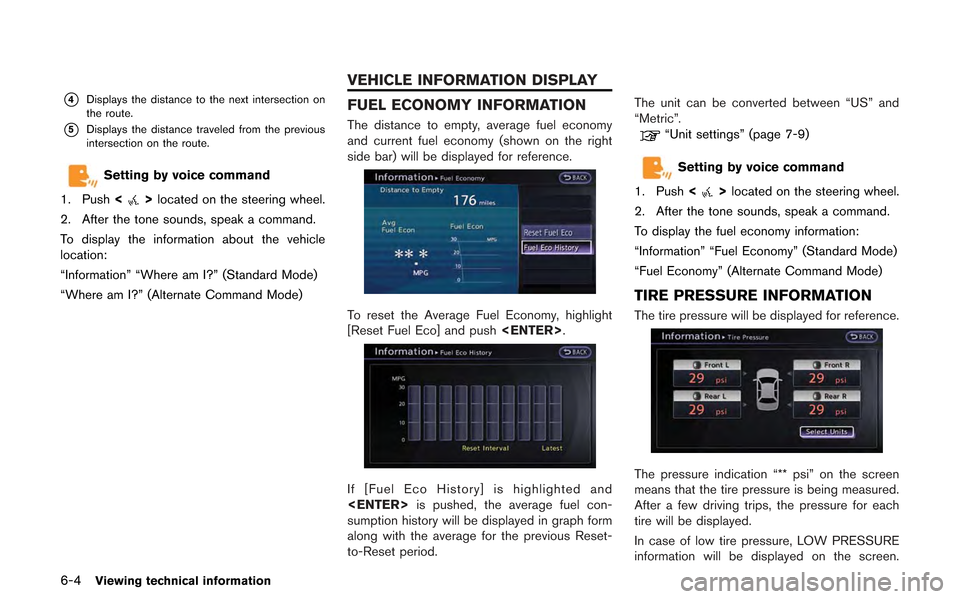
The distance to empty, average fuel economy
and current fuel economy (shown on the right
side bar) will be displayed for reference.
To reset the Average Fuel Economy, highlight
[Reset Fuel Eco] and push
If [Fuel Eco History] is highlighted and
sumption history will be displayed in graph form
along with the average for the previous Reset-
to-Reset period. The unit can be converted between “US” and
“Metric”.
“Unit settings” (page 7-9)
Setting by voice command
1. Push <
>located on the steering wheel.
2. After the tone sounds, speak a command.
To display the fuel economy information:
“Information” “Fuel Economy” (Standard Mode)
“Fuel Economy” (Alternate Command Mode)
TIRE PRESSURE INFORMATION
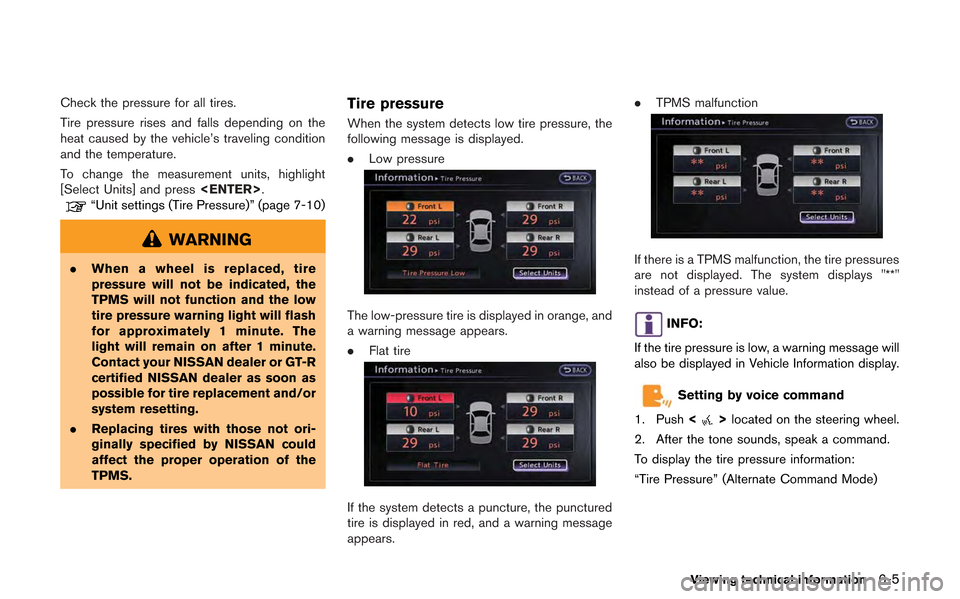
The tire pressure will be displayed for reference.
The pressure indication “** psi” on the screen
means that the tire pressure is being measured.
After a few driving trips, the pressure for each
tire will be displayed.
In case of low tire pressure, LOW PRESSURE
information will be displayed on the screen.
VEHICLE INFORMATION DISPLAY
Page 183 of 315
Check the pressure for all tires.
Tire pressure rises and falls depending on the
heat caused by the vehicle’s traveling condition
and the temperature.
To change the measurement units, highlight
[Select Units] and press
“Unit settings (Tire Pressure)” (page 7-10)
WARNING
.When a wheel is replaced, tire
pressure will not be indicated, the
TPMS will not function and the low
tire pressure warning light will flash
for approximately 1 minute. The
light will remain on after 1 minute.
Contact your NISSAN dealer or GT-R
certified NISSAN dealer as soon as
possible for tire replacement and/or
system resetting.
. Replacing tires with those not ori-
ginally specified by NISSAN could
affect the proper operation of the
TPMS.
Tire pressure
When the system detects low tire pressure, the
following message is displayed.
.Low pressure
The low-pressure tire is displayed in orange, and
a warning message appears.
.Flat tire
If the system detects a puncture, the punctured
tire is displayed in red, and a warning message
appears. .
TPMS malfunction
If there is a TPMS malfunction, the tire pressures
are not displayed. The system displays "**"
instead of a pressure value.
INFO:
If the tire pressure is low, a warning message will
also be displayed in Vehicle Information display.
Setting by voice command
1. Push <
>located on the steering wheel.
2. After the tone sounds, speak a command.
To display the tire pressure information:
“Tire Pressure” (Alternate Command Mode)
Viewing technical information6-5
Page 184 of 315
6-6Viewing technical information
MAINTENANCE INFORMATION
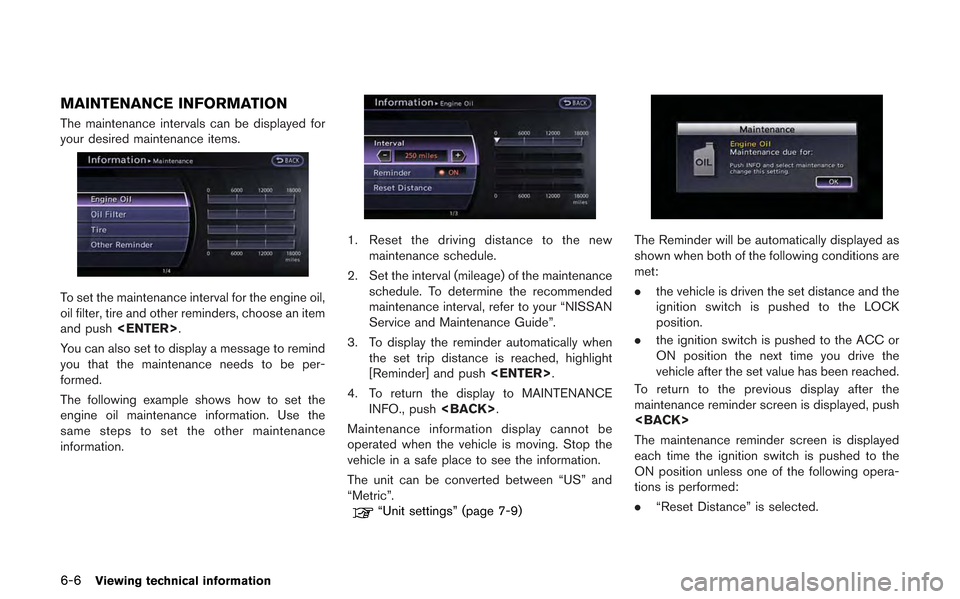
The maintenance intervals can be displayed for
your desired maintenance items.
To set the maintenance interval for the engine oil,
oil filter, tire and other reminders, choose an item
and push
You can also set to display a message to remind
you that the maintenance needs to be per-
formed.
The following example shows how to set the
engine oil maintenance information. Use the
same steps to set the other maintenance
information.
1. Reset the driving distance to the new maintenance schedule.
2. Set the interval (mileage) of the maintenance schedule. To determine the recommended
maintenance interval, refer to your “NISSAN
Service and Maintenance Guide”.
3. To display the reminder automatically when the set trip distance is reached, highlight
[Reminder] and push
4. To return the display to MAINTENANCE INFO., push
Maintenance information display cannot be
operated when the vehicle is moving. Stop the
vehicle in a safe place to see the information.
The unit can be converted between “US” and
“Metric”.
“Unit settings” (page 7-9)
The Reminder will be automatically displayed as
shown when both of the following conditions are
met:
. the vehicle is driven the set distance and the
ignition switch is pushed to the LOCK
position.
. the ignition switch is pushed to the ACC or
ON position the next time you drive the
vehicle after the set value has been reached.
To return to the previous display after the
maintenance reminder screen is displayed, push
The maintenance reminder screen is displayed
each time the ignition switch is pushed to the
ON position unless one of the following opera-
tions is performed:
. “Reset Distance” is selected.
Page 185 of 315
.“Reminder” is set to OFF.
. the maintenance interval is set again.
Setting by voice command
1. Push <
>located on the steering wheel.
2. After the tone sounds, speak a command.
To display the maintenance information:
“Information” “Maintenance” (Standard Mode)
“Maintenance” (Alternate Command Mode)
XM NavTraffic®information is a subscription
service offered by XM®Satellite Radio.
This service provides real-time information
regarding traffic flow, accidents, road construc-
tion and other incidents, where available.
XM NavTraffic
®combines information from
commercial and public traffic data providers
including government departments of transpor-
tation, police, emergency services, road sen-
sors, cameras and aircraft reports. The traffic
information is broadcast to the vehicle by the
XM
®satellites. Available traffic information on
the route the driver selected is shown on the
navigation screen so traffic conditions between
you and the destination are known. Three types
of real-time traffic information for major road-
ways are shown on the navigation system:
* Unscheduled traffic data for example, acci-
dents and disabled vehicles.
* Scheduled traffic data, for example road
construction and road closures.
* Traffic flow information (rate of speed data) .
WARNING
XM NavTraffic®information is not a
substitute for attentive driving. Traffic
conditions change constantly and
emergency situations can arise without
warning. Relying only on XM NavTraf-
fic
®information may lead to a collision
and could result in serious personal
injury.
NOTICE
Flow information is provided only for
roads equipped with traffic sensors and
is not available in all markets covered
by the service. Flow data may not be
available on portions of a road that is
under construction.
XM NavTraffic
®information is available in limited
markets. To subscribe or to check if this service
is available in the area:
call 1-800-XM-RADIO (1-800-967-2346) or
see www.xmradio.com/navtraffic
Viewing technical information6-7
VIEWING AVAILABLE TRAFFIC
INFORMATION
Page 188 of 315
6-10Viewing technical information
TRAFFIC INFORMATION ON MAP
With subscription to XM NavTraffic®service,
traffic information is displayed on both Plan View
and Birdview
TMmap screen.
See “Notes on Traffic Information” for further
information.
“Notes on XM NavTraffic®information”
(page 11-11)
Screen information
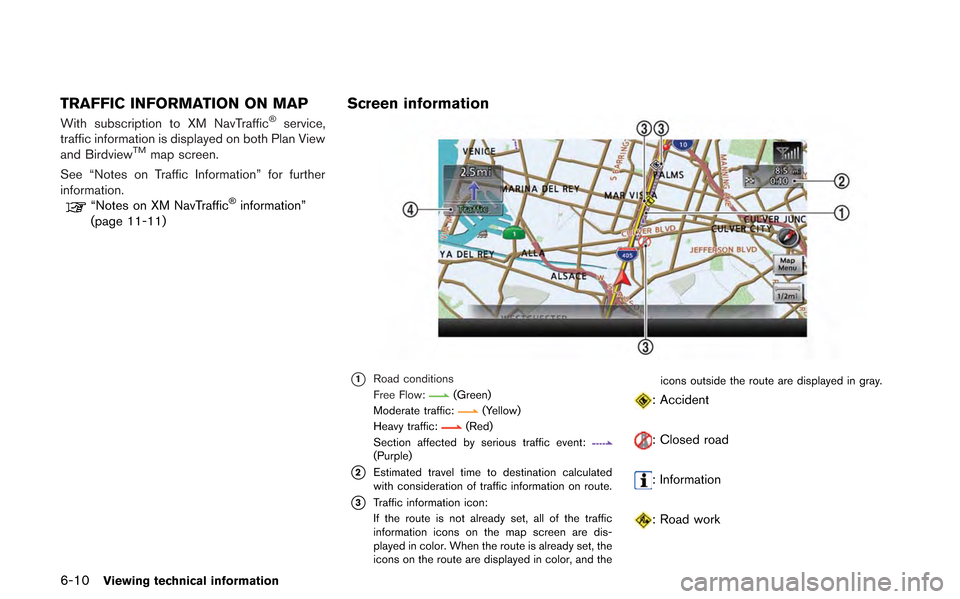
*1Road conditions
Free Flow:(Green)
Moderate traffic:(Yellow)
Heavy traffic:(Red)
Section affected by serious traffic event:
(Purple)
*2Estimated travel time to destination calculated
with consideration of traffic information on route.
*3Traffic information icon:
If the route is not already set, all of the traffic
information icons on the map screen are dis-
played in color. When the route is already set, the
icons on the route are displayed in color, and the icons outside the route are displayed in gray.
: Accident
: Closed road
: Information
: Road work
Page 190 of 315
6-12Viewing technical information
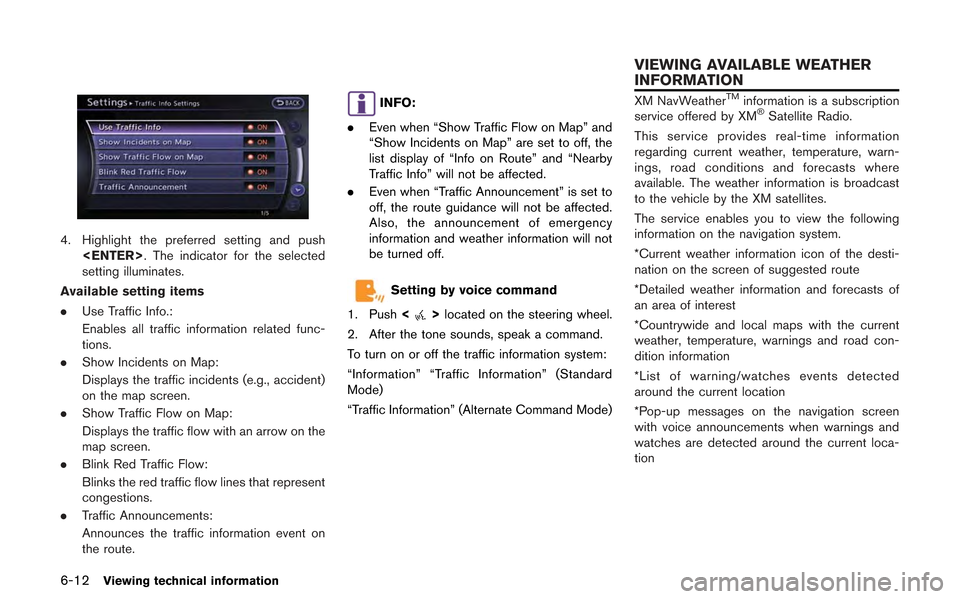
4. Highlight the preferred setting and push
setting illuminates.
Available setting items
. Use Traffic Info.:
Enables all traffic information related func-
tions.
. Show Incidents on Map:
Displays the traffic incidents (e.g., accident)
on the map screen.
. Show Traffic Flow on Map:
Displays the traffic flow with an arrow on the
map screen.
. Blink Red Traffic Flow:
Blinks the red traffic flow lines that represent
congestions.
. Traffic Announcements:
Announces the traffic information event on
the route.
INFO:
. Even when “Show Traffic Flow on Map” and
“Show Incidents on Map” are set to off, the
list display of “Info on Route” and “Nearby
Traffic Info” will not be affected.
. Even when “Traffic Announcement” is set to
off, the route guidance will not be affected.
Also, the announcement of emergency
information and weather information will not
be turned off.
Setting by voice command
1. Push <
>located on the steering wheel.
2. After the tone sounds, speak a command.
To turn on or off the traffic information system:
“Information” “Traffic Information” (Standard
Mode)
“Traffic Information” (Alternate Command Mode)
XM NavWeatherTMinformation is a subscription
service offered by XM®Satellite Radio.
This service provides real-time information
regarding current weather, temperature, warn-
ings, road conditions and forecasts where
available. The weather information is broadcast
to the vehicle by the XM satellites.
The service enables you to view the following
information on the navigation system.
*Current weather information icon of the desti-
nation on the screen of suggested route
*Detailed weather information and forecasts of
an area of interest
*Countrywide and local maps with the current
weather, temperature, warnings and road con-
dition information
*List of warning/watches events detected
around the current location
*Pop-up messages on the navigation screen
with voice announcements when warnings and
watches are detected around the current loca-
tion
VIEWING AVAILABLE WEATHER
INFORMATION
Page 199 of 315
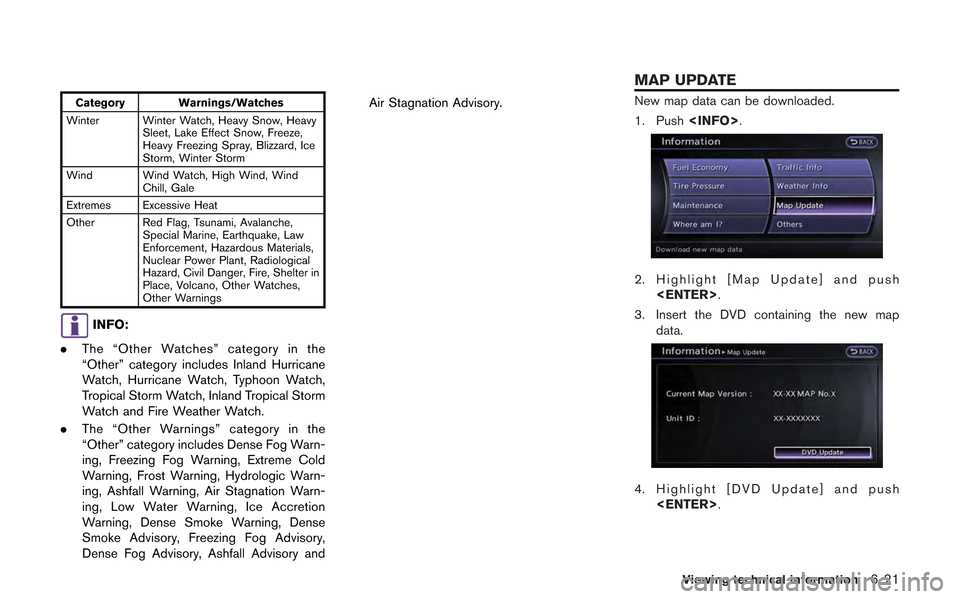
Category Warnings/Watches
Winter Winter Watch, Heavy Snow, Heavy Sleet, Lake Effect Snow, Freeze,
Heavy Freezing Spray, Blizzard, Ice
Storm, Winter Storm
Wind Wind Watch, High Wind, Wind Chill, Gale
Extremes Excessive Heat
Other Red Flag, Tsunami, Avalanche, Special Marine, Earthquake, Law
Enforcement, Hazardous Materials,
Nuclear Power Plant, Radiological
Hazard, Civil Danger, Fire, Shelter in
Place, Volcano, Other Watches,
Other Warnings
INFO:
. The “Other Watches” category in the
“Other” category includes Inland Hurricane
Watch, Hurricane Watch, Typhoon Watch,
Tropical Storm Watch, Inland Tropical Storm
Watch and Fire Weather Watch.
. The “Other Warnings” category in the
“Other” category includes Dense Fog Warn-
ing, Freezing Fog Warning, Extreme Cold
Warning, Frost Warning, Hydrologic Warn-
ing, Ashfall Warning, Air Stagnation Warn-
ing, Low Water Warning, Ice Accretion
Warning, Dense Smoke Warning, Dense
Smoke Advisory, Freezing Fog Advisory,
Dense Fog Advisory, Ashfall Advisory and Air Stagnation Advisory.
New map data can be downloaded.
1. Push
2. Highlight [Map Update] and push
3. Insert the DVD containing the new map data.
4. Highlight [DVD Update] and push
Viewing technical information6-21
MAP UPDATE
Page 200 of 315
6-22Viewing technical information
INFO:
. Refer to the vehicle Owner’s Manual for the
location of the DVD slot.
. Do not eject the DVD while updating the
map data. Doing so will result in an
incomplete update.
. To order updated DVD-ROMs or additional
DVD-ROMs, contact your NISSAN dealer or
GT-R certified NISSAN dealer.
NOTICE
In handling the DVD-ROM, be careful
on the following points.
.Do not try to bend the DVD-ROM.
Do not use any disk that is bent or
cracked.
. Do not use any benzine, thinner, or
antistatic spray on them.
. Do not put on any sticker or write
anything on either surface.
. If you need to clean it, do so with a
soft cloth by wiping from the centre
outward.
. Do not use a DVD Laser Lens
Cleaners as they may cause the
DVD player to malfunction.
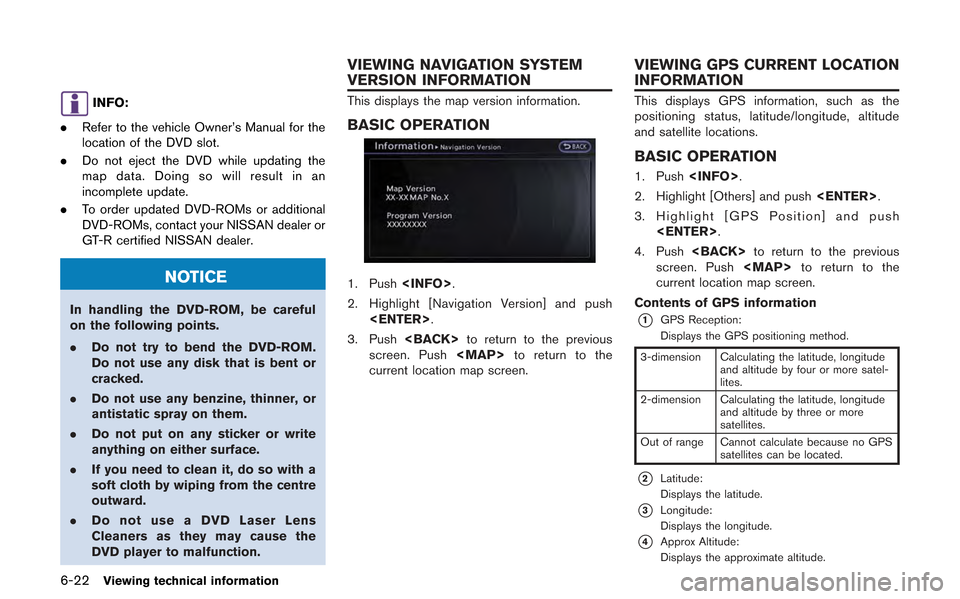
This displays the map version information.
BASIC OPERATION
1. Push
2. Highlight [Navigation Version] and push
3. Push
screen. Push
Page 205 of 315
![NISSAN GT-R 2013 R35 Multi Function Display Manual PDF This allows to you adjust the speaker tone
quality and sound balance.
1. Push<SETTING>.
2. Highlight [Audio] and push <ENTER>.
3. Highlight the preferred adjustment item and push <ENTER>.
4. Use the c](/img/5/316/w960_316-204.png "NISSAN GT-R 2013 R35 Multi Function Display Manual PDF This allows to you adjust the speaker tone
quality and sound balance.
1. Push<SETTING>.
2. Highlight [Audio] and push <ENTER>.
3. Highlight the preferred adjustment item and push <ENTER>.
4. Use the c")
This allows to you adjust the speaker tone
quality and sound balance.
1. Push
2. Highlight [Audio] and push
3. Highlight the preferred adjustment item and push
4. Use the center dial to adjust the tone quality or sound balance.
5. After settings, push
6. Push
screen.
Push
Page 213 of 315
![NISSAN GT-R 2013 R35 Multi Function Display Manual PDF The image files in the USB memory will be
displayed.
1. Press<SETTING>.
2. Select [Others] and press <ENTER>.
3. Select [Image Viewer] and press <ENTER>.
The image of the selected file is displayed on](/img/5/316/w960_316-212.png "NISSAN GT-R 2013 R35 Multi Function Display Manual PDF The image files in the USB memory will be
displayed.
1. Press<SETTING>.
2. Select [Others] and press <ENTER>.
3. Select [Image Viewer] and press <ENTER>.
The image of the selected file is displayed on")
The image files in the USB memory will be
displayed.
1. Press
2. Select [Others] and press
3. Select [Image Viewer] and press
The image of the selected file is displayed on the
right side of the screen.
When a number of folders are included in the
USB memory, select a folder from the list and
push
FULL SCREEN DISPLAY
The full screen display will appear when select-
ing [Full Screen Display] and press
To operate the Image Viewer or to change the
settings, select the desired key.
.
(Start)
Select “
” and push
playing the slideshow.
.
(Stop)
Select “
” and push
the slideshow.
.
(Next)
Select “
” and push
display the next file.
.
(Previous)
Select “
” and push
display the previous file.
SETTING THE IMAGE VIEWER
The Image Viewer setting display will appear
when selecting [Settings] on the full screen
display and pushing
settings are available for the full screen display.
. Slideshow Speed
Choose [Slideshow Speed] and push
select the changing time from 5, 10, 30,
60 seconds or “No Auto Change”. .
Slideshow Order
Choose [Slideshow Order] and push
select “Random” or “Order List”.
Operating tips
. Only files that meet the following conditions
will be displayed.
— File format: JPEG (“.jpg” or “.jpeg”)
— File size: 2 MB or less
— Display size: 1,536 62,048 pixels or
less
. If an electronic device (such as a digital
camera) is directly connected to the vehicle
using a USB cable, no image will be
displayed on the screen.
. If the file name is too long, some file names
may not be entirely displayed.
Other settings7-11
IMAGE VIEWER