NISSAN SENTRA 2006 B15 / 5.G Navigation Manual
SENTRA 2006 B15 / 5.G
NISSAN
NISSAN
https://www.carmanualsonline.info/img/5/699/w960_699-0.png
NISSAN SENTRA 2006 B15 / 5.G Navigation Manual
Page 153 of 272
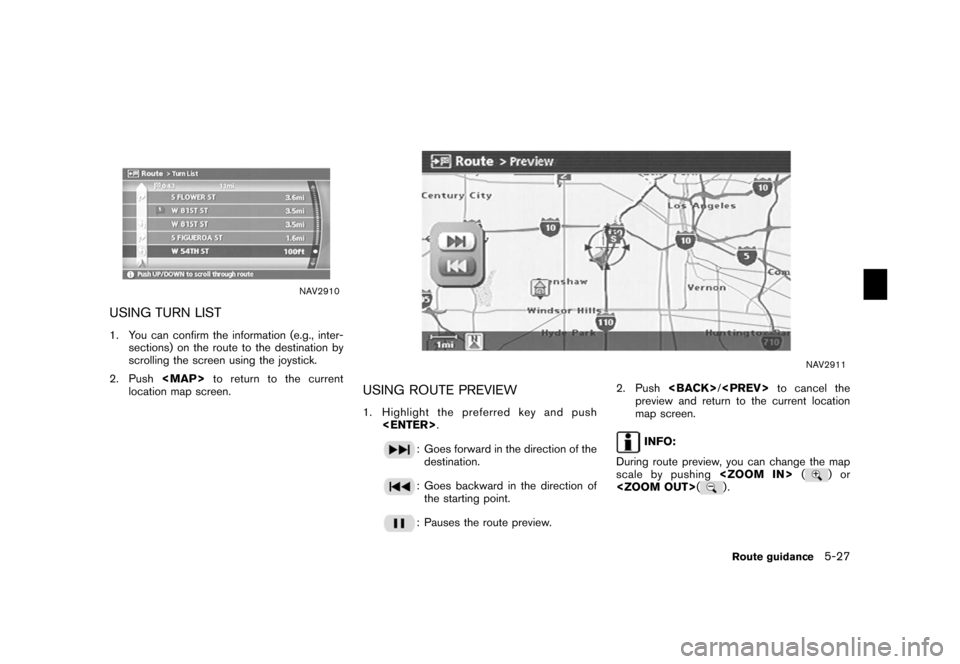
NAV2910
USING TURN LIST1. You can confirm the information (e.g., inter-sections) on the route to the destination by
scrolling the screen using the joystick.
2. Push
Page 154 of 272
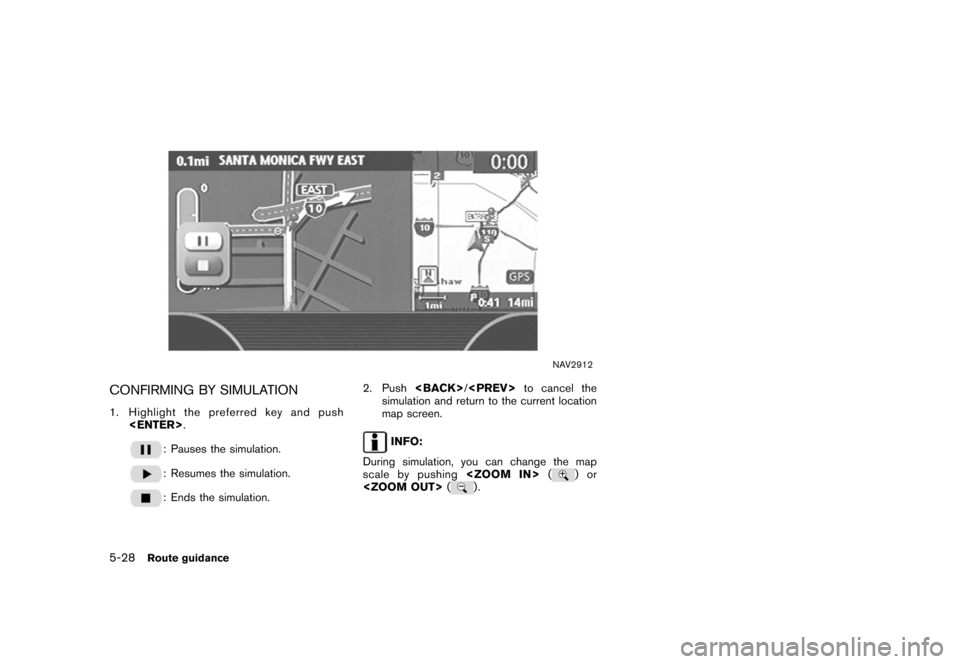
NAV2912
CONFIRMING BY SIMULATION1. Highlight the preferred key and push .
: Pauses the simulation.: Resumes the simulation.: Ends the simulation. 2. Push
/
to cancel the
simulation and return to the current location
map screen.
INFO:
During simulation, you can change the map
scale by pushing (
)or
(
).
5-28
Route guidance
Page 159 of 272
![NISSAN SENTRA 2006 B15 / 5.G Navigation Manual
SET AVERAGE SPEEDSYou can calculate the required time to the
destination based on the set vehicle speeds.Basic operation1. Highlight [Set Average Speeds] and push<ENTER> .
2. Highlight the preferred](/img/5/699/w960_699-158.png "NISSAN SENTRA 2006 B15 / 5.G Navigation Manual
SET AVERAGE SPEEDSYou can calculate the required time to the
destination based on the set vehicle speeds.Basic operation1. Highlight [Set Average Speeds] and push<ENTER> .
2. Highlight the preferred")
SET AVERAGE SPEEDSYou can calculate the required time to the
destination based on the set vehicle speeds.Basic operation1. Highlight [Set Average Speeds] and push .
2. Highlight the preferred item and push .
3. Use the joystick to make an adjustment. The speed can be increased/decreased by 5
MPH (5 km/h) .
4. After finishing the setting, push
or /
to activate the
setting.
5. Push /
to return to the
previous screen. Push
Page 172 of 272
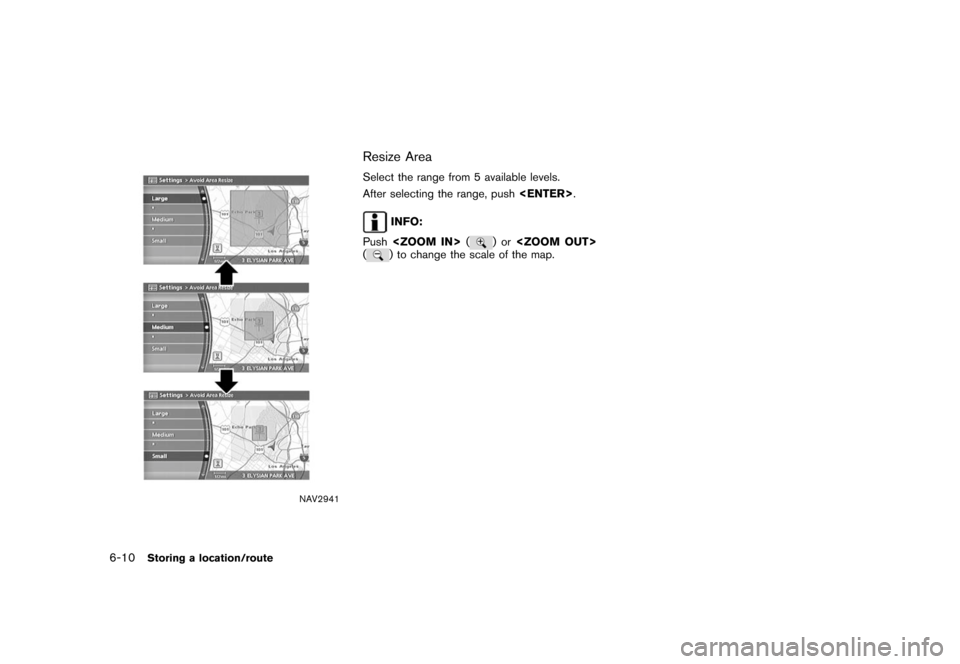
NAV2941
Resize AreaSelect the range from 5 available levels.
After selecting the range, push.
INFO:
Push (
)or
(
) to change the scale of the map.
6-10
Storing a location/route
Page 174 of 272
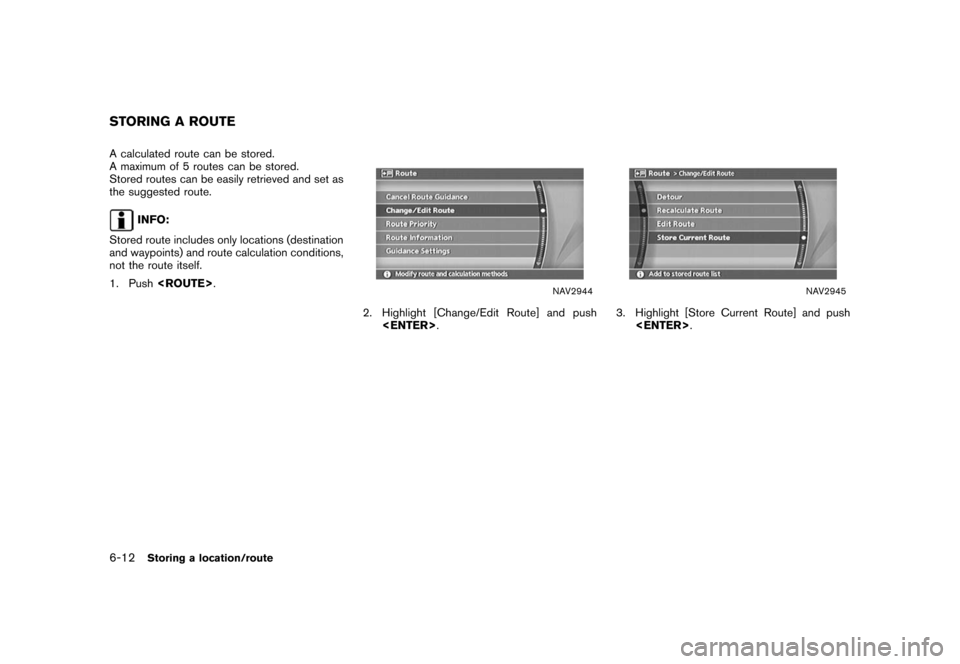
A calculated route can be stored.
A maximum of 5 routes can be stored.
Stored routes can be easily retrieved and set as
the suggested route.
INFO:
Stored route includes only locations (destination
and waypoints) and route calculation conditions,
not the route itself.
1. Push .
NAV2944
2. Highlight [Change/Edit Route] and push
.
NAV2945
3. Highlight [Store Current Route] and push
.
STORING A ROUTE6-12
Storing a location/route
Page 179 of 272
MINOR ADJUSTMENT OF THE
STORED HOME AND LOCATIONSWhen you select [Edit], you can edit the
following items of the home or stored location.. Show Icon on Map
. Name (only for stored locations)
. Icon
. Sound
. Direction
. Distance
. Phone No.
. Group (only for stored locations)
. Entry Number (only for stored locations)
NAV2953
Show Icon on MapDisplays the home icon or the stored location
icon on the map.
1. Highlight [Show Icon on Map] and push
.
2. The indicator illuminates when the item is set. Then the system displays the icon on
the map.
NAV2954
Name (only for stored locations)Changes the name of a stored location.
1. Highlight [Name] and push
.
A character input screen is displayed.
Storing a location/route
6-17
Page 180 of 272
NAV2955
2. Enter the preferred name for the storedlocation.
“CHARACTER (letter and number)
INPUT SCREEN” (page 2-24)
3. Highlight [OK] and push .
The name is stored.
NAV2956
IconChanges the icon of the home or stored location
to the preferred one. By changing the icons, you
can utilize the [By Icon] option of the sort
function more effectively.
1. Highlight [Icon] and push .
A list of icons is displayed.
NAV2957
2. Highlight the preferred icon by scrolling the
list using the joystick. Then push
.
6-18
Storing a location/route
Page 187 of 272
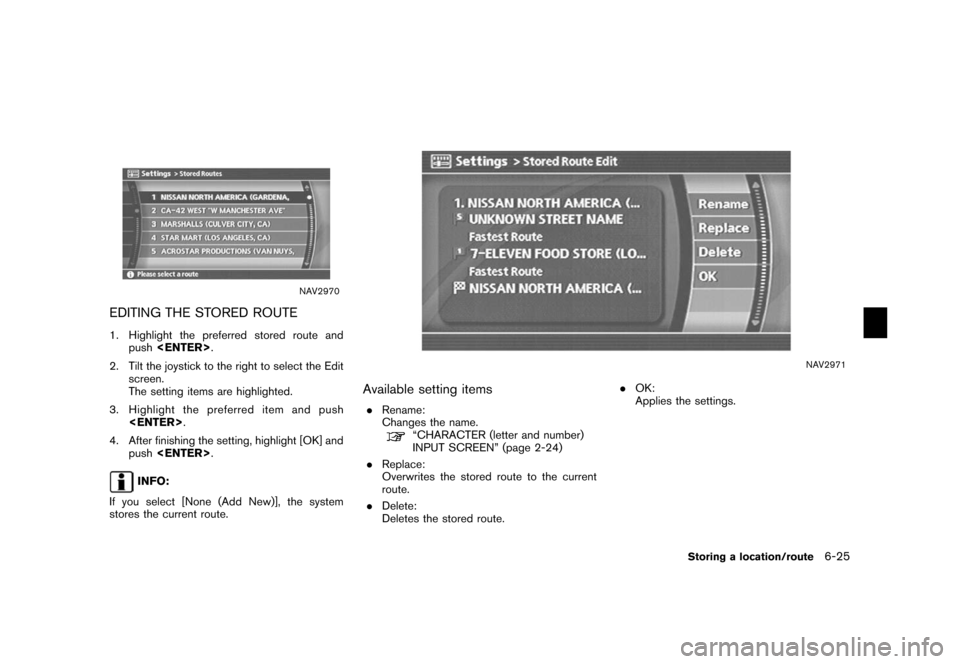
NAV2970
EDITING THE STORED ROUTE1. Highlight the preferred stored route andpush .
2. Tilt the joystick to the right to select the Edit screen.
The setting items are highlighted.
3. Highlight the preferred item and push .
4. After finishing the setting, highlight [OK] and push .
INFO:
If you select [None (Add New)], the system
stores the current route.
NAV2971
Available setting items. Rename:
Changes the name.
“CHARACTER (letter and number)
INPUT SCREEN” (page 2-24)
. Replace:
Overwrites the stored route to the current
route.
. Delete:
Deletes the stored route. .
OK:
Applies the settings.
Storing a location/route
6-25
Page 188 of 272
NAV2972
EDITING THE STORED TRACKING1. Highlight the preferred stored tracked routeand push . The [Show] indicator
for the stored tracked route illuminates, and
the route is displayed on the map.
Tilt the joystick to the right to highlight [Edit].
INFO:
.
Current tracking is displayed up to 62
miles (100 km) .
.
Stored tracking is displayed up to 12
miles (20 km) .
NAV2973
2. Highlight the preferred item and push .
Available setting items (Current tracking) . Map:
Displays the tracked route up to the current
location.
. Delete:
Deletes the tracked route up to the current
location.
NAV2974
Available setting items (Stored tracked routes)
. Map:
Displays a stored tracked route on the map.
. Rename:
Changes the name.
“CHARACTER (letter and number)
INPUT SCREEN” (page 2-24)
. Replace:
Overwrites the stored tracked route to the
current tracked route.
. Delete:
Deletes the stored tracked route.
. OK:
Applies the settings.
6-26
Storing a location/route
Page 189 of 272
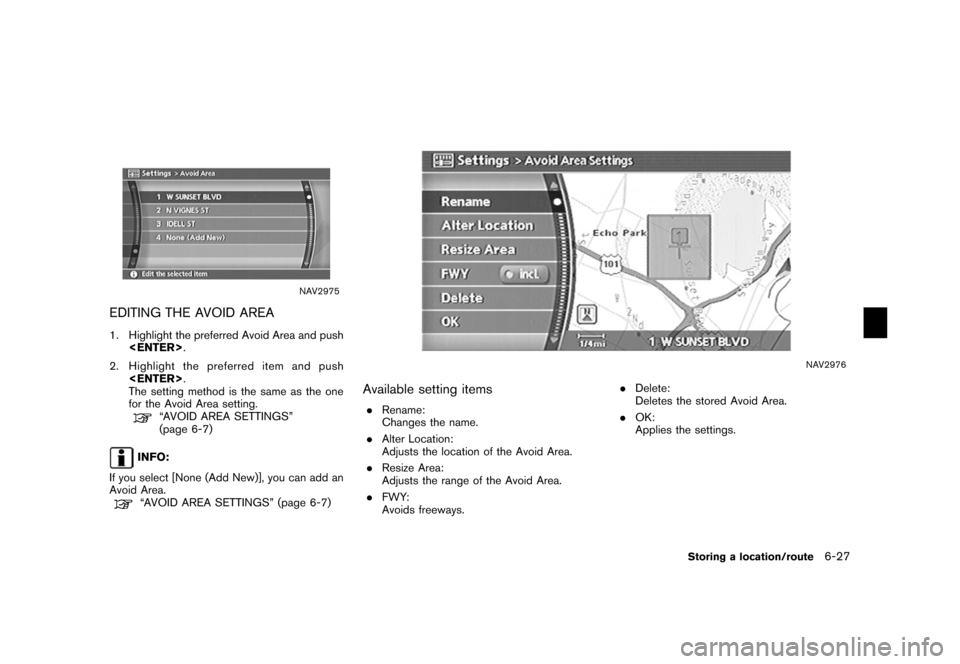
NAV2975
EDITING THE AVOID AREA1. Highlight the preferred Avoid Area and push .
2. Highlight the preferred item and push .
The setting method is the same as the one
for the Avoid Area setting.
“AVOID AREA SETTINGS”
(page 6-7)
INFO:
If you select [None (Add New)], you can add an
Avoid Area.“AVOID AREA SETTINGS” (page 6-7)
NAV2976
Available setting items. Rename:
Changes the name.
. Alter Location:
Adjusts the location of the Avoid Area.
. Resize Area:
Adjusts the range of the Avoid Area.
. FWY:
Avoids freeways. .
Delete:
Deletes the stored Avoid Area.
. OK:
Applies the settings.
Storing a location/route
6-27
![NISSAN SENTRA 2006 B15 / 5.G Navigation Manual
MINOR ADJUSTMENT OF THE
STORED HOME AND LOCATIONSWhen you select [Edit], you can edit the
following items of the home or stored location.. Show Icon on Map
. Name (only for stored locations)
. Icon
.](/img/5/699/w960_699-178.png "NISSAN SENTRA 2006 B15 / 5.G Navigation Manual
MINOR ADJUSTMENT OF THE
STORED HOME AND LOCATIONSWhen you select [Edit], you can edit the
following items of the home or stored location.. Show Icon on Map
. Name (only for stored locations)
. Icon
.")
![NISSAN SENTRA 2006 B15 / 5.G Navigation Manual
NAV2955
2. Enter the preferred name for the storedlocation.
“CHARACTER (letter and number)
INPUT SCREEN” (page 2-24)
3. Highlight [OK] and push <ENTER>.
The name is stored.
NAV2956
IconChanges th](/img/5/699/w960_699-179.png "NISSAN SENTRA 2006 B15 / 5.G Navigation Manual
NAV2955
2. Enter the preferred name for the storedlocation.
“CHARACTER (letter and number)
INPUT SCREEN” (page 2-24)
3. Highlight [OK] and push <ENTER>.
The name is stored.
NAV2956
IconChanges th")
![NISSAN SENTRA 2006 B15 / 5.G Navigation Manual
NAV2972
EDITING THE STORED TRACKING1. Highlight the preferred stored tracked routeand push <ENTER> . The [Show] indicator
for the stored tracked route illuminates, and
the route is displayed on the m](/img/5/699/w960_699-187.png "NISSAN SENTRA 2006 B15 / 5.G Navigation Manual
NAV2972
EDITING THE STORED TRACKING1. Highlight the preferred stored tracked routeand push <ENTER> . The [Show] indicator
for the stored tracked route illuminates, and
the route is displayed on the m")