display PEUGEOT 2008 2014 Repair Manual
[x] Cancel search | Manufacturer: PEUGEOT, Model Year: 2014, Model line: 2008, Model: PEUGEOT 2008 2014Pages: 336, PDF Size: 9.35 MB
Page 238 of 336

05
Map orientation
Select " Map ".
Select " Map heading ".
Select:
- " Flat map view " to display the map in 2D,
- " Perspective map view " to display a perspective view.
With " Flat map view ":
- " North heading " to keep the map always North up,
- " Vehicle heading " to have the map follow the direction of travel,
Street names are visible on the map from the 100 m scale.
Map colour
Select " Map colour ". Map colour ". Map colour
Select:
- " Automatic day/night mode " to have the brightness of the map adjusted automatically according to the ambient light level, using the vehicle's sunshine sensor,
- " Map in day mode " to have the map always in day mode,
- " Map in night mode " to have the map always in night mode.
Then " Confi rm " to save the modifi cations.
Press MENU to display the " MAIN MENU " then select " Navigation ".
Select " Map ".
Press MENU to display the " MAIN MENU " then select " Navigation ".
MAP
Then " Confi rm " to save the modifi cations.
236
Page 239 of 336
05
237
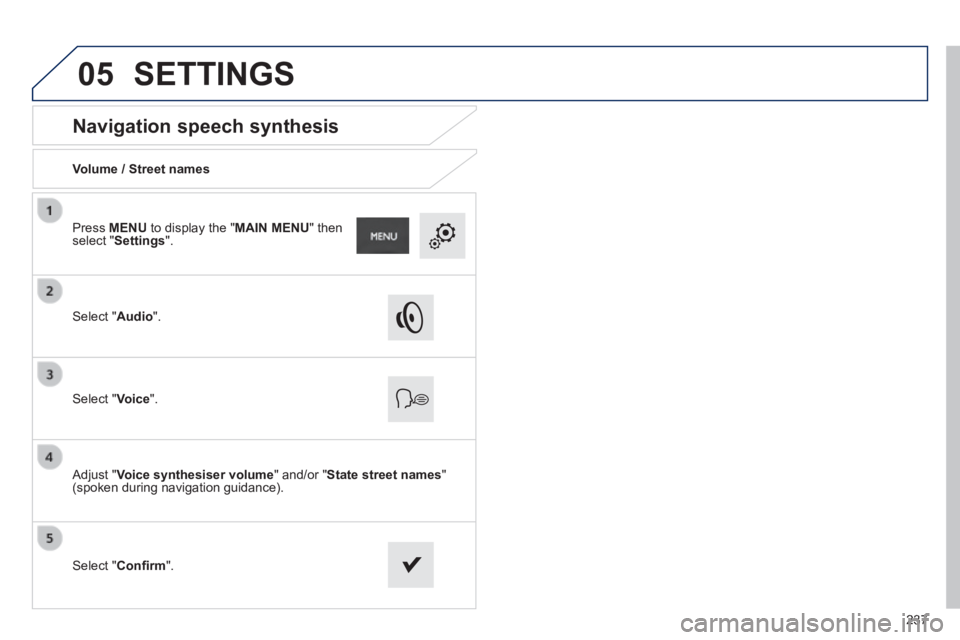
Navigation speech synthesis
Volume / Street names
Select " Audio ".
Select " Voice ".
Adjust " Voice synthesiser volume " and/or " State street names " (spoken during navigation guidance).
Select " Confi rm ".
Press MENU to display the " MAIN MENU " then select " Settings ".
SETTINGS
Page 241 of 336
239
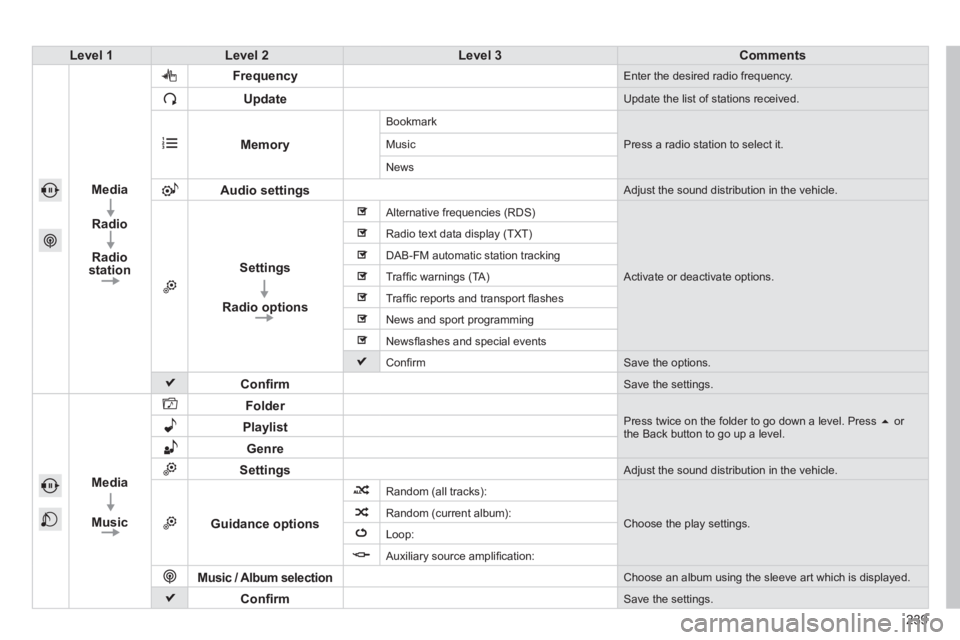
Level 1Level 2Level 3Comments
Media
Radio
Radio station
Frequency Enter the desired radio frequency.
Update Update the list of stations received.
Memory
Bookmark
Press a radio station to select it. Music
News
Audio settings Adjust the sound distribution in the vehicle.
Settings
Radio options
Alternative frequencies (RDS)
Activate or deactivate options.
Radio text data display (TXT)
DAB-FM automatic station tracking
Traffi c warnings (TA)
Traffi c reports and transport fl ashes
News and sport programming
Newsfl ashes and special events
Confi rm Save the options.
Confi rm Save the settings.
Media
Music
Folder Press twice on the folder to go down a level. Press or the Back button to go up a level. Playlist
Genre
Settings Adjust the sound distribution in the vehicle.
Guidance options
Random (all tracks):
Choose the play settings. Random (current album):
Loop:
Auxiliary source amplifi cation:
Music / Album selection Choose an album using the sleeve art which is displayed.
Confi rm Save the settings.
Page 243 of 336
241
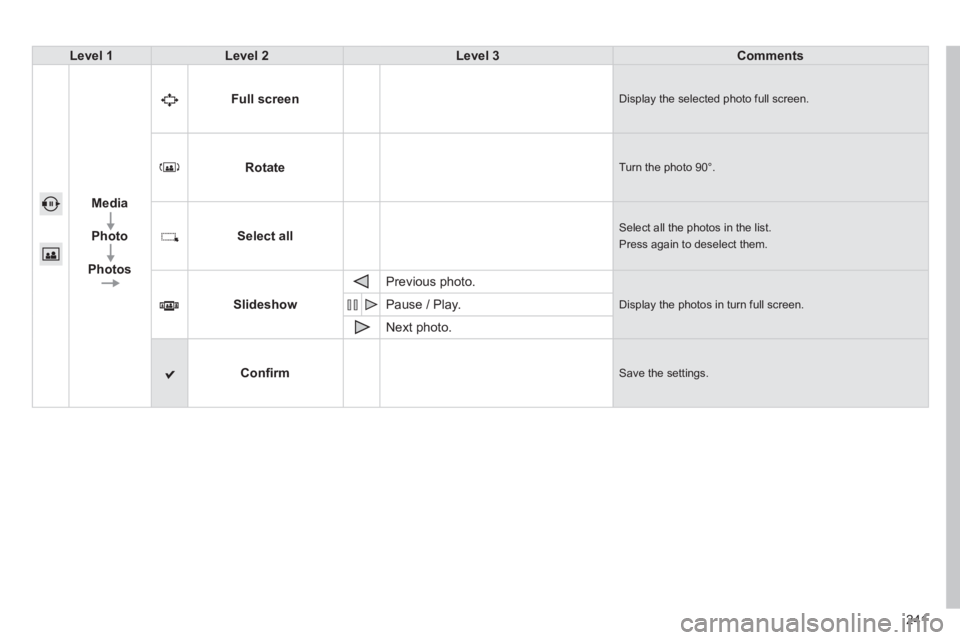
Level 1Level 2Level 3Comments
Media
Photo
Photos
Full screen Display the selected photo full screen.
Rotate Turn the photo 90°.
Select all Select all the photos in the list.
Press again to deselect them.
Slideshow
Previous photo.
Display the photos in turn full screen. Pause / Play.
Next photo.
Confi rm Save the settings.
Page 244 of 336
 may prevent reception, even in RDS station tracking mode. This phenomenon is norma")
06
Selecting a station
The exterior environment (hills, buildings, tunnel, car park, below gro\
und...) may prevent reception, even in RDS station tracking mode. This phenomenon is normal in the propagation of radio waves and is in no\
way indicative of a fault with the audio system.
Select " Radio ".
Press MENU to display the " MAIN MENU " then select " Media ".
Select a radio station from the list offered.
If necessary, select changing the source.
Press the MODE button until RADIO is displayed.
Select " FM Radio " or " AM Radio ".
OR
Select " Update " to refresh the list.
RADIO
242
Page 245 of 336
06
243
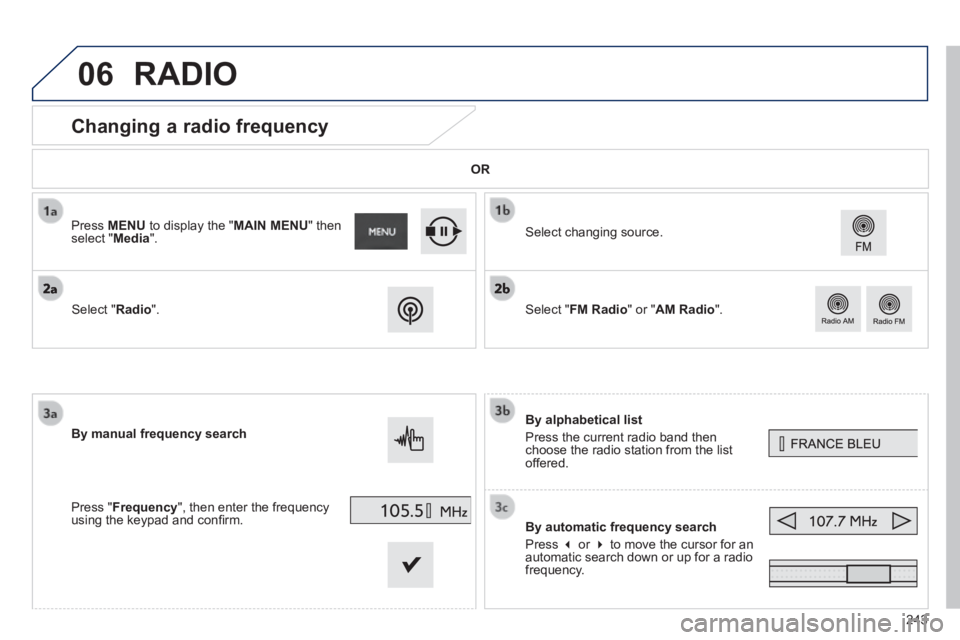
Changing a radio frequency
By alphabetical list
Press the current radio band then choose the radio station from the list offered.
By automatic frequency search
Press or to move the cursor for an automatic search down or up for a radio frequency.
Select changing source.
By manual frequency search
Press " Frequency ", then enter the frequency using the keypad and confi rm.
Select " Radio ".
Press MENU to display the " MAIN MENU " then select " Media ".
Select " FM Radio " or " AM Radio ".
OR
RADIO
Page 246 of 336
06
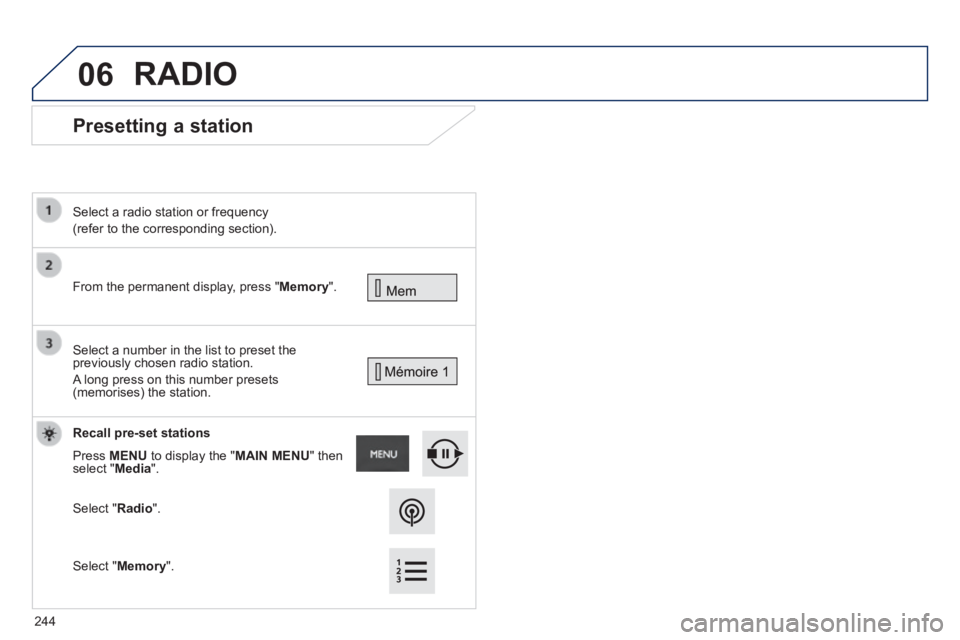
Presetting a station
From the permanent display, press " Memory ".
Select a radio station or frequency
(refer to the corresponding section).
Select a number in the list to preset the previously chosen radio station.
A long press on this number presets (memorises) the station.
Recall pre-set stations
Press MENU to display the " MAIN MENU " then select " Media ".
Select " Radio ".
RADIO
Select " Memory ".
244
Page 247 of 336
06
245
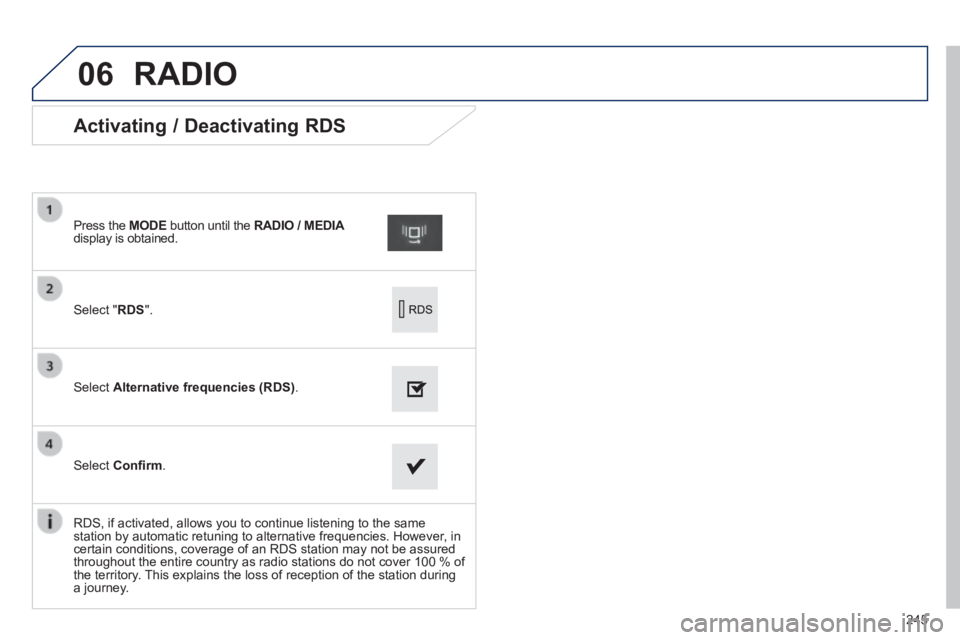
Activating / Deactivating RDS
Select " RDS ".
Press the MODE button until the RADIO / MEDIA RADIO / MEDIA RADIO / MEDIAdisplay is obtained.
Select Alternative frequencies (RDS) .
Select Confi rm .
RDS, if activated, allows you to continue listening to the same station by automatic retuning to alternative frequencies. However, in certain conditions, coverage of an RDS station may not be assured throughout the entire country as radio stations do not cover 100 % of the territory. This explains the loss of reception of the station during a journey.
RADIO
Page 248 of 336
06
246
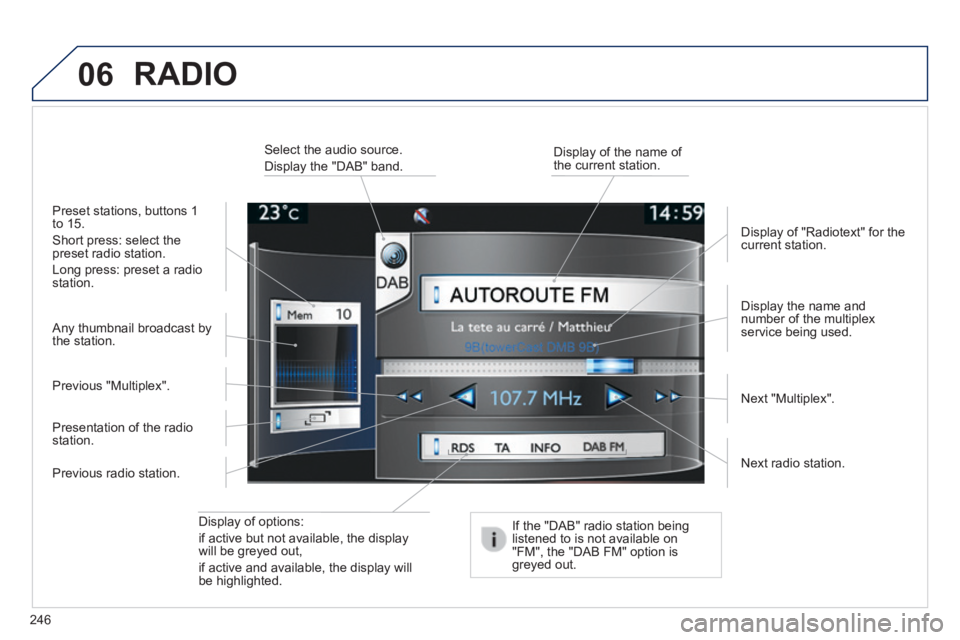
Display of options:
if active but not available, the display will be greyed out,
if active and available, the display will be highlighted.
Display the name and number of the multiplex service being used.
Preset stations, buttons 1 to 15.
Short press: select the preset radio station.
Long press: preset a radio station.
Display of "Radiotext" for the current station.
Select the audio source.
Display the "DAB" band. Display of the name of the current station.
If the "DAB" radio station being listened to is not available on "FM", the "DAB FM" option is greyed out.
Any thumbnail broadcast by the station.
Next radio station.
Next "Multiplex". Previous "Multiplex".
Previous radio station.
Presentation of the radio station.
RADIO
Page 249 of 336
06
247
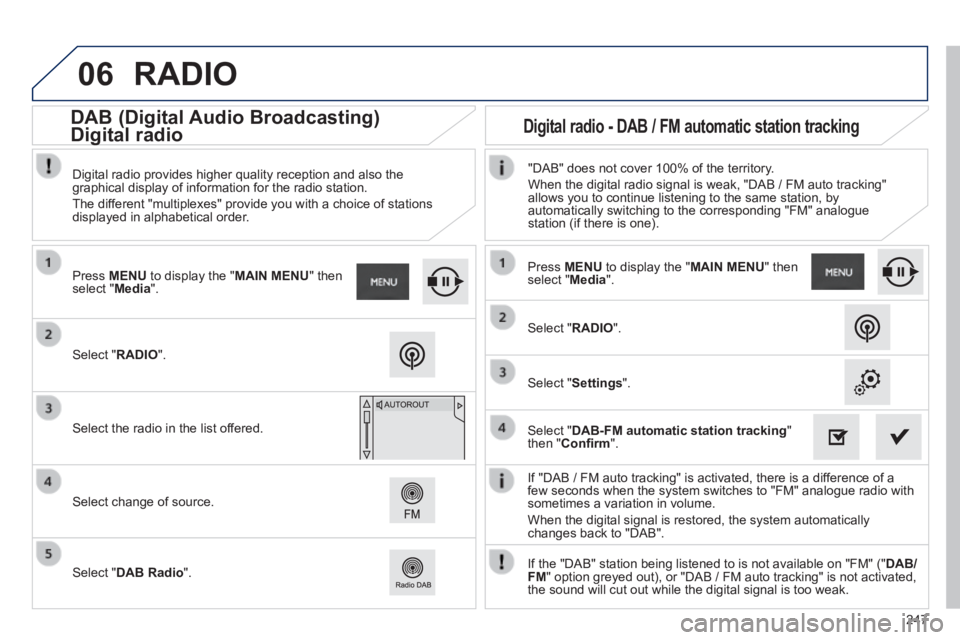
If "DAB / FM auto tracking" is activated, there is a difference of a few seconds when the system switches to "FM" analogue radio with sometimes a variation in volume.
When the digital signal is restored, the system automatically changes back to "DAB".
Select " RADIO ".
Press MENU to display the " MAIN MENU " then select " Media ".
Select the radio in the list offered.
Select change of source.
Select " DAB Radio ".
Digital radio provides higher quality reception and also the graphical display of information for the radio station.
The different "multiplexes" provide you with a choice of stations displayed in alphabetical order.
Press MENU to display the " MAIN MENU " then select " Media ".
Select " RADIO ".
Select " Settings ".
Select " DAB-FM automatic station tracking " then " Confi rm ".
"DAB" does not cover 100% of the territory.
When the digital radio signal is weak, "DAB / FM auto tracking" allows you to continue listening to the same station, by automatically switching to the corresponding "FM" analogue station (if there is one).
If the "DAB" station being listened to is not available on "FM" (" DAB/FM " option greyed out), or "DAB / FM auto tracking" is not activated, the sound will cut out while the digital signal is too weak.
RADIO
Digital radio - DAB / FM automatic station tracking DAB (Digital Audio Broadcasting)
Digital radio