time Peugeot 308 2014 Manual Online
[x] Cancel search | Manufacturer: PEUGEOT, Model Year: 2014, Model line: 308, Model: Peugeot 308 2014Pages: 400, PDF Size: 10.05 MB
Page 285 of 400
283
8
Checks
308_EN_CHAP08_VERIFICATIONS_ED02-2013
Checks
12 V battery
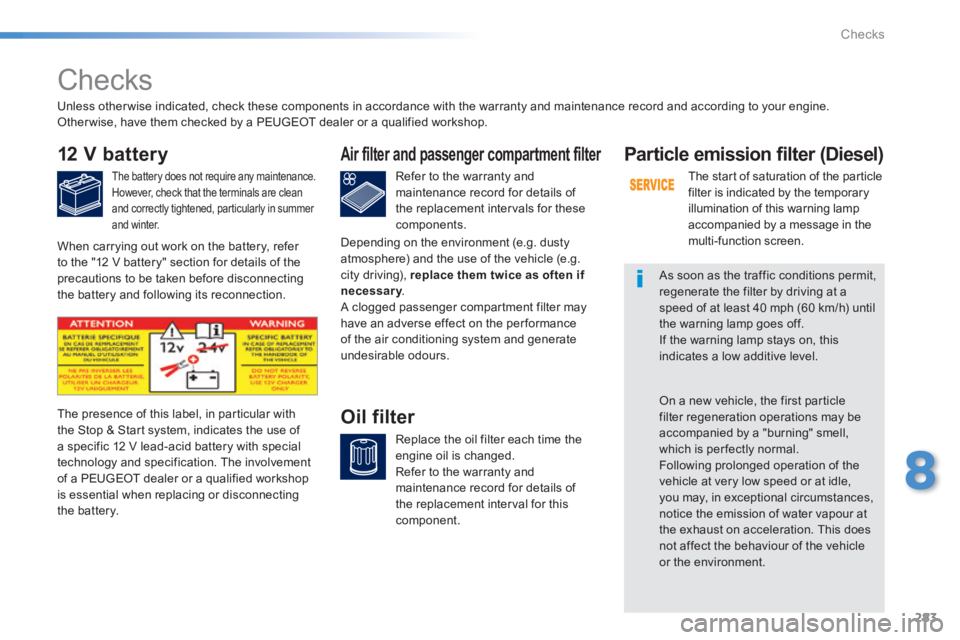
The battery does not require any maintenance. However, check that the terminals are clean and correctly tightened, particularly in summer and winter.
Refer to the warranty and maintenance record for details of the replacement intervals for these components.
Air filter and passenger compartment filter
Replace the oil filter each time the engine oil is changed. Refer to the warranty and maintenance record for details of the replacement interval for this component.
Oil filter The presence of this label, in particular with the Stop & Start system, indicates the use of a specific 12 V lead-acid battery with special technology and specification. The involvement of a PEUGEOT dealer or a qualified workshop is essential when replacing or disconnecting the battery.
Particle emission filter (Diesel)
The start of saturation of the particle filter is indicated by the temporary illumination of this warning lamp accompanied by a message in the multi-function screen.
As soon as the traffic conditions permit, regenerate the filter by driving at a speed of at least 40 mph (60 km/h) until the warning lamp goes off. If the warning lamp stays on, this indicates a low additive level.
On a new vehicle, the first particle filter regeneration operations may be accompanied by a "burning" smell, which is per fectly normal. Following prolonged operation of the vehicle at very low speed or at idle, you may, in exceptional circumstances, notice the emission of water vapour at the exhaust on acceleration. This does not affect the behaviour of the vehicle or the environment.
Unless other wise indicated, check these components in accordance with the warranty and maintenance record and according to your engine. Other wise, have them checked by a PEUGEOT dealer or a qualified workshop.
When carrying out work on the battery, refer to the "12 V battery" section for details of the precautions to be taken before disconnecting the battery and following its reconnection.
Depending on the environment (e.g. dusty atmosphere) and the use of the vehicle (e.g. city driving), replace them twice as often if necessary . necessary . necessary A clogged passenger compartment filter may have an adverse effect on the per formance of the air conditioning system and generate undesirable odours.
Page 295 of 400
293
308_EN_CHAP10C_SMEGPLUS_ED02-2013
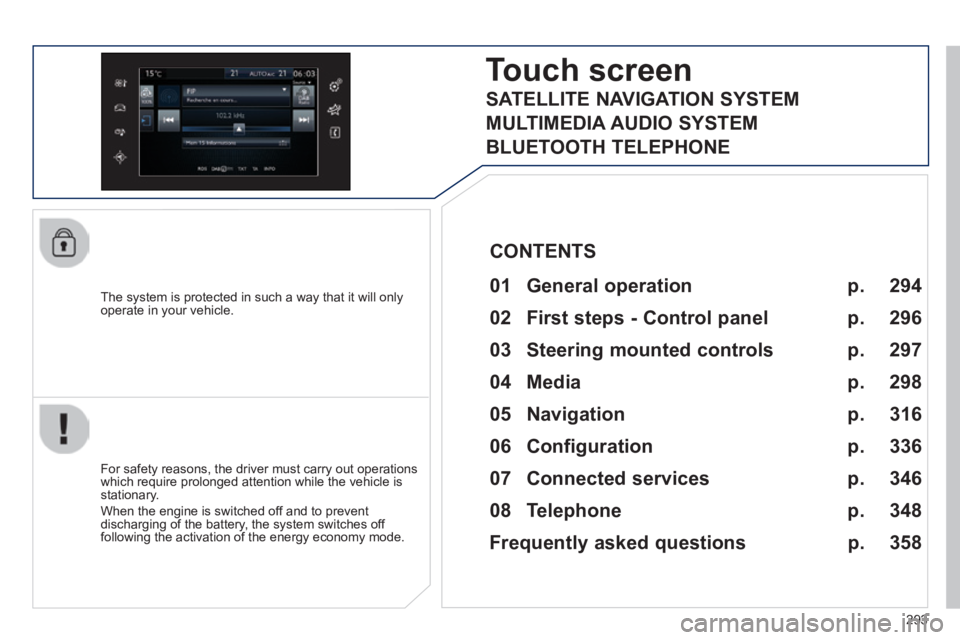
The system is protected in such a way that it will only operate in your vehicle.
Touch screen
01 General operation
For safety reasons, the driver must carry out operations which require prolonged attention while the vehicle is stationary.
When the engine is switched off and to prevent discharging of the battery, the system switches off following the activation of the energy economy mode.
CONTENTS
02 First steps - Control panel
04 Media
05 Navigation
06 Configuration
07 Connected services
08 Telephone p.
p.
p.
p.
p.
p.
p.
Frequently asked questions p.
SATELLITE NAVIGATION SYSTEM
MULTIMEDIA AUDIO SYSTEM
BLUETOOTH TELEPHONE
294
296
316
298
336
346
348
358
03 Steering mounted controls
p. 297
Page 311 of 400
04
309
308_EN_CHAP10C_SMEGPLUS_ED02-2013
RADIO
If "DAB / FM auto tracking" is activated, there is a difference of a few seconds when the system switches to "FM" analogue radio with sometimes a variation in volume.
When the digital signal is restored, the system automatically changes back to "DAB".
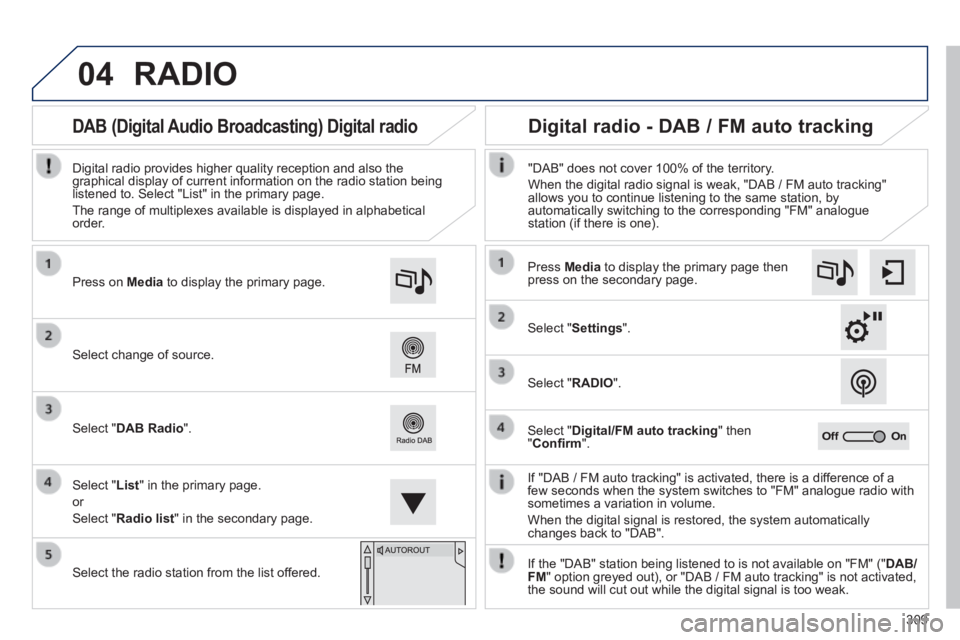
Select change of source.
Press on Media to display the primary page.
Select " DAB Radio ".
Select " List " in the primary page.
or
Select " Radio list " in the secondary page.
Select the radio station from the list offered.
Digital radio provides higher quality reception and also the graphical display of current information on the radio station being listened to. Select "List" in the primary page.
The range of multiplexes available is displayed in alphabetical order.
Press Media to display the primary page then press on the secondary page.
Select " Settings ".
Select " RADIO ".
Select " Digital/FM auto tracking " then " Confi rm ".
"DAB" does not cover 100% of the territory.
When the digital radio signal is weak, "DAB / FM auto tracking" allows you to continue listening to the same station, by automatically switching to the corresponding "FM" analogue station (if there is one).
If the "DAB" station being listened to is not available on "FM" (" DAB/FM " option greyed out), or "DAB / FM auto tracking" is not activated, the sound will cut out while the digital signal is too weak.
Digital radio - DAB / FM auto tracking DAB (Digital Audio Broadcasting) Digital radio
Page 312 of 400
04
310
308_EN_CHAP10C_SMEGPLUS_ED02-2013
CD, MP3 CD, USB player, auxiliary input
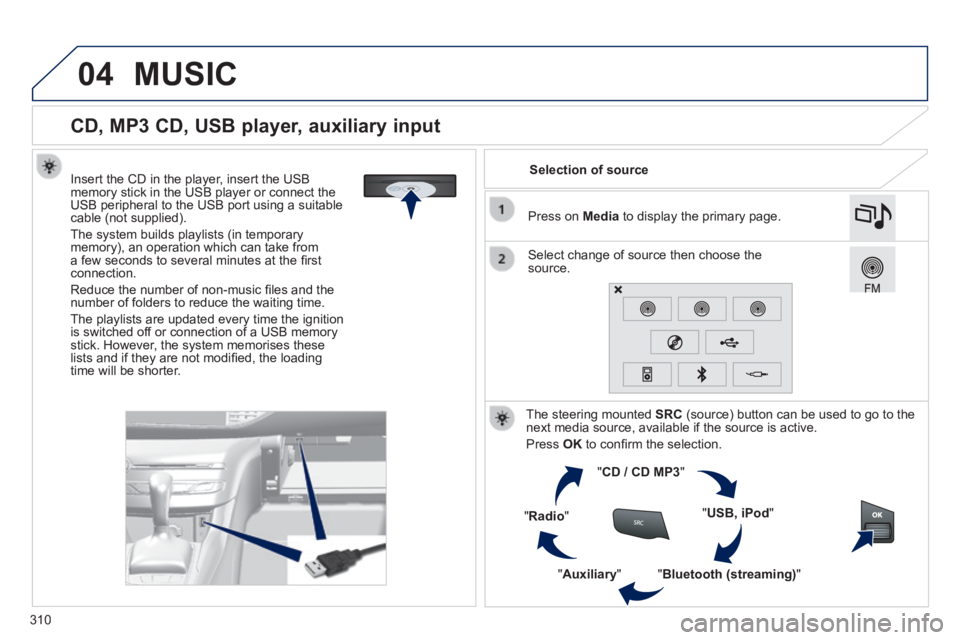
Insert the CD in the player, insert the USB memory stick in the USB player or connect the USB peripheral to the USB port using a suitable cable (not supplied) .
The system builds playlists (in temporary memory), an operation which can take from a few seconds to several minutes at the fi rst connection.
Reduce the number of non-music fi les and the number of folders to reduce the waiting time.
The playlists are updated every time the ignition is switched off or connection of a USB memory stick. However, the system memorises these lists and if they are not modifi ed, the loading time will be shorter.
Selection of source
The steering mounted SRC (source) button can be used to go to the next media source, available if the source is active.
Press OK to confi rm the selection.
" CD / CD MP3 "
" USB, iPod "
" Bluetooth (streaming) " " Auxiliary "
" Radio "
Select change of source then choose the source.
Press on Media to display the primary page.
MUSIC
Page 313 of 400
04
3 11
308_EN_CHAP10C_SMEGPLUS_ED02-2013
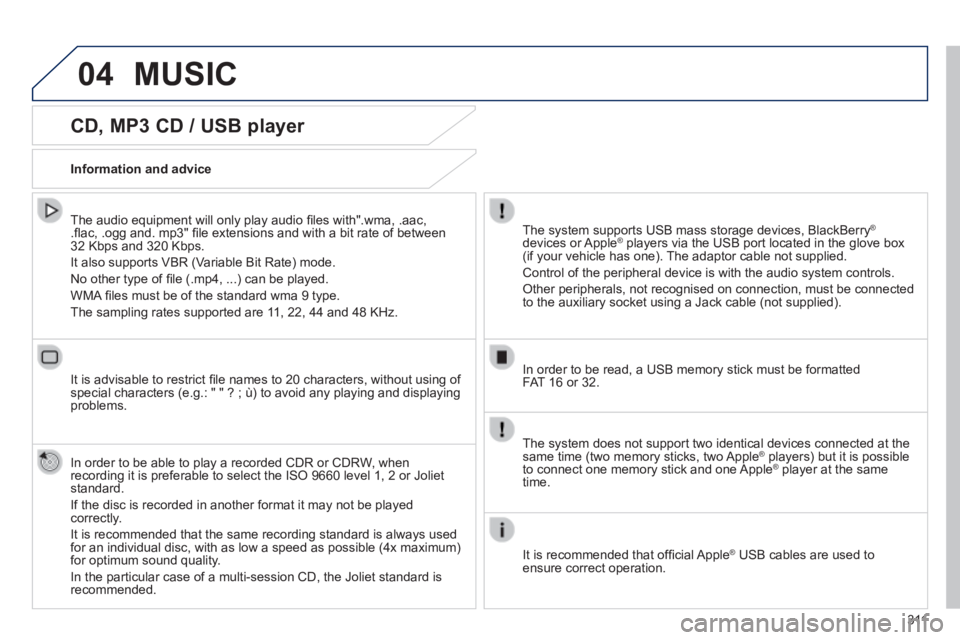
CD, MP3 CD / USB player
The audio equipment will only play audio fi les with".wma, .aac, .fl ac, .ogg and. mp3" fi le extensions and with a bit rate of between 32 Kbps and 320 Kbps.
It also supports VBR (Variable Bit Rate) mode.
No other type of fi le (.mp4, ...) can be played.
WMA fi les must be of the standard wma 9 type.
The sampling rates supported are 11, 22, 44 and 48 KHz.
It is advisable to restrict fi le names to 20 characters, without using of special characters (e.g.: " " ? ; ù) to avoid any playing and displ\
aying problems.
In order to be able to play a recorded CDR or CDRW, when recording it is preferable to select the ISO 9660 level 1, 2 or Joliet standard.
If the disc is recorded in another format it may not be played correctly.
It is recommended that the same recording standard is always used for an individual disc, with as low a speed as possible (4x maximum) for optimum sound quality.
In the particular case of a multi-session CD, the Joliet standard is recommended.
Information and advice
The system supports USB mass storage devices, BlackBerry ®
devices or Apple ® players via the USB port located in the glove box ® players via the USB port located in the glove box ®
(if your vehicle has one). The adaptor cable not supplied.
Control of the peripheral device is with the audio system controls.
Other peripherals, not recognised on connection, must be connected to the auxiliary socket using a Jack cable (not supplied).
In order to be read, a USB memory stick must be formatted FAT 16 or 32.
MUSIC
The system does not support two identical devices connected at the same time (two memory sticks, two Apple ® players) but it is possible ® players) but it is possible ®
to connect one memory stick and one Apple ® player at the same ® player at the same ®
time.
It is recommended that offi cial Apple ® USB cables are used to ® USB cables are used to ®
ensure correct operation.
Page 317 of 400
04
315
308_EN_CHAP10C_SMEGPLUS_ED02-2013
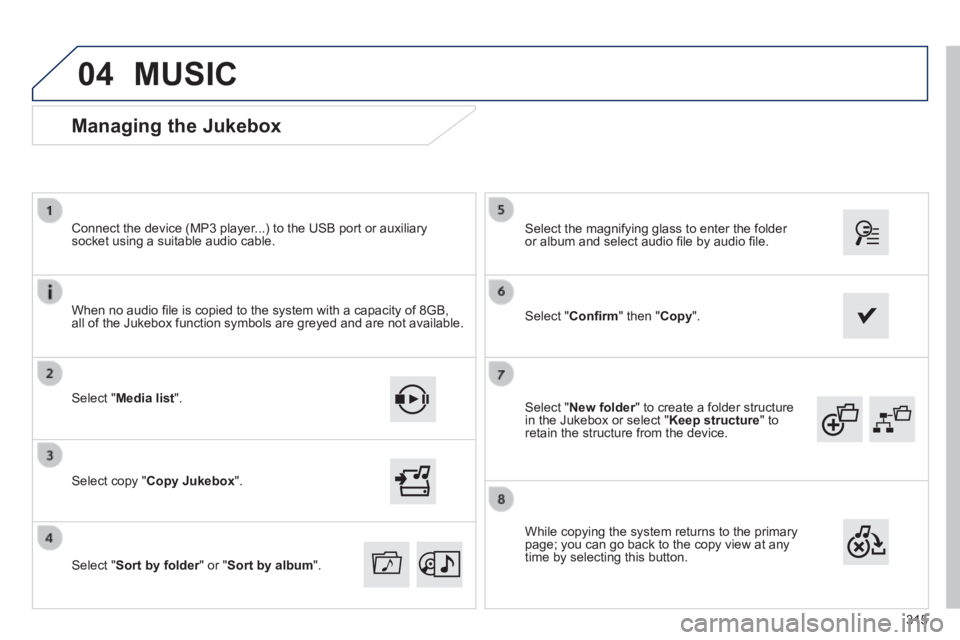
Select " New folder " to create a folder structure New folder " to create a folder structure New folderin the Jukebox or select " Keep structure " to retain the structure from the device.
Select the magnifying glass to enter the folder or album and select audio fi le by audio fi le.
Managing the Jukebox
Select " Media list ".
Connect the device (MP3 player...) to the USB port or auxiliary socket using a suitable audio cable.
Select copy " Copy Jukebox ".
MUSIC
When no audio fi le is copied to the system with a capacity of 8GB, all of the Jukebox function symbols are greyed and are not available.
Select " Sort by folder " or " Sort by folder " or " Sort by folderSort by album ".
Select " Confi rm " then " Copy ".
While copying the system returns to the primary page; you can go back to the copy view at any time by selecting this button.
Page 319 of 400
317
308_EN_CHAP10C_SMEGPLUS_ED02-2013
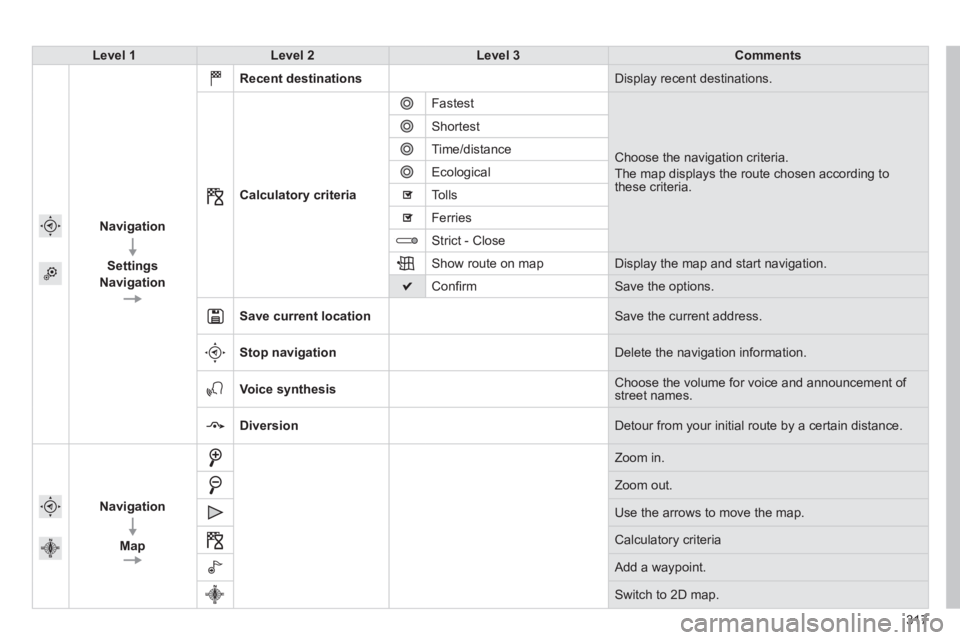
Level 1Level 2Level 3Comments
Navigation
Settings
Navigation
Recent destinations Display recent destinations .
Calculatory criteria
Fastest
Choose the navigation criteria.
The map displays the route chosen according to these criteria.
Shortest
Time/distance
Ecological
Tolls
Ferries
Strict - Close
Show route on map Display the map and start navigation.
Confi rm Save the options.
Save current location Save the current address.
Stop navigation Delete the navigation information.
Voice synthesis Choose the volume for voice and announcement of street names.
Diversion Detour from your initial route by a certain distance.
Navigation
Map
Zoom in.
Zoom out.
Use the arrows to move the map.
Calculatory criteria
Add a waypoint.
Switch to 2D map.
Page 324 of 400
05
322
308_EN_CHAP10C_SMEGPLUS_ED02-2013
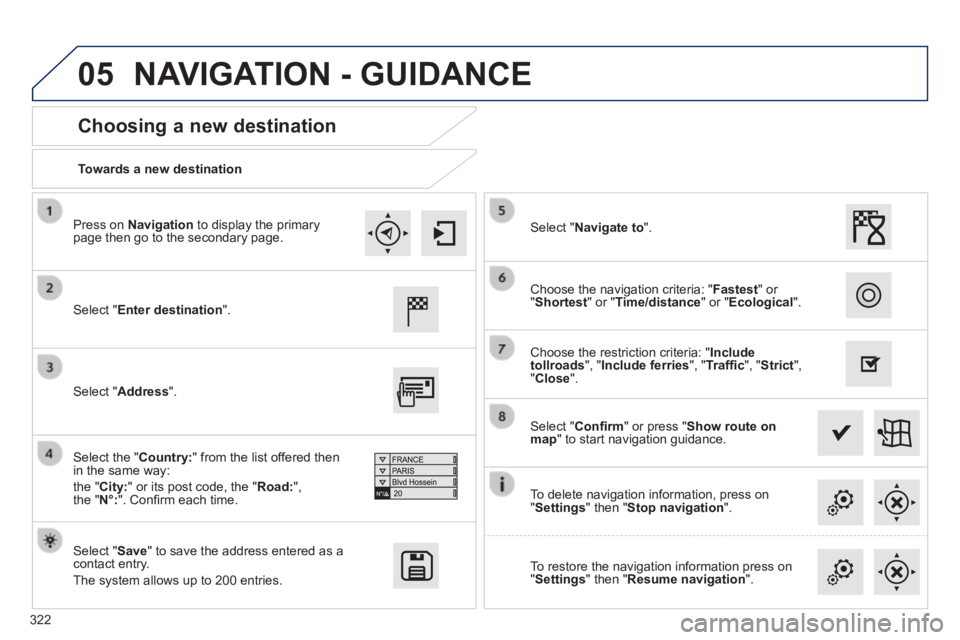
Towards a new destination
Choosing a new destination
Select " Enter destination ".
Select " Save " to save the address entered as a contact entry.
The system allows up to 200 entries.
Select " Confi rm " or press " Show route on map " to start navigation guidance.
Select " Address ".
Select the " Country: " from the list offered then in the same way:
the " City: " or its post code, the " Road: ", the " N°: ". Confi rm each time.
Select " Navigate to ".
Choose the restriction criteria: " Include tollroads ", " Include ferries ", " Traffi c ", " Strict ", " Close ".
Choose the navigation criteria: " Fastest " or " Shortest " or " Time/distance " or " Ecological ".
To delete navigation information, press on " Settings " then " Stop navigation ".
To restore the navigation information press on " Settings " then " Resume navigation ".
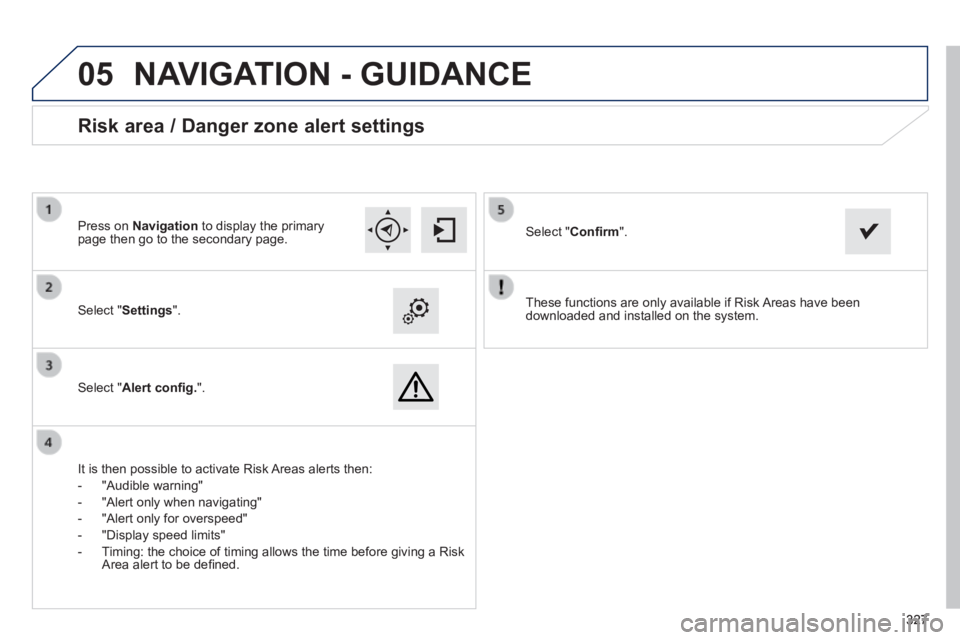
Press on Navigation to display the primary page then go to the secondary page.
NAVIGATION - GUIDANCE
Page 329 of 400
05
327327327
308_EN_CHAP10C_SMEGPLUS_ED02-2013
These functions are only available if Risk Areas have been downloaded and installed on the system. Select " Settings ".
Select " Alert confi g. ".
Risk area / Danger zone alert settings
It is then possible to activate Risk Areas alerts then:
- "Audible warning"
- "Alert only when navigating"
- "Alert only for overspeed"
- "Display speed limits"
- Timing: the choice of timing allows the time before giving a Risk Area alert to be defi ned.
Select " Confi rm ". Press on Navigation to display the primary page then go to the secondary page.
NAVIGATION - GUIDANCE
Page 330 of 400
05
328
308_EN_CHAP10C_SMEGPLUS_ED02-2013
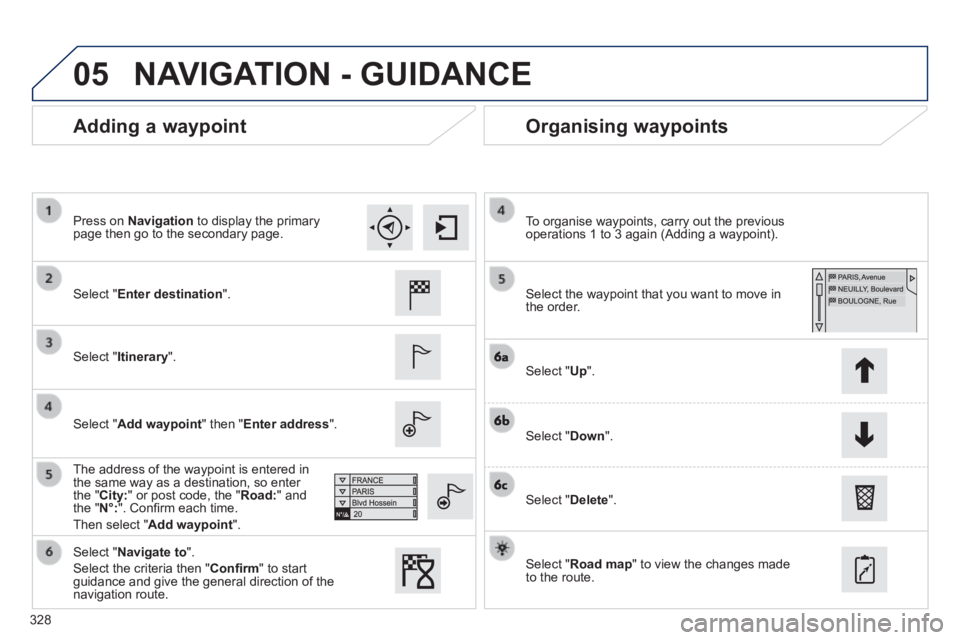
Adding a waypoint Organising waypoints
Select " Enter destination ".
Select " Itinerary ".
Select " Add waypoint " then " Enter address ".
The address of the waypoint is entered in the same way as a destination, so enter the " City: " or post code, the " Road: " and the " N°: ". Confi rm each time.
Then select " Add waypoint ".
Select the waypoint that you want to move in the order.
To organise waypoints, carry out the previous operations 1 to 3 again (Adding a waypoint).
Select " Up ".
Select " Down ".
Select " Delete ".
Select " Road map " to view the changes made to the route.
Select " Navigate to ".
Select the criteria then " Confi rm " to start guidance and give the general direction of the navigation route.
Press on Navigation to display the primary page then go to the secondary page.
NAVIGATION - GUIDANCE