radio Peugeot 508 RXH 2014 Owner's Manual
[x] Cancel search | Manufacturer: PEUGEOT, Model Year: 2014, Model line: 508 RXH, Model: Peugeot 508 RXH 2014Pages: 338, PDF Size: 10.81 MB
Page 64 of 338
62
use this button to go to the
secondary page.
us
e this button to return to the
primary page.
us
e this button for access to
additional information and to the
settings for certain functions.
us
e this button to confirm.
us
e this button to quit.
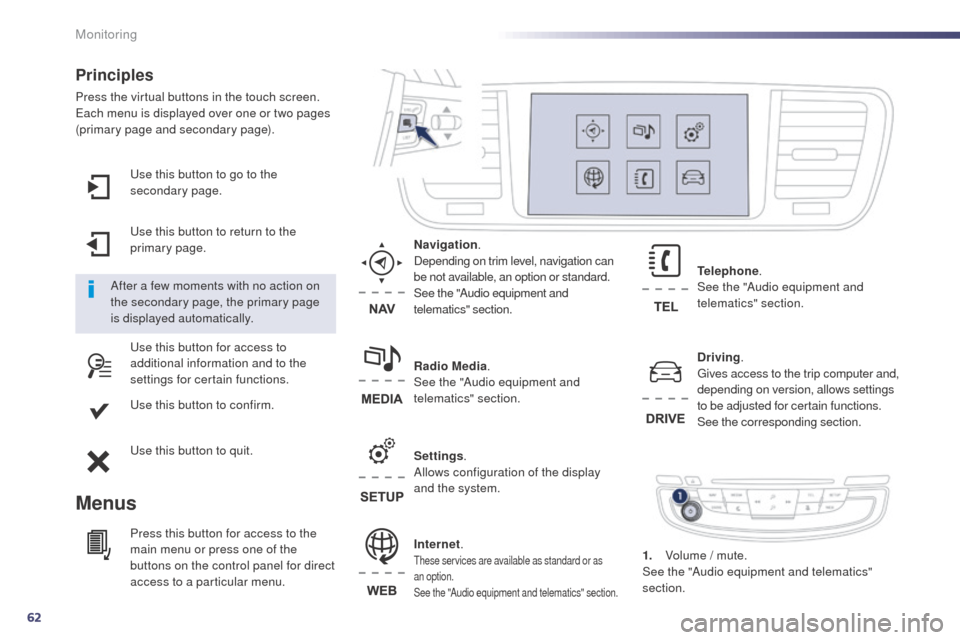
Principles
Press the virtual buttons in the touch screen.each menu is displayed over one or two pages
(primary page and secondary page).
Menus
Driving . gi
ves access to the trip computer and,
depending on version, allows settings
to be adjusted for certain functions.
See the corresponding section.
Internet.
these services are available as standard or as
an option.
See the "Audio equipment and telematics" section.
Telephone .
See the "Audio equipment and
telematics" section.
Radio Media .
See the "Audio equipment and
telematics" section. Navigation .
Depending on trim level, navigation can
be not available, an option or standard.
See the "Audio equipment and
telematics" section.
Settings .
Allows configuration of the display
and the system.
After a few moments with no action on
the secondary page, the primary page
is displayed automatically.
Press this button for access to the
main menu or press one of the
buttons on the control panel for direct
access to a particular menu. 1.
V
olume / mute.
See the "Audio equipment and telematics"
section.
Monitoring
Page 217 of 338
215
508RXH_en_Chap08_info-pratiques_ed01-2014
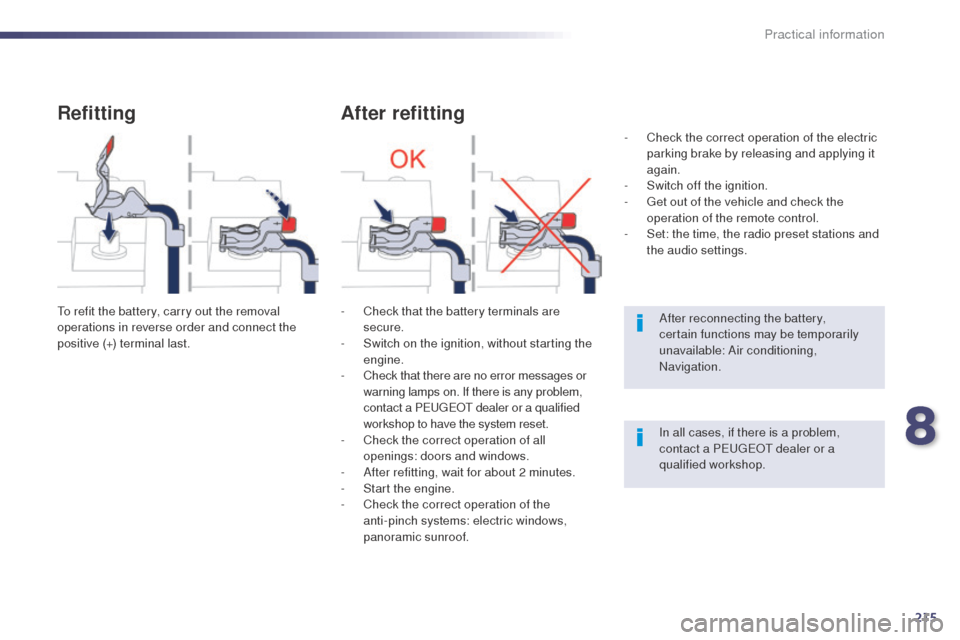
Refitting
to refit the battery, carry out the removal
operations in reverse order and connect the
positive (+) terminal last.
After refitting
- Check that the battery terminals are secure.
-
S
witch on the ignition, without starting the
engine.
-
C
heck that there are no error messages or
warning lamps on. If there is any problem,
contact a P
e
uge
Ot
dealer or a qualified
workshop to have the system reset.
-
C
heck the correct operation of all
openings: doors and windows.
-
A
fter refitting, wait for about 2 minutes.
-
S
tart the engine.
-
C
heck the correct operation of the
anti-pinch systems: electric windows,
panoramic sunroof. After reconnecting the battery,
certain functions may be temporarily
unavailable: Air conditioning,
Navigation.
In all cases, if there is a problem,
contact a P
e
uge
Ot
dealer or a
qualified workshop.
-
C
heck the correct operation of the electric
parking brake by releasing and applying it
again.
-
S
witch off the ignition.
- g
e
t out of the vehicle and check the
operation of the remote control.
-
S
et: the time, the radio preset stations and
the audio settings.
8
Practical information
Page 227 of 338
225
508RXH_en_Chap08_info-pratiques_ed01-2014
the fitting of electrical equipment
or accessories which are not
recommended by P
e
uge
Ot
may result
in a failure of your vehicle's electronic
system and excessive electrical
consumption.
Please note this precaution. You
are advised to contact a P
e
uge
Ot
representative to be shown the range
of recommended equipment and
accessories.Installation of radio
communication transmitters
Before installing any after-market radio
communication transmitter, you can
contact a P
e
uge
Ot
dealer for the
specification of transmitters which can
be fitted (frequency, maximum power,
aerial position, specific installation
requirements), in line with the
Vehicle
e
l
ectromagnetic Compatibility
Directive (2004/104/
eC
). Depending on the legislation in force in
the country, certain safety equipment
may be compulsory: high visibility
safety vests, warning triangles,
breathalyzers, spare bulbs, spare fuses,
a fire extinguisher, a first aid kit, mud
flaps at the rear of the vehicle.
You can also obtain products for cleaning and
maintenance (exterior and interior) and topping
up fluids (screenwash, ...), as well as refills
(cartridge for temporary tyre repair kit...) from
P
e
uge
Ot d
ealers.
"Multimedia":
audio systems, portable navigation system, ta
kara/Sony portable video screen, Bluetooth
system, speakers, DVD player, Wi-Fi, driving
aids, video support, microwave unit...
8
Practical information
Page 248 of 338
01
246
508RXH_en_Chap11c_SMegplus-i_ed01-2014
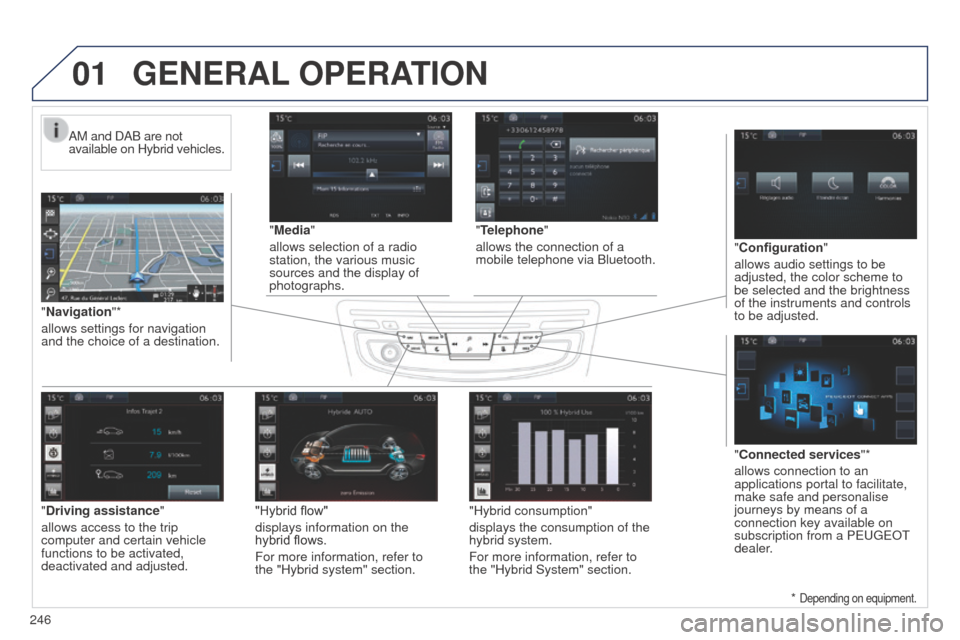
"Media"
allows selection of a radio
station, the various music
sources and the display of
photographs.
"Navigation"*
allows settings for navigation
and the choice of a destination. AM and DAB are not
available on Hybrid vehicles.
"Configuration"
allows audio settings to be
adjusted, the color scheme to
be selected and the brightness
of the instruments and controls
to be adjusted.
"Connected services "*
allows connection to an
applications portal to facilitate,
make safe and personalise
journeys by means of a
connection key available on
subscription from a P
euge O t
dealer
.
"Telephone"
allows the connection of a
mobile telephone via Bluetooth.
GENERAL
OPERATION
* Depending on equipment.
"Driving assistance"
allows access to the trip
computer and certain vehicle
functions to be activated,
deactivated and adjusted. "Hybrid flow"
displays information on the
hybrid flows.
For more information, refer to
the "Hybrid system" section."Hybrid consumption"
displays the consumption of the
hybrid system.
For more information, refer to
the "Hybrid System" section.
Page 250 of 338
248
02
508RXH_en_Chap11c_SMegplus-i_ed01-2014
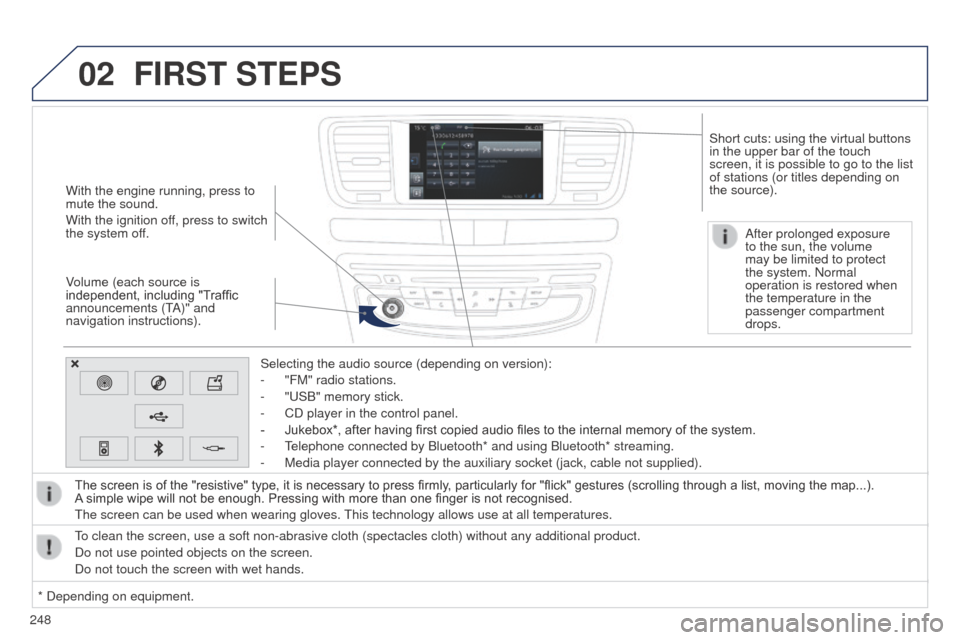
With the engine running, press to
mute the sound.
With the ignition off, press to switch
the system off.
Volume (each source is
independent, including "Traffic
announcements (t
A)" and
navigation instructions).
Selecting the audio source (depending on version):
-
"FM" radio stations.
-
"
u SB" memory stick.
-
CD player in the control panel.
-
Jukebox*, after having first copied audio files to the internal memory of the system.
-
t
elephone connected by Bluetooth* and using Bluetooth* streaming.
-
Media player connected by the auxiliary socket (jack, cable not supplie\
d).
The screen is of the "resistive" type, it is necessary to press firmly , particularly for "flick" gestures (scrolling through a list, moving the map...).
A
simple wipe will not be enough. Pressing with more than one finger is not recognised.
t
he screen can be used when wearing gloves.
t
his technology allows use at all temperatures.
FIRST STEPS
* Depending on equipment.
to clean the screen, use a soft non-abrasive cloth (spectacles cloth) w\
ithout any additional product.
Do not use pointed objects on the screen.
Do not touch the screen with wet hands. After prolonged exposure
to the sun, the volume
may be limited to protect
the system. Normal
operation is restored when
the temperature in the
passenger compartment
drops.
Short cuts: using the virtual buttons
in the upper bar of the touch
screen, it is possible to go to the list
of stations (or titles depending on
the source).
Page 251 of 338
249
03
508RXH_en_Chap11c_SMegplus-i_ed01-2014
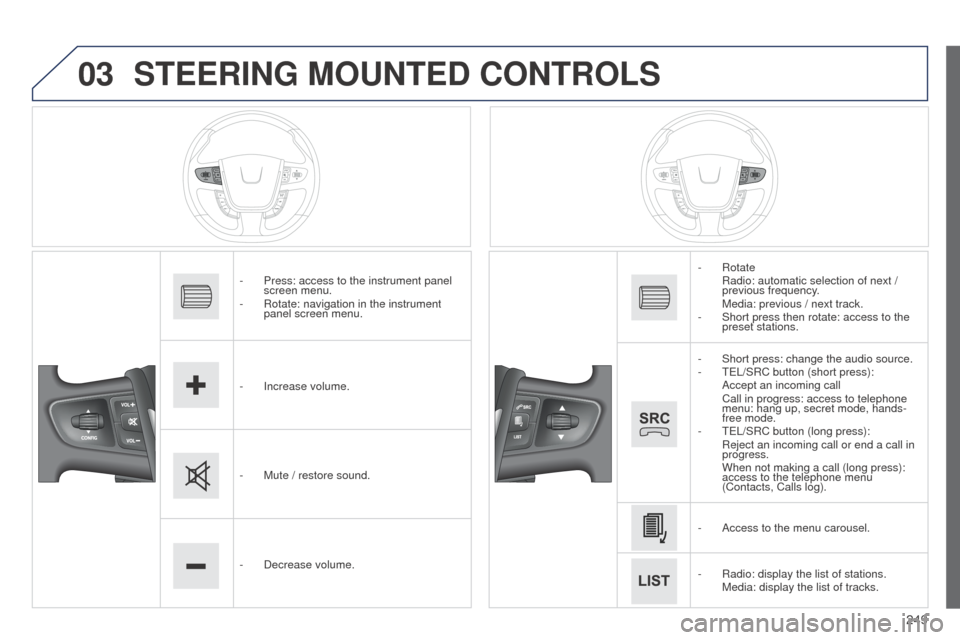
STEERING MOUNTED CONTROLS
- Press: access to the instrument panel
screen menu.
-
Rotate: navigation in the instrument
panel screen menu.
-
Increase volume.
-
Mute / restore sound.
-
Decrease volume. -
Rotate Radio: automatic selection of next
/
previous frequency.
Media: previous / next track.
-
Short press then rotate: access to the
preset stations.
-
Short press: change the audio source.
-
te L/SRC button (short press):
Accept an incoming call Call in progress: access to telephone
menu: hang up, secret mode, hands-
free mode.
-
te L/SRC button (long press):
Reject an incoming call or end a call in
progress.
When not making a call (long press):
access to the telephone menu
(Contacts, Calls log).
-
Access to the menu carousel.
-
Radio: display the list of stations. Media: display the list of tracks.
Page 253 of 338
251
508RXH_en_Chap11c_SMegplus-i_ed01-2014
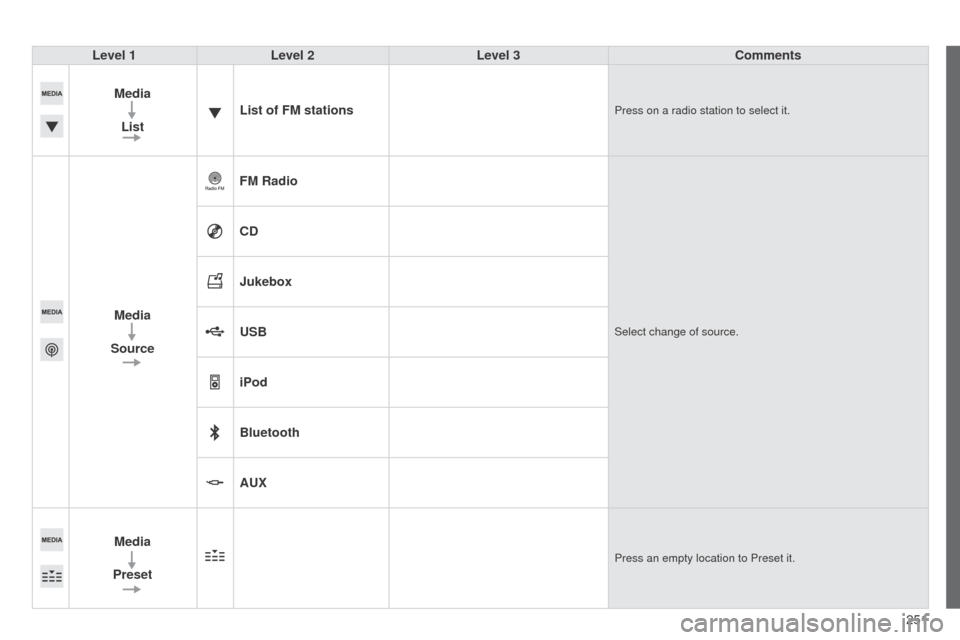
Level 1Level 2 Level 3 Comments
Media List List of FM stations
Press on a radio station to select it.
Media
Source FM RadioSelect change of source.
CD
Jukebox
USB
iPod
Bluetooth
AUX
Media
Preset
Press an empty location to Preset it.
Page 255 of 338
253
508RXH_en_Chap11c_SMegplus-i_ed01-2014
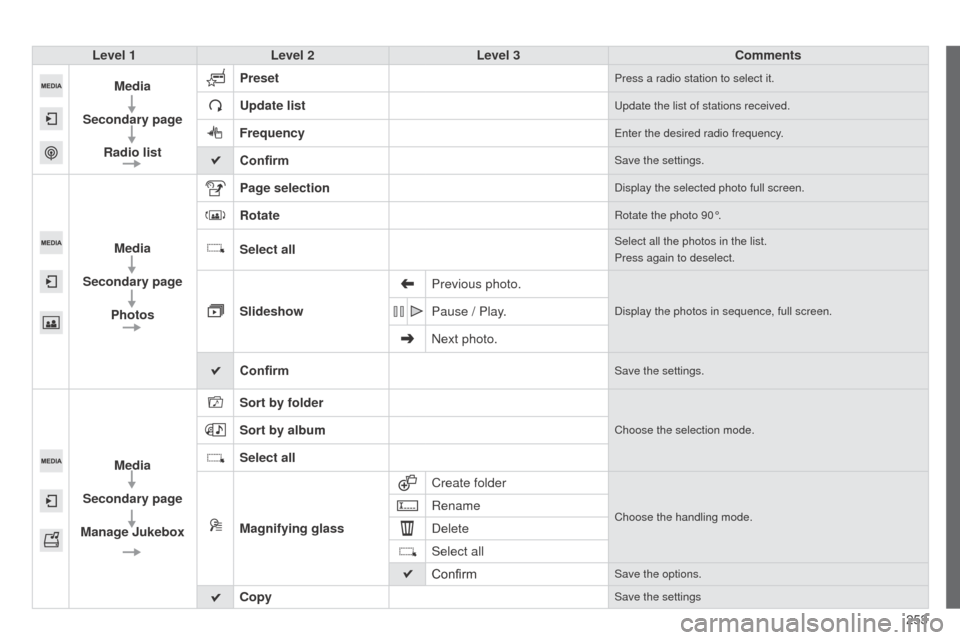
Level 1Level 2 Level 3 Comments
Media
Secondary page Radio list Preset
Press a radio station to select it.
Update listupdate the list of stations received.
Frequencyenter the desired radio frequency.
ConfirmSave the settings.
Media
Secondary page Photos Page selection
Display the selected photo full screen.
RotateRotate the photo 90°.
Select allSelect all the photos in the list.
Press again to deselect.
Slideshow
Previous photo.Display the photos in sequence, full screen.Pause / Play.
Next photo.
Confirm
Save the settings.
Media
Secondary page
Manage Jukebox Sort by folder
Choose the selection mode.Sort by album
Select all
Magnifying glass
Create folder
Choose the handling mode.Rename
Delete
Select all
Confirm
Save the options.
CopySave the settings
Page 257 of 338
255
508RXH_en_Chap11c_SMegplus-i_ed01-2014
Level 1Level 2 Level 3 Comments
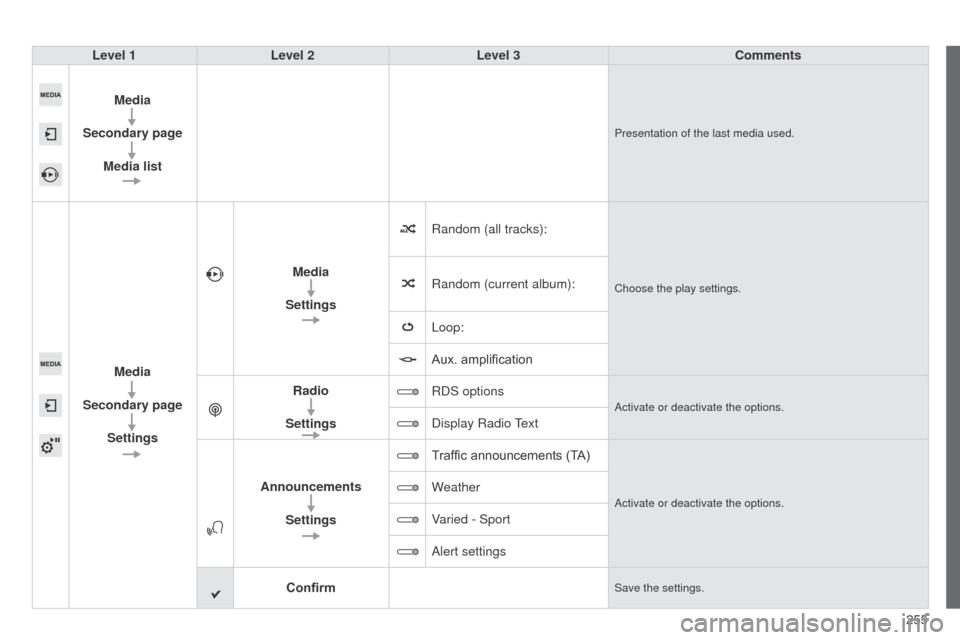
Media
Secondary page Media list
Presentation of the last media used.
Media
Secondary page Settings Media
Settings Random (all tracks):
Choose the play settings.Random (current album):
Loop:
Aux. amplification
Radio
Settings RDS options
Activate or deactivate the options.
Display Radio text
Announcements Settings T
raffic announcements (TA)
Activate or deactivate the options.Weather
Varied - Sport
Alert settings
Confirm
Save the settings.
Page 258 of 338
 may prevent reception, even in RDS station tracking m")
04
256
508RXH_en_Chap11c_SMegplus-i_ed01-2014
Selecting a station
the exterior environment (hills, buildings, tunnel, car park, below grou\
nd...) may prevent reception, even in RDS station tracking mode. this phenomenon is normal in the propagation of radio waves and is in no \
way indicative of a fault with the audio system.
Select "List" in the primary page.
or
Select "Radio list" in the secondary page. Press on Media to display the primary page.
or
Press on Media to display the primary page
then go to the secondary page.
Select a radio station from the list offered.
Press Media to display the primary
page then select "
Preset".
OR
Select "Update list" to refresh the list.
RADIO
Select a preset radio station in the list.