change time TOYOTA MIRAI 2022 Owner's Guide
[x] Cancel search | Manufacturer: TOYOTA, Model Year: 2022, Model line: MIRAI, Model: TOYOTA MIRAI 2022Pages: 556, PDF Size: 17.34 MB
Page 247 of 556
2475-5. Using the driving support systems
Owners Manual_USA_M62084_en
5
Driving
■Automatic cancelation of con-
stant speed control mode
Constant speed control mode is
automatically cance led in the follow-
ing situations:
●Actual vehicle speed is more than
approximately 10 mph (16 km/h)
below the set vehicle speed.
●Actual vehicle speed falls below
approximately 20 mph (30 km/h).
●VSC is activated.
●TRAC is activated for a period of
time.
●When the VSC or TRAC system is
turned off.
●When the brake control or output
restriction control of a driving sup-
port system operates. (For exam-
ple: Pre-Collision System, Drive-
Start Control)
●When the Br mode is selected.
If constant speed control mode is
automatically canceled for any rea-
sons other than the above, there
may be a malfunction in the system.
Contact your Toyota dealer.
■Situations in which the curve
speed reduction function may
not operate
In situations such as the following,
the curve speed r eduction function
may not operate:
●When the vehicle is being driven
around a gentle curve
●When the accelerator pedal is
being depressed
●When the vehicle is being driven
around an extremely short curve
■Brake operation
A brake operation sound may be
heard and the brake pedal response
may change, but the se are not mal-
functions.
■Warning messages and buzzers
for dynamic radar cruise con-
trol with full-speed range
Warning messages and buzzers are
used to indicate a system malfunc-
tion or to inform the driver of the
need for caution while driving. If a
warning message is shown on the
multi-information display, read the
message and follow the instruc-
tions.( P.210, 451)
■When the sensor may not be
correctly detecting the vehicle
ahead
In the case of the following and
depending on the conditions, oper-
ate the brake pedal when decelera-
tion of the system is insufficient or
operate the accelerator pedal when
acceleration is required.
As the sensor may not be able to
correctly detect th ese types of vehi-
cles, the approach warning
( P.244) may not be activated.
●Vehicles that cut in suddenly
●Vehicles traveling at low speeds
●Vehicles that are not moving in the
same lane
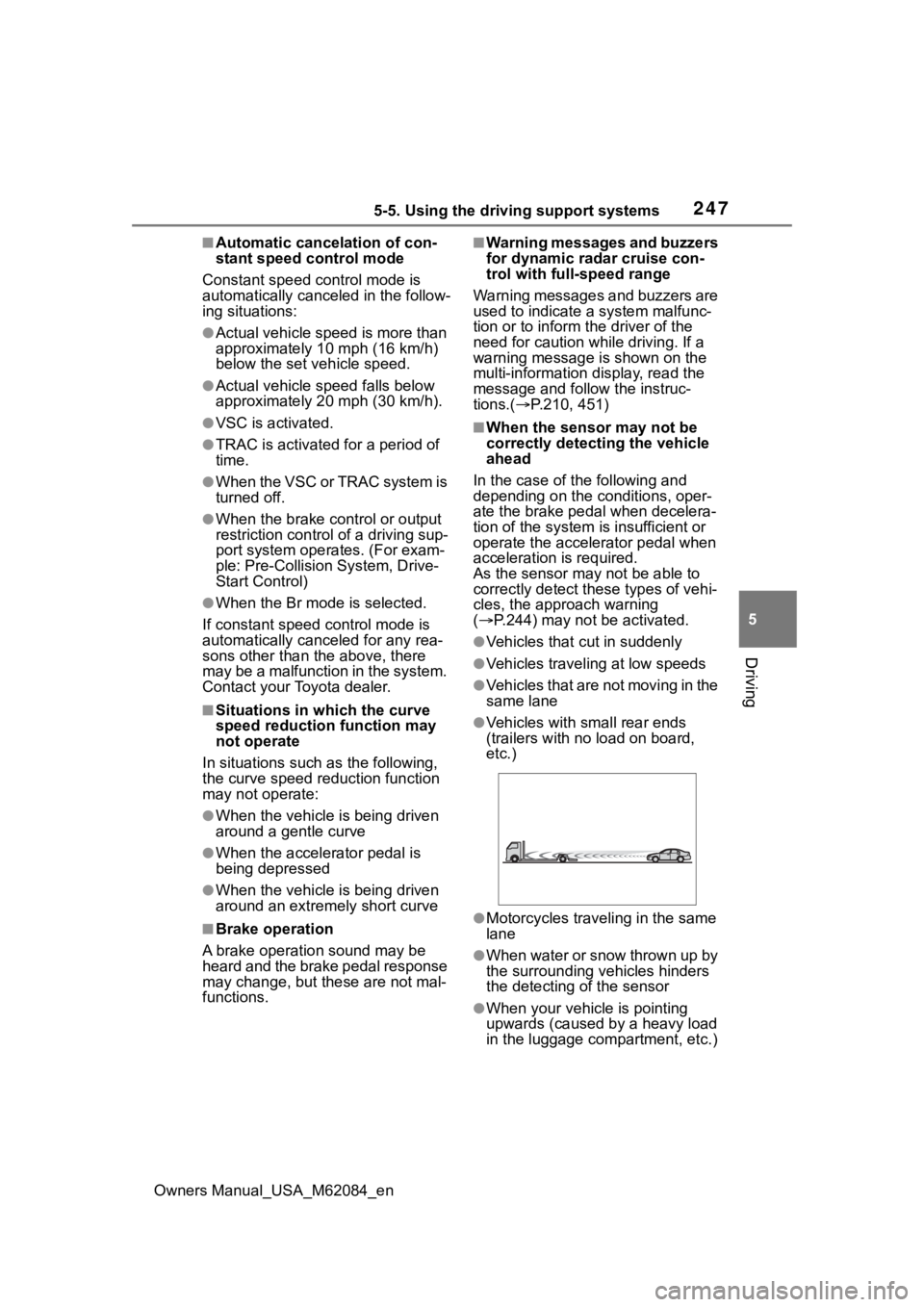
●Vehicles with small rear ends
(trailers with no load on board,
etc.)
●Motorcycles traveling in the same
lane
●When water or snow thrown up by
the surrounding vehicles hinders
the detecting of the sensor
●When your vehicle is pointing
upwards (caused by a heavy load
in the luggage compartment, etc.)
Page 261 of 556
2615-5. Using the driving support systems
Owners Manual_USA_M62084_en
5
Driving
the nearest object.
Even when the sensors are
operating, the buzzer will be
muted in some situations.
(automatic buzzer mute func-
tion)
■Adjusting the buzzer vol-
ume
The buzzer volume can be
adjusted on the multi-informa-
tion display.
Use the meter control switches
to change settings. ( P.100)
1 Press or of the meter
control switch to select .
2 Press or of the meter
control switch to select
and then press and hold .
3 Select the volume and then
press .
Each time the switch is pressed,
the volume lev el will change
between 1, 2, and 3.
■Muting a buzzer
A mute button will be displayed
on the multi-information display
when an object is detected. To
mute the buzzer, press .
The buzzers for the intuitive
parking assist and RCTA func-
tion (if equipped) will be muted
simultaneously. Mute will be canceled automati-
cally in the following situations:
When the shift position is
changed.
When the vehicle speed
exceeds a certain speed.
When there is a malfunction
in a sensor or the system is
temporarily unavailable.
When the operating function
is disabled manually.
When the power switch is
turned off.
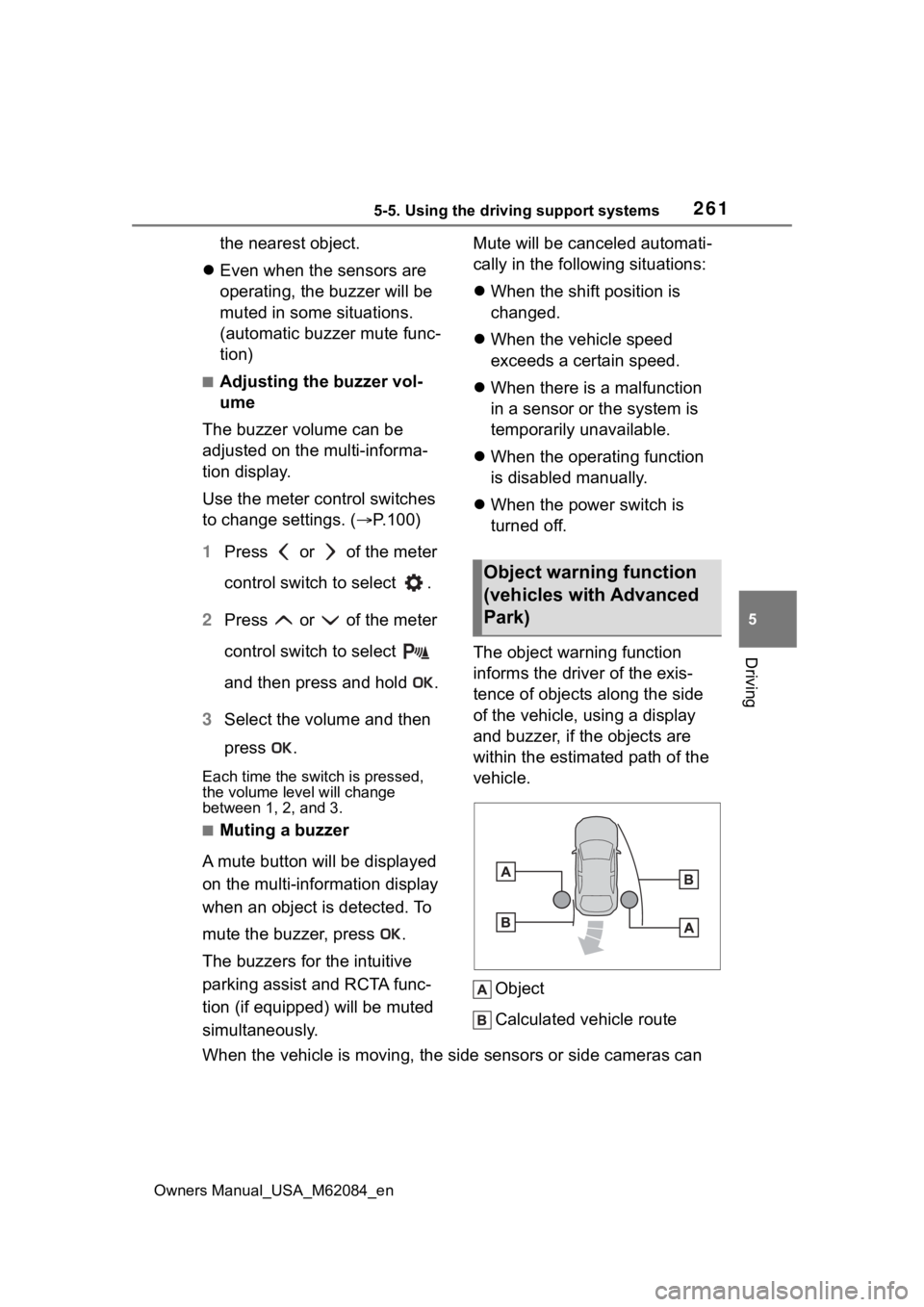
The object warning function
informs the driver of the exis-
tence of objects along the side
of the vehicle, using a display
and buzzer, if the objects are
within the estimated path of the
vehicle.
Object
Calculated vehicle route
When the vehicle is moving, the side sensors or side cameras ca n
Object warning function
(vehicles with Advanced
Park)
Page 264 of 556
2645-5. Using the driving support systems
Owners Manual_USA_M62084_en
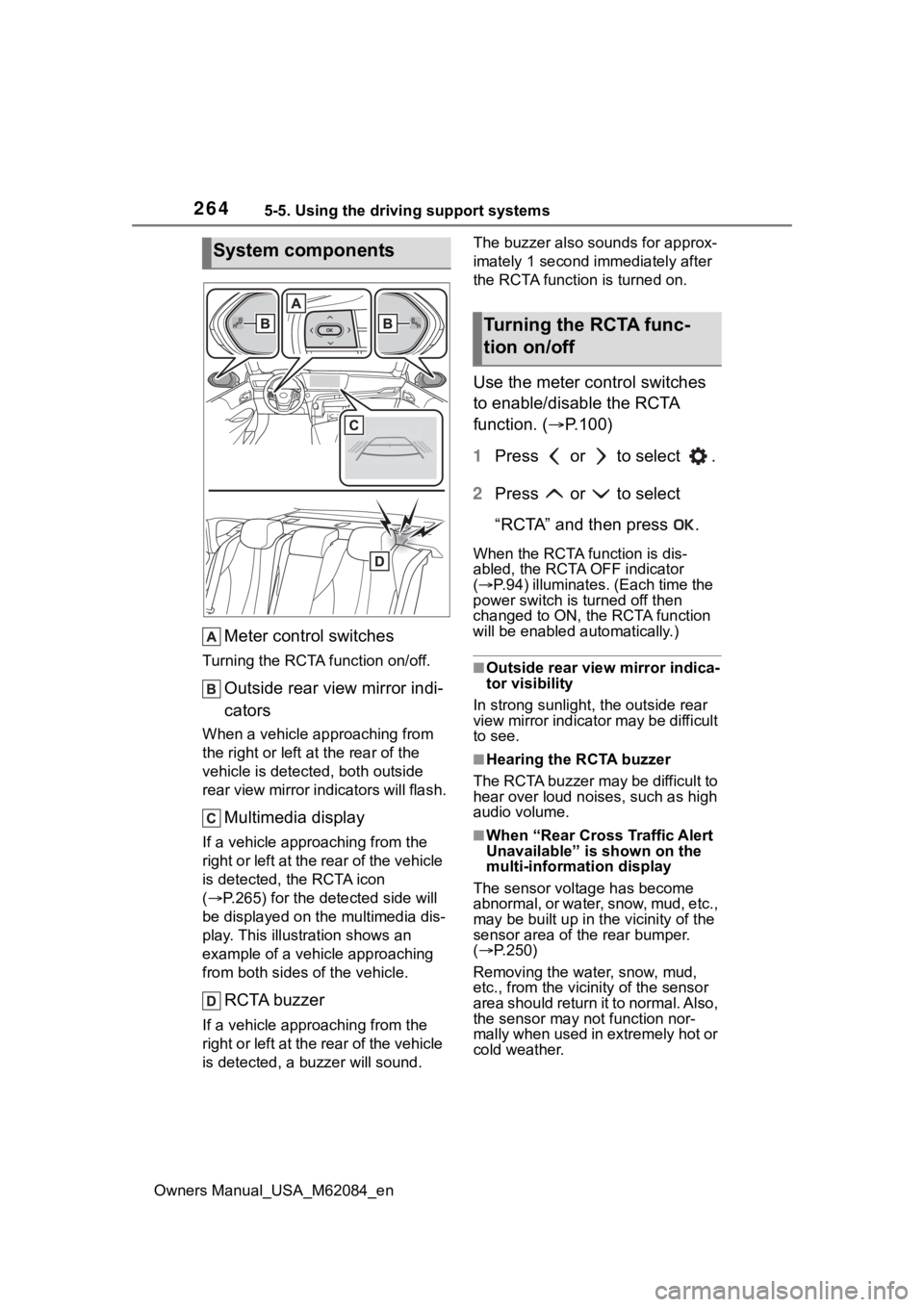
Meter control switches
Turning the RCTA function on/off.
Outside rear view mirror indi-
cators
When a vehicle approaching from
the right or left at the rear of the
vehicle is detected, both outside
rear view mirror i ndicators will flash.
Multimedia display
If a vehicle approaching from the
right or left at the rear of the vehicle
is detected, the RCTA icon
( P.265) for the det ected side will
be displayed on the multimedia dis-
play. This illustration shows an
example of a vehicle approaching
from both sides of the vehicle.
RCTA buzzer
If a vehicle appr oaching from the
right or left at the rear of the vehicle
is detected, a b uzzer will sound. The buzzer also sounds for approx-
imately 1 second immediately after
the RCTA function is turned on.
Use the meter control switches
to enable/disable the RCTA
function. (
P.100)
1 Press or to select .
2 Press or to select
“RCTA” and then press .
When the RCTA function is dis-
abled, the RCTA OFF indicator
( P.94) illuminates. (Each time the
power switch is turned off then
changed to ON, t he RCTA function
will be enabled a utomatically.)
■Outside rear vie w mirror indica-
tor visibility
In strong sunlight, the outside rear
view mirror indicator may be difficult
to see.
■Hearing the RCTA buzzer
The RCTA buzzer may be difficult to
hear over loud noises, such as high
audio volume.
■When “Rear Cross Traffic Alert
Unavailable” is shown on the
multi-information display
The sensor voltage has become
abnormal, or water, snow, mud, etc.,
may be built up in th e vicinity of the
sensor area of the rear bumper.
( P.250)
Removing the water, snow, mud,
etc., from the vicini ty of the sensor
area should return it to normal. Also,
the sensor may not function nor-
mally when used in extremely hot or
cold weather.
System components
Turning the RCTA func-
tion on/off
Page 266 of 556
2665-5. Using the driving support systems
Owners Manual_USA_M62084_en
■The RCTA function is opera-
tional when
The RCTA function operates when
all of the followin g conditions are
met:
●The power switch is in ON.
●The RCTA function is on.
●The shift position is in R.
●The vehicle speed is less than
approximately 9 mph (15 km/h).
●The approaching vehicle speed is
between approximately 5 mph (8
km/h) and 34 mph (56 km/h).
■Adjusting the buzzer volume
The buzzer volume can be adjusted
on the multi-information display.
Use the meter control switches to
change settings. ( P.100)
1 Press or of the meter
control switch to select .
2 Press or of the meter
control switch to select “RCTA”
and then press and hold .
3 Press to select the volume.
Each time the switch is pressed, the
volume level will change between 1,
2, and 3.
■Muting a buzzer temporarily
A mute button will be displayed on
the multi-information display when a
vehicles or an objec t is detected. To
mute the buzzer, press .
The buzzers for the RCTA function
and intuitive parking assist will be
muted simultaneously.
Mute will be canceled automatically
in the followin g situations:
●When the shift lever is changed.
●When the vehicle speed exceeds
a certain speed.
●When there is a malfunction in a sensor or the system is temporar-
ily unavailable.
●When the operati
ng function is
disabled manually.
●When the power switch is turned
off.
■Conditions under which the
system will not detect a vehicle
The RCTA function is not designed
to detect the follo wing types of vehi-
cles and/or objects:
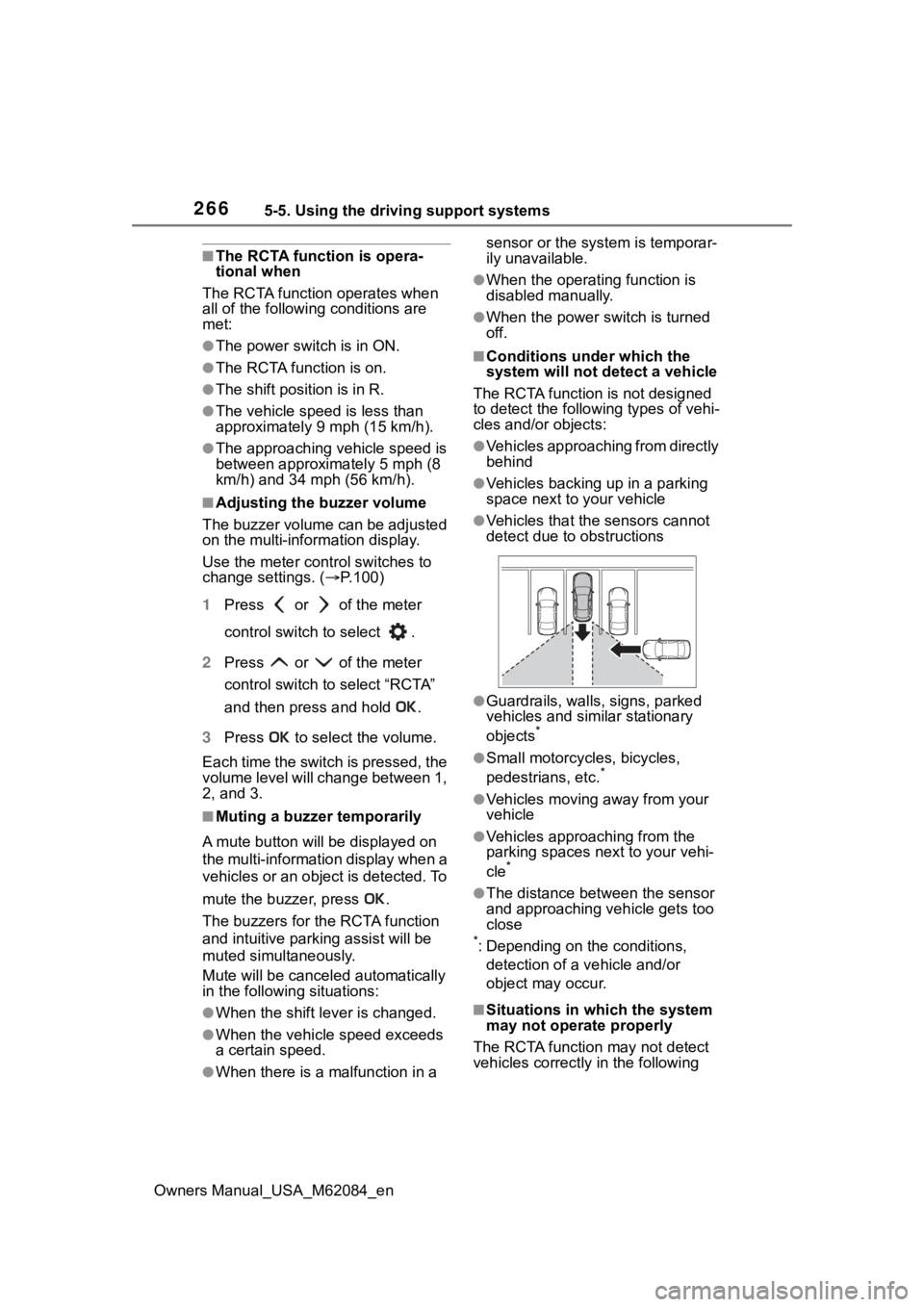
●Vehicles approaching from directly
behind
●Vehicles backing up in a parking
space next to your vehicle
●Vehicles that the sensors cannot
detect due to obstructions
●Guardrails, walls, signs, parked
vehicles and similar stationary
objects
*
●Small motorcycles, bicycles,
pedestrians, etc.*
●Vehicles moving away from your
vehicle
●Vehicles approaching from the
parking spaces nex t to your vehi-
cle
*
●The distance between the sensor
and approaching vehicle gets too
close
*: Depending on the conditions, detection of a v ehicle and/or
object may occur.
■Situations in which the system
may not operate properly
The RCTA function may not detect
vehicles correctly in the following
Page 270 of 556
2705-5. Using the driving support systems
Owners Manual_USA_M62084_enRCD function will be enabled auto-
matically.)
Use the meter control switches
to enable/disable the RCD func-
tion. (
P.100)
1 Press or to select .
2 Press or to select
“RCD” and then press .
When the RCD function is disabled,
the RCD OFF indicator ( P.94) illu-
minates.
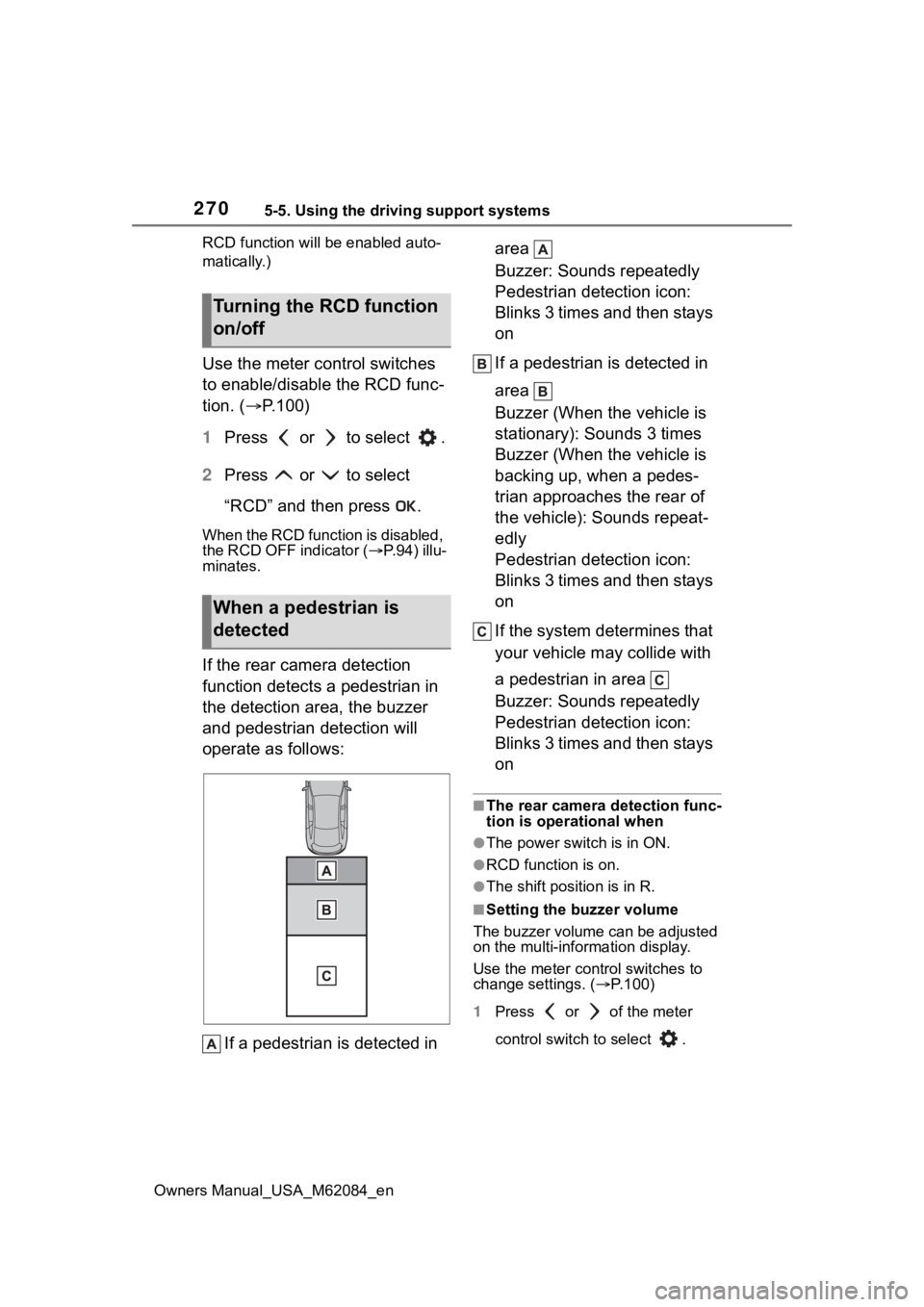
If the rear camera detection
function detects a pedestrian in
the detection area, the buzzer
and pedestrian detection will
operate as follows:
If a pedestrian is detected in area
Buzzer: Sounds repeatedly
Pedestrian detection icon:
Blinks 3 times and then stays
on
If a pedestrian is detected in
area
Buzzer (When the vehicle is
stationary): Sounds 3 times
Buzzer (When the vehicle is
backing up, when a pedes-
trian approaches the rear of
the vehicle): Sounds repeat-
edly
Pedestrian detection icon:
Blinks 3 times and then stays
on
If the system determines that
your vehicle may collide with
a pedestrian in area
Buzzer: Sounds repeatedly
Pedestrian detection icon:
Blinks 3 times and then stays
on
■The rear camera detection func-
tion is operational when
●The power switch is in ON.
●RCD function is on.
●The shift position is in R.
■Setting the buzzer volume
The buzzer volume can be adjusted
on the multi-information display.
Use the meter control switches to
change settings. ( P.100)
1 Press or of the meter
control switch to select .
Turning the RCD function
on/off
When a pedestrian is
detected
Page 271 of 556
2715-5. Using the driving support systems
Owners Manual_USA_M62084_en
5
Driving
2 Press or of the meter
control switch to select “RCD”
and then press and hold .
3 Press to select the volume.
Each time the switch is pressed, the
volume level will change between 1,
2, and 3.
■If “Rear Camera Detection
Unavailable Remove the Dirt of
Rear Camera” is displayed on
the multi-information display
The rear camera lens may be dirty
or covered with snow or ice. In such
cases, if it is removed from the rear
camera lens, the system should
return to normal. ( It may be neces-
sary to drive the vehicle for some
time before the system returns to
normal.)
■If “Rear Camera Detection
Unavailable” i s displayed on
the multi-information display
●If this message is displayed after
the 12-volt battery has been dis-
connected and reconnected, fully
turn the steering wheel to the left
and then the right on level ground.
●If this message is displayed only
when the R shift position is
selected, the rear camera lens
may be dirty. Clean the rear cam-
era lens.
■Situations in which the system
may not operate properly
●Some pedestrians, such as the
following, may not be detected by
the rear camera detection func-
tion, preventing the function from
operating properly:
• Pedestrians who are bending for- ward or squatting
• Pedestrians who are lying down
• Pedestrians who are running
• Pedestrians who suddenly enter the detection area
• People riding a bicycle, skate- board, or other light vehicle • Pedestrians wearing oversized
clothing such as a rain coat, long
skirt, etc., making their silhouette
obscure
• Pedestrians whose body is par- tially hidden by an object, such as
a cart or umbrella
• Pedestrians which are obscured by darkness, such as at night
●In some situations, such as the
following, pedestrians may not be
detected by the rear camera
detection function, preventing the
function from operating properly:
• When backing up in inclement weather (rain, snow, fog, etc.)
• When the rear camera is
obscured (dirt, snow, ice, etc., are
attached) or scratched
• When a very bright light, such as
the sun, or the headlights of
another vehicle, shines directly
into the rear camera
• When backing up in a place where the surrounding brightness
changes suddenly, such as at the
entrance or exi t of a garage or
underground parking lot
• When backing up in a dim envi-
ronment such as during dusk or in
an underground parking lot
• When the camera position and
direction are deviated
• When a towing hook is attached
• When water droplets are flowing on the camera lens
• When the vehicle height is extremely changed (nose up,
nose down).
• When tire chains or an emergency tire puncture repair kit is used
■Situations in which the system
may operate unexpectedly
●Even though there are no pedes-
trians in the detection area, some
objects, such as the following,
may be detected, possibly caus-
ing the rear cam era detection
function to operate.
• Three dimensional objects, such as a pole, traffic cone, fence, or
parked vehicle
• Moving objects, such as a car or
Page 287 of 556
2875-5. Using the driving support systems
Owners Manual_USA_M62084_en
5
Driving
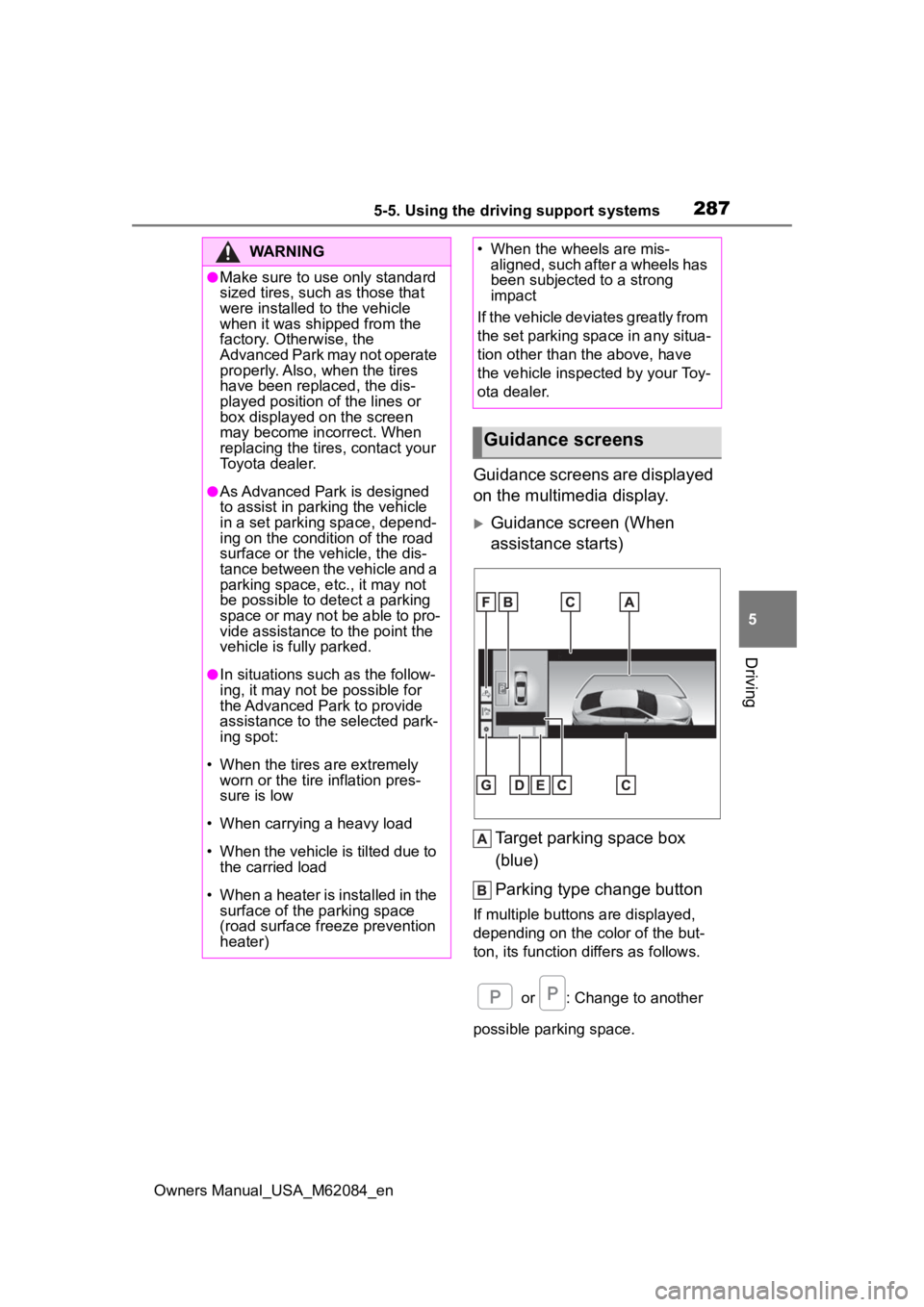
Guidance screens are displayed
on the multimedia display.
Guidance screen (When
assistance starts) Target parking space box
(blue)
Parking type change button
If multiple button s are displayed,
depending on the color of the but-
ton, its function differs as follows.
or : Change to another
possible parking space.
WARNING
●Make sure to use only standard
sized tires, such as those that
were installed to the vehicle
when it was shipped from the
factory. Otherwise, the
Advanced Park may not operate
properly. Also, when the tires
have been replaced, the dis-
played position of the lines or
box displayed on the screen
may become incorrect. When
replacing the tires, contact your
Toyota dealer.
●As Advanced Park is designed
to assist in parking the vehicle
in a set parking space, depend-
ing on the condition of the road
surface or the vehicle, the dis-
tance between the vehicle and a
parking space, etc., it may not
be possible to detect a parking
space or may not be able to pro-
vide assistance to the point the
vehicle is fully parked.
●In situations such as the follow-
ing, it may not be possible for
the Advanced Park to provide
assistance to the selected park-
ing spot:
• When the tires are extremely worn or the tire inflation pres-
sure is low
• When carrying a heavy load
• When the vehicle is tilted due to the carried load
• When a heater is installed in the surface of the parking space
(road surface freeze prevention
heater)
• When the wheels are mis- aligned, such after a wheels has
been subjected to a strong
impact
If the vehicle deviates greatly from
the set parking space in any situa-
tion other than the above, have
the vehicle inspected by your Toy-
ota dealer.
Guidance screens
Page 289 of 556
2895-5. Using the driving support systems
Owners Manual_USA_M62084_en
5
Driving
ft. (2.5 m), the line will be dis-
played 8.2 ft. (2.5 m) in front of
the vehicle.
■Intuitive parking assist pop-up
display
Regardless of whether the intuitive
parking assist is off or on ( P.255),
if an object is dete cted by the intui-
tive parking assist when the
Advanced Park is operating, the
intuitive parking assist pop up dis-
play will automatically be displayed
over the guidance display.
■Brake control operation when
Advanced Park is operating
While the Advanced Park is operat-
ing, if it is determines that the possi-
bility of collision with detected
moving or stationary object is high,
the fuel cell system output restric-
tion control and b rake control will
operate.
●If brake control operates,
Advanced Park operation will be
suspended and a message will be
displayed on the multi-information
display.
●If Advanced Park operation is sus-
pended 3 times by brake control
operation, the Advanced Park will
be disabled.
In situations such as the follow-
ing, Advanced Park operation
will be canceled or suspended.
Assistance will be canceled
when:
The Advanced Park main
switch is pushed
The shift position is changed
to P
The parking brake is engaged
A door or the trunk is opened
The driver’s seat belt is unfas-
tened
The outside rear view mirrors
are folded
The TRAC or VSC is turned
off
The TRAC, VSC or ABS oper-
ates
The power switch is pushed
The Advanced Park deter-
mines assistance cannot be
continued in the current park-
ing environment
The Advanced Park malfunc-
tions
If assistance has been can-
celed, a message will be dis-
played on the multimedia
display. ( P.306) Firmly hold
the steering wheel and depress
the brake pedal to stop the vehi-
cle. As Advanced Park opera-
tion has been canceled, begin
the operation again or continue
parking manually, using the
steering wheel.
Assistance will be suspended
when:
The steering wheel is oper-
ated
The accelerator pedal is
depressed
The shift position is changed
to other than P
Advanced Park cancel-
ation/suspension
Page 290 of 556
2905-5. Using the driving support systems
Owners Manual_USA_M62084_en
Brake control operates
The PCS (Pre-Collision Sys-
tem) has operates
■Function description
The perpendicular parking func-
tion can be used if the target
parking space can be detected
when the vehicle is stopped
close and perpendicularly to the
center of the parking space.
Also, depending on the condi-
tion of the parking space, etc., if
it is necessary to change the
direction of travel of the vehicle,
the shift position can be
changed by assistance control.
■Parking using the perpen-
dicular parking function
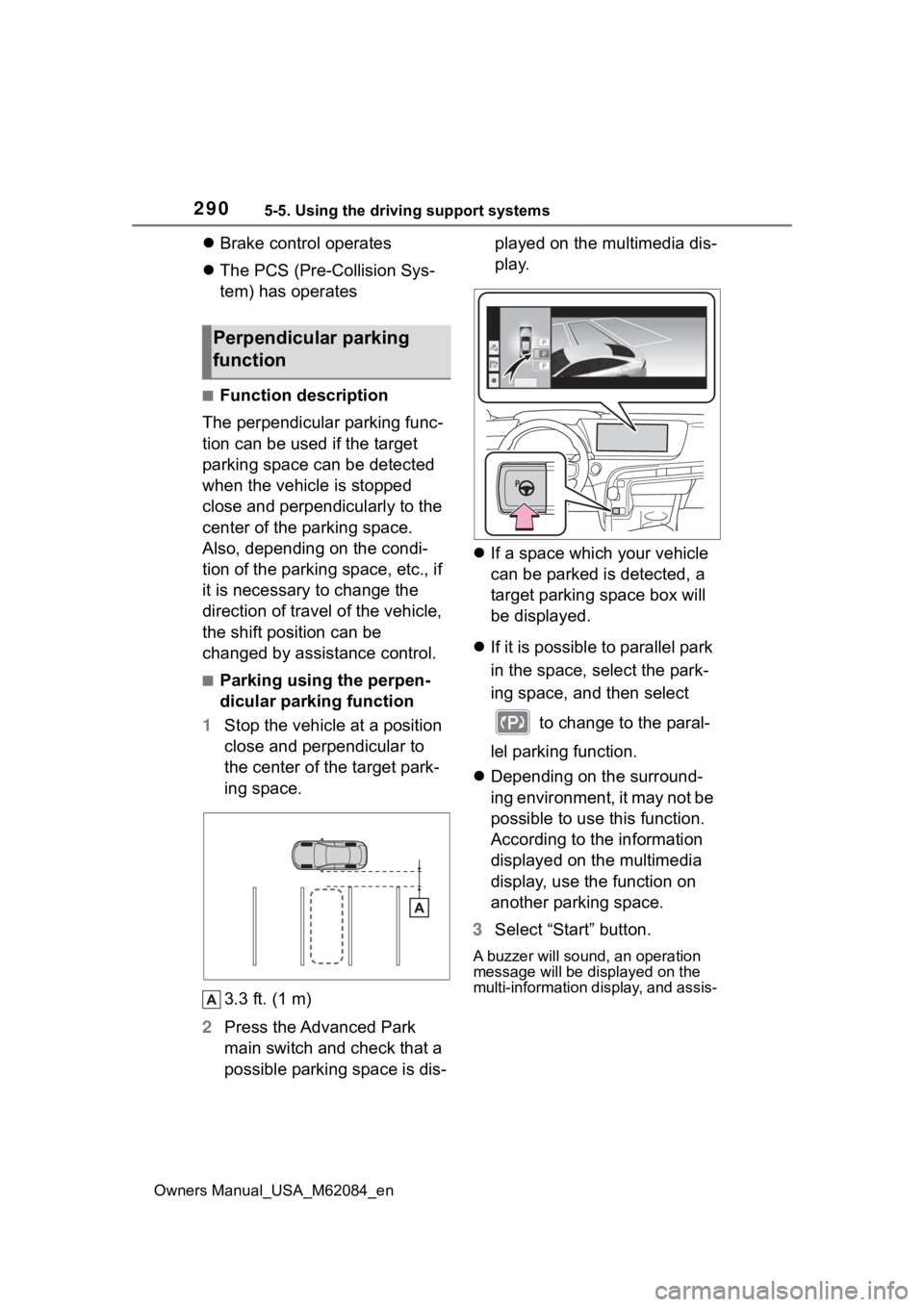
1 Stop the vehicle at a position
close and perpendicular to
the center of the target park-
ing space.
3.3 ft. (1 m)
2 Press the Advanced Park
main switch and check that a
possible parking space is dis- played on the multimedia dis-
play.
If a space which your vehicle
can be parked is detected, a
target parking space box will
be displayed.
If it is possible to parallel park
in the space, select the park-
ing space, and then select
to change to the paral-
lel parking function.
Depending on the surround-
ing environment, it may not be
possible to use this function.
According to the information
displayed on the multimedia
display, use the function on
another parking space.
3 Select “Start” button.
A buzzer will sound, an operation
message will be displayed on the
multi-information display, and assis-
Perpendicular parking
function
Page 291 of 556
2915-5. Using the driving support systems
Owners Manual_USA_M62084_en
5
Driving
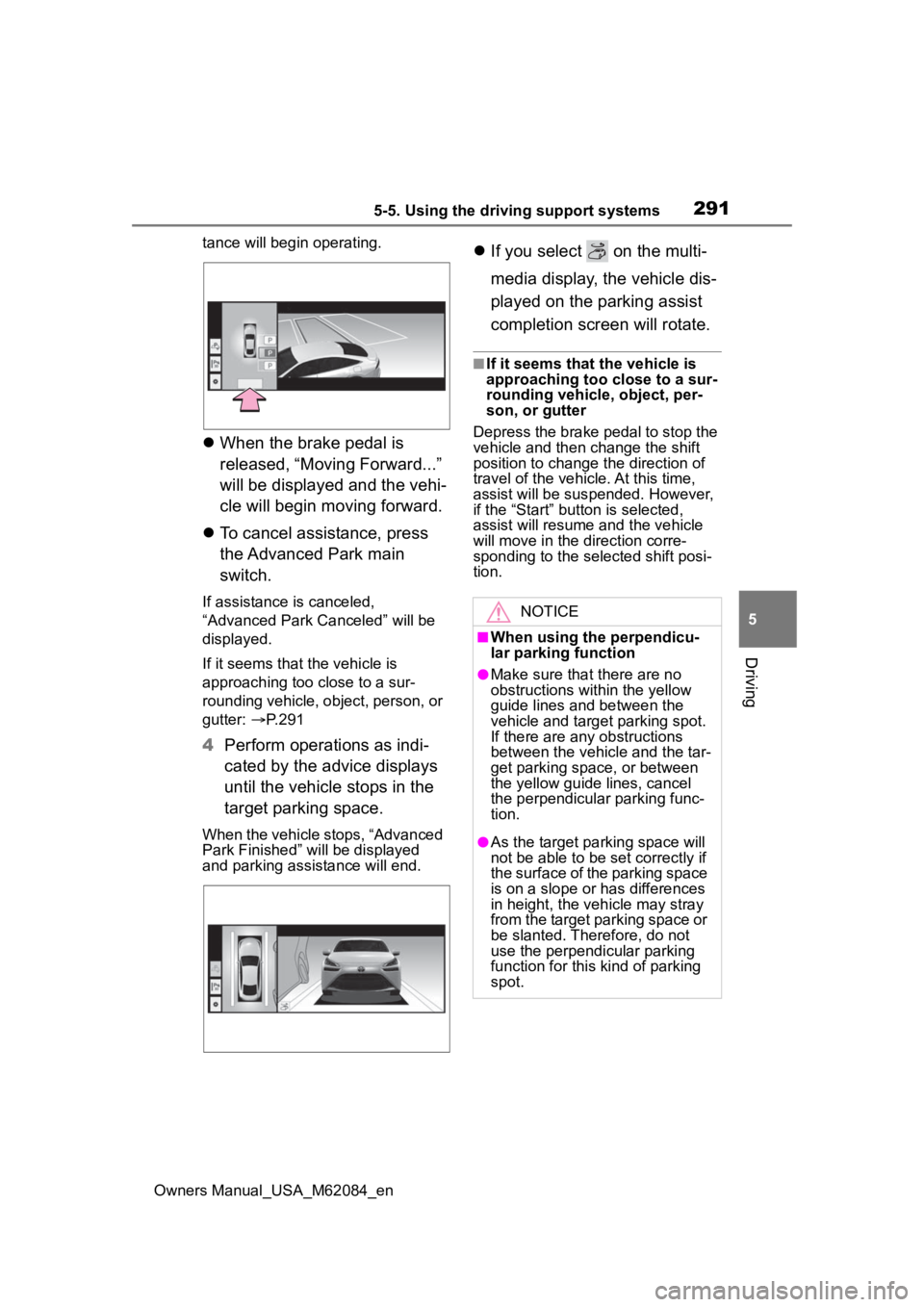
tance will begin operating.
When the brake pedal is
released, “Moving Forward...”
will be displayed and the vehi-
cle will begin moving forward.
To cancel assistance, press
the Advanced Park main
switch.
If assistance is canceled,
“Advanced Park Canceled” will be
displayed.
If it seems that the vehicle is
approaching too close to a sur-
rounding vehicle, object, person, or
gutter: P.291
4 Perform operations as indi-
cated by the advice displays
until the vehicle stops in the
target parking space.
When the vehicle stops, “Advanced
Park Finished” will be displayed
and parking assistance will end.
If you select on the multi-
media display, the vehicle dis-
played on the parking assist
completion screen will rotate.
■If it seems that the vehicle is
approaching too close to a sur-
rounding vehicle, object, per-
son, or gutter
Depress the brake pedal to stop the
vehicle and then change the shift
position to change the direction of
travel of the vehicle. At this time,
assist will be sus pended. However,
if the “Start” button is selected,
assist will resume and the vehicle
will move in the di rection corre-
sponding to the selected shift posi-
tion.
NOTICE
■When using the perpendicu-
lar parking function
●Make sure that there are no
obstructions within the yellow
guide lines and between the
vehicle and target parking spot.
If there are any obstructions
between the vehicle and the tar-
get parking space, or between
the yellow guide lines, cancel
the perpendicular parking func-
tion.
●As the tar get parking space will
not be able to be set correctly if
the surface of the parking space
is on a slope or has differences
in height, the veh icle may stray
from the target parking space or
be slanted. Therefore, do not
use the perpendicular parking
function for this kind of parking
spot.