phone TOYOTA RAV4 2019 Accessories, Audio & Navigation (in English)
[x] Cancel search | Manufacturer: TOYOTA, Model Year: 2019, Model line: RAV4, Model: TOYOTA RAV4 2019Pages: 244, PDF Size: 6.8 MB
Page 19 of 244
191-1. Basic function
1
Quick guide
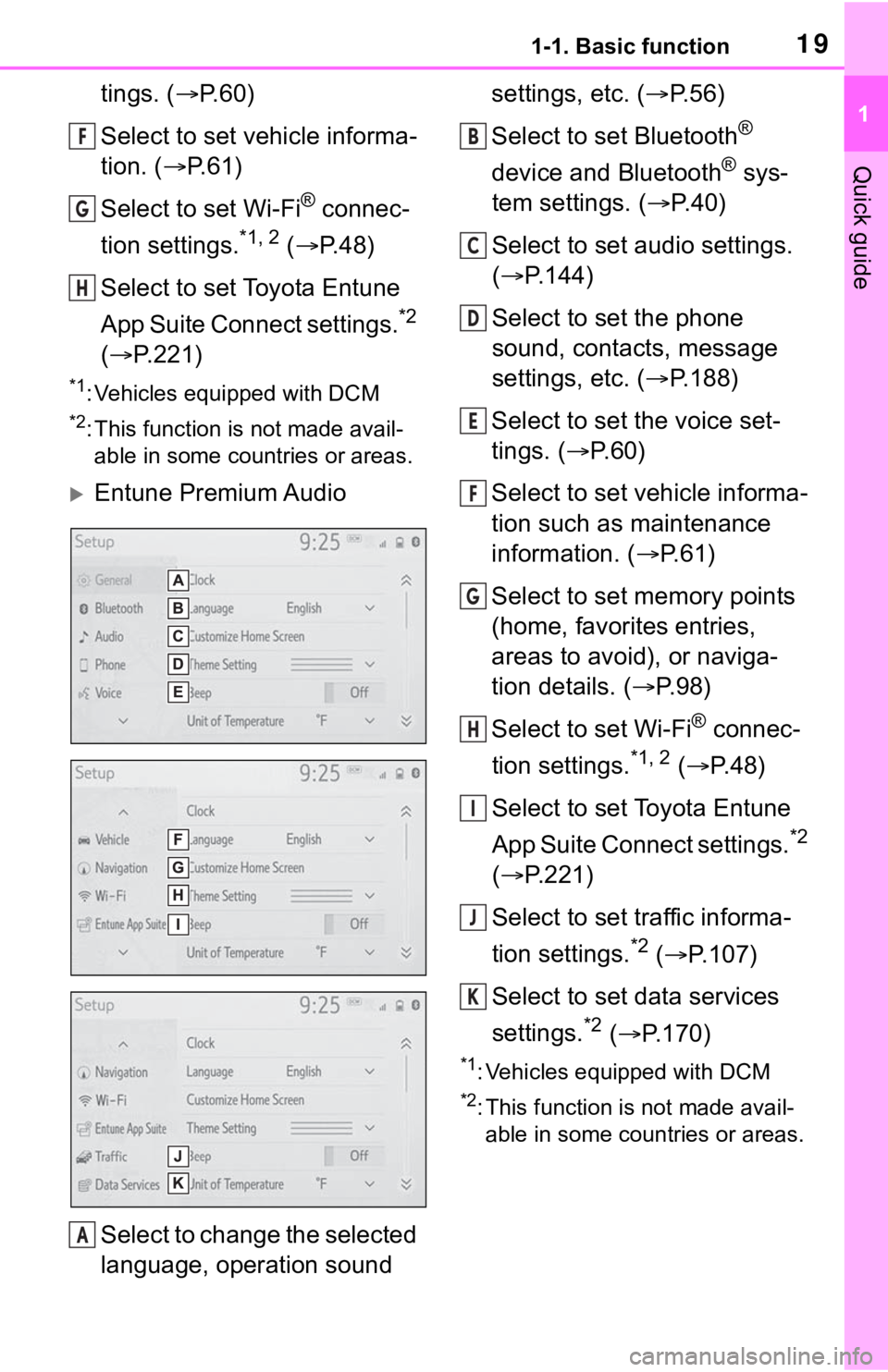
tings. (P.60)
Select to set vehicle informa-
tion. ( P. 6 1 )
Select to set Wi-Fi
® connec-
tion settings.
*1, 2 ( P.48)
Select to set Toyota Entune
App Suite Connect settings.
*2
( P.221)
*1: Vehicles equipped with DCM
*2: This function is not made avail-
able in some countries or areas.
Entune Premium Audio
Select to change the selected
language, operation sound settings, etc. (
P.56)
Select to set Bluetooth
®
device and Bluetooth
® sys-
tem settings. ( P.40)
Select to set audio settings.
( P.144)
Select to set the phone
sound, contacts, message
settings, etc. ( P.188)
Select to set the voice set-
tings. ( P.60)
Select to set vehicle informa-
tion such as maintenance
information. ( P.61)
Select to set memory points
(home, favorites entries,
areas to avoid), or naviga-
tion details. ( P. 9 8 )
Select to set Wi-Fi
® connec-
tion settings.
*1, 2 ( P. 4 8 )
Select to set Toyota Entune
App Suite Connect settings.
*2
( P.221)
Select to set traffic informa-
tion settings.
*2 ( P.107)
Select to set data services
settings.
*2 ( P.170)
*1: Vehicles equipped with DCM
*2: This function is not made avail-
able in some countries or areas.
F
G
H
A
B
C
D
E
F
G
H
I
J
K
Page 24 of 244
241-2. Navigation operation
• Editing the name, location, phone number and icon
P. 9 8
• Setting home as the destination P. 8 1
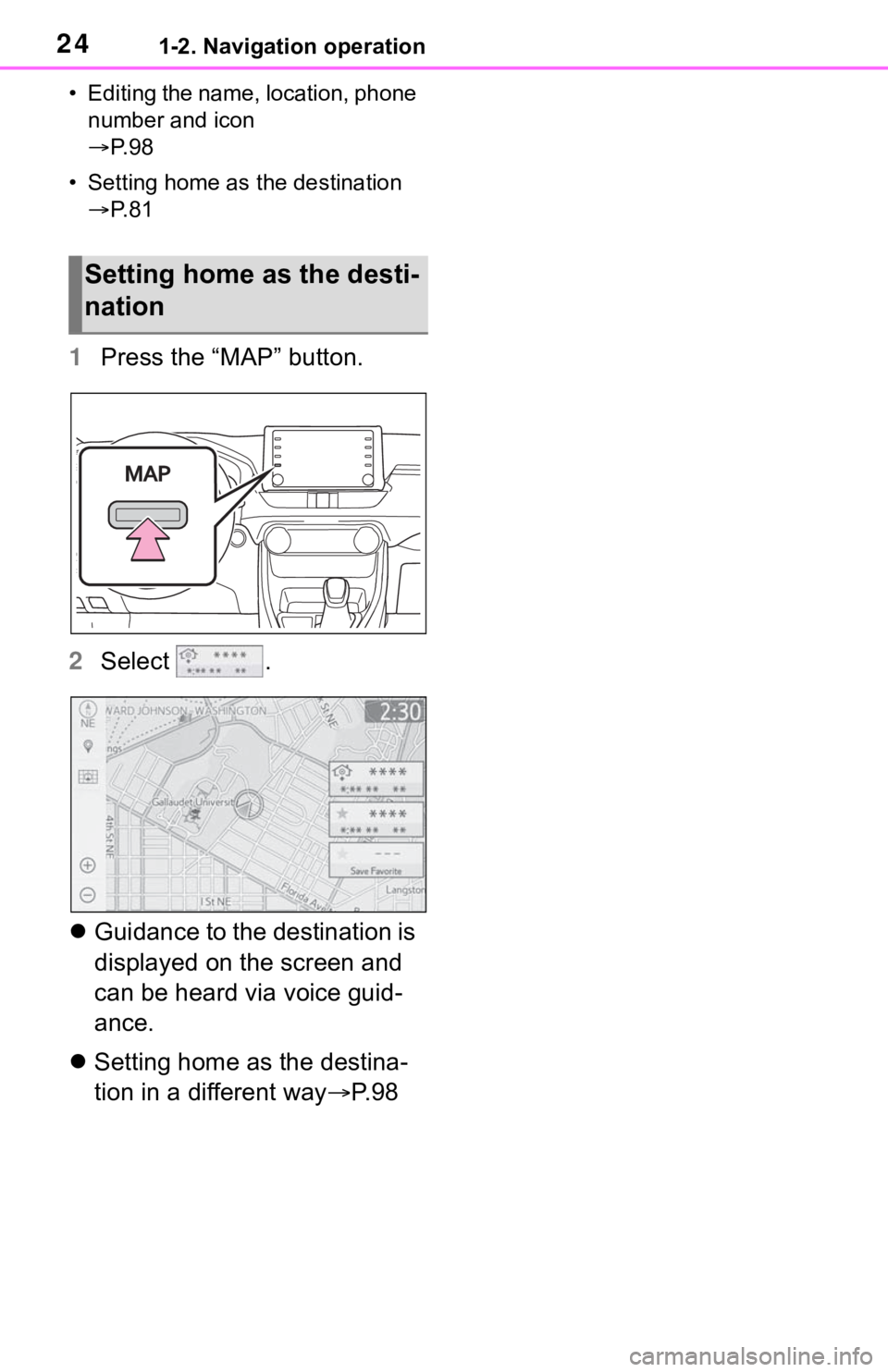
1 Press the “MAP” button.
2 Select .
Guidance to the destination is
displayed on the screen and
can be heard via voice guid-
ance.
Setting home as the destina-
tion in a different way P. 9 8
Setting home as the desti-
nation
Page 26 of 244
262-1. Basic information before operation
2-1.Basic information before operation
After a few seconds, the caution
screen will be displayed.
After about 5 seconds or select-
ing “Continue”, the caution
screen automatically switches to
the next screen.
*: Entune Premium Audio only
This system reminds users
when to replace certain parts or
components and shows dealer
information (if registered) on the
screen.
When the vehicle reaches a pre-
viously set driving distance or
date specified for a scheduled
maintenance check, the mainte-
nance remainder screen will be
displayed when the system is
turned on.
To prevent this screen from being displayed again, select
“Do Not Tell Me Again”.
To register maintenance infor-
mation: P. 6 2
If is selected, the regis-
tered phone number can be
called.
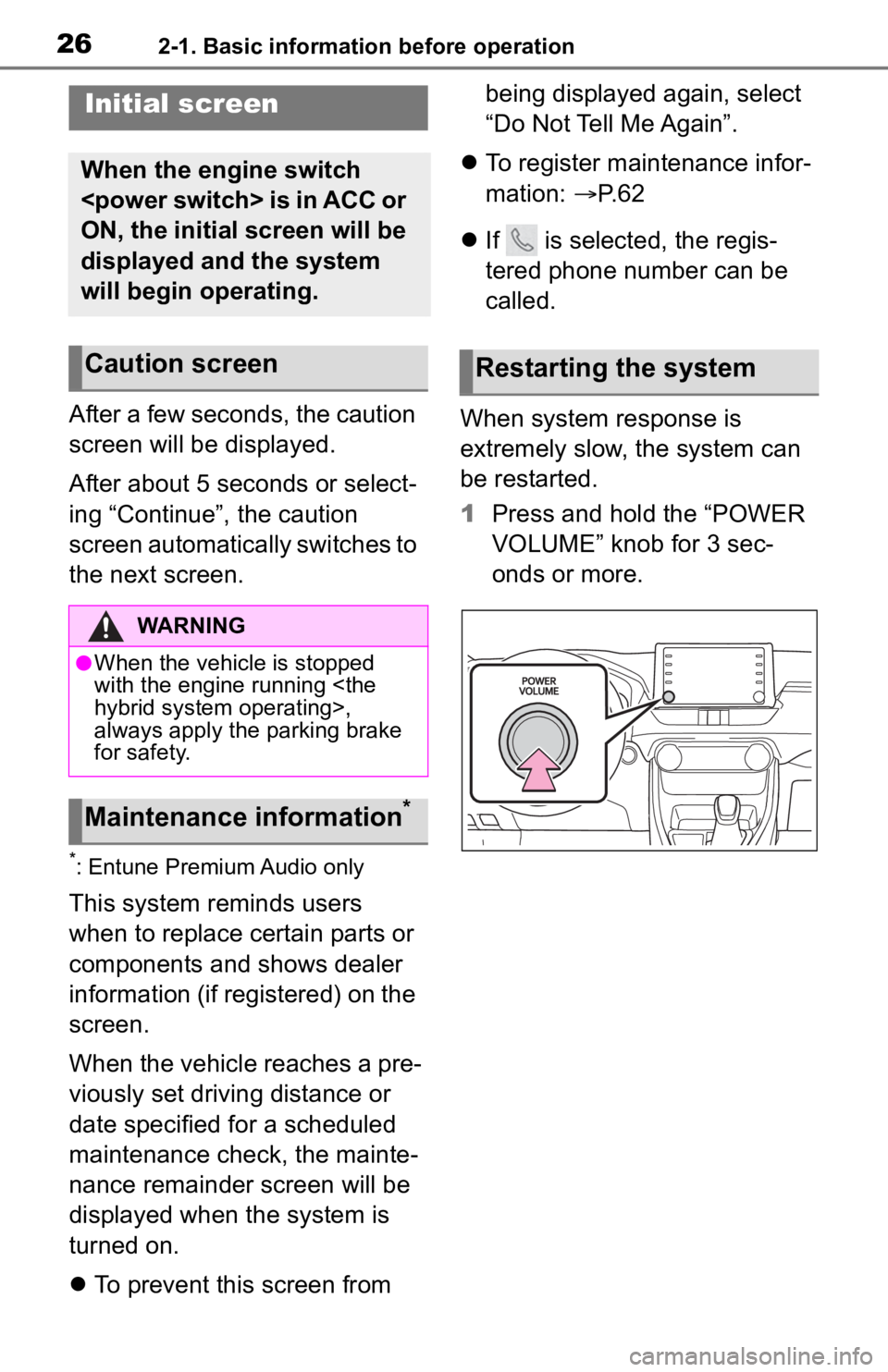
When system response is
extremely slow, the system can
be restarted.
1 Press and hold the “POWER
VOLUME” knob for 3 sec-
onds or more.
Initial screen
When the engine switch
ON, the initial screen will be
displayed and the system
will begin operating.
Caution screen
WARNING
●When the vehicle is stopped
with the engine running
always apply the parking brake
for safety.
Maintenance information*
Restarting the system
Page 35 of 244
352-1. Basic information before operation
2
Basic function
Linking multi-infor ma-
tion display and the
system
The following functions of
the system are linked with
the multi-information dis-
play in the instrument clus-
ter:
Audio
Phone
*
etc.
These functions can be
operated using multi-infor-
mation display control
switches on the steering
wheel. For details, refer to
“OWNER’S MANUAL”.
*: When an Apple CarPlay con-
nection is established, this
function will be unavailable.
Page 36 of 244
362-2. Connectivity settings
2-2.Connectivity settings
■Registering from the sys-
tem
1 Turn the Bluetooth
® connec-
tion setting of your cellular
phone on.
This function is not available
when Bluetooth
® connection
setting of your cellular phone
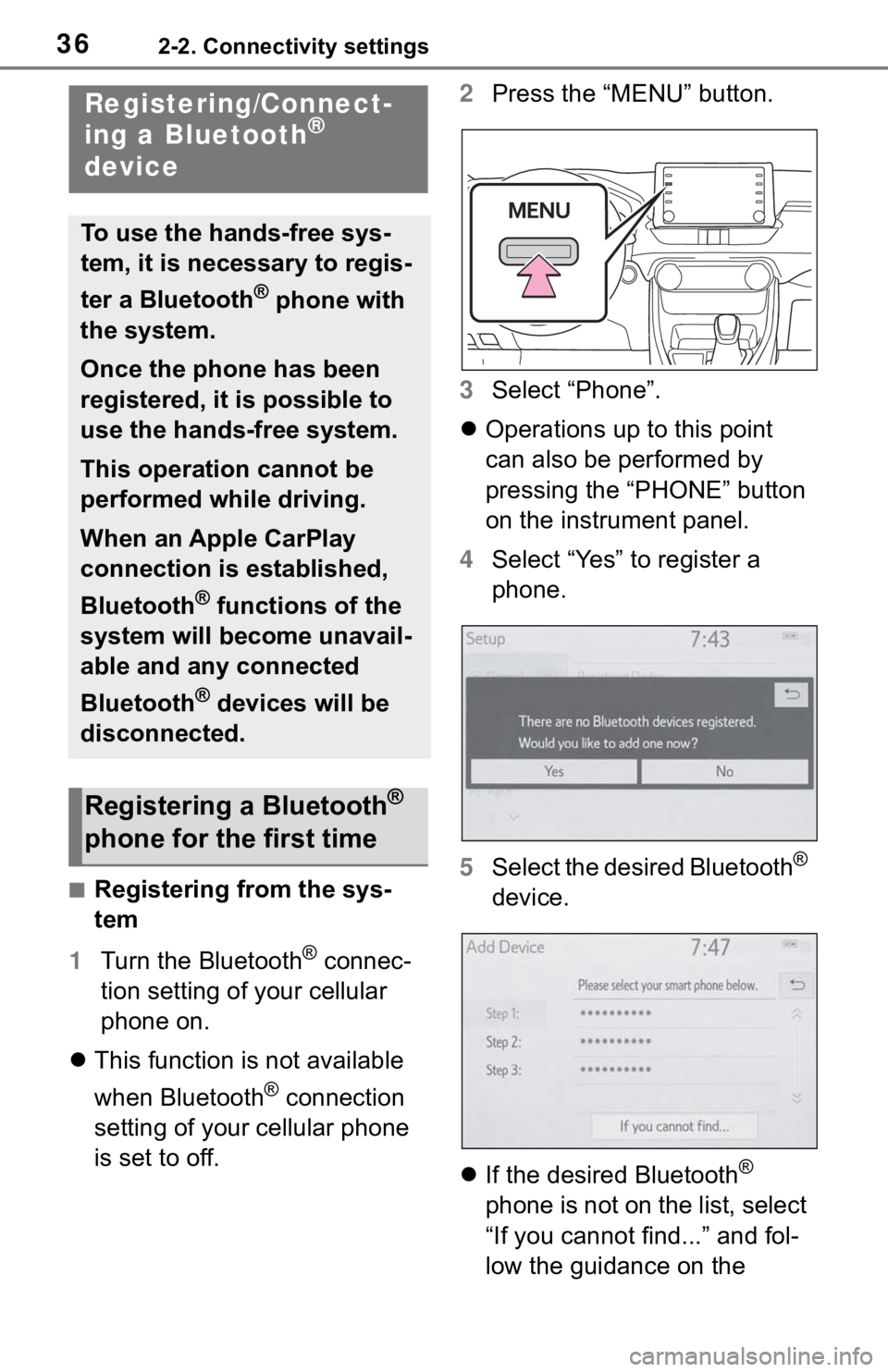
is set to off. 2
Press the “MENU” button.
3 Select “Phone”.
Operations up to this point
can also be performed by
pressing the “PHONE” button
on the instrument panel.
4 Select “Yes” to register a
phone.
5 Select the desired Bluetooth
®
device.
If the desired Bluetooth
®
phone is not on the list, select
“If you cannot find...” and fol-
low the guidance on the
Registering/Connect-
ing a Bluetooth®
device
To use the hands-free sys-
tem, it is necessary to regis-
ter a Bluetooth
® phone with
the system.
Once the phone has been
registered, it is possible to
use the hands-free system.
This operation cannot be
performed while driving.
When an Apple CarPlay
connection is established,
Bluetooth
® functions of the
system will become unavail-
able and any connected
Bluetooth
® devices will be
disconnected.
Registering a Bluetooth®
phone for the first time
Page 37 of 244
372-2. Connectivity settings
2
Basic function
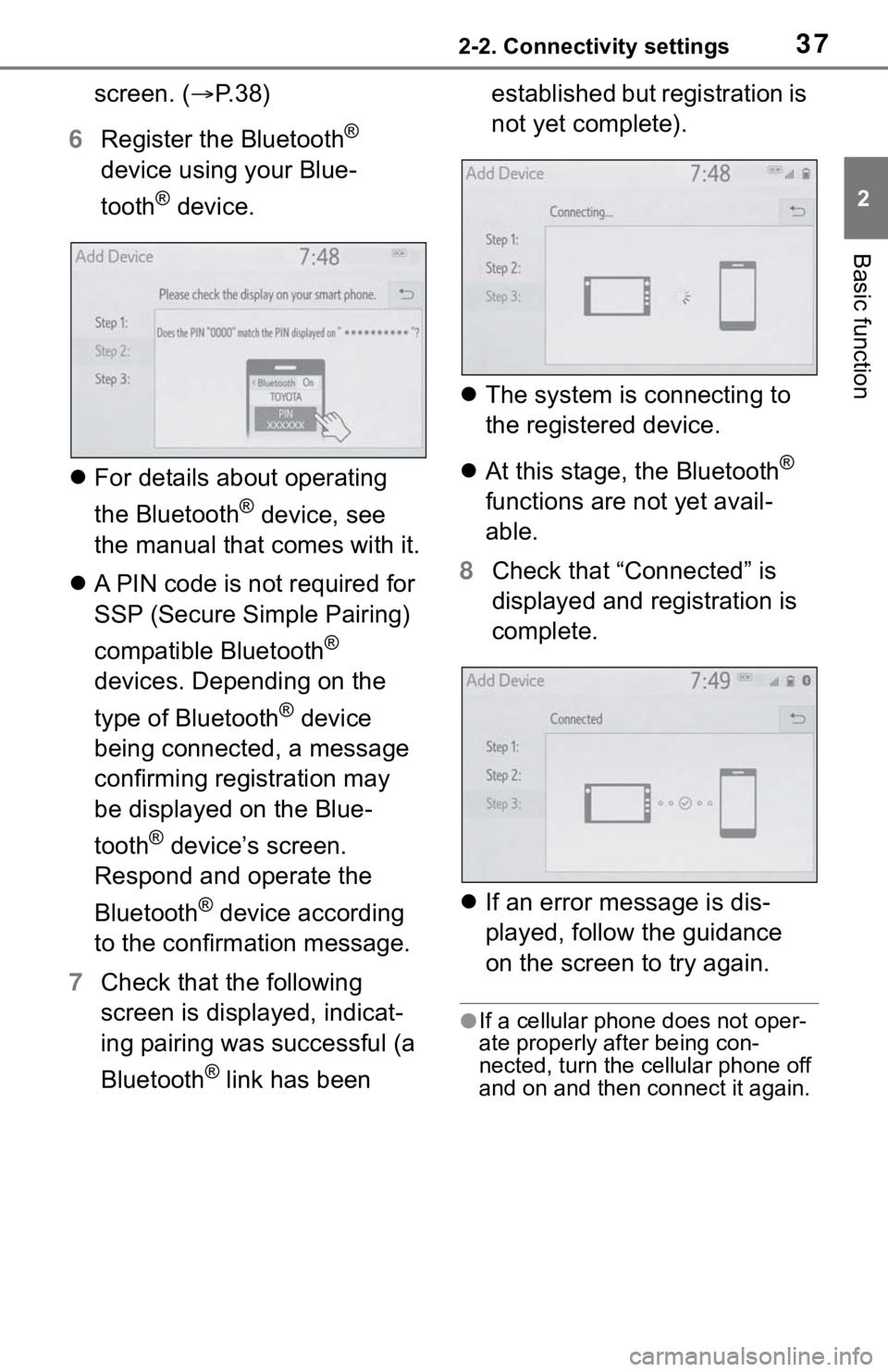
screen. (P. 3 8 )
6 Register the Bluetooth
®
device using your Blue-
tooth
® device.
For details about operating
the Bluetooth
® device, see
the manual that comes with it.
A PIN code is not required for
SSP (Secure Simple Pairing)
compatible Bluetooth
®
devices. Depending on the
type of Bluetooth
® device
being connected, a message
confirming registration may
be displayed on the Blue-
tooth
® device’s screen.
Respond and operate the
Bluetooth
® device according
to the confirmation message.
7 Check that the following
screen is displayed, indicat-
ing pairing was successful (a
Bluetooth
® link has been established but registration is
not yet complete).
The system is connecting to
the registered device.
At this stage, the Bluetooth
®
functions are not yet avail-
able.
8 Check that “Connected” is
displayed and registration is
complete.
If an error message is dis-
played, follow the guidance
on the screen to try again.
●If a cellular phone does not oper-
ate properly after being con-
nected, turn the cellular phone off
and on and then c onnect it again.
Page 38 of 244
382-2. Connectivity settings
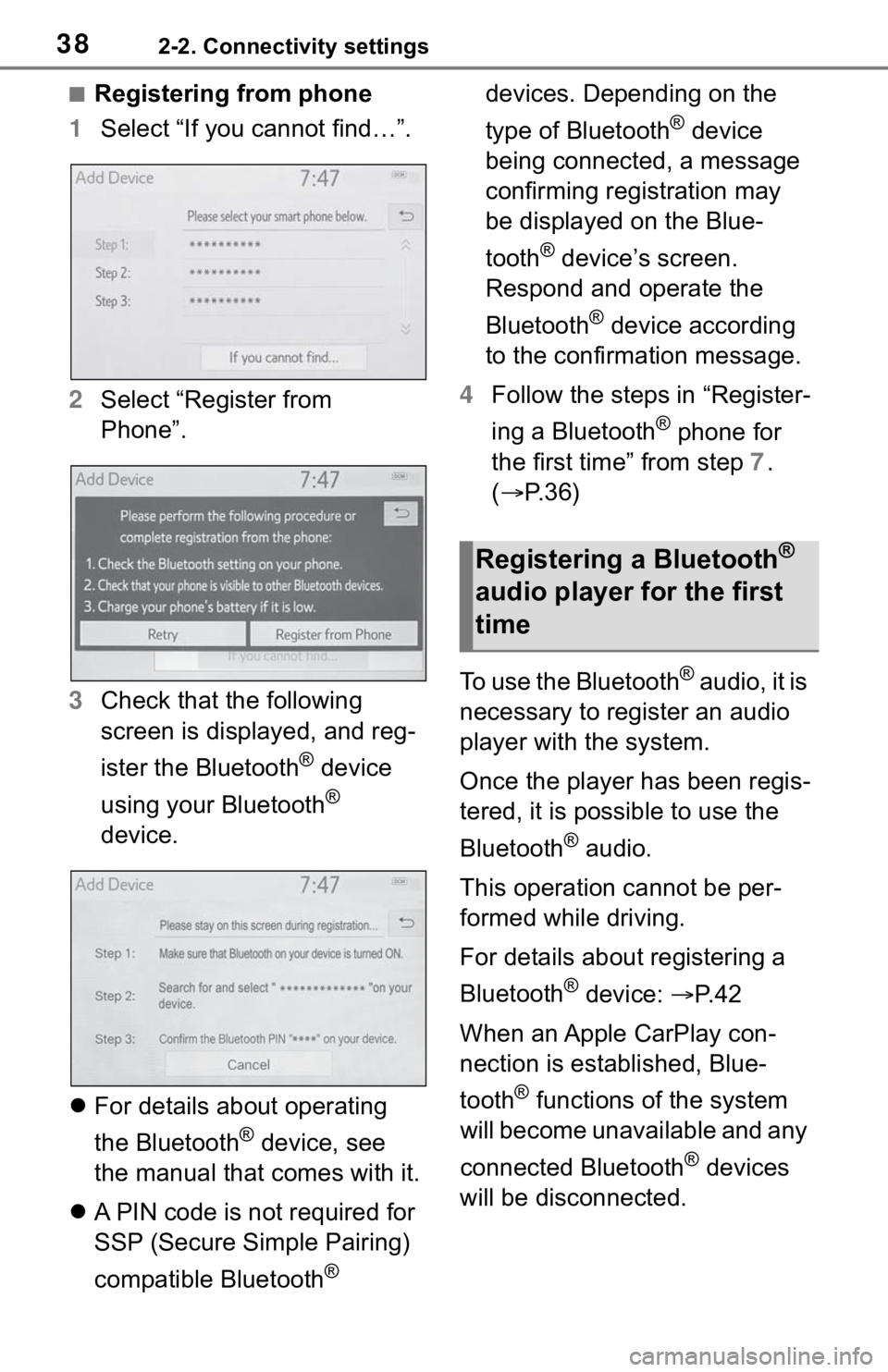
■Registering from phone
1 Select “If you cannot find…”.
2 Select “Register from
Phone”.
3 Check that the following
screen is displayed, and reg-
ister the Bluetooth
® device
using your Bluetooth
®
device.
For details about operating
the Bluetooth
® device, see
the manual that comes with it.
A PIN code is not required for
SSP (Secure Simple Pairing)
compatible Bluetooth
® devices. Depending on the
type of Bluetooth
® device
being connected, a message
confirming registration may
be displayed on the Blue-
tooth
® device’s screen.
Respond and operate the
Bluetooth
® device according
to the confirmation message.
4 Follow the steps in “Register-
ing a Bluetooth
® phone for
the first time” from step 7.
( P.36)
To use the Bluetooth
® audio, it is
necessary to register an audio
player with the system.
Once the player has been regis-
tered, it is possible to use the
Bluetooth
® audio.
This operation cannot be per-
formed while driving.
For details about registering a
Bluetooth
® device: P. 4 2
When an Apple CarPlay con-
nection is established, Blue-
tooth
® functions of the system
will become unavailable and any
connected Bluetooth
® devices
will be disconnected.
Registering a Bluetooth®
audio player for the first
time
Page 39 of 244
392-2. Connectivity settings
2
Basic function
1Turn the Bluetooth® connec-
tion setting of your audio
player on.
This function is not available
when the Bluetooth
® connec-
tion setting of your audio
player is set to off.
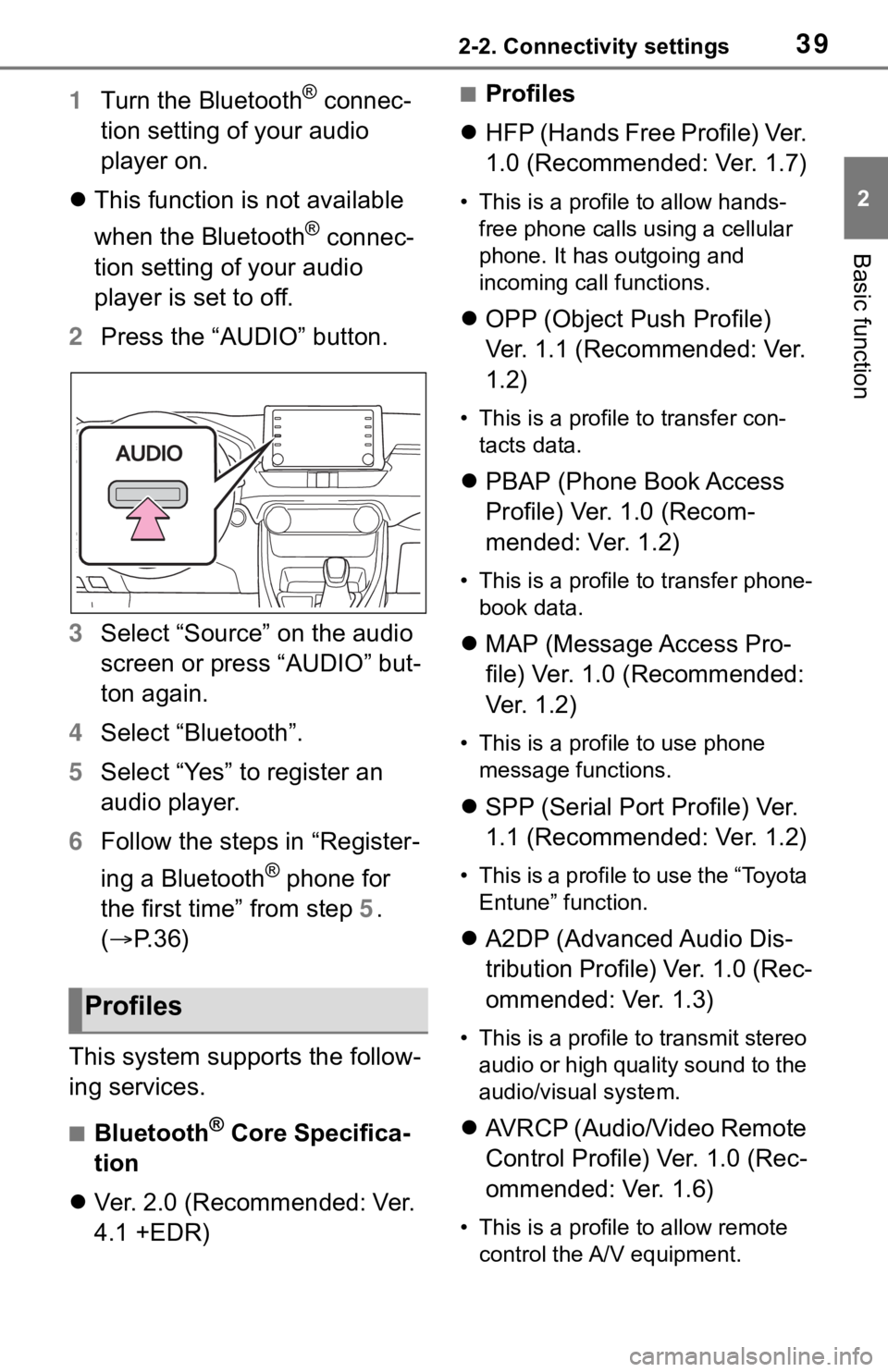
2 Press the “AUDIO” button.
3 Select “Source” on the audio
screen or press “AUDIO” but-
ton again.
4 Select “Bluetooth”.
5 Select “Yes” to register an
audio player.
6 Follow the steps in “Register-
ing a Bluetooth
® phone for
the first time” from step 5.
( P. 3 6 )
This system supports the follow-
ing services.
■Bluetooth® Core Specifica-
tion
Ver. 2.0 (Recommended: Ver.
4.1 +EDR)
■Profiles
HFP (Hands Free Profile) Ver.
1.0 (Recommended: Ver. 1.7)
• This is a profile to allow hands-
free phone calls using a cellular
phone. It has outgoing and
incoming call functions.
OPP (Object Push Profile)
Ver. 1.1 (Recommended: Ver.
1.2)
• This is a profile to transfer con-
tacts data.
PBAP (Phone Book Access
Profile) Ver. 1.0 (Recom-
mended: Ver. 1.2)
• This is a profile to transfer phone-
book data.
MAP (Message Access Pro-
file) Ver. 1.0 (Recommended:
Ver. 1.2)
• This is a profile to use phone
message functions.
SPP (Serial Port Profile) Ver.
1.1 (Recommended: Ver. 1.2)
• This is a profile to use the “Toyota
Entune” function.
A2DP (Advanced Audio Dis-
tribution Profile) Ver. 1.0 (Rec-
ommended: Ver. 1.3)
• This is a profile to transmit stereo
audio or high quality sound to the
audio/visual system.
AVRCP (Audio/Video Remote
Control Profile) Ver. 1.0 (Rec-
ommended: Ver. 1.6)
• This is a profile to allow remote
control the A/V equipment.
Profiles
Page 40 of 244
402-2. Connectivity settings
●This system is not guaranteed to
operate with all Bluetooth®
devices.
●If your cellular phone does not
support HFP, registering the Blue-
tooth
® phone or using OPP,
PBAP, MAP or SPP profiles indi-
vidually will not be possible.
●If the connect ed Bluetooth®
device version is older than rec-
ommended or incompatible, the
Bluetooth
® device function may
not work properly.
●Refer to
http://www.toyota.com/Entune/ in
the United States,
http://www.toyota.ca/entune
in
Canada, and
http://www.toyo tapr.com/entune
i n
Puerto Rico, to find approved
Bluetooth
® phones for this sys-
tem.
●Certification
Bluetooth is a reg istered trademark
of Bluetooth SIG, Inc.
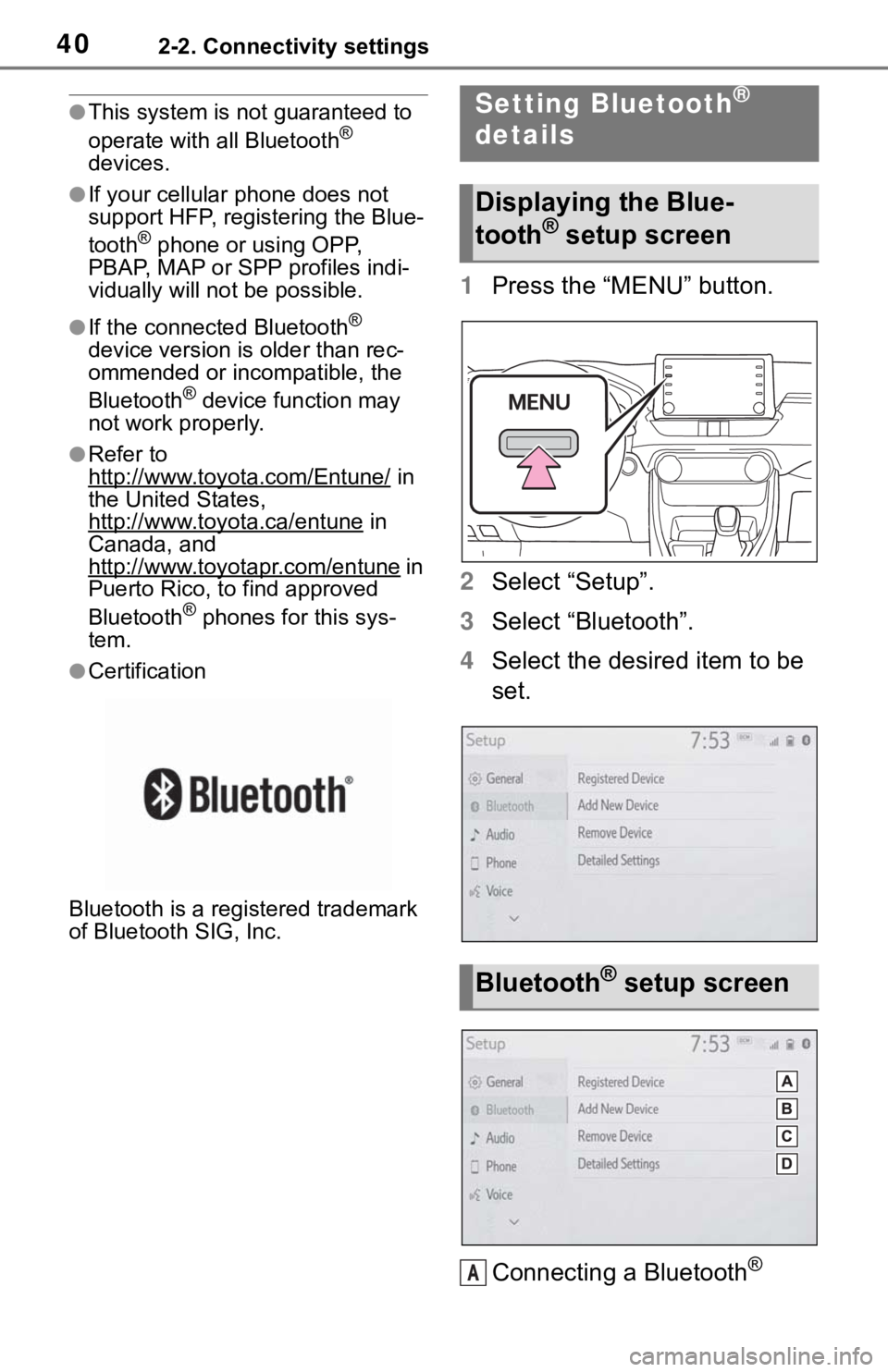
1 Press the “MENU” button.
2 Select “Setup”.
3 Select “Bluetooth”.
4 Select the desired item to be
set.
Connecting a Bluetooth
®
Setting Bluetooth®
details
Displaying the Blue-
tooth® setup screen
Bluetooth® setup screen
A
Page 41 of 244
412-2. Connectivity settings
2
Basic function
device and editing the Blue-
tooth
® device information
( P.41, 43)
Registering a Bluetooth
®
device ( P. 4 2 )
Deleting a Bluetooth
® device
( P. 4 3 )
Setting the Bluetooth
® sys-
tem ( P.45)
Up to 5 Bluetooth
® devices
(Phones (HFP) and audio play-
ers (AVP)) can be registered.
If more than 1 Bluetooth
® device
has been registered, select
which device to connect to.
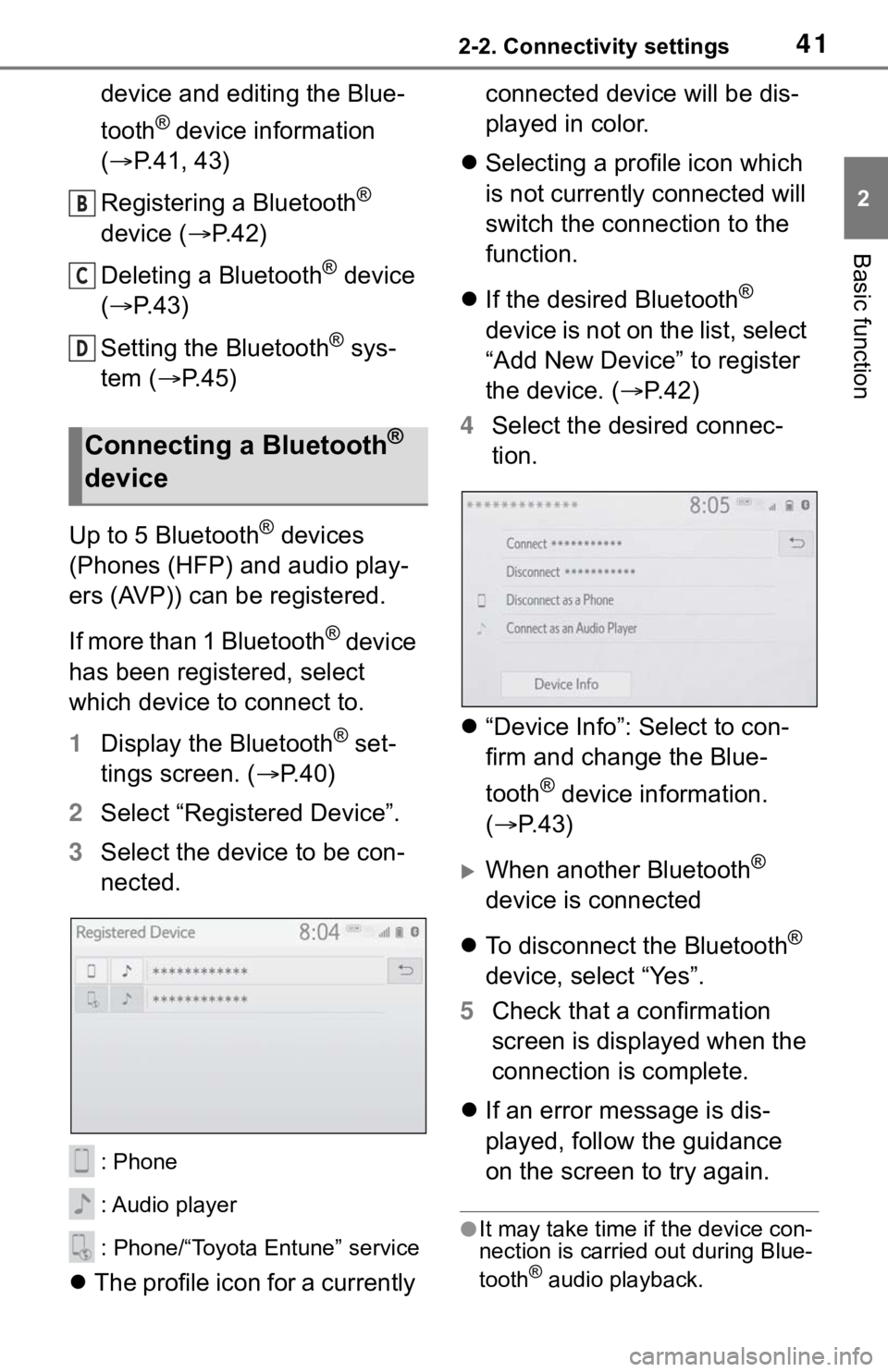
1 Display the Bluetooth
® set-
tings screen. ( P. 4 0 )
2 Select “Registered Device”.
3 Select the device to be con-
nected.
: Phone
: Audio player
: Phone/“Toyota Entune” service
The profile icon for a currently connected device will be dis-
played in color.
Selecting a profile icon which
is not currently connected will
switch the connection to the
function.
If the desired Bluetooth
®
device is not on the list, select
“Add New Device” to register
the device. ( P. 4 2 )
4 Select the desired connec-
tion.
“Device Info”: Select to con-
firm and change the Blue-
tooth
® device information.
( P.43)
When another Bluetooth®
device is connected
To disconnect the Bluetooth
®
device, select “Yes”.
5 Check that a confirmation
screen is displayed when the
connection is complete.
If an error message is dis-
played, follow the guidance
on the screen to try again.
●It may take time if the device con-
nection is carried out during Blue-
tooth
® audio playback.
Connecting a Bluetooth®
device
B
C
D