change time TOYOTA RAV4 PLUG-IN HYBRID 2023 Owner's Manual
[x] Cancel search | Manufacturer: TOYOTA, Model Year: 2023, Model line: RAV4 PLUG-IN HYBRID, Model: TOYOTA RAV4 PLUG-IN HYBRID 2023Pages: 718, PDF Size: 167.55 MB
Page 160 of 718
1582-2. Charging
the “Registering the charging
schedule” procedure. ( P.153)
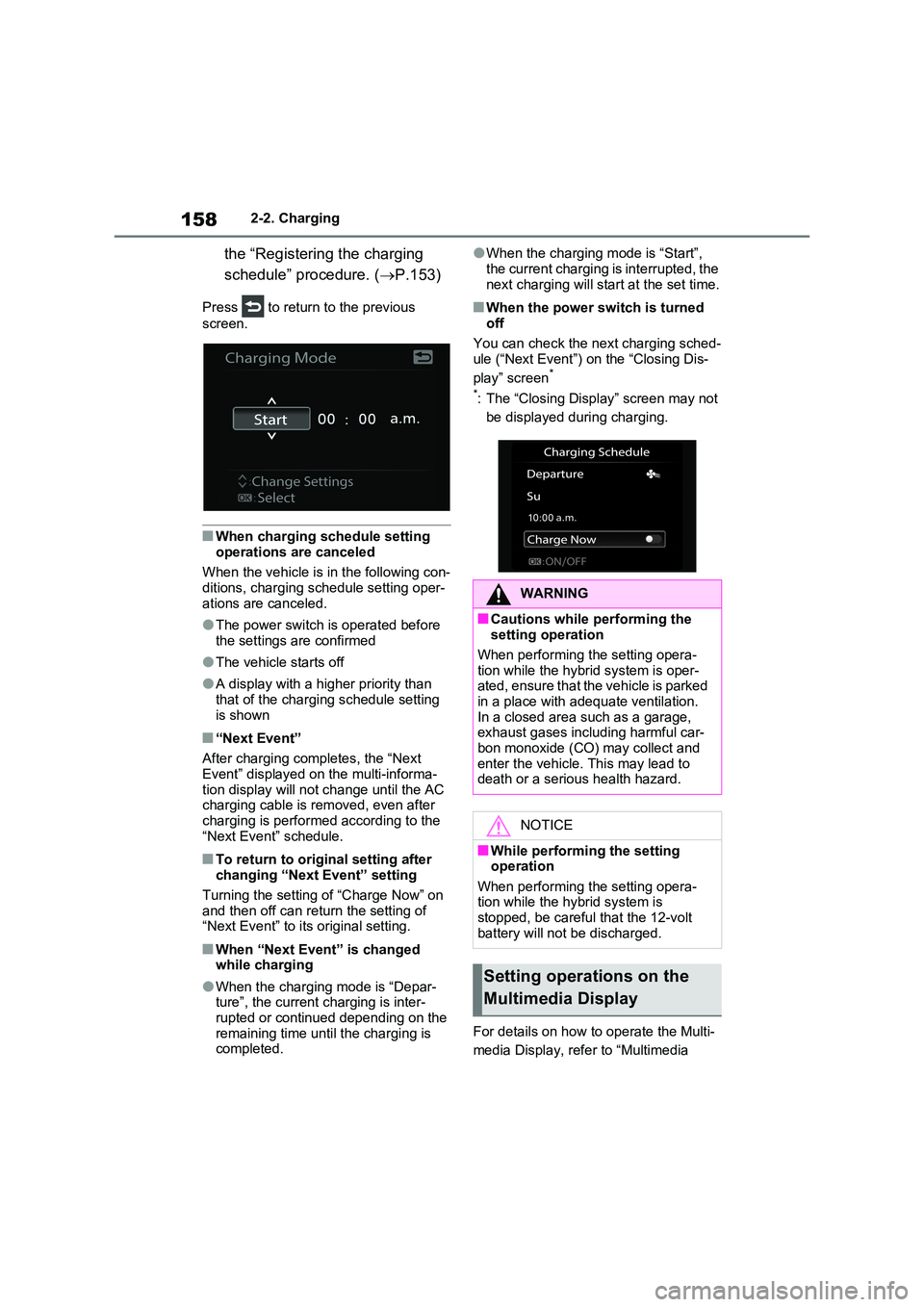
Press to return to the previous
screen.
■When charging schedule setting
operations are canceled
When the vehicle is in the following con- ditions, charging schedule setting oper-
ations are canceled.
●The power switch is operated before
the settings are confirmed
●The vehicle starts off
●A display with a higher priority than that of the charging schedule setting
is shown
■“Next Event”
After charging completes, the “Next Event” displayed on the multi-informa-
tion display will not change until the AC charging cable is removed, even after charging is performed according to the
“Next Event” schedule.
■To return to original setting after changing “Next Event” setting
Turning the setting of “Charge Now” on
and then off can return the setting of “Next Event” to its original setting.
■When “Next Event” is changed while charging
●When the charging mode is “Depar-ture”, the current charging is inter-
rupted or continued depending on the remaining time until the charging is completed.
●When the charging mode is “Start”,
the current charging is interrupted, the next charging will start at the set time.
■When the power switch is turned off
You can check the next charging sched- ule (“Next Event”) on the “Closing Dis-
play” screen*
*: The “Closing Display” screen may not
be displayed during charging.
For details on how to operate the Multi-
media Display, refer to “Multimedia
WARNING
■Cautions while performing the setting operation
When performing the setting opera-
tion while the hybrid system is oper- ated, ensure that the vehicle is parked in a place with adequate ventilation.
In a closed area such as a garage, exhaust gases including harmful car-bon monoxide (CO) may collect and
enter the vehicle. This may lead to death or a serious health hazard.
NOTICE
■While performing the setting operation
When performing the setting opera- tion while the hybrid system is stopped, be careful that the 12-volt
battery will not be discharged.
Setting operations on the
Multimedia Display
Page 161 of 718
159
2 2-2. Charging
Plug-in hybrid system
owner’s manual”.
Setting operations related to the
charging schedule are performed
on the “Charging schedule” screen.
The illustrations used in the text
may differ from the images that are
actually displayed on the Multime-
dia Display.
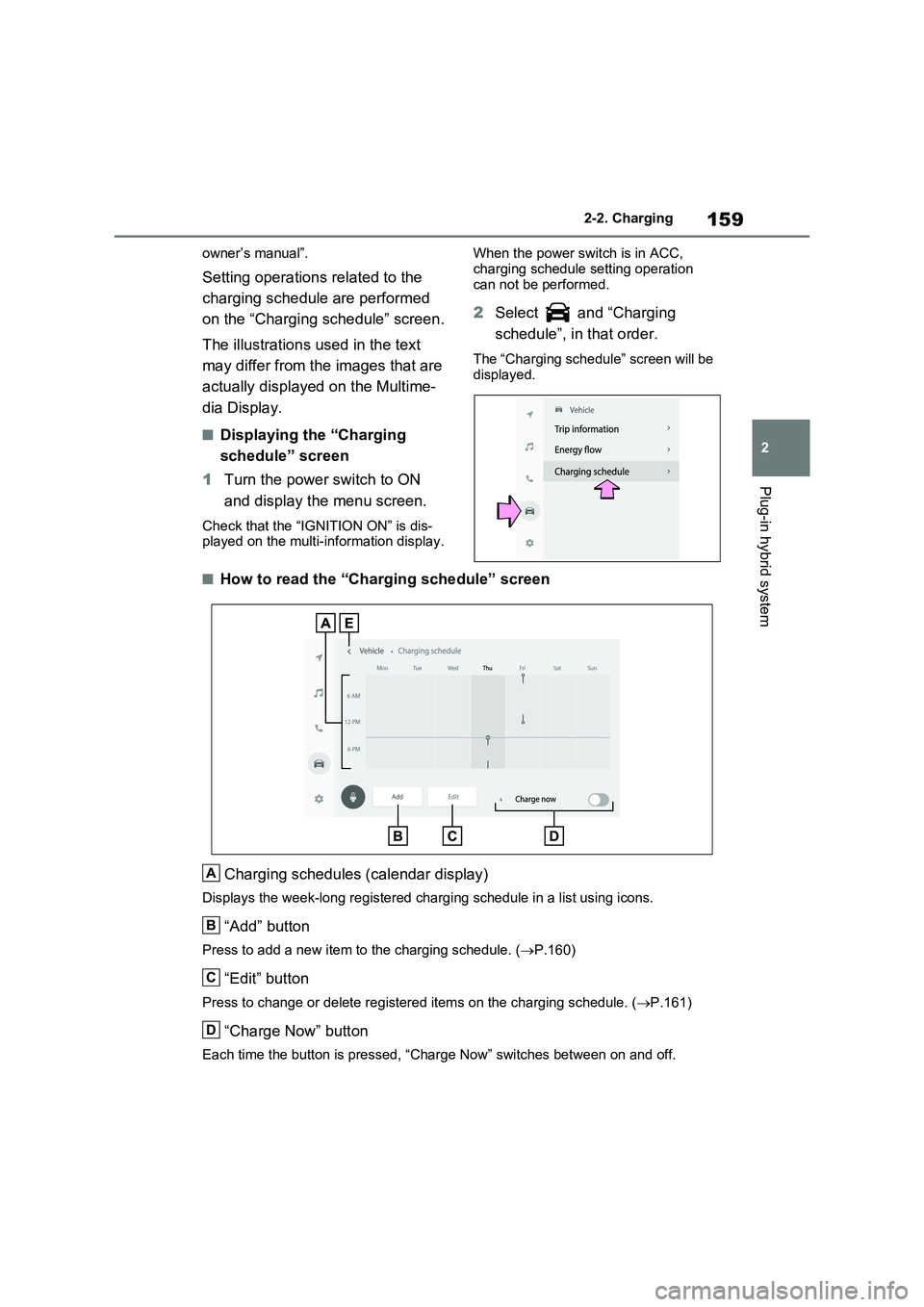
■Displaying the “Charging
schedule” screen
1Turn the power switch to ON
and display the menu screen.
Check that the “IGNITION ON” is dis-
played on the multi-information display.When the power switch is in ACC,
charging schedule setting operation
can not be performed.
2Select and “Charging
schedule”, in that order.
The “Charging schedule” screen will be
displayed.
■How to read the “Charging schedule” screen
Charging schedules (calendar display)
Displays the week-long registered charging schedule in a list using icons.
“Add” button
Press to add a new item to the charging schedule. (P.160)
“Edit” button
Press to change or delete registered items on the charging schedule. (P.161)
“Charge Now” button
Each time the button is pressed, “Charge Now” switches between on and off.
A
B
C
D
Page 163 of 718
161
2 2-2. Charging
Plug-in hybrid system
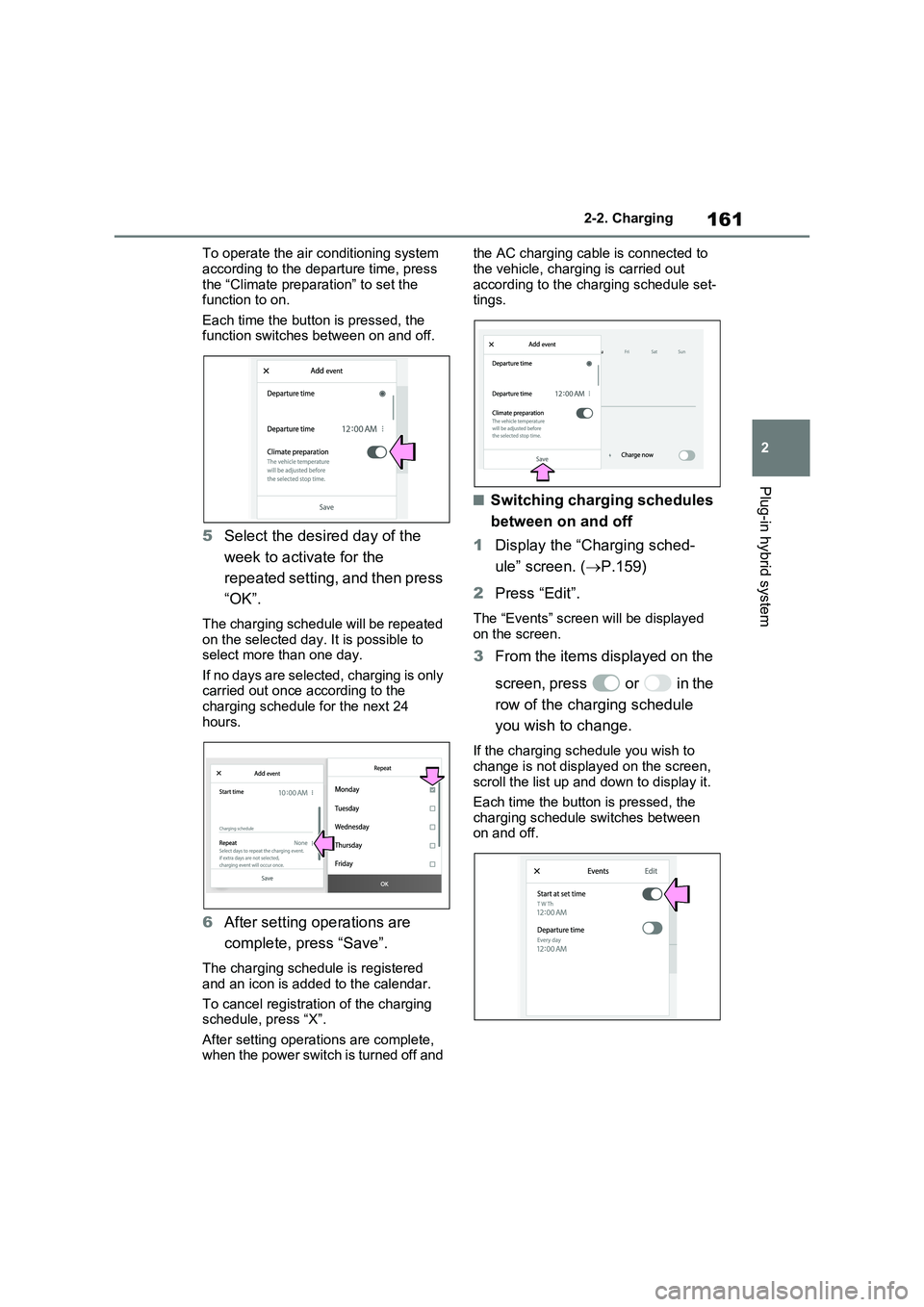
To operate the air conditioning system
according to the departure time, press
the “Climate preparation” to set the
function to on.
Each time the button is pressed, the
function switches between on and off.
5Select the desired day of the
week to activate for the
repeated setting, and then press
“OK”.
The charging schedule will be repeated
on the selected day. It is possible to
select more than one day.
If no days are selected, charging is only
carried out once according to the
charging schedule for the next 24
hours.
6After setting operations are
complete, press “Save”.
The charging schedule is registered
and an icon is added to the calendar.
To cancel registration of the charging
schedule, press “X”.
After setting operations are complete,
when the power switch is turned off and the AC charging cable is connected to
the vehicle, charging is carried out
according to the charging schedule set-
tings.
■Switching charging schedules
between on and off
1Display the “Charging sched-
ule” screen. (P.159)
2Press “Edit”.
The “Events” screen will be displayed
on the screen.
3From the items displayed on the
screen, press or in the
row of the charging schedule
you wish to change.
If the charging schedule you wish to
change is not displayed on the screen,
scroll the list up and down to display it.
Each time the button is pressed, the
charging schedule switches between
on and off.
Page 164 of 718
1622-2. Charging
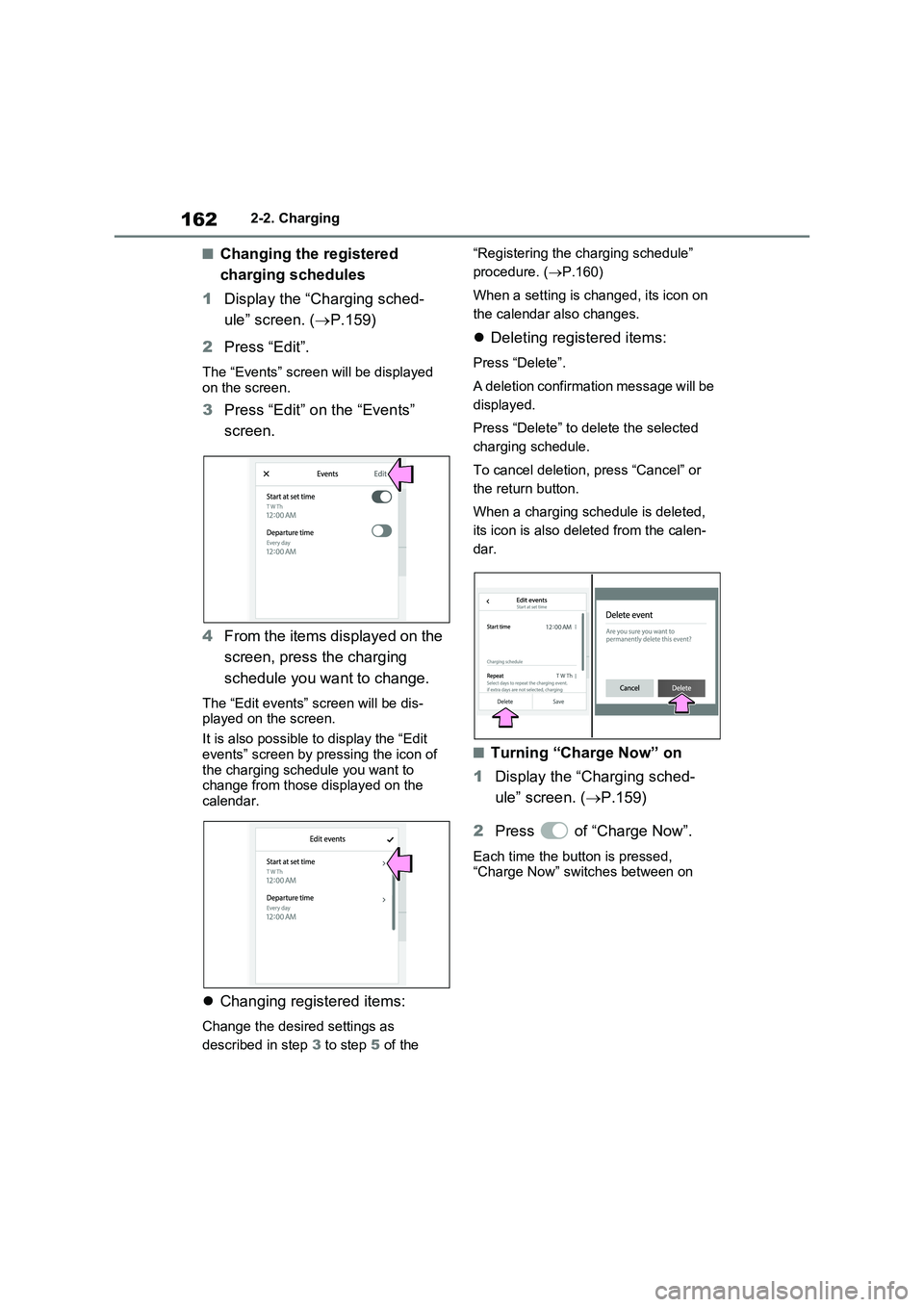
■Changing the registered
charging schedules
1Display the “Charging sched-
ule” screen. (P.159)
2Press “Edit”.
The “Events” screen will be displayed
on the screen.
3Press “Edit” on the “Events”
screen.
4From the items displayed on the
screen, press the charging
schedule you want to change.
The “Edit events” screen will be dis-
played on the screen.
It is also possible to display the “Edit
events” screen by pressing the icon of
the charging schedule you want to
change from those displayed on the
calendar.
Changing registered items:
Change the desired settings as
described in step 3 to step 5 of the “Registering the charging schedule”
procedure. (P.160)
When a setting is changed, its icon on
the calendar also changes.
Deleting registered items:
Press “Delete”.
A deletion confirmation message will be
displayed.
Press “Delete” to delete the selected
charging schedule.
To cancel deletion, press “Cancel” or
the return button.
When a charging schedule is deleted,
its icon is also deleted from the calen-
dar.
■Turning “Charge Now” on
1Display the “Charging sched-
ule” screen. (P.159)
2Press of “Charge Now”.
Each time the button is pressed,
“Charge Now” switches between on
Page 173 of 718
171
2 2-2. Charging
Plug-in hybrid system
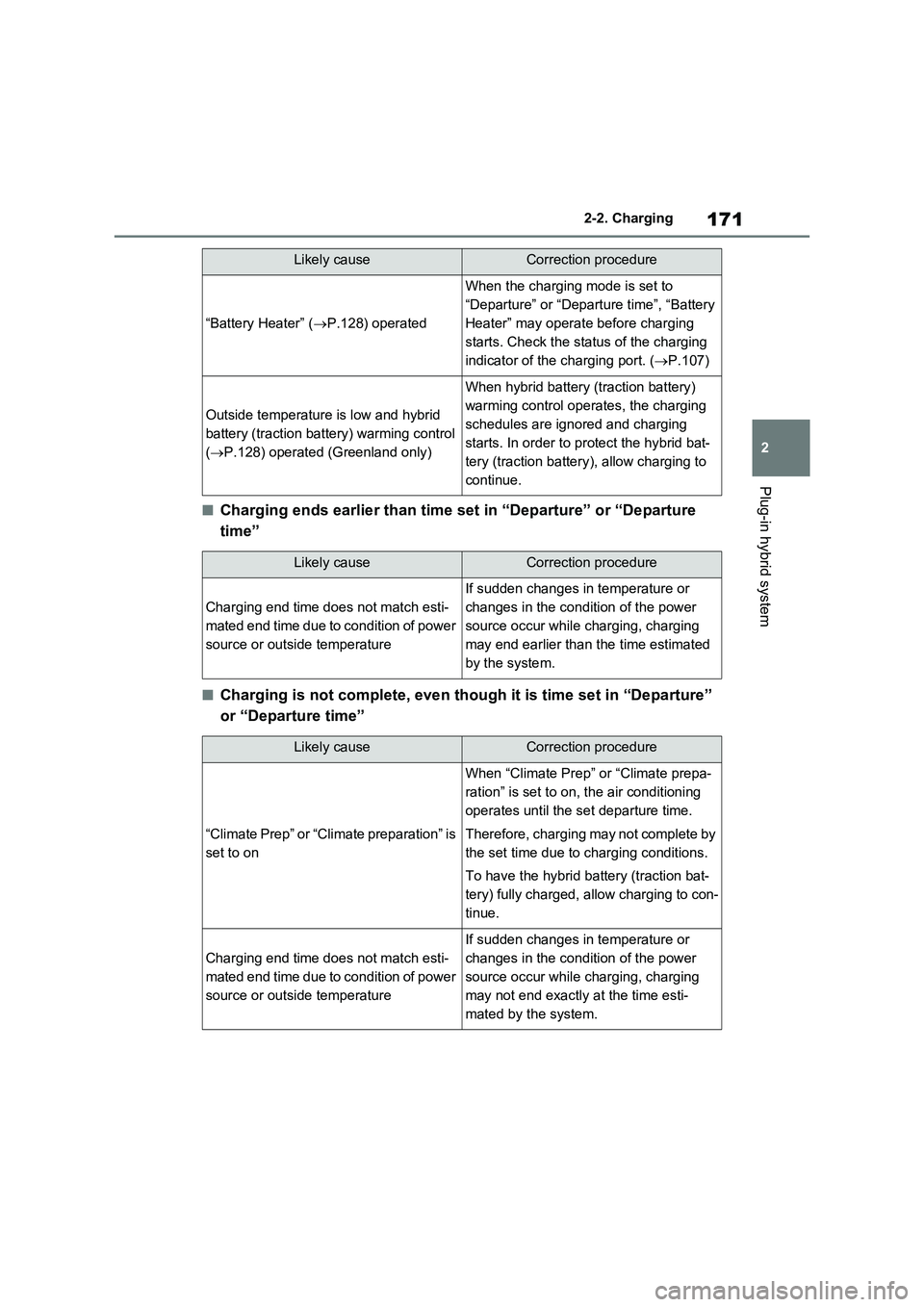
■Charging ends earlier than time set in “Departure” or “Departure
time”
■Charging is not complete, even though it is time set in “Departure”
or “Departure time”
“Battery Heater” (P.128) operated
When the charging mode is set to
“Departure” or “Departure time”, “Battery
Heater” may operate before charging
starts. Check the status of the charging
indicator of the charging port. (P.107)
Outside temperature is low and hybrid
battery (traction battery) warming control
(P.128) operated (Greenland only)
When hybrid battery (traction battery)
warming control operates, the charging
schedules are ignored and charging
starts. In order to protect the hybrid bat-
tery (traction battery), allow charging to
continue.
Likely causeCorrection procedure
Charging end time does not match esti-
mated end time due to condition of power
source or outside temperature
If sudden changes in temperature or
changes in the condition of the power
source occur while charging, charging
may end earlier than the time estimated
by the system.
Likely causeCorrection procedure
“Climate Prep” or “Climate preparation” is
set to on
When “Climate Prep” or “Climate prepa-
ration” is set to on, the air conditioning
operates until the set departure time.
Therefore, charging may not complete by
the set time due to charging conditions.
To have the hybrid battery (traction bat-
tery) fully charged, allow charging to con-
tinue.
Charging end time does not match esti-
mated end time due to condition of power
source or outside temperature
If sudden changes in temperature or
changes in the condition of the power
source occur while charging, charging
may not end exactly at the time esti-
mated by the system.
Likely causeCorrection procedure
Page 191 of 718
189
3 3-1. Instrument cluster
Vehicle status information and indicators
Automatically adjusts the time by using the GPS time information (GPS clock).
For details, refer to “Multimedia owner’s manual”.
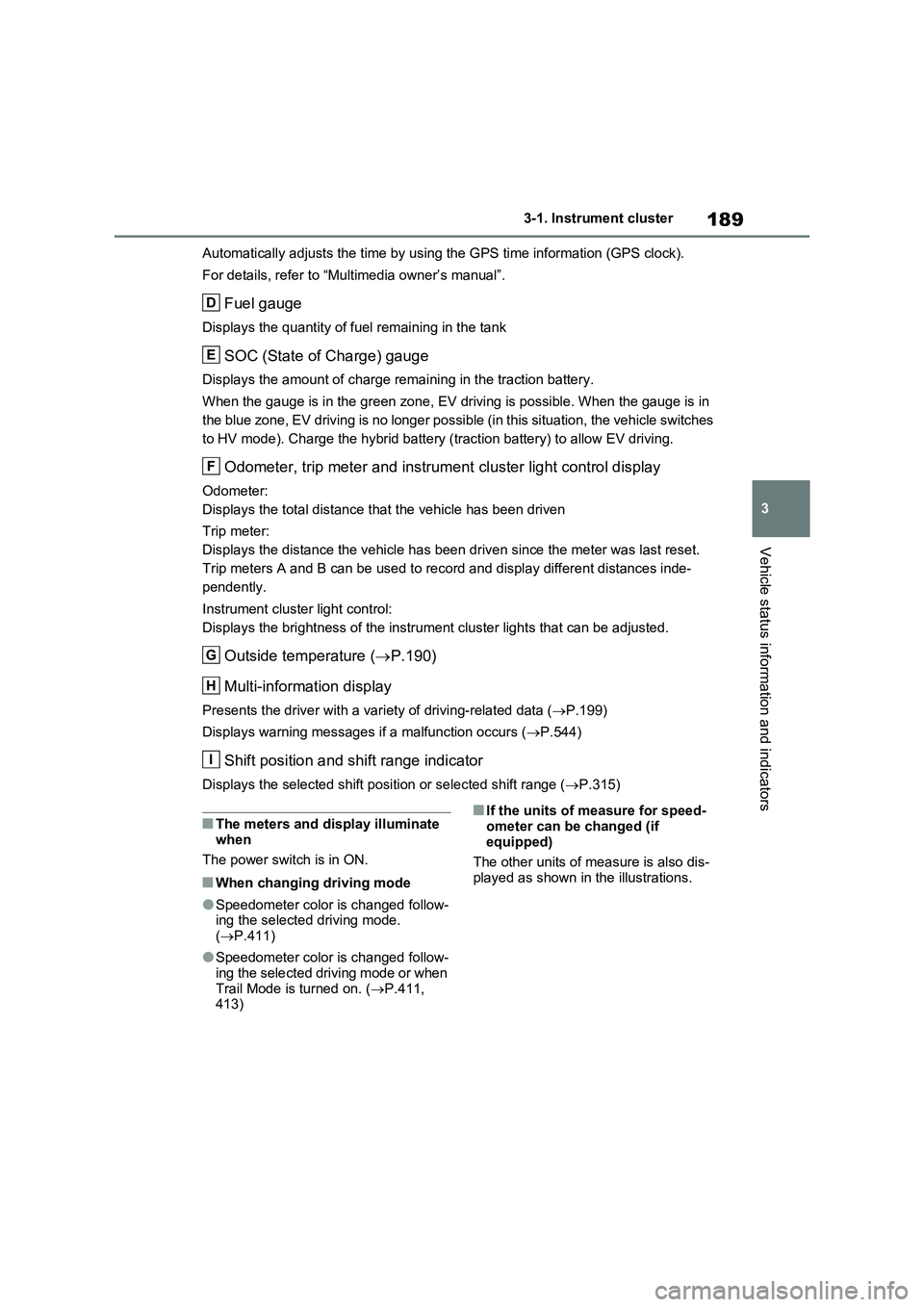
Fuel gauge
Displays the quantity of fuel remaining in the tank
SOC (State of Charge) gauge
Displays the amount of charge remaining in the traction battery.
When the gauge is in the green zone, EV driving is possible. When the gauge is in
the blue zone, EV driving is no longer possible (in this situation, the vehicle switches
to HV mode). Charge the hybrid battery (traction battery) to allow EV driving.
Odometer, trip meter and instrument cluster light control display
Odometer:
Displays the total distance that the vehicle has been driven
Trip meter:
Displays the distance the vehicle has been driven since the meter was last reset.
Trip meters A and B can be used to record and display different distances inde-
pendently.
Instrument cluster light control:
Displays the brightness of the instrument cluster lights that can be adjusted.
Outside temperature (P.190)
Multi-information display
Presents the driver with a variety of driving-related data (P.199)
Displays warning messages if a malfunction occurs (P.544)
Shift position and shift range indicator
Displays the selected shift position or selected shift range (P.315)
■The meters and display illuminate
when
The power switch is in ON.
■When changing driving mode
●Speedometer color is changed follow-
ing the selected driving mode.
(P.411)
●Speedometer color is changed follow-
ing the selected driving mode or when
Trail Mode is turned on. (P.411,
413)
■If the units of measure for speed-
ometer can be changed (if
equipped)
The other units of measure is also dis-
played as shown in the illustrations.
D
E
F
G
H
I
Page 194 of 718
1923-1. Instrument cluster
adjusted individually. However, when
the surroundings are bright (daytime,
etc.), turning on the tail lights will not
change the instrument cluster bright-
ness.
The clock can be adjusted on the
navigation/multimedia system.
Refer to “Multimedia owner’s Man-
ual”.
Adjusting the clock
Page 198 of 718
1963-1. Instrument cluster
tank is not displayed correctly.
• A small amount of fuel is added.
• Fuel is added with the fuel gauge near or at “F”.
• The vehicle is stopped on an uneven surface, such as a slope.
• The vehicle is driven on a slope or around a curve.
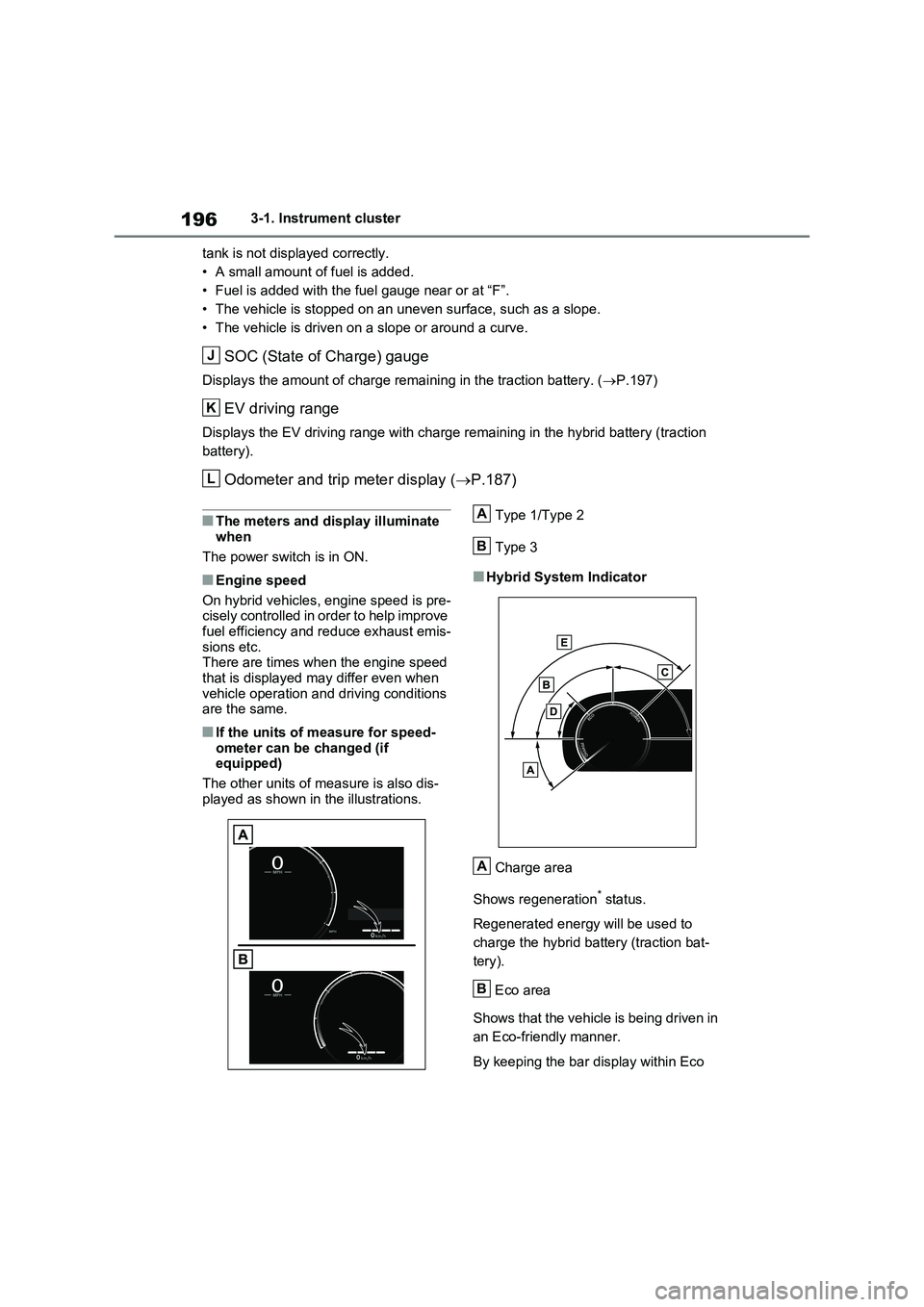
SOC (State of Charge) gauge
Displays the amount of charge remaining in the traction battery. (P.197)
EV driving range
Displays the EV driving range with charge remaining in the hybrid battery (traction
battery).
Odometer and trip meter display (P.187)
■The meters and display illuminate
when
The power switch is in ON.
■Engine speed
On hybrid vehicles, engine speed is pre-
cisely controlled in order to help improve
fuel efficiency and reduce exhaust emis-
sions etc.
There are times when the engine speed
that is displayed may differ even when
vehicle operation and driving conditions
are the same.
■If the units of measure for speed-
ometer can be changed (if
equipped)
The other units of measure is also dis-
played as shown in the illustrations.Type 1/Type 2
Type 3
■Hybrid System Indicator
Charge area
Shows regeneration
* status.
Regenerated energy will be used to
charge the hybrid battery (traction bat-
tery).
Eco area
Shows that the vehicle is being driven in
an Eco-friendly manner.
By keeping the bar display within Eco
J
K
L
A
B
A
B
Page 201 of 718
199
3
3-1. Instrument cluster
Vehicle status information and indicators
■Display items
Odometer
Displays the total distance the vehicle
has been driven.
Trip meter A/trip meter B
Displays the distance the vehicle has
been driven since the meter was last
reset. Trip meters A and B can be used
to record and display different dis-
tances independently.
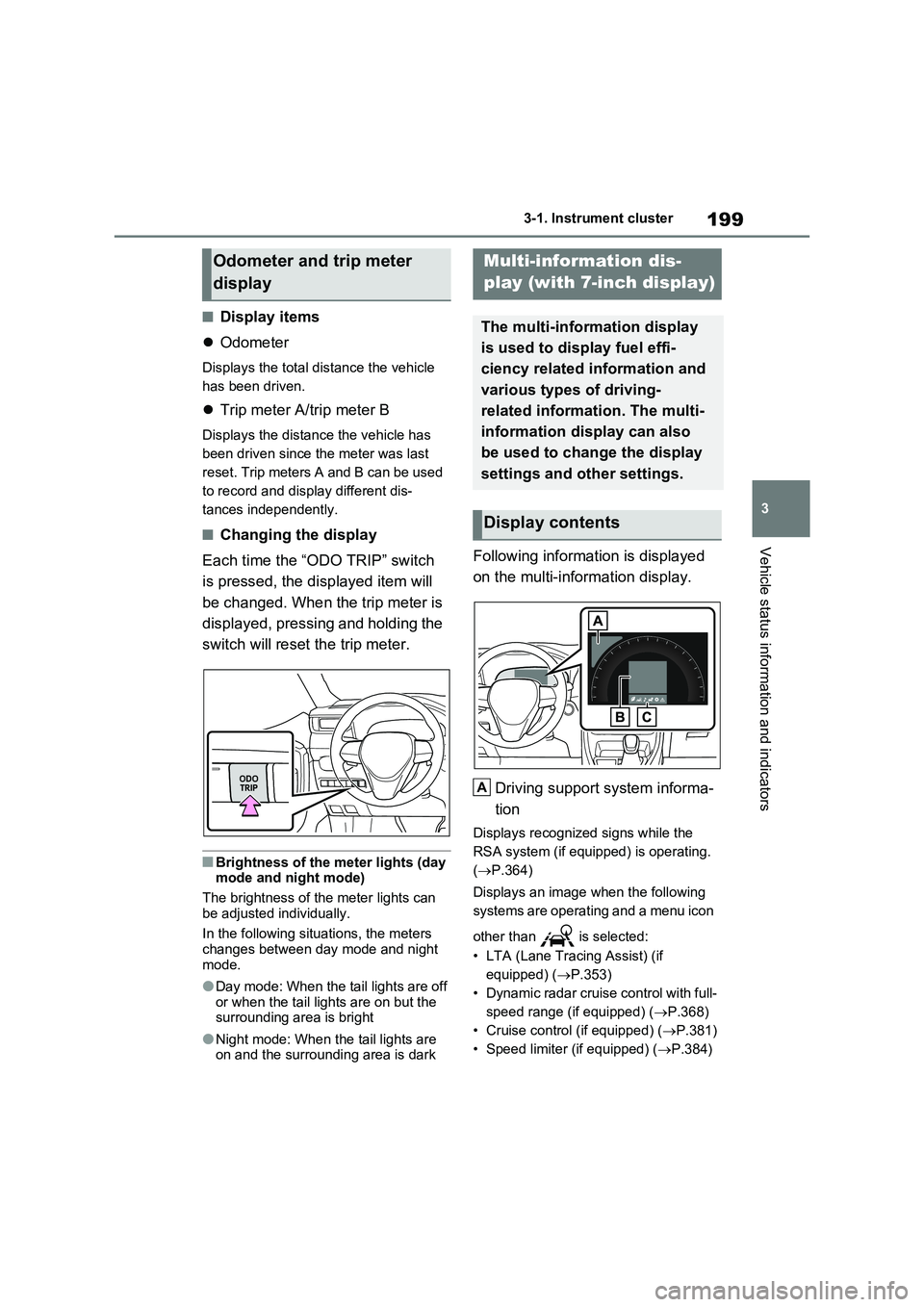
■Changing the display
Each time the “ODO TRIP” switch
is pressed, the displayed item will
be changed. When the trip meter is
displayed, pressing and holding the
switch will reset the trip meter.
■Brightness of the meter lights (day mode and night mode)
The brightness of the meter lights can
be adjusted individually.
In the following situations, the meters
changes between day mode and night mode.
●Day mode: When the tail lights are off or when the tail lights are on but the surrounding area is bright
●Night mode: When the tail lights are on and the surrounding area is dark
Following information is displayed
on the multi-information display.
Driving support system informa-
tion
Displays recognized signs while the
RSA system (if equipped) is operating.
( P.364)
Displays an image when the following
systems are operating and a menu icon
other than is selected:
• LTA (Lane Tracing Assist) (if
equipped) ( P.353)
• Dynamic radar cruise control with full-
speed range (if equipped) ( P.368)
• Cruise control (if equipped) ( P.381)
• Speed limiter (if equipped) ( P.384)
Odometer and trip meter
display
Multi-information dis-
play (with 7-inch display)
The multi-information display
is used to display fuel effi-
ciency related information and
various types of driving-
related information. The multi-
information display can also
be used to change the display
settings and other settings.
Display contents
A
Page 202 of 718
2003-1. Instrument cluster
Information display area
A variety of information can be dis-
played by selecting a menu icon.
Additionally, warning or sugges-
tion/advice pop-up displays will be dis-
played in some situations.
Menu icons ( P.200)
■The multi-information display is
displayed when
The power switch is in ON.
■When changing driving mode
●Background color of the multi-informa- tion display is changed following the selected driving mode. ( P.411)
●Background color of the multi-informa- tion display is changed following the
selected driving mode or when Trail Mode is turned on. ( P.411, 413)
■Liquid crystal display
Small spots or light spots may appear
on the display. This phenomenon is characteristic of liquid crystal displays, and there is no problem continuing to
use the display.
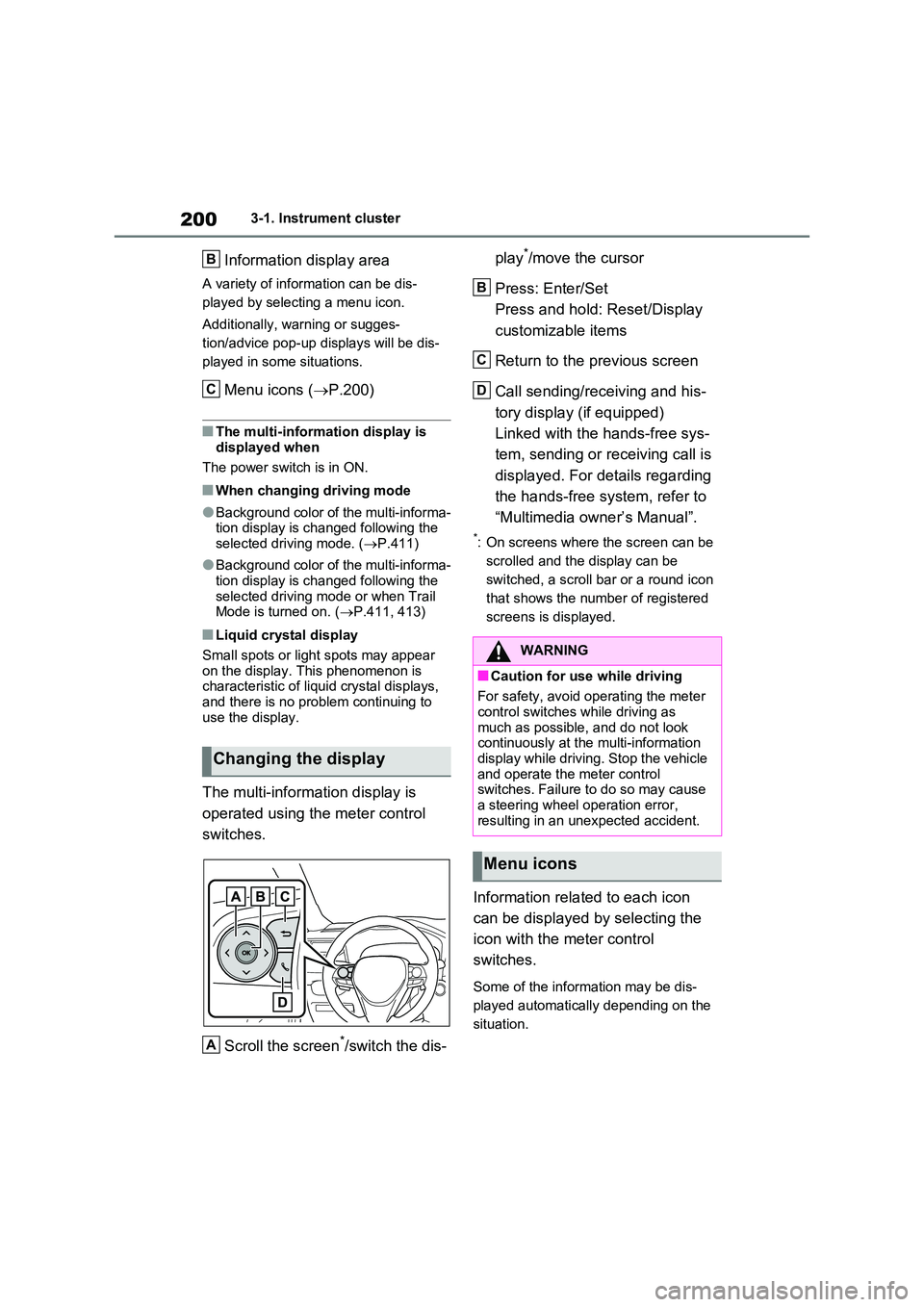
The multi-information display is
operated using the meter control
switches.
Scroll the screen*/switch the dis-
play*/move the cursor
Press: Enter/Set
Press and hold: Reset/Display
customizable items
Return to the previous screen
Call sending/receiving and his-
tory display (if equipped)
Linked with the hands-free sys-
tem, sending or receiving call is
displayed. For details regarding
the hands-free system, refer to
“Multimedia owner’s Manual”.
*: On screens where the screen can be
scrolled and the display can be
switched, a scroll bar or a round icon
that shows the number of registered
screens is displayed.
Information related to each icon
can be displayed by selecting the
icon with the meter control
switches.
Some of the information may be dis-
played automatically depending on the
situation.
Changing the display
B
C
A
WARNING
■Caution for use while driving
For safety, avoid operating the meter
control switches while driving as much as possible, and do not look continuously at the multi-information
display while driving. Stop the vehicle and operate the meter control switches. Failure to do so may cause
a steering wheel operation error, resulting in an unexpected accident.
Menu icons
B
C
D