ESP TOYOTA SUPRA 2019 User Guide
[x] Cancel search | Manufacturer: TOYOTA, Model Year: 2019, Model line: SUPRA, Model: TOYOTA SUPRA 2019Pages: 456, PDF Size: 88.65 MB
Page 44 of 456
44
Supra Owner's Manual3-1. CONTROLS
This chapter describes all standard,
country-specific and special equip-
ment available for the model series.
It may therefore describe equip-
ment and functions which are not
installed in your vehicle, for exam-
ple on account of the optional
equipment selected or the country
specification. This also applies to
safety-relevant functions and sys-
tems. Please comply with the rele-
vant laws and regulations when
using the corresponding functions
and systems.
Depending on the situation, the
vehicle is in one of the three states:
• Idle state.
• Standby state.
• Drive-ready state.
When the vehicle is in idle state, it
is switched off. All electrical con-
sumers are deactivated.
The vehicle is in idle state before
you open it from outside and once you have left the vehicle and locked
it.
Vehicle operating state
Vehicle equipment
General
Idle state
Principle
General
Safety notes
WARNING
An unsecured vehicle can start mov-
ing and rolling away. There is a dan-
ger of accidents. Before leaving the
vehicle, secure it to prevent it from
rolling away.
Observe the following to ensure that
the vehicle is secured against rolling
away:
• Apply the parking brake.
• Turn the front wheels towards the
kerb on upward or downward gradi-
ents.
• Additionally secure the vehicle on
upward or downward gradients, for
example with a chock.
WARNING
Unsupervised children or pets in the
vehicle can set the vehicle in motion
and endanger themselves or other
road users, for example by the follow-
ing actions:
• Pressing the start/stop button.
• Release the parking brake.
• Opening and closing doors or win-
dows.
• Engaging selector lever position N.
• Operating vehicle equipment.
There is a risk of accidents or injury.
Do not leave children or pets unsu-
pervised in the vehicle. When leaving
the vehicle, take the remote control
with you and lock the vehicle.
Page 45 of 456
45
3
Supra Owner's Manual3-1. CONTROLS
CONTROLS
The vehicle switches automatically
to idle state under the following
conditions:
• After a few minutes, if no opera-
tion is performed on the vehicle.
• When the battery state of charge
is low.
• When leaving the vehicle, if one
of the front doors is opened,
depending on the Toyota Supra
Command setting.
Idle state is not established auto-
matically during a telephone call.
Via Toyota Supra Command:
1"My Vehicle"
2"Vehicle setteing"
3"Doors/Key"
4"Switch off after door opening"
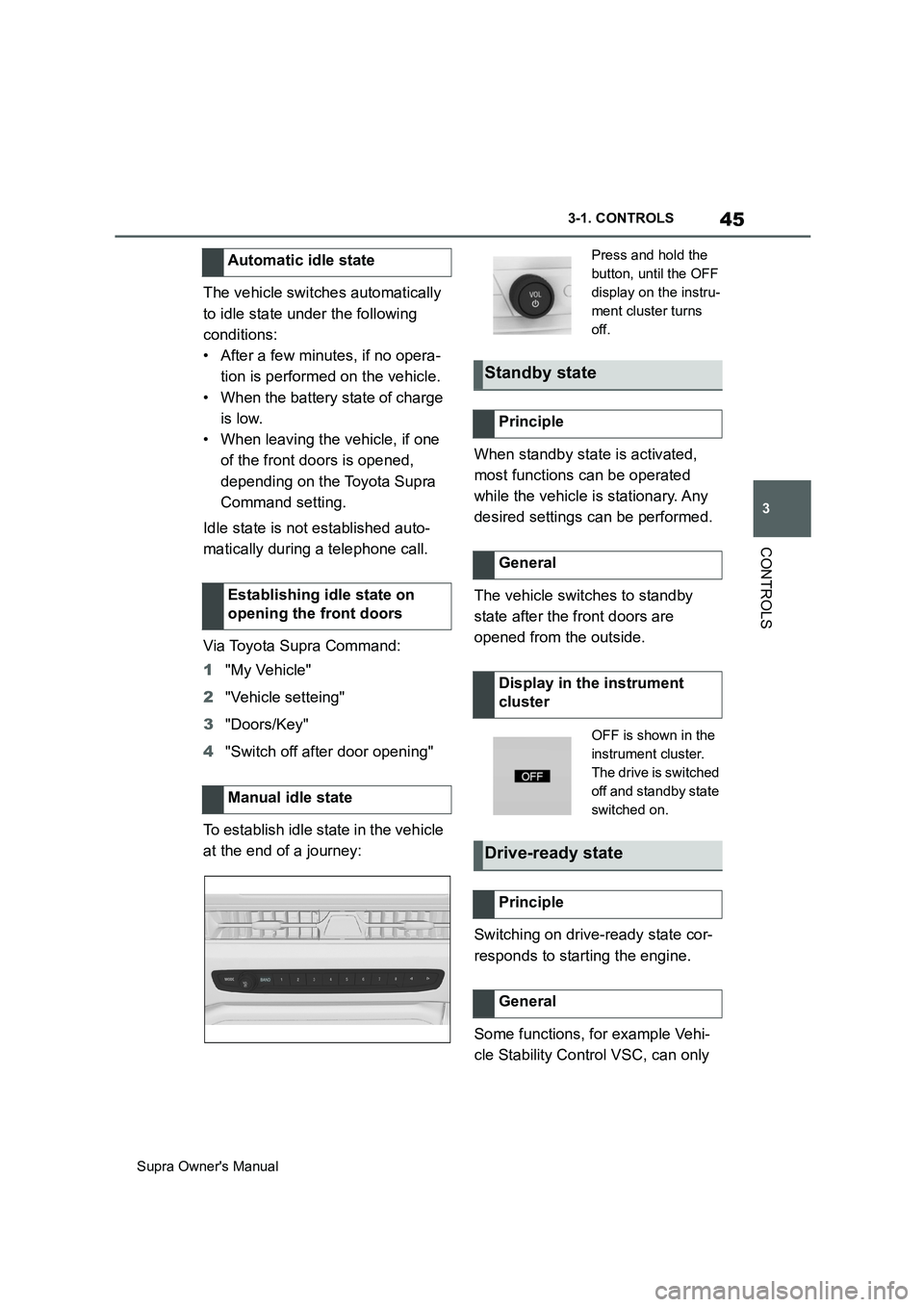
To establish idle state in the vehicle
at the end of a journey:When standby state is activated,
most functions can be operated
while the vehicle is stationary. Any
desired settings can be performed.
The vehicle switches to standby
state after the front doors are
opened from the outside.
Switching on drive-ready state cor-
responds to starting the engine.
Some functions, for example Vehi-
cle Stability Control VSC, can only Automatic idle state
Establishing idle state on
opening the front doors
Manual idle state
Press and hold the
button, until the OFF
display on the instru-
ment cluster turns
off.
Standby state
Principle
General
Display in the instrument
cluster
OFF is shown in the
instrument cluster.
The drive is switched
off and standby state
switched on.
Drive-ready state
Principle
General
Page 47 of 456
47
3
Supra Owner's Manual3-1. CONTROLS
CONTROLS
1With the vehicle at a standstill,
engage selector lever position P.
2Press the start/stop button.
The engine is switched off. The vehicle
changes to standby state.
3Apply the parking brake.This chapter describes all standard,
country-specific and special equip-
ment available for the model series.
It may therefore describe equip-
ment which is not installed in your
vehicle, for example on account of
the optional equipment selected or
the country specification. This also
applies to safety-relevant functions
and systems. Please comply with
the relevant laws and regulations
when using the corresponding func-
tions and systems.
Toyota Supra Command brings
together the functions of a number
of switches. These functions can be
operated using the Controller and,
depending on the equipment ver-
sion, the touchscreen. Switching off drive-ready
state
Automatic transmission
Toyota Supra Command
Vehicle equipment
Principle
Safety note
WARNING
Operating integrated information sys-
tems and communication devices dur-
ing a journey may distract you from
the traffic. You could lose control of
the vehicle. There is a danger of acci-
dents. Only operate the systems or
devices if permissible in the traffic sit-
uation. Stop if necessary and operate
the systems or devices with the vehi-
cle at a standstill.
Page 58 of 456
58
Supra Owner's Manual3-1. CONTROLS
This chapter describes all standard,
country-specific and special equip-
ment available for the model series.
It may therefore describe equip-
ment which is not installed in your
vehicle, for example on account of
the optional equipment selected or
the country specification. This also
applies to safety-relevant functions
and systems. Please comply with
the relevant laws and regulations
when using the corresponding func-
tions and systems.
The voice control system enables
most of the functions shown in the
Control Display to be operated by
spoken commands. The system
provides spoken announcements to
assist you with input.
• Functions that can only be used
when the vehicle is stationary
can only be operated via the
voice control system to a limited
extent.
• The system has a special micro-
phone on the driver's side.
• ›...‹ indicates commands for the
voice control system in the
Owner's Manual.• Commands, numbers and let-
ters should be spoken fluently,
with the usual emphasis and at a
normal volume and speed.
• Always say the commands in the
language of the voice control
system.
• When selecting the radio sta-
tion, use the customary pronun-
ciation of the station name as it is
displayed on the Control Display.
›[...] Station ...‹, for example,
Classic Radio station.
In order for the voice commands to
be detected, a language must be
set using Toyota Supra Command
that is supported by the voice con-
trol system.
Selecting the language, see page
61.
1 Press the button on the
steering wheel.
2Wait for the acoustic signal.
3Say the command.
It is possible that no further spoken
commands are available. In this
Voice control system
Vehicle equipment
Principle
General
Operating requirements
Saying voice commands
Activating the voice control
system
This symbol on the Control
Display shows that the voice
control system is active.
Page 61 of 456

61
3
Supra Owner's Manual3-1. CONTROLS
CONTROLS
desired volume is obtained.
• The volume setting is retained
even if you change the volume of
other audio sources.
• The volume setting is saved for
the currently used driver profile.
The voice control system should
not be used for emergency calls.
Under stress, a person's speech
and voice pitch can change. This
could unnecessarily delay connec-
tion of your call.
Instead, use the SOS button, see
page 337, located near the
rear-view mirror.
• Doors and windows should be
kept closed to avoid noise inter-
ference.
• Avoid background noise in the
vehicle while you are speaking.This chapter describes all standard,
country-specific and special equip-
ment available for the model series.
It may therefore describe equip-
ment which is not installed in your
vehicle, for example on account of
the optional equipment selected or
the country specification. This also
applies to safety-relevant functions
and systems. Please comply with
the relevant laws and regulations
when using the corresponding func-
tions and systems.
Via Toyota Supra Command:
1"My Vehicle"
2"System settings"
3If applicable, "Language"
4"Language:"
5Select the desired setting.
The setting is saved for the cur-
rently used driver profile.
Speech dialogue for the voice con-
trol system, see page 60.
Information for emergency
calls
Operating conditions
General settings
Vehicle equipment
Language
Selecting the language
Setting the speech dialogue
Page 68 of 456
68
Supra Owner's Manual3-1. CONTROLS
4"Connect new device"
5Select functions:
• "Telephone"
• "Bluetooth audio"
• "Apps"
• "Apple CarPlay"
• "Screen Mirroring"
The Bluetooth name of the vehicle is
displayed in the Control Display.
6On the mobile device, search for
Bluetooth devices in the vicinity.
The Bluetooth name of the vehicle is
shown on the display of the mobile
device.
Select the Bluetooth name of the vehi-
cle.
7Depending on the mobile
device, either a control number
is displayed, or you will have to
enter the control number your-
self.
• Compare the control number
shown on the Control Display
with the control number in the
device display.
Confirm the control number in the
device and on the Control Display.
• Enter the same control number
on the device and via Toyota
Supra Command then confirm.
The device is connected and displayed
in the device list, see page 72.
There may be instances where the
mobile device does not function as
expected, even though all precondi-
tions have been met and all the necessary steps have been carried
out in the correct order. Neverthe-
less, the mobile device does not
function as expected.
In such cases, the following expla-
nations may provide assistance:
Why could the mobile telephone
not be paired or connected?
• Too many Bluetooth devices are
paired to the mobile telephone or
the vehicle.
In the vehicle, delete Bluetooth connec-
tions with other devices.
Delete all known Bluetooth connections
from the device list on the mobile tele-
phone and start a new device search.
• The mobile telephone is in
power-save mode or the battery
is low.
Charge the mobile telephone.
Why does the mobile telephone no
longer respond?
• The applications on the mobile
telephone are no longer function-
ing.
Switch the mobile telephone off and on
again.
• Ambient temperature too high or
too low to operate the mobile
telephone.
Do not subject the mobile telephone to
extreme ambient conditions.
Why can telephone functions not
be operated via Toyota Supra Com-
mand?
• The mobile telephone may not
be configured correctly, for
example as a Bluetooth audio Frequently Asked Questions
Page 70 of 456

70
Supra Owner's Manual3-1. CONTROLS
When connecting, bear the follow-
ing in mind:
• Do not use force when inserting
the plug into the USB interface.
• Use a flexible adapter cable.
• Protect the USB device from
mechanical damage.
• Due to the large variety of USB
devices available on the market,
operation via the vehicle cannot
be ensured for every device.
• Do not expose the USB devices
to extreme environmental condi-
tions, for example very high tem-
peratures, see the operating
instructions of the device.
• Due to the large variety of differ-
ent compression techniques,
correct playback of the media
stored on the USB device cannot
be guaranteed in every case.
• To ensure correct transfer of the
stored data, do not charge a
USB device from the socket in
the vehicle when the device is
also connected to the USB inter-
face.
• Depending on how the USB
device is being used, it may be
necessary to perform settings on
the USB device, see the operat-
ing instructions of the device.
Unsuitable USB devices:
• USB hard drives.
• USB hubs.
• USB memory card reader with
several inserts.
• HFS-formatted USB devices.
• Devices such as fans or lamps.Compatible device with USB inter-
face.
Connect the USB device to a USB
interface, see page 259, using a
suitable adapter cable.
The USB device is displayed in the
device list, see page 72.
CarPlay makes it possible to oper-
ate certain functions of a compati-
ble Apple iPhone by Siri voice
operation and using Toyota Supra
Command.
• Compatible iPhone.
iPhone 5 or later with iOS 7.1 or later.
• Corresponding mobile radio con-
tract.
• Bluetooth, WLAN and Siri voice
operation are activated on the
iPhone.
• Booking of the Toyota Supra
Connect service: Apple CarPlay
preparation.
Via Toyota Supra Command:Operating requirements
Connecting a device
Apple CarPlay preparation
Principle
Operating requirements
Switching on Bluetooth and Car-
Play
Page 74 of 456
74
Supra Owner's Manual3-1. CONTROLS
This chapter describes all standard,
country-specific and special equip-
ment available for the model series.
It may therefore describe equip-
ment and functions which are not
installed in your vehicle, for exam-
ple on account of the optional
equipment selected or the country
specification. This also applies to
safety-relevant functions and sys-
tems. Please comply with the rele-
vant laws and regulations when
using the corresponding functions
and systems.
The delivery specification includes
two remote controls with integrated
keys.
Each remote control contains a
replaceable battery. Replacing the
battery, see page 77.
The button functions can be
assigned, depending on the equip-
ment and the country specifica-
tions. For settings, see page 89.
A driver profile, see page 86, with
personalised settings can be
assigned to a remote control.
To prevent the remote control from
being locked in, take it with you whenever you leave the vehicle.
Opening and closing
Vehicle equipment
Remote control
General
Safety notes
WARNING
Persons remaining in the vehicle or
pets left inside can lock the doors
from the inside and lock themselves
in. In this case, the vehicle cannot be
opened from the outside. There is a
danger of injury. Carry the remote
control with you so that you can open
the vehicle from the outside.
WARNING
With some country specifications,
unlocking from the inside is only pos-
sible with special knowledge.
There is a risk of injury or danger to
life if persons remain in the vehicle for
extended periods and are exposed to
extreme temperatures as a result. Do
not lock the vehicle from the outside
when there is someone inside it.
WARNING
Unsupervised children or pets in the
vehicle can set the vehicle in motion
and endanger themselves or other
road users, for example by the follow-
ing actions:
• Pressing the start/stop button.
• Release the parking brake.
• Opening and closing doors or win-
dows.
• Engaging selector lever position N.
• Operating vehicle equipment.
There is a risk of accidents or injury.
Do not leave children or pets unsu-
pervised in the vehicle. When leaving
the vehicle, take the remote control
with you and lock the vehicle.
Page 91 of 456
91
3
Supra Owner's Manual3-1. CONTROLS
CONTROLS
The vehicle is automatically locked
again after a short while if no door is
opened after unlocking.
• "Lock after pulling away"
On driving off, the vehicle is locked
automatically.
Via Toyota Supra Command:
1"My Vehicle"
2"Vehicle settings"
3"Doors/Key"
4"Unlock at end of journey"
After the drive-ready state has been
switched off by pressing the start/stop
button, the locked vehicle is automati-
cally unlocked.
Via Toyota Supra Command:
1"My Vehicle"
2"Vehicle settings"
3"Doors/Key"
4"Fold mirrors in when locked"
When locking, the exterior mirrors are
automatically folded in, and when
unlocking they are automatically folded
out.
Via Toyota Supra Command:
1"My Vehicle"
2"Vehicle settings"
3"Doors/Key"4"Switch off after door opening"
Idle state, see page 44, is established
when the front doors are opened.
The alarm system responds to the
following changes when the vehicle
is locked:
• A door, the bonnet or the boot lid
is opened.
• Movements in the interior.
• The vehicle's incline changes, for
instance if an attempt is made to
jack it up and steal the wheels or
to raise it prior to towing away.
• There is an interruption in the
power supply from the battery.
• Improper use of the socket for
on-board diagnosis OBD.
The alarm system indicates the fol-
lowing changes visually and audi-
bly:
• Audible alarm: Depending on
local regulations, the acoustic
alarm may be suppressed.
• Visual alarm: By flashing the
exterior lights.
The alarm system is switched on
and off at the same time as the
vehicle is unlocked and locked via
the remote control or Smart Key
System. Automatic unlocking
Folding the mirrors automati-
cally
Establishing idle state after
opening the front doors
Alarm system
General
Switching on/off
Page 92 of 456
92
Supra Owner's Manual3-1. CONTROLS
The alarm system is triggered on
opening a door if the door has been
unlocked using the integrated key
in the door lock.
Stopping the alarm, see page 93.
The boot lid can be opened even
with the alarm system switched on.
On closing the boot lid, it is locked
again and monitored, as long as the
doors are locked. The hazard warn-
ing lights flash once.
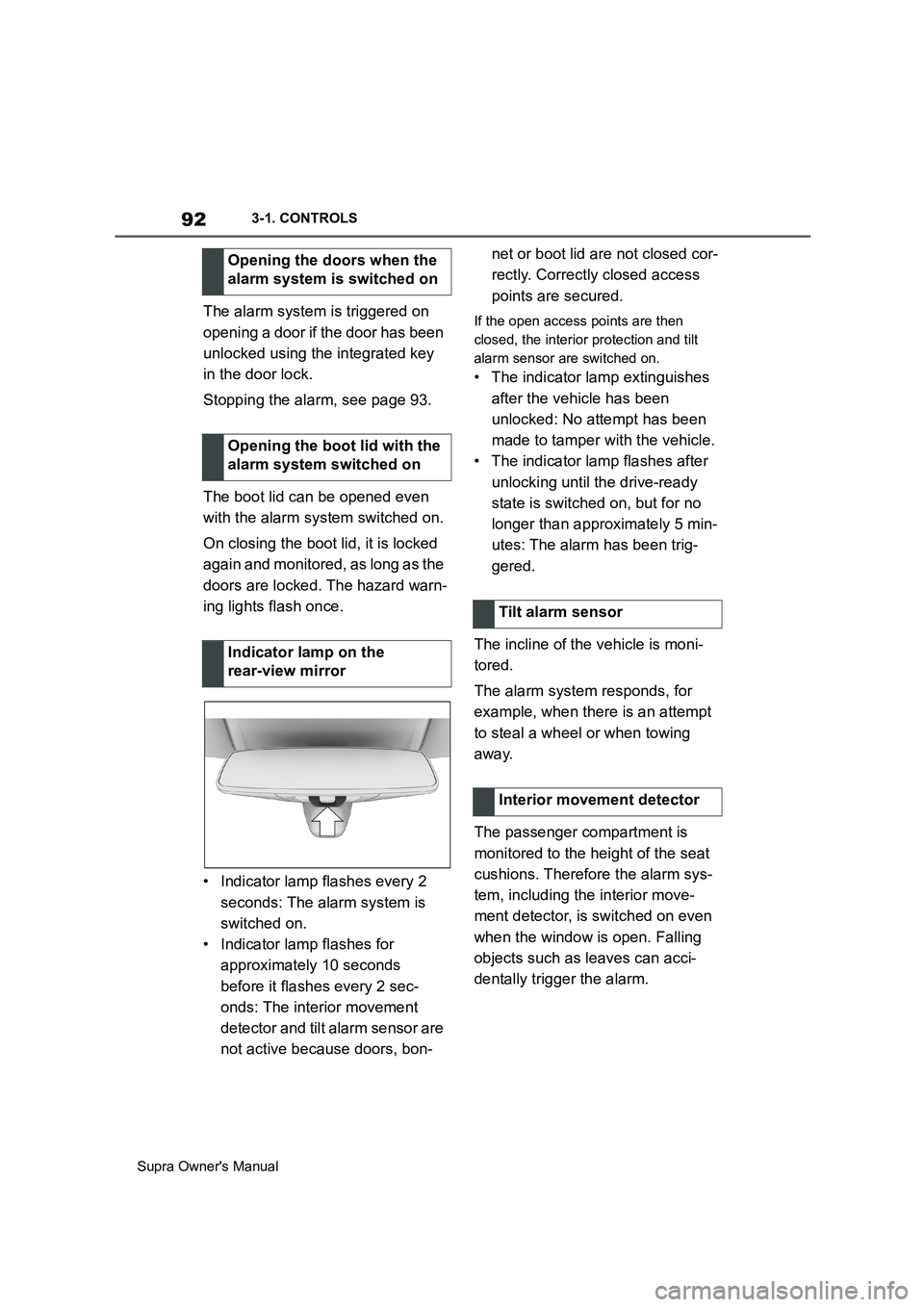
• Indicator lamp flashes every 2
seconds: The alarm system is
switched on.
• Indicator lamp flashes for
approximately 10 seconds
before it flashes every 2 sec-
onds: The interior movement
detector and tilt alarm sensor are
not active because doors, bon-net or boot lid are not closed cor-
rectly. Correctly closed access
points are secured.If the open access points are then
closed, the interior protection and tilt
alarm sensor are switched on.
• The indicator lamp extinguishes
after the vehicle has been
unlocked: No attempt has been
made to tamper with the vehicle.
• The indicator lamp flashes after
unlocking until the drive-ready
state is switched on, but for no
longer than approximately 5 min-
utes: The alarm has been trig-
gered.
The incline of the vehicle is moni-
tored.
The alarm system responds, for
example, when there is an attempt
to steal a wheel or when towing
away.
The passenger compartment is
monitored to the height of the seat
cushions. Therefore the alarm sys-
tem, including the interior move-
ment detector, is switched on even
when the window is open. Falling
objects such as leaves can acci-
dentally trigger the alarm. Opening the doors when the
alarm system is switched on
Opening the boot lid with the
alarm system switched on
Indicator lamp on the
rear-view mirror
Tilt alarm sensor
Interior movement detector