display TOYOTA SUPRA 2022 Owners Manual
[x] Cancel search | Manufacturer: TOYOTA, Model Year: 2022, Model line: SUPRA, Model: TOYOTA SUPRA 2022Pages: 498, PDF Size: 104.06 MB
Page 245 of 498
243
3
3-1. CONTROLS
CONTROLS
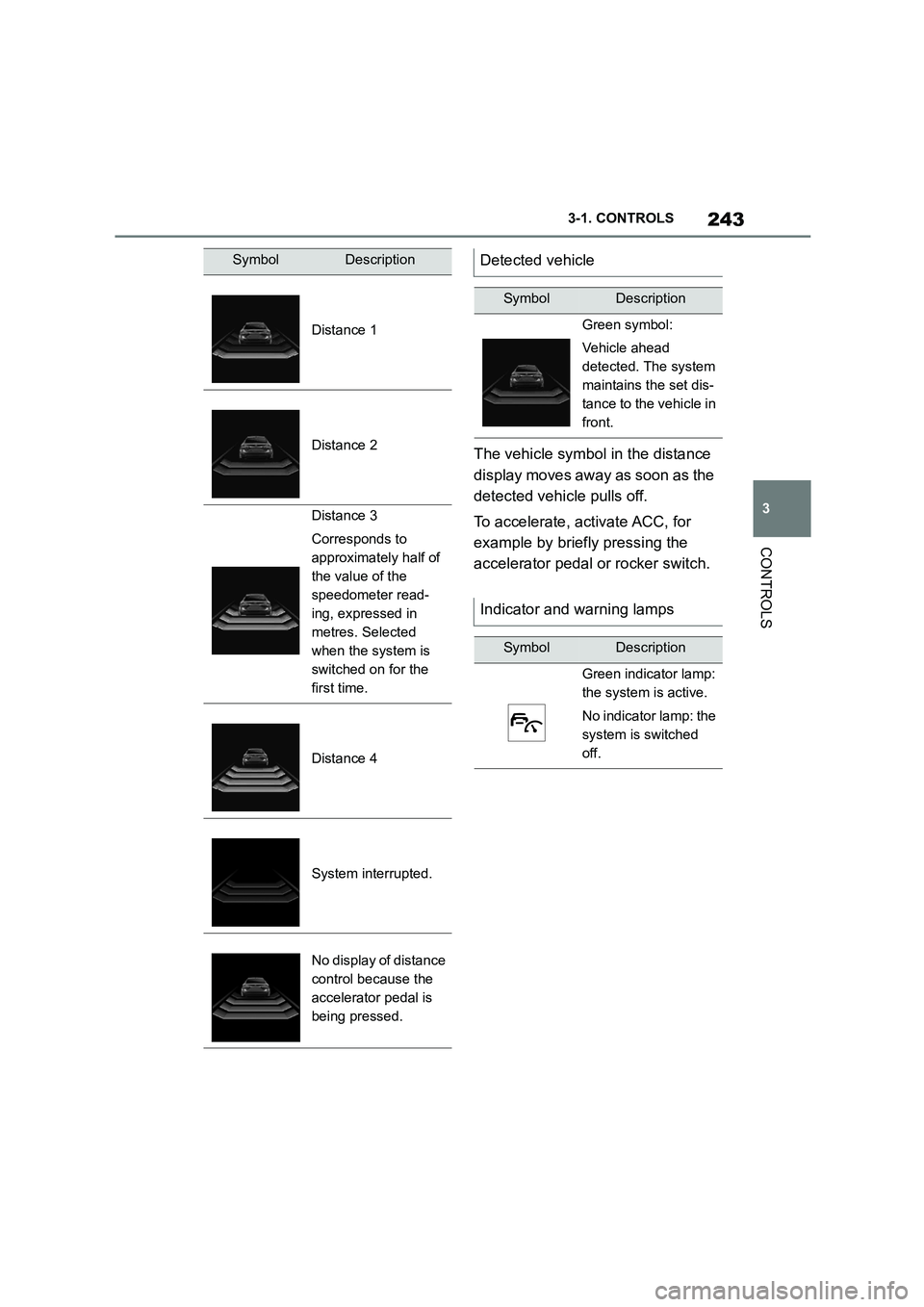
The vehicle symbol in the distance
display moves away as soon as the
detected vehicle pulls off.
To accelerate, activate ACC, for
example by briefly pressing the
accelerator pedal or rocker switch.
SymbolDescription
Distance 1
Distance 2
Distance 3
Corresponds to
approximately half of
the value of the
speedometer read-
ing, expressed in
metres. Selected
when the system is
switched on for the
first time.
Distance 4
System interrupted.
No display of distance
control because the
accelerator pedal is
being pressed.
Detected vehicle
SymbolDescription
Green symbol:
Vehicle ahead
detected. The system
maintains the set dis-
tance to the vehicle in
front.
Indicator and warning lamps
SymbolDescription
Green indicator lamp:
the system is active.
No indicator lamp: the
system is switched
off.
Page 246 of 498
2443-1. CONTROLS
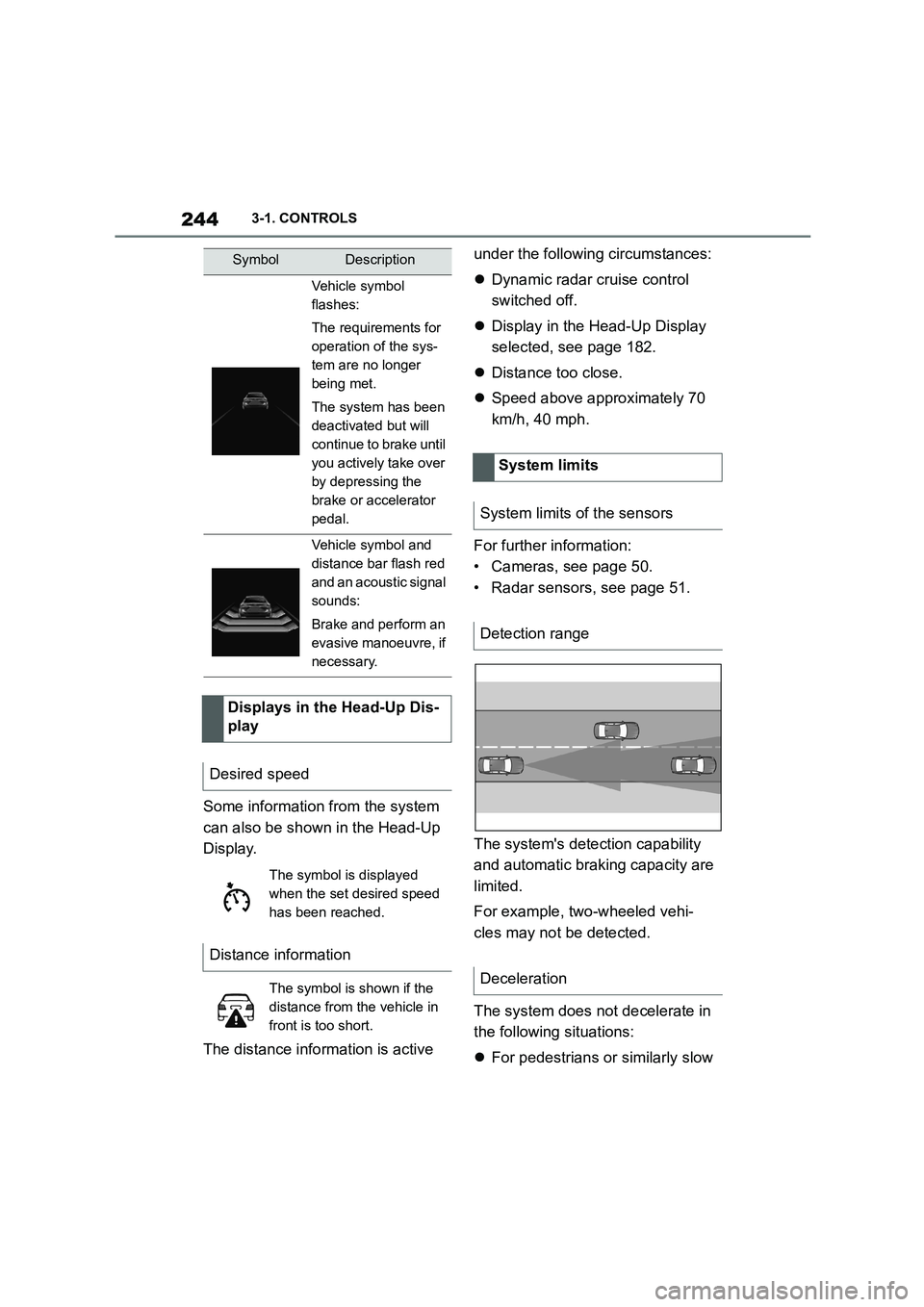
Some information from the system
can also be shown in the Head-Up
Display.
The distance information is active
under the following circumstances:
Dynamic radar cruise control
switched off.
Display in the Head-Up Display
selected, see page 182.
Distance too close.
Speed above approximately 70
km/h, 40 mph.
For further information:
• Cameras, see page 50.
• Radar sensors, see page 51.
The system's detection capability
and automatic braking capacity are
limited.
For example, two-wheeled vehi-
cles may not be detected.
The system does not decelerate in
the following situations:
For pedestrians or similarly slow
Vehicle symbol
flashes:
The requirements for
operation of the sys-
tem are no longer
being met.
The system has been
deactivated but will
continue to brake until
you actively take over
by depressing the
brake or accelerator
pedal.
Vehicle symbol and
distance bar flash red
and an acoustic signal
sounds:
Brake and perform an
evasive manoeuvre, if
necessary.
Displays in the Head-Up Dis-
play
Desired speed
The symbol is displayed
when the set desired speed
has been reached.
Distance information
The symbol is shown if the
distance from the vehicle in
front is too short.
SymbolDescription
System limits
System limits of the sensors
Detection range
Deceleration
Page 249 of 498
247
3
3-1. CONTROLS
CONTROLS
Via Toyota Supra Command:
1 "My vehicle"
2 "Vehicle settings"
3 "Speed Assistant"
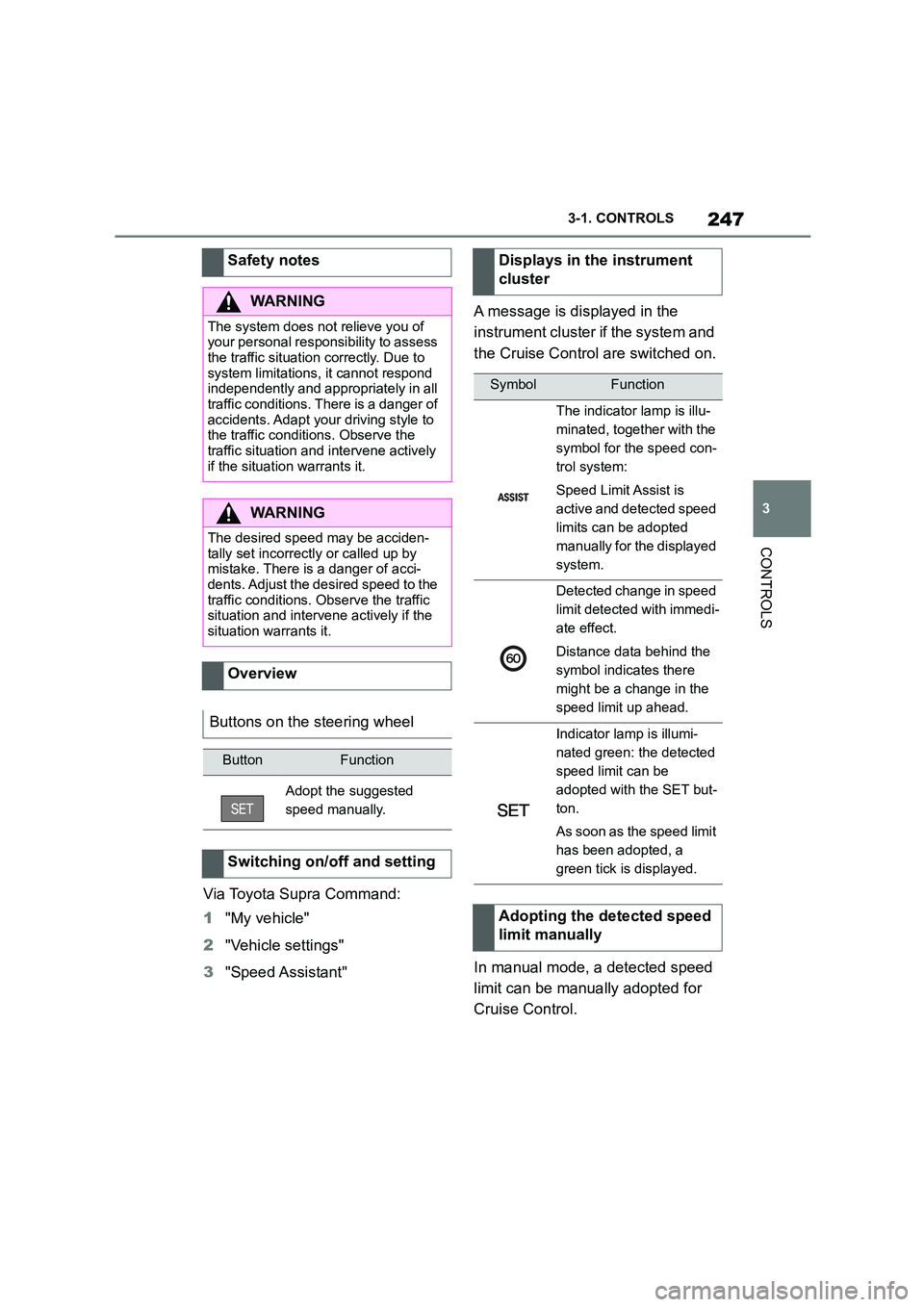
A message is displayed in the
instrument cluster if the system and
the Cruise Control are switched on.
In manual mode, a detected speed
limit can be manually adopted for
Cruise Control.
Safety notes
WA R N I N G
The system does not relieve you of
your personal responsibility to assess the traffic situation correctly. Due to
system limitations, it cannot respond
independently and appropriately in all traffic conditions. There is a danger of
accidents. Adapt your driving style to
the traffic conditions. Observe the
traffic situation and intervene actively if the situation warrants it.
WA R N I N G
The desired speed may be acciden-tally set incorrectly or called up by
mistake. There is a danger of acci-
dents. Adjust the desired speed to the traffic conditions. Observe the traffic
situation and intervene actively if the
situation warrants it.
Overview
Buttons on the steering wheel
ButtonFunction
Adopt the suggested
speed manually.
Switching on/off and setting
Displays in the instrument
cluster
SymbolFunction
The indicator lamp is illu-
minated, together with the
symbol for the speed con-
trol system:
Speed Limit Assist is
active and detected speed
limits can be adopted
manually for the displayed
system.
Detected change in speed
limit detected with immedi-
ate effect.
Distance data behind the
symbol indicates there
might be a change in the
speed limit up ahead.
Indicator lamp is illumi-
nated green: the detected
speed limit can be
adopted with the SET but-
ton.
As soon as the speed limit
has been adopted, a
green tick is displayed.
Adopting the detected speed
limit manually
Page 250 of 498
2483-1. CONTROLS
It is possible to set whether the
speed limit should be accepted
exactly, or with a tolerance of –15
km/h, –10 mph to +15 km/h, +10
mph.
Via Toyota Supra Command:
1 "My vehicle"
2 "Vehicle settings"
3 "Speed Assistant"
4 "Adjust speed limits"
5 Confirm the desired setting.
Speed Limit Assist based on the
Speed Limit Info system.
Take into account the Speed Limit
Info system limits, see page 176.
Depending on the country, dis-
played speed limits may not be
available for acceptance, or only
available with restrictions, for
example with speed information
from the navigation system.
Cruise Control without distance
control: depending on the system, it
may not be possible to adopt speed
limits automatically.
Speed limits that are ahead may
only be adopted for Dynamic radar
cruise control.
The system may not respond to
speed limits if the navigation sys-
tem cannot determine the position
of the vehicle with certainty.
Parking Sensor provides assis-
tance when parking the vehicle.
Objects in front of or behind the
vehicle as it slowly approaches are
indicated by means of acoustic sig-
nals and a display on the Control
Display.
Depending on the equipment ver-
sion: obstacles at the side of the
vehicle that are detected by the
side ultrasonic sensors may also be
reported by the flank protection,
see page 252, function.
The ultrasonic sensors for measur-
ing distances are located in the
bumpers, and if applicable on the
side of the vehicle.
Their range is approximately 2 m, 6
ft, depending on the obstacle and
environment.
An acoustic warning is given when
the vehicle is approx. 70 cm, 27 in
away from an obje ct and a collision
is imminent.
For objects behind the vehicle, the
acoustic warning is given sooner, at
When the SET symbol illumi-
nates in white, press the but-
ton.
Setting the speed adjustment
System limits
Parking Sensors
Principle
General
Page 253 of 498
251
3
3-1. CONTROLS
CONTROLS
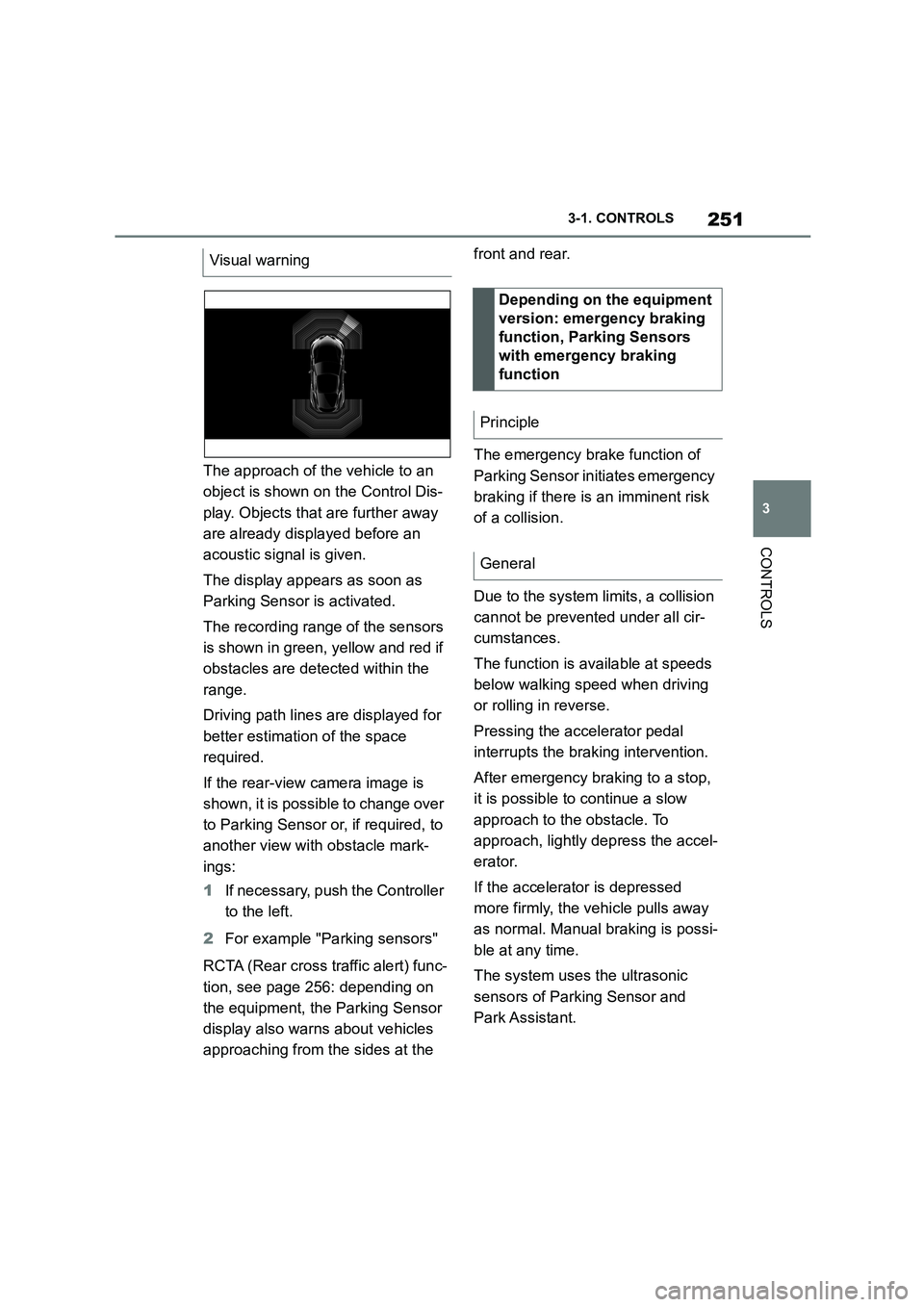
The approach of the vehicle to an
object is shown on the Control Dis-
play. Objects that are further away
are already displayed before an
acoustic signal is given.
The display appears as soon as
Parking Sensor is activated.
The recording range of the sensors
is shown in green, yellow and red if
obstacles are detected within the
range.
Driving path lines are displayed for
better estimation of the space
required.
If the rear-view camera image is
shown, it is possible to change over
to Parking Sensor or, if required, to
another view with obstacle mark-
ings:
1 If necessary, push the Controller
to the left.
2 For example "Parking sensors"
RCTA (Rear cross traffic alert) func-
tion, see page 256: depending on
the equipment, the Parking Sensor
display also warn s about vehicles
approaching from the sides at the
front and rear.
The emergency brake function of
Parking Sensor in itiates emergency
braking if there is an imminent risk
of a collision.
Due to the system limits, a collision
cannot be prevented under all cir-
cumstances.
The function is available at speeds
below walking speed when driving
or rolling in reverse.
Pressing the accelerator pedal
interrupts the braking intervention.
After emergency braking to a stop,
it is possible to continue a slow
approach to the obstacle. To
approach, lightly depress the accel-
erator.
If the accelerator is depressed
more firmly, the vehicle pulls away
as normal. Manual braking is possi-
ble at any time.
The system uses the ultrasonic
sensors of Parking Sensor and
Park Assistant.
Visual warning
Depending on the equipment
version: emergency braking
function, Parking Sensors
with emergency braking
function
Principle
General
Page 254 of 498
2523-1. CONTROLS
Via Toyota Supra Command:
1 "My vehicle"
2 "Vehicle settings"
3 "Parking"
4 "Active PDC emergency inter-
vention"
5 "Active PDC emergency interv."
The system warns about obstacles
at the side of the vehicle.
The system uses the ultrasonic
sensors of Parking Sensor and
Park Assistant.
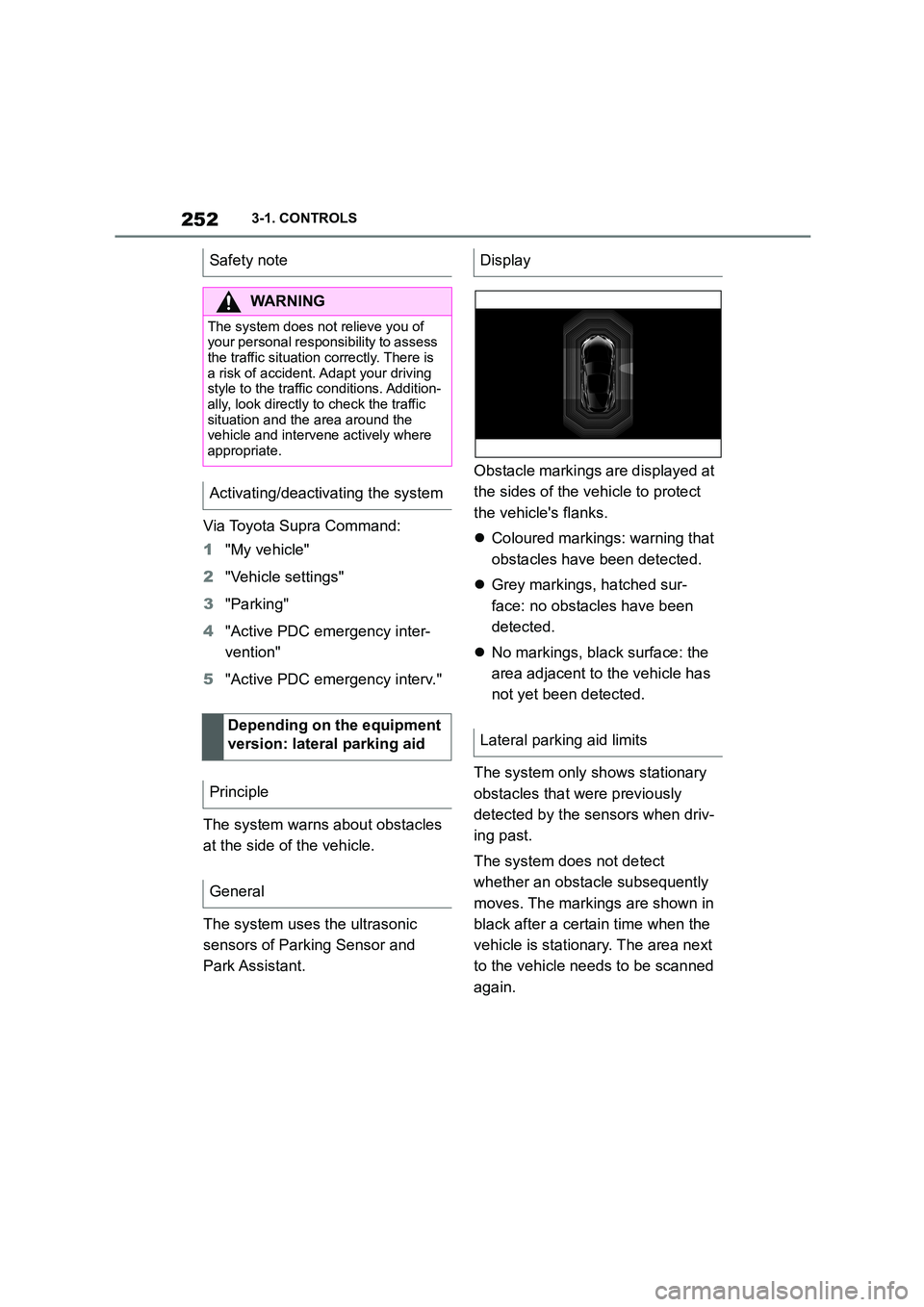
Obstacle markings are displayed at
the sides of the vehicle to protect
the vehicle's flanks.
Coloured markings: warning that
obstacles have been detected.
Grey markings, hatched sur-
face: no obstacles have been
detected.
No markings, black surface: the
area adjacent to the vehicle has
not yet been detected.
The system only shows stationary
obstacles that were previously
detected by the sensors when driv-
ing past.
The system does not detect
whether an obstacle subsequently
moves. The markings are shown in
black after a certain time when the
vehicle is stationary. The area next
to the vehicle needs to be scanned
again.
Safety note
WA R N I N G
The system does not relieve you of
your personal responsibility to assess the traffic situation correctly. There is
a risk of accident. Adapt your driving
style to the traffic conditions. Addition- ally, look directly to check the traffic
situation and the area around the
vehicle and intervene actively where
appropriate.
Activating/deactivating the system
Depending on the equipment
version: lateral parking aid
Principle
General
Display
Lateral parking aid limits
Page 255 of 498
253
3
3-1. CONTROLS
CONTROLS
For further information:
• Ultrasonic sensors, see page 52.
Certain conditions and objects may
push ultrasound measurement to
its limits, including the following:
Obstacles and people at the
edge of the lane.
Low objects already indicated,
for example kerbs, may enter the
sensors' blind areas before or
after a continuous tone is given.
If the system is approaching its lim-
its, falsealarms may occur.
To reduce false alarms, for example
in automatic car washes, switch off,
see page 50, automatic activation
of Parking Sensor when obstacles
are detected if necessary.
A vehicle message is shown.
Parking Sensor has failed. Have
the system checked by any author-
ized Toyota retailer or Toyota
authorized repairer, or any reliable
repairer.
The rear-view camera provides
assistance when reverse parking or
manoeuvring. It does this by show-
ing an image of the area behind the
vehicle on the Control Display.
Assistance functions, for example
auxiliary lines, ca n also be shown
on the display.
System limits
Safety note
WA R N I N G
The system may not re spond at all, or may respond too late, incorrectly or
without justification due to limits of the
system. There is a risk of accident.
Adapt your driving style to the traffic conditions. Additionally, look directly
to check the traffic situation and the
area around the vehicle and intervene actively where appropriate.
System limits of the sensors
Limits of ultrasound measurement
False alarms
Malfunction
A white symbol is shown and
the capture area of the sen-
sors is shown in dark colour
on the Control Display.
Rear-view camera
Principle
Safety note
WA R N I N G
The system does not relieve you of your personal responsibility to assess
the traffic situation correctly. There is
a danger of accidents. Adapt your driving style to the traffic conditions.
Additionally, look directly to check the
traffic situation and the area around the vehicle and intervene actively in
the corresponding situations.
Page 256 of 498
2543-1. CONTROLS
The system is controlled using the
following sensors:
• Rear-view camera.
For further information:
Sensors of the vehicle, see page
50.
The system is automatically
switched on if selector lever posi-
tion R is engaged while the engine
is running.
The system switches off when a
certain distance or speed is
exceeded.
Switch the system back on if neces-
sary.
On: the LED is illuminated.
Off: the LED is extinguished.
The parking assistance functions
are shown on the Control Display.
If the rear-view camera view is not
displayed, change the view via
Toyota Supra Command:
1 If necessary, tilt the Controller to
the side.
2 "Rear view camera"
The image from the rear-view cam-
era is shown.
The rear-view camera is
switched on.
Keep the detection area of the
camera clear. Projecting loads or
carrier systems that are not con-
nected to a trailer socket can
restrict the detection area of the
camera.
Overview
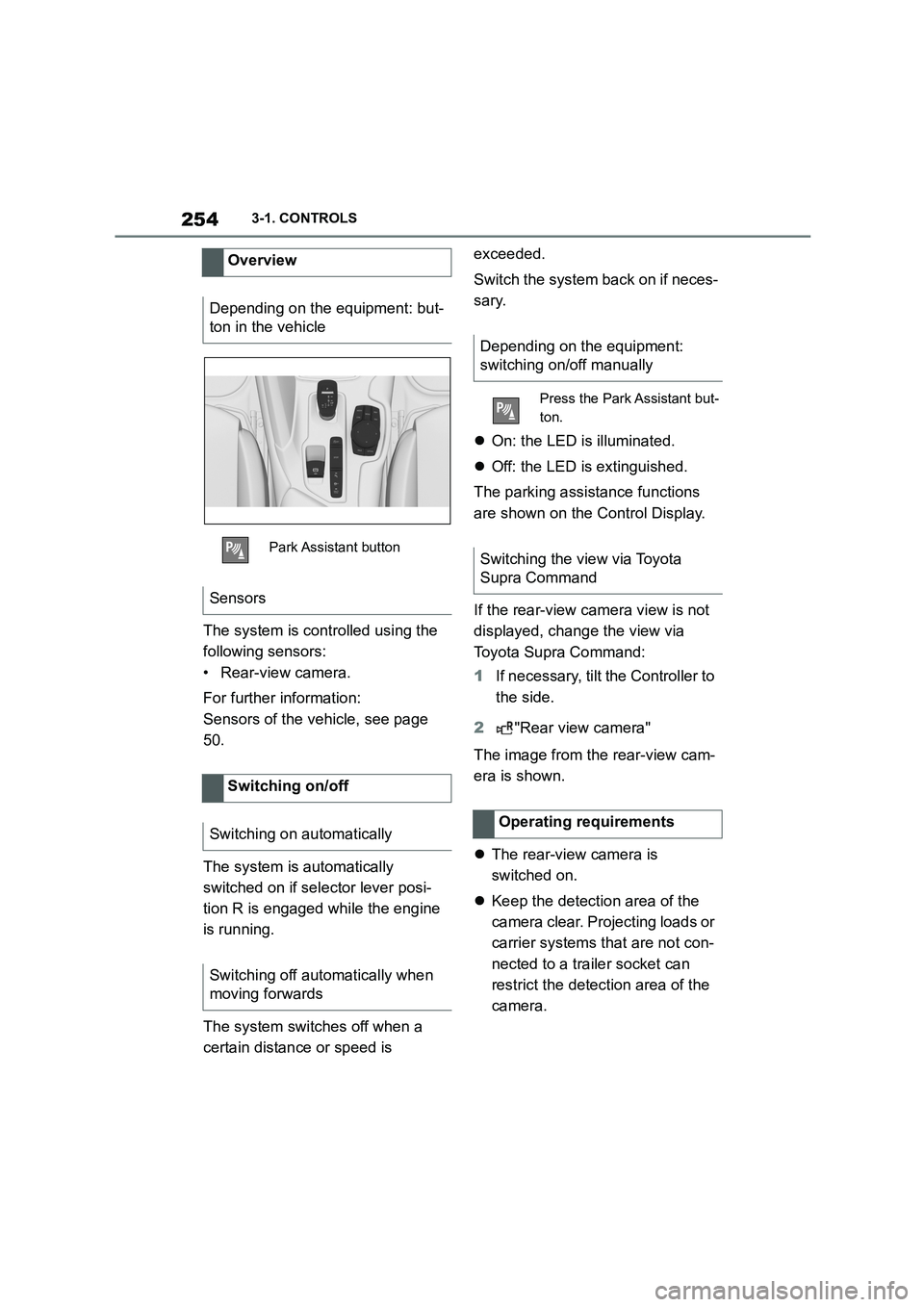
Depending on the equipment: but-
ton in the vehicle
Park Assistant button
Sensors
Switching on/off
Switching on automatically
Switching off automatically when
moving forwards
Depending on the equipment:
switching on/off manually
Press the Park Assistant but-
ton.
Switching the view via Toyota
Supra Command
Operating requirements
Page 257 of 498
255
3
3-1. CONTROLS
CONTROLS
A number of assistance functions
can be active simultaneously.
The assistance functions can be
activated manually.
1 If necessary, tilt the Controller to
the left.
2 With the corresponding equip-
ment: "Camera picture"
3
"Parking guide lines".
Driving path lines and turning circle
lines are shown, see page 255.
"Obstacle marking."
Depending on the equipment, the
obstacles detected by Parking Sensors
are displayed, see page 256, by mark-
ings.
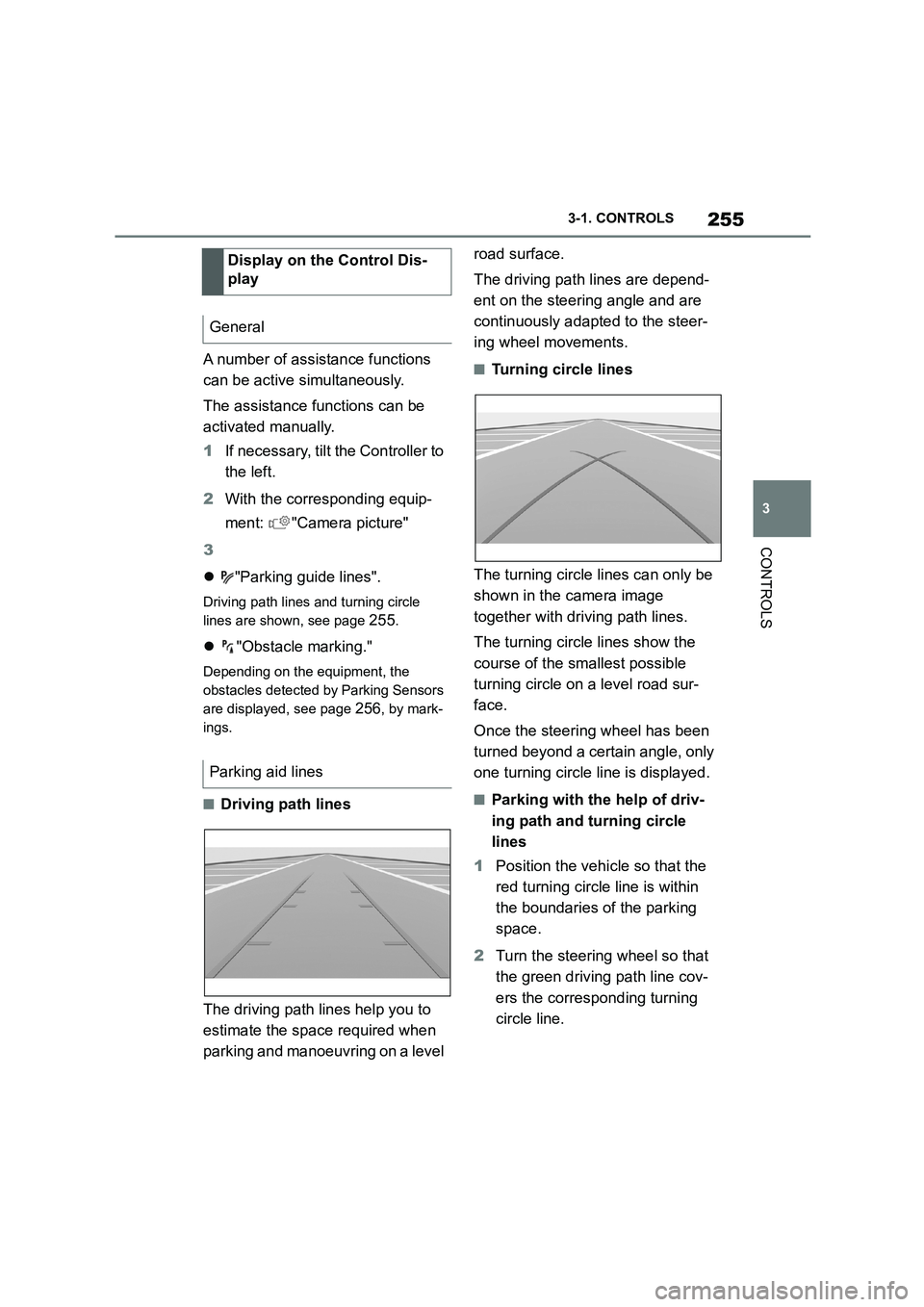
■Driving path lines
The driving path lines help you to
estimate the space required when
parking and manoeuvring on a level
road surface.
The driving path lines are depend-
ent on the steering angle and are
continuously adapted to the steer-
ing wheel movements.
■Turning circle lines
The turning circle lines can only be
shown in the camera image
together with driving path lines.
The turning circle lines show the
course of the smallest possible
turning circle on a level road sur-
face.
Once the steering wheel has been
turned beyond a certain angle, only
one turning circle line is displayed.
■Parking with the help of driv-
ing path and tu rning circle
lines
1 Position the vehicle so that the
red turning circle line is within
the boundaries of the parking
space.
2 Turn the steering wheel so that
the green driving path line cov-
ers the corresponding turning
circle line.
Display on the Control Dis-
play
General
Parking aid lines
Page 258 of 498
2563-1. CONTROLS
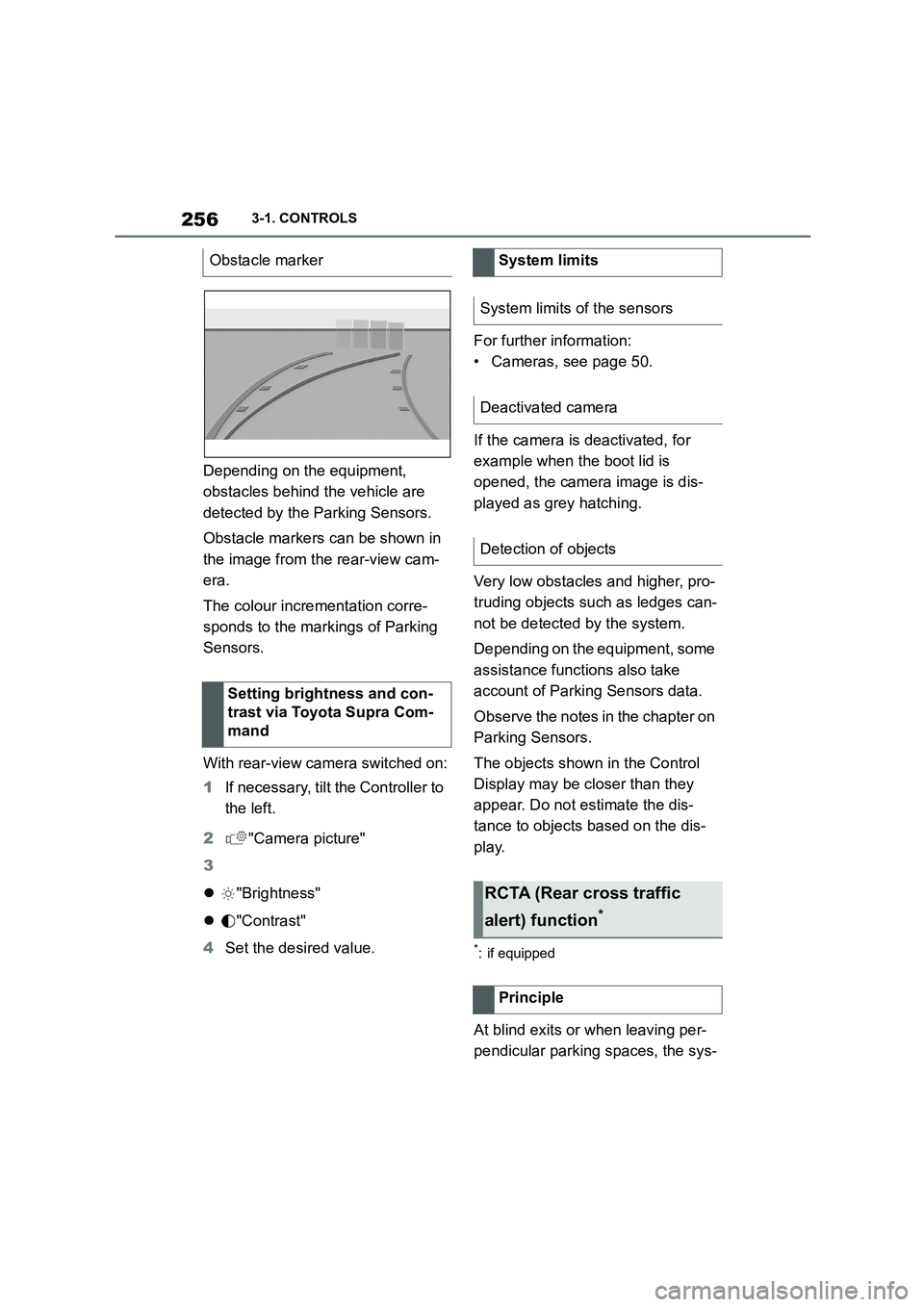
Depending on the equipment,
obstacles behind the vehicle are
detected by the Parking Sensors.
Obstacle markers can be shown in
the image from the rear-view cam-
era.
The colour incrementation corre-
sponds to the markings of Parking
Sensors.
With rear-view camera switched on:
1 If necessary, tilt the Controller to
the left.
2 "Camera picture"
3
"Brightness"
"Contrast"
4 Set the desired value.
For further information:
• Cameras, see page 50.
If the camera is deactivated, for
example when the boot lid is
opened, the camera image is dis-
played as grey hatching.
Very low obstacles and higher, pro-
truding objects such as ledges can-
not be detected by the system.
Depending on the equipment, some
assistance functions also take
account of Parking Sensors data.
Observe the notes in the chapter on
Parking Sensors.
The objects shown in the Control
Display may be closer than they
appear. Do not estimate the dis-
tance to objects based on the dis-
play.
*: if equipped
At blind exits or when leaving per-
pendicular parking spaces, the sys-
Obstacle marker
Setting brightness and con-
trast via Toyota Supra Com-
mand
System limits
System limits of the sensors
Deactivated camera
Detection of objects
RCTA (Rear cross traffic
alert) function*
Principle